Amp BMW 750LI 2008 E66 Workshop Manual
[x] Cancel search | Manufacturer: BMW, Model Year: 2008, Model line: 750LI, Model: BMW 750LI 2008 E66Pages: 254, PDF Size: 7.98 MB
Page 103 of 254
Controls
101Reference
At a glance
Driving tips
Communications
Navigation
Entertainment
Mobility
from the headlamp follows the course of the
road.
Activating Adaptive Head Light
In switch position3, the Adaptive Head Light is
activated and Automatic headlamp control is
switched on.
In order not to blind oncoming traffic, the Adap-
tive Head Light is not active when driving in
reverse and only points toward the passenger
side when the vehicle is stationary.
Malfunction
The LED above the symbol for automatic head-
lamp control flashes. Adaptive Head Light is
malfunctioning or has failed. Have the system
checked as soon as possible.
High beams/
roadside parking lamps
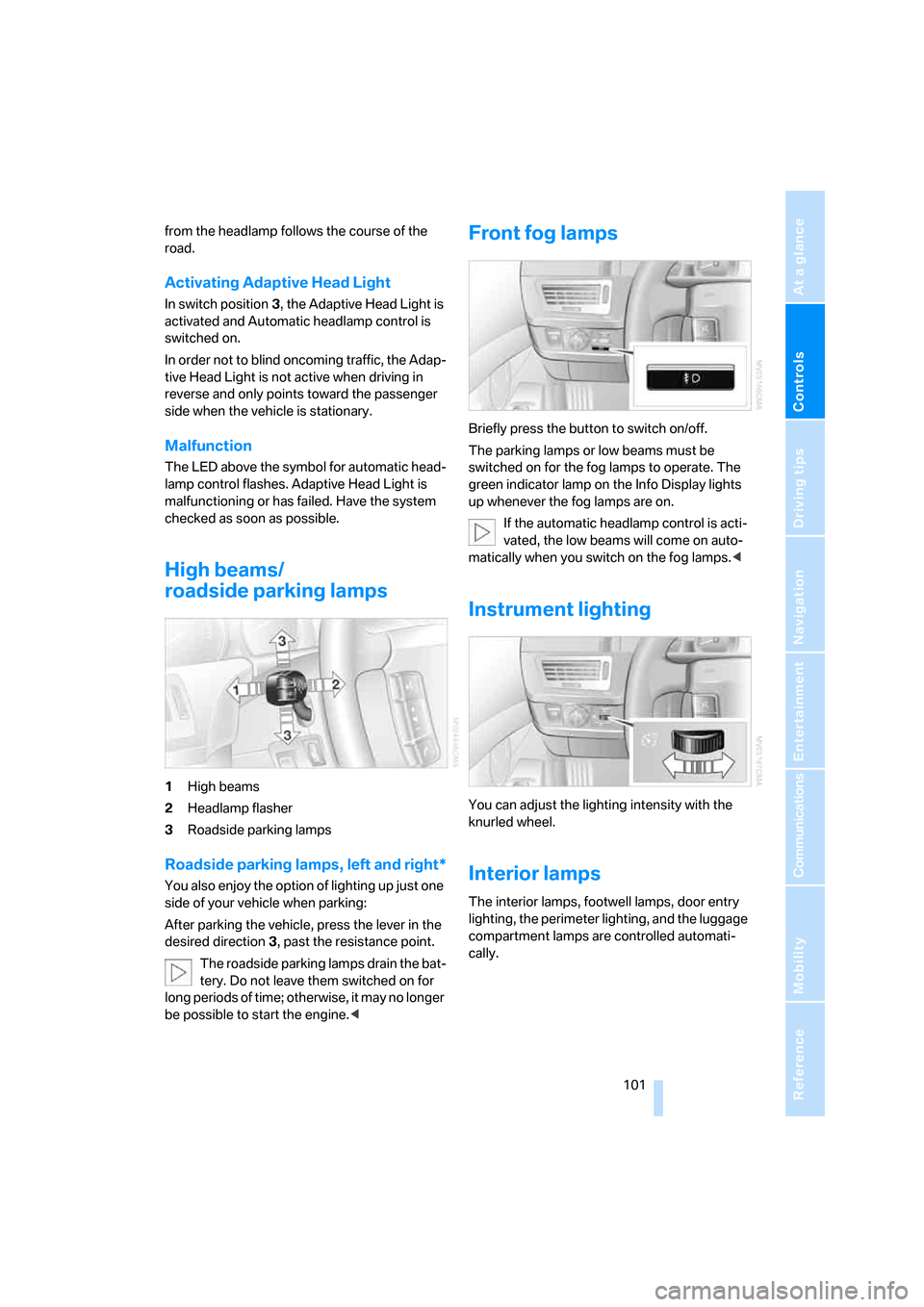
1High beams
2Headlamp flasher
3Roadside parking lamps
Roadside parking lamps, left and right*
You also enjoy the option of lighting up just one
side of your vehicle when parking:
After parking the vehicle, press the lever in the
desired direction3, past the resistance point.
The roadside parking lamps drain the bat-
tery. Do not leave them switched on for
long periods of time; otherwise, it may no longer
be possible to start the engine.<
Front fog lamps
Briefly press the button to switch on/off.
The parking lamps or low beams must be
switched on for the fog lamps to operate. The
green indicator lamp on the Info Display lights
up whenever the fog lamps are on.
If the automatic headlamp control is acti-
vated, the low beams will come on auto-
matically when you switch on the fog lamps.<
Instrument lighting
You can adjust the lighting intensity with the
knurled wheel.
Interior lamps
The interior lamps, footwell lamps, door entry
lighting, the perimeter lighting, and the luggage
compartment lamps are controlled automati-
cally.
Page 104 of 254
Lamps
102
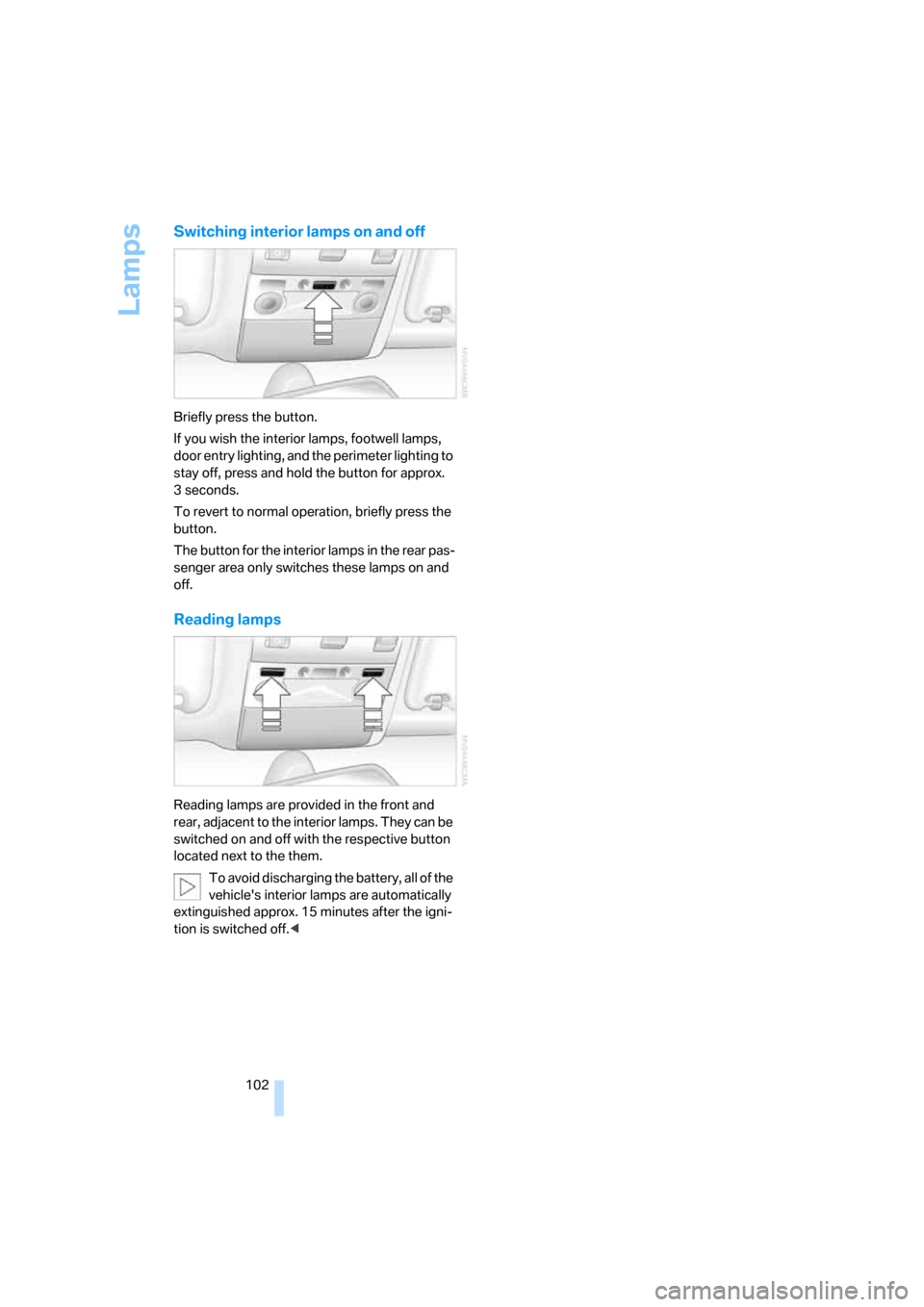
Switching interior lamps on and off
Briefly press the button.
If you wish the interior lamps, footwell lamps,
door entry lighting, and the perimeter lighting to
stay off, press and hold the button for approx.
3seconds.
To revert to normal operation, briefly press the
button.
The button for the interior lamps in the rear pas-
senger area only switches these lamps on and
off.
Reading lamps
Reading lamps are provided in the front and
rear, adjacent to the interior lamps. They can be
switched on and off with the respective button
located next to the them.
To avoid discharging the battery, all of the
vehicle's interior lamps are automatically
extinguished approx. 15 minutes after the igni-
tion is switched off.<
Page 116 of 254
Practical interior accessories
114 Depending upon your equipment package, any
of the following may be located in the storage
compartment:
>Removable CD holder
*
>Folding, removable storage compartment*,
e.g. for glasses or mobile phone
>Folding, removable waste receptacle
*
Locking storage compartment
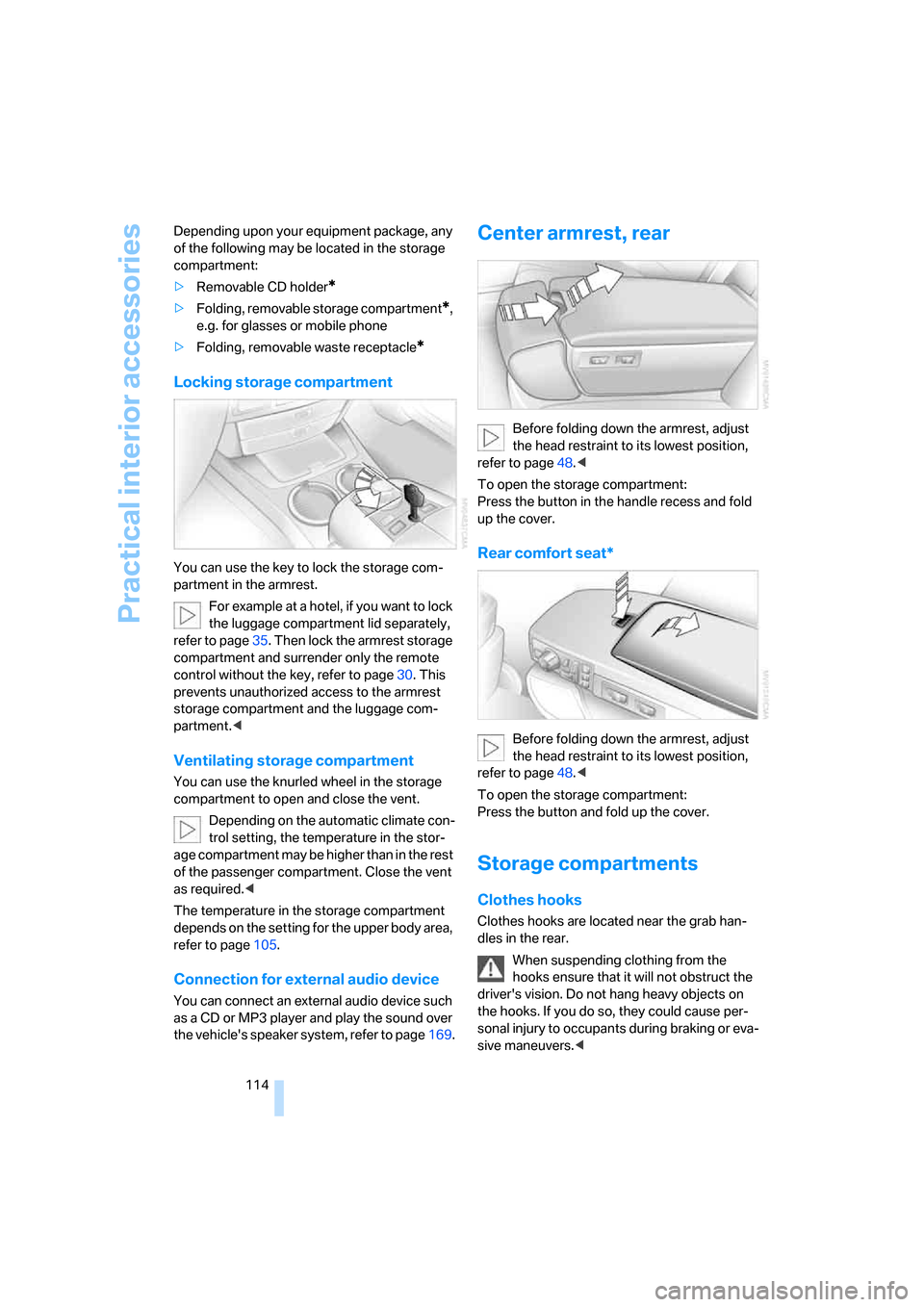
You can use the key to lock the storage com-
partment in the armrest.
For example at a hotel, if you want to lock
the luggage compartment lid separately,
refer to page35. Then lock the armrest storage
compartment and surrender only the remote
control without the key, refer to page30. This
prevents unauthorized access to the armrest
storage compartment and the luggage com-
partment.<
Ventilating storage compartment
You can use the knurled wheel in the storage
compartment to open and close the vent.
Depending on the automatic climate con-
trol setting, the temperature in the stor-
age compartment may be higher than in the rest
of the passenger compartment. Close the vent
as required.<
The temperature in the storage compartment
depends on the setting for the upper body area,
refer to page105.
Connection for external audio device
You can connect an external audio device such
as a CD or MP3 player and play the sound over
the vehicle's speaker system, refer to page169.
Center armrest, rear
Before folding down the armrest, adjust
the head restraint to its lowest position,
refer to page48.<
To open the storage compartment:
Press the button in the handle recess and fold
up the cover.
Rear comfort seat*
Before folding down the armrest, adjust
the head restraint to its lowest position,
refer to page48.<
To open the storage compartment:
Press the button and fold up the cover.
Storage compartments
Clothes hooks
Clothes hooks are located near the grab han-
dles in the rear.
When suspending clothing from the
hooks ensure that it will not obstruct the
driver's vision. Do not hang heavy objects on
the hooks. If you do so, they could cause per-
sonal injury to occupants during braking or eva-
sive maneuvers.<
Page 126 of 254
Things to remember when driving
124
Cargo loading
To avoid loading the tires beyond their
approved carrying capacity, never over-
load the vehicle. Overloading can lead to over-
heating of the tires and increases the rate at
which damage develops inside them. The ulti-
mate result can come in the form of a sudden
blow-out.<
Determining loading limit
1.Locate the following statement on your
vehicle's placard
*:
The combined weight of occupants
and cargo should never exceed
XXX lbs. or YYY kg; otherwise, the vehicle
may be damaged and unstable driving con-
ditions may result.<
2.Determine the combined weight of the
driver and passengers that will be riding in
your vehicle.
3.Subtract the combined weight of the driver
and passenger from XXX lbs. or YYY kg.
4.The resulting figure equals the available
amount of cargo and luggage load capacity.
For example, if the XXX amount equals
1400 lbs. and there will be five 150-lb. pas-
sengers in your vehicle, the amount of avail-
able cargo and luggage load capacity is
650 lbs.:
1400 lbs. minus 750 lbs. = 650 lbs.
5.Determine the combined weight of luggage
and cargo being loaded into the vehicle.
This weight may not safely exceed the avail-
able cargo and luggage load capacity calcu-
lated in step 4.6.If your vehicle will be towing a trailer, part of
the load from your trailer will be transferred
to your vehicle. Consult the manual for
transporting a trailer to determine how this
may reduce the available cargo and luggage
load capacity of the vehicle.
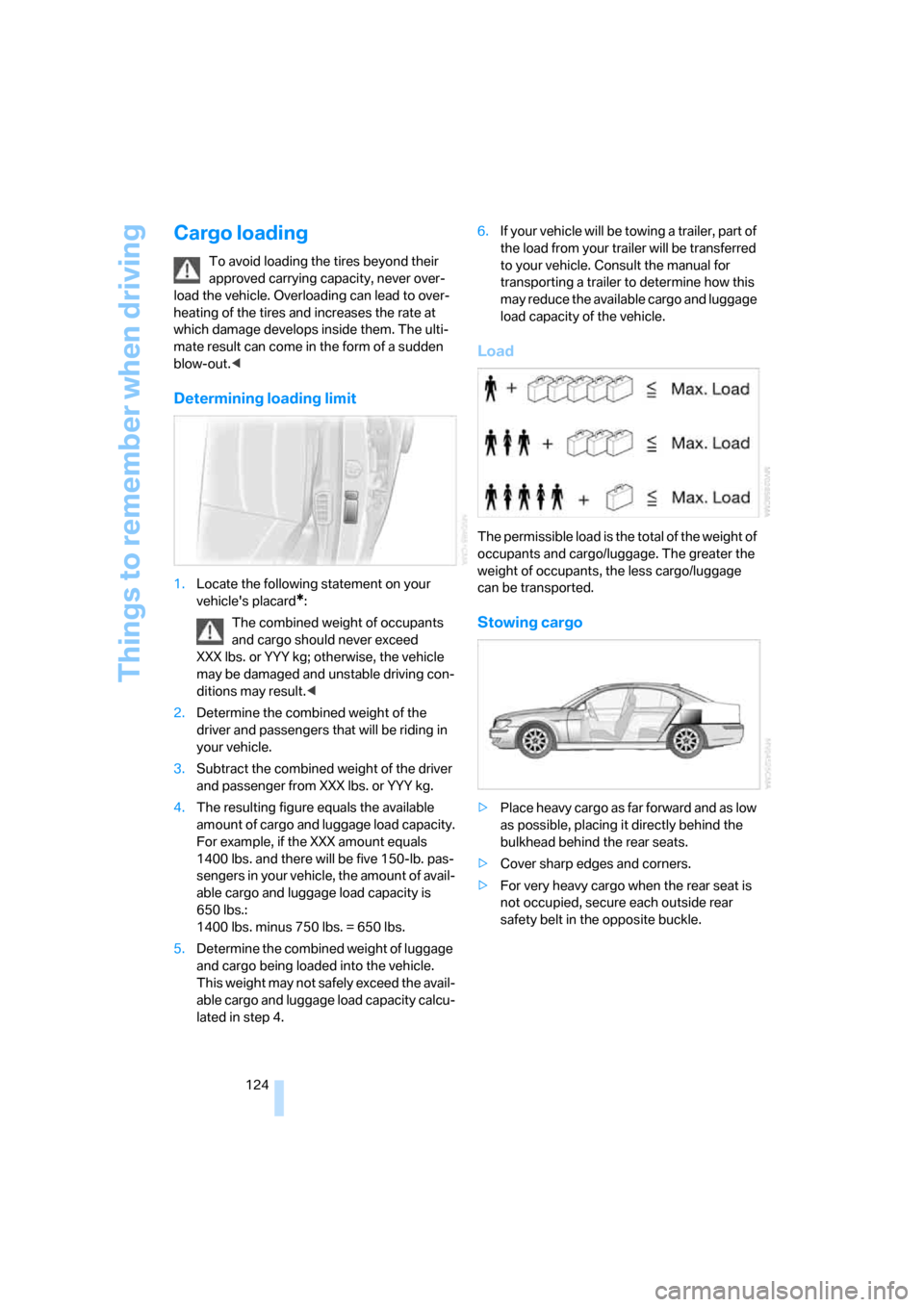
Load
The permissible load is the total of the weight of
occupants and cargo/luggage. The greater the
weight of occupants, the less cargo/luggage
can be transported.
Stowing cargo
>Place heavy cargo as far forward and as low
as possible, placing it directly behind the
bulkhead behind the rear seats.
>Cover sharp edges and corners.
>For very heavy cargo when the rear seat is
not occupied, secure each outside rear
safety belt in the opposite buckle.
Page 127 of 254
Driving tips
125Reference
At a glance
Controls
Communications
Navigation
Entertainment
Mobility
Securing cargo
>Use the luggage net* or securing straps to
secure small and lightweight luggage and
cargo.
>Heavy-duty straps
* for securing larger and
heavier objects are available at your BMW
center. Four lashing eyes for attaching
these heavy-duty straps are provided in the
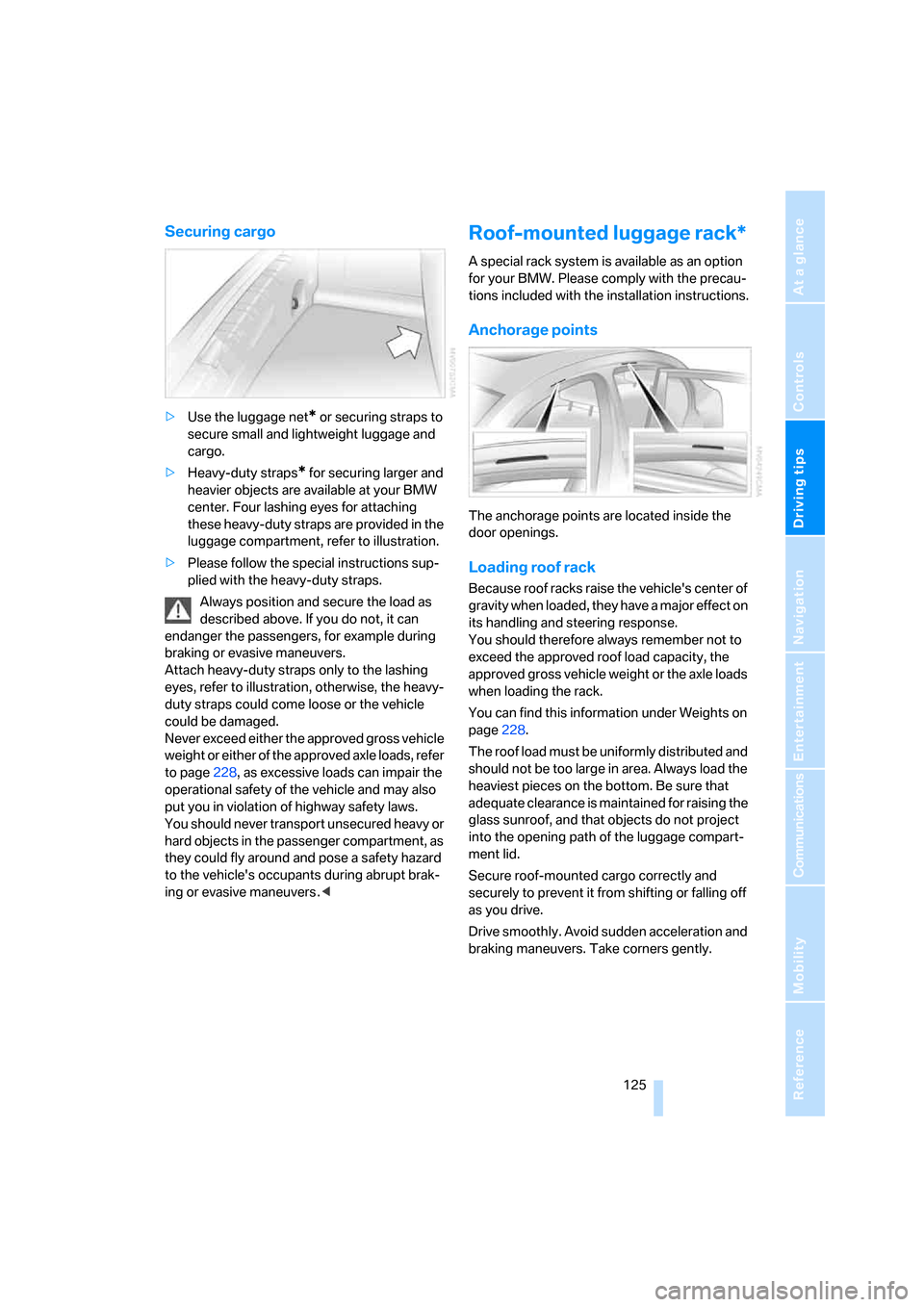
luggage compartment, refer to illustration.
>Please follow the special instructions sup-
plied with the heavy-duty straps.
Always position and secure the load as
described above. If you do not, it can
endanger the passengers, for example during
braking or evasive maneuvers.
Attach heavy-duty straps only to the lashing
eyes, refer to illustration, otherwise, the heavy-
duty straps could come loose or the vehicle
could be damaged.
Never exceed either the approved gross vehicle
weight or either of the approved axle loads, refer
to page228, as excessive loads can impair the
operational safety of the vehicle and may also
put you in violation of highway safety laws.
You should never transport unsecured heavy or
hard objects in the passenger compartment, as
they could fly around and pose a safety hazard
to the vehicle's occupants during abrupt brak-
ing or evasive maneuvers .<
Roof-mounted luggage rack*
A special rack system is available as an option
for your BMW. Please comply with the precau-
tions included with the installation instructions.
Anchorage points
The anchorage points are located inside the
door openings.
Loading roof rack
Because roof racks raise the vehicle's center of
gravity when loaded, they have a major effect on
its handling and steering response.
You should therefore always remember not to
exceed the approved roof load capacity, the
approved gross vehicle weight or the axle loads
when loading the rack.
You can find this information under Weights on
page228.
The roof load must be uniformly distributed and
should not be too large in area. Always load the
heaviest pieces on the bottom. Be sure that
adequate clearance is maintained for raising the
glass sunroof, and that objects do not project
into the opening path of the luggage compart-
ment lid.
Secure roof-mounted cargo correctly and
securely to prevent it from shifting or falling off
as you drive.
Drive smoothly. Avoid sudden acceleration and
braking maneuvers. Take corners gently.
Page 131 of 254
Navigation
This section contains various examples that
illustrate how the navigation system provides
you with reliable guidance to your destination.
Navigation
Page 135 of 254
Navigation
Driving tips
133Reference
At a glance
Controls
Communications
Entertainment
Mobility
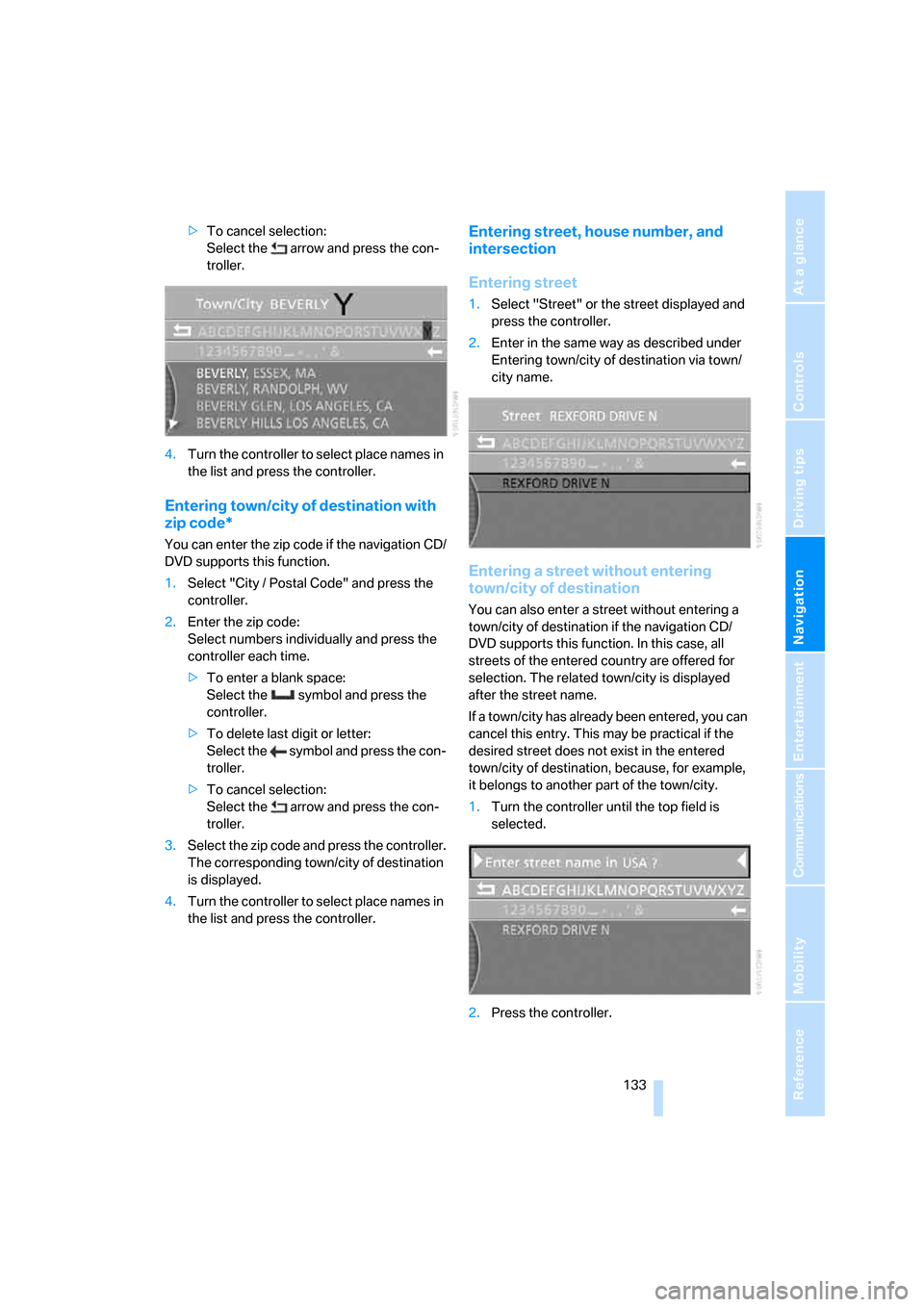
>To cancel selection:
Select the arrow and press the con-
troller.
4.Turn the controller to select place names in
the list and press the controller.
Entering town/city of destination with
zip code*
You can enter the zip code if the navigation CD/
DVD supports this function.
1.Select "City / Postal Code" and press the
controller.
2.Enter the zip code:
Select numbers individually and press the
controller each time.
>To enter a blank space:
Select the symbol and press the
controller.
>To delete last digit or letter:
Select the symbol and press the con-
troller.
>To cancel selection:
Select the arrow and press the con-
troller.
3.Select the zip code and press the controller.
The corresponding town/city of destination
is displayed.
4.Turn the controller to select place names in
the list and press the controller.
Entering street, house number, and
intersection
Entering street
1.Select "Street" or the street displayed and
press the controller.
2.Enter in the same way as described under
Entering town/city of destination via town/
city name.
Entering a street without entering
town/city of destination
You can also enter a street without entering a
town/city of destination if the navigation CD/
DVD supports this function. In this case, all
streets of the entered country are offered for
selection. The related town/city is displayed
after the street name.
If a town/city has already been entered, you can
cancel this entry. This may be practical if the
desired street does not exist in the entered
town/city of destination, because, for example,
it belongs to another part of the town/city.
1.Turn the controller until the top field is
selected.
2.Press the controller.
Page 140 of 254
Destination input
138
Destination list
The destination list includes the last 25 destina-
tions entered. The most recently entered desti-
nation appears at the top of the list.
The system guides you to the destinations in
the sequence in which they appear in the desti-
nation list. You are thus guided first to the des-
tination in the top or first position of the destina-
tion list.
You can edit individual destinations and their
sequence in the list and delete the destination
list, refer to Editing destination list on page138.
In order, for example, to plan a longer route, you
can store all of the destinations to which you
wish to drive in the destination list, refer to
Entering destination manually on page131.
If the destination list is full, then you must
delete at least one entry in order to be
able to store a new destination in the destina-
tion list.<
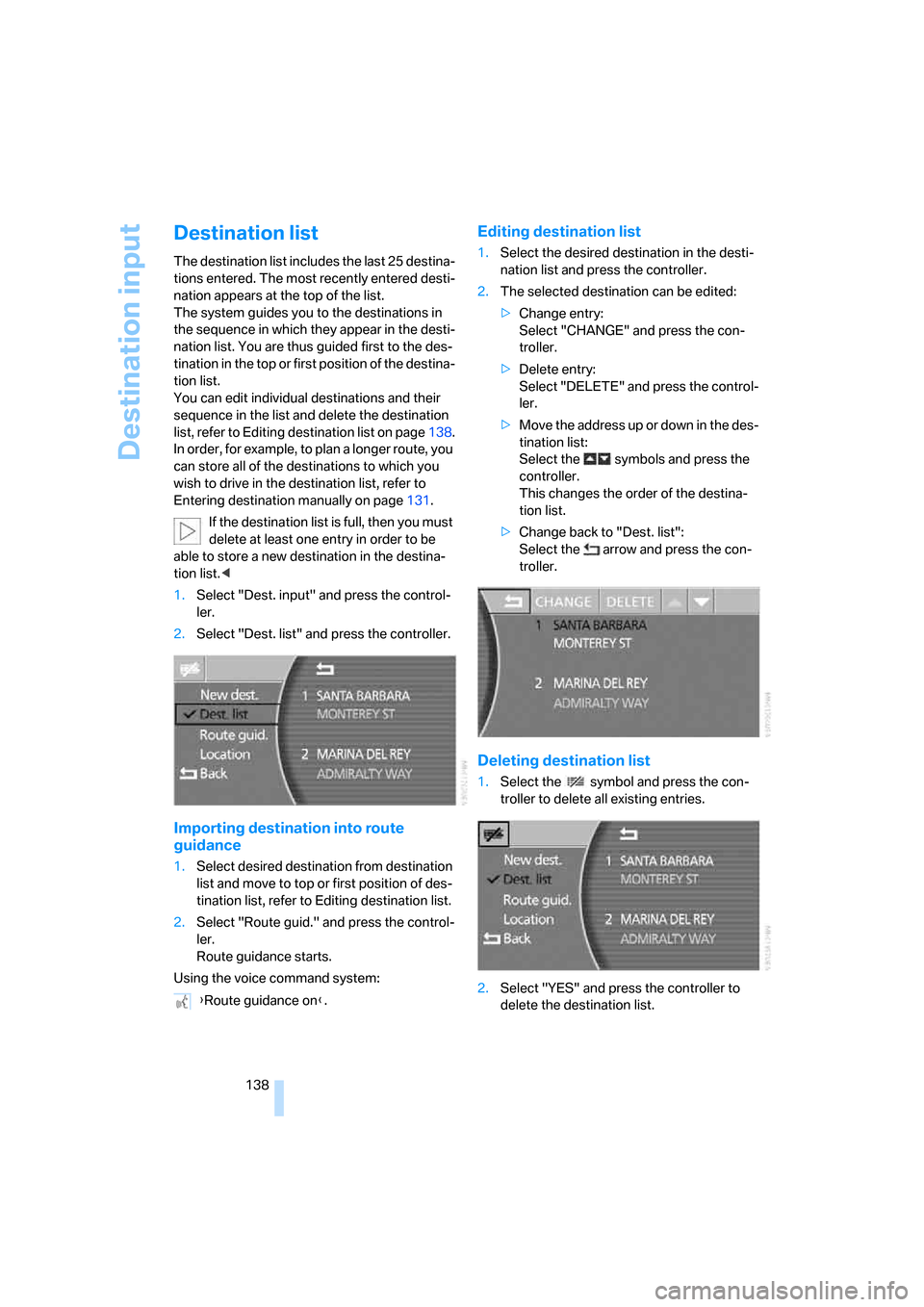
1.Select "Dest. input" and press the control-
ler.
2.Select "Dest. list" and press the controller.
Importing destination into route
guidance
1.Select desired destination from destination
list and move to top or first position of des-
tination list, refer to Editing destination list.
2.Select "Route guid." and press the control-
ler.
Route guidance starts.
Using the voice command system:
Editing destination list
1.Select the desired destination in the desti-
nation list and press the controller.
2.The selected destination can be edited:
>Change entry:
Select "CHANGE" and press the con-
troller.
>Delete entry:
Select "DELETE" and press the control-
ler.
>Move the address up or down in the des-
tination list:
Select the symbols and press the
controller.
This changes the order of the destina-
tion list.
>Change back to "Dest. list":
Select the arrow and press the con-
troller.
Deleting destination list
1.Select the symbol and press the con-
troller to delete all existing entries.
2.Select "YES" and press the controller to
delete the destination list. {Route guidance on}.
Page 144 of 254
Destination input
142
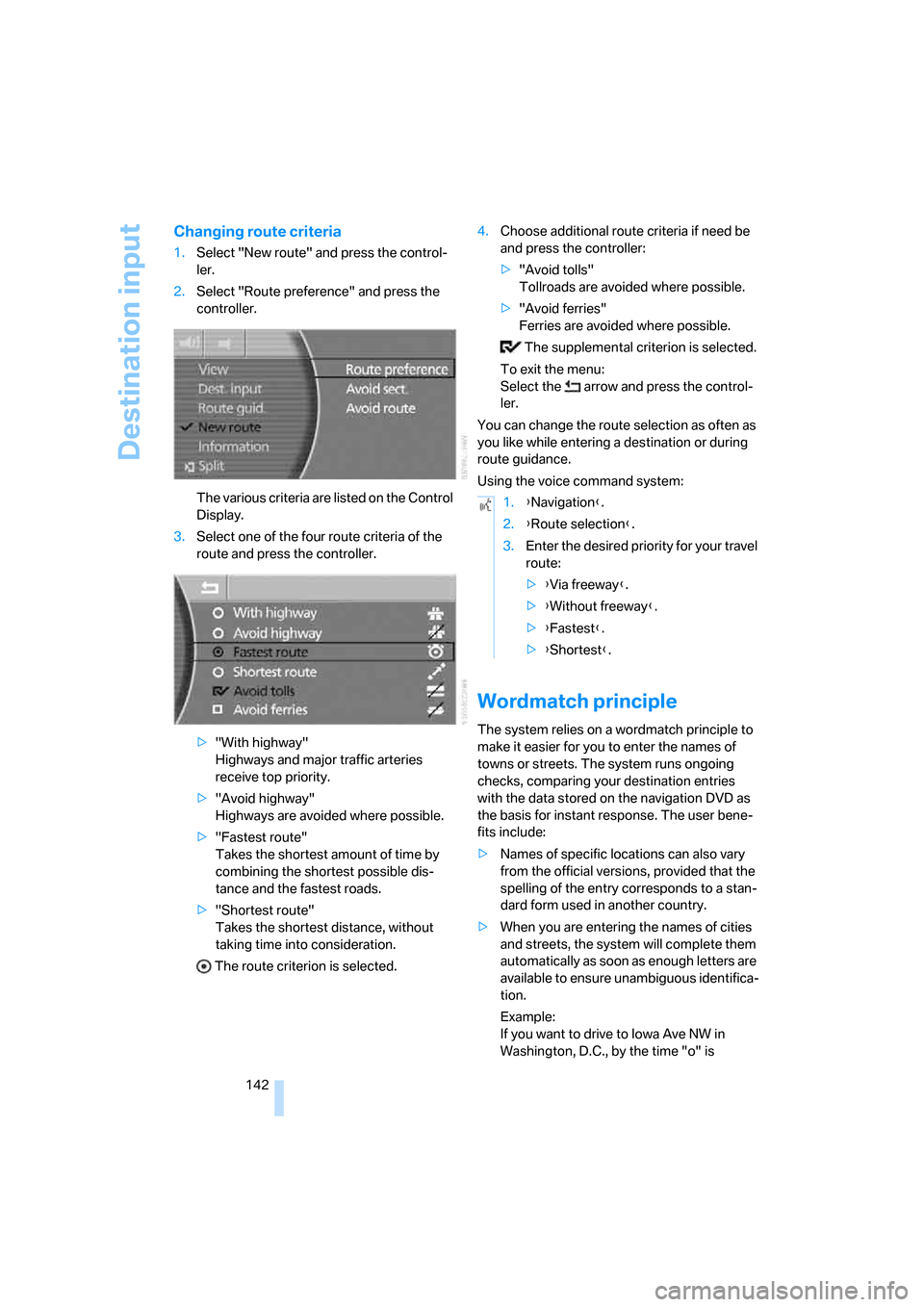
Changing route criteria
1.Select "New route" and press the control-
ler.
2.Select "Route preference" and press the
controller.
The various criteria are listed on the Control
Display.
3.Select one of the four route criteria of the
route and press the controller.
>"With highway"
Highways and major traffic arteries
receive top priority.
>"Avoid highway"
Highways are avoided where possible.
>"Fastest route"
Takes the shortest amount of time by
combining the shortest possible dis-
tance and the fastest roads.
>"Shortest route"
Takes the shortest distance, without
taking time into consideration.
The route criterion is selected.4.Choose additional route criteria if need be
and press the controller:
>"Avoid tolls"
Tollroads are avoided where possible.
>"Avoid ferries"
Ferries are avoided where possible.
The supplemental criterion is selected.
To exit the menu:
Select the arrow and press the control-
ler.
You can change the route selection as often as
you like while entering a destination or during
route guidance.
Using the voice command system:
Wordmatch principle
The system relies on a wordmatch principle to
make it easier for you to enter the names of
towns or streets. The system runs ongoing
checks, comparing your destination entries
with the data stored on the navigation DVD as
the basis for instant response. The user bene-
fits include:
>Names of specific locations can also vary
from the official versions, provided that the
spelling of the entry corresponds to a stan-
dard form used in another country.
>When you are entering the names of cities
and streets, the system will complete them
automatically as soon as enough letters are
available to ensure unambiguous identifica-
tion.
Example:
If you want to drive to Iowa Ave NW in
Washington, D.C., by the time "o" is
1.{Navigation}.
2.{Route selection}.
3.Enter the desired priority for your travel
route:
>{Via freeway}.
>{Without freeway}.
>{Fastest}.
>{Shortest}.
Page 156 of 254
On/off and settings
154
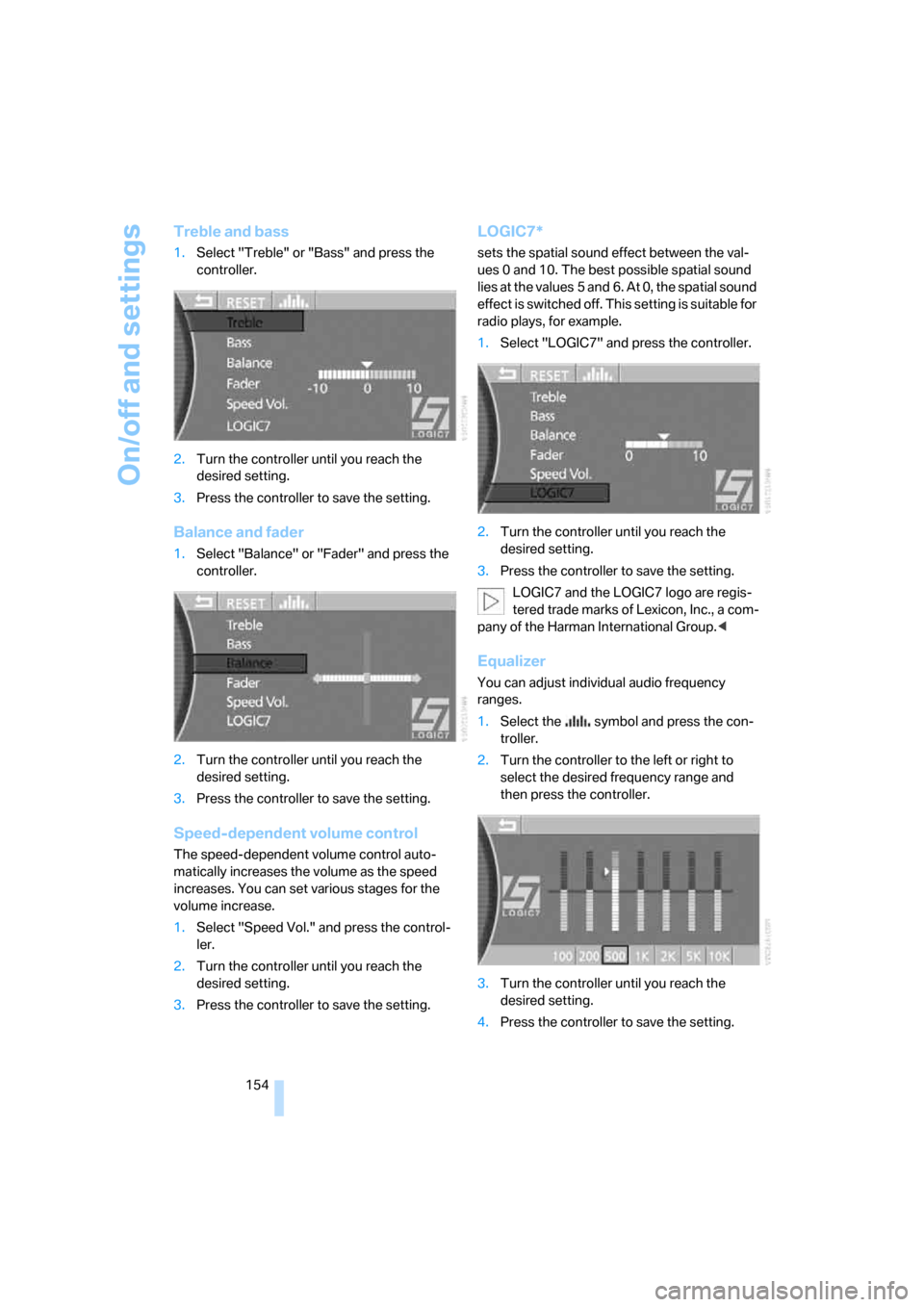
Treble and bass
1.Select "Treble" or "Bass" and press the
controller.
2.Turn the controller until you reach the
desired setting.
3.Press the controller to save the setting.
Balance and fader
1.Select "Balance" or "Fader" and press the
controller.
2.Turn the controller until you reach the
desired setting.
3.Press the controller to save the setting.
Speed-dependent volume control
The speed-dependent volume control auto-
matically increases the volume as the speed
increases. You can set various stages for the
volume increase.
1.Select "Speed Vol." and press the control-
ler.
2.Turn the controller until you reach the
desired setting.
3.Press the controller to save the setting.
LOGIC7*
sets the spatial sound effect between the val-
ues 0 and 10. The best possible spatial sound
lies at the values 5 and 6. At 0, the spatial sound
effect is switched off. This setting is suitable for
radio plays, for example.
1.Select "LOGIC7" and press the controller.
2.Turn the controller until you reach the
desired setting.
3.Press the controller to save the setting.
LOGIC7 and the LOGIC7 logo are regis-
tered trade marks of Lexicon, Inc., a com-
pany of the Harman International Group.<
Equalizer
You can adjust individual audio frequency
ranges.
1.Select the symbol and press the con-
troller.
2.Turn the controller to the left or right to
select the desired frequency range and
then press the controller.
3.Turn the controller until you reach the
desired setting.
4.Press the controller to save the setting.