ECO mode BMW 760i 2004 E65 Owner's Guide
[x] Cancel search | Manufacturer: BMW, Model Year: 2004, Model line: 760i, Model: BMW 760i 2004 E65Pages: 232, PDF Size: 5.27 MB
Page 114 of 232
Practical interior accessories
112 The device can be operated as of ignition
on.
If the device cannot be operated
after repeated programming, check
whether the original hand-held transmitter
uses an alternating-code system. To do so,
either read the instructions of the original
hand-held transmitter or press and hold
down the programmed memory button 1 of
the integrated universal remote control.
If the indicator lamp 2 on the integrated
universal remote control flashes quickly for
a brief period and then remains lit up for
approx. two seconds, this indicates that
the original hand-held transmitter is
equipped with an alternating-code sytem.
In the case of an alternating-code system,
program the memory buttons 1 as
described at the section on alternating-
code transmitters.<
Alternating-code transmitters
Consult the operating instructions of the
unit you wish to set when programming the
integrated universal remote control. You
will find information there on the possibili-
ties for synchronization.
When programming hand-held transmitters
that employ an alternating code, please
observe the following supplementary
instructions:
Programming will be easier with the
aid of a second person.<
1.Park your vehicle within the range of the
remote-controlled device
2.Program the integrated universal
remote control as described at the sec-
tion on fixed-code hand-held transmit-
ters
3.Localize the button on the receiver of
the device you want to set up, e.g. on
the upper section of the motor
4.Press the button on the receiver of the
device you want to set up. After step 4,
you have approx. 30 seconds for step 5
5.Press the programmed memory
button 1 on the integrated universal
remote control three times. The corresponding memory button 1 is
now programmed with the signal of the
original hand-held transmitter.
If you have any additional questions,
please contact your BMW center.<
Clearing memory buttons
Individual memory buttons 1 can not be
cleared. However, you clear all three mem-
ory buttons 1 together as follows:
Press both outer buttons 1 of the inte-
grated universal remote control for approx.
20 seconds, maintaining pressure until the
indicator lamp 2 starts to flash.
Roller sun blinds*
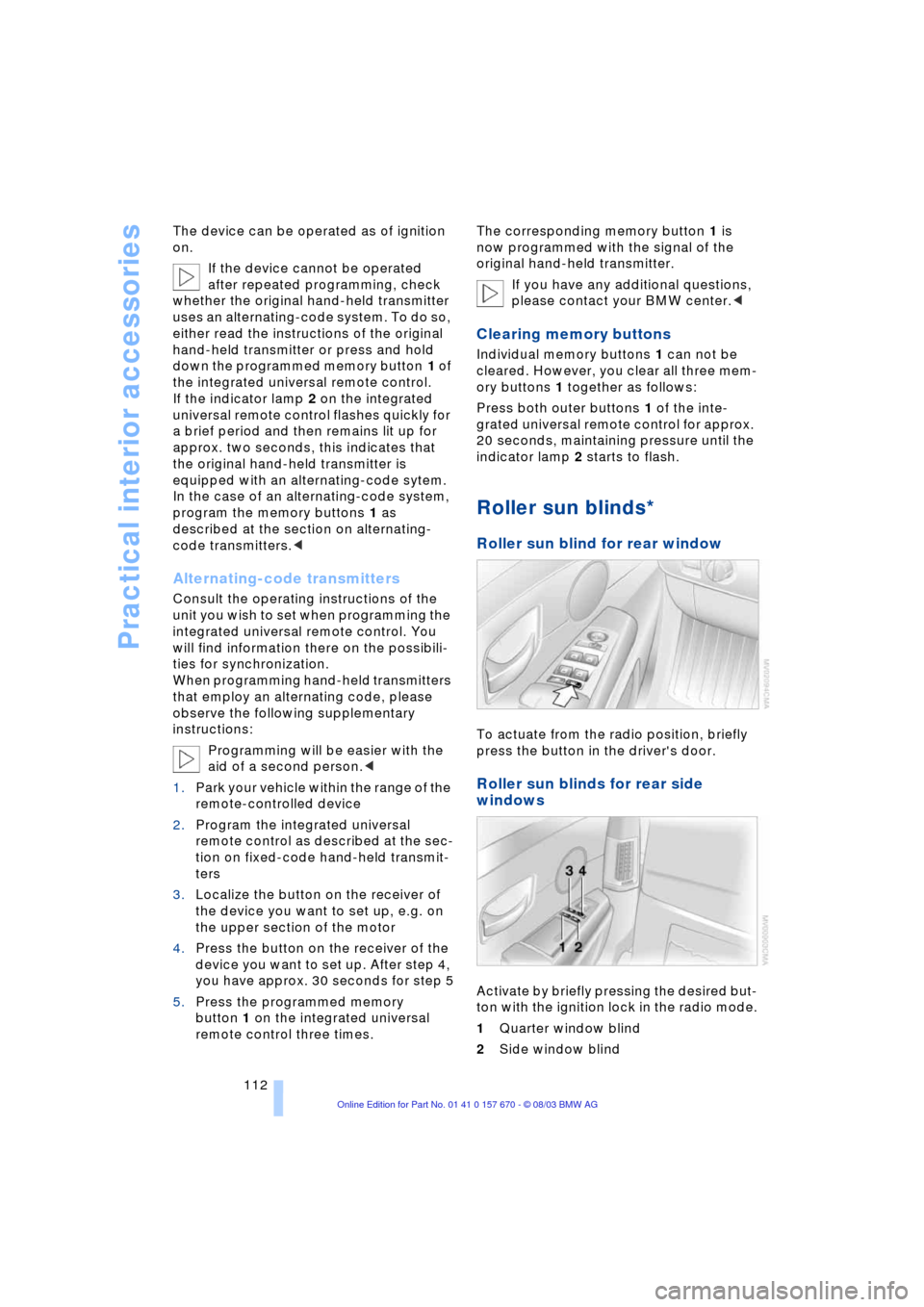
Roller sun blind for rear window
To actuate from the radio position, briefly
press the button in the driver's door.
Roller sun blinds for rear side
windows
Activate by briefly pressing the desired but-
ton with the ignition lock in the radio mode.
1Quarter window blind
2Side window blind
Page 124 of 232
Things to remember when driving
122
Things to remember when driving
Break-in procedures
To ensure that your vehicle continues to
furnish optimized economy of operation
throughout an extended service life, we
request that you devote careful attention
to the following section.
Engine and differential
Up to 1,200 miles/2,000 km:
During this initial period you should attempt
to avoid constant, steady-state operation
and vary both vehicle and engine speeds
as often as possible. Until the break-in
period has been completed you should
also refrain from exceeding the following:
>4,500 rpm or 105 mph/170 km/h.
Always obey all official speed limits.
Avoid full-throttle operation and use of the
transmission's kickdown mode during
these initial miles.
Once you have driven 1,200 miles/
2,000 km, the engine or vehicle speeds
can be gradually increased.
You should also comply with these break-in
procedures should the engine or differen-
tial need to be replaced at a later point.
Tires
Due to technical factors associated with
their manufacture, tires do not achieve their
full traction potential until after an initial
break-in period.Therefore, drive reservedly
during the first 200 miles/300 km.
Brake system
Brakes require an initial break-in period of
approx. 300 miles/500 km to achieve opti-
mized contact and wear patterns between
brake pads and rotors.
General driving notes
High temperatures
Extreme temperatures occur at the
catalytic converter on this and every
catalyst-equipped vehicle. Do not remove
the heat shields installed adjacent to vari-
ous sections of the exhaust system, and
never apply undercoating to them.
When driving, standing at idle and while
parking take care to avoid possible contact
between the hot exhaust system and any
highly flammable materials such as hay,
leaves, grass, etc. Such contact could lead
to a fire, accompanied by the risk of serious
property damage as well as personal
injury.<
Parking the vehicle
Condensation forms in the air conditioner
system during operation, and then exits
under the vehicle. Traces of condensed
water under the vehicle are thus normal.
Before driving into the car wash
1.Fold in the exterior mirrors, refer to
page 51, as otherwise they could be
damaged due to the width of the vehicle
2.Leave the remote control in the ignition
lock, as otherwise the position P of the
automatic transmission will automati-
cally be selected when the remote con-
trol is removed, refer to pages 61
and 67.
With Comfort Access, be sure to
observe the instructions on page 61
3.Release the parking brake, especially
when you have activated Automatic
Hold, refer to pages 62 and 63.
Hydroplaning
When driving on wet or slushy roads,
reduce road speed. If you do not, a
wedge of water can form between tires and
road surface. This phenomenon is referred
Page 133 of 232
Navigation
Driving tips
131Reference
At a glance
Controls
Communications
Entertainment
Mobility
The CD/DVD is ejected from the naviga-
tion computer
2.Remove the CD/DVD
3.Insert the new CD/DVD with the labeled
side up.
Allow approx. eight seconds for the
system to scan the data from the new
CD/DVD.
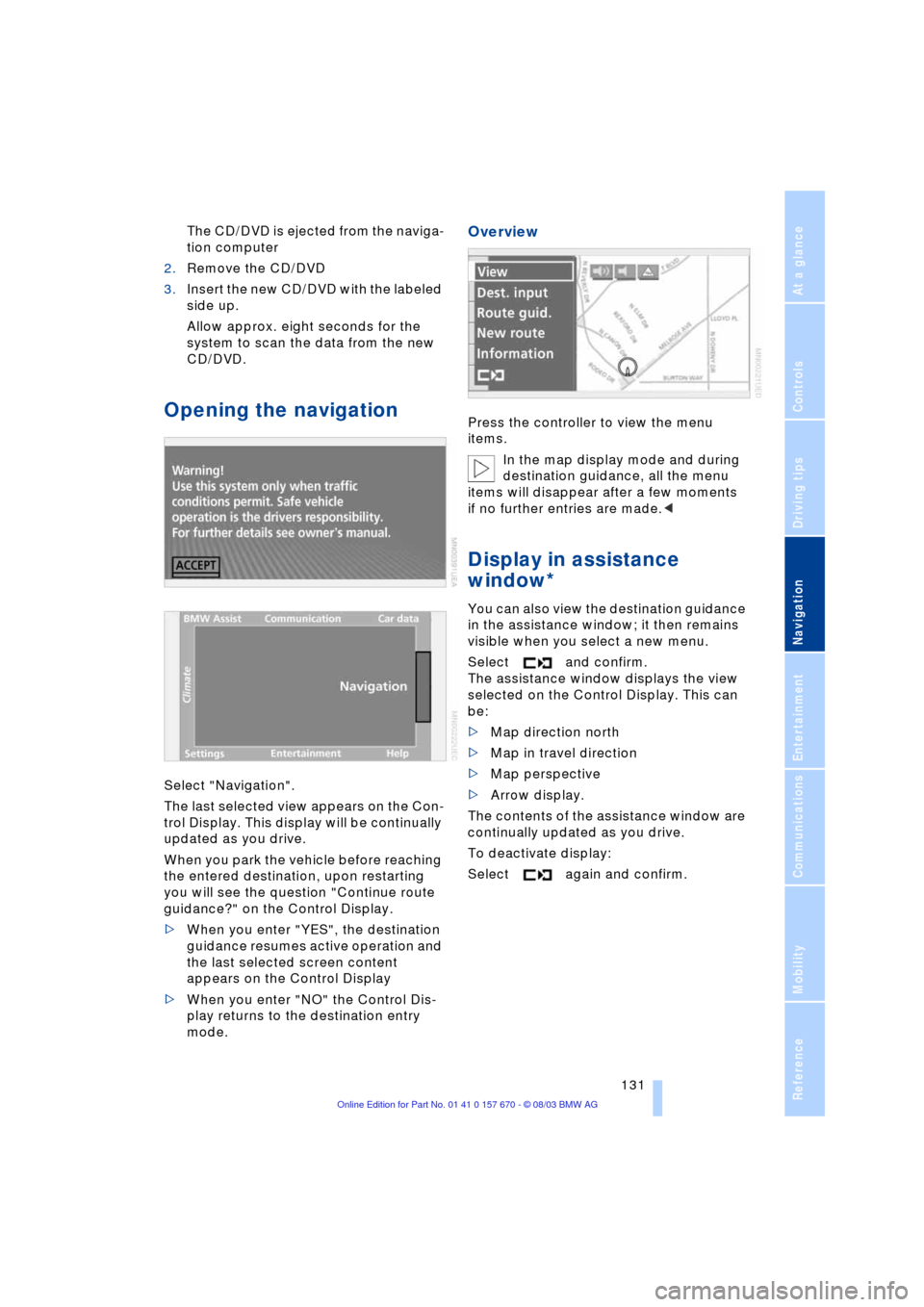
Opening the navigation
Select "Navigation".
The last selected view appears on the Con-
trol Display. This display will be continually
updated as you drive.
When you park the vehicle before reaching
the entered destination, upon restarting
you will see the question "Continue route
guidance?" on the Control Display.
>When you enter "YES", the destination
guidance resumes active operation and
the last selected screen content
appears on the Control Display
>When you enter "NO" the Control Dis-
play returns to the destination entry
mode.
Overview
Press the controller to view the menu
items.
In the map display mode and during
destination guidance, all the menu
items will disappear after a few moments
if no further entries are made.<
Display in assistance
window*
You can also view the destination guidance
in the assistance window; it then remains
visible when you select a new menu.
Select and confirm.
The assistance window displays the view
selected on the Control Display. This can
be:
>Map direction north
>Map in travel direction
>Map perspective
>Arrow display.
The contents of the assistance window are
continually updated as you drive.
To deactivate display:
Select again and confirm.
Page 142 of 232
Destination guidance
140
Changing scale
Turn the controller to adjust the scale.
The map scale is provided at the lower right
of the Control Display.
Altering display direction
1.Select "View" and confirm. All the menu
items will disappear after a few
moments if no further entries are made
2.Select "Map dir. travel" or "Map facing
N." and confirm.
Canceling route map
To change to directional arrow mode:
1.Select "View" and confirm. All the menu
items will disappear after a few
moments if no further entries are made
2."Arrow display"
The destination guidance is by means
of arrows on the Control Display and in
the Info Display, refer to page 12.
The arrow will follow the general
course when you travel through an
area for which your navigation CD/DVD
does not provide comprehensive coverage.
This feature is intended to assist you at
crossroads and intersections.<
Displaying route list
You can access a listing of streets and
towns on your route whenever the destina-
tion guidance is active. This list is based on
the navigation system's suggested travel
route.The distances remaining to be traveled on
each individual road are also displayed.
1.Select "View" and confirm. All the menu
items will disappear after a few
moments if no further entries are made
2.Select "Route" and confirm.
If the system has not yet completely
defined the travel route, "..." will appear
in the list.
Select and confirm to switch off the
route list.
The route list is displayed again after
a short time if no other menu item has
been selected.<
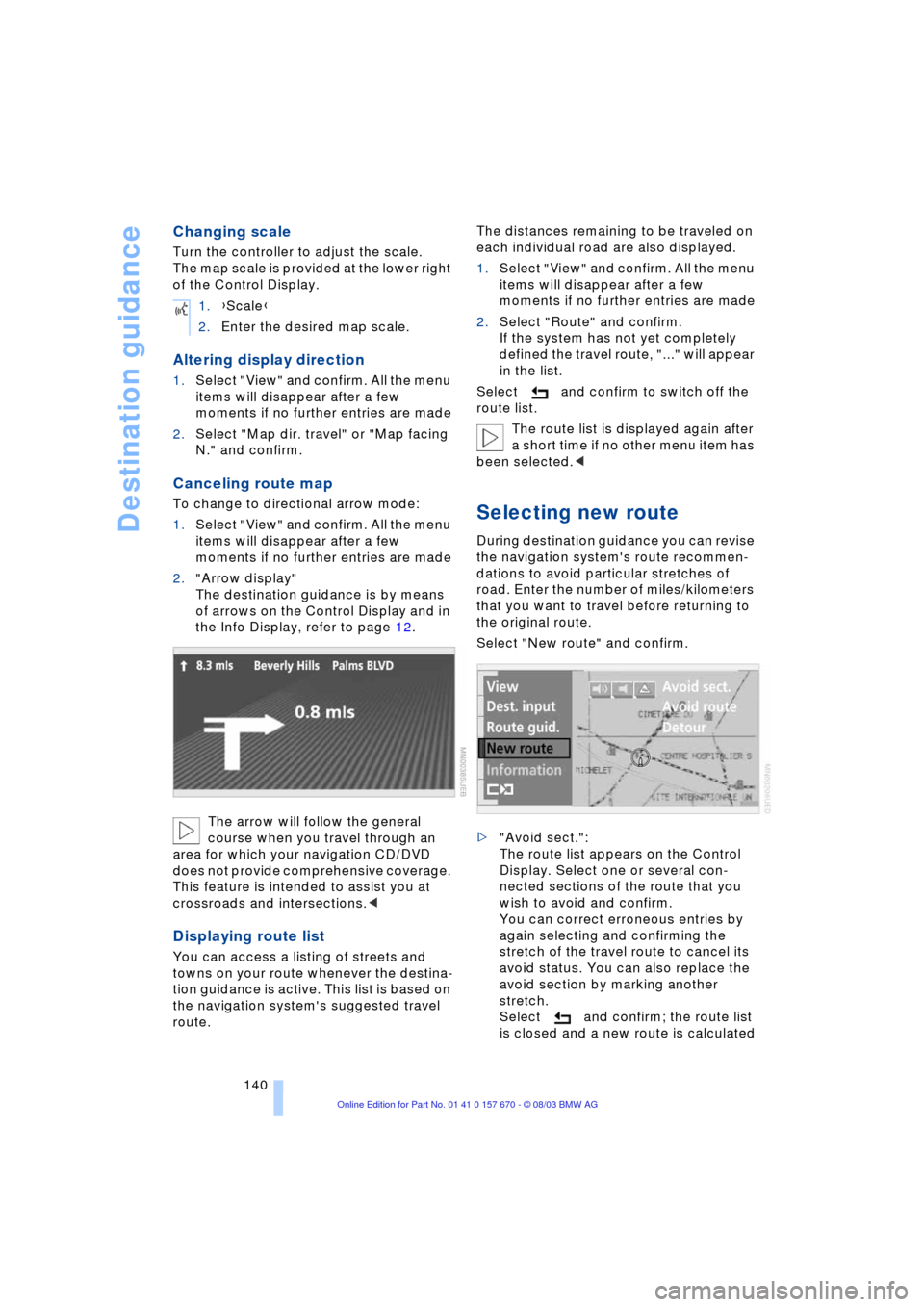
Selecting new route
During destination guidance you can revise
the navigation system's route recommen-
dations to avoid particular stretches of
road. Enter the number of miles/kilometers
that you want to travel before returning to
the original route.
Select "New route" and confirm.
>"Avoid sect.":
The route list appears on the Control
Display. Select one or several con-
nected sections of the route that you
wish to avoid and confirm.
You can correct erroneous entries by
again selecting and confirming the
stretch of the travel route to cancel its
avoid status. You can also replace the
avoid section by marking another
stretch.
Select and confirm; the route list
is closed and a new route is calculated 1.{Scale}
2.Enter the desired map scale.
Page 151 of 232
Navigation
Entertainment
Driving tips
149Reference
At a glance
Controls
Communications
Mobility
Care instructions
You can find everything you need to know
on this topic by consulting the separate
Caring for your vehicle brochure.
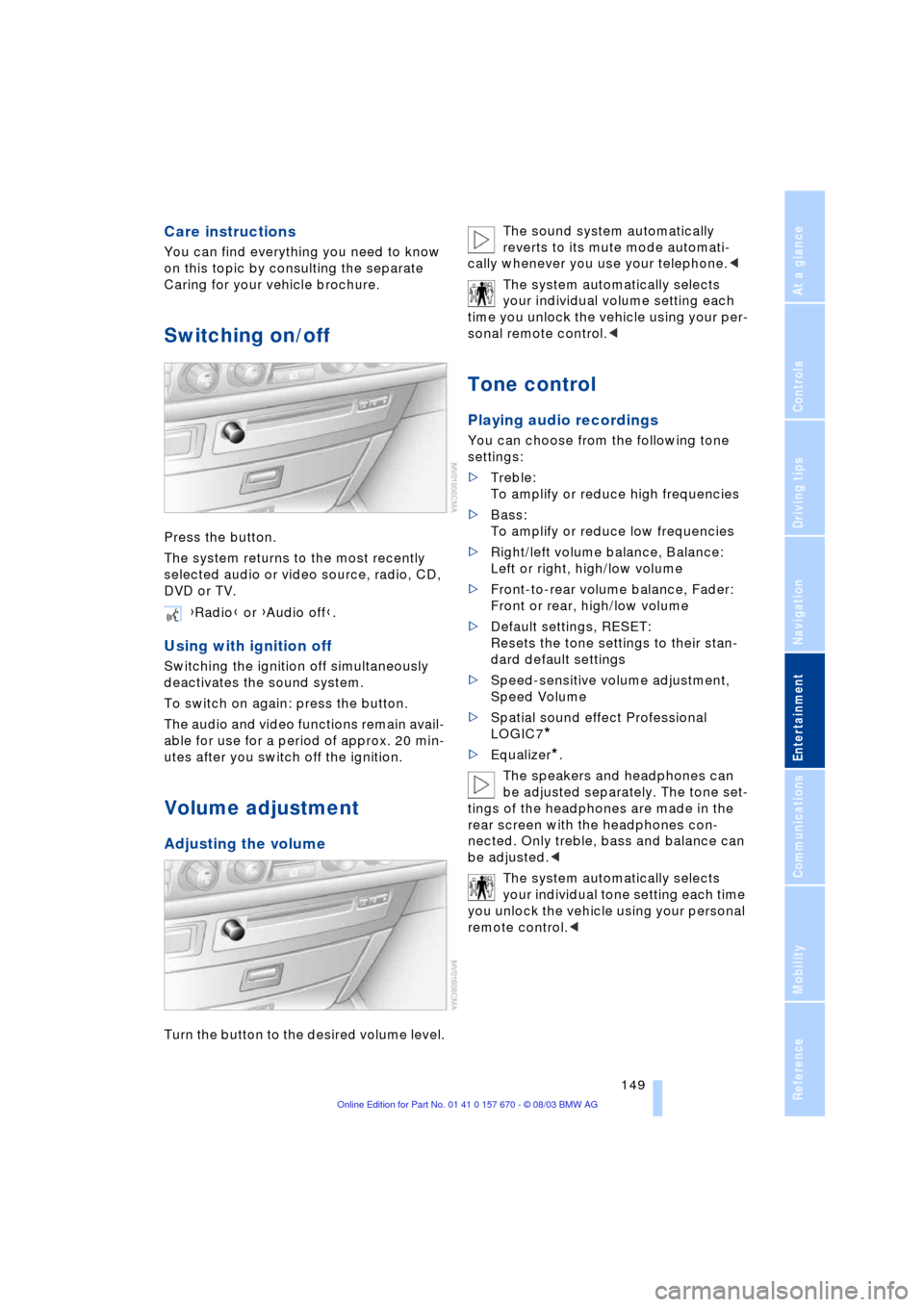
Switching on/off
Press the button.
The system returns to the most recently
selected audio or video source, radio, CD,
DVD or TV.
Using with ignition off
Switching the ignition off simultaneously
deactivates the sound system.
To switch on again: press the button.
The audio and video functions remain avail-
able for use for a period of approx. 20 min-
utes after you switch off the ignition.
Volume adjustment
Adjusting the volume
Turn the button to the desired volume level.The sound system automatically
reverts to its mute mode automati-
cally whenever you use your telephone.<
The system automatically selects
your individual volume setting each
time you unlock the vehicle using your per-
sonal remote control.<
Tone control
Playing audio recordings
You can choose from the following tone
settings:
>Treble:
To amplify or reduce high frequencies
>Bass:
To amplify or reduce low frequencies
>Right/left volume balance, Balance:
Left or right, high/low volume
>Front-to-rear volume balance, Fader:
Front or rear, high/low volume
>Default settings, RESET:
Resets the tone settings to their stan-
dard default settings
>Speed-sensitive volume adjustment,
Speed Volume
>Spatial sound effect Professional
LOGIC7
*
>Equalizer*.
The speakers and headphones can
be adjusted separately. The tone set-
tings of the headphones are made in the
rear screen with the headphones con-
nected. Only treble, bass and balance can
be adjusted.<
The system automatically selects
your individual tone setting each time
you unlock the vehicle using your personal
remote control.< {Radio} or {Audio off}.
Page 155 of 232
Navigation
Entertainment
Driving tips
153Reference
At a glance
Controls
Communications
Mobility
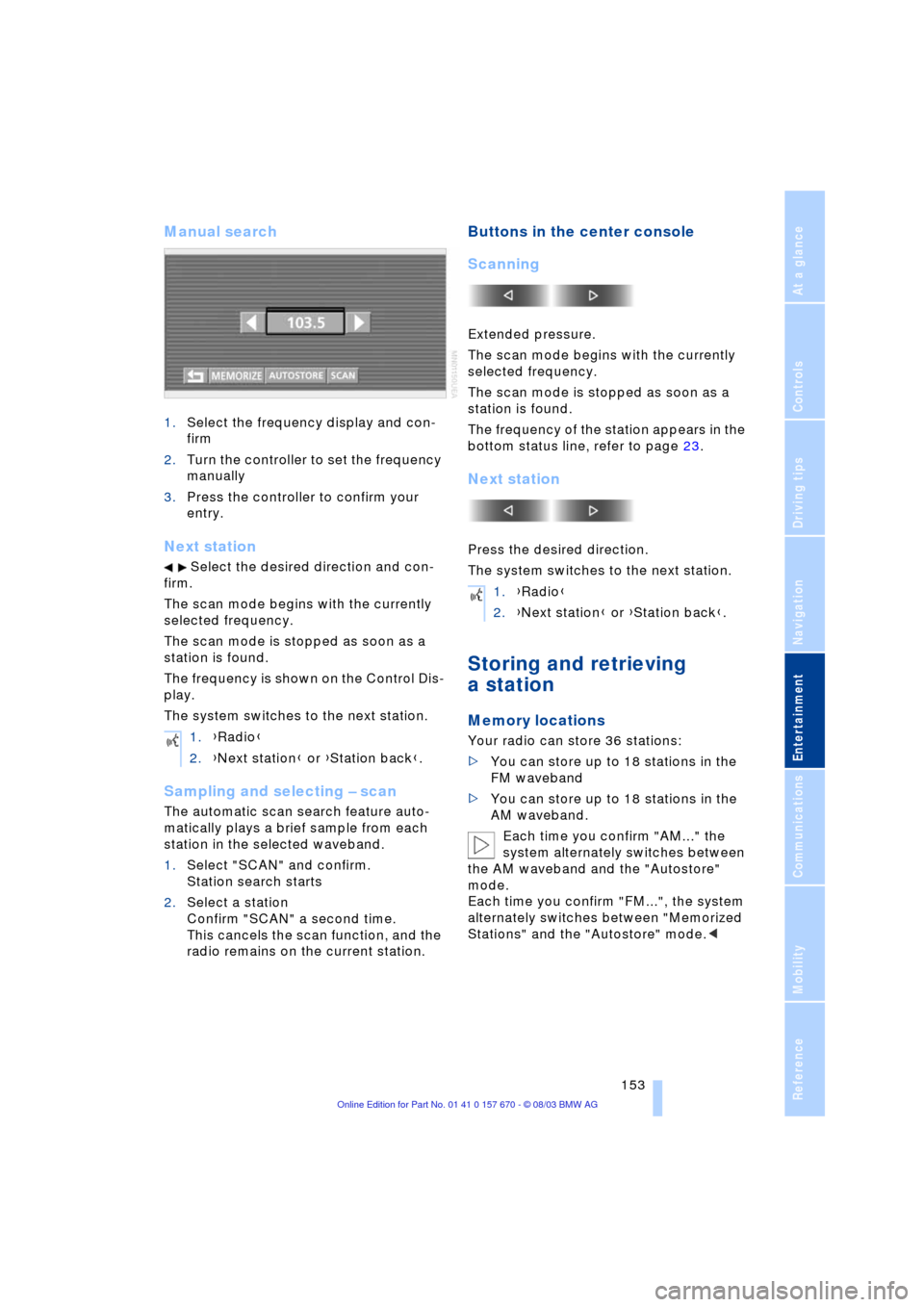
Manual search
1.Select the frequency display and con-
firm
2.Turn the controller to set the frequency
manually
3.Press the controller to confirm your
entry.
Next station
Select the desired direction and con-
firm.
The scan mode begins with the currently
selected frequency.
The scan mode is stopped as soon as a
station is found.
The frequency is shown on the Control Dis-
play.
The system switches to the next station.
Sampling and selecting Ð scan
The automatic scan search feature auto-
matically plays a brief sample from each
station in the selected waveband.
1.Select "SCAN" and confirm.
Station search starts
2.Select a station
Confirm "SCAN" a second time.
This cancels the scan function, and the
radio remains on the current station.
Buttons in the center console
Scanning
Extended pressure.
The scan mode begins with the currently
selected frequency.
The scan mode is stopped as soon as a
station is found.
The frequency of the station appears in the
bottom status line, refer to page 23.
Next station
Press the desired direction.
The system switches to the next station.
Storing and retrieving
a station
Memory locations
Your radio can store 36 stations:
>You can store up to 18 stations in the
FM waveband
>You can store up to 18 stations in the
AM waveband.
Each time you confirm "AM..." the
system alternately switches between
the AM waveband and the "Autostore"
mode.
Each time you confirm "FM...", the system
alternately switches between "Memorized
Stations" and the "Autostore" mode.< 1.{Radio}
2.{Next station} or {Station back}.
1.{Radio}
2.{Next station} or {Station back}.
Page 156 of 232
Radio
154
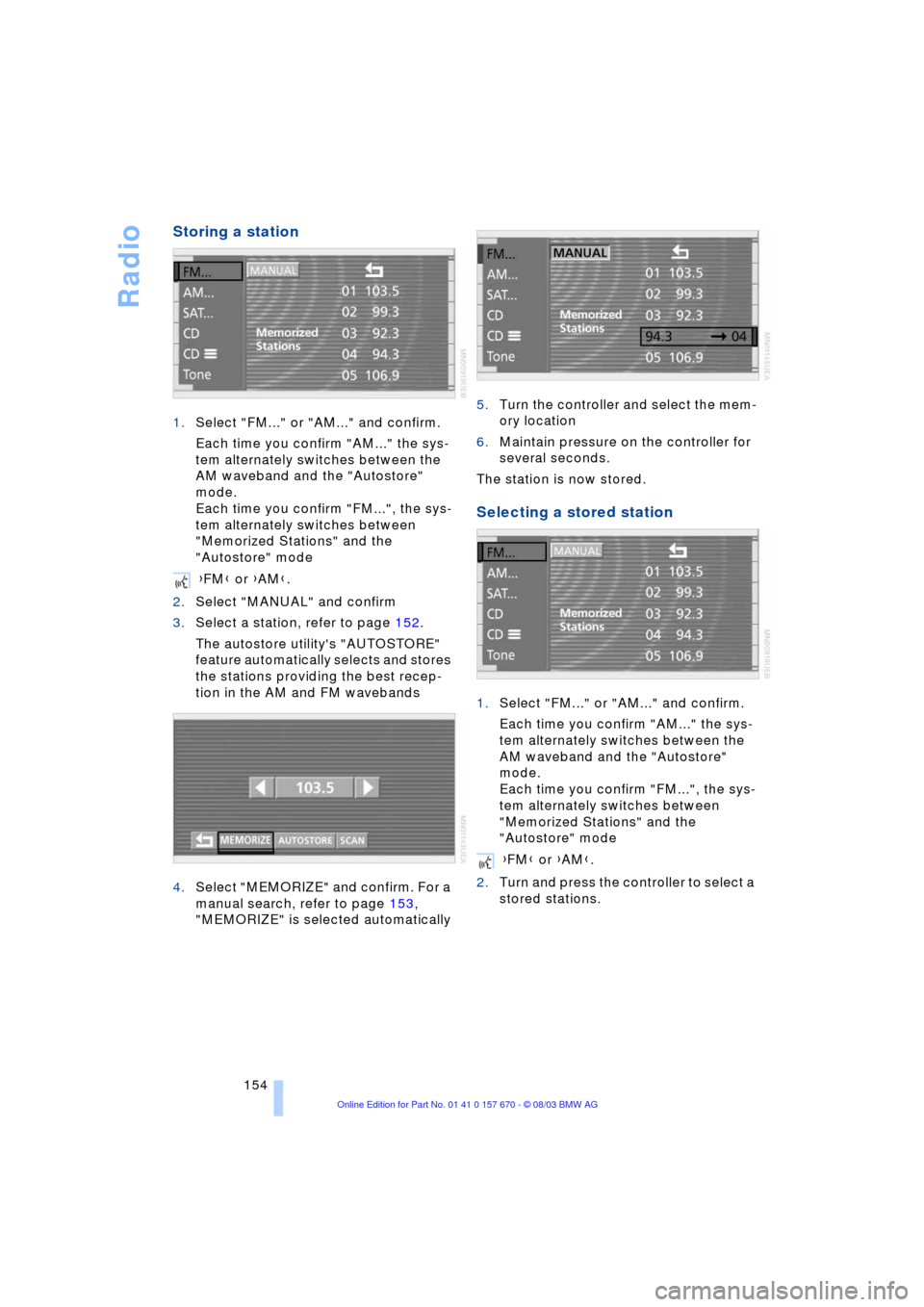
Storing a station
1.Select "FM..." or "AM..." and confirm.
Each time you confirm "AM..." the sys-
tem alternately switches between the
AM waveband and the "Autostore"
mode.
Each time you confirm "FM...", the sys-
tem alternately switches between
"Memorized Stations" and the
"Autostore" mode
2.Select "MANUAL" and confirm
3.Select a station, refer to page 152.
The autostore utility's "AUTOSTORE"
feature automatically selects and stores
the stations providing the best recep-
tion in the AM and FM wavebands
4.Select "MEMORIZE" and confirm. For a
manual search, refer to page 153,
"MEMORIZE" is selected automatically5.Turn the controller and select the mem-
ory location
6.Maintain pressure on the controller for
several seconds.
The station is now stored.
Selecting a stored station
1.Select "FM..." or "AM..." and confirm.
Each time you confirm "AM..." the sys-
tem alternately switches between the
AM waveband and the "Autostore"
mode.
Each time you confirm "FM...", the sys-
tem alternately switches between
"Memorized Stations" and the
"Autostore" mode
2.Turn and press the controller to select a
stored stations. {FM} or {AM}.
{FM} or {AM}.
Page 163 of 232
Navigation
Entertainment
Driving tips
161Reference
At a glance
Controls
Communications
Mobility
If the CD magazine has been newly filled,
playback begins with the lowest CD, e.g.
CD 1, track 1.
Volume adjustment, refer to page 149.
Tone control, refer to page 149.
If you play self-recorded audio CDs,
faults, e.g. drop-outs, can occur, or
the CD is not played at all.<
Status displays
The CD magazine's load status is indicated
on the Control Display.
If the display fails to detect a CD that
you have loaded in the magazine,
check to ensure that the CD has been
inserted correctly and inspect it for signs
of defects.<
Selecting a track using the
Control Center
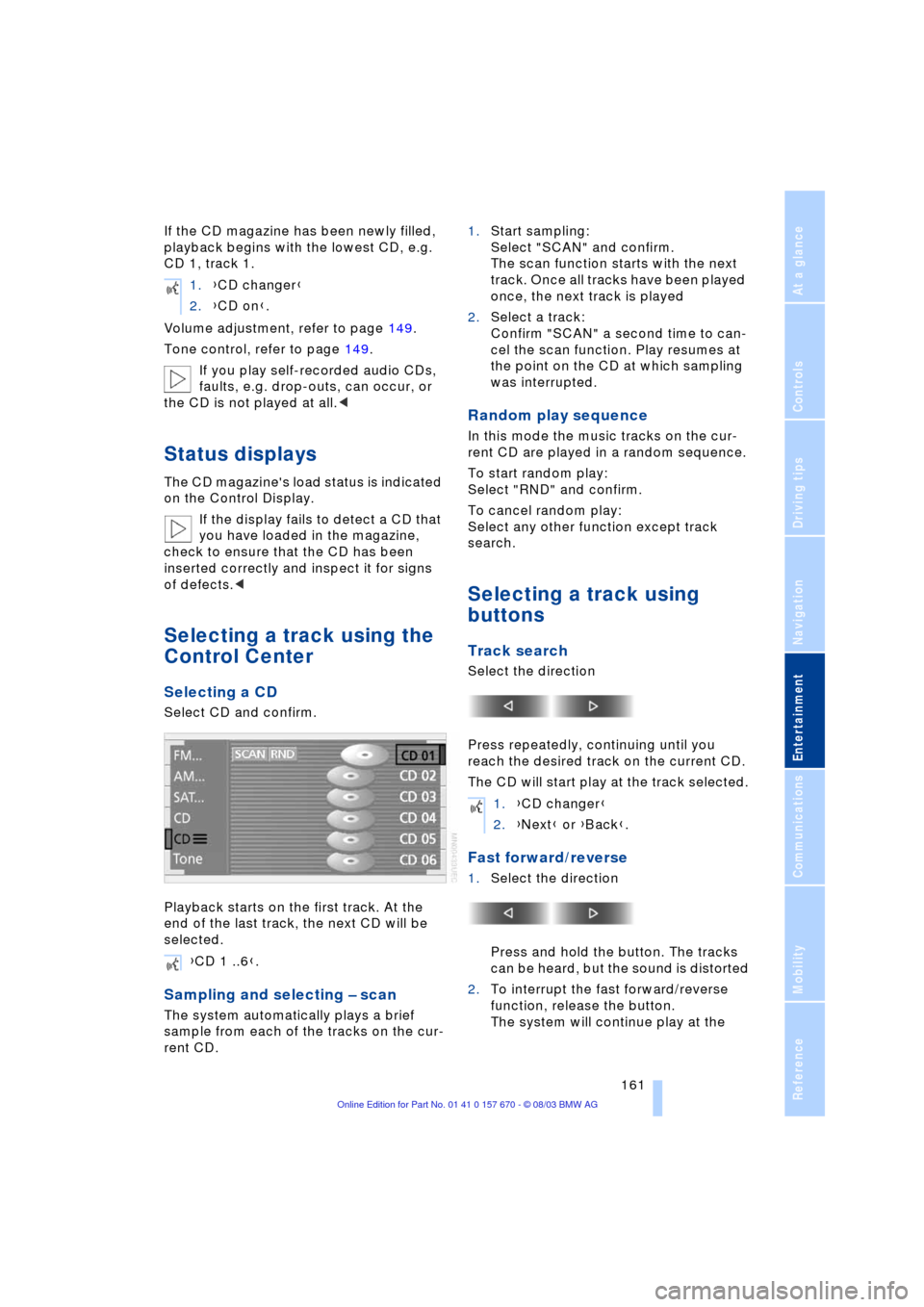
Selecting a CD
Select CD and confirm.
Playback starts on the first track. At the
end of the last track, the next CD will be
selected.
Sampling and selecting Ð scan
The system automatically plays a brief
sample from each of the tracks on the cur-
rent CD.1.Start sampling:
Select "SCAN" and confirm.
The scan function starts with the next
track. Once all tracks have been played
once, the next track is played
2.Select a track:
Confirm "SCAN" a second time to can-
cel the scan function. Play resumes at
the point on the CD at which sampling
was interrupted.
Random play sequence
In this mode the music tracks on the cur-
rent CD are played in a random sequence.
To start random play:
Select "RND" and confirm.
To cancel random play:
Select any other function except track
search.
Selecting a track using
buttons
Track search
Select the direction
Press repeatedly, continuing until you
reach the desired track on the current CD.
The CD will start play at the track selected.
Fast forward/reverse
1.Select the direction
Press and hold the button. The tracks
can be heard, but the sound is distorted
2.To interrupt the fast forward/reverse
function, release the button.
The system will continue play at the 1.{CD changer}
2.{CD on}.
{CD 1 ..6}.
1.{CD changer}
2.{Next} or {Back}.
Page 222 of 232
Everything from A to Z
220 Environmentally friendly
driving, refer to Energy
Control 85
Equalizer 149, 150
ESP, refer to DSC 92
Extended vehicle storage,
refer to the Caring for
your vehicle brochure
Exterior mirrors 51
Ð automatic dimming
feature 51
"Extra"
Ð in "Climate" menu 106
Ð rear air conditioning 109
Ð rear cooler 113
F
Factory preparations for
phone installation 177
Fader 149
"Fader" for audio mode 150
Failure messages, refer to
Check Control 82
Failure of a current
consumer 206
Fan, refer to Air supply 104
"Fastest route" 137
Fastest route 137
Filling the washer
reservoir 71
Filling the windshield
washer reservoir 71
First-aid kit 207
Fittings, towing 209
Flashlight 114
Flat Tire Monitor 95
Flat tires 188, 191
"FM..." 148, 152, 154
FM waveband 152
Fog lamps 100
"Footwell" 107
Footwell lamps 101
Front armrest, refer to Front
center armrest 114
Front center armrest 114
Front seat adjustment 44
Front-to-rear adjustment in
audio mode 149"FTM" 95
Fuel 187
Fuel capacity 186
Fuel economy 86
Fuel filler door 186
Ð releasing in the event of
electrical defect 186
Fuel gauge 85
Fuel-saving driving, refer to
Energy Control 85
Fuel specifications 187
Fuel tank capacity 186
"FULL MENU" 167, 168
"Full Release" 24
Fuses 206
G
Garage door opener, refer
to Integrated universal
remote control 111
Gasoline 187
Gear changes, refer to
Automatic transmission
with Steptronic 66
Gearshifts, refer to
Automatic transmission
with Steptronic 66
General driving notes 122
Glasses compartment 115
Glass roof, electrical 42
Ð closing in the event of an
electrical malfunction 43
Ð convenience operation 36
Ð remote control 34
Glove compartment 114
GPS, refer to Navigation
system 130
H
Hand lamp 114
Hands-free
microphone 177
Hands-free system 177
Having vehicle towed 208
Hazard warning flashers 14
Headlamp control,
automatic 99
Headlamp flasher 69
Headlamp washers 70Headlamp washer
system 71
Head Light, refer to
Adaptive Head Light 99
Head restraints 47
Ð front head restraints,
active 47
Heated seats 49
Heated steering wheel 52
Heating and ventilation 102
Heating while stopped 105
Height 213
Height adjustment
Ð seats 45
Ð steering wheel 52
"Help" 18, 21
Help texts in Control
Display 22
High beams 100
Ð replacing bulbs 201
Home address 142, 143
Horn 11
"Hotline" 182
Hydraulic brake assistant,
refer to DBC 93
Hydroplaning 122, 191
I
Ice warning 80
iDrive, refer to Control
Center 17
Ignition key 32
Ignition lock 60
Ð with Comfort Access 60
Independent
ventilation 109
"Indep. ventil." 109
Indicator lamps 12
"Individual" 107
Individual button
assignment 17
Ð on steering wheel 52
Inflation pressure 188
Info Display 12
"Information" for
navigation 135, 136
Information on the
navigation system, refer
to Voice guidance for
navigation 141