buttons BMW 760i 2006 E65 Owner's Guide
[x] Cancel search | Manufacturer: BMW, Model Year: 2006, Model line: 760i, Model: BMW 760i 2006 E65Pages: 247, PDF Size: 8.66 MB
Page 157 of 247
Navigation
Entertainment
Driving tips
155Reference
At a glance
Controls
Communications
Mobility
Radio
Your radio is equipped to receive the FM and
AM wavebands.
Listening to radio
Switch on audio or video sources, refer to
page153.
iDrive, for principle details, refer to page16.
1.Press the button to open the start
menu.
2.Move the controller toward "Entertain-
ment".
3.Select "FM" or "AM" and press the control-
ler.
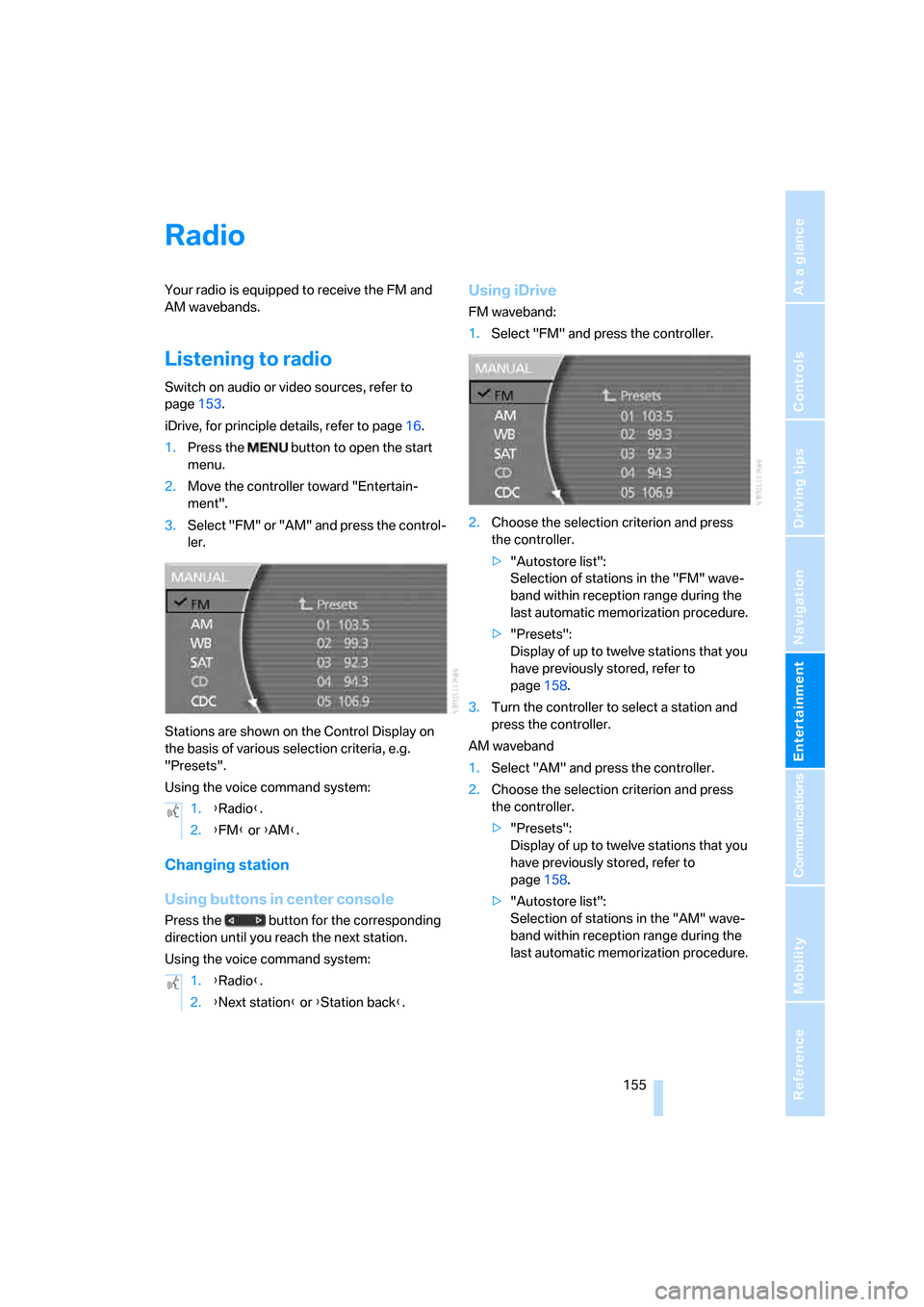
Stations are shown on the Control Display on
the basis of various selection criteria, e.g.
"Presets".
Using the voice command system:
Changing station
Using buttons in center console
Press the button for the corresponding
direction until you reach the next station.
Using the voice command system:
Using iDrive
FM waveband:
1.Select "FM" and press the controller.
2.Choose the selection criterion and press
the controller.
>"Autostore list":
Selection of stations in the "FM" wave-
band within reception range during the
last automatic memorization procedure.
>"Presets":
Display of up to twelve stations that you
have previously stored, refer to
page158.
3.Turn the controller to select a station and
press the controller.
AM waveband
1.Select "AM" and press the controller.
2.Choose the selection criterion and press
the controller.
>"Presets":
Display of up to twelve stations that you
have previously stored, refer to
page158.
>"Autostore list":
Selection of stations in the "AM" wave-
band within reception range during the
last automatic memorization procedure. 1.{Radio}.
2.{FM} or {AM}.
1.{Radio}.
2.{Next station} or {Station back}.
Page 159 of 247
Navigation
Entertainment
Driving tips
157Reference
At a glance
Controls
Communications
Mobility
5.Turn the controller until you reach the
desired frequency.
6.Press the controller to save setting.
Using the voice command system:
Updating selection of stations in
receiving range
In the course of longer trips, when you travel
outside the transmission range of the originally
selected stations, you can update the selection
of stations in receiving range.
1.Select "FM" or "AM" and press the control-
ler.
2.Choose the selection criterion and press
the controller.
3.Select "MANUAL" and press the controller.
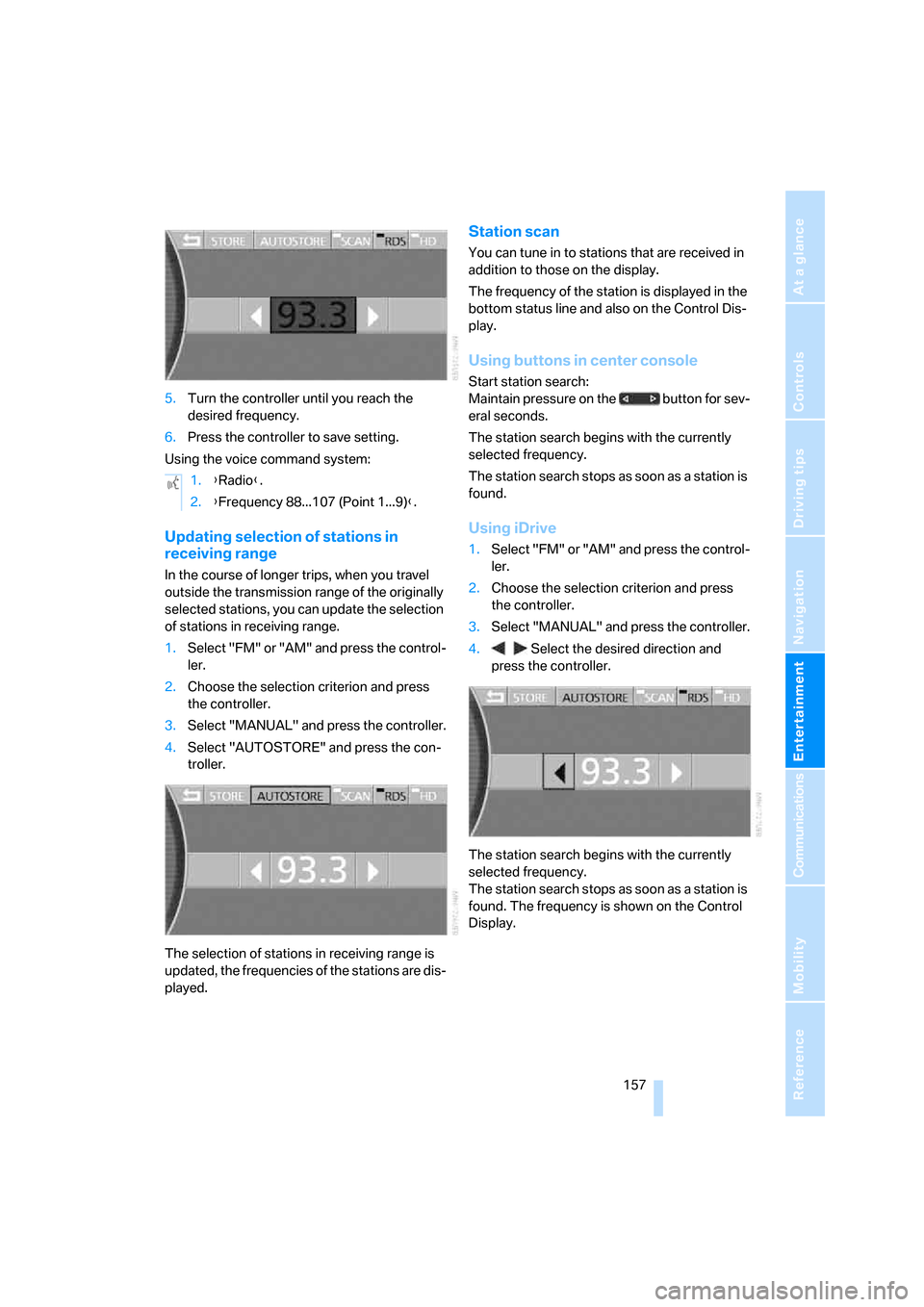
4.Select "AUTOSTORE" and press the con-
troller.
The selection of stations in receiving range is
updated, the frequencies of the stations are dis-
played.
Station scan
You can tune in to stations that are received in
addition to those on the display.
The frequency of the station is displayed in the
bottom status line and also on the Control Dis-
play.
Using buttons in center console
Start station search:
Maintain pressure on the button for sev-
eral seconds.
The station search begins with the currently
selected frequency.
The station search stops as soon as a station is
found.
Using iDrive
1.Select "FM" or "AM" and press the control-
ler.
2.Choose the selection criterion and press
the controller.
3.Select "MANUAL" and press the controller.
4. Select the desired direction and
press the controller.
The station search begins with the currently
selected frequency.
The station search stops as soon as a station is
found. The frequency is shown on the Control
Display. 1.{Radio}.
2.{Frequency 88...107 (Point 1...9)}.
Page 162 of 247
Radio
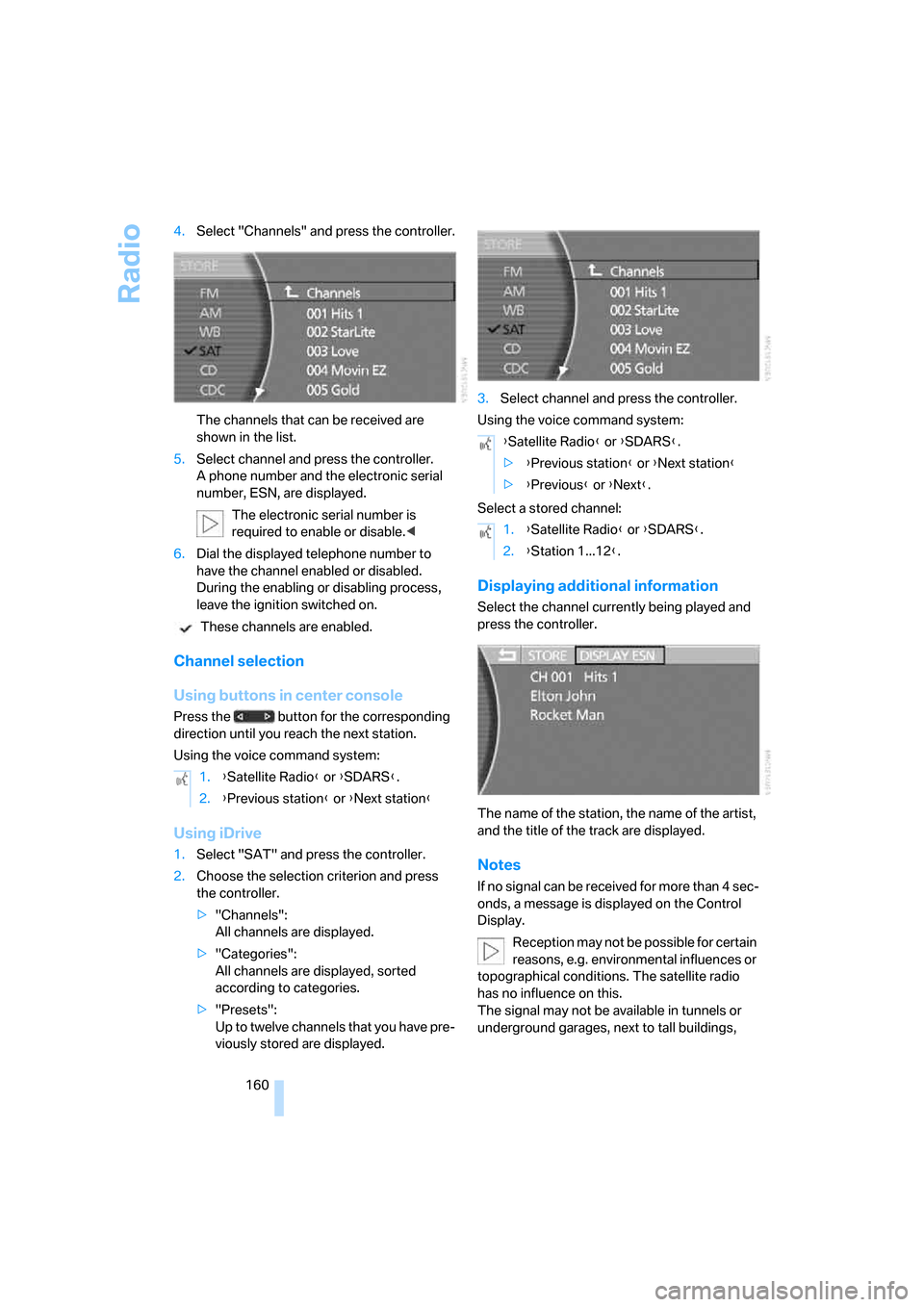
160 4.Select "Channels" and press the controller.
The channels that can be received are
shown in the list.
5.Select channel and press the controller.
A phone number and the electronic serial
number, ESN, are displayed.
The electronic serial number is
required to enable or disable.<
6.Dial the displayed telephone number to
have the channel enabled or disabled.
During the enabling or disabling process,
leave the ignition switched on.
These channels are enabled.
Channel selection
Using buttons in center console
Press the button for the corresponding
direction until you reach the next station.
Using the voice command system:
Using iDrive
1.Select "SAT" and press the controller.
2.Choose the selection criterion and press
the controller.
>"Channels":
All channels are displayed.
>"Categories":
All channels are displayed, sorted
according to categories.
>"Presets":
Up to twelve channels that you have pre-
viously stored are displayed.3.Select channel and press the controller.
Using the voice command system:
Select a stored channel:
Displaying additional information
Select the channel currently being played and
press the controller.
The name of the station, the name of the artist,
and the title of the track are displayed.
Notes
If no signal can be received for more than 4 sec-
onds, a message is displayed on the Control
Display.
Reception may not be possible for certain
reasons, e.g. environmental influences or
topographical conditions. The satellite radio
has no influence on this.
The signal may not be available in tunnels or
underground garages, next to tall buildings, 1.{Satellite Radio} or {SDARS}.
2.{Previous station} or {Next station}
{Satellite Radio} or {SDARS}.
>{Previous station} or {Next station}
>{Previous} or {Next}.
1.{Satellite Radio} or {SDARS}.
2.{Station 1...12}.
Page 164 of 247
CD player
162
CD player
Listening to CDs
1.Switch Entertainment sound output on,
refer to page153.
2.Insert the CD with the labeled side up.
The CD is automatically pulled in.
To start playback when a CD is already in
the player:
iDrive, for principle details, refer to page16.
1.Press the button to open the start
menu.
2.Move the controller toward "Entertain-
ment".
3.Select "CD" and press the controller.
Using the voice command system:
Selecting tracks
Using buttons in center console
Press the button repeatedly, continuing
until you reach the desired track on the current
CD.
Using the voice command system:
Using iDrive
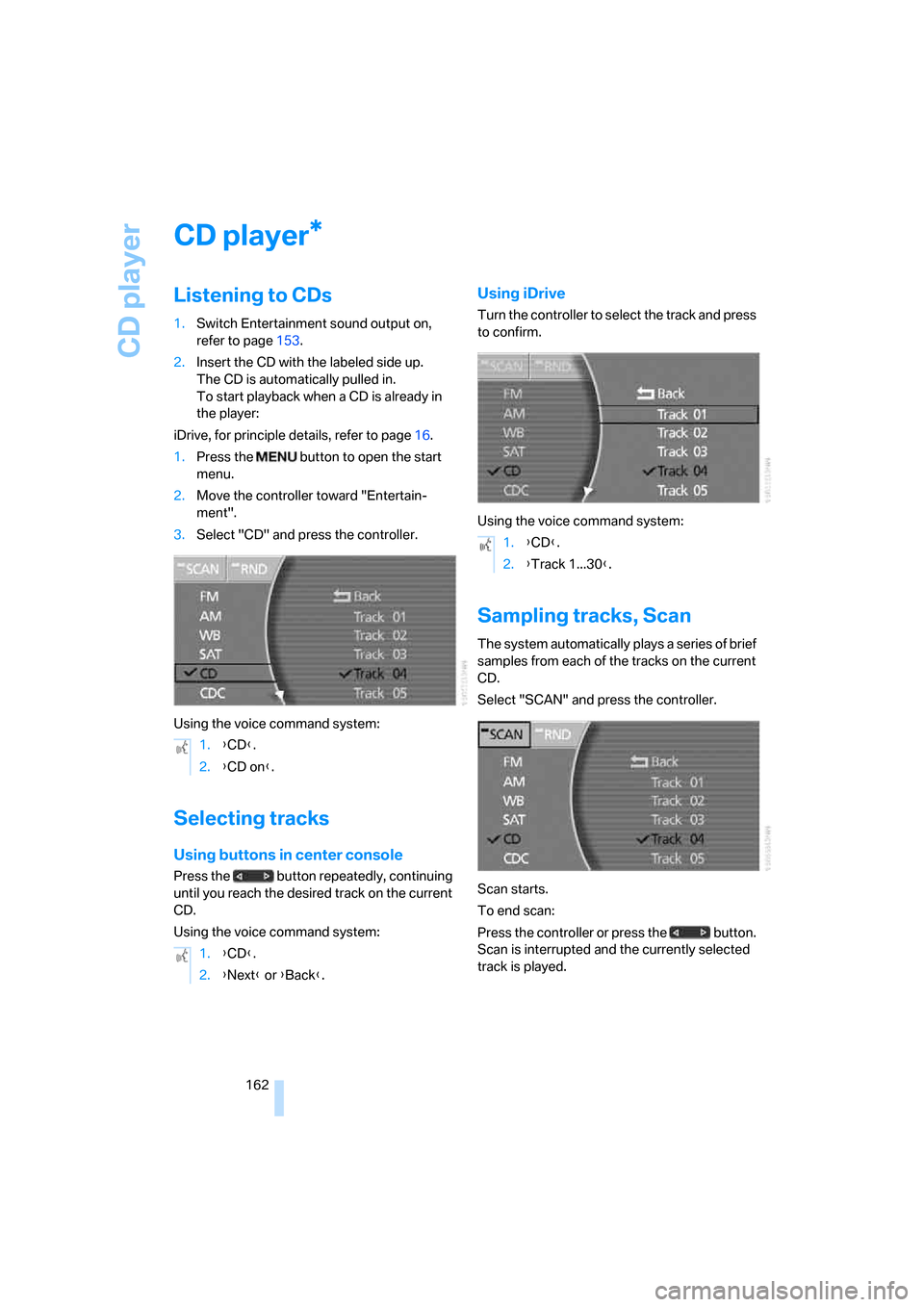
Turn the controller to select the track and press
to confirm.
Using the voice command system:
Sampling tracks, Scan
The system automatically plays a series of brief
samples from each of the tracks on the current
CD.
Select "SCAN" and press the controller.
Scan starts.
To end scan:
Press the controller or press the button.
Scan is interrupted and the currently selected
track is played.
*
1.{CD}.
2.{CD on}.
1.{CD}.
2.{Next} or {Back}.
1.{CD}.
2.{Track 1...30}.
Page 167 of 247
Navigation
Entertainment
Driving tips
165Reference
At a glance
Controls
Communications
Mobility
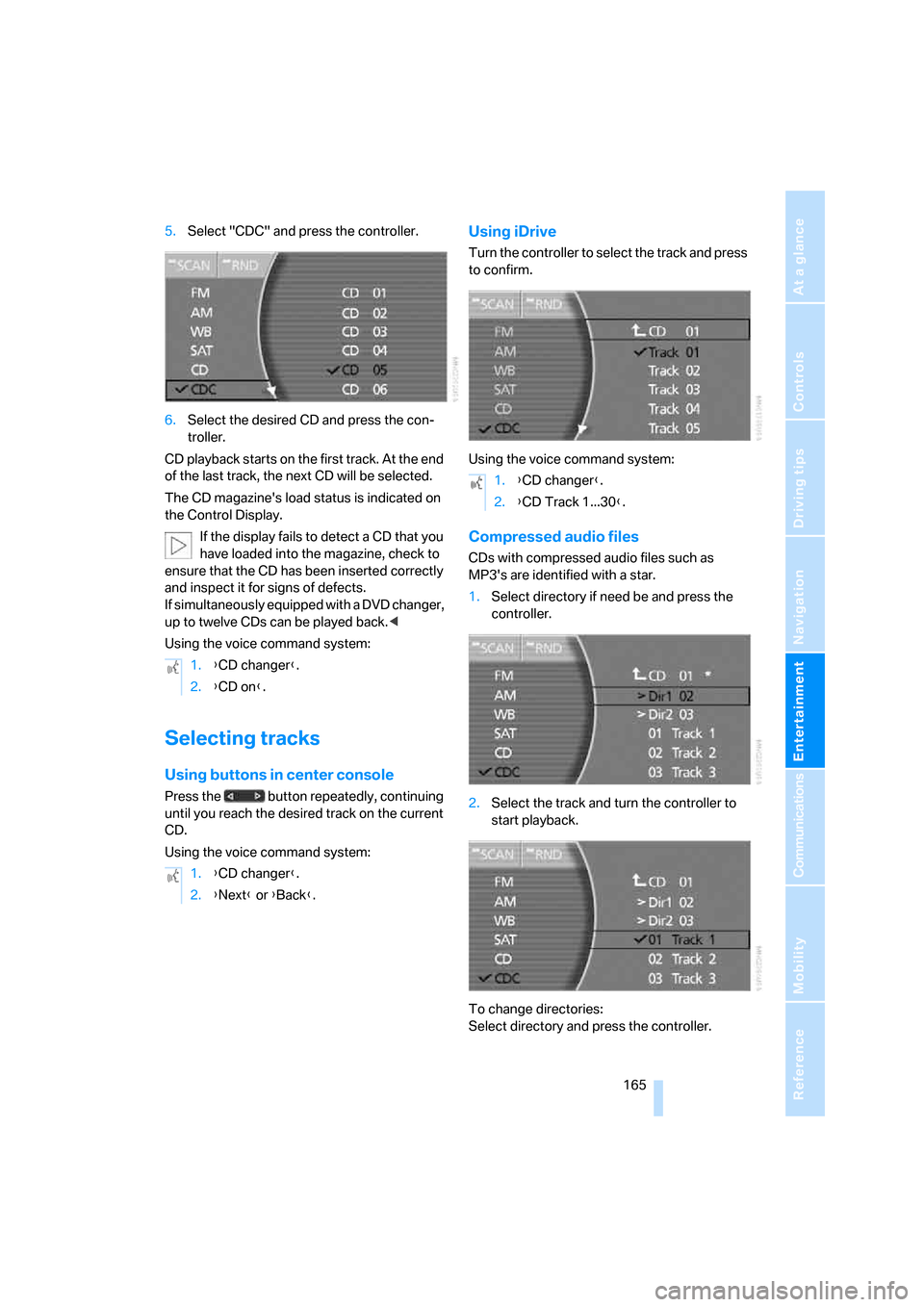
5.Select "CDC" and press the controller.
6.Select the desired CD and press the con-
troller.
CD playback starts on the first track. At the end
of the last track, the next CD will be selected.
The CD magazine's load status is indicated on
the Control Display.
If the display fails to detect a CD that you
have loaded into the magazine, check to
ensure that the CD has been inserted correctly
and inspect it for signs of defects.
If simultaneously equipped with a DVD changer,
up to twelve CDs can be played back.<
Using the voice command system:
Selecting tracks
Using buttons in center console
Press the button repeatedly, continuing
until you reach the desired track on the current
CD.
Using the voice command system:
Using iDrive
Turn the controller to select the track and press
to confirm.
Using the voice command system:
Compressed audio files
CDs with compressed audio files such as
MP3's are identified with a star.
1.Select directory if need be and press the
controller.
2.Select the track and turn the controller to
start playback.
To change directories:
Select directory and press the controller. 1.{CD changer}.
2.{CD on}.
1.{CD changer}.
2.{Next} or {Back}.
1.{CD changer}.
2.{CD Track 1...30}.
Page 178 of 247
Telephone overview
176
Telephone overview
The concept
Your BMW is equipped with a mobile phone
preparation package. After a suitable mobile
phone has been logged onto the vehicle once,
you can operate the mobile phone via iDrive,
via the buttons on the steering wheel, via the
phone keypad and by voice.
A mobile phone that has been logged on once is
automatically detected again with the engine
running or the ignition switched on as soon as
it is in the vehicle interior. The logon data of up
to four mobile phones can be stored simulta-
neously. If several mobile phones are detected
simultaneously, the mobile phone logged on
most recently can be operated via the vehicle.
Using a phone in your vehicle
Using snap-in adapter*
The so-called snap-in adapter, a mobile phone
cradle, enables the battery to be charged and
the mobile phone to be connected to the exter-
nal antenna of your vehicle. This assures better
network reception and uniform sound quality.
Ask your BMW center which mobile phones
snap-in adapters are offered for.
BMW discourages the use of mobile
phones or other mobile communications
devices inside the vehicle without a direct con-
nection to an outside antenna. Otherwise, the
vehicle electronics and mobile communications
device can affect each other. In addition, there
is no assurance that the radiation generated
during transmission will be discharged from the
vehicle interior.<
Avoid operating a mobile phone detected by
the vehicle with the keypad of the mobile
phone; otherwise, malfunctions can occur.The mobile phone can be operated by means
of:
>Buttons on the steering wheel, refer to
page11
>Retracting telephone keypad, refer to
page177
>iDrive, for principle details, refer to page16.
>Voice command system
*, refer to page23,
except for incoming calls
For information on operating your mobile
phone, please consult the separate operating
instructions.
For your safety
Only make entries when the traffic situa-
tion allows you to do so. Do not hold the
mobile phone in your hand while you are driving;
use the hands-free system instead. If you do
not observe this precaution, your being dis-
tracted can endanger vehicle occupants and
other road users.<
Suitable mobile phones
Ask your BMW center which mobile phones
with a Bluetooth interface are supported by the
mobile phone preparation package or which
mobile phones snap-in adapters are available
for. These mobile phones support the functions
described in this Owner's Manual with a certain
software version. Malfunctions can occur with
other mobile phones.
*
Page 179 of 247
177
Entertainment
Reference
At a glance
Controls
Driving tips Communications
Navigation
Mobility
Hands-free system
The hands-free microphone is located on the
left-hand side on the headliner.
The hands-free system is activated whenever
you establish or receive a call using the follow-
ing:
>Buttons on the steering wheel, page11
>Voice command system
*, page23, except
for incoming calls
>Retracting telephone keypad
>iDrive, refer to Using the phone, page182
Volume adjustment
You can set the volume for the hands-free sys-
tem and the ring tone separately:
>Turn knob during a call.
>Turn knob during an incoming call.
This volume is maintained, even if the other
audio sources are set to minimum volume.
The setting is stored for the remote control cur-
rently in use.
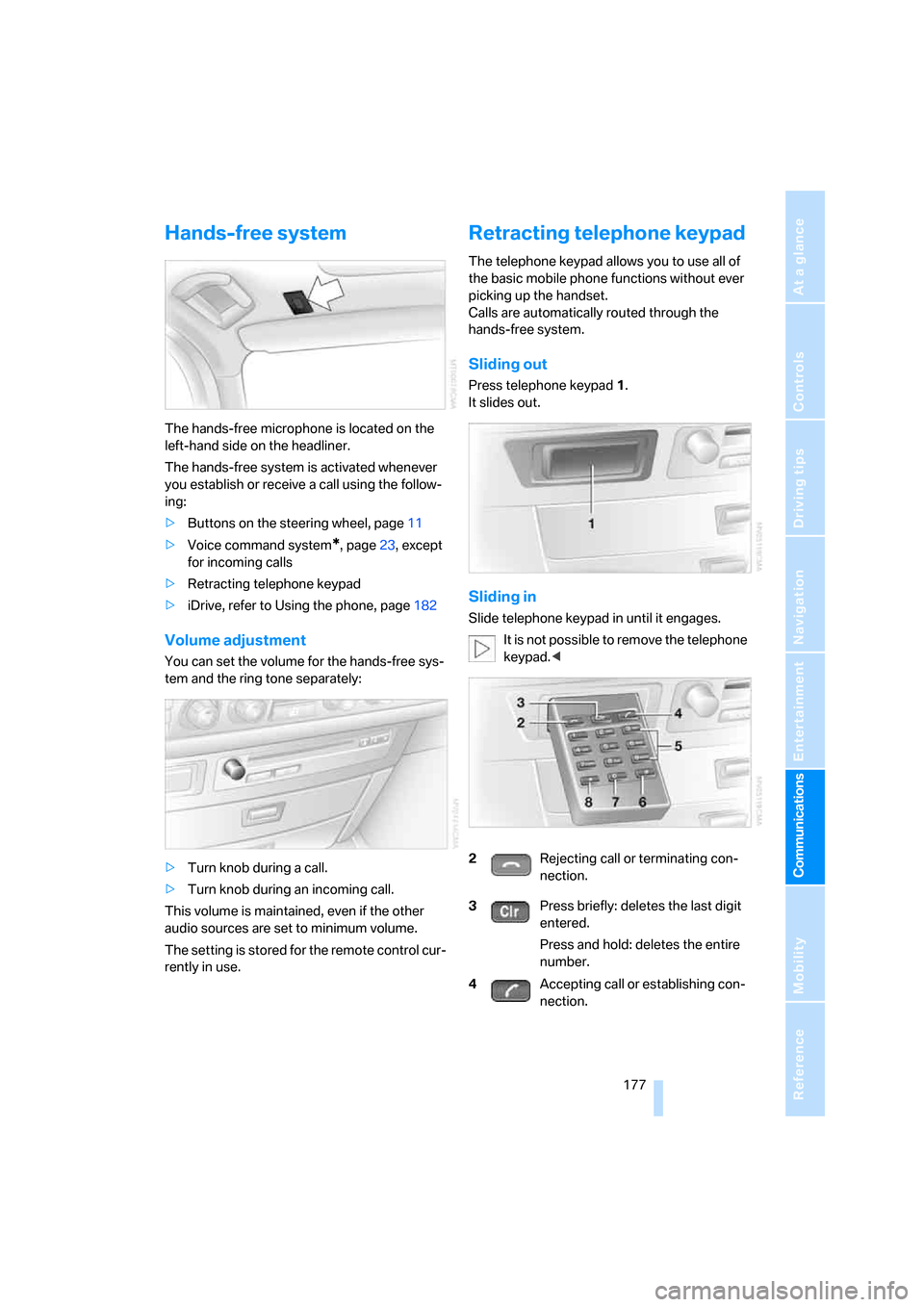
Retracting telephone keypad
The telephone keypad allows you to use all of
the basic mobile phone functions without ever
picking up the handset.
Calls are automatically routed through the
hands-free system.
Sliding out
Press telephone keypad1.
It slides out.
Sliding in
Slide telephone keypad in until it engages.
It is not possible to remove the telephone
keypad.<
2Rejecting call or terminating con-
nection.
3Press briefly: deletes the last digit
entered.
Press and hold: deletes the entire
number.
4Accepting call or establishing con-
nection.
Page 183 of 247
181
Entertainment
Reference
At a glance
Controls
Driving tips Communications
Navigation
Mobility
4.Select "Phone" and press the controller.
5.Select "BLUETOOTH" and press the con-
troller.
>The LED next to "BLUETOOTH" lights up
in green:
The Bluetooth connection is activated.
>The LED next to "BLUETOOTH" does not
light up:
The Bluetooth connection is deactivated.
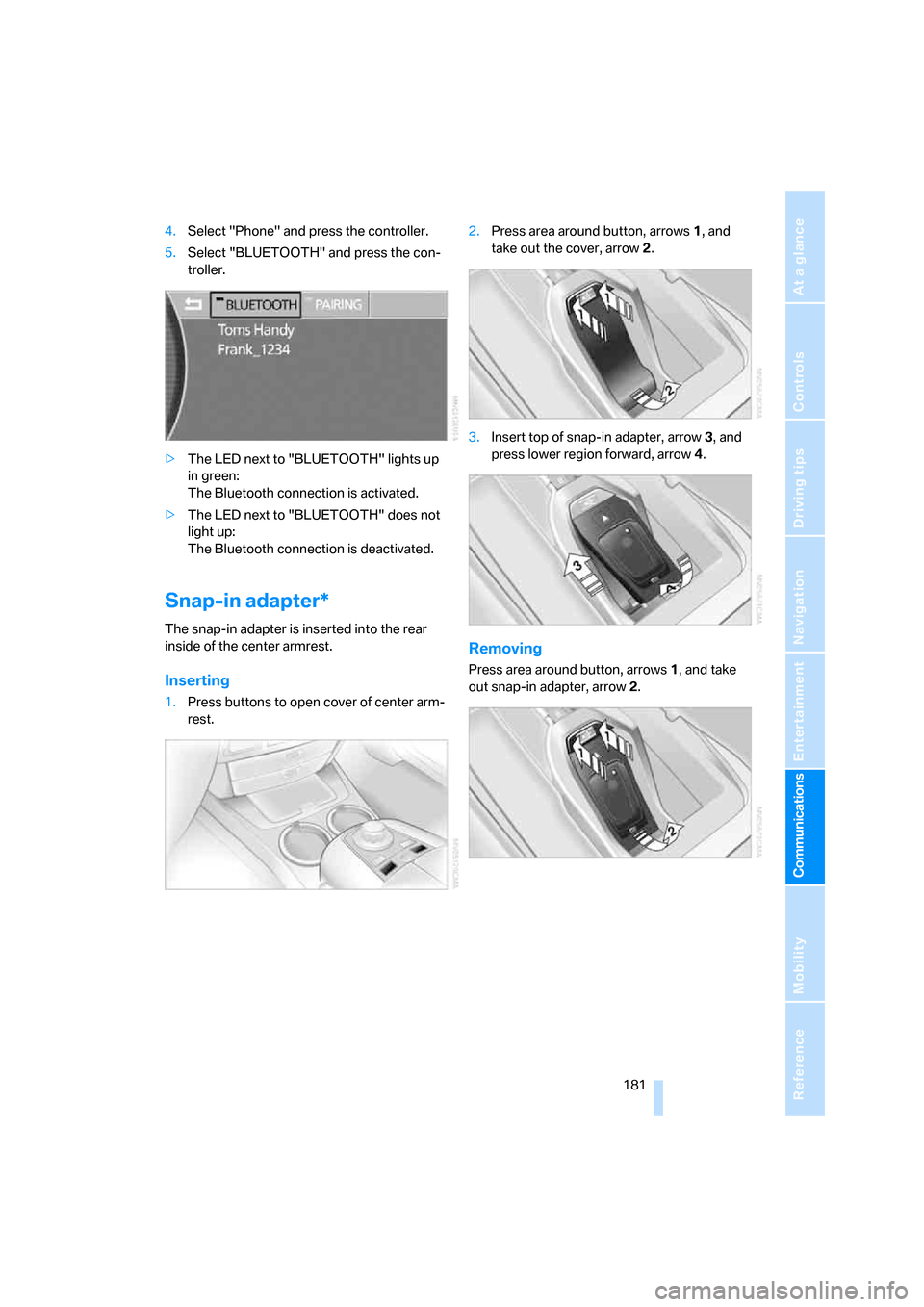
Snap-in adapter*
The snap-in adapter is inserted into the rear
inside of the center armrest.
Inserting
1.Press buttons to open cover of center arm-
rest.2.Press area around button, arrows1, and
take out the cover, arrow2.
3.Insert top of snap-in adapter, arrow3, and
press lower region forward, arrow4.
Removing
Press area around button, arrows1, and take
out snap-in adapter, arrow2.
Page 227 of 247
Reference 225
At a glance
Controls
Driving tips
Communications
Navigation
Entertainment
Mobility
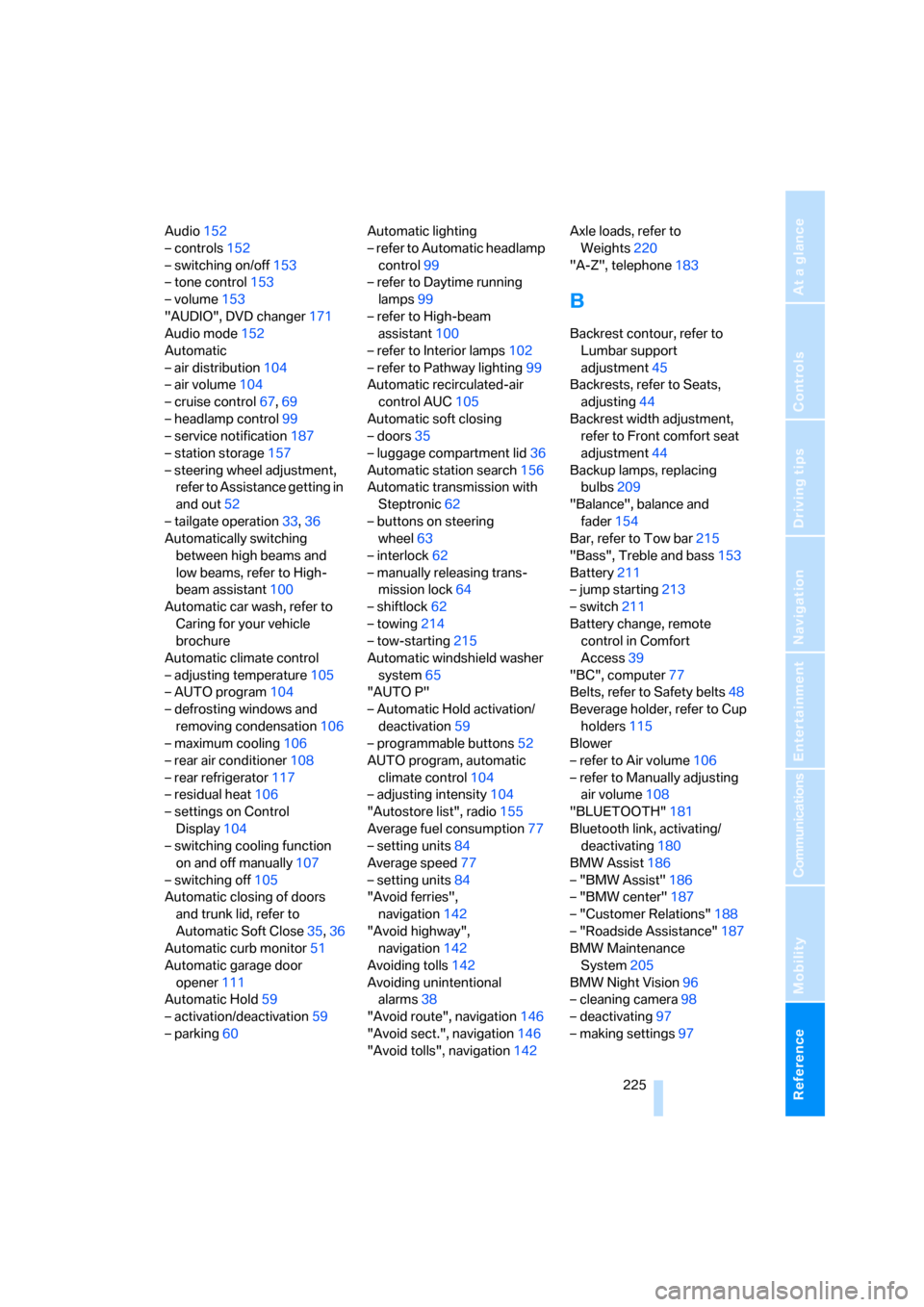
Audio152
– controls152
– switching on/off153
– tone control153
– volume153
"AUDIO", DVD changer171
Audio mode152
Automatic
– air distribution104
– air volume104
– cruise control67,69
– headlamp control99
– service notification187
– station storage157
– steering wheel adjustment,
refer to Assistance getting in
and out52
– tailgate operation33,36
Automatically switching
between high beams and
low beams, refer to High-
beam assistant100
Automatic car wash, refer to
Caring for your vehicle
brochure
Automatic climate control
– adjusting temperature105
– AUTO program104
– defrosting windows and
removing condensation106
– maximum cooling106
– rear air conditioner108
– rear refrigerator117
– residual heat106
– settings on Control
Display104
– switching cooling function
on and off manually107
– switching off105
Automatic closing of doors
and trunk lid, refer to
Automatic Soft Close35,36
Automatic curb monitor51
Automatic garage door
opener111
Automatic Hold59
– activation/deactivation59
– parking60Automatic lighting
– refer to Automatic headlamp
control99
– refer to Daytime running
lamps99
– refer to High-beam
assistant100
– refer to Interior lamps102
– refer to Pathway lighting99
Automatic recirculated-air
control AUC105
Automatic soft closing
– doors
35
– luggage compartment lid36
Automatic station search156
Automatic transmission with
Steptronic62
– buttons on steering
wheel63
– interlock62
– manually releasing trans-
mission lock64
– shiftlock62
– towing214
– tow-starting215
Automatic windshield washer
system65
"AUTO P"
– Automatic Hold activation/
deactivation59
– programmable buttons52
AUTO program, automatic
climate control104
– adjusting intensity104
"Autostore list", radio155
Average fuel consumption77
– setting units84
Average speed77
– setting units84
"Avoid ferries",
navigation142
"Avoid highway",
navigation142
Avoiding tolls142
Avoiding unintentional
alarms38
"Avoid route", navigation146
"Avoid sect.", navigation146
"Avoid tolls", navigation142Axle loads, refer to
Weights220
"A-Z", telephone183
B
Backrest contour, refer to
Lumbar support
adjustment45
Backrests, refer to Seats,
adjusting44
Backrest width adjustment,
refer to Front comfort seat
adjustment44
Backup lamps, replacing
bulbs209
"Balance", balance and
fader154
Bar, refer to Tow bar215
"Bass", Treble and bass153
Battery211
– jump starting213
– switch211
Battery change, remote
control in Comfort
Access39
"BC", computer77
Belts, refer to Safety belts48
Beverage holder, refer to Cup
holders115
Blower
– refer to Air volume106
– refer to Manually adjusting
air volume108
"BLUETOOTH"181
Bluetooth link, activating/
deactivating180
BMW Assist186
– "BMW Assist"186
– "BMW center"187
– "Customer Relations"188
– "Roadside Assistance"187
BMW Maintenance
System205
BMW Night Vision96
– cleaning camera98
– deactivating97
– making settings97
Page 228 of 247
Everything from A to Z
226 Bottle holder, refer to Cup
holders115
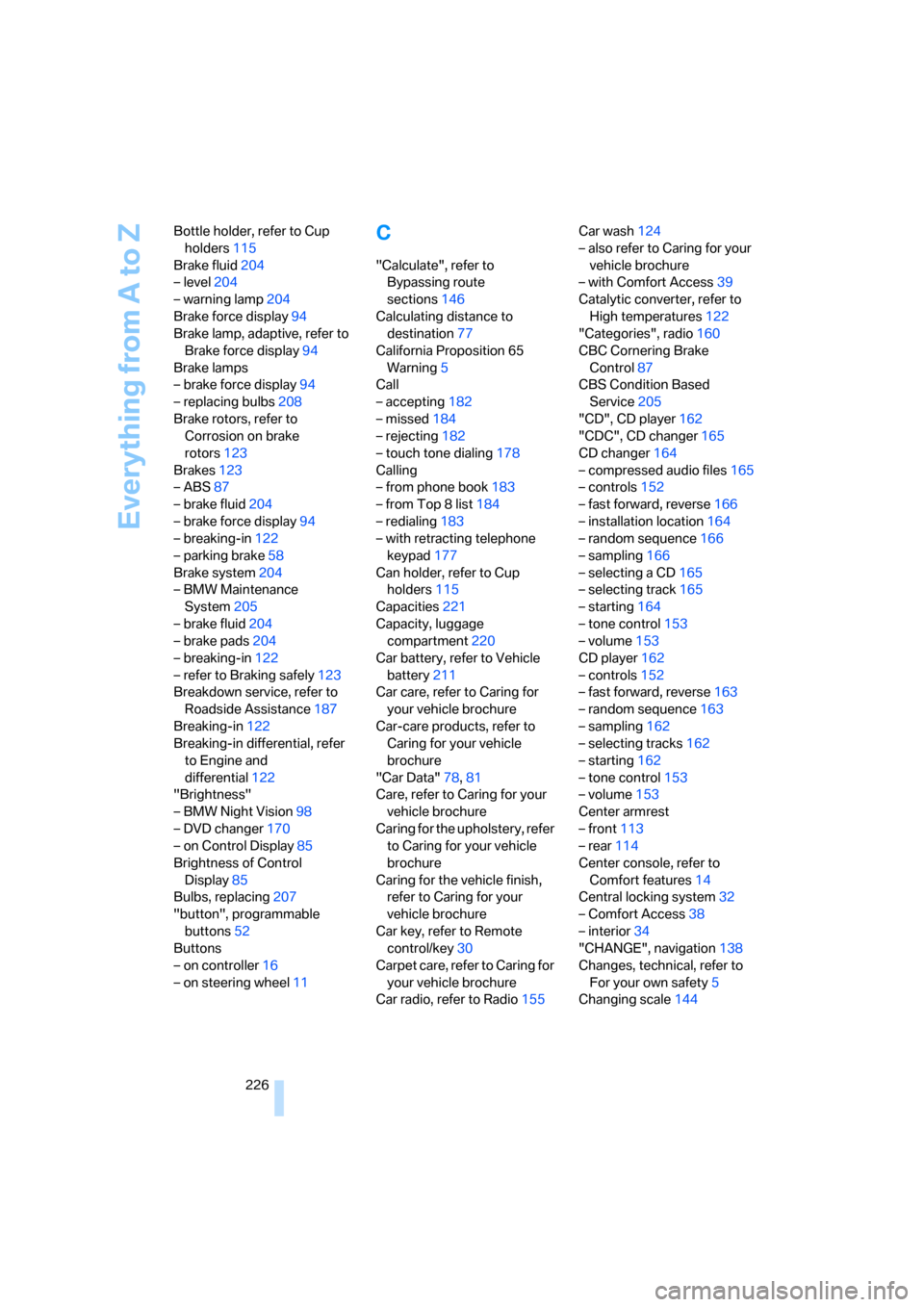
Brake fluid204
– level204
– warning lamp204
Brake force display94
Brake lamp, adaptive, refer to
Brake force display94
Brake lamps
– brake force display94
– replacing bulbs208
Brake rotors, refer to
Corrosion on brake
rotors123
Brakes123
– ABS87
– brake fluid204
– brake force display94
– breaking-in122
– parking brake58
Brake system204
– BMW Maintenance
System205
– brake fluid204
– brake pads204
– breaking-in122
– refer to Braking safely123
Breakdown service, refer to
Roadside Assistance187
Breaking-in122
Breaking-in differential, refer
to Engine and
differential122
"Brightness"
– BMW Night Vision98
– DVD changer170
– on Control Display85
Brightness of Control
Display85
Bulbs, replacing207
"button", programmable
buttons52
Buttons
– on controller16
– on steering wheel11
C
"Calculate", refer to
Bypassing route
sections146
Calculating distance to
destination77
California Proposition 65
Warning5
Call
– accepting182
– missed184
– rejecting182
– touch tone dialing178
Calling
– from phone book183
– from Top 8 list184
– redialing183
– with retracting telephone
keypad177
Can holder, refer to Cup
holders115
Capacities221
Capacity, luggage
compartment220
Car battery, refer to Vehicle
battery211
Car care, refer to Caring for
your vehicle brochure
Car-care products, refer to
Caring for your vehicle
brochure
"Car Data"78,81
Care, refer to Caring for your
vehicle brochure
Caring for the upholstery, refer
to Caring for your vehicle
brochure
Caring for the vehicle finish,
refer to Caring for your
vehicle brochure
Car key, refer to Remote
control/key30
Carpet care, refer to Caring for
your vehicle brochure
Car radio, refer to Radio155Car wash124
– also refer to Caring for your
vehicle brochure
– with Comfort Access39
Catalytic converter, refer to
High temperatures122
"Categories", radio160
CBC Cornering Brake
Control87
CBS Condition Based
Service205
"CD", CD player162
"CDC", CD changer165
CD changer164
– compressed audio files165
– controls152
– fast forward, reverse166
– installation location164
– random sequence166
– sampling166
– selecting a CD165
– selecting track165
– starting164
– tone control153
– volume153
CD player162
– controls152
– fast forward, reverse163
– random sequence163
– sampling162
– selecting tracks162
– starting162
– tone control153
– volume153
Center armrest
– front113
– rear114
Center console, refer to
Comfort features14
Central locking system32
– Comfort Access38
– interior34
"CHANGE", navigation138
Changes, technical, refer to
For your own safety5
Changing scale144