navigation system BMW 760i 2006 E65 Repair Manual
[x] Cancel search | Manufacturer: BMW, Model Year: 2006, Model line: 760i, Model: BMW 760i 2006 E65Pages: 247, PDF Size: 8.66 MB
Page 155 of 247
Navigation
Entertainment
Driving tips
153Reference
At a glance
Controls
Communications
Mobility
Switching on/off
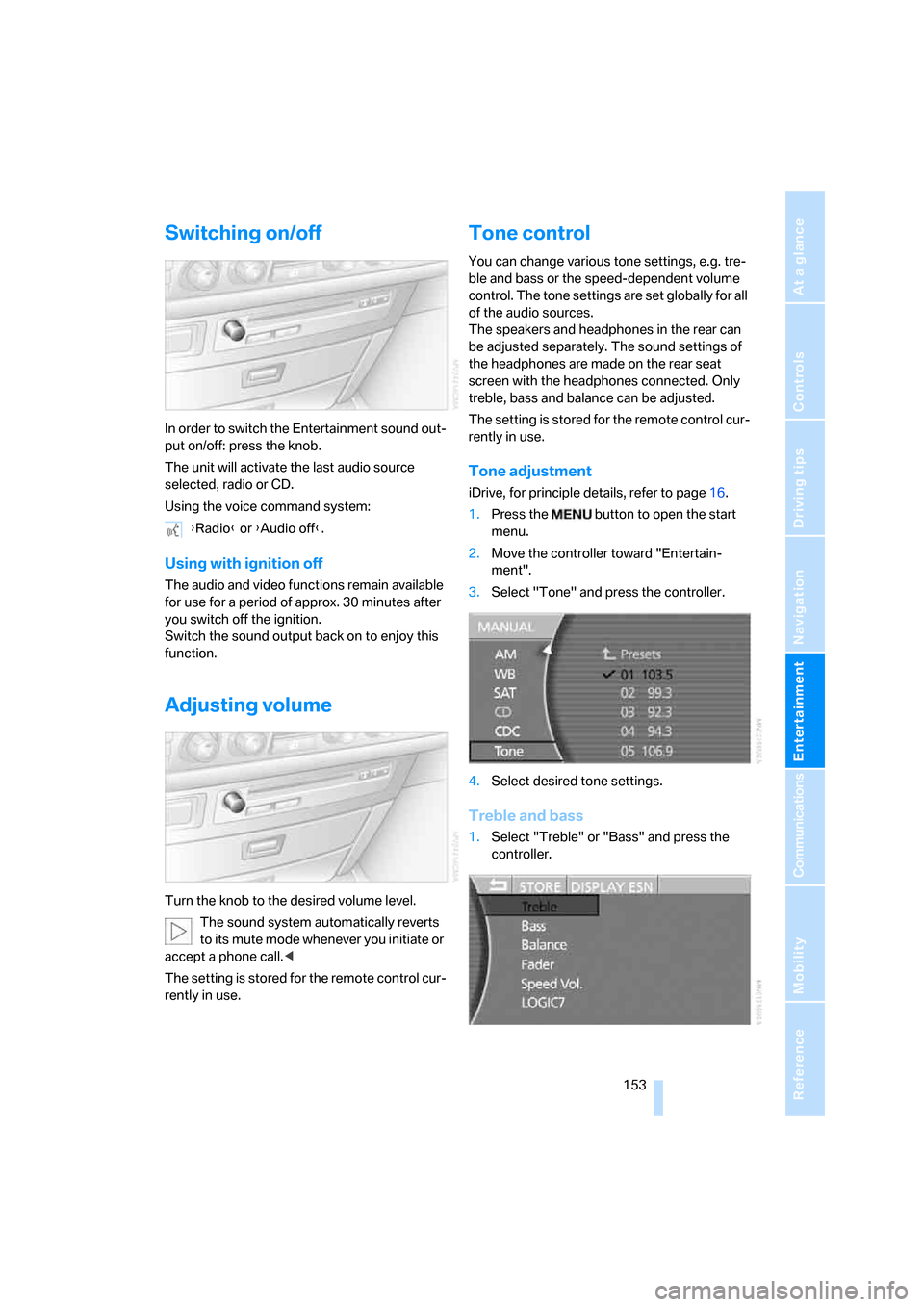
In order to switch the Entertainment sound out-
put on/off: press the knob.
The unit will activate the last audio source
selected, radio or CD.
Using the voice command system:
Using with ignition off
The audio and video functions remain available
for use for a period of approx. 30 minutes after
you switch off the ignition.
Switch the sound output back on to enjoy this
function.
Adjusting volume
Turn the knob to the desired volume level.
The sound system automatically reverts
to its mute mode whenever you initiate or
accept a phone call.<
The setting is stored for the remote control cur-
rently in use.
Tone control
You can change various tone settings, e.g. tre-
ble and bass or the speed-dependent volume
control. The tone settings are set globally for all
of the audio sources.
The speakers and headphones in the rear can
be adjusted separately. The sound settings of
the headphones are made on the rear seat
screen with the headphones connected. Only
treble, bass and balance can be adjusted.
The setting is stored for the remote control cur-
rently in use.
Tone adjustment
iDrive, for principle details, refer to page16.
1.Press the button to open the start
menu.
2.Move the controller toward "Entertain-
ment".
3.Select "Tone" and press the controller.
4.Select desired tone settings.
Treble and bass
1.Select "Treble" or "Bass" and press the
controller. {Radio} or {Audio off}.
Page 157 of 247
Navigation
Entertainment
Driving tips
155Reference
At a glance
Controls
Communications
Mobility
Radio
Your radio is equipped to receive the FM and
AM wavebands.
Listening to radio
Switch on audio or video sources, refer to
page153.
iDrive, for principle details, refer to page16.
1.Press the button to open the start
menu.
2.Move the controller toward "Entertain-
ment".
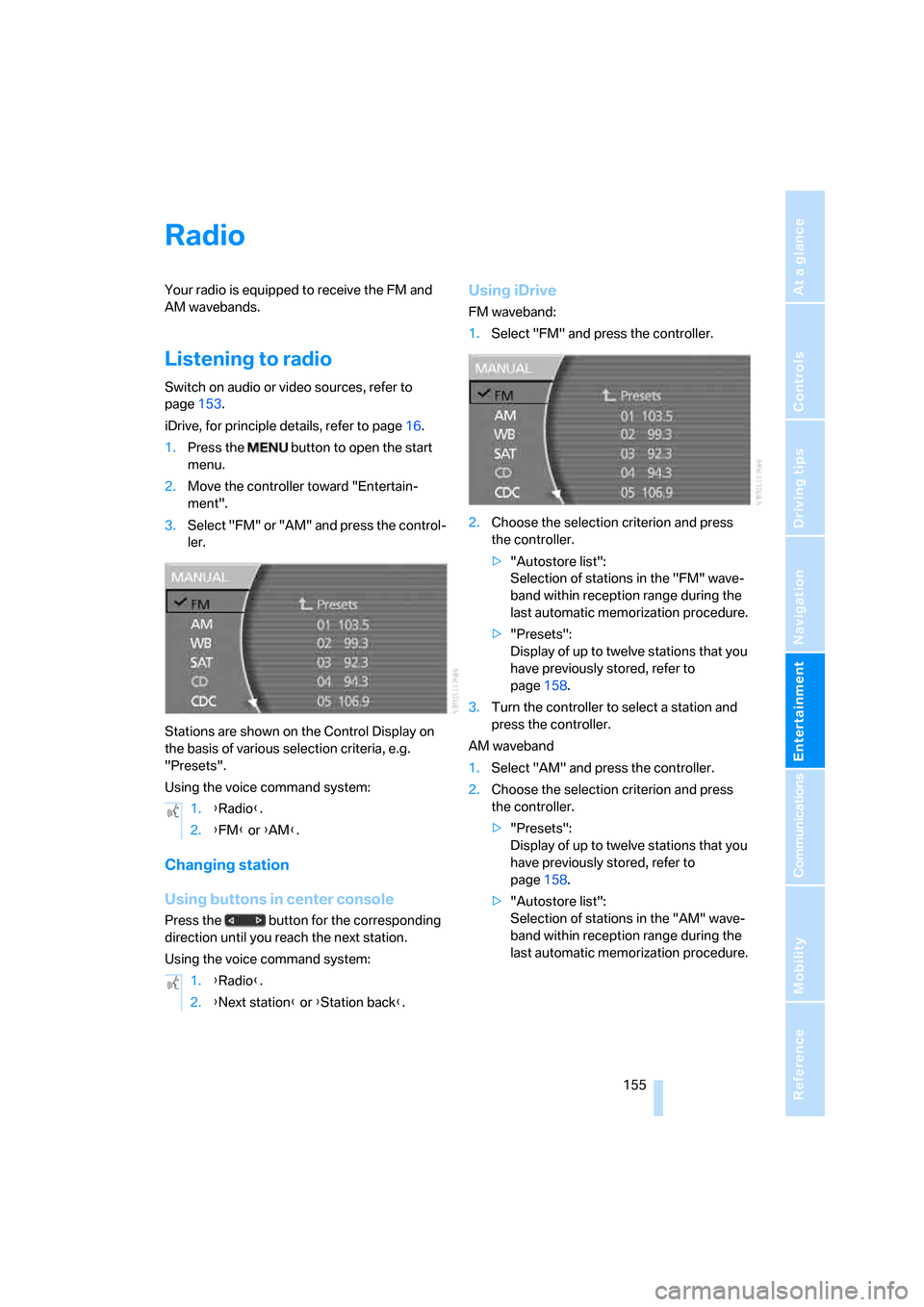
3.Select "FM" or "AM" and press the control-
ler.
Stations are shown on the Control Display on
the basis of various selection criteria, e.g.
"Presets".
Using the voice command system:
Changing station
Using buttons in center console
Press the button for the corresponding
direction until you reach the next station.
Using the voice command system:
Using iDrive
FM waveband:
1.Select "FM" and press the controller.
2.Choose the selection criterion and press
the controller.
>"Autostore list":
Selection of stations in the "FM" wave-
band within reception range during the
last automatic memorization procedure.
>"Presets":
Display of up to twelve stations that you
have previously stored, refer to
page158.
3.Turn the controller to select a station and
press the controller.
AM waveband
1.Select "AM" and press the controller.
2.Choose the selection criterion and press
the controller.
>"Presets":
Display of up to twelve stations that you
have previously stored, refer to
page158.
>"Autostore list":
Selection of stations in the "AM" wave-
band within reception range during the
last automatic memorization procedure. 1.{Radio}.
2.{FM} or {AM}.
1.{Radio}.
2.{Next station} or {Station back}.
Page 159 of 247
Navigation
Entertainment
Driving tips
157Reference
At a glance
Controls
Communications
Mobility
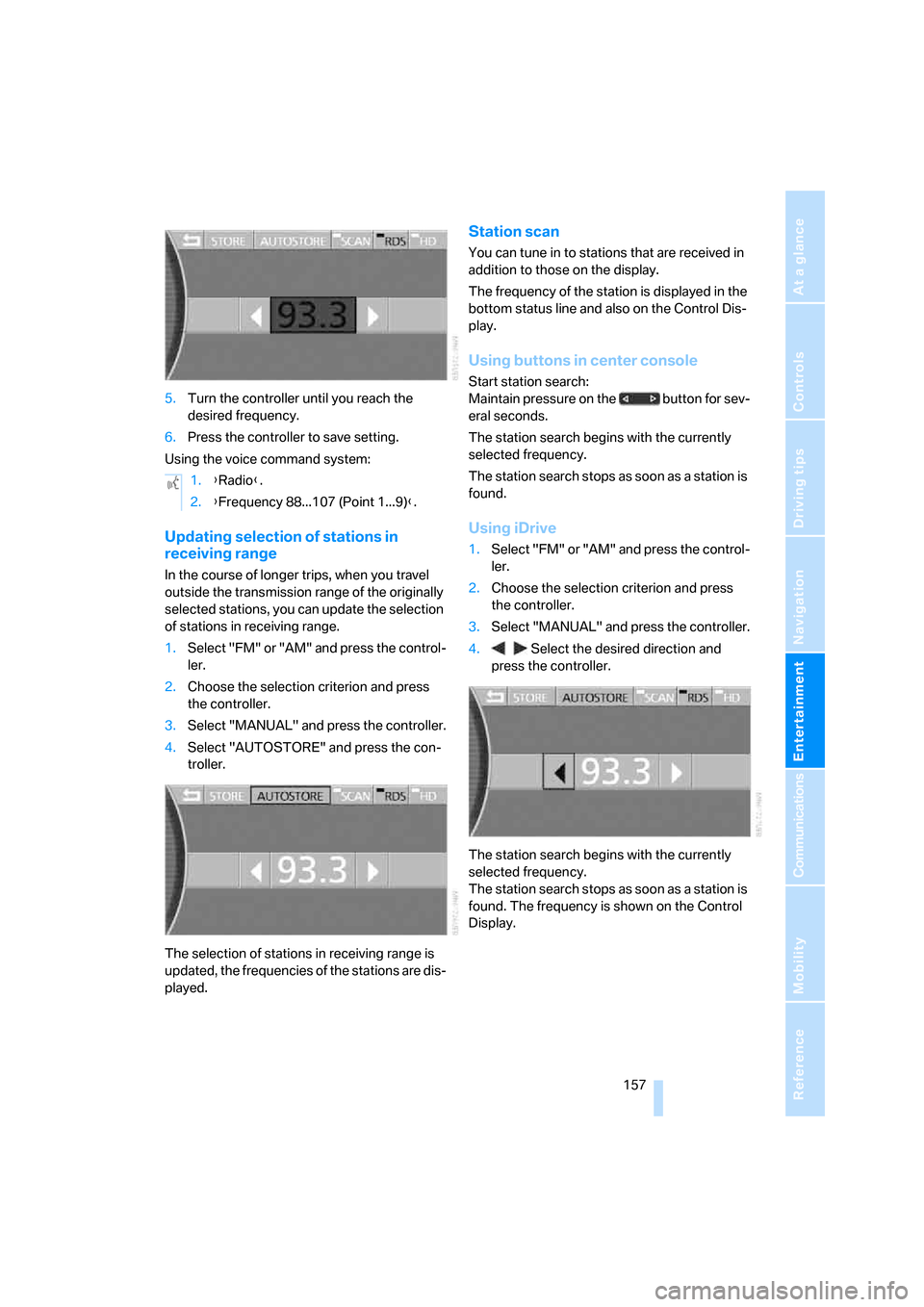
5.Turn the controller until you reach the
desired frequency.
6.Press the controller to save setting.
Using the voice command system:
Updating selection of stations in
receiving range
In the course of longer trips, when you travel
outside the transmission range of the originally
selected stations, you can update the selection
of stations in receiving range.
1.Select "FM" or "AM" and press the control-
ler.
2.Choose the selection criterion and press
the controller.
3.Select "MANUAL" and press the controller.
4.Select "AUTOSTORE" and press the con-
troller.
The selection of stations in receiving range is
updated, the frequencies of the stations are dis-
played.
Station scan
You can tune in to stations that are received in
addition to those on the display.
The frequency of the station is displayed in the
bottom status line and also on the Control Dis-
play.
Using buttons in center console
Start station search:
Maintain pressure on the button for sev-
eral seconds.
The station search begins with the currently
selected frequency.
The station search stops as soon as a station is
found.
Using iDrive
1.Select "FM" or "AM" and press the control-
ler.
2.Choose the selection criterion and press
the controller.
3.Select "MANUAL" and press the controller.
4. Select the desired direction and
press the controller.
The station search begins with the currently
selected frequency.
The station search stops as soon as a station is
found. The frequency is shown on the Control
Display. 1.{Radio}.
2.{Frequency 88...107 (Point 1...9)}.
Page 161 of 247
Navigation
Entertainment
Driving tips
159Reference
At a glance
Controls
Communications
Mobility
there is interference, it can take a while for
the station names to appear.
Switching RDS on/off
1.Select "FM" and press the controller.
2.Choose the selection criterion and press
the controller.
3.Select "MANUAL" and press the controller.
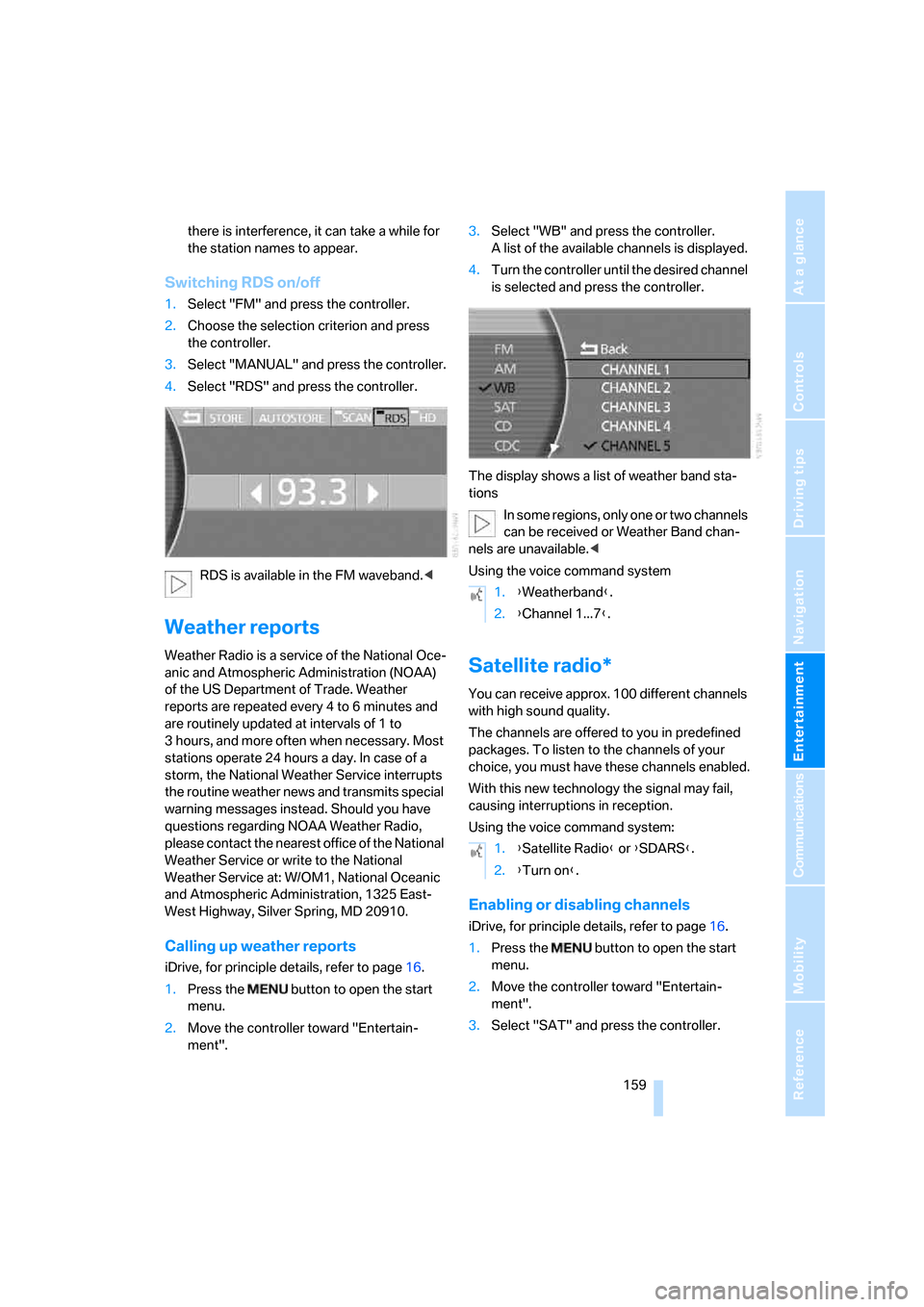
4.Select "RDS" and press the controller.
RDS is available in the FM waveband.<
Weather reports
Weather Radio is a service of the National Oce-
anic and Atmospheric Administration (NOAA)
of the US Department of Trade. Weather
reports are repeated every 4 to 6 minutes and
are routinely updated at intervals of 1 to
3 hours, and more often when necessary. Most
stations operate 24 hours a day. In case of a
storm, the National Weather Service interrupts
the routine weather news and transmits special
warning messages instead. Should you have
questions regarding NOAA Weather Radio,
please contact the nearest office of the National
Weather Service or write to the National
Weather Service at: W/OM1, National Oceanic
and Atmospheric Administration, 1325 East-
West Highway, Silver Spring, MD 20910.
Calling up weather reports
iDrive, for principle details, refer to page16.
1.Press the button to open the start
menu.
2.Move the controller toward "Entertain-
ment".3.Select "WB" and press the controller.
A list of the available channels is displayed.
4.Turn the controller until the desired channel
is selected and press the controller.
The display shows a list of weather band sta-
tions
In some regions, only one or two channels
can be received or Weather Band chan-
nels are unavailable.<
Using the voice command system
Satellite radio*
You can receive approx. 100 different channels
with high sound quality.
The channels are offered to you in predefined
packages. To listen to the channels of your
choice, you must have these channels enabled.
With this new technology the signal may fail,
causing interruptions in reception.
Using the voice command system:
Enabling or disabling channels
iDrive, for principle details, refer to page16.
1.Press the button to open the start
menu.
2.Move the controller toward "Entertain-
ment".
3.Select "SAT" and press the controller.
1.{Weatherband}.
2.{Channel 1...7}.
1.{Satellite Radio} or {SDARS}.
2.{Turn on}.
Page 165 of 247
Navigation
Entertainment
Driving tips
163Reference
At a glance
Controls
Communications
Mobility
Random play sequence
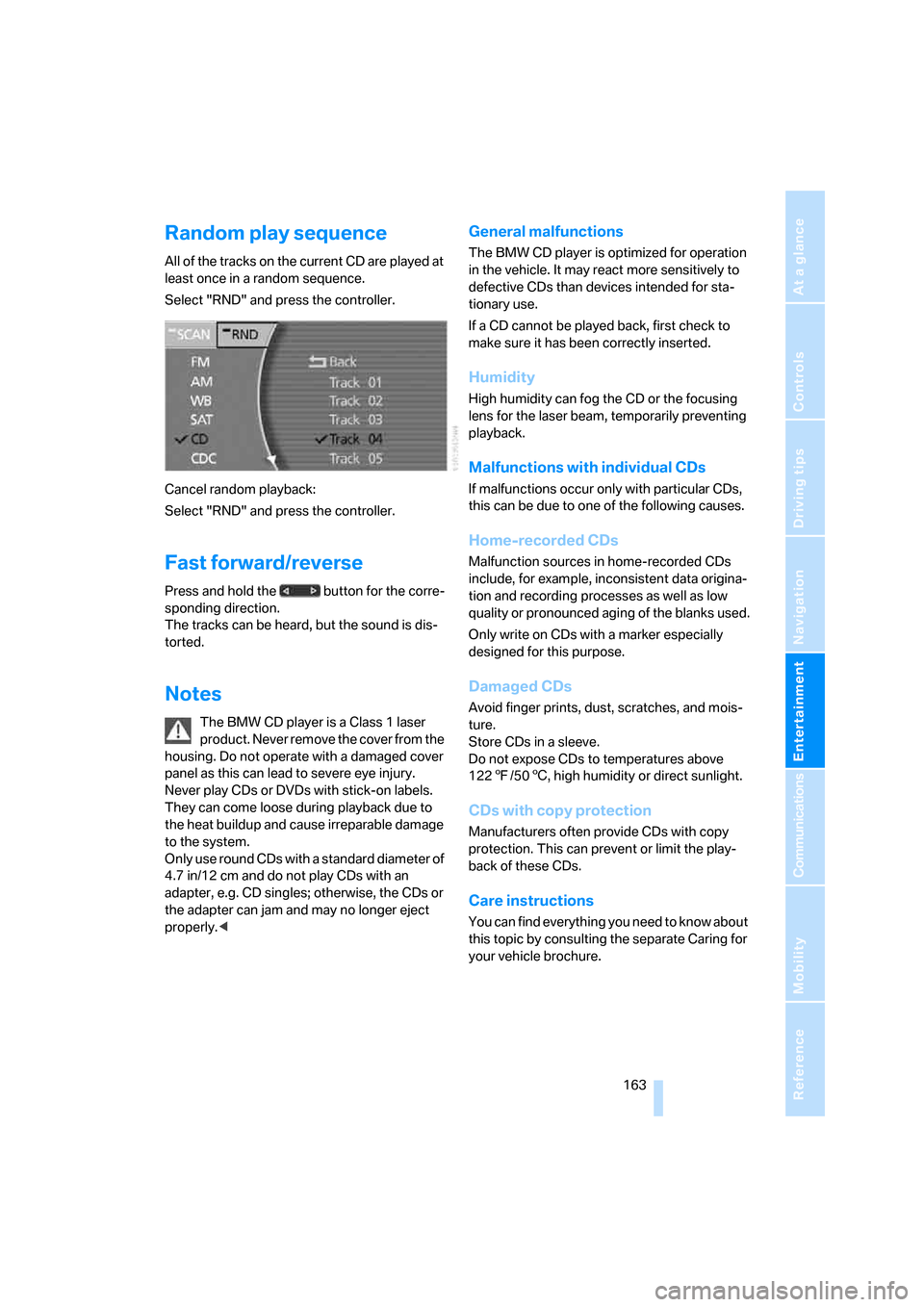
All of the tracks on the current CD are played at
least once in a random sequence.
Select "RND" and press the controller.
Cancel random playback:
Select "RND" and press the controller.
Fast forward/reverse
Press and hold the button for the corre-
sponding direction.
The tracks can be heard, but the sound is dis-
torted.
Notes
The BMW CD player is a Class 1 laser
product. Never remove the cover from the
housing. Do not operate with a damaged cover
panel as this can lead to severe eye injury.
Never play CDs or DVDs with stick-on labels.
They can come loose during playback due to
the heat buildup and cause irreparable damage
to the system.
Only use round CDs with a standard diameter of
4.7 in/12 cm and do not play CDs with an
adapter, e.g. CD singles; otherwise, the CDs or
the adapter can jam and may no longer eject
properly.<
General malfunctions
The BMW CD player is optimized for operation
in the vehicle. It may react more sensitively to
defective CDs than devices intended for sta-
tionary use.
If a CD cannot be played back, first check to
make sure it has been correctly inserted.
Humidity
High humidity can fog the CD or the focusing
lens for the laser beam, temporarily preventing
playback.
Malfunctions with individual CDs
If malfunctions occur only with particular CDs,
this can be due to one of the following causes.
Home-recorded CDs
Malfunction sources in home-recorded CDs
include, for example, inconsistent data origina-
tion and recording processes as well as low
quality or pronounced aging of the blanks used.
Only write on CDs with a marker especially
designed for this purpose.
Damaged CDs
Avoid finger prints, dust, scratches, and mois-
ture.
Store CDs in a sleeve.
Do not expose CDs to temperatures above
1227/506, high humidity or direct sunlight.
CDs with copy protection
Manufacturers often provide CDs with copy
protection. This can prevent or limit the play-
back of these CDs.
Care instructions
You can find everything you need to know about
this topic by consulting the separate Caring for
your vehicle brochure.
Page 167 of 247
Navigation
Entertainment
Driving tips
165Reference
At a glance
Controls
Communications
Mobility
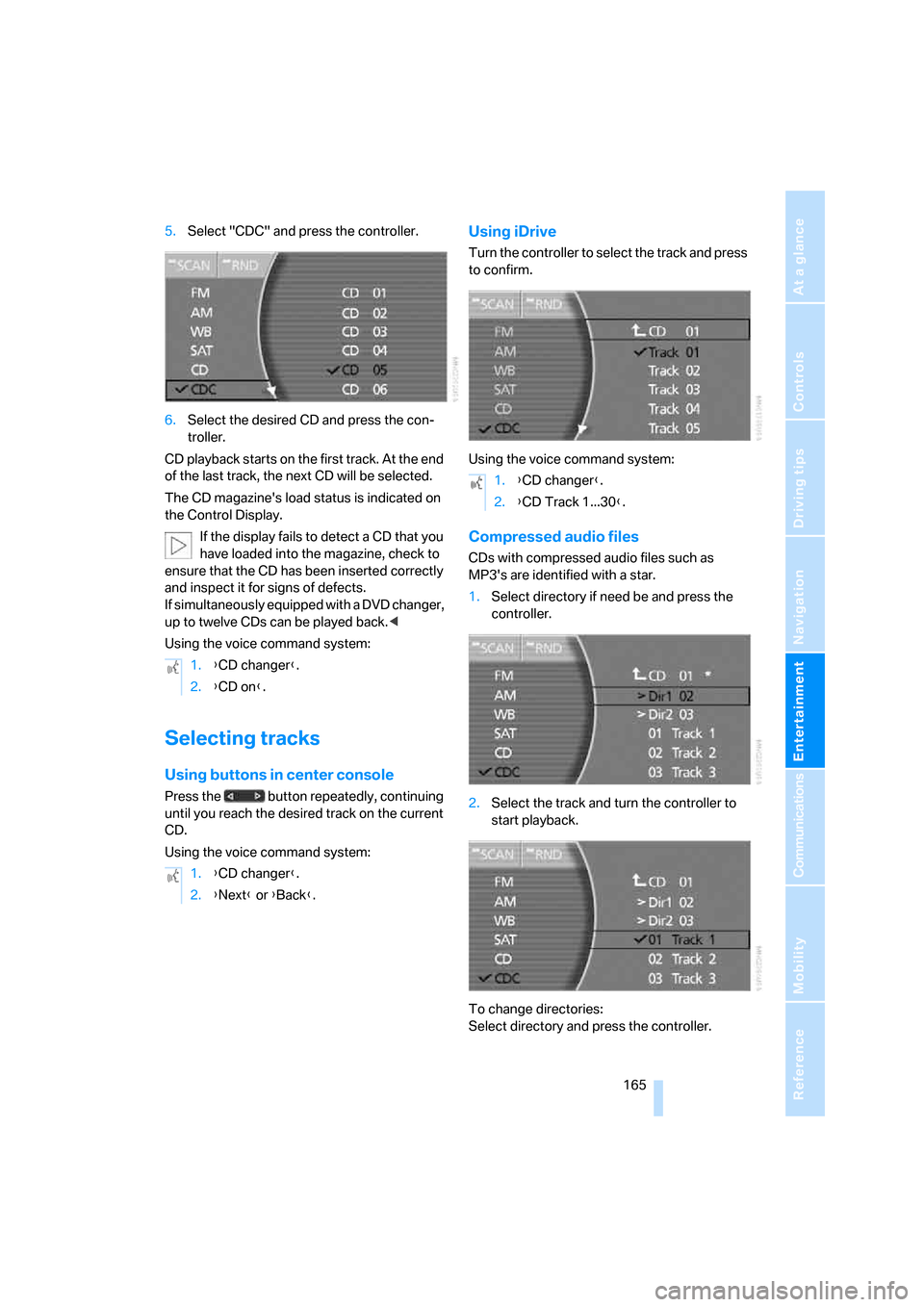
5.Select "CDC" and press the controller.
6.Select the desired CD and press the con-
troller.
CD playback starts on the first track. At the end
of the last track, the next CD will be selected.
The CD magazine's load status is indicated on
the Control Display.
If the display fails to detect a CD that you
have loaded into the magazine, check to
ensure that the CD has been inserted correctly
and inspect it for signs of defects.
If simultaneously equipped with a DVD changer,
up to twelve CDs can be played back.<
Using the voice command system:
Selecting tracks
Using buttons in center console
Press the button repeatedly, continuing
until you reach the desired track on the current
CD.
Using the voice command system:
Using iDrive
Turn the controller to select the track and press
to confirm.
Using the voice command system:
Compressed audio files
CDs with compressed audio files such as
MP3's are identified with a star.
1.Select directory if need be and press the
controller.
2.Select the track and turn the controller to
start playback.
To change directories:
Select directory and press the controller. 1.{CD changer}.
2.{CD on}.
1.{CD changer}.
2.{Next} or {Back}.
1.{CD changer}.
2.{CD Track 1...30}.
Page 171 of 247
Navigation
Entertainment
Driving tips
169Reference
At a glance
Controls
Communications
Mobility
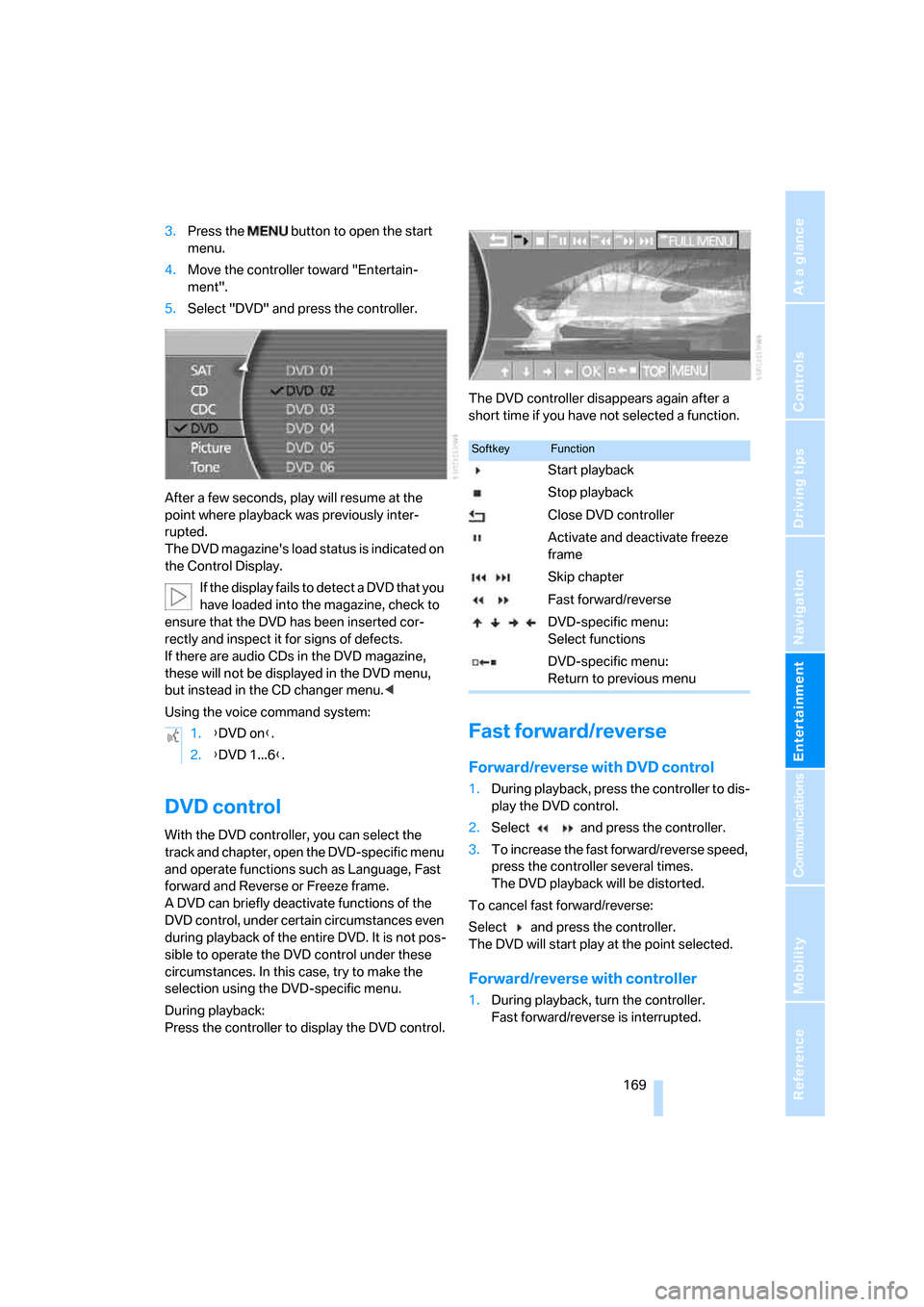
3.Press the button to open the start
menu.
4.Move the controller toward "Entertain-
ment".
5.Select "DVD" and press the controller.
After a few seconds, play will resume at the
point where playback was previously inter-
rupted.
The DVD magazine's load status is indicated on
the Control Display.
If the display fails to detect a DVD that you
have loaded into the magazine, check to
ensure that the DVD has been inserted cor-
rectly and inspect it for signs of defects.
If there are audio CDs in the DVD magazine,
these will not be displayed in the DVD menu,
but instead in the CD changer menu.<
Using the voice command system:
DVD control
With the DVD controller, you can select the
track and chapter, open the DVD-specific menu
and operate functions such as Language, Fast
forward and Reverse or Freeze frame.
A DVD can briefly deactivate functions of the
DVD control, under certain circumstances even
during playback of the entire DVD. It is not pos-
sible to operate the DVD control under these
circumstances. In this case, try to make the
selection using the DVD-specific menu.
During playback:
Press the controller to display the DVD control.The DVD controller disappears again after a
short time if you have not selected a function.
Fast forward/reverse
Forward/reverse with DVD control
1.During playback, press the controller to dis-
play the DVD control.
2.Select and press the controller.
3.To increase the fast forward/reverse speed,
press the controller several times.
The DVD playback will be distorted.
To cancel fast forward/reverse:
Select and press the controller.
The DVD will start play at the point selected.
Forward/reverse with controller
1.During playback, turn the controller.
Fast forward/reverse is interrupted. 1.{DVD on}.
2.{DVD 1...6}.
SoftkeyFunction
Start playback
Stop playback
Close DVD controller
Activate and deactivate freeze
frame
Skip chapter
Fast forward/reverse
DVD-specific menu:
Select functions
DVD-specific menu:
Return to previous menu
Page 179 of 247
177
Entertainment
Reference
At a glance
Controls
Driving tips Communications
Navigation
Mobility
Hands-free system
The hands-free microphone is located on the
left-hand side on the headliner.
The hands-free system is activated whenever
you establish or receive a call using the follow-
ing:
>Buttons on the steering wheel, page11
>Voice command system
*, page23, except
for incoming calls
>Retracting telephone keypad
>iDrive, refer to Using the phone, page182
Volume adjustment
You can set the volume for the hands-free sys-
tem and the ring tone separately:
>Turn knob during a call.
>Turn knob during an incoming call.
This volume is maintained, even if the other
audio sources are set to minimum volume.
The setting is stored for the remote control cur-
rently in use.
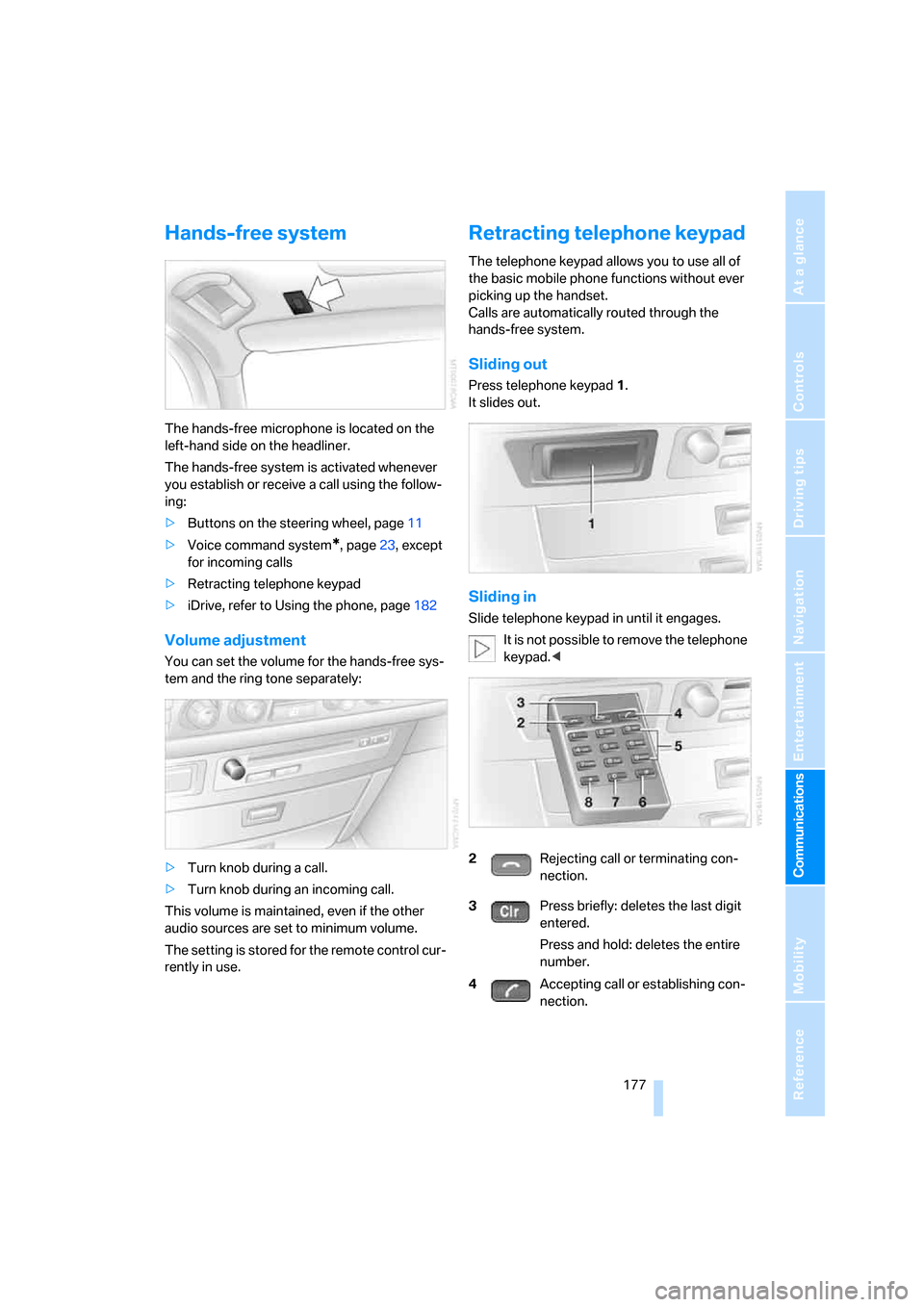
Retracting telephone keypad
The telephone keypad allows you to use all of
the basic mobile phone functions without ever
picking up the handset.
Calls are automatically routed through the
hands-free system.
Sliding out
Press telephone keypad1.
It slides out.
Sliding in
Slide telephone keypad in until it engages.
It is not possible to remove the telephone
keypad.<
2Rejecting call or terminating con-
nection.
3Press briefly: deletes the last digit
entered.
Press and hold: deletes the entire
number.
4Accepting call or establishing con-
nection.
Page 180 of 247
Telephone overview
178
Touch tone dialing
The touch tone code is required for access to
network services or for controlling devices, e.g.
remote checking of an answering machine.
This function is available when a connection
has been established.
Emergency call with
emergency call button*
When the vehicle is equipped with the full
mobile phone preparation package, you can
trigger an emergency call via the emergency
call button on the headliner.
Conditions for an emergency call:
>BMW Assist is activated.
>Radio ready state is activated.
>The wireless communications network is
available.
>The emergency call system is operable.
Initiating an emergency call
1.To open the protective cover:
Briefly press the protective cover.
2.Press the emergency call button for at least
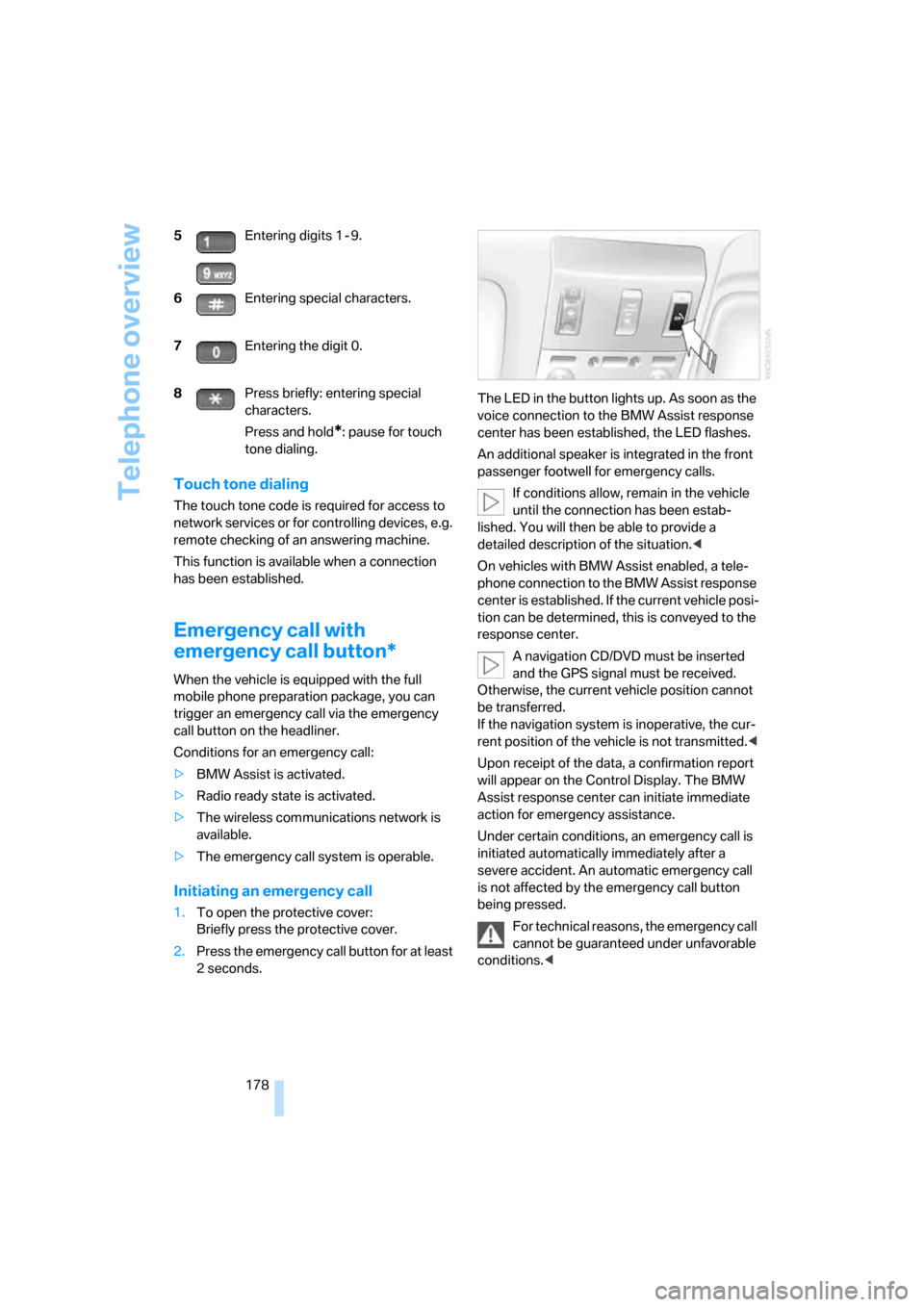
2seconds.The LED in the button lights up. As soon as the
voice connection to the BMW Assist response
center has been established, the LED flashes.
An additional speaker is integrated in the front
passenger footwell for emergency calls.
If conditions allow, remain in the vehicle
until the connection has been estab-
lished. You will then be able to provide a
detailed description of the situation.<
On vehicles with BMW Assist enabled, a tele-
phone connection to the BMW Assist response
center is established. If the current vehicle posi-
tion can be determined, this is conveyed to the
response center.
A navigation CD/DVD must be inserted
and the GPS signal must be received.
Otherwise, the current vehicle position cannot
be transferred.
If the navigation system is inoperative, the cur-
rent position of the vehicle is not transmitted.<
Upon receipt of the data, a confirmation report
will appear on the Control Display. The BMW
Assist response center can initiate immediate
action for emergency assistance.
Under certain conditions, an emergency call is
initiated automatically immediately after a
severe accident. An automatic emergency call
is not affected by the emergency call button
being pressed.
For technical reasons, the emergency call
cannot be guaranteed under unfavorable
conditions.< 5Entering digits 1 - 9.
6Entering special characters.
7Entering the digit 0.
8Press briefly: entering special
characters.
Press and hold
*: pause for touch
tone dialing.
Page 185 of 247
183
Entertainment
Reference
At a glance
Controls
Driving tips Communications
Navigation
Mobility
Making a call
Dialing a phone number and
establishing a connection
Retracting telephone keypad
1.Enter the phone number.
2.Press the button.
Voice command system*
T h e s ys t e m r ec o g n i z es d i g it s f r o m z e ro t o n i n e .
You can say each digit individually or group
them into a sequence to speed up the entry
process:
After the last spoken sequence of digits has
been repeated by the system, you can delete
this sequence of digits:
With {Delete number} all numbers previously
entered are deleted:
Redialing
You can recall the last phone number you
selected:
Dialing a phone number from phone
book or a phone number stored in a list
Phone numbers you have called, missed calls,
and the entries of the phone book are stored in
lists when the mobile phone is connected to the
vehicle via Bluetooth. If the caller is entered in
the phone book, the name of the entry is dis-
played instead of the phone number. The fol-
lowing lists are available:
>"TOP 8":
The eight phone numbers in the phone
book that are called most frequently are automatically stored in the Top 8 list. The
number called most often appears at the
top of the list.
>"Last":
The last eight phone numbers you have
dialed are automatically stored. The last
number dialed is at the top of the list.
>"A-Z":
The entries in the phone book of the SIM
card or of the mobile phone, including name
and phone number, are displayed in alpha-
betical order.
>"Missed":
The phone numbers of the last eight calls
not accepted are stored, provided that the
phone number of the caller was transmitted.
A missed call is indicated by an envelope
symbol in the top status line.
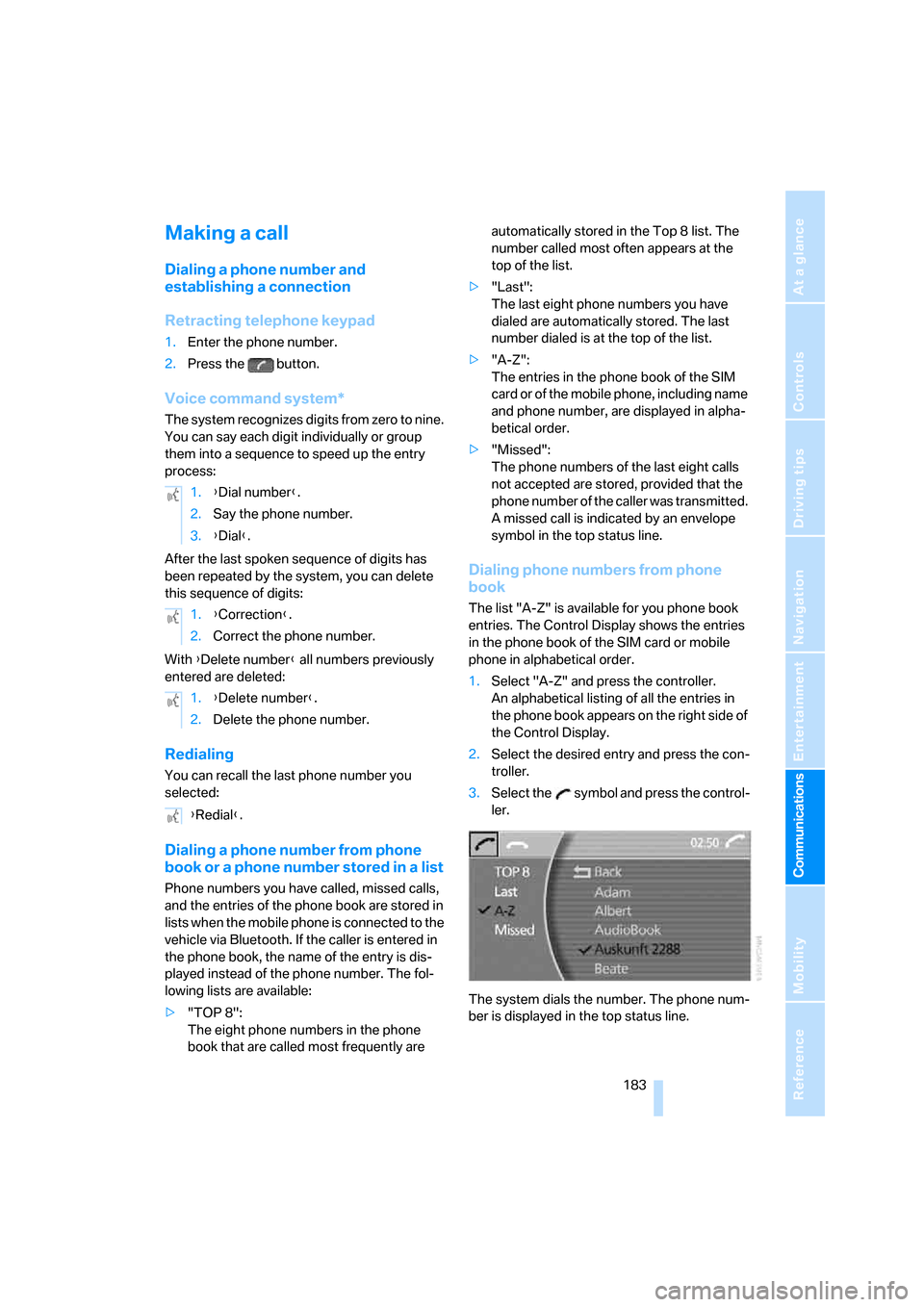
Dialing phone numbers from phone
book
The list "A-Z" is available for you phone book
entries. The Control Display shows the entries
in the phone book of the SIM card or mobile
phone in alphabetical order.
1.Select "A-Z" and press the controller.
An alphabetical listing of all the entries in
the phone book appears on the right side of
the Control Display.
2.Select the desired entry and press the con-
troller.
3.Select the symbol and press the control-
ler.
The system dials the number. The phone num-
ber is displayed in the top status line. 1.{Dial number}.
2.Say the phone number.
3.{Dial}.
1.{Correction}.
2.Correct the phone number.
1.{Delete number}.
2.Delete the phone number.
{Redial}.