navigation BMW 760Li 2004 E66 Owners Manual
[x] Cancel search | Manufacturer: BMW, Model Year: 2004, Model line: 760Li, Model: BMW 760Li 2004 E66Pages: 232, PDF Size: 5.27 MB
Page 163 of 232
Navigation
Entertainment
Driving tips
161Reference
At a glance
Controls
Communications
Mobility
If the CD magazine has been newly filled,
playback begins with the lowest CD, e.g.
CD 1, track 1.
Volume adjustment, refer to page 149.
Tone control, refer to page 149.
If you play self-recorded audio CDs,
faults, e.g. drop-outs, can occur, or
the CD is not played at all.<
Status displays
The CD magazine's load status is indicated
on the Control Display.
If the display fails to detect a CD that
you have loaded in the magazine,
check to ensure that the CD has been
inserted correctly and inspect it for signs
of defects.<
Selecting a track using the
Control Center
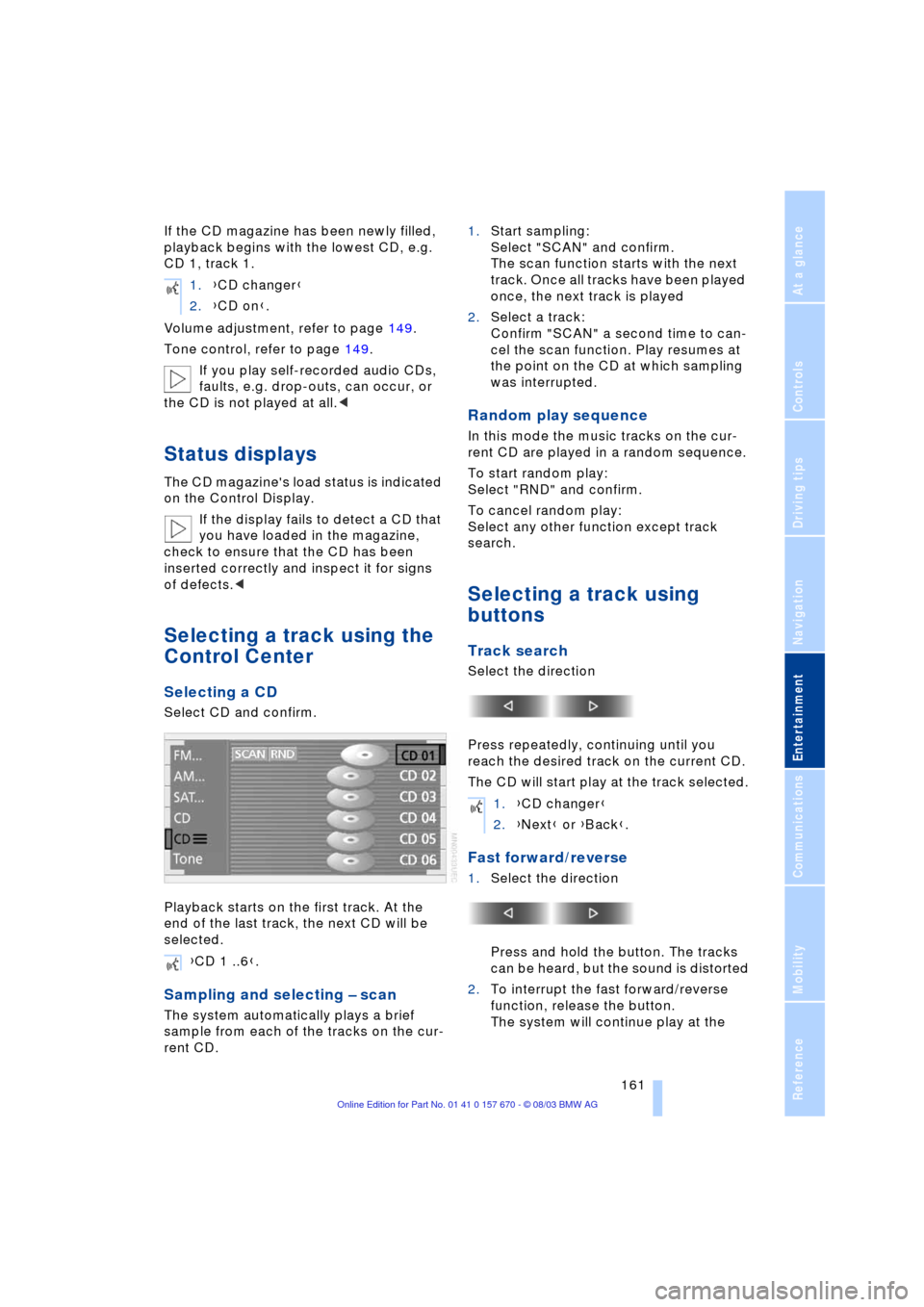
Selecting a CD
Select CD and confirm.
Playback starts on the first track. At the
end of the last track, the next CD will be
selected.
Sampling and selecting Ð scan
The system automatically plays a brief
sample from each of the tracks on the cur-
rent CD.1.Start sampling:
Select "SCAN" and confirm.
The scan function starts with the next
track. Once all tracks have been played
once, the next track is played
2.Select a track:
Confirm "SCAN" a second time to can-
cel the scan function. Play resumes at
the point on the CD at which sampling
was interrupted.
Random play sequence
In this mode the music tracks on the cur-
rent CD are played in a random sequence.
To start random play:
Select "RND" and confirm.
To cancel random play:
Select any other function except track
search.
Selecting a track using
buttons
Track search
Select the direction
Press repeatedly, continuing until you
reach the desired track on the current CD.
The CD will start play at the track selected.
Fast forward/reverse
1.Select the direction
Press and hold the button. The tracks
can be heard, but the sound is distorted
2.To interrupt the fast forward/reverse
function, release the button.
The system will continue play at the 1.{CD changer}
2.{CD on}.
{CD 1 ..6}.
1.{CD changer}
2.{Next} or {Back}.
Page 165 of 232
Navigation
Entertainment
Driving tips
163Reference
At a glance
Controls
Communications
Mobility
TV
For your own safety, the TV picture is only
shown on the rear screen.
The system is designed for reception
of analog television. Due to the quality
of mobile reception, reduced picture qual-
ity can result depending on the position
and network coverage in spite of the highly
advanced reception technology used.
A change in vehicle positions can result
in improved reception quality in many
cases.<
Television
1.Switch on audio or video sources, refer
to page 149
If an audio source is switched on,
select "Video" and confirm.<
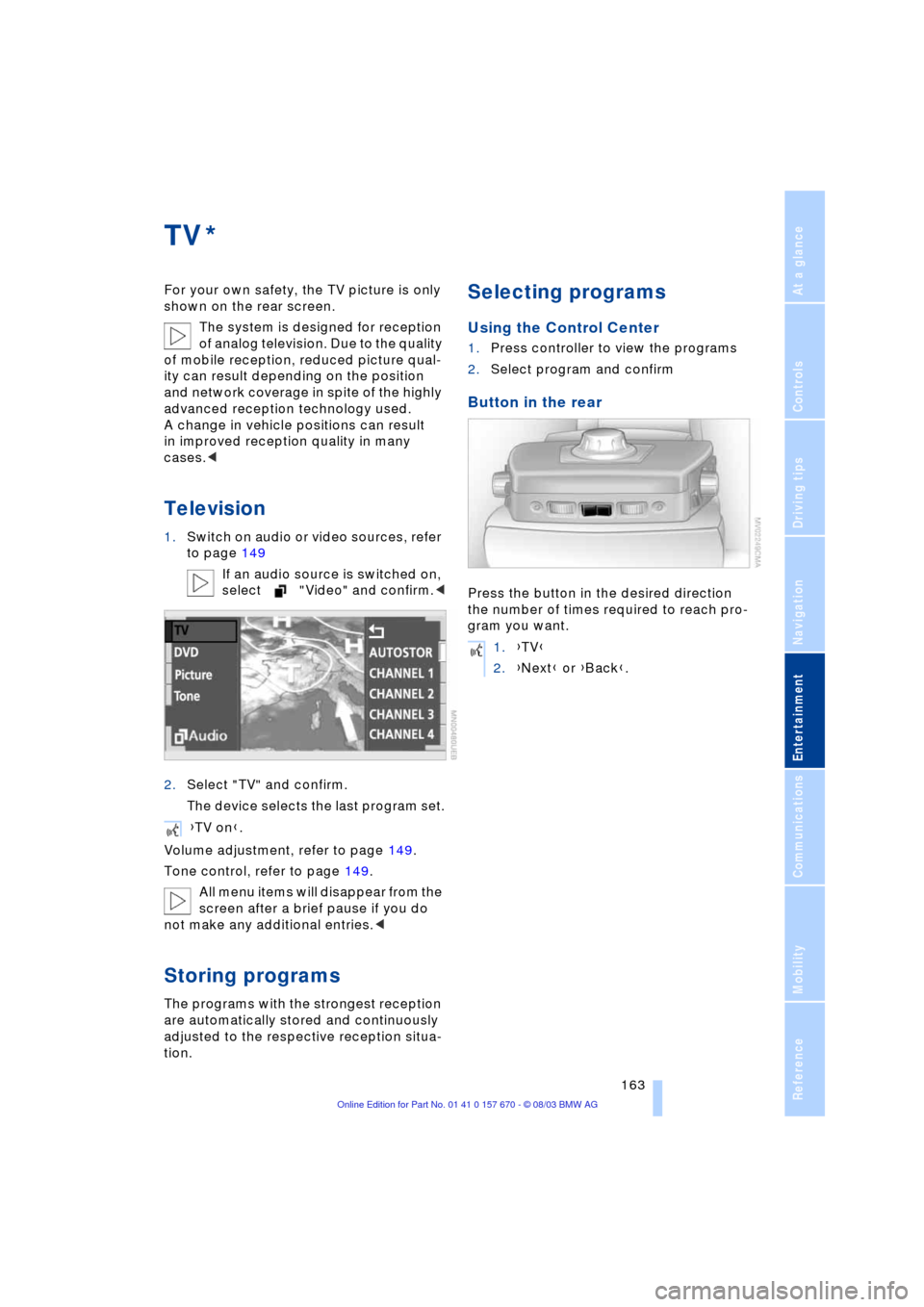
2.Select "TV" and confirm.
The device selects the last program set.
Volume adjustment, refer to page 149.
Tone control, refer to page 149.
All menu items will disappear from the
screen after a brief pause if you do
not make any additional entries.<
Storing programs
The programs with the strongest reception
are automatically stored and continuously
adjusted to the respective reception situa-
tion.
Selecting programs
Using the Control Center
1.Press controller to view the programs
2.Select program and confirm
Button in the rear
Press the button in the desired direction
the number of times required to reach pro-
gram you want.
*
{TV on}.
1.{TV}
2.{Next} or {Back}.
Page 167 of 232
Navigation
Entertainment
Driving tips
165Reference
At a glance
Controls
Communications
Mobility
DVD changer
Location
The BMW DVD changer for 6 DVDs or
audio CDs is mounted behind the left side
trim panel in the luggage compartment.
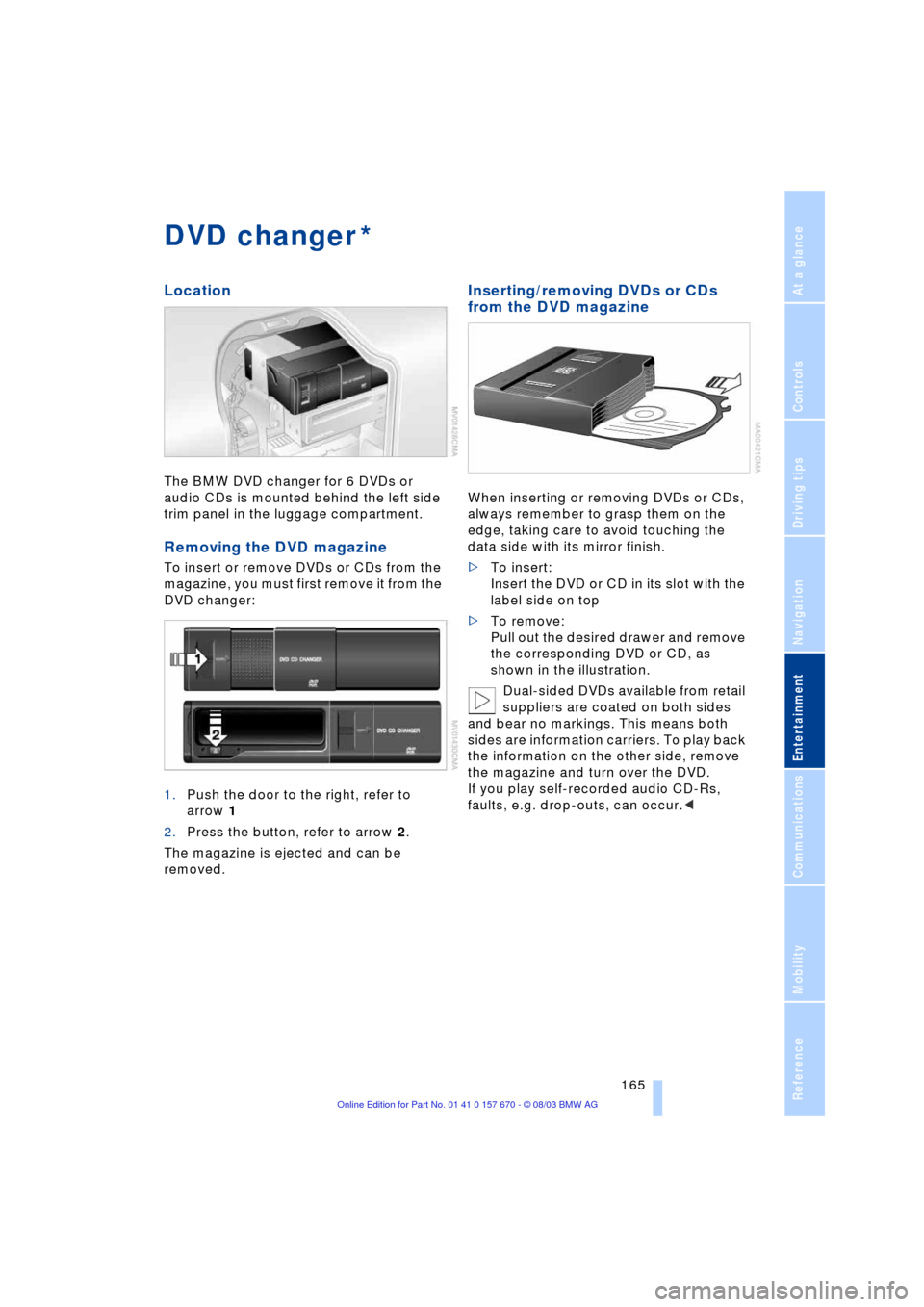
Removing the DVD magazine
To insert or remove DVDs or CDs from the
magazine, you must first remove it from the
DVD changer:
1.Push the door to the right, refer to
arrow 1
2.Press the button, refer to arrow 2.
The magazine is ejected and can be
removed.
Inserting/removing DVDs or CDs
from the DVD magazine
When inserting or removing DVDs or CDs,
always remember to grasp them on the
edge, taking care to avoid touching the
data side with its mirror finish.
>To insert:
Insert the DVD or CD in its slot with the
label side on top
>To remove:
Pull out the desired drawer and remove
the corresponding DVD or CD, as
shown in the illustration.
Dual-sided DVDs available from retail
suppliers are coated on both sides
and bear no markings. This means both
sides are information carriers. To play back
the information on the other side, remove
the magazine and turn over the DVD.
If you play self-recorded audio CD-Rs,
faults, e.g. drop-outs, can occur.<
*
Page 169 of 232
Navigation
Entertainment
Driving tips
167Reference
At a glance
Controls
Communications
Mobility
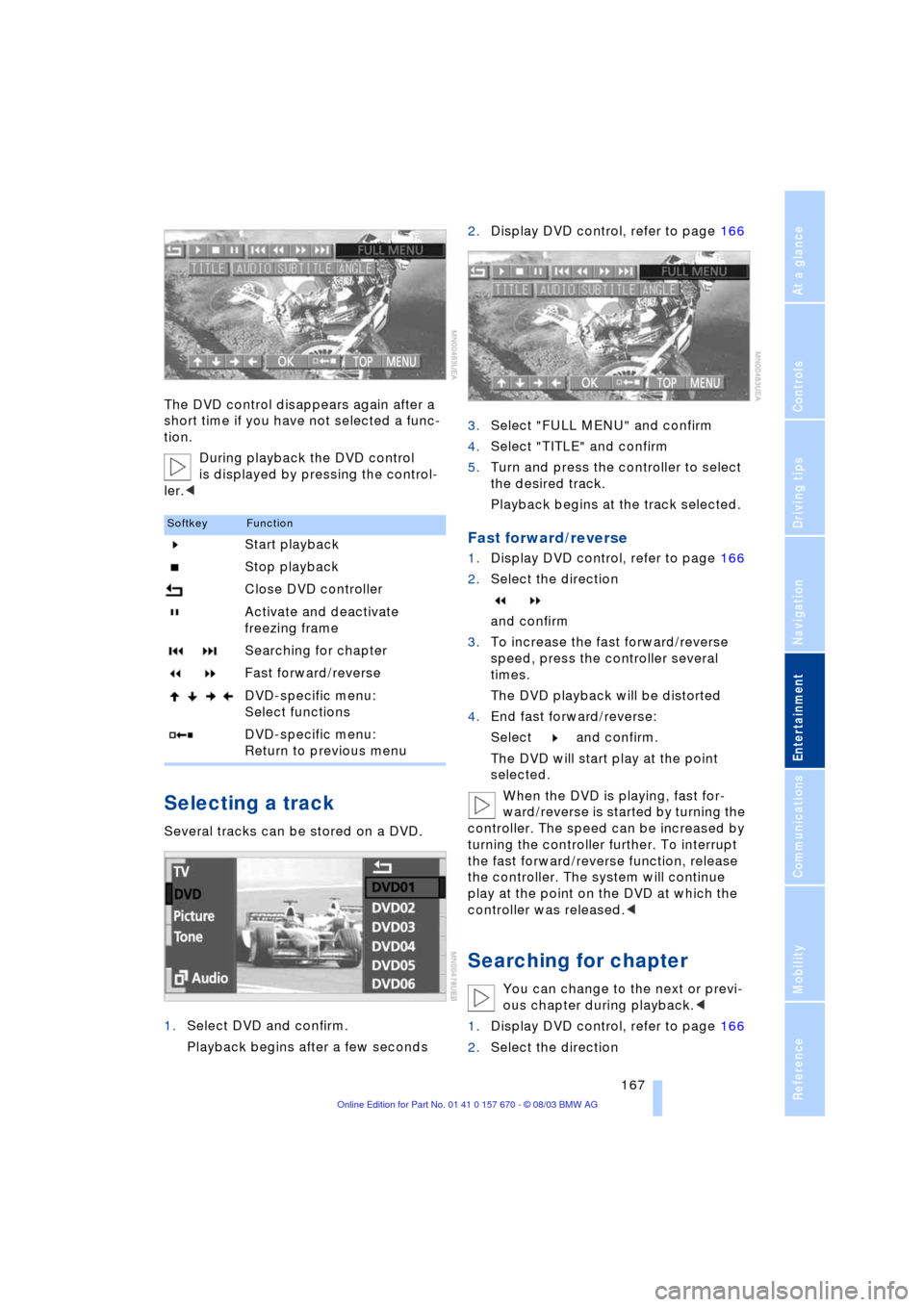
The DVD control disappears again after a
short time if you have not selected a func-
tion.
During playback the DVD control
is displayed by pressing the control-
ler.<
Selecting a track
Several tracks can be stored on a DVD.
1.Select DVD and confirm.
Playback begins after a few seconds2.Display DVD control, refer to page 166
3.Select "FULL MENU" and confirm
4.Select "TITLE" and confirm
5.Turn and press the controller to select
the desired track.
Playback begins at the track selected.
Fast forward/reverse
1.Display DVD control, refer to page 166
2.Select the direction
and confirm
3.To increase the fast forward/reverse
speed, press the controller several
times.
The DVD playback will be distorted
4.End fast forward/reverse:
Select and confirm.
The DVD will start play at the point
selected.
When the DVD is playing, fast for-
ward/reverse is started by turning the
controller. The speed can be increased by
turning the controller further. To interrupt
the fast forward/reverse function, release
the controller. The system will continue
play at the point on the DVD at which the
controller was released.<
Searching for chapter
You can change to the next or previ-
ous chapter during playback.<
1.Display DVD control, refer to page 166
2.Select the direction
SoftkeyFunction
Start playback
Stop playback
Close DVD controller
Activate and deactivate
freezing frame
Searching for chapter
Fast forward/reverse
DVD-specific menu:
Select functions
DVD-specific menu:
Return to previous menu
Page 171 of 232
Navigation
Entertainment
Driving tips
169Reference
At a glance
Controls
Communications
Mobility
You can change the camera angle by
turning and pressing the controller.
Notes or symbols that appear during
the playback of a film generally point
out different camera angles. These are
usually only briefly available.
With some DVDs the language, subti-
tles or camera angle is only possible
with the DVD-specific menu.
Refer to the information on your DVD for
possible selections.<
Opening DVD-specific
menu
Additional functions may be available on
DVDs. For example, the viewer can select
from several possible plots or display infor-
mation on the film.
1.Display DVD control, refer to page 166
2.Select "MENU" or "TOP" and confirm.
With "MENU" you can generally
open the DVD-specific main
menu. On some DVDs you will find an
additional menu called "TOP" in which,
for example, you can select music
scenes.<
To make a selection:
1.Use to select a function
2.Confirm selection with "OK".
To return to a previous menu:
Select or and confirm.
Language, subtitle or angle can also
be selected in the DVD-specific
menu.
Refer to the information on your DVD for
possible selections.<
Malfunctions/notes
The BMW DVD changer is a Class 1
laser product. Never remove the
cover from the housing. Do not operate the
unit if the cover is damaged. Operation
without the cover can lead to serious eye
injury from invisible laser beams.Always refer all repair and maintenance
operations to qualified technicians.
With self-recorded CDs or DVDs, labels
applied later can become detached during
playback due to the development of heat,
causing irreparable damage to the
device.<
Macrovision copy protection:
This product incorporates copyright
protection technology that is protected by
method claims of certain U.S. patents and
other intellectual property rights owned by
Macrovision Corporation and other rights
owners. Use of this copyright protection
technology must be authorized by Macrovi-
sion Corporation, and is intended for home
and other limited viewing uses only unless
otherwise authorized by Macrovision Cor-
poration. Reverse engineering or disas-
sembly is prohibited.<
To prevent CDs from being copied
illegally, they are often provided with
copy protection by the manufacturer.
Under certain circumstances this can pre-
vent or restrict the playing of CDs on the
DVD changer. In this case please contact
the CD dealer or manufacturer.<
If you play self-recorded audio CDs, faults,
e.g. drop-outs, can occur, or the CD is not
played at all.
The DVD changer can play the following
formats:
>Video DVD
>CD-DA, Audio CD
>CD-R.
Page 173 of 232
Navigation
Entertainment
Driving tips
171Reference
At a glance
Controls
Communications
Mobility
Page 177 of 232
175
Entertainment
Reference
At a glance
Controls
Driving tips Communications
Navigation
Mobility
influencing the cardiac pacemaker.
With the slightest sign of a cardiac pace-
maker malfunction, switch the BMW porta-
ble phone off immediately.<
Batteries
To avoid possible short circuits, after
removing a battery you should never
allow it to come into contact with metallic
surfaces of any kind. This is why you should
handle charged batteries with care, in par-
ticular if you place batteries, e.g. in jacket
or shirt pockets that contain metal objects.
If you are in an environment where there is
a risk of explosion, do not remove the bat-
tery from the device, as otherwise sparks
from your battery could cause explosions
or fire.<
Disposing of used batteries
Return used batteries to a recycling
collection point or to your BMW cen-
ter.<
Care instructions
You can find useful information on caring
for your portable phone in the separate
Caring for your vehicle brochure and in the
separate portable phone Owner's Manual.
Controls
You have the option of making phone calls
with the car phone
* or the BMW portable
phone.
If there is no BMW portable phone in the
cradle, the Personal Calling connection is
set up with the car phone.
The car phone must be enabled prior
to initial use. In this connection,
please consult your BMW center.<
The telephone used to set up a connection
appears in the upper status line.
For information on operating your
portable phone, please consult the
separate Owner's Manual.
>The Control Center
>The folding telephone keypad
>The voice command system Ð not for
incoming calls.
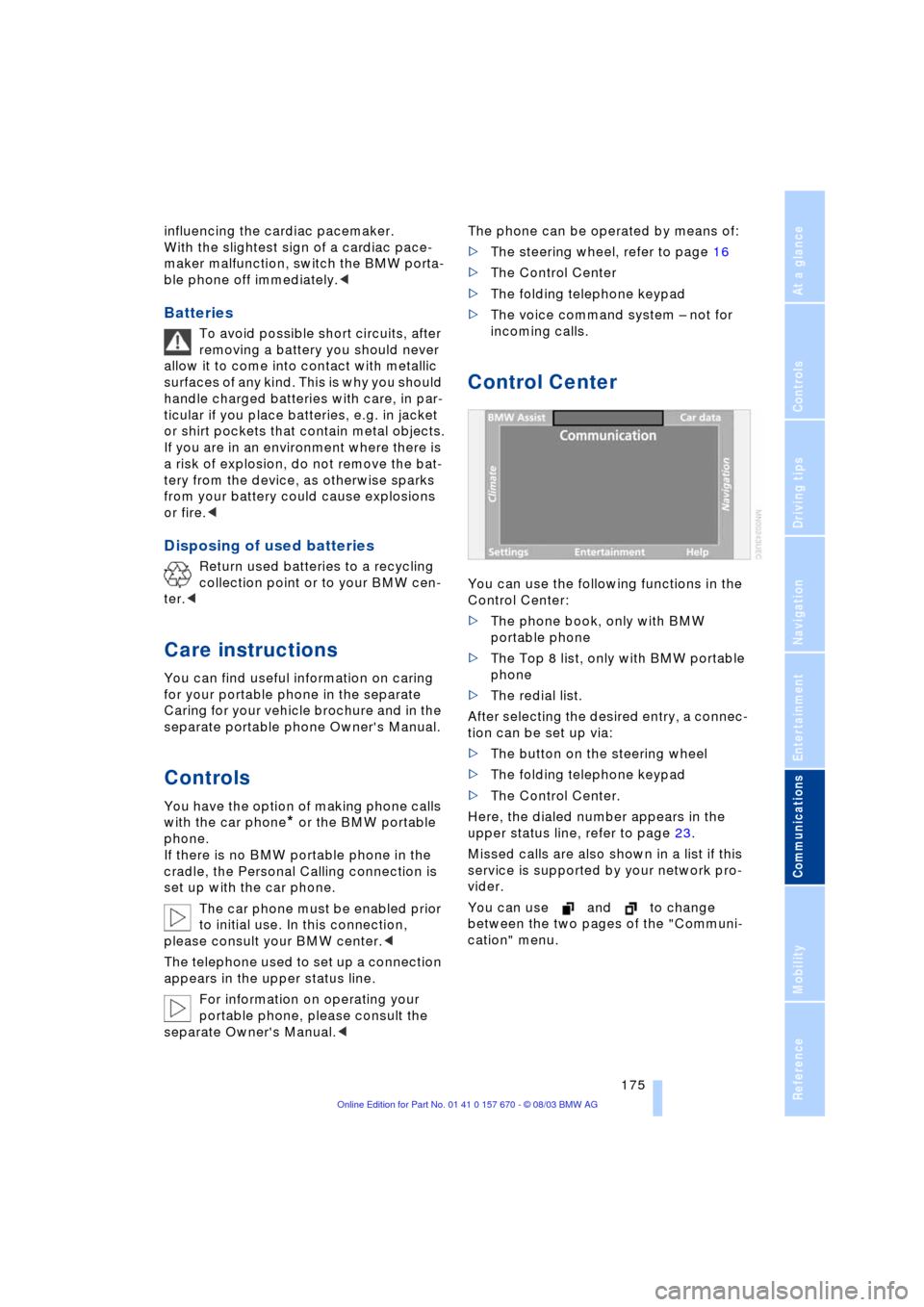
Control Center
You can use the following functions in the
Control Center:
>The phone book, only with BMW
portable phone
>The Top 8 list, only with BMW portable
phone
>The redial list.
After selecting the desired entry, a connec-
tion can be set up via:
>The button on the steering wheel
>The folding telephone keypad
>The Control Center.
Here, the dialed number appears in the
upper status line, refer to page 23.
Missed calls are also shown in a list if this
service is supported by your network pro-
vider.
You can use and to change
between the two pages of the "Communi-
cation" menu.
Page 179 of 232
177
Entertainment
Reference
At a glance
Controls
Driving tips Communications
Navigation
Mobility
Hands-free system
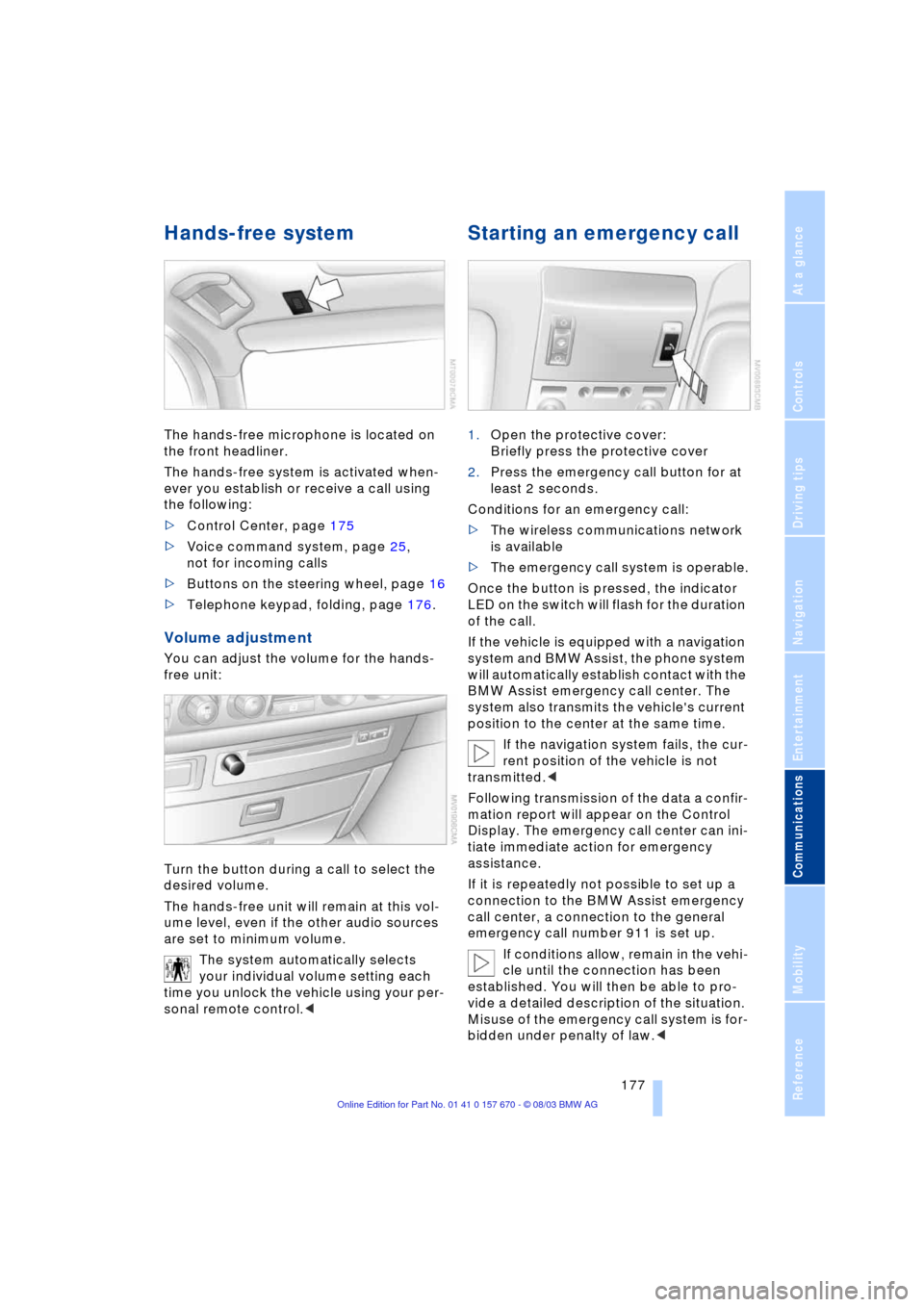
The hands-free microphone is located on
the front headliner.
The hands-free system is activated when-
ever you establish or receive a call using
the following:
>Control Center, page 175
>Voice command system, page 25,
not for incoming calls
>Buttons on the steering wheel, page 16
>Telephone keypad, folding, page 176.
Volume adjustment
You can adjust the volume for the hands-
free unit:
Turn the button during a call to select the
desired volume.
The hands-free unit will remain at this vol-
ume level, even if the other audio sources
are set to minimum volume.
The system automatically selects
your individual volume setting each
time you unlock the vehicle using your per-
sonal remote control.<
Starting an emergency call
1.Open the protective cover:
Briefly press the protective cover
2.Press the emergency call button for at
least 2 seconds.
Conditions for an emergency call:
>The wireless communications network
is available
>The emergency call system is operable.
Once the button is pressed, the indicator
LED on the switch will flash for the duration
of the call.
If the vehicle is equipped with a navigation
system and BMW Assist, the phone system
will automatically establish contact with the
BMW Assist emergency call center. The
system also transmits the vehicle's current
position to the center at the same time.
If the navigation system fails, the cur-
rent position of the vehicle is not
transmitted.<
Following transmission of the data a confir-
mation report will appear on the Control
Display. The emergency call center can ini-
tiate immediate action for emergency
assistance.
If it is repeatedly not possible to set up a
connection to the BMW Assist emergency
call center, a connection to the general
emergency call number 911 is set up.
If conditions allow, remain in the vehi-
cle until the connection has been
established. You will then be able to pro-
vide a detailed description of the situation.
Misuse of the emergency call system is for-
bidden under penalty of law.<
Page 181 of 232
179
Entertainment
Reference
At a glance
Controls
Driving tips Communications
Navigation
Mobility
Getting started
Making a call
1.Enter the desired phone number
2.Press the button
The phone number appears in the Control
Display's status line.
Always remember to enter the com-
plete telephone number, including the
area code, even if you are currently in the
same area as the number that you wish to
contact.<
Ending a call
Press the button
Phone book
You must enter your portable phone's
phone book in the voice command system
before it will be available for access using
voice commands. This creates a special
voice command phone book. If changes
are then made to the phone book using the
voice command system, these modifica-
tions will apply exclusively to the voice
command phone book, and not to the
phone book in the portable phone.
Creating and updating voice
command phone book*
The entries in the portable phone's phone
book appear sequentially in the Info Dis-
play.
You must assign a specific name to each
number that you wish to transfer to the
voice command phone book. These num-
bers will no longer be requested during
updates.
Making a new entry in the voice
command phone book
Dialing from the phone book
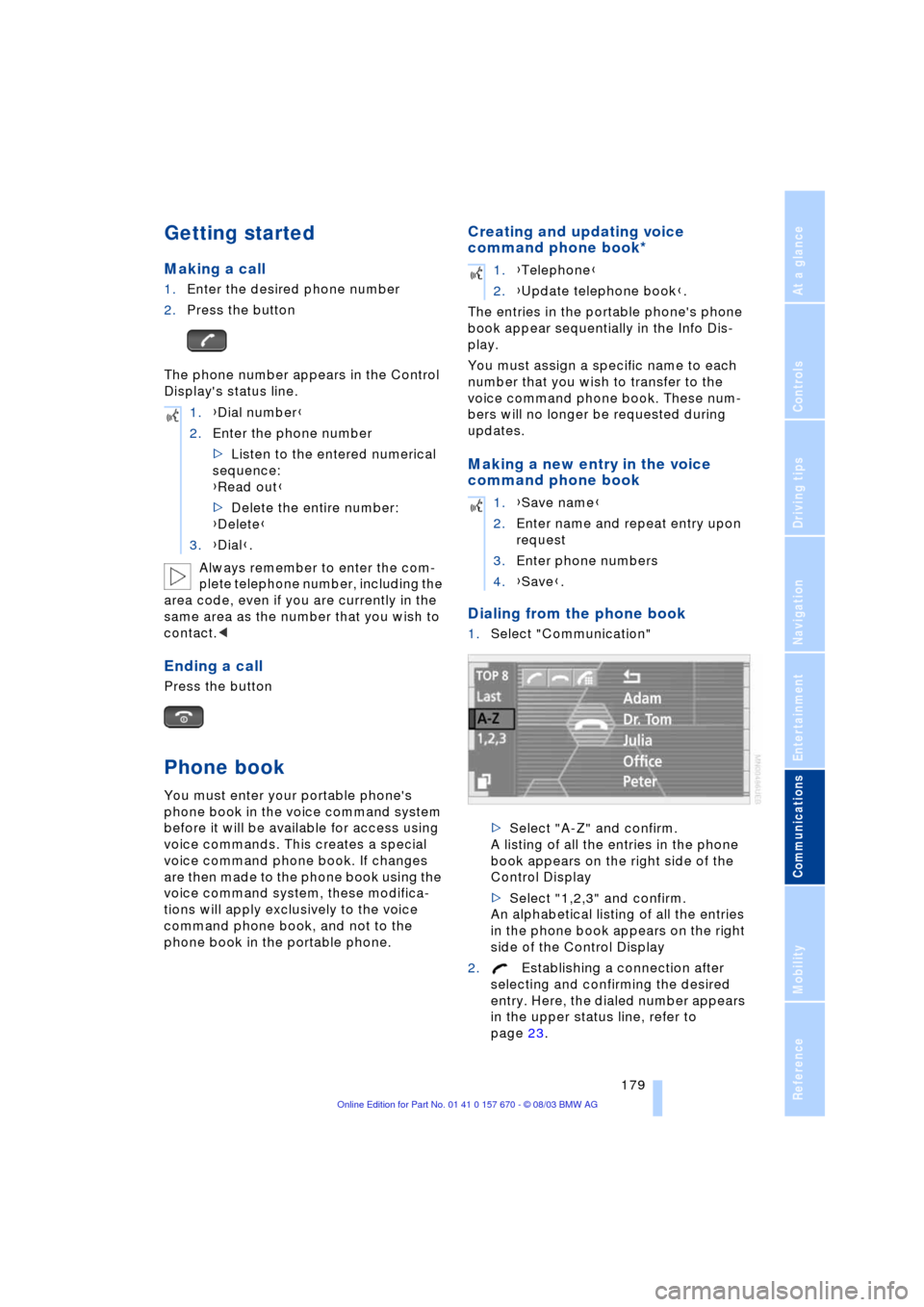
1.Select "Communication"
>Select "A-Z" and confirm.
A listing of all the entries in the phone
book appears on the right side of the
Control Display
>Select "1,2,3" and confirm.
An alphabetical listing of all the entries
in the phone book appears on the right
side of the Control Display
2.Establishing a connection after
selecting and confirming the desired
entry. Here, the dialed number appears
in the upper status line, refer to
page 23. 1.{Dial number}
2.Enter the phone number
>Listen to the entered numerical
sequence:
{Read out}
>Delete the entire number:
{Delete}
3.{Dial}.
1.{Telephone}
2.{Update telephone book}.
1.{Save name}
2.Enter name and repeat entry upon
request
3.Enter phone numbers
4.{Save}.
Page 183 of 232
181
Entertainment
Reference
At a glance
Controls
Driving tips Communications
Navigation
Mobility
Missed calls
If the phone number of the caller was trans-
ferred, you can have a list of all missed calls
displayed if this service is supported by
your network provider.
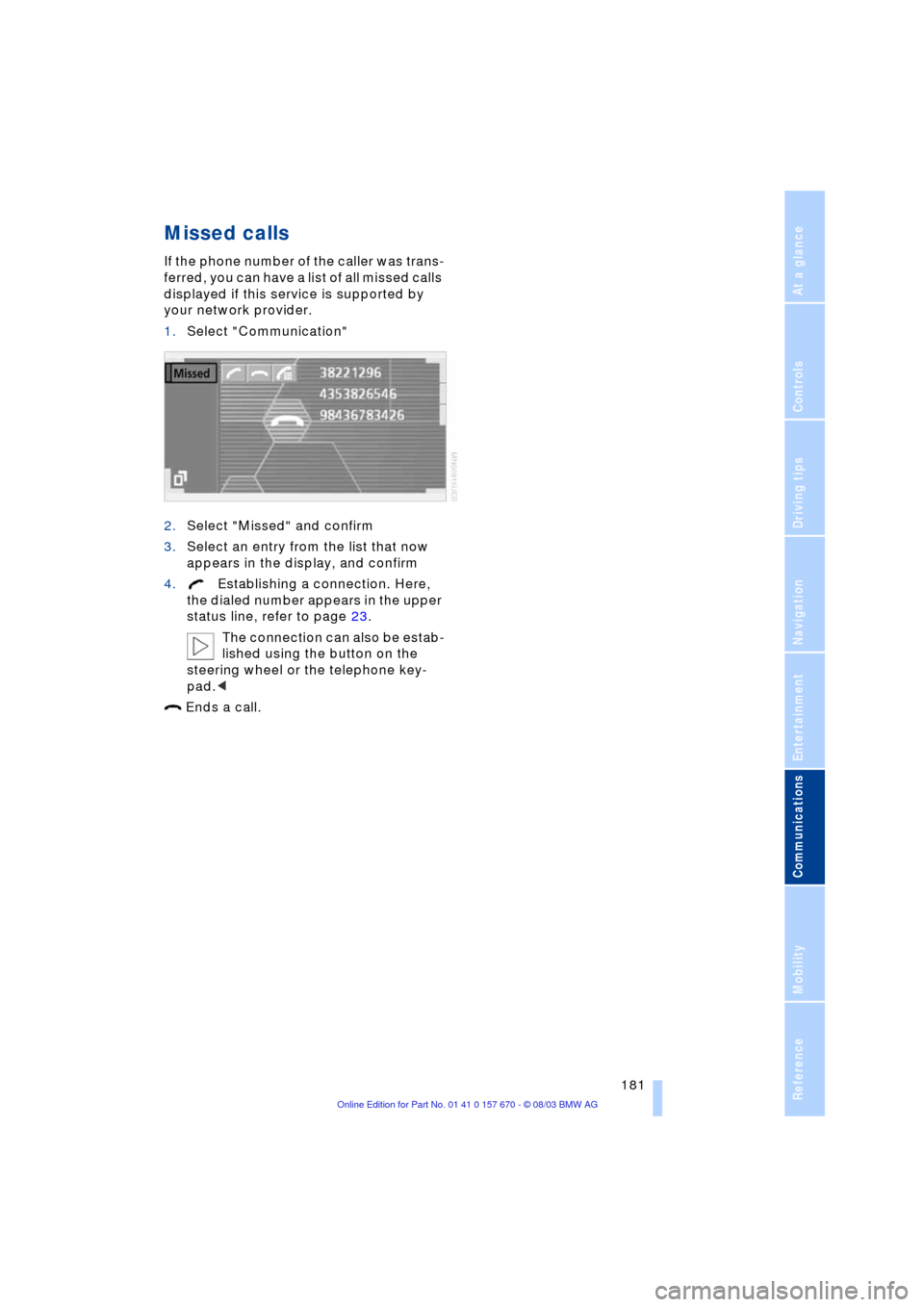
1.Select "Communication"
2.Select "Missed" and confirm
3.Select an entry from the list that now
appears in the display, and confirm
4.Establishing a connection. Here,
the dialed number appears in the upper
status line, refer to page 23.
The connection can also be estab-
lished using the button on the
steering wheel or the telephone key-
pad.<
Ends a call.