reset BMW 760Li 2004 E66 User Guide
[x] Cancel search | Manufacturer: BMW, Model Year: 2004, Model line: 760Li, Model: BMW 760Li 2004 E66Pages: 232, PDF Size: 5.27 MB
Page 90 of 232
Everything under control
88
Applying display
1.Select the desired function and confirm
Ð here computer "BC"
2.Select and confirm. The func-
tion appears in the assistance window.
The symbol is highlighted
if the function displayed in the
assistance window is selected on the
Control Display.<
You can also choose to view brief help
texts explaining selected menu items, refer
to page 22, or the travel route on vehicles
equipped with a GPS navigation system,
refer to page 131.
Changing settings
Units of measure and display format
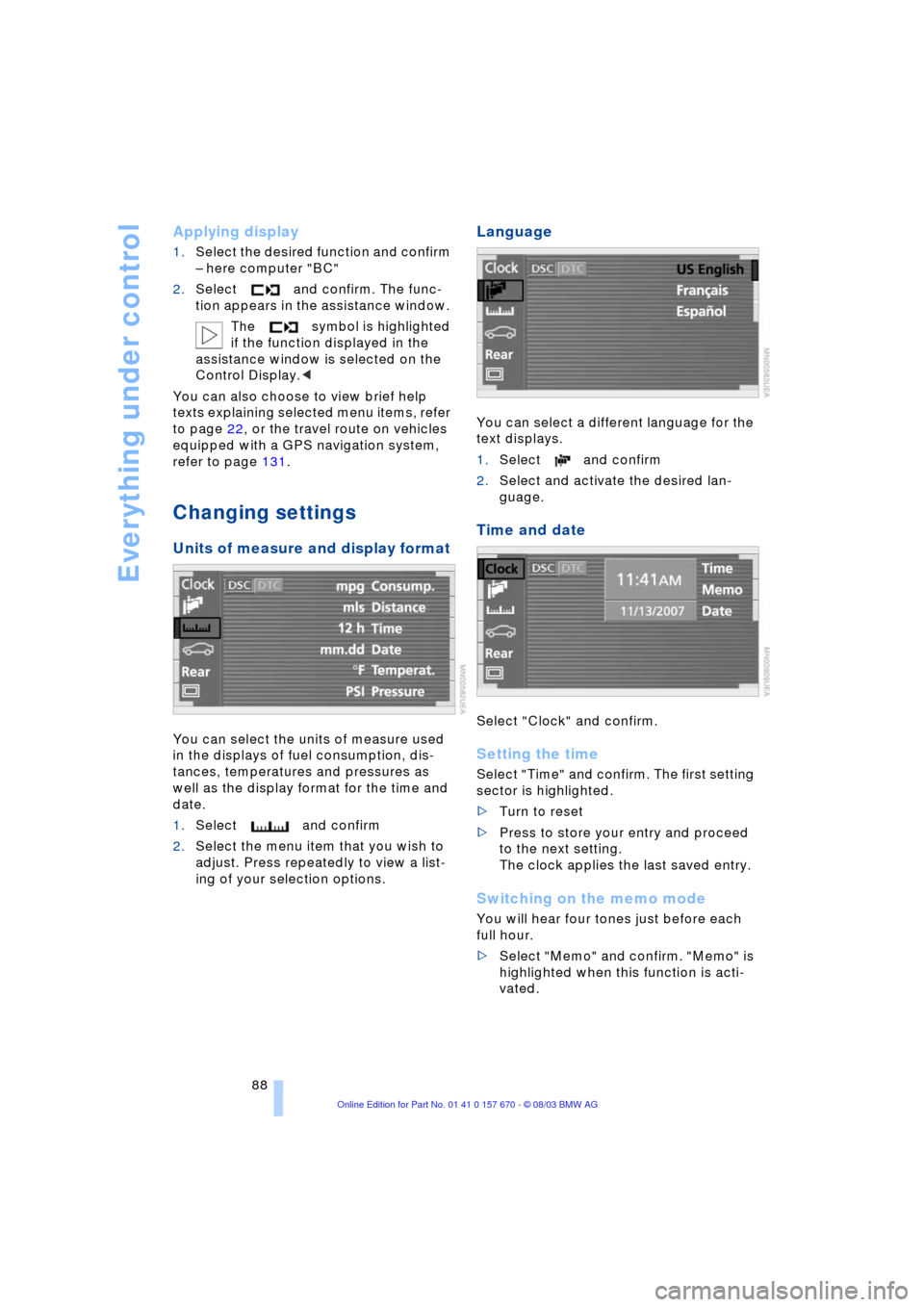
You can select the units of measure used
in the displays of fuel consumption, dis-
tances, temperatures and pressures as
well as the display format for the time and
date.
1.Select and confirm
2.Select the menu item that you wish to
adjust. Press repeatedly to view a list-
ing of your selection options.
Language
You can select a different language for the
text displays.
1.Select and confirm
2.Select and activate the desired lan-
guage.
Time and date
Select "Clock" and confirm.
Setting the time
Select "Time" and confirm. The first setting
sector is highlighted.
>Turn to reset
>Press to store your entry and proceed
to the next setting.
The clock applies the last saved entry.
Switching on the memo mode
You will hear four tones just before each
full hour.
>Select "Memo" and confirm. "Memo" is
highlighted when this function is acti-
vated.
Page 91 of 232
Controls
89Reference
At a glance
Driving tips
Communications
Navigation
Entertainment
Mobility
Setting the date
Select "Date" and confirm. The first section
of the date display is highlighted Ð here
day.
>Turn to reset
>Press to store and highlight the next
entry Ð here month and year.
Your date is applied by the system the
last time you store your entry.
Brightness
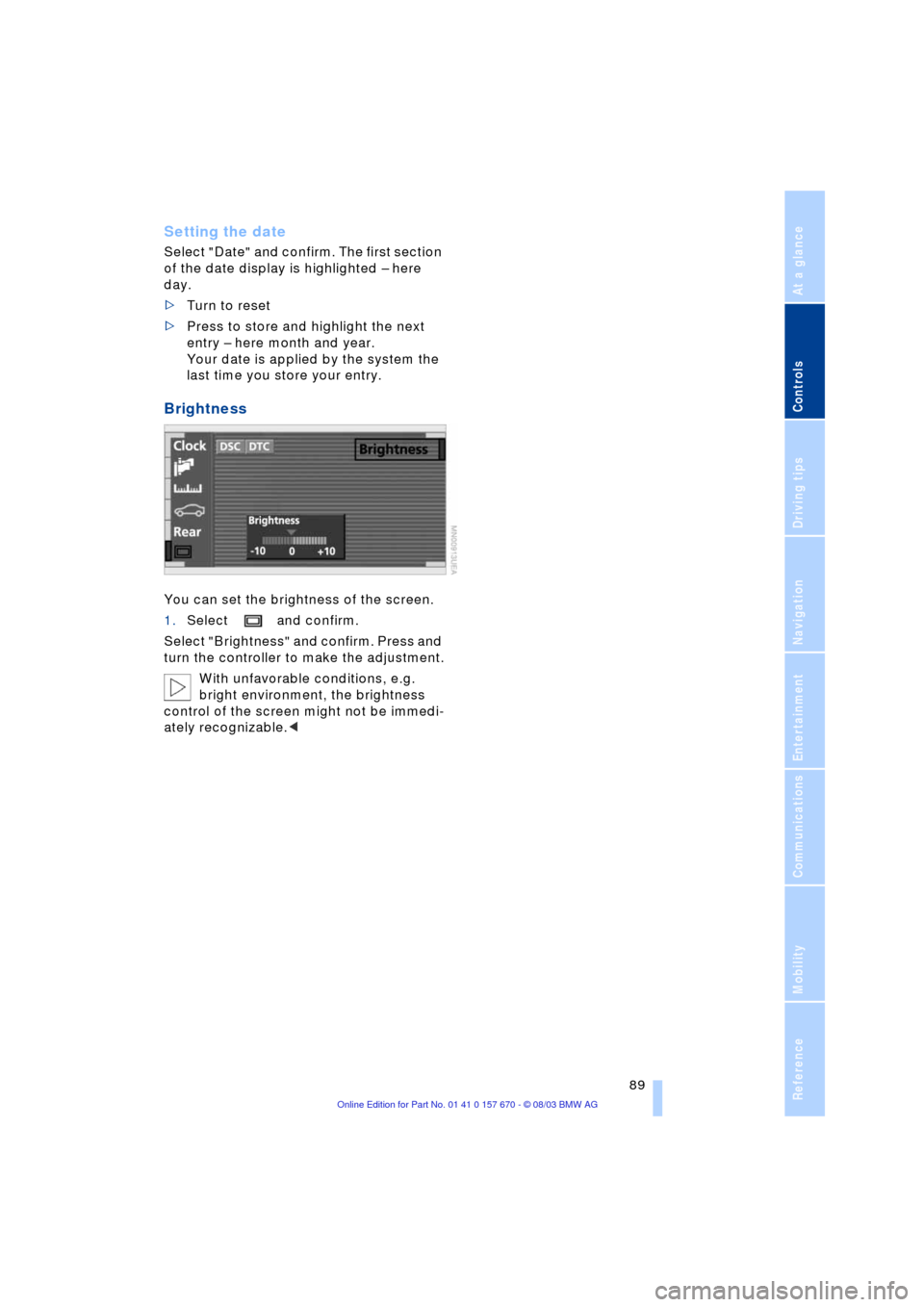
You can set the brightness of the screen.
1.Select and confirm.
Select "Brightness" and confirm. Press and
turn the controller to make the adjustment.
With unfavorable conditions, e.g.
bright environment, the brightness
control of the screen might not be immedi-
ately recognizable.<
Page 109 of 232
Controls
107Reference
At a glance
Driving tips
Communications
Navigation
Entertainment
Mobility
Combining the air distribution
yourself
You can cancel the AUTO program by
selecting specific air distribution patterns
for your personal comfort.
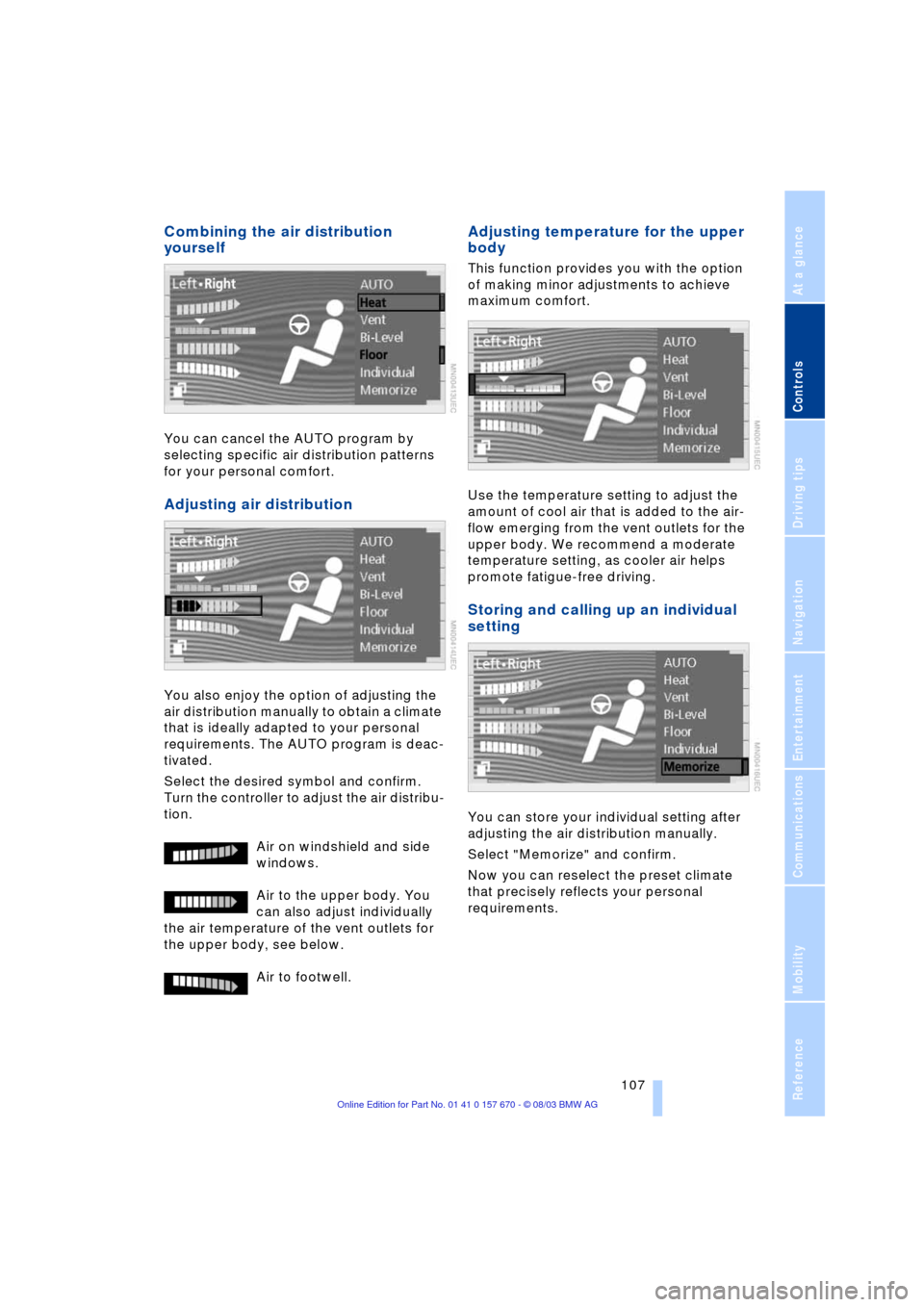
Adjusting air distribution
You also enjoy the option of adjusting the
air distribution manually to obtain a climate
that is ideally adapted to your personal
requirements. The AUTO program is deac-
tivated.
Select the desired symbol and confirm.
Turn the controller to adjust the air distribu-
tion.
Air on windshield and side
windows.
Air to the upper body. You
can also adjust individually
the air temperature of the vent outlets for
the upper body, see below.
Air to footwell.
Adjusting temperature for the upper
body
This function provides you with the option
of making minor adjustments to achieve
maximum comfort.
Use the temperature setting to adjust the
amount of cool air that is added to the air-
flow emerging from the vent outlets for the
upper body. We recommend a moderate
temperature setting, as cooler air helps
promote fatigue-free driving.
Storing and calling up an individual
setting
You can store your individual setting after
adjusting the air distribution manually.
Select "Memorize" and confirm.
Now you can reselect the preset climate
that precisely reflects your personal
requirements.
Page 151 of 232
Navigation
Entertainment
Driving tips
149Reference
At a glance
Controls
Communications
Mobility
Care instructions
You can find everything you need to know
on this topic by consulting the separate
Caring for your vehicle brochure.
Switching on/off
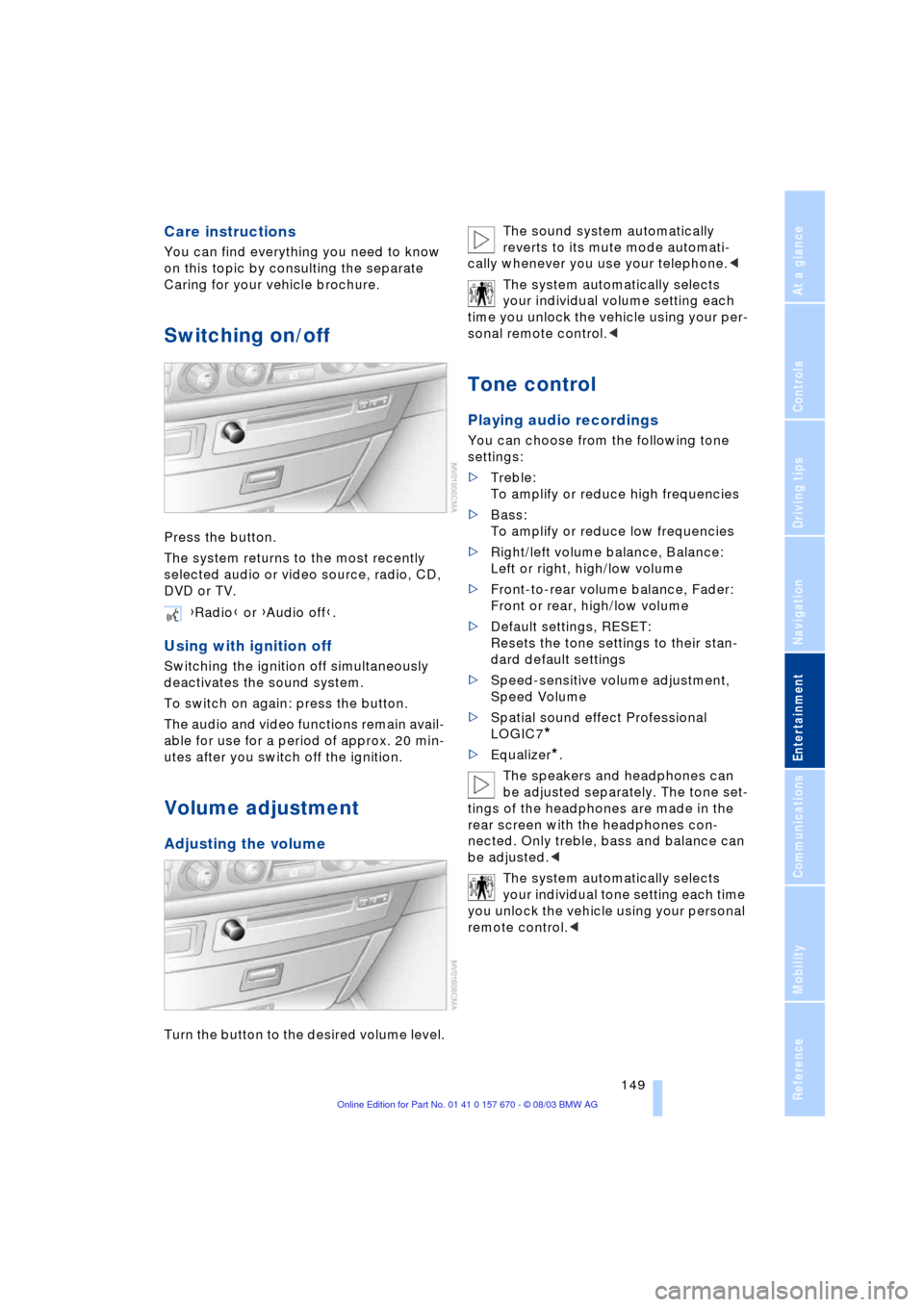
Press the button.
The system returns to the most recently
selected audio or video source, radio, CD,
DVD or TV.
Using with ignition off
Switching the ignition off simultaneously
deactivates the sound system.
To switch on again: press the button.
The audio and video functions remain avail-
able for use for a period of approx. 20 min-
utes after you switch off the ignition.
Volume adjustment
Adjusting the volume
Turn the button to the desired volume level.The sound system automatically
reverts to its mute mode automati-
cally whenever you use your telephone.<
The system automatically selects
your individual volume setting each
time you unlock the vehicle using your per-
sonal remote control.<
Tone control
Playing audio recordings
You can choose from the following tone
settings:
>Treble:
To amplify or reduce high frequencies
>Bass:
To amplify or reduce low frequencies
>Right/left volume balance, Balance:
Left or right, high/low volume
>Front-to-rear volume balance, Fader:
Front or rear, high/low volume
>Default settings, RESET:
Resets the tone settings to their stan-
dard default settings
>Speed-sensitive volume adjustment,
Speed Volume
>Spatial sound effect Professional
LOGIC7
*
>Equalizer*.
The speakers and headphones can
be adjusted separately. The tone set-
tings of the headphones are made in the
rear screen with the headphones con-
nected. Only treble, bass and balance can
be adjusted.<
The system automatically selects
your individual tone setting each time
you unlock the vehicle using your personal
remote control.< {Radio} or {Audio off}.
Page 153 of 232
Navigation
Entertainment
Driving tips
151Reference
At a glance
Controls
Communications
Mobility
Resetting the tone settings
You can reset all tone settings except
"Speed Vol." to the standard default set-
tings.
Select "RESET" and confirm.
Page 159 of 232
Navigation
Entertainment
Driving tips
157Reference
At a glance
Controls
Communications
Mobility
strong sources of radio interference.
Service should resume normally after the
source of signal unavailability has been
cleared.<
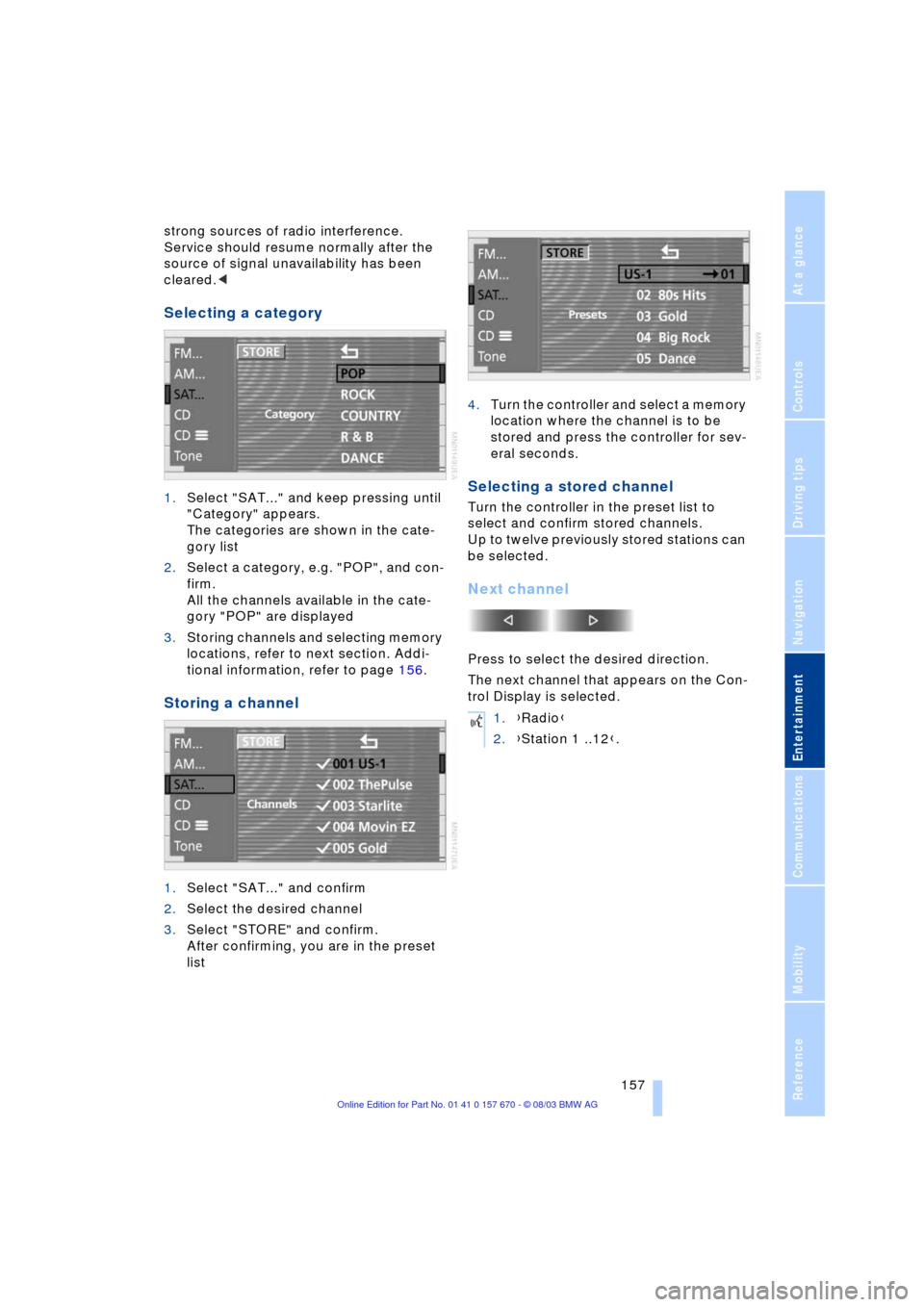
Selecting a category
1.Select "SAT..." and keep pressing until
"Category" appears.
The categories are shown in the cate-
gory list
2.Select a category, e.g. "POP", and con-
firm.
All the channels available in the cate-
gory "POP" are displayed
3.Storing channels and selecting memory
locations, refer to next section. Addi-
tional information, refer to page 156.
Storing a channel
1.Select "SAT..." and confirm
2.Select the desired channel
3.Select "STORE" and confirm.
After confirming, you are in the preset
list4.Turn the controller and select a memory
location where the channel is to be
stored and press the controller for sev-
eral seconds.
Selecting a stored channel
Turn the controller in the preset list to
select and confirm stored channels.
Up to twelve previously stored stations can
be selected.
Next channel
Press to select the desired direction.
The next channel that appears on the Con-
trol Display is selected.
1.{Radio}
2.{Station 1 ..12}.
Page 226 of 232
Everything from A to Z
224 Rear window blind, refer to
Sun blinds 112
Rear window defroster 14
Rear window safety
switch 10, 42
"Recirc." 52
Reclining seat 44
Redialing with portable
phone 180
Redial list 180
Refueling 186
"Release" 24
Releasing the engine
hood 194
Remote control 32, 33
Ð Comfort Access 34
Ð malfunctions 35
Removing condensation
from windows 104
Replacement fuses 206
Replacement keys 33
Replacement tire 203
Replacing light bulbs 200
Replacing tires 192
Reserve warning 85
Reset 149
"RESET" for audio
mode 151
Residual heat 105
"Right"
Ð for automatic climate
control 106
Ð for seat heating 50
Right/left balance
adjustment in audio
mode 149
"RND"
Ð CD changer 161
Ð CD player 158
"Roadside Assistance" 182
Roller sun blinds for rear
side windows 112
Roof-mounted luggage
rack 125
"Route" 140Route
Ð display 139
Ð list 140
Ð map cancellation 140
Ð new 140
Ð selecting 137
"Route guid." 139, 141
Route map 140
"Route selec." 137
Route selection 137
Run-flat tires 192, 205
S
Safety belts 49
Safety belt tensioners, refer
to Safety belts 49
Safety lock buttons 37
Sampling scan
Ð CD 158
Ð radio 153
"Save"
Ð "Individual" 107
"Save dest." 135
"SCAN"
Ð CD changer 161
Ð CD player 158
Ð radio 153
Scan
Ð CD changer 161
Ð CD player 158
Ð radio 152
Scan sampling
Ð CD changer 161
Ð CD player 158
Ð radio 153
Screen, refer to Control
Display 15
Seat heating 49
Seat memory 53
Seats
Ð adjusting the seats 44
Ð sitting safely 44
"Seat temp." 50, 106
Seat ventilation, refer to
Active seat ventilation 50
SECAM during
TV mode 164Securing cargo, refer to
Cargo 125
Securing the load 118
Selecting a new route for
the navigation
system 140
Selecting distance with
active cruise control 76
Selecting new scale for
navigation system
display 140
Selecting stored radio
stations 154
Selecting the waveband on
the radio 152
Selection options with
navigation system 132
Selector lever, automatic
transmission 66
"Service" 81, 198
Ð "Emissions inspection" 82
Ð "Spark plugs" 81
Ð "State inspection" 82
Service and Warranty
Information Booklet for
US models 198
Service brakes 123
Service Interval
Display 81, 198
Service Requirement
Display, refer to Service
Interval Display 198
"SET", refer to Setting the
speed limit 86
"Set time" 109
Setting brightness of
Control Center 89
"Settings" 18, 21, 24
Setting the brightness 89
Setting the speed limit 86
Setting time and date 88
Shiftlock 67
Short commands for voice
command system 28
Shortest distance 137
"Shortest route" 137
"Short info" 18
Shoulder support 46