tow BMW 760Li 2004 E66 Owner's Guide
[x] Cancel search | Manufacturer: BMW, Model Year: 2004, Model line: 760Li, Model: BMW 760Li 2004 E66Pages: 232, PDF Size: 5.27 MB
Page 137 of 232
Navigation
Driving tips
135Reference
At a glance
Controls
Communications
Entertainment
Mobility
3.Move the controller in the desired direc-
tion to localize your destination.
If no further changes are made to the
map, after a brief pause the name of the
street or locality marked by the cursor
will appear on the screen
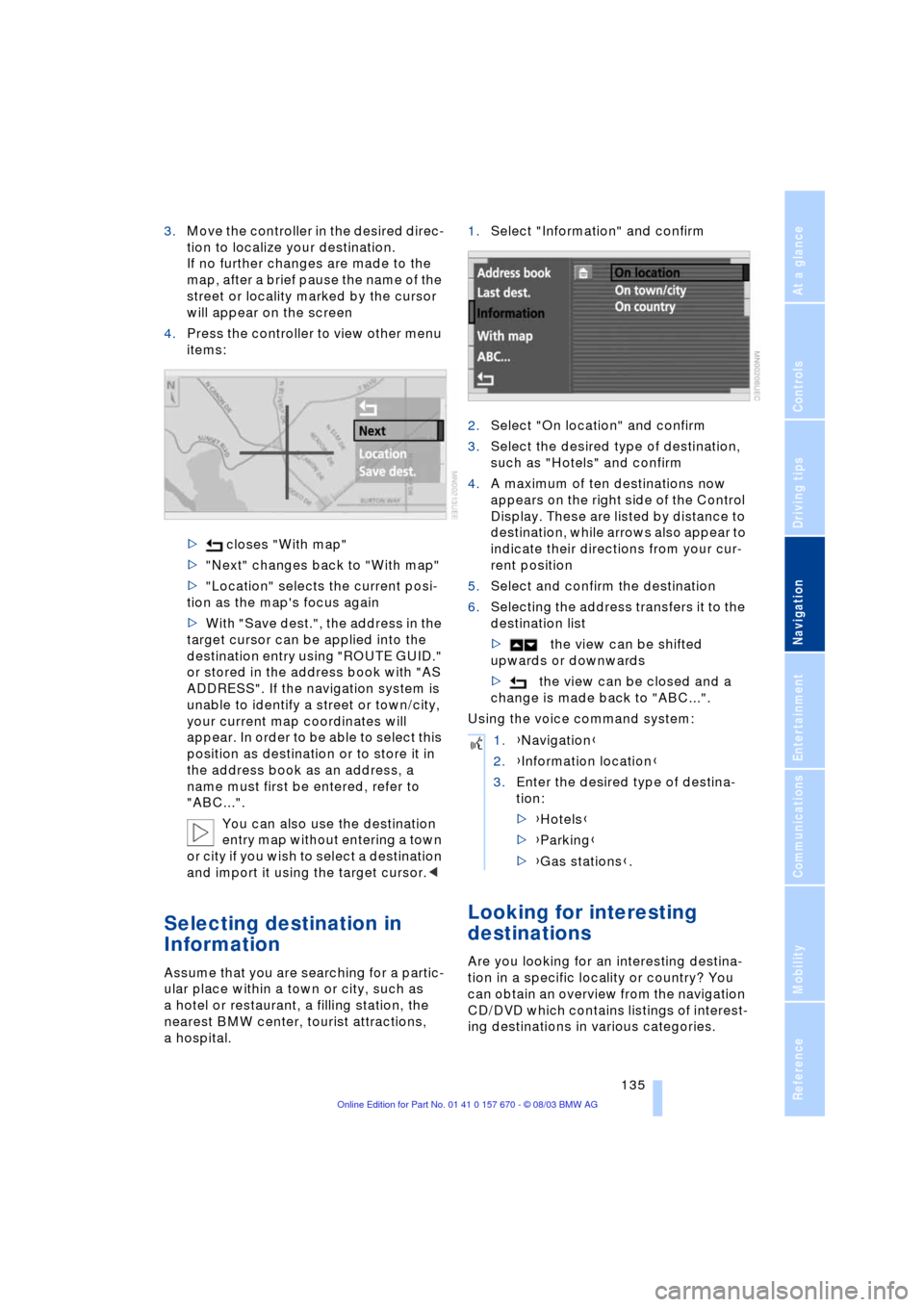
4.Press the controller to view other menu
items:
> closes "With map"
>"Next" changes back to "With map"
>"Location" selects the current posi-
tion as the map's focus again
>With "Save dest.", the address in the
target cursor can be applied into the
destination entry using "ROUTE GUID."
or stored in the address book with "AS
ADDRESS". If the navigation system is
unable to identify a street or town/city,
your current map coordinates will
appear. In order to be able to select this
position as destination or to store it in
the address book as an address, a
name must first be entered, refer to
"ABC...".
You can also use the destination
entry map without entering a town
or city if you wish to select a destination
and import it using the target cursor.<
Selecting destination in
Information
Assume that you are searching for a partic-
ular place within a town or city, such as
a hotel or restaurant, a filling station, the
nearest BMW center, tourist attractions,
a hospital.1.Select "Information" and confirm
2.Select "On location" and confirm
3.Select the desired type of destination,
such as "Hotels" and confirm
4.A maximum of ten destinations now
appears on the right side of the Control
Display. These are listed by distance to
destination, while arrows also appear to
indicate their directions from your cur-
rent position
5.Select and confirm the destination
6.Selecting the address transfers it to the
destination list
>the view can be shifted
upwards or downwards
>the view can be closed and a
change is made back to "ABC...".
Using the voice command system:
Looking for interesting
destinations
Are you looking for an interesting destina-
tion in a specific locality or country? You
can obtain an overview from the navigation
CD/DVD which contains listings of interest-
ing destinations in various categories.
1.{Navigation}
2.{Information location}
3.Enter the desired type of destina-
tion:
>{Hotels}
>{Parking}
>{Gas stations}.
Page 138 of 232
Destination entry
136 1.Select "Information" and confirm
2.Select "On town/city" or "On country"
and confirm. A screen for entering the
town/city appears on the Control Dis-
play
3.Enter the desired town/city or country,
select "Next" and confirm
4.Select your destination category, such
as "Airport" and confirm.
"ABC..." appears on the Control Display
screen along with an alphabetical listing
containing all entries in the selected
destination category. You can obtain a
more selective display of the informa-
tion contained in the directory by enter-
ing one or more letters
5.Select the desired entry.
Using the voice command system:
Recent destinations
Returning to a recent destination
The system stores the last ten destinations
entered.
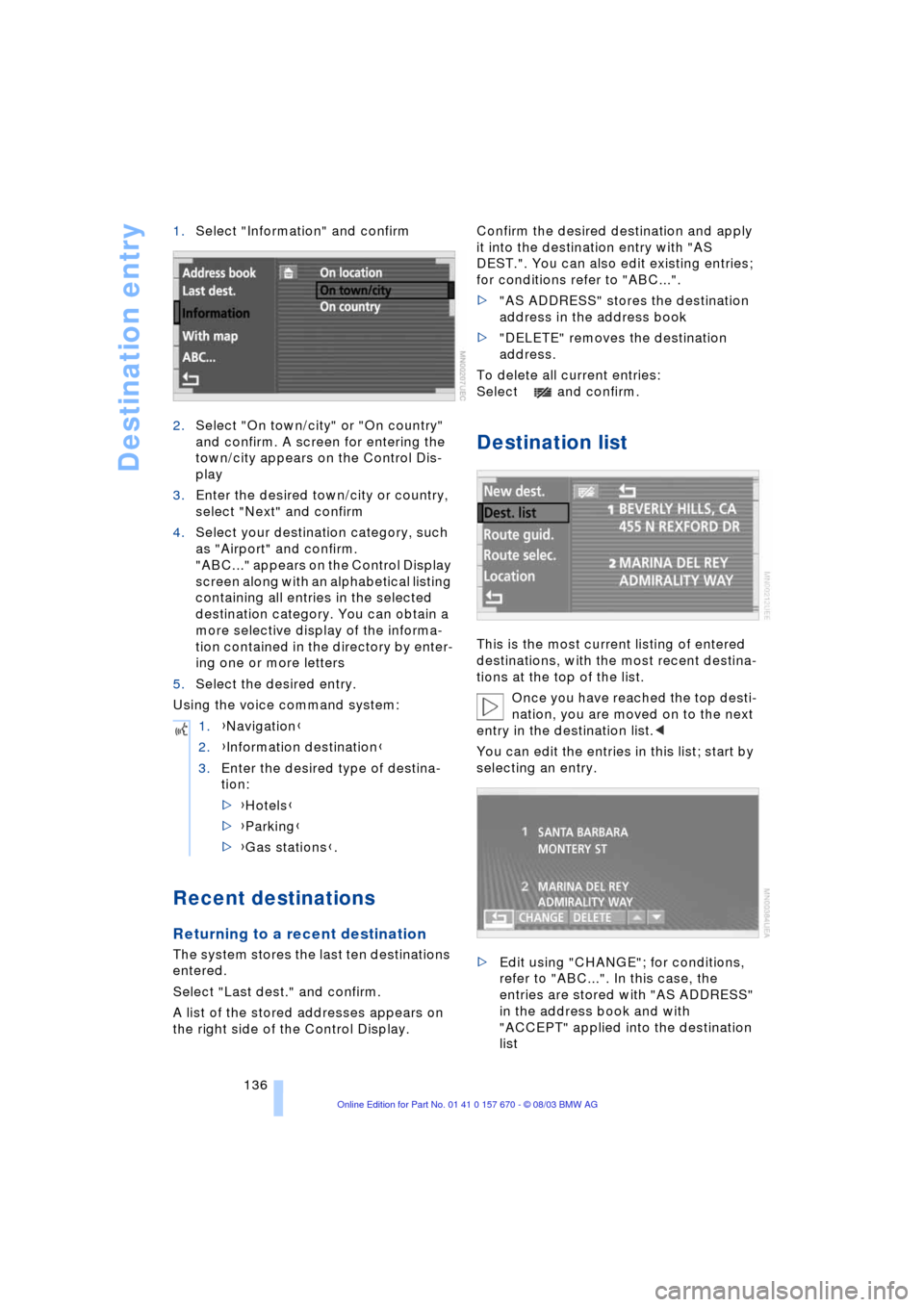
Select "Last dest." and confirm.
A list of the stored addresses appears on
the right side of the Control Display.Confirm the desired destination and apply
it into the destination entry with "AS
DEST.". You can also edit existing entries;
for conditions refer to "ABC...".
>"AS ADDRESS" stores the destination
address in the address book
>"DELETE" removes the destination
address.
To delete all current entries:
Select and confirm.
Destination list
This is the most current listing of entered
destinations, with the most recent destina-
tions at the top of the list.
Once you have reached the top desti-
nation, you are moved on to the next
entry in the destination list.<
You can edit the entries in this list; start by
selecting an entry.
>Edit using "CHANGE"; for conditions,
refer to "ABC...". In this case, the
entries are stored with "AS ADDRESS"
in the address book and with
"ACCEPT" applied into the destination
list 1.{Navigation}
2.{Information destination}
3.Enter the desired type of destina-
tion:
>{Hotels}
>{Parking}
>{Gas stations}.
Page 140 of 232
Destination entry
138
Wordmatch principle
The system relies on a wordmatch principle
to make it easier for you to enter the names
of towns or streets. The system runs ongo-
ing checks, comparing your destination
entries with the data stored on the naviga-
tion CD/DVD as the basis for instant
response. The user benefits include:
>When you make an entry that consists
of more than one word, the system can
identify the name regardless of the
sequence in which you enter the indi-
vidual words.
Example:
Official version:
J.F. Kennedy Square
Possible entries:
Kennedy Square J.F.
or:
Square J.F. Kennedy
>Names of specific locations can also
vary from the official versions provided
that the spelling of the entry corre-
sponds to a standard form used in
another country
>When you are entering the names of
towns and streets the system will com-
plete them automatically as soon as
enough letters are available to ensure
unambiguous identification.
Example:
If you want to drive to Iowa Ave NW in
Washington, the system has already
identified the street name when "o" is
entered and displayed it in the lower
half of the Control Display
>The system only accepts name entries
beginning with letters that are stored on
the navigation CD/DVD. The system will
not accept nonexistent names and
addresses.
Page 141 of 232
Navigation
Driving tips
139Reference
At a glance
Controls
Communications
Entertainment
Mobility
Destination guidance
Starting the destination
guidance
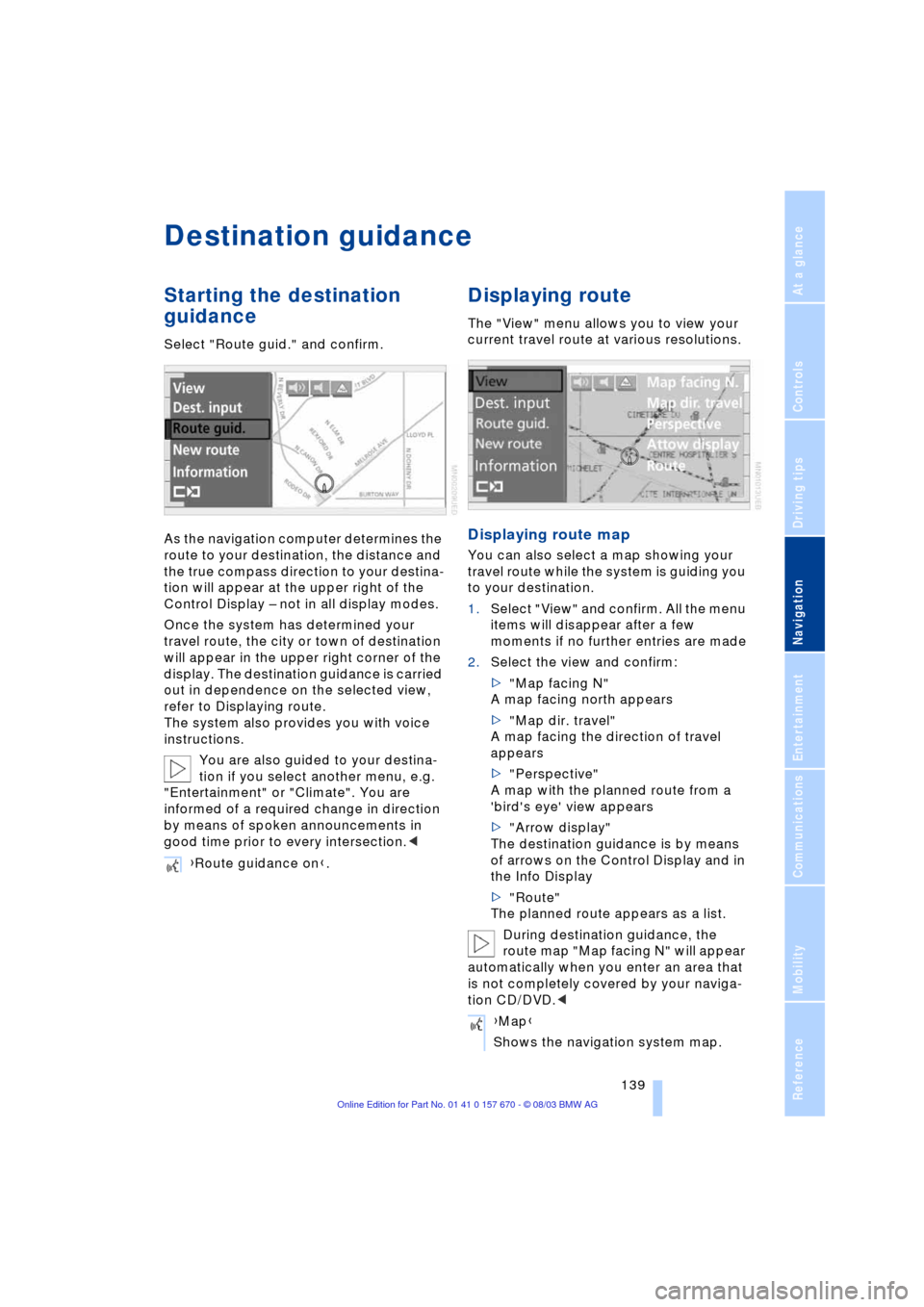
Select "Route guid." and confirm.
As the navigation computer determines the
route to your destination, the distance and
the true compass direction to your destina-
tion will appear at the upper right of the
Control Display Ð not in all display modes.
Once the system has determined your
travel route, the city or town of destination
will appear in the upper right corner of the
display. The destination guidance is carried
out in dependence on the selected view,
refer to Displaying route.
The system also provides you with voice
instructions.
You are also guided to your destina-
tion if you select another menu, e.g.
"Entertainment" or "Climate". You are
informed of a required change in direction
by means of spoken announcements in
good time prior to every intersection.<
Displaying route
The "View" menu allows you to view your
current travel route at various resolutions.
Displaying route map
You can also select a map showing your
travel route while the system is guiding you
to your destination.
1.Select "View" and confirm. All the menu
items will disappear after a few
moments if no further entries are made
2.Select the view and confirm:
>"Map facing N"
A map facing north appears
>"Map dir. travel"
A map facing the direction of travel
appears
>"Perspective"
A map with the planned route from a
'bird's eye' view appears
>"Arrow display"
The destination guidance is by means
of arrows on the Control Display and in
the Info Display
>"Route"
The planned route appears as a list.
During destination guidance, the
route map "Map facing N" will appear
automatically when you enter an area that
is not completely covered by your naviga-
tion CD/DVD.< {Route guidance on}.
{Map}
Shows the navigation system map.
Page 142 of 232
Destination guidance
140
Changing scale
Turn the controller to adjust the scale.
The map scale is provided at the lower right
of the Control Display.
Altering display direction
1.Select "View" and confirm. All the menu
items will disappear after a few
moments if no further entries are made
2.Select "Map dir. travel" or "Map facing
N." and confirm.
Canceling route map
To change to directional arrow mode:
1.Select "View" and confirm. All the menu
items will disappear after a few
moments if no further entries are made
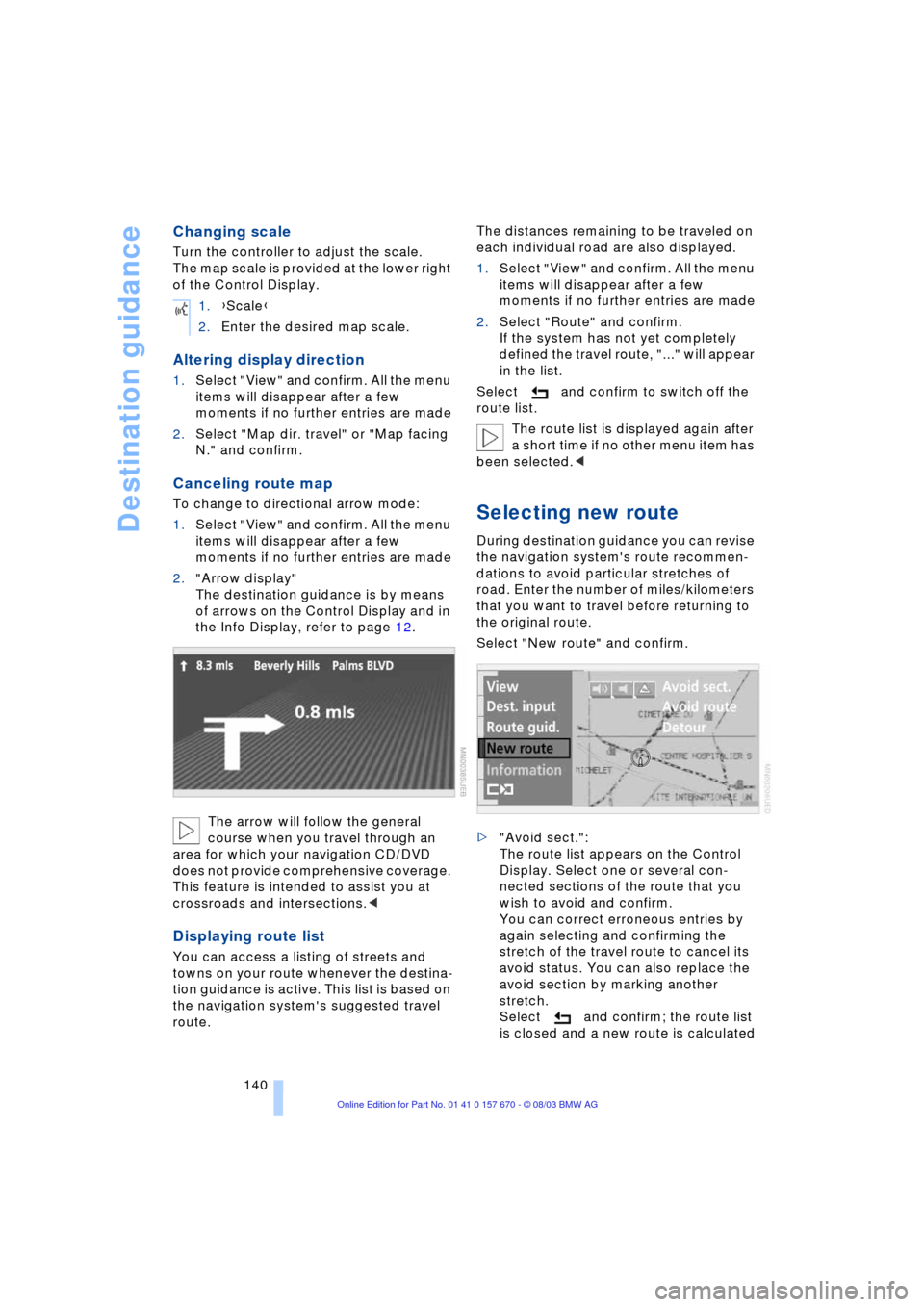
2."Arrow display"
The destination guidance is by means
of arrows on the Control Display and in
the Info Display, refer to page 12.
The arrow will follow the general
course when you travel through an
area for which your navigation CD/DVD
does not provide comprehensive coverage.
This feature is intended to assist you at
crossroads and intersections.<
Displaying route list
You can access a listing of streets and
towns on your route whenever the destina-
tion guidance is active. This list is based on
the navigation system's suggested travel
route.The distances remaining to be traveled on
each individual road are also displayed.
1.Select "View" and confirm. All the menu
items will disappear after a few
moments if no further entries are made
2.Select "Route" and confirm.
If the system has not yet completely
defined the travel route, "..." will appear
in the list.
Select and confirm to switch off the
route list.
The route list is displayed again after
a short time if no other menu item has
been selected.<
Selecting new route
During destination guidance you can revise
the navigation system's route recommen-
dations to avoid particular stretches of
road. Enter the number of miles/kilometers
that you want to travel before returning to
the original route.
Select "New route" and confirm.
>"Avoid sect.":
The route list appears on the Control
Display. Select one or several con-
nected sections of the route that you
wish to avoid and confirm.
You can correct erroneous entries by
again selecting and confirming the
stretch of the travel route to cancel its
avoid status. You can also replace the
avoid section by marking another
stretch.
Select and confirm; the route list
is closed and a new route is calculated 1.{Scale}
2.Enter the desired map scale.
Page 145 of 232
Navigation
Driving tips
143Reference
At a glance
Controls
Communications
Entertainment
Mobility
Selecting an address
Home address
Deleting addresses
To delete individual entries:
To delete all current entries:
Current position
Display of current position
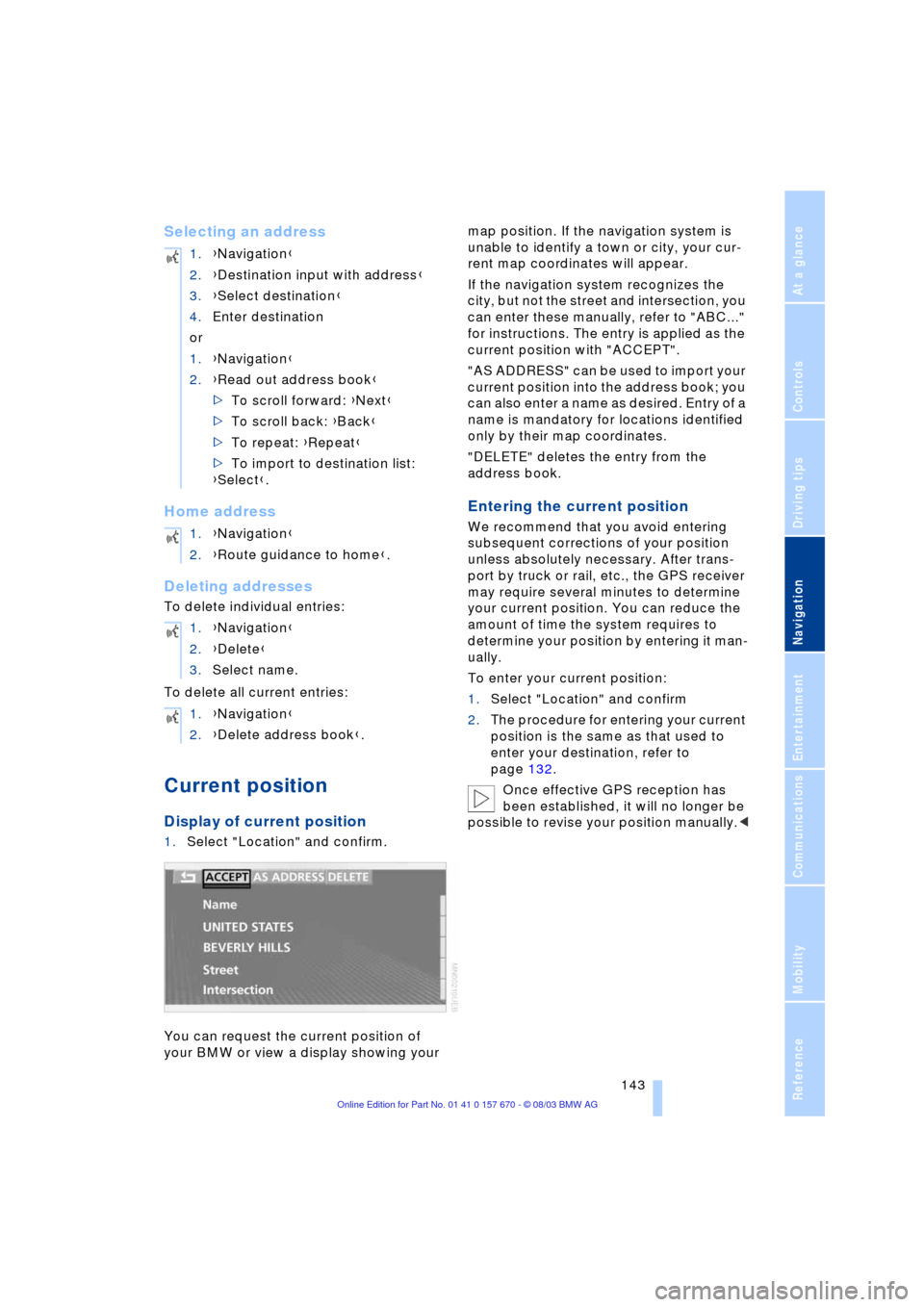
1.Select "Location" and confirm.
You can request the current position of
your BMW or view a display showing your map position. If the navigation system is
unable to identify a town or city, your cur-
rent map coordinates will appear.
If the navigation system recognizes the
city, but not the street and intersection, you
can enter these manually, refer to "ABC..."
for instructions. The entry is applied as the
current position with "ACCEPT".
"AS ADDRESS" can be used to import your
current position into the address book; you
can also enter a name as desired. Entry of a
name is mandatory for locations identified
only by their map coordinates.
"DELETE" deletes the entry from the
address book.
Entering the current position
We recommend that you avoid entering
subsequent corrections of your position
unless absolutely necessary. After trans-
port by truck or rail, etc., the GPS receiver
may require several minutes to determine
your current position. You can reduce the
amount of time the system requires to
determine your position by entering it man-
ually.
To enter your current position:
1.Select "Location" and confirm
2.The procedure for entering your current
position is the same as that used to
enter your destination, refer to
page 132.
Once effective GPS reception has
been established, it will no longer be
possible to revise your position manually.< 1.{Navigation}
2.{Destination input with address}
3.{Select destination}
4.Enter destination
or
1.{Navigation}
2.{Read out address book}
>To scroll forward: {Next}
>To scroll back: {Back}
>To repeat: {Repeat}
>To import to destination list:
{Select}.
1.{Navigation}
2.{Route guidance to home}.
1.{Navigation}
2.{Delete}
3.Select name.
1.{Navigation}
2.{Delete address book}.
Page 162 of 232
CD changer
160
CD changer
Location
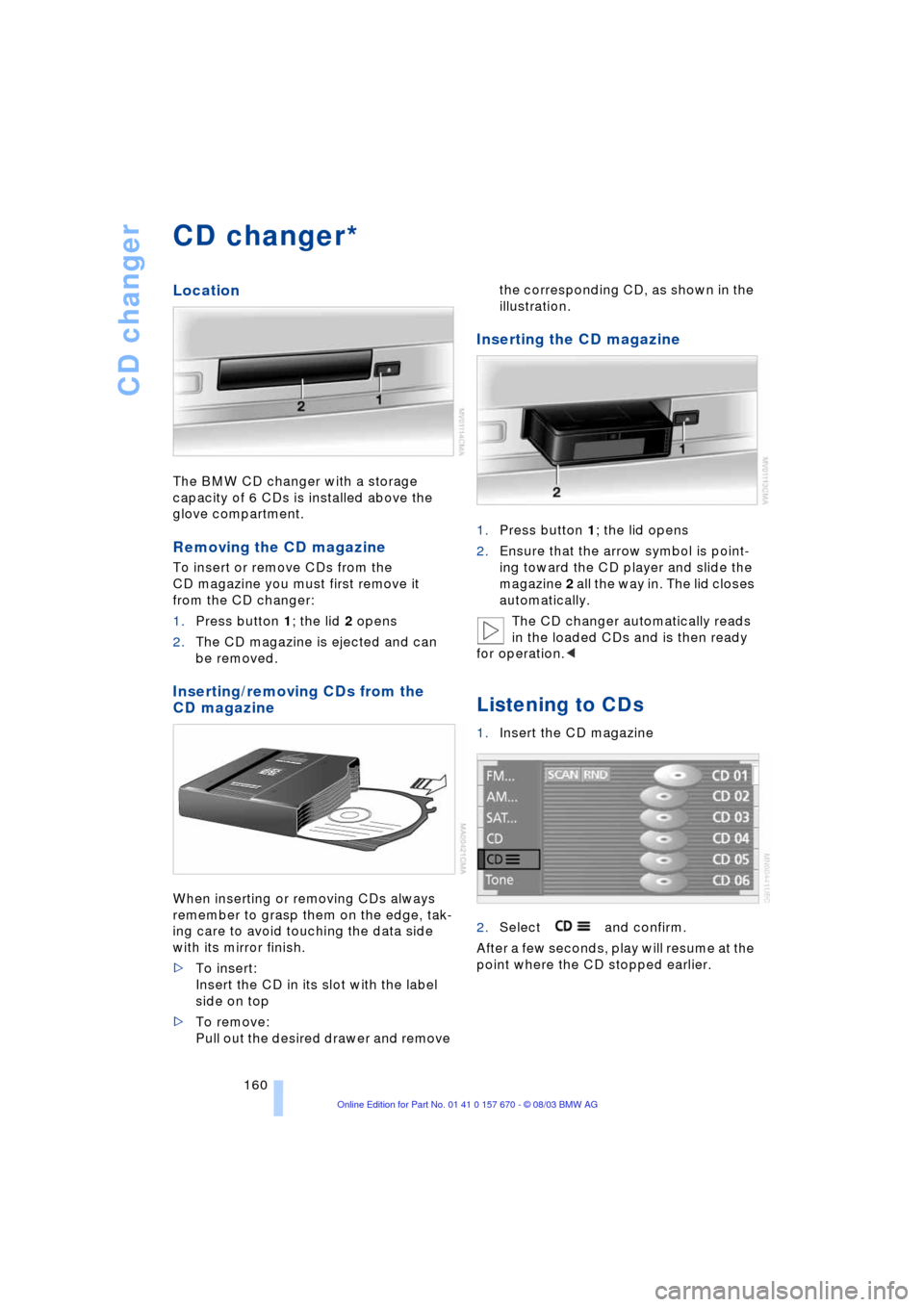
The BMW CD changer with a storage
capacity of 6 CDs is installed above the
glove compartment.
Removing the CD magazine
To insert or remove CDs from the
CD magazine you must first remove it
from the CD changer:
1.Press button 1; the lid 2 opens
2.The CD magazine is ejected and can
be removed.
Inserting/removing CDs from the
CD magazine
When inserting or removing CDs always
remember to grasp them on the edge, tak-
ing care to avoid touching the data side
with its mirror finish.
>To insert:
Insert the CD in its slot with the label
side on top
>To remove:
Pull out the desired drawer and remove the corresponding CD, as shown in the
illustration.
Inserting the CD magazine
1.Press button 1; the lid opens
2.Ensure that the arrow symbol is point-
ing toward the CD player and slide the
magazine 2 all the way in. The lid closes
automatically.
The CD changer automatically reads
in the loaded CDs and is then ready
for operation.<
Listening to CDs
1.Insert the CD magazine
2.Select and confirm.
After a few seconds, play will resume at the
point where the CD stopped earlier.
*
Page 168 of 232
DVD changer
166
Inserting the DVD magazine
1.Push the door to the right
2.Ensure that the arrow symbol is point-
ing toward the DVD changer and slide
the magazine all the way in
3.Close the door again.
The DVD changer checks the maga-
zine for inserted DVDs or CDs and is
then ready for operation.<
DVD country codes
Your DVD changer only plays DVDs with
the coding 0 or 1. This coding cannot be
changed.
Playing DVDs
Make all entries with the vehicle sta-
tionary. If you do not observe this pre-
caution, you may endanger vehicle occu-
pants and other road users.<
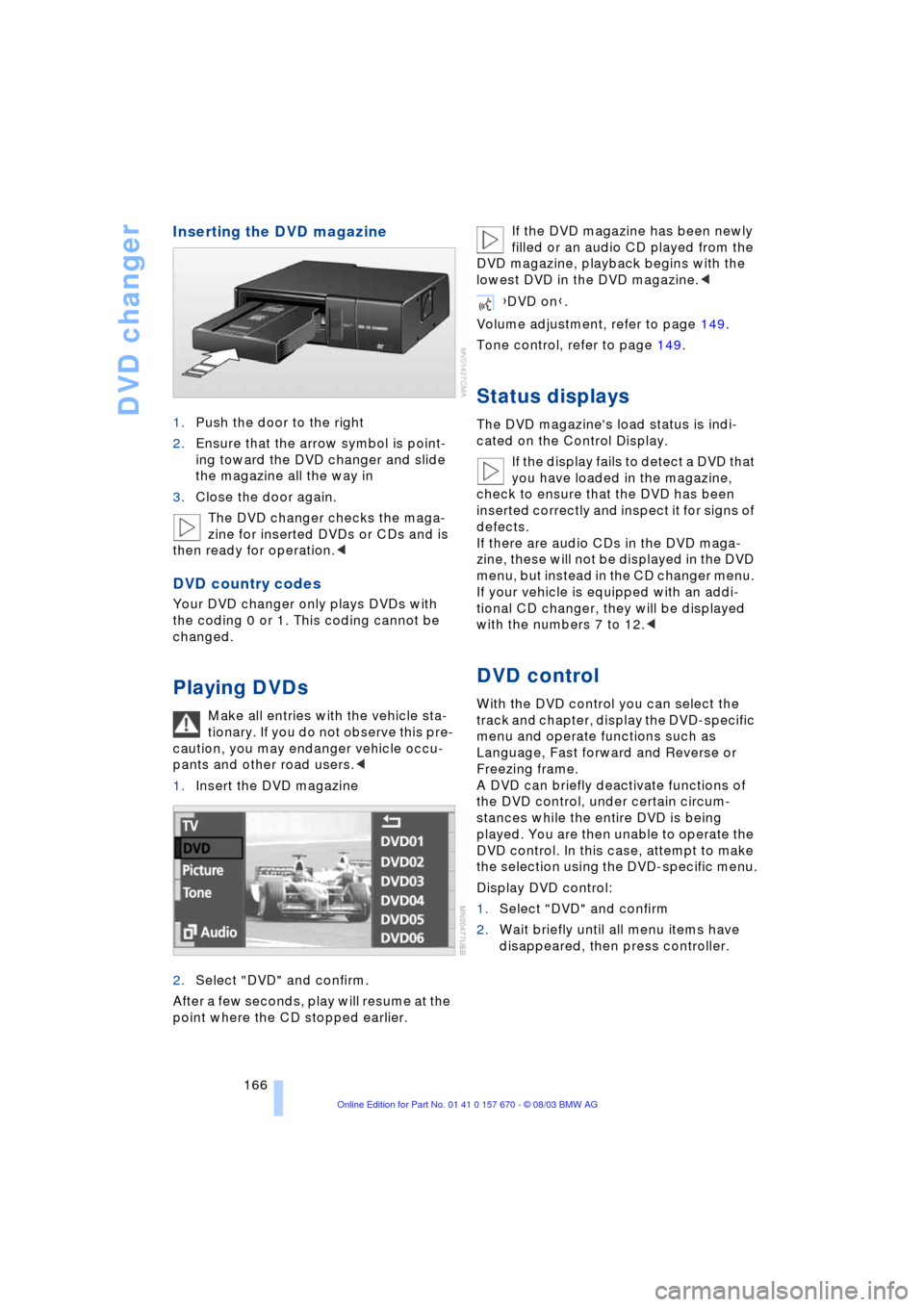
1.Insert the DVD magazine
2.Select "DVD" and confirm.
After a few seconds, play will resume at the
point where the CD stopped earlier.If the DVD magazine has been newly
filled or an audio CD played from the
DVD magazine, playback begins with the
lowest DVD in the DVD magazine.<
Volume adjustment, refer to page 149.
Tone control, refer to page 149.
Status displays
The DVD magazine's load status is indi-
cated on the Control Display.
If the display fails to detect a DVD that
you have loaded in the magazine,
check to ensure that the DVD has been
inserted correctly and inspect it for signs of
defects.
If there are audio CDs in the DVD maga-
zine, these will not be displayed in the DVD
menu, but instead in the CD changer menu.
If your vehicle is equipped with an addi-
tional CD changer, they will be displayed
with the numbers 7 to 12.<
DVD control
With the DVD control you can select the
track and chapter, display the DVD-specific
menu and operate functions such as
Language, Fast forward and Reverse or
Freezing frame.
A DVD can briefly deactivate functions of
the DVD control, under certain circum-
stances while the entire DVD is being
played. You are then unable to operate the
DVD control. In this case, attempt to make
the selection using the DVD-specific menu.
Display DVD control:
1.Select "DVD" and confirm
2.Wait briefly until all menu items have
disappeared, then press controller.
{DVD on}.
Page 193 of 232
Mobility
191Reference
At a glance
Controls
Driving tips
Communications
Navigation
Entertainment
Temperature
The temperature grades are A Ð the
highest Ð, B, and C, representing the tire's
resistance to the generation of heat and its
ability to dissipate heat when tested under
controlled conditions on a specified indoor
laboratory test wheel.
Sustained high temperature can cause
the material of the tire to degenerate and
reduce tire life, and excessive temperature
can lead to sudden tire failure. The grade C
corresponds to a level of performance
which all passenger car tires must meet
under the Federal Motor Vehicle Safety
Standard No. 109. Grades B and A repre-
sent higher levels of performance on the
laboratory test wheel than the minimum
required by law.
The temperature grade for this tire is
established for a tire that is properly
inflated and not overloaded. Excessive
speed, underinflation, or excessive load-
ing, either separately or in combination,
can cause heat buildup and possible tire
failure.<
Run-flat tires
You will recognize run-flat tires by a circular
symbol containing the letters RSC on the
side of the tire, refer to page 193.
M+S
Winter and all-season tires.
These have better winter properties than
summer tires.
Tire condition
Inspect your tires frequently for tread wear,
signs of damage and for foreign objects
lodged in the tread. Check the tread depth.
Tire tread
The tread depth should not fall below e in/
3 mm.
At tread depths below e in/3 mm, there is
an increased risk of high-speed hydroplan-
ing, even when only small amounts of
water are present on the road surface.As winter tires display a noticeable loss in
their ability to cope with cold-weather driv-
ing conditions once the tread wears to
below k/K in/4 mm, to ensure continued
safety you should always have such tires
replaced.
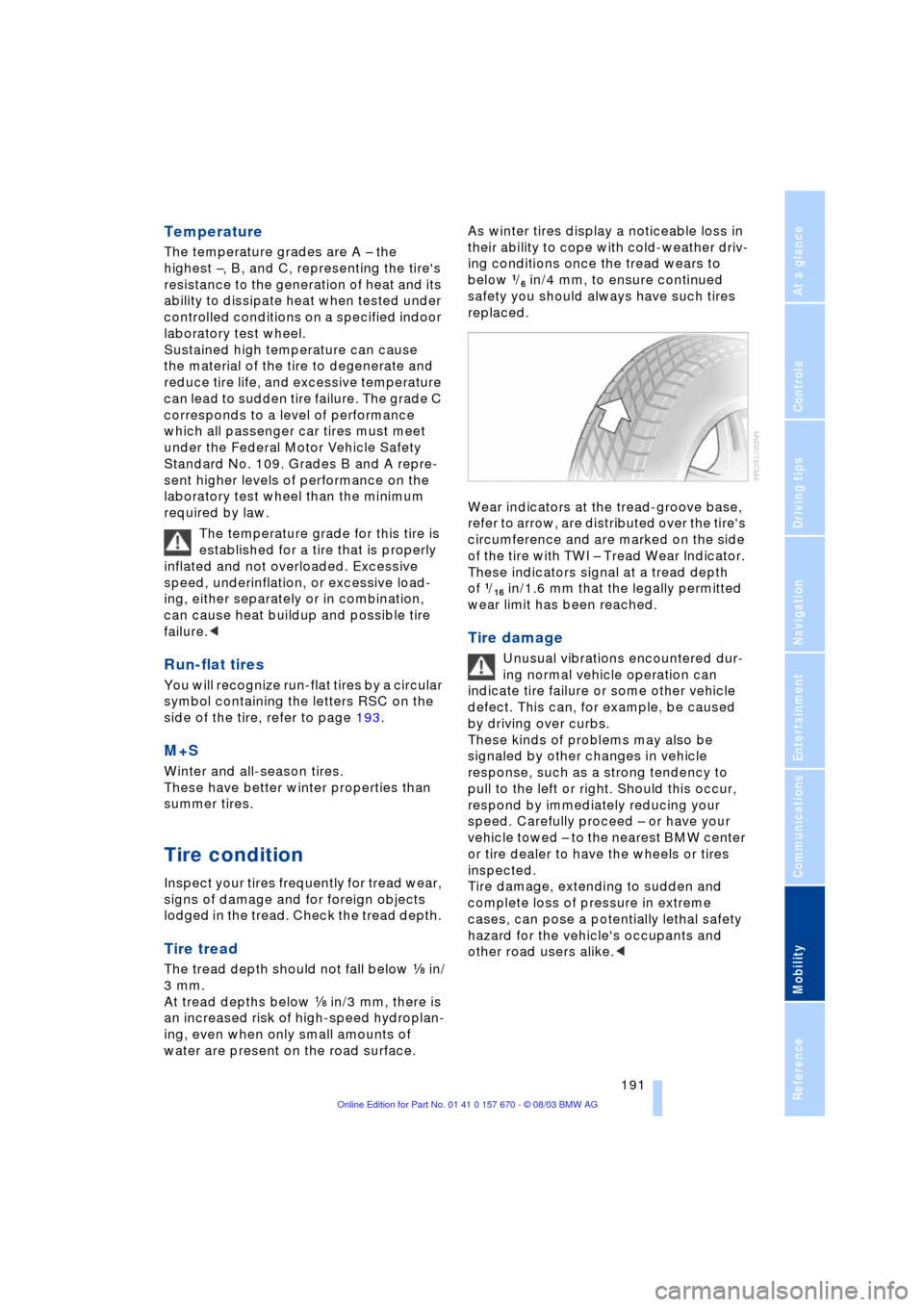
Wear indicators at the tread-groove base,
refer to arrow, are distributed over the tire's
circumference and are marked on the side
of the tire with TWI Ð Tread Wear Indicator.
These indicators signal at a tread depth
of k/FK in/1.6 mm that the legally permitted
wear limit has been reached.
Tire damage
Unusual vibrations encountered dur-
ing normal vehicle operation can
indicate tire failure or some other vehicle
defect. This can, for example, be caused
by driving over curbs.
These kinds of problems may also be
signaled by other changes in vehicle
response, such as a strong tendency to
pull to the left or right. Should this occur,
respond by immediately reducing your
speed. Carefully proceed Ð or have your
vehicle towed Ð to the nearest BMW center
or tire dealer to have the wheels or tires
inspected.
Tire damage, extending to sudden and
complete loss of pressure in extreme
cases, can pose a potentially lethal safety
hazard for the vehicle's occupants and
other road users alike.<
Page 197 of 232
Mobility
195Reference
At a glance
Controls
Driving tips
Communications
Navigation
Entertainment
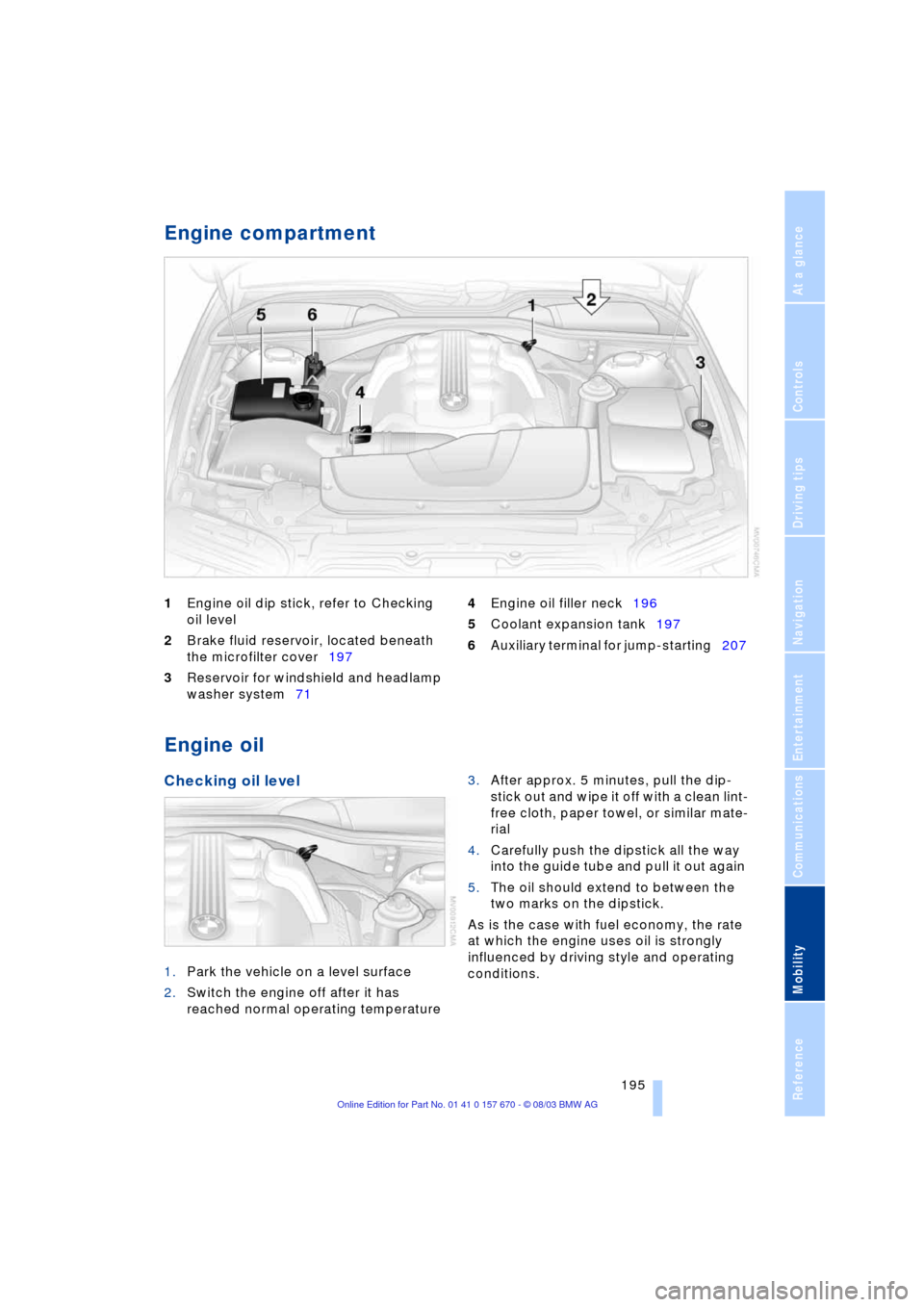
Engine compartment
1Engine oil dip stick, refer to Checking
oil level
2Brake fluid reservoir, located beneath
the microfilter cover197
3Reservoir for windshield and headlamp
washer system71 4Engine oil filler neck196
5Coolant expansion tank197
6Auxiliary terminal for jump-starting207
Engine oil
Checking oil level
1.Park the vehicle on a level surface
2.Switch the engine off after it has
reached normal operating temperature 3.After approx. 5 minutes, pull the dip-
stick out and wipe it off with a clean lint-
free cloth, paper towel, or similar mate-
rial
4.Carefully push the dipstick all the way
into the guide tube and pull it out again
5.The oil should extend to between the
two marks on the dipstick.
As is the case with fuel economy, the rate
at which the engine uses oil is strongly
influenced by driving style and operating
conditions.