tow BMW 760Li 2004 E66 User Guide
[x] Cancel search | Manufacturer: BMW, Model Year: 2004, Model line: 760Li, Model: BMW 760Li 2004 E66Pages: 232, PDF Size: 5.27 MB
Page 93 of 232
Controls
91Reference
At a glance
Driving tips
Communications
Navigation
Entertainment
Mobility
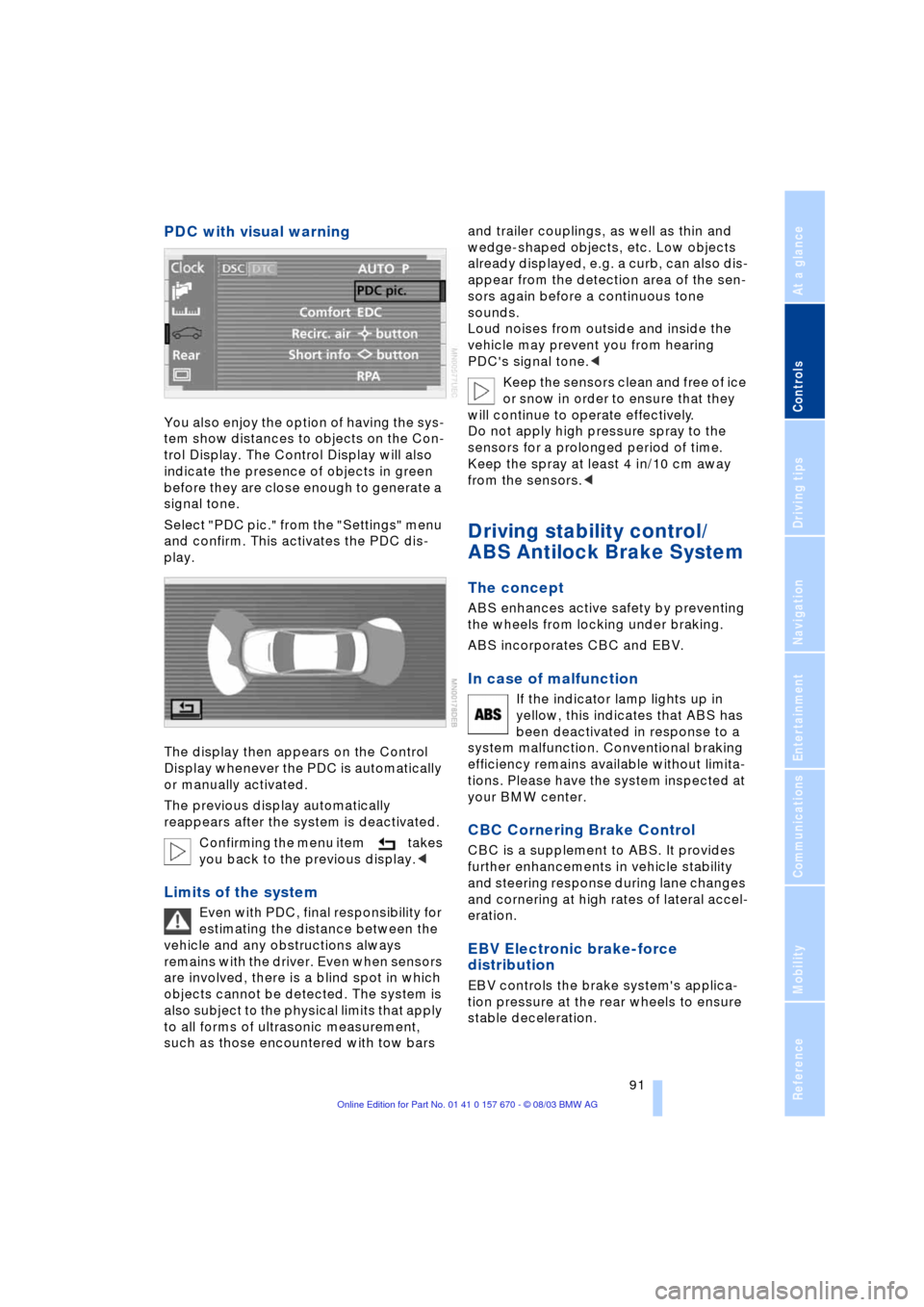
PDC with visual warning
You also enjoy the option of having the sys-
tem show distances to objects on the Con-
trol Display. The Control Display will also
indicate the presence of objects in green
before they are close enough to generate a
signal tone.
Select "PDC pic." from the "Settings" menu
and confirm. This activates the PDC dis-
play.
The display then appears on the Control
Display whenever the PDC is automatically
or manually activated.
The previous display automatically
reappears after the system is deactivated.
Confirming the menu item takes
you back to the previous display.<
Limits of the system
Even with PDC, final responsibility for
estimating the distance between the
vehicle and any obstructions always
remains with the driver. Even when sensors
are involved, there is a blind spot in which
objects cannot be detected. The system is
also subject to the physical limits that apply
to all forms of ultrasonic measurement,
such as those encountered with tow bars and trailer couplings, as well as thin and
wedge-shaped objects, etc. Low objects
already displayed, e.g. a curb, can also dis-
appear from the detection area of the sen-
sors again before a continuous tone
sounds.
Loud noises from outside and inside the
vehicle may prevent you from hearing
PDC's signal tone.<
Keep the sensors clean and free of ice
or snow in order to ensure that they
will continue to operate effectively.
Do not apply high pressure spray to the
sensors for a prolonged period of time.
Keep the spray at least 4 in/10 cm away
from the sensors.<
Driving stability control/
ABS Antilock Brake System
The concept
ABS enhances active safety by preventing
the wheels from locking under braking.
ABS incorporates CBC and EBV.
In case of malfunction
If the indicator lamp lights up in
yellow, this indicates that ABS has
been deactivated in response to a
system malfunction. Conventional braking
efficiency remains available without limita-
tions. Please have the system inspected at
your BMW center.
CBC Cornering Brake Control
CBC is a supplement to ABS. It provides
further enhancements in vehicle stability
and steering response during lane changes
and cornering at high rates of lateral accel-
eration.
EBV Electronic brake-force
distribution
EBV controls the brake system's applica-
tion pressure at the rear wheels to ensure
stable deceleration.
Page 104 of 232
A congenial climate
102
A congenial climate
Automatic climate control
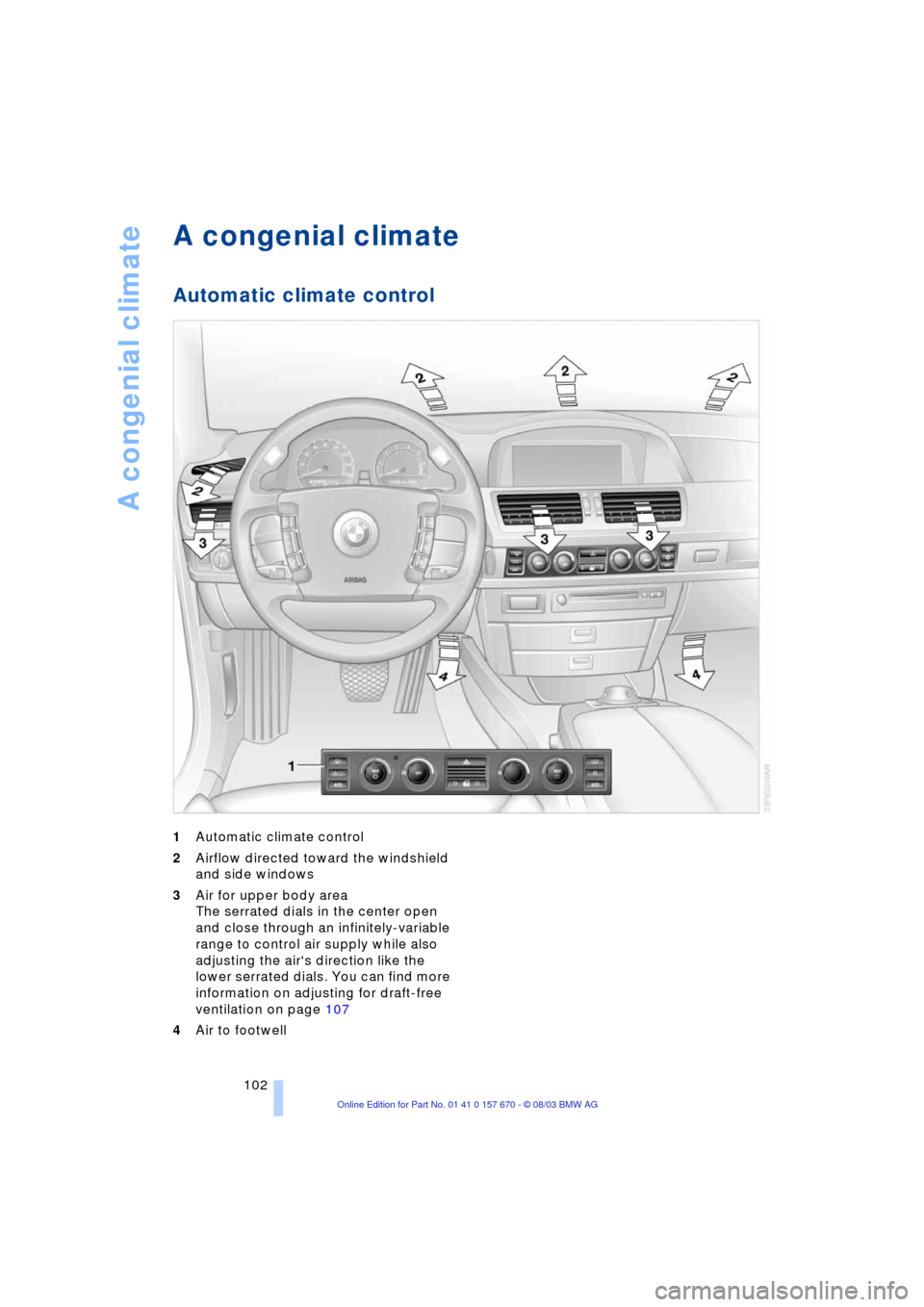
1Automatic climate control
2Airflow directed toward the windshield
and side windows
3Air for upper body area
The serrated dials in the center open
and close through an infinitely-variable
range to control air supply while also
adjusting the air's direction like the
lower serrated dials. You can find more
information on adjusting for draft-free
ventilation on page 107
4Air to footwell
Page 107 of 232
Controls
105Reference
At a glance
Driving tips
Communications
Navigation
Entertainment
Mobility
Residual heat mode
The system uses the warmth
stored in the engine to heat the
interior when the ignition is off,
for instance, while the vehicle
is stopped at a school to pick
up a child.
You can adjust the automatic climate con-
trol's settings when the ignition lock is in
the radio mode. The system blows heated
air into the interior in accordance with the
selected distribution pattern while the igni-
tion is off.
Provided that the engine has warmed
to its normal operating temperature
and the battery is charged, you can use this
function for up to 15 minutes after switch-
ing off the ignition. The LED within the but-
ton lights up to confirm compliance with
both of these conditions.<
Front ventilation
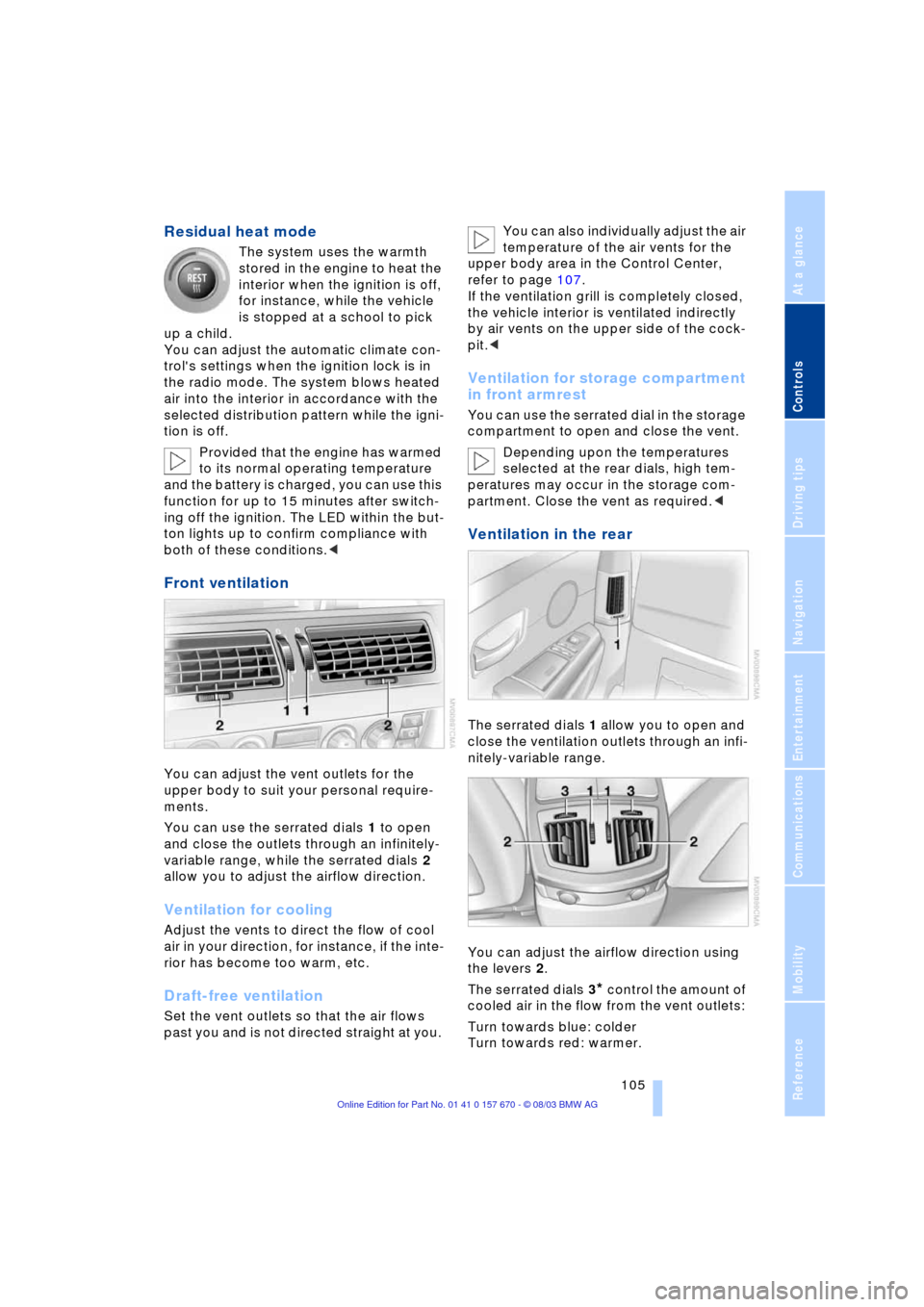
You can adjust the vent outlets for the
upper body to suit your personal require-
ments.
You can use the serrated dials 1 to open
and close the outlets through an infinitely-
variable range, while the serrated dials 2
allow you to adjust the airflow direction.
Ventilation for cooling
Adjust the vents to direct the flow of cool
air in your direction, for instance, if the inte-
rior has become too warm, etc.
Draft-free ventilation
Set the vent outlets so that the air flows
past you and is not directed straight at you. You can also individually adjust the air
temperature of the air vents for the
upper body area in the Control Center,
refer to page 107.
If the ventilation grill is completely closed,
the vehicle interior is ventilated indirectly
by air vents on the upper side of the cock-
pit.<
Ventilation for storage compartment
in front armrest
You can use the serrated dial in the storage
compartment to open and close the vent.
Depending upon the temperatures
selected at the rear dials, high tem-
peratures may occur in the storage com-
partment. Close the vent as required.<
Ventilation in the rear
The serrated dials 1 allow you to open and
close the ventilation outlets through an infi-
nitely-variable range.
You can adjust the airflow direction using
the levers 2.
The serrated dials 3
* control the amount of
cooled air in the flow from the vent outlets:
Turn towards blue: colder
Turn towards red: warmer.
Page 108 of 232
A congenial climate
106 This function allows you to make minor
adjustments for maximum comfort while
also letting you vary temperatures within
the storage compartment.
Switching off automatic climate
control*
The air supply, the heater and
the air conditioner are all
switched off. You can restart
the automatic climate control
by pressing any of its buttons
except the REST button.
Settings using the Control Center
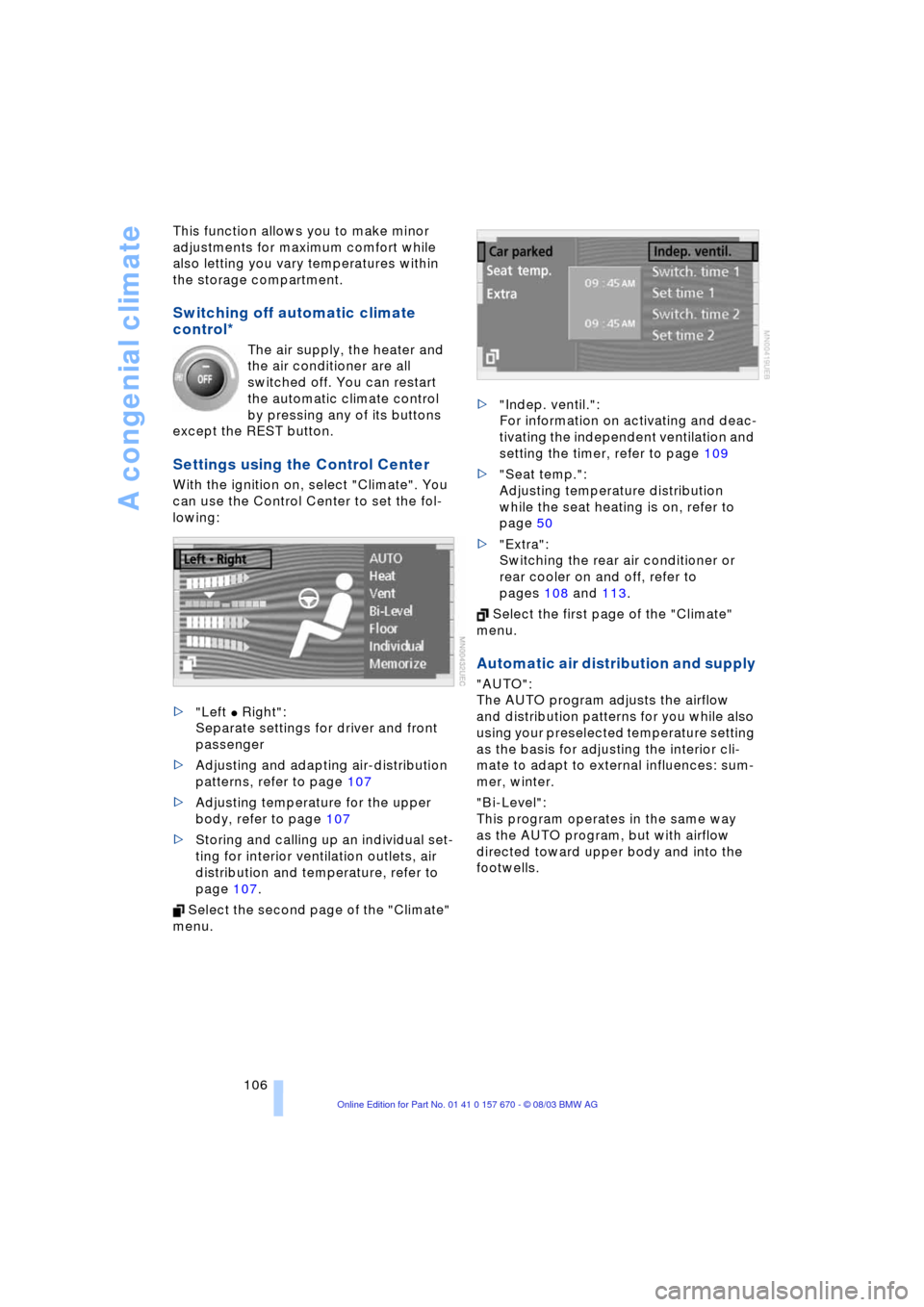
With the ignition on, select "Climate". You
can use the Control Center to set the fol-
lowing:
>"Left
C Right":
Separate settings for driver and front
passenger
>Adjusting and adapting air-distribution
patterns, refer to page 107
>Adjusting temperature for the upper
body, refer to page 107
>Storing and calling up an individual set-
ting for interior ventilation outlets, air
distribution and temperature, refer to
page 107.
Select the second page of the "Climate"
menu. >"Indep. ventil.":
For information on activating and deac-
tivating the independent ventilation and
setting the timer, refer to page 109
>"Seat temp.":
Adjusting temperature distribution
while the seat heating is on, refer to
page 50
>"Extra":
Switching the rear air conditioner or
rear cooler on and off, refer to
pages 108 and 113.
Select the first page of the "Climate"
menu.
Automatic air distribution and supply
"AUTO":
The AUTO program adjusts the airflow
and distribution patterns for you while also
using your preselected temperature setting
as the basis for adjusting the interior cli-
mate to adapt to external influences: sum-
mer, winter.
"Bi-Level":
This program operates in the same way
as the AUTO program, but with airflow
directed toward upper body and into the
footwells.
Page 120 of 232
Practical interior accessories
118
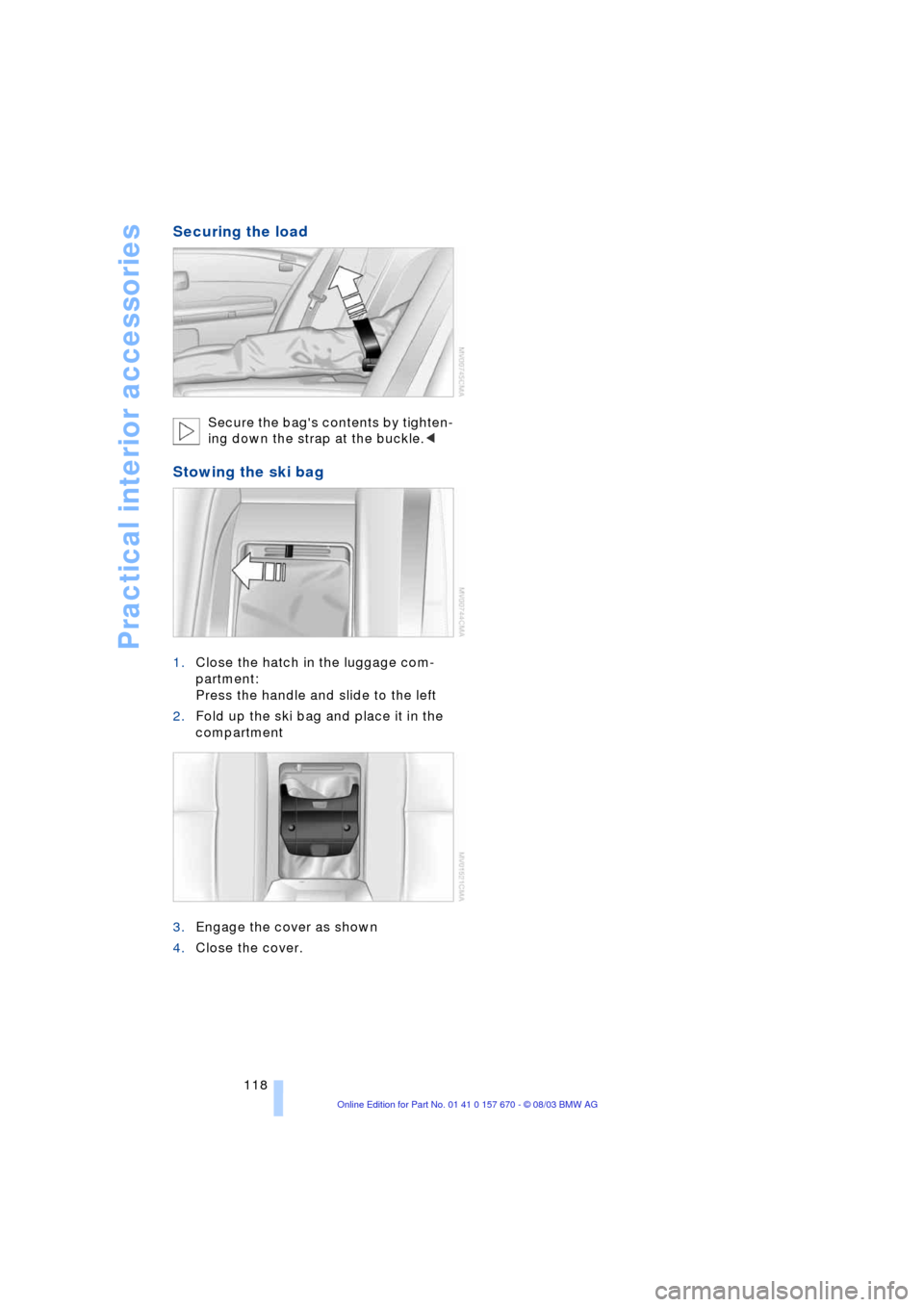
Securing the load
Secure the bag's contents by tighten-
ing down the strap at the buckle.<
Stowing the ski bag
1.Close the hatch in the luggage com-
partment:
Press the handle and slide to the left
2.Fold up the ski bag and place it in the
compartment
3.Engage the cover as shown
4.Close the cover.
Page 126 of 232
Things to remember when driving
124 Warning lamp for Canadian models.
The brake pads have reached their mini-
mum pad thickness. Have them replaced
at your BMW center as soon as possible.
For your own safety: use only brake
pads that BMW has released for your
particular vehicle model. As BMW cannot
assess the suitability of other brake pads
for use on your vehicle, we are unable to
assume continued responsibility for the
vehicle's operating safety if non-approved
pads are installed.<
Cargo loading
To avoid loading the tires beyond
their approved carrying capacity,
never overload the vehicle. Overloading
can lead to overheating and increases the
rate at which damage develops inside the
tires. The ultimate result can assume the
form of a sudden air loss.<
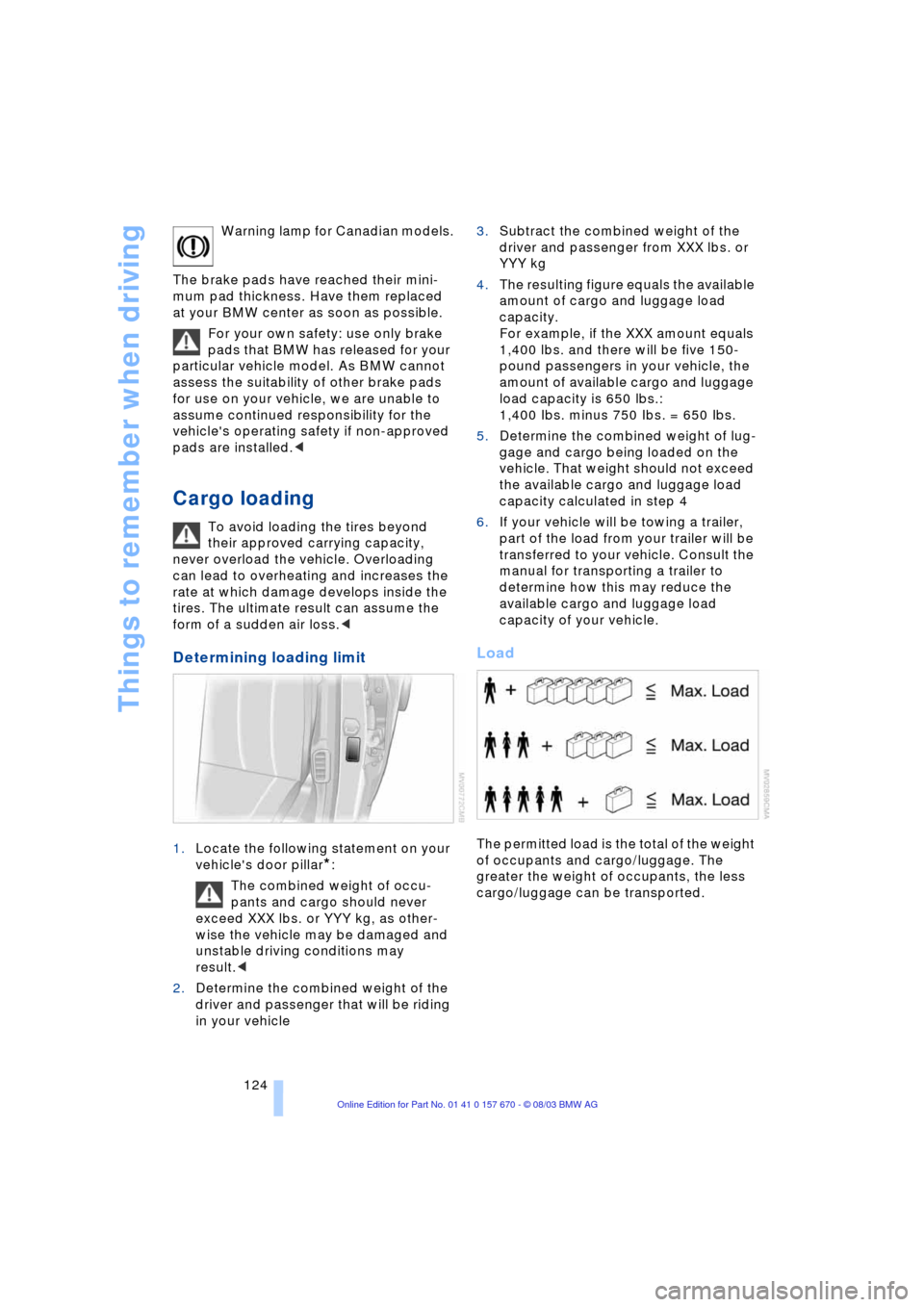
Determining loading limit
1.Locate the following statement on your
vehicle's door pillar
*:
The combined weight of occu-
pants and cargo should never
exceed XXX lbs. or YYY kg, as other-
wise the vehicle may be damaged and
unstable driving conditions may
result.<
2.Determine the combined weight of the
driver and passenger that will be riding
in your vehicle3.Subtract the combined weight of the
driver and passenger from XXX lbs. or
YYY kg
4.The resulting figure equals the available
amount of cargo and luggage load
capacity.
For example, if the XXX amount equals
1,400 lbs. and there will be five 150-
pound passengers in your vehicle, the
amount of available cargo and luggage
load capacity is 650 lbs.:
1,400 Ibs. minus 750 Ibs. = 650 Ibs.
5.Determine the combined weight of lug-
gage and cargo being loaded on the
vehicle. That weight should not exceed
the available cargo and luggage load
capacity calculated in step 4
6.If your vehicle will be towing a trailer,
part of the load from your trailer will be
transferred to your vehicle. Consult the
manual for transporting a trailer to
determine how this may reduce the
available cargo and luggage load
capacity of your vehicle.
Load
The permitted load is the total of the weight
of occupants and cargo/luggage. The
greater the weight of occupants, the less
cargo/luggage can be transported.
Page 127 of 232
Driving tips
125Reference
At a glance
Controls
Communications
Navigation
Entertainment
Mobility
Stowing cargo
>Load heavy cargo as far forward and
as low as possible, placing it directly
behind the bulkhead behind the rear
seats
>Cover sharp edges and corners
>For very heavy cargo when the rear seat
is not occupied, secure each safety belt
in the opposite buckle.
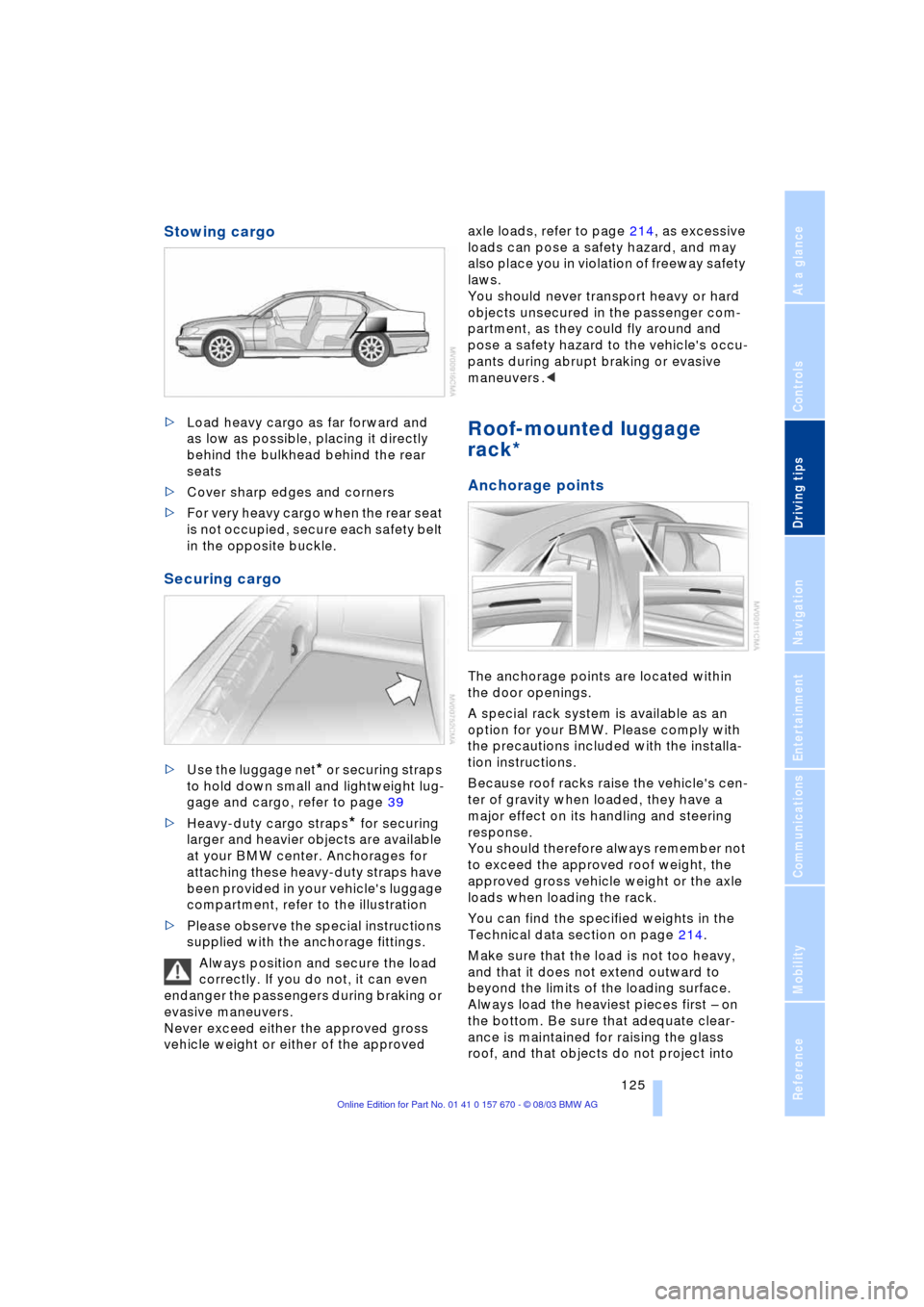
Securing cargo
>Use the luggage net* or securing straps
to hold down small and lightweight lug-
gage and cargo, refer to page 39
>Heavy-duty cargo straps
* for securing
larger and heavier objects are available
at your BMW center. Anchorages for
attaching these heavy-duty straps have
been provided in your vehicle's luggage
compartment, refer to the illustration
>Please observe the special instructions
supplied with the anchorage fittings.
Always position and secure the load
correctly. If you do not, it can even
endanger the passengers during braking or
evasive maneuvers.
Never exceed either the approved gross
vehicle weight or either of the approved axle loads, refer to page 214, as excessive
loads can pose a safety hazard, and may
also place you in violation of freeway safety
laws.
You should never transport heavy or hard
objects unsecured in the passenger com-
partment, as they could fly around and
pose a safety hazard to the vehicle's occu-
pants during abrupt braking or evasive
maneuvers .<
Roof-mounted luggage
rack*
Anchorage points
The anchorage points are located within
the door openings.
A special rack system is available as an
option for your BMW. Please comply with
the precautions included with the installa-
tion instructions.
Because roof racks raise the vehicle's cen-
ter of gravity when loaded, they have a
major effect on its handling and steering
response.
You should therefore always remember not
to exceed the approved roof weight, the
approved gross vehicle weight or the axle
loads when loading the rack.
You can find the specified weights in the
Technical data section on page 214.
Make sure that the load is not too heavy,
and that it does not extend outward to
beyond the limits of the loading surface.
Always load the heaviest pieces first Ð on
the bottom. Be sure that adequate clear-
ance is maintained for raising the glass
roof, and that objects do not project into
Page 134 of 232
Destination entry
132
Destination entry
In entering your destination you can select
from among the following options:
>Manual entry of destination address,
see below
>Selecting the town or city and the street
from the directory, refer to page 134
>Selecting the map-guided destination,
refer to page 134
>Selecting destination in Information,
refer to page 135
>Selecting from among recent destina-
tions, refer to page 136
>Selecting destination from address
book, refer to page 142.
After selecting your destination you can
proceed to start the destination guidance,
refer to page 139.
Enter data only when the vehicle is
stationary, and always obey the traffic
regulations and road signs in the event of
any contradiction between traffic and road
conditions and the instructions issued by
the navigation system. If you do not
observe this precaution, you may be in vio-
lation of the law, and can endanger vehicle
occupants and other road users.<
Manual entry of destination
address
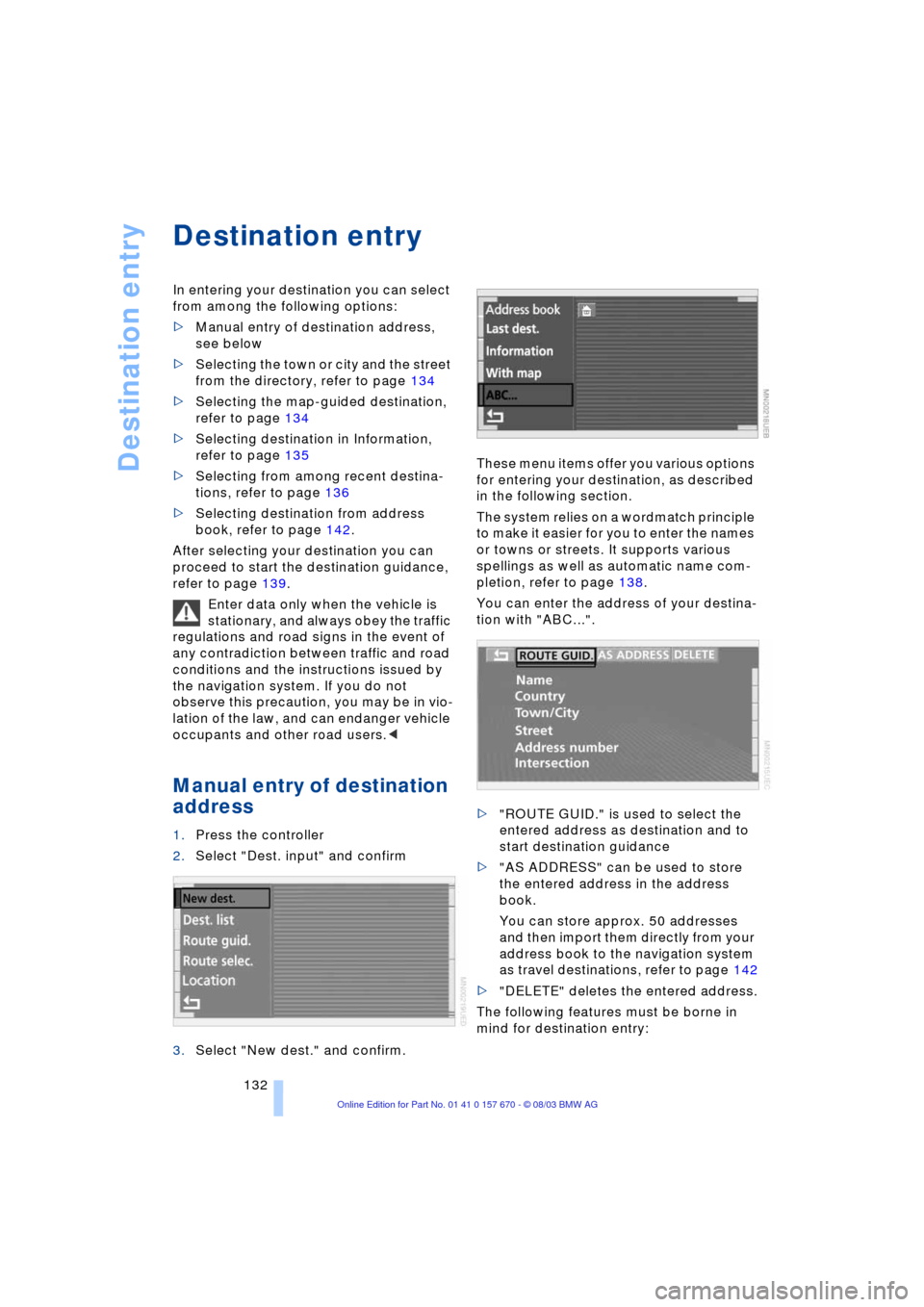
1.Press the controller
2.Select "Dest. input" and confirm
3.Select "New dest." and confirm.These menu items offer you various options
for entering your destination, as described
in the following section.
The system relies on a wordmatch principle
to make it easier for you to enter the names
or towns or streets. It supports various
spellings as well as automatic name com-
pletion, refer to page 138.
You can enter the address of your destina-
tion with "ABC...".
>"ROUTE GUID." is used to select the
entered address as destination and to
start destination guidance
>"AS ADDRESS" can be used to store
the entered address in the address
book.
You can store approx. 50 addresses
and then import them directly from your
address book to the navigation system
as travel destinations, refer to page 142
>"DELETE" deletes the entered address.
The following features must be borne in
mind for destination entry:
Page 135 of 232
Navigation
Driving tips
133Reference
At a glance
Controls
Communications
Entertainment
Mobility
>If you do not enter a street, the system
will guide you as far as the city limits
>Depending on the data stored on your
navigation CD/DVD, you can also enter
the house or building number on some
streets
>You can skip the entry of country and
locality if the current entries are being
retained for your new destination
>You can overwrite street names if you
would like to proceed to another street
within the same locality.
The example shows how to use the naviga-
tion system to find the following destina-
tion:
United States
Beverly Hills, Ca
455 N Rexford Drive
To enter the destination address:
Select "ABC..." and confirm.
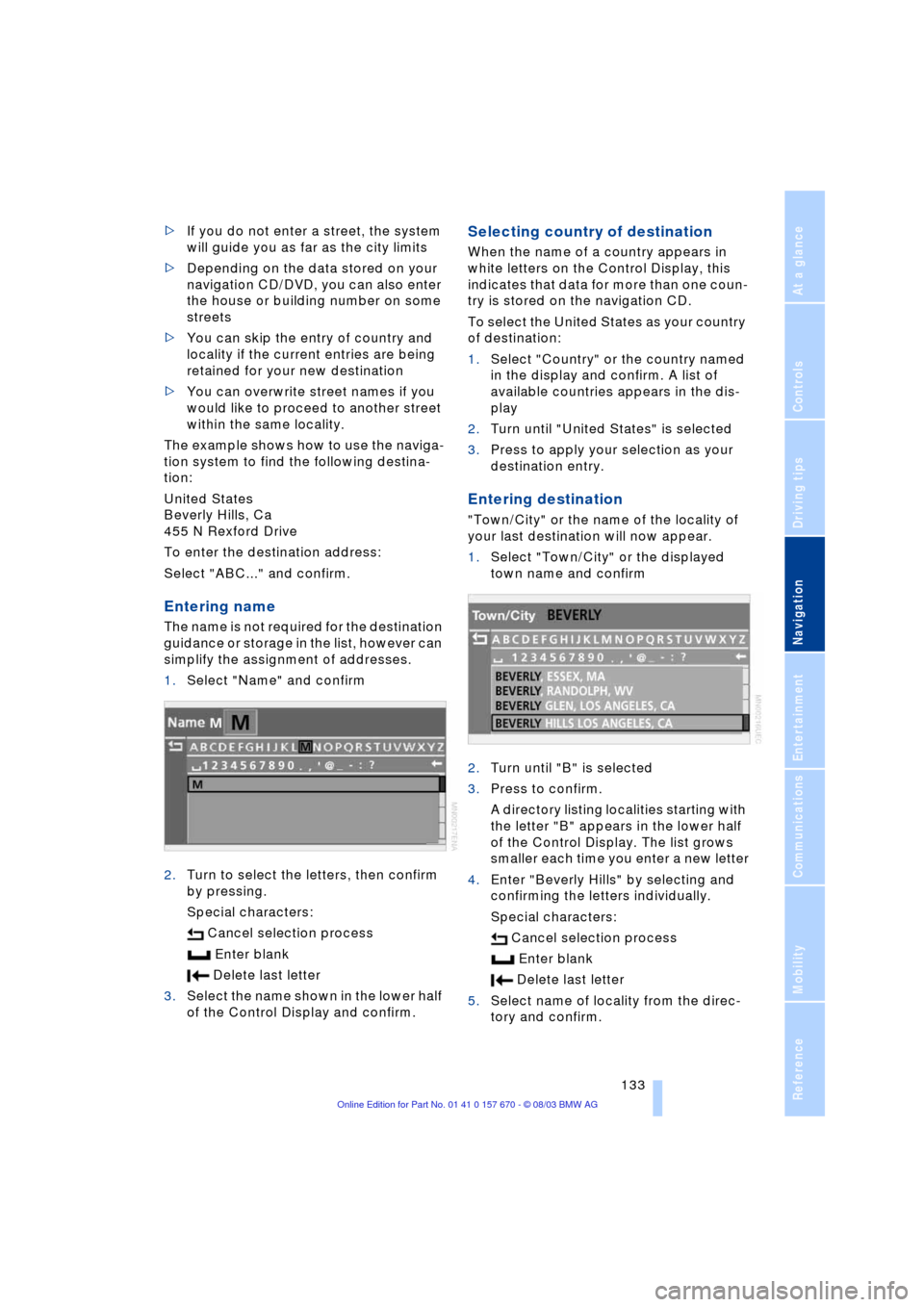
Entering name
The name is not required for the destination
guidance or storage in the list, however can
simplify the assignment of addresses.
1.Select "Name" and confirm
2.Turn to select the letters, then confirm
by pressing.
Special characters:
Cancel selection process
Enter blank
Delete last letter
3.Select the name shown in the lower half
of the Control Display and confirm.
Selecting country of destination
When the name of a country appears in
white letters on the Control Display, this
indicates that data for more than one coun-
try is stored on the navigation CD.
To select the United States as your country
of destination:
1.Select "Country" or the country named
in the display and confirm. A list of
available countries appears in the dis-
play
2.Turn until "United States" is selected
3.Press to apply your selection as your
destination entry.
Entering destination
"Town/City" or the name of the locality of
your last destination will now appear.
1.Select "Town/City" or the displayed
town name and confirm
2.Turn until "B" is selected
3.Press to confirm.
A directory listing localities starting with
the letter "B" appears in the lower half
of the Control Display. The list grows
smaller each time you enter a new letter
4.Enter "Beverly Hills" by selecting and
confirming the letters individually.
Special characters:
Cancel selection process
Enter blank
Delete last letter
5.Select name of locality from the direc-
tory and confirm.
Page 136 of 232
Destination entry
134 A town or city must be entered before
destination guidance can start.<
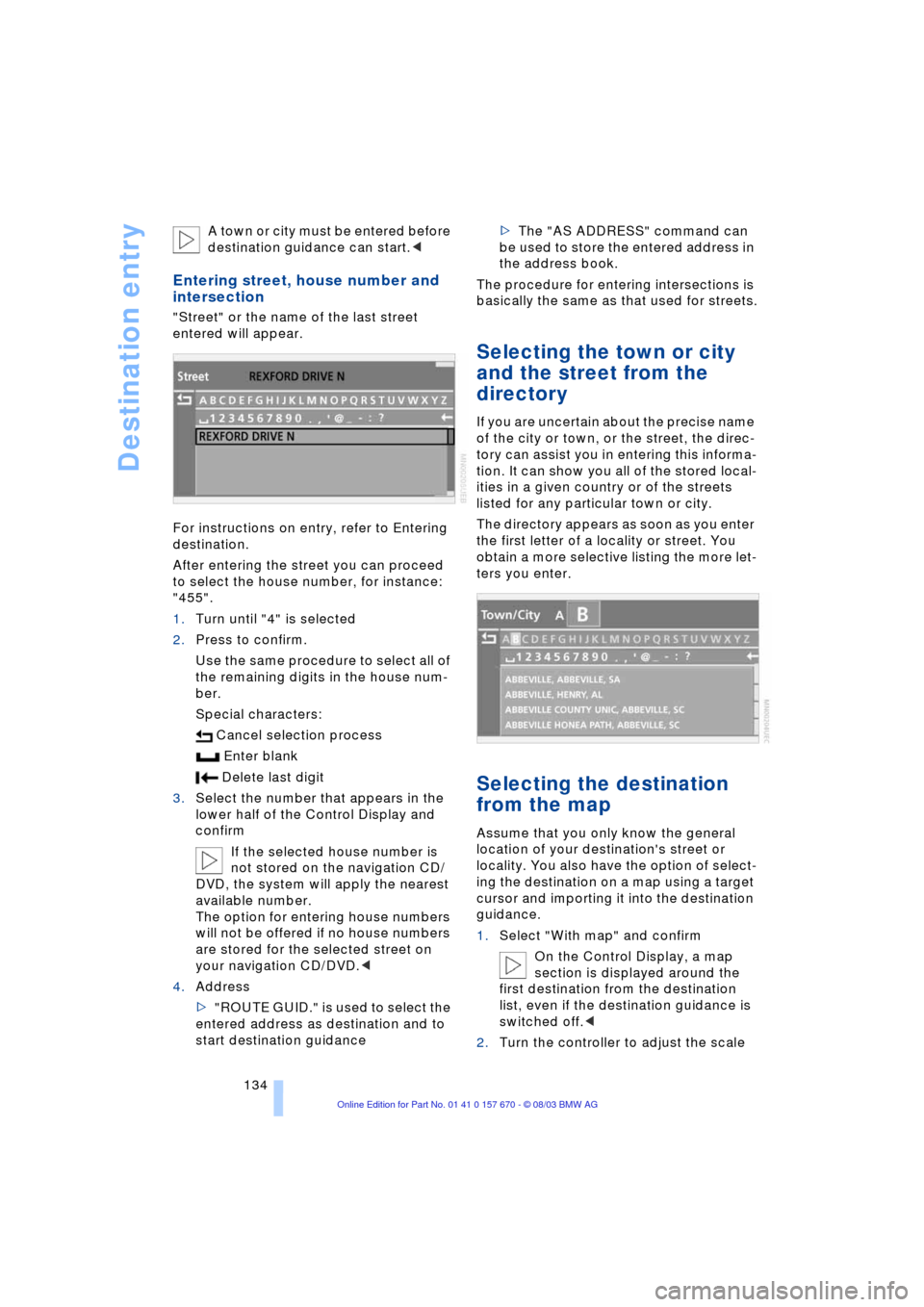
Entering street, house number and
intersection
"Street" or the name of the last street
entered will appear.
For instructions on entry, refer to Entering
destination.
After entering the street you can proceed
to select the house number, for instance:
"455".
1.Turn until "4" is selected
2.Press to confirm.
Use the same procedure to select all of
the remaining digits in the house num-
ber.
Special characters:
Cancel selection process
Enter blank
Delete last digit
3.Select the number that appears in the
lower half of the Control Display and
confirm
If the selected house number is
not stored on the navigation CD/
DVD, the system will apply the nearest
available number.
The option for entering house numbers
will not be offered if no house numbers
are stored for the selected street on
your navigation CD/DVD.<
4.Address
>"ROUTE GUID." is used to select the
entered address as destination and to
start destination guidance>The "AS ADDRESS" command can
be used to store the entered address in
the address book.
The procedure for entering intersections is
basically the same as that used for streets.
Selecting the town or city
and the street from the
directory
If you are uncertain about the precise name
of the city or town, or the street, the direc-
tory can assist you in entering this informa-
tion. It can show you all of the stored local-
ities in a given country or of the streets
listed for any particular town or city.
The directory appears as soon as you enter
the first letter of a locality or street. You
obtain a more selective listing the more let-
ters you enter.
Selecting the destination
from the map
Assume that you only know the general
location of your destination's street or
locality. You also have the option of select-
ing the destination on a map using a target
cursor and importing it into the destination
guidance.
1.Select "With map" and confirm
On the Control Display, a map
section is displayed around the
first destination from the destination
list, even if the destination guidance is
switched off.<
2.Turn the controller to adjust the scale