tow BMW 760LI 2006 Repair Manual
[x] Cancel search | Manufacturer: BMW, Model Year: 2006, Model line: 760LI, Model: BMW 760LI 2006Pages: 247, PDF Size: 8.66 MB
Page 164 of 247
CD player
162
CD player
Listening to CDs
1.Switch Entertainment sound output on,
refer to page153.
2.Insert the CD with the labeled side up.
The CD is automatically pulled in.
To start playback when a CD is already in
the player:
iDrive, for principle details, refer to page16.
1.Press the button to open the start
menu.
2.Move the controller toward "Entertain-
ment".
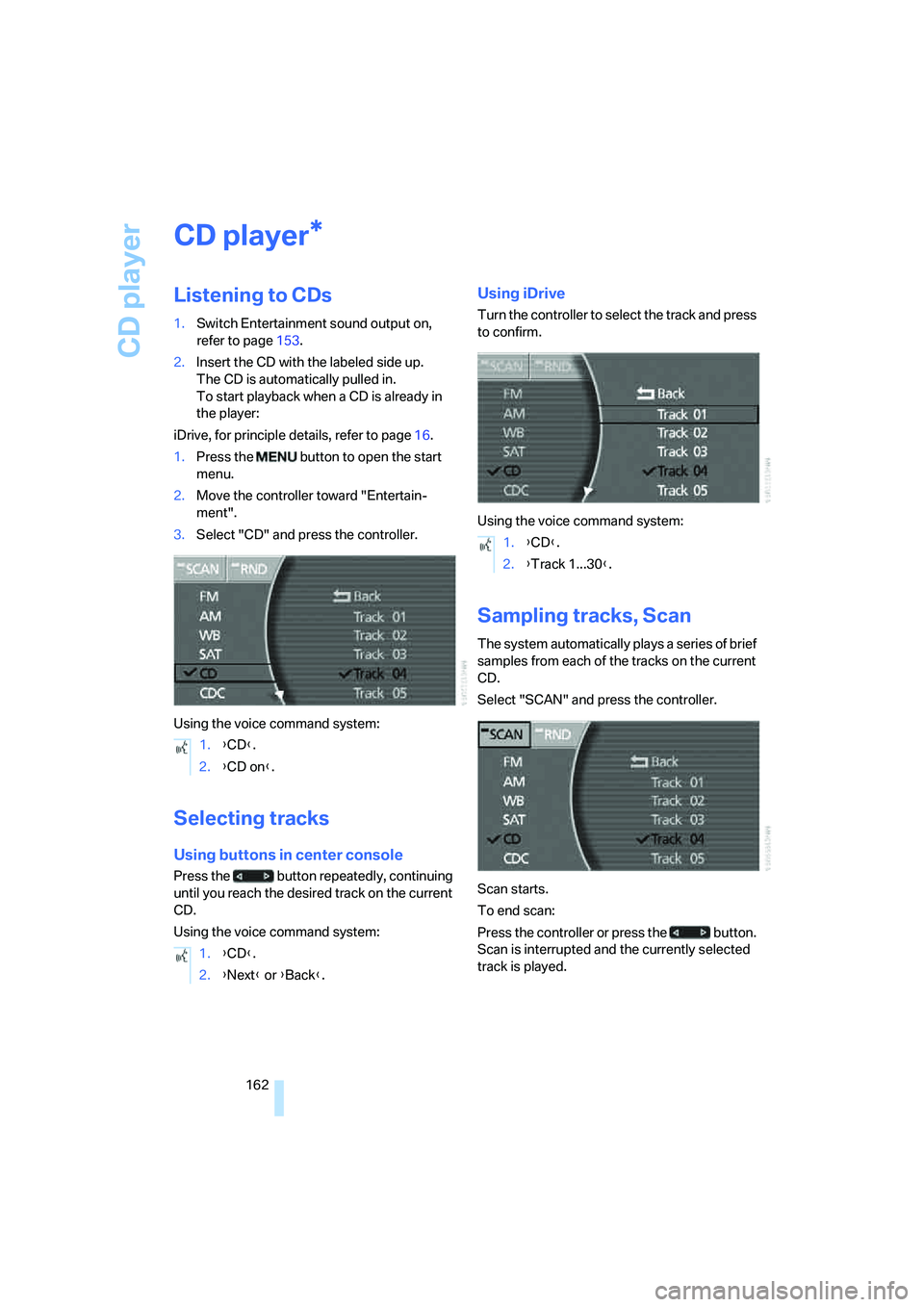
3.Select "CD" and press the controller.
Using the voice command system:
Selecting tracks
Using buttons in center console
Press the button repeatedly, continuing
until you reach the desired track on the current
CD.
Using the voice command system:
Using iDrive
Turn the controller to select the track and press
to confirm.
Using the voice command system:
Sampling tracks, Scan
The system automatically plays a series of brief
samples from each of the tracks on the current
CD.
Select "SCAN" and press the controller.
Scan starts.
To end scan:
Press the controller or press the button.
Scan is interrupted and the currently selected
track is played.
*
1.{CD}.
2.{CD on}.
1.{CD}.
2.{Next} or {Back}.
1.{CD}.
2.{Track 1...30}.
Page 166 of 247
CD changer
164
CD changer
Installation location
The BMW CD changer for six CDs is installed
above the glove compartment.
Compressed audio files
The CD changer can play CDs with compressed
audio files, such as MP3s.
Removing CD magazine
To insert CDs into the CD magazine or remove
them from it, you must first remove the maga-
zine from the CD changer:
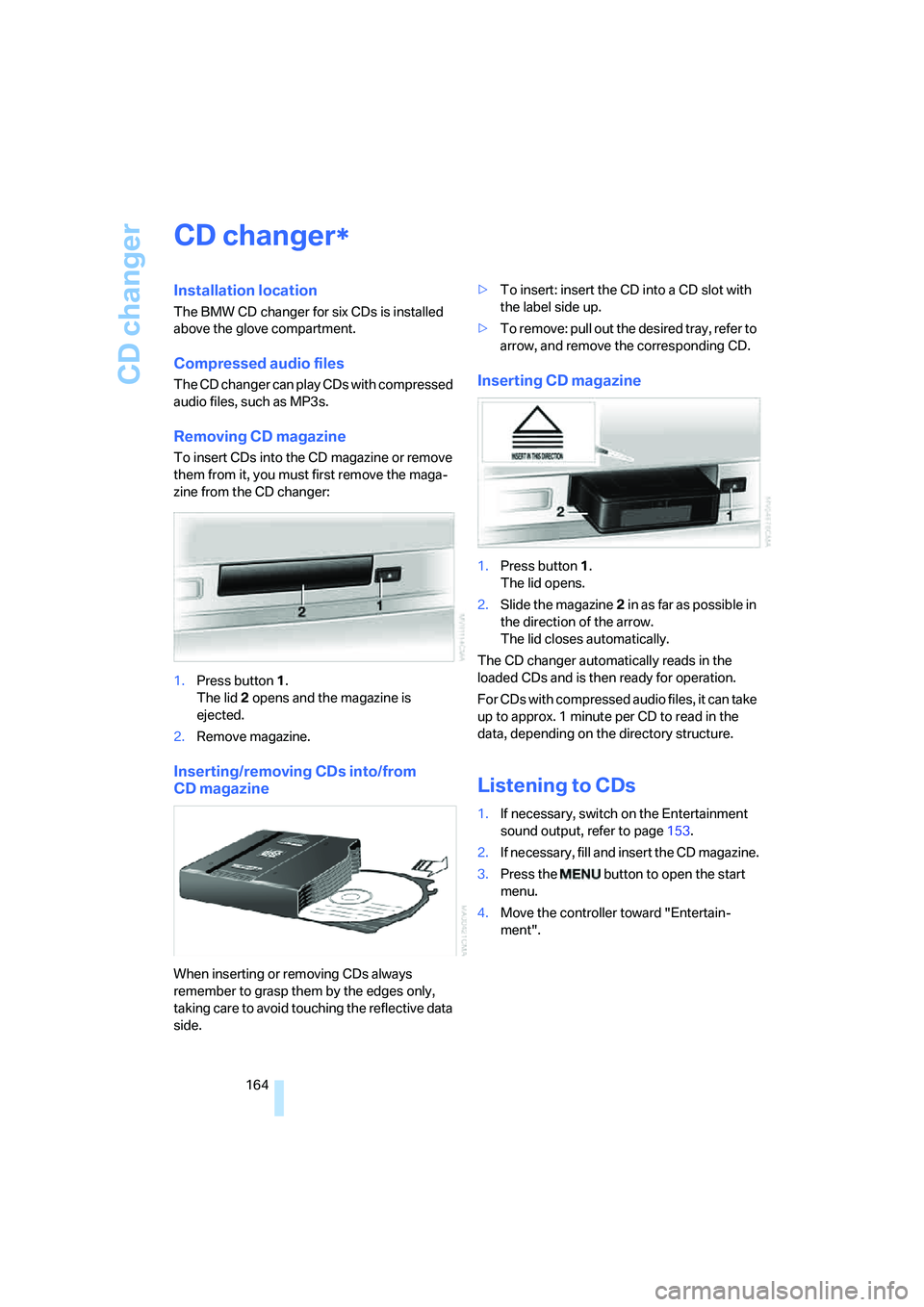
1.Press button1.
The lid2 opens and the magazine is
ejected.
2.Remove magazine.
Inserting/removing CDs into/from
CD magazine
When inserting or removing CDs always
remember to grasp them by the edges only,
taking care to avoid touching the reflective data
side.>To insert: insert the CD into a CD slot with
the label side up.
>To remove: pull out the desired tray, refer to
arrow, and remove the corresponding CD.
Inserting CD magazine
1.Press button1.
The lid opens.
2.Slide the magazine2 in as far as possible in
the direction of the arrow.
The lid closes automatically.
The CD changer automatically reads in the
loaded CDs and is then ready for operation.
For CDs with compressed audio files, it can take
up to approx. 1 minute per CD to read in the
data, depending on the directory structure.
Listening to CDs
1.If necessary, switch on the Entertainment
sound output, refer to page153.
2.I f n e ce s s a r y , f il l a n d in s e r t t h e C D m a g a z in e .
3.Press the button to open the start
menu.
4.Move the controller toward "Entertain-
ment".
*
Page 171 of 247
Navigation
Entertainment
Driving tips
169Reference
At a glance
Controls
Communications
Mobility
3.Press the button to open the start
menu.
4.Move the controller toward "Entertain-
ment".
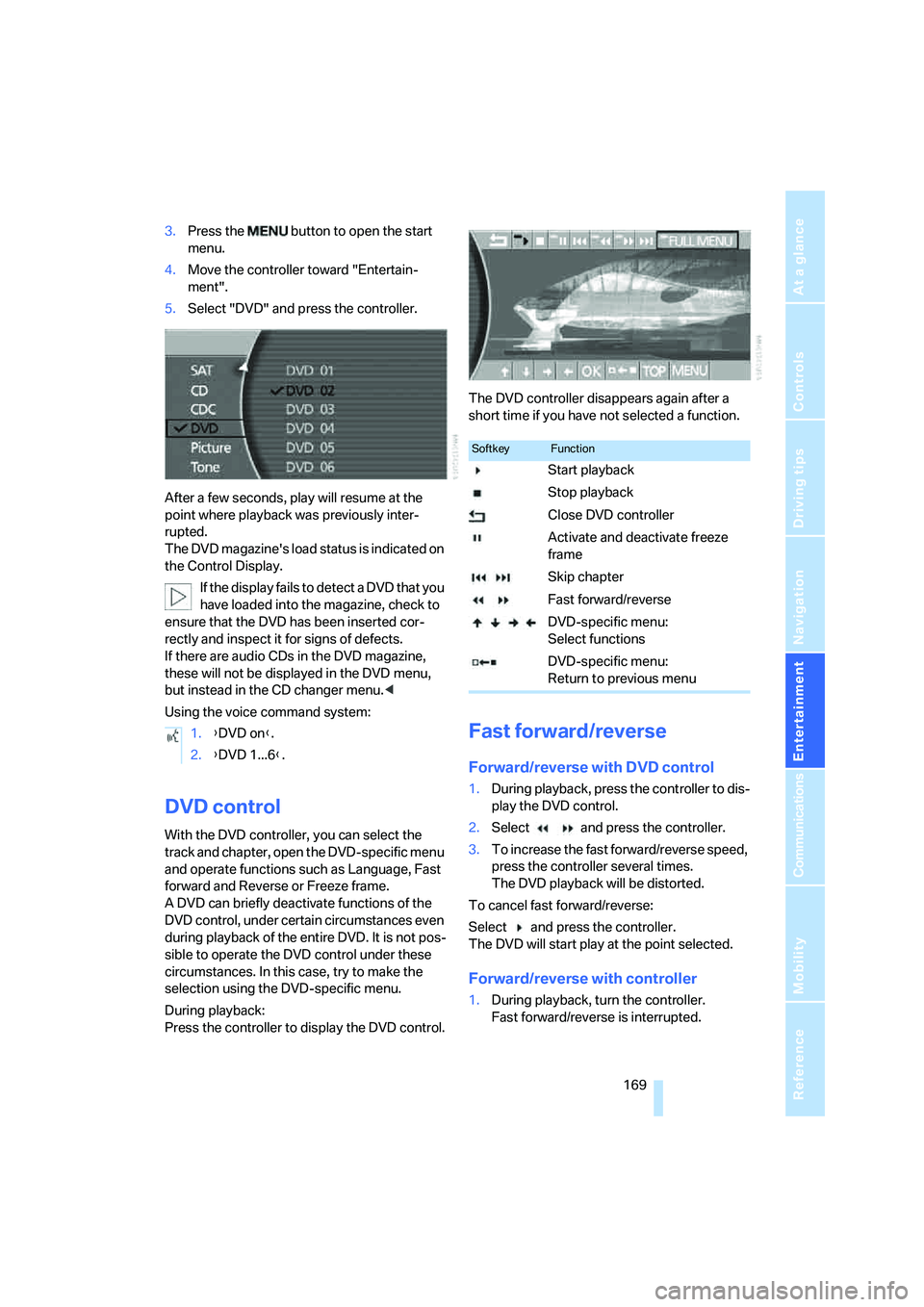
5.Select "DVD" and press the controller.
After a few seconds, play will resume at the
point where playback was previously inter-
rupted.
The DVD magazine's load status is indicated on
the Control Display.
If the display fails to detect a DVD that you
have loaded into the magazine, check to
ensure that the DVD has been inserted cor-
rectly and inspect it for signs of defects.
If there are audio CDs in the DVD magazine,
these will not be displayed in the DVD menu,
but instead in the CD changer menu.<
Using the voice command system:
DVD control
With the DVD controller, you can select the
track and chapter, open the DVD-specific menu
and operate functions such as Language, Fast
forward and Reverse or Freeze frame.
A DVD can briefly deactivate functions of the
DVD control, under certain circumstances even
during playback of the entire DVD. It is not pos-
sible to operate the DVD control under these
circumstances. In this case, try to make the
selection using the DVD-specific menu.
During playback:
Press the controller to display the DVD control.The DVD controller disappears again after a
short time if you have not selected a function.
Fast forward/reverse
Forward/reverse with DVD control
1.During playback, press the controller to dis-
play the DVD control.
2.Select and press the controller.
3.To increase the fast forward/reverse speed,
press the controller several times.
The DVD playback will be distorted.
To cancel fast forward/reverse:
Select and press the controller.
The DVD will start play at the point selected.
Forward/reverse with controller
1.During playback, turn the controller.
Fast forward/reverse is interrupted. 1.{DVD on}.
2.{DVD 1...6}.
SoftkeyFunction
Start playback
Stop playback
Close DVD controller
Activate and deactivate freeze
frame
Skip chapter
Fast forward/reverse
DVD-specific menu:
Select functions
DVD-specific menu:
Return to previous menu
Page 181 of 247
179
Entertainment
Reference
At a glance
Controls
Driving tips Communications
Navigation
Mobility
Getting started
Inserting mobile phone
If you insert or remove the mobile phone during
a call, the call may be interrupted depending on
the mobile phone model.
1.Remove the protective cap from the mobile
phone's antenna connector if necessary, so
that the mobile phone can engage in the
snap-in adapter.
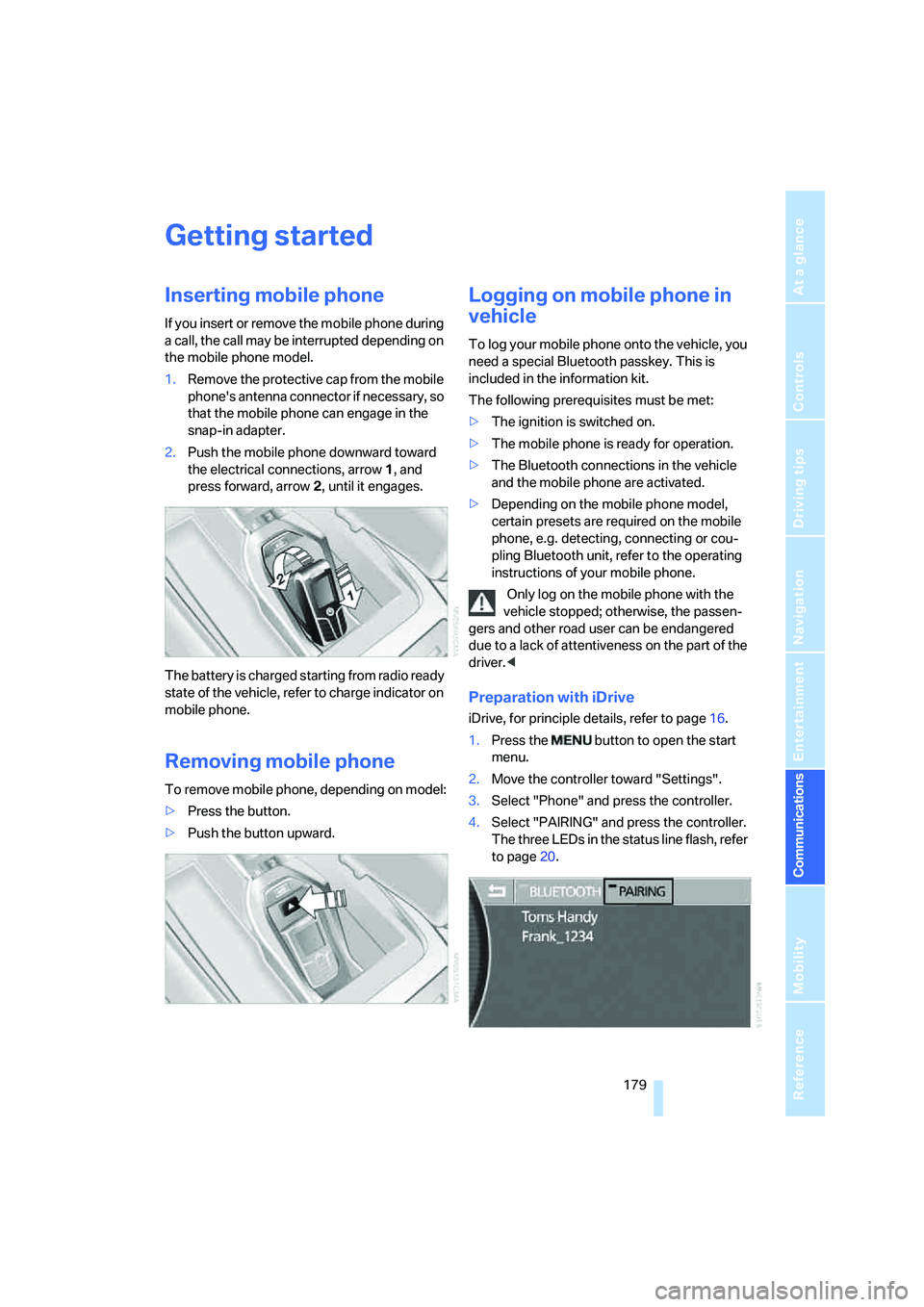
2.Push the mobile phone downward toward
the electrical connections, arrow1, and
press forward, arrow2, until it engages.
The battery is charged starting from radio ready
state of the vehicle, refer to charge indicator on
mobile phone.
Removing mobile phone
To remove mobile phone, depending on model:
>Press the button.
>Push the button upward.
Logging on mobile phone in
vehicle
To log your mobile phone onto the vehicle, you
need a special Bluetooth passkey. This is
included in the information kit.
The following prerequisites must be met:
>The ignition is switched on.
>The mobile phone is ready for operation.
>The Bluetooth connections in the vehicle
and the mobile phone are activated.
>Depending on the mobile phone model,
certain presets are required on the mobile
phone, e.g. detecting, connecting or cou-
pling Bluetooth unit, refer to the operating
instructions of your mobile phone.
Only log on the mobile phone with the
vehicle stopped; otherwise, the passen-
gers and other road user can be endangered
due to a lack of attentiveness on the part of the
driver.<
Preparation with iDrive
iDrive, for principle details, refer to page16.
1.Press the button to open the start
menu.
2.Move the controller toward "Settings".
3.Select "Phone" and press the controller.
4.Select "PAIRING" and press the controller.
The three LEDs in the status line flash, refer
to page20.
Page 182 of 247
Getting started
180
Establishing connection between
mobile phone and vehicle
5.Additional operations must be carried out
on the mobile phone and differ depending
on the model, refer to the operating instruc-
tions of your mobile phone, e.g. under
searching for, connecting to, or coupling to
a Bluetooth device.
6.Enter and confirm Bluetooth passkey using
your mobile phone keypad.
Following successful logon, the name of
your mobile phone will appear on the Con-
trol Display.
The next time you use the mobile phone within
Bluetooth range of the vehicle, it will be
detected within a short time with the ignition
switched on.
As soon as the vehicle detects a mobile phone,
the phone book entries stored on the SIM card
or in your mobile phone are transmitted to your
vehicle. This transfer is dependent on your
mobile phone, refer to the operating instruc-
tions of your mobile phone if necessary, and
can take several minutes.
During each connection, the phone book
entries present in the vehicle are calibrated with
the phone book entries currently stored in the
mobile phone. The entries in the vehicle are
added to or deleted as needed in the process of
this.
Up to four mobile phones can be logged on one
after the other. If you want to log on a fifth
mobile phone, first the logon data of a mobile
phone must be deleted, refer to page180.
Logging off a mobile phone
from vehicle
If you no longer want to operate a mobile phone
via the vehicle, you can delete the logon data of
the mobile phone.
iDrive, for principle details, refer to page16.
1.Press the button to open the start
menu.
2.Move the controller toward "Settings".
3.Select "Phone" and press the controller.
4.Select the desired mobile phone and press
the controller.
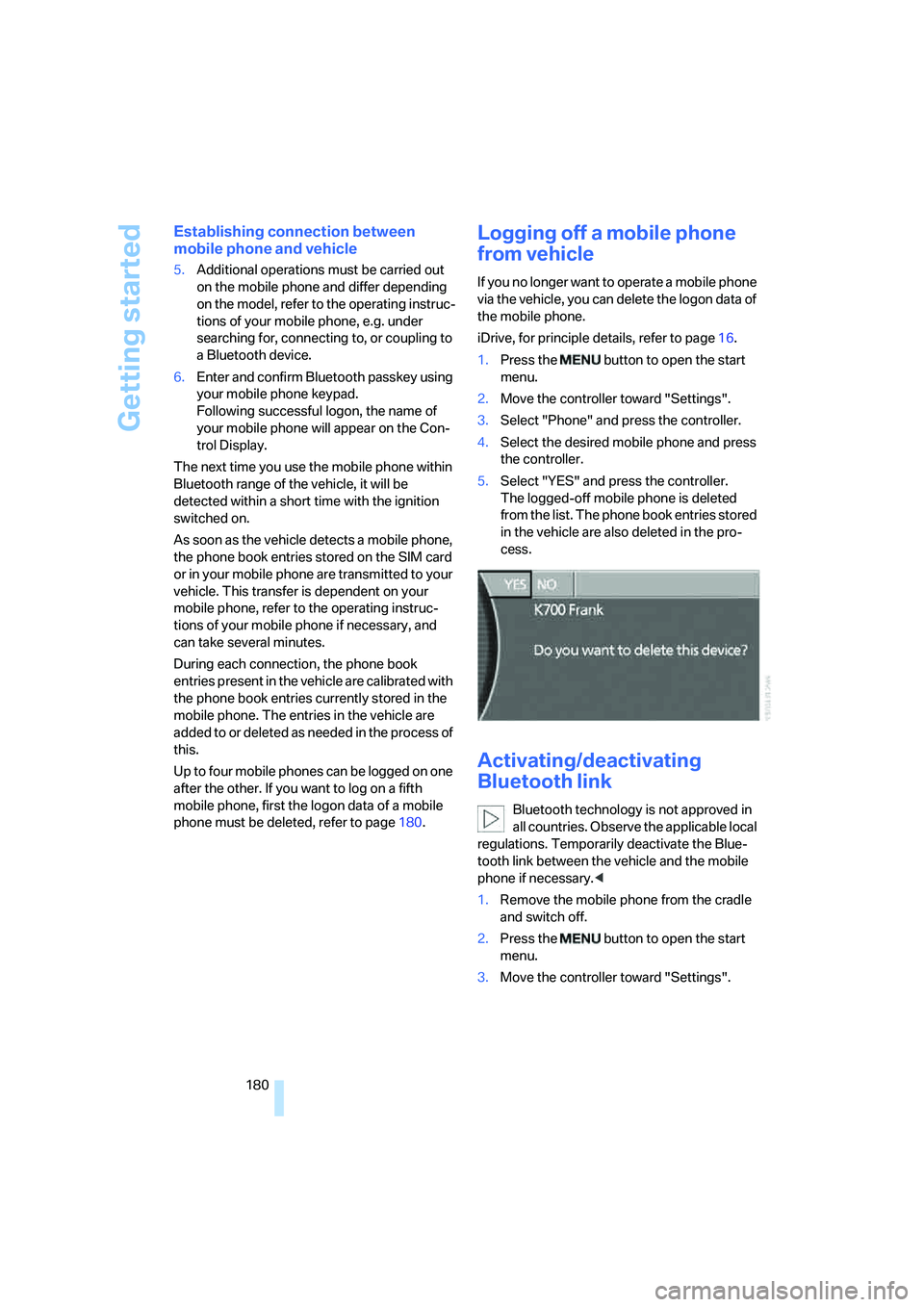
5.Select "YES" and press the controller.
The logged-off mobile phone is deleted
from the list. The phone book entries stored
in the vehicle are also deleted in the pro-
cess.
Activating/deactivating
Bluetooth link
Bluetooth technology is not approved in
all countries. Observe the applicable local
regulations. Temporarily deactivate the Blue-
tooth link between the vehicle and the mobile
phone if necessary.<
1.Remove the mobile phone from the cradle
and switch off.
2.Press the button to open the start
menu.
3.Move the controller toward "Settings".
Page 184 of 247
Using the phone
182
Using the phone
You have the option of controlling the phone
using various parts of the vehicle equipment:
>The button on the steering wheel
>The retracting telephone keypad
>iDrive
>The voice command system
*
The phone number appears in the upper status
line, refer to page20.
With the ignition switched off, you can continue
an ongoing call for a maximum of 16 minutes via
the hands-free system.
Requirements
>The logon data of the mobile phone are
stored in the vehicle and the mobile phone
is ready to operate.
>The ignition is switched on.
>The mobile phone is detected by the vehi-
cle.
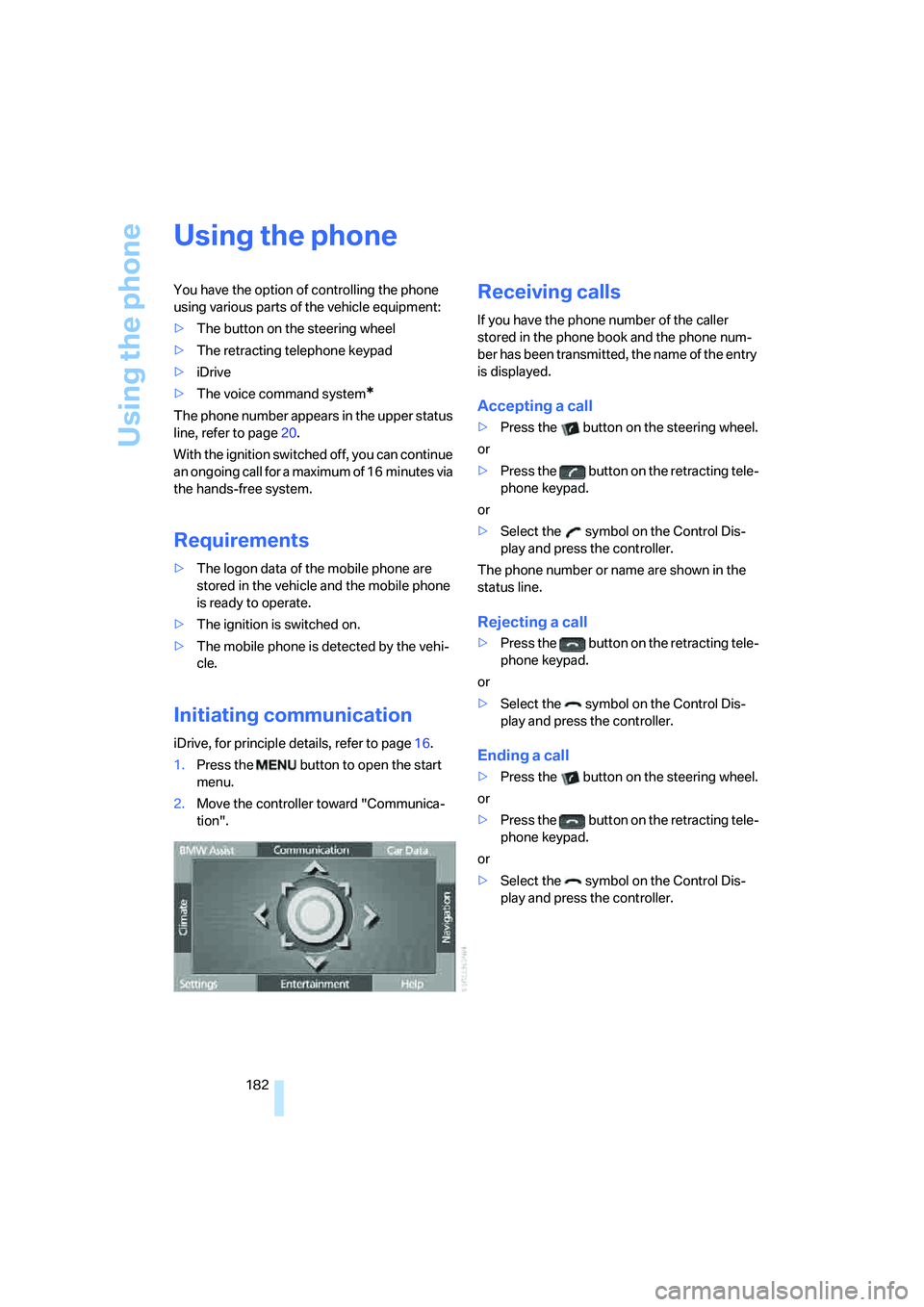
Initiating communication
iDrive, for principle details, refer to page16.
1.Press the button to open the start
menu.
2.Move the controller toward "Communica-
tion".
Receiving calls
If you have the phone number of the caller
stored in the phone book and the phone num-
ber has been transmitted, the name of the entry
is displayed.
Accepting a call
>Press the button on the steering wheel.
or
>Press the button on the retracting tele-
phone keypad.
or
>Select the symbol on the Control Dis-
play and press the controller.
The phone number or name are shown in the
status line.
Rejecting a call
>Press the button on the retracting tele-
phone keypad.
or
>Select the symbol on the Control Dis-
play and press the controller.
Ending a call
>Press the button on the steering wheel.
or
>Press the button on the retracting tele-
phone keypad.
or
>Select the symbol on the Control Dis-
play and press the controller.
Page 188 of 247
BMW Assist
186
BMW Assist
To avoid posing an unnecessary hazard,
both to your own vehicle's occupants and
to other road users, only make entries while the
vehicle is stationary.<
The contract of participation with BMW Assist
and the registration must be completed before
you can use BMW Assist.
Requirements
>Make sure that the vehicle can determine its
current position. Reception is best when
you have an unobstructed view to the sky.
>Leave radio ready state switched on while
connecting to the system.
The position of the vehicle can influence
the mobile communications/GPS recep-
tion. As a rule, mobile communications/GPS
reception is only possible when your vehicle is
out in the open.
When vehicle data is exchanged with the BMW
center, a corresponding message appears on
the Control Display.<
Initializing BMW Assist
To be able to use the services of BMW Assist,
you must first initialize the system.
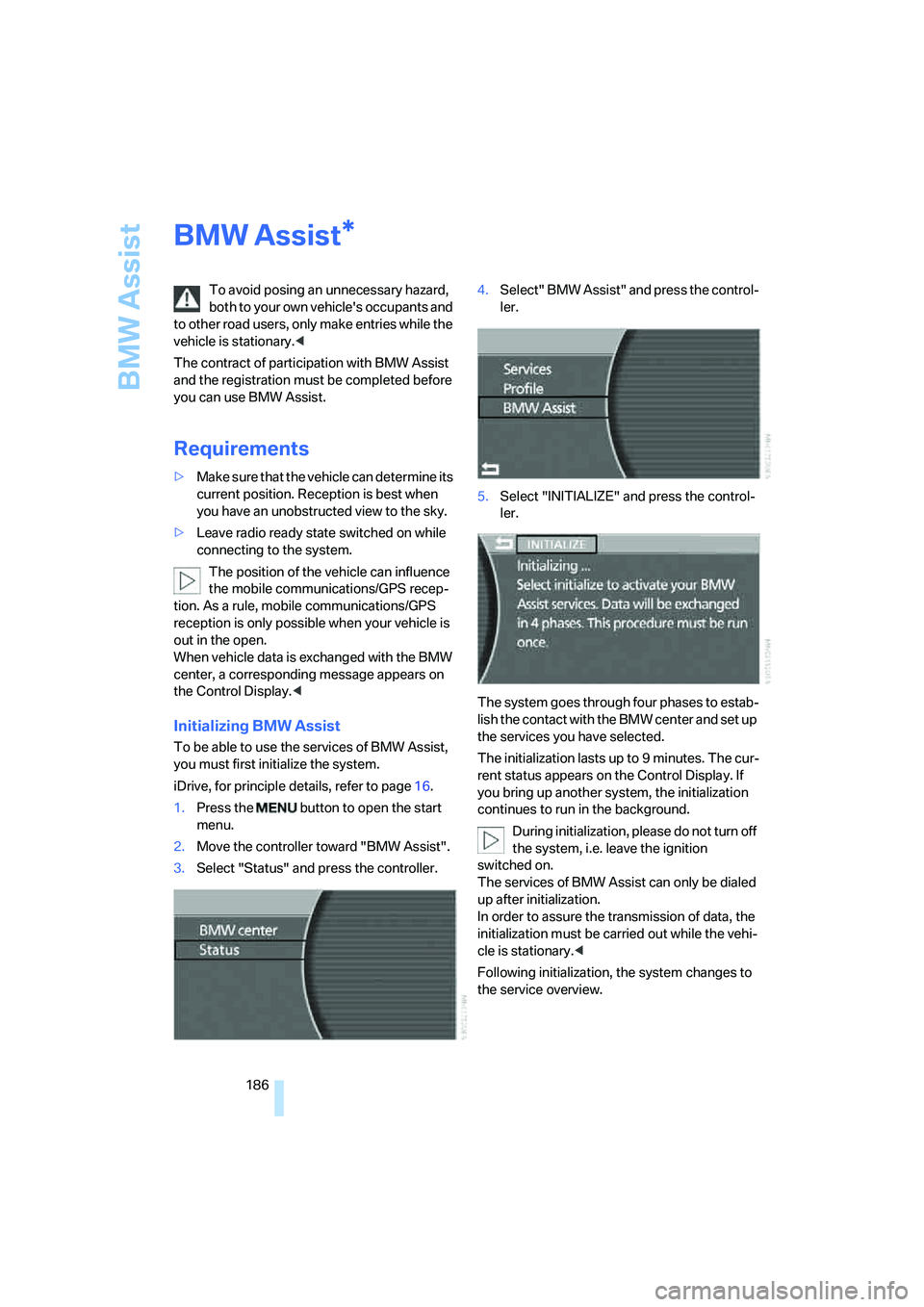
iDrive, for principle details, refer to page16.
1.Press the button to open the start
menu.
2.Move the controller toward "BMW Assist".
3.Select "Status" and press the controller.4.Select" BMW Assist" and press the control-
ler.
5.Select "INITIALIZE" and press the control-
ler.
The system goes through four phases to estab-
lish the contact with the BMW center and set up
the services you have selected.
The initialization lasts up to 9 minutes. The cur-
rent status appears on the Control Display. If
you bring up another system, the initialization
continues to run in the background.
During initialization, please do not turn off
the system, i.e. leave the ignition
switched on.
The services of BMW Assist can only be dialed
up after initialization.
In order to assure the transmission of data, the
initialization must be carried out while the vehi-
cle is stationary.<
Following initialization, the system changes to
the service overview.
*
Page 189 of 247
187
Entertainment
Reference
At a glance
Controls
Driving tips Communications
Navigation
Mobility
Services offered
Automatic service notification*
Information regarding the maintenance status
of your vehicle or legally mandated inspections
is automatically transferred before the relevant
deadline. You can check when the BMW center
was notified.
iDrive, for principle details, refer to page16.
1.Press the button to open the start
menu.
2.Move the controller toward "BMW Assist".
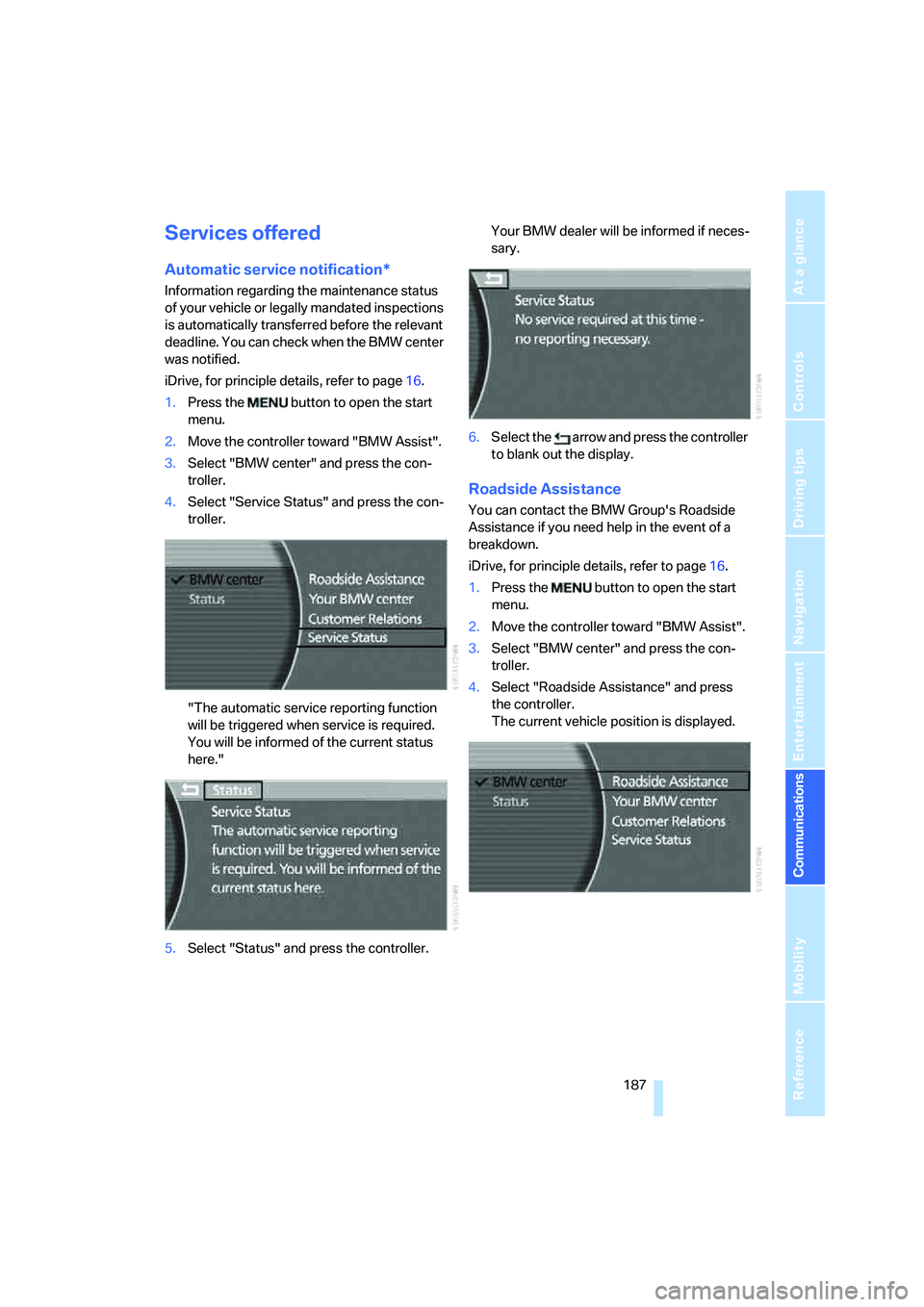
3.Select "BMW center" and press the con-
troller.
4.Select "Service Status" and press the con-
troller.
"The automatic service reporting function
will be triggered when service is required.
You will be informed of the current status
here."
5.Select "Status" and press the controller.Your BMW dealer will be informed if neces-
sary.
6.Select the arrow and press the controller
to blank out the display.
Roadside Assistance
You can contact the BMW Group's Roadside
Assistance if you need help in the event of a
breakdown.
iDrive, for principle details, refer to page16.
1.Press the button to open the start
menu.
2.Move the controller toward "BMW Assist".
3.Select "BMW center" and press the con-
troller.
4.Select "Roadside Assistance" and press
the controller.
The current vehicle position is displayed.
Page 190 of 247
BMW Assist
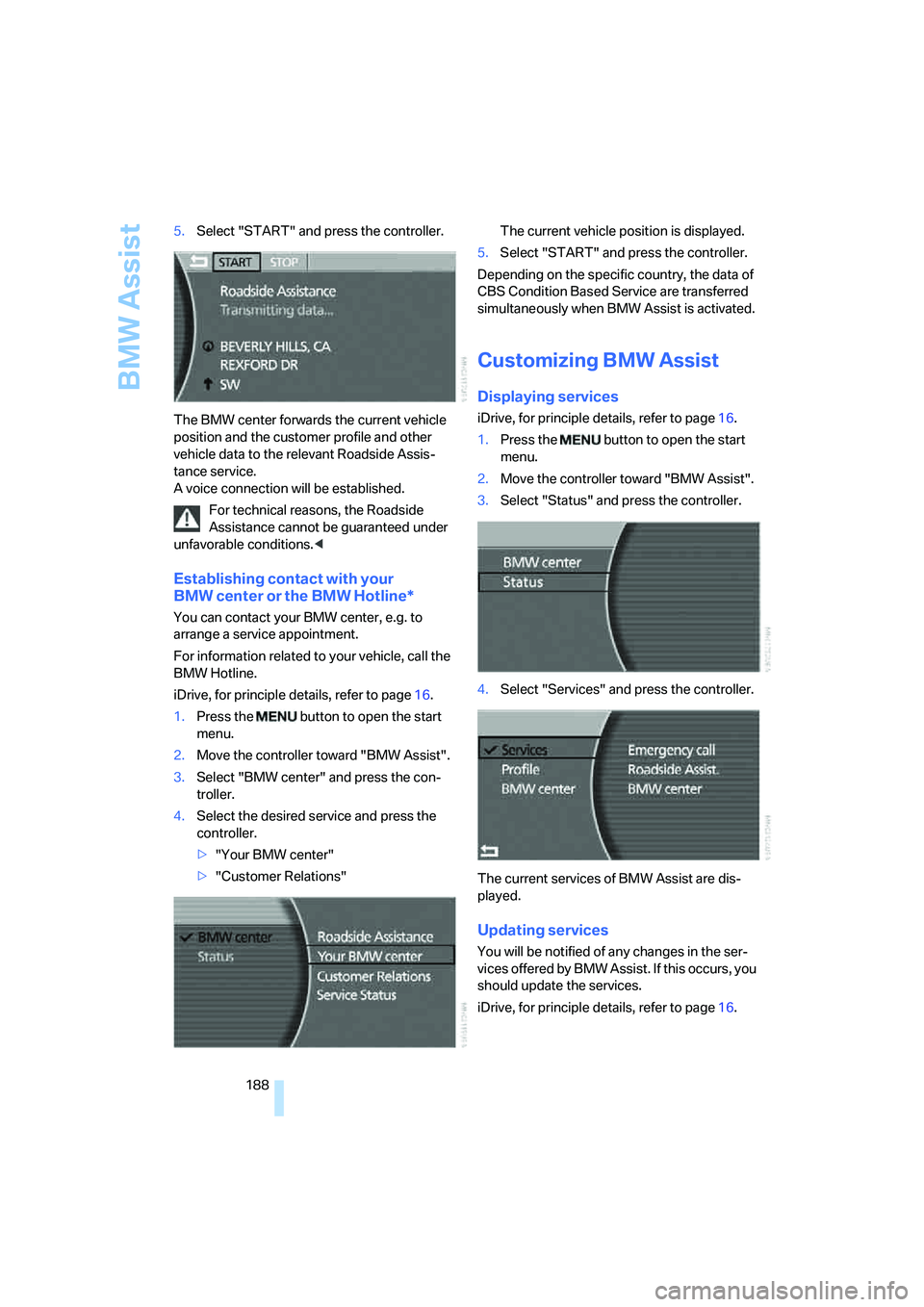
188 5.Select "START" and press the controller.
The BMW center forwards the current vehicle
position and the customer profile and other
vehicle data to the relevant Roadside Assis-
tance service.
A voice connection will be established.
For technical reasons, the Roadside
Assistance cannot be guaranteed under
unfavorable conditions.<
Establishing contact with your
BMW center or the BMW Hotline*
You can contact your BMW center, e.g. to
arrange a service appointment.
For information related to your vehicle, call the
BMW Hotline.
iDrive, for principle details, refer to page16.
1.Press the button to open the start
menu.
2.Move the controller toward "BMW Assist".
3.Select "BMW center" and press the con-
troller.
4.Select the desired service and press the
controller.
>"Your BMW center"
>"Customer Relations"The current vehicle position is displayed.
5.Select "START" and press the controller.
Depending on the specific country, the data of
CBS Condition Based Service are transferred
simultaneously when BMW Assist is activated.
Customizing BMW Assist
Displaying services
iDrive, for principle details, refer to page16.
1.Press the button to open the start
menu.
2.Move the controller toward "BMW Assist".
3.Select "Status" and press the controller.
4.Select "Services" and press the controller.
The current services of BMW Assist are dis-
played.
Updating services
You will be notified of any changes in the ser-
vices offered by BMW Assist. If this occurs, you
should update the services.
iDrive, for principle details, refer to page16.
Page 191 of 247
189
Entertainment
Reference
At a glance
Controls
Driving tips Communications
Navigation
Mobility
1.Press the button to open the start
menu.
2.Move the controller toward "BMW Assist".
3.Select "Status" and press the controller.
4.Select "BMW Assist" and press the control-
ler.
5.Select "UPDATE" and press the controller.
The updating process takes a few minutes.
Canceling services
In the vehicle, the services are deactivated by
using BMW Assist "DEACTIV." This has no
effect on contract cancelation.
iDrive, for principle details, refer to page16.
1.Press the button to open the start
menu.
2.Move the controller toward "BMW Assist".
3.Select "Status" and press the controller.
4.Select "BMW Assist" and press the control-
ler.
5.Select "DEACTIV." and press the control-
ler.
BMW Assist is canceled in the vehicle.
If you have deactivated the services in
your vehicle, they are no longer available.
Then no position data can be transmitted dur-
ing an emergency call.<
Reinitialize BMW Assist to re-enable.
Terminating services
If you give notice to terminate the services, your
vehicle is blocked for establishing contact to
BMW Assist.
After giving notice, the emergency call
function is no longer available to you.<
Requesting vehicle data
When BMW Assist is activated, the license
plate and the vehicle identification number of
your vehicle can be displayed.
iDrive, for principle details, refer to page16.
1.Press the button to open the start
menu.
2.Move the controller toward "BMW Assist".
3.Select "Status" and press the controller.
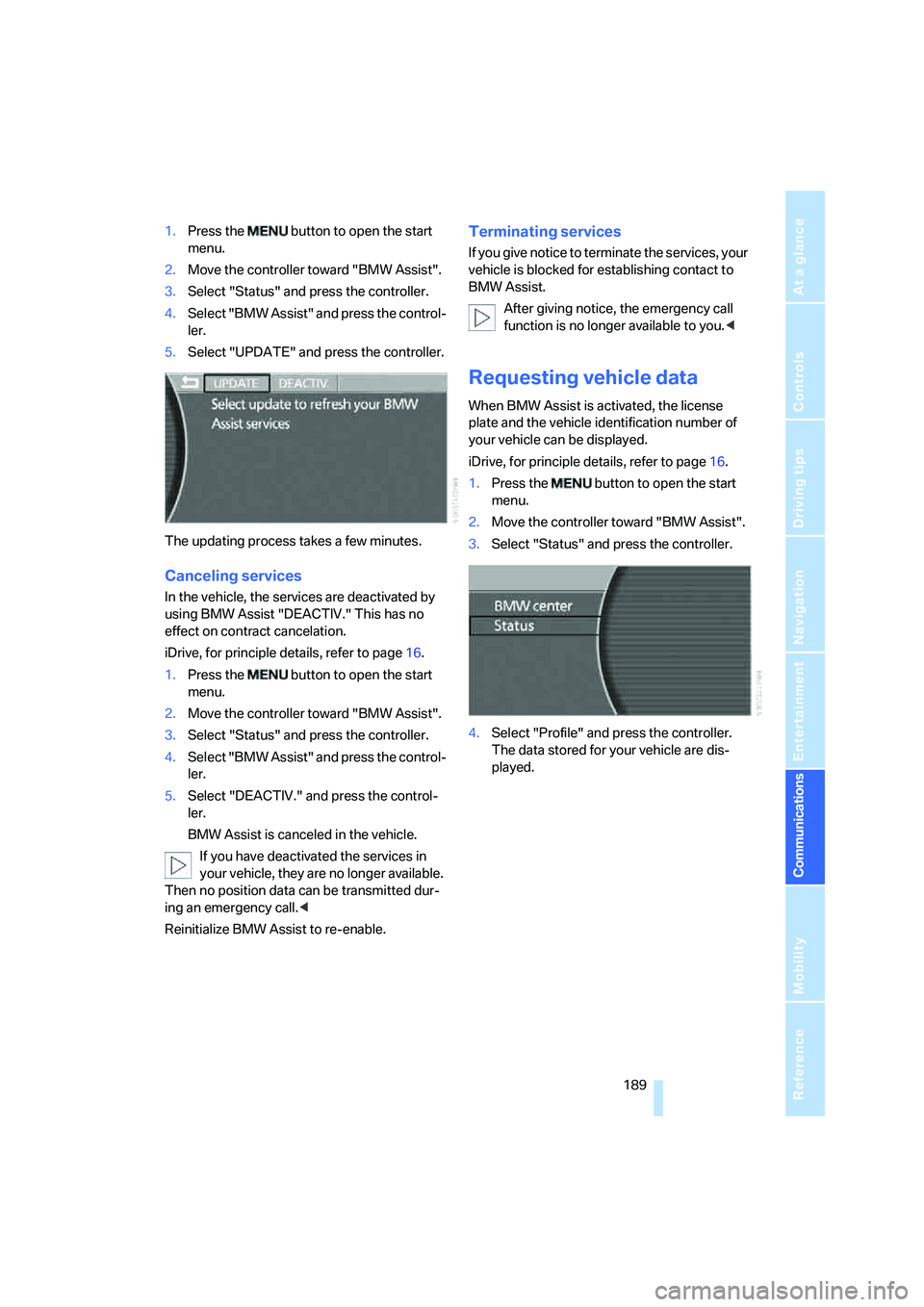
4.Select "Profile" and press the controller.
The data stored for your vehicle are dis-
played.