USB port BMW ACTIVEHYBRID 5 2012 User Guide
[x] Cancel search | Manufacturer: BMW, Model Year: 2012, Model line: ACTIVEHYBRID 5, Model: BMW ACTIVEHYBRID 5 2012Pages: 319, PDF Size: 12.54 MB
Page 215 of 319
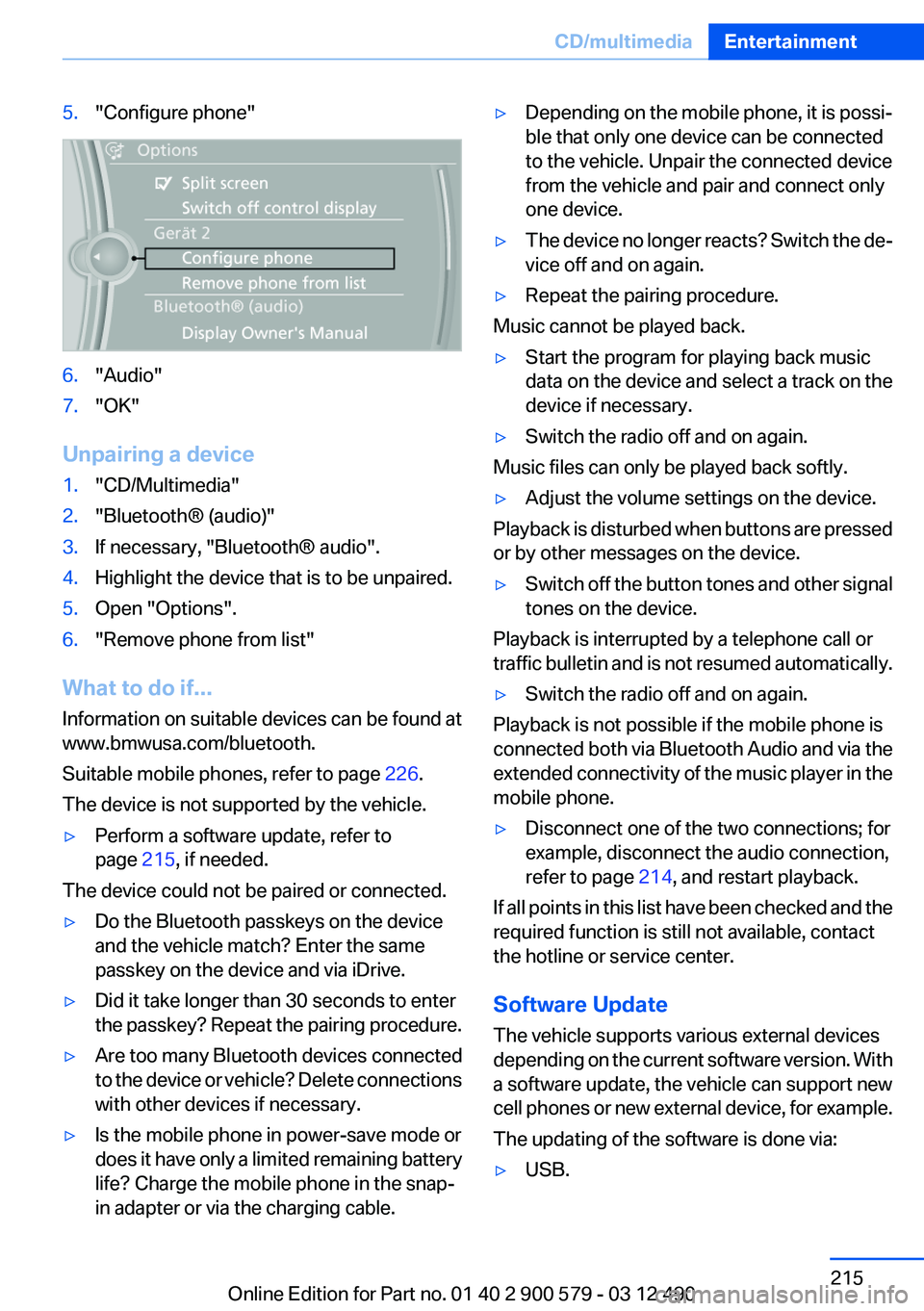
5."Configure phone"6."Audio"7."OK"
Unpairing a device
1."CD/Multimedia"2."Bluetooth® (audio)"3.If necessary, "Bluetooth® audio".4.Highlight the device that is to be unpaired.5.Open "Options".6."Remove phone from list"
What to do if...
Information on suitable devices can be found at
www.bmwusa.com/bluetooth.
Suitable mobile phones, refer to page 226.
The device is not supported by the vehicle.
▷Perform a software update, refer to
page 215, if needed.
The device could not be paired or connected.
▷Do the Bluetooth passkeys on the device
and the vehicle match? Enter the same
passkey on the device and via iDrive.▷Did it take longer than 30 seconds to enter
the passkey? Repeat the pairing procedure.▷Are too many Bluetooth devices connected
to the device or vehicle? Delete connections
with other devices if necessary.▷Is the mobile phone in power-save mode or
does it have only a limited remaining battery
life? Charge the mobile phone in the snap-
in adapter or via the charging cable.▷Depending on the mobile phone, it is possi‐
ble that only one device can be connected
to the vehicle. Unpair the connected device
from the vehicle and pair and connect only
one device.▷The device no longer reacts? Switch the de‐
vice off and on again.▷Repeat the pairing procedure.
Music cannot be played back.
▷Start the program for playing back music
data on the device and select a track on the
device if necessary.▷Switch the radio off and on again.
Music files can only be played back softly.
▷Adjust the volume settings on the device.
Playback is disturbed when buttons are pressed
or by other messages on the device.
▷Switch off the button tones and other signal
tones on the device.
Playback is interrupted by a telephone call or
traffic bulletin and is not resumed automatically.
▷Switch the radio off and on again.
Playback is not possible if the mobile phone is
connected both via Bluetooth Audio and via the
extended connectivity of the music player in the
mobile phone.
▷Disconnect one of the two connections; for
example, disconnect the audio connection,
refer to page 214, and restart playback.
If all points in this list have been checked and the
required function is still not available, contact
the hotline or service center.
Software Update
The vehicle supports various external devices
depending on the current software version. With
a software update, the vehicle can support new
cell phones or new external device, for example.
The updating of the software is done via:
▷USB.Seite 215CD/multimediaEntertainment215
Online Edition for Part no. 01 40 2 900 579 - 03 12 490
Page 219 of 319
Take the used battery to a recycling cen‐
ter or to your service center.
Controls
Almost all functions can be operated in the same
manner as they are in the front. Special features
of operating the system in the rear are described
here.
Audio/video playback
Audio
Audio can be played back via rear entertainment
from any source in the vehicle.
Operation is the same as for the front audio play‐
back, refer to page 197.
Video
Video can be played back in the rear from the
following sources:▷DVD changer.▷Rear CD/DVD player.▷External device in rear.
If a video image is being played back in the rear,
the rear CD/DVD player cannot be selected in
the front.
Operation is the same as for the front video play‐
back, refer to page 198.
Radio
When the same radio source is selected in the
front and rear (e.g., FM/AM), the same radio sta‐
tion is played.
Operation is the same as for the front radio, refer
to page 188.
CD/multimedia
CD/DVD
When the same audio source (front CD/DVD
player, rear CD/DVD player, DVD changer) is se‐
lected in the front and rear, the same material is
played.
Operation is the same as for the front CD/DVD,
refer to page 196.
Notes on CDs/DVDs, refer to page 202.
Music collection
Music can only be stored and data can only be
exported and imported via the front CD/DVD
player or the USB interface in the glove com‐
partment.
When music collections are selected in the front
and rear, they are played back separately.
Operation is the same as for the front music col‐
lection, refer to page 203.
Tone
Only treble and bass can be set in the rear. The
settings are made separately for the left and
right headphones.
Operation is the same as for the front tone, refer
to page 186.
Contacts
Operation is the same as for the front contacts.
Navigation
Route planning can be performed separately on
the left and right sides in the rear. Destination
guidance can only be started from the front.
Operation is the same as for the front navigation,
refer to page 166.
Suggesting a destination
A destination or trip can be sent to the front as
a suggestion. The suggestion can be adopted,
stored, or declined in the front. This function is
not available with the following setting: "Driver
control".1.Enter the destination.2."Suggest destination"Seite 219Rear entertainmentEntertainment219
Online Edition for Part no. 01 40 2 900 579 - 03 12 490
Page 254 of 319
3.Open "Options".4."Last Teleservice Info"
Services status
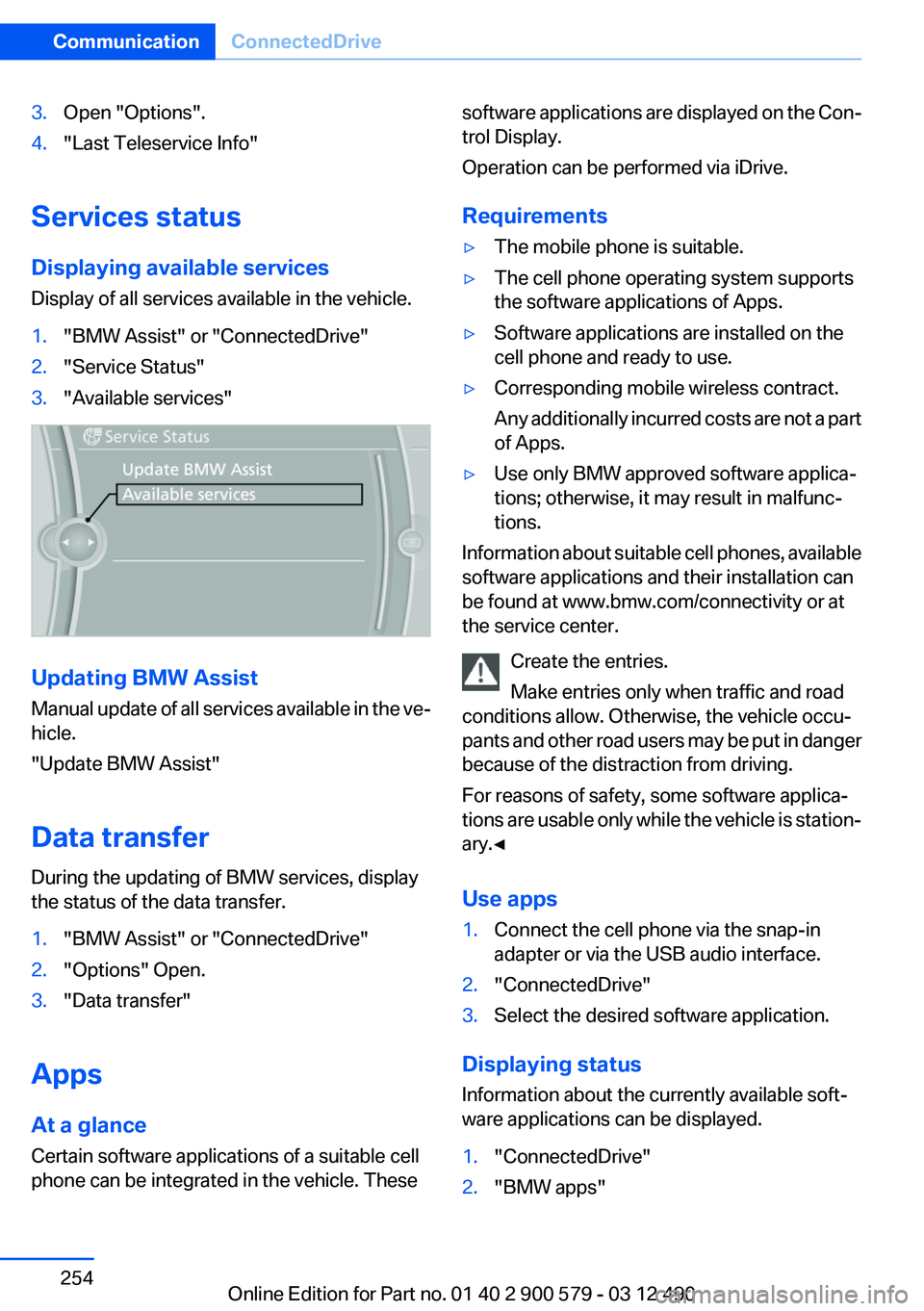
Displaying available services
Display of all services available in the vehicle.
1."BMW Assist" or "ConnectedDrive"2."Service Status"3."Available services"
Updating BMW Assist
Manual update of all services available in the ve‐
hicle.
"Update BMW Assist"
Data transfer
During the updating of BMW services, display
the status of the data transfer.
1."BMW Assist" or "ConnectedDrive"2."Options" Open.3."Data transfer"
Apps
At a glance
Certain software applications of a suitable cell
phone can be integrated in the vehicle. These
software applications are displayed on the Con‐
trol Display.
Operation can be performed via iDrive.
Requirements▷The mobile phone is suitable.▷The cell phone operating system supports
the software applications of Apps.▷Software applications are installed on the
cell phone and ready to use.▷Corresponding mobile wireless contract.
Any additionally incurred costs are not a part
of Apps.▷Use only BMW approved software applica‐
tions; otherwise, it may result in malfunc‐
tions.
Information about suitable cell phones, available
software applications and their installation can
be found at www.bmw.com/connectivity or at
the service center.
Create the entries.
Make entries only when traffic and road
conditions allow. Otherwise, the vehicle occu‐
pants and other road users may be put in danger
because of the distraction from driving.
For reasons of safety, some software applica‐
tions are usable only while the vehicle is station‐
ary.◀
Use apps
1.Connect the cell phone via the snap-in
adapter or via the USB audio interface.2."ConnectedDrive"3.Select the desired software application.
Displaying status
Information about the currently available soft‐
ware applications can be displayed.
1."ConnectedDrive"2."BMW apps"Seite 254CommunicationConnectedDrive254
Online Edition for Part no. 01 40 2 900 579 - 03 12 490
Page 316 of 319
Storage compartment, remotecontrol 149
Storage compartments 146
Storage compartments, loca‐ tions 146
Storage, tires 267
Storing the vehicle 292
Street, entering for naviga‐ tion 167
Summer tires, tread 265
Supplementary text mes‐ sage 78
Surround View 116
Suspension settings 109
Switch for Dynamic Driving Control 109
Switch-on times, parked-car heating 139
Switch-on times, parked-car ventilation 136
Switch, refer to Cockpit 12
Symbols 6
T
Tachometer 79
Tail and brake lamps 280
Tailgate 39
Tailgate, automatic 40
Tailgate, opening with no- touch activation 43
Tailgate via remote control 37
Tail lamps 279
Tail lamps, bulb replace‐ ment 280
Tasks 244
Technical changes, refer to Safety 7
Technical data 296
TeleServices 250
Temperature, automatic cli‐ mate control 131
Temperature display, external temperature 80
Temperature, engine oil 79
Terminal, jump-starting 285 Text messages 241
Text message, supplemen‐ tary 78
Theft alarm system, refer to Alarm system 44
Theft protection, refer to Cen‐ tral locking system 35
Thermal camera, refer to Night Vision 125
Tilt alarm sensor 45
Time of arrival 85
Tire damage 265
Tire identification marks 263
Tire inflation pressure 261
Tire inflation pressure monitor, refer to FTM 100
Tire Pressure Monitor TPM 97
Tires, changing 265
Tires, everything on wheels and tires 261
Tires, run-flat tires 267
Tire tread 265
Toll roads, route 174
Tone 186
Tools 275
Top View 119
Total vehicle weight 297
Tow fitting 287
Towing 286
Town/city, navigation 167
Tow-starting 286
TPM Tire Pressure Moni‐ tor 97
Traction control 108
Traffic bulletins, naviga‐ tion 178
Transmission, automatic 73
Transporting children safely 60
Tread, tires 265
Treble, tone 186
Trip computer 85
Triple turn signal activa‐ tion 70
Trip odometer 80 Trunk lid 39
Trunk lid, automatic 40
Trunk lid, emergency unlock‐ ing 42
Trunk lid, hotel function 41
Trunk lid, opening with no- touch activation 43
Trunk lid via remote con‐ trol 37
Turning circle 297
Turning circle lines, backup camera 117
Turn signals, operation 70
Turn signals, rear, bulb re‐ placement 280
U
Unintentional alarm 45
Units of measure 87
Universal remote control 141
Unlock button, automatic transmission 74
Unlocking/locking from in‐ side 39
Unlocking/locking via door lock 38
Unlocking/locking with remote control 36
Updates made after the edito‐ rial deadline 7
Updating software 215
Upholstery care 290
USB audio interface 209
USB interface 146
V
Vehicle battery 281
Vehicle battery, replacing 281
Vehicle, breaking in 154
Vehicle care 290
Vehicle equipment 6
Vehicle identification number, refer to Identification numberSeite 316ReferenceEverything from A to Z316
Online Edition for Part no. 01 40 2 900 579 - 03 12 490