instrument cluster BMW M3 2008 User Guide
[x] Cancel search | Manufacturer: BMW, Model Year: 2008, Model line: M3, Model: BMW M3 2008Pages: 266, PDF Size: 8.85 MB
Page 64 of 266
Driving
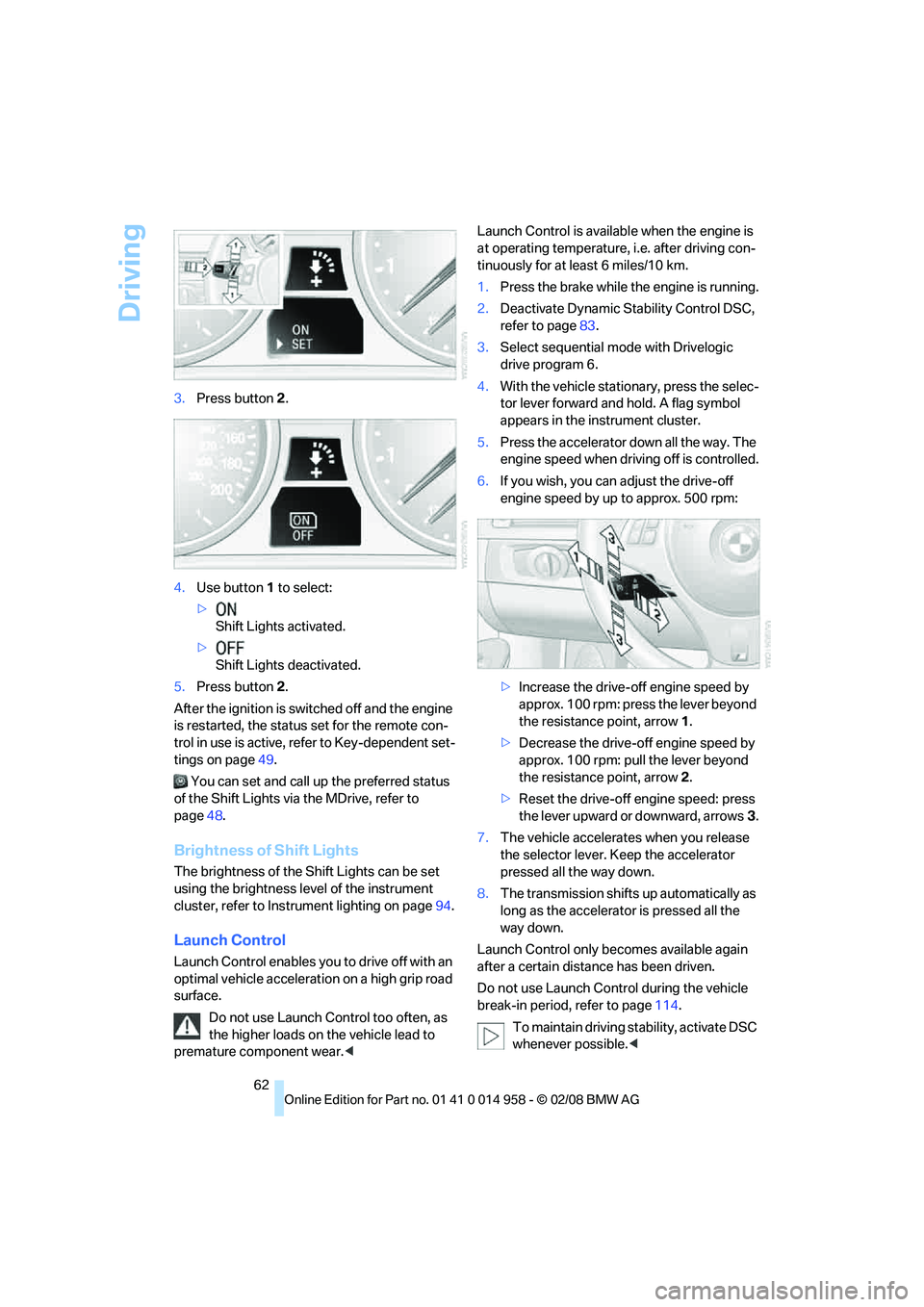
62 3.Press button 2.
4.Use button 1 to select:
>
Shift Lights activated.
>
Shift Lights deactivated.
5.Press button 2.
After the ignition is switched off and the engine
is restarted, the status set for the remote con-
trol in use is active, refer to Key-dependent set-
tings on page49.
You can set and call up the preferred status
of the Shift Lights via the MDrive, refer to
page48.
Brightness of Shift Lights
The brightness of the Shift Lights can be set
using the brightness level of the instrument
cluster, refer to Instrument lighting on page94.
Launch Control
Launch Control enables you to drive off with an
optimal vehicle acceleration on a high grip road
surface.
Do not use Launch Control too often, as
the higher loads on the vehicle lead to
premature component wear.
tinuously for at least 6 miles/10 km.
1.Press the brake while the engine is running.
2.Deactivate Dynamic Stability Control DSC,
refer to page83.
3.Select sequential mode with Drivelogic
drive program 6.
4.With the vehicle stationary, press the selec-
tor lever forward and hold. A flag symbol
appears in the instrument cluster.
5.Press the accelerator down all the way. The
engine speed when driving off is controlled.
6.If you wish, you can adjust the drive-off
engine speed by up to approx. 500 rpm:
>Increase the drive-off engine speed by
approx. 100 rpm: press the lever beyond
the resistance point, arrow1.
>Decrease the drive-off engine speed by
approx. 100 rpm: pull the lever beyond
the resistance point, arrow2.
>Reset the drive-off engine speed: press
the lever upward or downward, arrows3.
7.The vehicle accelerates when you release
the selector lever. Keep the accelerator
pressed all the way down.
8.The transmission shifts up automatically as
long as the accelerator is pressed all the
way down.
Launch Control only becomes available again
after a certain distance has been driven.
Do not use Launch Control during the vehicle
break-in period, refer to page114.
To maintain driving stability, activate DSC
whenever possible.<
Page 67 of 266
Controls
65Reference
At a glance
Driving tips
Communications
Navigation
Entertainment
Mobility
When the vehicle lighting system is switched
on, the headlamps are cleaned at regular and
appropriate intervals.
Do not use the washers if there is any
danger that the fluid will freeze on the
windshield. If you do, your vision could be
obscured. Antifreeze should therefore be
added to the fluid, refer to Washer fluid.
Do not use the washers when the washer fluid
reservoir is empty, otherwise you will damage
the washer pump.<
Windshield washer nozzles
The windshield washer nozzles are heated
automatically while the engine is running or the
ignition is switched on.
Washer fluid
Washer fluid antifreeze is flammable.
Therefore, keep it away from ignition
sources and only store it in the closed original
container that is kept out of reach of children,
otherwise there is a risk of personal injury.
Comply with the instructions on the con-
tainer.<
Washer fluid filler neck
Only refill washer fluid when the engine is
cool to avoid contact with hot engine
parts. Otherwise, fluid spills constitute a fire
hazard and a risk to personal safety.<
All washer nozzles are supplied with washer
fluid by the same reservoir.
Fill with water and, if required, with a washer
antifreeze, according to manufacturer's recom-
mendations.Mix the water and antifreeze before filling
the washer fluid reservoir to make sure
the correct concentration is maintained.<
Capacity
Approx. 4.8USquarts/4.5liters.
Cruise control
The concept
Cruise control is available for use at speeds of
approx. 20 mph or 30 km/h. The car then stores
and maintains the speed that you specify using
the lever on the steering column.
Do not use cruise control when driving at
constant speed is prevented by adverse
conditions, e.g. winding roads, dense traffic or
poor road conditions due to, e.g., snow, rain, ice
or loose surfaces. Otherwise you could lose
control of the vehicle and cause an accident as a
result.<
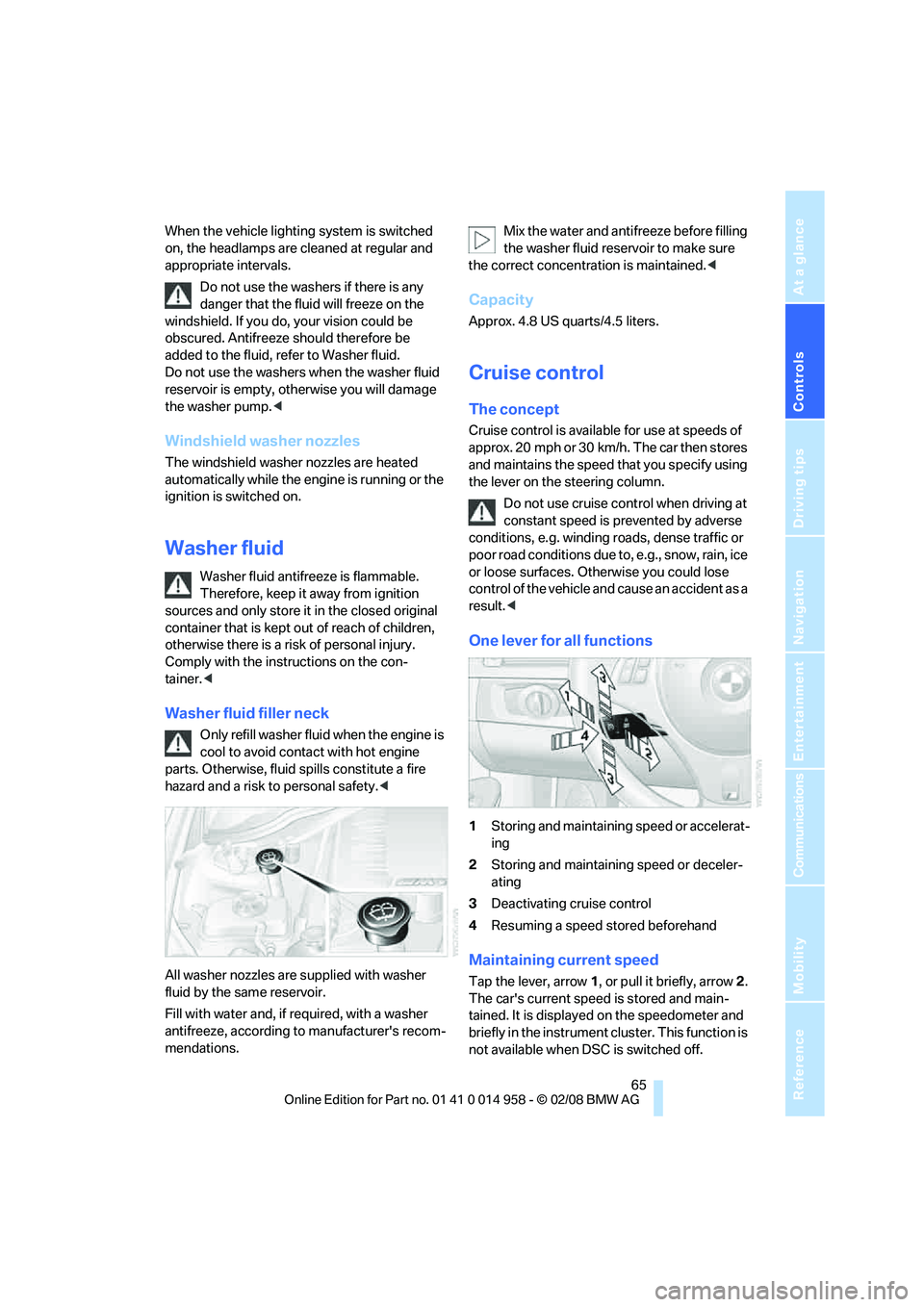
One lever for all functions
1Storing and maintaining speed or accelerat-
ing
2Storing and maintaining speed or deceler-
ating
3Deactivating cruise control
4Resuming a speed stored beforehand
Maintaining current speed
Tap the lever, arrow 1, or pull it briefly, arrow 2.
The car's current speed is stored and main-
tained. It is displayed on the speedometer and
briefly in the instrument cluster. This function is
not available when DSC is switched off.
Page 68 of 266
Driving
66 On uphill gradients, it may prove impossible to
maintain the set speed if current engine power
output is insufficient. If engine braking power is
insufficient on a downhill grade, the stored
speed may be exceeded.
Increasing desired speed
Repeatedly press the lever to the resistance
point or beyond, arrow1, until the desired
speed is reached.
>Each time the lever is pressed lightly to the
resistance point, the desired speed is
increased by approx. 1 mph or 1 km/h.
>Each time the lever is pressed beyond the
resistance point, the desired speed is
increased by up to 5 mph or 10 km/h.
The system stores and maintains the speed.
Accelerating using the lever
Accelerate slightly, increase speed steadily:
Press the lever to the resistance point, arrow 1,
until the desired speed is reached.
Accelerate strongly, increase speed in intervals
of 10:
Press the lever beyond the resistance point,
arrow 1, until the desired speed is reached.
The vehicle accelerates without pressure on
the accelerator pedal. The system stores and
maintains the speed.
Decreasing speed
Repeatedly pull the lever to the resistance point
or beyond, arrow 2, until the desired speed is
displayed.
>Each time the lever is pulled to the resis-
tance point, the desired speed is decreased
by approx. 1 mph or 1 km/h.
>Each time the lever is pulled beyond the
resistance point, the desired speed is
reduced by up to 5 mph or 10 km/h until the
minimum speed of 20 mph or 30 km/h is
achieved.
The system stores and maintains the speed.
Deactivating cruise control
Tap the lever upwards or downwards, arrow3.
The displays on the speedometer disappear.
In addition, the system is automatically deacti-
vated:
>When you brake the vehicle
>When you shift or depress the clutch
>When you deactivate DSC
>When DSC or ABS is intervening
Cruise control is not deactivated by depressing
the accelerator pedal. Once the accelerator
pedal is released, the stored speed is achieved
again and maintained.
Resuming a speed stored beforehand
Press the button, arrow4.
The stored speed is resumed and maintained.
When the ignition is switched off, the stored
speed value is cleared and can no longer be
called up.
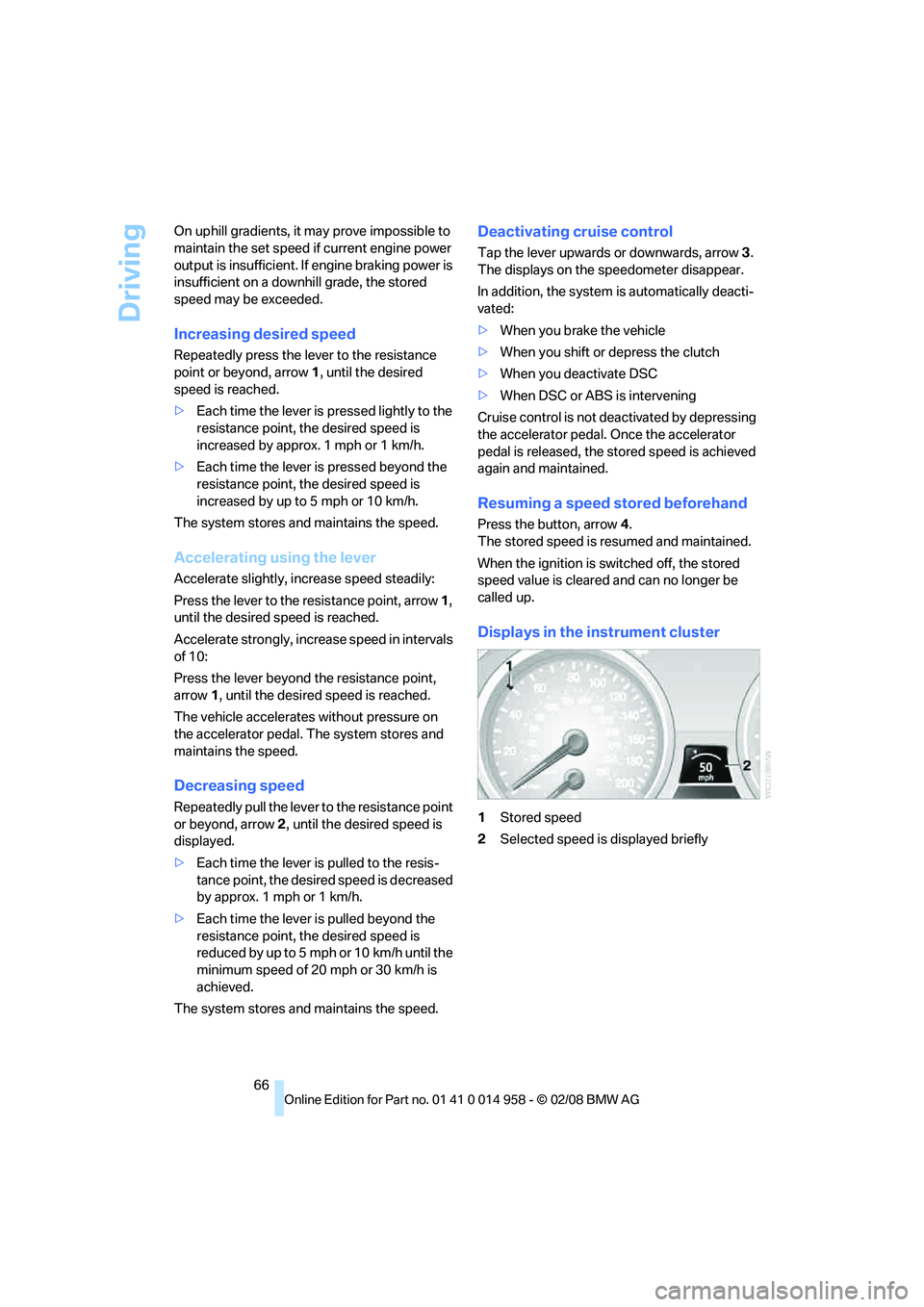
Displays in the instrument cluster
1Stored speed
2Selected speed is displayed briefly
Page 69 of 266
Controls
67Reference
At a glance
Driving tips
Communications
Navigation
Entertainment
Mobility
Everything under control
Odometer, outside
temperature display, clock
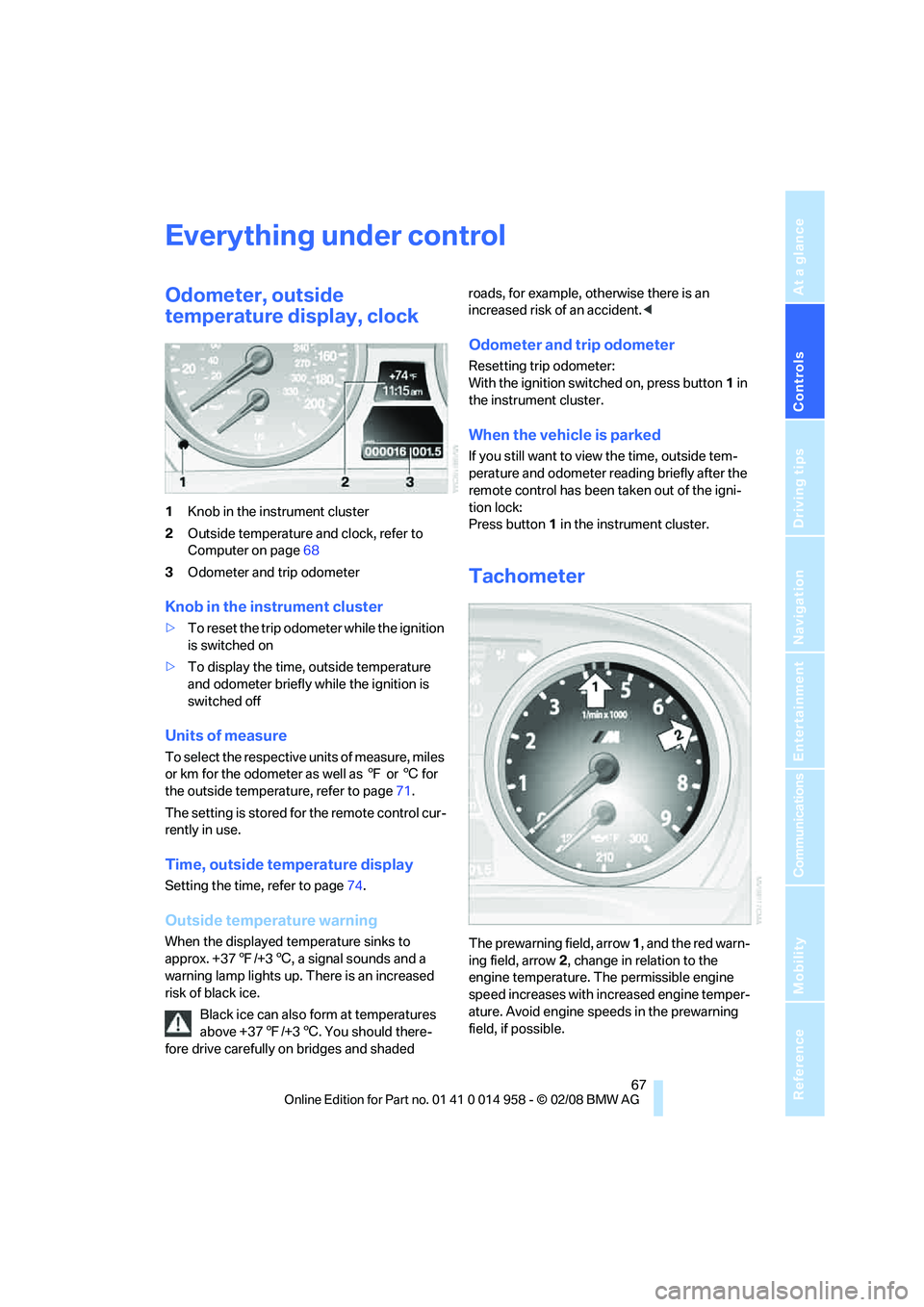
1Knob in the instrument cluster
2Outside temperature and clock, refer to
Computer on page68
3Odometer and trip odometer
Knob in the instrument cluster
>To reset the trip odometer while the ignition
is switched on
>To display the time, outside temperature
and odometer briefly while the ignition is
switched off
Units of measure
T o s e l e c t t h e r e s p e c t i v e u n i t s o f m e a s u r e , m i l e s
or km for the odometer as well as 7 or 6 for
the outside temperature, refer to page71.
The setting is stored for the remote control cur-
rently in use.
Time, outside temperature display
Setting the time, refer to page74.
Outside temperature warning
When the displayed temperature sinks to
approx. +377/+36, a signal sounds and a
warning lamp lights up. There is an increased
risk of black ice.
Black ice can also form at temperatures
above +377/+36. You should there-
fore drive carefully on bridges and shaded roads, for example, otherwise there is an
increased risk of an accident.<
Odometer and trip odometer
Resetting trip odometer:
With the ignition switched on, press button1 in
the instrument cluster.
When the vehicle is parked
If you still want to view the time, outside tem-
perature and odometer reading briefly after the
remote control has been taken out of the igni-
tion lock:
Press button 1 in the instrument cluster.
Tachometer
The prewarning field, arrow 1, and the red warn-
ing field, arrow2, change in relation to the
engine temperature. The permissible engine
speed increases with increased engine temper-
ature. Avoid engine speeds in the prewarning
field, if possible.
Page 70 of 266
Everything under control
68 Never drive at engine speeds in the red warning
field. In this range, the engine speed is limited to
protect the engine.
Coolant temperature
A warning lamp will come on if the coolant, and
therefore the engine, becomes too hot. In addi-
tion, a message will appear on the Control Dis-
play.
Check coolant level, refer to page222.
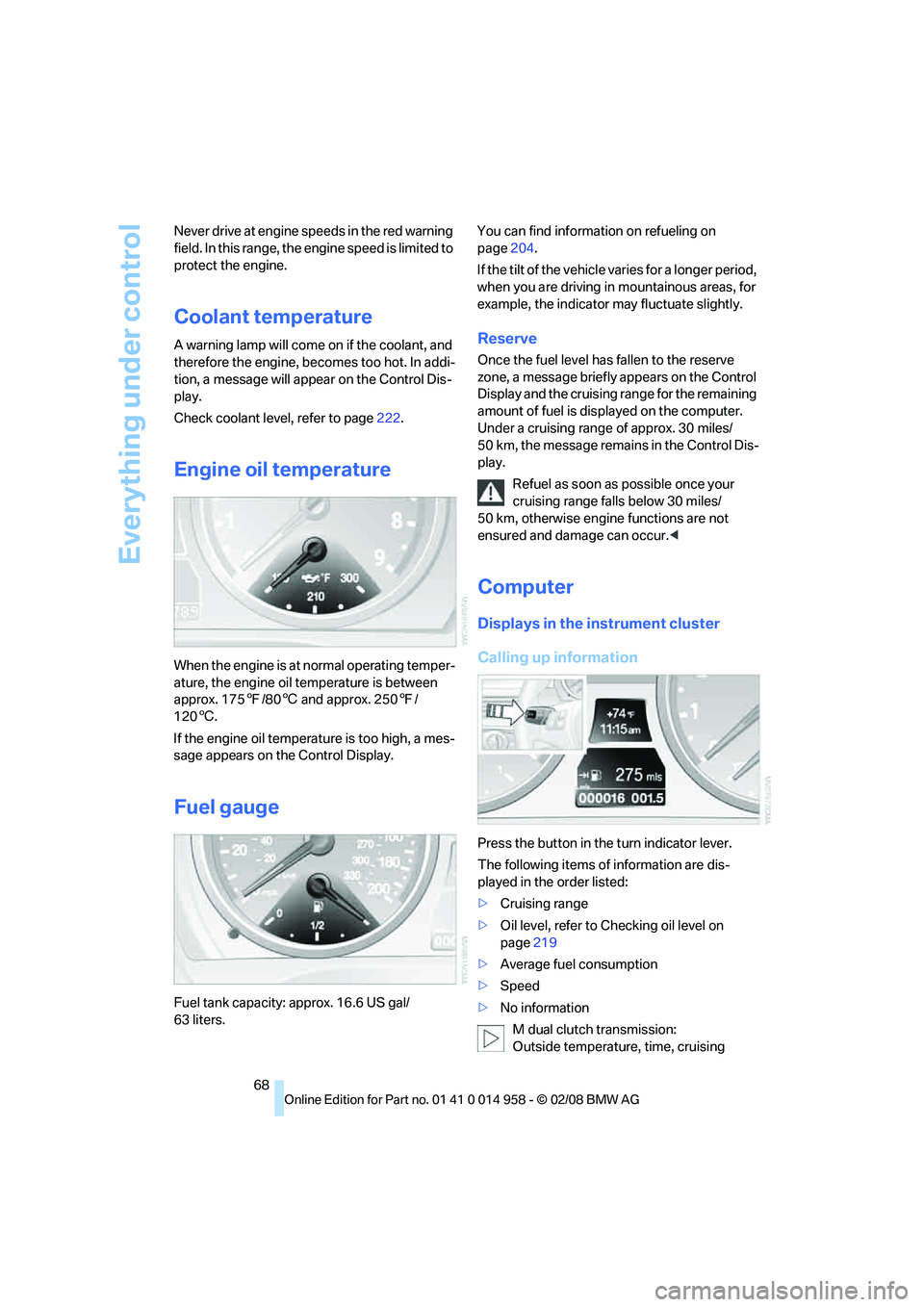
Engine oil temperature
When the engine is at normal operating temper-
ature, the engine oil temperature is between
approx. 1757/806 and approx. 2507/
1206.
If the engine oil temperature is too high, a mes-
sage appears on the Control Display.
Fuel gauge
Fuel tank capacity: approx. 16.6 US gal/
63 liters.You can find information on refueling on
page204.
If the tilt of the vehicle varies for a longer period,
when you are driving in mountainous areas, for
example, the indicator may fluctuate slightly.
Reserve
Once the fuel level has fallen to the reserve
zone, a message briefly appears on the Control
Display and the cruising range for the remaining
amount of fuel is displayed on the computer.
Under a cruising range of approx. 30 miles/
50 km, the message remains in the Control Dis-
play.
Refuel as soon as possible once your
cruising range falls below 30 miles/
50 km, otherwise engine functions are not
ensured and damage can occur.<
Computer
Displays in the instrument cluster
Calling up information
Press the button in the turn indicator lever.
The following items of information are dis-
played in the order listed:
>Cruising range
>Oil level, refer to Checking oil level on
page219
>Average fuel consumption
>Speed
>No information
M dual clutch transmission:
Outside temperature, time, cruising
Page 74 of 266
Everything under control
72 6.Select the desired menu item and press the
controller.
7.Select the desired measurement unit and
press the controller.
The setting is stored for the remote control
currently in use.
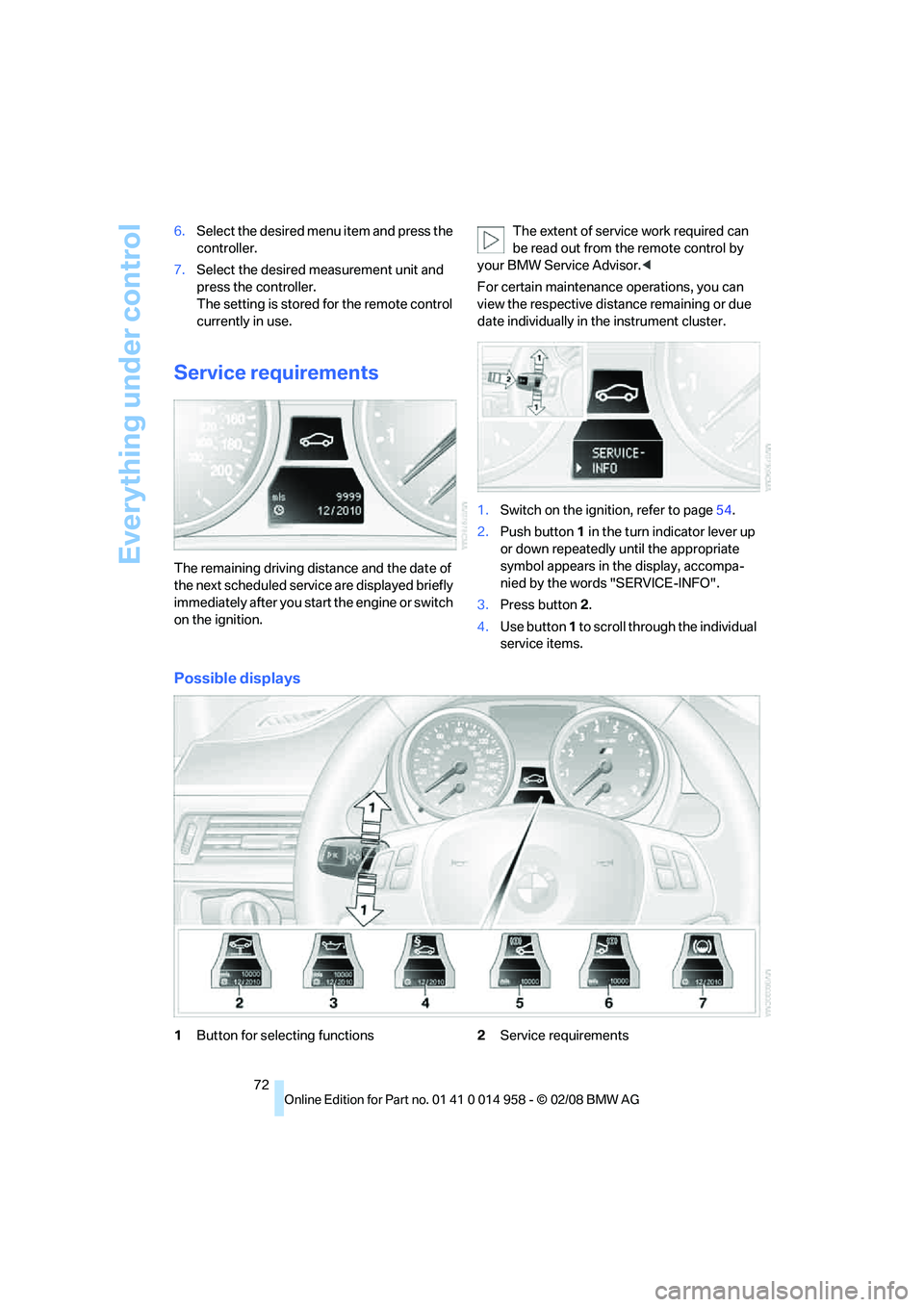
Service requirements
The remaining driving distance and the date of
the next scheduled service are displayed briefly
immediately after you start the engine or switch
on the ignition.The extent of service work required can
be read out from the remote control by
your BMW Service Advisor.<
For certain maintenance operations, you can
view the respective distance remaining or due
date individually in the instrument cluster.
1.Switch on the ignition, refer to page54.
2.Push button 1 in the turn indicator lever up
or down repeatedly until the appropriate
symbol appears in the display, accompa-
nied by the words "SERVICE-INFO".
3.Press button 2.
4.Use button 1 to scroll through the individual
service items.
Possible displays
1Button for selecting functions2Service requirements
Page 76 of 266
Everything under control
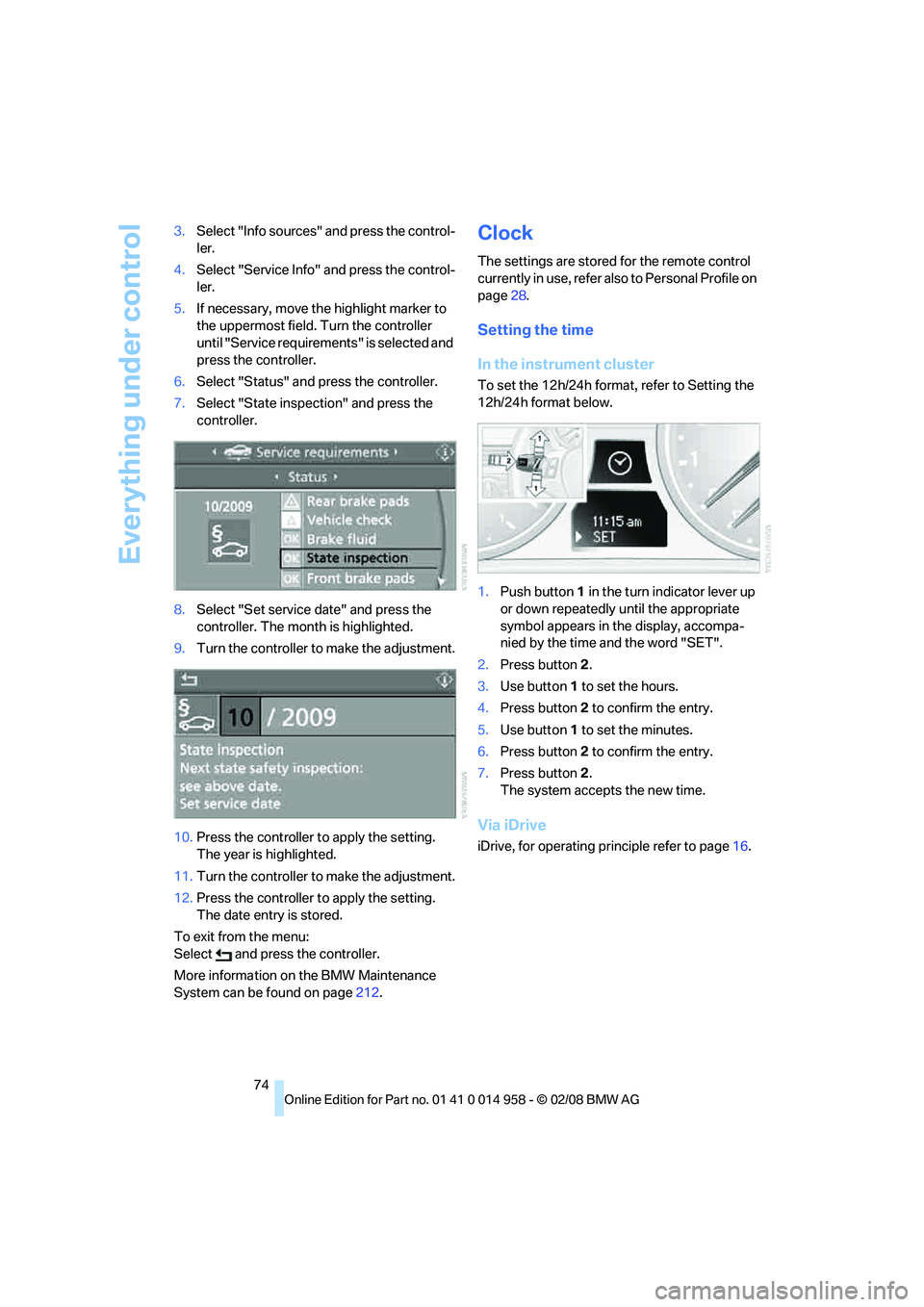
74 3.Select "Info sources" and press the control-
ler.
4.Select "Service Info" and press the control-
ler.
5.If necessary, move the highlight marker to
the uppermost field. Turn the controller
until "Service requirements" is selected and
press the controller.
6.Select "Status" and press the controller.
7.Select "State inspection" and press the
controller.
8.Select "Set service date" and press the
controller. The month is highlighted.
9.Turn the controller to make the adjustment.
10.Press the controller to apply the setting.
The year is highlighted.
11.Turn the controller to make the adjustment.
12.Press the controller to apply the setting.
The date entry is stored.
To exit from the menu:
Select and press the controller.
More information on the BMW Maintenance
System can be found on page212.
Clock
The settings are stored for the remote control
currently in use, refer also to Personal Profile on
page28.
Setting the time
In the instrument cluster
To set the 12h/24h format, refer to Setting the
12h/24h format below.
1.Push button 1 in the turn indicator lever up
or down repeatedly until the appropriate
symbol appears in the display, accompa-
nied by the time and the word "SET".
2.Press button 2.
3.Use button 1 to set the hours.
4.Press button 2 to confirm the entry.
5.Use button 1 to set the minutes.
6.Press button 2 to confirm the entry.
7.Press button 2.
The system accepts the new time.
Via iDrive
iDrive, for operating principle refer to page16.
Page 78 of 266
Everything under control
76 Select "Hour memo" and press the controller.
The hour signal is activated.
Setting the 12h/24h format
iDrive, for operating principle refer to page16.
1.Press the button.
This opens the start menu.
2.Press the controller to open the menu.
3.Turn the controller until "Settings" is
selected and press the controller.
4.Turn the controller until "Time / Date" is
selected and press the controller.
5.Select "Time format" and press the control-
ler.
6.Select the desired format and press the
controller.
Date
The settings are stored for the remote control
currently in use, refer also to Personal Profile on
page28.
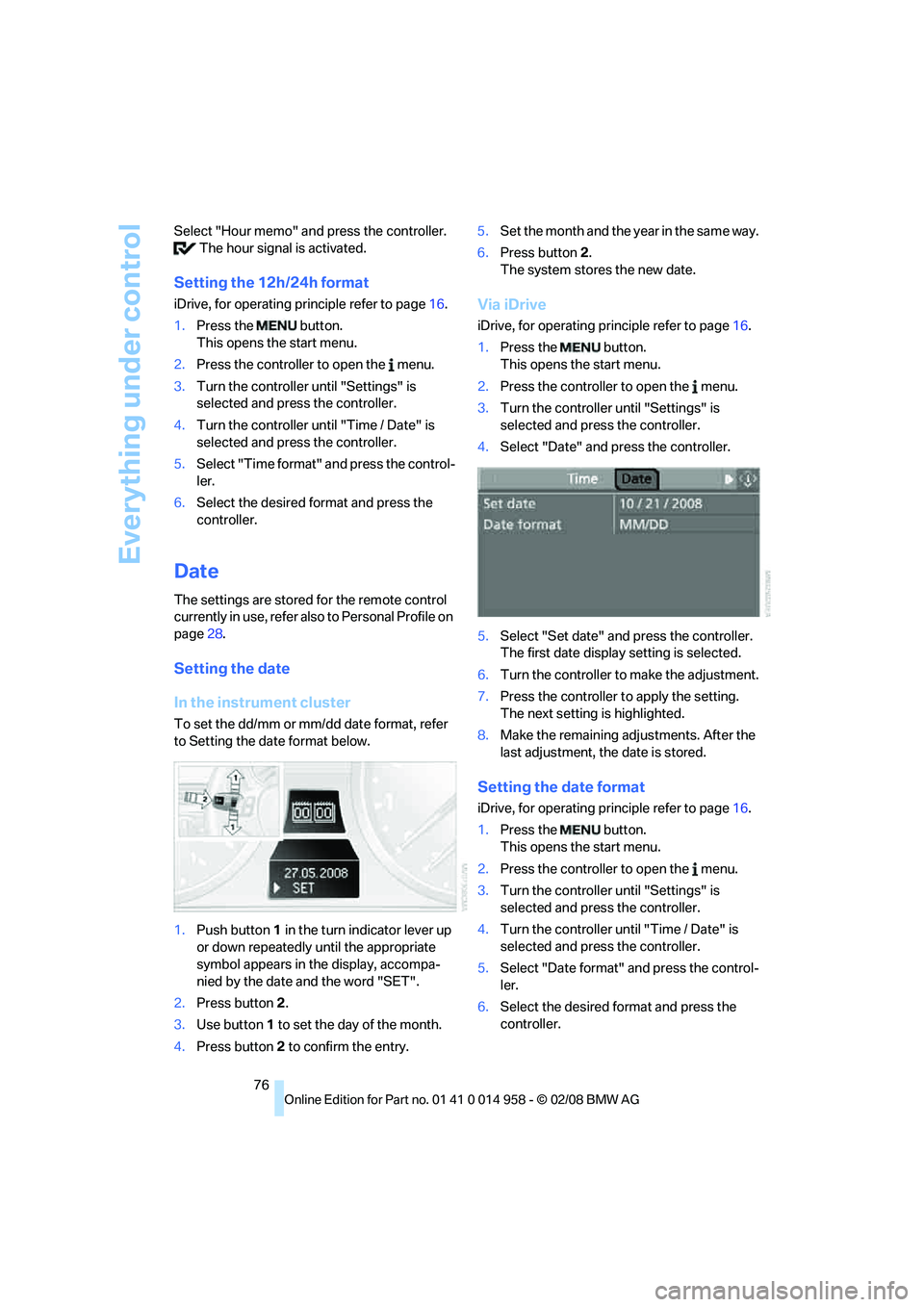
Setting the date
In the instrument cluster
To set the dd/mm or mm/dd date format, refer
to Setting the date format below.
1.Push button 1 in the turn indicator lever up
or down repeatedly until the appropriate
symbol appears in the display, accompa-
nied by the date and the word "SET".
2.Press button 2.
3.Use button 1 to set the day of the month.
4.Press button 2 to confirm the entry.5.Set the month and the year in the same way.
6.Press button 2.
The system stores the new date.
Via iDrive
iDrive, for operating principle refer to page16.
1.Press the button.
This opens the start menu.
2.Press the controller to open the menu.
3.Turn the controller until "Settings" is
selected and press the controller.
4.Select "Date" and press the controller.
5.Select "Set date" and press the controller.
The first date display setting is selected.
6.Turn the controller to make the adjustment.
7.Press the controller to apply the setting.
The next setting is highlighted.
8.Make the remaining adjustments. After the
last adjustment, the date is stored.
Setting the date format
iDrive, for operating principle refer to page16.
1.Press the button.
This opens the start menu.
2.Press the controller to open the menu.
3.Turn the controller until "Settings" is
selected and press the controller.
4.Turn the controller until "Time / Date" is
selected and press the controller.
5.Select "Date format" and press the control-
ler.
6.Select the desired format and press the
controller.
Page 79 of 266
Controls
77Reference
At a glance
Driving tips
Communications
Navigation
Entertainment
Mobility
Check Control
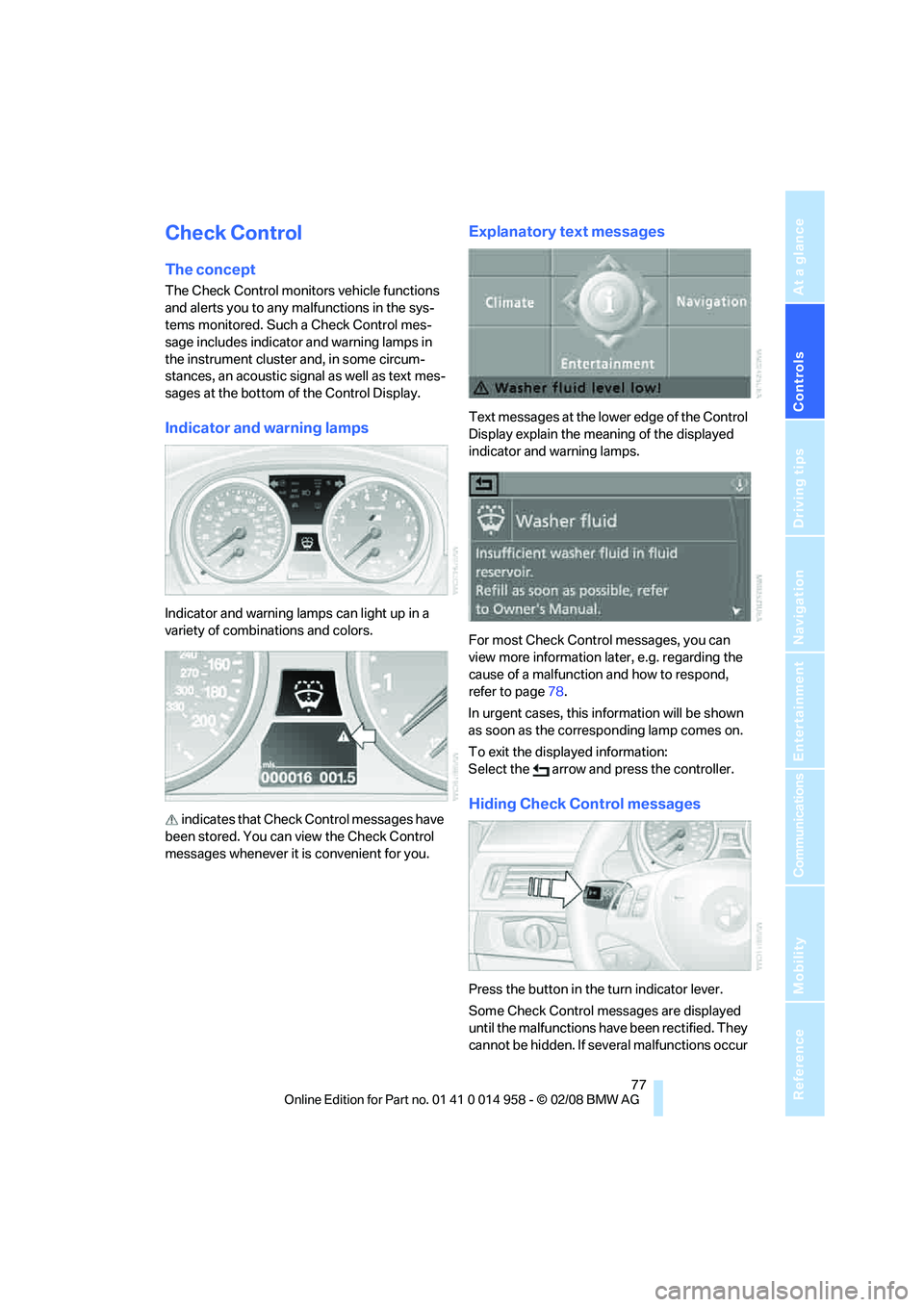
The concept
The Check Control monitors vehicle functions
and alerts you to any malfunctions in the sys-
tems monitored. Such a Check Control mes-
sage includes indicator and warning lamps in
the instrument cluster and, in some circum-
stances, an acoustic signal as well as text mes-
sages at the bottom of the Control Display.
Indicator and warning lamps
Indicator and warning lamps can light up in a
variety of combinations and colors.
indicates that Check Control messages have
been stored. You can view the Check Control
messages whenever it is convenient for you.
Explanatory text messages
Text mess ages at the lo wer edge of the Control
Display explain the meaning of the displayed
indicator and warning lamps.
For most Check Control messages, you can
view more information later, e.g. regarding the
cause of a malfunction and how to respond,
refer to page78.
In urgent cases, this information will be shown
as soon as the corresponding lamp comes on.
To exit the displayed information:
Select the arrow and press the controller.
Hiding Check Control messages
Press the button in the turn indicator lever.
Some Check Control messages are displayed
until the malfunctions have been rectified. They
cannot be hidden. If several malfunctions occur
Page 83 of 266
Controls
81Reference
At a glance
Driving tips
Communications
Navigation
Entertainment
Mobility
Technology for driving comfort and safety
Park Distance Control PDC*
The concept
The PDC assists you with maneuvering in tight
parking spaces. Acoustic signals and a visual
indicator
warn you of the presence of an object
behind your vehicle. To measure the distance,
there are four ultrasonic sensors in the
bumpers.
These sensors have a range of approx. 6.5 ft/
2 m. However, an acoustic warning does not
sound until an object is approx. 24 in/60 cm
from the corner sensors, or approx. 5 ft/1.50 m
from the center sensors.
PDC is a parking aid that can indicate
objects when they are approached
slowly, as is usually the case when parking.
Avoid approaching an object at high speed, oth-
erwise physical circumstances may lead to the
system warning being issued too late.<
Switching on automatically
With the engine running or the ignition switched
on, the system is activated after approx. 1 sec-
ond when you engage reverse gear. Wait this
short period before driving.
Switching off automatically
After approx. 165 ft/50 m of driving or over
approx. 20 mph/30 km/h, the system switches
off and the LED goes out.
Signal tones
When nearing an object, its position is indicated
correspondingly by an interval tone. As the dis-
tance between vehicle and object decreases,
the intervals between the tones become
shorter. If the distance to the nearest object
falls to below roughly 1 ft/30 cm, then a contin-
uous tone sounds.
An interval tone is interrupted after approx.
3seconds>if you stop in front of an object that has been
detected by only one of the corner sensors
>if you are driving parallel to a wall.
Malfunction
The indicator lamp in the instrument
cluster comes on. PDC is malfunc-
tioning. A message appears on the
Control Display. Have the system checked.
To avoid this problem, keep the sensors clean
and free of ice or snow in order to ensure that
they will continue to operate effectively. When
using a high-pressure cleaner, do not spray the
sensors for extended periods of time and only
from a distance of at least 4 in/10 cm.
PDC with visual warning
You can also have the system show distances
to objects on the Control Display. The contours
of distant objects are shown on the Control Dis-
play even before the acoustic signal sounds.
The setting is stored for the remote control cur-
rently in use.
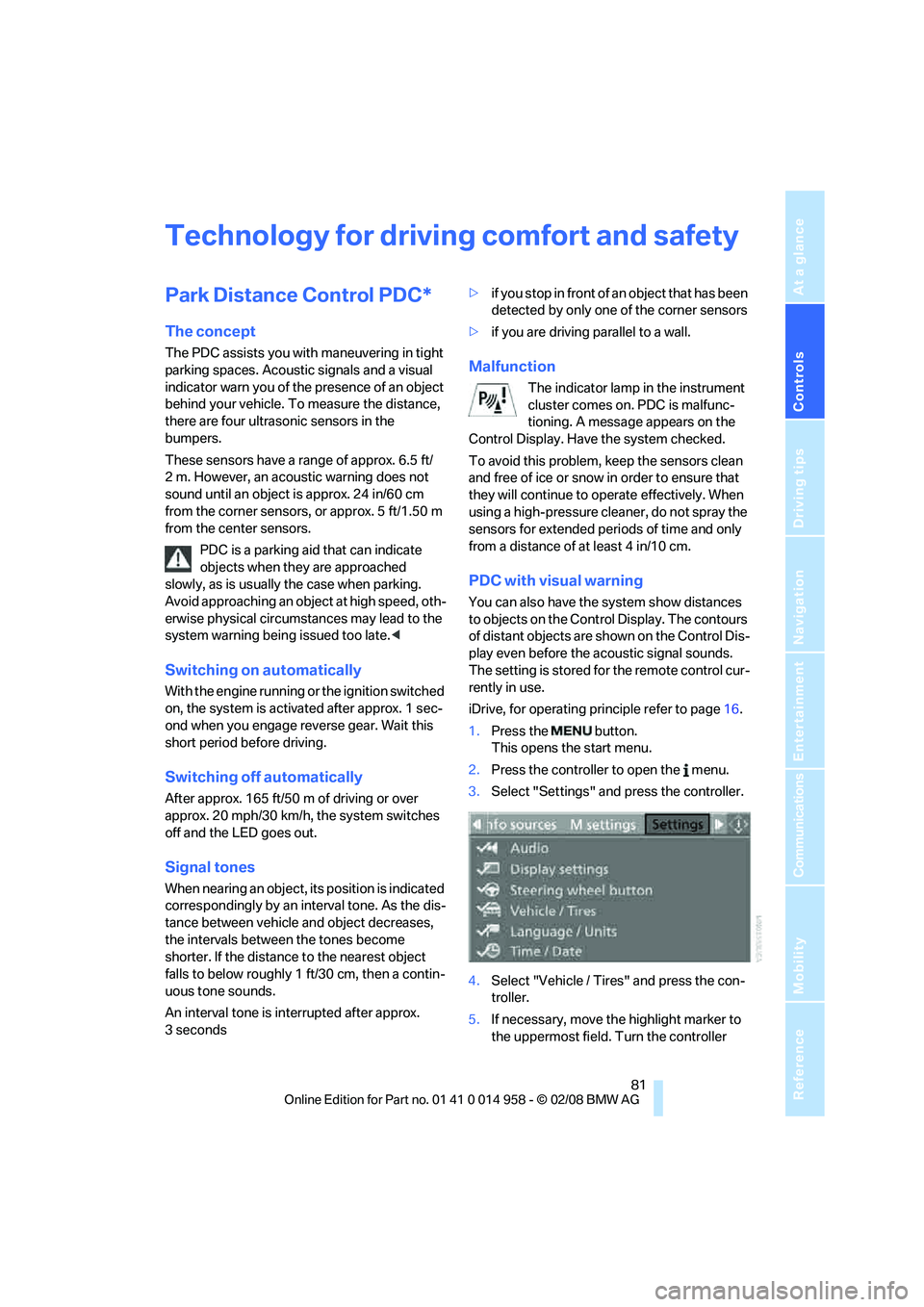
iDrive, for operating principle refer to page16.
1.Press the button.
This opens the start menu.
2.Press the controller to open the menu.
3.Select "Settings" and press the controller.
4.Select "Vehicle / Tires" and press the con-
troller.
5.If necessary, move the highlight marker to
the uppermost field. Turn the controller