instrument cluster BMW M3 2008 Owner's Manual
[x] Cancel search | Manufacturer: BMW, Model Year: 2008, Model line: M3, Model: BMW M3 2008Pages: 266, PDF Size: 8.85 MB
Page 85 of 266
Controls
83Reference
At a glance
Driving tips
Communications
Navigation
Entertainment
Mobility
corrective steering maneuvers may be neces-
sary.
M Dynamic Mode is switched off every time the
engine is restarted.
When the M Dynamic Mode is on, stabi-
lizing measures are performed to a limited
degree only. Take action yourself, otherwise
there is a risk of an accident.<
To maintain vehicle stability, drive with
the DSC activated and the
M Dynamic Mode deactivated whenever possi-
ble.<
Activating MDM
Press the button on the steering wheel, refer
to MDrive
* on page48. The MDM indicator
lamp in the instrument cluster lights up if you
previously selected the M Dynamic Mode MDM
in MDrive.
When the ignition is on, you can set the
M Dynamic Mode via MDrive on the Control
Display.
iDrive, for operating principle refer to page16.
1.Press the button.
This opens the start menu.
2.Press the controller to open the menu.
3.Select "M settings" and press the control-
ler.
4.Select "MDrive" and press the controller.
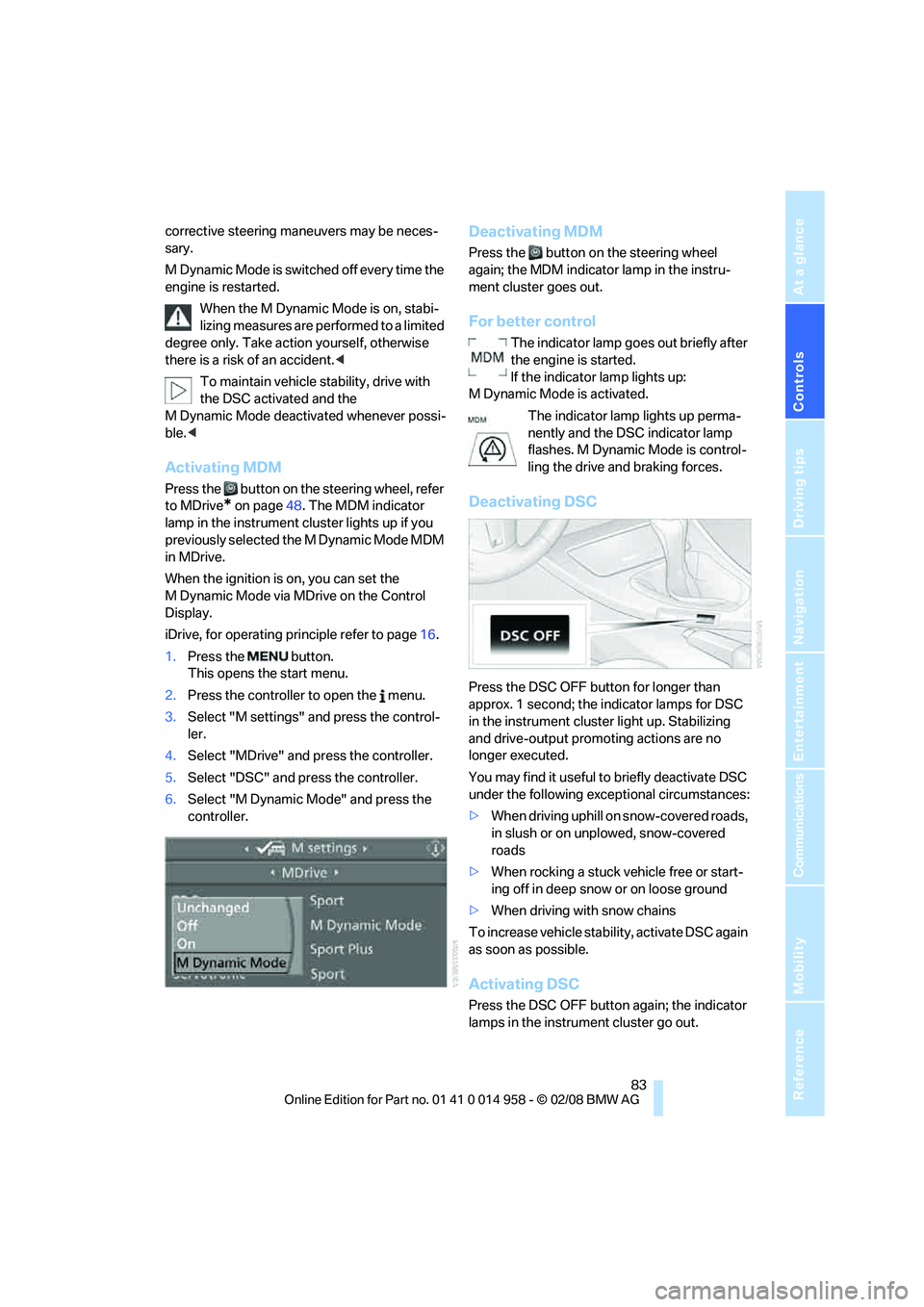
5.Select "DSC" and press the controller.
6.Select "M Dynamic Mode" and press the
controller.
Deactivating MDM
Press the button on the steering wheel
again; the MDM indicator lamp in the instru-
ment cluster goes out.
For better control
The indicator lamp goes out briefly after
the engine is started.
If the indicator lamp lights up:
M Dynamic Mode is activated.
The indicator lamp lights up perma-
nently and the DSC indicator lamp
flashes. M Dynamic Mode is control-
ling the drive and braking forces.
Deactivating DSC
Press the DSC OFF button for longer than
approx. 1 second; the indicator lamps for DSC
in the instrument cluster light up. Stabilizing
and drive-output promoting actions are no
longer executed.
You may find it useful to briefly deactivate DSC
under the following exceptional circumstances:
>When driving uphill on snow-covered roads,
in slush or on unplowed, snow-covered
roads
>When rocking a stuck vehicle free or start-
ing off in deep snow or on loose ground
>When driving with snow chains
To increase vehicle stability, activate DSC again
as soon as possible.
Activating DSC
Press the DSC OFF button again; the indicator
lamps in the instrument cluster go out.
Page 87 of 266
Controls
85Reference
At a glance
Driving tips
Communications
Navigation
Entertainment
Mobility
System limitations
The Flat Tire Monitor is unable to warn
the driver of sudden, severe tire damage
caused by external factors, nor can it identify
the gradual loss of pressure that will inevitably
occur in all four tires over a lengthy period of
time.<
In the following situations, the system could be
delayed or malfunction:
>System has not been initialized
>Driving on snowy or slippery road surface
>Performance-oriented style of driving: slip
in the drive wheels, high lateral acceleration
>Snow chains are attached
Initializing the system
The initialization is completed during driv-
ing, which can be interrupted at any time.
When driving resumes, the initialization is con-
tinued automatically.
Do not initialize the system while snow chains
are attached.<
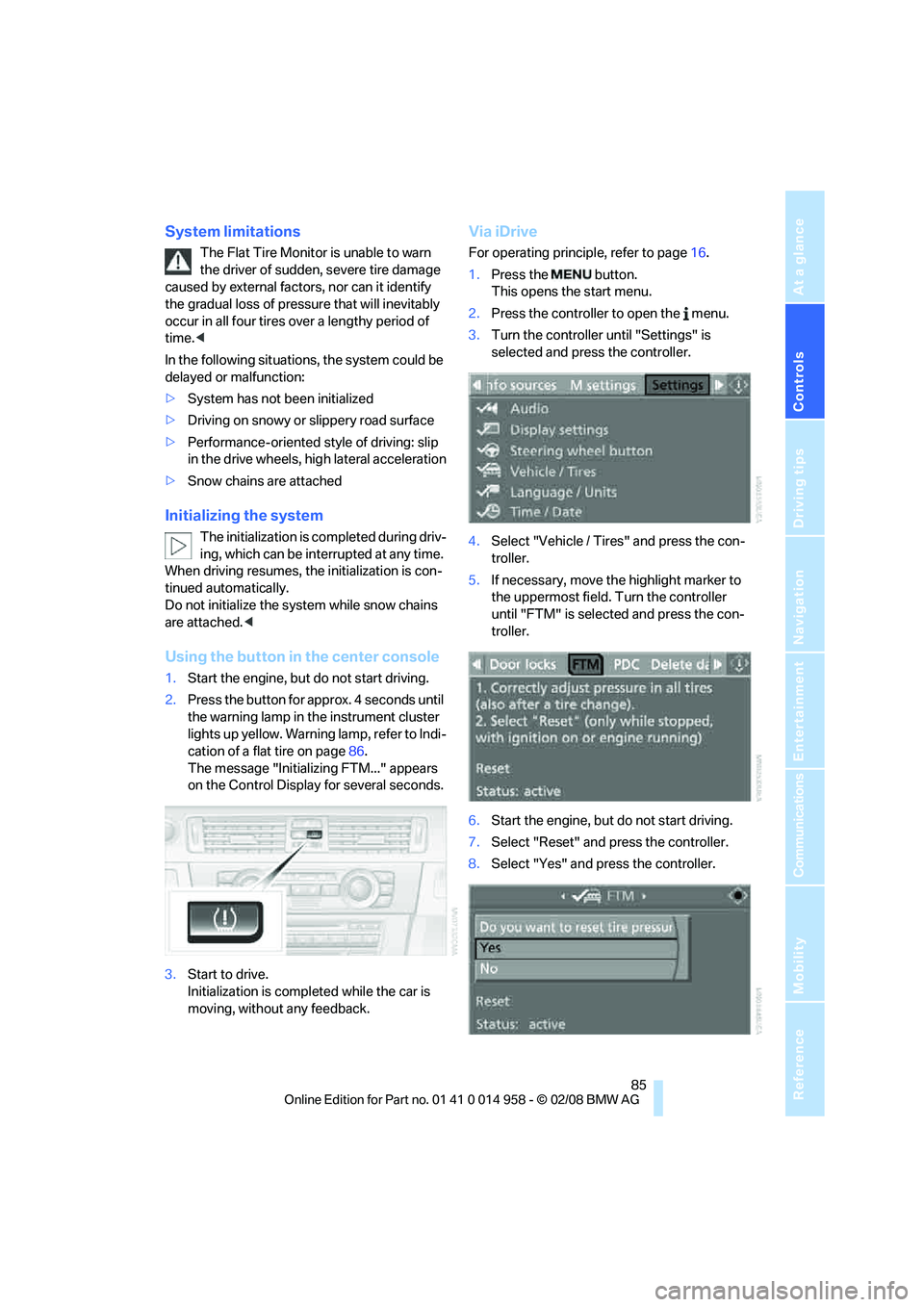
Using the button in the center console
1.Start the engine, but do not start driving.
2.Press the button for approx. 4 seconds until
the warning lamp in the instrument cluster
lights up yellow. Warning lamp, refer to Indi-
cation of a flat tire on page86.
The message "Initializing FTM..." appears
on the Control Display for several seconds.
3.Start to drive.
Initialization is completed while the car is
moving, without any feedback.
Via iDrive
For operating principle, refer to page16.
1.Press the button.
This opens the start menu.
2.Press the controller to open the menu.
3.Turn the controller until "Settings" is
selected and press the controller.
4.Select "Vehicle / Tires" and press the con-
troller.
5.If necessary, move the highlight marker to
the uppermost field. Turn the controller
until "FTM" is selected and press the con-
troller.
6.Start the engine, but do not start driving.
7.Select "Reset" and press the controller.
8.Select "Yes" and press the controller.
Page 89 of 266
Controls
87Reference
At a glance
Driving tips
Communications
Navigation
Entertainment
Mobility
Resetting the system
Each time a tire inflation pressure has
been corrected or a wheel or tire has been
changed, reset the system.<
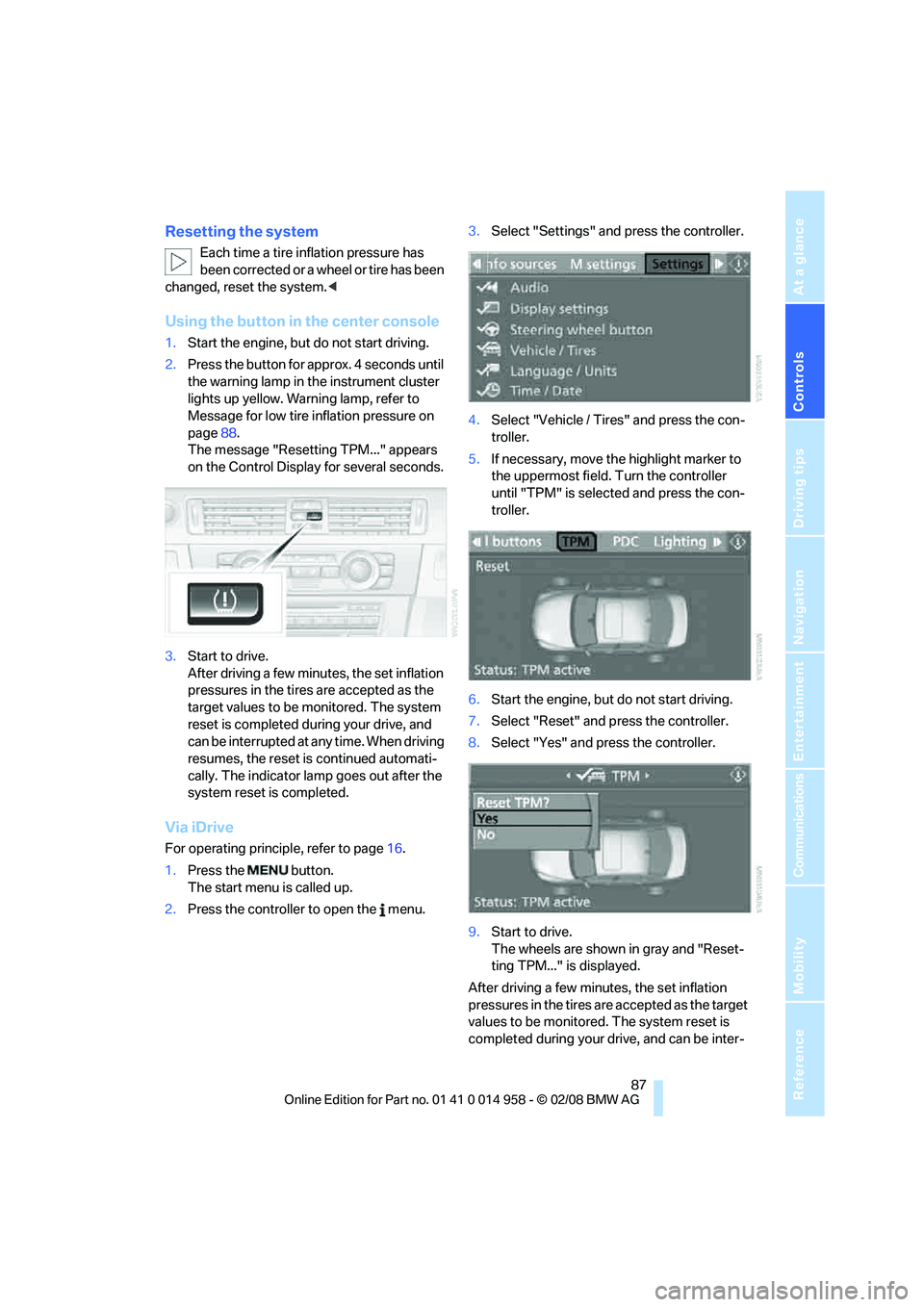
Using the button in the center console
1.Start the engine, but do not start driving.
2.Press the button for approx. 4 seconds until
the warning lamp in the instrument cluster
lights up yellow. Warning lamp, refer to
Message for low tire inflation pressure on
page88.
The message "Resetting TPM..." appears
on the Control Display for several seconds.
3.Start to drive.
After driving a few minutes, the set inflation
pressures in the tires are accepted as the
target values to be monitored. The system
reset is completed during your drive, and
can be interrupted at any time. When driving
resumes, the reset is continued automati-
cally. The indicator lamp goes out after the
system reset is completed.
Via iDrive
For operating principle, refer to page16.
1.Press the button.
The start menu is called up.
2.Press the controller to open the menu.3.Select "Settings" and press the controller.
4.Select "Vehicle / Tires" and press the con-
troller.
5.If necessary, move the highlight marker to
the uppermost field. Turn the controller
until "TPM" is selected and press the con-
troller.
6.Start the engine, but do not start driving.
7.Select "Reset" and press the controller.
8.Select "Yes" and press the controller.
9.Start to drive.
The wheels are shown in gray and "Reset-
ting TPM..." is displayed.
After driving a few minutes, the set inflation
pressures in the tires are accepted as the target
values to be monitored. The system reset is
completed during your drive, and can be inter-
Page 218 of 266
Care
216
Outside sensors / cameras
Keep the sensors and cameras on the
outside of the vehicle, e.g. Park Distance
Control, clean and free of ice to ensure that they
remain fully functional.<
Interior care
Upholstery / cloth trim
Vacuum regularly with a vacuum cleaner to
remove superficial dirt.
To treat severe stains, e.g. from beverages, use
a soft sponge or lint-free microfiber cloth in
combination with suitable interior cleaners. Fol-
low the instructions on the packaging.
Clean the upholstery down to the seams
using a sweeping motion. Avoid strong
rubbing.<
Opened Velcro fasteners on pants or
other articles of clothing can damage the
seat covers. Ensure that Velcro fasteners are
closed.<
Leather / leather trim
The leather used by BMW is a high quality
natural product. Slight irregularities in the
leather are a typical characteristic of natural
leather.<
Dust and road grit in the pores and folds of the
leather have an abrasive effect, leading to
increased wear and causing the leather surface
to become brittle prematurely. Therefore, fre-
quently clean the leather of dust using a cloth or
vacuum cleaner.
In particular, ensure that light-colored leather is
cleaned regularly as it has a tendency to soil
more easily.
Treat the leather twice a year using a leather
lotion as dirt and grease will gradually attack the
leather's protective layer.
Carpets / cargo bay
You can vacuum the carpets and floor mats or
clean them with interior cleaner if heavily soiled.The floor mats can be removed for cleaning.
When replacing the mats, ensure that the seat
rails do not extend over the floor mats, as this
may damage the mats.
Lint on the floor mats occurs for technical rea-
sons and can be removed by vacuuming
repeatedly.
Interior plastic parts
>Imitation leather surfaces
>Lamp glasses
>Display pane of instrument cluster
>Matt parts
Clean with water and solvent-free plastic
cleaner if necessary.
Fine wood parts
Clean fine wood trim and fine wood parts with a
damp cloth. Wipe dry with a soft cloth.
Safety belts
Do not clean with cleaning agents as
these may destroy the fabric.<
Interior sensors / cameras
To clean interior sensors and cameras, e.g. of
the High-Beam Assistant, use a lint-free cloth
moistened with glass cleaner.
Displays
To clean the displays, e.g. of the radio or instru-
ment cluster, use a display cleaning cloth or a
soft, non-abrasive, lint-free cloth.
Avoid applying excessive pressure when
cleaning the displays, otherwise damage
may occur.<
Do not use chemical or abrasive house-
hold cleaning agents. Keep all types of
fluid away from the device. Otherwise, surfaces
or electrical components may be corroded or
damaged.<
CD/DVD drives
Do not use a cleaning CD, as it may dam-
age parts of the drive.<
Page 221 of 266

Mobility
219Reference
At a glance
Controls
Driving tips
Communications
Navigation
Entertainment
Important parts of the engine compartment
1Expansion tank for coolant, refer to
page222
2Washer fluid filler neck for headlamp clean-
ing system and window washer system,
refer to page653Jump-starting connection, refer to
page231
4Filler neck for engine oil, refer to Adding
engine oil
Engine oil
The engine oil consumption is dependent on
driving style and driving conditions.
Checking oil level
Your car is equipped with an electronic oil-level
monitor.
The oil level can be displayed when the engine
is warm. Continuous short distance travel or a
very sporty driving style may make measure-
ment impossible.
Display in the instrument cluster
1Oil level
2Maximum mark
3Minimum mark
4Computer button
Page 222 of 266

Under the hood
220 Press button 4 in the turn indicator lever repeat-
edly until the oil level display appears in the
instrument cluster.
M dual clutch transmission: the oil level
appears in the top display.<
The oil level must be between the two mark-
ings.
A new measurement is taken automatically
each time the engine is started.
Possible displays
1Oil level OK.
2Oil level is being checked.
This can take about 1 minute if the car is at
a standstill on a level surface, or about
5 minutes while the car is moving.
If engine oil was added, it can take up to
30 minutes to get an oil level reading.
3Oil level down to minimum:
Add engine oil at the next opportunity, but
no more than 1 US quart/1 liter, refer also to
Adding engine oil on page221. Add at least
0.5 US quart/0.5 liters, otherwise the oil-
level monitor will be unable to display the
new value reliably.
If the oil level is below the minimum value, add engine oil immediately to avoid engine
damage.
4Oil level is too high.
Have the vehicle checked immedi-
ately, otherwise the excess oil may
lead to engine damage.<
5A value cannot be read at this time. The
engine is not yet warm.
Quick measurement
In addition to the automatic measurement, you
can also determine the current oil level manu-
ally, e. g. after adding engine oil, but such mea-
surements are less accurate.
1.Park the vehicle with a warm engine, i.e.
after an uninterrupted drive of at least
6 miles/10 km, on a horizontal surface.
2.Let the engine idle.
3.Press the computer button in the turn indi-
cator lever repeatedly until the oil level dis-
play appears in the instrument cluster.
4.Press the computer button for at least
2seconds.
The oil level is determined. A clock symbol
appears during measurement.
5.After approx. 1 minute, the current oil level
is displayed.
Display via iDrive
iDrive, for operating principle refer to page16.
1.Press the button.
This opens the start menu.
2.Press the controller to open the menu.
3.Select "Info sources" and press the control-
ler.
Page 251 of 266
Reference 249
At a glance
Controls
Driving tips
Communications
Navigation
Entertainment
Mobility
Changes, technical, refer to
For your own safety5
Changing bulbs, refer to
Lamps and bulbs223
Changing the language on the
Control Display79
Changing the measurement
units on the Control
Display71
Changing wheels228
Chassis number, refer to
Engine compartment219
Check Control77
"Check Control
messages"78
Check Gas Cap204
Child-restraint fixing system
LATCH52
Child-restraint systems51
Child-safety lock53
Child seats, refer to
Transporting children
safely51
Chrome parts216
Chrome polish216
Cigarette lighter, refer to
Lighter107
Cleaning headlamps64
– washer fluid65
Cleaning your BMW, refer to
Care214
"Climate"97
Clock67
– 12h/24h format76
– setting time74
Closing
– from inside32
– from outside29
Clothes hooks106
Cockpit10
Cold start, refer to Starting the
engine55
Combined instrument, refer to
Instrument cluster12
Comfort access, refer to
Convenient access35
Comfort area, refer to Around
the center console14
"Comfort" with EDC84"Communication"184,194,1
95,196,197
Compact disc, refer to
– CD changer165
– CD player165
Compartment for remote
control, refer to Ignition
lock54
Compass
104
Computer68
– displays on Control
Display69
– hour signal75
Computer, refer to iDrive16
"Concert hall" for Tone
control154
"Concierge"197
Concierge service197
Condensation, refer to When
the vehicle is parked116
Condition Based Service
CBS212
Configuring settings, refer to
Personal Profile28
Confirmation signals for
locking/unlocking the
vehicle31
Connecting vacuum cleaner,
refer to Connecting
electrical appliances108
Consumption, refer to
Average consumption69
Consumption indicator, refer
to Average consumption69
"Continue guidance to
destination?"140
Control Center, refer to
iDrive16
Control Display
– brightness80
– changing the language79
– switching off/on21
Control Display, refer to
iDrive16
Controller, refer to iDrive16
Controls and displays10
Control unit, refer to iDrive16
Convenient access35
– replacing the battery36Convenient operation
– glass roof30
– glass roof with convenient
access36
– windows30
– windows with convenient
access36
Coolant222
– checking level222
Coolant temperature68
Cooling, maximum98
Cooling fluid, refer to
Coolant222
Cooling system, refer to
Coolant222
Copyright2
Corner-illuminating lamps,
refer to Adaptive Head
Light94
Cornering lamps, refer to
Adaptive Head Light94
Correct tires210
Courtesy lamps, refer to
Interior lamps95
Cross-hairs in navigation131
Cruise control65
Cruising range69
Cup holders107
Curb weight, refer to
Weights240
"Current position"147
Current position
– displaying147
– entering135
– storing135
"Customer
Relations"188,196
D
Dashboard, refer to
Cockpit10
Dashboard, refer to
Instrument cluster12
Dashboard lighting, refer to
Instrument lighting94
Page 252 of 266
Everything from A - Z
250 Data, technical238
– dimensions239
– engine238
– weights240
"Date"76
Date
– setting76
– setting format76
"Date format"76
"Daytime running lamps"93
Daytime running lamps93
"Deactivated"44
Deactivating front passenger
airbags90
Deadlocking, refer to
Locking30
Defect
– door lock32
– fuel filler door204
– glass roof39
"Delete address book" in
navigation136
"Delete all numbers" on the
mobile phone187
"Delete data" in
navigation136
"Delete" for mobile
phone187
Destination address
– deleting136
– entering126,130
Destination for navigation
– destination list133
– entry126
– home address136
– manual entry126,130
– selecting from address
book135
– selecting using
information132
– selecting via language130
– selecting via map131
– storing134Destination guidance139
– canceling voice
instructions47
– changing specified
route137
– displaying route140
– distance and arrival139
– starting139
– terminating/continuing139
– voice instructions142
– volume of voice
instructions143
Destination list for navigation
system133
Destinations recently driven
to133
"Details" for audio mode173
"Dial" for mobile phone185
"Dial number"185
Digital clock67
Digital compass104
Digital radio, refer to High
Definition Radio159
Digital Versatile Disc, refer to
– Drive for navigation DVD152
Dimensions239
Directional indicators, refer to
Turn signals63
Direction instructions, refer to
Voice instructions142
Directory for navigation, refer
to Address book134
Displacement, refer to Engine
data238
Display, refer to iDrive
controls16
Display lighting, refer to
Instrument lighting94
"Display off"21
Displays
– on the Control Display16
Displays, refer to Instrument
cluster12
Displays and controls10
Disposal
– coolant222
– remote control battery37
– vehicle battery228Distance remaining to service,
refer to Service
requirements72
"Distance to dest."70
Distance warning, refer to
Park Distance Control
PDC81
Door key, refer to Remote
control28
Door lock31
"Door locks"30,31,32,73
Doors, emergency
operation32
DOT Quality Grades208
Draft-free ventilation99
Drinks holders, refer to Cup
holders107
Drive for navigation DVD152
Drivelogic60
Drive mode58
Drive-off assistance, refer to
Dynamic Stability Control
DSC82
Drive-off assistant84
Drive position, engaging, refer
to Selector lever
positions57
Drive programs, refer to
Drivelogic60
Driving around a traffic
congestion146
Driving lamps, refer to Parking
lamps/low beams92
Driving notes114
Driving off on hills, refer to
Drive-off assistant84
Driving route, refer to
Displaying route140
Driving stability control
systems82
Driving through water115
Driving tips, refer to Driving
notes114
Dry air, refer to Cooling
function99
"DSC"48,83
DSC Dynamic Stability
Control82
Page 254 of 266
Everything from A - Z
252 Filter
– refer to Microfilter/activated-
charcoal filter for automatic
climate control100
First aid pouch231
Fixture for remote control,
refer to Ignition lock54
Flashlight, refer to LED hand
lamp106
Flash when locking/
unlocking31
Flat tire
– Tire Pressure Monitor
TPM86
Flat tire, repairing226
Flat Tire Monitor FTM84
– indicating a flat tire86
– indicator/warning lamp86
– initializing the system85
– malfunction86
– snow chains85,211
– system limits85
Flat tires, refer to Tire
condition209
Fluid reservoir, refer to
Washer fluid reservoir65
"FM", waveband152,156
FM, waveband156
Folding in the mirrors, before
driving into a car wash45
Folding up the floor panel110
Footbrake, refer to Braking
safely115
Footwell lamps, refer to
Interior lamps95
Forward position, engaging,
refer to Selector lever
positions57
For your own safety5
Frequency, selecting
manually157
Front airbags89
FTM, refer to Flat Tire
Monitor84Fuel204
– average consumption69
– gauge68
– high-quality brands204
– quality204
– specifications204
– tank contents, refer to
Capacities241
Fuel clock, refer to Fuel
gauge68
Fuel display, refer to Fuel
gauge68
Fuel filler door204
– releasing in the event of
electrical malfunction
204
Fuses229
G
Garage door opener, refer to
Integrated universal remote
control102
Gasoline
– refer to Average
consumption69
Gasoline, refer to Required
fuel204
Gasoline display, refer to Fuel
gauge68
Gasoline engine, checking
engine oil level219
Gear
– neutral58
Gear change59
Gear display, refer to Displays
in the instrument cluster59
Gearshift lever
– manual transmission56
Gearshifts
– manual transmission56
General driving notes114Glass roof, electric38
– closing after electrical
malfunction39
– convenient operation30,31
– initializing39
– opening, closing38
– operation with convenient
access36
– pinch protection system38
– power failure39
– raising38
– remote control30
Glove compartment105
– LED hand lamp106
GPS navigation, refer to
Navigation system124
Grills96
Gross vehicle weight, refer to
Weights240
H
Handbrake, refer to Parking
brake56
Hand lamp, refer to LED hand
lamp106
Hands-free system14
Hazard warning flashers14
"HD radio"159
HD radio, refer to High
Definition Radio159
Head airbags89
Headlamp control,
automatic92
Headlamp flasher63
– indicator lamp11,13
Head restraints42
– front, removing42
– rear, removing42
– sitting safely40
Heated
– mirrors46
– rear window99
– seats43
Heating
– mirrors46
– rear window99
– residual heat99
– seats43
Page 255 of 266
Reference 253
At a glance
Controls
Driving tips
Communications
Navigation
Entertainment
Mobility
Heating and ventilation, refer
to Climate96
Heating while at a standstill,
refer to Using residual
heat99
Heavy loads, refer to Stowing
cargo117
Height, refer to
Dimensions239
Height adjustment
– seats41
– steering wheel46
High beams94
– headlamp flasher94
– indicator lamp13
High Definition Radio159
High-pressure
washer214,215
High water, refer to Driving
through water115
Highways, refer to Route
criteria137
Hills115
Holders for cups107
Home address136
"Home address" in
navigation137
Homepage BMW4
Hood218
Hooks for shopping bags109
Horn10,11
Hotel function33
Hot exhaust system114
"Hour memo"76
"House number" in
destination entry129
Hydraulic brake assist, refer to
Brake assist82
Hydroplaning115
I
IBOC, refer to High Definition
Radio159
Ice warning, refer to Outside
temperature warning67
ID3 tag, refer to Information
about the track167Identification marks, tire
coding208
iDrive16
– adjusting brightness80
– assistance window20
– automatic climate control97
– changing language79
– changing units of measure
and display format71
– confirming selection or
entry19
– controls16
– displays, menus17
– menu guidance17
– operating principle16
– overview16
– selecting a menu item19
– setting the date and time74
– start menu17
– status information20
– switching menu pages19
– symbols18
iDrive operating principle16
Ignition54
– switched off55
– switched on54
Ignition key, refer to Remote
control28
Ignition key position 1, refer to
Radio readiness54
Ignition key position 2, refer to
Ignition on54
Ignition lock54
i menu18
Imprint2
Indicator and warning
lamps13
– MDrive49
– M Dynamic Mode83
– Tire Pressure Monitor
TPM88
Individual air distribution97
Individually programmable
buttons on steering
wheel47
Inflation pressure, refer to Tire
inflation pressure206Inflation pressure monitoring,
refer to Tire Pressure
Monitor TPM86
Information
– on another location132
– on country132
– on current position132
– on destination location132
Information menu, refer to
i menu18
"Information on
destination"134
"Info sources"73
Initializing
– after power failure228
– compass, refer to Digital
compass, calibrating104
– Flat Tire Monitor FTM85
– glass roof39
"Input map"131
Installation location
– CD changer169
– navigation DVD drive124
– telephone106
Instructions for navigation
system, refer to Voice
instructions142
Instrument cluster12
Instrument lighting94
Instrument panel, refer to
Cockpit10
Integrated key28
Integrated universal remote
control102
Interesting destination for
navigation132
"Interim time"79
Interior lamps95
– remote control30
Interior motion sensor35
Interior rearview mirror46
– automatic dimming
feature46
– compass104
Intermittent mode of the
wipers64