key BMW M3 2012 User Guide
[x] Cancel search | Manufacturer: BMW, Model Year: 2012, Model line: M3, Model: BMW M3 2012Pages: 314, PDF Size: 7.72 MB
Page 124 of 314
123
Practical interior accessories
Controls
3.
Hold the hand-held transmitter of the
device to be controlled approx. 1 in/2.5 cm
to 3 in/8 cm away from the buttons on the
inside mirror.
The required distance depends on the
hand-held transmitter.
4. Simultaneously press and hold the button
of the desired function on the hand-held
transmitter and the button to be pro-
grammed on the inside mirror.
The LED on the inside mirror will flash
slowly at first.
5. As soon as the LED flashes rapidly, release
both buttons. The rapid flashing indicates
that the button on the inside mirror has
been programmed.
If the LED does not flash rapidly within
60 seconds, change the distance between
the inside mirror and the hand-held trans-
mitter and repeat this step. This may
require several attemp ts. Allow at least
15 seconds between attempts.
6. To program additional functions on the
other buttons of the inside mirror, repeat
steps 3 through 5.
The buttons on the inside mirror can be used to
operate the devices if the ignition is switched
on.
Special procedure with alternating-
code systems
If the device fails to func tion even after repeated
programming, check whether the device to be
controlled uses an alte rnating-code system.
To do so, either read the instructions for the
device or hold down the programmed button on
the inside mirror. If the LED on the inside mirror
flashes quickly at first and then remains lit for
2 seconds, the device uses an alternating-code
system. The LED flashes and lights up repeat-
edly for approx. 20 seconds.
In devices with an alternating-code system, the
Integrated universal re mote control and the
device must also be synchronized. For information about synchronizing can also
be found in the operating instructions for the
device to be set.
Programming will be easier with the aid of a
second person.
Synchronizing:
1.
Park your vehicle with in the range of the
remote-controlled device.
2. Program the Integrated universal remote
control as described above.
3. Locate and press the synchronization but-
ton on the device to be set. You have
approx. 30 seconds to perform the next
step.
4. Hold down the programmed button on the
inside mirror for approx. 3 seconds and then
release it. Repeat this operation, up to three
times if necessary, to complete the syn-
chronization. If the synchronization has
succeeded, the programmed function is
performed.
Reprogramming individual buttons
1. Switch on the ignition.
2. Hold the hand-held transmitter of the
device to be controlled approx. 1 in/2.5 cm
bis 3 in/8 cm away from the buttons on the
inside mirror.
The required distance depends on the
hand-held transmitter.
3. Press the desired button on the inside mir-
ror.
4. If the LED on the inside mirror flashes
slowly after approx. 20 seconds, press the
transmit key of the hand-held transmitter.
5. As soon as the LED flashes rapidly, release
both buttons.
If the LED does not flash rapidly after
approx. 60 seconds, alter the distance and
repeat the step.
Canada: if the LED does not flash rapidly
after approx. 60 seconds, alter the distance
and repeat this step or, if the programming
Online Edition for Part no. 01 40 2 609 333 - \251 08/11 BMW AG
Page 127 of 314
126
ControlsPractical interior accessories
Set the language
You can set the language of the display:
Press the adjustment button for approx.
12-13 seconds. Press the adjustment button
again briefly to switch between English "E" and
German "O".
The setting is automatica lly saved after approx.
10 seconds.
Coupe:
Roller sunblinds
Briefly press the button in the center console to
raise or lower the roller sunblind.
Glove compartment
Opening
Pull the handle.
The light in the glove compartment comes on.
To prevent injury in the event of an acci-
dent while th e vehicle is being driven,
close the glove compartment immediately after
use. <
Closing
Fold the cover up.
Locking
To lock the glove compartment, use the inte-
grated key of the remote control, refer to
page 30.
Convertible: when you lock the vehicle from the
outside, the glove comp artment is locked as
well.
USB interface for data transmission
Port for importing and exporting data on USB
devices, e.g. music collections, refer to
page 189.
Observe the following when connecting:
> Do not use force when plugging the con-
nector into the USB audio interface.
> Do not connect devices such as fans or
lamps to the USB audio interface.
> Do not connect USB hard discs.
> Do not use the USB in terface to recharge
external devices.
Center armrest
Storage compartment
The center armrest between the front seats
contains either a compar tment or the cover for
the snap-in adapter, depending on the equip-
ment version.
Online Edition for Part no. 01 40 2 609 333 - \251 08/11 BMW AG
Page 151 of 314
150
NavigationDestination entry
Destination entry
Vehicle equipment
In this chapter, all pr oduction, country, and
optional equipment that is offered in the model
range is described. Equipment is also described
that is not available because of, for example,
selected options or country version. This also
applies to safety related functions and systems.
General information
In entering your destination you can select from
the following options:
> Entering a destination manually, see below
> Selecting destination from address book,
refer to page 152
> Last destinations, refer to page 153
> Special destinations, refer to page 153
> Entering a destination on the map, refer to
page 155
> Selecting home addr ess, refer to page153
> Destination entry via voice, refer to
page 156
> Destination entry via BMW Assist, refer to
page 155
You can also store a navigation destination on
the programmable memo ry keys, refer to
page 23.
Entering a destination
manually
To make it easier to enter town/city names and
street names, the system assists you with auto-
matic name completion and entry comparison,
refer to page 159. This makes it possible to
enter different spellings and completes your
entry automatically so that stored town/city
names and street names can be accessed
quickly. 1.
Press the button.
2. "Navigation"
3. "Enter address"
The system also supports you with the follow-
ing features:
> If you do not enter a street, the system will
guide you to the downtown area of a town or
city.
> You can skip the entry of state/province and
town/city if the current entries should be
retained for your new destination.
Entering a state/province
1. "Navigation"
2. "Enter address"
3. Select "State/Province" or displayed coun-
try.
Entering a town/city
1. Select "Town/City/Postal Code" or the dis-
played town/city.
Online Edition for Part no. 01 40 2 609 333 - \251 08/11 BMW AG
Page 155 of 314
154
NavigationDestination entry
Opening the search for special
destinations
1."Navigation"
2. "Points of Interest"
The search can be narrowed by entering the
location and type of special destination.
Searching online
1. "Google™ Local Search"
2. Select the special destination.
3. Select the symbol.
4. "Start guidance"
Special destination location
As you input the search destination, you can
select from among various options.
>"At current location"
> "At destination"
> "At different location"
> "Along route"
A-Z search
1."A-Z search"
2. "Town/City"
3. Select or enter town/city.
4. "Category"
5. Select category.
6. "Category details"
For some special destinations, it is possible
to select several category details.
Move the controller toward the left to exit
category details.
7. "Keyword"
8. Enter keyword.
A list of the special destinations is dis-
played.
9. Select the special destination.
Details are displayed.
If several details are stored, then you can
scroll through the pages. If a phone number is available, a connection
can be established, if desired.
10. Select the symbol.
11. "Start guidance" or "Add as another desti-
nation". Adding destination as another des-
tination, refer to page 180.
"Start search": without entering a search term,
the search is repeated with the last stored
search term.
Category search
1. "Category search"
2. "Town/City"
3. Select or enter town/city.
4. "Category"
5. Select category.
6. "Category details"
For some special destinations, it is possible
to select several category details.
Move the controller towa rd the left to exit
category details.
7. "Start search"
A list of the special destinations is dis-
played.
8. Select the special destination.
Details are displayed.
If several details are stored, then you can
scroll through the pages.
If a phone number is available, a connection
can be established, if desired.
9. Select the symbol.
10. "Start guidance" or "Add as another desti-
nation". Adding destination as another des-
tination, refer to page 180.
Displaying special destinations
List of special destinations: the special destina-
tions are displayed in order of their distance and
are displayed with a direction arrow pointing
toward the destination.
Online Edition for Part no. 01 40 2 609 333 - \251 08/11 BMW AG
Page 162 of 314
161
Destination guidance
Navigation
4.
Turn the controller: enter the desired mile-
age.
5. Press the controller.
Resuming the original route
If the route section should no longer be
bypassed:
1."Navigation"
2. "Route information"
3. "New route for"
4. "Remove blocking"
Gas station re commendations
The remaining range is calculated and filling
stations along the route are displayed.
Even with the most up-t o-date navigation data,
information about certain special destinations
may have changed; for ex ample, filling stations
may not be in operation.
1. "Navigation"
2. "Route information"
3. "Recommended refuel"
A list of filling stations is displayed.
4. Select a gas station.
5. Select the symbol.
6. "Start guidance": route guidance to the
selected filling station is started.
"Add as another destination": the filling sta-
tion is incorporated into the route.
Destination guidance
through voice instructions
Switching voice instructions on/off
Voice instructions can be switched on or off
during destination guidance.
1. "Navigation"
2. "Map"
3. "Voice instructions"
For rapid access, the feature can be stored on a
programmable memory key, refer to page23.
Repeating a voice instruction
1."Navigation"
2. "Map"
3. Highlight the symbol.
4. Press the controller twice.
Adjusting volume for voice instructions
The volume can be adjusted only while a voice
instruction is being issued.
1.Have the last voice instruction repeated, if
necessary.
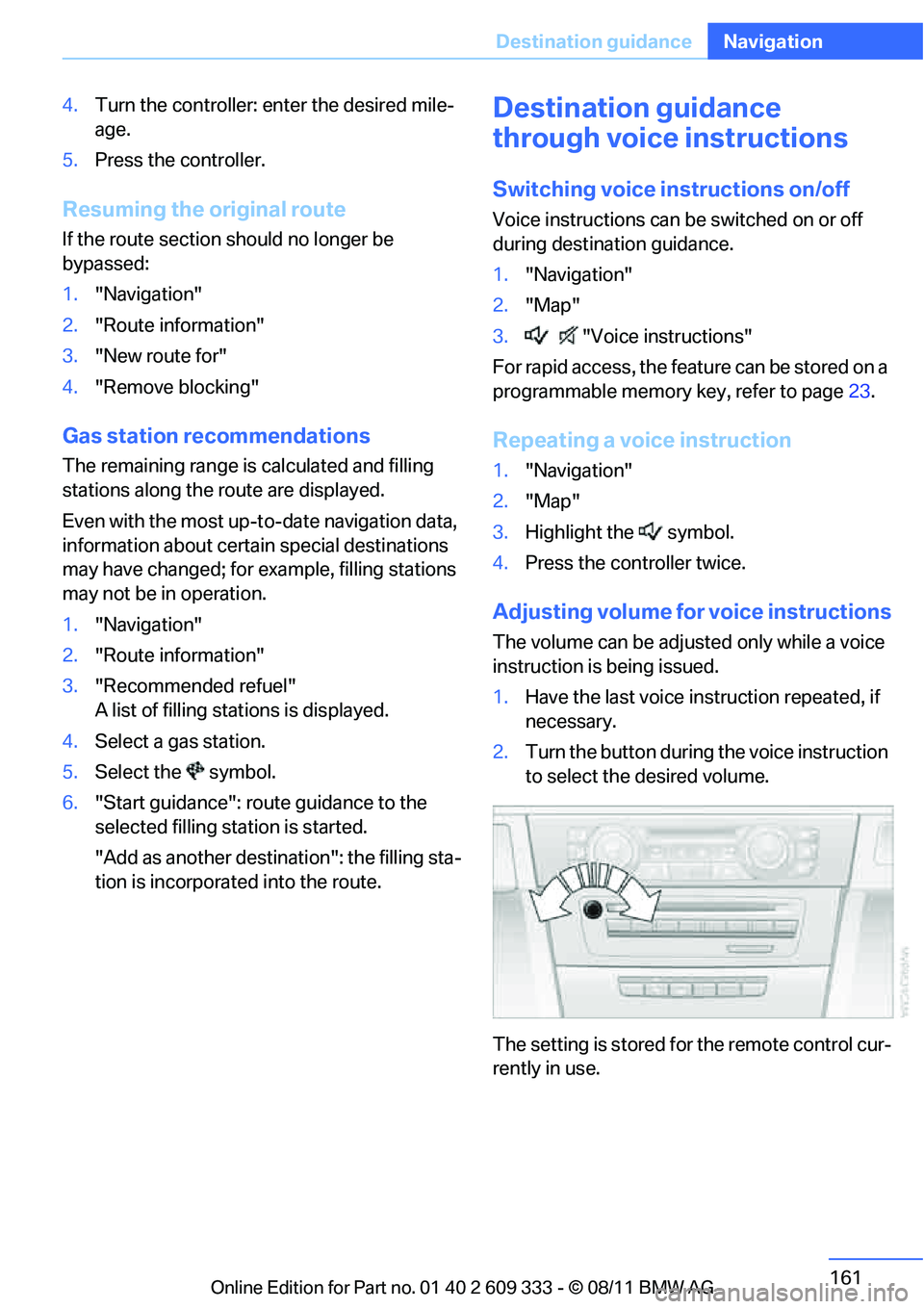
2. Turn the button during the voice instruction
to select the desired volume.
The setting is stored for the remote control cur-
rently in use.
Online Edition for Part no. 01 40 2 609 333 - \251 08/11 BMW AG
Page 171 of 314
170
EntertainmentOn/off and tone
On/off and tone
Vehicle equipment
In this chapter, all pr oduction, country, and
optional equipment that is offered in the model
range is described. Equipment is also described
that is not available because of, for example,
selected options or country version. This also
applies to safety related functions and systems.
General information
The following audio and video sources share
the same control elements and adjustments:
> Radio
> CD/DVD player
> CD changer
> Video
> External devices, e.g. MP3 player
Controls
The audio and video sources can be controlled
using the:
>Buttons near th e CD/DVD player
> iDrive
> Buttons on the steering wheel, refer to
page 11
> Programmable memory keys, refer to
page 23
> Voice activation system
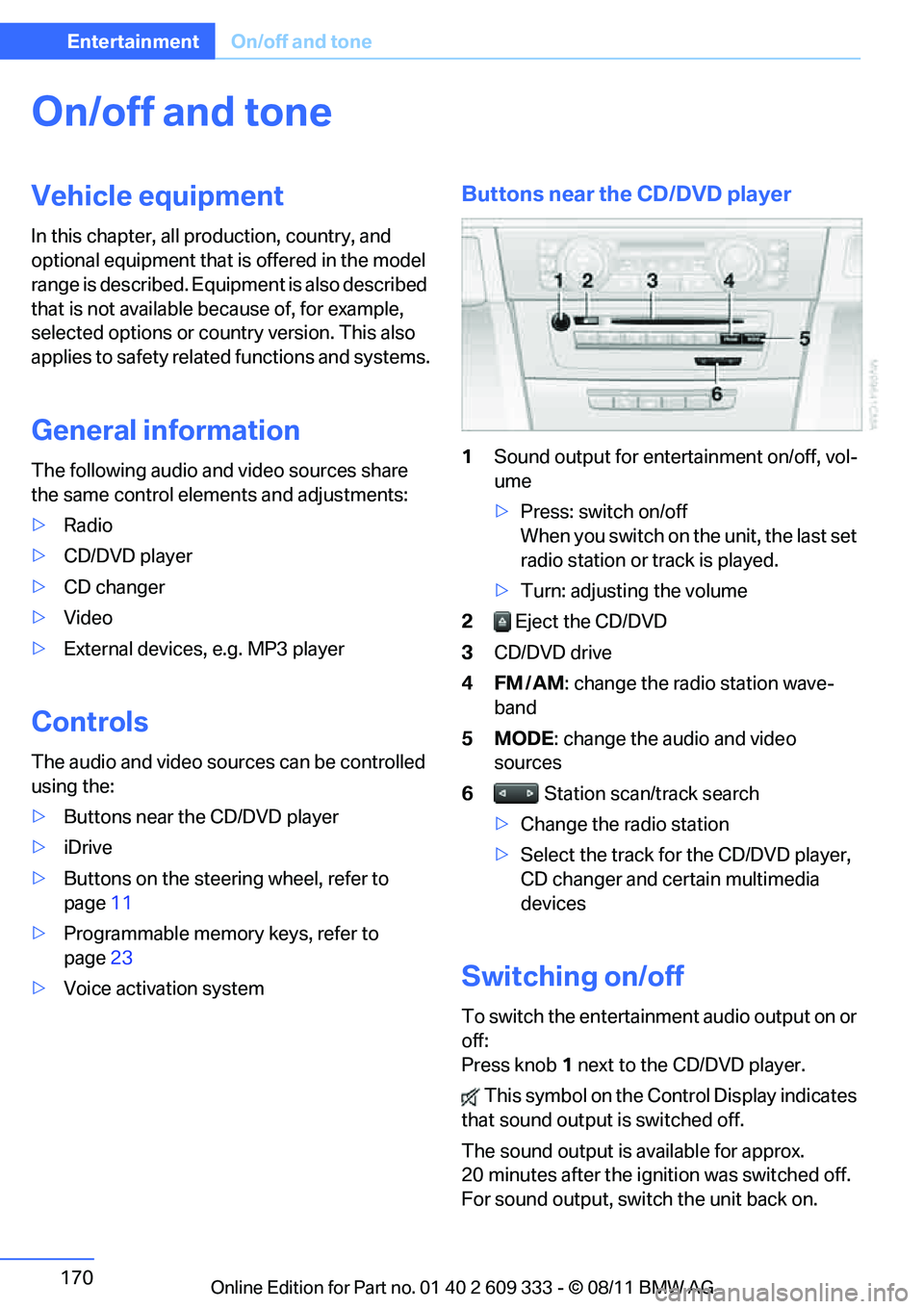
Buttons near the CD/DVD player
1Sound output for entertainment on/off, vol-
ume
>Press: switch on/off
When you switch on the unit, the last set
radio station or track is played.
> Turn: adjusting the volume
2 Eject the CD/DVD
3 CD/DVD drive
4FM/AM : change the radio station wave-
band
5MODE : change the audio and video
sources
6 Station scan/track search
> Change the radio station
> Select the track for the CD/DVD player,
CD changer and certain multimedia
devices
Switching on/off
To switch the entertainment audio output on or
off:
Press knob 1 next to the CD/DVD player.
This symbol on the Co ntrol Display indicates
that sound output is switched off.
The sound output is available for approx.
20 minutes after the ignition was switched off.
For sound output, switch the unit back on.
Online Edition for Part no. 01 40 2 609 333 - \251 08/11 BMW AG
Page 175 of 314
174
EntertainmentRadio
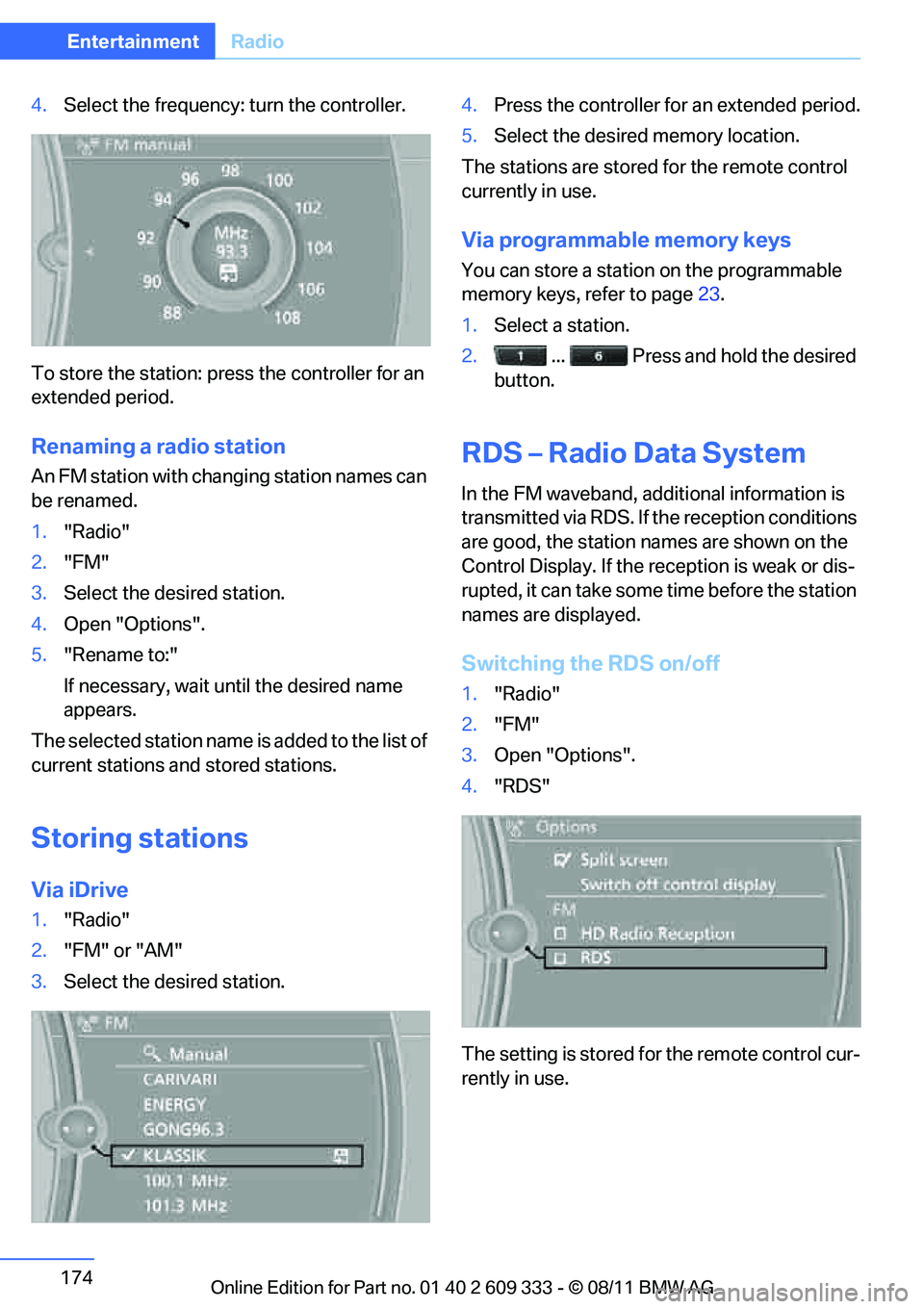
4.Select the frequency: turn the controller.
To store the station: press the controller for an
extended period.
Renaming a radio station
An FM station with changing station names can
be renamed.
1. "Radio"
2. "FM"
3. Select the desired station.
4. Open "Options".
5. "Rename to:"
If necessary, wait un til the desired name
appears.
The selected station name is added to the list of
current stations and stored stations.
Storing stations
Via iDrive
1. "Radio"
2. "FM" or "AM"
3. Select the desired station. 4.
Press the controller for an extended period.
5. Select the desired memory location.
The stations are stored for the remote control
currently in use.
Via programmable memory keys
You can store a station on the programmable
memory keys, refer to page 23.
1. Select a station.
2. ... Press and hold the desired
button.
RDS – Radio Data System
In the FM waveband, addi tional information is
transmitted via RDS. If the reception conditions
are good, the station names are shown on the
Control Display. If the reception is weak or dis-
rupted, it can take some time before the station
names are displayed.
Switching the RDS on/off
1. "Radio"
2. "FM"
3. Open "Options".
4. "RDS"
The setting is stored fo r the remote control cur-
rently in use.
Online Edition for Part no. 01 40 2 609 333 - \251 08/11 BMW AG
Page 176 of 314
175
Radio
Entertainment
HD Radio™ reception
Many radio stations transmit analog and digital
signals.
License conditions
HD Radio™ technology is
manufactured under
U.S. and Foreign Patents licensed from iBiquity
Digital Corp. HD Radio™ and the HD and HD
Radio logos are proprietary trademarks of iBiq-
uity Digital Corp.
Activating/deactivating digital radio
reception
1. "Radio"
2. "FM" or "AM"
3. Open "Options".
4. "HD Radio Reception"
The setting is stored for the remote control cur-
rently in use. This symbol is displa yed when a station is
being received digitally.
When setting a station that has a digital signal, it
may take several second s before the station
plays in HD quality.
In areas in which the station is not continuously
received in digital mode, playback switches
between analog and digital reception. In this
case, switch off digital radio reception.
Displaying additional information
Some stations broadcast additional information
on the current track, such as the name of the
artist.
1. Select the desired station.
2. Open "Options".
3. "Station info"
Selecting a substation
The symbol indicates that a main station also
broadcasts additional substations. The station
name of the main station ends in HD1. The sta-
tion names of the substations end in HD2, HD3,
etc. 1.
Select the desired station.
2. Press the controller.
3. Select the substation.
When reception is poor, the substation is muted
for several seconds.
Presets
It is possible to store up to 40 stations.
Selecting a station
1. "Radio"
2. "Presets"
3. Select the desired station.
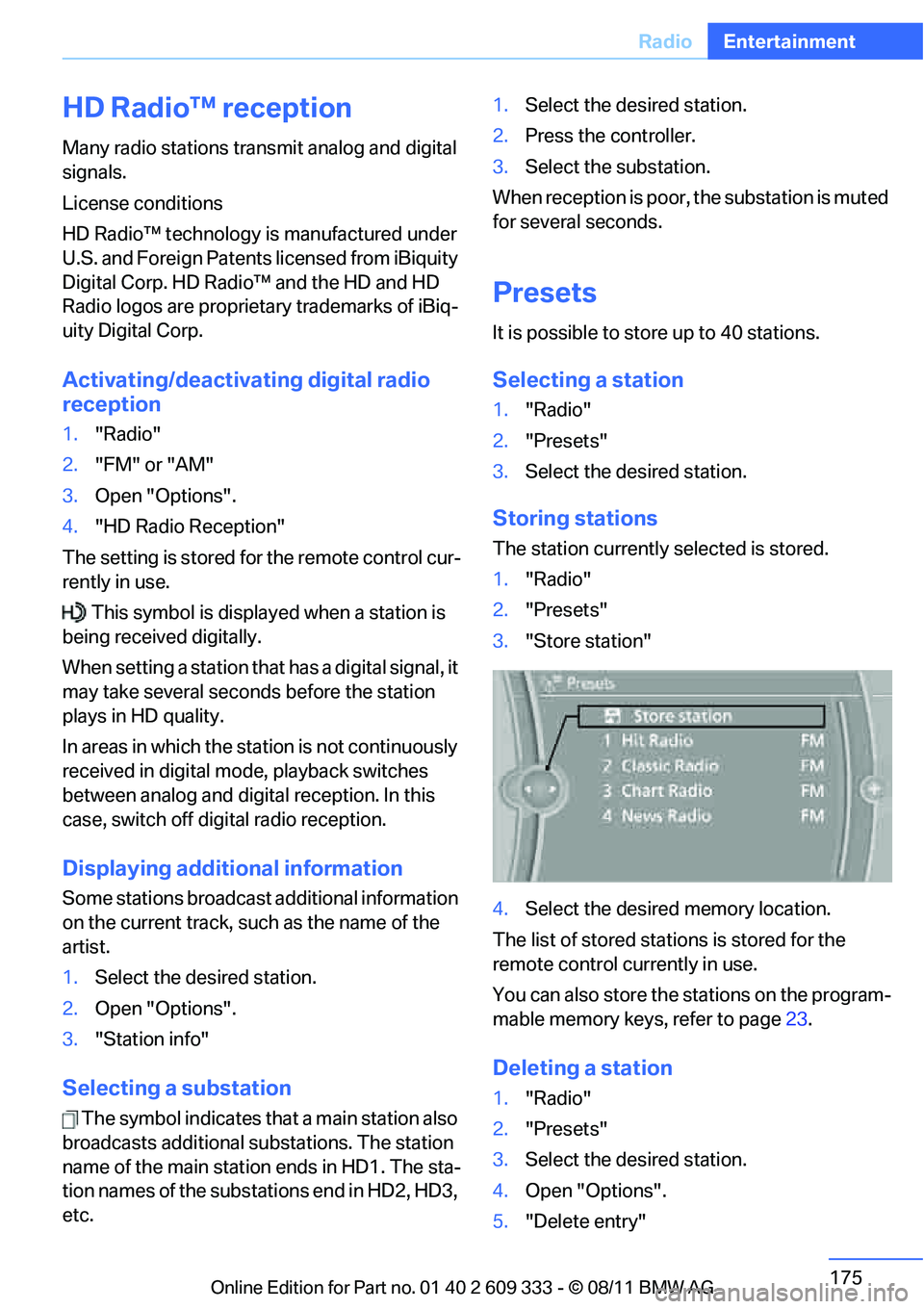
Storing stations
The station currently selected is stored.
1."Radio"
2. "Presets"
3. "Store station"
4. Select the desired memory location.
The list of stored stations is stored for the
remote control currently in use.
You can also store the stations on the program-
mable memory keys, refer to page 23.
Deleting a station
1."Radio"
2. "Presets"
3. Select the desired station.
4. Open "Options".
5. "Delete entry"
Online Edition for Part no. 01 40 2 609 333 - \251 08/11 BMW AG
Page 199 of 314
198
EntertainmentExternal devices
>Bluetooth® is a registered trademark of
Bluetooth® SIG, Inc.
> Sound is output over the vehicle speakers.
> The volume of the sound output depends
on the device. If necessary, change the vol-
ume setting on the device.
> Up to four external devices can be paired
with the vehicle.
Requirements
> Suitable device. For information, go to
www.bmwusa.com/bluetooth.
> Device operational.
> Ignition switched on.
> Bluetooth activated in vehicle, refer to
page 205, and in the device.
> Activating Bluetooth audio, refer to
page 205.
> Bluetooth presets in the device are
required, e.g. connection not confirmed or
visible, refer to Owner's Manual for the
device.
> A number with at least 4 and at most
16 digits has been established as the Blue-
tooth passkey. Only requ ired once for pair-
ing.
Pairing and connecting
Only pair the device when the vehicle is
stopped; otherwise, inattention may lead
to endangerment of passengers or other road
users. <
1. "CD/Multimedia"
2. "Bluetooth® (audio)"
3. "Bluetooth® audio" if applicable
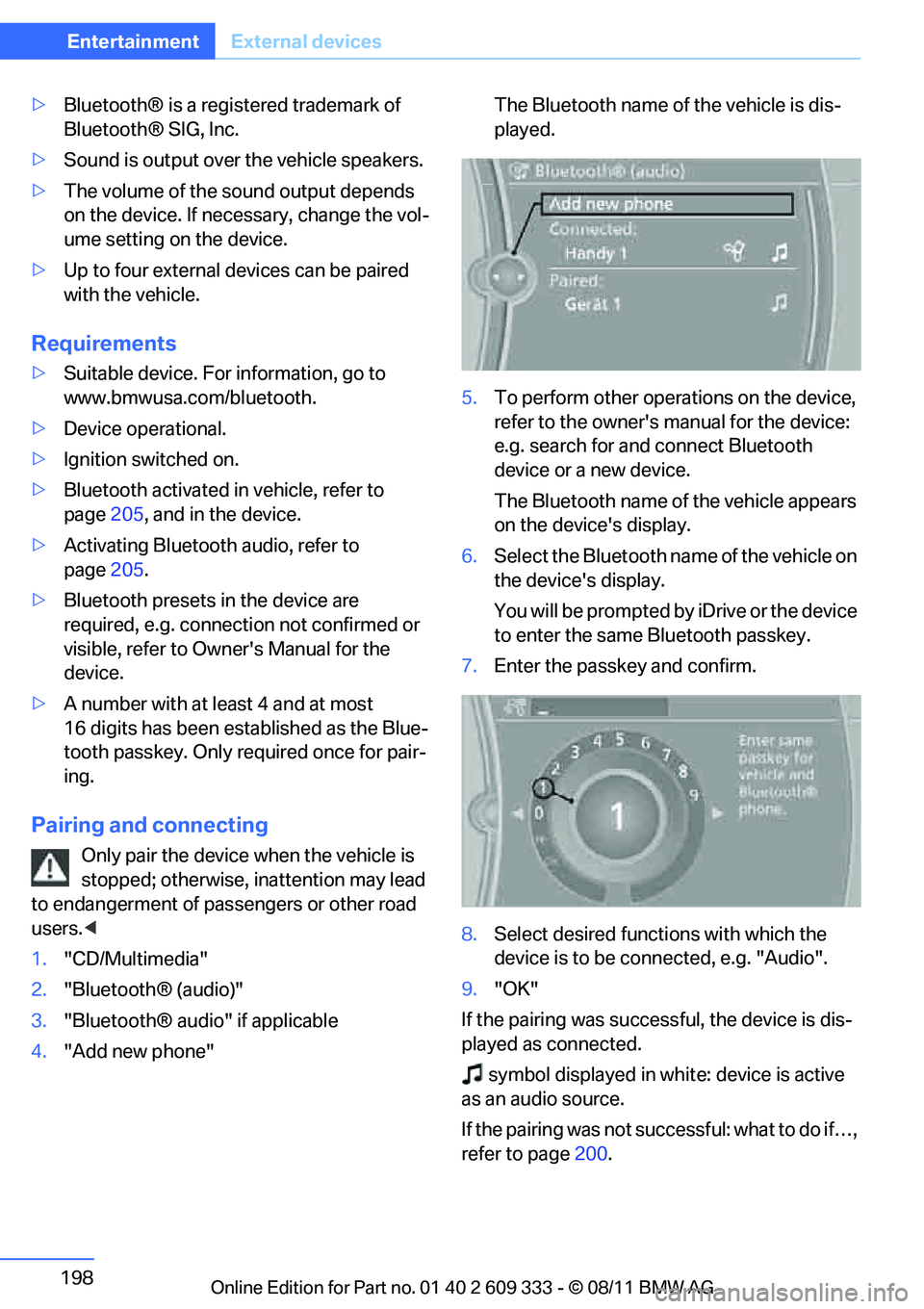
4. "Add new phone" The Bluetooth name of the vehicle is dis-
played.
5. To perform other operations on the device,
refer to the owner's manual for the device:
e.g. search for and connect Bluetooth
device or a new device.
The Bluetooth name of the vehicle appears
on the device's display.
6. Select the Bluetooth name of the vehicle on
the device's display.
You will be prompted by iDrive or the device
to enter the same Bluetooth passkey.
7. Enter the passkey and confirm.
8. Select desired functi ons with which the
device is to be connected, e.g. "Audio".
9. "OK"
If the pairing was successful, the device is dis-
played as connected. symbol displayed in whit e: device is active
as an audio source.
If the pairing was not succ essful: what to do if…,
refer to page 200.
Online Edition for Part no. 01 40 2 609 333 - \251 08/11 BMW AG
Page 201 of 314
200
EntertainmentExternal devices
Disconnecting an audio connection
1."CD/Multimedia"
2. "Bluetooth® (audio)"
3. Select the desired device from the list of
connected devices.
4. Open "Options".
5. "Configure phone"
6. "Audio"
7. "OK"
With a mobile phone, only the audio connection
is disconnected. All ot her connections remain
active.
Unpairing device
1. "CD/Multimedia"
2. "Bluetooth® (audio)"
3. "Bluetooth® audio" if applicable
4. Highlight the device to be unpaired.
5. Open "Options".
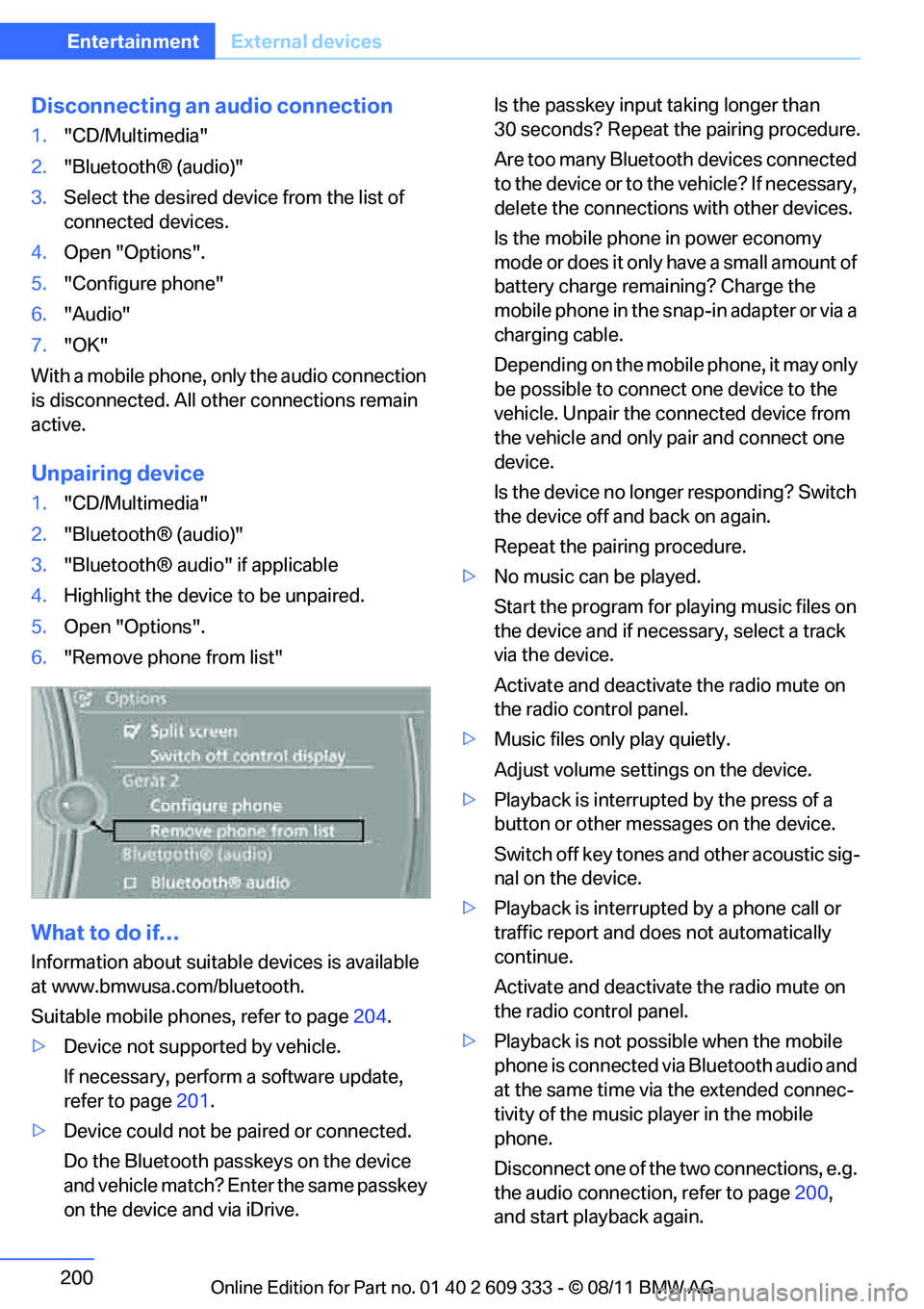
6. "Remove phone from list"
What to do if…
Information about suitable devices is available
at www.bmwusa.com/bluetooth.
Suitable mobile phones, refer to page 204.
> Device not supported by vehicle.
If necessary, perform a software update,
refer to page 201.
> Device could not be paired or connected.
Do the Bluetooth passkeys on the device
and vehicle match? En ter the same passkey
on the device and via iDrive. Is the passkey input
taking longer than
30 seconds? Repeat the pairing procedure.
Are too many Bluetooth devices connected
to the device or to th e vehicle? If necessary,
delete the connections with other devices.
Is the mobile phone in power economy
mode or does it only have a small amount of
battery charge remaining? Charge the
mobile phone in the snap-in adapter or via a
charging cable.
Depending on the mobile phone, it may only
be possible to connect one device to the
vehicle. Unpair the connected device from
the vehicle and only pair and connect one
device.
Is the device no longer responding? Switch
the device off and back on again.
Repeat the pairing procedure.
> No music can be played.
Start the program for pl aying music files on
the device and if necessary, select a track
via the device.
Activate and deactivate the radio mute on
the radio control panel.
> Music files only play quietly.
Adjust volume settings on the device.
> Playback is interrupted by the press of a
button or other messages on the device.
Switch off key tones and other acoustic sig-
nal on the device.
> Playback is interrupted by a phone call or
traffic report and does not automatically
continue.
Activate and deactivate the radio mute on
the radio control panel.
> Playback is not possible when the mobile
phone is connected via Bluetooth audio and
at the same time via the extended connec-
tivity of the music pl ayer in the mobile
phone.
Disconnect one of the two connections, e.g.
the audio connection, refer to page 200,
and start playback again.
Online Edition for Part no. 01 40 2 609 333 - \251 08/11 BMW AG