tow BMW M3 CONVERTIBLE 2013 E93 Owner's Guide
[x] Cancel search | Manufacturer: BMW, Model Year: 2013, Model line: M3 CONVERTIBLE, Model: BMW M3 CONVERTIBLE 2013 E93Pages: 311, PDF Size: 6.89 MB
Page 136 of 311
131
Practical interior accessories
Controls
Securing cargo
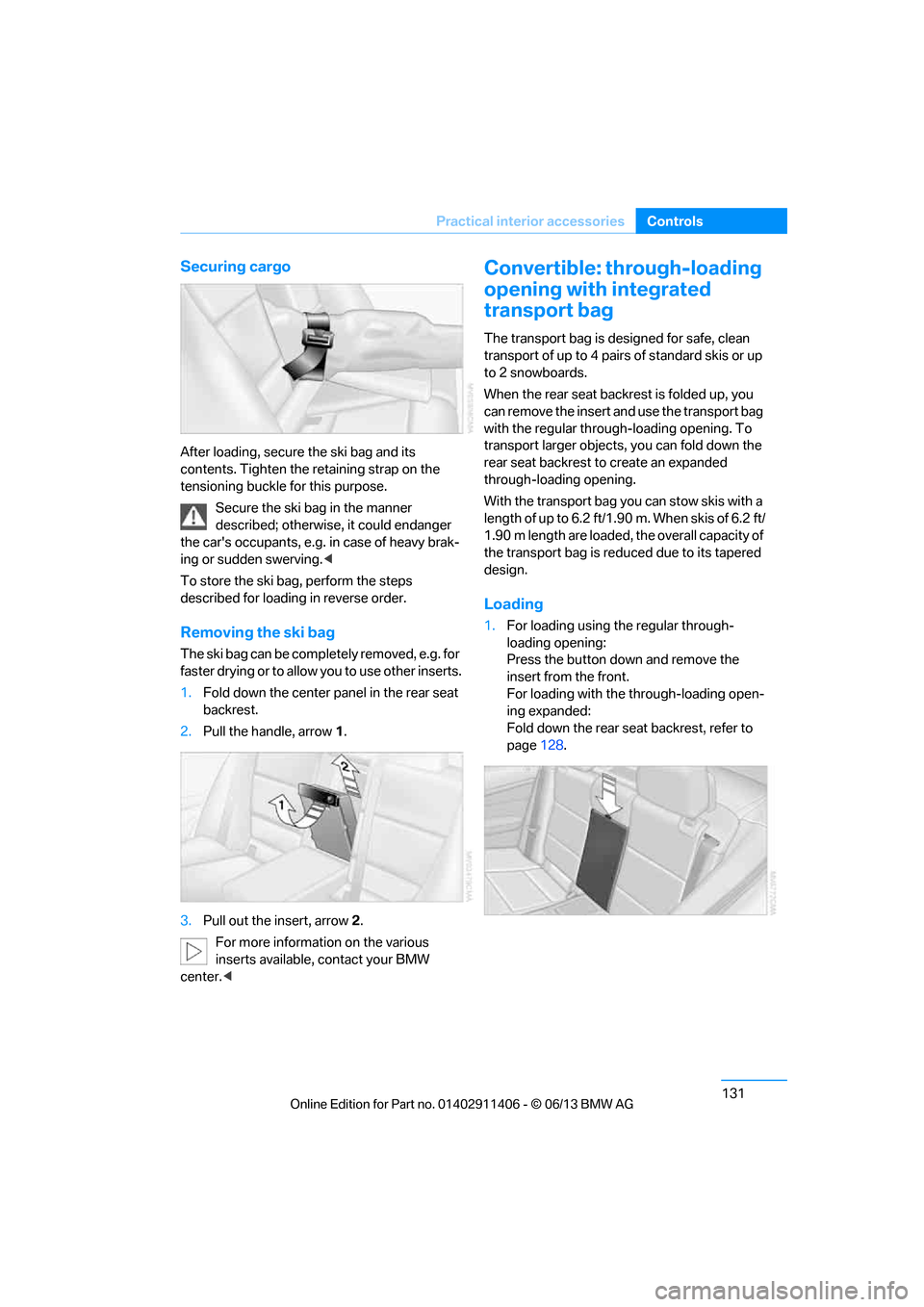
After loading, secure the ski bag and its
contents. Tighten the retaining strap on the
tensioning buckle for this purpose.
Secure the ski bag in the manner
described; otherwise, it could endanger
the car's occupants, e.g. in case of heavy brak-
ing or sudden swerving. <
To store the ski bag, perform the steps
described for loadin g in reverse order.
Removing the ski bag
The ski bag can be comple tely removed, e.g. for
faster drying or to allow you to use other inserts.
1. Fold down the center panel in the rear seat
backrest.
2. Pull the handle, arrow 1.
3. Pull out the insert, arrow 2.
For more information on the various
inserts available, contact your BMW
center. <
Convertible: through-loading
opening with integrated
transport bag
The transport bag is designed for safe, clean
transport of up to 4 pairs of standard skis or up
to 2 snowboards.
When the rear seat backrest is folded up, you
can remove the insert and use the transport bag
with the regular through-loading opening. To
transport larger objects, you can fold down the
rear seat backrest to create an expanded
through-loading opening.
With the transport bag you can stow skis with a
length of up to 6.2 ft/1.90 m. When skis of 6.2 ft/
1.90 m length are loaded, the overall capacity of
the transport bag is reduced due to its tapered
design.
Loading
1. For loading using the regular through-
loading opening:
Press the button down and remove the
insert from the front.
For loading with the through-loading open-
ing expanded:
Fold down the rear seat backrest, refer to
page 128.
00320051004F004C00510048000300280047004C0057004C005200510003
Page 145 of 311
140
Driving tipsThings to remember when driving
1,400 lbs and there will be five 150-lb
passengers in your vehicle, the amount of
available cargo and lugga ge load capacity is
650 lbs:
1,400 lbs minus 750 lbs = 650 lbs.
5. Determine the combined weight of luggage
and cargo being loaded on the vehicle. That
weight may not safely exceed the available
cargo and luggage load capacity calculated
in step 4.
6. If your vehicle will be towing a trailer, part of
the load from your tra iler will be transferred
to your vehicle. Co nsult the manual for
transporting a trailer to determine how this
may reduce the available cargo and luggage
load capacity of your vehicle.
Load
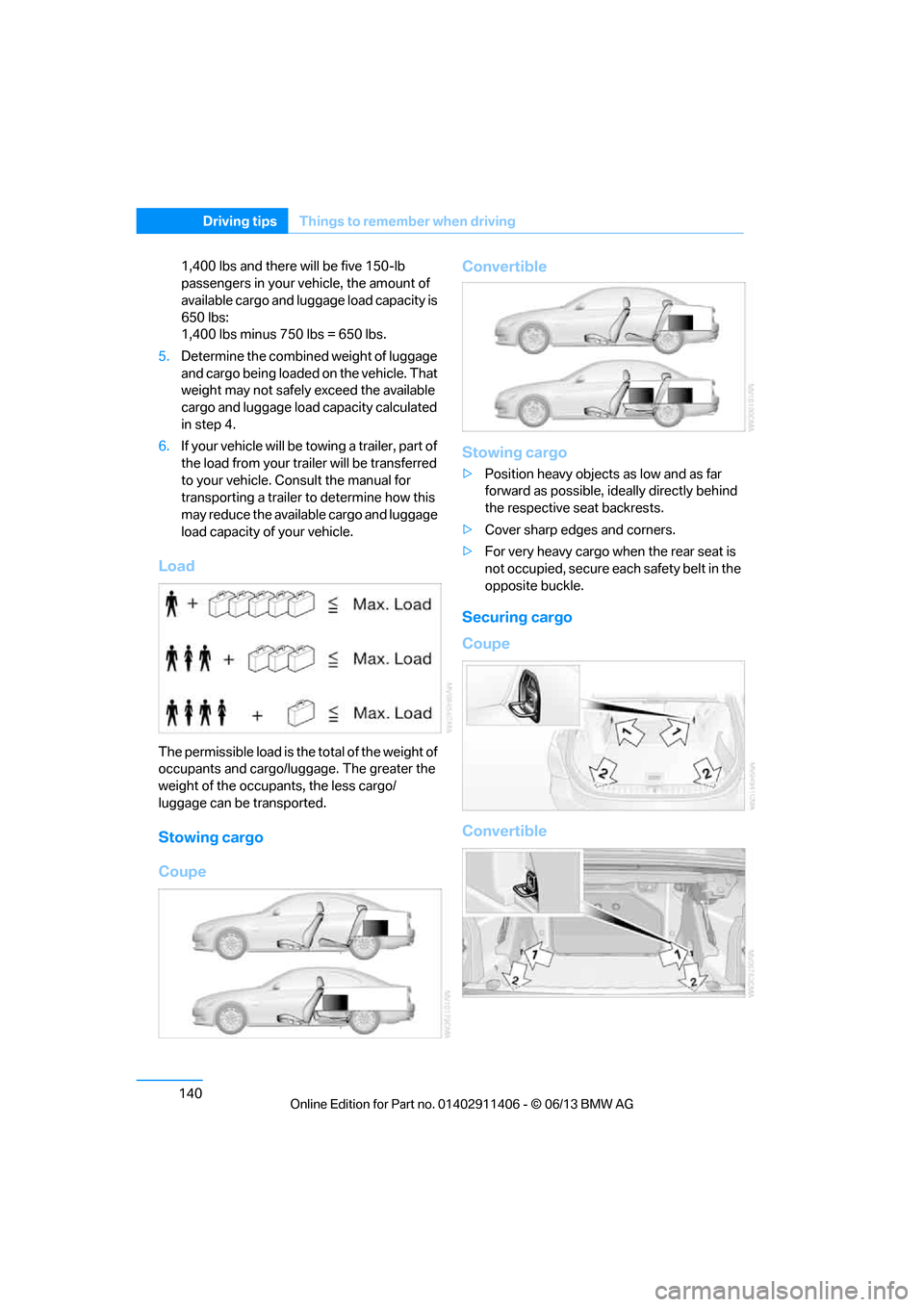
The permissible load is the total of the weight of
occupants and cargo/luggage. The greater the
weight of the occupants, the less cargo/
luggage can be transported.
Stowing cargo
Coupe Convertible
Stowing cargo
>
Position heavy objects as low and as far
forward as possible, ideally directly behind
the respective seat backrests.
> Cover sharp edges and corners.
> For very heavy cargo when the rear seat is
not occupied, secure each safety belt in the
opposite buckle.
Securing cargo
Coupe
Convertible
00320051004F004C00510048000300280047004C0057004C005200510003
Page 151 of 311
146
NavigationDestination entry
Destination entry
Vehicle equipment
In this chapter, all pr oduction, country, and
optional equipment that is offered in the model
range is described. Equipment is also described
that is not available because of, for example,
selected options or country version. This also
applies to safety related functions and systems.
General information
In entering your destination you can select from
the following options:
> Entering a destination manually, see below
> Selecting destination from address book,
refer to page 148
> Last destinations, refer to page 149
> Special destinations, refer to page 149
> Entering a destination on the map, refer to
page 151
> Selecting home addr ess, refer to page149
> Destination entry via voice, refer to
page 152
> Destination entry via BMW Assist, refer to
page 151
You can also store a navigation destination on
the programmable memo ry keys, refer to
page 25.
Entering a destination
manually
To make it easier to enter town/city names and
street names, the system assists you with auto-
matic name completion and entry comparison,
refer to page 155. This makes it possible to
enter different spellings and completes your
entry automatically so that stored town/city
names and street names can be accessed
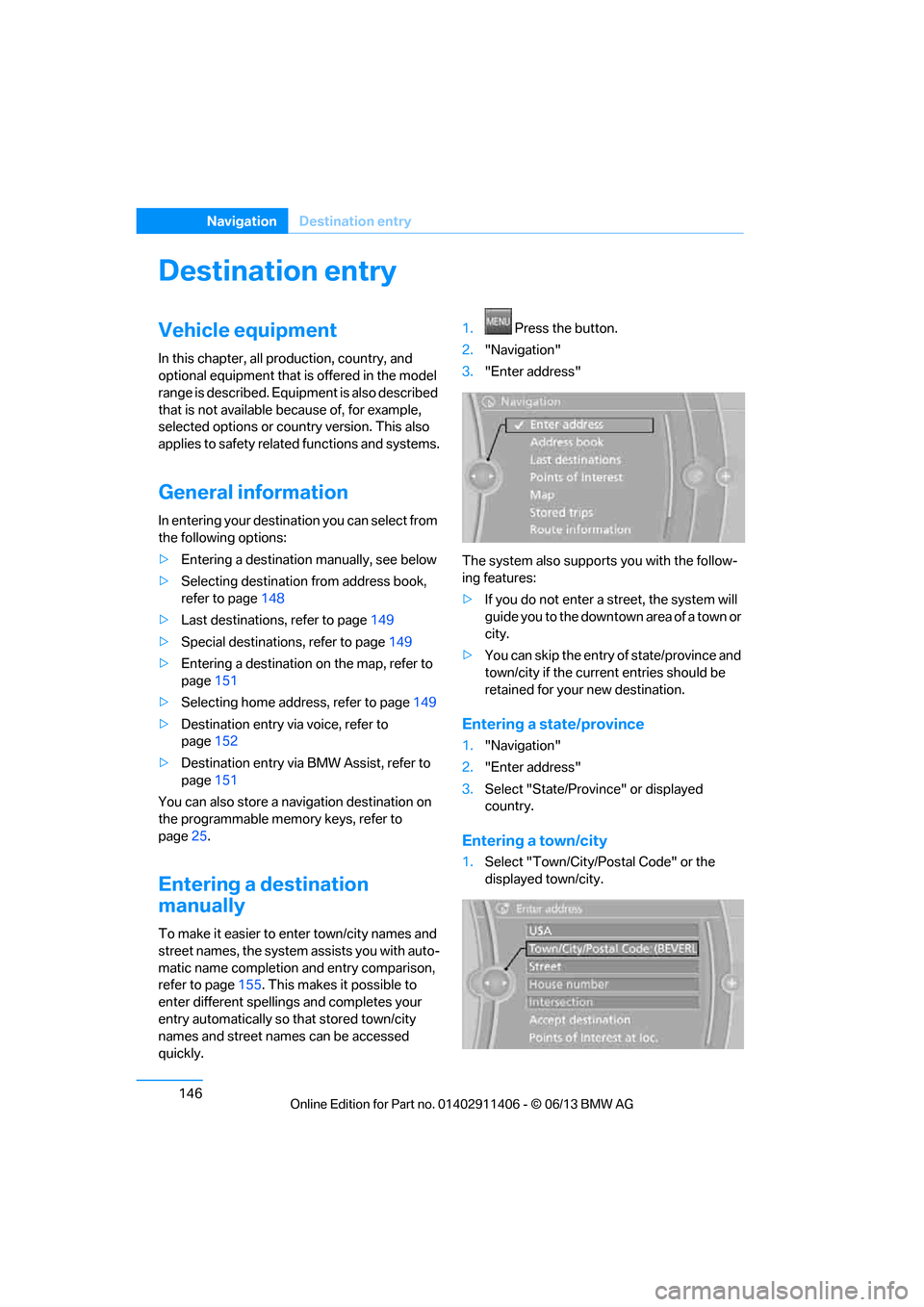
quickly. 1.
Press the button.
2. "Navigation"
3. "Enter address"
The system also supports you with the follow-
ing features:
> If you do not enter a street, the system will
guide you to the downtown area of a town or
city.
> You can skip the entry of state/province and
town/city if the curren t entries should be
retained for your new destination.
Entering a state/province
1. "Navigation"
2. "Enter address"
3. Select "State/Provi nce" or displayed
country.
Entering a town/city
1. Select "Town/City/Postal Code" or the
displayed town/city.
00320051004F004C00510048000300280047004C0057004C005200510003
Page 152 of 311
147
Destination entry
Navigation
2.
Select letters, if necessary.
The list is reduced in steps with each entry.
To delete letters:
> To delete individual letters:
Turn the controller to select , and
then press the controller.
> To delete all letters:
Turn the controller to select , and
then press the controller for an extended
period.
To enter spaces:
> Select the symbol.
The list gradually grow s smaller each time
you enter a new letter.
3. Move the controller to the right.
4. Select the name of the town/city from the
list.
If there are several town s/cities with the same
name:
1. Change to the list of town/city names.
2. Highlight the town/city.
3. Select the town/city.
Entering the postal code
1.Select "Town/City/Postal Code" or the
displayed town/city.
2. Select the symbol.
3. Select the digits.
4. Change to the list of postal codes and
towns/cities.
5. Highlight the entry.
6. Select an entry.
Entering street and intersection
1.Select "Street" or displayed street.
2. Enter the street and cross-street the same
way you entered the town/city.
After you enter the street, you can also enter
the cross street or the house number. If there are several streets with the same name:
1.
Change to the list of street names.
2. Highlight street.
3. Select the street.
Alternative: entering street and house
number
1.Select "Street" or displayed street.
2. Enter the street the same way you entered
the town/city.
3. "House number"
4. Select the digits.
5. Change to the list of house numbers.
6. Select a house number or range of house
numbers.
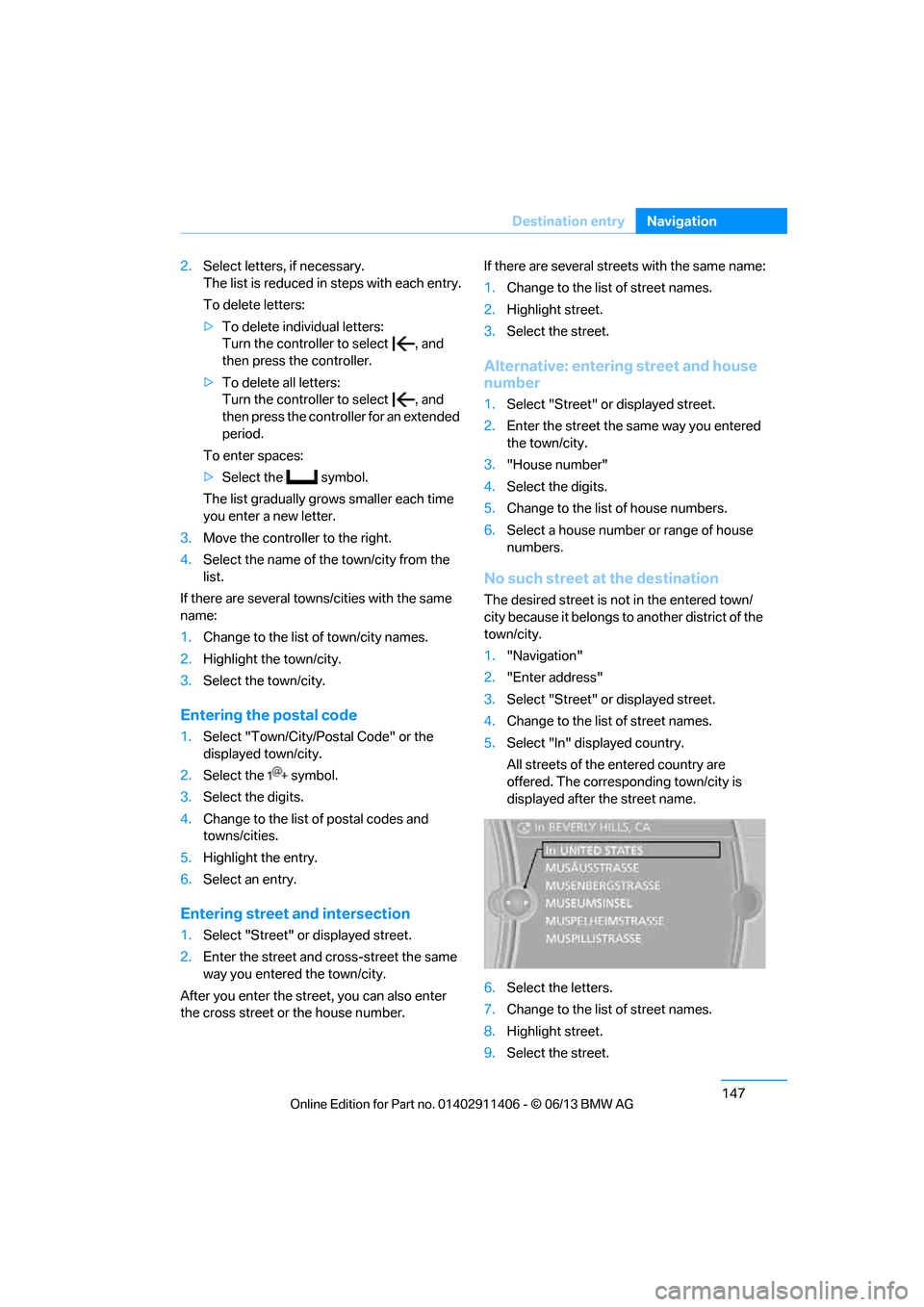
No such street at the destination
The desired street is not in the entered town/
city because it belongs to another district of the
town/city.
1."Navigation"
2. "Enter address"
3. Select "Street" or displayed street.
4. Change to the list of street names.
5. Select "In" displayed country.
All streets of the entered country are
offered. The corresponding town/city is
displayed after the street name.
6. Select the letters.
7. Change to the list of street names.
8. Highlight street.
9. Select the street.
00320051004F004C00510048000300280047004C0057004C005200510003
Page 155 of 311
150
NavigationDestination entry
Special destination location
As you input the search destination, you can
select from among various options.
>"At current location"
> "At destination"
> "At different location"
> "Along route"
A-Z search
1."A-Z search"
2. "Town/City"
3. Select or enter town/city.
4. "Category"
5. Select category.
6. "Category details"
For some special destinations, it is possible
to select several category details.
Move the controller towa rd the left to exit
category details.
7. "Keyword"
8. Enter keyword.
A list of the special destinations is
displayed.
9. Select the special destination.
Details are displayed.
If several details are stored, then you can
scroll through the pages.
If a phone number is available, a connection
can be established, if desired.
10. Select the symbol.
11. "Start guidance" or "Add as another desti-
nation". Adding destination as another
destination, refer to page 153.
"Start search": without entering a search term,
the search is repeated with the last stored
search term.
Category search
1. "Category search"
2. "Town/City"
3. Select or enter town/city.
4. "Category"
5. Select category.
6. "Category details"
For some special destinations, it is possible
to select several category details.
Move the controller towa rd the left to exit
category details.
7. "Start search"
A list of the special destinations is
displayed.
8. Select the special destination.
Details are displayed.
If several details are stored, then you can
scroll through the pages.
If a phone number is available, a connection
can be established, if desired.
9. Select the symbol.
10. "Start guidance" or "Add as another desti-
nation". Adding destination as another
destination, refer to page 153.
Displaying special destinations
List of special destinations: the special destina-
tions are displayed in order of their distance and
are displayed with a direction arrow pointing
toward the destination.
With the Professional navigation system:
In the split screen, specia l destinations from the
selected category are displayed as symbols in
the map view. The displa y depends on the map
scale and the category.
00320051004F004C00510048000300280047004C0057004C005200510003
Page 157 of 311
152
NavigationDestination entry
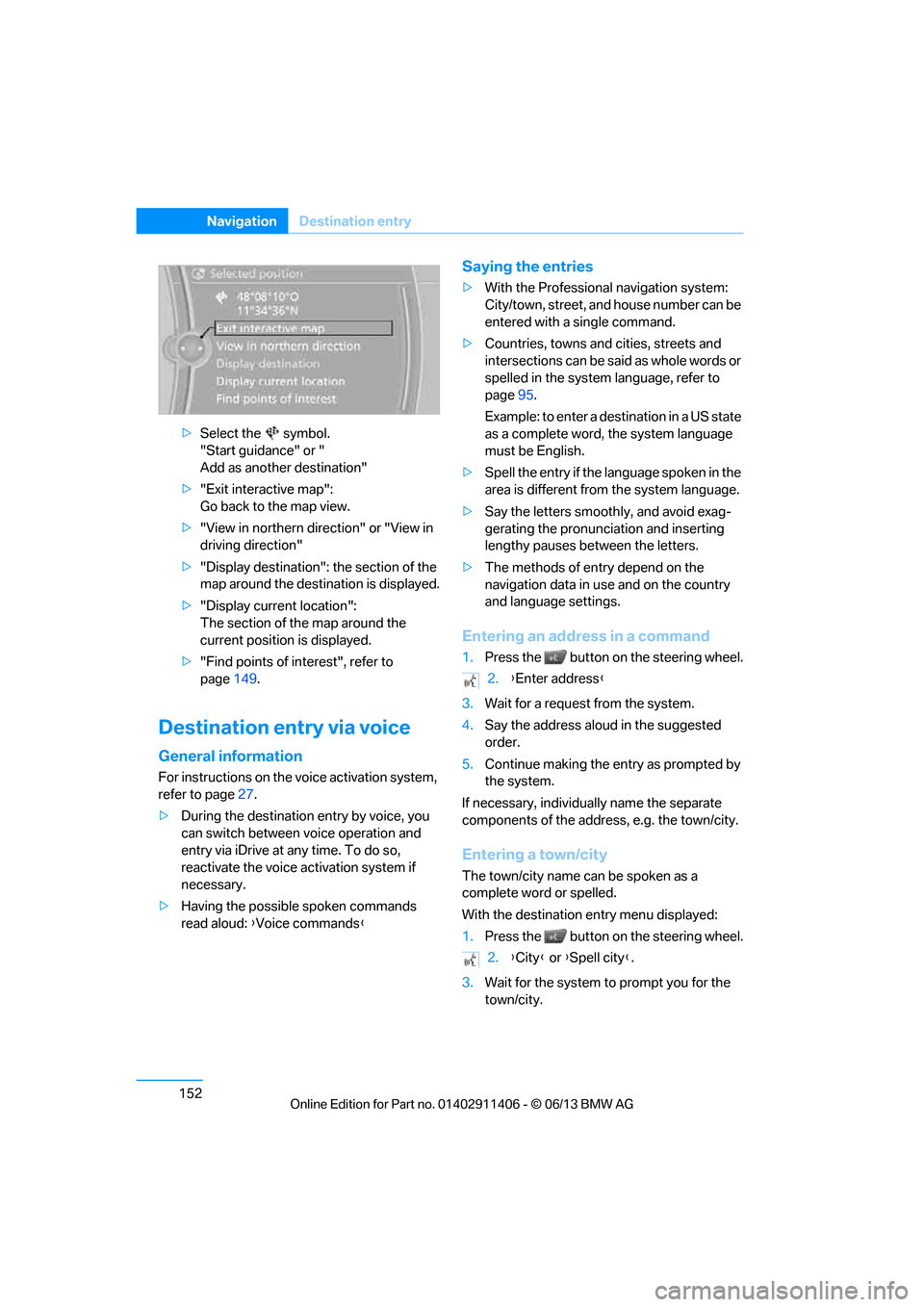
>Select the symbol.
"Start guidance" or "
Add as another destination"
> "Exit interactive map":
Go back to the map view.
> "View in northern direction" or "View in
driving direction"
> "Display destination": the section of the
map around the destination is displayed.
> "Display current location":
The section of the map around the
current position is displayed.
> "Find points of interest", refer to
page 149.
Destination entry via voice
General information
For instructions on the voice activation system,
refer to page 27.
> During the destination entry by voice, you
can switch between voice operation and
entry via iDrive at any time. To do so,
reactivate the voice ac tivation system if
necessary.
> Having the possible spoken commands
read aloud: {Voice commands }
Saying the entries
>With the Professional navigation system:
City/town, street, and house number can be
entered with a single command.
> Countries, towns and cities, streets and
intersections can be said as whole words or
spelled in the system language, refer to
page 95.
Example: to enter a destination in a US state
as a complete word, the system language
must be English.
> Spell the entry if the language spoken in the
area is different from the system language.
> Say the letters smoothly, and avoid exag-
gerating the pronunciation and inserting
lengthy pauses between the letters.
> The methods of entry depend on the
navigation data in use and on the country
and language settings.
Entering an address in a command
1.Press the button on the steering wheel.
3. Wait for a request from the system.
4. Say the address aloud in the suggested
order.
5. Continue making the entry as prompted by
the system.
If necessary, individua lly name the separate
components of the addres s, e.g. the town/city.
Entering a town/city
The town/city name can be spoken as a
complete word or spelled.
With the destination entry menu displayed:
1.Press the button on the steering wheel.
3. Wait for the system to prompt you for the
town/city.
2. {Enter address }
2. {City } or {Spell city }.
00320051004F004C00510048000300280047004C0057004C005200510003
Page 158 of 311
153
Destination entry
Navigation
4.
Say the name of the town /city or say at least
the first three letters.
Depending on the entry, up to 20 towns/
cities may be suggested.
6. Continue making the entry as prompted by
the system.
If there are several town s/cities with the same
name:
Towns/cities that sound the same are compiled
in a separate list and ar e displayed as one town/
city followed by three dots.
1. Select an entry:
2. Select the desired town/city.
The town/city can also be selected from the list
via iDrive: turn the cont roller until the town/city
is selected and press the controller.
Entering a street or intersection
The street or intersection is entered in the same
manner as the town/city.
Entering a house number
Depending on the data in the navigation sys-
tem, house numbers up to the number 2,000
can be entered:
Starting destination guidance
Destination guidance starts immediately.
Planning a trip with
intermediate destinations
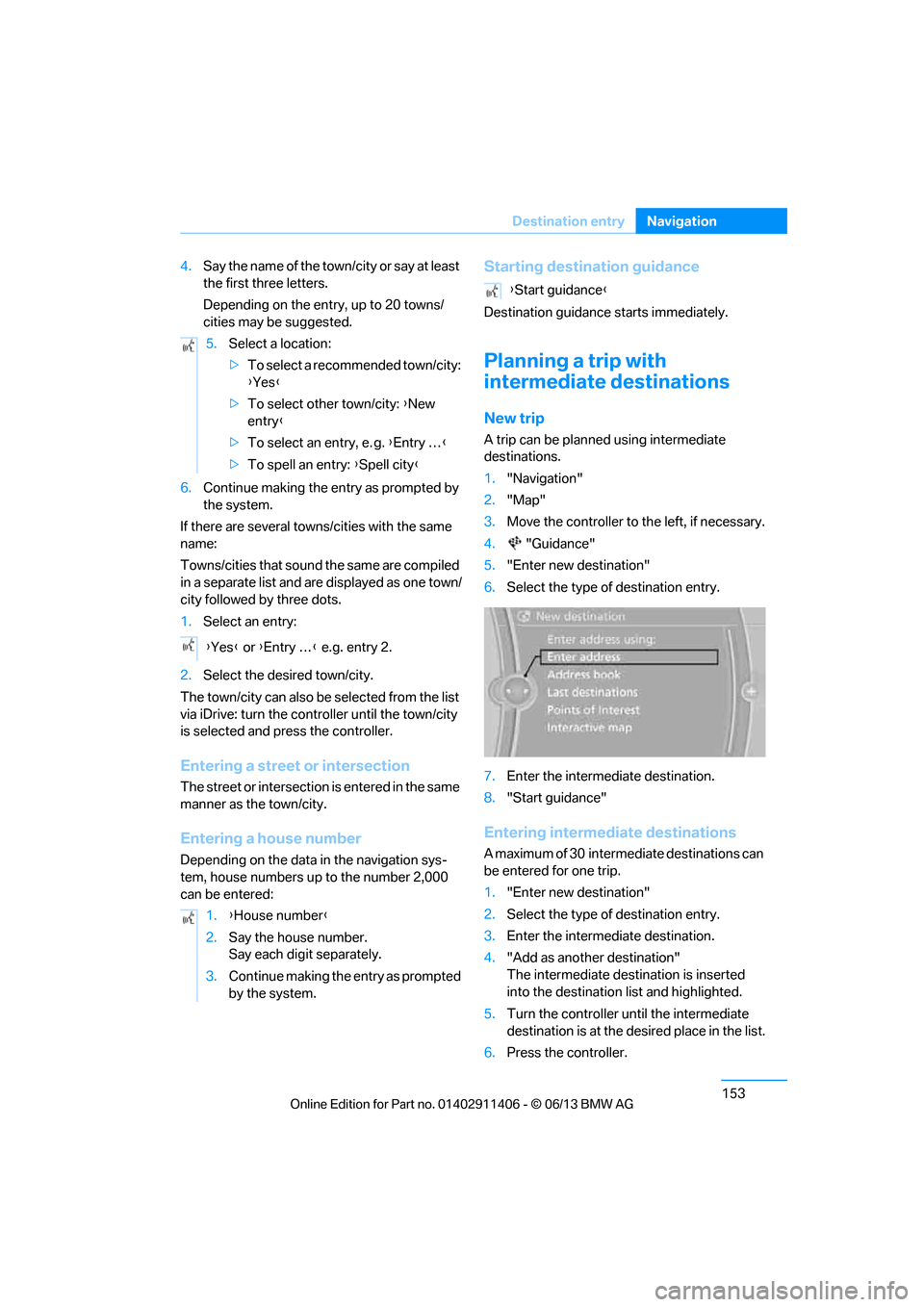
New trip
A trip can be planned using intermediate
destinations.
1."Navigation"
2. "Map"
3. Move the controller to the left, if necessary.
4. "Guidance"
5. "Enter new destination"
6. Select the type of destination entry.
7. Enter the intermediate destination.
8. "Start guidance"
Entering intermediate destinations
A maximum of 30 intermed iate destinations can
be entered for one trip.
1. "Enter new destination"
2. Select the type of destination entry.
3. Enter the intermediate destination.
4. "Add as another destination"
The intermediate dest ination is inserted
into the destination list and highlighted.
5. Turn the controller until the intermediate
destination is at the de sired place in the list.
6. Press the controller.
5.
Select a location:
>To select a recommended town/city:
{Yes }
> To select other town/city: {New
entry }
> To select an entry, e. g. {Entry … }
> To spell an entry: {Spell city }
{ Yes } or {Entry … } e.g. entry 2.
1. {House number }
2. Say the house number.
Say each digit separately.
3. Continue making the entry as prompted
by the system.
{Start guidance }
00320051004F004C00510048000300280047004C0057004C005200510003
Page 168 of 311
163
What to do if …
Navigation
What to do if …
Vehicle equipment
In this chapter, all production, country, and
optional equipment that is offered in the model
range is described. Equipment is also described
that is not available because of, for example,
selected options or coun
try version. This also
applies to safety related functions and systems.
What to do if…
> The current position cannot be displayed?
The position is in an unrecognized region, in
a poor reception area, or the system is in the
process of determining the position.
Reception is generally available when you
are in the open.
> The destination guidance d o e s n o t a c c e p t a
destination without a street name?
A downtown area canno t be determined for
the town or city that has been entered. Input
any street in the selected town/city and
start destination guidance.
> The destination guidance d o e s n o t a c c e p t a
destination?
The destination data is not contained in the
navigation data. Choo se a destination as
close as possible to the original one.
> The letters for a destination cannot be
selected during destination entry?
The stored data do no t contain the data of
the destination. Select a destination that is
as close as possible to the original.
> The map view is disp layed in grayscale?
"Traffic conditions/gray map" active: the
Control Display changes to a grayscale
display. This enables a better view of the
traffic bulletins.
> Voice instructions are no longer issued
before intersections during destination
guidance? The area has not been fully recorded yet, or
you have left the recommended route and
the system requires a few seconds to calcu-
late a new route suggestion.
00320051004F004C00510048000300280047004C0057004C005200510003
Page 217 of 311
212
CommunicationsTe l e p h o n e
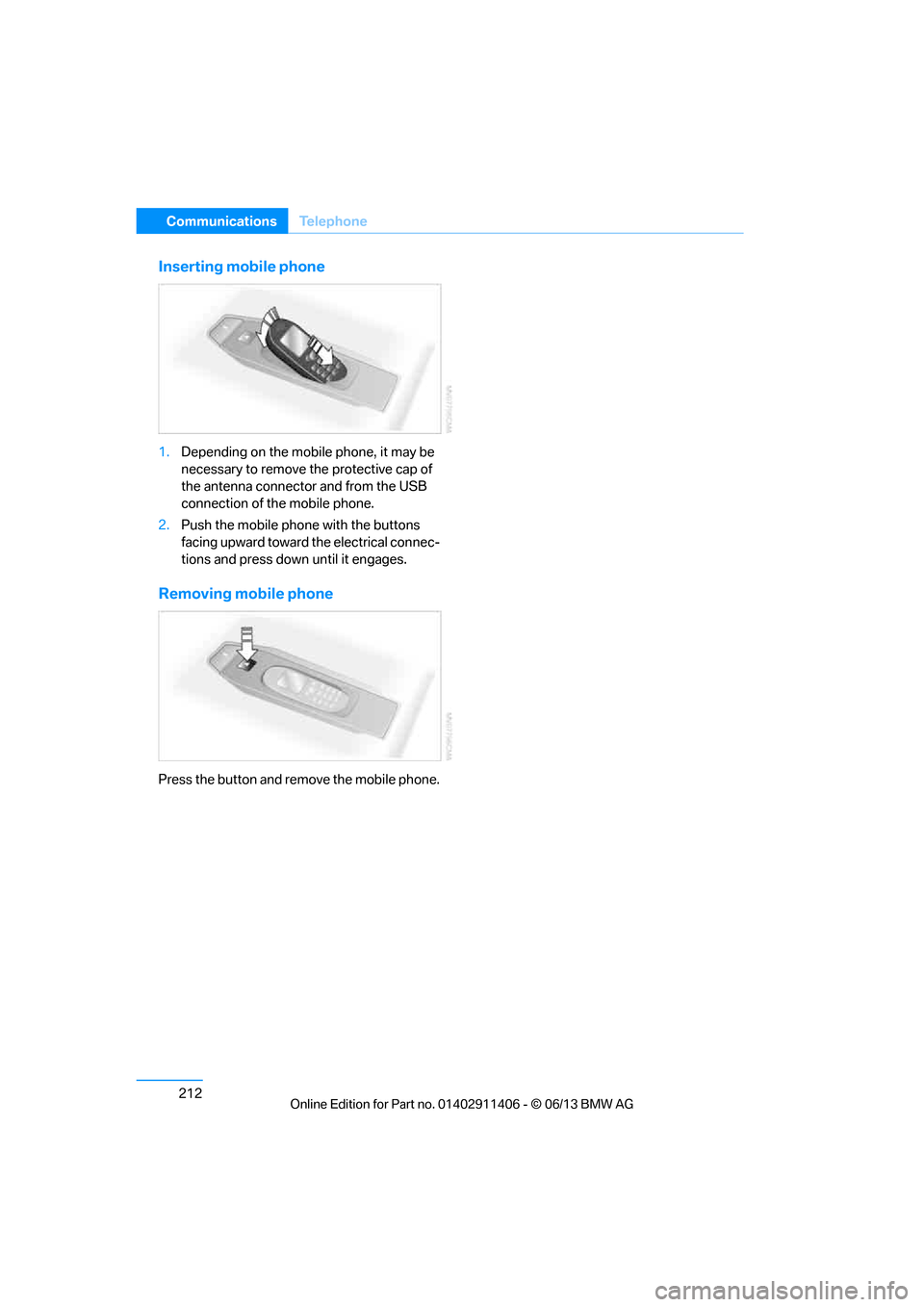
Inserting mobile phone
1.Depending on the mobile phone, it may be
necessary to remove th e protective cap of
the antenna connector and from the USB
connection of the mobile phone.
2. Push the mobile phone with the buttons
facing upward toward the electrical connec-
tions and press down until it engages.
Removing mobile phone
Press the button and remove the mobile phone.
00320051004F004C00510048000300280047004C0057004C005200510003
Page 226 of 311
221
Office
Communications
Storing contact data
1.
"Use contact data"
2. Highlight a phone number or e-mail
address.
3. Open "Options".
4. "Add to existing contac t" or "Store as new
contact"
Reading aloud
Text messages, emails, appointments, tasks,
and notes can be read aloud.
1. Select the desired message, appointment,
task, or note.
2. Select the symbol.
While the message is being read aloud, you
have the following options:
> "Pause"
Interrupt the reading. Select again to
resume the reading.
> "Back to beginning"
Read message again from the beginning.
> Select the symbol.
Skip back one paragraph.
> Select the symbol.
Skip over a paragraph.
> To terminate the reading, move the control-
ler toward the left.
What to do if…
For information on suitable mobile phones,
refer to page 200.
> Appointments, tasks, notes, texts, or emails
from the mobile phone are not displayed?
The mobile phone is not suitable for the
missing function or is not correctly
connected.
The mobile phone has not been assigned
the Office function.
The mobile phone is connected as an
auxiliary phone.
The appointments are older than 20 days
and are more than 50 days in the future.
The tasks have been marked as completed
or are more than 90 days in the future.
Depending on the number of appointments,
tasks, notes, and messages stored in the
mobile phone, not all of them are displayed
in the vehicle.
> Appointments or tasks from the mobile
phone are not being displayed at the correct
time?
The time zone, time, or date is incorrectly
set in the Control Disp lay and in the mobile
phone.
> Texts of entries are not displayed com-
pletely?
Texts are already shortened by the mobile
phone.
Synchronization between the mobile phone
and vehicle can take a few minutes.
> Contact pictures are not being displayed?
Up to max. 200 contact pictures can be
stored in the vehicle.
> If you have gone throug h all items in the list
and still cannot activate the desired func-
tion please contact Customer Relations or a
BMW center.
00320051004F004C00510048000300280047004C0057004C005200510003