ignition BMW M3 COUPE 2013 E92 Owner's Guide
[x] Cancel search | Manufacturer: BMW, Model Year: 2013, Model line: M3 COUPE, Model: BMW M3 COUPE 2013 E92Pages: 311, PDF Size: 6.89 MB
Page 127 of 311
122
ControlsPractical interior accessories
Canada: if the LED does not flash rapidly
after approx. 60 seconds, alter the distance
and repeat this step or, if the programming
by means of the hand-held transmitter was
interrupted, hold down the button on the
inside mirror and then press and release the
button on the hand-hel d transmitter several
times, holding it down for 2 seconds each
time.
Operation
To prevent possible damage or injury,
before programming or using the inte-
grated universal remote control to operate a
device, always inspect the immediate area to
make certain that no people, animals or objects
are within the pivoting or travel range of the
device being operated.
Also follow the safety in structions supplied with
the hand-held transmitter. <
The button on the inside mirror can be used to
operate the device, for example the garage
door, if the engine is running or the ignition is
switched on. To do so, within the reception
range of the device, press the button of the
device until the function is triggered. The LED
on the inside mirror remains lit during transmis-
sion of the radio signal.
Deleting stored functions
Simultaneously hold down the right and left
buttons on the inside mi rror for approx. 20 sec-
onds until the LED on the inside mirror flashes
rapidly. All stored functions are deleted. The
functions cannot be de leted individually.
Digital compass
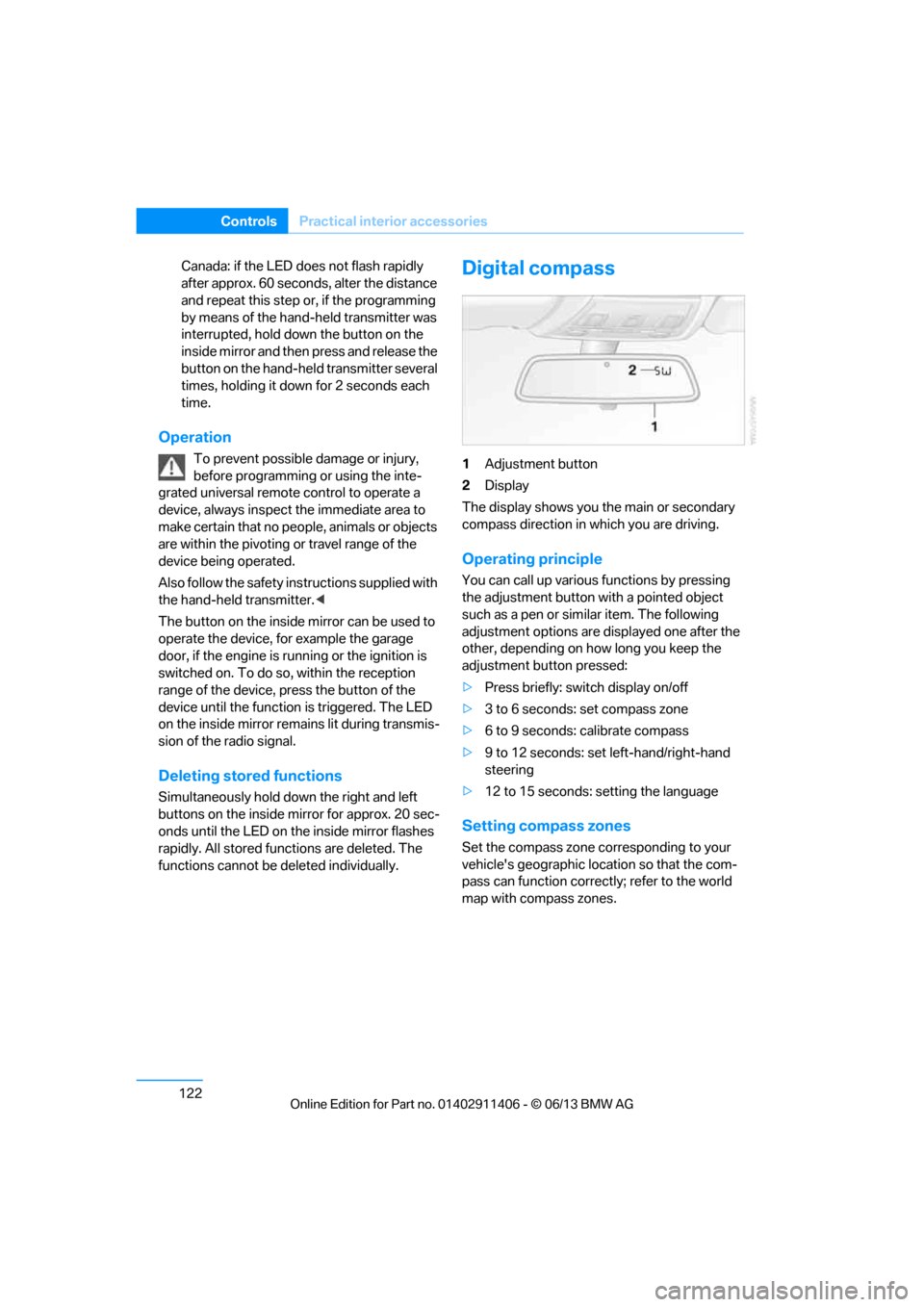
1Adjustment button
2 Display
The display shows you the main or secondary
compass direction in which you are driving.
Operating principle
You can call up various functions by pressing
the adjustment button with a pointed object
such as a pen or similar item. The following
adjustment options are displayed one after the
other, depending on how long you keep the
adjustment button pressed:
> Press briefly: switch display on/off
> 3 to 6 seconds: set compass zone
> 6 to 9 seconds: calibrate compass
> 9 to 12 seconds: set left-hand/right-hand
steering
> 12 to 15 seconds: setting the language
Setting compass zones
Set the compass zone corresponding to your
vehicle's geographic loca tion so that the com-
pass can function correctly; refer to the world
map with compass zones.
00320051004F004C00510048000300280047004C0057004C005200510003
Page 132 of 311
127
Practical interior accessories
Controls
With the engine running or the ignition switched
on, press in the cigarette lighter.
The lighter can be pulled ou
t as soon as it pops
back out.
Hold or touch the hot cigarette lighter by
the knob only. Holding or touching it in
other areas could result in burns.
When leaving the car, always remove the
remote control so that children cannot operate
the cigarette lighter and burn themselves. <
Connecting electrical
appliances
In your BMW, when the engine is running or the
ignition is switched on, you can use electrical
devices such as a hand lamp, car vacuum
cleaner, etc. if at least one of the following sock-
ets is available.
The total load of all sockets should not exceed
140 watts at 12 volts.
Avoid damaging the sockets by attempting to
insert plugs of unsuitable shape or size.
Do not connect battery chargers to the
sockets built into the vehicle at the plant;
doing so may damage the vehicle. <
Reinsert cigarette lighter or socket cover
after use; otherwise it ems that fall into the
cigarette lighter receptacle or the socket can
cause a short circuit.<
Cigarette lighter socket
To access the socket: ta ke the cigarette lighter
out of the socket.
Socket in the front passenger footwell
A socket is located under the glove compart-
ment on the left.
Socket in the center armrest
External audio device, refer to page 125.
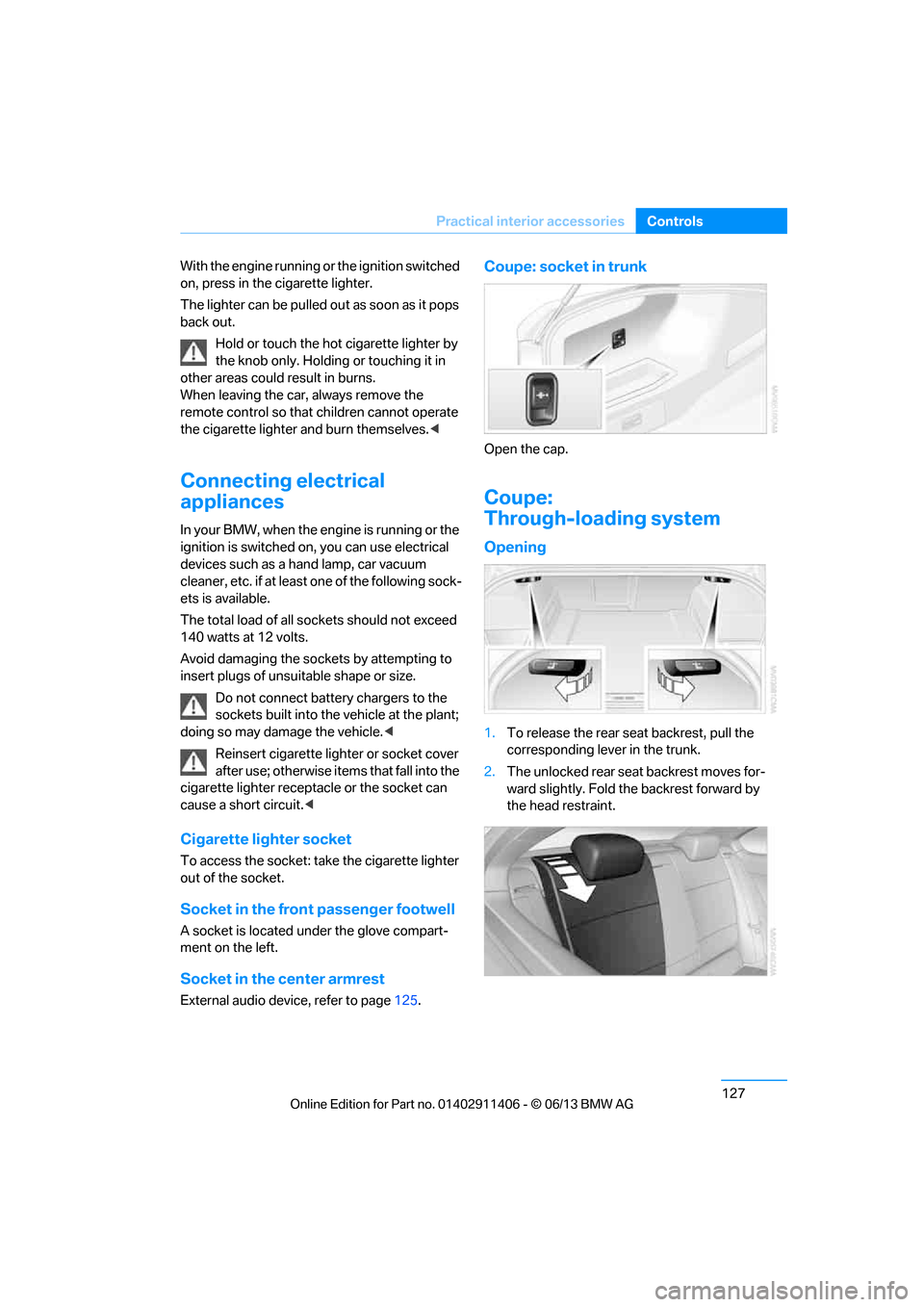
Coupe: socket in trunk
Open the cap.
Coupe:
Through-loading system
Opening
1.To release the rear seat backrest, pull the
corresponding lever in the trunk.
2. The unlocked rear seat backrest moves for-
ward slightly. Fold the backrest forward by
the head restraint.
00320051004F004C00510048000300280047004C0057004C005200510003
Page 171 of 311
166
EntertainmentOn/off and tone
On/off and tone
Vehicle equipment
In this chapter, all pr oduction, country, and
optional equipment that is offered in the model
range is described. Equipment is also described
that is not available because of, for example,
selected options or country version. This also
applies to safety related functions and systems.
General information
The following audio and video sources share
the same control elements and adjustments:
> Radio
> CD/DVD player
> Video
> External devices, e.g. MP3 player
Controls
The audio and video sources can be controlled
using the:
>Buttons near th e CD/DVD player
> iDrive
> Buttons on the steering wheel, refer to
page 13
> Programmable memory keys, refer to
page 25
> Voice activation system
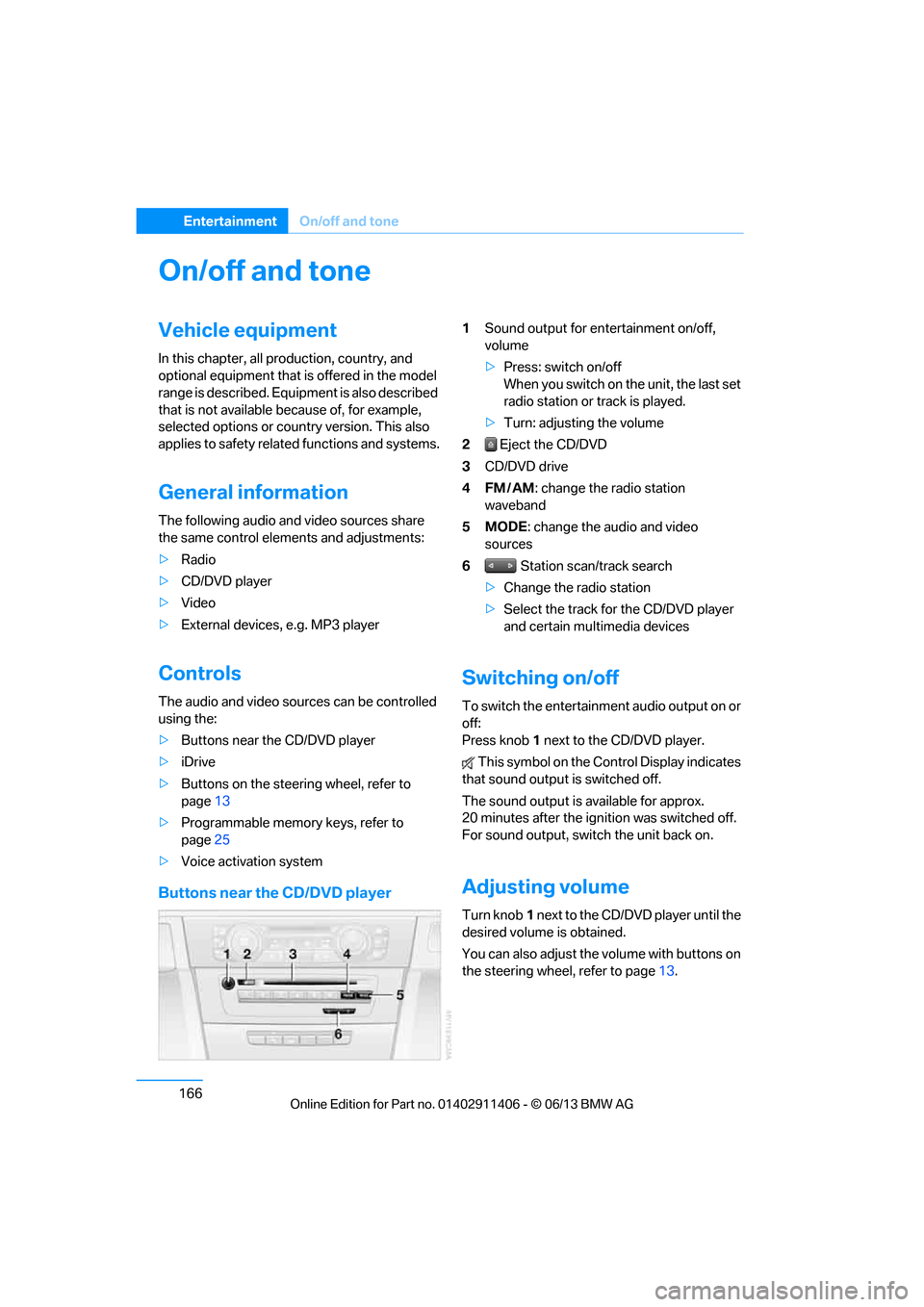
Buttons near the CD/DVD player
1Sound output for entertainment on/off,
volume
>Press: switch on/off
When you switch on the unit, the last set
radio station or track is played.
> Turn: adjusting the volume
2 Eject the CD/DVD
3 CD/DVD drive
4FM/AM : change the radio station
waveband
5MODE : change the audio and video
sources
6 Station scan/track search
> Change the radio station
> Select the track for the CD/DVD player
and certain multimedia devices
Switching on/off
To switch the entertainment audio output on or
off:
Press knob 1 next to the CD/DVD player.
This symbol on the Co ntrol Display indicates
that sound output is switched off.
The sound output is available for approx.
20 minutes after the ignition was switched off.
For sound output, switch the unit back on.
Adjusting volume
Turn knob 1 next to the CD/DVD player until the
desired volume is obtained.
You can also adjust the volume with buttons on
the steering wheel, refer to page 13.
00320051004F004C00510048000300280047004C0057004C005200510003
Page 184 of 311
179
CD/DVD player
Entertainment
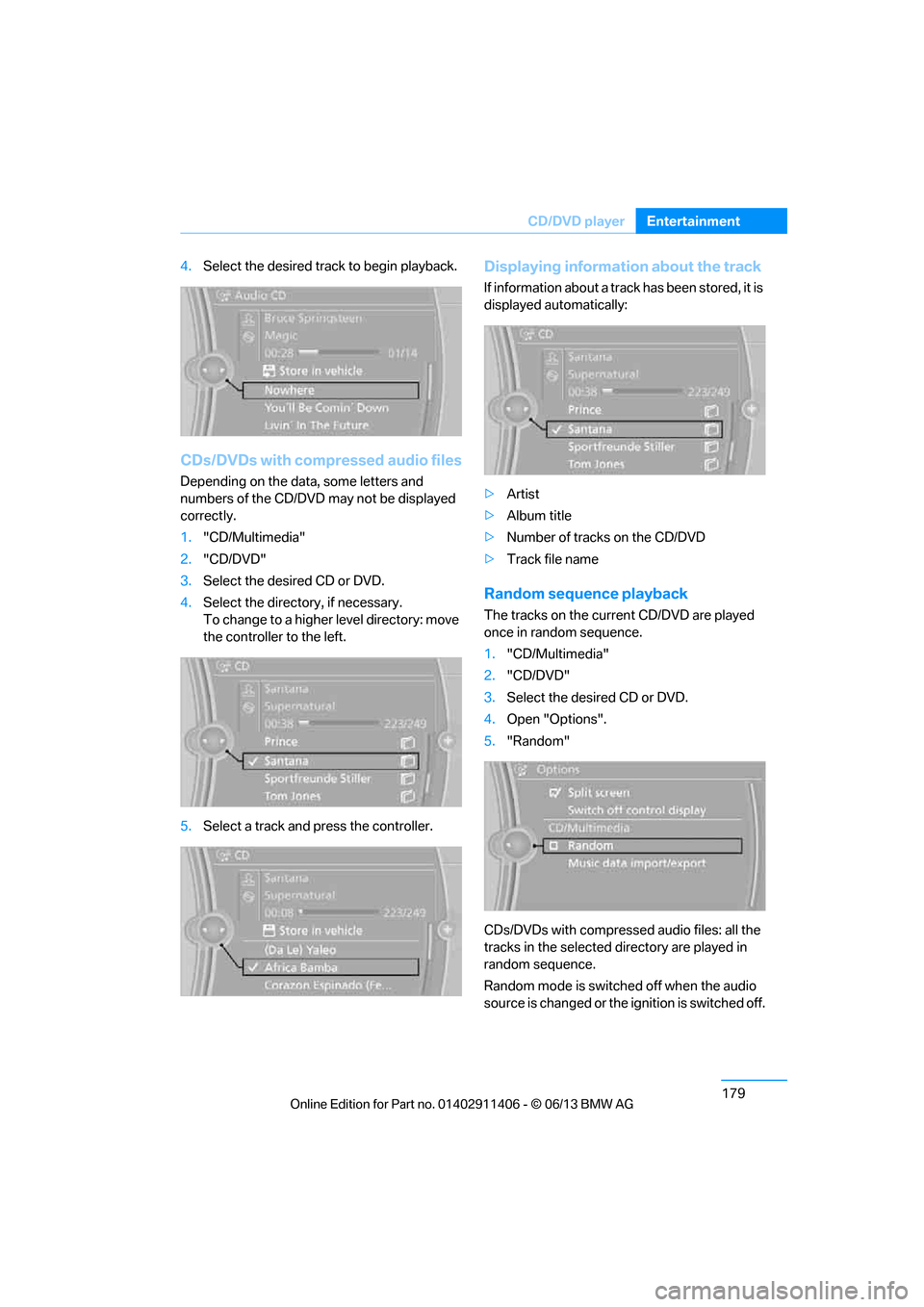
4.
Select the desired trac k to begin playback.
CDs/DVDs with compressed audio files
Depending on the data , some letters and
numbers of the CD/DVD may not be displayed
correctly.
1. "CD/Multimedia"
2. "CD/DVD"
3. Select the desired CD or DVD.
4. Select the directory, if necessary.
To change to a higher level directory: move
the controller to the left.
5. Select a track and press the controller.
Displaying information about the track
If information about a track has been stored, it is
displayed automatically:
>Artist
> Album title
> Number of tracks on the CD/DVD
> Track file name
Random sequence playback
The tracks on the curr ent CD/DVD are played
once in random sequence.
1. "CD/Multimedia"
2. "CD/DVD"
3. Select the desired CD or DVD.
4. Open "Options".
5. "Random"
CDs/DVDs with compressed audio files: all the
tracks in the selected directory are played in
random sequence.
Random mode is switched off when the audio
source is changed or the ignition is switched off.
00320051004F004C00510048000300280047004C0057004C005200510003
Page 198 of 311
193
External devices
Entertainment
Requirements
>
Suitable device. For information, go to
www.bmwusa.com/bluetooth.
> Device operational.
> Ignition switched on.
> Bluetooth activated in vehicle, refer to
page 201, and in the device.
> Activating Bluetooth audio, refer to
page 201.
> Bluetooth presets in the device are
required, e.g. connection not confirmed or
visible, refer to Owner's Manual for the
device.
> A number with at least 4 and at most
16 digits has been established as the
Bluetooth passkey. Only required once for
pairing.
Pairing and connecting
Only pair the device when the vehicle is
stopped; otherwise, inattention may lead
to endangerment of passengers or other road
users. <
1. "CD/Multimedia"
2. "Bluetooth® (audio)"
3. "Bluetooth® audio" if applicable
4. "Add new phone"
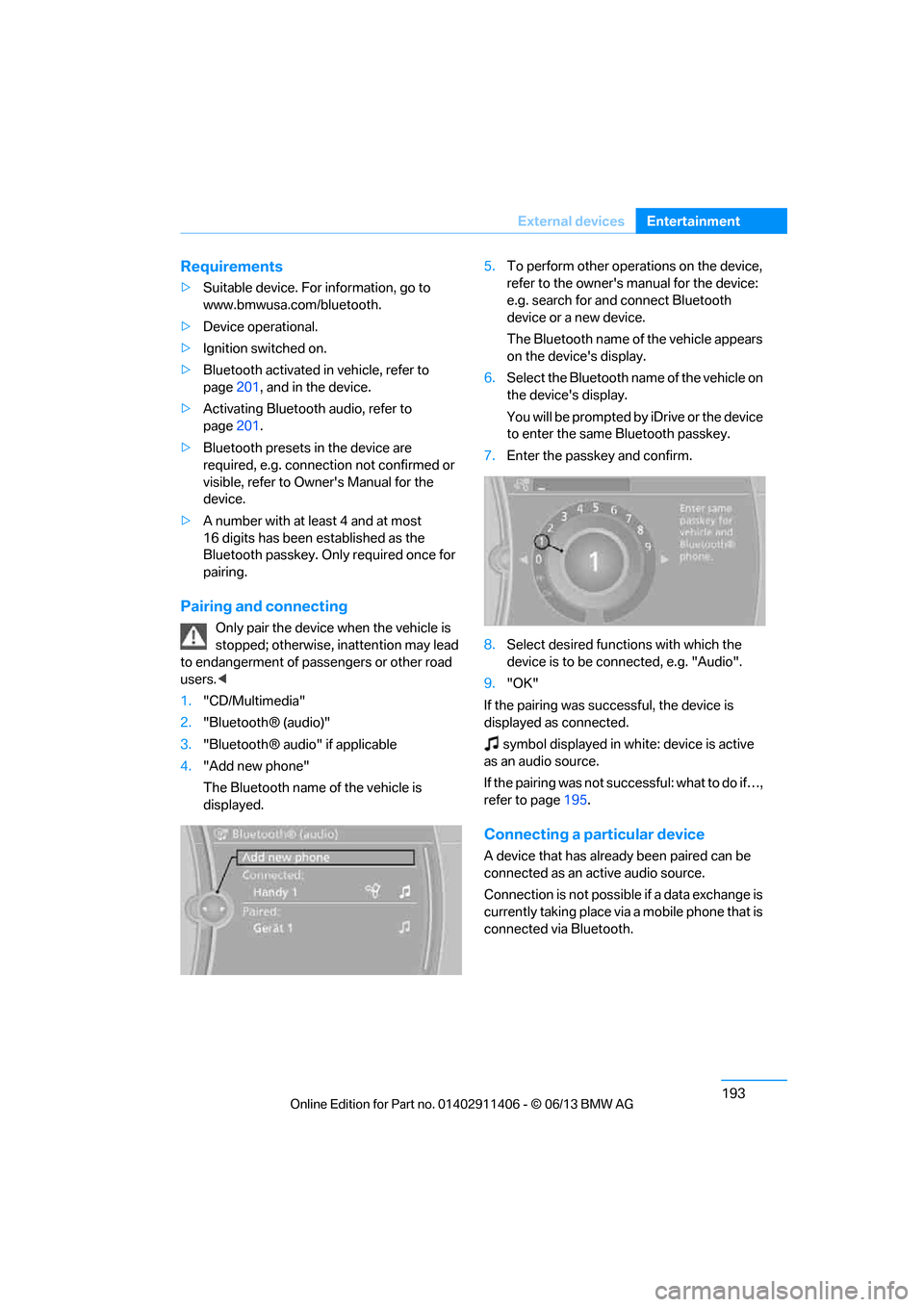
The Bluetooth name of the vehicle is
displayed. 5.
To perform other operations on the device,
refer to the owner's ma nual for the device:
e.g. search for and connect Bluetooth
device or a new device.
The Bluetooth name of the vehicle appears
on the device's display.
6. Select the Bluetooth na me of the vehicle on
the device's display.
You will be prompted by iDrive or the device
to enter the same Bluetooth passkey.
7. Enter the passkey and confirm.
8. Select desired functions with which the
device is to be connected, e.g. "Audio".
9. "OK"
If the pairing was successful, the device is
displayed as connected. symbol displayed in white: device is active
as an audio source.
If the pairing was not succ e s s f u l : w h a t t o d o i f … ,
refer to page 195.
Connecting a particular device
A device that has already been paired can be
connected as an active audio source.
Connection is not possible if a data exchange is
currently taking place via a mobile phone that is
connected via Bluetooth.
00320051004F004C00510048000300280047004C0057004C005200510003
Page 205 of 311
200
CommunicationsTe l e p h o n e
Telephone
Vehicle equipment
In this chapter, all production, country, and
optional equipment that is offered in the model
range is described. Equipment is also described
that is not available because of, for example,
selected options or country version. This also
applies to safety related functions and systems.
Overview
The concept
Mobile phones or other external devices, e.g.
audio players, can be connected to the vehicle
via Bluetooth.
Bluetooth® is a registered trademark of
Bluetooth® SIG, Inc.
After being paired once, when the ignition is
switched on, these devices are automatically
detected as soon as they are present in the
vehicle and can be controlled via iDrive, by the
buttons on the steering wheel, and by voice.
Depending on whether they are functioning as a
telephone and/or as an audio source, external
devices can be used via the vehicle. The tele-
phone functions will be described below. Oper-
ation of audio functions, refer to page 192.
Up to four external devices can be paired.
It may be necessary for some functions to be
activated by the mobile phone provider or ser-
vice provider. Only make entries when traffic conditions
permit. Do not hold the mobile phone in
your hand while you are driving; use the hands-
free system instead. Otherwise, you may
endanger vehicle occupants and other road
users. <
Snap-in adapter
The snap-in adapter makes it possible:
>Accommodate the mobile phone.
> Recharge its battery.
> Connect it to an external antenna of the
vehicle.
This assures a better network connection
and constant sound quality.
Suitable mobile phones
For precise information about which mobile
phones and external devices with a Bluetooth
interface are supported by the mobile phone
preparation, go to www.bmwusa.com/
bluetooth.
Displaying vehicl e identification
number and software part number
Checking which mobile phones are supported
by the mobile phone pr eparation requires the
vehicle identification number and software part
number. The software ve rsion of the mobile
phone may also be required.
1. "Telephone"
2. Open "Options".
3. "Bluetooth® info"
4. "Display system information"
With a certain software version, these suitable
mobile phones support the vehicle functions
described below.
With other mobile phones or software versions,
malfunctions may occur.
A mobile phone that is connected to the vehicle
should not be operated via the mobile phone
keypad; otherwise, ma lfunctions may occur.
It is possible to perform a software update, refer
to page 196.
00320051004F004C00510048000300280047004C0057004C005200510003
Page 206 of 311
201
Te l e p h o n e
Communications
Notes
At high temperatures, the charging function of
the mobile phone may be limited and some
functions may no longer be carried out.
When using the mobile phone via the vehicle,
follow the operating instructions of the mobile
phone.
Pairing/unpairing mobile
phone
General information
The following functions are available:
>
Using a mobile phone as a telephone.
> Using the mobile phone as an auxiliary
phone.
> Using the mobile phone as an audio source.
> Using an audio device as an audio source,
refer to page 192.
Requirements
>Suitable mobile phone, refer to page 200.
> Mobile phone operational.
> Bluetooth activated in vehicle, refer to
page 203, and in the mobile phone.
> Bluetooth presets in the mobile phone are
required, e.g. connection not confirmed or
visible, refer to Owner's Manual for the
mobile phone.
> Deactivating Bluetooth audio, refer to
page 201.
> A number with at least 4 and at most
16 digits has been established as the
Bluetooth passkey. Only required once for
pairing.
> Ignition switched on.
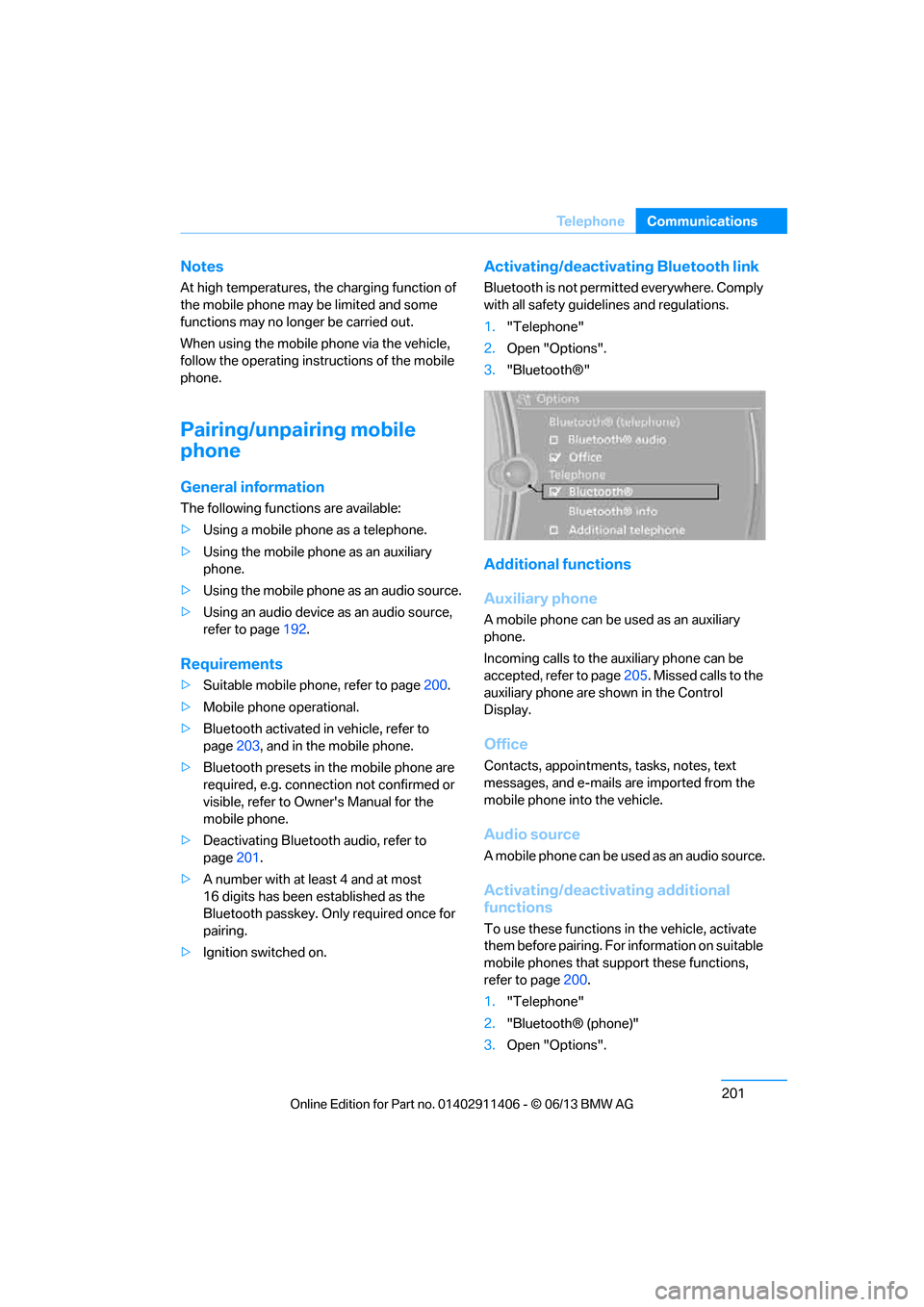
Activating/deactivating Bluetooth link
Bluetooth is not permi tted everywhere. Comply
with all safety guide lines and regulations.
1. "Telephone"
2. Open "Options".
3. "Bluetooth®"
Additional functions
Auxiliary phone
A mobile phone can be used as an auxiliary
phone.
Incoming calls to the auxiliary phone can be
accepted, refer to page 205. Missed calls to the
auxiliary phone are shown in the Control
Display.
Office
Contacts, appointments, tasks, notes, text
messages, and e-mails are imported from the
mobile phone into the vehicle.
Audio source
A mobile phone can be used as an audio source.
Activating/deactivating additional
functions
To use these functions in the vehicle, activate
them before pairing. For information on suitable
mobile phones that support these functions,
refer to page 200.
1. "Telephone"
2. "Bluetooth® (phone)"
3. Open "Options".
00320051004F004C00510048000300280047004C0057004C005200510003
Page 208 of 311
203
Te l e p h o n e
Communications
Following the initial pairing
>
The mobile phone is detected/connected in
the vehicle within a short period of time
when the engine is running or the ignition is
switched on.
> The phone book entries of the telephone
that are stored on the SIM card or the
mobile phone are imported into the vehicle
once the device is detected, depending on
the mobile phone.
> Four devices can be paired.
> Specific settings may be necessary in some
mobile phones, e.g. authorization or a
secure connection, refer to the Owner's
Manual for the mobile phone.
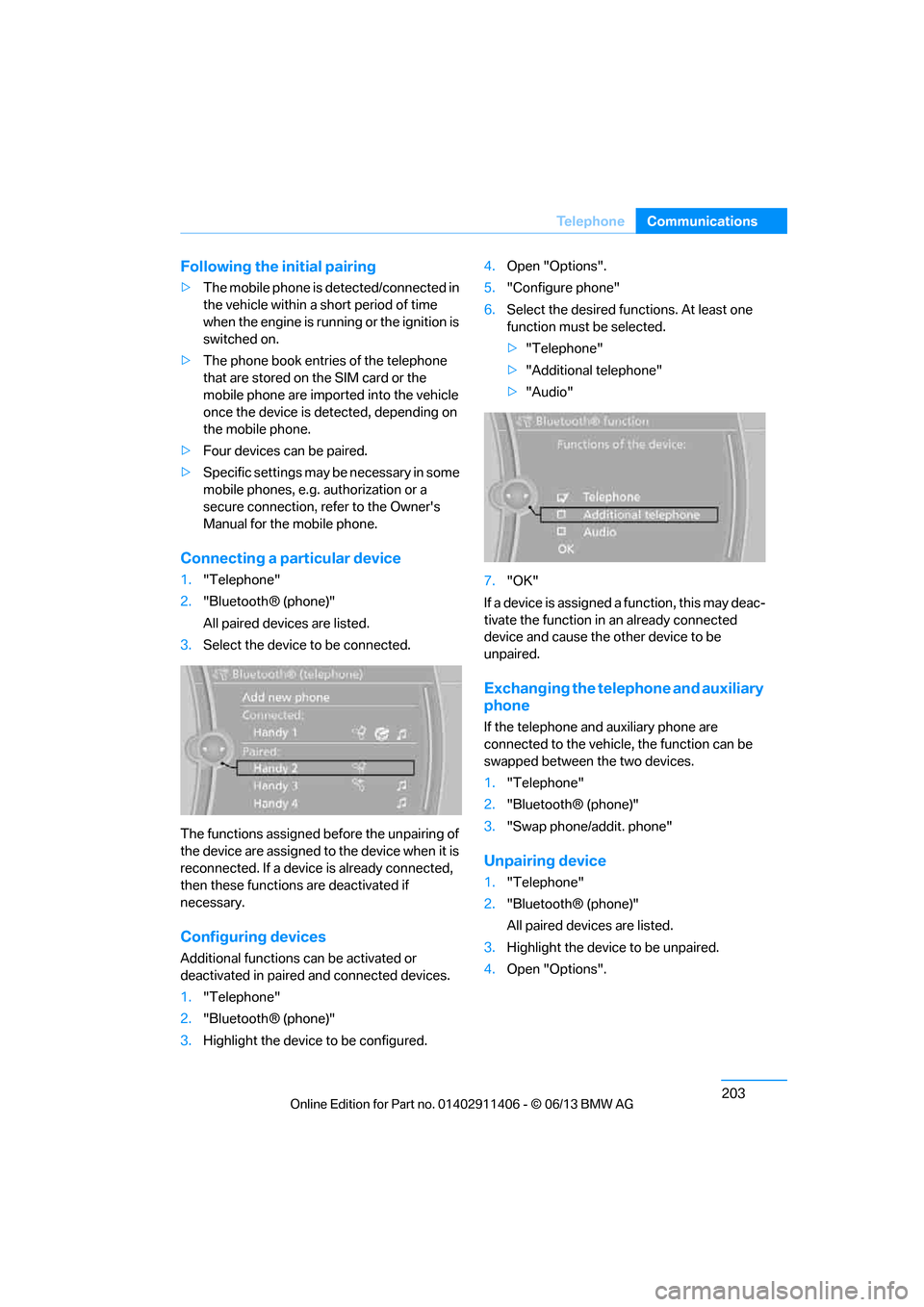
Connecting a particular device
1."Telephone"
2. "Bluetooth® (phone)"
All paired devices are listed.
3. Select the device to be connected.
The functions assigned before the unpairing of
the device are assigned to the device when it is
reconnected. If a device is already connected,
then these functions are deactivated if
necessary.
Configuring devices
Additional functions can be activated or
deactivated in paired and connected devices.
1. "Telephone"
2. "Bluetooth® (phone)"
3. Highlight the device to be configured. 4.
Open "Options".
5. "Configure phone"
6. Select the desired functions. At least one
function must be selected.
>"Telephone"
> "Additional telephone"
> "Audio"
7. "OK"
If a device is assigned a function, this may deac-
tivate the function in an already connected
device and cause the other device to be
unpaired.
Exchanging the telephone and auxiliary
phone
If the telephone and auxiliary phone are
connected to the vehicle, the function can be
swapped between the two devices.
1. "Telephone"
2. "Bluetooth® (phone)"
3. "Swap phone/addit. phone"
Unpairing device
1."Telephone"
2. "Bluetooth® (phone)"
All paired devices are listed.
3. Highlight the device to be unpaired.
4. Open "Options".
00320051004F004C00510048000300280047004C0057004C005200510003
Page 214 of 311
209
Te l e p h o n e
Communications
Saving an entry in the contacts
1.
Highlight the entry.
2. Open "Options".
3. "Store as new contact" or "Add to existing
contact".
4. Select contact if necessary.
5. Select the type of number: "Home",
"Business", "Mobile" or "Other".
6. Complete the entr ies if necessary.
7. "Store contact"
Hands-free system
General information
Calls being conducted using the hands-free
system can be continued using the mobile
phone and vice versa.
From the mobile phone to the hands-
free system
Calls that have been in itiated from outside the
Bluetooth range of the vehicle can be continued
using the hands-free system if the ignition is
switched on.
Depending on the mobile phone, the call is
automatically switched to hands-free mode.
If the switch does not occur automatically, then
follow the instructions that appear on the
display of the mobile ph one, also refer to the
Owner's Manual for the mobile phone.
From hands-free system to mobile
phone
Calls being conducted using the hands-free
system can also be continued using the mobile
phone if so desired, depending on the mobile
phone.
At this point, follow the instructions that appear
on the display of the mobile phone, also refer to
the Owner's Manual for the mobile phone.
Operation by voice
With voice activation system:
Operation, refer to page 27.
Without voice acti vation system:
Depending upon the equipment, the mobile
phone can be voice-operated as described
below.
The list of short commands in the Owner's
Manual does not apply to this type of voice
operation.
The concept
> The mobile phone can be operated without
removing your hand from the steering
wheel.
> In many cases, the entry process is sup-
ported by means of announcements or
questions.
> {...} Verbal instructions to use with the voice
operation system.
Voice commands
Activating voice activation system
1. Press the button on the steering wheel.
2. Say the command.
Finishing voice input
Press the button on the steering wheel
or
Possible commands
Having possible commands read aloud
The system understands default commands
that must be spoken word for word.
Possible commands are read aloud.
Digits from zero to nine are recognized. {
Cancel }.
{ Help }.
00320051004F004C00510048000300280047004C0057004C005200510003
Page 230 of 311
225
ConnectedDrive
Communications
>
In addition, the optional Convenience Plan
offers Concierge servic e and information on
route planning, the traffic situation and
weather. Using Critical Calling, a limited
number of calls can be made via the BMW
Assist Response Center, for example if the
mobile phone is not available or discharged.
Press the SOS button to contact the BMW
Assist Response Center.
TeleService
General information
TeleService supports comm unication with your
BMW center.
> Data on the vehicle's service requirements
can be sent directly to the BMW center. In
this way, the BMW center can plan its work
in advance. This shor tens the duration of
the service appointment.
> In the event of a breakdown, data on the
vehicle's condition can be sent directly to
Roadside Assistance.
> The service varies by country.
> Connection may incur charges.
> Services may be restricted abroad.
Requirements
>BMW Assist is activated.
> Wireless reception is available.
> Ignition switched on.
Using TeleService
Generally, TeleService is activated in the
vehicle.
If TeleService is not activated, it is possible to
establish a voice contact to the BMW Group
Mobile Service.
For additional uses or to deactivate the ser-
vices, consult your BMW center or contact
Customer Relations.
Concierge service
General information
The Concierge service of BMW Assist will
inform you, for example, about upcoming
events, filling station, or hotels and supplies you
with their phone numbers and addresses. Many
hotels can be booked directly through the BMW
Assist Concierge service. Use of the Concierge
service requires an additi onal activation by the
BMW Assist Response Center.
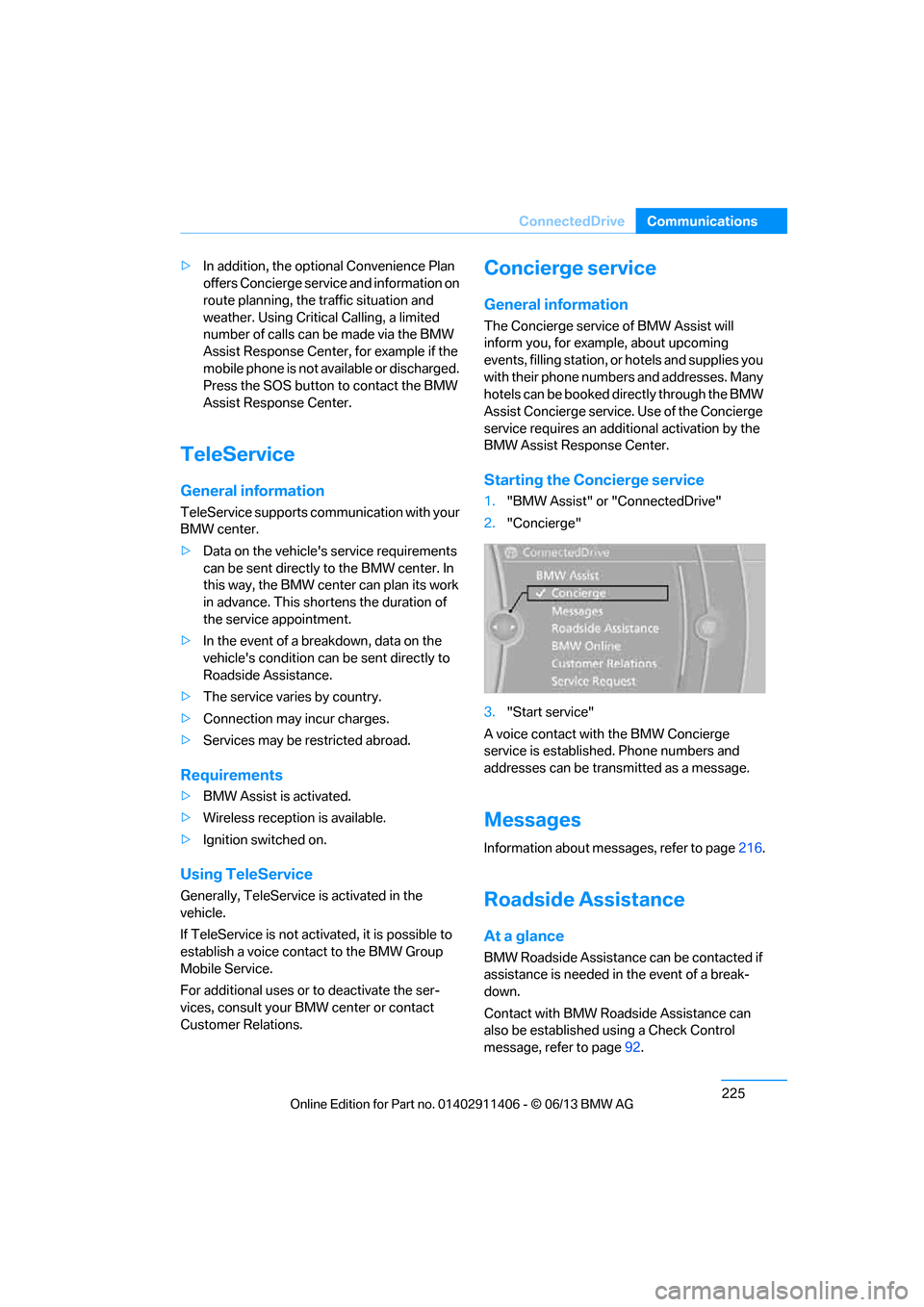
Starting the Concierge service
1. "BMW Assist" or "ConnectedDrive"
2. "Concierge"
3. "Start service"
A voice contact with the BMW Concierge
service is established. Phone numbers and
addresses can be transmitted as a message.
Messages
Information about messages, refer to page 216.
Roadside Assistance
At a glance
BMW Roadside Assistance can be contacted if
assistance is needed in the event of a break-
down.
Contact with BMW Roadside Assistance can
also be established using a Check Control
message, refer to page92.
00320051004F004C00510048000300280047004C0057004C005200510003