center BMW M3 SEDAN 2010 E90 Owner's Guide
[x] Cancel search | Manufacturer: BMW, Model Year: 2010, Model line: M3 SEDAN, Model: BMW M3 SEDAN 2010 E90Pages: 274, PDF Size: 8.68 MB
Page 123 of 274
Driving tips
121Reference
At a glance
Controls
Communications
Navigation
Entertainment
Mobility
Loading roof-mounted luggage rack
Because roof racks raise the vehicle's center of
gravity when loaded, they have a major effect on
vehicle handling and steering response.
You should therefore always remember not to
exceed the approved roof load capacity, the
approved gross vehicle weight or the axle loads
when loading the rack.
You can find the applicable data under Weights
on page247.
The roof load must be distributed uniformly and
should not be too large in area. Heavy items
should always be placed at the bottom. Be sure
that adequate clearance is maintained for rais-
ing the glass roof, and that objects do not
project into the opening path of the trunk lid/
tailgate.
Fasten roof-mounted cargo correctly and
securely to prevent it from shifting or falling off
during the trip.
Drive smoothly. Avoid sudden acceleration and
braking maneuvers. Take corners gently.
Page 126 of 274
Navigation system
124
Navigation system
General information
With the help of satellites, the navigation sys-
tem is able to ascertain the precise position of
the vehicle and guide you reliably to any desti-
nation you enter.
Enter data only when the vehicle is sta-
tionary, and always give priority to the
applicable traffic regulations in the event of any
contradiction between traffic and road condi-
tions and the instructions issued by the naviga-
tion system. Failure to take to this precaution
can place you in violation of the law and put
vehicle occupants and other road users in dan-
ger.<
Navigation data
General information
Navigation data are stored in the vehicle and
can be updated.
Navigation data and authorization codes are
available from your BMW center.
Depending on the data volume, a data update
may take several hours.
>The data are updated while you are driving.
>The update is resumed automatically when
a trip is continued after an interruption.
>All functions are available during the trip.
>The data are stored in the vehicle.
>After the update, the system restarts.
>The medium that holds the navigation data
can be removed after the update is com-
pleted.
Updating the navigation data
Inserting navigation DVD
1.Insert the navigation DVD into the DVD
player with the labeled side facing up.
2.Follow the instructions on the Control Dis-
play.3.Enter the authorization code of the naviga-
tion DVD and change the DVD if needed.
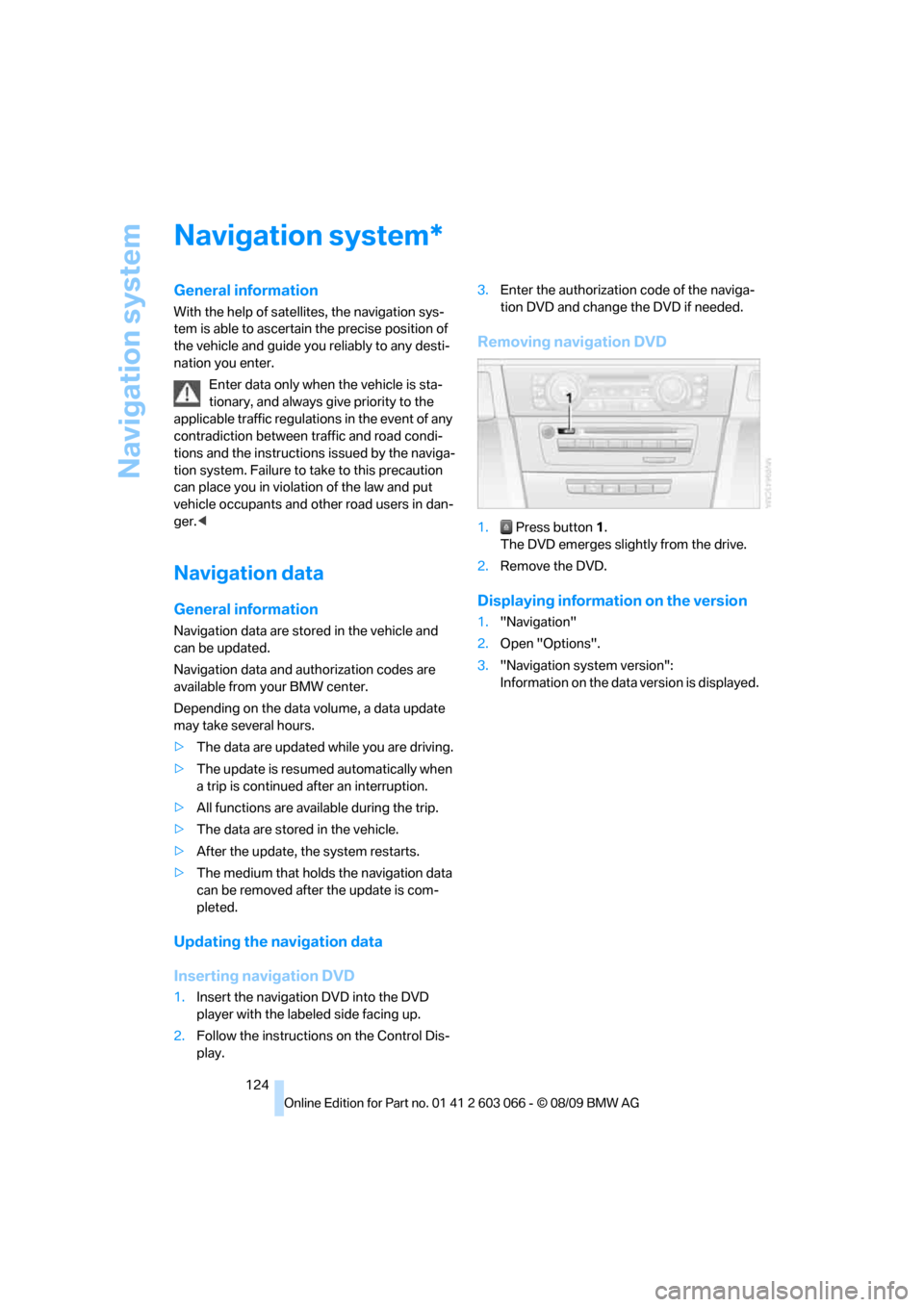
Removing navigation DVD
1. Press button 1.
The DVD emerges slightly from the drive.
2.Remove the DVD.
Displaying information on the version
1."Navigation"
2.Open "Options".
3."Navigation system version":
Information on the data version is displayed.
*
Page 139 of 274
Navigation
Driving tips
137Reference
At a glance
Controls
Communications
Entertainment
Mobility
3.Press the controller.
Changing the map section
Select the interactive map.
>To shift the map: move the controller in the
required direction.
>To shift the map diagonally: move the con-
troller in the required direction and turn it.
Changing scale
1.Select the symbol.
2.Turn the controller to adjust the scale.
Automatic scaling of the map
In the map view facing north, turn the controller
in any direction until AUTO is displayed as the
map scale.
The map shows the entire range from your loca-
tion to the destination.
Settings for the map view
The map is shown on the Control Display.
1.Open "Options".
2."Settings"
3.Set the optimized map view.
>"Day/night mode"
Select and create the necessary settings
depending on the light conditions. When
the traffic bulletin map is activated, this
setting is disregarded.
>"Satellite images"
Satellite images
* are displayed depend-
ing on availability and resolution.
>"Perspective view in 3D"
Displays a spatial view. Prominent areas
that are contained in the navigation data
are displayed on the map in 3D.
>"Traffic Info map"
The map is optimized for displaying traf-
fic bulletins. Symbols for the special
destinations are no longer displayed.
Map view for the split screen display
The map view for the split screen can be
selected separately from the main screen.1.Open "Options".
2."Split screen"
The split screen is switched on.
3.Move the controller to the right repeatedly
until the split screen content is selected.
4.Select the map view:
>"Arrow display"
>"Map facing north"
>"Map direction of travel"
>"Map view with perspective"
>"Exit ramp view"
Changing scale
1.Move the controller to the right until the
split screen is selected.
2.Turn the controller.
Traffic bulletins*
You can display the traffic bulletins from radio
stations that broadcast the TMC (Traffic Mes-
sage Channel) of a traffic information service.
This information from the traffic information
service is continuously updated on the basis of
measurement data from traffic control centers
and information on traffic congestion.
During destination guidance, traffic bulletins
that are relevant to areas along the route are
automatically displayed and taken into account
in the route planning. You can open all traffic
bulletins manually via iDrive.
The traffic bulletins are shown in the map view.
Real Time Traffic Information End-User
Provisions
Certain BMW models equipped with navigation
have the capability to display real-time traffic
information. If your system has this capability
the following additional terms and conditions
apply:
An End-User shall no longer have the right to
use the Traffic Data in the event that the End-
User is in material breach of the terms and con-
ditions contained herein.
Page 140 of 274
Destination guidance
138 A. Total Traffic Network, a division of Clear
Channel Broadcasting, Inc. ("Total Traffic Net-
work") holds the rights to the traffic incident
data and RDS-TMC network through which it is
delivered. You may not modify, copy, scan or
use any other method to reproduce, duplicate,
republish, transmit or distribute in any way any
portion of traffic incident data. You agree to
indemnify, defend and hold harmless BMW of
North America, LLC. ("BMW NA") and Total
Traffic Network, Inrix, Inc (and their affiliates)
against any and all claims, damages, costs or
other expenses that arise directly or indirectly
out of (a) your unauthorized use of the traffic
incident data or the RDS-TMC network, (b) your
violation of this directive and/or (c) any unautho-
rized or unlawful activities by you in connection
herewith.
B. Total Traffic Network traffic data is informa-
tional only. User assumes all risk of use. Total
Traffic Network, BMW NA, and their suppliers
make no representations about content, traffic
and road conditions, route usability, or speed.
C. The licensed material is provided to license
"as is," and "where is". Total Traffic Network,
including, but not limited to, any and all third
party providers of any of the licensed material,
expressly disclaims, to the fullest extent permit-
ted by law, all warranties or representations
with respect to the licensed material (including,
without limitation, that the licensed material will
be error-free, will operate without interruption
or that the traffic data will be accurate), express,
implied or statutory, including, without limita-
tion, the implied warranties of merchantability,
non-infringement fitness for a particular pur-
pose, or those arising from a course of dealing
or usage of trade.
D. Neither Total Traffic Network, Inrix, Inc. nor
BMW NA will be liable to you for any indirect,
special, consequential, exemplary, or incidental
damages (including, without limitation, lost rev-
enues, anticipated revenues, or profits relating
to the same) arising from any claim relating
directly or indirectly to use of the traffic data,
and even if Total Traffic Network, Inrix, Inc., or
BMW NA are aware of the possibility of such
damages. These limitations apply to all claims, including, without limitation, claims in contract
and tort (such as negligence, product liability
and strict liability). Some states do not allow the
exclusion or limitation of incidental or conse-
quential damages, so those particular limita-
tions may not apply to you.
Activating/deactivating reception
1."Navigation"
2.Open "Options".
3.Activate/deactivate "Receive Traffic Info".
In many metropolitan areas you can receive
traffic information broadcast by radio stations.
The traffic conditions are monitored by traffic
control centers and the traffic information is
updated periodically.
During destination guidance, the traffic bulle-
tins relevant to your planned route are automat-
ically shown. Whether destination guidance is
active or not, you can have the traffic bulletins
displayed in the map view or in the traffic info
list.
Traffic bulletins in a list
A list of the traffic bulletins can be opened via
the menu or map view.
Opening traffic bulletins
1."Navigation"
2."Map"
3.Move the controller to the left, if necessary.
4.Select the symbol: "Traffic Info"
First, the traffic bulletins on the planned
route are displayed. The traffic bulletins are
sorted in the order of their distance from the
current vehicle position.
5.Select a traffic bulletin.
Additional information can be displayed for
some traffic bulletins:
1.Select the symbol.
2.Additional information is displayed.
3.To exit from the menu:
Move the controller to the left.
Page 165 of 274
Navigation
Entertainment
Driving tips
163Reference
At a glance
Controls
Communications
Mobility
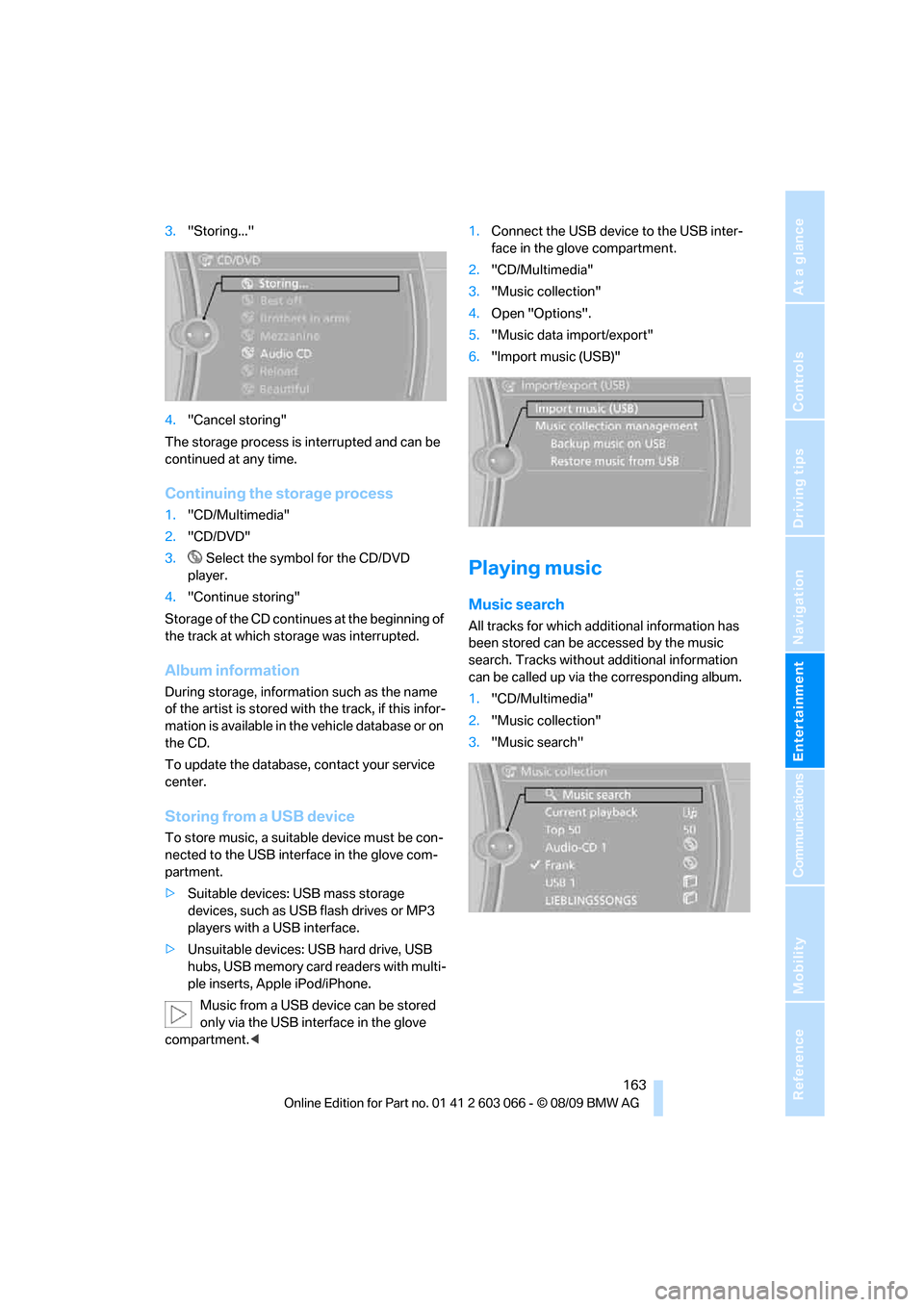
3."Storing..."
4."Cancel storing"
The storage process is interrupted and can be
continued at any time.
Continuing the storage process
1."CD/Multimedia"
2."CD/DVD"
3. Select the symbol for the CD/DVD
player.
4."Continue storing"
Storage of the CD continues at the beginning of
the track at which storage was interrupted.
Album information
During storage, information such as the name
of the artist is stored with the track, if this infor-
mation is available in the vehicle database or on
the CD.
To update the database, contact your service
center.
Storing from a USB device
To store music, a suitable device must be con-
nected to the USB interface in the glove com-
partment.
>Suitable devices: USB mass storage
devices, such as USB flash drives or MP3
players with a USB interface.
>Unsuitable devices: USB hard drive, USB
hubs, USB memory card readers with multi-
ple inserts, Apple iPod/iPhone.
Music from a USB device can be stored
only via the USB interface in the glove
compartment.<1.Connect the USB device to the USB inter-
face in the glove compartment.
2."CD/Multimedia"
3."Music collection"
4.Open "Options".
5."Music data import/export"
6."Import music (USB)"
Playing music
Music search
All tracks for which additional information has
been stored can be accessed by the music
search. Tracks without additional information
can be called up via the corresponding album.
1."CD/Multimedia"
2."Music collection"
3."Music search"
Page 169 of 274
Navigation
Entertainment
Driving tips
167Reference
At a glance
Controls
Communications
Mobility
External devices
AUX-IN port
You can connect an external audio device, for
instance an MP3 player, and play audio tracks
over the car's loudspeaker system. You can
adjust the tone using iDrive.
Connecting
Lift up the center armrest.
Connection for audio playback:
TRS connector 1/8 in/3.5 mm
To play audio tracks over the car's loudspeaker
system, connect the headset or line-out port of
the external device to the AUX-IN port.
Starting audio playback
Connect the audio device, switch it on and
select a track. Operate the system on the audio
device.
Via iDrive
1."CD/Multimedia"
2.If applicable, "External devices"
3. "AUX front"
Adjusting the volume
The volume of the sound output depends on
the audio device. If this volume differs markedly
from the volume of the other audio sources, it is
advisable to adjust the volumes.
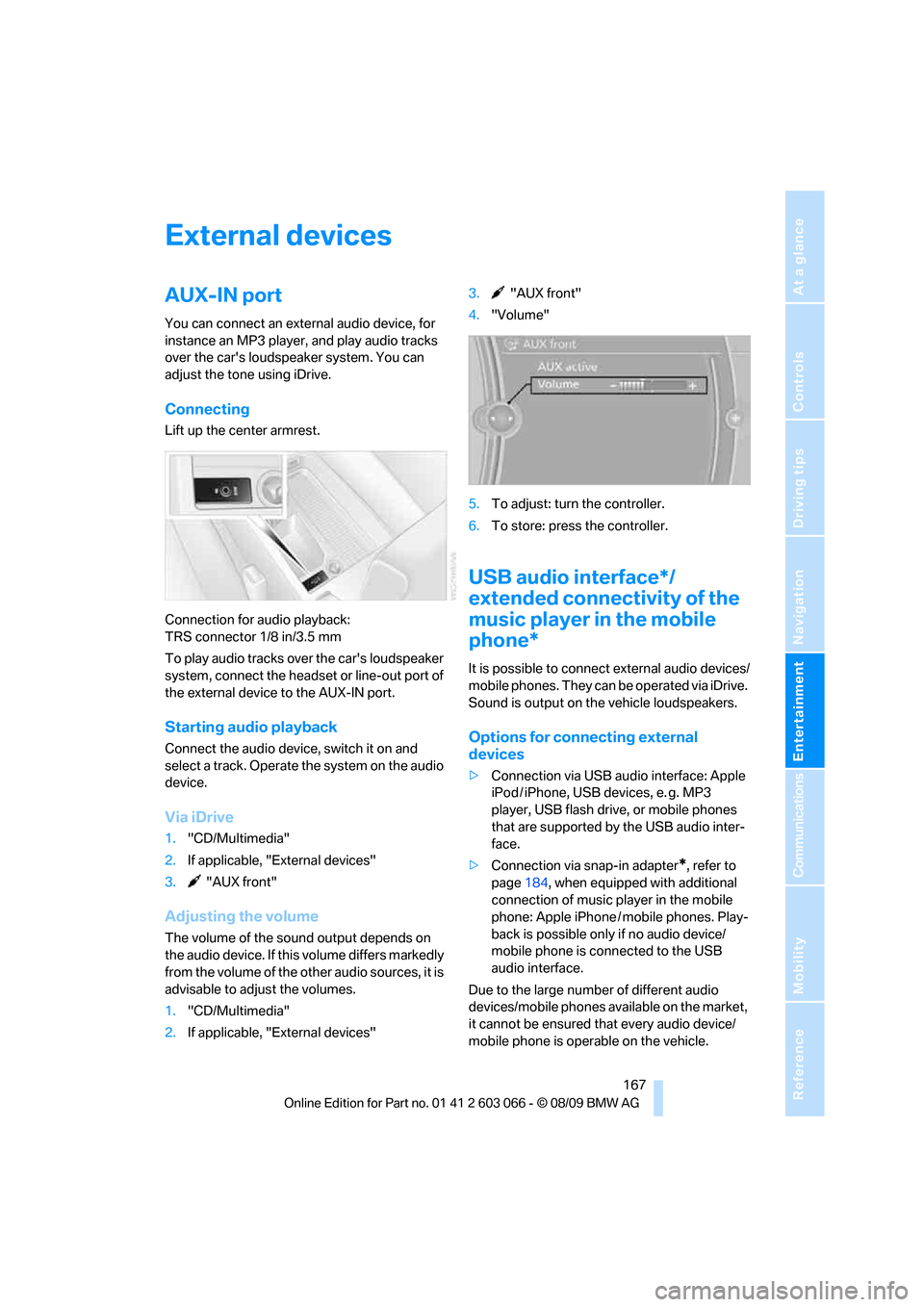
1."CD/Multimedia"
2.If applicable, "External devices"3. "AUX front"
4."Volume"
5.To adjust: turn the controller.
6.To store: press the controller.
USB audio interface*/
extended connectivity of the
music player in the mobile
phone*
It is possible to connect external audio devices/
mobile phones. They can be operated via iDrive.
Sound is output on the vehicle loudspeakers.
Options for connecting external
devices
>Connection via USB audio interface: Apple
iPod / iPhone, USB devices, e. g. MP3
player, USB flash drive, or mobile phones
that are supported by the USB audio inter-
face.
>Connection via snap-in adapter
*, refer to
page184, when equipped with additional
connection of music player in the mobile
phone: Apple iPhone / mobile phones. Play-
back is possible only if no audio device/
mobile phone is connected to the USB
audio interface.
Due to the large number of different audio
devices/mobile phones available on the market,
it cannot be ensured that every audio device/
mobile phone is operable on the vehicle.
Page 170 of 274
External devices
168 Ask about suitable audio devices/mobile
phones at your BMW center.
Audio files
Standard audio formats, e.g. MP3, WMA, WAV
(PCM) and AAC, and playlists in the M3U format
can be played.
Connecting via USB audio interface
Lift up the center armrest.
1AUX-IN port for audio playback:
TRS connector 1/8 in/3.5 mm
2USB interface
Apple iPod/iPhone
To connect the device, use the special cable
adapter for the Apple iPod/iPhone, available
from your BMW center. The cable adapter is
required for a flawless connection.
Connect the Apple iPod/iPhone with the AUX-
IN port and USB interface1 using the cable
adapter for the Apple iPod/iPhone.
The Apple iPod/iPhone menu structure is sup-
ported by the USB audio interface.
USB device
When connecting the device use a flexi-
ble adapter cable, to protect the USB
interface and your USB device against physical
damage.<
Connect the USB device to connector 2, using
a flexible adapter cable.
After the device is connected for the first time,
the information on all tracks (e.g. artist, type of
music) and the playlists are transferred from the
USB device to the vehicle. This procedure may take some time. The duration depends on the
USB device and the number of tracks.
During transmission, the tracks can be called up
via the file directory.
Information from up to four USB devices can be
stored in the vehicle, or a total of about
16,000 tracks.
If a fifth USB device is connected or if more than
16,000 tracks are stored, information on exist-
ing tracks may be deleted.
Music tracks with integrated Digital
Rights Management (DRM) cannot be
played.<
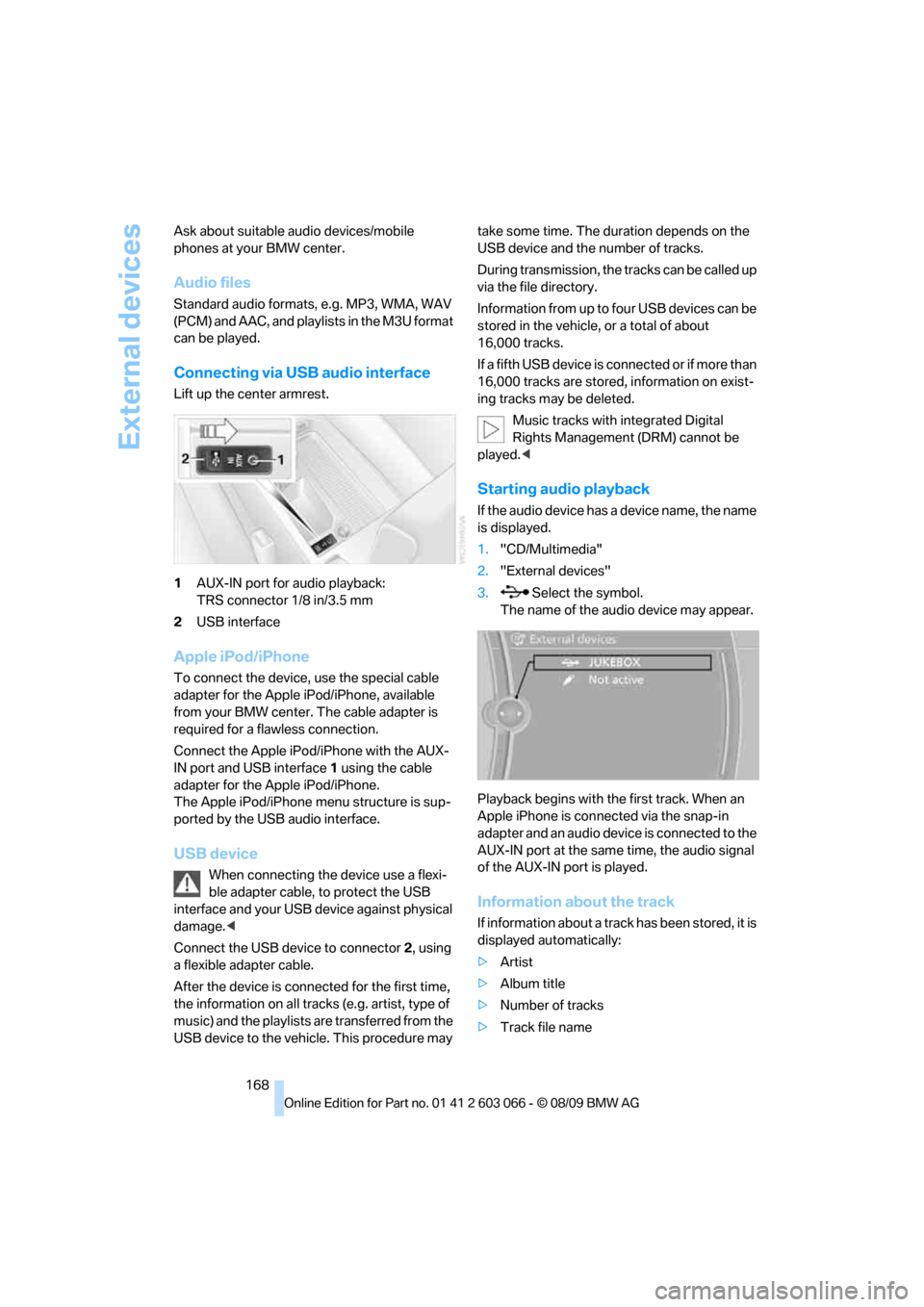
Starting audio playback
If the audio device has a device name, the name
is displayed.
1."CD/Multimedia"
2."External devices"
3. Select the symbol.
The name of the audio device may appear.
Playback begins with the first track. When an
Apple iPhone is connected via the snap-in
adapter and an audio device is connected to the
AUX-IN port at the same time, the audio signal
of the AUX-IN port is played.
Information about the track
If information about a track has been stored, it is
displayed automatically:
>Artist
>Album title
>Number of tracks
>Track file name
Page 176 of 274
Telephone
174
Telephone
The concept
Your BMW is equipped with a full preparation
package mobile phone. After pairing a suitable
mobile phone with the vehicle once, you can
operate the mobile phone via the iDrive, the
buttons on the steering wheel or using voice
commands
*.
Once a mobile phone has been paired with your
vehicle, it is automatically recognized as soon
as it is inside the vehicle while the engine is run-
ning or the ignition is switched on. You can
store the pairing data for up to four mobile
phones simultaneously. If several mobile
phones are detected at the same time, the
mobile phone last paired can be operated via
the vehicle.
Using the telephone inside
the vehicle
Using the snap-in adapter*
The so-called snap-in adapter, a holder for
mobile phones, allows you to charge the mobile
phone's battery and connect the mobile phone
to your vehicle's outside antenna. This ensures
better network reception and consistent repro-
duction quality. Please contact your
BMW center to find out for which mobile
phones there are snap-in adapters available.
For your safety
A car phone makes life more convenient in
many ways, and can even save lives in an emer-
gency. While you should consult your mobile
phone's separate operating instructions for a
detailed description of safety precautions and
information, we request that you direct your
particular attention to the following:
Only make entries when the traffic situa-
tion allows you to do so. Do not hold the
mobile phone in your hand while you are driving;
use the hands-free system instead. If you do not observe this precaution, your being dis-
tracted can endanger vehicle occupants and
other road users.<
Suitable mobile phones
Please ask your BMW center which mobile
phones with Bluetooth interface are supported
by the mobile phone preparation package and
which mobile phones are compatible with the
snap-in adapter. By virtue of their particular
software versions, these mobile phones sup-
port the functions described in this Owner's
Manual. Malfunctions may occur with other
mobile phones.
Operating options
You can operate the mobile phone using:
>Buttons on the steering wheel, refer to
page10
>iDrive, refer to page16
>Voice commands
*, refer to page181
>Programmable memory keys, refer to
page20
Avoid operating a mobile phone recognized by
the vehicle via the mobile phone's keypad; oth-
erwise, malfunctions may result.
Start-up
Pairing the mobile phone with the
vehicle
The following prerequisites must be met:
>Compatible mobile phone: the mobile
phone is supported by the full preparation
package mobile phone. You can obtain
information on the Internet at:
www.bmw.com/bluetooth
>The mobile phone is ready to operate.
*
Page 190 of 274
BMW Assist
188
BMW Assist
BMW Assist*
BMW Assist provides a number of different ser-
vices. For example, the position data of the
vehicle can be transmitted to the BMW Assist
Response Center when an Emergency
Request
* is sent.
Many BMW Assist services depend on the con-
tract individually agreed upon.
After your contract has expired, the BMW
Assist system will be deactivated by the BMW
Assist Response Center without you having to
visit a BMW center. After the BMW Assist sys-
tem has been deactivated, no BMW Assist ser-
vices will be available. The BMW Assist system
can be reactivated by a BMW center after a new
contract has been signed.
Requirements
>The installed BMW Assist system is logged
in to a wireless communications network.
This network must be capable of transmit-
ting the services.
>To transmit position data, the vehicle must
be able to determine its current position.
>To activate and update BMW Assist, a GPS
signal must be available.
>The BMW Assist service contract was
signed with your BMW center or with the
BMW Assist Response Center. The service
must have been fully enabled.
>BMW Assist is activated.
Services offered
>Emergency Request: when you press the
SOS button, a connection to the BMW
Assist Response Center is established. The
BMW Assist Response Center then speaks
with you and takes further steps to help you.
>Automatic Collision Notification: under cer-
tain conditions, a connection to the BMW
Assist Response Center is established after
a serious accident. If possible, the BMW Assist Response Center then speaks with
you and takes further steps to help you.
>Enhanced Roadside Assistance: BMW
Roadside Assistance
* can be contacted if
assistance is needed in the event of a
breakdown. If possible, the vehicle data and
position data are transmitted during this
call.
>Customer Relations: connection to Cus-
tomer Relations for information on all
aspects of your vehicle.
>TeleService: data on your vehicle's service
status or required inspections are transmit-
ted to your BMW center, either automati-
cally before a service due date or when you
request a BMW service appointment.
>Remote Door Unlock: the BMW Assist
Response Center provides assistance if, for
example, the remote control is not available
and the vehicle needs to be opened.
>Stolen Vehicle Recovery: after you report to
the police that your vehicle was stolen, the
BMW Assist Response Center can deter-
mine its position.
>In addition, the optional Convenience Plan
offers a concierge service and information
on route planning, the traffic situation and
weather. Using Critical Calling, a limited
number of calls can be made via the BMW
Assist Response Center, for example if the
mobile phone is not available or discharged.
Press the SOS button to contact the BMW
Assist Response Center.
TeleService*
TeleService supports communication with your
BMW center.
>Data on the vehicle's service requirements
can be sent directly to the BMW center. In
this way, the BMW center can plan its work
*
Page 193 of 274
191
Entertainment
Reference
At a glance
Controls
Driving tips Communications
Navigation
Mobility
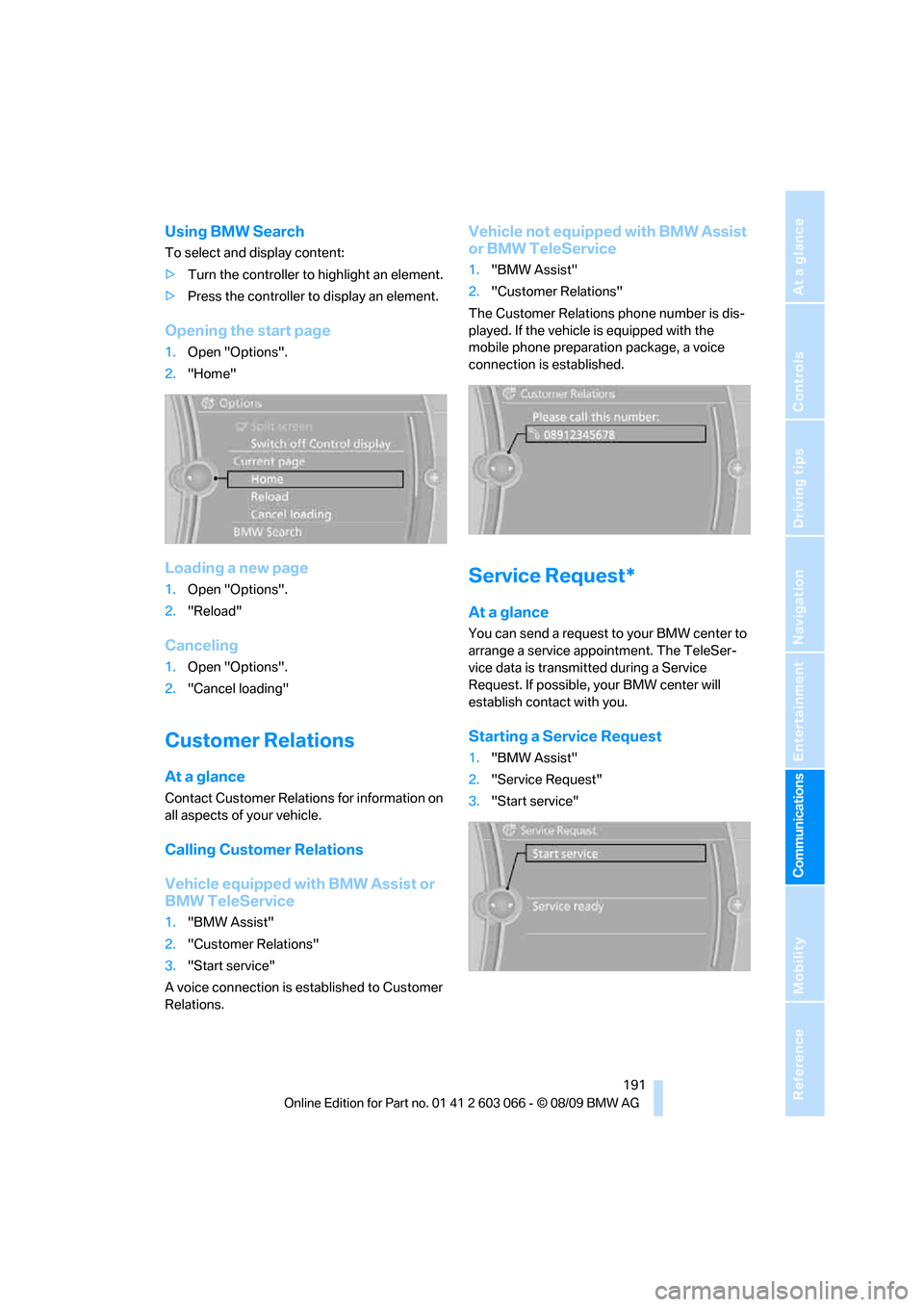
Using BMW Search
To select and display content:
>Turn the controller to highlight an element.
>Press the controller to display an element.
Opening the start page
1.Open "Options".
2."Home"
Loading a new page
1.Open "Options".
2."Reload"
Canceling
1.Open "Options".
2."Cancel loading"
Customer Relations
At a glance
Contact Customer Relations for information on
all aspects of your vehicle.
Calling Customer Relations
Vehicle equipped with BMW Assist or
BMW TeleService
1."BMW Assist"
2."Customer Relations"
3."Start service"
A voice connection is established to Customer
Relations.
Vehicle not equipped with BMW Assist
or BMW TeleService
1."BMW Assist"
2."Customer Relations"
The Customer Relations phone number is dis-
played. If the vehicle is equipped with the
mobile phone preparation package, a voice
connection is established.
Service Request*
At a glance
You can send a request to your BMW center to
arrange a service appointment. The TeleSer-
vice data is transmitted during a Service
Request. If possible, your BMW center will
establish contact with you.
Starting a Service Request
1."BMW Assist"
2."Service Request"
3."Start service"