display BMW M4 2016 Service Manual
[x] Cancel search | Manufacturer: BMW, Model Year: 2016, Model line: M4, Model: BMW M4 2016Pages: 228, PDF Size: 4.88 MB
Page 92 of 228
navigation system before the start of the jour‐
ney.
The distance to the destination is automati‐
cally adopted.
Arrival time The estimated time of arrival is
displayed if a destination was
entered in the navigation system
before the start of the journey.
A precondition is that the time is
correctly set.
Speed Limit Information Description of Speed Limit Information, see
page 88.
Journey computer
Two types of on-board computer are available.▷"On-board computer": values can be reset
any number of times.▷"Trip computer": values deliver an over‐
view of the current trip.
Resetting the journey computer
On the Control Display:
1."Vehicle information"2."Trip computer"3."Reset": all values are reset.
"Reset automatically": all values are reset if
the vehicle is at a standstill for approxi‐
mately four hours.
Display on the Control Display
Display the on-board computer or journey
computer on the Control Display.
1."Vehicle information"2."On-board computer" or "Trip computer"Resetting fuel consumption or speed
On the Control Display:1."Vehicle information"2."On-board computer"3."Consumpt." or "Speed"4."Yes"
Sport displays
Principle
On the Control Display the current values for
power and torque are shown with the relevant
equipment.
Show Sport displays on the Control
Display
1."Vehicle information"2."Sport displays"
Speed warning
Principle Display of a speed at which a warning is to be
issued when reached.
Repeat warning if the set speed limit was un‐
dershot once by at least 5 km/h/3 mph.
Displaying, setting or altering the
speed warning
On the Control Display:
1."Settings"2."Speed"3."Warning at:"4.Turn the Controller until the desired speed
is displayed.5.Press the Controller.
Speed warning is stored.
Seite 92ControlsDisplays92
Online Edition for Part no. 01 40 2 964 013 - VI/15
Page 93 of 228
Activating/deactivating speed warning
On the Control Display:1."Settings"2."Speed"3."Warning"4.Press the Controller.
Saving actual speed as speed warning
On the Control Display:
1."Settings"2."Speed"3."Select current speed"4.Press the Controller.
The current driving speed is saved as the
speed warning.
Settings on the control
display
Time
Setting the time zone
1."Settings"2."Time/date"3."Time zone:"4.Select desired time zone.
The time zone is saved.
Setting the time
1."Settings"2."Time/date"3."Time:"4.Turn the controller until the desired hours
are displayed.5.Press the controller.6.Turn the controller until the desired mi‐
nutes are displayed.7.Press the controller.The time is saved.
Setting the time format1."Settings"2."Time/date"3."Format:"4.Select the desired format.
The time format is saved.
Automatic time setting Depending on equipment, the time, date and, if
necessary, time zone are updated automati‐
cally.
1."Settings"2."Time/date"3."Automatic time setting"
Date
Setting the date
1."Settings"2."Time/date"3."Date:"4.Turn the controller until the desired day is
displayed.5.Press the controller.6.Make the setting for month and year ac‐
cordingly.
The date is saved.
Setting the date format
1."Settings"2."Time/date"3."Format:"4.Select the desired format.
The date format is saved.
Seite 93DisplaysControls93
Online Edition for Part no. 01 40 2 964 013 - VI/15
Page 94 of 228
Language
Setting the language
To set the language on the Control Display:1."Settings"2."Language/units"3."Language:"4.Select the desired language.
The setting is stored for the currently used
profile.
Setting the speech dialogue Voice dialogue for the voice control system,
see page 26.
Units of measure
Setting the units of measure
To set the units of measure for fuel consump‐
tion, distance covered/remaining range, and
temperature:
1."Settings"2."Language/units"3.Select the desired menu item.4.Select the desired unit.
The setting is stored for the currently used
profile.
Brightness
Adjusting brightness
Adjusting brightness of Control Display:
1."Settings"2."Control display"3."Brightness"4.Turn the Controller until the desired bright‐
ness is obtained.5.Press the Controller.
The setting is stored for the currently used
profile.
Depending on the lighting conditions, bright‐
ness control might not be immediately recog‐
nisable.
Head-Up Display
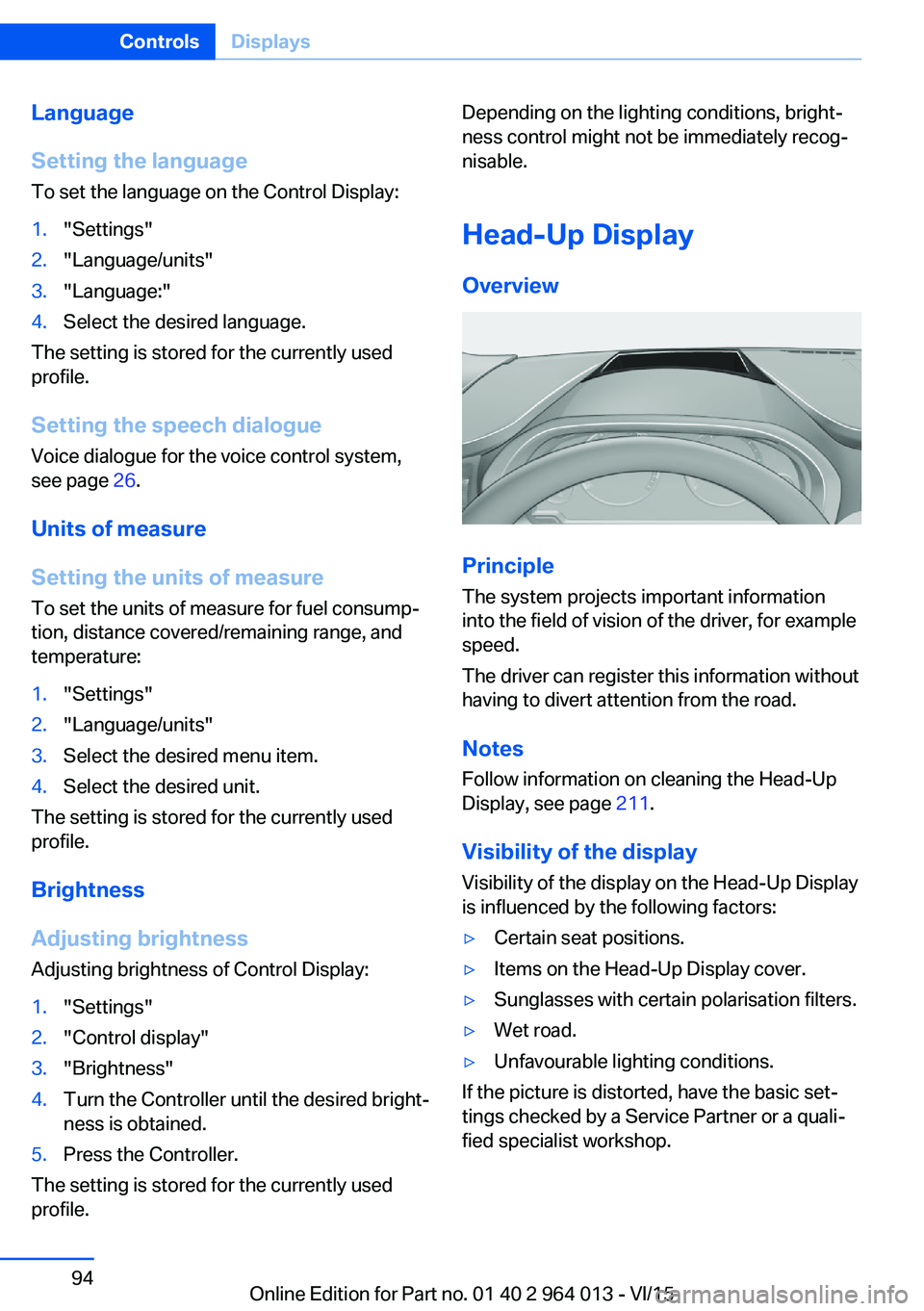
Overview
Principle
The system projects important information
into the field of vision of the driver, for example
speed.
The driver can register this information without
having to divert attention from the road.
Notes
Follow information on cleaning the Head-Up
Display, see page 211.
Visibility of the display Visibility of the display on the Head-Up Display
is influenced by the following factors:
▷Certain seat positions.▷Items on the Head-Up Display cover.▷Sunglasses with certain polarisation filters.▷Wet road.▷Unfavourable lighting conditions.
If the picture is distorted, have the basic set‐
tings checked by a Service Partner or a quali‐
fied specialist workshop.
Seite 94ControlsDisplays94
Online Edition for Part no. 01 40 2 964 013 - VI/15
Page 95 of 228
Switching on/off1."Settings"2."Head-up display"3."Head-up display"
Display
Standard view The following information is displayed in the
Head-Up Display:
▷Speed.▷Navigation system.▷Check Control messages.▷Selection list from the instrument cluster.▷Driver Assistance Systems.
Some of this information is only shown briefly
when needed.
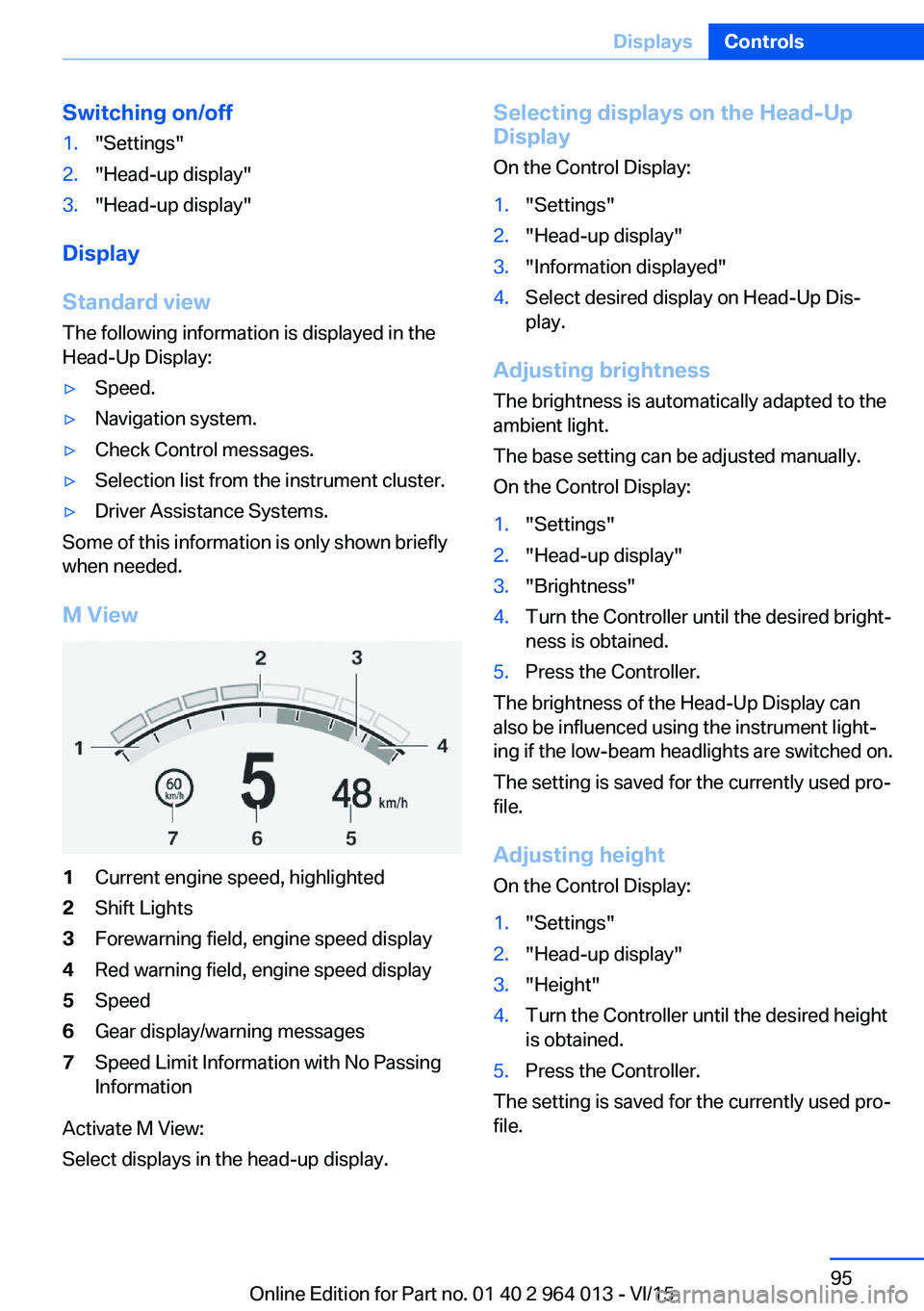
M View
1Current engine speed, highlighted2Shift Lights3Forewarning field, engine speed display4Red warning field, engine speed display5Speed6Gear display/warning messages7Speed Limit Information with No Passing
Information
Activate M View:
Select displays in the head-up display.
Selecting displays on the Head-Up
Display
On the Control Display:1."Settings"2."Head-up display"3."Information displayed"4.Select desired display on Head-Up Dis‐
play.
Adjusting brightness
The brightness is automatically adapted to the
ambient light.
The base setting can be adjusted manually.
On the Control Display:
1."Settings"2."Head-up display"3."Brightness"4.Turn the Controller until the desired bright‐
ness is obtained.5.Press the Controller.
The brightness of the Head-Up Display can
also be influenced using the instrument light‐
ing if the low-beam headlights are switched on.
The setting is saved for the currently used pro‐
file.
Adjusting height
On the Control Display:
1."Settings"2."Head-up display"3."Height"4.Turn the Controller until the desired height
is obtained.5.Press the Controller.
The setting is saved for the currently used pro‐
file.
Seite 95DisplaysControls95
Online Edition for Part no. 01 40 2 964 013 - VI/15
Page 96 of 228
Adjusting rotation
The image of the Head-Up Display can be ro‐
tated around its axis.
On the Control Display:1."Settings"2."Head-up display"3."Rotation"4.Turn the Controller until the desired set‐
ting is reached.5.Press the Controller.
The setting is saved for the currently used pro‐
file.
Special windscreen
The windscreen constitutes part of the sys‐
tem.
The shape of the windscreen enables a precise
projection.
A film in the windscreen prevents double im‐
ages occurring.
For this reason, have the special windscreen
replaced by a Service Partner or a qualified
specialist workshop.
Shift Lights General
The display is on the Head-Up Display and in
the instrument cluster.
Shift Lights in the instrument cluster
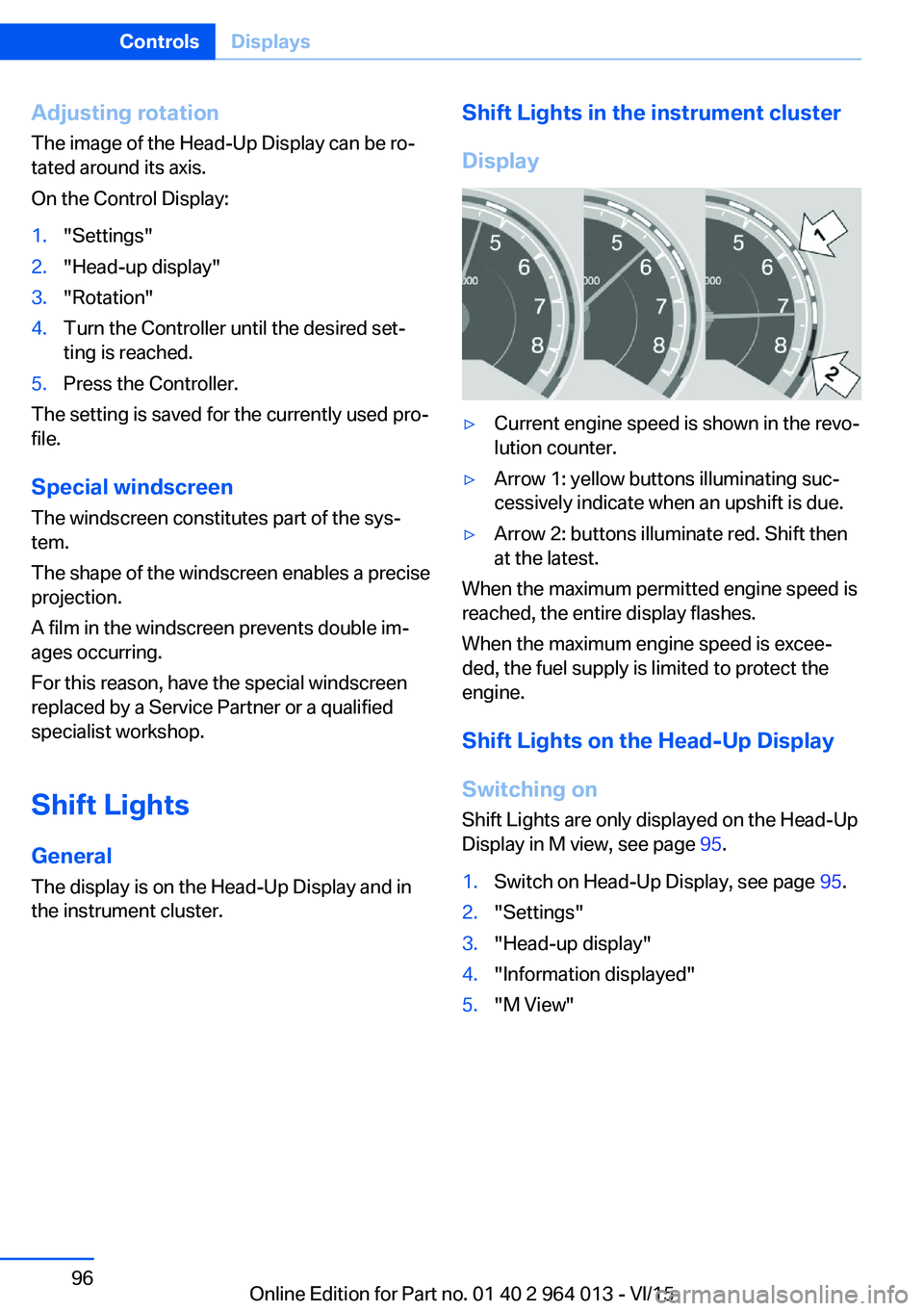
Display▷Current engine speed is shown in the revo‐
lution counter.▷Arrow 1: yellow buttons illuminating suc‐
cessively indicate when an upshift is due.▷Arrow 2: buttons illuminate red. Shift then
at the latest.
When the maximum permitted engine speed is
reached, the entire display flashes.
When the maximum engine speed is excee‐
ded, the fuel supply is limited to protect the
engine.
Shift Lights on the Head-Up DisplaySwitching on Shift Lights are only displayed on the Head-Up
Display in M view, see page 95.
1.Switch on Head-Up Display, see page 95.2."Settings"3."Head-up display"4."Information displayed"5."M View"Seite 96ControlsDisplays96
Online Edition for Part no. 01 40 2 964 013 - VI/15
Page 97 of 228
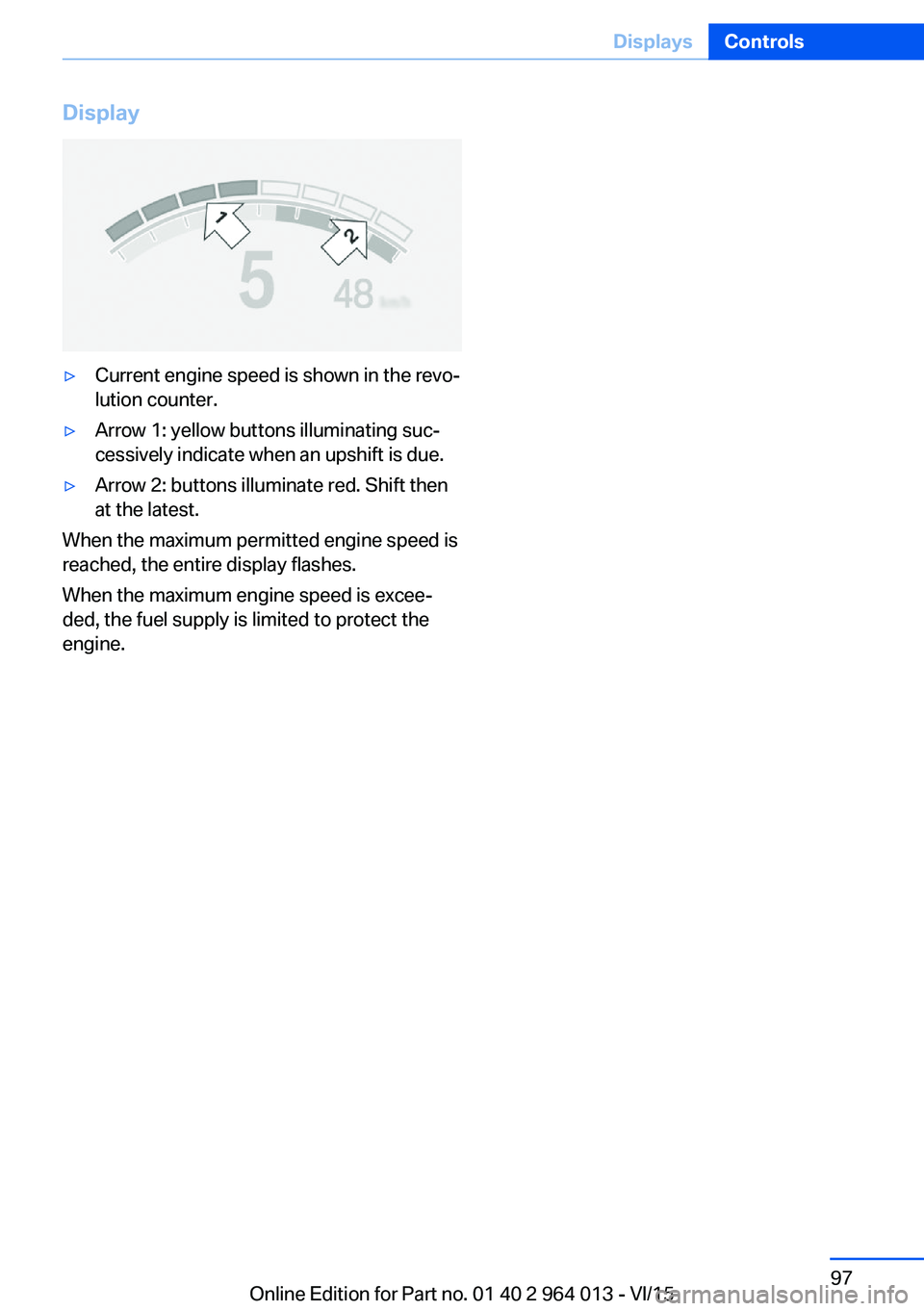
Display▷Current engine speed is shown in the revo‐
lution counter.▷Arrow 1: yellow buttons illuminating suc‐
cessively indicate when an upshift is due.▷Arrow 2: buttons illuminate red. Shift then
at the latest.
When the maximum permitted engine speed is
reached, the entire display flashes.
When the maximum engine speed is excee‐
ded, the fuel supply is limited to protect the
engine.
Seite 97DisplaysControls97
Online Edition for Part no. 01 40 2 964 013 - VI/15
Page 99 of 228
Parking lights
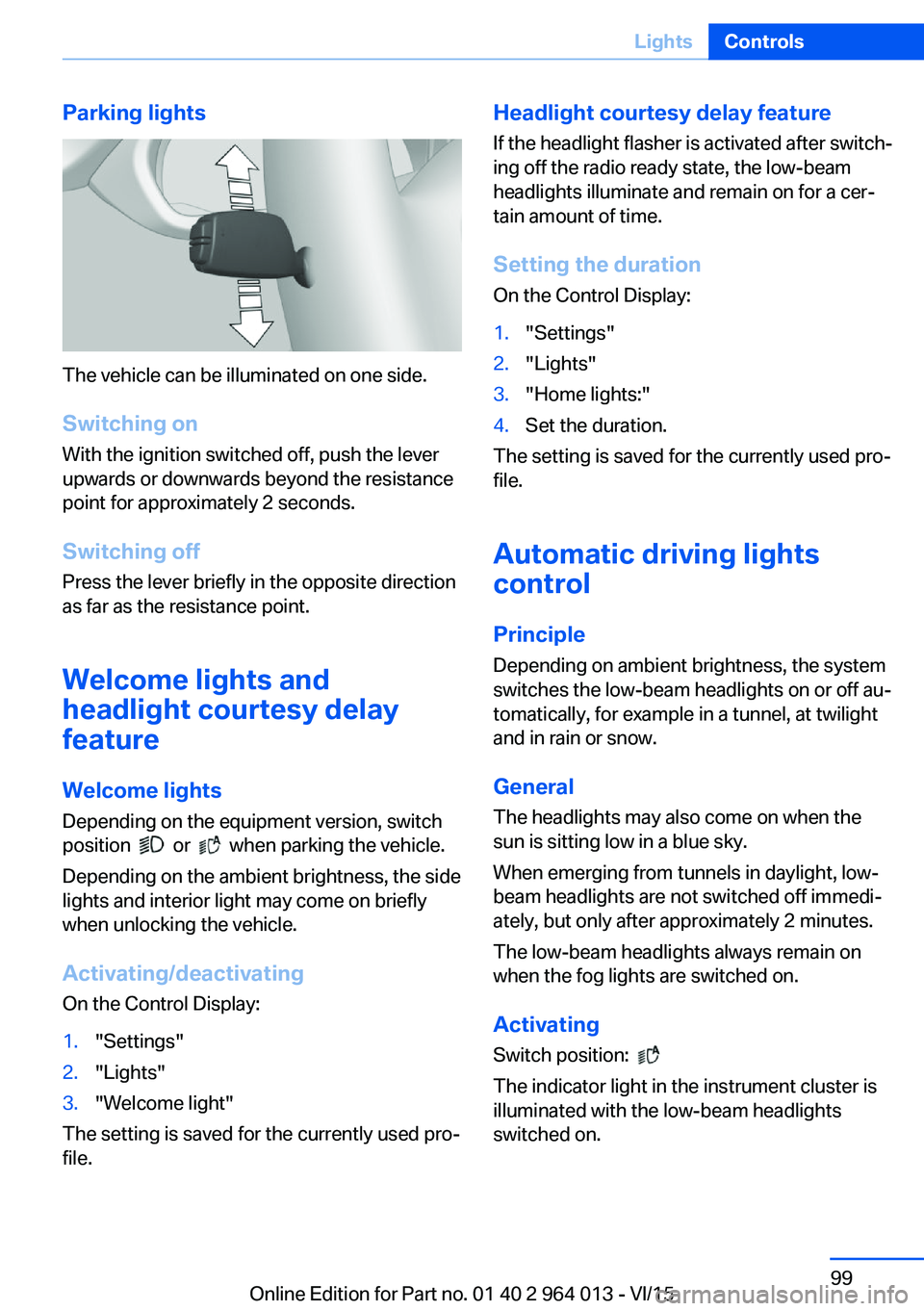
The vehicle can be illuminated on one side.
Switching on With the ignition switched off, push the lever
upwards or downwards beyond the resistance
point for approximately 2 seconds.
Switching off Press the lever briefly in the opposite direction
as far as the resistance point.
Welcome lights and
headlight courtesy delay
feature
Welcome lights Depending on the equipment version, switch
position
or when parking the vehicle.
Depending on the ambient brightness, the side
lights and interior light may come on briefly
when unlocking the vehicle.
Activating/deactivating
On the Control Display:
1."Settings"2."Lights"3."Welcome light"
The setting is saved for the currently used pro‐
file.
Headlight courtesy delay feature
If the headlight flasher is activated after switch‐
ing off the radio ready state, the low-beam
headlights illuminate and remain on for a cer‐
tain amount of time.
Setting the duration
On the Control Display:1."Settings"2."Lights"3."Home lights:"4.Set the duration.
The setting is saved for the currently used pro‐
file.
Automatic driving lightscontrol
Principle Depending on ambient brightness, the system
switches the low-beam headlights on or off au‐
tomatically, for example in a tunnel, at twilight
and in rain or snow.
General The headlights may also come on when the
sun is sitting low in a blue sky.
When emerging from tunnels in daylight, low-
beam headlights are not switched off immedi‐
ately, but only after approximately 2 minutes.
The low-beam headlights always remain on
when the fog lights are switched on.
Activating Switch position:
The indicator light in the instrument cluster is
illuminated with the low-beam headlights
switched on.
Seite 99LightsControls99
Online Edition for Part no. 01 40 2 964 013 - VI/15
Page 100 of 228
System limits
The automatic driving lights control is no sub‐
stitute for your individual judgement of when it
is necessary to switch on the lights.
The sensors are unable, for instance, to recog‐
nise fog or hazy weather. In such situations,
switch on the lights manually to avoid any
safety risk.
Daytime driving lights Switch position:
,
The daytime driving lights illuminate with the
ignition switched on.
Activating/deactivating
In some countries daytime driving lights are
compulsory, which is why the daytime driving
lights cannot be deactivated.
On the Control Display:
1."Settings"2."Lights"3."Daytime driving lights"
The setting is saved for the currently used pro‐
file.
Adaptive HeadlightsPrinciple
Adaptive Headlights is a variable headlight
control system that makes it possible to illumi‐
nate the road surface responsively.
The beams from the headlights follow the road
ahead on the basis of the steering angle and
other parameters.
Depending on the speed, the variable light dis‐
tribution ensures even better illumination of
the roadway.
The light distribution is automatically adapted
to the speed. The city light is switched on if the
speed of 50 km/h, approx. 30 mph is not ex‐
ceeded while accelerating or if the speed of
40 km/h, approx. 25 mph is undercut while
braking. The motorway light is switched on at a speed higher than 110 km/h, 68 mph after ap‐
proximately 30 seconds or as of a speed of
140 km/h, 87 mph.
Activating Switch position
with the ignition switched
on.
So as not to dazzle oncoming vehicles, the
adaptive cornering light does not swivel to the
driver's side when stationary.
A cornering light is activated automatically de‐
pending on the steering angle or use of the
turn indicators.
The cornering light may be switched on when
driving in reverse, irrespective of the steering
angle.
Malfunction
A Check Control message is displayed.
Adaptive Headlights are faulty or have failed.
Have the system checked as soon as possible.
High-beam assistance
Principle When low-beam headlights are switched on,this system automatically switches the high-
beam headlights on and off or fades out the
areas which dazzle oncoming vehicles. This
process is controlled by a camera on the front
of the rear-view mirror. It ensures that the
high-beam headlights are switched on when‐
ever the traffic situation allows. You can also
control the lights yourself at any time and
switch them on and off as usual. The high-
beam headlights are not switched on by the
system in the low speed range.
Seite 100ControlsLights100
Online Edition for Part no. 01 40 2 964 013 - VI/15
Page 103 of 228
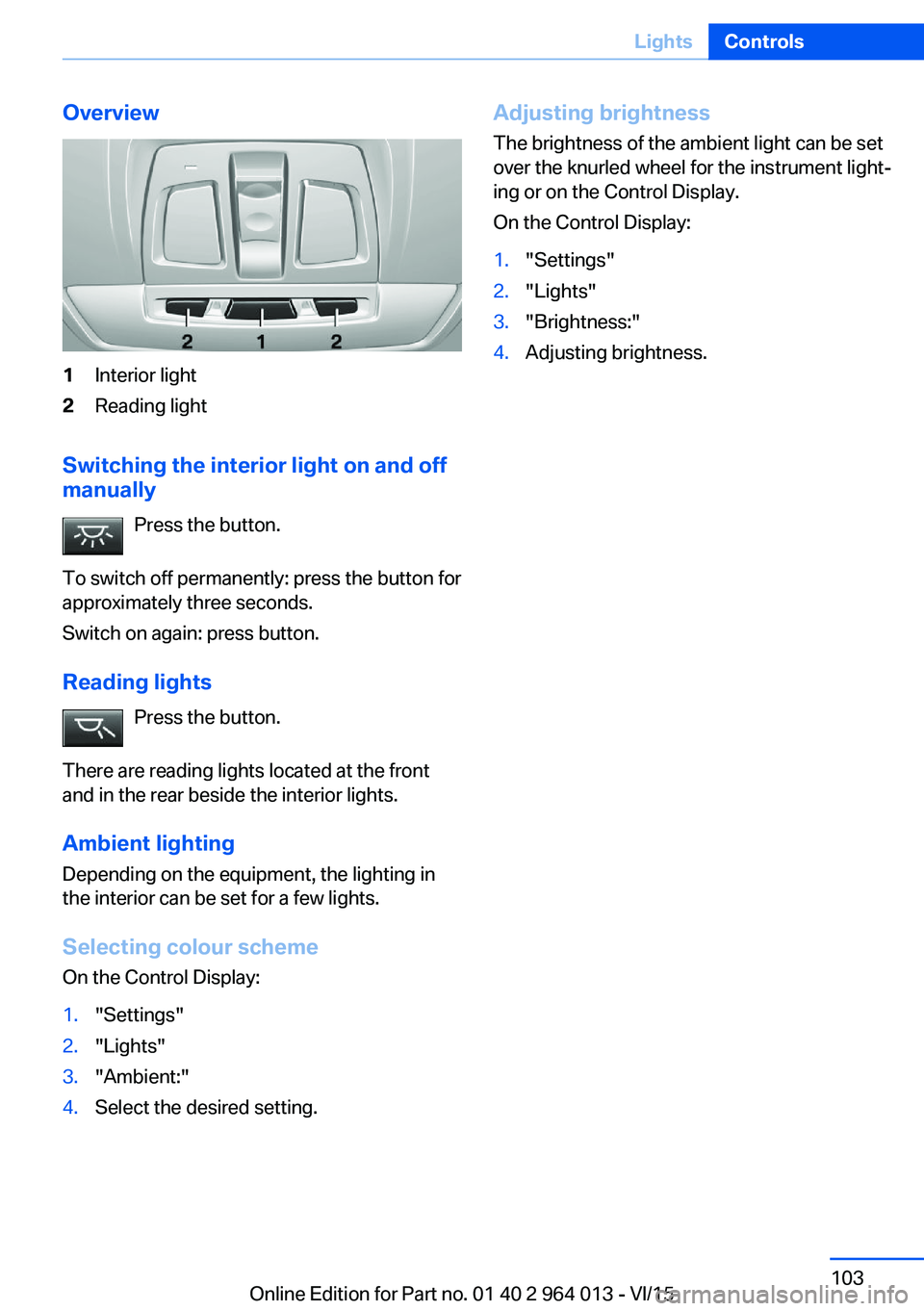
Overview1Interior light2Reading light
Switching the interior light on and off
manually
Press the button.
To switch off permanently: press the button for
approximately three seconds.
Switch on again: press button.
Reading lights Press the button.
There are reading lights located at the front
and in the rear beside the interior lights.
Ambient lighting
Depending on the equipment, the lighting in
the interior can be set for a few lights.
Selecting colour scheme
On the Control Display:
1."Settings"2."Lights"3."Ambient:"4.Select the desired setting.Adjusting brightness
The brightness of the ambient light can be set
over the knurled wheel for the instrument light‐
ing or on the Control Display.
On the Control Display:1."Settings"2."Lights"3."Brightness:"4.Adjusting brightness.Seite 103LightsControls103
Online Edition for Part no. 01 40 2 964 013 - VI/15
Page 106 of 228
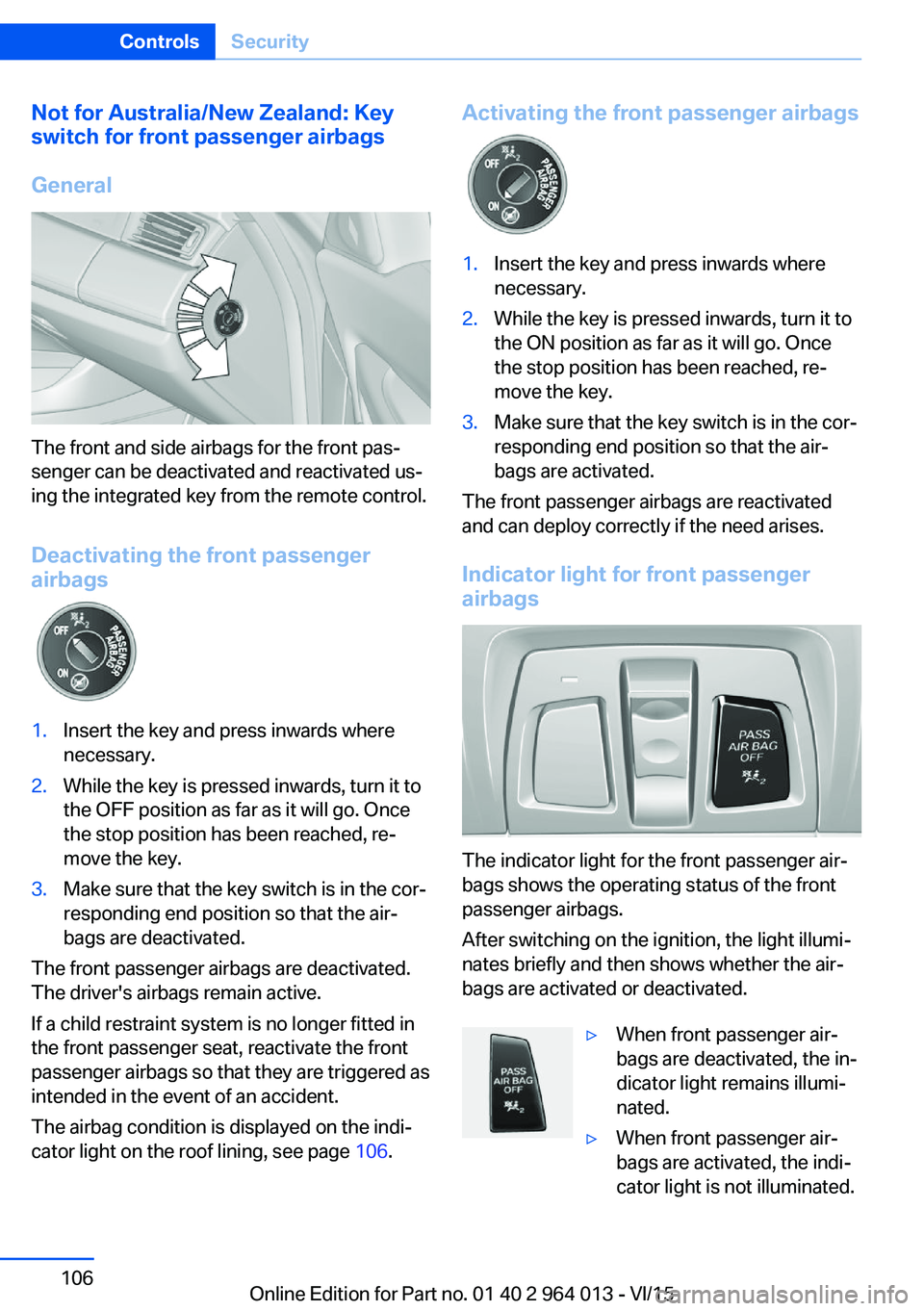
Not for Australia/New Zealand: Key
switch for front passenger airbags
General
The front and side airbags for the front pas‐
senger can be deactivated and reactivated us‐
ing the integrated key from the remote control.
Deactivating the front passenger
airbags
1.Insert the key and press inwards where
necessary.2.While the key is pressed inwards, turn it to
the OFF position as far as it will go. Once
the stop position has been reached, re‐
move the key.3.Make sure that the key switch is in the cor‐
responding end position so that the air‐
bags are deactivated.
The front passenger airbags are deactivated.
The driver's airbags remain active.
If a child restraint system is no longer fitted in
the front passenger seat, reactivate the front
passenger airbags so that they are triggered as
intended in the event of an accident.
The airbag condition is displayed on the indi‐
cator light on the roof lining, see page 106.
Activating the front passenger airbags1.Insert the key and press inwards where
necessary.2.While the key is pressed inwards, turn it to
the ON position as far as it will go. Once
the stop position has been reached, re‐
move the key.3.Make sure that the key switch is in the cor‐
responding end position so that the air‐
bags are activated.
The front passenger airbags are reactivated
and can deploy correctly if the need arises.
Indicator light for front passenger airbags
The indicator light for the front passenger air‐
bags shows the operating status of the front
passenger airbags.
After switching on the ignition, the light illumi‐
nates briefly and then shows whether the air‐
bags are activated or deactivated.
▷When front passenger air‐
bags are deactivated, the in‐
dicator light remains illumi‐
nated.▷When front passenger air‐
bags are activated, the indi‐
cator light is not illuminated.Seite 106ControlsSecurity106
Online Edition for Part no. 01 40 2 964 013 - VI/15