center console BMW M5 2007 Owners Manual
[x] Cancel search | Manufacturer: BMW, Model Year: 2007, Model line: M5, Model: BMW M5 2007Pages: 253, PDF Size: 8.57 MB
Page 16 of 253
Cockpit
14
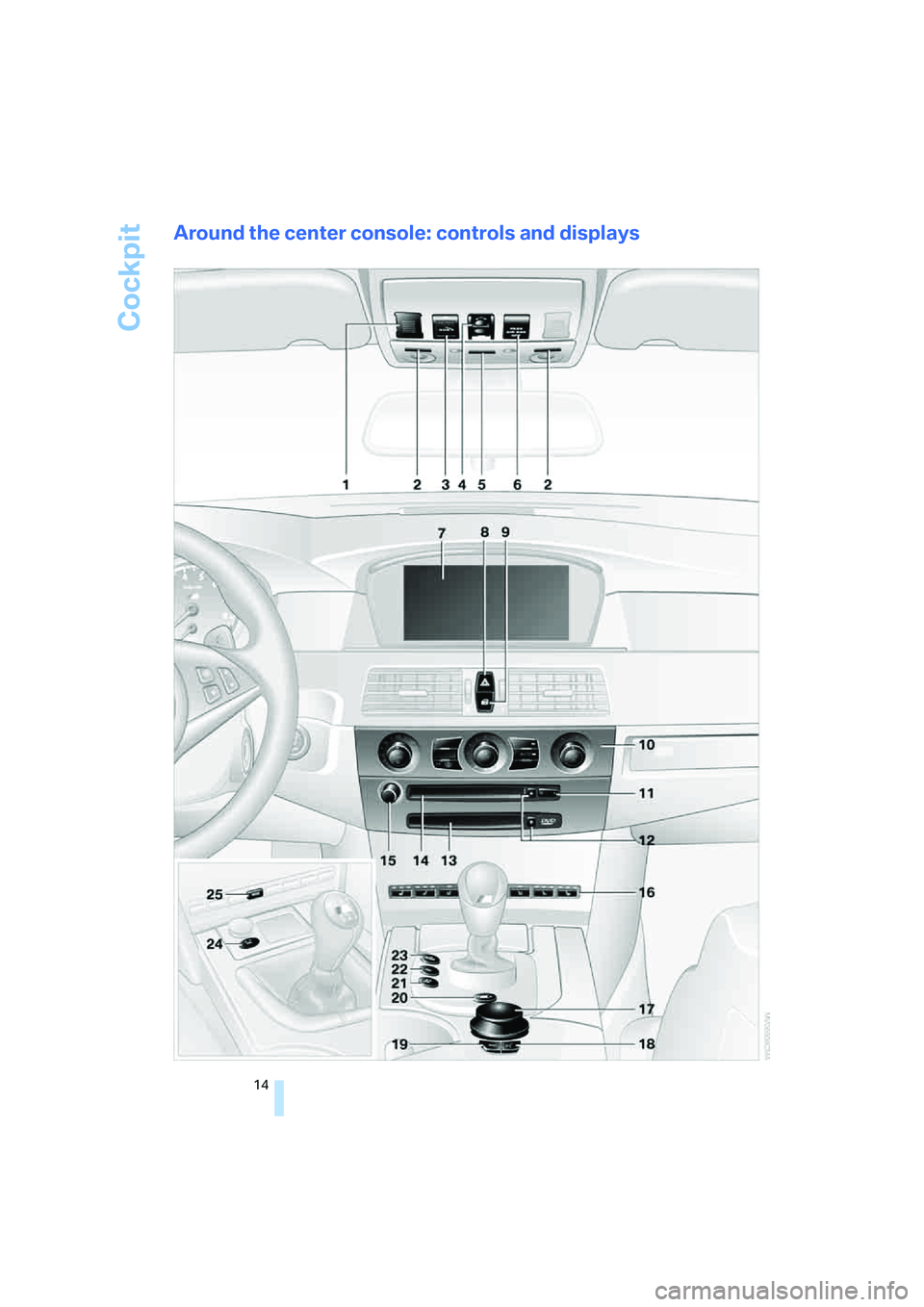
Around the center console: controls and displays
Page 25 of 253
At a glance
23Reference
Controls
Driving tips
Communications
Navigation
Entertainment
Mobility
If no other commands are possible, then oper-
ate the equipment via iDrive.
Terminating or canceling voice
command system
Press the button on the steering wheel or in
the center console
or
Commands
Having possible commands read aloud
You can have the system read aloud the possi-
ble commands related to the selected menu
item on the Control Display.
To have the system list the possible com-
mands:
For example, if you have selected "CD", the
system will read aloud the possible commands
for operating the CD player and the CD
changer
*.
Opening help
Using alternative commands
There are often a number of commands to run a
function, e.g.:
Running functions directly with short
commands
With short commands you can carry out certain
functions directly, regardless of which menu
item is selected, refer to page225.
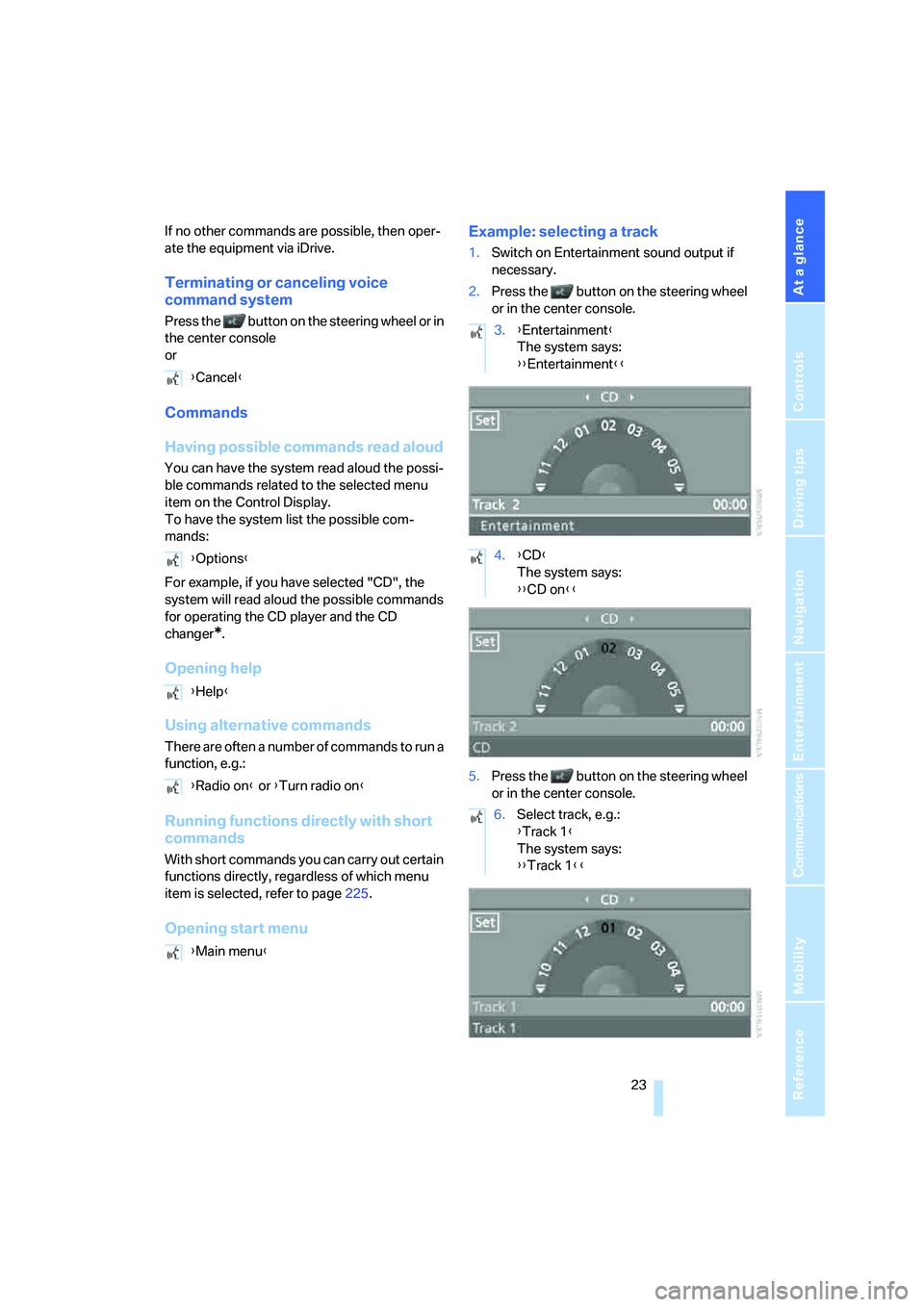
Opening start menuExample: selecting a track
1.Switch on Entertainment sound output if
necessary.
2.Press the button on the steering wheel
or in the center console.
5.Press the button on the steering wheel
or in the center console. {Cancel}
{Options}
{Help}
{Radio on} or {Turn radio on}
{Main menu}
3.{Entertainment}
The system says:
{{Entertainment}}
4.{CD}
The system says:
{{CD on}}
6.Select track, e.g.:
{Track 1}
The system says:
{{Track 1}}
Page 53 of 253
Controls
51Reference
At a glance
Driving tips
Communications
Navigation
Entertainment
Mobility
The setting is stored for the remote control cur-
rently in use.
Activating settings
Press the button on the steering wheel.
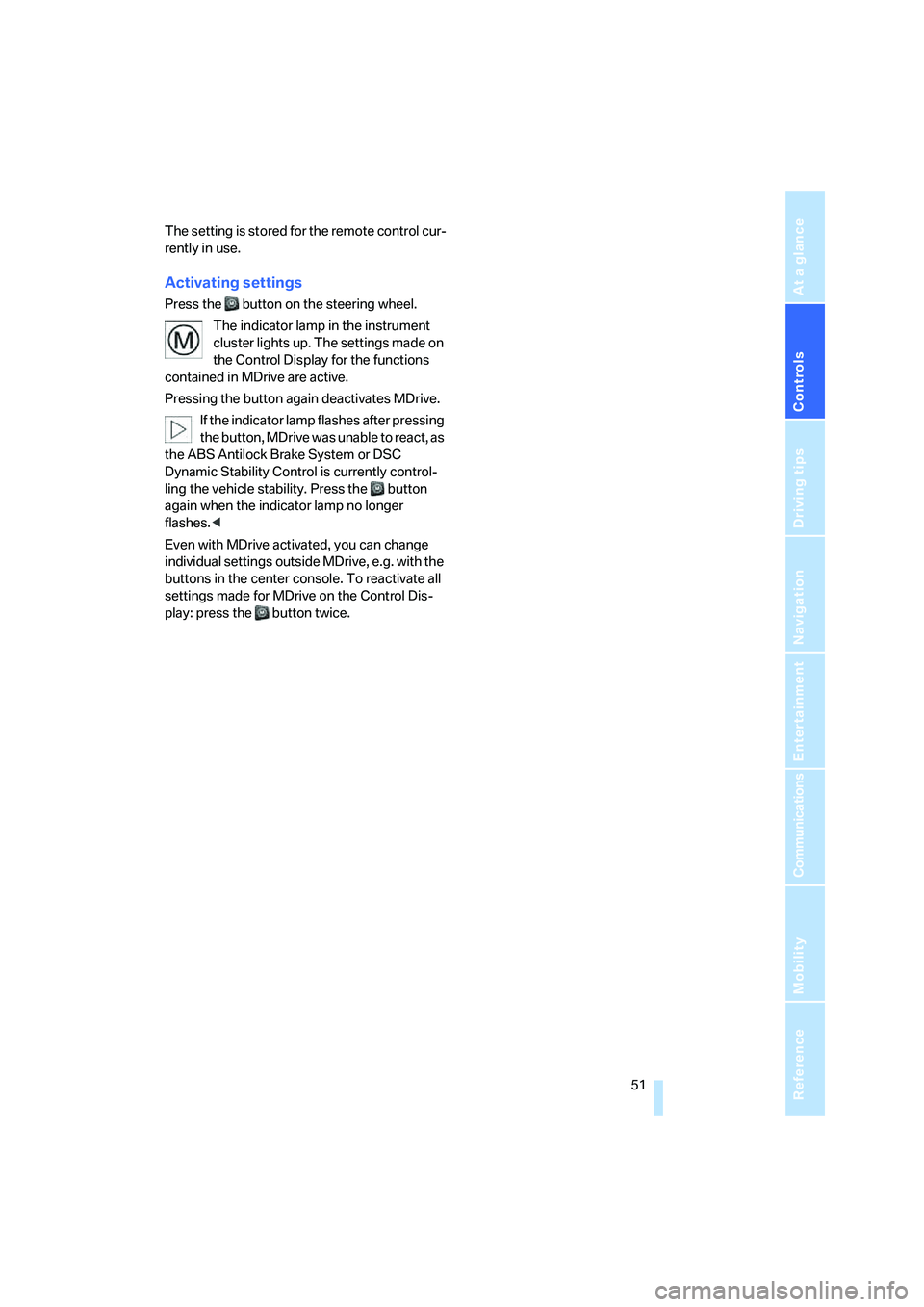
The indicator lamp in the instrument
cluster lights up. The settings made on
the Control Display for the functions
contained in MDrive are active.
Pressing the button again deactivates MDrive.
If the indicator lamp flashes after pressing
the button, MDrive was unable to react, as
the ABS Antilock Brake System or DSC
Dynamic Stability Control is currently control-
ling the vehicle stability. Press the button
again when the indicator lamp no longer
flashes.<
Even with MDrive activated, you can change
individual settings outside MDrive, e.g. with the
buttons in the center console. To reactivate all
settings made for MDrive on the Control Dis-
play: press the button twice.
Page 62 of 253
Driving
60 >To downshift, briefly pull the left shift
paddle –.
Drivelogic
With Drivelogic various driving programs are
available to you.
Each time you change between the Sequential
mode and the Drive mode, the driving program
last selected in the respective mode is active.
Exception: after the first change from the
Sequential to the Drive mode, driving program 3
is active.
In Drive mode
Five driving programs, from relaxed 1 to sporty/
highly dynamic 5 are available for selection.
In Sequential mode
You can choose from six driving programs from
balanced/dynamic 1 to sporty/purist 6.
Each time the engine is started, driving pro-
gram 3 is activated.
The sporty/purist driving program 6 is only
available with the DSC Dynamic Stability Con-
trol deactivated, refer to page80. When DSC is
activated, the system switches from driving
program 6 to 5.
To maintain vehicle stability, always drive
with the DSC switched on when possi-
ble.<
Selecting driving program with button
in center console
Press the button repeatedly until the desired
driving program is displayed in the instrument
cluster, refer to page59.
Selecting driving program via button
on steering wheel
You can also activate your preferred driving pro-
gram with the button on the steering wheel,
refer to MDrive on page50.
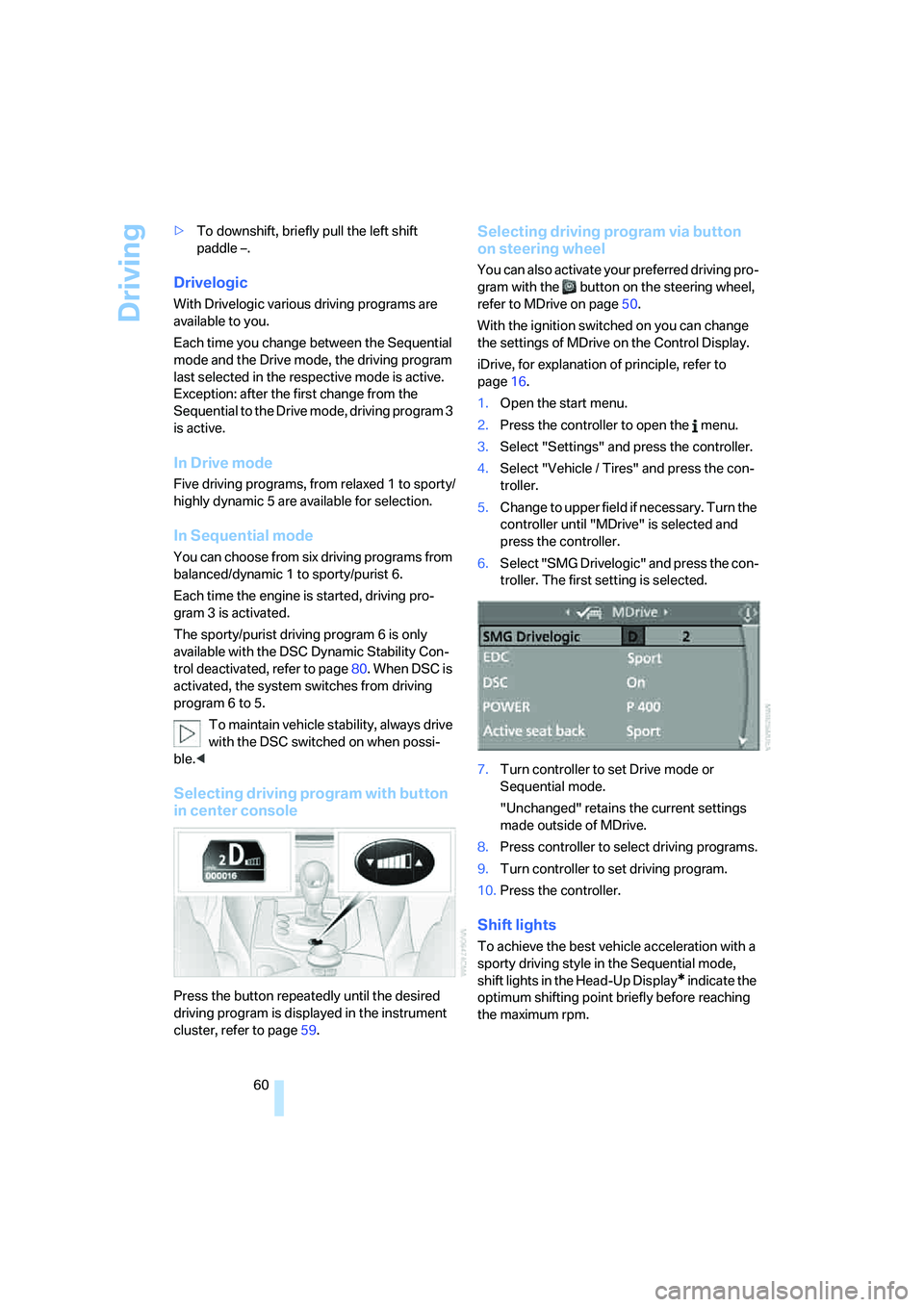
With the ignition switched on you can change
the settings of MDrive on the Control Display.
iDrive, for explanation of principle, refer to
page16.
1.Open the start menu.
2.Press the controller to open the menu.
3.Select "Settings" and press the controller.
4.Select "Vehicle / Tires" and press the con-
troller.
5.Change to upper field if necessary. Turn the
controller until "MDrive" is selected and
press the controller.
6.Select "SMG Drivelogic" and press the con-
troller. The first setting is selected.
7.Turn controller to set Drive mode or
Sequential mode.
"Unchanged" retains the current settings
made outside of MDrive.
8.Press controller to select driving programs.
9.Turn controller to set driving program.
10.Press the controller.
Shift lights
To achieve the best vehicle acceleration with a
sporty driving style in the Sequential mode,
shift lights in the Head-Up Display
* indicate the
optimum shifting point briefly before reaching
the maximum rpm.
Page 85 of 253
Controls
83Reference
At a glance
Driving tips
Communications
Navigation
Entertainment
Mobility
The initialization must be repeated after
each time the tire inflation pressure is cor-
rected and after every tire or wheel change.<
System limits
The Flat Tire Monitor cannot indicate
sudden severe tire damage caused by
outside factors and does not detect a natural,
even pressure drop in all four tires.<
In the following situations, the system could be
delayed or malfunction:
>System has not been initialized
>Driving on snowy or slippery road surface
>Sporty driving style: slip in the drive wheels,
high lateral acceleration
>Driving with snow chains
*
Initializing system
The initialization finishes during driving,
which can be interrupted at any time.
When driving resumes, the initialization is con-
tinued automatically. Do not initialize the sys-
tem when driving with snow chains.<
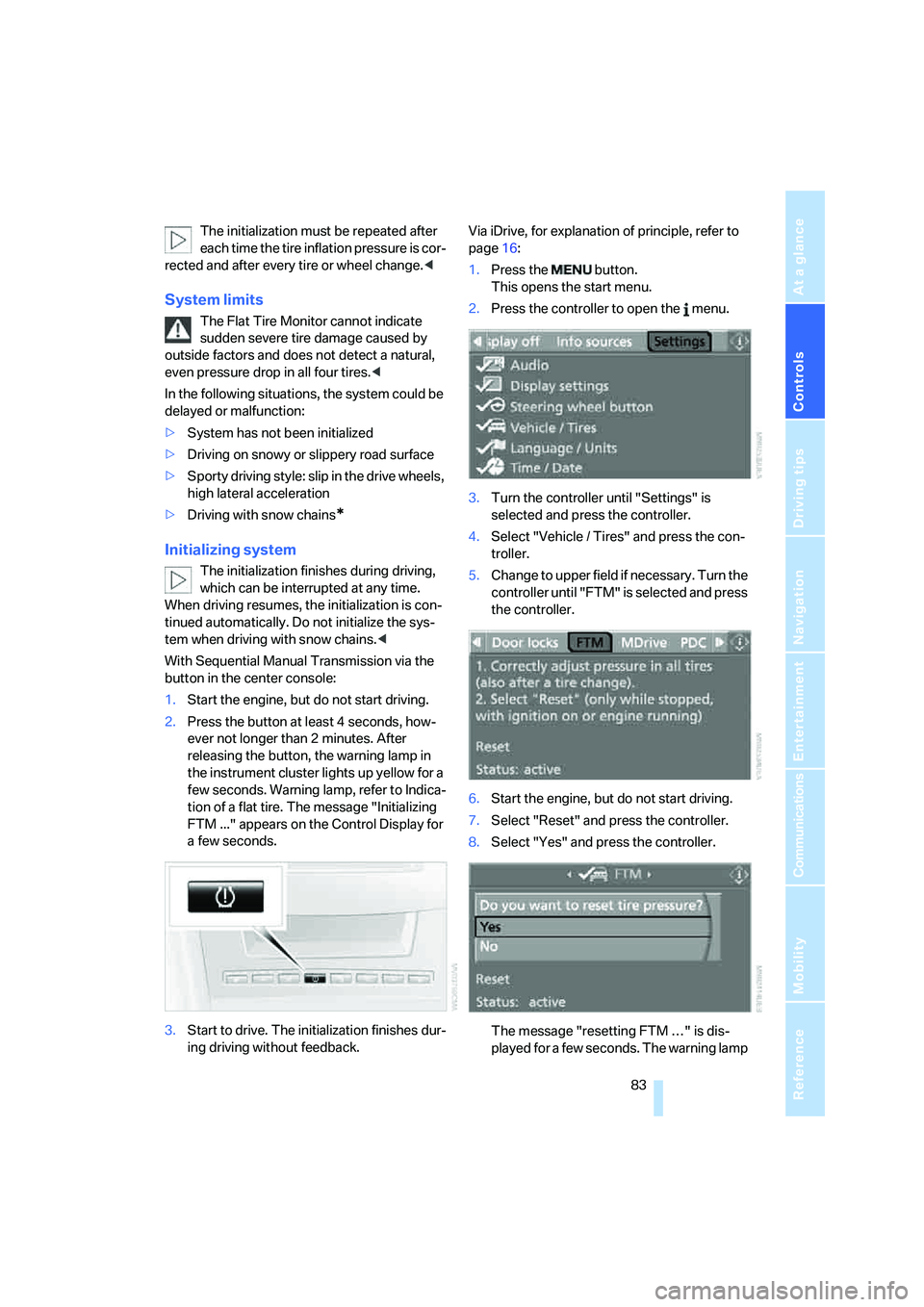
With Sequential Manual Transmission via the
button in the center console:
1.Start the engine, but do not start driving.
2.Press the button at least 4 seconds, how-
ever not longer than 2 minutes. After
releasing the button, the warning lamp in
the instrument cluster lights up yellow for a
few seconds. Warning lamp, refer to Indica-
tion of a flat tire. The message "Initializing
FTM ..." appears on the Control Display for
a few seconds.
3.Start to drive. The initialization finishes dur-
ing driving without feedback.Via iDrive, for explanation of principle, refer to
page16:
1.Press the button.
This opens the start menu.
2.Press the controller to open the menu.
3.Turn the controller until "Settings" is
selected and press the controller.
4.Select "Vehicle / Tires" and press the con-
troller.
5.Change to upper field if necessary. Turn the
controller until "FTM" is selected and press
the controller.
6.Start the engine, but do not start driving.
7.Select "Reset" and press the controller.
8.Select "Yes" and press the controller.
The message "resetting FTM …" is dis-
played for a few seconds. The warning lamp
Page 107 of 253
Controls
105Reference
At a glance
Driving tips
Communications
Navigation
Entertainment
Mobility
Ventilating lower compartment
Push the slide in the lower compartment
upward.
Depending on the automatic climate con-
trol setting, the temperature inside the
ventilated compartment may be higher than in
the rest of the interior. Should this be the case,
push the slide downward to close off the venti-
lation.<
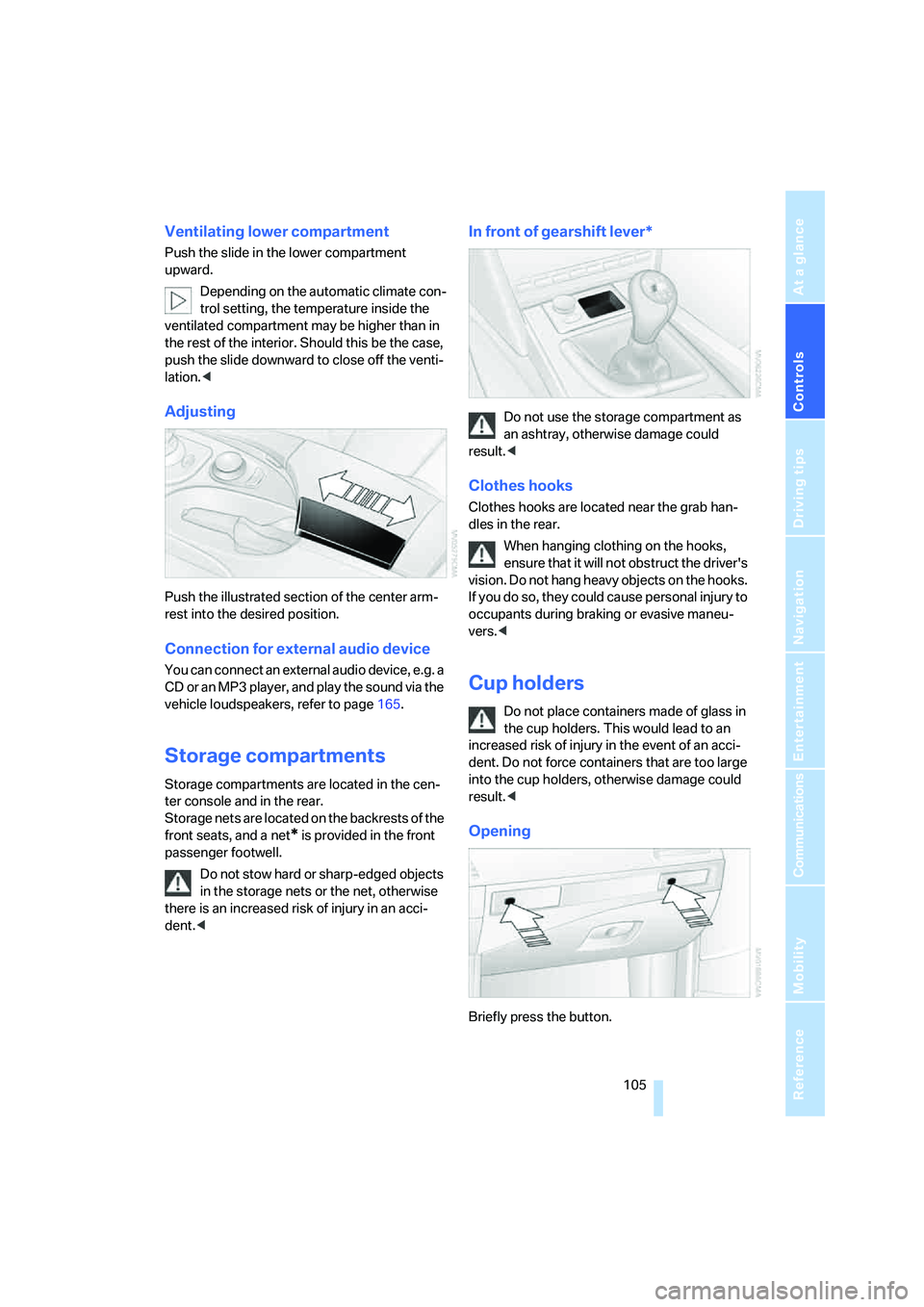
Adjusting
Push the illustrated section of the center arm-
rest into the desired position.
Connection for external audio device
You can connect an external audio device, e.g. a
CD or an MP3 player, and play the sound via the
vehicle loudspeakers, refer to page165.
Storage compartments
Storage compartments are located in the cen-
ter console and in the rear.
Storage nets are located on the backrests of the
front seats, and a net
* is provided in the front
passenger footwell.
Do not stow hard or sharp-edged objects
in the storage nets or the net, otherwise
there is an increased risk of injury in an acci-
dent.<
In front of gearshift lever*
Do not use the storage compartment as
an ashtray, otherwise damage could
result.<
Clothes hooks
Clothes hooks are located near the grab han-
dles in the rear.
When hanging clothing on the hooks,
ensure that it will not obstruct the driver's
vision. Do not hang heavy objects on the hooks.
If you do so, they could cause personal injury to
occupants during braking or evasive maneu-
vers.<
Cup holders
Do not place containers made of glass in
the cup holders. This would lead to an
increased risk of injury in the event of an acci-
dent. Do not force containers that are too large
into the cup holders, otherwise damage could
result.<
Opening
Briefly press the button.
Page 109 of 253
Controls
107Reference
At a glance
Driving tips
Communications
Navigation
Entertainment
Mobility
On vehicles with a manual transmission, the
sockets are not equipped with cigarette light-
ers, but are instead covered with removable
caps.
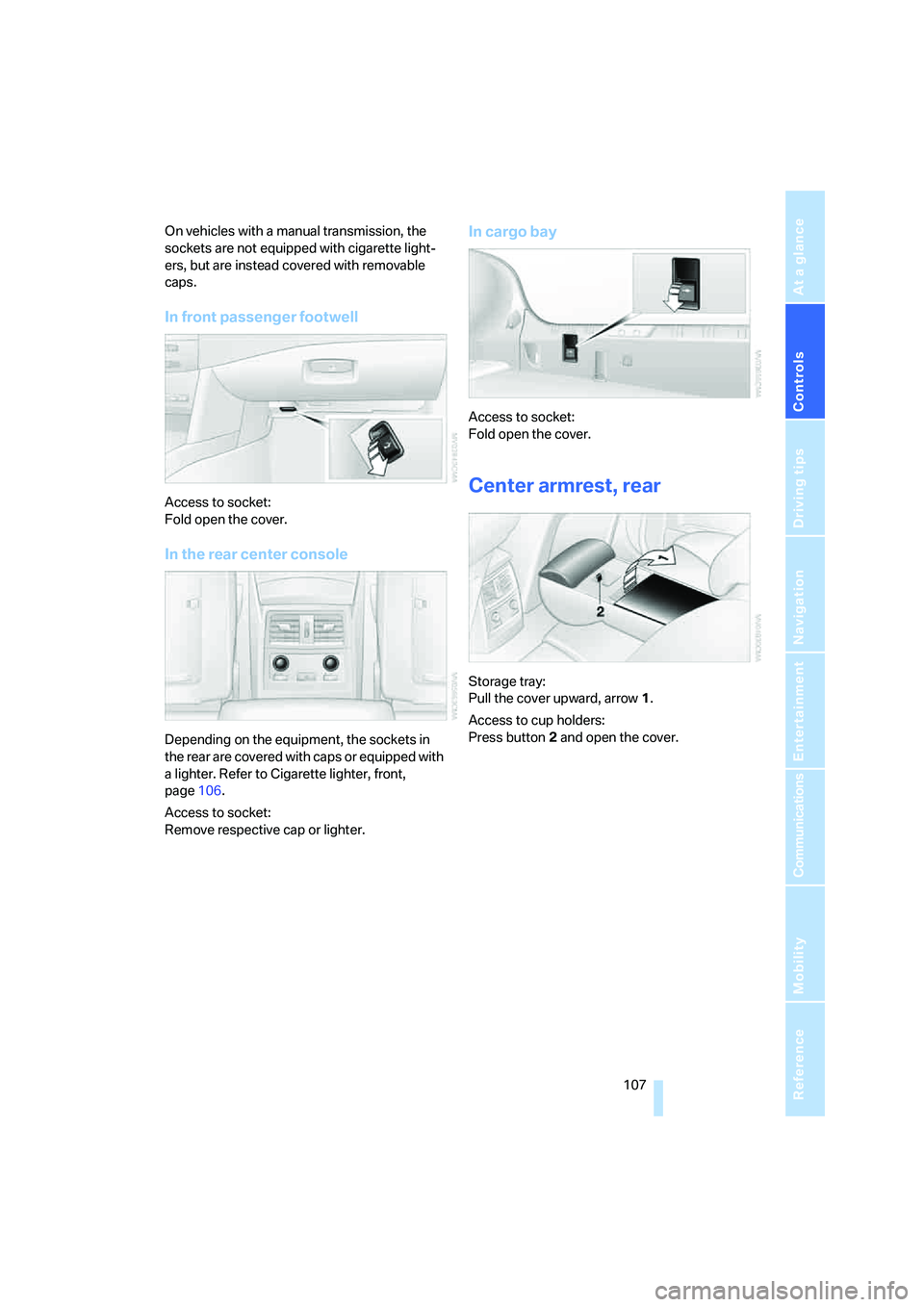
In front passenger footwell
Access to socket:
Fold open the cover.
In the rear center console
Depending on the equipment, the sockets in
the rear are covered with caps or equipped with
a lighter. Refer to Cigarette lighter, front,
page106.
Access to socket:
Remove respective cap or lighter.
In cargo bay
Access to socket:
Fold open the cover.
Center armrest, rear
Storage tray:
Pull the cover upward, arrow1.
Access to cup holders:
Press button2 and open the cover.
Page 126 of 253
Destination entry
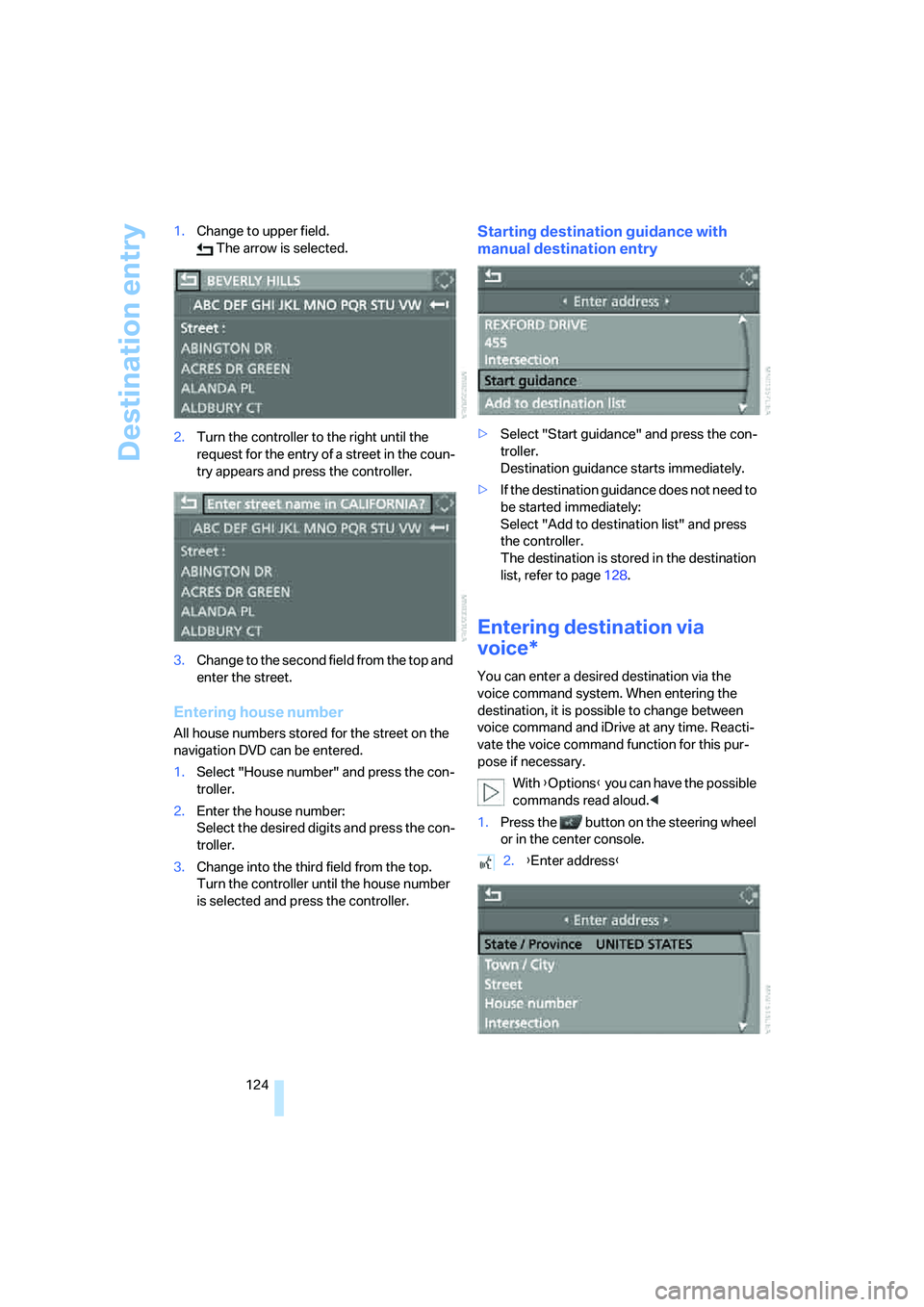
124 1.Change to upper field.
The arrow is selected.
2.Turn the controller to the right until the
request for the entry of a street in the coun-
try appears and press the controller.
3.Change to the second field from the top and
enter the street.
Entering house number
All house numbers stored for the street on the
navigation DVD can be entered.
1.Select "House number" and press the con-
troller.
2.Enter the house number:
Select the desired digits and press the con-
troller.
3.Change into the third field from the top.
Turn the controller until the house number
is selected and press the controller.
Starting destination guidance with
manual destination entry
>Select "Start guidance" and press the con-
troller.
Destination guidance starts immediately.
>If the destination guidance does not need to
be started immediately:
Select "Add to destination list" and press
the controller.
The destination is stored in the destination
list, refer to page128.
Entering destination via
voice*
You can enter a desired destination via the
voice command system. When entering the
destination, it is possible to change between
voice command and iDrive at any time. Reacti-
vate the voice command function for this pur-
pose if necessary.
With {Options} you can have the possible
commands read aloud.<
1.Press the button on the steering wheel
or in the center console.
2.{Enter address}
Page 233 of 253
Reference 231
At a glance
Controls
Driving tips
Communications
Navigation
Entertainment
Mobility
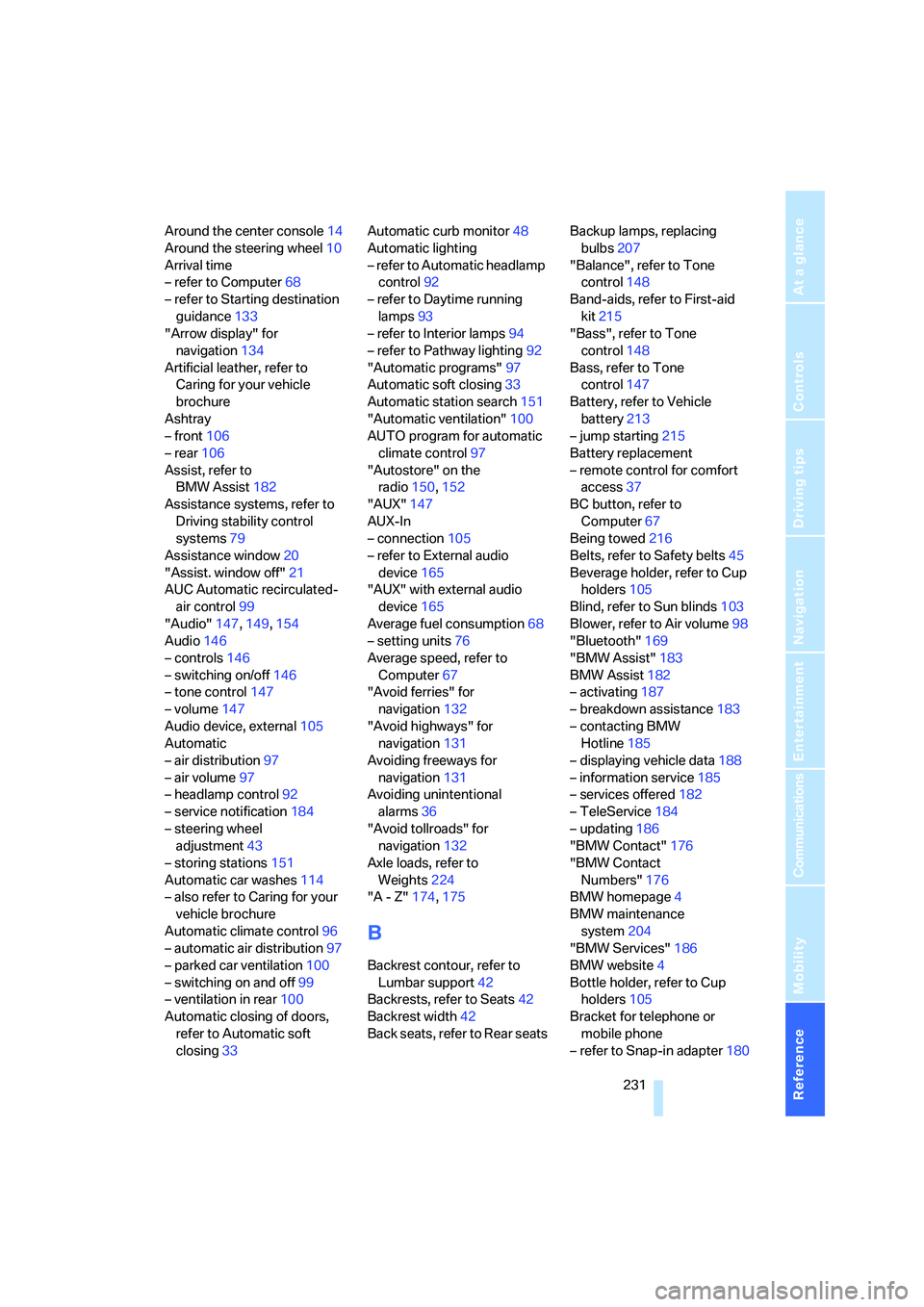
Around the center console14
Around the steering wheel10
Arrival time
– refer to Computer68
– refer to Starting destination
guidance133
"Arrow display" for
navigation134
Artificial leather, refer to
Caring for your vehicle
brochure
Ashtray
– front106
– rear106
Assist, refer to
BMW Assist182
Assistance systems, refer to
Driving stability control
systems79
Assistance window20
"Assist. window off"21
AUC Automatic recirculated-
air control99
"Audio"147,149,154
Audio146
– controls146
– switching on/off146
– tone control147
– volume147
Audio device, external105
Automatic
– air distribution97
– air volume97
– headlamp control92
– service notification184
– steering wheel
adjustment43
– storing stations151
Automatic car washes114
– also refer to Caring for your
vehicle brochure
Automatic climate control96
– automatic air distribution97
– parked car ventilation100
– switching on and off99
– ventilation in rear100
Automatic closing of doors,
refer to Automatic soft
closing33Automatic curb monitor48
Automatic lighting
– refer to Automatic headlamp
control92
– refer to Daytime running
lamps93
– refer to Interior lamps94
– refer to Pathway lighting92
"Automatic programs"97
Automatic soft closing33
Automatic station search151
"Automatic ventilation"100
AUTO program for automatic
climate control97
"Autostore" on the
radio150,152
"AUX"147
AUX-In
– connection105
– refer to External audio
device165
"AUX" with external audio
device165
Average fuel consumption68
– setting units76
Average speed, refer to
Computer67
"Avoid ferries" for
navigation132
"Avoid highways" for
navigation131
Avoiding freeways for
navigation131
Avoiding unintentional
alarms36
"Avoid tollroads" for
navigation132
Axle loads, refer to
Weights224
"A - Z"174,175
B
Backrest contour, refer to
Lumbar support42
Backrests, refer to Seats42
Backrest width42
Back seats, refer to Rear seatsBackup lamps, replacing
bulbs207
"Balance", refer to Tone
control148
Band-aids, refer to First-aid
kit215
"Bass", refer to Tone
control148
Bass, refer to Tone
control147
Battery, refer to Vehicle
battery213
– jump starting215
Battery replacement
– remote control for comfort
access37
BC button, refer to
Computer67
Being towed216
Belts, refer to Safety belts45
Beverage holder, refer to Cup
holders105
Blind, refer to Sun blinds103
Blower, refer to Air volume98
"Bluetooth"169
"BMW Assist"183
BMW Assist182
– activating187
– breakdown assistance183
– contacting BMW
Hotline185
– displaying vehicle data188
– information service185
– services offered182
– TeleService184
– updating186
"BMW Contact"176
"BMW Contact
Numbers"176
BMW homepage4
BMW maintenance
system204
"BMW Services"186
BMW website4
Bottle holder, refer to Cup
holders105
Bracket for telephone or
mobile phone
– refer to Snap-in adapter180
Page 235 of 253
Reference 233
At a glance
Controls
Driving tips
Communications
Navigation
Entertainment
Mobility
CD changer159
– controls146
– fast forward/reverse163
– installation location163
– random order162
– repeating a track162
– sampling tracks161
– selecting a CD159
– selecting a track160
– switching on/off146
– tone control147
– volume147
CD player159
– controls146
– fast forward/reverse163
– random order162
– repeating a track162
– sampling a track161
– selecting a track160
– switching on/off146
– tone control147
– volume147
Center armrest
– front104
– rear107
Center brake lamp207
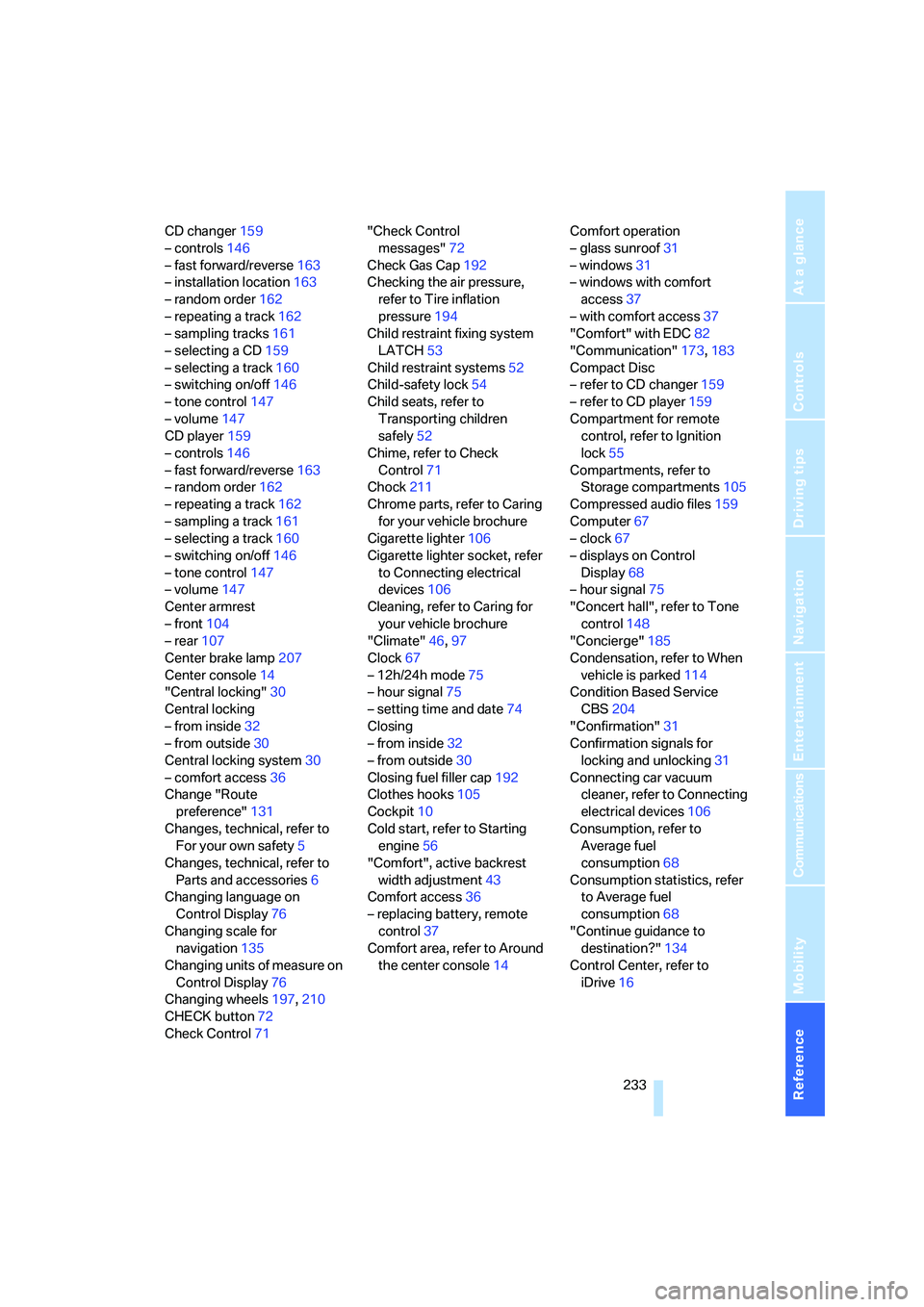
Center console14
"Central locking"30
Central locking
– from inside32
– from outside30
Central locking system30
– comfort access36
Change "Route
preference"131
Changes, technical, refer to
For your own safety5
Changes, technical, refer to
Parts and accessories6
Changing language on
Control Display76
Changing scale for
navigation135
Changing units of measure on
Control Display76
Changing wheels197,210
CHECK button72
Check Control71"Check Control
messages"72
Check Gas Cap192
Checking the air pressure,
refer to Tire inflation
pressure194
Child restraint fixing system
LATCH53
Child restraint systems52
Child-safety lock54
Child seats, refer to
Transporting children
safely52
Chime, refer to Check
Control71
Chock211
Chrome parts, refer to Caring
for your vehicle brochure
Cigarette lighter106
Cigarette lighter socket, refer
to Connecting electrical
devices106
Cleaning, refer to Caring for
your vehicle brochure
"Climate"46,97
Clock67
– 12h/24h mode75
– hour signal75
– setting time and date74
Closing
– from inside32
– from outside30
Closing fuel filler cap192
Clothes hooks105
Cockpit10
Cold start, refer to Starting
engine56
"Comfort", active backrest
width adjustment43
Comfort access36
– replacing battery, remote
control37
Comfort area, refer to Around
the center console14Comfort operation
– glass sunroof31
– windows31
– windows with comfort
access37
– with comfort access37
"Comfort" with EDC82
"Communication"173,183
Compact Disc
– refer to CD changer159
– refer to CD player159
Compartment for remote
control, refer to Ignition
lock55
Compartments, refer to
Storage compartments105
Compressed audio files159
Computer67
– clock67
– displays on Control
Display68
– hour signal75
"Concert hall", refer to Tone
control148
"Concierge"
185
Condensation, refer to When
vehicle is parked114
Condition Based Service
CBS204
"Confirmation"31
Confirmation signals for
locking and unlocking31
Connecting car vacuum
cleaner, refer to Connecting
electrical devices106
Consumption, refer to
Average fuel
consumption68
Consumption statistics, refer
to Average fuel
consumption68
"Continue guidance to
destination?"134
Control Center, refer to
iDrive16