radio controls BMW M5 2008 Owners Manual
[x] Cancel search | Manufacturer: BMW, Model Year: 2008, Model line: M5, Model: BMW M5 2008Pages: 260, PDF Size: 6.66 MB
Page 5 of 260

Reference
At a glance
Controls
Driving tips
Communications
Navigation
Entertainment
Mobility
Contents
The fastest way to find specific topics is to use
the index, refer to page238.
Using this Owner's Manual
4Notes
7Reporting safety defects
At a glance
10Cockpit
16iDrive
23Voice command system
Controls
28Opening and closing
41Adjusting
53Transporting children safely
56Driving
66Everything under control
78Technology for comfort, convenience
and safety
92Lamps
97Climate
104Practical interior accessories
Driving tips
114Things to remember when driving
119BMW M5 Engineering
Navigation
122Starting navigation system
124Destination entry
136Destination guidance
145What to do if …
Entertainment
148On/off and tone
152Radio
159Satellite radio
162CD player and CD changer
168AUX-In connection
169USB/audio interface
Communications
174Telephoning
189BMW Assist
Mobility
198Refueling
200Wheels and tires
206Under the hood
212Maintenance
214Replacing components
223Giving and receiving assistance
Reference
230Technical data
233Short commands of voice command
system
238Everything from A to Z
Page 13 of 260
At a glance
11Reference
Controls
Driving tips
Communications
Navigation
Entertainment
Mobility
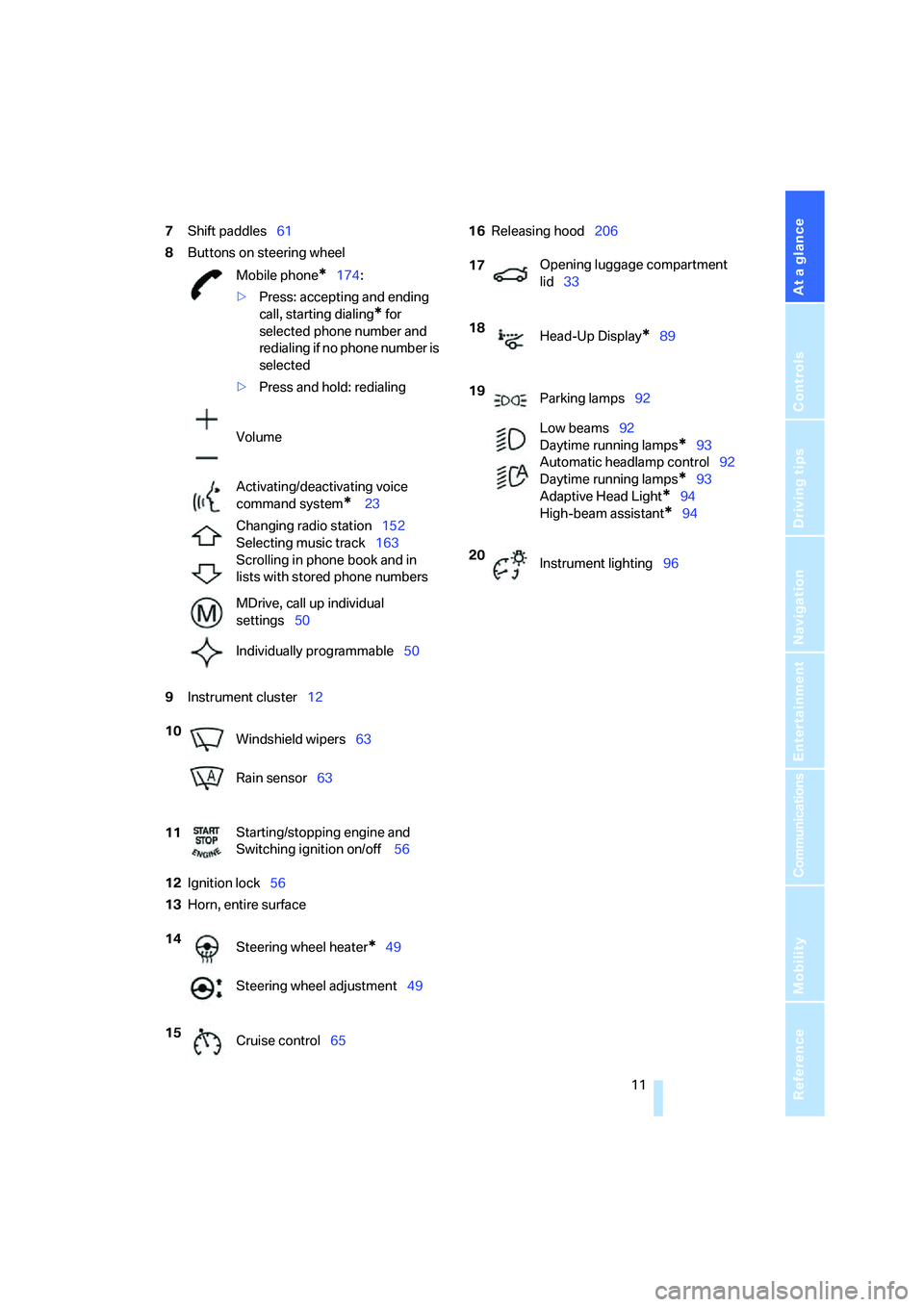
7Shift paddles61
8Buttons on steering wheel
9Instrument cluster12
12Ignition lock56
13Horn, entire surface16Releasing hood206
Mobile phone
*174:
>Press: accepting and ending
call, starting dialing
* for
selected phone number and
redialing if no phone number is
selected
>Press and hold: redialing
Volume
Activating/deactivating voice
command system
* 23
Changing radio station152
Selecting music track163
Scrolling in phone book and in
lists with stored phone numbers
MDrive, call up individual
settings50
Individually programmable50
10
Windshield wipers63
Rain sensor63
11Starting/stopping engine and
Switching ignition on/off 56
14
Steering wheel heater
*49
Steering wheel adjustment49
15
Cruise control65
17Opening luggage compartment
lid33
18
Head-Up Display
*89
19
Parking lamps92
Low beams92
Daytime running lamps
*93
Automatic headlamp control92
Daytime running lamps*93
Adaptive Head Light
*94
High-beam assistant
*94
20
Instrument lighting96
Page 17 of 260
At a glance
15Reference
Controls
Driving tips
Communications
Navigation
Entertainment
Mobility
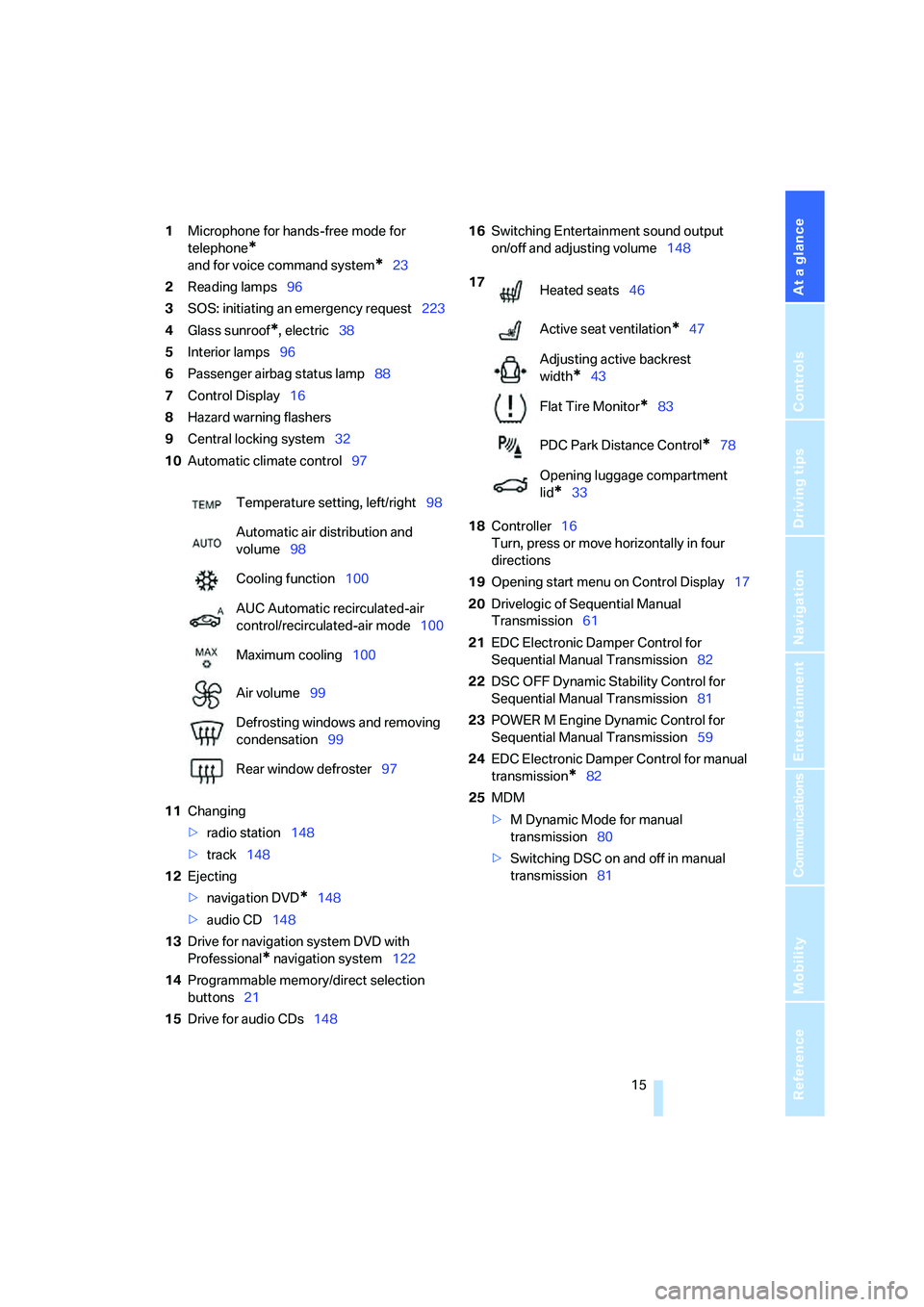
1Microphone for hands-free mode for
telephone
*
and for voice command system*23
2Reading lamps96
3SOS: initiating
an emergency request223
4Glass sunroof
*, electric38
5Interior lamps96
6Passenger airbag status lamp88
7Control Display16
8Hazard warning flashers
9Central locking system32
10Automatic climate control97
11Changing
>radio station148
>track148
12Ejecting
>navigation DVD
*148
>audio CD148
13Drive for navigation system DVD with
Professional
* navigation system122
14Programmable memory/direct selection
buttons21
15Drive for audio CDs14816Switching Entertainment sound output
on/off and adjusting volume148
18Controller16
Turn, press or move horizontally in four
directions
19Opening start menu on Control Display17
20Drivelogic of Sequential Manual
Transmission61
21EDC Electronic Damper Control for
Sequential Manual Transmission82
22DSC OFF Dynamic Stability Control for
Sequential Manual Transmission81
23POWER M Engine Dynamic Control for
Sequential Manual Transmission59
24EDC Electronic Damper Control for manual
transmission
*82
25MDM
>M Dynamic Mode for manual
transmission80
>Switching DSC on and off in manual
transmission81 Temperature setting, left/right98
Automatic air distribution and
volume98
Cooling function100
AUC Automatic recirculated-air
control/recirculated-air mode100
Maximum cooling100
Air volume99
Defrosting windows and removing
condensation99
Rear window defroster97
17
Heated seats46
Active seat ventilation
*47
Adjusting active backrest
width
*43
Flat Tire Monitor
*83
PDC Park Distance Control
*78
Opening luggage compartment
lid
*33
Page 19 of 260
At a glance
17Reference
Controls
Driving tips
Communications
Navigation
Entertainment
Mobility
Menu overview
Communication
>Telephone*
>BMW Assist* or TeleService*
Navigation or onboard information
>Navigation system*
>Onboard information, e.g. for displaying
the average fuel consumption
Entertainment
>Radio
>CD player and CD changer
*
>AUX-In connection
>USB/audio interface
*
Climate
>Vent settings
>Automatic programs
>Seat heater distribution
*
>Parked car operation
menu
>Switching off Control Display
>Tone and display settings
>Settings for your vehicle, e.g. for MDrive, or
for the central locking system
>Display of maintenance intervals and dead-
lines for legally mandated inspections
>Settings for telephone
Operating principle
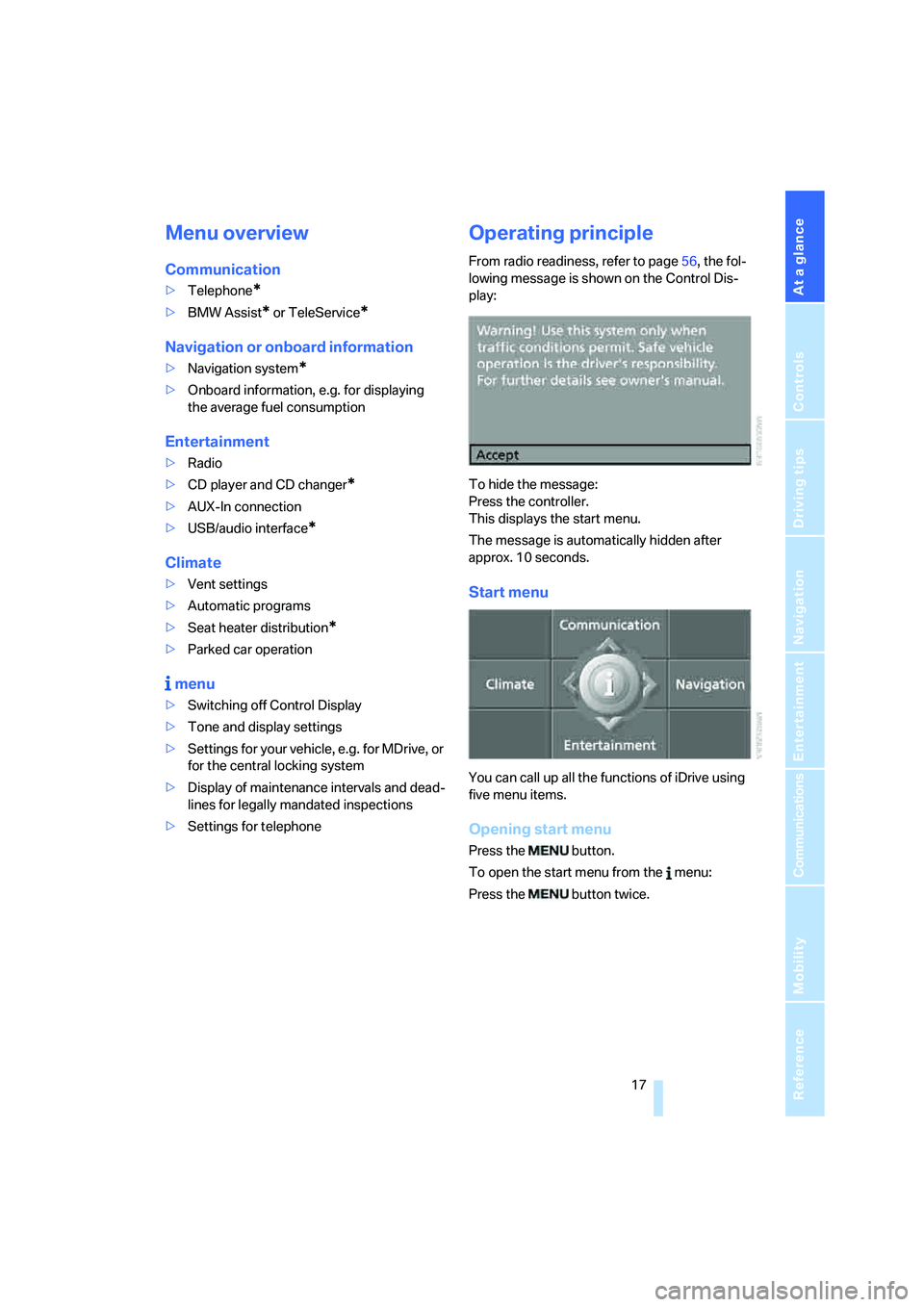
From radio readiness, refer to page56, the fol-
lowing message is shown on the Control Dis-
play:
To hide the message:
Press the controller.
This displays the start menu.
The message is automatically hidden after
approx. 10 seconds.
Start menu
You can call up all the functions of iDrive using
five menu items.
Opening start menu
Press the button.
To open the start menu from the menu:
Press the button twice.
Page 23 of 260
At a glance
21Reference
Controls
Driving tips
Communications
Navigation
Entertainment
Mobility
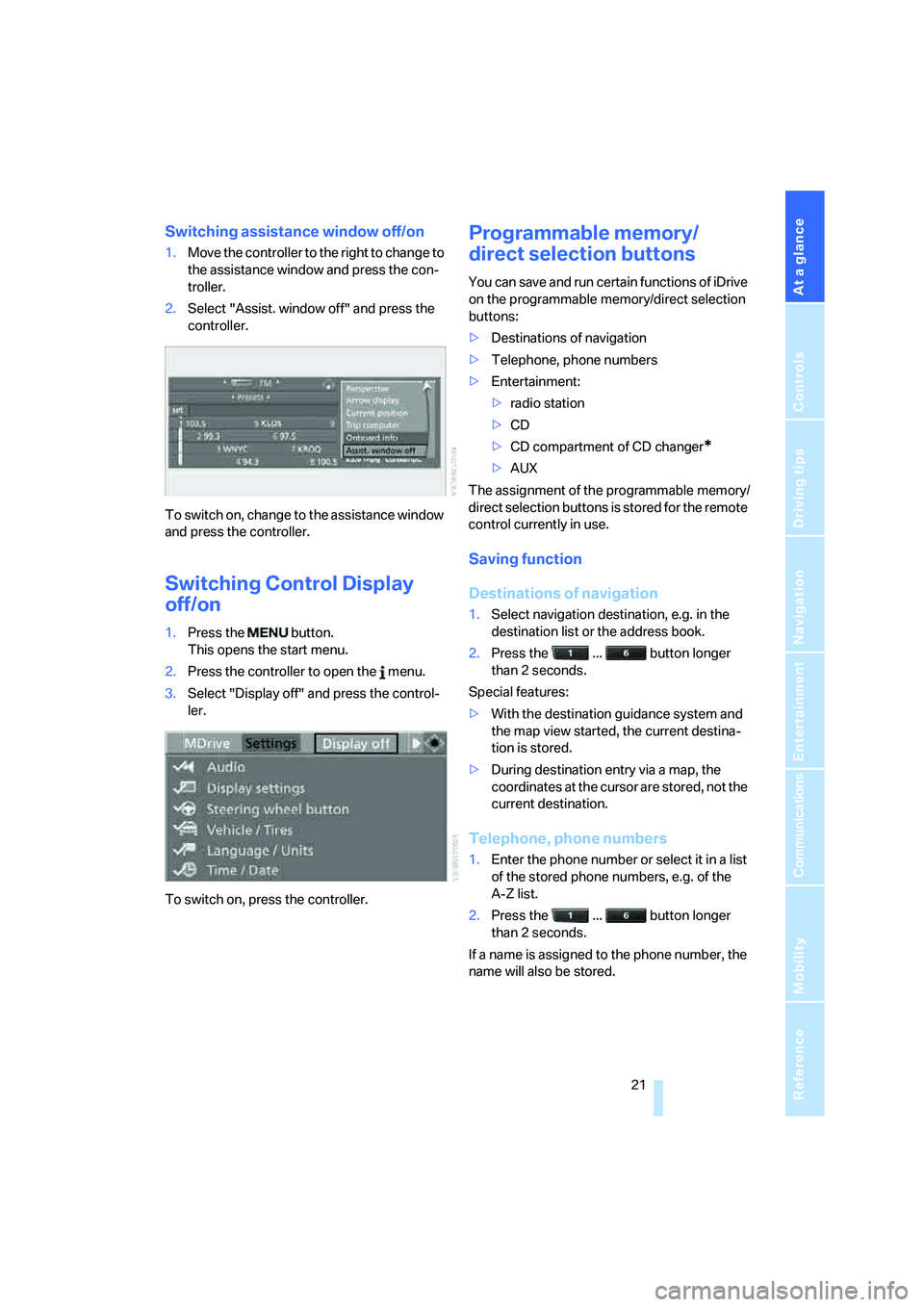
Switching assistance window off/on
1.Move the controller to the right to change to
the assistance window and press the con-
troller.
2.Select "Assist. window off" and press the
controller.
To switch on, change to the assistance window
and press the controller.
Switching Control Display
off/on
1.Press the button.
This opens the start menu.
2.Press the controller to open the menu.
3.Select "Display off" and press the control-
ler.
To switch on, press the controller.
Programmable memory/
direct selection buttons
You can save and run certain functions of iDrive
on the programmable memory/direct selection
buttons:
>Destinations of navigation
>Telephone, phone numbers
>Entertainment:
>radio station
>CD
>CD compartment of CD changer
*
>AUX
The assignment of the programmable memory/
direct selection buttons is stored for the remote
control currently in use.
Saving function
Destinations of navigation
1.Select navigation destination, e.g. in the
destination list or the address book.
2.Press the ... button longer
than 2 seconds.
Special features:
>With the destination guidance system and
the map view started, the current destina-
tion is stored.
>During destination entry via a map, the
coordinates at the cursor are stored, not the
current destination.
Telephone, phone numbers
1.Enter the phone number or select it in a list
of the stored phone numbers, e.g. of the
A-Z list.
2.Press the ... button longer
than 2 seconds.
If a name is assigned to the phone number, the
name will also be stored.
Page 27 of 260
At a glance
25Reference
Controls
Driving tips
Communications
Navigation
Entertainment
Mobility
Notes
The mobile phone can also be operated
with voice commands, refer to
page185.<
For voice commands, bear the following in
mind:
>Say the commands and numbers smoothly
and at normal volume, avoiding excessive
emphasis and pauses. This also applies to
spelling when entering the destination.
>Always issue commands in the language of
the voice command system.
>When selecting a radio station, use the
common pronunciation of the station name.
>For entries in the voice-activated phone
book, only use names in the language of the
voice command system and do not use
abbreviations.
>Keep the doors, windows and glass sun-
roof
* closed to prevent interference from
ambient noise.
>Avoid making other noise in the vehicle
while speaking.
Page 30 of 260
Opening and closing
28
Opening and closing
Keys/remote control
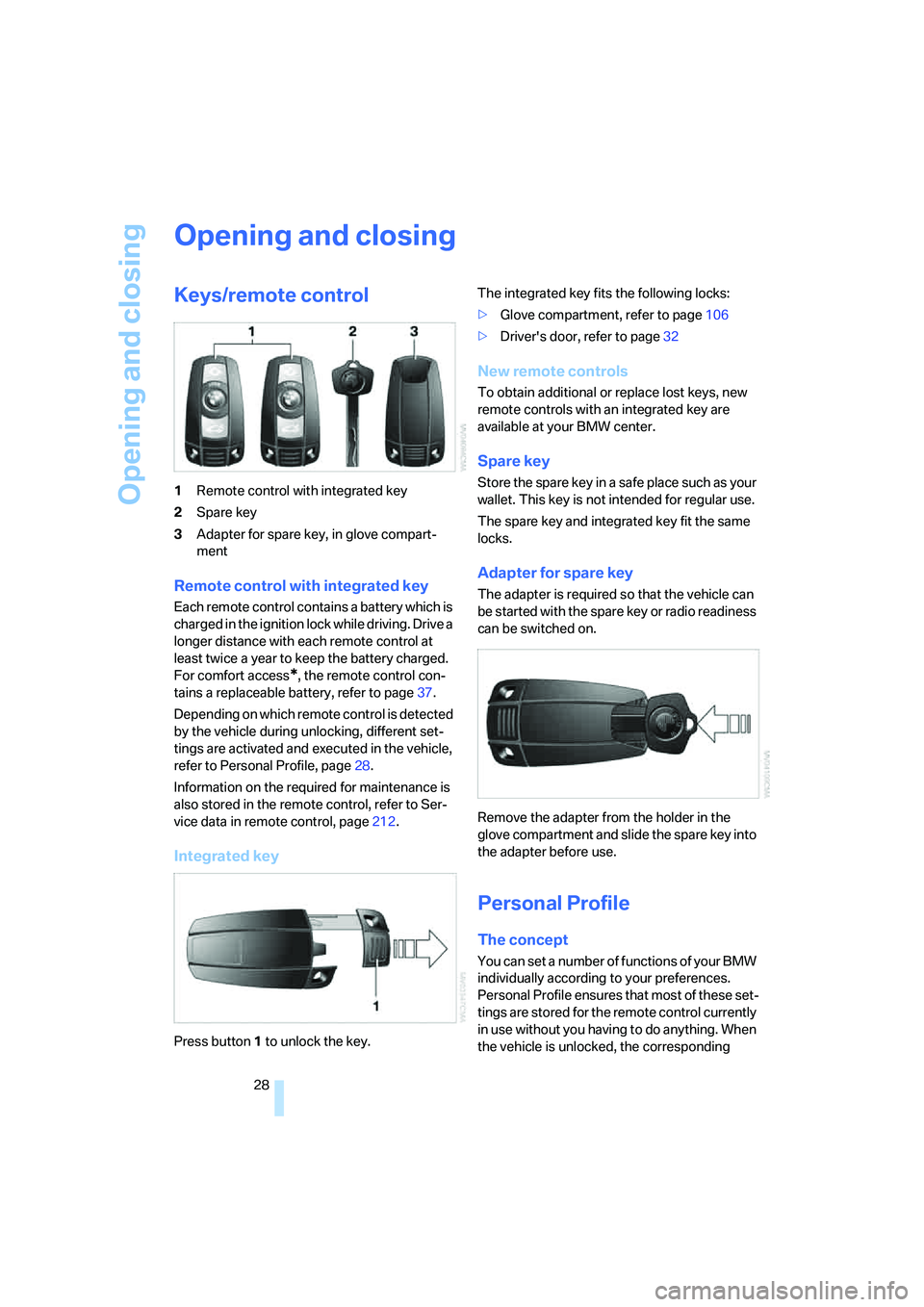
1Remote control with integrated key
2Spare key
3Adapter for spare key, in glove compart-
ment
Remote control with integrated key
Each remote control contains a battery which is
charged in the ignition lock while driving. Drive a
longer distance with each remote control at
least twice a year to keep the battery charged.
For comfort access
*, the remote control con-
tains a replaceable battery, refer to page37.
Depending on which remote control is detected
by the vehicle during unlocking, different set-
tings are activated and executed in the vehicle,
refer to Personal Profile, page28.
Information on the required for maintenance is
also stored in the remote control, refer to Ser-
vice data in remote control, page212.
Integrated key
Press button1 to unlock the key.The integrated key fits the following locks:
>Glove compartment, refer to page106
>Driver's door, refer to page32
New remote controls
To obtain additional or replace lost keys, new
remote controls with an integrated key are
available at your BMW center.
Spare key
Store the spare key in a safe place such as your
wallet. This key is not intended for regular use.
The spare key and integrated key fit the same
locks.
Adapter for spare key
The adapter is required so that the vehicle can
be started with the spare key or radio readiness
can be switched on.
Remove the adapter from the holder in the
glove compartment and slide the spare key into
the adapter before use.
Personal Profile
The concept
You can set a number of functions of your BMW
individually according to your preferences.
Personal Profile ensures that most of these set-
tings are stored for the remote control currently
in use without you having to do anything. When
the vehicle is unlocked, the corresponding
Page 31 of 260
Controls
29Reference
At a glance
Driving tips
Communications
Navigation
Entertainment
Mobility
remote control is detected and the settings
stored for it are called up and carried out.
This means that you will always find your BMW
set to your own personal settings even if
another person with his/her own remote control
and settings has used the vehicle since the last
time you drove it. The individual settings are
stored for a maximum of four remote controls.
Personal Profile settings
Details on the settings are provided on the
specified pages.
>Behavior of the central locking system
when unlocking vehicle, refer to page30
>Automatic locking of the vehicle, refer to
page32
>Programming button on steering wheel,
refer to page50
>Displays on Control Display:
>Brightness of the Control Display, refer
to page76
>Measuring units for consumption, route/
distances, temperature, and pressure,
refer to page76
>12h/24h clock format, refer to page75
>Date format, refer to page76
>Language on Control Display, refer to
page77
>Lighting settings:
>Triple turn signal activation, refer to
page63
>Welcome lamps, refer to page92
>Pathway lighting, refer to page93
>Daytime running lamps
*, refer to
page93
>High-beam assistant
*, refer to page94
>Individual settings for MDrive, refer to
page50
>Drivelogic driving program in the Sequential
mode, refer to page61
>PDC Park Distance Control
*: optical warn-
ing, refer to page79>Head-Up Display
*: selection and bright-
ness of display, refer to page89
>Automatic climate control: AUTO program
and intensity, cooling function, and auto-
matic recirculated air control/recirculated
air mode, temperature, air distribution, tem-
perature in the upper body region, refer to
text starting on page98
>Navigation system
*: voice instructions for
destination guidance, refer to page122
In addition, the following, most recently
selected settings are recalled during unlocking:
>Programmable memory/direct selection
buttons: selecting stored functions, refer to
page21
>Positions of driver's seat, outside mirrors,
and steering wheel
*, refer to page43
>Audio sources: volume and tone settings,
refer to page149
>Radio:
>Display of stored stations, refer to
page152
>Switching RDS Radio Data System
on/off
*, refer to page155
>Phone: volume setting, refer to
pages180,186
Central locking system
The concept
The central locking system is ready for opera-
tion whenever the driver's door is closed.
The system simultaneously engages and
releases the locks on the following:
>Doors
>Luggage compartment lid
>Fuel filler door
Operating from outside
>via the remote control
>via the door lock
>with comfort access
* via the door handles
Page 33 of 260
Controls
31Reference
At a glance
Driving tips
Communications
Navigation
Entertainment
Mobility
inside is not possible without special knowl-
edge.<
Switching on interior lamps
With vehicle locked:
Press the button.
You can also use this function to locate your
vehicle in parking garages etc.
Panic mode*
You can trigger the alarm system in case of dan-
ger:
Press the button for at least 3 seconds.
Switching off alarm: press any button.
Opening luggage compartment lid
Press the button for approx. 1 second.
The luggage compartment lid opens, regard-
less of whether it was previously locked or
unlocked.
During opening, the luggage compart-
ment lid pivots back and up. Make sure
that adequate clearance is available before
opening.
To prevent accidentally locking yourself out,
never lay the remote control in the cargo bay. A
previously locked luggage compartment lid is
also locked again after closing.<
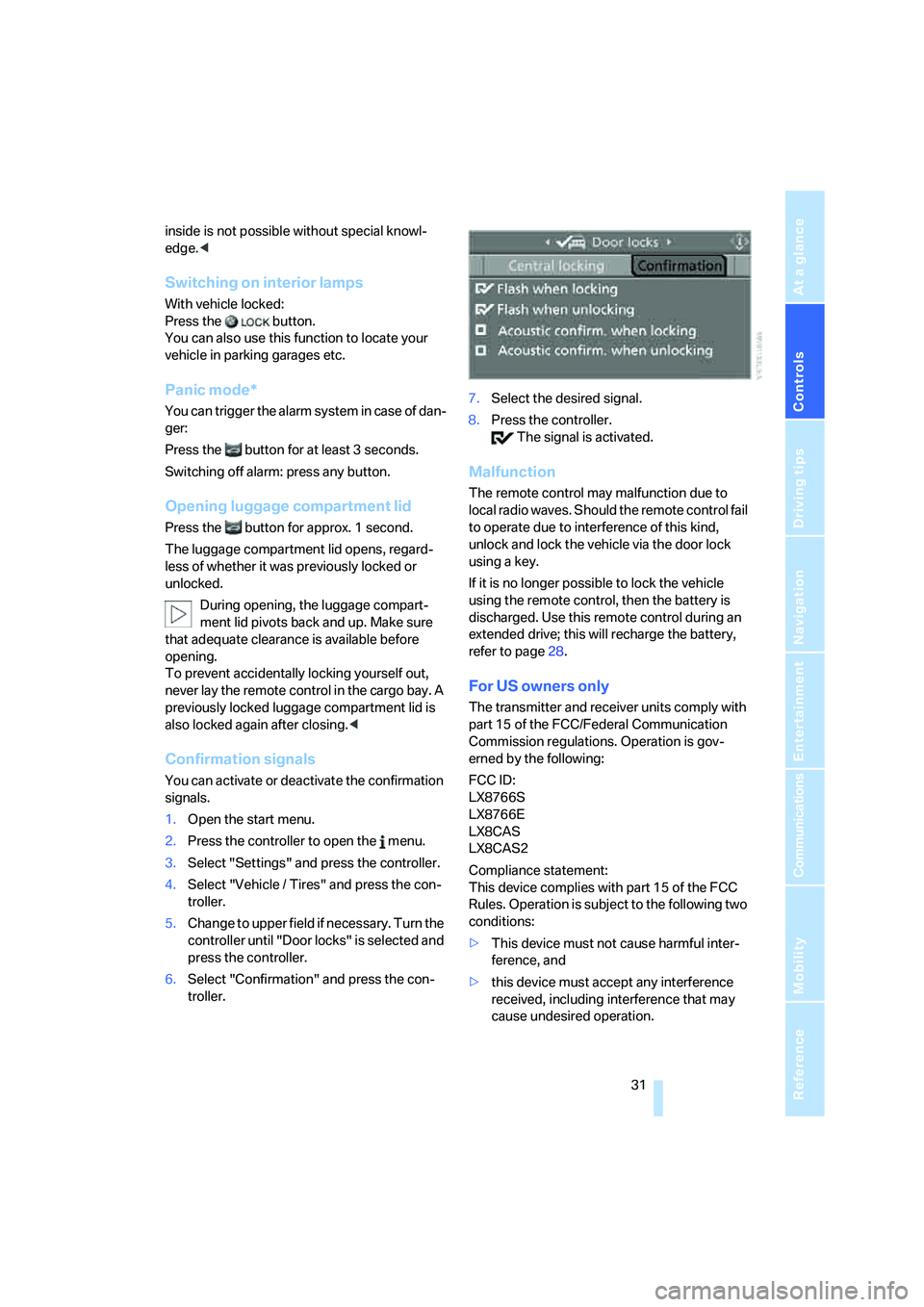
Confirmation signals
You can activate or deactivate the confirmation
signals.
1.Open the start menu.
2.Press the controller to open the menu.
3.Select "Settings" and press the controller.
4.Select "Vehicle / Tires" and press the con-
troller.
5.Change to upper field if necessary. Turn the
controller until "Door locks" is selected and
press the controller.
6.Select "Confirmation" and press the con-
troller.7.Select the desired signal.
8.Press the controller.
The signal is activated.
Malfunction
The remote control may malfunction due to
local radio waves. Should the remote control fail
to operate due to interference of this kind,
unlock and lock the vehicle via the door lock
using a key.
If it is no longer possible to lock the vehicle
using the remote control, then the battery is
discharged. Use this remote control during an
extended drive; this will recharge the battery,
refer to page28.
For US owners only
The transmitter and receiver units comply with
part 15 of the FCC/Federal Communication
Commission regulations. Operation is gov-
erned by the following:
FCC ID:
LX8766S
LX8766E
LX8CAS
LX8CAS2
Compliance statement:
This device complies with part 15 of the FCC
Rules. Operation is subject to the following two
conditions:
>This device must not cause harmful inter-
ference, and
>this device must accept any interference
received, including interference that may
cause undesired operation.
Page 39 of 260
Controls
37Reference
At a glance
Driving tips
Communications
Navigation
Entertainment
Mobility
Please make sure that the ignition and all
electronic systems/consumers are
switched off before locking to save the bat-
tery.<
Comfort closing
Hold a finger or the back of your hand against
the surface, arrow2 or 3, but do not grasp the
door handle while doing so.
The windows and the glass sunroof
* are
closed.
Watch during the closing process to be
sure that no one is injured. Removing the
hand from the door handle stops the closing
process immediately.<
Opening luggage compartment lid
separately
Press the button on the luggage compartment
lid. This corresponds to pressing the button.
If the vehicle detects that a remote con-
trol has been accidentally left inside the
locked vehicle's cargo bay after the luggage
compartment lid is closed, the lid will reopen.
The hazard warning flashers flash and a signal
*
sounds.<
Switching on radio readiness
By pressing the Start/Stop button, you switch
on the radio readiness, refer to page56.
When doing so, do not depress the brake
or clutch pedal, otherwise the engine will
start immediately.<
Starting engine
You can start the engine or switch on the igni-
tion if a remote control is located in the interior
of the vehicle. It need not be inserted in the igni-
tion lock, refer to page56.
If you take the remote control with you when
leaving the vehicle with the engine running, a
warning lamp lights up. In addition, a message
appears on the Control Display. As long as no
remote control is detected, it is only possible to
restart the engine within approx. 10 seconds
after it is switched off.
Malfunction
The comfort access function may malfunction
due to local radio waves. Then open or close the
vehicle with the buttons on the remote control
or with a key. To start the engine following this,
insert the remote control in the ignition lock.
When unlocking or locking/comfort closing do
not simultaneously grasp the door handle and
touch the surfaces, arrow2 or 3. Otherwise, you
may limit the function.
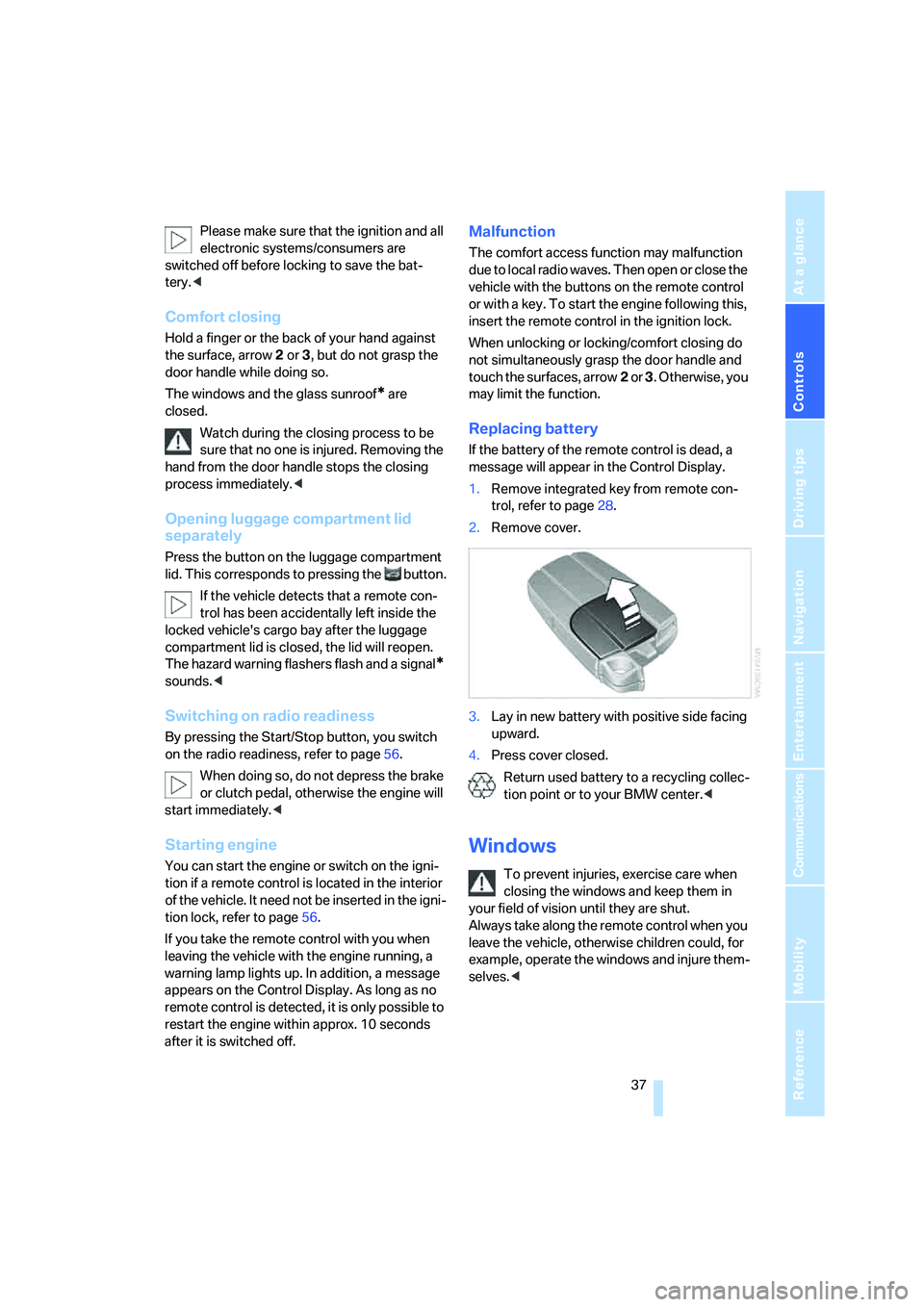
Replacing battery
If the battery of the remote control is dead, a
message will appear in the Control Display.
1.Remove integrated key from remote con-
trol, refer to page28.
2.Remove cover.
3.Lay in new battery with positive side facing
upward.
4.Press cover closed.
Return used battery to a recycling collec-
tion point or to your BMW center.<
Windows
To prevent injuries, exercise care when
closing the windows and keep them in
your field of vision until they are shut.
Always take along the remote control when you
leave the vehicle, otherwise children could, for
example, operate the windows and injure them-
selves.<