change time BMW X1 2015 E84 User Guide
[x] Cancel search | Manufacturer: BMW, Model Year: 2015, Model line: X1, Model: BMW X1 2015 E84Pages: 297, PDF Size: 7.01 MB
Page 118 of 297
3.Hold the hand-held transmitter of the sys‐
tem to be operated a distance of approx. 1
to 3 in/2.5 to 8 cm away from the buttons
on the interior rearview mirror. The re‐
quired distance depends on the particular
hand-held transmitter.4.Press the button of the desired function on
the hand-held transmitter and the button
being programmed on the interior rearview
mirror simultaneously and hold. The LED
on the interior rearview mirror flashes
slowly at first.5.When the LED flashes more rapidly, re‐
lease both buttons. Rapid flashing indi‐
cates that the button on the interior rear‐
view mirror has been programmed.
If the LED does not flash faster after
60 seconds, change the distance between
the interior rearview mirror and the hand-
held transmitter and repeat the step. Multi‐
ple trials at different distances may be nec‐
essary. Wait at least 15 seconds between
trials.6.To program additional functions on other
buttons, repeat steps 3 to 5.
The systems can be operated with the buttons
on the interior rearview mirror.
Special characteristics of alternating-
code radio systems
If the system cannot be operated after re‐
peated programming, check whether the sys‐
tem to be operated uses an alternating-code
system.
Read the operating instructions of the system
or press and hold the programmed button on
the interior rearview mirror. If the LED on the
interior rearview mirror flashes rapidly at first
and then lights up continuously for 2 seconds,
the system is equipped with an alternating-
code system. This flashing LED pattern re‐
peats itself for approx. 20 seconds.
In systems with an alternating-code system,
the universal garage door opener and the sys‐
tem must be additionally synchronized.
Please obtain additional information on syn‐
chronization in the operating instructions of
the system being set up.
The systems will be easier to synchronize with
the aid of a second person.
Synchronization:1.Park the vehicle within range of the re‐
mote-controlled system.2.Program the corresponding button on the
interior rearview mirror as described.3.Identify and press the synchronization but‐
ton on the system being set up. You have
approx. 30 seconds for the next step.4.Press and hold the button on the interior
rearview mirror for approx. 3 seconds and
then release it. Repeat this step up to three
times if necessary to complete the syn‐
chronization procedure. When synchroni‐
zation is completed, the programmed func‐
tion is executed.
Reprogramming individual buttons
1.Switch on the ignition.2.Hold the hand-held transmitter at a dis‐
tance of approx. 1 to 3 in/2.5 to 8 cm from
the memory buttons.
The required distance depends on the par‐
ticular hand-held transmitter.3.Press the memory button of the universal
garage door opener.4.If the LED flashes slowly after approx.
20 seconds, press the transmit button on
the hand-held transmitter.5.Release both buttons when the LED
flashes rapidly.
If the LED does not flash rapidly after ap‐
prox. 60 seconds, change the distance and
repeat the step.Seite 116ControlsInterior equipment116
Online Edition for Part no. 01 40 2 954 052 - II/15
Page 119 of 297
Canada: if the LED does not flash rapidly
after approx. 60 seconds, change the dis‐
tance and repeat the step. If programming
was aborted by the hand-held transmitter,
hold down the memory button and press
and release the button on the hand-held
transmitter several times for 2 seconds.
Controls
Prior to operation
Before operating a unit with the Universal
Garage Door Opener, ensure that there are no
people, animals, or objects in the range of
movement of the system; otherwise, there is a
risk of injury or damage.
Also follow the safety instructions of the hand-
held transmitter.◀
The system, such as the garage door, can be
operated using the button on the interior rear‐
view mirror with the engine running or the igni‐
tion switched on. When you are within the re‐
ception range of the system, press and hold
the button until the function is initiated. The
LED on the interior rearview mirror lights up
continuously while the radio signal is being
transmitted.
Deleting stored functions Press the right and left buttons on the interior
rearview mirror simultaneously for approx.
20 seconds until the LED flashes rapidly. All
stored functions are deleted. The functions
cannot be deleted individually.
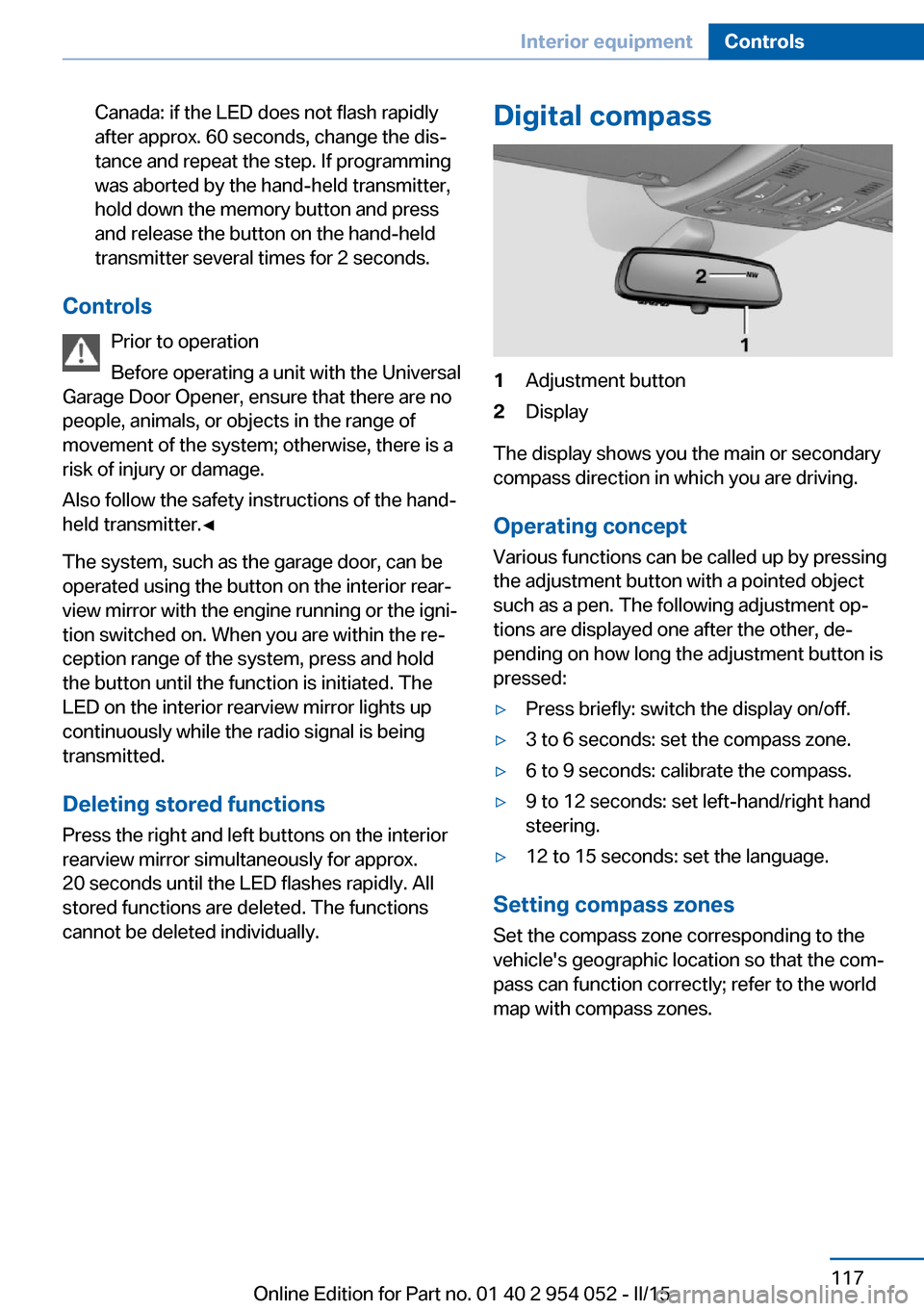
Digital compass1Adjustment button2Display
The display shows you the main or secondary
compass direction in which you are driving.
Operating concept
Various functions can be called up by pressing
the adjustment button with a pointed object
such as a pen. The following adjustment op‐
tions are displayed one after the other, de‐
pending on how long the adjustment button is
pressed:
▷Press briefly: switch the display on/off.▷3 to 6 seconds: set the compass zone.▷6 to 9 seconds: calibrate the compass.▷9 to 12 seconds: set left-hand/right hand
steering.▷12 to 15 seconds: set the language.
Setting compass zones
Set the compass zone corresponding to the
vehicle's geographic location so that the com‐
pass can function correctly; refer to the world
map with compass zones.
Seite 117Interior equipmentControls117
Online Edition for Part no. 01 40 2 954 052 - II/15
Page 157 of 297
Destination guidanceVehicle equipmentThis chapter describes all series equipment as
well as country-specific and special equipment
offered for this model series. Therefore, it also
describes equipment that may not be found in
your vehicle, for instance due to the selected
special equipment or the country version. This
also applies to safety-related functions and
systems.
When using the features and systems descri‐
bed here, adhere to local regulations.
Starting destination
guidance1."Navigation"2.Make a destination entry, refer to
page 146.3."Accept destination"4."Start guidance"
The route is shown on the Control Display.
The distance to the destination/intermediate
destination and the estimated time of arrival
are displayed in the map view.
Terminating destination
guidance
1."Navigation"2."Map"3. "Guidance"4."Stop guidance"Continuing destination
guidance
If the destination was not reached during thelast trip, destination guidance can be resumed.
"Resume guidance"
Route criteria
General information▷The route calculated can be influenced by
selecting certain criteria.▷The route criteria can be changed when
the destination is entered and during desti‐
nation guidance.▷Road types are part of the navigation data
and are taken into consideration when
planning a route, e.g., avoid highways.▷The recommended route may differ from
the route you would take based on per‐
sonal experience.▷The settings are stored for the remote
control currently in use.▷Destination guidance with traffic bulletins,
refer to page 161.
Changing the route criteria
1."Navigation"2."Map"3. "Route preference"4.Select the criterion:▷ "Fast route": time-optimized route,
being a combination of the shortest
possible route and the fastest roads.▷ "ECO PRO route" or "Efficient
route": optimized combination of the
fastest and shortest possible route.Seite 155Destination guidanceNavigation155
Online Edition for Part no. 01 40 2 954 052 - II/15
Page 160 of 297
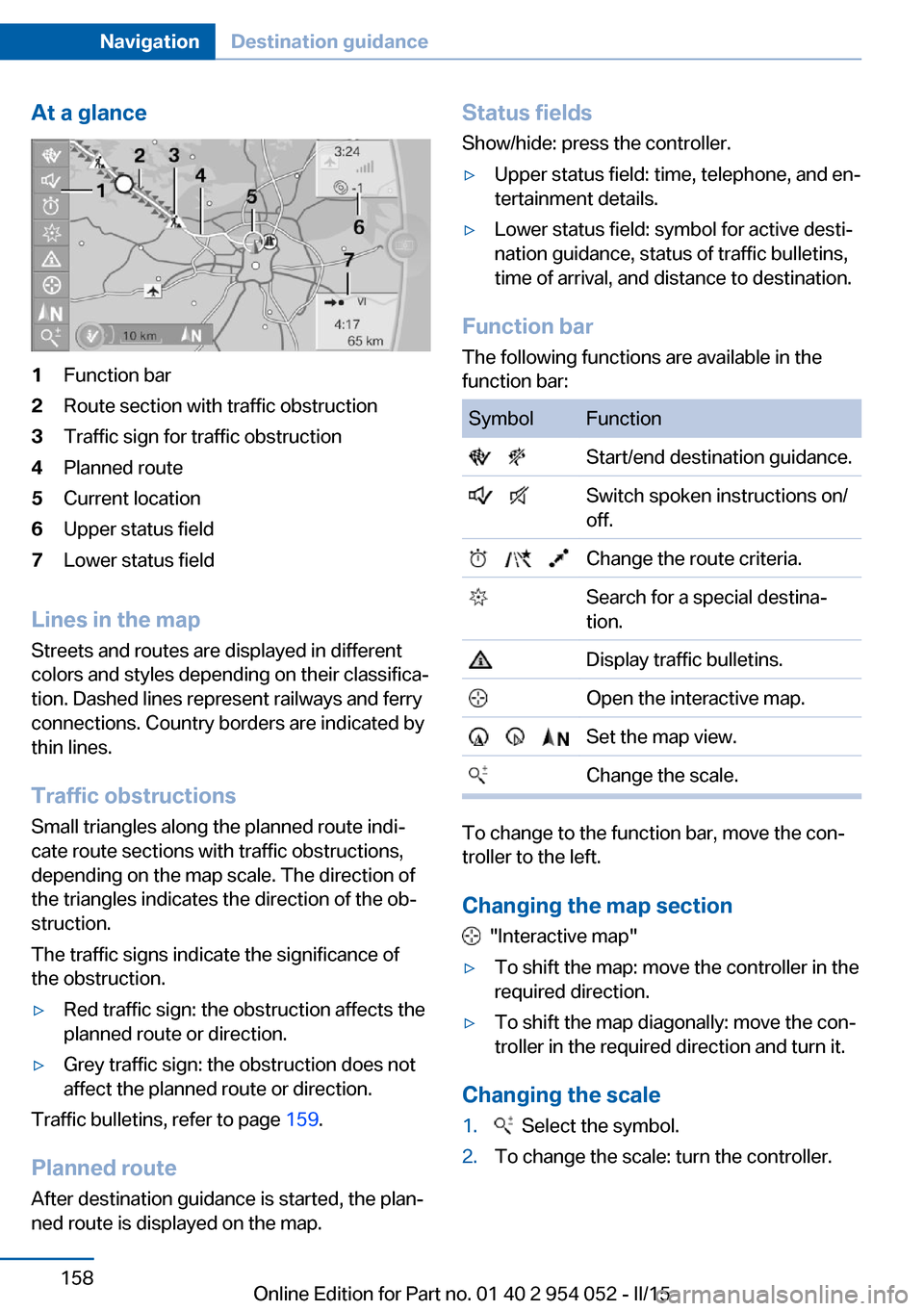
At a glance1Function bar2Route section with traffic obstruction3Traffic sign for traffic obstruction4Planned route5Current location6Upper status field7Lower status field
Lines in the mapStreets and routes are displayed in different
colors and styles depending on their classifica‐ tion. Dashed lines represent railways and ferry
connections. Country borders are indicated by
thin lines.
Traffic obstructions
Small triangles along the planned route indi‐
cate route sections with traffic obstructions,
depending on the map scale. The direction of
the triangles indicates the direction of the ob‐
struction.
The traffic signs indicate the significance of
the obstruction.
▷Red traffic sign: the obstruction affects the
planned route or direction.▷Grey traffic sign: the obstruction does not
affect the planned route or direction.
Traffic bulletins, refer to page 159.
Planned route After destination guidance is started, the plan‐
ned route is displayed on the map.
Status fields
Show/hide: press the controller.▷Upper status field: time, telephone, and en‐
tertainment details.▷Lower status field: symbol for active desti‐
nation guidance, status of traffic bulletins,
time of arrival, and distance to destination.
Function bar
The following functions are available in the
function bar:
SymbolFunction Start/end destination guidance. Switch spoken instructions on/
off. Change the route criteria. Search for a special destina‐
tion. Display traffic bulletins. Open the interactive map. Set the map view. Change the scale.
To change to the function bar, move the con‐
troller to the left.
Changing the map section
"Interactive map"
▷To shift the map: move the controller in the
required direction.▷To shift the map diagonally: move the con‐
troller in the required direction and turn it.
Changing the scale
1. Select the symbol.2.To change the scale: turn the controller.Seite 158NavigationDestination guidance158
Online Edition for Part no. 01 40 2 954 052 - II/15
Page 161 of 297
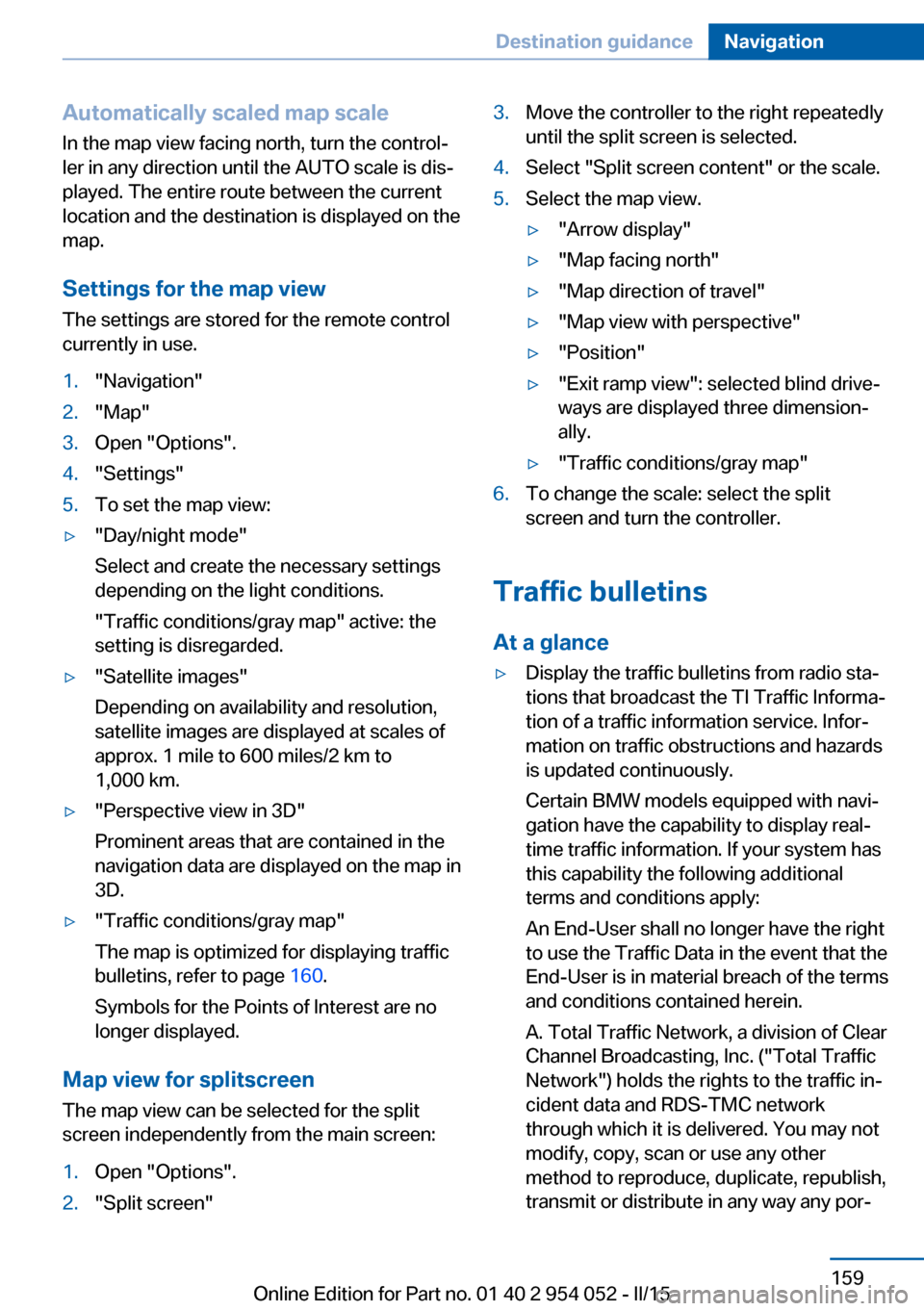
Automatically scaled map scaleIn the map view facing north, turn the control‐
ler in any direction until the AUTO scale is dis‐
played. The entire route between the current
location and the destination is displayed on the
map.
Settings for the map view
The settings are stored for the remote control
currently in use.1."Navigation"2."Map"3.Open "Options".4."Settings"5.To set the map view:▷"Day/night mode"
Select and create the necessary settings
depending on the light conditions.
"Traffic conditions/gray map" active: the
setting is disregarded.▷"Satellite images"
Depending on availability and resolution,
satellite images are displayed at scales of
approx. 1 mile to 600 miles/2 km to
1,000 km.▷"Perspective view in 3D"
Prominent areas that are contained in the
navigation data are displayed on the map in
3D.▷"Traffic conditions/gray map"
The map is optimized for displaying traffic
bulletins, refer to page 160.
Symbols for the Points of Interest are no
longer displayed.
Map view for splitscreen
The map view can be selected for the split
screen independently from the main screen:
1.Open "Options".2."Split screen"3.Move the controller to the right repeatedly
until the split screen is selected.4.Select "Split screen content" or the scale.5.Select the map view.▷"Arrow display"▷"Map facing north"▷"Map direction of travel"▷"Map view with perspective"▷"Position"▷"Exit ramp view": selected blind drive‐
ways are displayed three dimension‐
ally.▷"Traffic conditions/gray map"6.To change the scale: select the split
screen and turn the controller.
Traffic bulletins
At a glance
▷Display the traffic bulletins from radio sta‐
tions that broadcast the TI Traffic Informa‐
tion of a traffic information service. Infor‐
mation on traffic obstructions and hazards
is updated continuously.
Certain BMW models equipped with navi‐
gation have the capability to display real-
time traffic information. If your system has
this capability the following additional
terms and conditions apply:
An End-User shall no longer have the right
to use the Traffic Data in the event that the
End-User is in material breach of the terms
and conditions contained herein.
A. Total Traffic Network, a division of Clear
Channel Broadcasting, Inc. ("Total Traffic
Network") holds the rights to the traffic in‐
cident data and RDS-TMC network
through which it is delivered. You may not
modify, copy, scan or use any other
method to reproduce, duplicate, republish,
transmit or distribute in any way any por‐Seite 159Destination guidanceNavigation159
Online Edition for Part no. 01 40 2 954 052 - II/15
Page 164 of 297
▷Total length of the traffic obstructions on
the route.▷Time by which the trip is extended due to
the traffic obstructions.
The lower part of the message shows:
▷Detour recommendation with the distance
to the beginning of the detour.▷Difference between the length of the new
route compared to the original route.▷Time gained if the detour is taken com‐
pared to the original route with the traffic
obstructions.
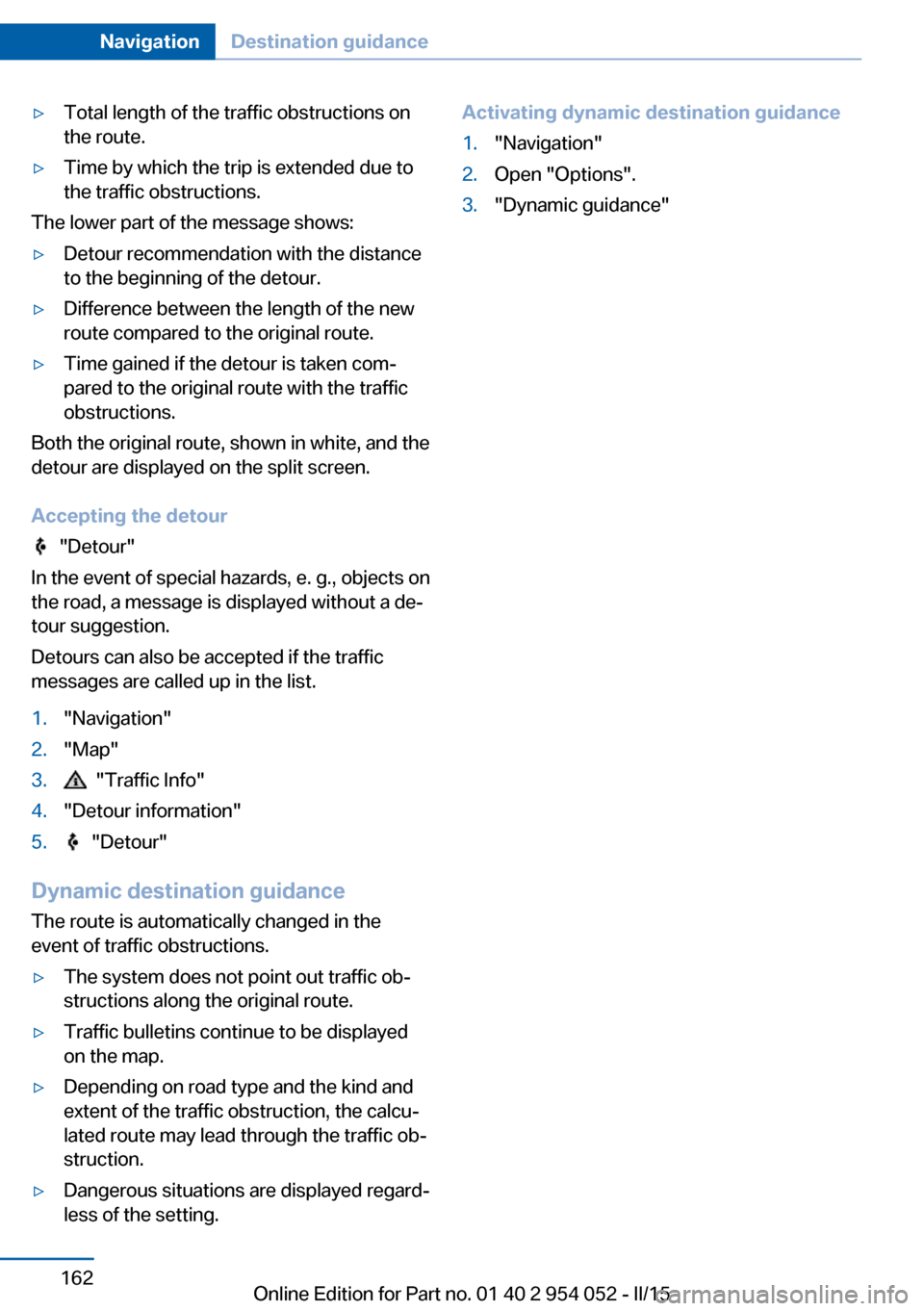
Both the original route, shown in white, and the
detour are displayed on the split screen.
Accepting the detour
"Detour"
In the event of special hazards, e. g., objects on
the road, a message is displayed without a de‐
tour suggestion.
Detours can also be accepted if the traffic
messages are called up in the list.
1."Navigation"2."Map"3. "Traffic Info"4."Detour information"5. "Detour"
Dynamic destination guidance
The route is automatically changed in the
event of traffic obstructions.
▷The system does not point out traffic ob‐
structions along the original route.▷Traffic bulletins continue to be displayed
on the map.▷Depending on road type and the kind and
extent of the traffic obstruction, the calcu‐
lated route may lead through the traffic ob‐
struction.▷Dangerous situations are displayed regard‐
less of the setting.Activating dynamic destination guidance1."Navigation"2.Open "Options".3."Dynamic guidance"Seite 162NavigationDestination guidance162
Online Edition for Part no. 01 40 2 954 052 - II/15
Page 172 of 297
Activating/deactivating digital radioreception1."Radio"2."FM" or "AM"3.Open "Options".4."HD Radio Reception"
The setting is stored for the remote control
currently in use.
This symbol is displayed in the status line
when the audio signal is digital.
When tuning to a station with a digital signal, it
may take several seconds for the station to be
played back in digital quality.
Note on HD stations whose station name ends
in ...HD or with ...HD1:
In areas in which the station is not continu‐
ously received in digital mode, the playback
switches between analog and digital reception.
In this case, switch off digital radio reception.
Note on HD multicast stations whose station
name ends in ...HD2, ...HD3, ...:
In areas in which the station is not continu‐
ously received in digital mode, the audible sig‐
nal may be interrupted for several seconds.
This is reception related.
Displaying additional information
Some stations broadcast additional informa‐
tion on the current track, such as the name of
the artist.
1.Select the desired station.2.Open "Options".3."Station info"
Selecting a substation
This symbol indicates that a main station
also broadcasts additional substations. The
station name of the main station ends in HD1.
Station names of the substations end in HD2,
HD3, etc.
1.Select the desired station.2.Press the controller.3.Select the substation.
When reception is poor, the substation is
muted.
Satellite radio General information The channels are offered in predefined pack‐
ages. The packages must be enabled by tele‐
phone.
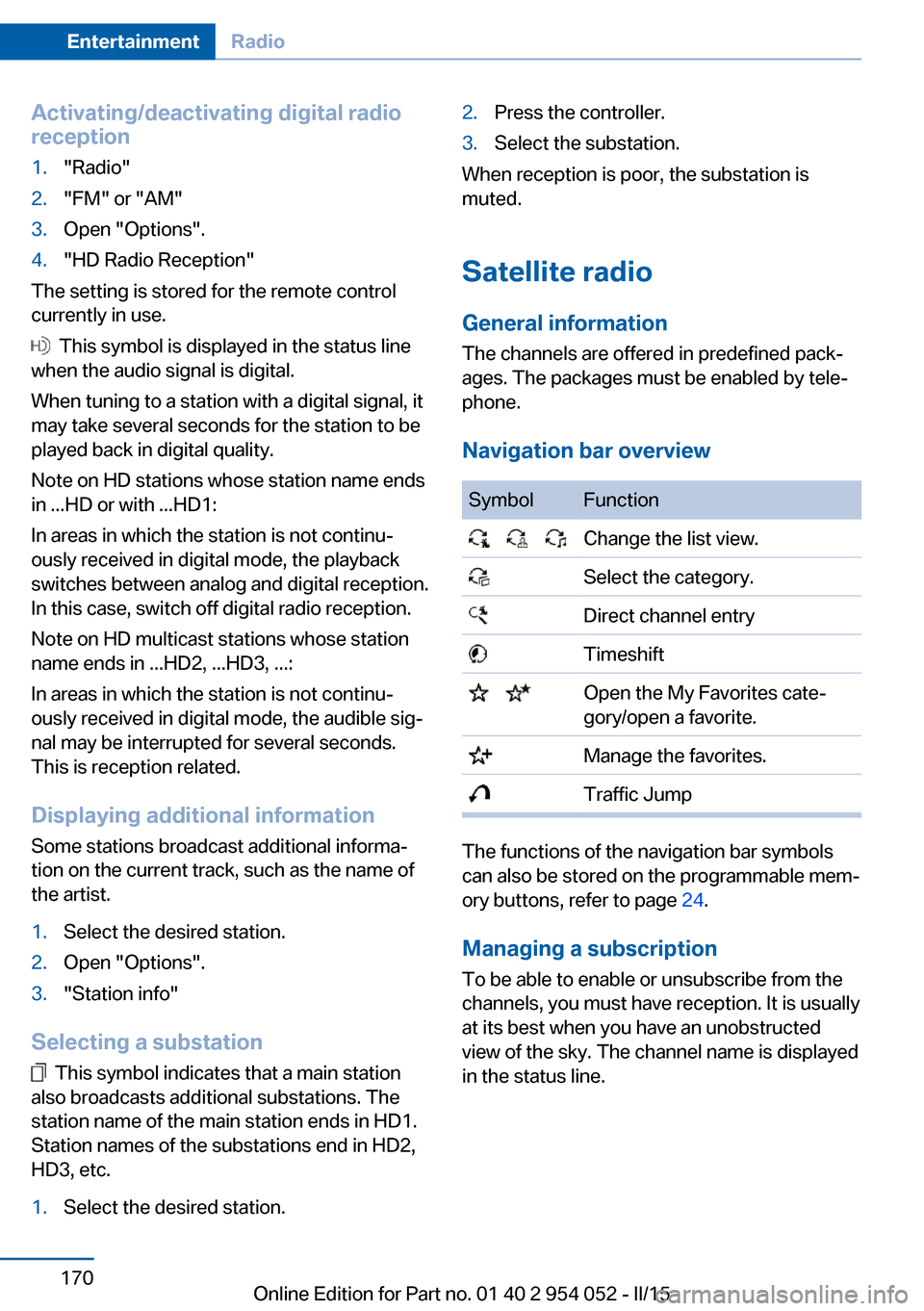
Navigation bar overview
SymbolFunction Change the list view. Select the category. Direct channel entry Timeshift Open the My Favorites cate‐
gory/open a favorite. Manage the favorites. Traffic Jump
The functions of the navigation bar symbols
can also be stored on the programmable mem‐
ory buttons, refer to page 24.
Managing a subscription
To be able to enable or unsubscribe from the
channels, you must have reception. It is usually
at its best when you have an unobstructed
view of the sky. The channel name is displayed
in the status line.
Seite 170EntertainmentRadio170
Online Edition for Part no. 01 40 2 954 052 - II/15
Page 174 of 297
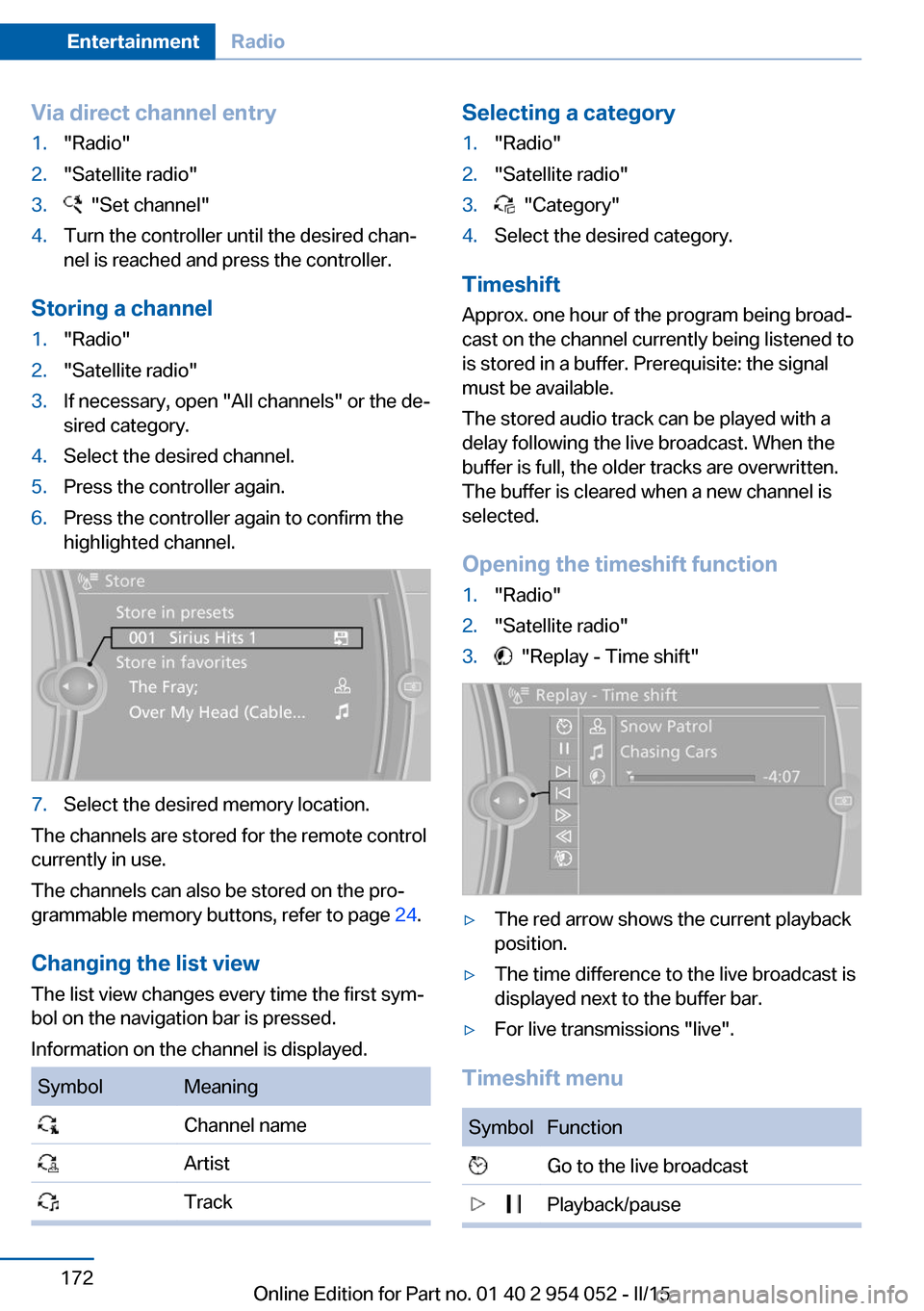
Via direct channel entry1."Radio"2."Satellite radio"3. "Set channel"4.Turn the controller until the desired chan‐
nel is reached and press the controller.
Storing a channel
1."Radio"2."Satellite radio"3.If necessary, open "All channels" or the de‐
sired category.4.Select the desired channel.5.Press the controller again.6.Press the controller again to confirm the
highlighted channel.7.Select the desired memory location.
The channels are stored for the remote control
currently in use.
The channels can also be stored on the pro‐
grammable memory buttons, refer to page 24.
Changing the list view
The list view changes every time the first sym‐
bol on the navigation bar is pressed.
Information on the channel is displayed.
SymbolMeaning Channel name Artist TrackSelecting a category1."Radio"2."Satellite radio"3. "Category"4.Select the desired category.
Timeshift
Approx. one hour of the program being broad‐
cast on the channel currently being listened to
is stored in a buffer. Prerequisite: the signal
must be available.
The stored audio track can be played with a
delay following the live broadcast. When the
buffer is full, the older tracks are overwritten.
The buffer is cleared when a new channel is
selected.
Opening the timeshift function
1."Radio"2."Satellite radio"3. "Replay - Time shift"▷The red arrow shows the current playback
position.▷The time difference to the live broadcast is
displayed next to the buffer bar.▷For live transmissions "live".
Timeshift menu
SymbolFunction Go to the live broadcast Playback/pauseSeite 172EntertainmentRadio172
Online Edition for Part no. 01 40 2 954 052 - II/15
Page 178 of 297
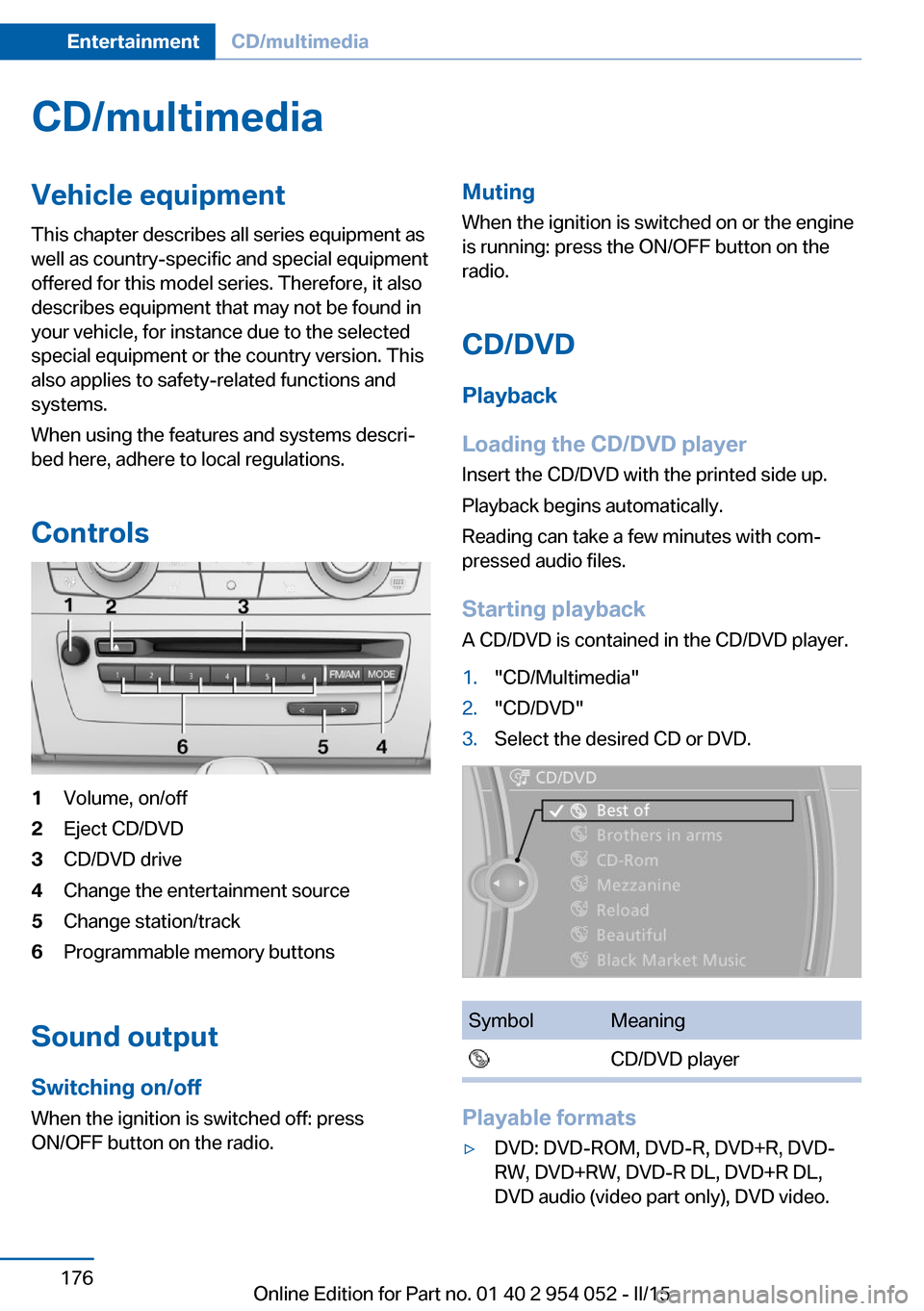
CD/multimediaVehicle equipmentThis chapter describes all series equipment as
well as country-specific and special equipment
offered for this model series. Therefore, it also
describes equipment that may not be found in
your vehicle, for instance due to the selected
special equipment or the country version. This
also applies to safety-related functions and
systems.
When using the features and systems descri‐
bed here, adhere to local regulations.
Controls1Volume, on/off2Eject CD/DVD3CD/DVD drive4Change the entertainment source5Change station/track6Programmable memory buttons
Sound output Switching on/offWhen the ignition is switched off: press
ON/OFF button on the radio.
Muting
When the ignition is switched on or the engine
is running: press the ON/OFF button on the
radio.
CD/DVD
Playback
Loading the CD/DVD player
Insert the CD/DVD with the printed side up.
Playback begins automatically.
Reading can take a few minutes with com‐
pressed audio files.
Starting playback A CD/DVD is contained in the CD/DVD player.1."CD/Multimedia"2."CD/DVD"3.Select the desired CD or DVD.SymbolMeaning CD/DVD player
Playable formats
▷DVD: DVD-ROM, DVD-R, DVD+R, DVD-
RW, DVD+RW, DVD-R DL, DVD+R DL,
DVD audio (video part only), DVD video.Seite 176EntertainmentCD/multimedia176
Online Edition for Part no. 01 40 2 954 052 - II/15
Page 179 of 297
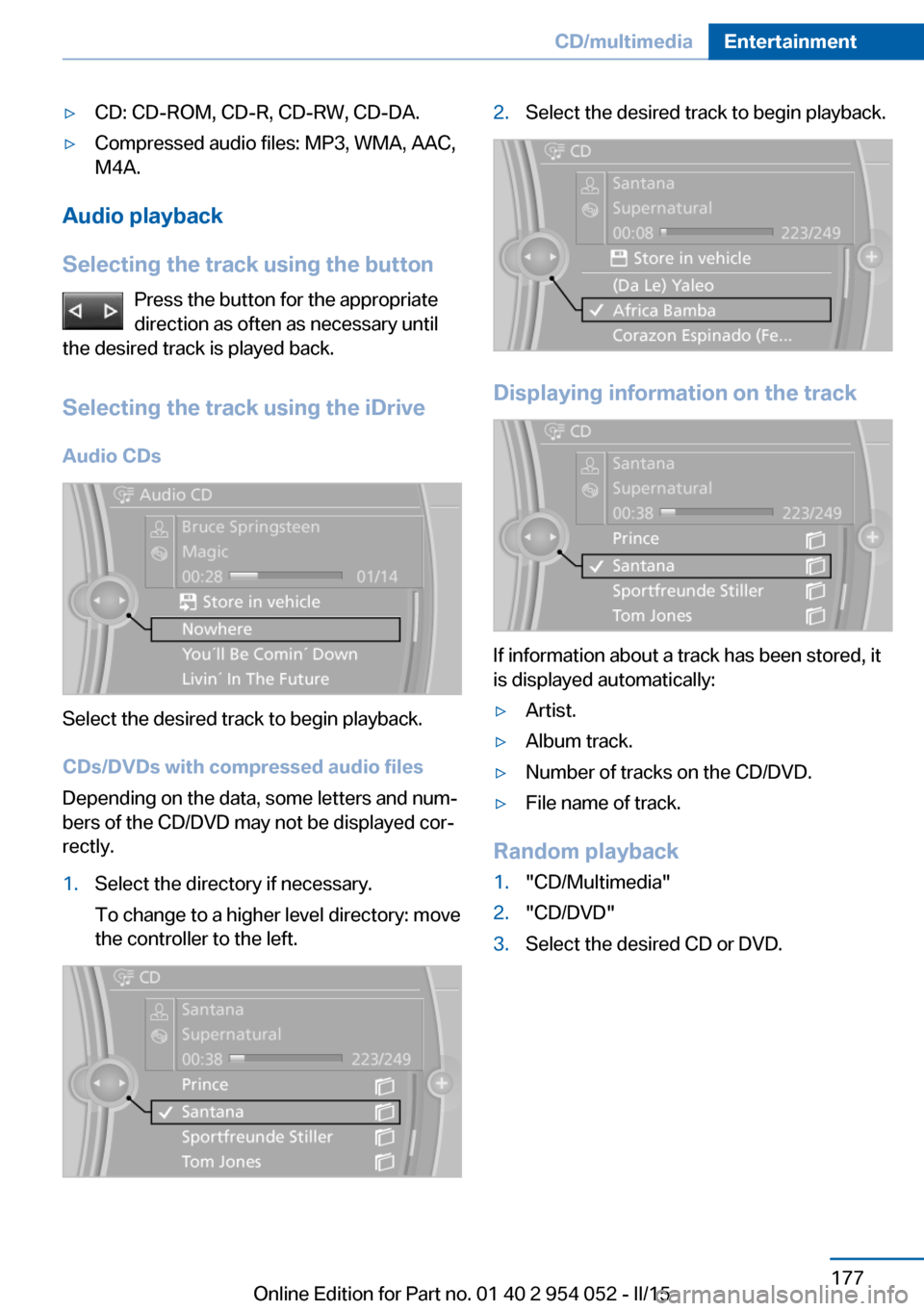
▷CD: CD-ROM, CD-R, CD-RW, CD-DA.▷Compressed audio files: MP3, WMA, AAC,
M4A.
Audio playback
Selecting the track using the button Press the button for the appropriate
direction as often as necessary until
the desired track is played back.
Selecting the track using the iDrive Audio CDs
Select the desired track to begin playback.
CDs/DVDs with compressed audio files
Depending on the data, some letters and num‐
bers of the CD/DVD may not be displayed cor‐
rectly.
1.Select the directory if necessary.
To change to a higher level directory: move
the controller to the left.2.Select the desired track to begin playback.
Displaying information on the track
If information about a track has been stored, it
is displayed automatically:
▷Artist.▷Album track.▷Number of tracks on the CD/DVD.▷File name of track.
Random playback
1."CD/Multimedia"2."CD/DVD"3.Select the desired CD or DVD.Seite 177CD/multimediaEntertainment177
Online Edition for Part no. 01 40 2 954 052 - II/15