no idrive BMW X1 2015 E84 User Guide
[x] Cancel search | Manufacturer: BMW, Model Year: 2015, Model line: X1, Model: BMW X1 2015 E84Pages: 297, PDF Size: 7.01 MB
Page 81 of 297
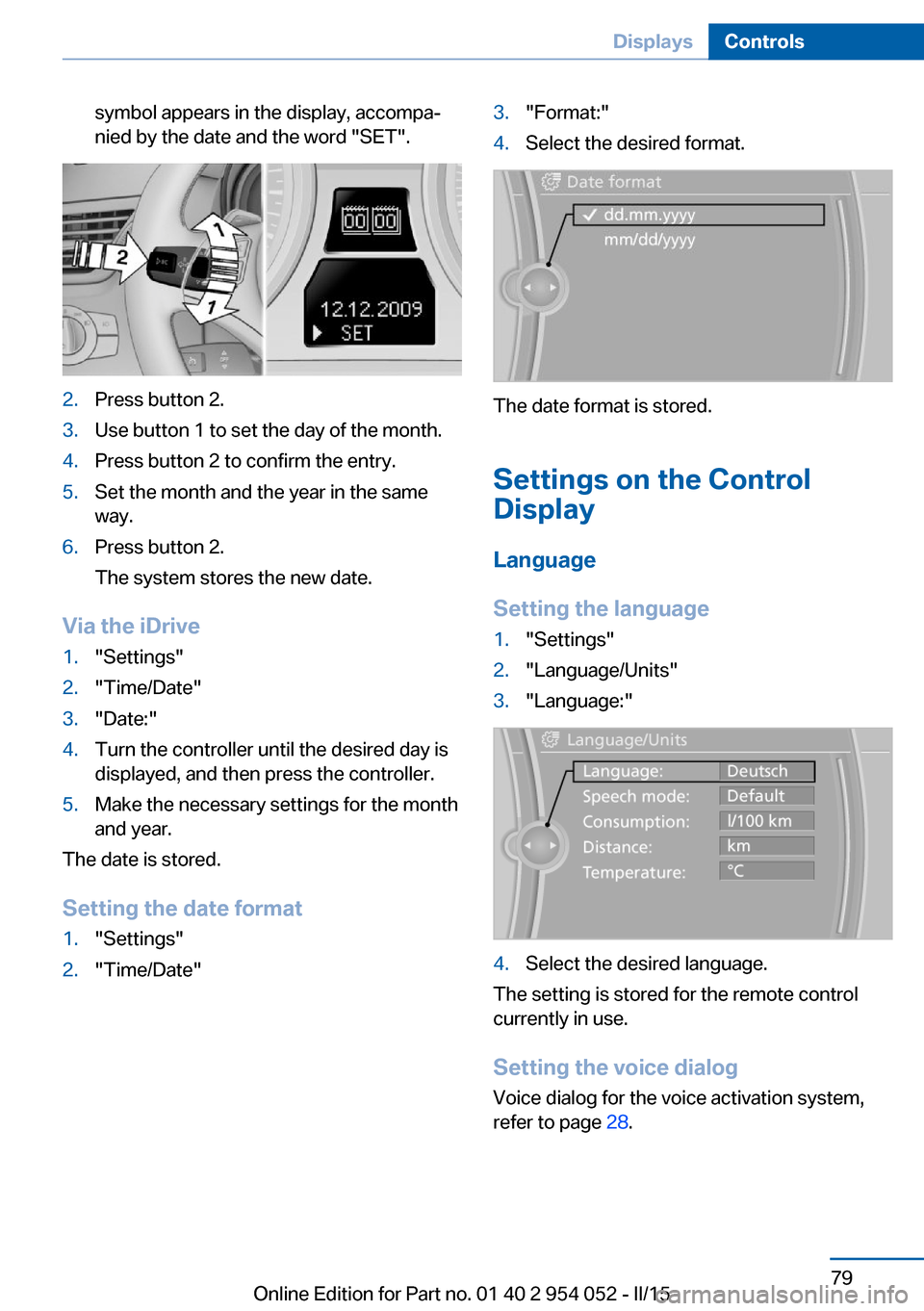
symbol appears in the display, accompa‐
nied by the date and the word "SET".2.Press button 2.3.Use button 1 to set the day of the month.4.Press button 2 to confirm the entry.5.Set the month and the year in the same
way.6.Press button 2.
The system stores the new date.
Via the iDrive
1."Settings"2."Time/Date"3."Date:"4.Turn the controller until the desired day is
displayed, and then press the controller.5.Make the necessary settings for the month
and year.
The date is stored.
Setting the date format
1."Settings"2."Time/Date"3."Format:"4.Select the desired format.
The date format is stored.
Settings on the Control
Display
Language
Setting the language
1."Settings"2."Language/Units"3."Language:"4.Select the desired language.
The setting is stored for the remote control
currently in use.
Setting the voice dialog
Voice dialog for the voice activation system,
refer to page 28.
Seite 79DisplaysControls79
Online Edition for Part no. 01 40 2 954 052 - II/15
Page 90 of 297
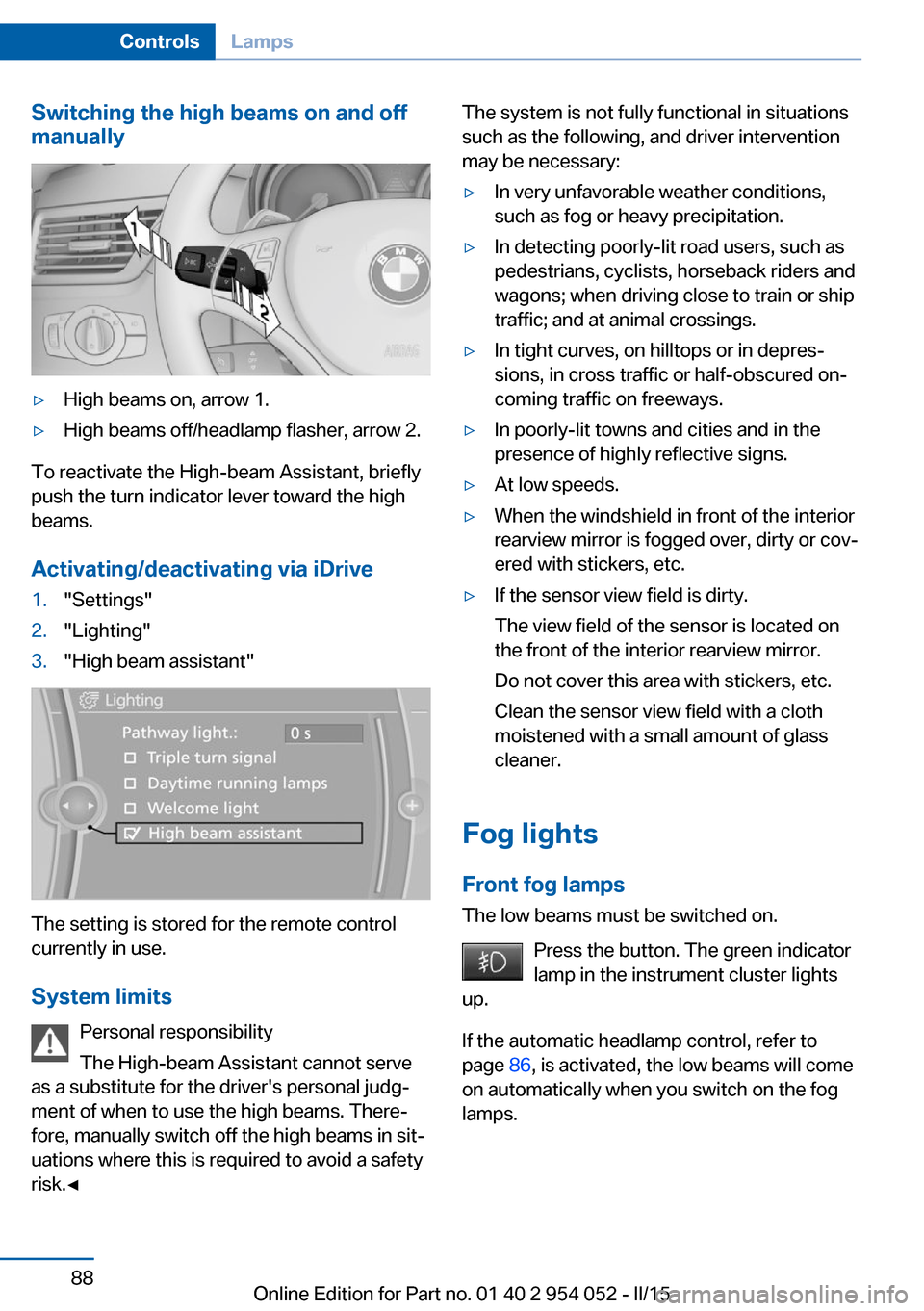
Switching the high beams on and off
manually▷High beams on, arrow 1.▷High beams off/headlamp flasher, arrow 2.
To reactivate the High-beam Assistant, briefly
push the turn indicator lever toward the high
beams.
Activating/deactivating via iDrive
1."Settings"2."Lighting"3."High beam assistant"
The setting is stored for the remote control
currently in use.
System limits Personal responsibility
The High-beam Assistant cannot serve
as a substitute for the driver's personal judg‐
ment of when to use the high beams. There‐
fore, manually switch off the high beams in sit‐
uations where this is required to avoid a safety
risk.◀
The system is not fully functional in situations
such as the following, and driver intervention
may be necessary:▷In very unfavorable weather conditions,
such as fog or heavy precipitation.▷In detecting poorly-lit road users, such as
pedestrians, cyclists, horseback riders and
wagons; when driving close to train or ship
traffic; and at animal crossings.▷In tight curves, on hilltops or in depres‐
sions, in cross traffic or half-obscured on‐
coming traffic on freeways.▷In poorly-lit towns and cities and in the
presence of highly reflective signs.▷At low speeds.▷When the windshield in front of the interior
rearview mirror is fogged over, dirty or cov‐
ered with stickers, etc.▷If the sensor view field is dirty.
The view field of the sensor is located on
the front of the interior rearview mirror.
Do not cover this area with stickers, etc.
Clean the sensor view field with a cloth
moistened with a small amount of glass
cleaner.
Fog lights
Front fog lamps
The low beams must be switched on.
Press the button. The green indicator
lamp in the instrument cluster lights
up.
If the automatic headlamp control, refer to
page 86, is activated, the low beams will come
on automatically when you switch on the fog
lamps.
Seite 88ControlsLamps88
Online Edition for Part no. 01 40 2 954 052 - II/15
Page 108 of 297
Switching on automaticallyWith the engine running or the ignition
switched on, shift the selector lever into posi‐
tion R.
Switching off automatically when
driving forward
The system switches off when a certain dis‐
tance or speed is exceeded.
Switch on the system again if necessary.
Switching on/off manually
Press the button.
▷On: the LED lights up.▷Off: the LED goes out.
Signal tonesWhen approaching an object, an intermittent
tone is sounded that indicates the position of
the object. For example, if an object is de‐
tected behind the vehicle, a signal tone sounds
from the rear speakers.
The shorter the distance to the object be‐
comes, the shorter the intervals.
If the distance to a detected object is less than
approx. 12 in/30 cm, a continuous tone is
sounded.
If objects are located both in front of and be‐
hind the vehicle, an alternating continuous sig‐
nal is sounded.
The intermittent tone is interrupted after ap‐
prox. 3 seconds:
▷If the vehicle stops in front of an object that
is detected by only one of the corner sen‐
sors.▷If moving parallel to a wall.
The signal tone is switched off:
▷When the vehicle moves away from an ob‐
ject by more than approx. 4 in/10 cm.▷When transmission position P is engaged.
Volume
You can set the volume of the PDC signal tone,
refer to page 167.
The setting is stored for the remote control
currently in use.
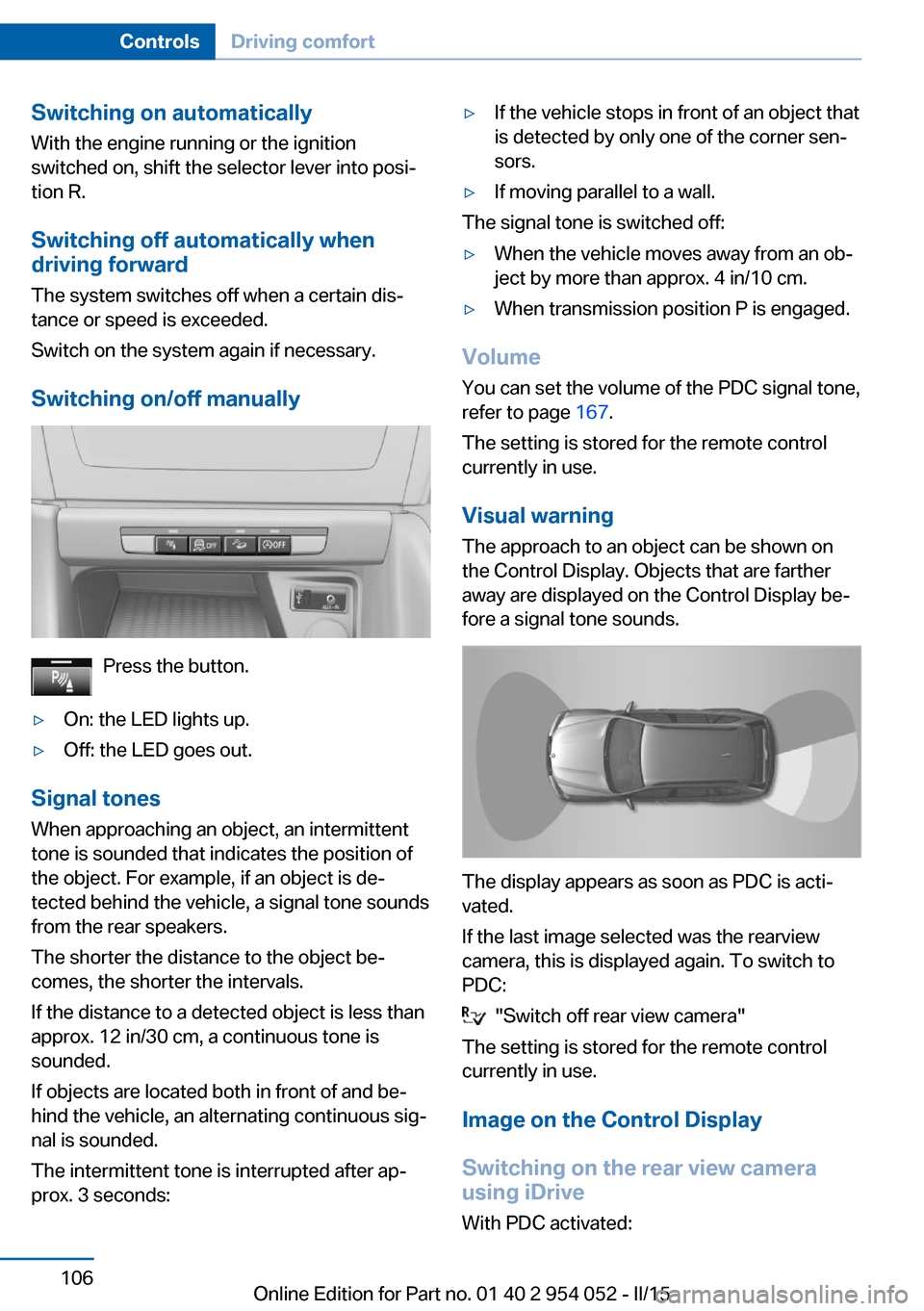
Visual warning
The approach to an object can be shown on
the Control Display. Objects that are farther
away are displayed on the Control Display be‐
fore a signal tone sounds.
The display appears as soon as PDC is acti‐
vated.
If the last image selected was the rearview
camera, this is displayed again. To switch to
PDC:
"Switch off rear view camera"
The setting is stored for the remote control
currently in use.
Image on the Control Display
Switching on the rear view camera
using iDrive
With PDC activated:
Seite 106ControlsDriving comfort106
Online Edition for Part no. 01 40 2 954 052 - II/15
Page 109 of 297
"Rear view camera"
The image of the rear view camera is dis‐
played. The setting is stored for the remote
control currently in use.
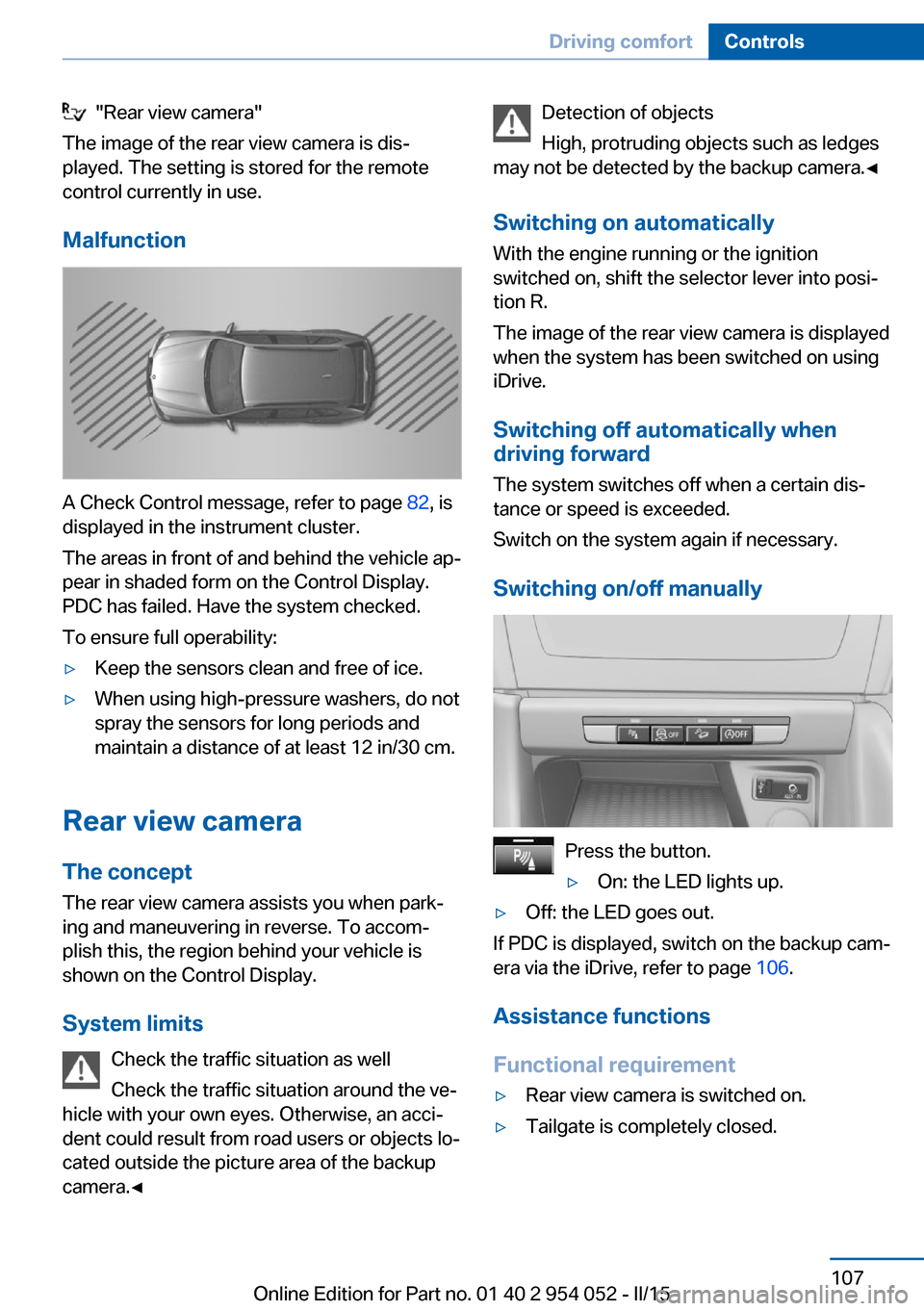
Malfunction
A Check Control message, refer to page 82, is
displayed in the instrument cluster.
The areas in front of and behind the vehicle ap‐
pear in shaded form on the Control Display.
PDC has failed. Have the system checked.
To ensure full operability:
▷Keep the sensors clean and free of ice.▷When using high-pressure washers, do not
spray the sensors for long periods and
maintain a distance of at least 12 in/30 cm.
Rear view camera
The concept The rear view camera assists you when park‐
ing and maneuvering in reverse. To accom‐
plish this, the region behind your vehicle is
shown on the Control Display.
System limits Check the traffic situation as well
Check the traffic situation around the ve‐
hicle with your own eyes. Otherwise, an acci‐
dent could result from road users or objects lo‐
cated outside the picture area of the backup
camera.◀
Detection of objects
High, protruding objects such as ledges
may not be detected by the backup camera.◀
Switching on automaticallyWith the engine running or the ignition
switched on, shift the selector lever into posi‐
tion R.
The image of the rear view camera is displayed
when the system has been switched on using
iDrive.
Switching off automatically whendriving forward
The system switches off when a certain dis‐
tance or speed is exceeded.
Switch on the system again if necessary.
Switching on/off manually
Press the button.
▷On: the LED lights up.▷Off: the LED goes out.
If PDC is displayed, switch on the backup cam‐
era via the iDrive, refer to page 106.
Assistance functions
Functional requirement
▷Rear view camera is switched on.▷Tailgate is completely closed.Seite 107Driving comfortControls107
Online Edition for Part no. 01 40 2 954 052 - II/15
Page 110 of 297
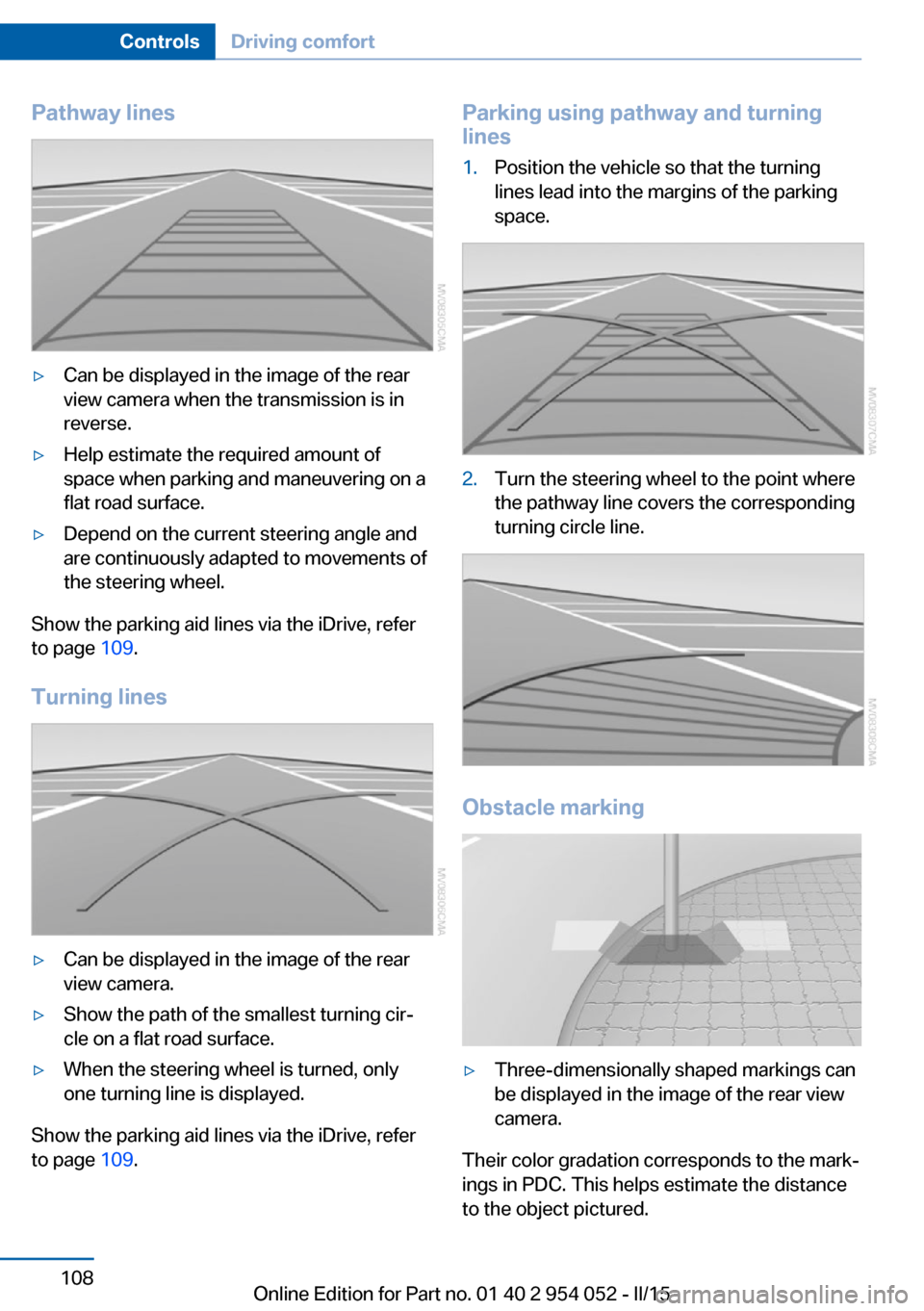
Pathway lines▷Can be displayed in the image of the rear
view camera when the transmission is in
reverse.▷Help estimate the required amount of
space when parking and maneuvering on a
flat road surface.▷Depend on the current steering angle and
are continuously adapted to movements of
the steering wheel.
Show the parking aid lines via the iDrive, refer
to page 109.
Turning lines
▷Can be displayed in the image of the rear
view camera.▷Show the path of the smallest turning cir‐
cle on a flat road surface.▷When the steering wheel is turned, only
one turning line is displayed.
Show the parking aid lines via the iDrive, refer
to page 109.
Parking using pathway and turning
lines1.Position the vehicle so that the turning
lines lead into the margins of the parking
space.2.Turn the steering wheel to the point where
the pathway line covers the corresponding
turning circle line.
Obstacle marking
▷Three-dimensionally shaped markings can
be displayed in the image of the rear view
camera.
Their color gradation corresponds to the mark‐
ings in PDC. This helps estimate the distance
to the object pictured.
Seite 108ControlsDriving comfort108
Online Edition for Part no. 01 40 2 954 052 - II/15
Page 111 of 297
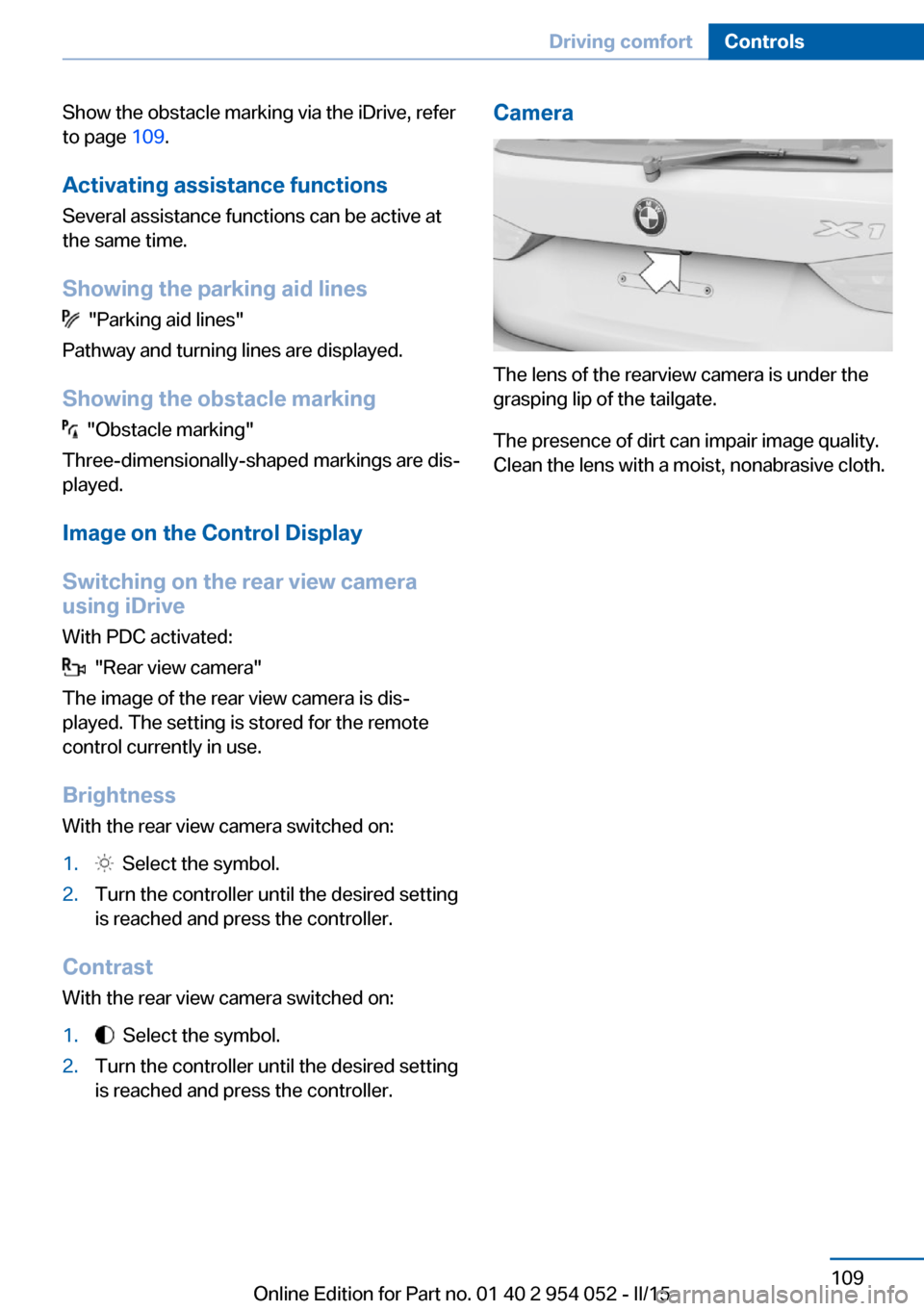
Show the obstacle marking via the iDrive, refer
to page 109.
Activating assistance functions
Several assistance functions can be active at
the same time.
Showing the parking aid lines
"Parking aid lines"
Pathway and turning lines are displayed.
Showing the obstacle marking
"Obstacle marking"
Three-dimensionally-shaped markings are dis‐
played.
Image on the Control Display
Switching on the rear view camera
using iDrive
With PDC activated:
"Rear view camera"
The image of the rear view camera is dis‐
played. The setting is stored for the remote
control currently in use.
Brightness
With the rear view camera switched on:
1. Select the symbol.2.Turn the controller until the desired setting
is reached and press the controller.
Contrast
With the rear view camera switched on:
1. Select the symbol.2.Turn the controller until the desired setting
is reached and press the controller.Camera
The lens of the rearview camera is under the
grasping lip of the tailgate.
The presence of dirt can impair image quality.
Clean the lens with a moist, nonabrasive cloth.
Seite 109Driving comfortControls109
Online Edition for Part no. 01 40 2 954 052 - II/15
Page 115 of 297
Rear window defrosterPress the button.
The rear window defroster switches
off automatically after a certain period of time.
Switching the system on/off
Switching off Press and hold the left button or, with
the setting at the lowest level, press
the left button.
All displays are cleared except for the rear win‐
dow defroster if it is switched on.
When the automatic climate control is
switched off, the supply of outside air is sus‐
pended. If the air quality deteriorates or the
window fogs over, switch the system back on
and increase the air flow rate.
Switching on Press any button, except for the buttons for
the ALL program or rear window heating.
Ventilation1Use the thumbwheels to smoothly open
and close the air vents2Use the lever to change the direction of the
air flow
Ventilation for cooling
Adjust the vent to direct the air in your direc‐
tion, e.g., if the vehicle interior is hot from the
sun.
Draft-free ventilation
Adjust the vent to let the air flow past you.
Microfilter/activated-charcoal filter
The microfilter traps dust and pollen in the in‐
coming air.
The activated-charcoal filter removes gaseous
pollutants from the outside air that enters the
vehicle.
Your service center replaces this combined fil‐
ter during routine maintenance.
Parked-car ventilation The conceptThe parked-car ventilation blows air into the
passenger compartment to lower interior tem‐
peratures.
The system can be switched on and off at any
external temperature, either directly or by us‐
ing a preset switch-on time. It remains
switched on for 30 minutes.
Since the system uses a substantial amount of
electrical current, refrain from activating it
twice in succession without allowing the bat‐
tery to be recharged in normal operation be‐
tween use.
Open the vents to allow air to flow out.
They can be operated via iDrive.
Switching on/off directly1."Settings"2."Climate"Seite 113ClimateControls113
Online Edition for Part no. 01 40 2 954 052 - II/15
Page 154 of 297
Destination entry by voiceGeneral information▷Instructions for voice activation system, re‐
fer to page 27.▷When making a destination entry by voice,
you can change between voice operation
and iDrive.▷To have the available spoken instructions
read out loud: ›Voice commands‹.
Saying the entries
▷The town/city, street, and house number
can be entered using a single command.▷Countries, towns and cities, streets, and
intersections can be said as whole words
or spelled in the language of the system,
refer to page 79.
Example: to enter a destination in a US
state as a whole word, the system lan‐
guage must be English.▷Spell the entry if the spoken language and
the language of the system differ.▷Say the letters smoothly, and avoid exag‐
gerating the pronunciation and inserting
lengthy pauses between the letters.▷The methods of entry depend on the navi‐
gation data in use and the country and lan‐
guage settings.
Entering the address in a command
1. Press the button on the steering
wheel.2.›Enter address‹3.Wait for a request from the system.4.Say the address in the suggested order.5.Continue making the entry as prompted by
the system.
If necessary, individually name the sepa‐
rate components of the address, e.g., the
town/city.Entering a town/city separately
The town/city can be said as a complete word.
With the destination entry menu displayed:1. Press the button on the steering
wheel.2.›City‹ or ›Spell city‹3.Wait for the system to prompt you for the
town/city.4.Say the name of the town/city, or name at
least the first three letters.
Depending on the entry, up to 20 towns/
cities may be suggested.5.Select a location:▷Select a recommended town/
city: ›Yes‹.▷Select a different town/city: ›New
entry‹.▷Select an entry: ›Entry ...‹, for instance,
entry 2.▷Spell an entry: ›Spell city‹.6.Continue making the entry as prompted by
the system.
If there are several towns/cities with the same
name:
Towns/cities of the same name are grouped in
a list and displayed as one location followed by
an ellipsis.
1.Select an entry: ›Yes‹ or ›Entry ...‹, e. g., En‐
try 2.2.Select the desired town/city.
Entering a street or intersection
separately
Enter a street and intersection in the same way
as you would enter a town/city.
Seite 152NavigationDestination entry152
Online Edition for Part no. 01 40 2 954 052 - II/15
Page 173 of 297
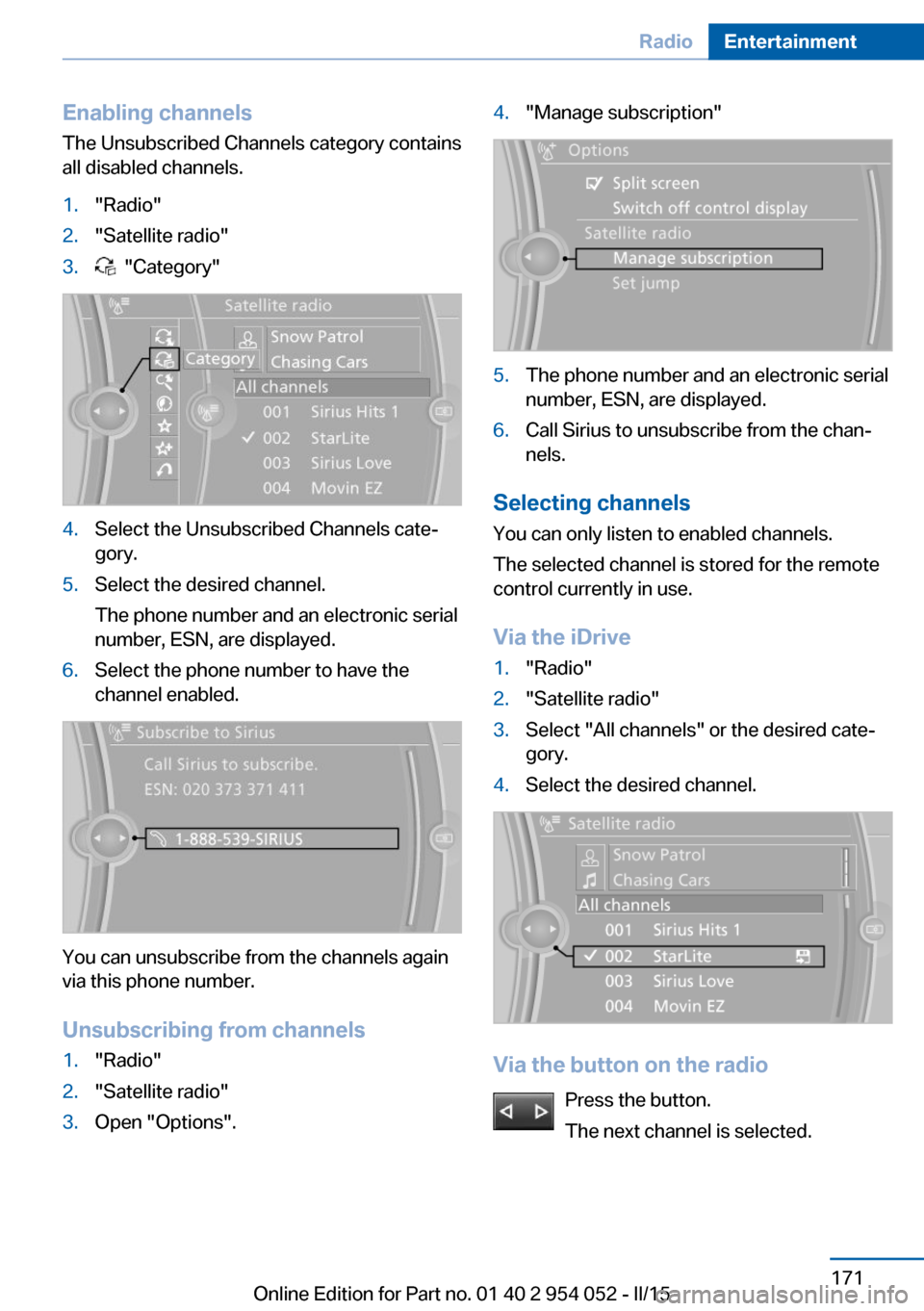
Enabling channels
The Unsubscribed Channels category contains
all disabled channels.1."Radio"2."Satellite radio"3. "Category"4.Select the Unsubscribed Channels cate‐
gory.5.Select the desired channel.
The phone number and an electronic serial
number, ESN, are displayed.6.Select the phone number to have the
channel enabled.
You can unsubscribe from the channels again
via this phone number.
Unsubscribing from channels
1."Radio"2."Satellite radio"3.Open "Options".4."Manage subscription"5.The phone number and an electronic serial
number, ESN, are displayed.6.Call Sirius to unsubscribe from the chan‐
nels.
Selecting channels
You can only listen to enabled channels.
The selected channel is stored for the remote
control currently in use.
Via the iDrive
1."Radio"2."Satellite radio"3.Select "All channels" or the desired cate‐
gory.4.Select the desired channel.
Via the button on the radio
Press the button.
The next channel is selected.
Seite 171RadioEntertainment171
Online Edition for Part no. 01 40 2 954 052 - II/15
Page 179 of 297
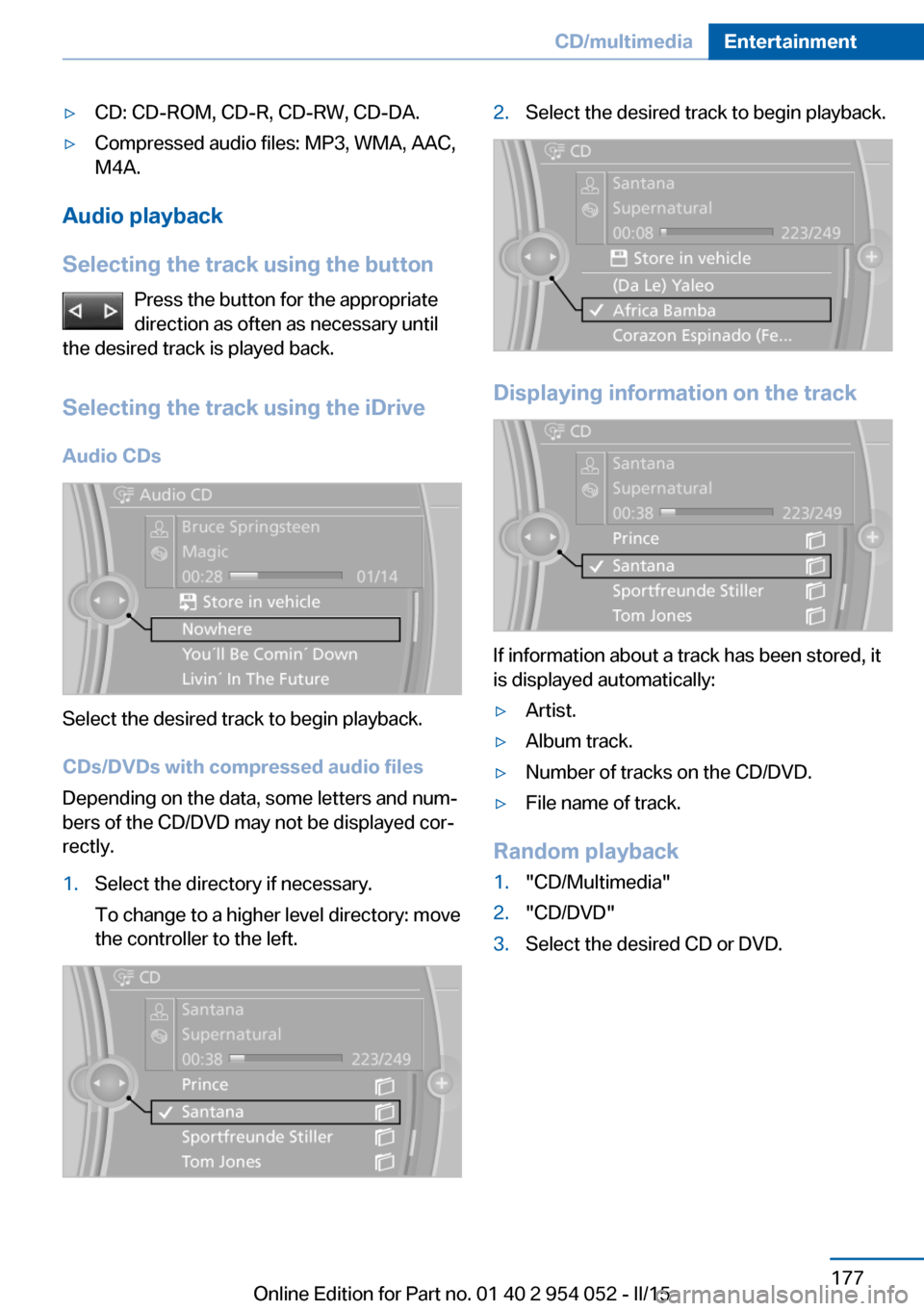
▷CD: CD-ROM, CD-R, CD-RW, CD-DA.▷Compressed audio files: MP3, WMA, AAC,
M4A.
Audio playback
Selecting the track using the button Press the button for the appropriate
direction as often as necessary until
the desired track is played back.
Selecting the track using the iDrive Audio CDs
Select the desired track to begin playback.
CDs/DVDs with compressed audio files
Depending on the data, some letters and num‐
bers of the CD/DVD may not be displayed cor‐
rectly.
1.Select the directory if necessary.
To change to a higher level directory: move
the controller to the left.2.Select the desired track to begin playback.
Displaying information on the track
If information about a track has been stored, it
is displayed automatically:
▷Artist.▷Album track.▷Number of tracks on the CD/DVD.▷File name of track.
Random playback
1."CD/Multimedia"2."CD/DVD"3.Select the desired CD or DVD.Seite 177CD/multimediaEntertainment177
Online Edition for Part no. 01 40 2 954 052 - II/15