voice BMW X1 2015 E84 User Guide
[x] Cancel search | Manufacturer: BMW, Model Year: 2015, Model line: X1, Model: BMW X1 2015 E84Pages: 297, PDF Size: 7.01 MB
Page 159 of 297
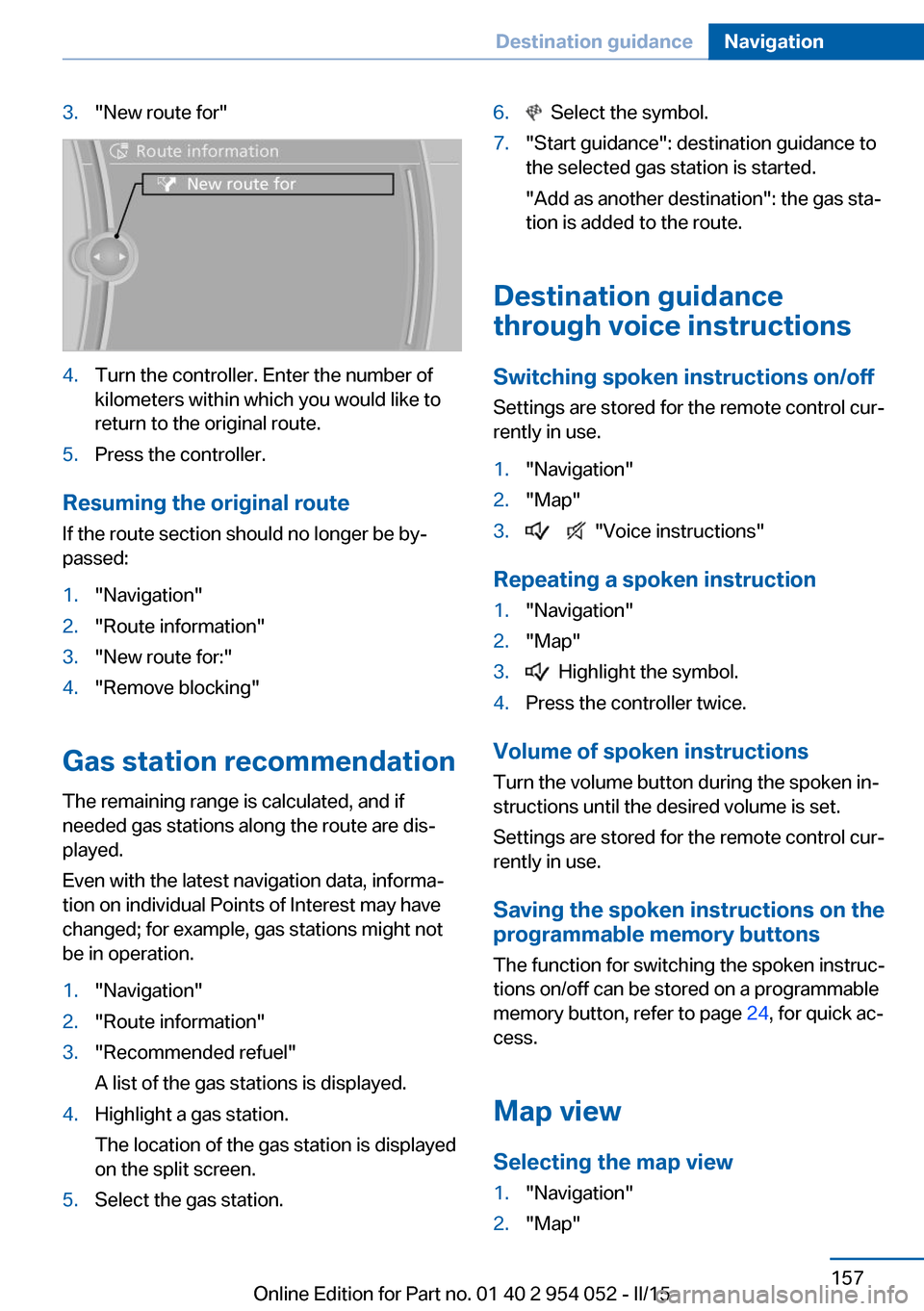
3."New route for"4.Turn the controller. Enter the number of
kilometers within which you would like to
return to the original route.5.Press the controller.
Resuming the original route
If the route section should no longer be by‐
passed:
1."Navigation"2."Route information"3."New route for:"4."Remove blocking"
Gas station recommendation
The remaining range is calculated, and if
needed gas stations along the route are dis‐
played.
Even with the latest navigation data, informa‐
tion on individual Points of Interest may have
changed; for example, gas stations might not
be in operation.
1."Navigation"2."Route information"3."Recommended refuel"
A list of the gas stations is displayed.4.Highlight a gas station.
The location of the gas station is displayed
on the split screen.5.Select the gas station.6. Select the symbol.7."Start guidance": destination guidance to
the selected gas station is started.
"Add as another destination": the gas sta‐
tion is added to the route.
Destination guidance
through voice instructions
Switching spoken instructions on/off Settings are stored for the remote control cur‐
rently in use.
1."Navigation"2."Map"3. "Voice instructions"
Repeating a spoken instruction
1."Navigation"2."Map"3. Highlight the symbol.4.Press the controller twice.
Volume of spoken instructions
Turn the volume button during the spoken in‐
structions until the desired volume is set.
Settings are stored for the remote control cur‐
rently in use.
Saving the spoken instructions on the programmable memory buttons
The function for switching the spoken instruc‐
tions on/off can be stored on a programmable
memory button, refer to page 24, for quick ac‐
cess.
Map view
Selecting the map view
1."Navigation"2."Map"Seite 157Destination guidanceNavigation157
Online Edition for Part no. 01 40 2 954 052 - II/15
Page 175 of 297
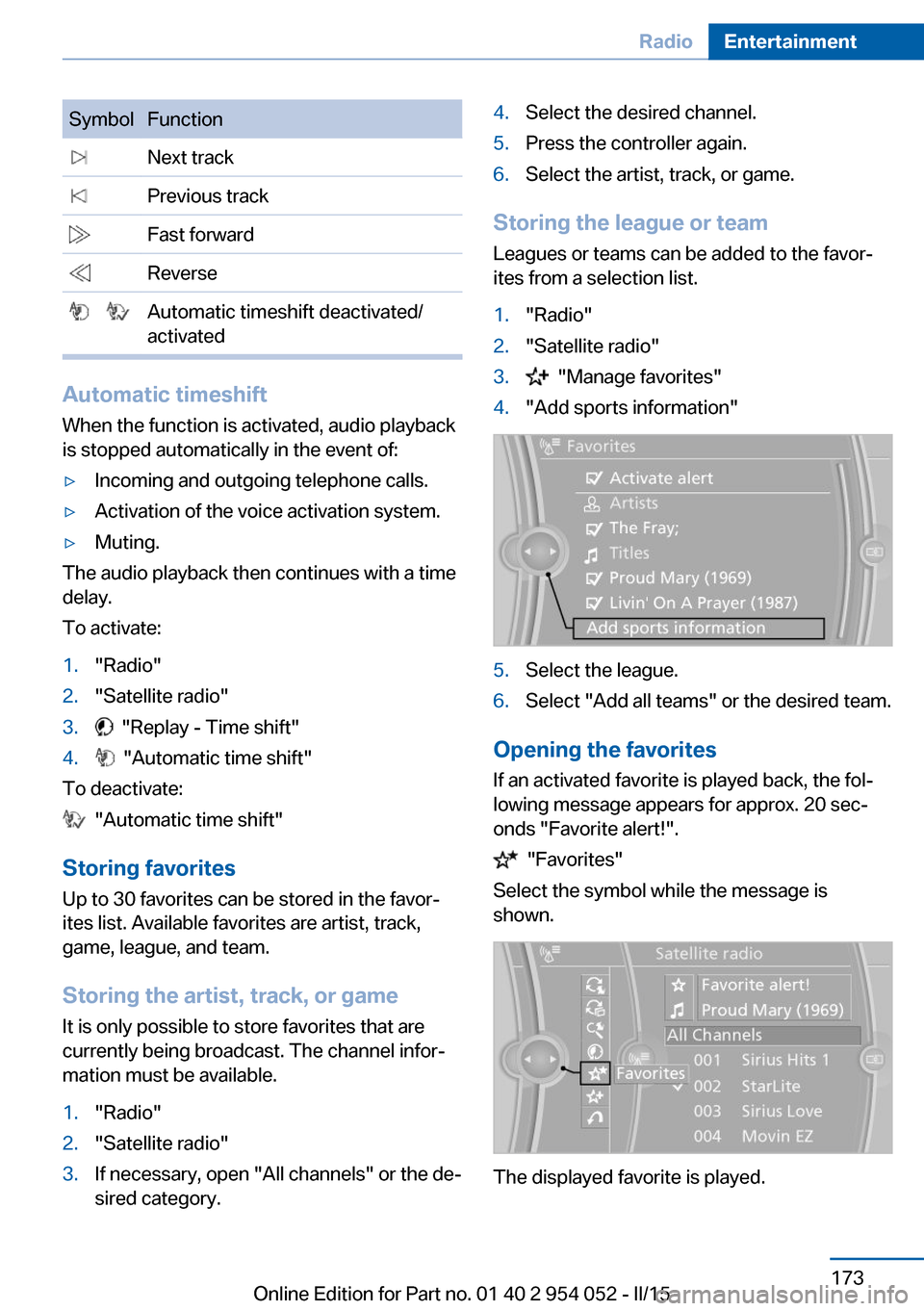
SymbolFunction Next track Previous track Fast forward Reverse Automatic timeshift deactivated/
activated
Automatic timeshift
When the function is activated, audio playback
is stopped automatically in the event of:
▷Incoming and outgoing telephone calls.▷Activation of the voice activation system.▷Muting.
The audio playback then continues with a time
delay.
To activate:
1."Radio"2."Satellite radio"3. "Replay - Time shift"4. "Automatic time shift"
To deactivate:
"Automatic time shift"
Storing favorites Up to 30 favorites can be stored in the favor‐
ites list. Available favorites are artist, track,
game, league, and team.
Storing the artist, track, or game It is only possible to store favorites that are
currently being broadcast. The channel infor‐
mation must be available.
1."Radio"2."Satellite radio"3.If necessary, open "All channels" or the de‐
sired category.4.Select the desired channel.5.Press the controller again.6.Select the artist, track, or game.
Storing the league or team
Leagues or teams can be added to the favor‐
ites from a selection list.
1."Radio"2."Satellite radio"3. "Manage favorites"4."Add sports information"5.Select the league.6.Select "Add all teams" or the desired team.
Opening the favorites
If an activated favorite is played back, the fol‐
lowing message appears for approx. 20 sec‐
onds "Favorite alert!".
"Favorites"
Select the symbol while the message is
shown.
The displayed favorite is played.
Seite 173RadioEntertainment173
Online Edition for Part no. 01 40 2 954 052 - II/15
Page 186 of 297
Music search by voice
Instructions for voice activation system, refer
to page 27.1. Press the button on the steering
wheel.2.›Music search‹3.Open the desired category, e. g., ›Select
artist‹.4.Say the desired entry in the list.5.Select other categories if you wish.
To select a track directly: ›Title ...‹
Say the voice command and the name of the
desired track in a single command.
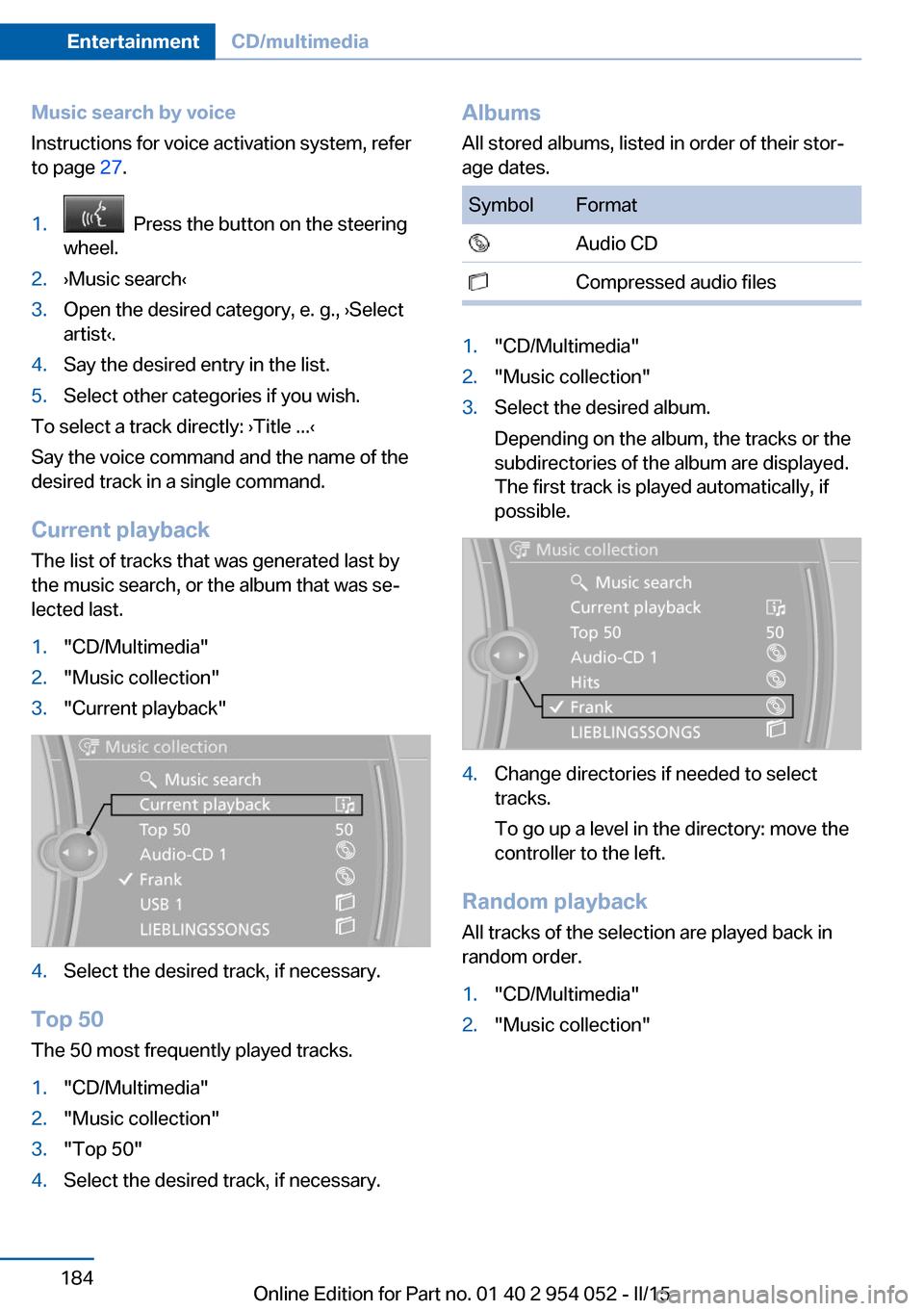
Current playback The list of tracks that was generated last by
the music search, or the album that was se‐
lected last.
1."CD/Multimedia"2."Music collection"3."Current playback"4.Select the desired track, if necessary.
Top 50
The 50 most frequently played tracks.
1."CD/Multimedia"2."Music collection"3."Top 50"4.Select the desired track, if necessary.Albums All stored albums, listed in order of their stor‐
age dates.SymbolFormat Audio CD Compressed audio files1."CD/Multimedia"2."Music collection"3.Select the desired album.
Depending on the album, the tracks or the
subdirectories of the album are displayed.
The first track is played automatically, if
possible.4.Change directories if needed to select
tracks.
To go up a level in the directory: move the
controller to the left.
Random playback
All tracks of the selection are played back in
random order.
1."CD/Multimedia"2."Music collection"Seite 184EntertainmentCD/multimedia184
Online Edition for Part no. 01 40 2 954 052 - II/15
Page 200 of 297
TelephoneVehicle equipmentThis chapter describes all series equipment as
well as country-specific and special equipment
offered for this model series. Therefore, it also
describes equipment that may not be found in
your vehicle, for instance due to the selected
special equipment or the country version. This
also applies to safety-related functions and
systems.
When using the features and systems descri‐
bed here, adhere to local regulations.
At a glance The conceptMobile phones or other external devices such
as audio players can be connected to the vehi‐
cle via Bluetooth.
Bluetooth® is a registered trademark of Blue‐
tooth® SIG, Inc.
After these devices are paired once, they are
recognized automatically when the ignition is
switched on as soon as they are in the vehicle
and can then be operated via iDrive, the but‐
tons on the steering wheel, and via voice acti‐
vation.
Depending on their functionality, external devi‐
ces can be used via the vehicle as a telephone
or as an audio source. The telephone functions
are described in the following. Operating the
audio functions, refer to page 189.
Up to four external devices can be paired.
Certain functions may need to be enabled by
the mobile phone provider or service provider.
Using the mobile phone while driving
Make entries only when traffic and road
conditions allow. Do not hold the mobile phone
in your hand while you are driving; use the
hands-free system instead. If you do not ob‐serve this precaution, you can endanger the
vehicle occupants and other road users.◀
Snap-in adapter The snap-in adapter is used to:▷Hold the mobile phone.▷Recharge the battery.▷Connect the mobile phone to an outside
antenna of the vehicle.
This provides for better network reception
and consistent sound quality.
Approved mobile phones
Details on which mobile phones and external
devices with a Bluetooth interface are sup‐
ported by the mobile phone preparation pack‐
age can be obtained at www.bmwusa.com/
bluetooth.
Displaying the vehicle identification
number and software part number
The vehicle identification number and software part number are needed to determine which
mobile phones are supported by the mobile
phone preparation package. The software ver‐
sion of the mobile phone may also be required.
1."Telephone"2.Open "Options".3."Bluetooth® info"4."Display system information"
These approved mobile phones with a certain
software version, support the vehicle functions
described below.
Malfunctions may occur with other mobile
phones or software versions.
Do not operate a mobile phone that is con‐
nected to the vehicle on the mobile phone key‐
pad, as this may lead to a malfunction.
Seite 198CommunicationTelephone198
Online Edition for Part no. 01 40 2 954 052 - II/15
Page 205 of 297
If more than one phone number is assigned to
a contact, only the name of the contact is dis‐
played.
For calls on the additional telephone, the num‐
ber is only displayed if it is transmitted by the
network.
An incoming call to one of the telephones is
automatically rejected if there is an active call
on the other telephone.
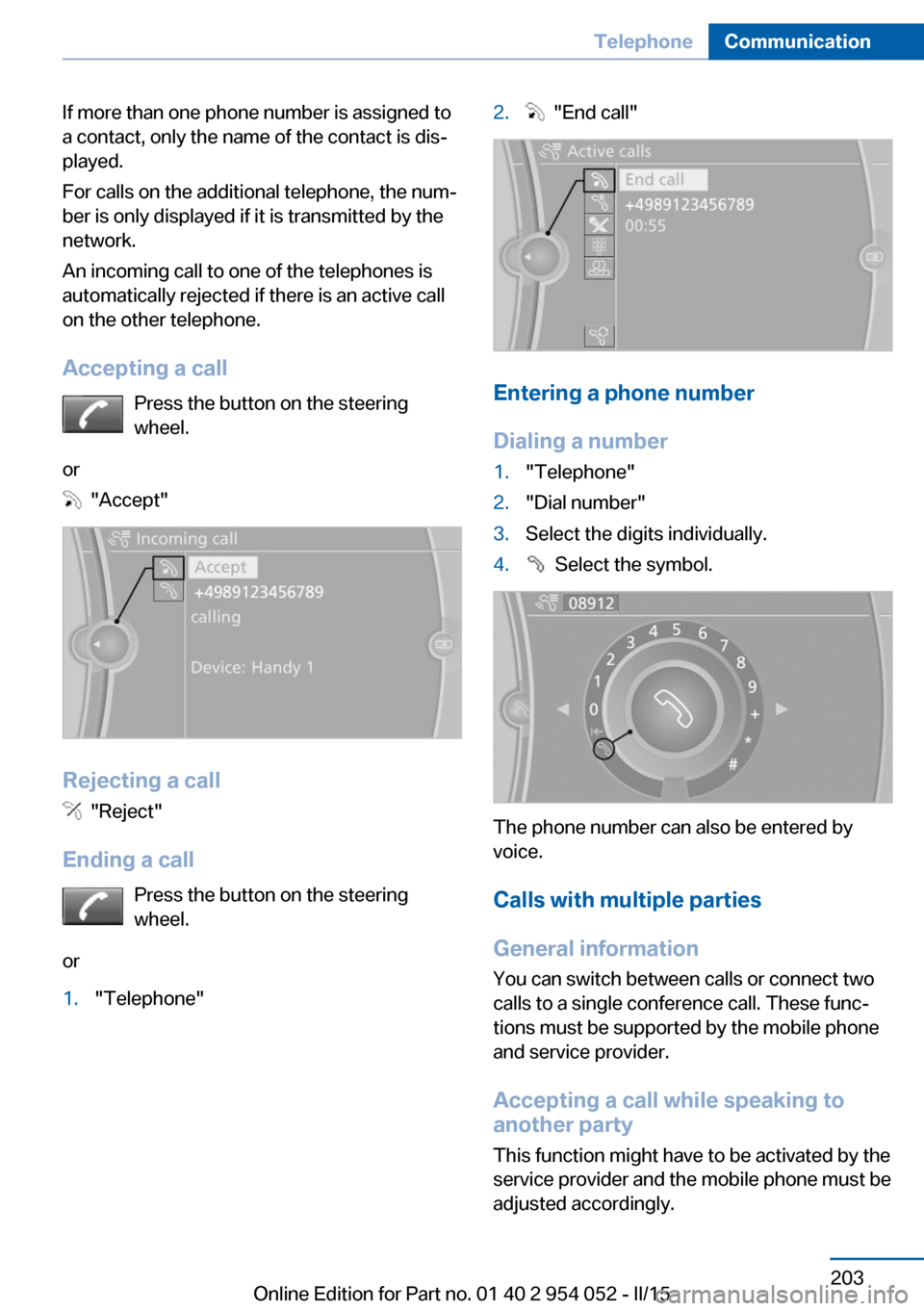
Accepting a call Press the button on the steering
wheel.
or
"Accept"
Rejecting a call
"Reject"
Ending a call Press the button on the steering
wheel.
or
1."Telephone"2. "End call"
Entering a phone number
Dialing a number
1."Telephone"2."Dial number"3.Select the digits individually.4. Select the symbol.
The phone number can also be entered by
voice.
Calls with multiple parties
General information
You can switch between calls or connect two
calls to a single conference call. These func‐
tions must be supported by the mobile phone
and service provider.
Accepting a call while speaking to
another party
This function might have to be activated by the
service provider and the mobile phone must be
adjusted accordingly.
Seite 203TelephoneCommunication203
Online Edition for Part no. 01 40 2 954 052 - II/15
Page 223 of 297
ConnectedDriveVehicle equipment
This chapter describes all series equipment as
well as country-specific and special equipment
offered for this model series. Therefore, it also
describes equipment that may not be found in
your vehicle, for instance due to the selected
special equipment or the country version. This
also applies to safety-related functions and
systems.
When using the features and systems descri‐
bed here, adhere to local regulations.
TeleService General information
TeleService supports communication with
your service center.▷Data on the vehicle's service requirements
can be sent directly to the service center.
In this way, the service center can plan its
work in advance. This shortens the dura‐
tion of the service appointment.▷In the event of a breakdown, data on the
vehicle's condition can be sent directly to
Roadside Assistance.▷The service varies by country.▷Connection costs may ensue.▷Services may be restricted abroad.
Requirements
Different variants of TeleService may be imple‐
mented in the vehicle. The following condi‐
tions must always be met:
▷Wireless reception is available.▷The ignition is switched on.▷A current ConnectedDrive subscription or
a vehicle equipped with intelligent Emer‐
gency Request.Concierge service
General information The Concierge service offers information on
events, gas stations, and hotels, and provides
phone numbers and addresses. Hotels can be
booked directly using the Concierge service.
The Concierge service is part of the optional
Convenience Plan.
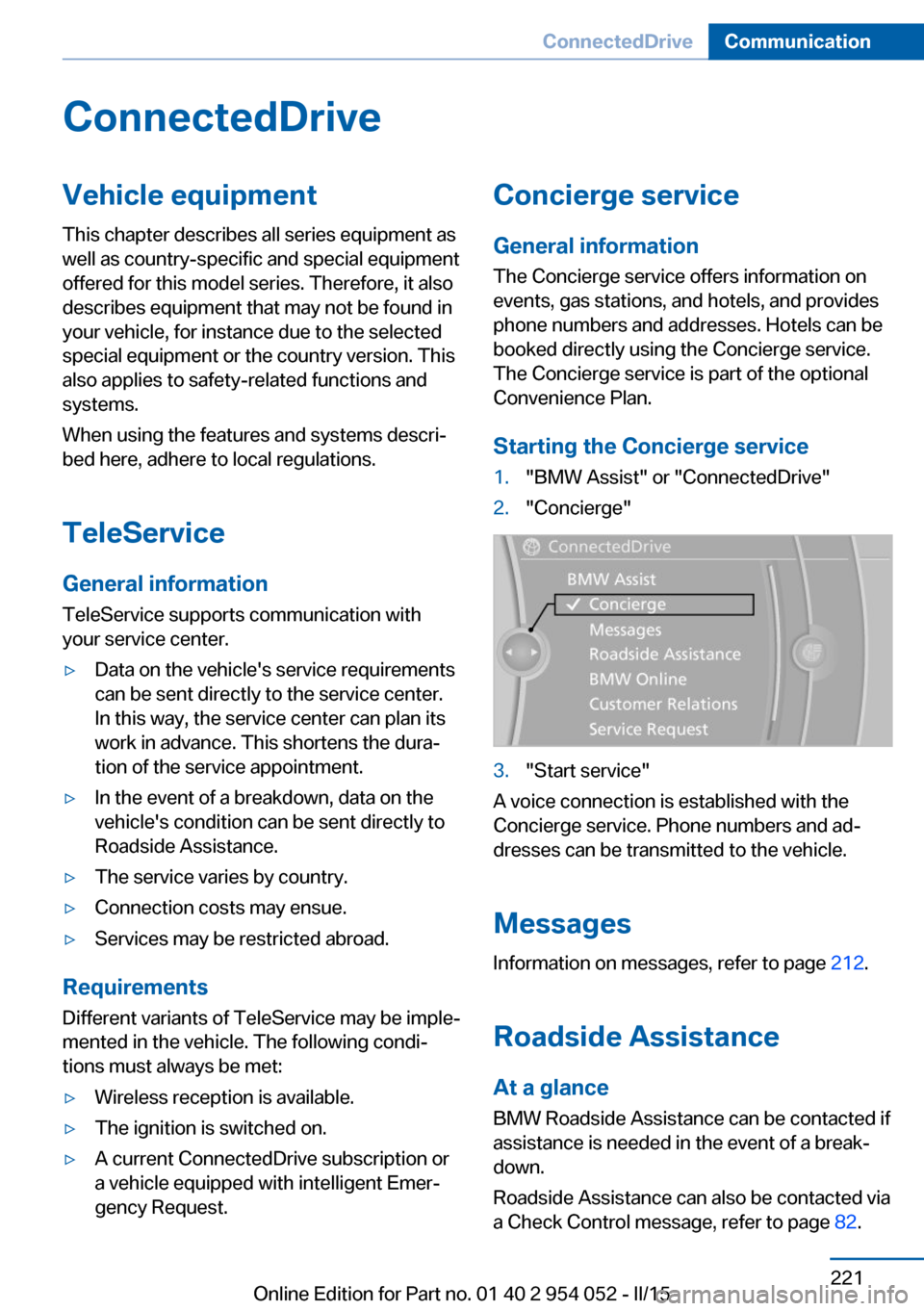
Starting the Concierge service1."BMW Assist" or "ConnectedDrive"2."Concierge"3."Start service"
A voice connection is established with the
Concierge service. Phone numbers and ad‐
dresses can be transmitted to the vehicle.
Messages
Information on messages, refer to page 212.
Roadside Assistance At a glance
BMW Roadside Assistance can be contacted if
assistance is needed in the event of a break‐
down.
Roadside Assistance can also be contacted via
a Check Control message, refer to page 82.
Seite 221ConnectedDriveCommunication221
Online Edition for Part no. 01 40 2 954 052 - II/15
Page 224 of 297
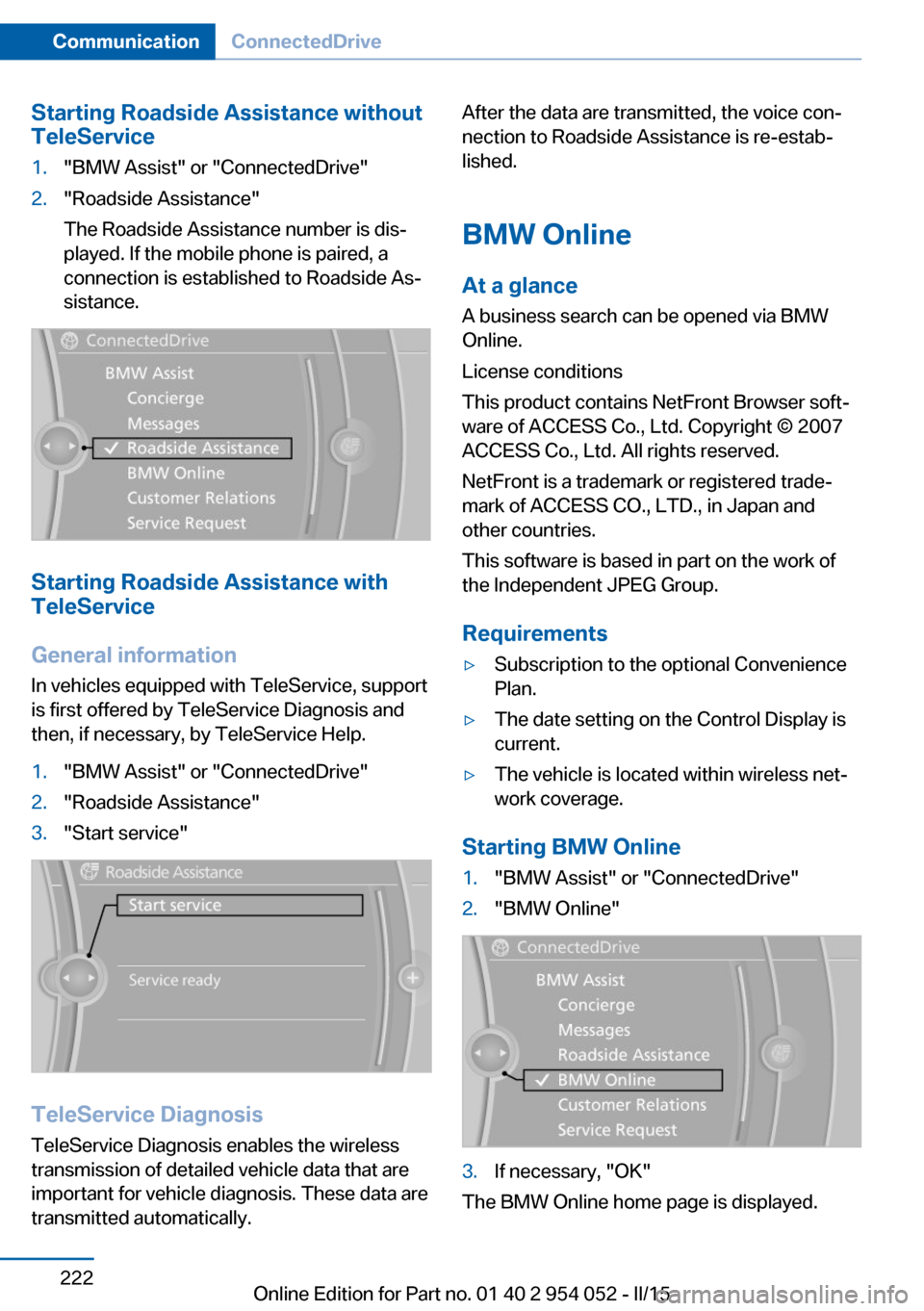
Starting Roadside Assistance without
TeleService1."BMW Assist" or "ConnectedDrive"2."Roadside Assistance"
The Roadside Assistance number is dis‐
played. If the mobile phone is paired, a
connection is established to Roadside As‐
sistance.
Starting Roadside Assistance with
TeleService
General information
In vehicles equipped with TeleService, support
is first offered by TeleService Diagnosis and
then, if necessary, by TeleService Help.
1."BMW Assist" or "ConnectedDrive"2."Roadside Assistance"3."Start service"
TeleService Diagnosis
TeleService Diagnosis enables the wireless
transmission of detailed vehicle data that are
important for vehicle diagnosis. These data are
transmitted automatically.
After the data are transmitted, the voice con‐
nection to Roadside Assistance is re-estab‐
lished.
BMW Online
At a glance
A business search can be opened via BMW
Online.
License conditions
This product contains NetFront Browser soft‐
ware of ACCESS Co., Ltd. Copyright © 2007
ACCESS Co., Ltd. All rights reserved.
NetFront is a trademark or registered trade‐
mark of ACCESS CO., LTD., in Japan and
other countries.
This software is based in part on the work of
the Independent JPEG Group.
Requirements▷Subscription to the optional Convenience
Plan.▷The date setting on the Control Display is
current.▷The vehicle is located within wireless net‐
work coverage.
Starting BMW Online
1."BMW Assist" or "ConnectedDrive"2."BMW Online"3.If necessary, "OK"
The BMW Online home page is displayed.
Seite 222CommunicationConnectedDrive222
Online Edition for Part no. 01 40 2 954 052 - II/15
Page 271 of 297
Reference
This chapter contains technical data, short
commands for the voice activation system, and an index that will quickly take you to the information you need.Online Edition for Part no. 01 40 2 954 052 - II/15
Page 274 of 297
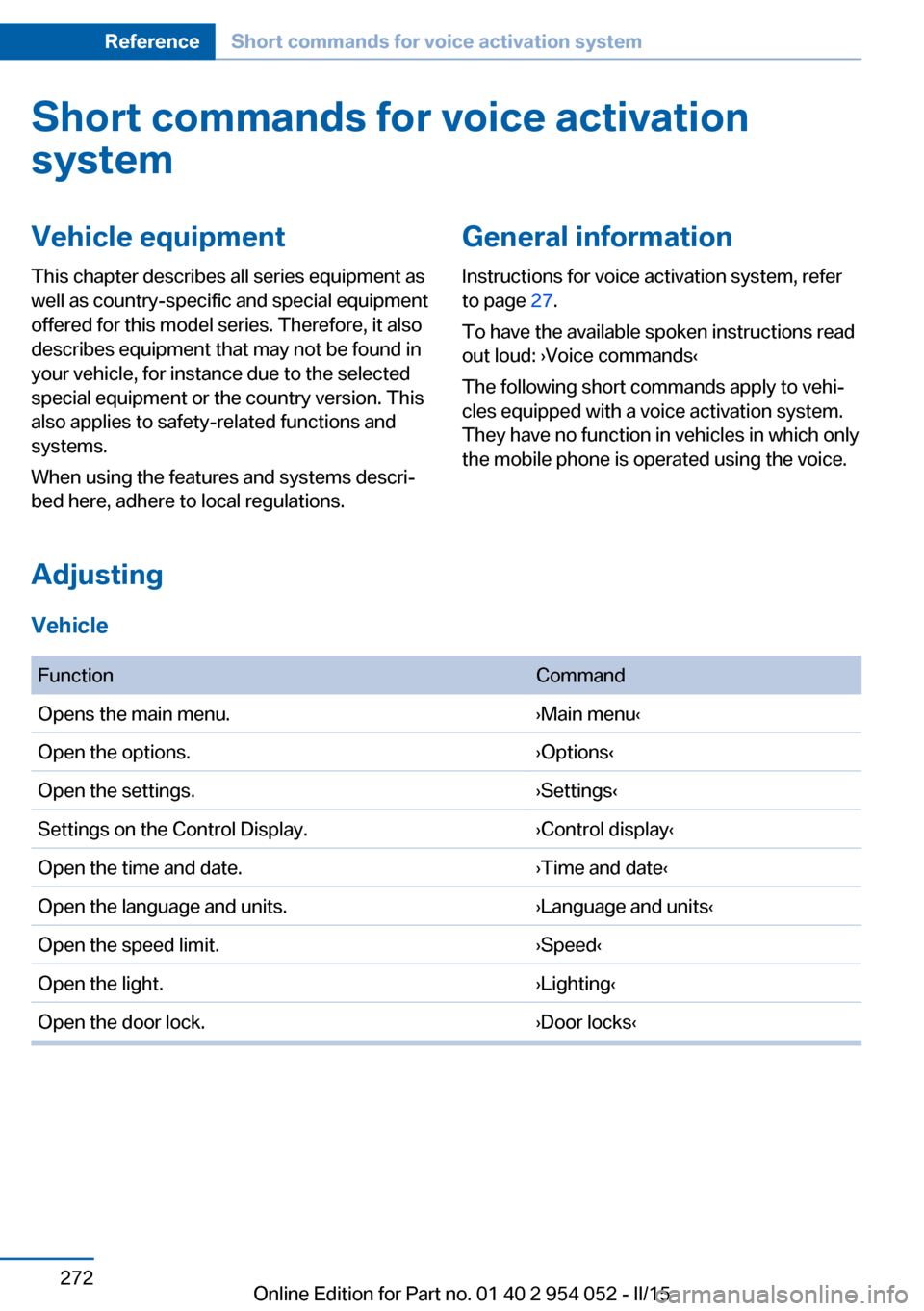
Short commands for voice activationsystemVehicle equipment
This chapter describes all series equipment as
well as country-specific and special equipment
offered for this model series. Therefore, it also
describes equipment that may not be found in
your vehicle, for instance due to the selected
special equipment or the country version. This
also applies to safety-related functions and
systems.
When using the features and systems descri‐
bed here, adhere to local regulations.General information
Instructions for voice activation system, refer
to page 27.
To have the available spoken instructions read
out loud: ›Voice commands‹
The following short commands apply to vehi‐
cles equipped with a voice activation system.
They have no function in vehicles in which only
the mobile phone is operated using the voice.
Adjusting
Vehicle
FunctionCommandOpens the main menu.›Main menu‹Open the options.›Options‹Open the settings.›Settings‹Settings on the Control Display.›Control display‹Open the time and date.›Time and date‹Open the language and units.›Language and units‹Open the speed limit.›Speed‹Open the light.›Lighting‹Open the door lock.›Door locks‹Seite 272ReferenceShort commands for voice activation system272
Online Edition for Part no. 01 40 2 954 052 - II/15
Page 275 of 297
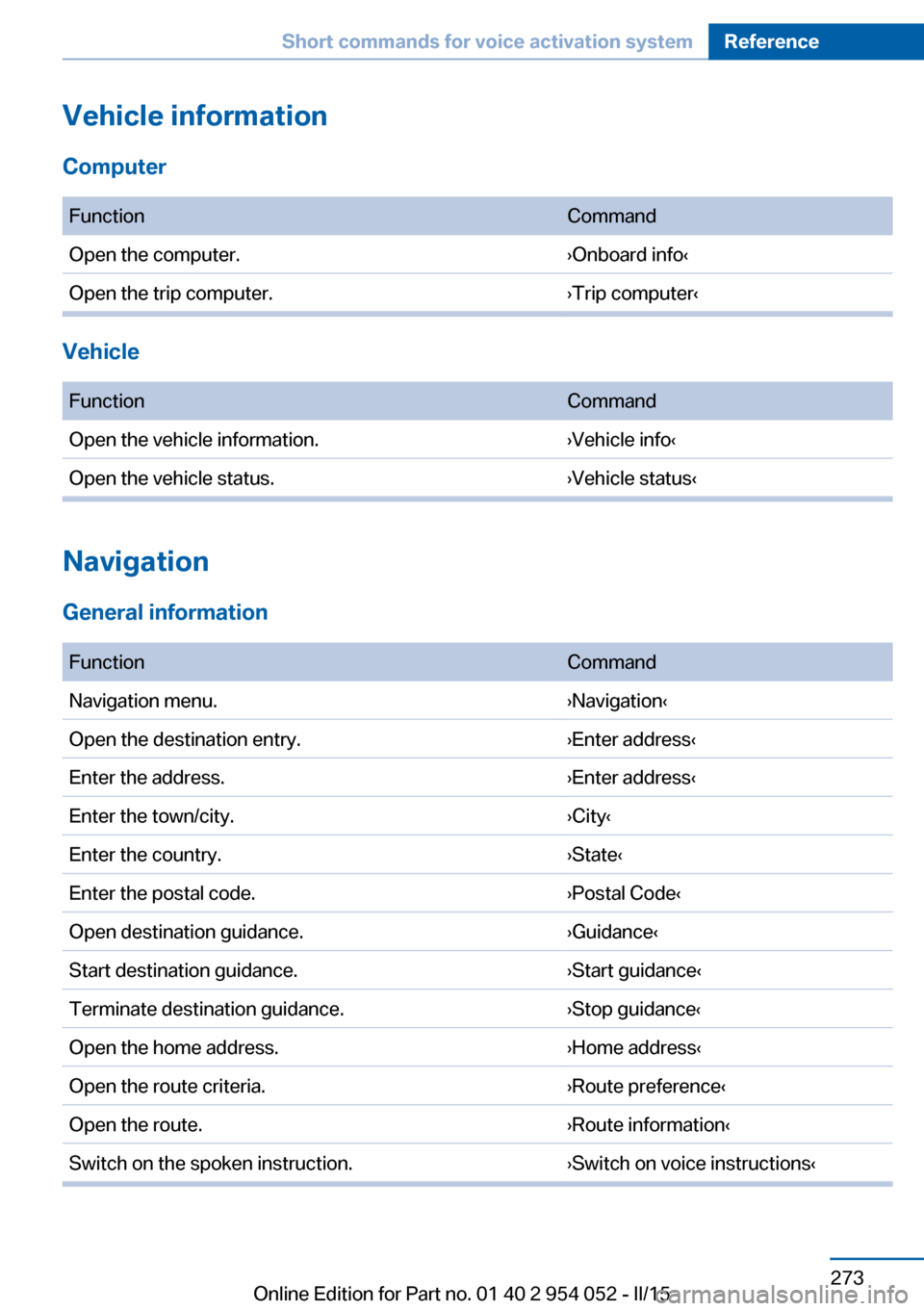
Vehicle information
Computer FunctionCommandOpen the computer.›Onboard info‹Open the trip computer.›Trip computer‹
Vehicle
FunctionCommandOpen the vehicle information.›Vehicle info‹Open the vehicle status.›Vehicle status‹
Navigation
General information
FunctionCommandNavigation menu.›Navigation‹Open the destination entry.›Enter address‹Enter the address.›Enter address‹Enter the town/city.›City‹Enter the country.›State‹Enter the postal code.›Postal Code‹Open destination guidance.›Guidance‹Start destination guidance.›Start guidance‹Terminate destination guidance.›Stop guidance‹Open the home address.›Home address‹Open the route criteria.›Route preference‹Open the route.›Route information‹Switch on the spoken instruction.›Switch on voice instructions‹Seite 273Short commands for voice activation systemReference273
Online Edition for Part no. 01 40 2 954 052 - II/15