Symbol BMW X1 SDRIVE28I 2013 Service Manual
[x] Cancel search | Manufacturer: BMW, Model Year: 2013, Model line: X1 SDRIVE28I, Model: BMW X1 SDRIVE28I 2013Pages: 291, PDF Size: 6.58 MB
Page 186 of 291
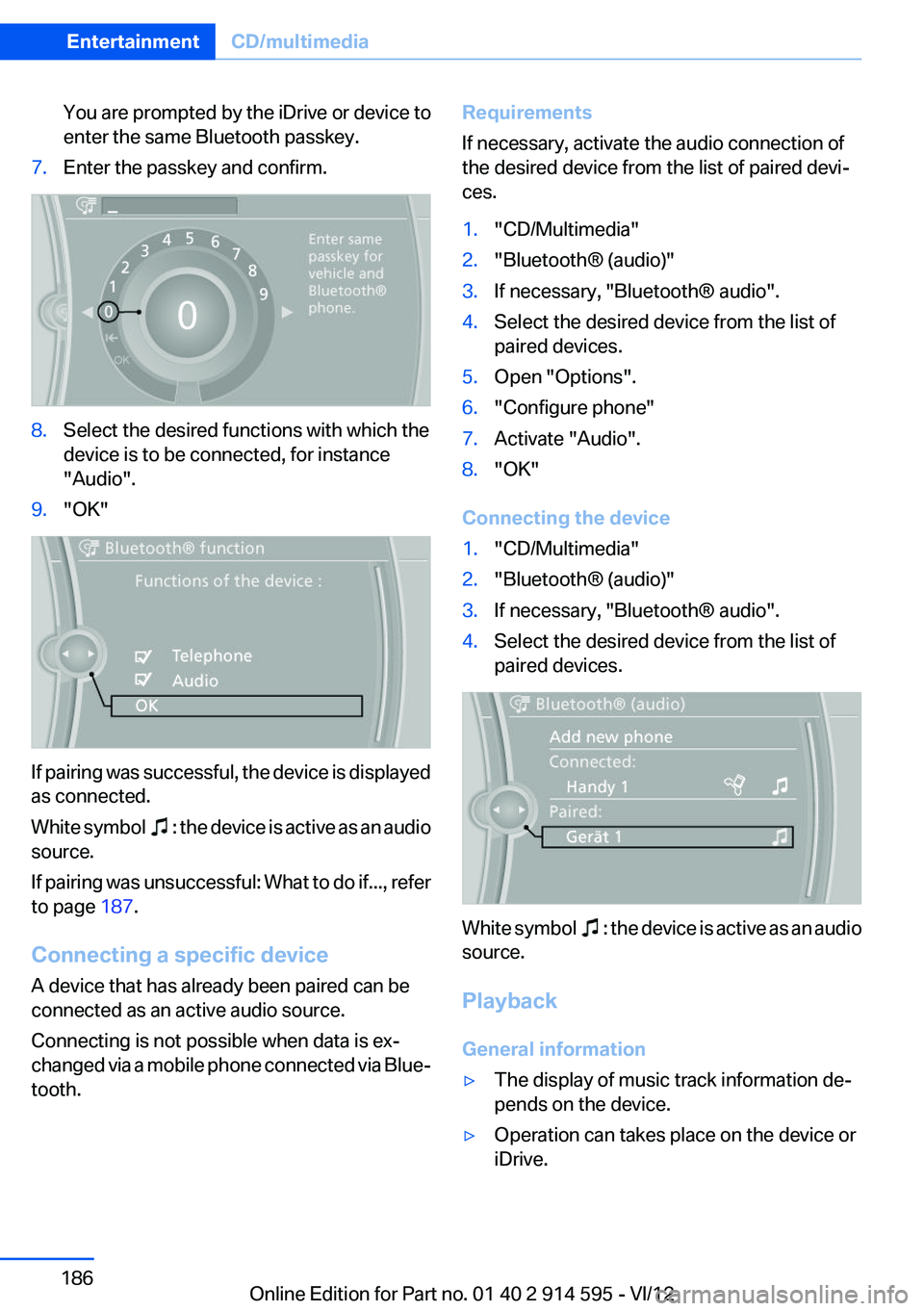
You are prompted by the iDrive or device to
enter the same Bluetooth passkey.7.Enter the passkey and confirm.8.Select the desired functions with which the
device is to be connected, for instance
"Audio".9."OK"
If pairing was successful, the device is displayed
as connected.
White symbol
: the device is active as an audio
source.
If pairing was unsuccessful: What to do if..., refer
to page 187.
Connecting a specific device
A device that has already been paired can be
connected as an active audio source.
Connecting is not possible when data is ex‐
changed via a mobile phone connected via Blue‐
tooth.
Requirements
If necessary, activate the audio connection of
the desired device from the list of paired devi‐
ces.1."CD/Multimedia"2."Bluetooth® (audio)"3.If necessary, "Bluetooth® audio".4.Select the desired device from the list of
paired devices.5.Open "Options".6."Configure phone"7.Activate "Audio".8."OK"
Connecting the device
1."CD/Multimedia"2."Bluetooth® (audio)"3.If necessary, "Bluetooth® audio".4.Select the desired device from the list of
paired devices.
White symbol : the device is active as an audio
source.
Playback
General information
▷The display of music track information de‐
pends on the device.▷Operation can takes place on the device or
iDrive.Seite 186EntertainmentCD/multimedia186
Online Edition for Part no. 01 40 2 914 595 - VI/12
Page 187 of 291
▷Playback is interrupted when data is ex‐
changed via a mobile phone connected via
Bluetooth.
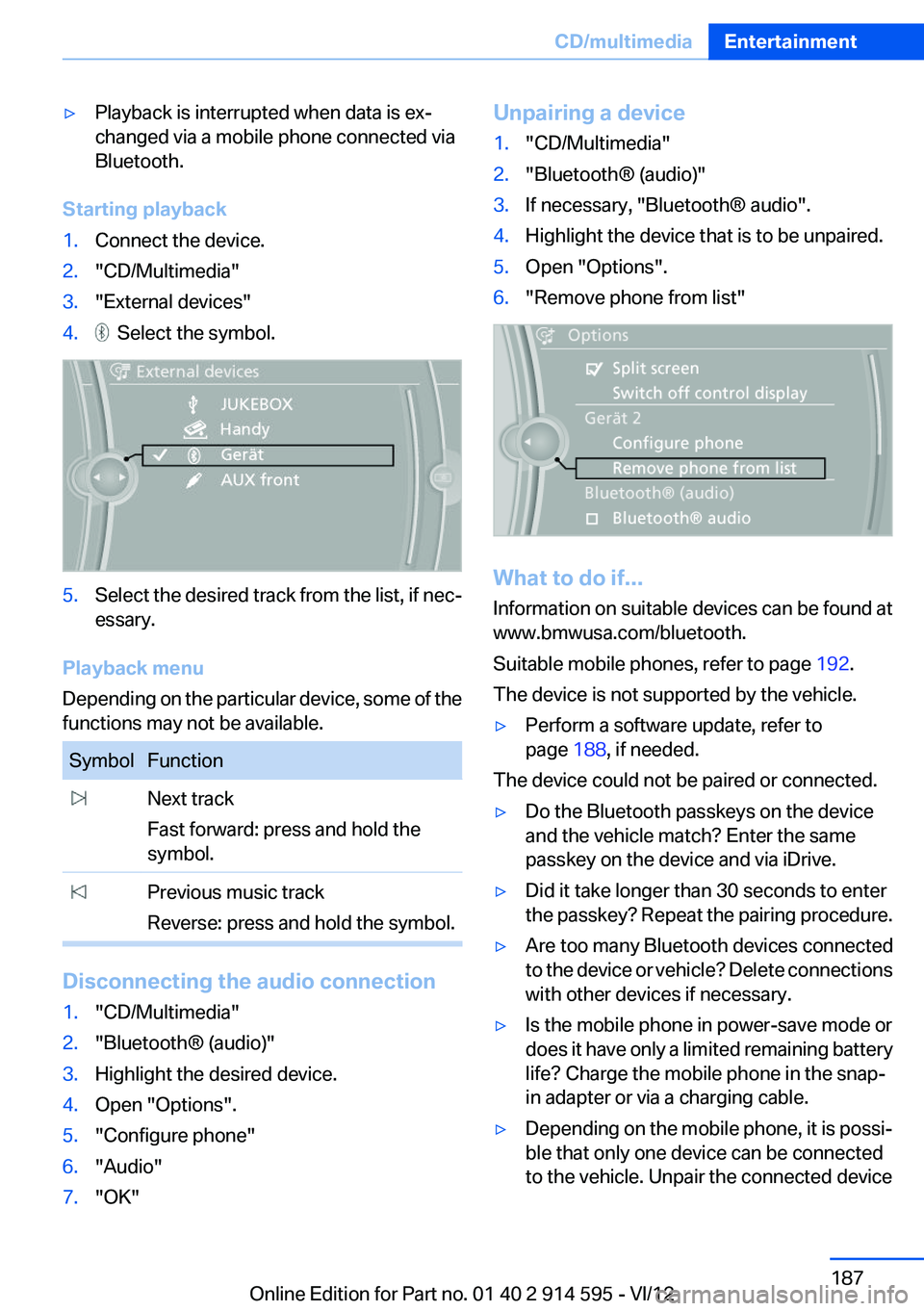
Starting playback
1.Connect the device.2."CD/Multimedia"3."External devices"4. Select the symbol.5.Select the desired track from the list, if nec‐
essary.
Playback menu
Depending on the particular device, some of the
functions may not be available.
SymbolFunction Next track
Fast forward: press and hold the
symbol. Previous music track
Reverse: press and hold the symbol.
Disconnecting the audio connection
1."CD/Multimedia"2."Bluetooth® (audio)"3.Highlight the desired device.4.Open "Options".5."Configure phone"6."Audio"7."OK"Unpairing a device1."CD/Multimedia"2."Bluetooth® (audio)"3.If necessary, "Bluetooth® audio".4.Highlight the device that is to be unpaired.5.Open "Options".6."Remove phone from list"
What to do if...
Information on suitable devices can be found at
www.bmwusa.com/bluetooth.
Suitable mobile phones, refer to page 192.
The device is not supported by the vehicle.
▷Perform a software update, refer to
page 188, if needed.
The device could not be paired or connected.
▷Do the Bluetooth passkeys on the device
and the vehicle match? Enter the same
passkey on the device and via iDrive.▷Did it take longer than 30 seconds to enter
the passkey? Repeat the pairing procedure.▷Are too many Bluetooth devices connected
to the device or vehicle? Delete connections
with other devices if necessary.▷Is the mobile phone in power-save mode or
does it have only a limited remaining battery
life? Charge the mobile phone in the snap-
in adapter or via a charging cable.▷Depending on the mobile phone, it is possi‐
ble that only one device can be connected
to the vehicle. Unpair the connected deviceSeite 187CD/multimediaEntertainment187
Online Edition for Part no. 01 40 2 914 595 - VI/12
Page 194 of 291
Audio source
A mobile phone can be used as an audio source.
Pairing and connecting a mobile phone Pairing the mobile phone
To avoid becoming distracted and posing
an unnecessary hazard both to your own vehi‐
cle's occupants and to other road users, only
pair the mobile phone while the vehicle is sta‐
tionary.◀1."Telephone"2."Bluetooth® (phone)"3."Add new phone"
The Bluetooth name of the vehicle is dis‐
played.4.To perform additional steps on the mobile
phone, refer to the mobile phone operating
instructions: for instance, search for or con‐
nect the Bluetooth device or a new device.
The Bluetooth name of the vehicle appears
on the mobile phone display.5.Select the Bluetooth name of the vehicle on
the mobile phone display.6.You are prompted by the iDrive or mobile
phone to enter the same Bluetooth passkey.
Enter the passkey and confirm.
or
Compare the control number on the vehicle
display with the control number on the mo‐
bile phone display. Confirm the control num‐
ber on the mobile phone and in the vehicle.
"OK"7.Select the functions for which the mobile
phone is to be used.8."OK"
If the pairing was successful, the mobile phone
appears at the top of the list of mobile phones.
The functions supported by the mobile phone
and audio device are displayed as symbols when
paired.
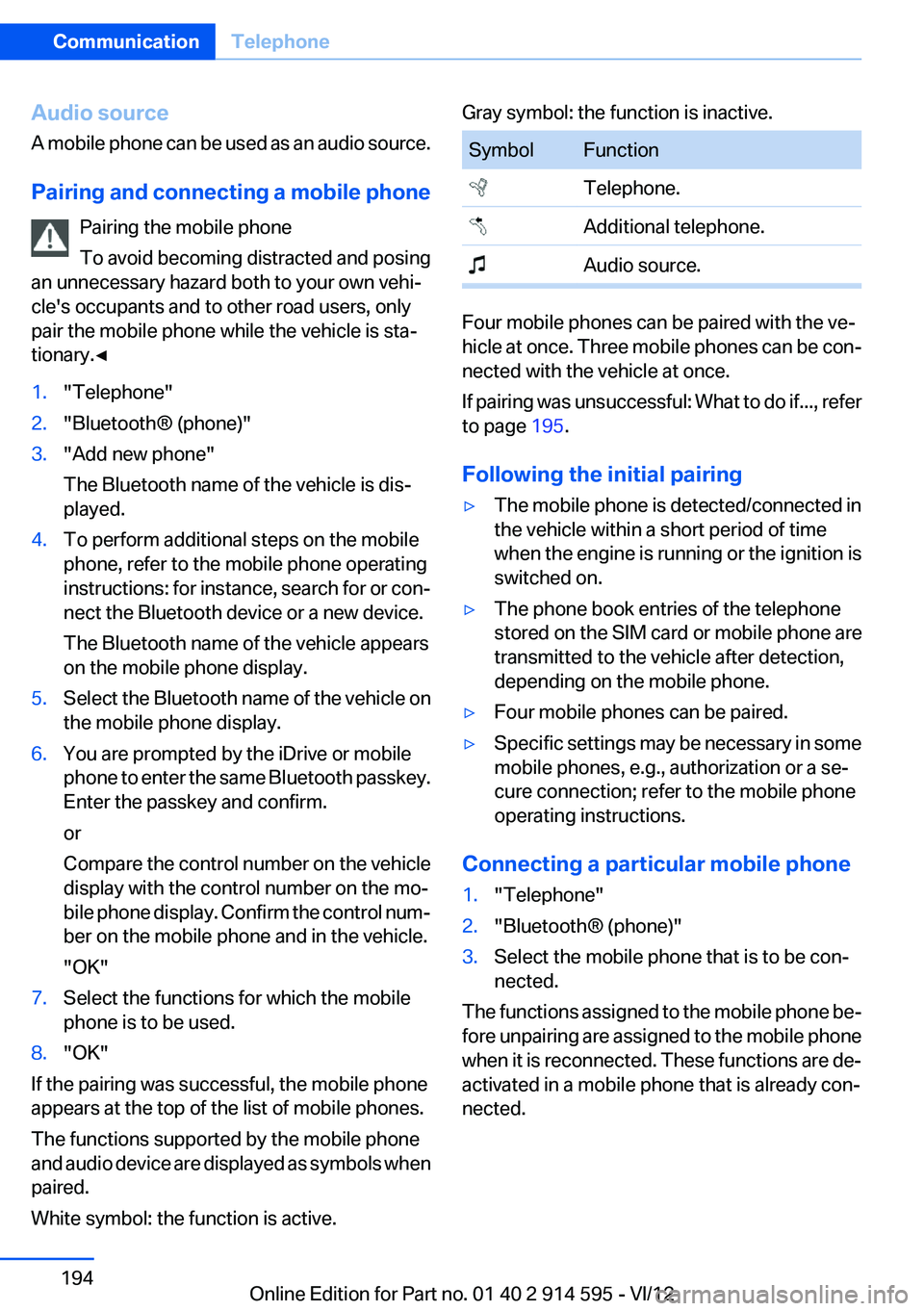
White symbol: the function is active.
Gray symbol: the function is inactive.SymbolFunction Telephone. Additional telephone. Audio source.
Four mobile phones can be paired with the ve‐
hicle at once. Three mobile phones can be con‐
nected with the vehicle at once.
If pairing was unsuccessful: What to do if..., refer
to page 195.
Following the initial pairing
▷The mobile phone is detected/connected in
the vehicle within a short period of time
when the engine is running or the ignition is
switched on.▷The phone book entries of the telephone
stored on the SIM card or mobile phone are
transmitted to the vehicle after detection,
depending on the mobile phone.▷Four mobile phones can be paired.▷Specific settings may be necessary in some
mobile phones, e.g., authorization or a se‐
cure connection; refer to the mobile phone
operating instructions.
Connecting a particular mobile phone
1."Telephone"2."Bluetooth® (phone)"3.Select the mobile phone that is to be con‐
nected.
The functions assigned to the mobile phone be‐
fore unpairing are assigned to the mobile phone
when it is reconnected. These functions are de‐
activated in a mobile phone that is already con‐
nected.
Seite 194CommunicationTelephone194
Online Edition for Part no. 01 40 2 914 595 - VI/12
Page 197 of 291
For calls on the additional telephone, the num‐
ber is only displayed if it is transmitted by the
network.
An incoming call to one of the telephones is au‐
tomatically rejected if there is an active call on
the other telephone.
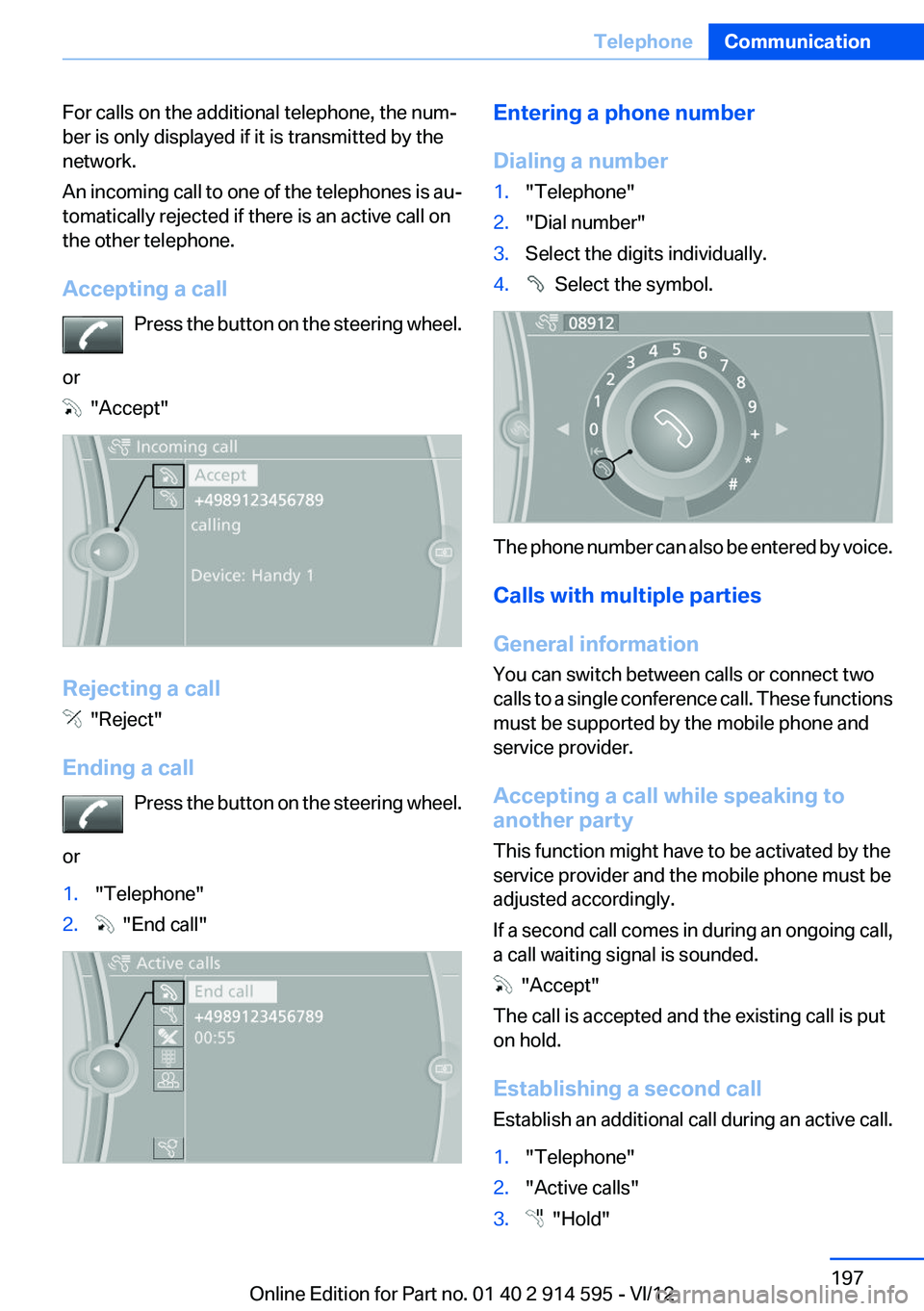
Accepting a call Press the button on the steering wheel.
or
"Accept"
Rejecting a call
"Reject"
Ending a call Press the button on the steering wheel.
or
1."Telephone"2. "End call"Entering a phone number
Dialing a number1."Telephone"2."Dial number"3.Select the digits individually.4. Select the symbol.
The phone number can also be entered by voice.
Calls with multiple parties
General information
You can switch between calls or connect two
calls to a single conference call. These functions
must be supported by the mobile phone and
service provider.
Accepting a call while speaking to
another party
This function might have to be activated by the
service provider and the mobile phone must be
adjusted accordingly.
If a second call comes in during an ongoing call,
a call waiting signal is sounded.
"Accept"
The call is accepted and the existing call is put
on hold.
Establishing a second call
Establish an additional call during an active call.
1."Telephone"2."Active calls"3. "Hold"Seite 197TelephoneCommunication197
Online Edition for Part no. 01 40 2 914 595 - VI/12
Page 198 of 291
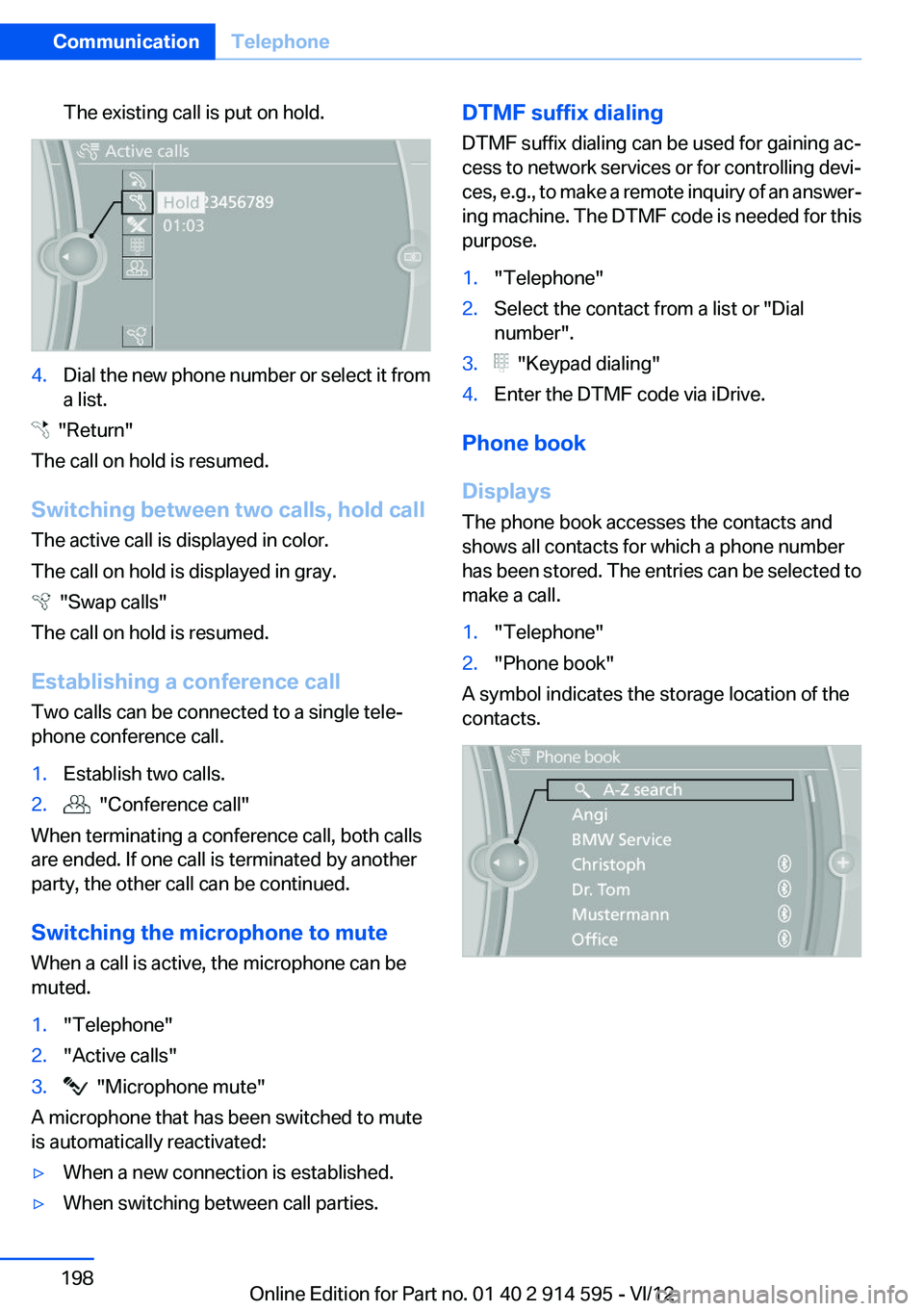
The existing call is put on hold.4.Dial the new phone number or select it from
a list.
"Return"
The call on hold is resumed.
Switching between two calls, hold call
The active call is displayed in color.
The call on hold is displayed in gray.
"Swap calls"
The call on hold is resumed.
Establishing a conference call
Two calls can be connected to a single tele‐
phone conference call.
1.Establish two calls.2. "Conference call"
When terminating a conference call, both calls
are ended. If one call is terminated by another
party, the other call can be continued.
Switching the microphone to mute
When a call is active, the microphone can be
muted.
1."Telephone"2."Active calls"3. "Microphone mute"
A microphone that has been switched to mute
is automatically reactivated:
▷When a new connection is established.▷When switching between call parties.DTMF suffix dialing
DTMF suffix dialing can be used for gaining ac‐
cess to network services or for controlling devi‐
ces, e.g., to make a remote inquiry of an answer‐
ing machine. The DTMF code is needed for this
purpose.1."Telephone"2.Select the contact from a list or "Dial
number".3. "Keypad dialing"4.Enter the DTMF code via iDrive.
Phone book
Displays
The phone book accesses the contacts and
shows all contacts for which a phone number
has been stored. The entries can be selected to
make a call.
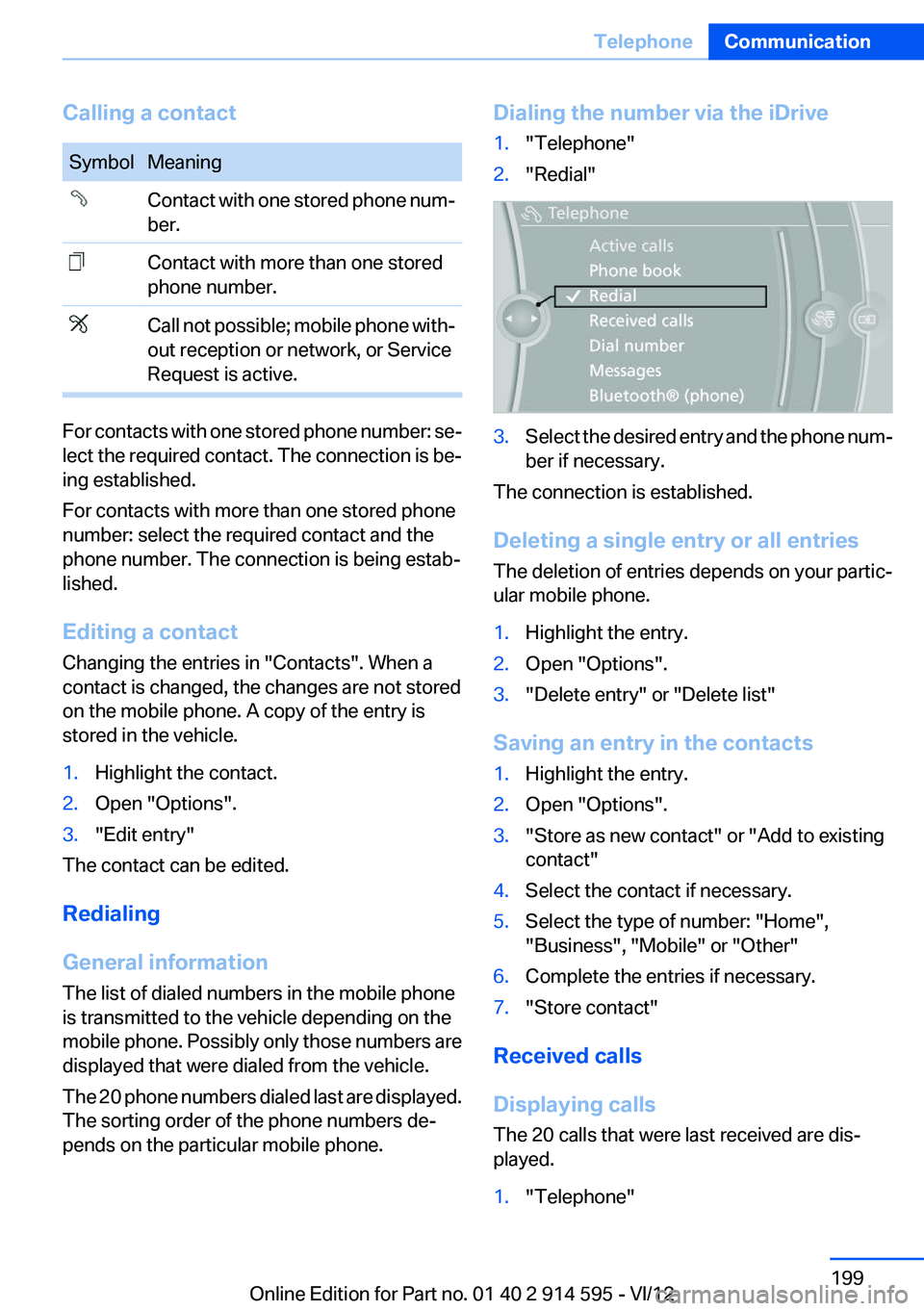
1."Telephone"2."Phone book"
A symbol indicates the storage location of the
contacts.
Seite 198CommunicationTelephone198
Online Edition for Part no. 01 40 2 914 595 - VI/12
Page 199 of 291
Calling a contactSymbolMeaningContact with one stored phone num‐
ber.Contact with more than one stored
phone number.Call not possible; mobile phone with‐
out reception or network, or Service
Request is active.
For contacts with one stored phone number: se‐
lect the required contact. The connection is be‐
ing established.
For contacts with more than one stored phone
number: select the required contact and the
phone number. The connection is being estab‐
lished.
Editing a contact
Changing the entries in "Contacts". When a
contact is changed, the changes are not stored
on the mobile phone. A copy of the entry is
stored in the vehicle.
1.Highlight the contact.2.Open "Options".3."Edit entry"
The contact can be edited.
Redialing
General information
The list of dialed numbers in the mobile phone
is transmitted to the vehicle depending on the
mobile phone. Possibly only those numbers are
displayed that were dialed from the vehicle.
The 20 phone numbers dialed last are displayed.
The sorting order of the phone numbers de‐
pends on the particular mobile phone.
Dialing the number via the iDrive1."Telephone"2."Redial"3.Select the desired entry and the phone num‐
ber if necessary.
The connection is established.
Deleting a single entry or all entries
The deletion of entries depends on your partic‐
ular mobile phone.
1.Highlight the entry.2.Open "Options".3."Delete entry" or "Delete list"
Saving an entry in the contacts
1.Highlight the entry.2.Open "Options".3."Store as new contact" or "Add to existing
contact"4.Select the contact if necessary.5.Select the type of number: "Home",
"Business", "Mobile" or "Other"6.Complete the entries if necessary.7."Store contact"
Received calls
Displaying calls
The 20 calls that were last received are dis‐
played.
1."Telephone"Seite 199TelephoneCommunication199
Online Edition for Part no. 01 40 2 914 595 - VI/12
Page 205 of 291
Contacts
Note
Equipment version with the mobile phone prep‐
aration package.
At a glance
Contacts can be created and edited. The con‐
tacts from the mobile phone are displayed as
well if this function is supported by the mobile
phone. The addresses can be adopted as des‐
tinations for navigation and the phone numbers
can be dialed.
Displaying contacts
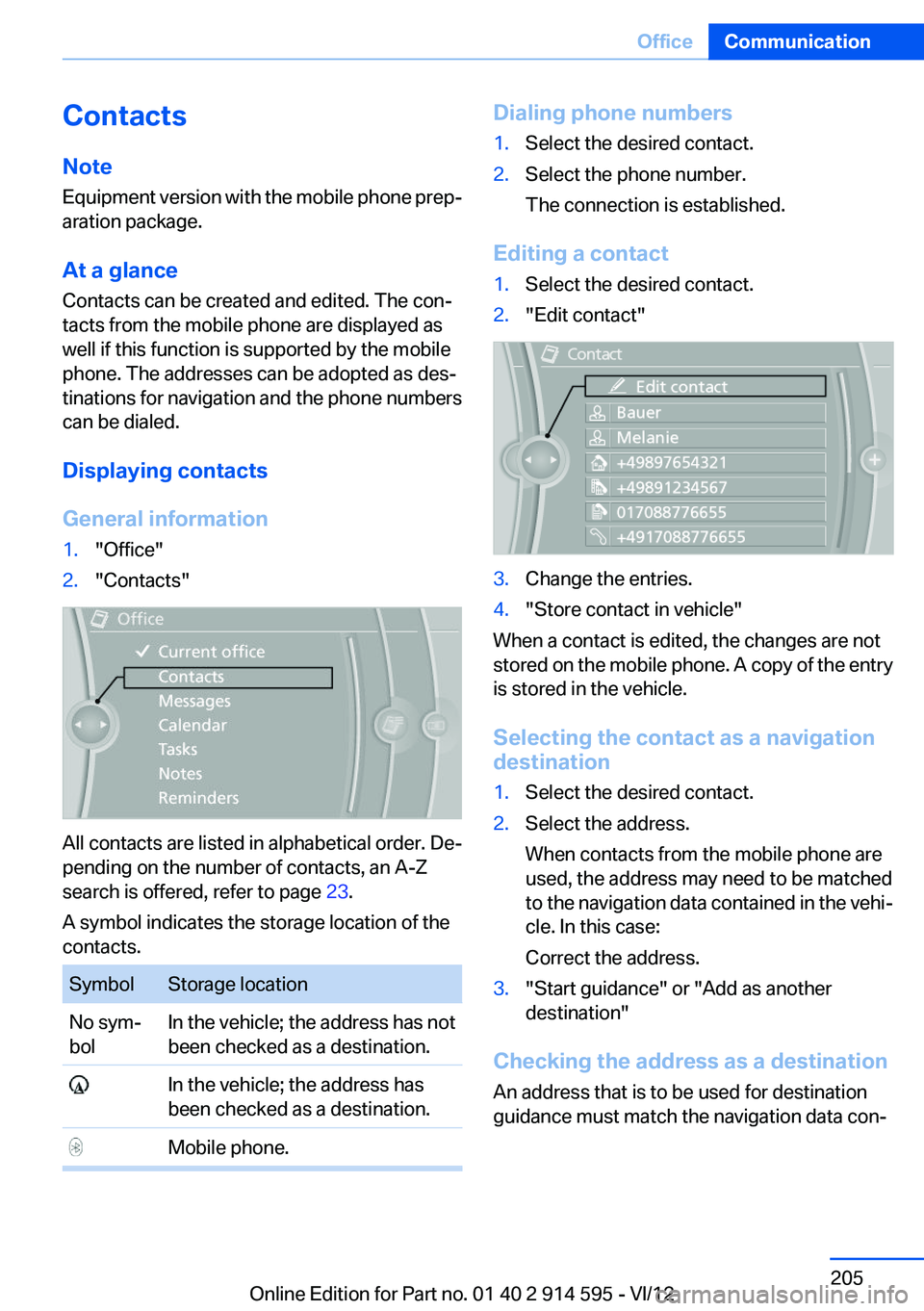
General information1."Office"2."Contacts"
All contacts are listed in alphabetical order. De‐
pending on the number of contacts, an A-Z
search is offered, refer to page 23.
A symbol indicates the storage location of the
contacts.
SymbolStorage locationNo sym‐
bolIn the vehicle; the address has not
been checked as a destination. In the vehicle; the address has
been checked as a destination. Mobile phone.Dialing phone numbers1.Select the desired contact.2.Select the phone number.
The connection is established.
Editing a contact
1.Select the desired contact.2."Edit contact"3.Change the entries.4."Store contact in vehicle"
When a contact is edited, the changes are not
stored on the mobile phone. A copy of the entry
is stored in the vehicle.
Selecting the contact as a navigation
destination
1.Select the desired contact.2.Select the address.
When contacts from the mobile phone are
used, the address may need to be matched
to the navigation data contained in the vehi‐
cle. In this case:
Correct the address.3."Start guidance" or "Add as another
destination"
Checking the address as a destination
An address that is to be used for destination
guidance must match the navigation data con‐
Seite 205OfficeCommunication205
Online Edition for Part no. 01 40 2 914 595 - VI/12
Page 206 of 291
tained in the vehicle. The address can be
checked for this purpose.1.Select the desired contact and highlight the
address.2.Open "Options".3."Check as destination"4.Correct and store the address if necessary.
If the address is corrected and stored, a copy of
it is stored in the vehicle. The address is not
changed on the mobile phone.
New contact
General information
A contact can have up to 8 phone numbers,
2 addresses, 3 e-mail addresses and one Inter‐
net address.
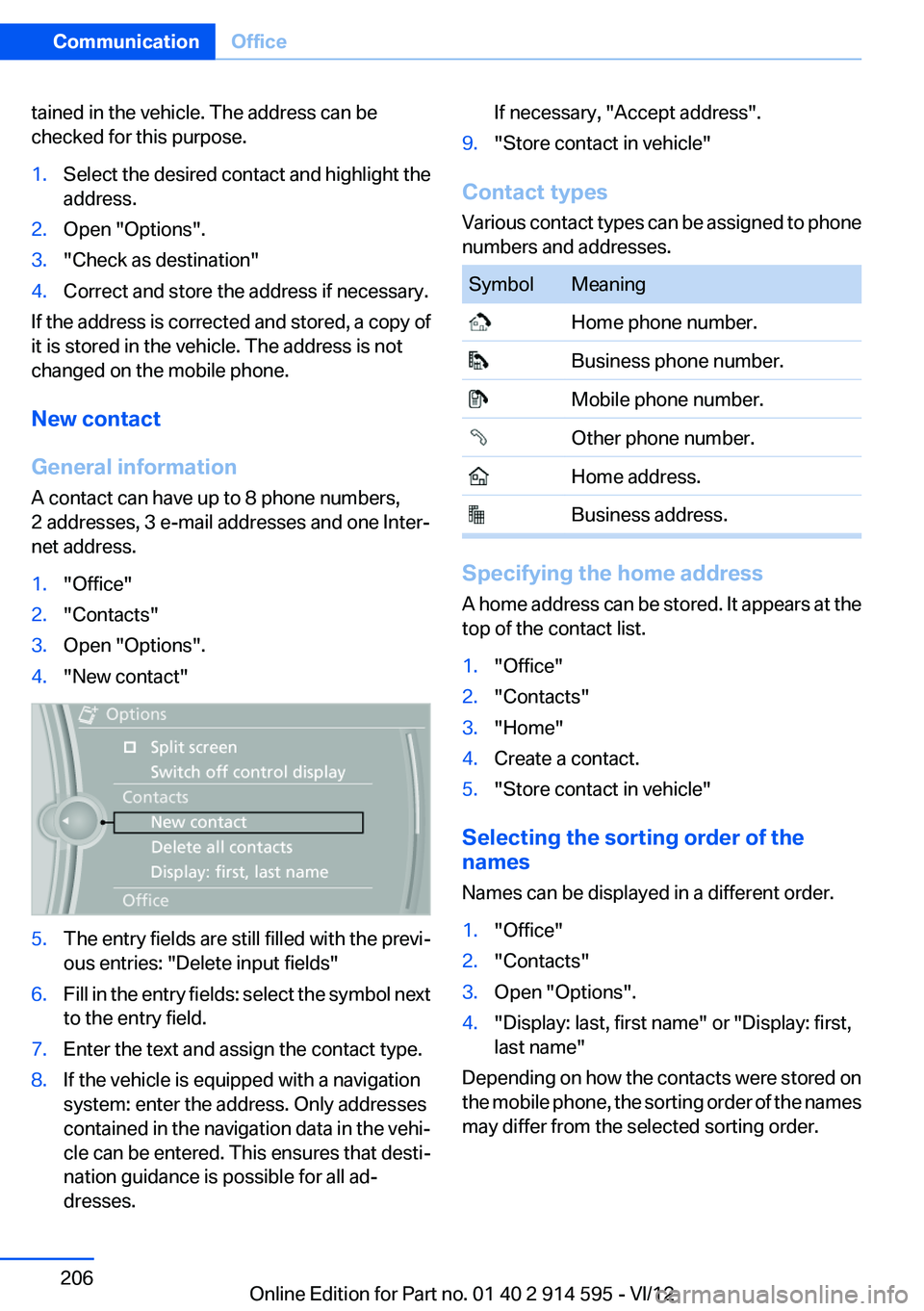
1."Office"2."Contacts"3.Open "Options".4."New contact"5.The entry fields are still filled with the previ‐
ous entries: "Delete input fields"6.Fill in the entry fields: select the symbol next
to the entry field.7.Enter the text and assign the contact type.8.If the vehicle is equipped with a navigation
system: enter the address. Only addresses
contained in the navigation data in the vehi‐
cle can be entered. This ensures that desti‐
nation guidance is possible for all ad‐
dresses.If necessary, "Accept address".9."Store contact in vehicle"
Contact types
Various contact types can be assigned to phone
numbers and addresses.
SymbolMeaning Home phone number. Business phone number. Mobile phone number. Other phone number. Home address. Business address.
Specifying the home address
A home address can be stored. It appears at the
top of the contact list.
1."Office"2."Contacts"3."Home"4.Create a contact.5."Store contact in vehicle"
Selecting the sorting order of the
names
Names can be displayed in a different order.
1."Office"2."Contacts"3.Open "Options".4."Display: last, first name" or "Display: first,
last name"
Depending on how the contacts were stored on
the mobile phone, the sorting order of the names
may differ from the selected sorting order.
Seite 206CommunicationOffice206
Online Edition for Part no. 01 40 2 914 595 - VI/12
Page 207 of 291
Show contact pictures
Pictures stored with the contacts are stored in
the vehicle when the mobile phone is connected
to the vehicle. The number of transmitted pic‐
tures depends on the mobile phone. The mobile
phone must support this function.1."Office"2."Contacts"3.Open "Options".4."Configure Bluetooth®"5."Show images"
Display of all contact pictures is activated or de‐
activated.
Deleting contacts
Only contacts that are stored in the vehicle are
deleted. The contacts on the mobile phone can‐
not be deleted.
1."Office"2."Contacts"3.Highlight the contact.4.Open "Options".5."Delete contact" or "Delete all contacts"6.If necessary. "Yes"
Messages
General information
Whether or not text messages and e-mails from
the mobile phone are displayed depends on
whether transmission from the mobile phone to
the vehicle is supported. Text messages and e-
mails may not be supported by the service pro‐
vider, or the function may need to be enabled
separately. After the mobile phone is first paired,
transmission may take several minutes. Mes‐
sages are only displayed in full length when the
vehicle is stationary. Messages from the addi‐
tional telephone are not transmitted.
Displaying messages1."Office"2."Messages"
A symbol identifies the type of message.
SymbolMessage type Text messages. My Info Message from the Concierge serv‐
ice. E-mail from mobile phone.
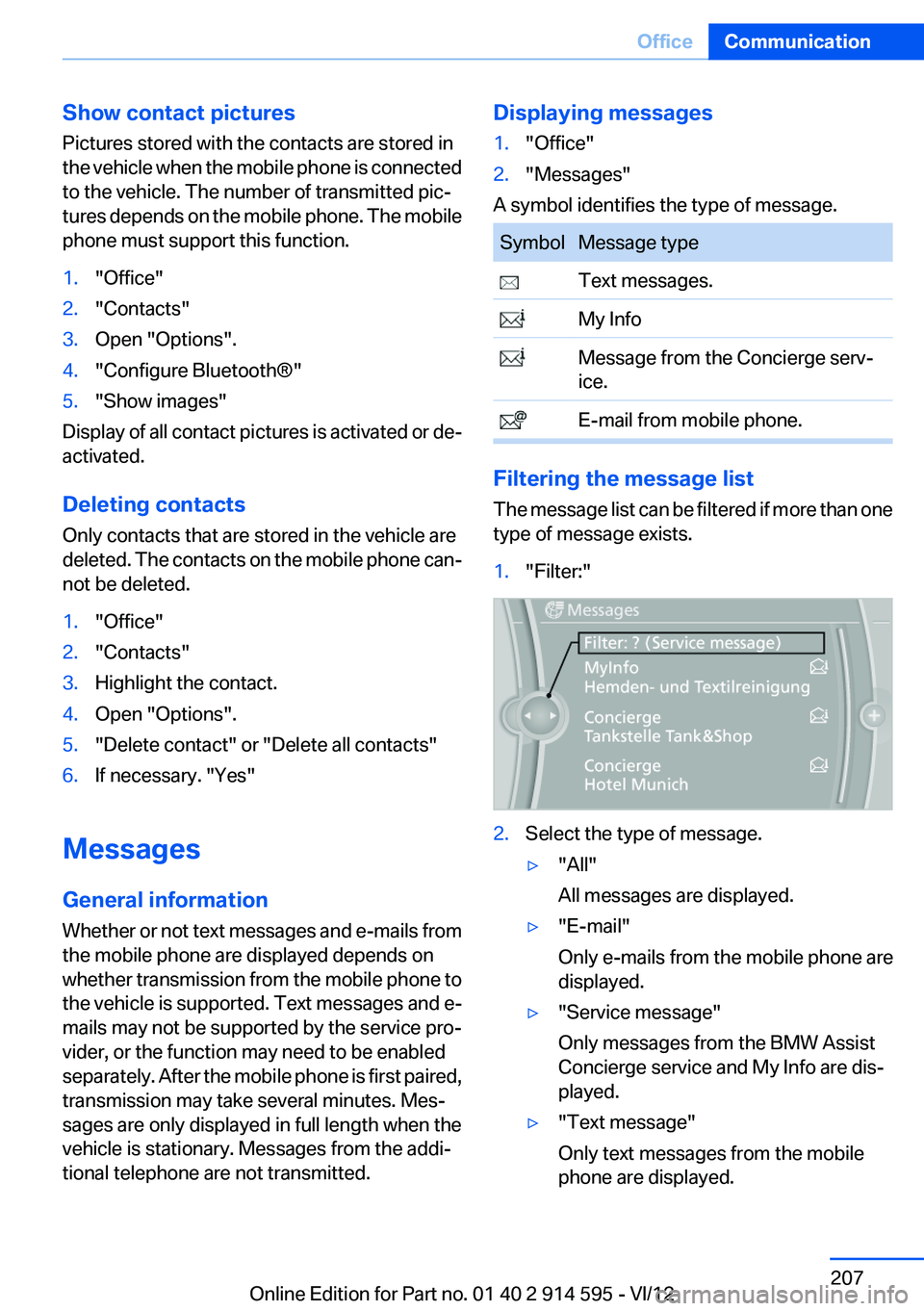
Filtering the message list
The message list can be filtered if more than one
type of message exists.
1."Filter:"2.Select the type of message.▷"All"
All messages are displayed.▷"E-mail"
Only e-mails from the mobile phone are
displayed.▷"Service message"
Only messages from the BMW Assist
Concierge service and My Info are dis‐
played.▷"Text message"
Only text messages from the mobile
phone are displayed.Seite 207OfficeCommunication207
Online Edition for Part no. 01 40 2 914 595 - VI/12
Page 208 of 291
Deleting messages
Messages from the Concierge service and
My Info can be deleted.
Delete a message:1."Office"2."Messages"3.Select the desired message.4.Open "Options".5."Delete message"
Delete all messages:
1."Office"2."Messages"3.Open "Options".4."Delete all messages" or "Delete service
messages"
Text messages
Calling the sender of a text message
1.Select the desired message.2. Select the symbol.
Saving the sender in the contacts
1.Highlight the desired message.2.Open "Options".3."Store as new contact" or "Add to existing
contact"
Using contact data
Contact data from appointments, tasks, text
messages, e-mails, and notes can be saved or
selected, refer to page 211.
Reading the text message out loud
Read the text message out loud, refer to
page 211.
My Info
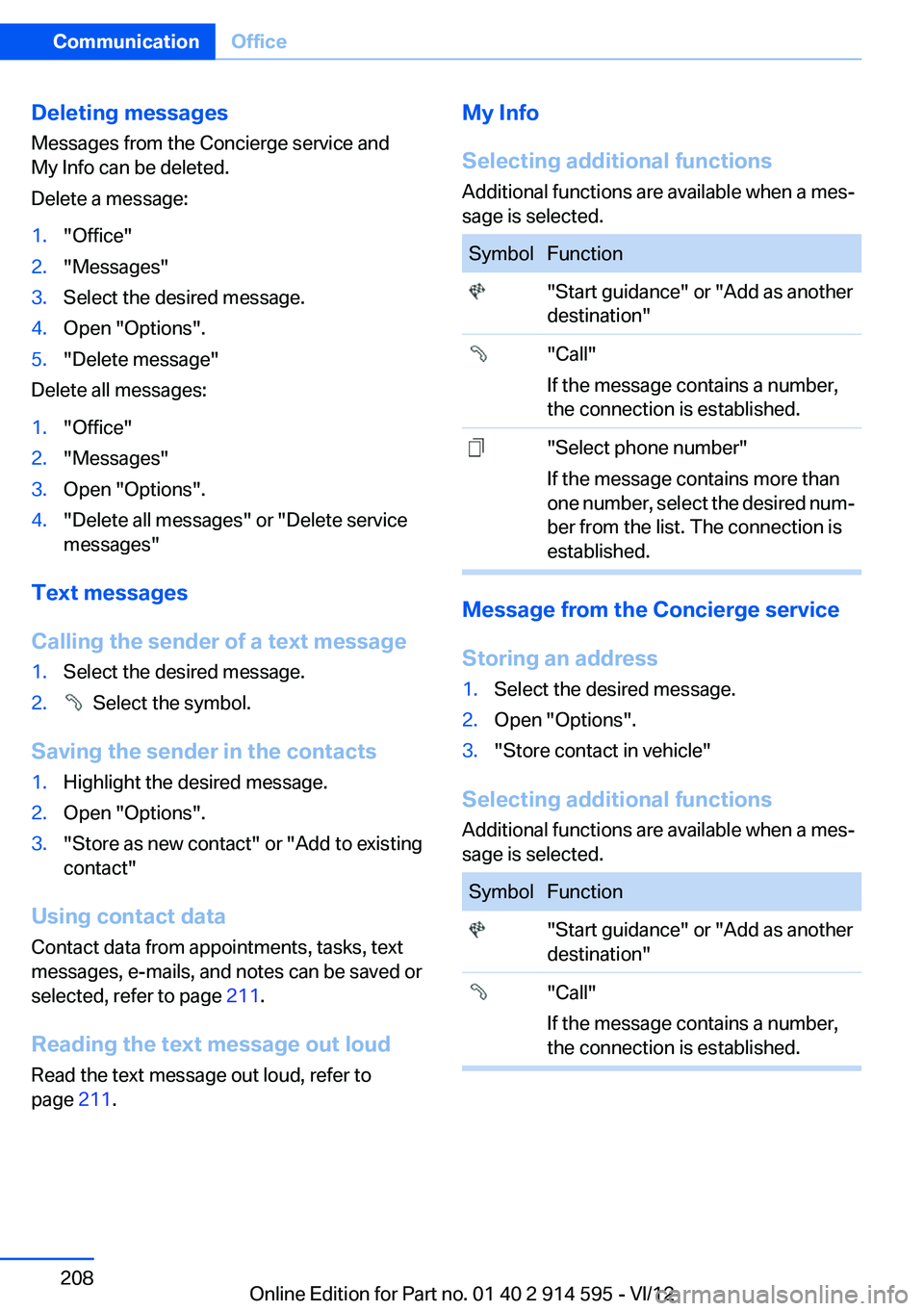
Selecting additional functions
Additional functions are available when a mes‐
sage is selected.SymbolFunction "Start guidance" or "Add as another
destination" "Call"
If the message contains a number,
the connection is established. "Select phone number"
If the message contains more than
one number, select the desired num‐
ber from the list. The connection is
established.
Message from the Concierge service
Storing an address
1.Select the desired message.2.Open "Options".3."Store contact in vehicle"
Selecting additional functions
Additional functions are available when a mes‐
sage is selected.
SymbolFunction "Start guidance" or "Add as another
destination" "Call"
If the message contains a number,
the connection is established.Seite 208CommunicationOffice208
Online Edition for Part no. 01 40 2 914 595 - VI/12