Symbol BMW X1 SDRIVE28I 2013 Workshop Manual
[x] Cancel search | Manufacturer: BMW, Model Year: 2013, Model line: X1 SDRIVE28I, Model: BMW X1 SDRIVE28I 2013Pages: 291, PDF Size: 6.58 MB
Page 209 of 291
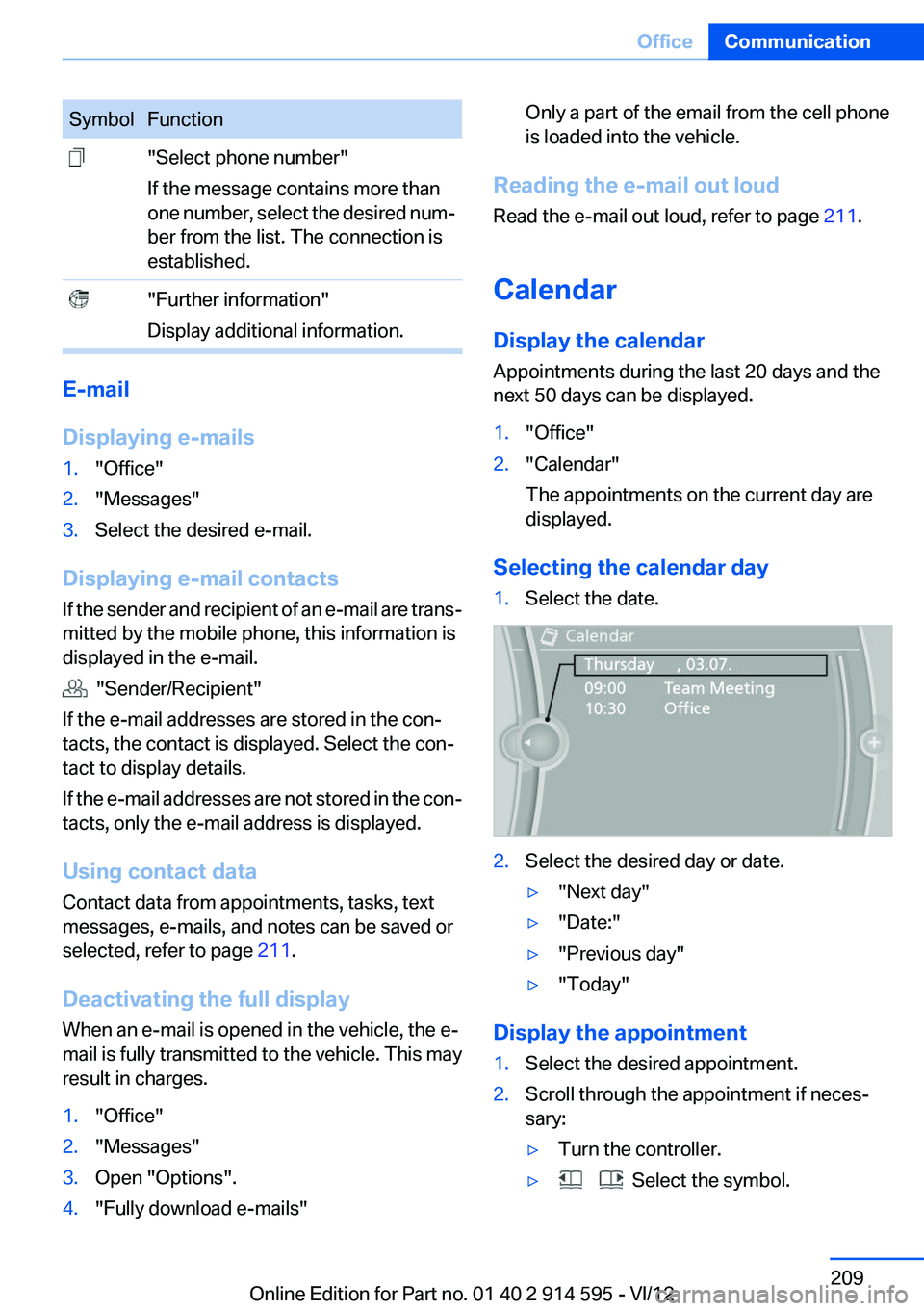
SymbolFunction "Select phone number"
If the message contains more than
one number, select the desired num‐
ber from the list. The connection is
established. "Further information"
Display additional information.
E-mail
Displaying e-mails
1."Office"2."Messages"3.Select the desired e-mail.
Displaying e-mail contacts
If the sender and recipient of an e-mail are trans‐
mitted by the mobile phone, this information is
displayed in the e-mail.
"Sender/Recipient"
If the e-mail addresses are stored in the con‐
tacts, the contact is displayed. Select the con‐
tact to display details.
If the e-mail addresses are not stored in the con‐
tacts, only the e-mail address is displayed.
Using contact data
Contact data from appointments, tasks, text
messages, e-mails, and notes can be saved or
selected, refer to page 211.
Deactivating the full display
When an e-mail is opened in the vehicle, the e-
mail is fully transmitted to the vehicle. This may
result in charges.
1."Office"2."Messages"3.Open "Options".4."Fully download e-mails"Only a part of the email from the cell phone
is loaded into the vehicle.
Reading the e-mail out loud
Read the e-mail out loud, refer to page 211.
Calendar
Display the calendar
Appointments during the last 20 days and the
next 50 days can be displayed.
1."Office"2."Calendar"
The appointments on the current day are
displayed.
Selecting the calendar day
1.Select the date.2.Select the desired day or date.▷"Next day"▷"Date:"▷"Previous day"▷"Today"
Display the appointment
1.Select the desired appointment.2.Scroll through the appointment if neces‐
sary:▷Turn the controller.▷ Select the symbol.Seite 209OfficeCommunication209
Online Edition for Part no. 01 40 2 914 595 - VI/12
Page 210 of 291
Using contact data
Contact data from appointments, tasks, text
messages, e-mails, and notes can be saved or
selected, refer to page 211.
Reading the appointment out loud
Read the appointment out loud, refer to
page 211.
Tasks
Displaying the task list
Display tasks that are due within the next
90 days.1."Office"2."Tasks"
Sorting the task list
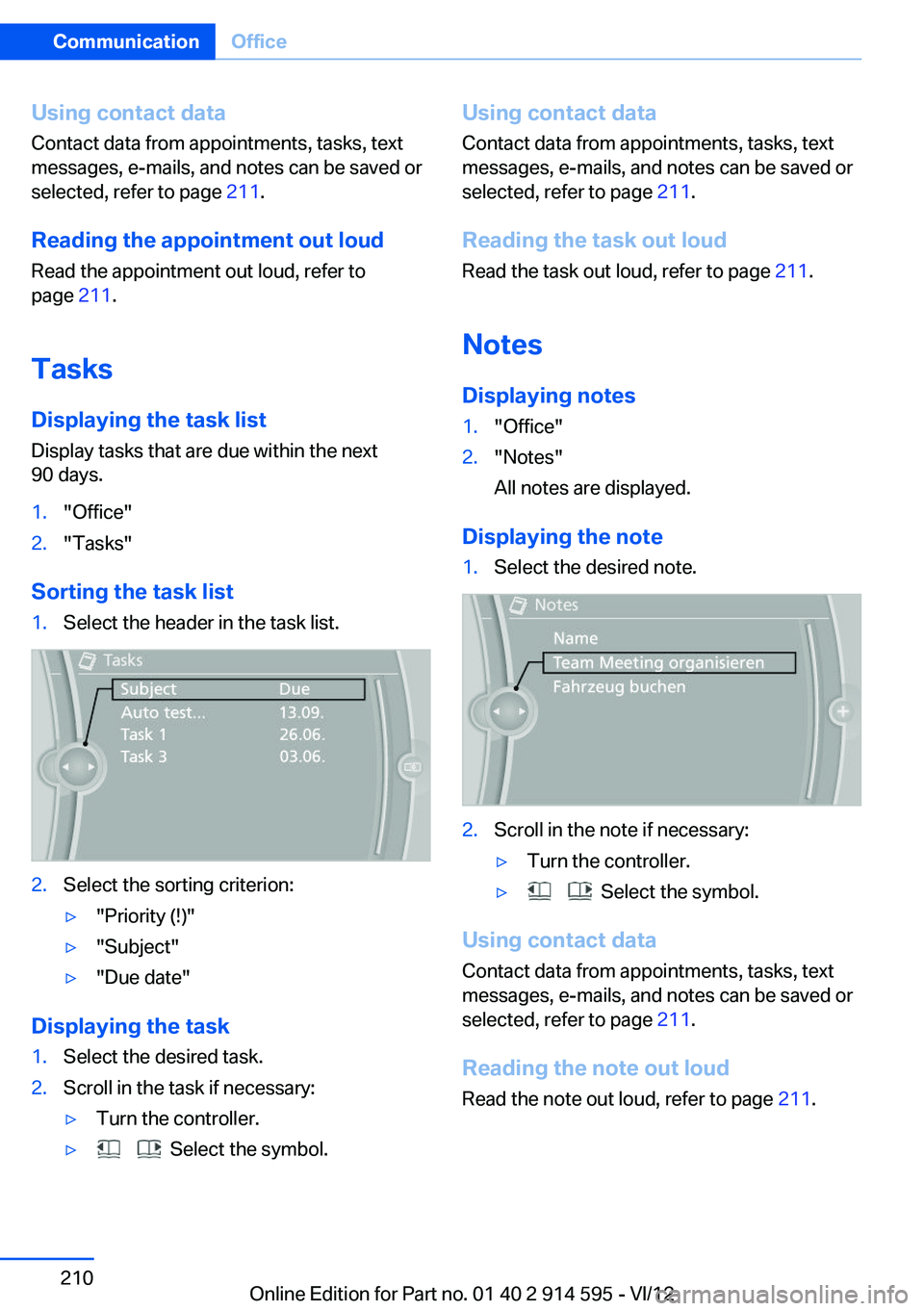
1.Select the header in the task list.2.Select the sorting criterion:▷"Priority (!)"▷"Subject"▷"Due date"
Displaying the task
1.Select the desired task.2.Scroll in the task if necessary:▷Turn the controller.▷ Select the symbol.Using contact data
Contact data from appointments, tasks, text
messages, e-mails, and notes can be saved or
selected, refer to page 211.
Reading the task out loud
Read the task out loud, refer to page 211.
Notes
Displaying notes1."Office"2."Notes"
All notes are displayed.
Displaying the note
1.Select the desired note.2.Scroll in the note if necessary:▷Turn the controller.▷ Select the symbol.
Using contact data
Contact data from appointments, tasks, text
messages, e-mails, and notes can be saved or
selected, refer to page 211.
Reading the note out loud
Read the note out loud, refer to page 211.
Seite 210CommunicationOffice210
Online Edition for Part no. 01 40 2 914 595 - VI/12
Page 211 of 291
Reminders
Displaying reminders
Reminders of pending appointments and tasks
are displayed. After an appointment or after a
task is due, the reminder is no longer displayed.1."Office"2."Reminders"3.Select the desired reminder.
The corresponding appointment or the task are
displayed.
Using contact data
At a glance
Contact data from appointments, tasks, text
messages, emails, and notes can be stored or
selected.
Displaying contact or selecting phone
number
1. "Use contact data"2.Display the contact or select the phone
number:▷Select the contact to display contact de‐
tails.▷Select the phone number to establish a
connection directly.
Storing contact data
1. "Use contact data"2.Highlight the phone number or e-mail ad‐
dress.3.Open "Options".4."Add to existing contact" or "Store as new
contact"Reading out loud
Text messages, e-mails, appointment entries,
tasks, and notes can be read out loud.1.Select the desired message, appointment,
task, or note.2. Select the symbol.
The following options are available during read‐
ing:
▷ "Pause"
Interrupt reading. Select again to restart
reading.▷ "Back to beginning"
Start reading the message again from the
beginning.▷ Select the symbol.
Go back one paragraph.▷ Select the symbol.
Skip a paragraph.▷To end reading, turn the controller to the left.
What to do if...
Information on suitable mobile phones, refer to
page 192.
Appointments, tasks, notes, text messages, or
e-mails from the mobile phone are not dis‐
played.
▷The mobile phone is not capable of the
missing function or is not connected cor‐
rectly.▷The Office function is deactivated.▷The mobile phone is connected as an addi‐
tional phone.▷Appointments are older than 20 days or are
more than 50 days in the future.▷The tasks have been marked as completed
or have a due date that lies more than
90 days in the future.Seite 211OfficeCommunication211
Online Edition for Part no. 01 40 2 914 595 - VI/12
Page 213 of 291
ContactsVehicle equipment
This chapter describes all series equipment as
well as country-specific and special equipment
offered for this model series.Therefore, it also
describes equipment that may not be found in
your vehicle, for instance due to the selected
special equipment or the country version. This
also applies to safety-related functions and sys‐
tems.
Note
Equipment version without the mobile phone
preparation package.
General information
Contacts can be created and edited and the ad‐
dresses can be adopted as destinations for nav‐
igation.
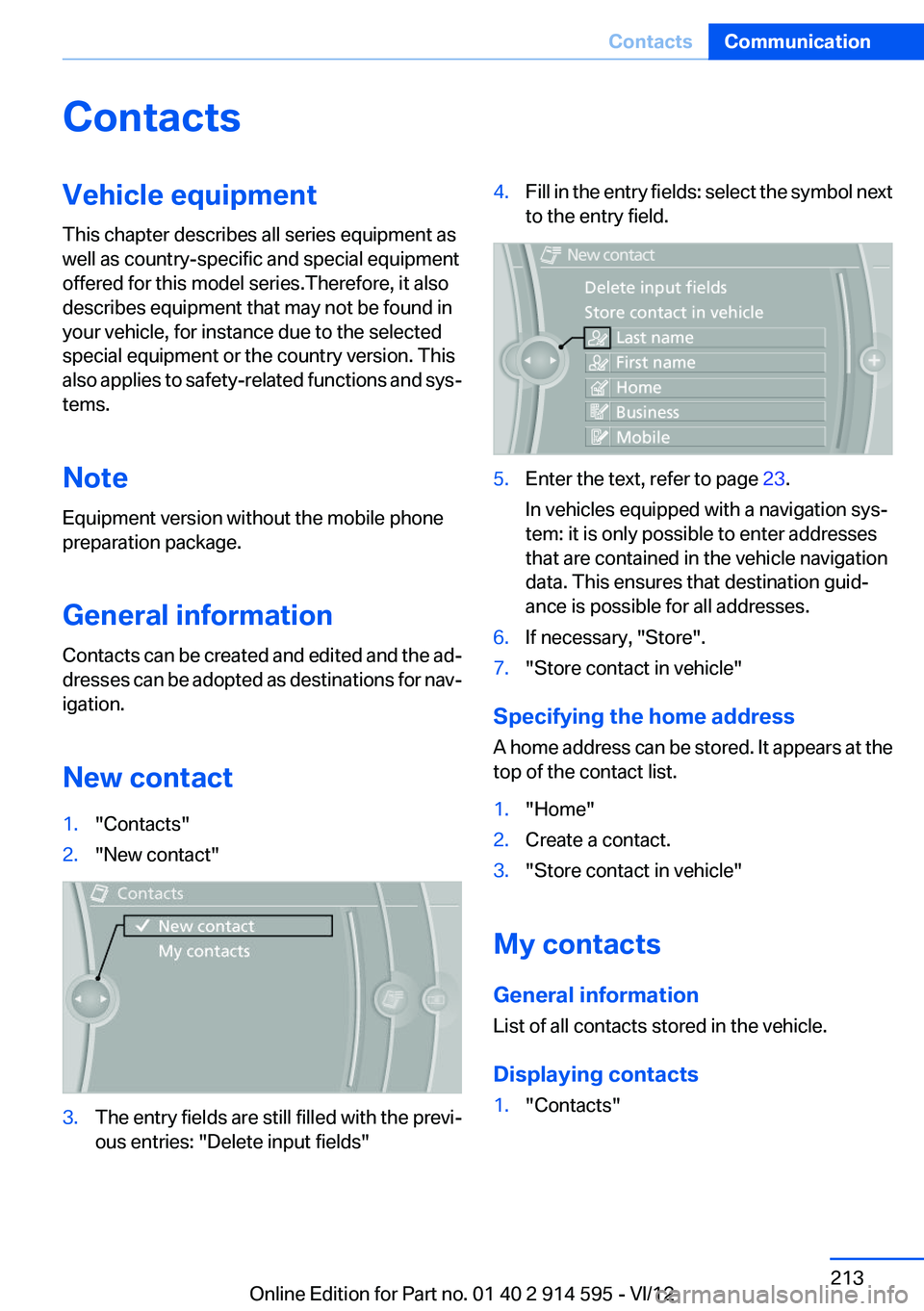
New contact1."Contacts"2."New contact"3.The entry fields are still filled with the previ‐
ous entries: "Delete input fields"4.Fill in the entry fields: select the symbol next
to the entry field.5.Enter the text, refer to page 23.
In vehicles equipped with a navigation sys‐
tem: it is only possible to enter addresses
that are contained in the vehicle navigation
data. This ensures that destination guid‐
ance is possible for all addresses.6.If necessary, "Store".7."Store contact in vehicle"
Specifying the home address
A home address can be stored. It appears at the
top of the contact list.
1."Home"2.Create a contact.3."Store contact in vehicle"
My contacts
General information
List of all contacts stored in the vehicle.
Displaying contacts
1."Contacts"Seite 213ContactsCommunication213
Online Edition for Part no. 01 40 2 914 595 - VI/12
Page 214 of 291
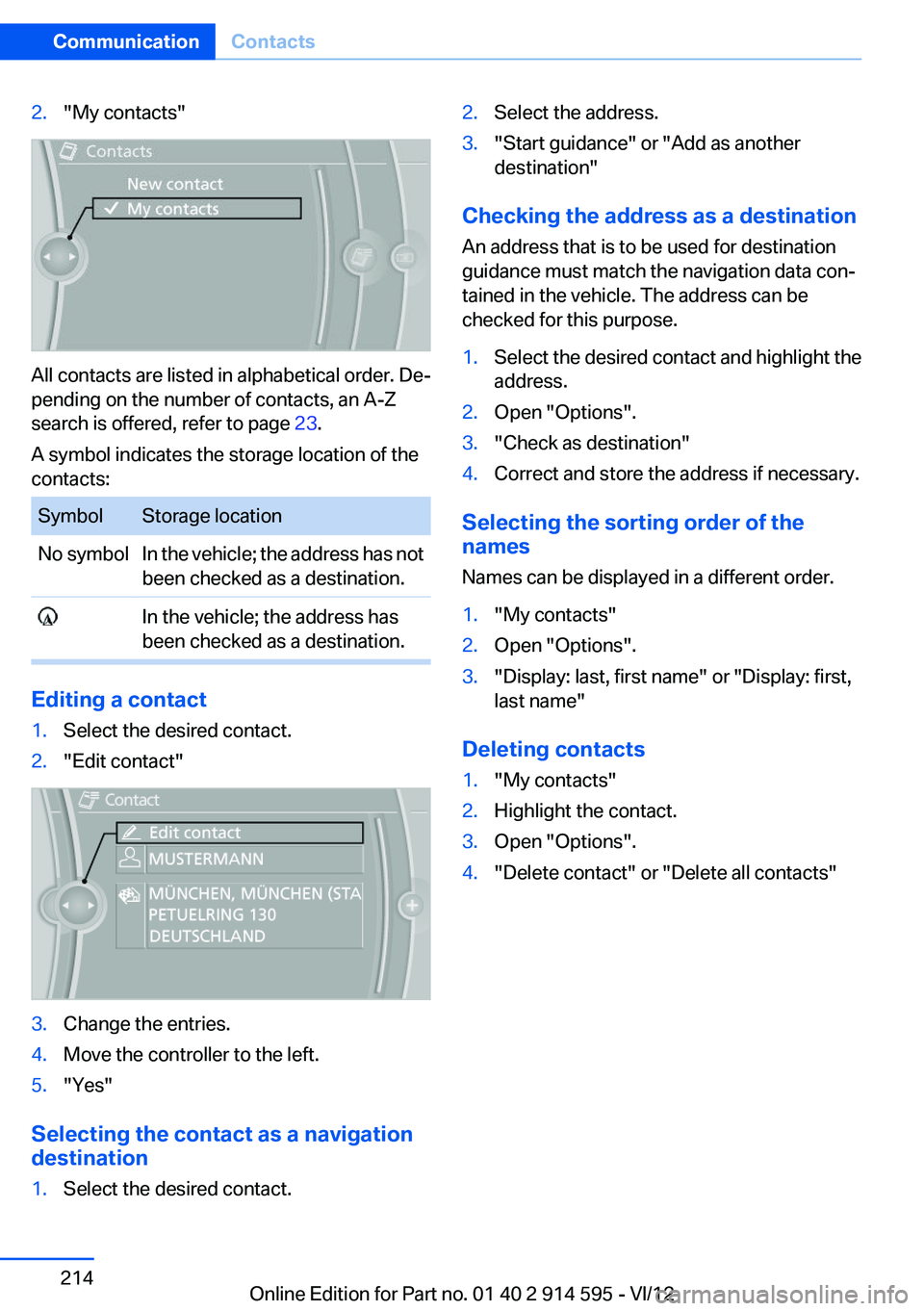
2."My contacts"
All contacts are listed in alphabetical order. De‐
pending on the number of contacts, an A-Z
search is offered, refer to page 23.
A symbol indicates the storage location of the
contacts:
SymbolStorage locationNo symbolIn the vehicle; the address has not
been checked as a destination. In the vehicle; the address has
been checked as a destination.
Editing a contact
1.Select the desired contact.2."Edit contact"3.Change the entries.4.Move the controller to the left.5."Yes"
Selecting the contact as a navigation
destination
1.Select the desired contact.2.Select the address.3."Start guidance" or "Add as another
destination"
Checking the address as a destination
An address that is to be used for destination
guidance must match the navigation data con‐
tained in the vehicle. The address can be
checked for this purpose.
1.Select the desired contact and highlight the
address.2.Open "Options".3."Check as destination"4.Correct and store the address if necessary.
Selecting the sorting order of the
names
Names can be displayed in a different order.
1."My contacts"2.Open "Options".3."Display: last, first name" or "Display: first,
last name"
Deleting contacts
1."My contacts"2.Highlight the contact.3.Open "Options".4."Delete contact" or "Delete all contacts"Seite 214CommunicationContacts214
Online Edition for Part no. 01 40 2 914 595 - VI/12
Page 225 of 291
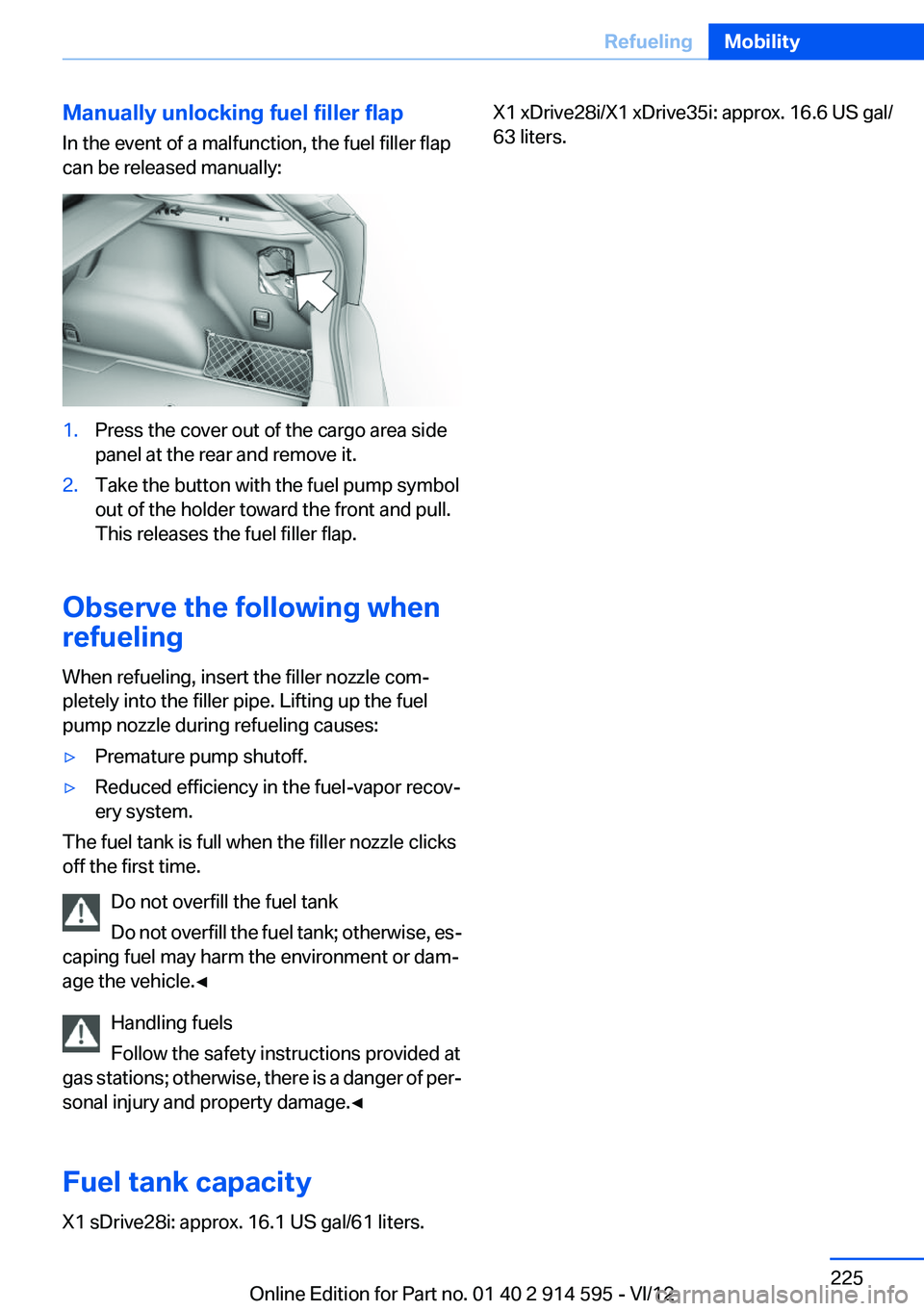
Manually unlocking fuel filler flap
In the event of a malfunction, the fuel filler flap
can be released manually:1.Press the cover out of the cargo area side
panel at the rear and remove it.2.Take the button with the fuel pump symbol
out of the holder toward the front and pull.
This releases the fuel filler flap.
Observe the following when
refueling
When refueling, insert the filler nozzle com‐
pletely into the filler pipe. Lifting up the fuel
pump nozzle during refueling causes:
▷Premature pump shutoff.▷Reduced efficiency in the fuel-vapor recov‐
ery system.
The fuel tank is full when the filler nozzle clicks
off the first time.
Do not overfill the fuel tank
Do not overfill the fuel tank; otherwise, es‐
caping fuel may harm the environment or dam‐
age the vehicle.◀
Handling fuels
Follow the safety instructions provided at
gas stations; otherwise, there is a danger of per‐
sonal injury and property damage.◀
Fuel tank capacity
X1 sDrive28i: approx. 16.1 US gal/61 liters.
X1 xDrive28i/X1 xDrive35i: approx. 16.6 US gal/
63 liters.Seite 225RefuelingMobility225
Online Edition for Part no. 01 40 2 914 595 - VI/12
Page 234 of 291
depends upon the actual conditions of their use,
however, and may depart significantly from the
norm due to variations in driving habits, service
practices and differences in road characteristics
and climate.
Traction
The traction grades, from highest to lowest, are
AA, A, B, and C.
Those grades represent the tire’s ability to stop
on wet pavement as measured under controlled
conditions on specified government test surfa‐
ces of asphalt and concrete. A tire marked C may
have poor traction performance.
The traction grade assigned to this tire is based
on straight-ahead braking traction tests, and
does not include acceleration, cornering, hydro‐
planing, or peak traction characteristics.
Temperature
The temperature grades are A, the highest, B,
and C, representing the tire’s resistance to the
generation of heat and its ability to dissipate
heat when tested under controlled conditions
on a specified indoor laboratory test wheel. Sus‐
tained high temperature can cause the material
of the tire to degenerate and reduce tire life, and
excessive temperature can lead to sudden tire
failure. The grade C corresponds to a level of
performance which all passenger car tires must
meet under the Federal Motor Vehicle Safety
Standard No. 109. Grades B and A represent
higher levels of performance on the laboratory
test wheel than the minimum required by law.
Temperature grade for this tire
The temperature grade for this tire is es‐
tablished for a tire that is properly inflated and
not overloaded. Excessive speed, underinfla‐
tion, or excessive loading, either separately or in
combination, can cause heat buildup and pos‐
sible tire failure.◀RSC – Run-flat tires
The symbol identifying run-flat tires is a circle
with the letters RSC on the sidewall, refer to
page 236.
M+S
Winter and all-season tires.
These have better winter properties than
summer tires.
XL
Designation for specially reinforced tires.
Tire tread
Summer tires
Do not drive with a tire tread depth of less than
0.12 in/3 mm.
There is an increased danger of hydroplaning if
the tread depth is less than 0.12 in/3 mm.
Winter tires
Do not drive with a tire tread depth of less than
0.16 in/4 mm.
Below a tread depth of 0.16 in/4 mm, tires are
less suitable for winter operation.
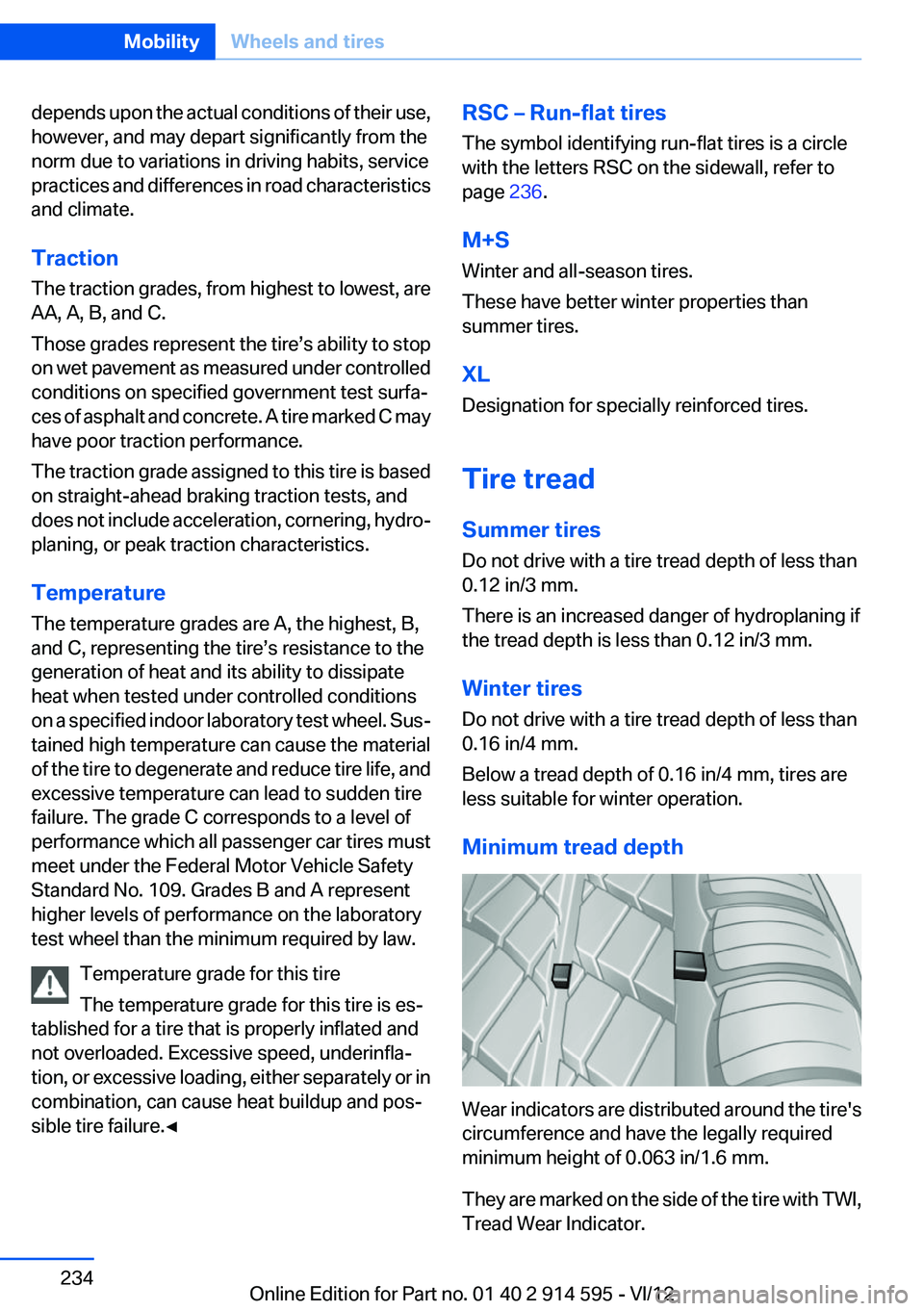
Minimum tread depth
Wear indicators are distributed around the tire's
circumference and have the legally required
minimum height of 0.063 in/1.6 mm.
They are marked on the side of the tire with TWI,
Tread Wear Indicator.
Seite 234MobilityWheels and tires234
Online Edition for Part no. 01 40 2 914 595 - VI/12
Page 240 of 291
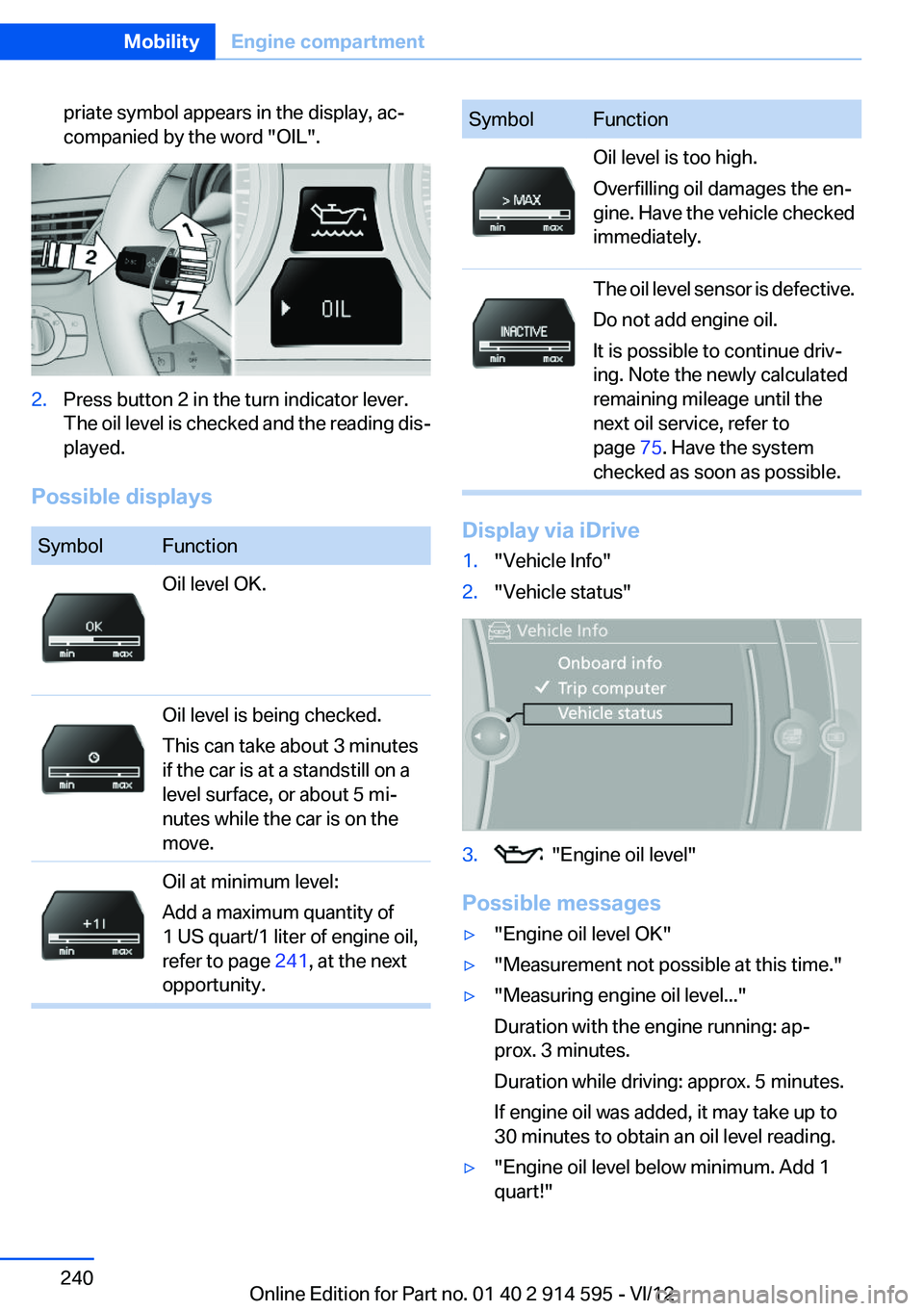
priate symbol appears in the display, ac‐
companied by the word "OIL".2.Press button 2 in the turn indicator lever.
The oil level is checked and the reading dis‐
played.
Possible displays
SymbolFunctionOil level OK.Oil level is being checked.
This can take about 3 minutes
if the car is at a standstill on a
level surface, or about 5 mi‐
nutes while the car is on the
move.Oil at minimum level:
Add a maximum quantity of
1 US quart/1 liter of engine oil,
refer to page 241, at the next
opportunity.SymbolFunctionOil level is too high.
Overfilling oil damages the en‐
gine. Have the vehicle checked
immediately.The oil level sensor is defective.
Do not add engine oil.
It is possible to continue driv‐
ing. Note the newly calculated
remaining mileage until the
next oil service, refer to
page 75. Have the system
checked as soon as possible.
Display via iDrive
1."Vehicle Info"2."Vehicle status"3. "Engine oil level"
Possible messages
▷"Engine oil level OK"▷"Measurement not possible at this time."▷"Measuring engine oil level..."
Duration with the engine running: ap‐
prox. 3 minutes.
Duration while driving: approx. 5 minutes.
If engine oil was added, it may take up to
30 minutes to obtain an oil level reading.▷"Engine oil level below minimum. Add 1
quart!"Seite 240MobilityEngine compartment240
Online Edition for Part no. 01 40 2 914 595 - VI/12
Page 250 of 291
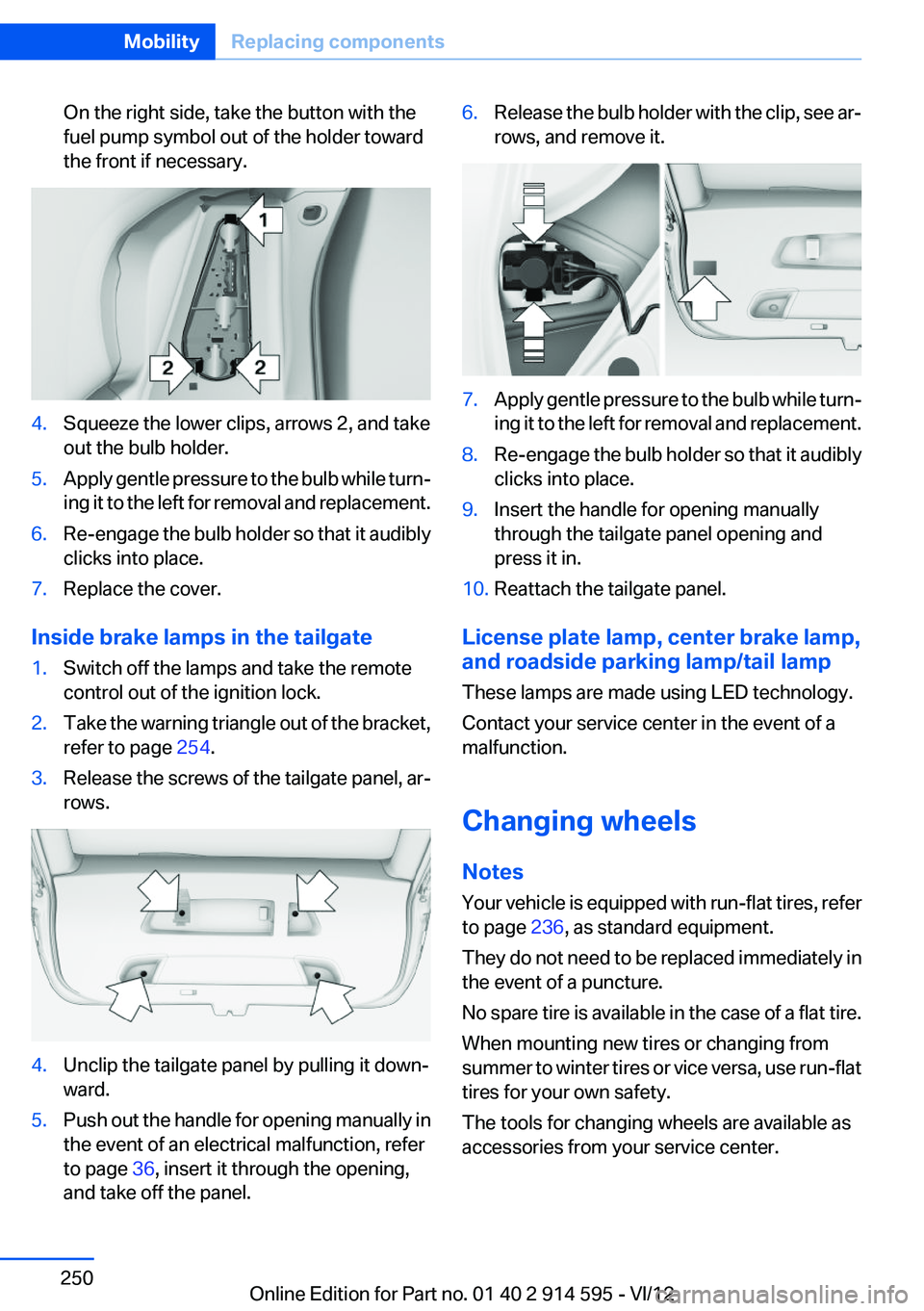
On the right side, take the button with the
fuel pump symbol out of the holder toward
the front if necessary.4.Squeeze the lower clips, arrows 2, and take
out the bulb holder.5.Apply gentle pressure to the bulb while turn‐
ing it to the left for removal and replacement.6.Re-engage the bulb holder so that it audibly
clicks into place.7.Replace the cover.
Inside brake lamps in the tailgate
1.Switch off the lamps and take the remote
control out of the ignition lock.2.Take the warning triangle out of the bracket,
refer to page 254.3.Release the screws of the tailgate panel, ar‐
rows.4.Unclip the tailgate panel by pulling it down‐
ward.5.Push out the handle for opening manually in
the event of an electrical malfunction, refer
to page 36, insert it through the opening,
and take off the panel.6.Release the bulb holder with the clip, see ar‐
rows, and remove it.7.Apply gentle pressure to the bulb while turn‐
ing it to the left for removal and replacement.8.Re-engage the bulb holder so that it audibly
clicks into place.9.Insert the handle for opening manually
through the tailgate panel opening and
press it in.10.Reattach the tailgate panel.
License plate lamp, center brake lamp,
and roadside parking lamp/tail lamp
These lamps are made using LED technology.
Contact your service center in the event of a
malfunction.
Changing wheels
Notes
Your vehicle is equipped with run-flat tires, refer
to page 236, as standard equipment.
They do not need to be replaced immediately in
the event of a puncture.
No spare tire is available in the case of a flat tire.
When mounting new tires or changing from
summer to winter tires or vice versa, use run-flat
tires for your own safety.
The tools for changing wheels are available as
accessories from your service center.
Seite 250MobilityReplacing components250
Online Edition for Part no. 01 40 2 914 595 - VI/12
Page 286 of 291
Settings– Changing on the Control Dis‐
play 74– Language 74
Settings and information 71
Settings, configuring, refer to Personal Profile 30
Settings, DVD 173
Setting the clock, 12h/24h for‐ mat 73
Shifting
– Automatic transmission with
Steptronic 63
Shifting, automatic transmis‐
sion with Steptronic 66
Shift lever
– Automatic transmission with
Steptronic 62
Shift paddles 66
Shift paddles on the steering wheel 64
Short commands, voice acti‐ vation 268
Side airbags 85
Side windows, refer to Win‐ dows 40
Size, refer to Dimensions 266
Ski bag, refer to Ski and snow‐ board bag 119
Slide/tilt glass roof, refer to Panoramic glass sunroof 41
Slot for remote control 54
Smokers' package, refer to Ashtray 114
Snap-in adapter, mobile phone 202
Snap-in adapter, refer to Stor‐ age compartment of center
armrest 120
Snow chains 237
Socket, OBD Onboard Diag‐ nosis 244
Socket, refer to Connecting electrical devices 114
Software applications, iPhone 219
Software part number 192
Software update 188
SOS, refer to Emergency Re‐ quest, initiating 253
Sound output 162, 170
Spare fuse 252
Special destinations, naviga‐ tion 143
Special equipment, series equipment 6
Speed, average 70
Speed limit 78
Speed limit, setting 79
Speedometer 14
Speed, with winter tires 236
Split screen 22
Split screen map settings 153
Spoken instructions, naviga‐ tion 151
Sport program, automatic transmission with Step‐
tronic 63, 66
Spray nozzles, refer to Clean‐ ing the windshield and head‐
lamps 60
Spray nozzles, refer to Wind‐ shield washer nozzles 61
Stability control systems 94
Start/Stop button 54
Start/Stop button, starting the engine 55
Start/Stop button, switching off the engine 55
Starting the engine 55
Start problems, refer to Jump- starting 255
State/province, selecting for navigation 140
Stations, stored 168
Station, storing 162
Status information, iDrive 22
Status of Owner's Manual 6
Steam jets 259
Steering wheel 49
Steering wheel– Shift paddles 64
Steering wheel, adjusting 49
Steering wheel lock 54
Steptronic, refer to Automatic
transmission with Step‐
tronic 62
Steptronic, refer to Sport pro‐ gram and manual mode M/
S 66
Stopping, engine 55
Storage compartment nets 121
Storage compart‐ ments 120, 121
Storage, tires 236
Storing the seat position, refer to Seat and mirror mem‐
ory 47
Storing the vehicle 262
Street, entering for naviga‐ tion 141
Summer tires, refer to Wheels and tires 228
Summer tires, tread 234
Switches, refer to Cockpit 12
Switching off, engine 55
Switching off, vehicle 55
Switch-on times, parked-car ventilation 109
Symbols 6
T
Tachometer 69
Tailgate– Comfort Access 37– Emergency operation, refer
to Opening manually 36– Opening from the inside 35– Opening from the out‐
side 36– Opening manually 36– Remote control 33
Tail lamp, bulb replace‐
ment 250
Tail lamps 249
Tail lamps
– Bulb replacement 249, 250
Tank gauge, refer to Fuel
gauge 69
Seite 286ReferenceEverything from A to Z286
Online Edition for Part no. 01 40 2 914 595 - VI/12