mode BMW X1 SDRIVE28I 2015 Service Manual
[x] Cancel search | Manufacturer: BMW, Model Year: 2015, Model line: X1 SDRIVE28I, Model: BMW X1 SDRIVE28I 2015Pages: 297, PDF Size: 7.01 MB
Page 138 of 297
LoadingVehicle equipment
This chapter describes all series equipment as
well as country-specific and special equipment
offered for this model series. Therefore, it also
describes equipment that may not be found in
your vehicle, for instance due to the selected
special equipment or the country version. This
also applies to safety-related functions and
systems.
When using the features and systems descri‐
bed here, adhere to local regulations.
General information Overloading the vehicle
To avoid exceeding the approved carry‐
ing capacity of the tires, never overload the ve‐
hicle. Overloading can lead to overheating and
increases the rate at which damage develops
inside the tires. This could result in a sudden
loss of tire inflation pressure.◀
No fluids in the cargo area
Make sure that fluids do not leak into the
cargo area; otherwise, the vehicle may be dam‐
aged.◀
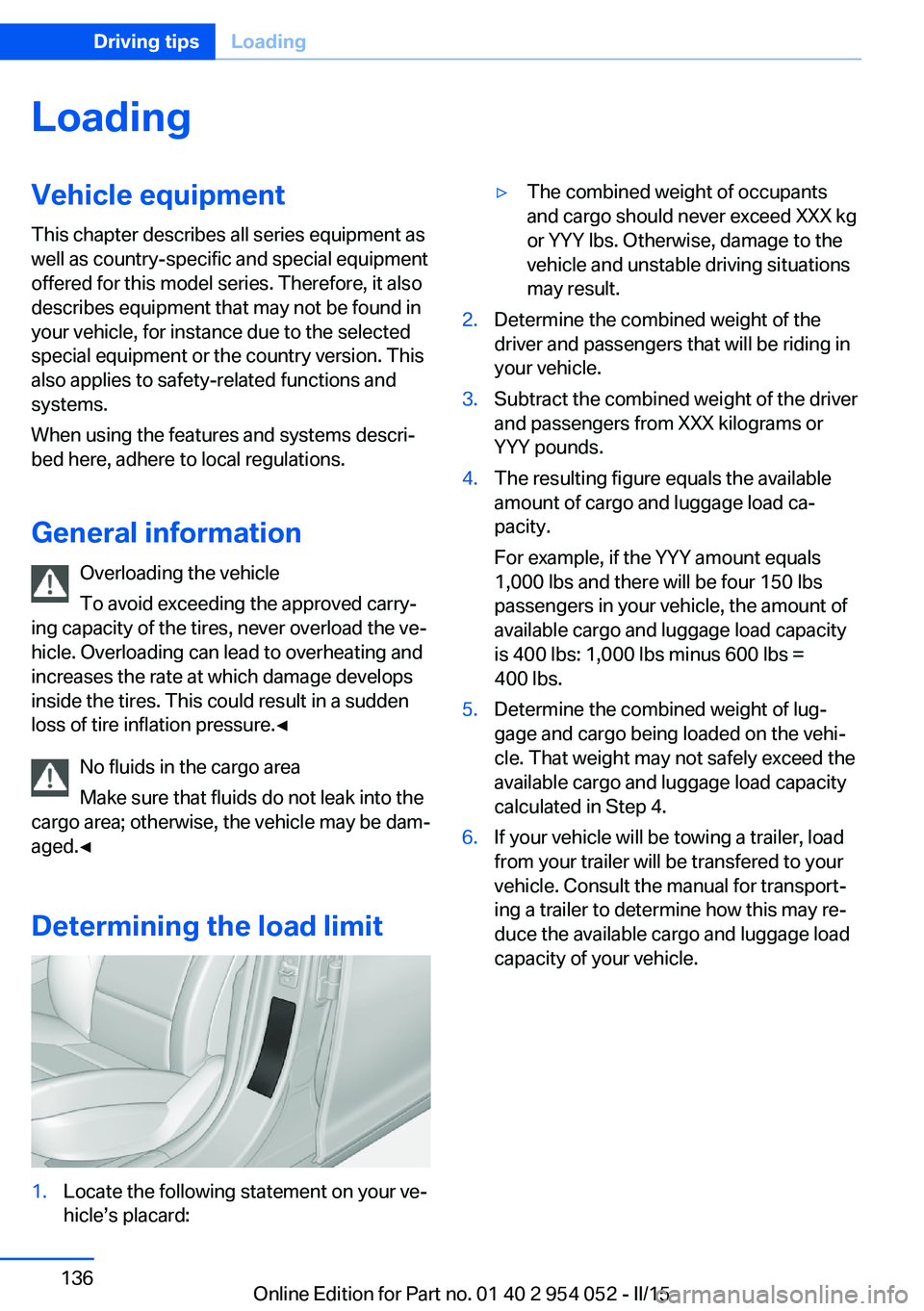
Determining the load limit1.Locate the following statement on your ve‐
hicle’s placard:▷The combined weight of occupants
and cargo should never exceed XXX kg
or YYY lbs. Otherwise, damage to the
vehicle and unstable driving situations
may result.2.Determine the combined weight of the
driver and passengers that will be riding in
your vehicle.3.Subtract the combined weight of the driver
and passengers from XXX kilograms or
YYY pounds.4.The resulting figure equals the available
amount of cargo and luggage load ca‐
pacity.
For example, if the YYY amount equals
1,000 lbs and there will be four 150 lbs
passengers in your vehicle, the amount of
available cargo and luggage load capacity
is 400 lbs: 1,000 lbs minus 600 lbs =
400 lbs.5.Determine the combined weight of lug‐
gage and cargo being loaded on the vehi‐
cle. That weight may not safely exceed the
available cargo and luggage load capacity
calculated in Step 4.6.If your vehicle will be towing a trailer, load
from your trailer will be transfered to your
vehicle. Consult the manual for transport‐
ing a trailer to determine how this may re‐
duce the available cargo and luggage load
capacity of your vehicle.Seite 136Driving tipsLoading136
Online Edition for Part no. 01 40 2 954 052 - II/15
Page 141 of 297
Saving fuelVehicle equipmentThis chapter describes all series equipment as
well as country-specific and special equipment
offered for this model series. Therefore, it also
describes equipment that may not be found in
your vehicle, for instance due to the selected
special equipment or the country version. This
also applies to safety-related functions and
systems.
When using the features and systems descri‐
bed here, adhere to local regulations.
General information Your vehicle contains advanced technology for
the reduction of fuel consumption and emis‐
sions.
Fuel consumption depends on a number of dif‐
ferent factors.
The implementation of certain measures, driv‐
ing style and regular maintenance, refer to
page 247, can have an influence on fuel con‐
sumption and on the environmental impact.
Remove unnecessary cargo
Additional weight increases fuel consumption.
Remove attached parts
following use
Remove unneeded auxiliary mirrors, roof or
rear luggage racks after use.
Attached parts on the vehicle impair the aero‐
dynamics and increase the fuel consumption.Closing the windows and
panoramic glass sunroof
Driving with the panoramic glass sunroof and
windows open results in increased air resist‐
ance and raises fuel consumption.
Check the tire inflationpressure regularly
Check and, if necessary, correct the tire infla‐
tion pressure, refer to page 232, at least twice
a month and before starting on a long trip.
Low tire inflation pressure increases rolling re‐
sistance and thus raises fuel consumption and
tire wear.
Drive away without delay
Do not wait for the engine to warm-up while
the vehicle remains stationary. Start driving
right away, but at moderate engine speeds.
This is the fastest way for the cold engine to
reach its operating temperature.
Look well ahead when
driving
Avoid unnecessary acceleration and braking.
By maintaining a suitable distance to the vehi‐
cle driving ahead of you.
Driving smoothly and looking ahead reduces
fuel consumption.
Avoid high engine speeds
Driving at a low engine speed reduces fuel
consumption and minimizes wear.Seite 139Saving fuelDriving tips139
Online Edition for Part no. 01 40 2 954 052 - II/15
Page 146 of 297
Navigation systemVehicle equipmentThis chapter describes all series equipment as
well as country-specific and special equipment
offered for this model series. Therefore, it also
describes equipment that may not be found in
your vehicle, for instance due to the selected
special equipment or the country version. This
also applies to safety-related functions and
systems.
When using the features and systems descri‐
bed here, adhere to local regulations.
General information The navigation system can determine the pre‐
cise position of the vehicle, with the aid of sat‐
ellites and vehicle sensors, and can reliably
guide you to every entered destination.
Entries in stationary vehicle
Enter data only when the vehicle is sta‐
tionary, and always give priority to the applica‐
ble traffic regulations in the event of any con‐
tradiction between traffic and road conditions
and the instructions issued by the navigation
system. Failure to take to this precaution can
place you in violation of the law and put vehicle
occupants and other road users in danger.◀
Opening the navigation system1. Press the button on the controller.2."Navigation"
The navigation system can also be called
up directly using the button on the con‐
troller.
Navigation data
Information on navigation data1."Navigation"2.Open "Options".3."Navigation system version"
Information is displayed on the data ver‐
sion.
Updating the navigation data
General information
Navigation data are stored in the vehicle and
can be updated.
Current navigation data and the authorization
code are available from your service center.
▷Depending on the data volume, a data up‐
date may take several hours.▷Update during the trip to preserve battery.▷During the update, only the basic functions
of the navigation system are available.▷The status of the update can be viewed.▷After the updating process is complete, the
system restarts.▷Remove the medium with the navigation
data after the update.
Performing an update
1.Insert the navigation DVD into the DVD
player with the labeled side facing up.2.Follow the instructions on the Control Dis‐
play.3.Enter the authorization code of the naviga‐
tion DVD.4.Change the DVD if necessary.
After the trip is interrupted, follow the instruc‐
tions on the Control Display.
Seite 144NavigationNavigation system144
Online Edition for Part no. 01 40 2 954 052 - II/15
Page 148 of 297
Destination entryVehicle equipment
This chapter describes all series equipment as
well as country-specific and special equipment
offered for this model series. Therefore, it also
describes equipment that may not be found in
your vehicle, for instance due to the selected
special equipment or the country version. This
also applies to safety-related functions and
systems.
When using the features and systems descri‐
bed here, adhere to local regulations.
At a glance In entering your destination you can select
from the following options:▷Enter the destination manually, see below.▷Select the destination from the address
book, refer to page 148.▷Last destinations, refer to page 149.▷Special destinations, refer to page 149.▷Destination entry via map, refer to
page 151.▷Using the home address as the destina‐
tion, refer to page 149.▷Destination entry by voice, refer to
page 152.▷Destination entry via the Concierge serv‐
ice, refer to page 151.
You can also store a navigation destination on
the programmable memory buttons, refer to
page 24.
Entries in stationary vehicle
Enter data only when the vehicle is sta‐
tionary, and always give priority to the applica‐
ble traffic regulations in the event of any con‐
tradiction between traffic and road conditions
and the instructions issued by the navigation
system. Failure to take to this precaution can
place you in violation of the law and put vehicle
occupants and other road users in danger.◀
Manual destination entry General information
The system supports you in entering street
names and house numbers by automatically
completing the entry and providing entry com‐
parisons, refer to page 25.
Stored town/city and street names can be
called up quickly.▷If the existing entries should not be
changed, the entries for the state/province
and town/city can be skipped.▷Destination guidance is started to the
town/city center if no street is entered.
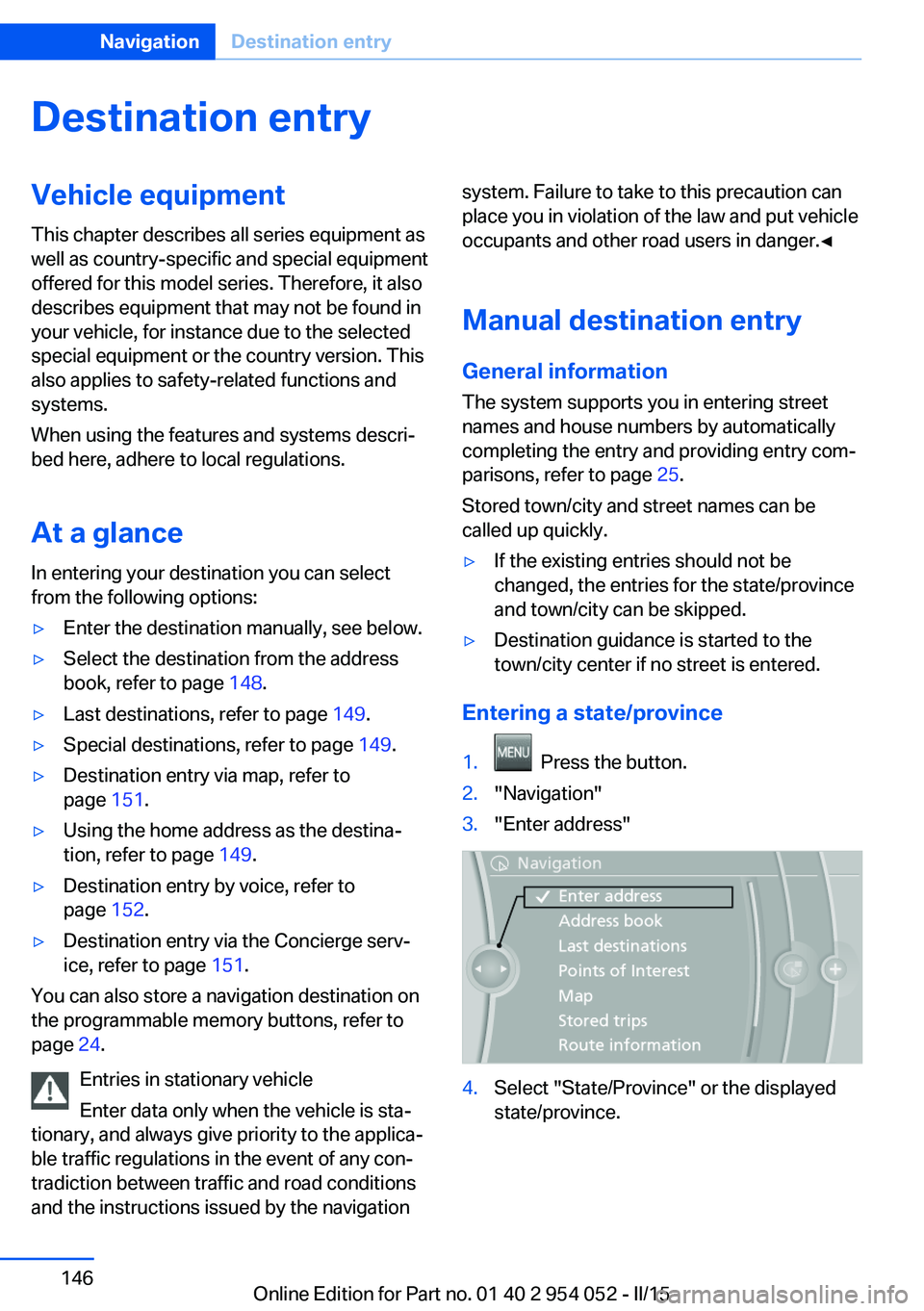
Entering a state/province
1. Press the button.2."Navigation"3."Enter address"4.Select "State/Province" or the displayed
state/province.Seite 146NavigationDestination entry146
Online Edition for Part no. 01 40 2 954 052 - II/15
Page 157 of 297
Destination guidanceVehicle equipmentThis chapter describes all series equipment as
well as country-specific and special equipment
offered for this model series. Therefore, it also
describes equipment that may not be found in
your vehicle, for instance due to the selected
special equipment or the country version. This
also applies to safety-related functions and
systems.
When using the features and systems descri‐
bed here, adhere to local regulations.
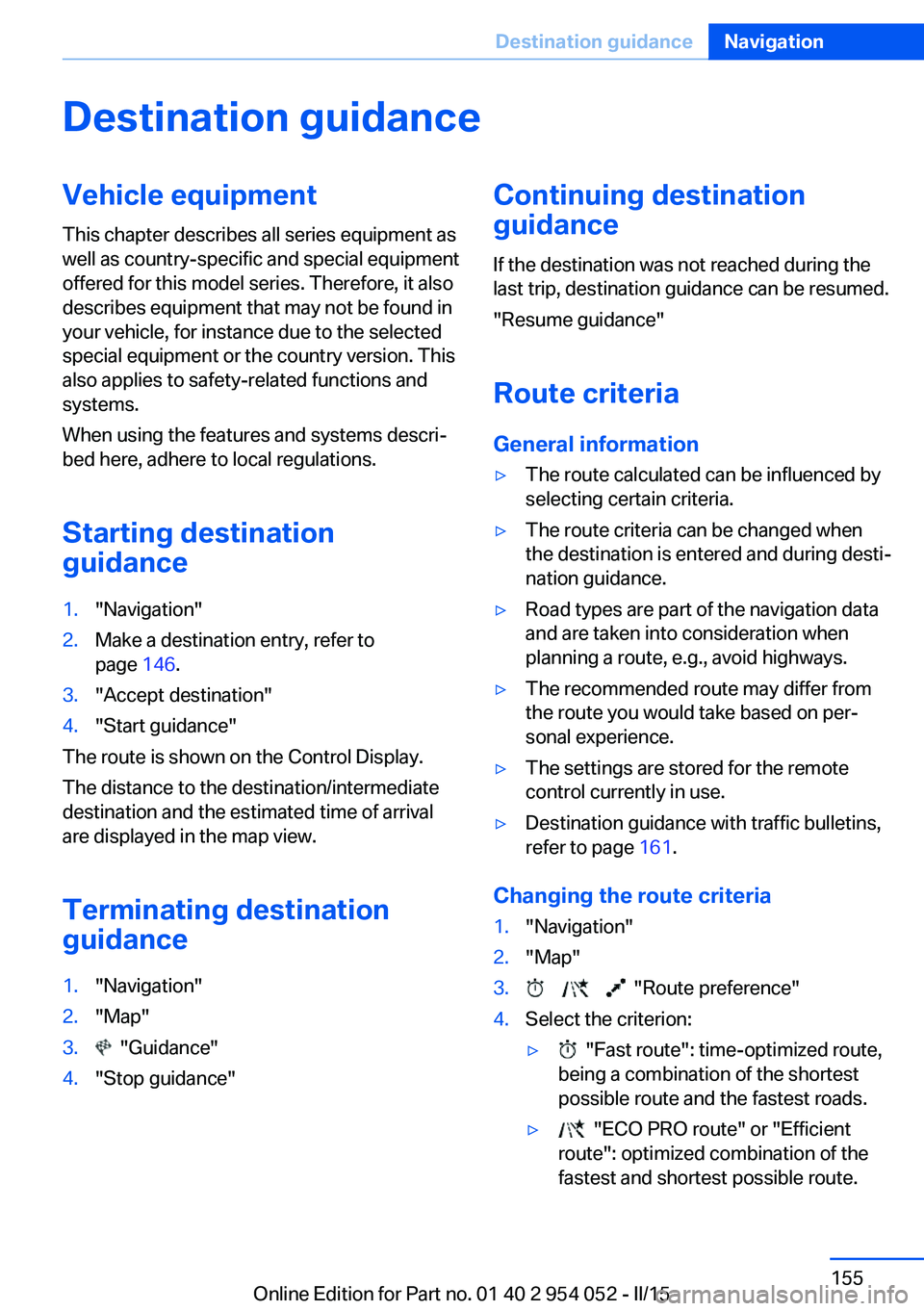
Starting destination
guidance1."Navigation"2.Make a destination entry, refer to
page 146.3."Accept destination"4."Start guidance"
The route is shown on the Control Display.
The distance to the destination/intermediate
destination and the estimated time of arrival
are displayed in the map view.
Terminating destination
guidance
1."Navigation"2."Map"3. "Guidance"4."Stop guidance"Continuing destination
guidance
If the destination was not reached during thelast trip, destination guidance can be resumed.
"Resume guidance"
Route criteria
General information▷The route calculated can be influenced by
selecting certain criteria.▷The route criteria can be changed when
the destination is entered and during desti‐
nation guidance.▷Road types are part of the navigation data
and are taken into consideration when
planning a route, e.g., avoid highways.▷The recommended route may differ from
the route you would take based on per‐
sonal experience.▷The settings are stored for the remote
control currently in use.▷Destination guidance with traffic bulletins,
refer to page 161.
Changing the route criteria
1."Navigation"2."Map"3. "Route preference"4.Select the criterion:▷ "Fast route": time-optimized route,
being a combination of the shortest
possible route and the fastest roads.▷ "ECO PRO route" or "Efficient
route": optimized combination of the
fastest and shortest possible route.Seite 155Destination guidanceNavigation155
Online Edition for Part no. 01 40 2 954 052 - II/15
Page 161 of 297
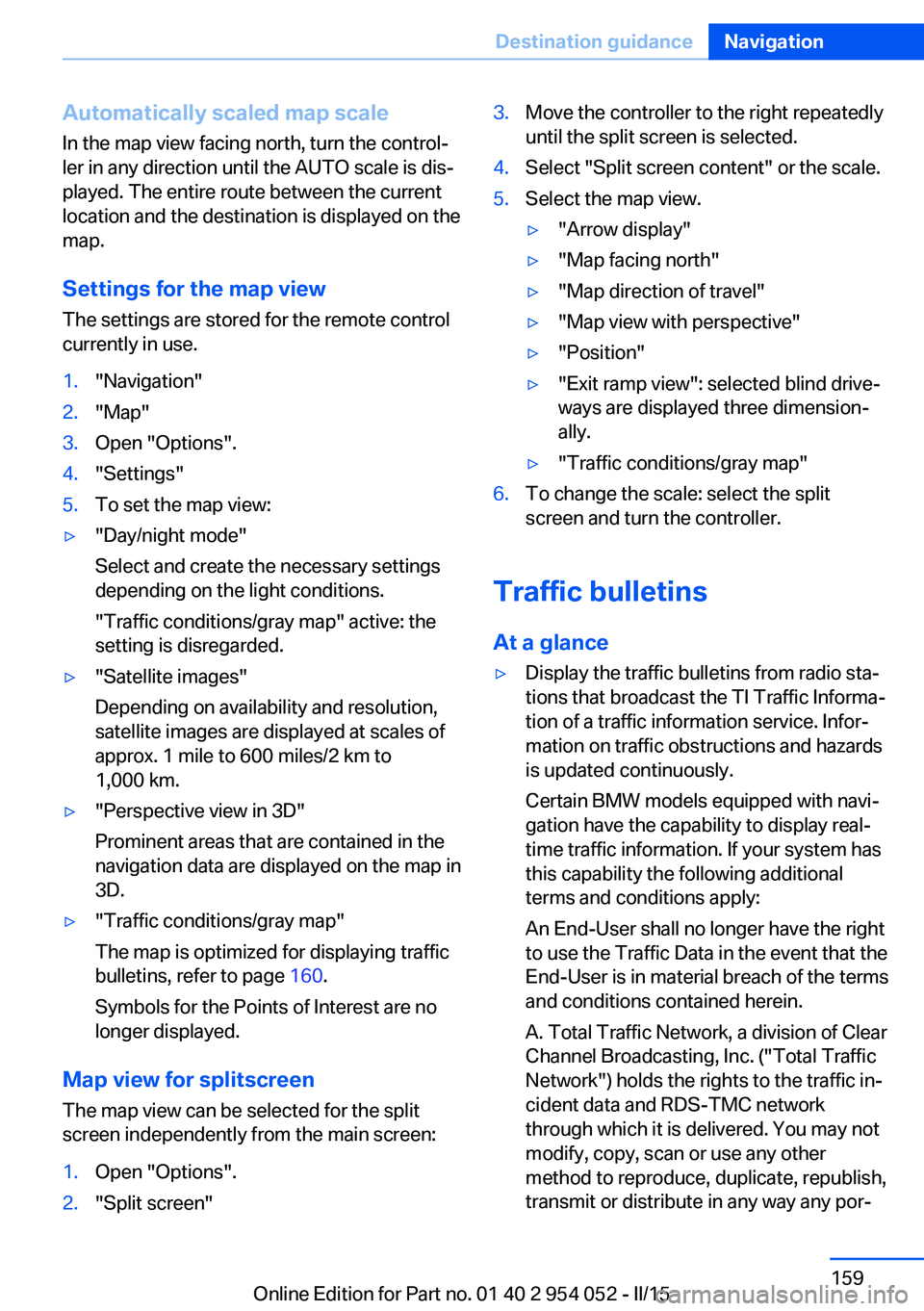
Automatically scaled map scaleIn the map view facing north, turn the control‐
ler in any direction until the AUTO scale is dis‐
played. The entire route between the current
location and the destination is displayed on the
map.
Settings for the map view
The settings are stored for the remote control
currently in use.1."Navigation"2."Map"3.Open "Options".4."Settings"5.To set the map view:▷"Day/night mode"
Select and create the necessary settings
depending on the light conditions.
"Traffic conditions/gray map" active: the
setting is disregarded.▷"Satellite images"
Depending on availability and resolution,
satellite images are displayed at scales of
approx. 1 mile to 600 miles/2 km to
1,000 km.▷"Perspective view in 3D"
Prominent areas that are contained in the
navigation data are displayed on the map in
3D.▷"Traffic conditions/gray map"
The map is optimized for displaying traffic
bulletins, refer to page 160.
Symbols for the Points of Interest are no
longer displayed.
Map view for splitscreen
The map view can be selected for the split
screen independently from the main screen:
1.Open "Options".2."Split screen"3.Move the controller to the right repeatedly
until the split screen is selected.4.Select "Split screen content" or the scale.5.Select the map view.▷"Arrow display"▷"Map facing north"▷"Map direction of travel"▷"Map view with perspective"▷"Position"▷"Exit ramp view": selected blind drive‐
ways are displayed three dimension‐
ally.▷"Traffic conditions/gray map"6.To change the scale: select the split
screen and turn the controller.
Traffic bulletins
At a glance
▷Display the traffic bulletins from radio sta‐
tions that broadcast the TI Traffic Informa‐
tion of a traffic information service. Infor‐
mation on traffic obstructions and hazards
is updated continuously.
Certain BMW models equipped with navi‐
gation have the capability to display real-
time traffic information. If your system has
this capability the following additional
terms and conditions apply:
An End-User shall no longer have the right
to use the Traffic Data in the event that the
End-User is in material breach of the terms
and conditions contained herein.
A. Total Traffic Network, a division of Clear
Channel Broadcasting, Inc. ("Total Traffic
Network") holds the rights to the traffic in‐
cident data and RDS-TMC network
through which it is delivered. You may not
modify, copy, scan or use any other
method to reproduce, duplicate, republish,
transmit or distribute in any way any por‐Seite 159Destination guidanceNavigation159
Online Edition for Part no. 01 40 2 954 052 - II/15
Page 162 of 297
tion of traffic incident data. You agree to in‐
demnify, defend and hold harmless BMW
of North America, LLC. ("BMW NA") and
Total Traffic Network, Inrix, Inc (and their
affiliates) against any and all claims, dam‐
ages, costs or other expenses that arise di‐
rectly or indirectly out of (a) your unauthor‐
ized use of the traffic incident data or the
RDS-TMC network, (b) your violation of
this directive and/or (c) any unauthorized or
unlawful activities by you in connection
herewith.
B. Total Traffic Network traffic data is infor‐
mational only. User assumes all risk of use.
Total Traffic Network, BMW NA, and their
suppliers make no representations about
content, traffic and road conditions, route
usability, or speed.
C. The licensed material is provided to li‐
censee "as is," and "where is". Total Traf‐
fic Network, including, but not limited to,
any and all third party providers of any of
the licensed material, expressly disclaims,
to the fullest extent permitted by law, all
warranties or representations with respect
to the licensed material (including, without
limitation, that the licensed material will be
error-free, will operate without interruption
or that the traffic data will be accurate), ex‐
press, implied or statutory, including, with‐
out limitation, the implied warranties of
merchantability, non-infringement fitness
for a particular purpose, or those arising
from a course of dealing or usage of trade.
D. Neither Total Traffic Network, Inrix, Inc.
or BMW NA will be liable to you for any in‐
direct, special, consequential, exemplary,
or incidental damages (including, without
limitation, lost revenues, anticipated reve‐
nues, or profits relating to the same) arising
from any claim relating directly or indirectly
to use of the traffic data, and even if Total
Traffic Network, Inrix, Inc., or BMW NA are
aware of the possibility of such damages.
These limitations apply to all claims, in‐
cluding, without limitation, claims in con‐tract and tort (such as negligence, product
liability and strict liability). Some states do
not allow the exclusion or limitation of inci‐
dental or consequential damages, so those
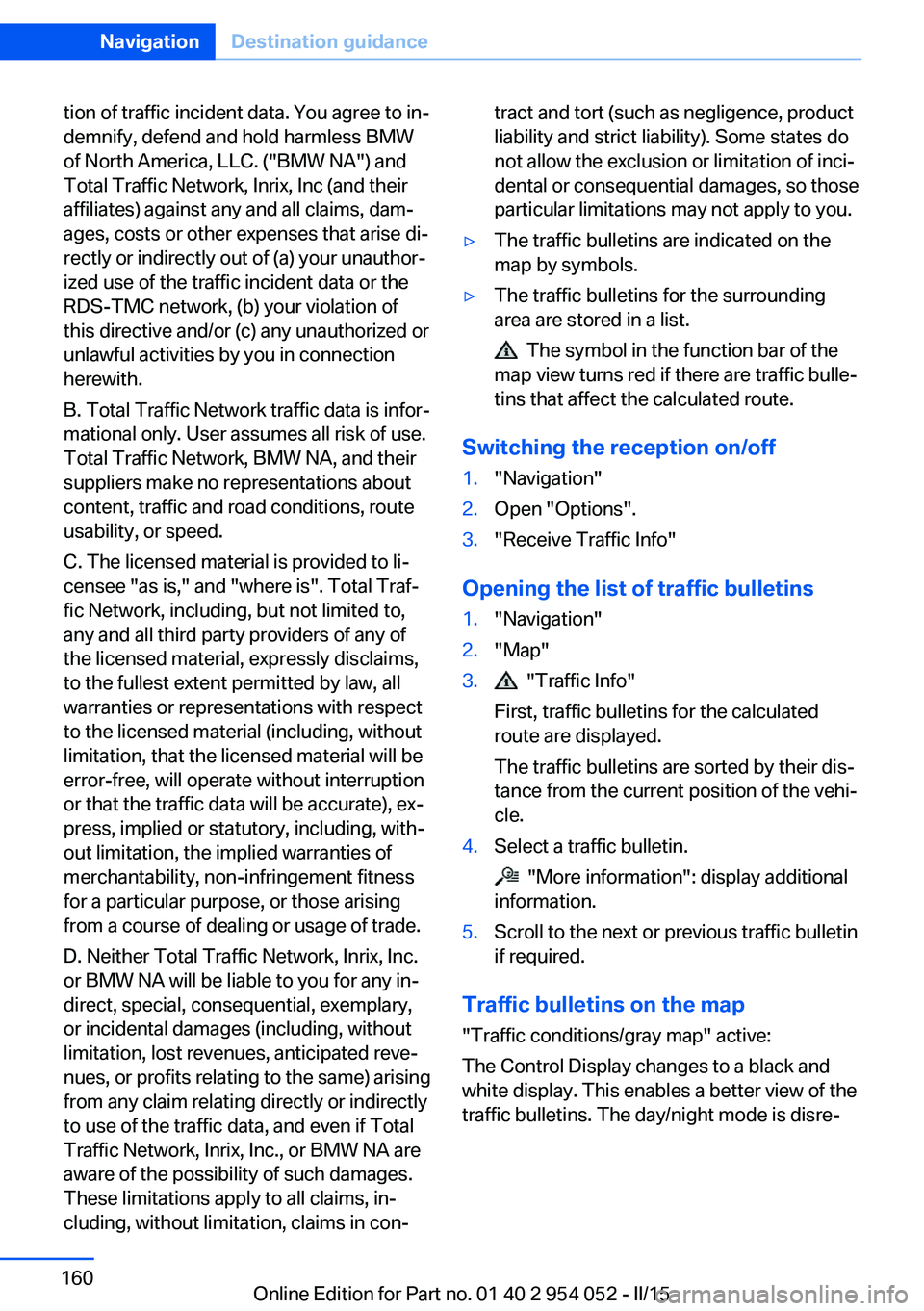
particular limitations may not apply to you.▷The traffic bulletins are indicated on the
map by symbols.▷The traffic bulletins for the surrounding
area are stored in a list.
The symbol in the function bar of the
map view turns red if there are traffic bulle‐
tins that affect the calculated route.
Switching the reception on/off
1."Navigation"2.Open "Options".3."Receive Traffic Info"
Opening the list of traffic bulletins
1."Navigation"2."Map"3. "Traffic Info"
First, traffic bulletins for the calculated
route are displayed.
The traffic bulletins are sorted by their dis‐
tance from the current position of the vehi‐
cle.4.Select a traffic bulletin.
"More information": display additional
information.
5.Scroll to the next or previous traffic bulletin
if required.
Traffic bulletins on the map
"Traffic conditions/gray map" active:
The Control Display changes to a black and
white display. This enables a better view of the
traffic bulletins. The day/night mode is disre‐
Seite 160NavigationDestination guidance160
Online Edition for Part no. 01 40 2 954 052 - II/15
Page 168 of 297
ToneVehicle equipmentThis chapter describes all series equipment as
well as country-specific and special equipment
offered for this model series. Therefore, it also
describes equipment that may not be found in
your vehicle, for instance due to the selected
special equipment or the country version. This
also applies to safety-related functions and
systems.
When using the features and systems descri‐
bed here, adhere to local regulations.
General information The sound settings are stored for the remote
control currently in use.
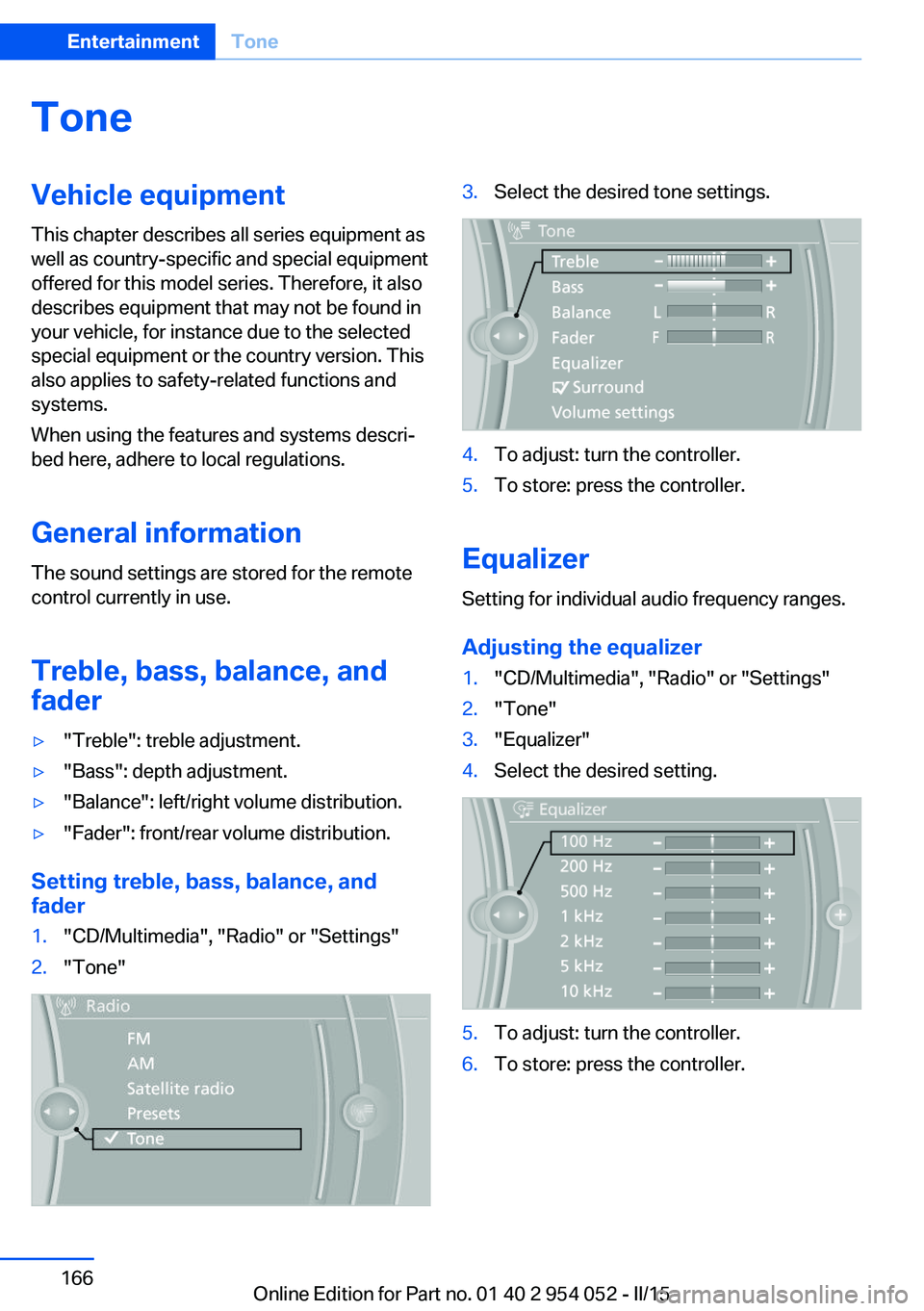
Treble, bass, balance, and
fader▷"Treble": treble adjustment.▷"Bass": depth adjustment.▷"Balance": left/right volume distribution.▷"Fader": front/rear volume distribution.
Setting treble, bass, balance, and fader
1."CD/Multimedia", "Radio" or "Settings"2."Tone"3.Select the desired tone settings.4.To adjust: turn the controller.5.To store: press the controller.
Equalizer
Setting for individual audio frequency ranges.
Adjusting the equalizer
1."CD/Multimedia", "Radio" or "Settings"2."Tone"3."Equalizer"4.Select the desired setting.5.To adjust: turn the controller.6.To store: press the controller.Seite 166EntertainmentTone166
Online Edition for Part no. 01 40 2 954 052 - II/15
Page 170 of 297
RadioVehicle equipment
This chapter describes all series equipment as
well as country-specific and special equipment
offered for this model series. Therefore, it also
describes equipment that may not be found in
your vehicle, for instance due to the selected
special equipment or the country version. This
also applies to safety-related functions and
systems.
When using the features and systems descri‐
bed here, adhere to local regulations.
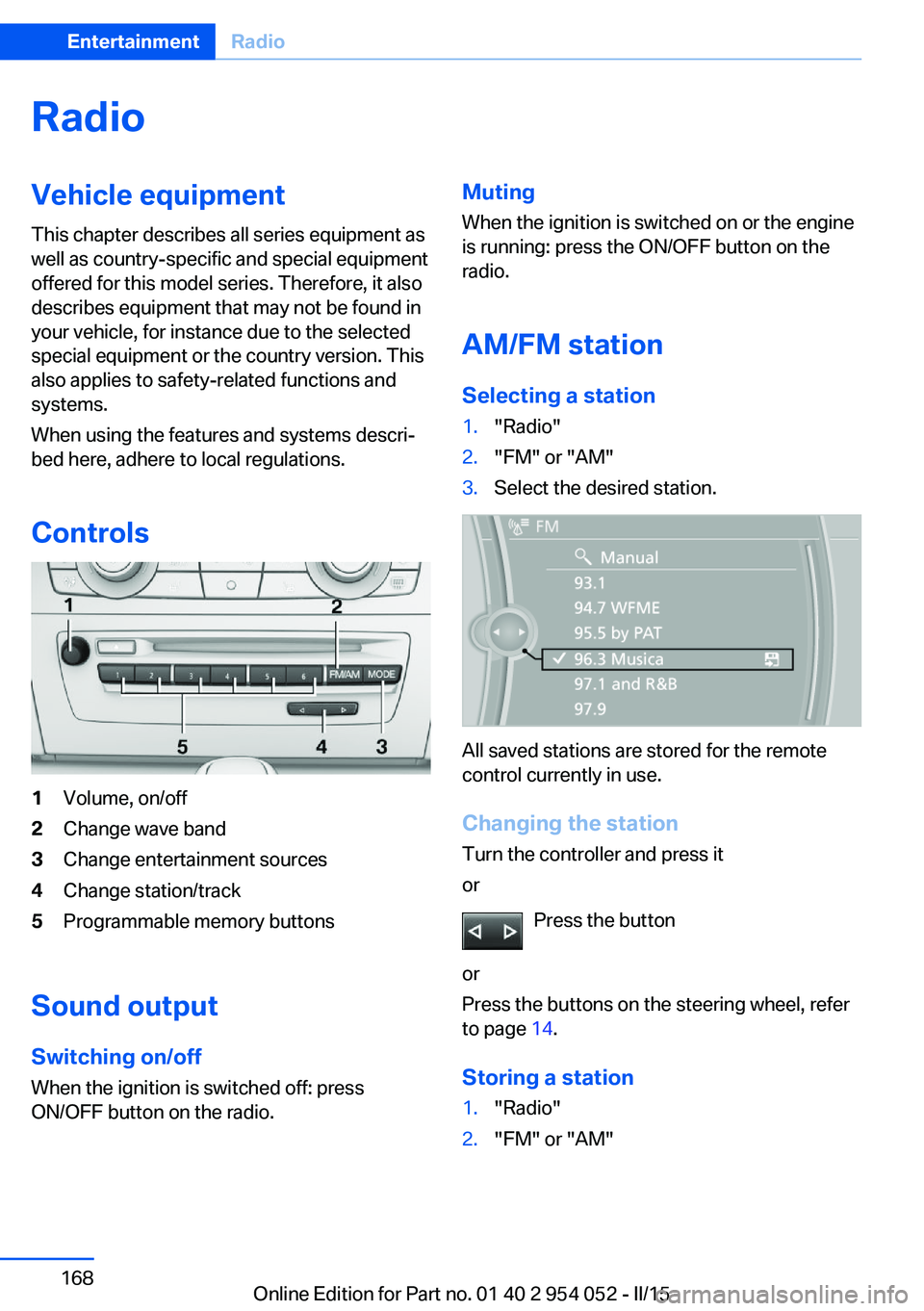
Controls1Volume, on/off2Change wave band3Change entertainment sources4Change station/track5Programmable memory buttons
Sound output Switching on/offWhen the ignition is switched off: press
ON/OFF button on the radio.
Muting
When the ignition is switched on or the engine
is running: press the ON/OFF button on the
radio.
AM/FM station Selecting a station1."Radio"2."FM" or "AM"3.Select the desired station.
All saved stations are stored for the remote
control currently in use.
Changing the station
Turn the controller and press it
or
Press the button
or
Press the buttons on the steering wheel, refer
to page 14.
Storing a station
1."Radio"2."FM" or "AM"Seite 168EntertainmentRadio168
Online Edition for Part no. 01 40 2 954 052 - II/15
Page 172 of 297
Activating/deactivating digital radioreception1."Radio"2."FM" or "AM"3.Open "Options".4."HD Radio Reception"
The setting is stored for the remote control
currently in use.
This symbol is displayed in the status line
when the audio signal is digital.
When tuning to a station with a digital signal, it
may take several seconds for the station to be
played back in digital quality.
Note on HD stations whose station name ends
in ...HD or with ...HD1:
In areas in which the station is not continu‐
ously received in digital mode, the playback
switches between analog and digital reception.
In this case, switch off digital radio reception.
Note on HD multicast stations whose station
name ends in ...HD2, ...HD3, ...:
In areas in which the station is not continu‐
ously received in digital mode, the audible sig‐
nal may be interrupted for several seconds.
This is reception related.
Displaying additional information
Some stations broadcast additional informa‐
tion on the current track, such as the name of
the artist.
1.Select the desired station.2.Open "Options".3."Station info"
Selecting a substation
This symbol indicates that a main station
also broadcasts additional substations. The
station name of the main station ends in HD1.
Station names of the substations end in HD2,
HD3, etc.
1.Select the desired station.2.Press the controller.3.Select the substation.
When reception is poor, the substation is
muted.
Satellite radio General information The channels are offered in predefined pack‐
ages. The packages must be enabled by tele‐
phone.
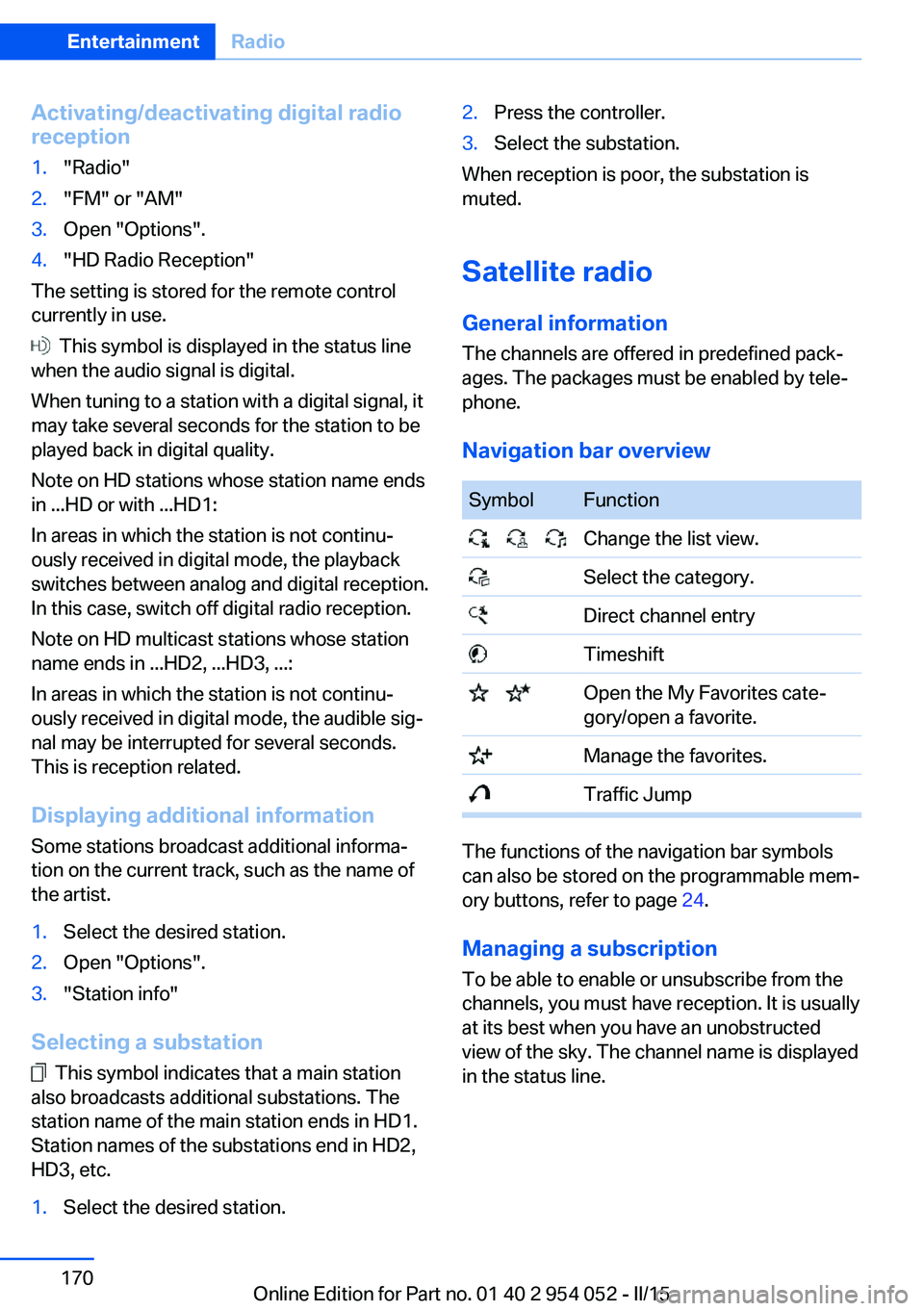
Navigation bar overview
SymbolFunction Change the list view. Select the category. Direct channel entry Timeshift Open the My Favorites cate‐
gory/open a favorite. Manage the favorites. Traffic Jump
The functions of the navigation bar symbols
can also be stored on the programmable mem‐
ory buttons, refer to page 24.
Managing a subscription
To be able to enable or unsubscribe from the
channels, you must have reception. It is usually
at its best when you have an unobstructed
view of the sky. The channel name is displayed
in the status line.
Seite 170EntertainmentRadio170
Online Edition for Part no. 01 40 2 954 052 - II/15