light BMW X3 2012 Workshop Manual
[x] Cancel search | Manufacturer: BMW, Model Year: 2012, Model line: X3, Model: BMW X3 2012Pages: 278, PDF Size: 10.15 MB
Page 133 of 278
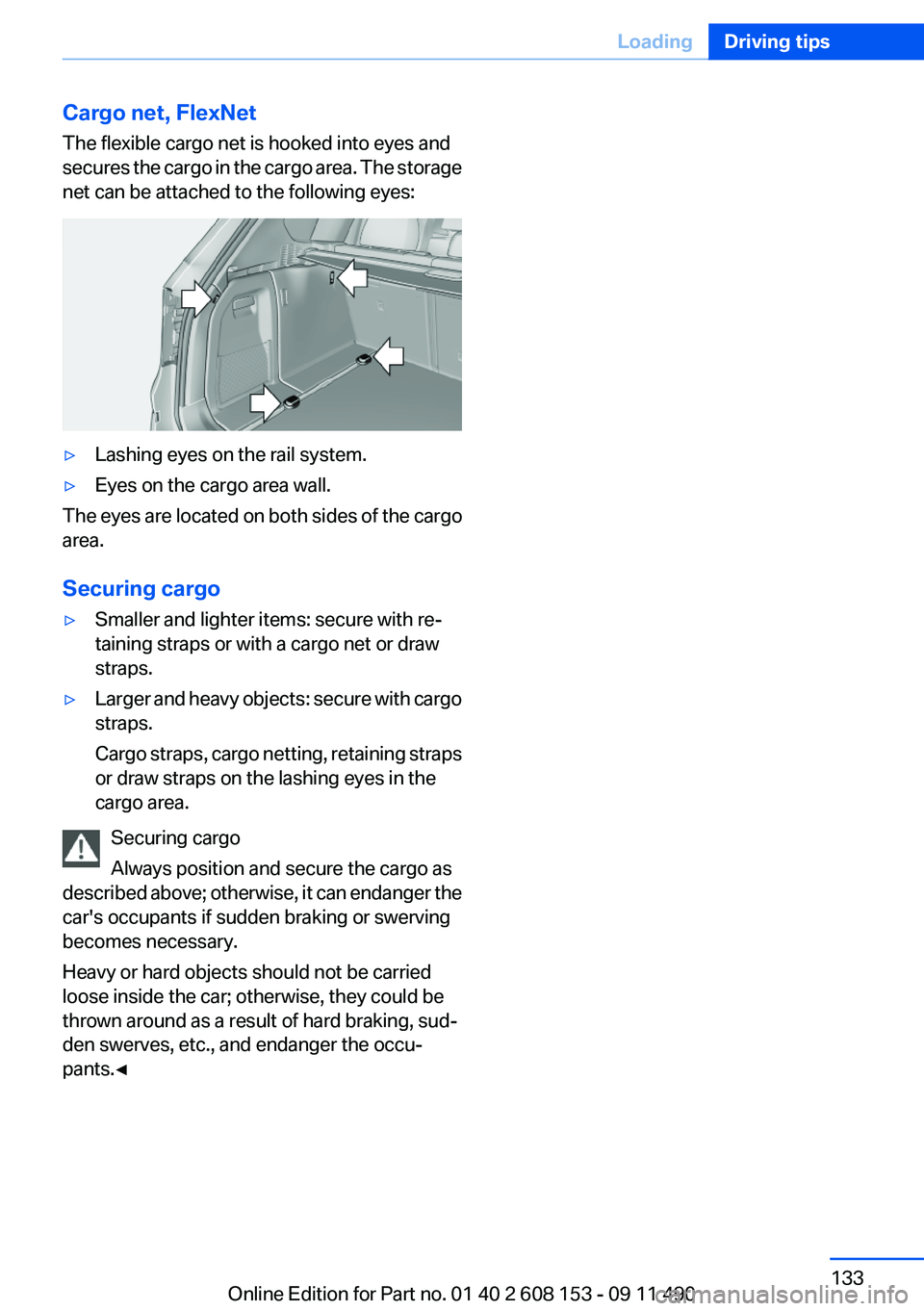
Cargo net, FlexNet
The flexible cargo net is hooked into eyes and
secures the cargo in the cargo area. The storage
net can be attached to the following eyes:▷Lashing eyes on the rail system.▷Eyes on the cargo area wall.
The eyes are located on both sides of the cargo
area.
Securing cargo
▷Smaller and lighter items: secure with re‐
taining straps or with a cargo net or draw
straps.▷Larger and heavy objects: secure with cargo
straps.
Cargo straps, cargo netting, retaining straps
or draw straps on the lashing eyes in the
cargo area.
Securing cargo
Always position and secure the cargo as
described above; otherwise, it can endanger the
car's occupants if sudden braking or swerving
becomes necessary.
Heavy or hard objects should not be carried
loose inside the car; otherwise, they could be
thrown around as a result of hard braking, sud‐
den swerves, etc., and endanger the occu‐
pants.◀
Seite 133LoadingDriving tips133
Online Edition for Part no. 01 40 2 608 153 - 09 11 490
Page 134 of 278
Saving fuelVehicle equipment
All standard, country-specific and optional
equipment that is offered in the model series is
described in this chapter. Therefore, equipment
is also described that is not available in a vehicle,
e. g., because of the selected optional equip‐
ment or country variant. This also applies for
safety-related functions and systems.
General information
Your vehicle contains advanced technology for
the reduction of fuel consumption and emis‐
sions.
Fuel consumption depends on a number of dif‐
ferent factors.
The implementation of certain measures, driv‐
ing style and regular maintenance can have an
influence on fuel consumption and on the envi‐
ronmental impact.
Remove unnecessary cargo
Additional weight increases fuel consumption.
Remove attached parts
following use
Remove auxiliary mirrors, roof or rear luggage
racks which are no longer required following
use.
Attached parts on the vehicle impair the aero‐
dynamics and increase the fuel consumption.Close the windows and glass
sunroof
Driving with the glass sunroof and windows
open results in increased air resistance and
raises fuel consumption.
Check the tire inflation
pressure regularly
Check and, if necessary, correct the tire inflation
pressure at least twice a month and before start‐
ing on a long trip.
Low tire inflation pressure increases rolling re‐
sistance and thus raises fuel consumption and
tire wear.
Drive away without delay
Do not wait for the engine to warm up while the
vehicle remains stationary. Start driving right
away, but at moderate engine speeds.
This is the fastest way for the cold engine to
reach its operating temperature.
Look well ahead when driving
Avoid unnecessary acceleration and braking.
By maintaining a suitable distance to the vehicle
driving ahead of you.
Driving smoothly and looking ahead reduces
fuel consumption.
Use coasting conditions
When approaching a red light, take your foot off
the accelerator and let the vehicle coast to a halt.
On a downhill gradient, take your foot off the ac‐
celerator and let the vehicle roll.Seite 134Driving tipsSaving fuel134
Online Edition for Part no. 01 40 2 608 153 - 09 11 490
Page 135 of 278
The flow of fuel is interrupted while coasting.
Switch off the engine during
longer stops
Switch off the engine during longer stops, e.g.,
at traffic lights, railroad crossings or in traffic
congestion.
Fuel savings are achieved after the vehicle is
switched off for only approx. 4 seconds.
Switch off any functions that
are not currently needed
Functions such as seat heating and the rear win‐
dow defroster require a lot of energy and con‐
sume additional fuel, especially in city and stop-
and-go traffic.
Therefore, switch off these functions if they are
not actually needed.
Have maintenance carried out
Have vehicles maintained regularly to achieve
optimal vehicle economy and operating life.
Have the maintenance carried out by your serv‐
ice center.Seite 135Saving fuelDriving tips135
Online Edition for Part no. 01 40 2 608 153 - 09 11 490
Page 139 of 278
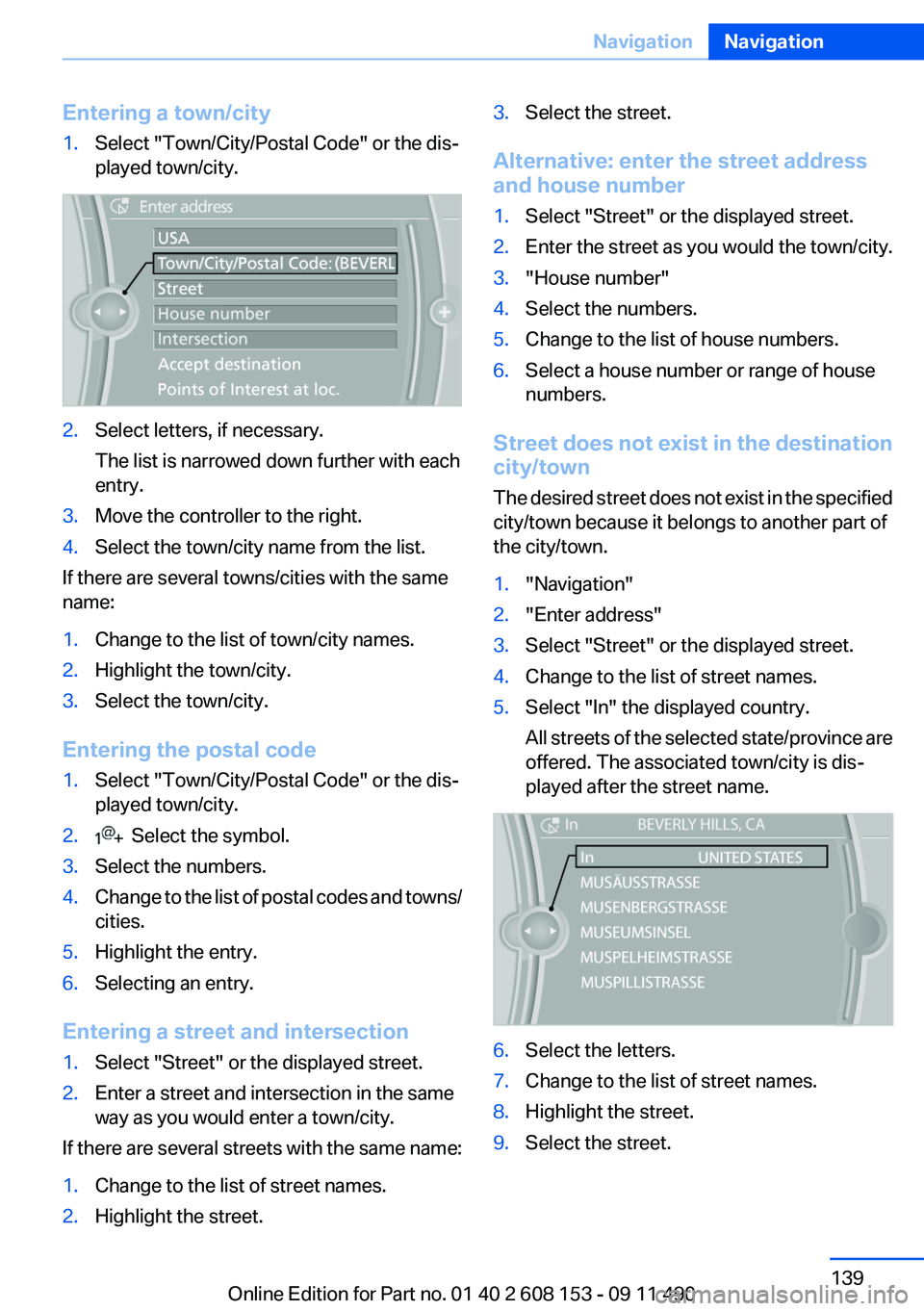
Entering a town/city1.Select "Town/City/Postal Code" or the dis‐
played town/city.2.Select letters, if necessary.
The list is narrowed down further with each
entry.3.Move the controller to the right.4.Select the town/city name from the list.
If there are several towns/cities with the same
name:
1.Change to the list of town/city names.2.Highlight the town/city.3.Select the town/city.
Entering the postal code
1.Select "Town/City/Postal Code" or the dis‐
played town/city.2. Select the symbol.3.Select the numbers.4.Change to the list of postal codes and towns/
cities.5.Highlight the entry.6.Selecting an entry.
Entering a street and intersection
1.Select "Street" or the displayed street.2.Enter a street and intersection in the same
way as you would enter a town/city.
If there are several streets with the same name:
1.Change to the list of street names.2.Highlight the street.3.Select the street.
Alternative: enter the street address
and house number
1.Select "Street" or the displayed street.2.Enter the street as you would the town/city.3."House number"4.Select the numbers.5.Change to the list of house numbers.6.Select a house number or range of house
numbers.
Street does not exist in the destination
city/town
The desired street does not exist in the specified
city/town because it belongs to another part of
the city/town.
1."Navigation"2."Enter address"3.Select "Street" or the displayed street.4.Change to the list of street names.5.Select "In" the displayed country.
All streets of the selected state/province are
offered. The associated town/city is dis‐
played after the street name.6.Select the letters.7.Change to the list of street names.8.Highlight the street.9.Select the street.Seite 139NavigationNavigation139
Online Edition for Part no. 01 40 2 608 153 - 09 11 490
Page 141 of 278
3.Highlight the entry.4."Options" Open.5."Edit in Contacts" or "Delete entry"
Using the home address as the
destination
The home address must be stored. Specify the
home address, refer to page 200.
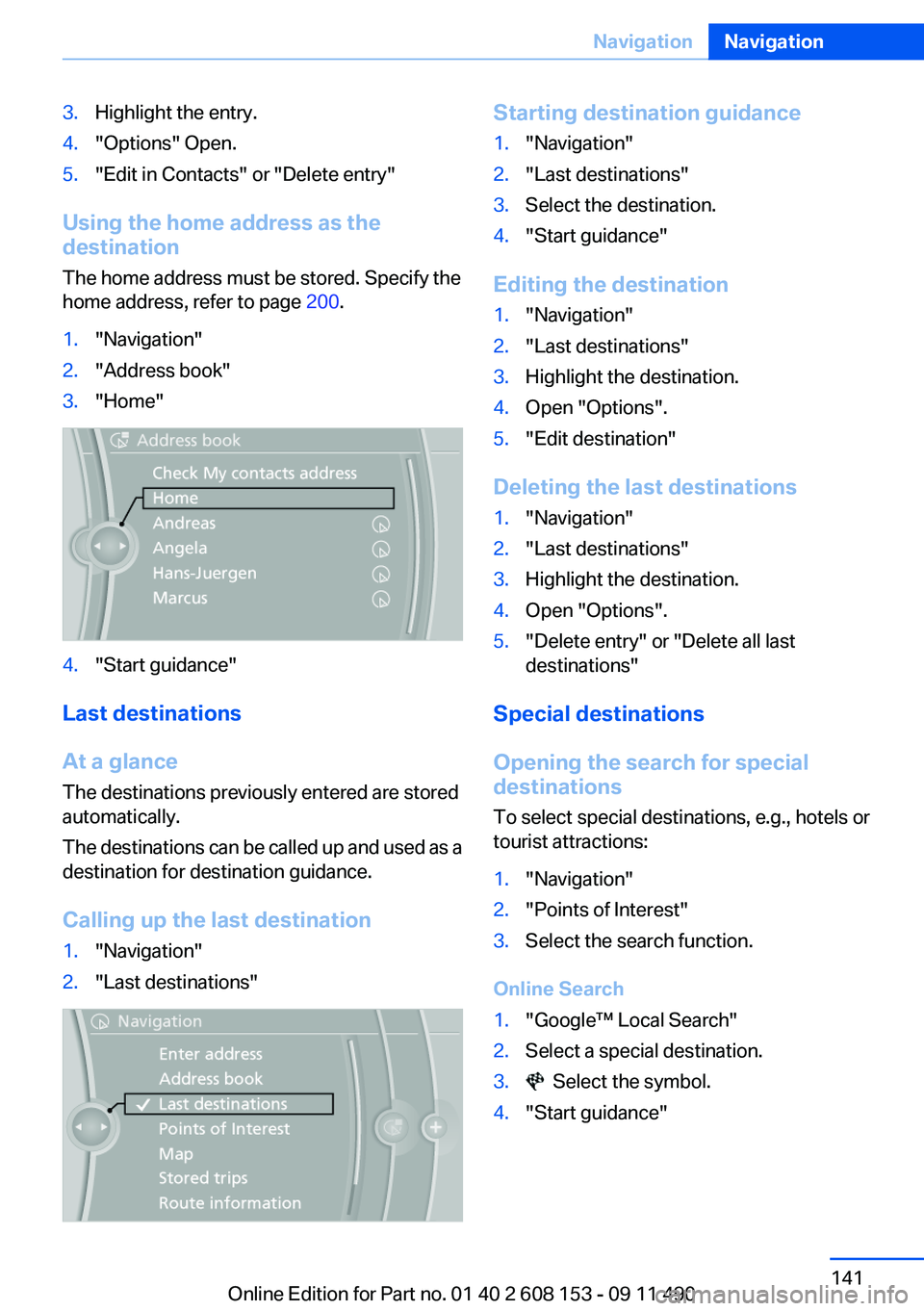
1."Navigation"2."Address book"3."Home"4."Start guidance"
Last destinations
At a glance
The destinations previously entered are stored
automatically.
The destinations can be called up and used as a
destination for destination guidance.
Calling up the last destination
1."Navigation"2."Last destinations"Starting destination guidance1."Navigation"2."Last destinations"3.Select the destination.4."Start guidance"
Editing the destination
1."Navigation"2."Last destinations"3.Highlight the destination.4.Open "Options".5."Edit destination"
Deleting the last destinations
1."Navigation"2."Last destinations"3.Highlight the destination.4.Open "Options".5."Delete entry" or "Delete all last
destinations"
Special destinations
Opening the search for special
destinations
To select special destinations, e.g., hotels or
tourist attractions:
1."Navigation"2."Points of Interest"3.Select the search function.
Online Search
1."Google™ Local Search"2.Select a special destination.3. Select the symbol.4."Start guidance"Seite 141NavigationNavigation141
Online Edition for Part no. 01 40 2 608 153 - 09 11 490
Page 145 of 278
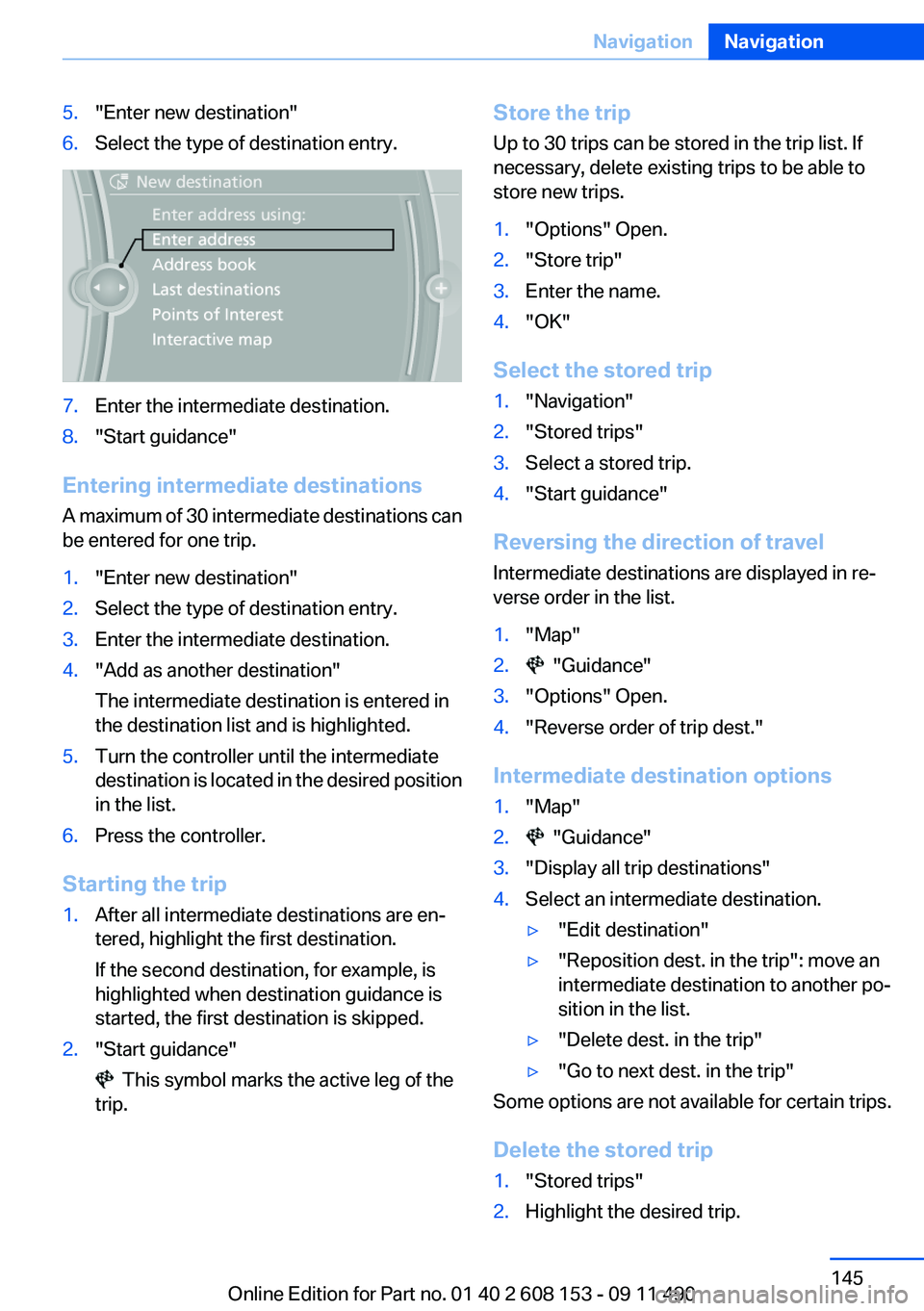
5."Enter new destination"6.Select the type of destination entry.7.Enter the intermediate destination.8."Start guidance"
Entering intermediate destinations
A maximum of 30 intermediate destinations can
be entered for one trip.
1."Enter new destination"2.Select the type of destination entry.3.Enter the intermediate destination.4."Add as another destination"
The intermediate destination is entered in
the destination list and is highlighted.5.Turn the controller until the intermediate
destination is located in the desired position
in the list.6.Press the controller.
Starting the trip
1.After all intermediate destinations are en‐
tered, highlight the first destination.
If the second destination, for example, is
highlighted when destination guidance is
started, the first destination is skipped.2."Start guidance"
This symbol marks the active leg of the
trip.
Store the trip
Up to 30 trips can be stored in the trip list. If
necessary, delete existing trips to be able to
store new trips.1."Options" Open.2."Store trip"3.Enter the name.4."OK"
Select the stored trip
1."Navigation"2."Stored trips"3.Select a stored trip.4."Start guidance"
Reversing the direction of travel
Intermediate destinations are displayed in re‐
verse order in the list.
1."Map"2. "Guidance"3."Options" Open.4."Reverse order of trip dest."
Intermediate destination options
1."Map"2. "Guidance"3."Display all trip destinations"4.Select an intermediate destination.▷"Edit destination"▷"Reposition dest. in the trip": move an
intermediate destination to another po‐
sition in the list.▷"Delete dest. in the trip"▷"Go to next dest. in the trip"
Some options are not available for certain trips.
Delete the stored trip
1."Stored trips"2.Highlight the desired trip.Seite 145NavigationNavigation145
Online Edition for Part no. 01 40 2 608 153 - 09 11 490
Page 147 of 278
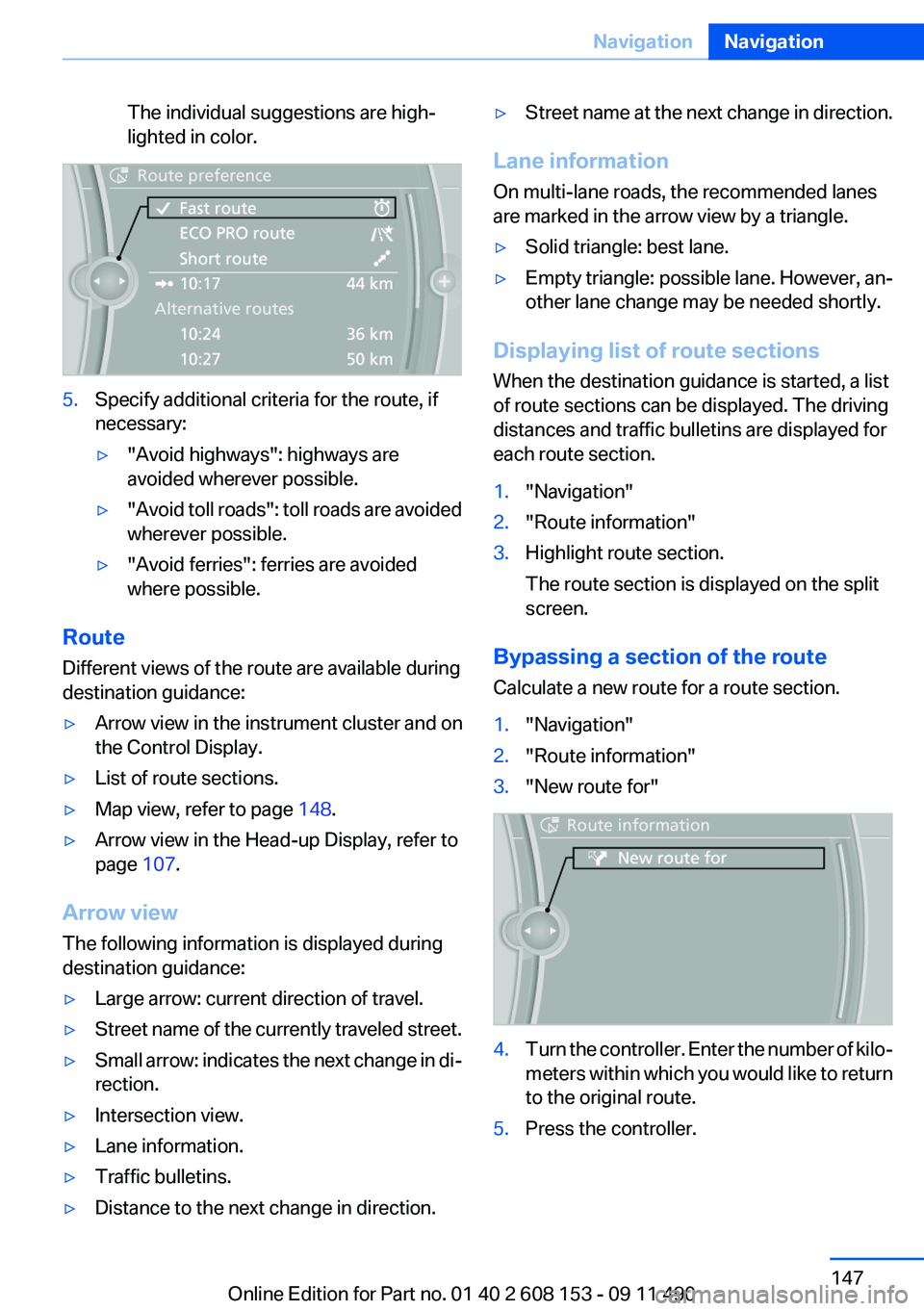
The individual suggestions are high‐
lighted in color.5.Specify additional criteria for the route, if
necessary:▷"Avoid highways": highways are
avoided wherever possible.▷" Avoid toll roads": toll roads are avoided
wherever possible.▷"Avoid ferries": ferries are avoided
where possible.
Route
Different views of the route are available during
destination guidance:
▷Arrow view in the instrument cluster and on
the Control Display.▷List of route sections.▷Map view, refer to page 148.▷Arrow view in the Head-up Display, refer to
page 107.
Arrow view
The following information is displayed during
destination guidance:
▷Large arrow: current direction of travel.▷Street name of the currently traveled street.▷Small arrow: indicates the next change in di‐
rection.▷Intersection view.▷Lane information.▷Traffic bulletins.▷Distance to the next change in direction.▷Street name at the next change in direction.
Lane information
On multi-lane roads, the recommended lanes
are marked in the arrow view by a triangle.
▷Solid triangle: best lane.▷Empty triangle: possible lane. However, an‐
other lane change may be needed shortly.
Displaying list of route sections
When the destination guidance is started, a list
of route sections can be displayed. The driving
distances and traffic bulletins are displayed for
each route section.
1."Navigation"2."Route information"3.Highlight route section.
The route section is displayed on the split
screen.
Bypassing a section of the route
Calculate a new route for a route section.
1."Navigation"2."Route information"3."New route for"4.Turn the controller. Enter the number of kilo‐
meters within which you would like to return
to the original route.5.Press the controller.Seite 147NavigationNavigation147
Online Edition for Part no. 01 40 2 608 153 - 09 11 490
Page 148 of 278
Resuming the original route
If the route section should no longer be by‐
passed:1."Navigation"2."Route information"3."New route for:"4."Remove blocking"
Gas station recommendation
The remaining range is calculated, and if nec‐
essary gas stations along the route are dis‐
played.
1."Navigation"2."Route information"3."Recommended refuel"
A list of the gas stations is displayed.4.Highlight a gas station.
The position of the gas station is displayed
on the split screen.5.Select the gas station.6. Select the symbol.7."Start guidance": destination guidance to
the selected gas station is started.
"Add as another destination": the gas sta‐
tion is added to the route.
Switching spoken instructions on/off
The setting is stored for the remote control cur‐
rently in use.
1."Navigation"2."Map"3. "Voice instructions"
Repeating spoken instructions
1."Navigation"2."Map"3. Highlight the symbol.4.Press the controller twice.Volume of spoken instructions
Turn the volume button while giving an instruc‐
tion until the desired volume is set.
Saving the spoken instructions on the
programmable memory buttons
The function for switching the spoken instruc‐
tions on/off can be stored on a programmable
memory button, refer to page 20, for quick ac‐
cess.
Map view
Selecting the map view1."Navigation"2."Map"
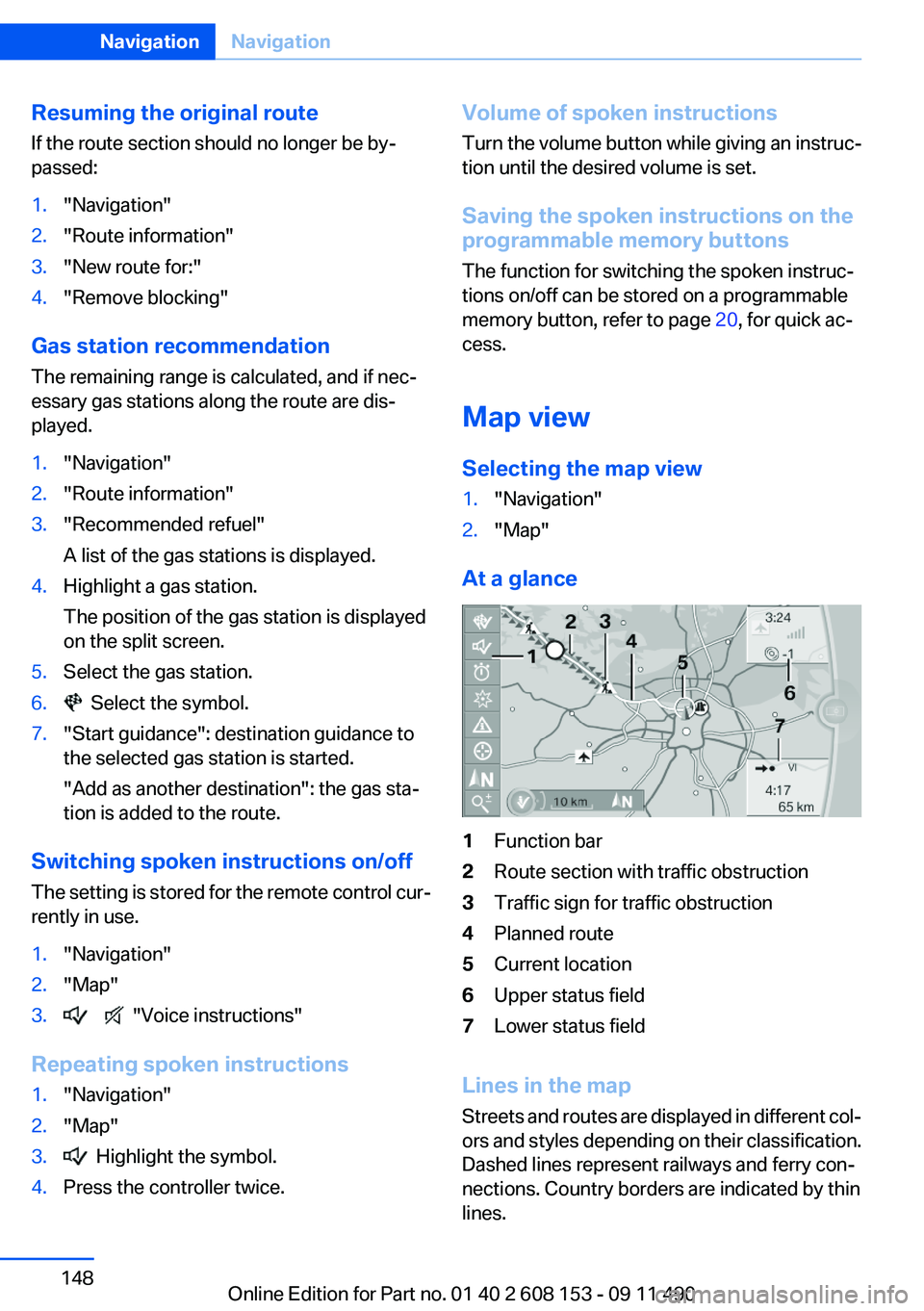
At a glance
1Function bar2Route section with traffic obstruction3Traffic sign for traffic obstruction4Planned route5Current location6Upper status field7Lower status field
Lines in the map
Streets and routes are displayed in different col‐
ors and styles depending on their classification.
Dashed lines represent railways and ferry con‐
nections. Country borders are indicated by thin
lines.
Seite 148NavigationNavigation148
Online Edition for Part no. 01 40 2 608 153 - 09 11 490
Page 149 of 278
Traffic obstructions
Small triangles along the planned route indicate
route sections with traffic obstructions, depend‐
ing on the map scale. The direction of the trian‐
gles indicates the direction of the obstruction.
The traffic signs indicate the significance of the
obstruction.▷Red traffic sign: the obstruction affects the
planned route or direction.▷Gray traffic sign: the obstruction does not
affect the planned route or direction.
Traffic bulletins, refer to page 150.
Planned route
After destination guidance is started, the plan‐
ned route is displayed on the map.
Status fields
Show/hide: press the controller.
▷Upper status field: time, telephone, and en‐
tertainment details.▷Lower status field: symbol for active desti‐
nation guidance, status of traffic bulletins,
time of arrival, and distance to destination.
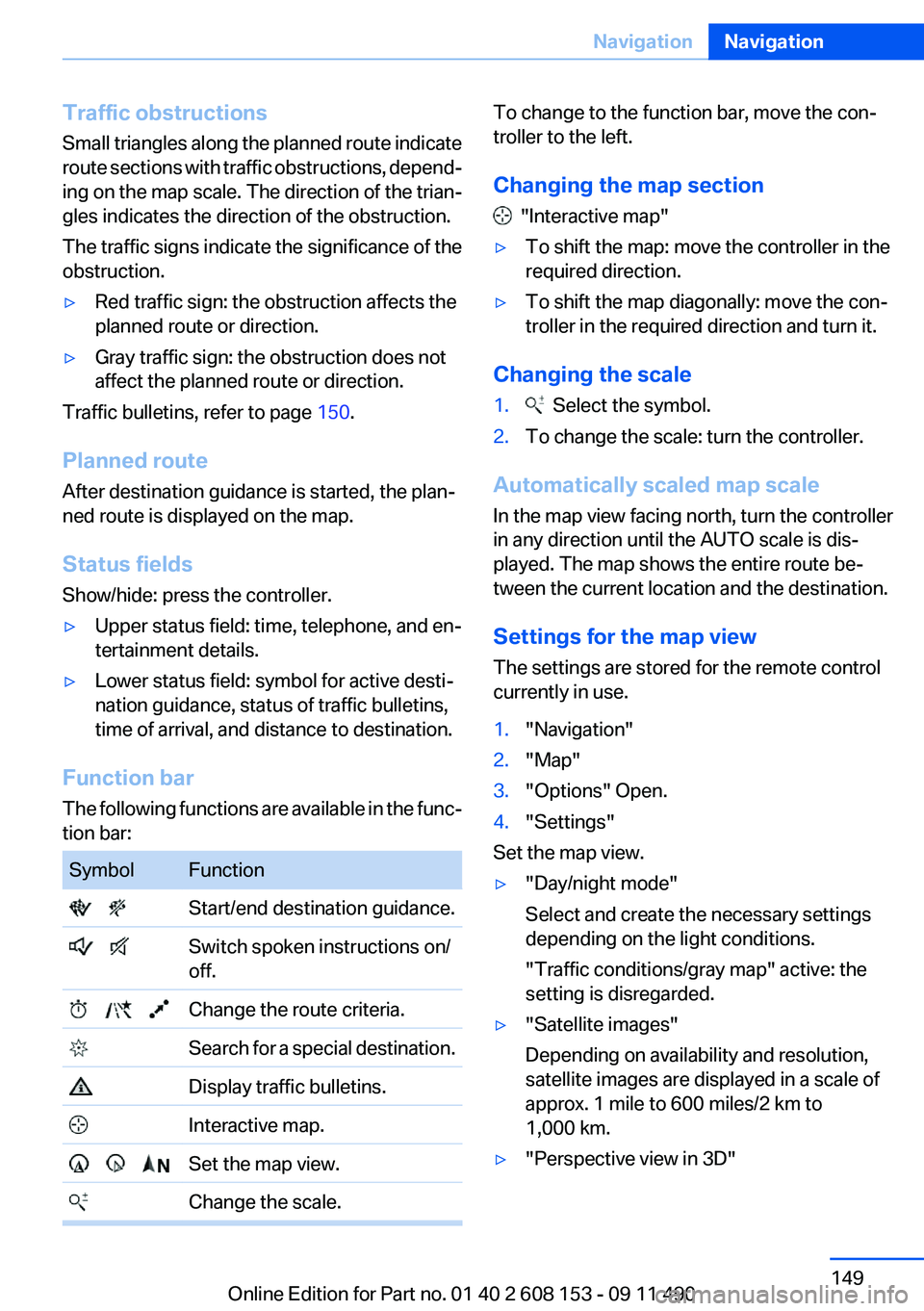
Function bar
The following functions are available in the func‐
tion bar:
SymbolFunction Start/end destination guidance. Switch spoken instructions on/
off. Change the route criteria. Search for a special destination. Display traffic bulletins. Interactive map. Set the map view. Change the scale.To change to the function bar, move the con‐
troller to the left.
Changing the map section
"Interactive map"
▷To shift the map: move the controller in the
required direction.▷To shift the map diagonally: move the con‐
troller in the required direction and turn it.
Changing the scale
1. Select the symbol.2.To change the scale: turn the controller.
Automatically scaled map scale
In the map view facing north, turn the controller
in any direction until the AUTO scale is dis‐
played. The map shows the entire route be‐
tween the current location and the destination.
Settings for the map view
The settings are stored for the remote control
currently in use.
1."Navigation"2."Map"3."Options" Open.4."Settings"
Set the map view.
▷"Day/night mode"
Select and create the necessary settings
depending on the light conditions.
"Traffic conditions/gray map" active: the
setting is disregarded.▷"Satellite images"
Depending on availability and resolution,
satellite images are displayed in a scale of
approx. 1 mile to 600 miles/2 km to
1,000 km.▷"Perspective view in 3D"Seite 149NavigationNavigation149
Online Edition for Part no. 01 40 2 608 153 - 09 11 490
Page 158 of 278
RadioVehicle equipment
All standard, country-specific and optional
equipment that is offered in the model series is
described in this chapter. Therefore, equipment
is also described that is not available in a vehicle,
e. g., because of the selected optional equip‐
ment or country variant. This also applies for
safety-related functions and systems.
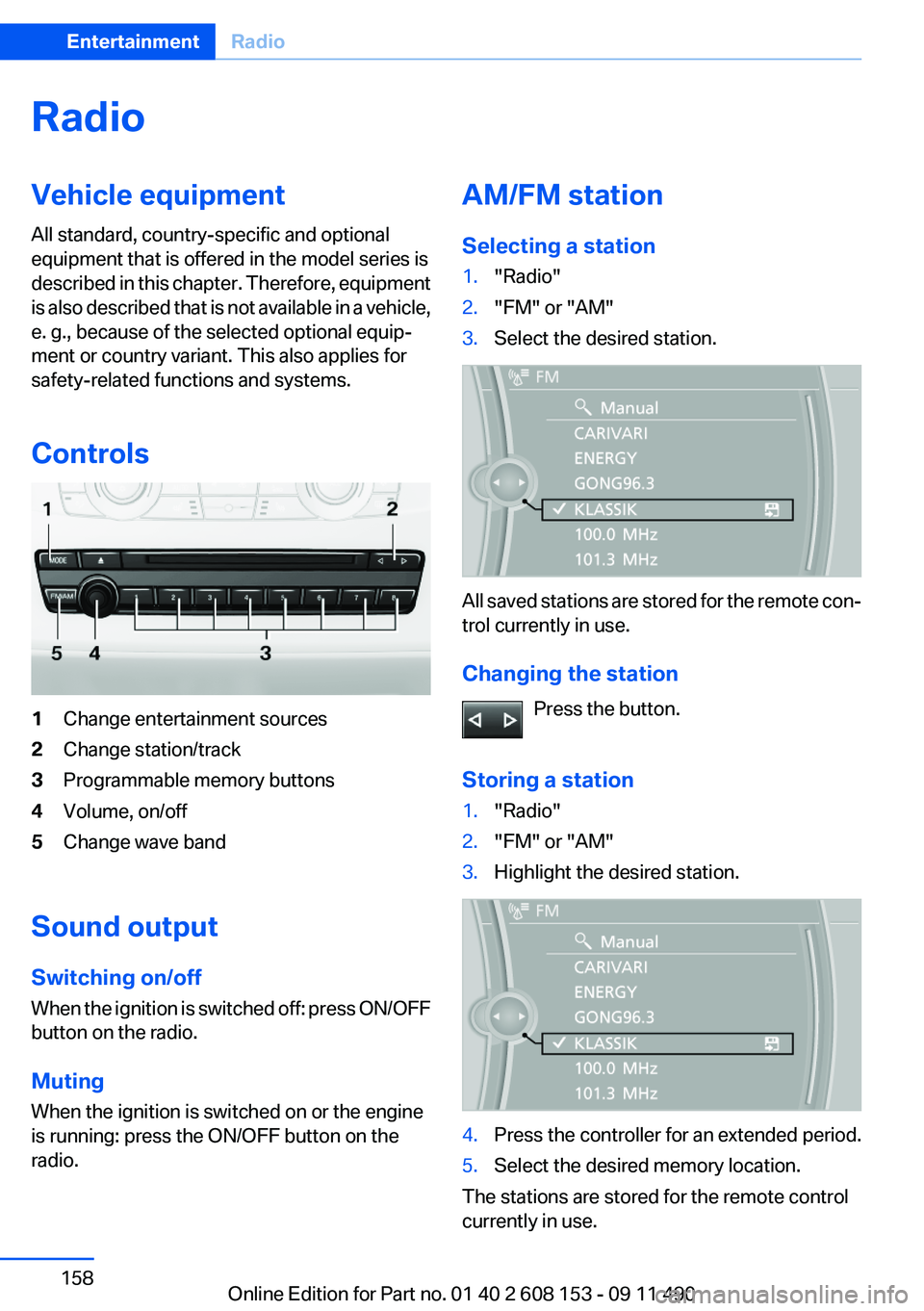
Controls1Change entertainment sources2Change station/track3Programmable memory buttons4Volume, on/off5Change wave band
Sound output
Switching on/off
When the ignition is switched off: press ON/OFF
button on the radio.
Muting
When the ignition is switched on or the engine
is running: press the ON/OFF button on the
radio.
AM/FM station
Selecting a station1."Radio"2."FM" or "AM"3.Select the desired station.
All saved stations are stored for the remote con‐
trol currently in use.
Changing the station Press the button.
Storing a station
1."Radio"2."FM" or "AM"3.Highlight the desired station.4.Press the controller for an extended period.5.Select the desired memory location.
The stations are stored for the remote control
currently in use.
Seite 158EntertainmentRadio158
Online Edition for Part no. 01 40 2 608 153 - 09 11 490