warning BMW X3 2017 Manual PDF
[x] Cancel search | Manufacturer: BMW, Model Year: 2017, Model line: X3, Model: BMW X3 2017Pages: 265, PDF Size: 5.37 MB
Page 139 of 265
▷Each time the rocker switch is pressed to
the point of resistance, the desired speed
increases or decreases by approx.
1 mph/1 km/h.▷Each time the rocker switch is pressed
past the point of resistance, the desired
speed increases or decreases by a maxi‐
mum of 5 mph/10 km/h.
Hold the rocker switch in position to repeat the
action.
Adjusting distance
Information WARNING
The system does not release from the
personal responsibility. Due to the system lim‐
its, braking can be late. There is risk of acci‐
dents or risk of property damage. Be aware to
the traffic situation at all times. Adjust the dis‐
tance to the traffic and weather conditions and
maintain the prescribed safety distance, possi‐
bly by braking.◀
Reduce distance Press button repeatedly until the de‐
sired distance is set.
Instrument cluster will display selected dis‐
tance, refer to page 139.
Increase distance Press button repeatedly until the de‐
sired distance is set.
Instrument cluster will display selected dis‐
tance, refer to page 139.
Continuing cruise control
General information An interrupted cruise control can be continued
by calling up the stored speed.
In the following cases, the stored speed value
is deleted and cannot be called up again:▷When the system is switched off.▷When the ignition is switched off.
Information
Make sure that the difference between current
speed and stored speed is not too large before
calling up the stored speed. Otherwise, unin‐
tentional braking or accelerating may occur.
Calling up stored speed and distance Press button with the system
switched on.
Displays in the instrument cluster
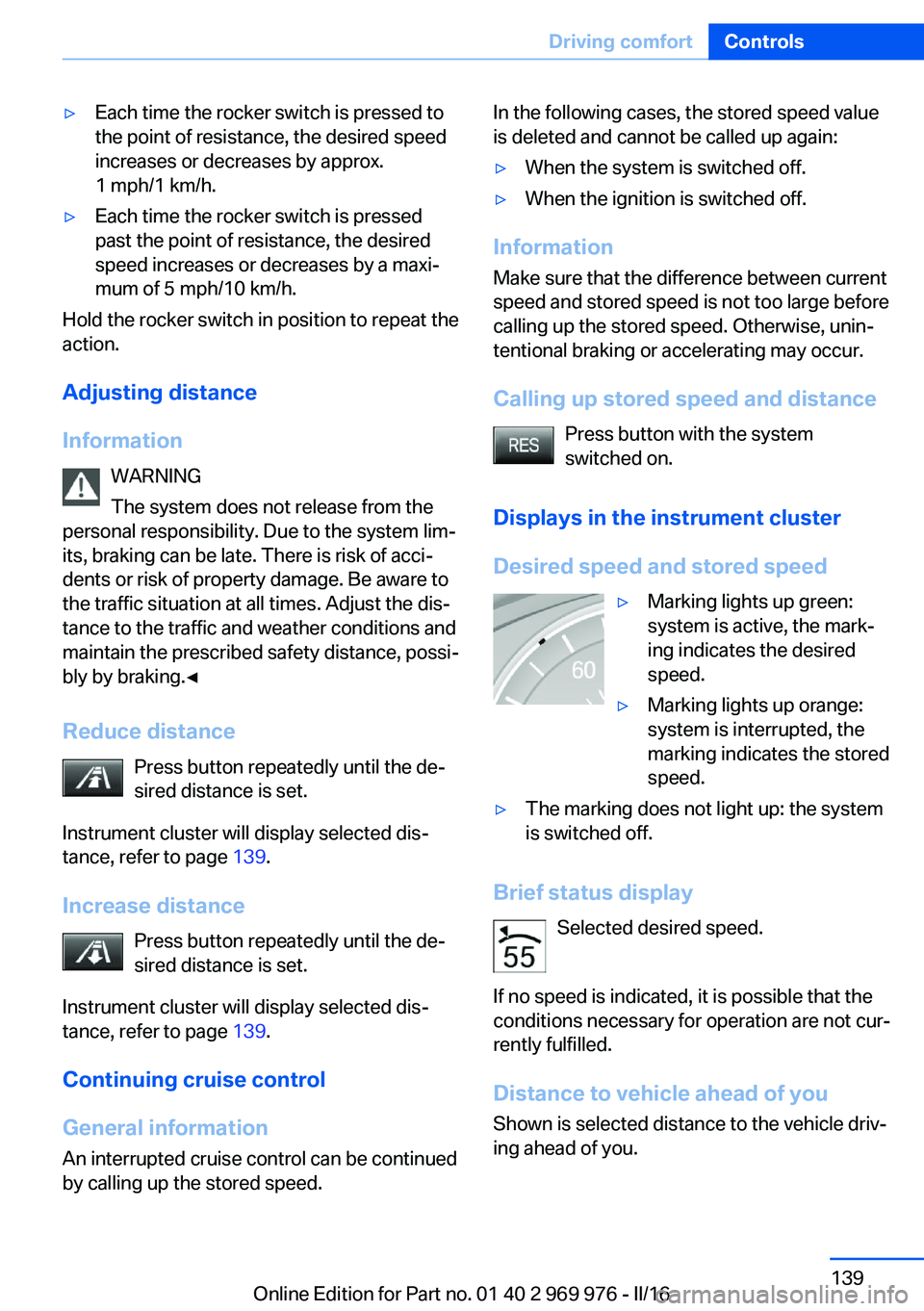
Desired speed and stored speed
▷Marking lights up green:
system is active, the mark‐
ing indicates the desired
speed.▷Marking lights up orange:
system is interrupted, the
marking indicates the stored
speed.▷The marking does not light up: the system
is switched off.
Brief status display
Selected desired speed.
If no speed is indicated, it is possible that the
conditions necessary for operation are not cur‐
rently fulfilled.
Distance to vehicle ahead of you Shown is selected distance to the vehicle driv‐
ing ahead of you.
Seite 139Driving comfortControls139
Online Edition for Part no. 01 40 2 969 976 - II/16
Page 140 of 265
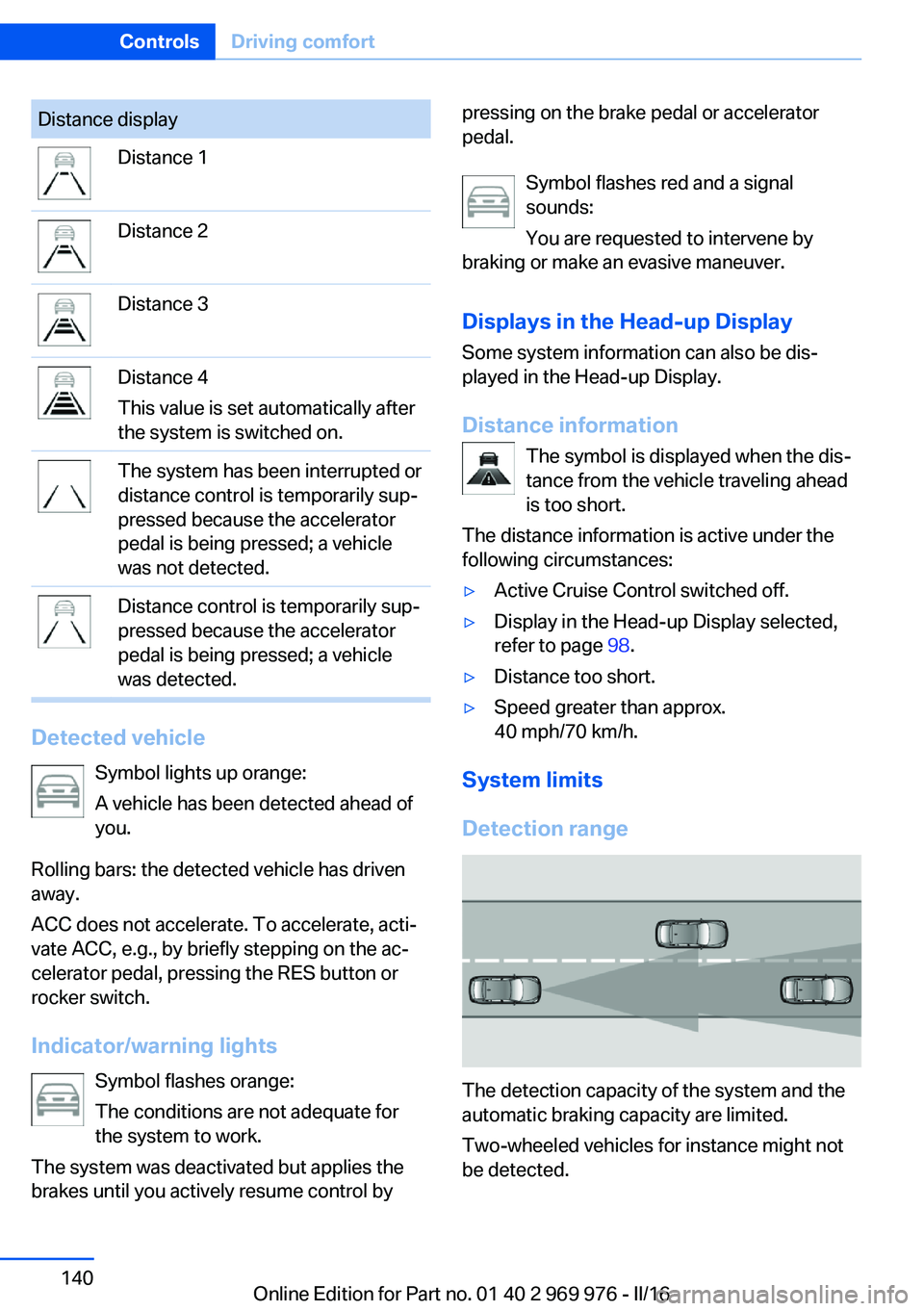
Distance displayDistance 1Distance 2Distance 3Distance 4
This value is set automatically after
the system is switched on.The system has been interrupted or
distance control is temporarily sup‐
pressed because the accelerator
pedal is being pressed; a vehicle
was not detected.Distance control is temporarily sup‐
pressed because the accelerator
pedal is being pressed; a vehicle
was detected.
Detected vehicle
Symbol lights up orange:
A vehicle has been detected ahead of
you.
Rolling bars: the detected vehicle has driven
away.
ACC does not accelerate. To accelerate, acti‐
vate ACC, e.g., by briefly stepping on the ac‐
celerator pedal, pressing the RES button or
rocker switch.
Indicator/warning lights Symbol flashes orange:
The conditions are not adequate for
the system to work.
The system was deactivated but applies the
brakes until you actively resume control by
pressing on the brake pedal or accelerator
pedal.
Symbol flashes red and a signal
sounds:
You are requested to intervene by
braking or make an evasive maneuver.
Displays in the Head-up Display Some system information can also be dis‐
played in the Head-up Display.
Distance information The symbol is displayed when the dis‐tance from the vehicle traveling ahead
is too short.
The distance information is active under the
following circumstances:▷Active Cruise Control switched off.▷Display in the Head-up Display selected,
refer to page 98.▷Distance too short.▷Speed greater than approx.
40 mph/70 km/h.
System limits
Detection range
The detection capacity of the system and the
automatic braking capacity are limited.
Two-wheeled vehicles for instance might not
be detected.
Seite 140ControlsDriving comfort140
Online Edition for Part no. 01 40 2 969 976 - II/16
Page 142 of 265
Weather
In the event of unfavorable weather and light conditions, e. g. if there is rain, snowfall, slush,
fog or glare, this may result in poorer recogni‐
tion of vehicles as well as short-term interrup‐
tions for vehicles that are already detected. Drive attentively, and react to the current trafficsituation. If necessary, intervene actively, for
example by braking, steering or evading.
Engine power The desired speed is also maintained downhill,but may not be maintained on uphill grades if
engine power is insufficient.
Malfunction
The system cannot be activated if the radar
sensor is not aligned correctly. This may be
caused by damage incurred during parking, for
example.
A Check Control message is displayed if the
system fails.
The function for detecting and responding
when approaching stationary vehicles may be
limited in the following situations:▷During calibration of the camera immedi‐
ately after vehicle delivery.▷If the camera is malfunctioning or dirty. A
Check Control message is displayed.
Cruise control
The concept Using this system, a desired speed can be ad‐
justed using the buttons on the steering wheel.
The system maintains the desired speed. The
system accelerates and brakes automatically
as needed.
General information
Depending on the driving settings, the features
of the cruise control can change in certain
areas.
Information
WARNING
The system does not release from the
personal responsibility to correctly assess the
traffic situation. Based on the limits of the sys‐
tem, it cannot independently react to all traffic
situations. There is risk of an accident. Adjust
the driving style to the traffic conditions. Watch
traffic closely and actively intervene in the re‐
spective situations.◀
WARNING
The use of the system can lead to an in‐
creased risk of accidents in the following situa‐
tions:▷On winding roads.▷In heavy traffic.▷On slippery roads, in fog, snow or rain, or
on a loose road surface.
There is risk of accidents or risk of property
damage. Only use the system if driving at con‐
stant speed is possible.◀
WARNING
The desired speed can be incorrectly ad‐
justed or called up by mistake. There is risk of
an accident. Adjust the desired speed to the
traffic conditions. Watch traffic closely and ac‐
tively intervene in the respective situations.◀
Overview
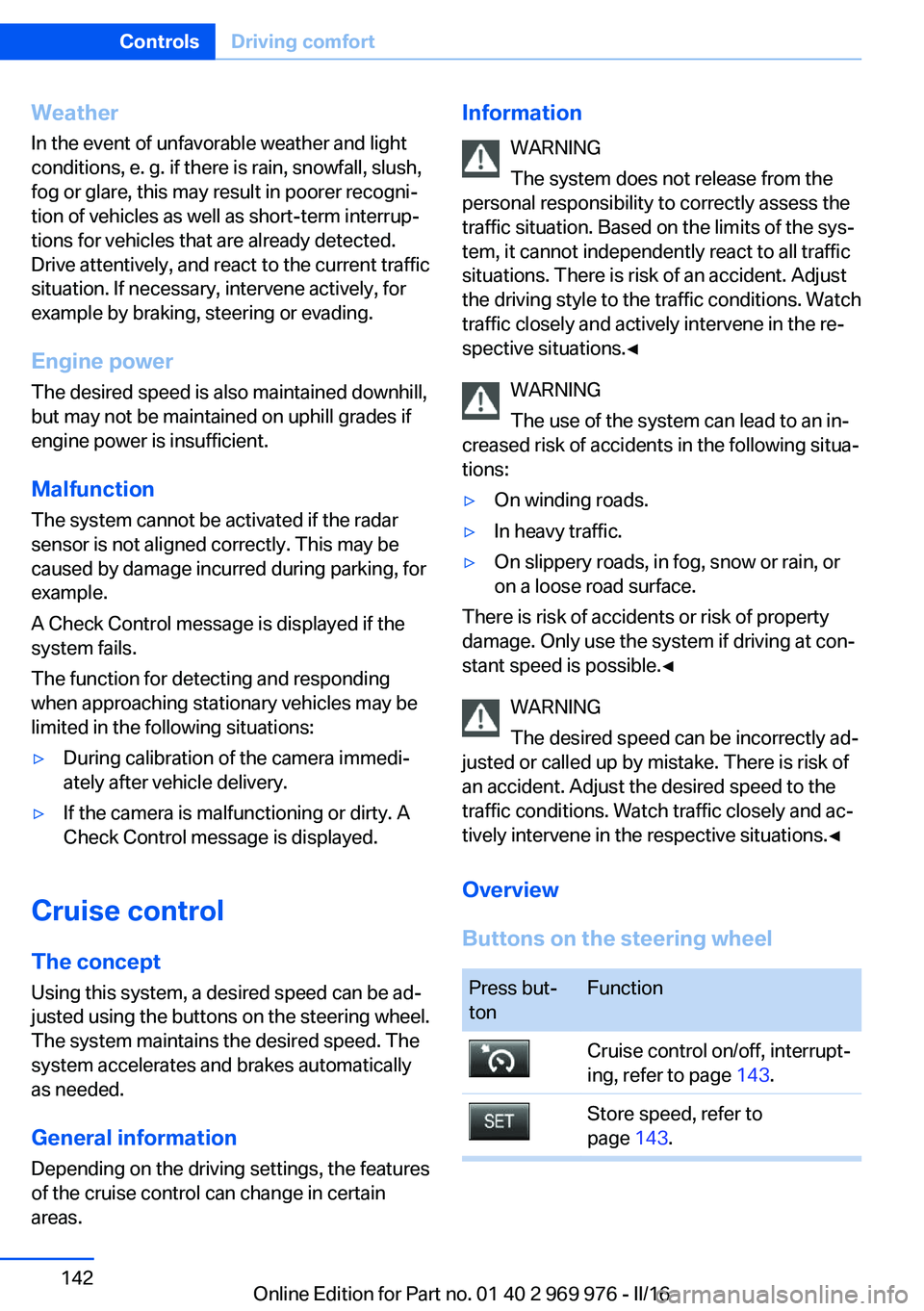
Buttons on the steering wheel
Press but‐
tonFunctionCruise control on/off, interrupt‐
ing, refer to page 143.Store speed, refer to
page 143.Seite 142ControlsDriving comfort142
Online Edition for Part no. 01 40 2 969 976 - II/16
Page 145 of 265
Displays in the Head-up DisplaySome system information can also be dis‐
played in the Head-up Display.
System limits
Engine power The desired speed is also maintained downhill,
but may not be maintained on uphill grades if
engine power is insufficient.
PDC Park Distance Control
The concept PDC is a support when parking. When you
slowly approach an object in the rear - or also
in the front of the vehicle if the feature is availa‐
ble - then the object is reported through:▷Signal tones.▷Visual display.
General information
Ultrasound sensors in the bumpers measure
the distances from objects.
The maneuvering range, depending on the ob‐
stacle and environmental conditions, is approx.
6 ft/2 m.
An acoustic warning is first given with the fol‐
lowing circumstances:
▷By the front sensors and the two rear cor‐
ner sensors at approx. 24 inches/60 cm.▷By the rear middle sensors at approx.
5 ft/1.50 m.▷When a collision is imminent.
Information
WARNING
The system does not release from the
personal responsibility to correctly assess the
traffic situation. Based on the limits of the sys‐
tem, it cannot independently react to all traffic
situations. There is risk of an accident. Adjust
the driving style to the traffic conditions. Watch
traffic closely and actively intervene in the re‐
spective situations.◀
WARNING
Due to high speeds when PDC is acti‐
vated, the warning can be delayed due to
physical circumstances. There is a risk of injury
or risk of property damage. Avoid approaching
an object too fast. Avoid driving off fast while
PDC is not yet active.◀
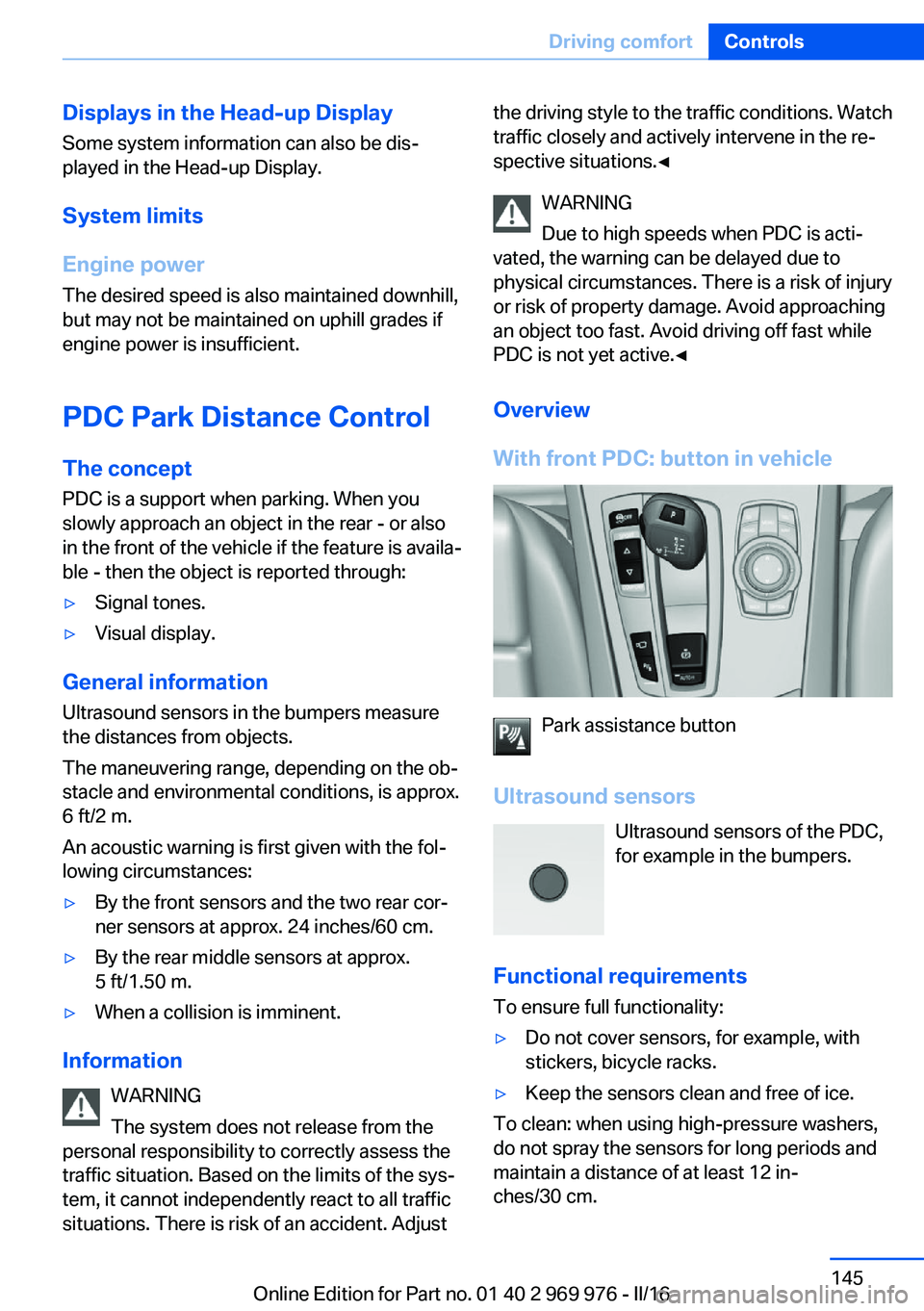
Overview
With front PDC: button in vehicle
Park assistance button
Ultrasound sensors Ultrasound sensors of the PDC,
for example in the bumpers.
Functional requirements
To ensure full functionality:
▷Do not cover sensors, for example, with
stickers, bicycle racks.▷Keep the sensors clean and free of ice.
To clean: when using high-pressure washers,
do not spray the sensors for long periods and
maintain a distance of at least 12 in‐
ches/30 cm.
Seite 145Driving comfortControls145
Online Edition for Part no. 01 40 2 969 976 - II/16
Page 146 of 265
Switching on/off
Switching on automatically PDC switches on automatically in the following
situations:▷If selector lever position R is engaged
when the engine is running.
The rearview camera also switches on.▷If equipped with front PDC: when obsta‐
cles are detected behind or in front of the
vehicle by PDC and the speed is slower
than approx. 2.5 mph/4 km/h.
You may turn off automatic activation:
1."Settings"2."Parking"3.Select setting.
Settings are stored for the profile currently
used.
If necessary, switch off automatic PDC activa‐
tion on obstacle detection, for example in car
washes, to reduce false alarms.
Automatic deactivation during forward
travel
The system switches off when a certain driving
distance or speed is exceeded.
Switch the system back on if needed.
With front PDC: switching on/off
manually
Press park assistance button.
▷On: the LED lights up.▷Off: the LED goes out.
The rearview camera image is displayed when
the reverse gear is engaged when pressing the
park assistance button.
Display
Signal tones When approaching an object, an intermittent
sound indicates the position of the object. E.g.
if an object is detected to the left rear of the
vehicle, a signal tone sounds from the left rear
speaker.
The shorter the distance to the object, the shorter the intervals.
If the distance to a detected object is less than
approx. 10 inches/25 cm, a continuous tone is
sounded.
With front PDC: if objects are located both in
front of and behind the vehicle, an alternating
continuous signal is sounded.
The signal tone is switched off, when selector
lever position P is engaged on vehicles with
Steptronic transmission.
Volume The ratio of the PDC signal tone volume to the
entertainment volume can be adjusted.1."Multimedia", "Radio" or "Settings"2."Tone"3."Volume settings"4."PDC"5.Turn the Controller until the desired set‐
ting is selected.6.Press the Controller.
Settings are stored for the profile currently
used.
Visual warning
The approach of the vehicle to an object can
be shown on the Control Display. Objects that
are farther away are already displayed on the
Control Display before a signal sounds.
A display appears as soon as Park Distance
Control (PDC) is activated.
The range of the sensors is represented in the
colors green, yellow and red.
Seite 146ControlsDriving comfort146
Online Edition for Part no. 01 40 2 969 976 - II/16
Page 147 of 265
When the image of the rearview camera is dis‐
played, the switch can be made to PDC:
"Rear view camera"
System limits
Information WARNING
The system can react incorrectly or not
at all due to the system limits. There is risk of
accidents or risk of property damage. Observe
the information regarding the system limits
and actively intervene, if needed.◀
Limits of ultrasonic measurement Ultrasonic measuring might not function under
the following circumstances:
▷For small children and animals.▷For persons with certain clothing, for ex‐
ample coats.▷With external interference of the ultra‐
sound, for example from passing vehicles
or loud machines.▷When sensors are dirty, iced over, dam‐
aged or out of position.▷Under certain weather conditions such as
high relative humidity, rain, snowfall, ex‐
treme heat or strong wind.▷With tow bars and trailer couplings of other
vehicles.▷With thin or wedge-shaped objects.▷With moving objects.▷With elevated, protruding objects such as
ledges or cargo.▷With objects with corners and sharp edges.▷With objects with a fine surface structure
such as fences.▷For objects with porous surfaces.▷If cargo protrudes.Low objects already displayed, for example,
curbs, can move into the blind area of the sen‐
sors before or after a continuous tone sounds.
False warnings
PDC may issue a warning under the following
conditions even though there is no obstacle
within the detection range:▷In heavy rain.▷When sensors are very dirty or covered
with ice.▷When sensors are covered in snow.▷On rough road surfaces.▷On uneven surfaces, such as speed
bumps.▷In large buildings with right angles and
smooth walls, for example, in underground
garages.▷In automatic car washes.▷Through heavy pollution.▷Due to other ultrasound sources, for exam‐
ple, sweeping machines, high pressure
steam cleaners or neon lights.
If necessary, switch off automatic PDC activa‐
tion on obstacle detection, for example in car
washes, to reduce false alarms.
Malfunction
A Check Control message is displayed.
The range of the sensors is shown as a shaded
area on the Control Display.
PDC has failed. Have the system checked.
Surround View
The concept Surround View comprises various camera as‐
sistance systems that help the driver when
parking, maneuvering, and at complex exits
and intersections.
▷Rearview camera, refer to page 148.Seite 147Driving comfortControls147
Online Edition for Part no. 01 40 2 969 976 - II/16
Page 148 of 265
▷Top View, refer to page 150.▷Side View, refer to page 152.
Rearview camera
The concept The rearview camera provides assistance in
parking and maneuvering backwards. The area
behind the vehicle is shown on the Control
Display.
Information WARNING
The system does not relieve from the
personal responsibility to correctly assess the
traffic situation. There is risk of an accident.
Adjust the driving style to the traffic condi‐ tions. Watch traffic and vehicle surroundings
closely and actively intervene in the respective
situations.◀
Overview
Button in the vehicle
Park assistance button
Camera
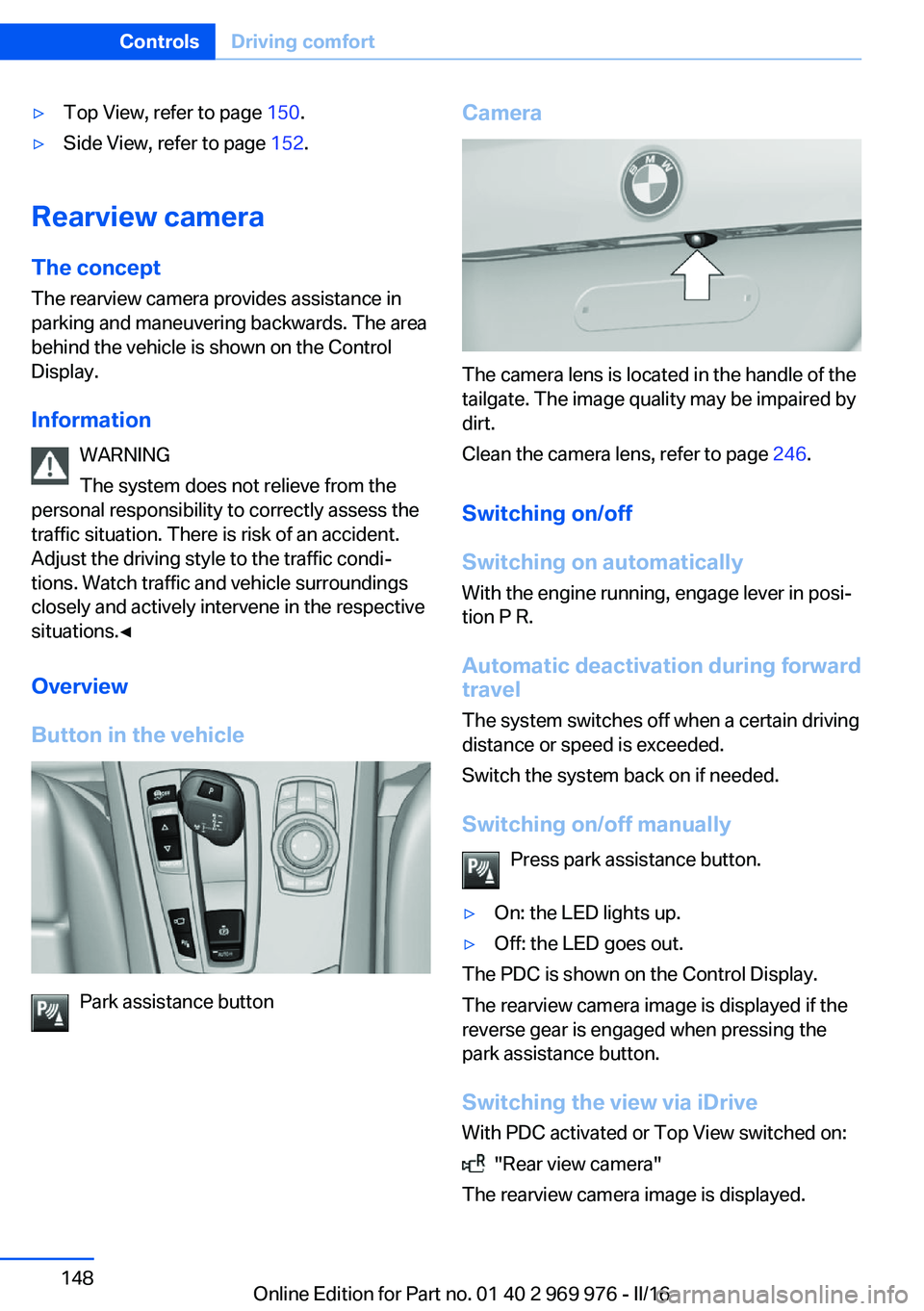
The camera lens is located in the handle of the
tailgate. The image quality may be impaired by
dirt.
Clean the camera lens, refer to page 246.
Switching on/off
Switching on automatically With the engine running, engage lever in posi‐
tion P R.
Automatic deactivation during forward travel
The system switches off when a certain driving
distance or speed is exceeded.
Switch the system back on if needed.
Switching on/off manually Press park assistance button.
▷On: the LED lights up.▷Off: the LED goes out.
The PDC is shown on the Control Display.
The rearview camera image is displayed if the
reverse gear is engaged when pressing the
park assistance button.
Switching the view via iDrive With PDC activated or Top View switched on:
"Rear view camera"
The rearview camera image is displayed.
Seite 148ControlsDriving comfort148
Online Edition for Part no. 01 40 2 969 976 - II/16
Page 150 of 265
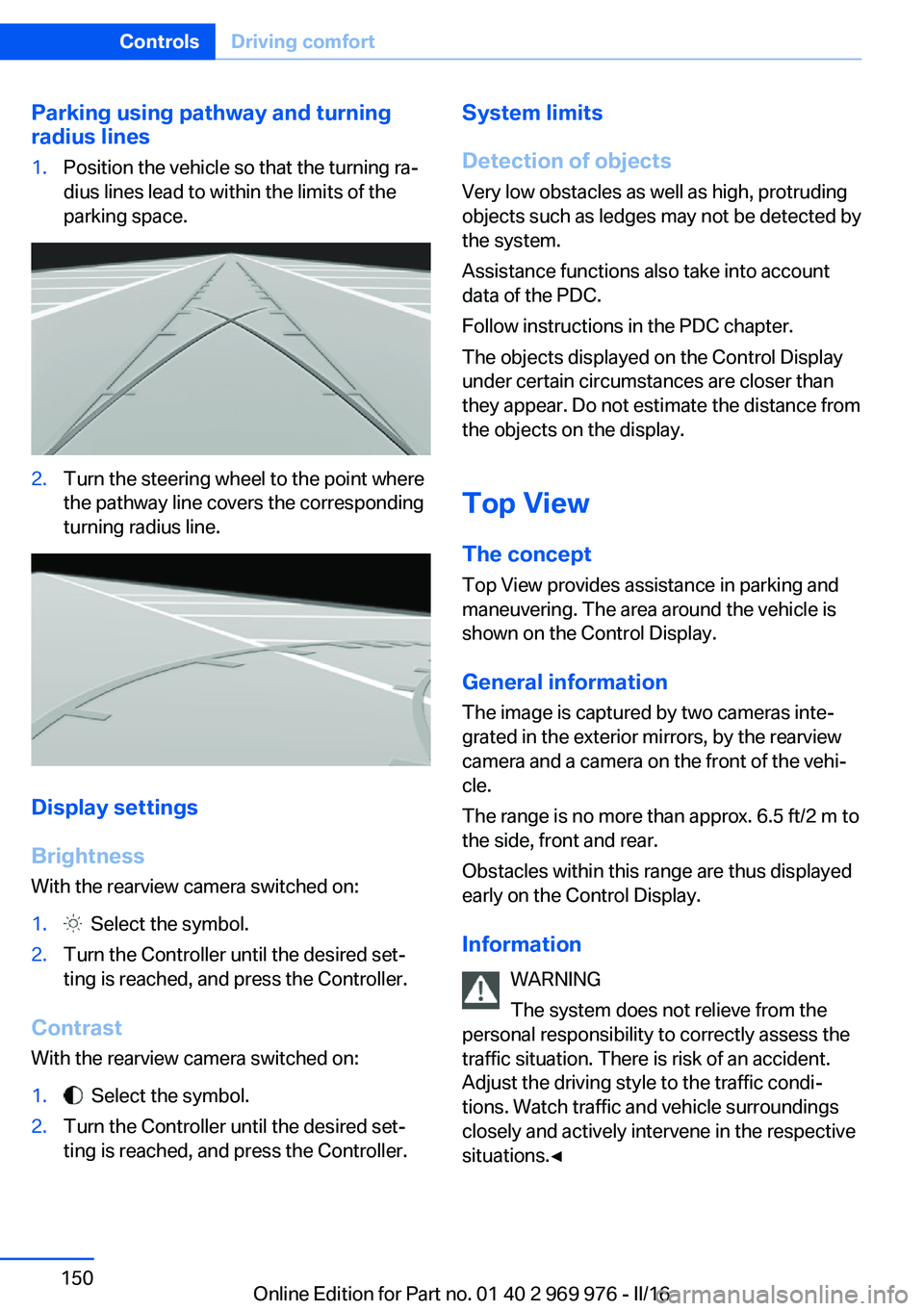
Parking using pathway and turning
radius lines1.Position the vehicle so that the turning ra‐
dius lines lead to within the limits of the
parking space.2.Turn the steering wheel to the point where
the pathway line covers the corresponding
turning radius line.
Display settings
Brightness
With the rearview camera switched on:
1. Select the symbol.2.Turn the Controller until the desired set‐
ting is reached, and press the Controller.
Contrast
With the rearview camera switched on:
1. Select the symbol.2.Turn the Controller until the desired set‐
ting is reached, and press the Controller.System limits
Detection of objects
Very low obstacles as well as high, protruding
objects such as ledges may not be detected by
the system.
Assistance functions also take into account
data of the PDC.
Follow instructions in the PDC chapter.
The objects displayed on the Control Display
under certain circumstances are closer than
they appear. Do not estimate the distance from
the objects on the display.
Top View
The concept Top View provides assistance in parking and
maneuvering. The area around the vehicle is
shown on the Control Display.
General information
The image is captured by two cameras inte‐
grated in the exterior mirrors, by the rearview
camera and a camera on the front of the vehi‐
cle.
The range is no more than approx. 6.5 ft/2 m to
the side, front and rear.
Obstacles within this range are thus displayed
early on the Control Display.
Information WARNING
The system does not relieve from the
personal responsibility to correctly assess the
traffic situation. There is risk of an accident.
Adjust the driving style to the traffic condi‐ tions. Watch traffic and vehicle surroundings
closely and actively intervene in the respective
situations.◀Seite 150ControlsDriving comfort150
Online Edition for Part no. 01 40 2 969 976 - II/16
Page 152 of 265
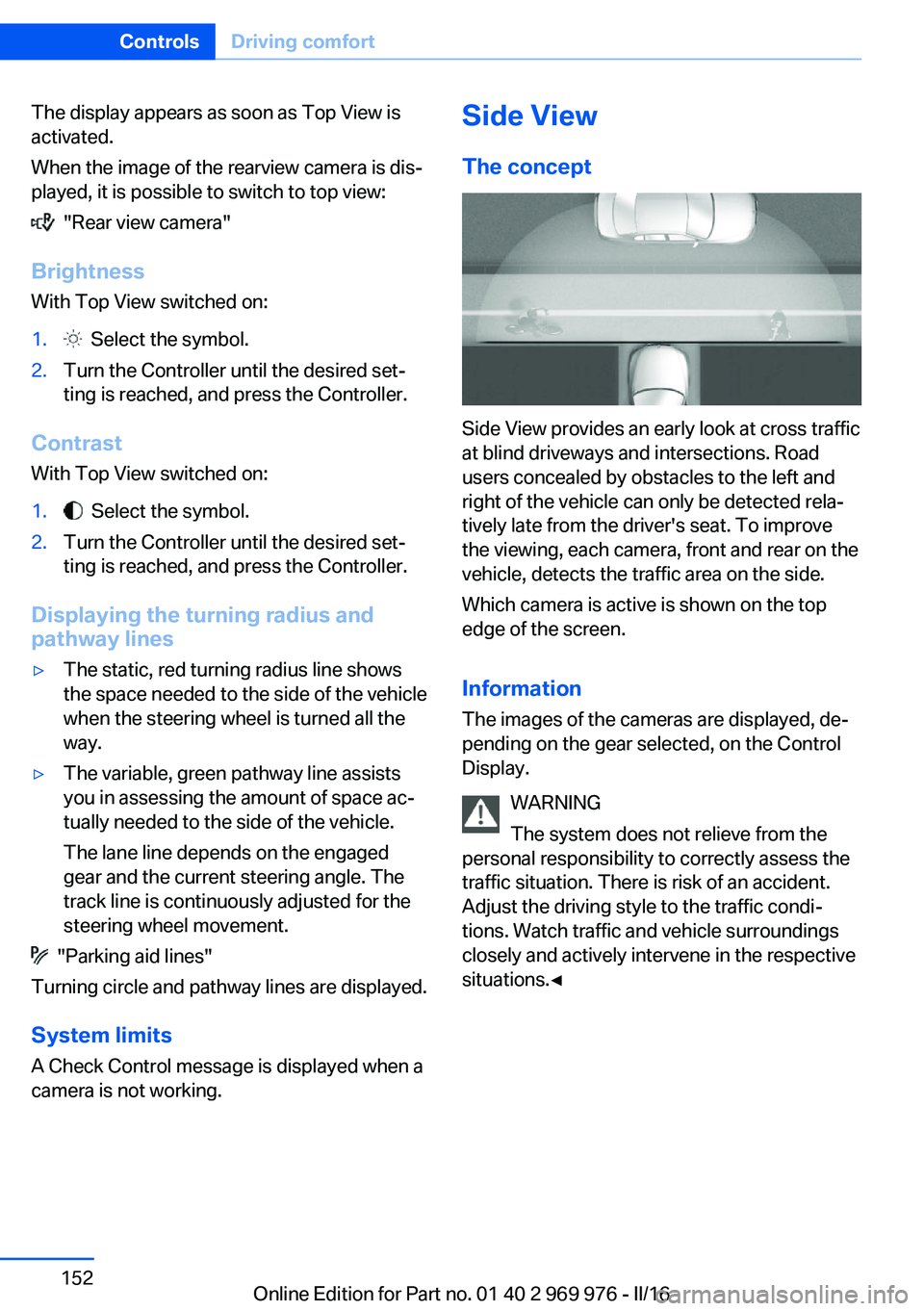
The display appears as soon as Top View is
activated.
When the image of the rearview camera is dis‐
played, it is possible to switch to top view:
"Rear view camera"
Brightness
With Top View switched on:
1. Select the symbol.2.Turn the Controller until the desired set‐
ting is reached, and press the Controller.
Contrast
With Top View switched on:
1. Select the symbol.2.Turn the Controller until the desired set‐
ting is reached, and press the Controller.
Displaying the turning radius and
pathway lines
▷The static, red turning radius line shows
the space needed to the side of the vehicle
when the steering wheel is turned all the
way.▷The variable, green pathway line assists
you in assessing the amount of space ac‐
tually needed to the side of the vehicle.
The lane line depends on the engaged
gear and the current steering angle. The
track line is continuously adjusted for the
steering wheel movement.
"Parking aid lines"
Turning circle and pathway lines are displayed.
System limits
A Check Control message is displayed when a
camera is not working.
Side View
The concept
Side View provides an early look at cross traffic
at blind driveways and intersections. Road
users concealed by obstacles to the left and
right of the vehicle can only be detected rela‐
tively late from the driver's seat. To improve
the viewing, each camera, front and rear on the
vehicle, detects the traffic area on the side.
Which camera is active is shown on the top
edge of the screen.
Information The images of the cameras are displayed, de‐
pending on the gear selected, on the Control
Display.
WARNING
The system does not relieve from the
personal responsibility to correctly assess the
traffic situation. There is risk of an accident.
Adjust the driving style to the traffic condi‐
tions. Watch traffic and vehicle surroundings
closely and actively intervene in the respective
situations.◀
Seite 152ControlsDriving comfort152
Online Edition for Part no. 01 40 2 969 976 - II/16
Page 153 of 265
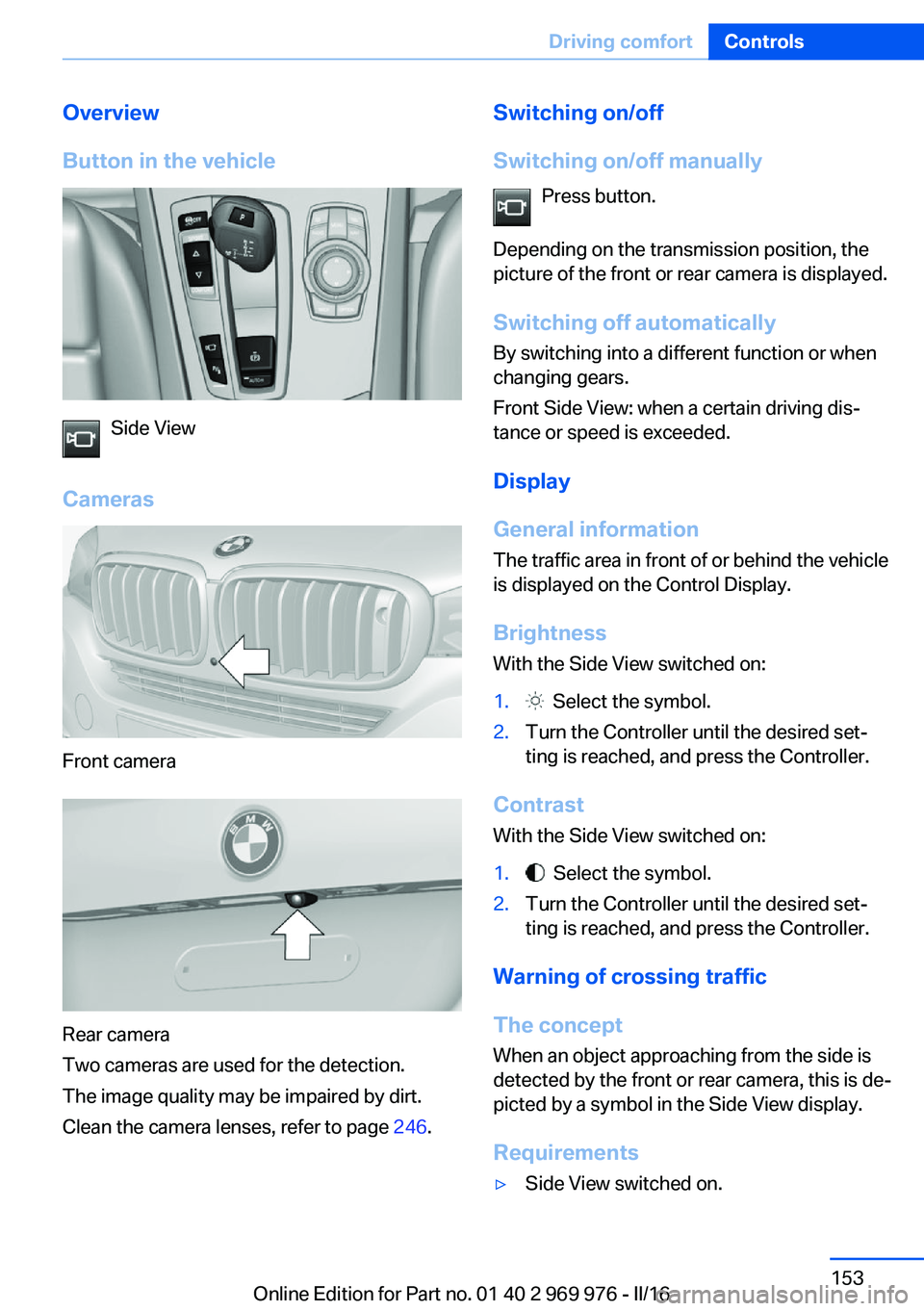
Overview
Button in the vehicle
Side View
Cameras
Front camera
Rear camera
Two cameras are used for the detection.
The image quality may be impaired by dirt.
Clean the camera lenses, refer to page 246.
Switching on/off
Switching on/off manually Press button.
Depending on the transmission position, the
picture of the front or rear camera is displayed.
Switching off automaticallyBy switching into a different function or when
changing gears.
Front Side View: when a certain driving dis‐ tance or speed is exceeded.
Display
General information The traffic area in front of or behind the vehicle
is displayed on the Control Display.
Brightness
With the Side View switched on:1. Select the symbol.2.Turn the Controller until the desired set‐
ting is reached, and press the Controller.
Contrast
With the Side View switched on:
1. Select the symbol.2.Turn the Controller until the desired set‐
ting is reached, and press the Controller.
Warning of crossing traffic
The concept When an object approaching from the side is
detected by the front or rear camera, this is de‐
picted by a symbol in the Side View display.
Requirements
▷Side View switched on.Seite 153Driving comfortControls153
Online Edition for Part no. 01 40 2 969 976 - II/16