display BMW X3 XDRIVE 28I 2011 Owners Manual
[x] Cancel search | Manufacturer: BMW, Model Year: 2011, Model line: X3 XDRIVE 28I, Model: BMW X3 XDRIVE 28I 2011Pages: 262, PDF Size: 11.2 MB
Page 190 of 262
The appointments on the current day are
displayed.
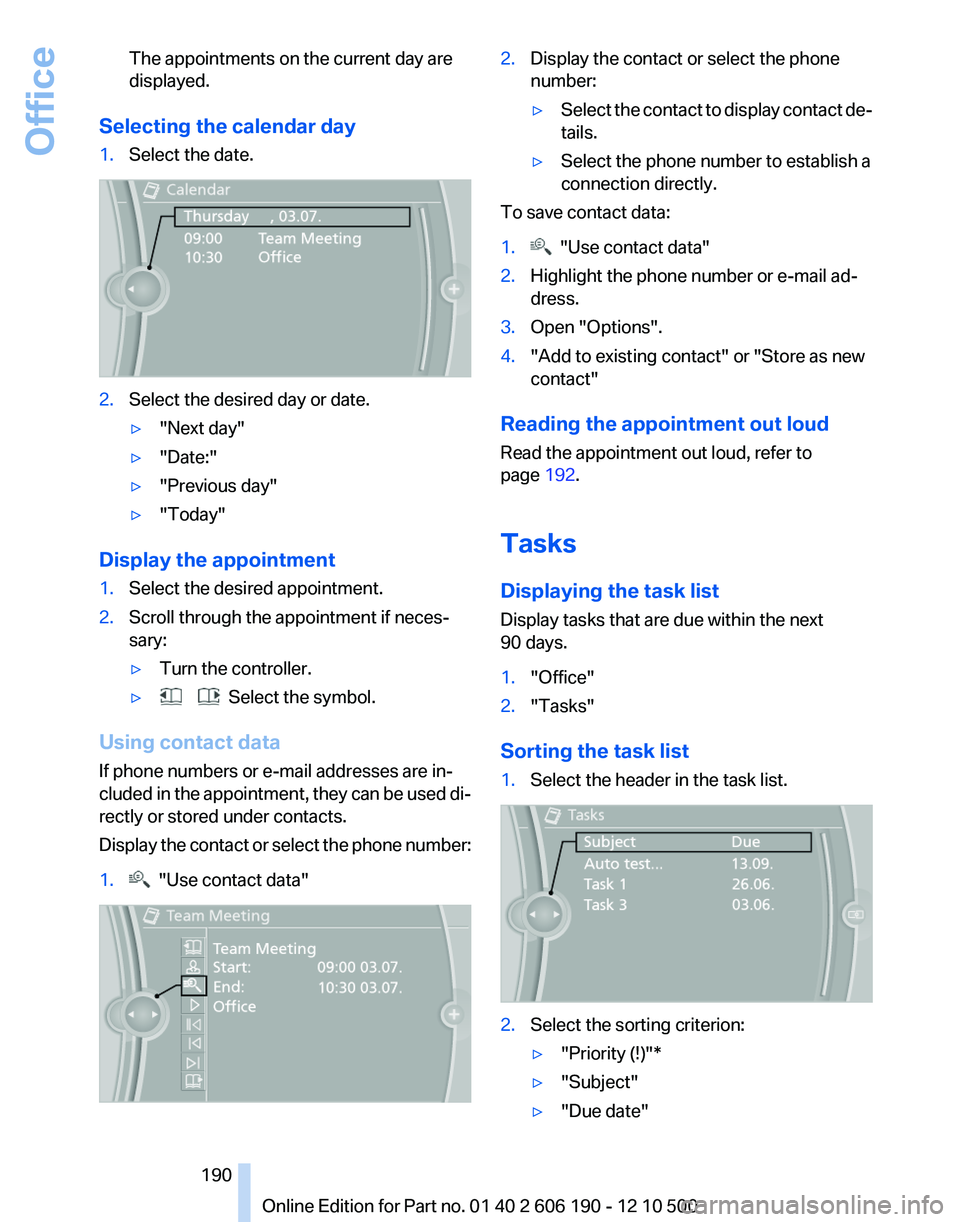
Selecting the calendar day
1.Select the date.2.Select the desired day or date.▷"Next day"▷"Date:"▷"Previous day"▷"Today"
Display the appointment
1.Select the desired appointment.2.Scroll through the appointment if neces‐
sary:▷Turn the controller.▷ Select the symbol.
Using contact data
If phone numbers or e-mail addresses are in‐
cluded in the appointment, they can be used di‐
rectly or stored under contacts.
Display the contact or select the phone number:
1. "Use contact data"2.Display the contact or select the phone
number:▷Select the contact to display contact de‐
tails.▷Select the phone number to establish a
connection directly.
To save contact data:
1. "Use contact data"2.Highlight the phone number or e-mail ad‐
dress.3.Open "Options".4."Add to existing contact" or "Store as new
contact"
Reading the appointment out loud
Read the appointment out loud, refer to
page 192.
Tasks
Displaying the task list
Display tasks that are due within the next
90 days.
1."Office"2."Tasks"
Sorting the task list
1.Select the header in the task list.2.Select the sorting criterion:▷"Priority (!)"*▷"Subject"▷"Due date"Seite 190190
Online Edition for Part no. 01 40 2 606 190 - 12 10 500Office
Page 191 of 262
Displaying the task1.Select the desired task.2.Scroll in the task if necessary:▷Turn the controller.▷ Select the symbol.
Using contact data
If phone numbers of e-mail addresses are in‐
cluded in the task, they can be used directly or
stored under contacts.
Display the contact or select the phone number:
1. "Use contact data"▷Select the contact to display contact de‐
tails.▷Select the phone number to establish a
connection directly.
To save contact data:
1. "Use contact data"2.Highlight the phone number or e-mail ad‐
dress.3.Open "Options".4."Add to existing contact" or "Store as new
contact"
Reading the task out loud
Read the task out loud, refer to page 192.
Notes
Displaying notes
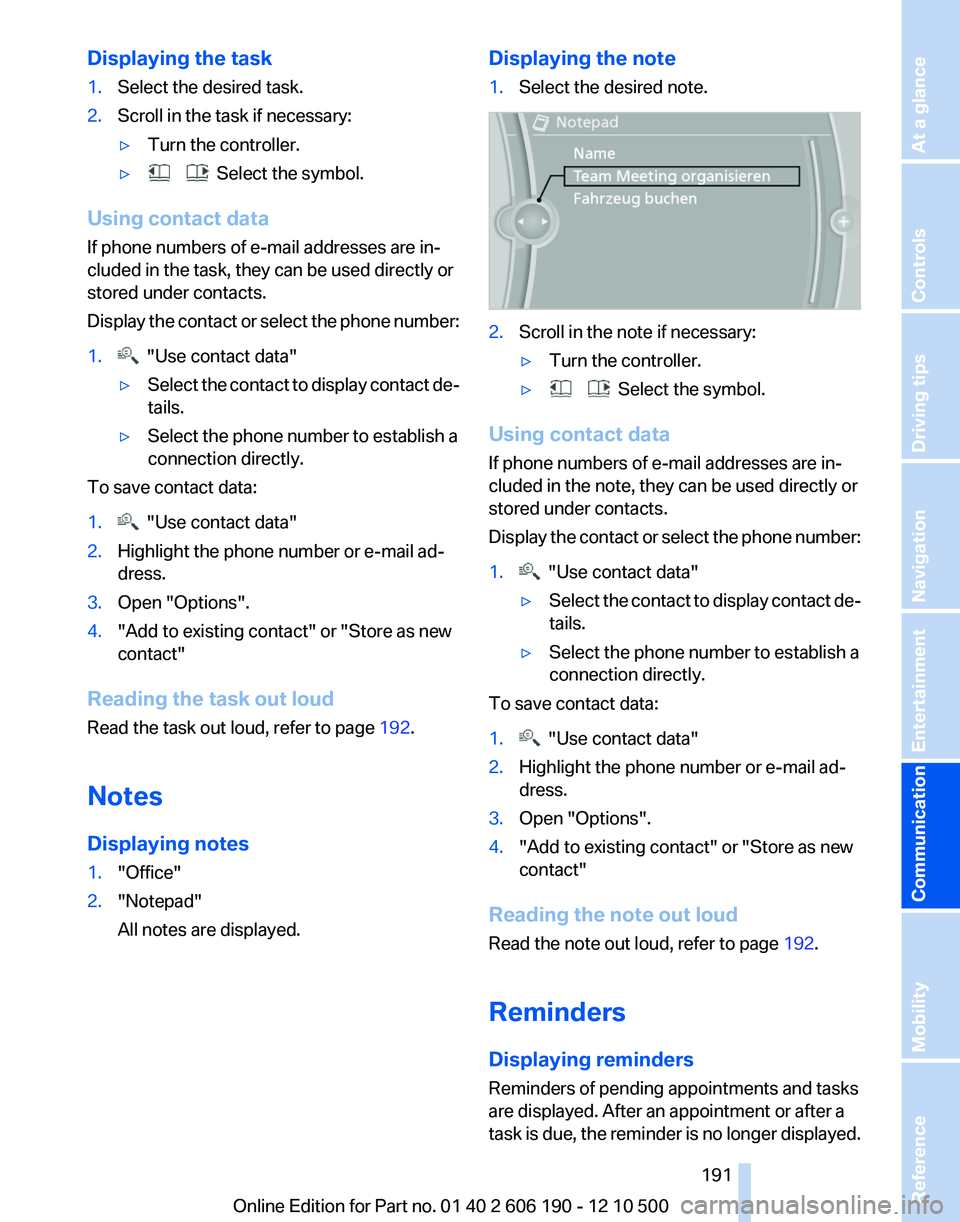
1."Office"2."Notepad"
All notes are displayed.Displaying the note1.Select the desired note.2.Scroll in the note if necessary:▷Turn the controller.▷ Select the symbol.
Using contact data
If phone numbers of e-mail addresses are in‐
cluded in the note, they can be used directly or
stored under contacts.
Display the contact or select the phone number:
1. "Use contact data"▷Select the contact to display contact de‐
tails.▷Select the phone number to establish a
connection directly.
To save contact data:
1. "Use contact data"2.Highlight the phone number or e-mail ad‐
dress.3.Open "Options".4."Add to existing contact" or "Store as new
contact"
Reading the note out loud
Read the note out loud, refer to page 192.
Reminders
Displaying reminders
Reminders of pending appointments and tasks
are displayed. After an appointment or after a
task is due, the reminder is no longer displayed.
Seite 191191
Online Edition for Part no. 01 40 2 606 190 - 12 10 500
ReferenceMobilityCommunicationEntertainmentNavigationDriving tipsControlsAt a glance
Page 192 of 262
1."Office"2."Reminders"3.Select the desired reminder.
The corresponding appointment or the task are
displayed.
Reading out loud
Text messages, e-mails, appointment entries,
tasks, and notes can be read out loud.
1.Select the desired message, appointment,
task, or note.2. Select the symbol.
The following options are available during read‐
ing:
▷ "Pause"
Interrupt reading. Select again to restart
reading.▷ "To beginning"
Start reading message again from the be‐
ginning.▷ Select the symbol.
Skip a paragraph.▷ Select the symbol.
Go back one paragraph.▷To end reading, tilt the controller to the left.
What to do if...
Information on suitable mobile phones, refer to
page 176.
▷Appointments, tasks, notes, text messages,
or e-mails from the mobile phone are not
displayed.
The mobile phone is not capable of the
missing function or is not connected cor‐
rectly.
The Office function is deactivated.
The mobile phone is connected as an addi‐
tional phone.Appointments are older than 20 days or are
more than 50 days in the future.
The tasks have been marked as completed
or have a due date that lies more than
90 days in the future.
Depending on the number of stored ap‐
pointments, task notes, and messages in
the mobile phone, not all are displayed in the
vehicle.▷Not all appointments and tasks from the mo‐
bile phone are displayed at the right time?
The time zone, time or date is incorrectly set
on the Control Display and mobile phone.▷Entries are not displayed in full length.
Text were already transmitted from the mo‐
bile phone in a shortened form.
Synchronization between the mobile phone
and vehicle may take several minutes.▷The contact pictures are not being dis‐
played?
Up to 200 contact pictures can be stored in
the vehicle.▷If all points in this list have been checked and
the required function is still not available,
please contact the hotline or service center.Seite 192192
Online Edition for Part no. 01 40 2 606 190 - 12 10 500Office
Page 193 of 262
Contacts*General information
Contacts can be created and edited and the ad‐
dresses can be adopted as destinations for nav‐
igation.
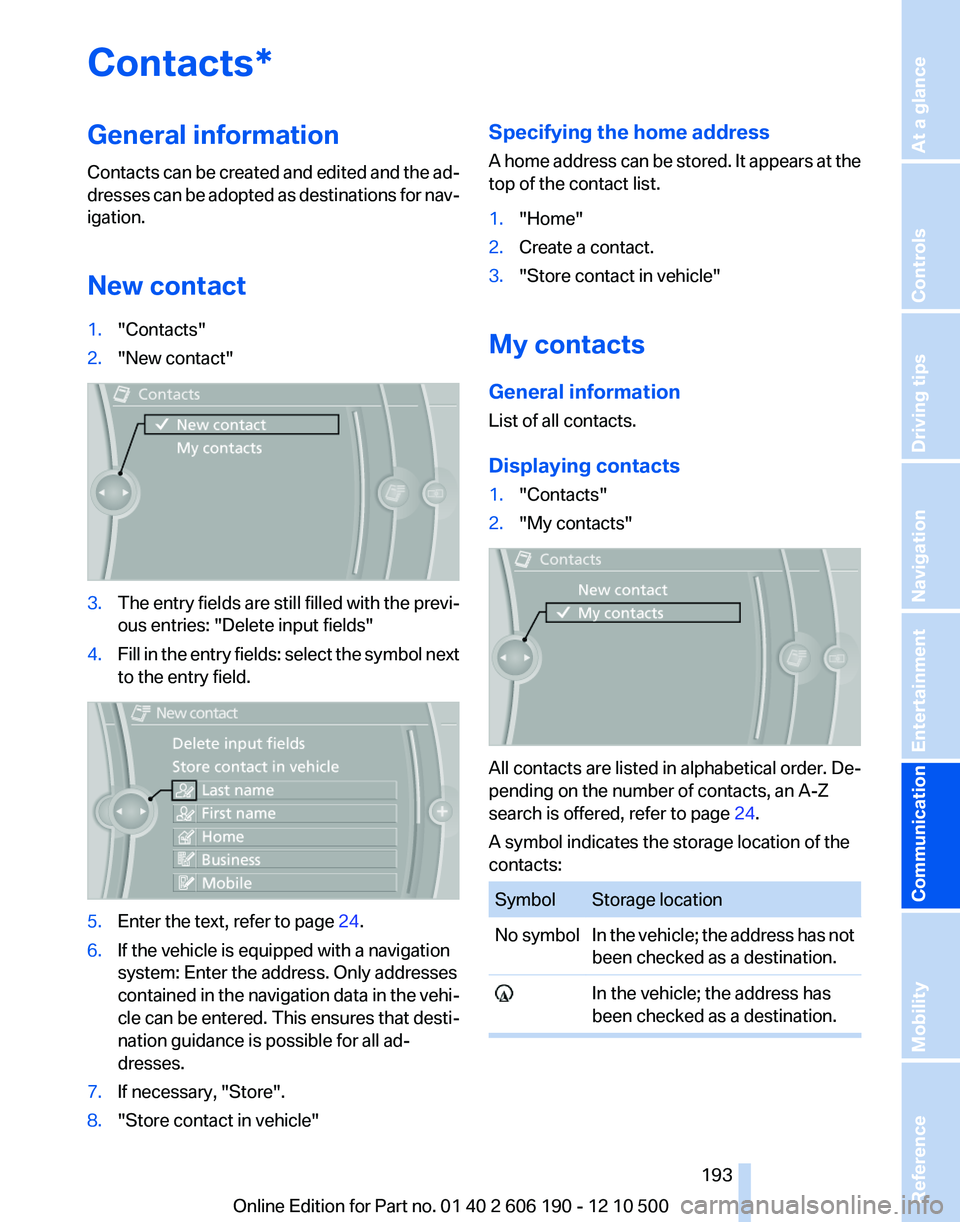
New contact1."Contacts"2."New contact"3.The entry fields are still filled with the previ‐
ous entries: "Delete input fields"4.Fill in the entry fields: select the symbol next
to the entry field.5.Enter the text, refer to page 24.6.If the vehicle is equipped with a navigation
system: Enter the address. Only addresses
contained in the navigation data in the vehi‐
cle can be entered. This ensures that desti‐
nation guidance is possible for all ad‐
dresses.7.If necessary, "Store".8."Store contact in vehicle"Specifying the home address
A home address can be stored. It appears at the
top of the contact list.1."Home"2.Create a contact.3."Store contact in vehicle"
My contacts
General information
List of all contacts.
Displaying contacts
1."Contacts"2."My contacts"
All contacts are listed in alphabetical order. De‐
pending on the number of contacts, an A-Z
search is offered, refer to page 24.
A symbol indicates the storage location of the
contacts:
SymbolStorage locationNo symbolIn the vehicle; the address has not
been checked as a destination. In the vehicle; the address has
been checked as a destination.Seite 193193
Online Edition for Part no. 01 40 2 606 190 - 12 10 500
ReferenceMobilityCommunicationEntertainmentNavigationDriving tipsControlsAt a glance
Page 194 of 262
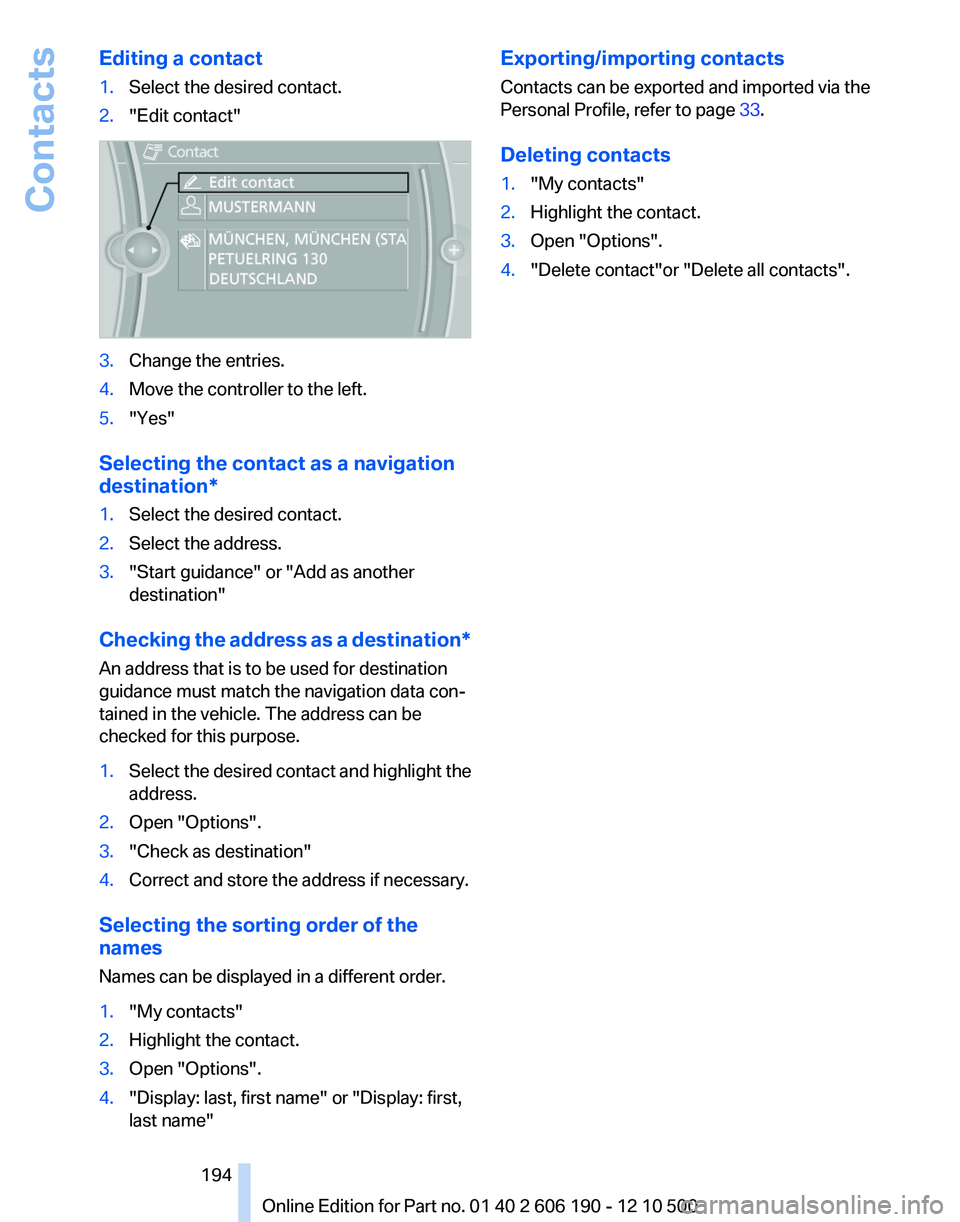
Editing a contact1.Select the desired contact.2."Edit contact"3.Change the entries.4.Move the controller to the left.5."Yes"
Selecting the contact as a navigation
destination*
1.Select the desired contact.2.Select the address.3."Start guidance" or "Add as another
destination"
Checking the address as a destination *
An address that is to be used for destination
guidance must match the navigation data con‐
tained in the vehicle. The address can be
checked for this purpose.
1.Select the desired contact and highlight the
address.2.Open "Options".3."Check as destination"4.Correct and store the address if necessary.
Selecting the sorting order of the
names
Names can be displayed in a different order.
1."My contacts"2.Highlight the contact.3.Open "Options".4."Display: last, first name" or "Display: first,
last name"Exporting/importing contacts
Contacts can be exported and imported via the
Personal Profile, refer to page 33.
Deleting contacts1."My contacts"2.Highlight the contact.3.Open "Options".4."Delete contact"or "Delete all contacts".Seite 194194
Online Edition for Part no. 01 40 2 606 190 - 12 10 500Contacts
Page 197 of 262
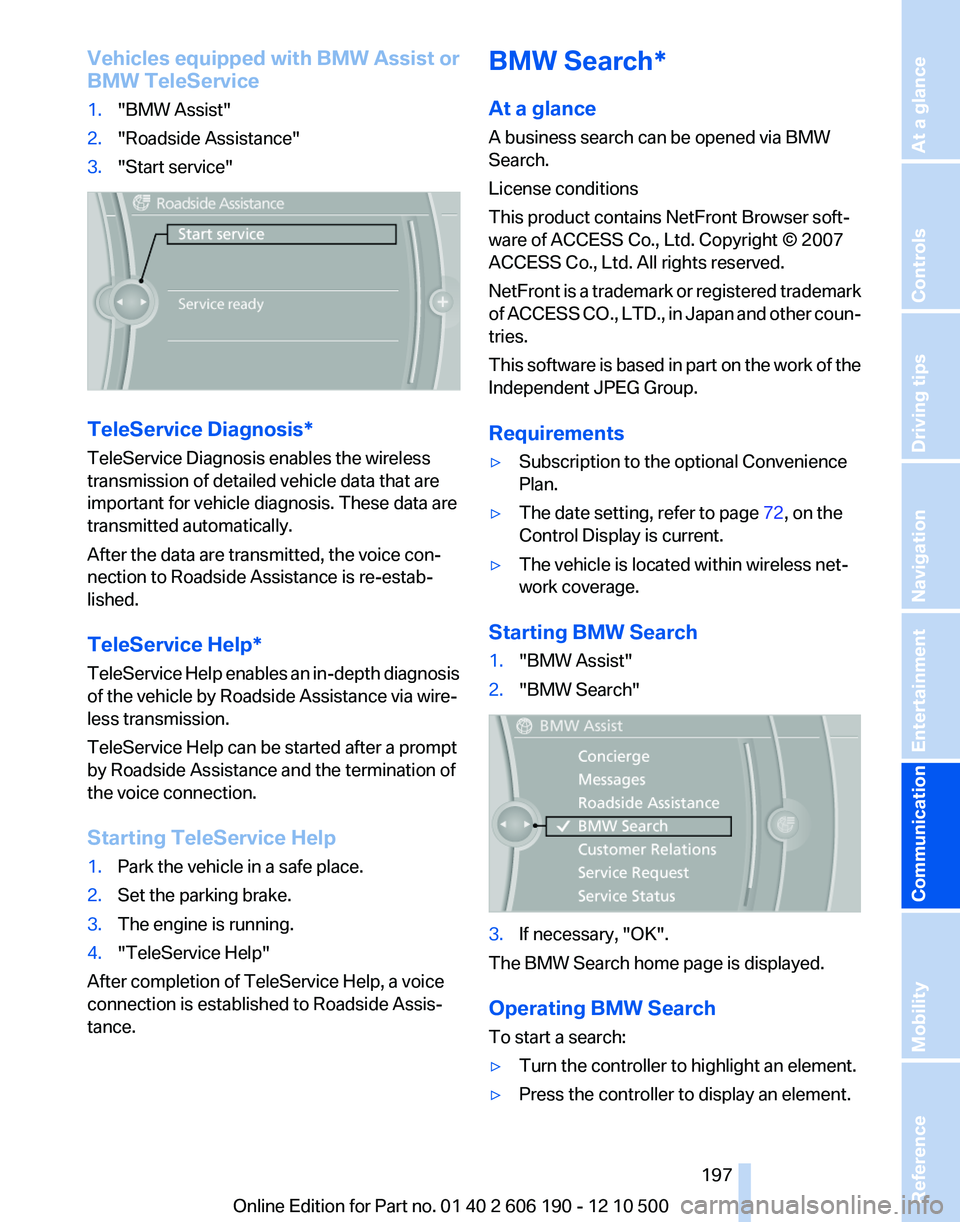
Vehicles equipped with BMW Assist or
BMW TeleService1."BMW Assist"2."Roadside Assistance"3."Start service"
TeleService Diagnosis*
TeleService Diagnosis enables the wireless
transmission of detailed vehicle data that are
important for vehicle diagnosis. These data are
transmitted automatically.
After the data are transmitted, the voice con‐
nection to Roadside Assistance is re-estab‐
lished.
TeleService Help*
TeleService Help enables an in-depth diagnosis
of the vehicle by Roadside Assistance via wire‐
less transmission.
TeleService Help can be started after a prompt
by Roadside Assistance and the termination of
the voice connection.
Starting TeleService Help
1.Park the vehicle in a safe place.2.Set the parking brake.3.The engine is running.4."TeleService Help"
After completion of TeleService Help, a voice
connection is established to Roadside Assis‐
tance.
BMW Search*
At a glance
A business search can be opened via BMW
Search.
License conditions
This product contains NetFront Browser soft‐
ware of ACCESS Co., Ltd. Copyright © 2007
ACCESS Co., Ltd. All rights reserved.
NetFront is a trademark or registered trademark
of ACCESS CO., LTD., in Japan and other coun‐
tries.
This software is based in part on the work of the
Independent JPEG Group.
Requirements▷Subscription to the optional Convenience
Plan.▷The date setting, refer to page 72, on the
Control Display is current.▷The vehicle is located within wireless net‐
work coverage.
Starting BMW Search
1."BMW Assist"2."BMW Search"3.If necessary, "OK".
The BMW Search home page is displayed.
Operating BMW Search
To start a search:
▷Turn the controller to highlight an element.▷Press the controller to display an element.Seite 197197
Online Edition for Part no. 01 40 2 606 190 - 12 10 500
ReferenceMobilityCommunicationEntertainmentNavigationDriving tipsControlsAt a glance
Page 198 of 262
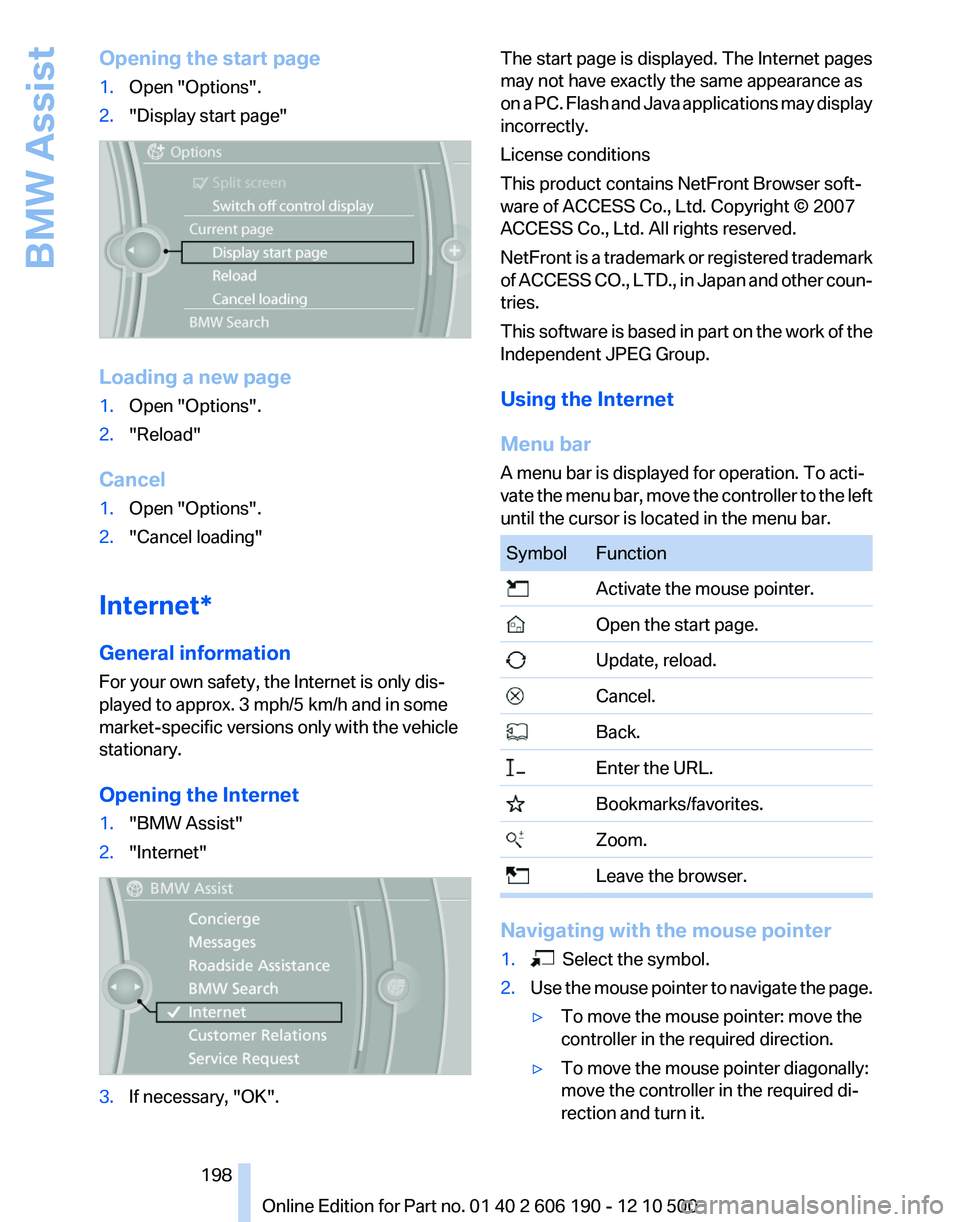
Opening the start page1.Open "Options".2."Display start page"
Loading a new page
1.Open "Options".2."Reload"
Cancel
1.Open "Options".2."Cancel loading"
Internet*
General information
For your own safety, the Internet is only dis‐
played to approx. 3 mph/5 km/h and in some
market-specific versions only with the vehicle
stationary.
Opening the Internet
1."BMW Assist"2."Internet"3.If necessary, "OK".The start page is displayed. The Internet pages
may not have exactly the same appearance as
on a PC. Flash and Java applications may display
incorrectly.
License conditions
This product contains NetFront Browser soft‐
ware of ACCESS Co., Ltd. Copyright © 2007
ACCESS Co., Ltd. All rights reserved.
NetFront is a trademark or registered trademark
of ACCESS CO., LTD., in Japan and other coun‐
tries.
This software is based in part on the work of the
Independent JPEG Group.
Using the Internet
Menu bar
A menu bar is displayed for operation. To acti‐
vate the menu bar, move the controller to the left
until the cursor is located in the menu bar.SymbolFunction Activate the mouse pointer. Open the start page. Update, reload. Cancel. Back. Enter the URL. Bookmarks/favorites. Zoom. Leave the browser.
Navigating with the mouse pointer
1. Select the symbol.2.Use the mouse pointer to navigate the page.▷To move the mouse pointer: move the
controller in the required direction.▷To move the mouse pointer diagonally:
move the controller in the required di‐
rection and turn it.Seite 198198
Online Edition for Part no. 01 40 2 606 190 - 12 10 500BMW Assist
Page 199 of 262
▷To select an element: move the mouse
pointer onto the element and press the
controller.▷To scroll: turn the controller.
Status display
A symbol at the top left of the screen shows the
following statuses:
SymbolMeaning No connection possible. Data transfer/connection. Secure connection.
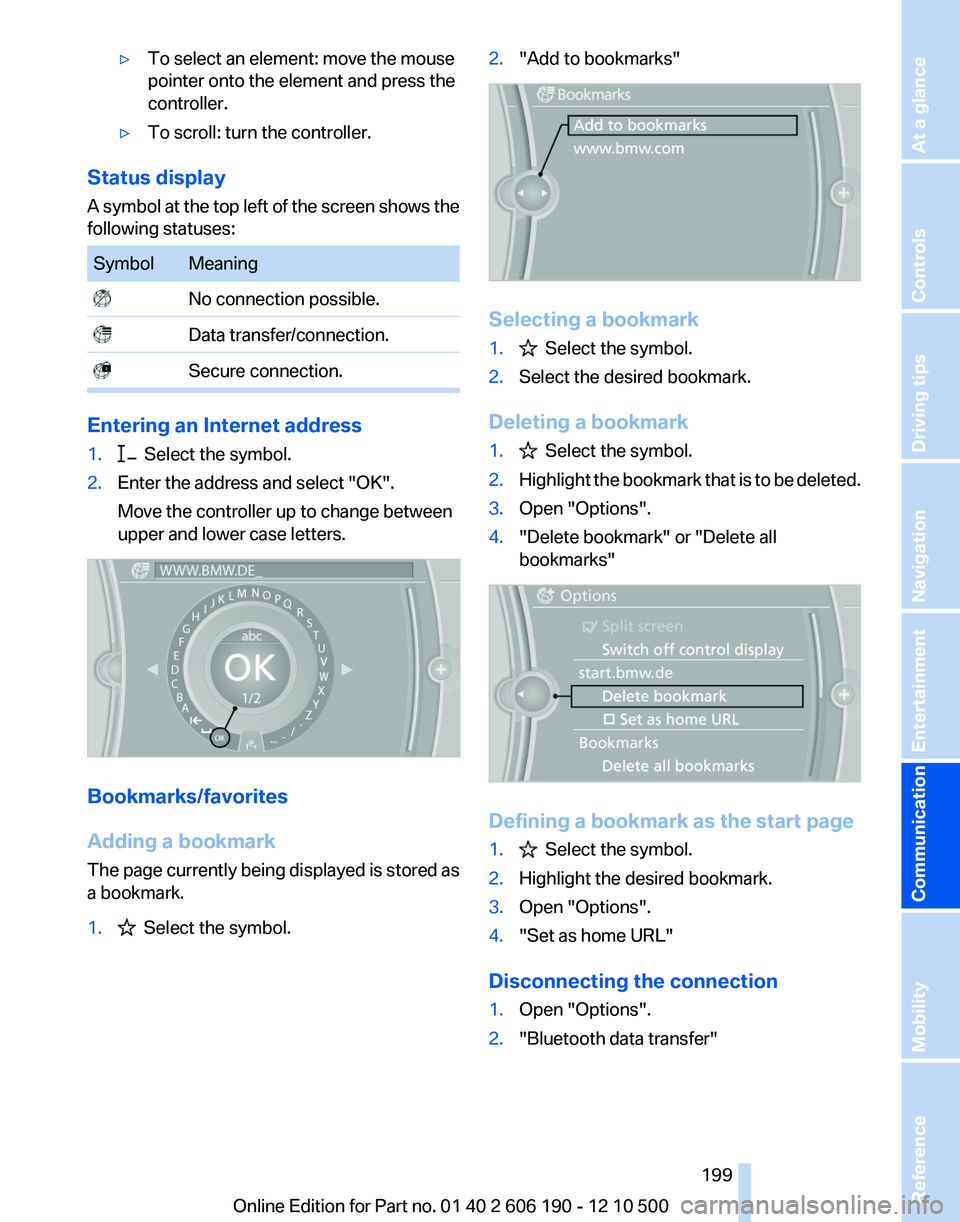
Entering an Internet address
1. Select the symbol.2.Enter the address and select "OK".
Move the controller up to change between
upper and lower case letters.
Bookmarks/favorites
Adding a bookmark
The page currently being displayed is stored as
a bookmark.
1. Select the symbol.2."Add to bookmarks"
Selecting a bookmark
1. Select the symbol.2.Select the desired bookmark.
Deleting a bookmark
1. Select the symbol.2.Highlight the bookmark that is to be deleted.3.Open "Options".4."Delete bookmark" or "Delete all
bookmarks"
Defining a bookmark as the start page
1. Select the symbol.2.Highlight the desired bookmark.3.Open "Options".4."Set as home URL"
Disconnecting the connection
1.Open "Options".2."Bluetooth data transfer"Seite 199199
Online Edition for Part no. 01 40 2 606 190 - 12 10 500
ReferenceMobilityCommunicationEntertainmentNavigationDriving tipsControlsAt a glance
Page 201 of 262
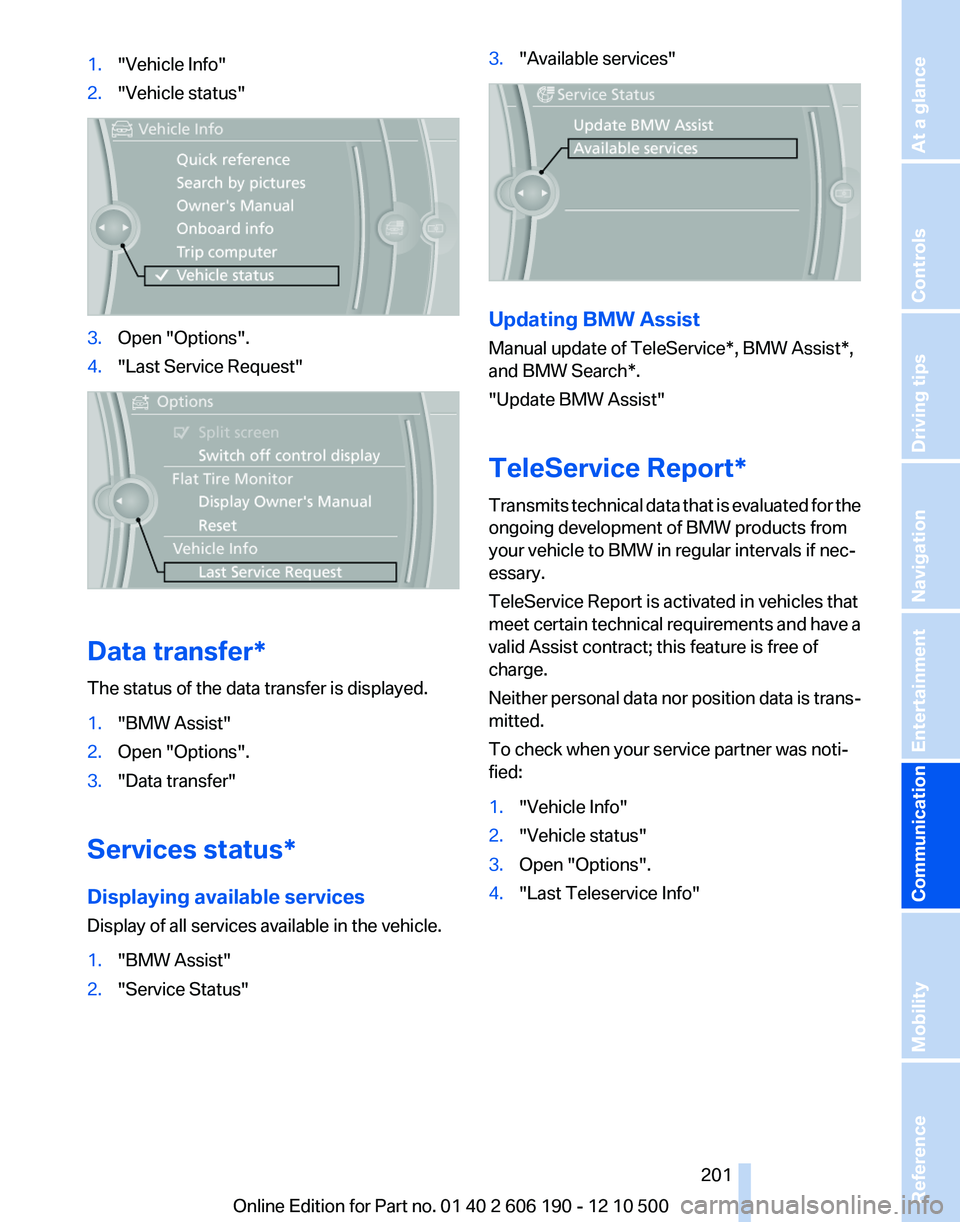
1."Vehicle Info"2."Vehicle status"3.Open "Options".4."Last Service Request"
Data transfer*
The status of the data transfer is displayed.
1."BMW Assist"2.Open "Options".3."Data transfer"
Services status*
Displaying available services
Display of all services available in the vehicle.
1."BMW Assist"2."Service Status"3."Available services"
Updating BMW Assist
Manual update of TeleService*, BMW Assist*,
and BMW Search*.
"Update BMW Assist"
TeleService Report*
Transmits technical data that is evaluated for the
ongoing development of BMW products from
your vehicle to BMW in regular intervals if nec‐
essary.
TeleService Report is activated in vehicles that
meet certain technical requirements and have a
valid Assist contract; this feature is free of
charge.
Neither personal data nor position data is trans‐
mitted.
To check when your service partner was noti‐
fied:
1."Vehicle Info"2."Vehicle status"3.Open "Options".4."Last Teleservice Info"Seite 201201
Online Edition for Part no. 01 40 2 606 190 - 12 10 500
ReferenceMobilityCommunicationEntertainmentNavigationDriving tipsControlsAt a glance
Page 204 of 262
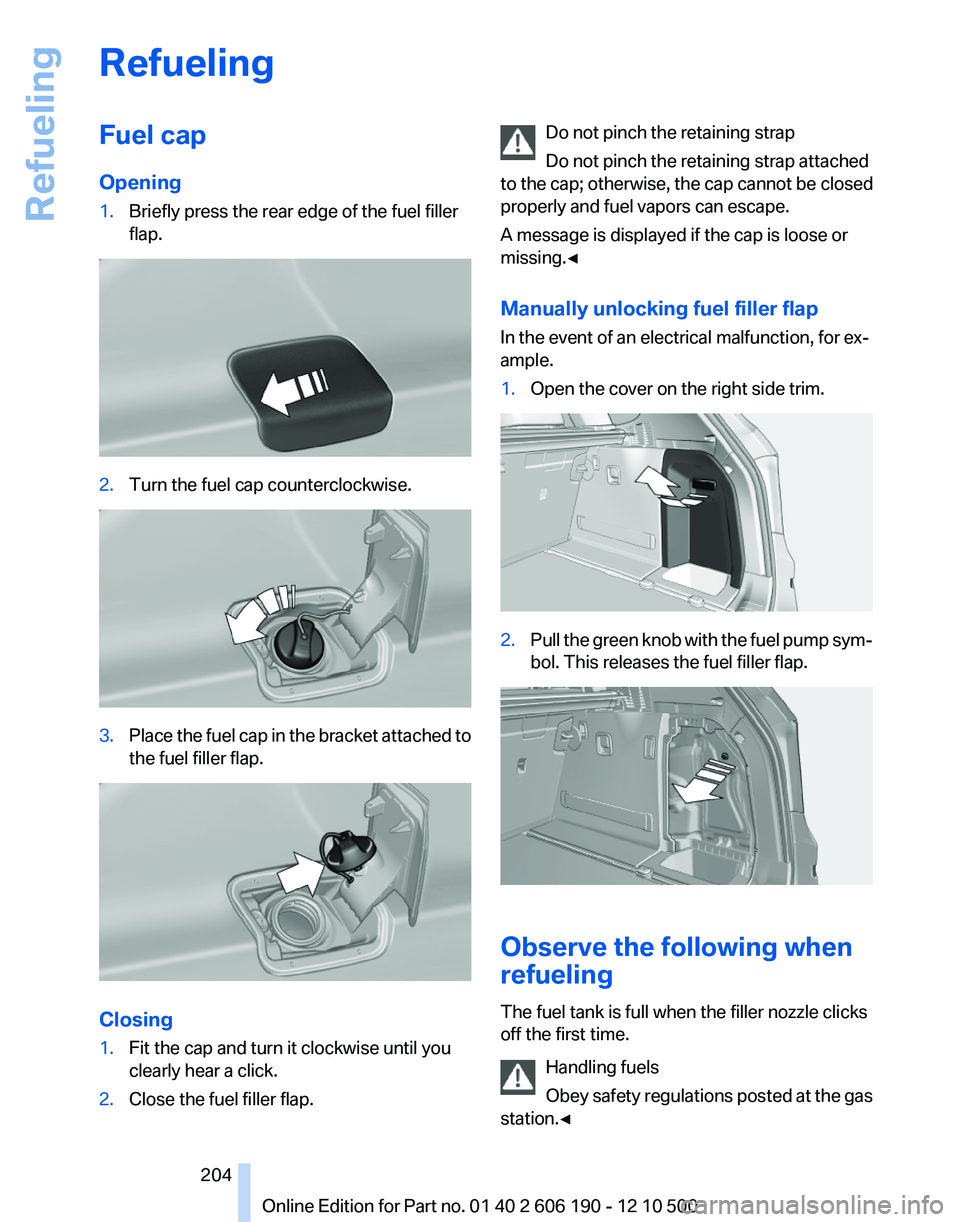
RefuelingFuel cap
Opening1.Briefly press the rear edge of the fuel filler
flap.2.Turn the fuel cap counterclockwise.3.Place the fuel cap in the bracket attached to
the fuel filler flap.
Closing
1.Fit the cap and turn it clockwise until you
clearly hear a click.2.Close the fuel filler flap.Do not pinch the retaining strap
Do not pinch the retaining strap attached
to the cap; otherwise, the cap cannot be closed
properly and fuel vapors can escape.
A message is displayed if the cap is loose or
missing.◀
Manually unlocking fuel filler flap
In the event of an electrical malfunction, for ex‐
ample.1.Open the cover on the right side trim.2.Pull the green knob with the fuel pump sym‐
bol. This releases the fuel filler flap.
Observe the following when
refueling
The fuel tank is full when the filler nozzle clicks
off the first time.
Handling fuels
Obey safety regulations posted at the gas
station.◀
Seite 204204
Online Edition for Part no. 01 40 2 606 190 - 12 10 500Refueling