buttons BMW X5 2009 E70 Owner's Guide
[x] Cancel search | Manufacturer: BMW, Model Year: 2009, Model line: X5, Model: BMW X5 2009 E70Pages: 317, PDF Size: 9.56 MB
Page 181 of 317
Navigation
Entertainment
Driving tips
179Reference
At a glance
Controls
Communications
Mobility
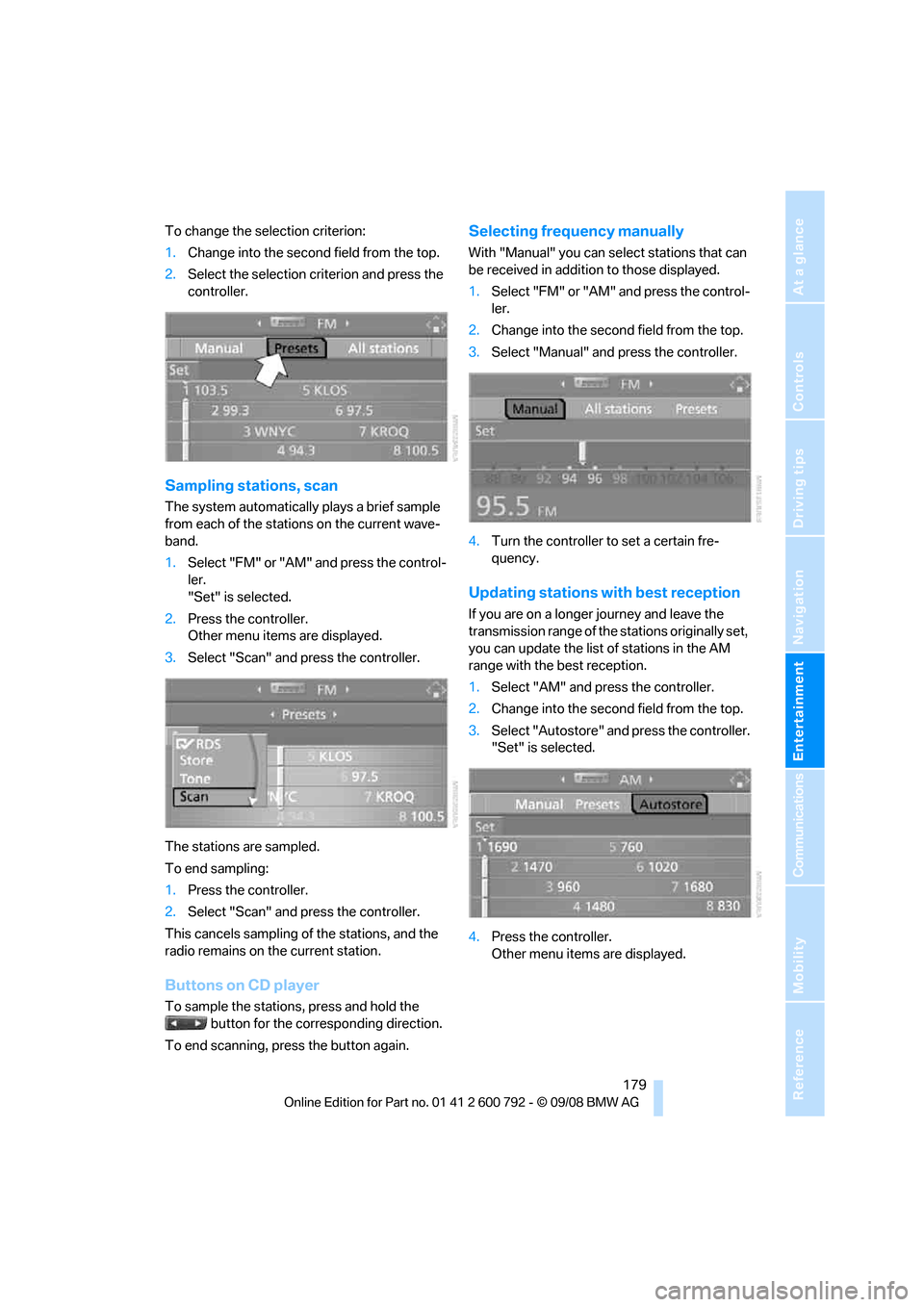
To change the selection criterion:
1.Change into the second field from the top.
2. Select the selection criterion and press the
controller.
Sampling stations, scan
The system automatically plays a brief sample
from each of the stations on the current wave-
band.
1.Select "FM" or "AM" and press the control-
ler.
"Set" is selected.
2. Press the controller.
Other menu items are displayed.
3. Select "Scan" and press the controller.
The stations are sampled.
To end sampling:
1. Press the controller.
2. Select "Scan" and press the controller.
This cancels sampling of the stations, and the
radio remains on the current station.
Buttons on CD player
To sample the stations, press and hold the button for the corresponding direction.
To end scanning, press the button again.
Selecting frequency manually
With "Manual" you can se lect stations that can
be received in additi on to those displayed.
1. Select "FM" or "AM" and press the control-
ler.
2. Change into the second field from the top.
3. Select "Manual" and press the controller.
4. Turn the controller to set a certain fre-
quency.
Updating stations with best reception
If you are on a longer journey and leave the
transmission range of the stations originally set,
you can update the list of stations in the AM
range with the best reception.
1.Select "AM" and pr ess the controller.
2. Change into the second field from the top.
3. Select "Autostore" and press the controller.
"Set" is selected.
4. Press the controller.
Other menu items are displayed.
Page 182 of 317
Radio
180
5.
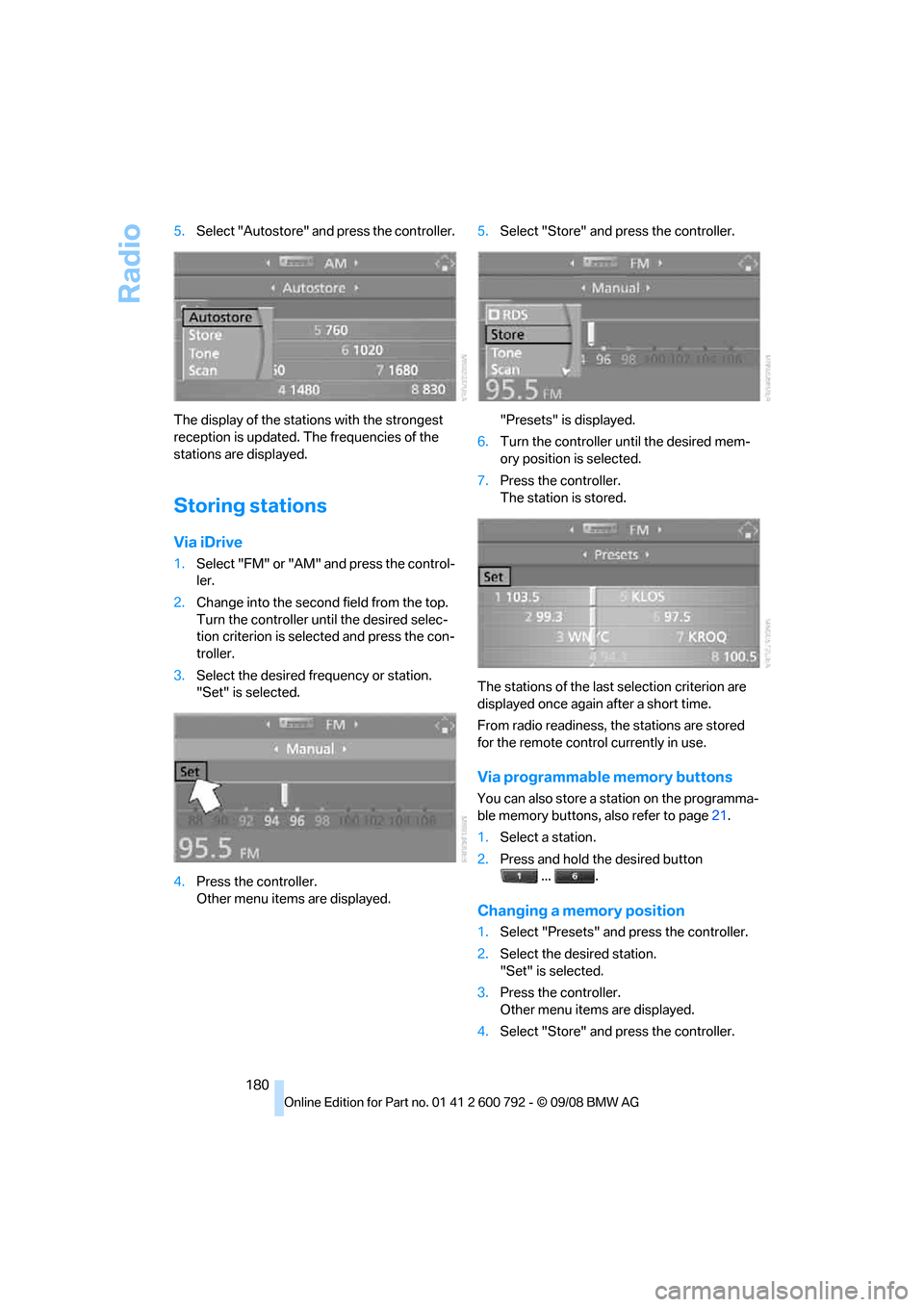
Select "Autostore" and press the controller.
The display of the stations with the strongest
reception is updated. The frequencies of the
stations are displayed.
Storing stations
Via iDrive
1. Select "FM" or "AM" and press the control-
ler.
2. Change into the second field from the top.
Turn the controller until the desired selec-
tion criterion is selected and press the con-
troller.
3. Select the desired frequency or station.
"Set" is selected.
4. Press the controller.
Other menu items are displayed. 5.
Select "Store" and press the controller.
"Presets" is displayed.
6. Turn the controller until the desired mem-
ory position is selected.
7. Press the controller.
The station is stored.
The stations of the last selection criterion are
displayed once again after a short time.
From radio readiness, the stations are stored
for the remote control currently in use.
Via programmable memory buttons
You can also store a station on the programma-
ble memory buttons, also refer to page21.
1. Select a station.
2. Press and hold the desired button
... .
Changing a memory position
1.Select "Presets" and press the controller.
2. Select the desired station.
"Set" is selected.
3. Press the controller.
Other menu items are displayed.
4. Select "Store" and press the controller.
Page 184 of 317
Radio
182
With some stations the
digital signals are not
transmitted simultaneously with the analog sig-
nals. If you are in an ar ea in which the selected
station is not continuous ly received digitally,
playback changes betwee n analog and digital
reception. This can result in repetitions or inter-
ruptions. In this case it may be advisable to
deactivate digital radio reception.
Selecting programs of a digital station*
Some stations transmit several programs on
one frequency. To select one of these pro-
grams:
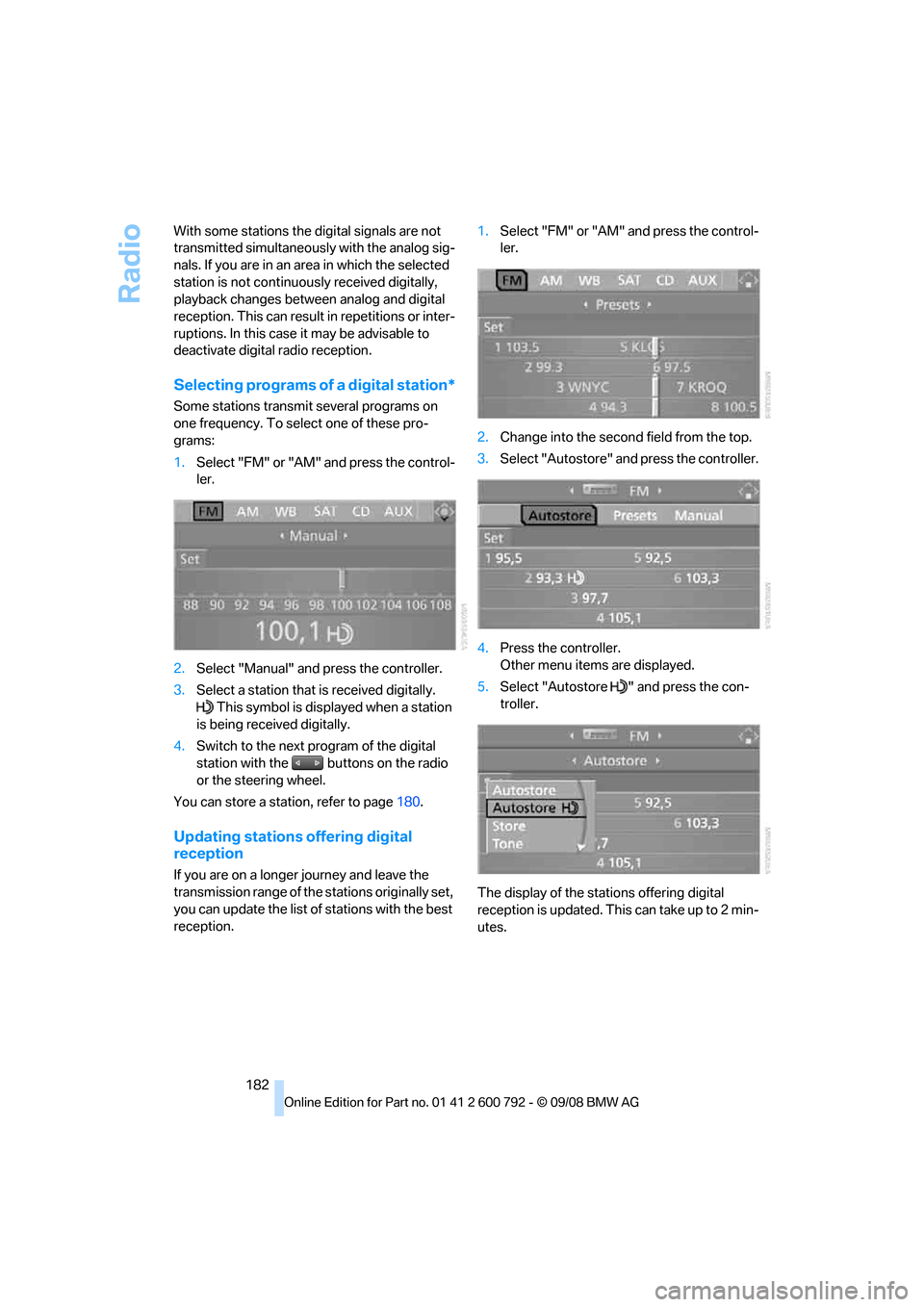
1. Select "FM" or "AM" and press the control-
ler.
2. Select "Manual" and press the controller.
3. Select a station that is received digitally.
This symbol is displayed when a station
is being received digitally.
4. Switch to the next program of the digital
station with the buttons on the radio
or the steering wheel.
You can store a station, refer to page 180.
Updating stations offering digital
reception
If you are on a longer journey and leave the
transmission range of the stations originally set,
you can update the list of stations with the best
reception. 1.
Select "FM" or "AM" and press the control-
ler.
2. Change into the second field from the top.
3. Select "Autostore" and press the controller.
4. Press the controller.
Other menu items are displayed.
5. Select "Autostore " and press the con-
troller.
The display of the stations offering digital
reception is updated. This can take up to 2 min-
utes.
Page 188 of 317
Satellite radio
186
Storing channel
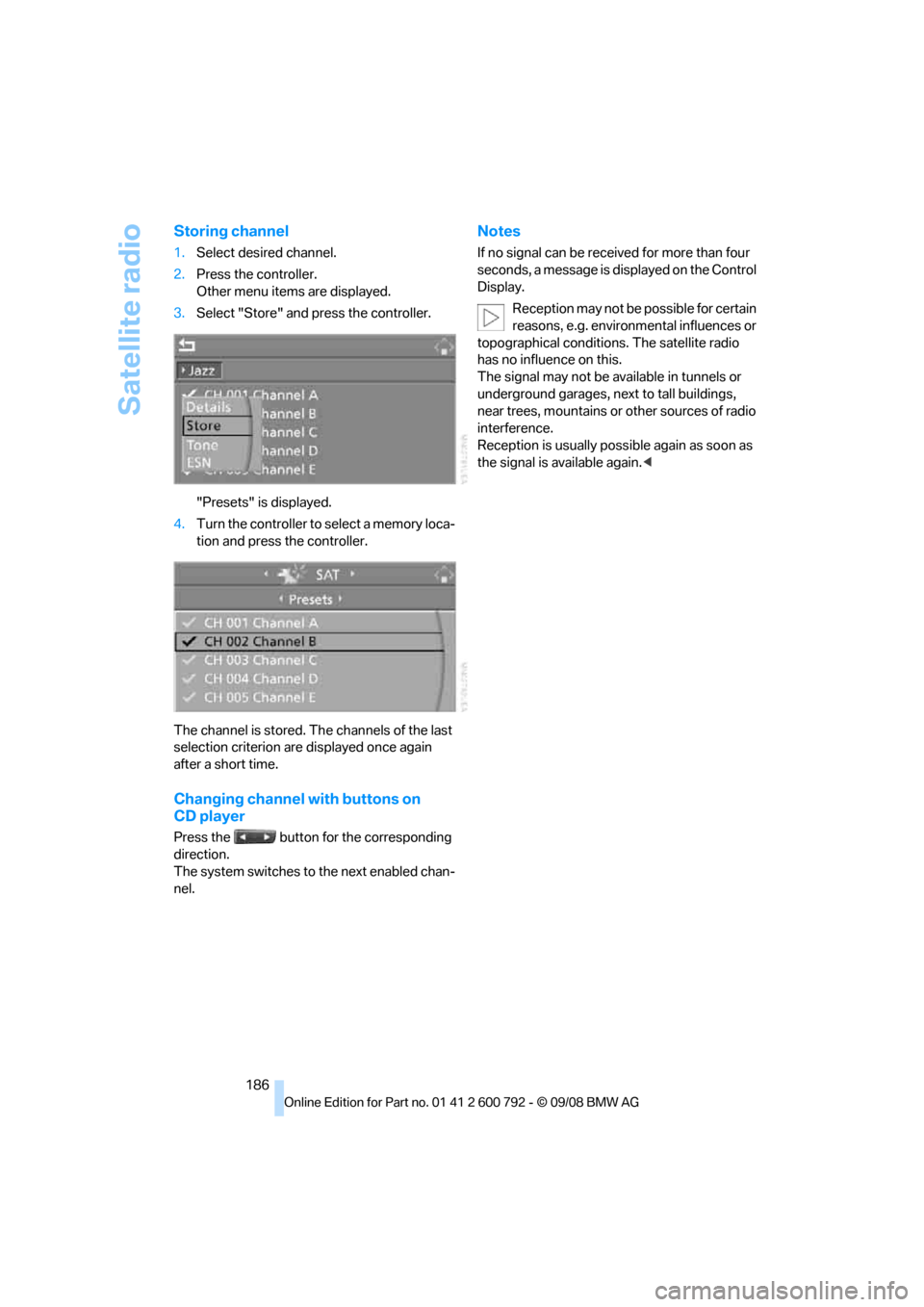
1.Select desired channel.
2. Press the controller.
Other menu items are displayed.
3. Select "Store" and press the controller.
"Presets" is displayed.
4. Turn the controller to select a memory loca-
tion and press the controller.
The channel is stored. Th e channels of the last
selection criterion are displayed once again
after a short time.
Changing channel with buttons on
CD player
Press the button for the corresponding
direction.
The system switches to the next enabled chan-
nel.
Notes
If no signal can be rece ived for more than four
seconds, a message is displayed on the Control
Display.
Reception may not be possible for certain
reasons, e.g. environmental influences or
topographical conditions. The satellite radio
has no influence on this.
The signal may not be av ailable in tunnels or
underground garages, ne xt to tall buildings,
near trees, mountains or other sources of radio
interference.
Reception is usually poss ible again as soon as
the signal is available again. <
Page 189 of 317
Navigation
Entertainment
Driving tips
187Reference
At a glance
Controls
Communications
Mobility
CD player and CD changer
Listening to CDs
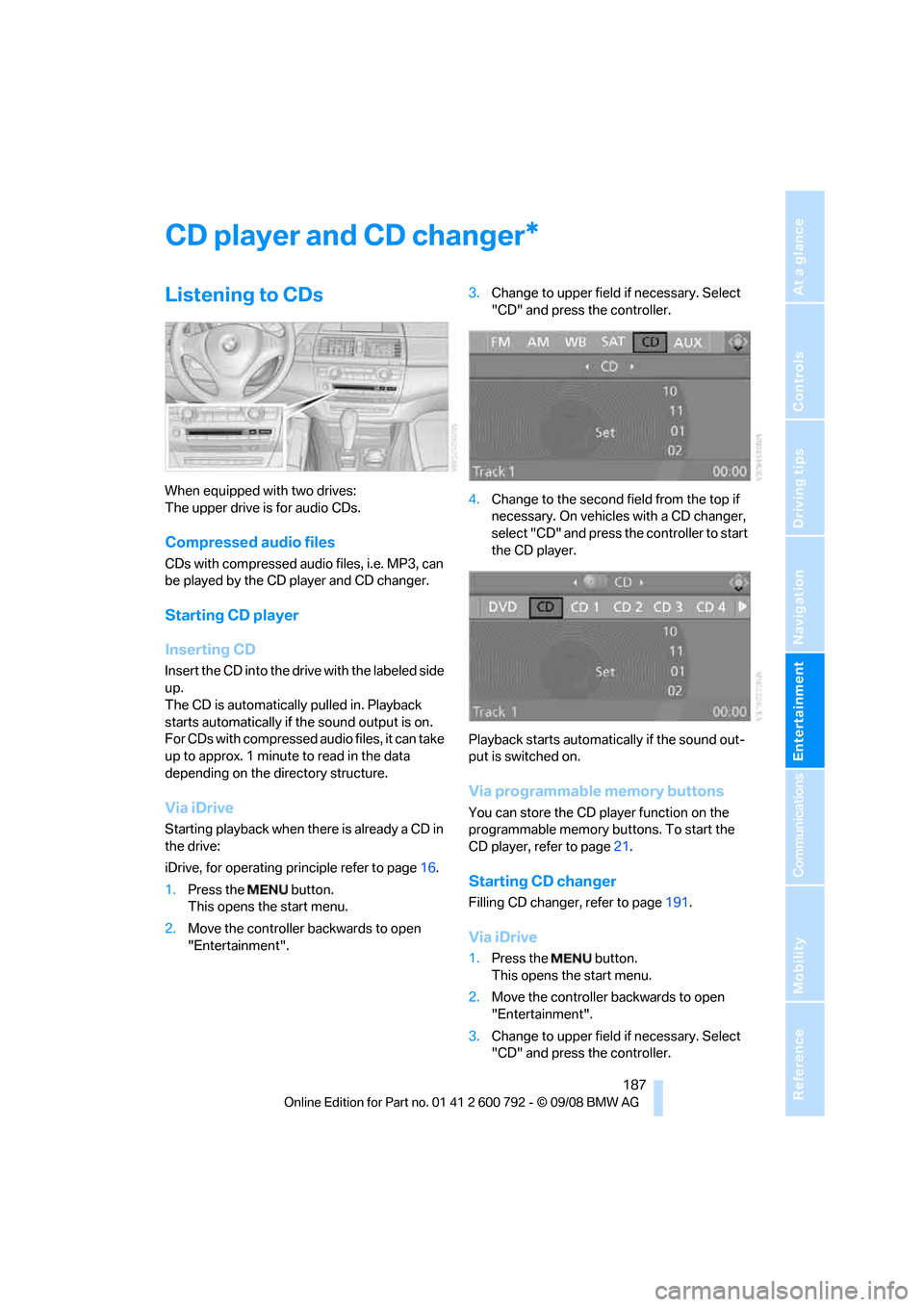
When equipped with two drives:
The upper drive is for audio CDs.
Compressed audio files
CDs with compressed audio files, i.e. MP3, can
be played by the CD player and CD changer.
Starting CD player
Inserting CD
Insert the CD into the drive with the labeled side
up.
The CD is automatically pulled in. Playback
starts automatically if the sound output is on.
For CDs with compressed audio files, it can take
up to approx. 1 minute to read in the data
depending on the directory structure.
Via iDrive
Starting playback when there is already a CD in
the drive:
iDrive, for operating principle refer to page 16.
1. Press the button.
This opens the start menu.
2. Move the controller backwards to open
"Entertainment". 3.
Change to upper field if necessary. Select
"CD" and press the controller.
4. Change to the second field from the top if
necessary. On vehicles with a CD changer,
select "CD" and press the controller to start
the CD player.
Playback starts automati cally if the sound out-
put is switched on.
Via programmable memory buttons
You can store the CD player function on the
programmable memory bu ttons. To start the
CD player, refer to page 21.
Starting CD changer
Filling CD changer, refer to page 191.
Via iDrive
1.Press the button.
This opens the start menu.
2. Move the controller backwards to open
"Entertainment".
3. Change to upper field if necessary. Select
"CD" and press the controller.
*
Page 190 of 317
CD player and CD changer
188
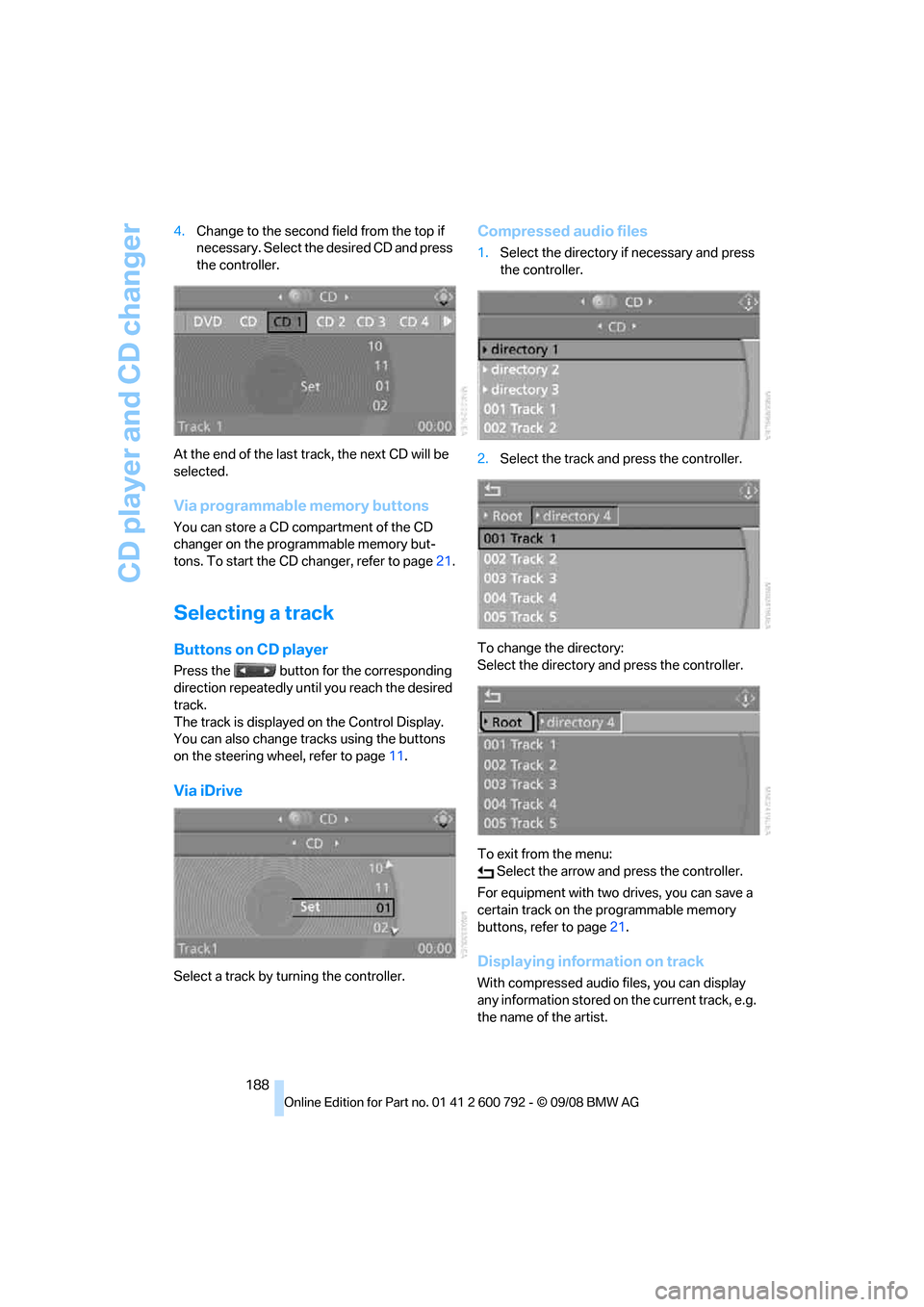
4.
Change to the second field from the top if
necessary. Select the desired CD and press
the controller.
At the end of the last tr ack, the next CD will be
selected.
Via programmable memory buttons
You can store a CD compartment of the CD
changer on the programmable memory but-
tons. To start the CD changer, refer to page 21.
Selecting a track
Buttons on CD player
Press the button for the corresponding
direction repeatedly until you reach the desired
track.
The track is displayed on the Control Display.
You can also change tracks using the buttons
on the steering wheel, refer to page 11.
Via iDrive
Select a track by turning the controller.
Compressed audio files
1.Select the directory if necessary and press
the controller.
2. Select the track and press the controller.
To change the directory:
Select the directory and press the controller.
To exit from the menu: Select the arrow and press the controller.
For equipment with two drives, you can save a
certain track on the programmable memory
buttons, refer to page 21.
Displaying information on track
With compressed audio files, you can display
any information stored on the current track, e.g.
the name of the artist.
Page 192 of 317
CD player and CD changer
190
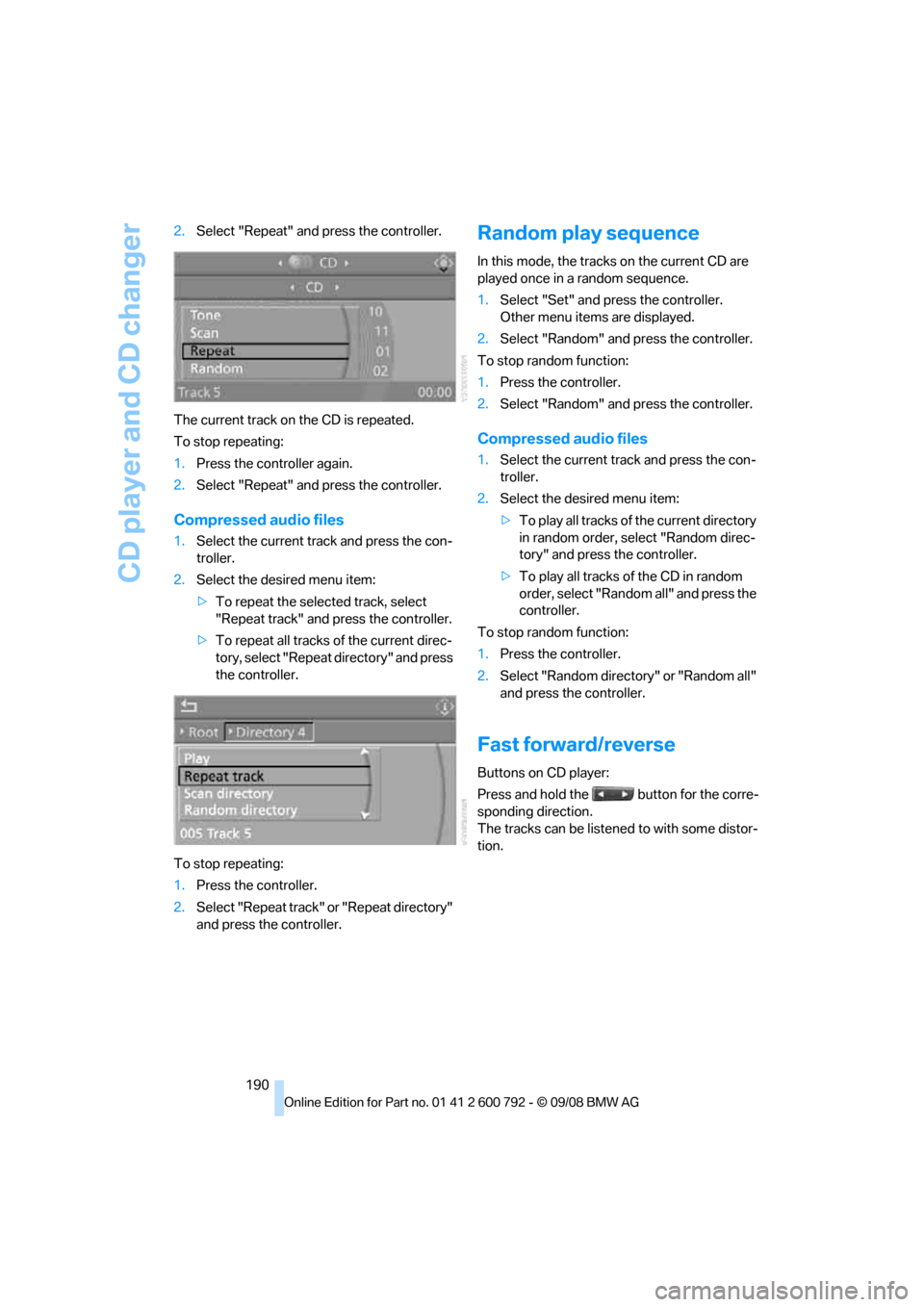
2.
Select "Repeat" and press the controller.
The current track on the CD is repeated.
To stop repeating:
1. Press the controller again.
2. Select "Repeat" and press the controller.
Compressed audio files
1.Select the current track and press the con-
troller.
2. Select the desired menu item:
>To repeat the selected track, select
"Repeat track" and press the controller.
> To repeat all tracks of the current direc-
tory, select "Repeat directory" and press
the controller.
To stop repeating:
1. Press the controller.
2. Select "Repeat track" or "Repeat directory"
and press the controller.
Random play sequence
In this mode, the tracks on the current CD are
played once in a random sequence.
1.Select "Set" and press the controller.
Other menu items are displayed.
2. Select "Random" and press the controller.
To stop random function:
1. Press the controller.
2. Select "Random" and press the controller.
Compressed audio files
1.Select the current track and press the con-
troller.
2. Select the desired menu item:
>To play all tracks of the current directory
in random order, select "Random direc-
tory" and press the controller.
> To play all tracks of the CD in random
order, select "Random all" and press the
controller.
To stop random function:
1. Press the controller.
2. Select "Random directory" or "Random all"
and press the controller.
Fast forward/reverse
Buttons on CD player:
Press and hold the button for the corre-
sponding direction.
The tracks can be listene d to with some distor-
tion.
Page 193 of 317
Navigation
Entertainment
Driving tips
191Reference
At a glance
Controls
Communications
Mobility
CD changer
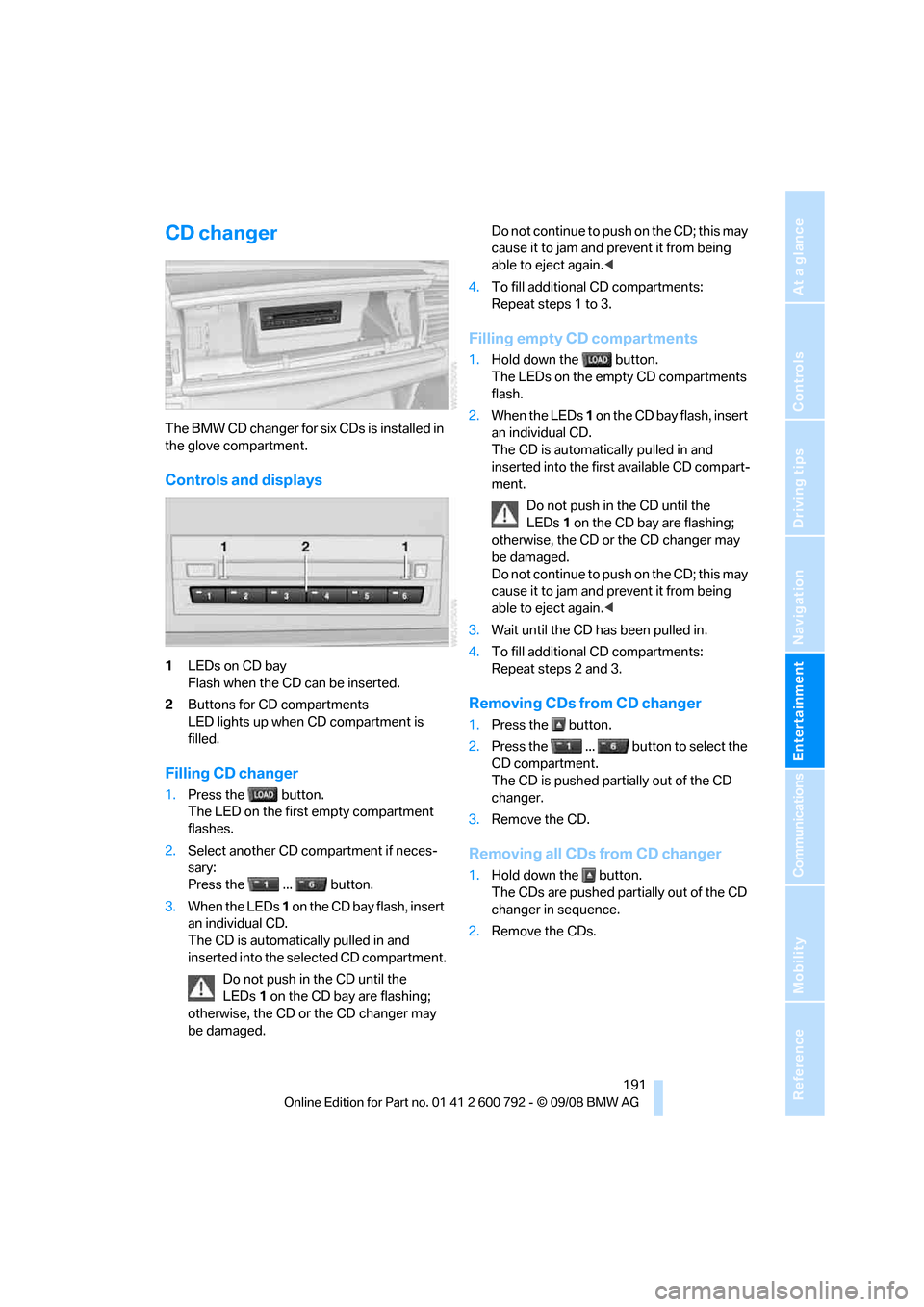
The BMW CD changer for six CDs is installed in
the glove compartment.
Controls and displays
1LEDs on CD bay
Flash when the CD can be inserted.
2 Buttons for CD compartments
LED lights up when CD compartment is
filled.
Filling CD changer
1.Press the button.
The LED on the first empty compartment
flashes.
2. Select another CD compartment if neces-
sary:
Press the ... button.
3. When the LEDs 1 o n t h e C D b a y f l a s h , i n s e r t
an individual CD.
The CD is automatica lly pulled in and
inserted into the selected CD compartment.
Do not push in the CD until the
LEDs 1 on the CD bay are flashing;
otherwise, the CD or the CD changer may
be damaged. Do not continue to push on the CD; this may
cause it to jam and prevent it from being
able to eject again.
<
4. To fill additional CD compartments:
Repeat steps 1 to 3.
Filling empty CD compartments
1.Hold down the button.
The LEDs on the empty CD compartments
flash.
2. When the LEDs 1 o n t h e C D b a y f l a s h , i n s e r t
an individual CD.
The CD is automati cally pulled in and
inserted into the first available CD compart-
ment.
Do not push in the CD until the
LEDs 1 on the CD bay are flashing;
otherwise, the CD or the CD changer may
be damaged.
Do not continue to push on the CD; this may
cause it to jam and prevent it from being
able to eject again. <
3. Wait until the CD has been pulled in.
4. To fill additional CD compartments:
Repeat steps 2 and 3.
Removing CDs from CD changer
1.Press the button.
2. Press the ... button to select the
CD compartment.
The CD is pushed partially out of the CD
changer.
3. Remove the CD.
Removing all CDs from CD changer
1.Hold down the button.
The CDs are pushed partially out of the CD
changer in sequence.
2. Remove the CDs.
Page 195 of 317
Navigation
Entertainment
Driving tips
193Reference
At a glance
Controls
Communications
Mobility
DVD changer
Installation position
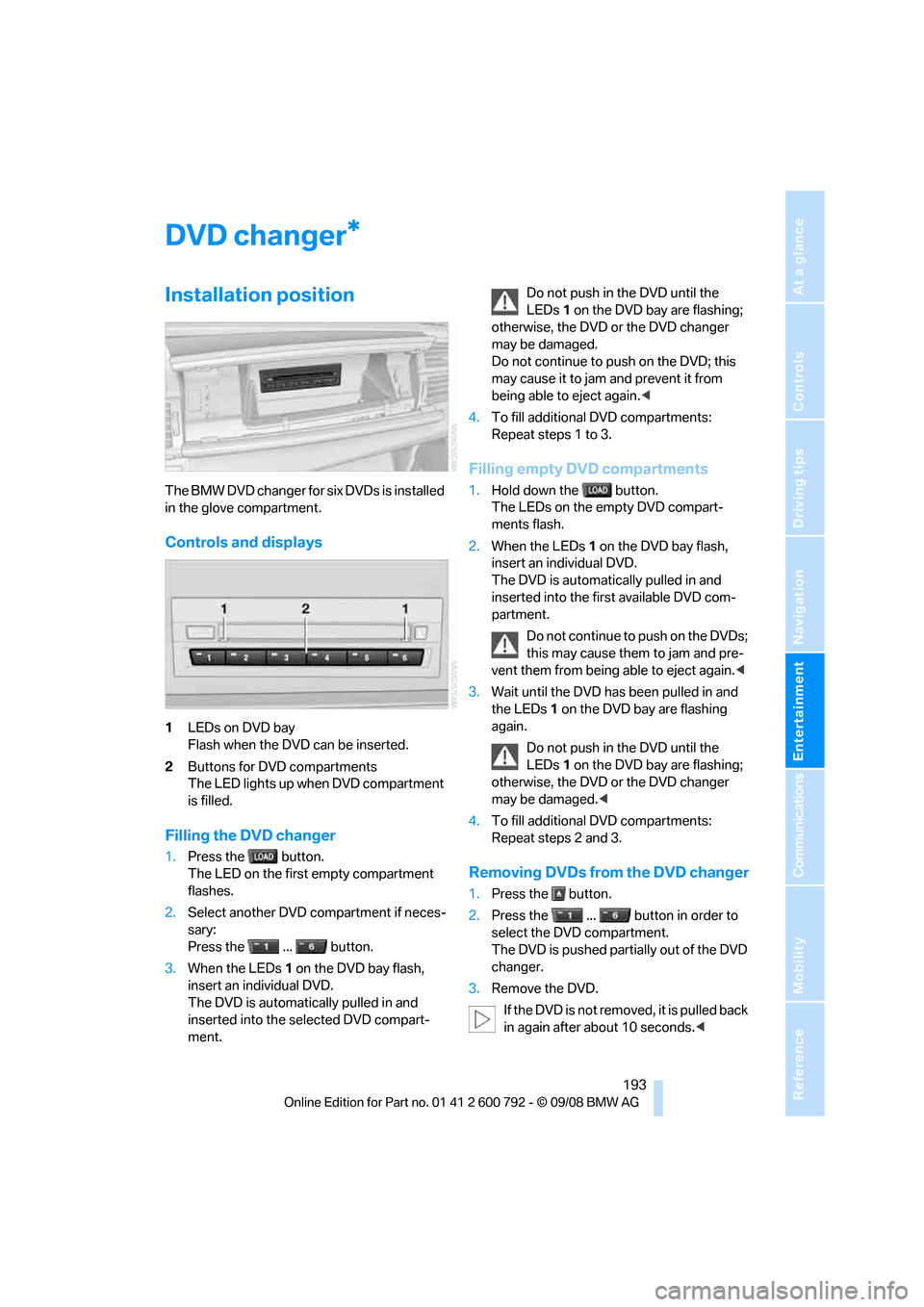
The BMW DVD changer for six DVDs is installed
in the glove compartment.
Controls and displays
1LEDs on DVD bay
Flash when the DVD can be inserted.
2 Buttons for DVD compartments
The LED lights up when DVD compartment
is filled.
Filling the DVD changer
1.Press the button.
The LED on the first empty compartment
flashes.
2. Select another DVD compartment if neces-
sary:
Press the ... button.
3. When the LEDs 1 on the DVD bay flash,
insert an individual DVD.
The DVD is automatically pulled in and
inserted into the selected DVD compart-
ment. Do not push in the DVD until the
LEDs
1 on the DVD bay are flashing;
otherwise, the DVD or the DVD changer
may be damaged.
Do not continue to push on the DVD; this
may cause it to jam and prevent it from
being able to eject again. <
4. To fill additional DVD compartments:
Repeat steps 1 to 3.
Filling empty DVD compartments
1.Hold down the button.
The LEDs on the empty DVD compart-
ments flash.
2. When the LEDs 1 on the DVD bay flash,
insert an individual DVD.
The DVD is automatically pulled in and
inserted into the first available DVD com-
partment.
Do not continue to push on the DVDs;
this may cause them to jam and pre-
vent them from being able to eject again. <
3. Wait until the DVD has been pulled in and
the LEDs 1 on the DVD bay are flashing
again.
Do not push in the DVD until the
LEDs 1 on the DVD bay are flashing;
otherwise, the DVD or the DVD changer
may be damaged. <
4. To fill additional DVD compartments:
Repeat steps 2 and 3.
Removing DVDs from the DVD changer
1.Press the button.
2. Press the ... button in order to
select the DVD compartment.
The DVD is pushed partially out of the DVD
changer.
3. Remove the DVD.
If the DVD is not removed, it is pulled back
in again after about 10 seconds. <
*
Page 202 of 317
AUX-In connection
200
AUX-In connection
You can connect an external audio device, e.g.
an MP3 player, and play the sound via the vehi-
cle speakers. The sound can be adjusted via
iDrive.
Connecting
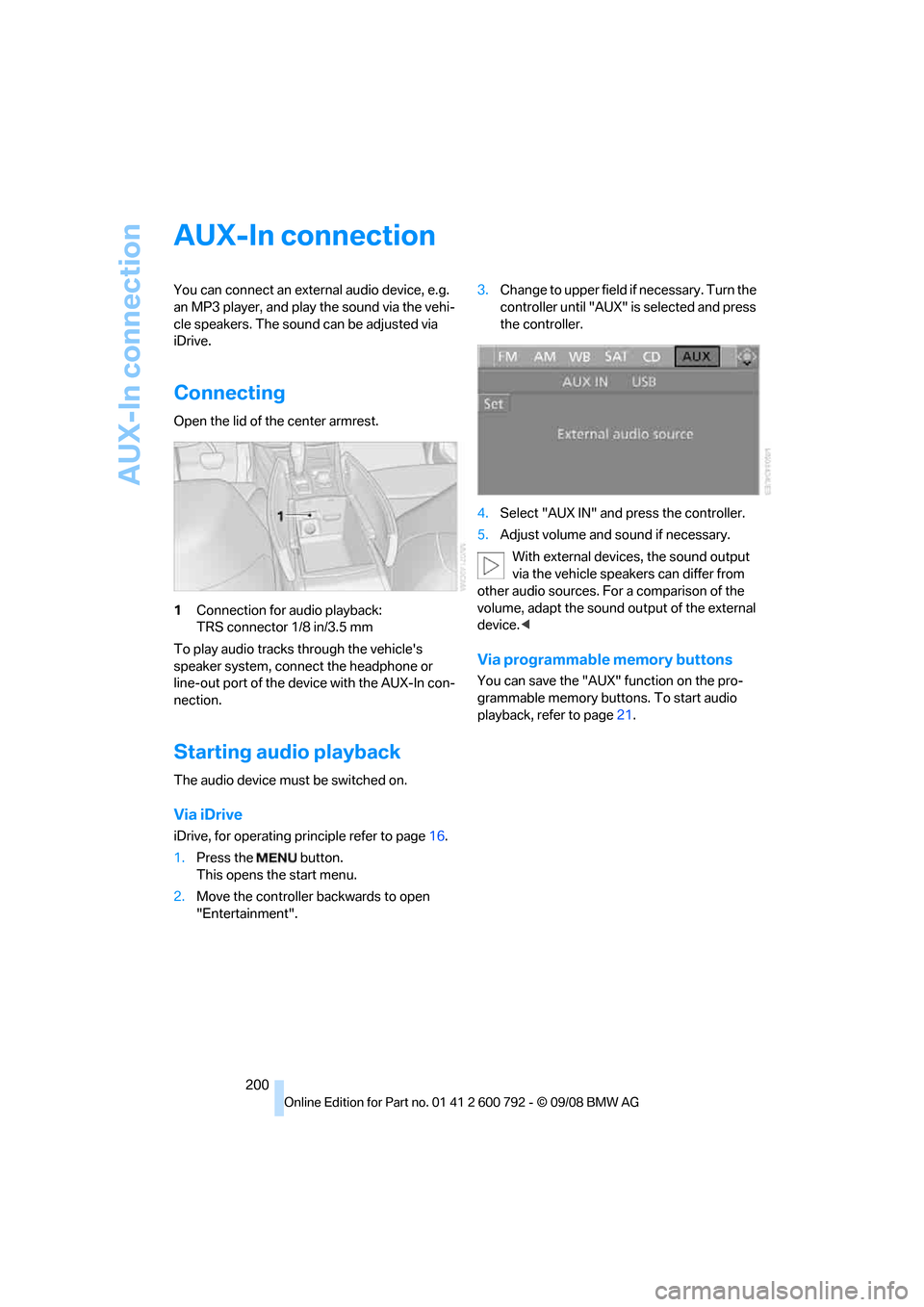
Open the lid of the center armrest.
1Connection for audio playback:
TRS connector 1/8 in/3.5 mm
To play audio tracks through the vehicle's
speaker system, connect the headphone or
line-out port of the devi ce with the AUX-In con-
nection.
Starting audio playback
The audio device must be switched on.
Via iDrive
iDrive, for operating pr inciple refer to page16.
1. Press the button.
This opens the start menu.
2. Move the controller backwards to open
"Entertainment". 3.
Change to upper field if necessary. Turn the
controller until "AUX" is selected and press
the controller.
4. Select "AUX IN" and press the controller.
5. Adjust volume and sound if necessary.
With external device s, the sound output
via the vehicle speakers can differ from
other audio sources. For a comparison of the
volume, adapt the sound output of the external
device. <
Via programmable memory buttons
You can save the "AUX" function on the pro-
grammable memory buttons. To start audio
playback, refer to page 21.