idrive BMW X5 2011 E70 Owner's Manual
[x] Cancel search | Manufacturer: BMW, Model Year: 2011, Model line: X5, Model: BMW X5 2011 E70Pages: 312, PDF Size: 8.91 MB
Page 5 of 312
Reference
At a glance
Controls
Driving tips
Communications
Navigation
Entertainment
Mobility
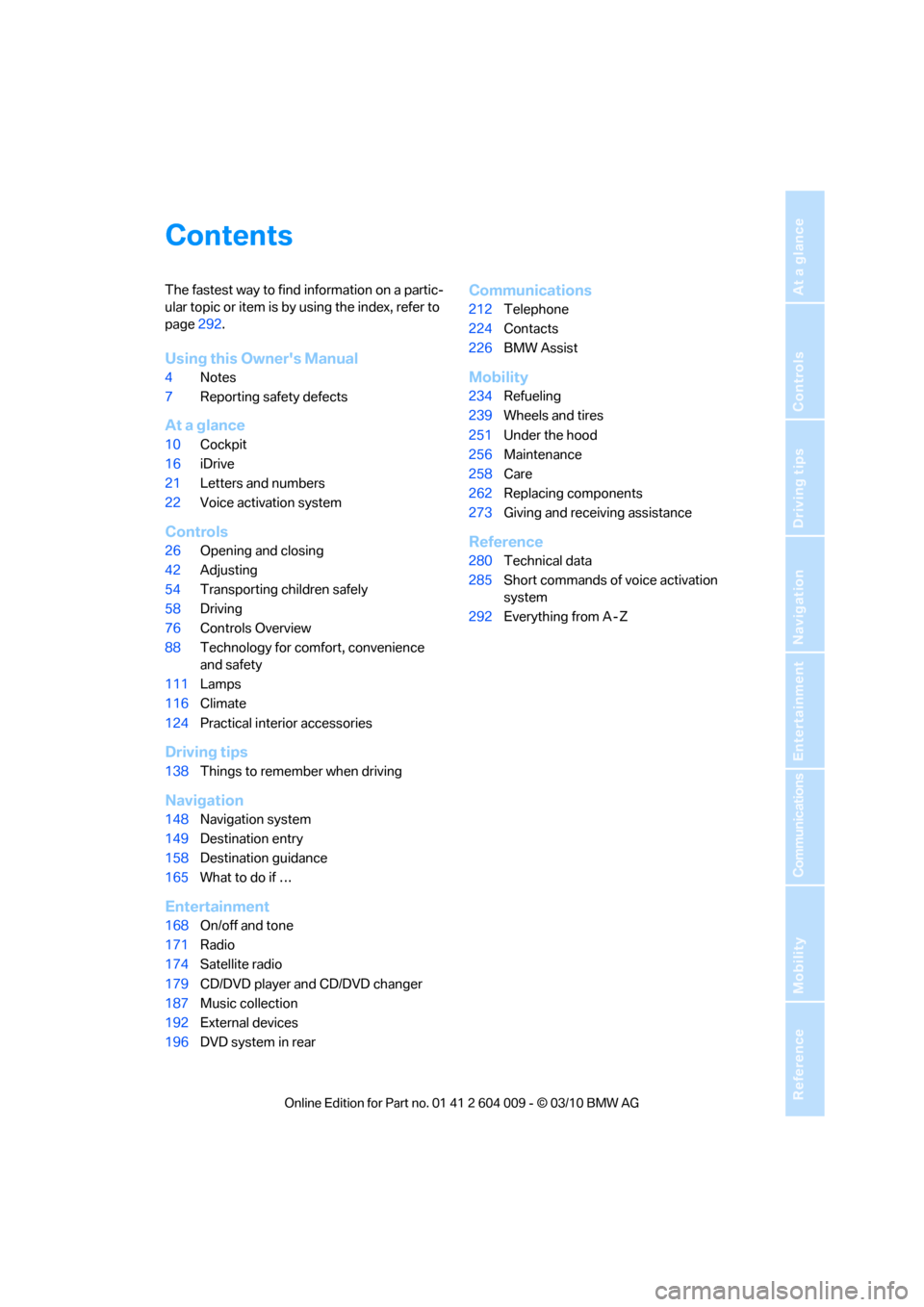
Contents
The fastest way to find information on a partic-
ular topic or item is by using the index, refer to
page292.
Using this Owner's Manual
4Notes
7Reporting safety defects
At a glance
10Cockpit
16iDrive
21Letters and numbers
22Voice activation system
Controls
26Opening and closing
42Adjusting
54Transporting children safely
58Driving
76Controls Overview
88Technology for comfort, convenience
and safety
111Lamps
116Climate
124Practical interior accessories
Driving tips
138Things to remember when driving
Navigation
148Navigation system
149Destination entry
158Destination guidance
165What to do if …
Entertainment
168On/off and tone
171Radio
174Satellite radio
179CD/DVD player and CD/DVD changer
187Music collection
192External devices
196DVD system in rear
Communications
212Telephone
224Contacts
226BMW Assist
Mobility
234Refueling
239Wheels and tires
251Under the hood
256Maintenance
258Care
262Replacing components
273Giving and receiving assistance
Reference
280Technical data
285Short commands of voice activation
system
292Everything from A - Z
Page 18 of 312
iDrive
16
iDrive
iDrive combines the functions of a large number
of switches. This allows these functions to be
operated from a central position. The following
section provides an introduction to basic menu navigation. The control of the individual func-
tions is described in connection with the rele-
vant equipment.
Controls
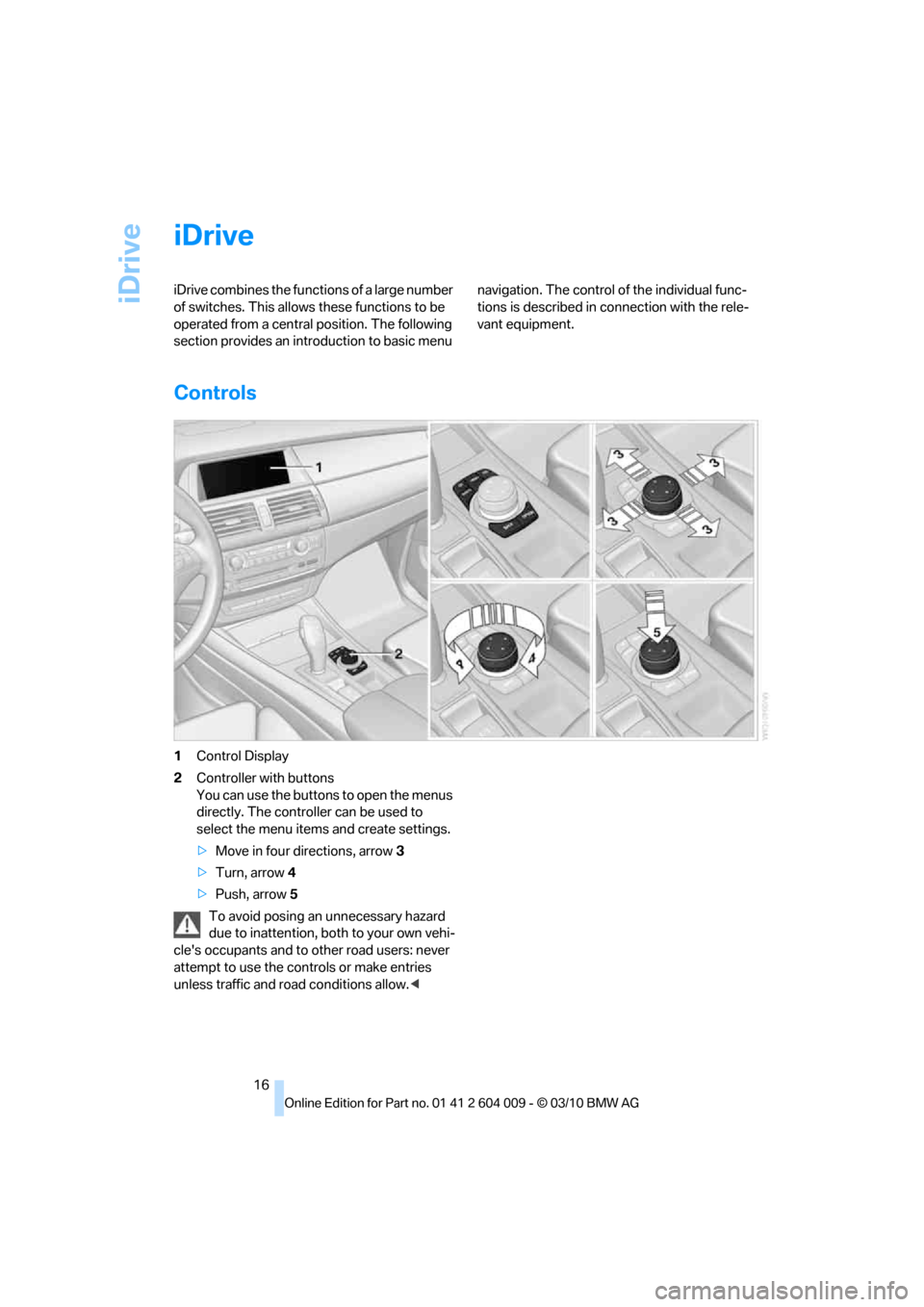
1Control Display
2Controller with buttons
You can use the buttons to open the menus
directly. The controller can be used to
select the menu items and create settings.
>Move in four directions, arrow 3
>Turn, arrow 4
>Push, arrow 5
To avoid posing an unnecessary hazard
due to inattention, both to your own vehi-
cle's occupants and to other road users: never
attempt to use the controls or make entries
unless traffic and road conditions allow.<
Page 19 of 312
At a glance
17Reference
Controls
Driving tips
Communications
Navigation
Entertainment
Mobility
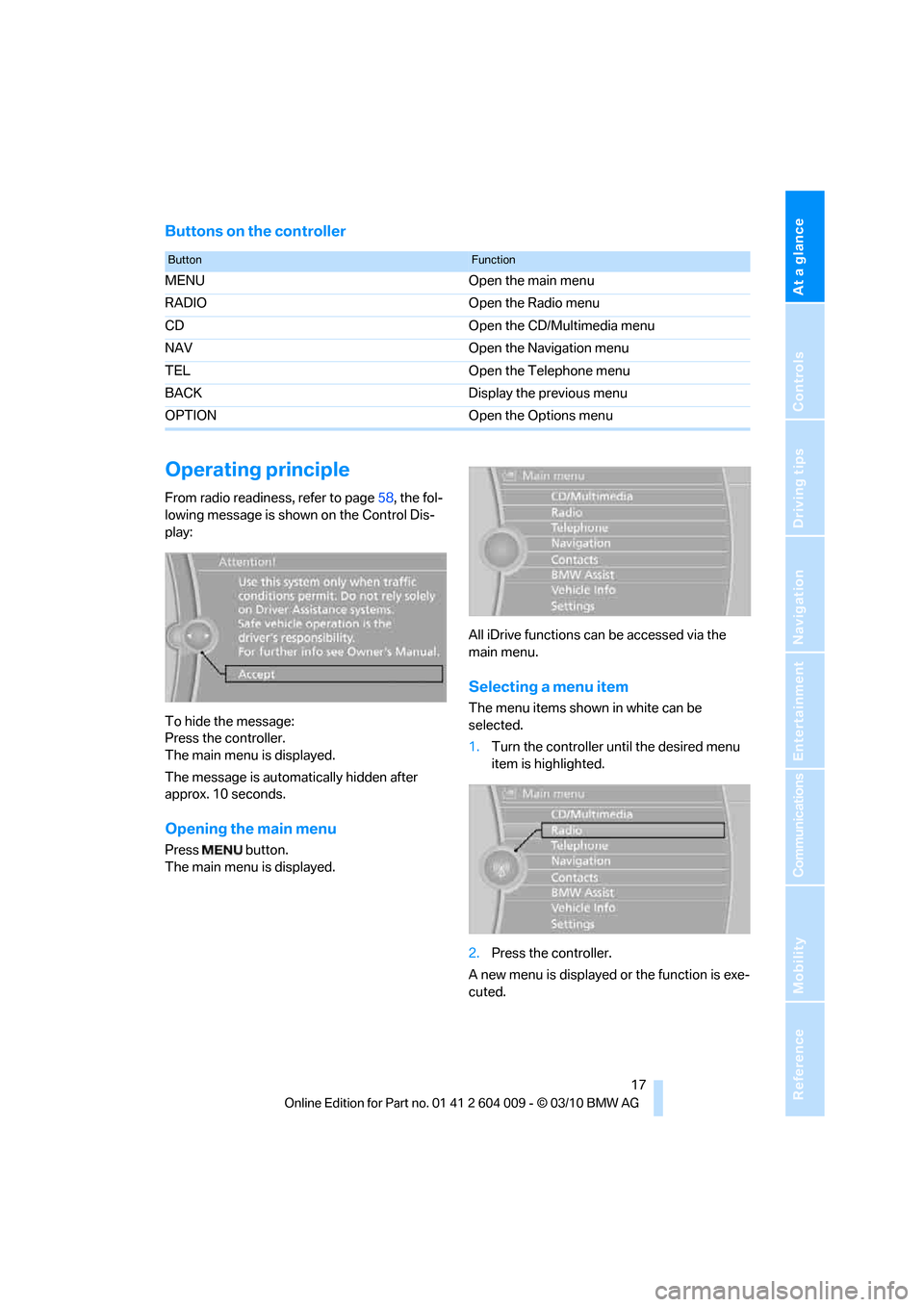
Buttons on the controller
Operating principle
From radio readiness, refer to page58, the fol-
lowing message is shown on the Control Dis-
play:
To hide the message:
Press the controller.
The main menu is displayed.
The message is automatically hidden after
approx. 10 seconds.
Opening the main menu
Press button.
The main menu is displayed.All iDrive functions can be accessed via the
main menu.
Selecting a menu item
The menu items shown in white can be
selected.
1.Turn the controller until the desired menu
item is highlighted.
2.Press the controller.
A new menu is displayed or the function is exe-
cuted.
ButtonFunction
MENU Open the main menu
RADIO Open the Radio menu
CD Open the CD/Multimedia menu
NAV Open the Navigation menu
TEL Open the Telephone menu
BACK Display the previous menu
OPTION Open the Options menu
Page 20 of 312
iDrive
18
Menu items in the Owner's Manual
In the Owner's Manual, menu items that can be
selected are set in quotation marks, e.g. "Set-
tings".
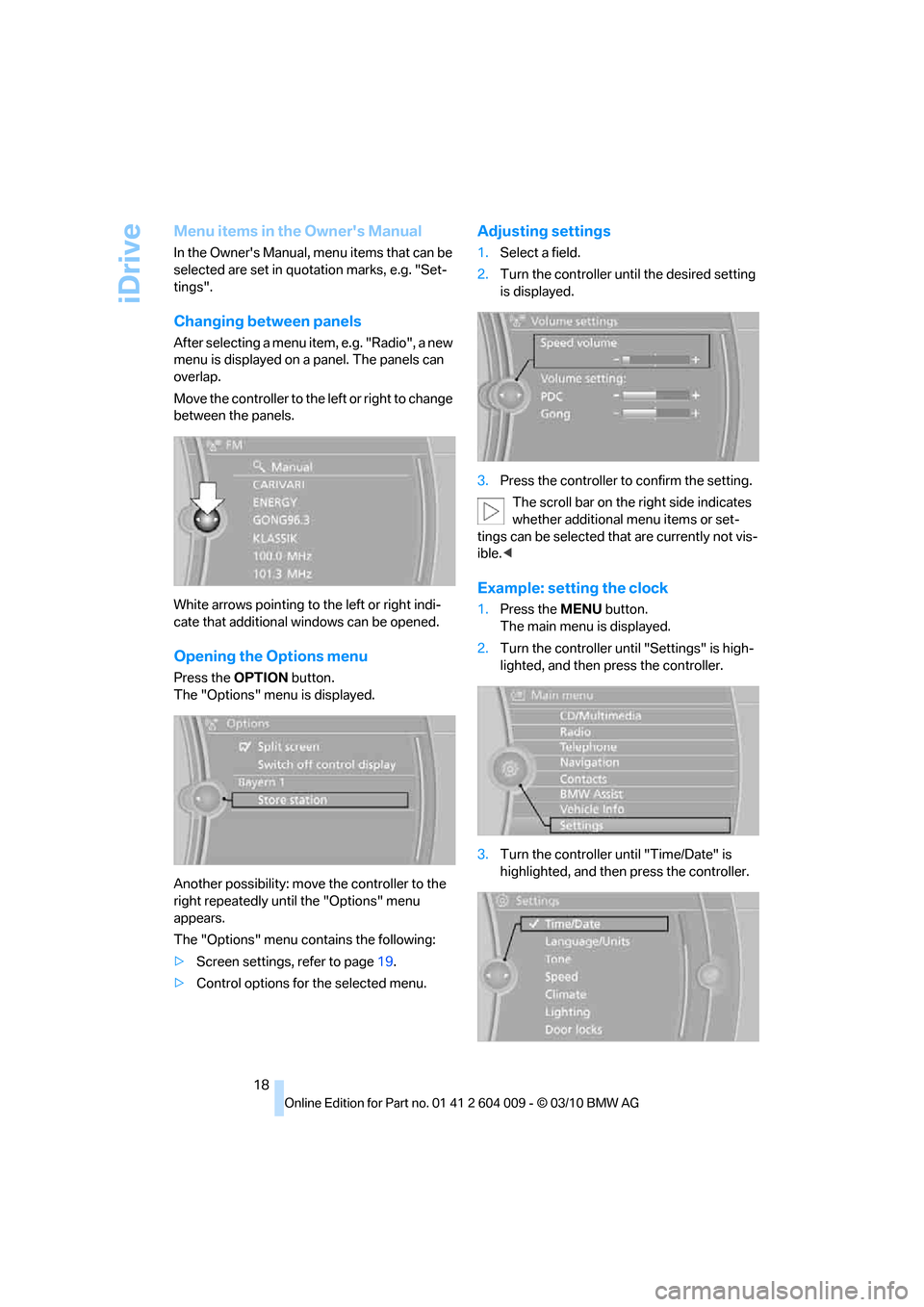
Changing between panels
After selecting a menu item, e.g. "Radio", a new
menu is displayed on a panel. The panels can
overlap.
Move the controller to the left or right to change
between the panels.
White arrows pointing to the left or right indi-
cate that additional windows can be opened.
Opening the Options menu
Press the OPTIONbutton.
The "Options" menu is displayed.
Another possibility: move the controller to the
right repeatedly until the "Options" menu
appears.
The "Options" menu contains the following:
>Screen settings, refer to page19.
>Control options for the selected menu.
Adjusting settings
1.Select a field.
2.Turn the controller until the desired setting
is displayed.
3.Press the controller to confirm the setting.
The scroll bar on the right side indicates
whether additional menu items or set-
tings can be selected that are currently not vis-
ible.<
Example: setting the clock
1.Press the MENUbutton.
The main menu is displayed.
2.Turn the controller until "Settings" is high-
lighted, and then press the controller.
3.Turn the controller until "Time/Date" is
highlighted, and then press the controller.
Page 22 of 312
iDrive
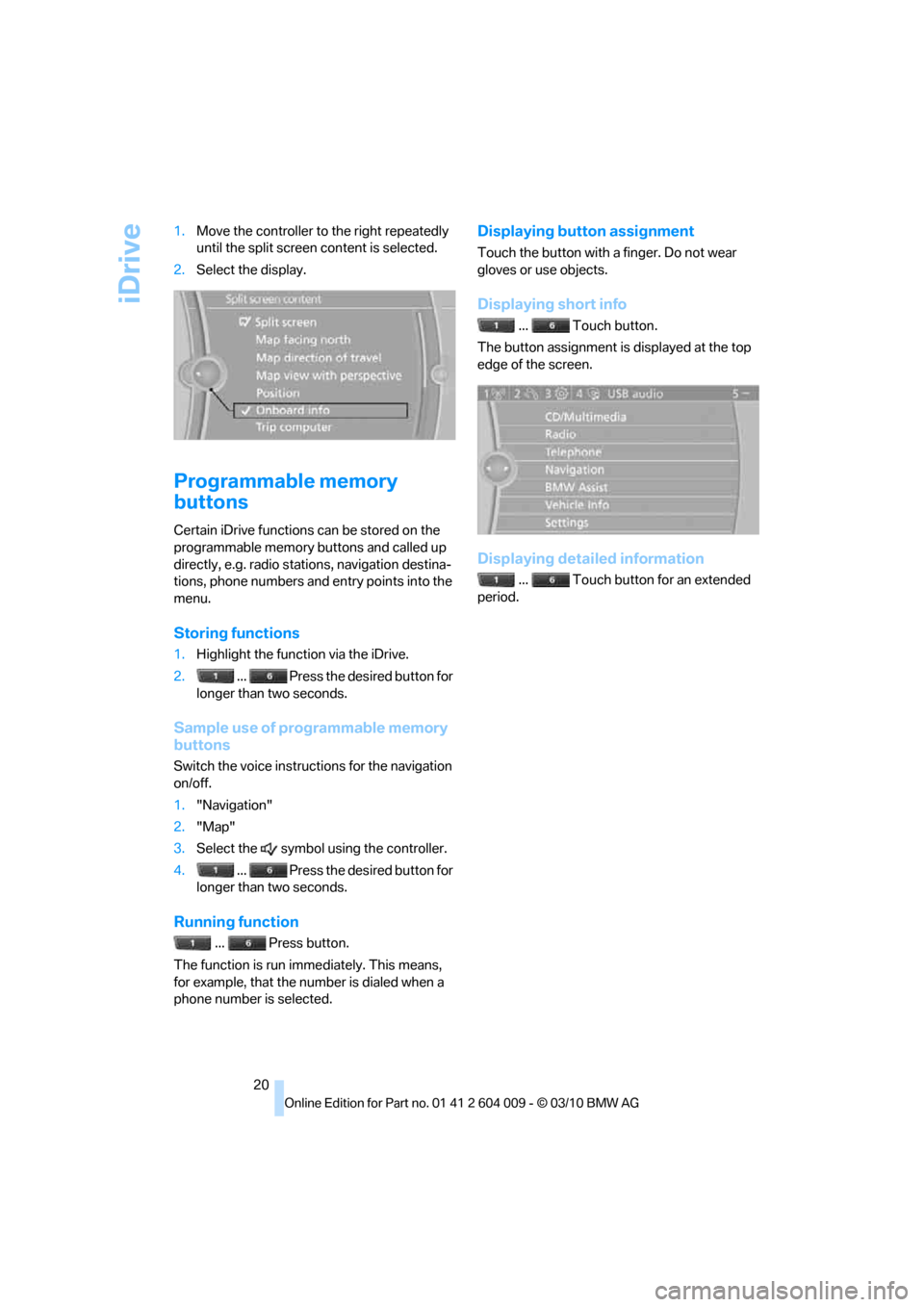
20 1.Move the controller to the right repeatedly
until the split screen content is selected.
2.Select the display.
Programmable memory
buttons
Certain iDrive functions can be stored on the
programmable memory buttons and called up
directly, e.g. radio stations, navigation destina-
tions, phone numbers and entry points into the
menu.
Storing functions
1.Highlight the function via the iDrive.
2. ... Press the desired button for
longer than two seconds.
Sample use of programmable memory
buttons
Switch the voice instructions for the navigation
on/off.
1."Navigation"
2."Map"
3.Select the symbol using the controller.
4. ... Press the desired button for
longer than two seconds.
Running function
... Press button.
The function is run immediately. This means,
for example, that the number is dialed when a
phone number is selected.
Displaying button assignment
Touch the button with a finger. Do not wear
gloves or use objects.
Displaying short info
... Touch button.
The button assignment is displayed at the top
edge of the screen.
Displaying detailed information
... Touch button for an extended
period.
Page 24 of 312
Voice activation system
22
Voice activation system
The concept
The voice activation system allows you to con-
trol operation of various vehicle systems with-
out ever removing your hands from the steering
wheel.
Most menu items on the Control Display can be
voiced as commands. This frees you of having
to use the controller.
The voice activation system transforms your
oral commands into control signals for the
selected systems and provides support in the
form of instructions or questions.
The voice activation system uses a special
microphone located in the area of the interior
rearview mirror, refer to page14.
Precondition
Using iDrive, set the language that applies for
the voice activation system in order to enable
identification of the spoken commands. To set
the language of iDrive, refer to page86.
Symbols in Owner's Manual
Voice commands
Activating voice activation system
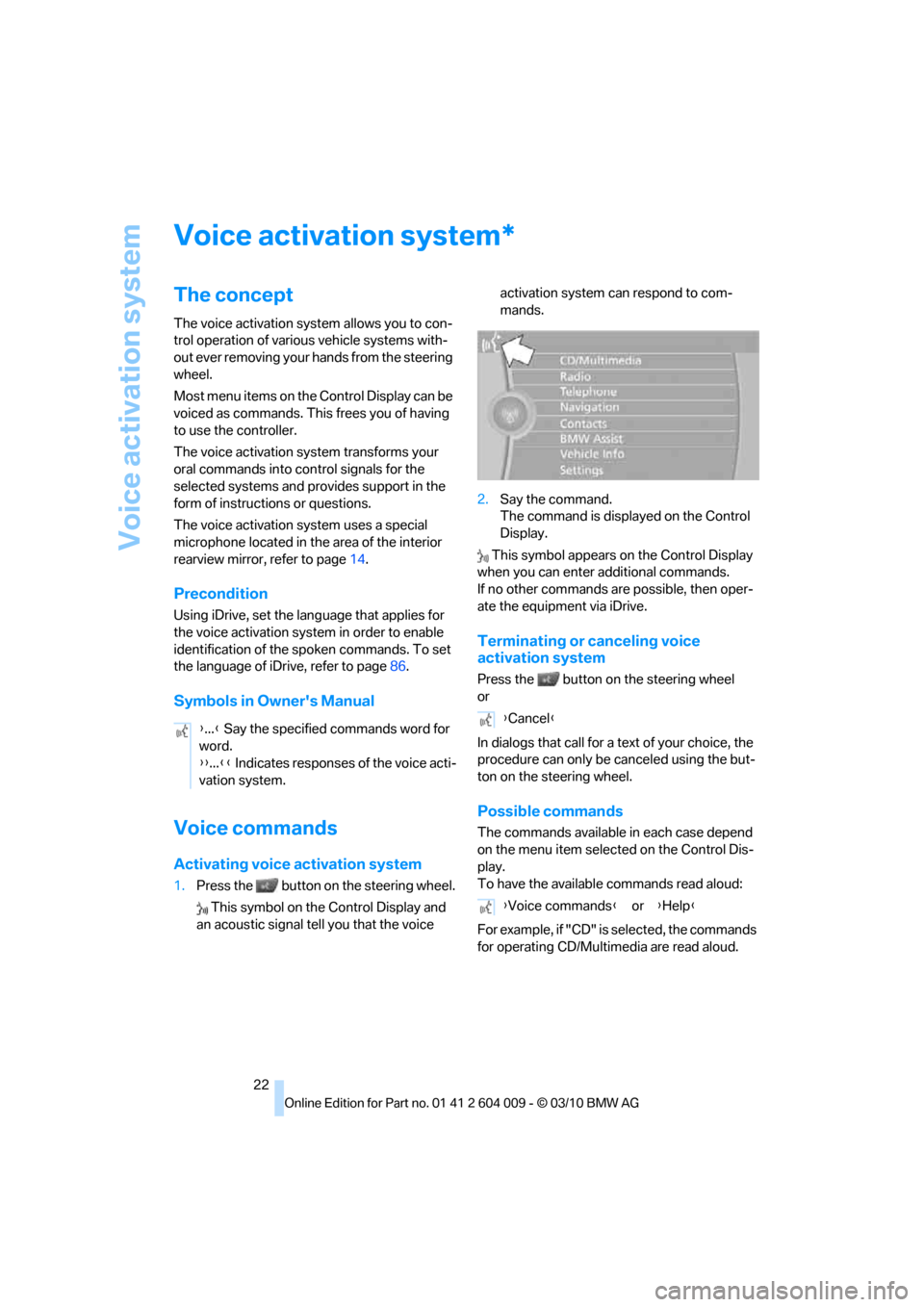
1.Press the button on the steering wheel.
This symbol on the Control Display and
an acoustic signal tell you that the voice activation system can respond to com-
mands.
2.Say the command.
The command is displayed on the Control
Display.
This symbol appears on the Control Display
when you can enter additional commands.
If no other commands are possible, then oper-
ate the equipment via iDrive.
Terminating or canceling voice
activation system
Press the button on the steering wheel
or
In dialogs that call for a text of your choice, the
procedure can only be canceled using the but-
ton on the steering wheel.
Possible commands
The commands available in each case depend
on the menu item selected on the Control Dis-
play.
To have the available commands read aloud:
For example, if "CD" is selected, the commands
for operating CD/Multimedia are read aloud.
*
{...} Say the specified commands word for
word.
{{...}} Indicates responses of the voice acti-
vation system.{Cancel}
{Voice commands} or {Help}
Page 81 of 312
Controls
79Reference
At a glance
Driving tips
Communications
Navigation
Entertainment
Mobility
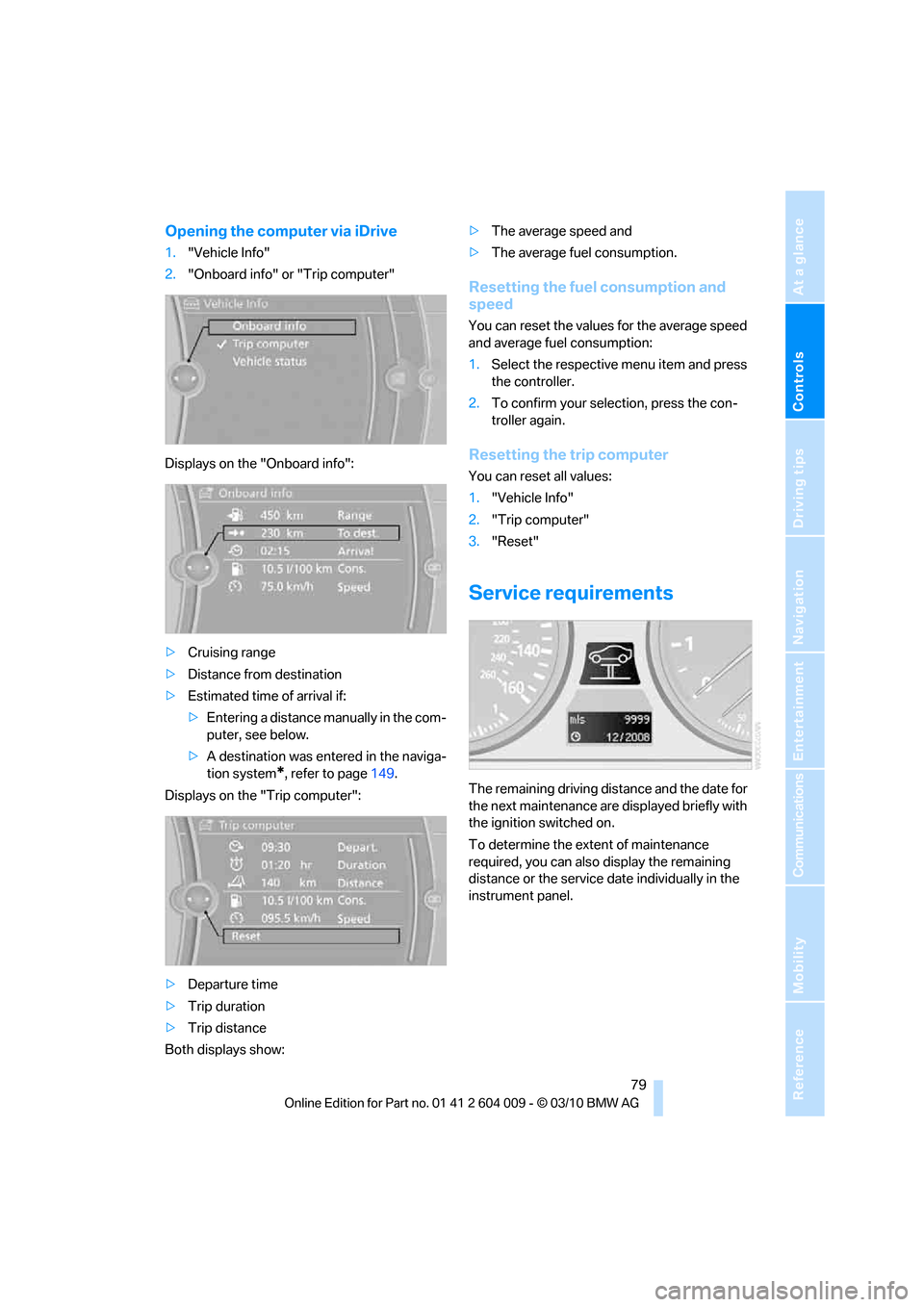
Opening the computer via iDrive
1."Vehicle Info"
2."Onboard info" or "Trip computer"
Displays on the "Onboard info":
>Cruising range
>Distance from destination
>Estimated time of arrival if:
>Entering a distance manually in the com-
puter, see below.
>A destination was entered in the naviga-
tion system
*, refer to page149.
Displays on the "Trip computer":
>Departure time
>Trip duration
>Trip distance
Both displays show:>The average speed and
>The average fuel consumption.
Resetting the fuel consumption and
speed
You can reset the values for the average speed
and average fuel consumption:
1.Select the respective menu item and press
the controller.
2.To confirm your selection, press the con-
troller again.
Resetting the trip computer
You can reset all values:
1."Vehicle Info"
2."Trip computer"
3."Reset"
Service requirements
The remaining driving distance and the date for
the next maintenance are displayed briefly with
the ignition switched on.
To determine the extent of maintenance
required, you can also display the remaining
distance or the service date individually in the
instrument panel.
Page 91 of 312
Controls
89Reference
At a glance
Driving tips
Communications
Navigation
Entertainment
Mobility
>After approx. 165 ft/50 m when driving for-
ward
>At speeds over approx. 25 mph/35 km/h
when driving forward
Switch the system back on as needed.
Switching on/off manually
Press the button.
>On: LED lights up
>Off: LED goes out
Signal tones
When nearing an object, the position is corre-
spondingly indicated by an interval tone. Thus,
an object detected to the left rear of the vehicle
will be indicated by a signal tone from the left
rear speaker, etc.
The shorter the distance to the object
becomes, the shorter the intervals become.
If the distance to the nearest object falls to
below roughly 1 ft/30 cm, then a continuous
tone sounds.
If objects are present both in front of and behind
the vehicle, then an alternating, continuous
tone sounds.
An intermittent tone is interrupted after approx.
3seconds:
>When the vehicle remains stationary in front
of an object that has only been detected by
one of the corner sensors
>When driving parallel to a wall
The signal tone is switched off:
>When the vehicle is more than approx.
4.0 in/10 cm away from an object
>When the selector lever is in the P position
Volume
You can adjust the volume of the signal tone,
refer to page87.
The setting is stored for the remote control cur-
rently in use.
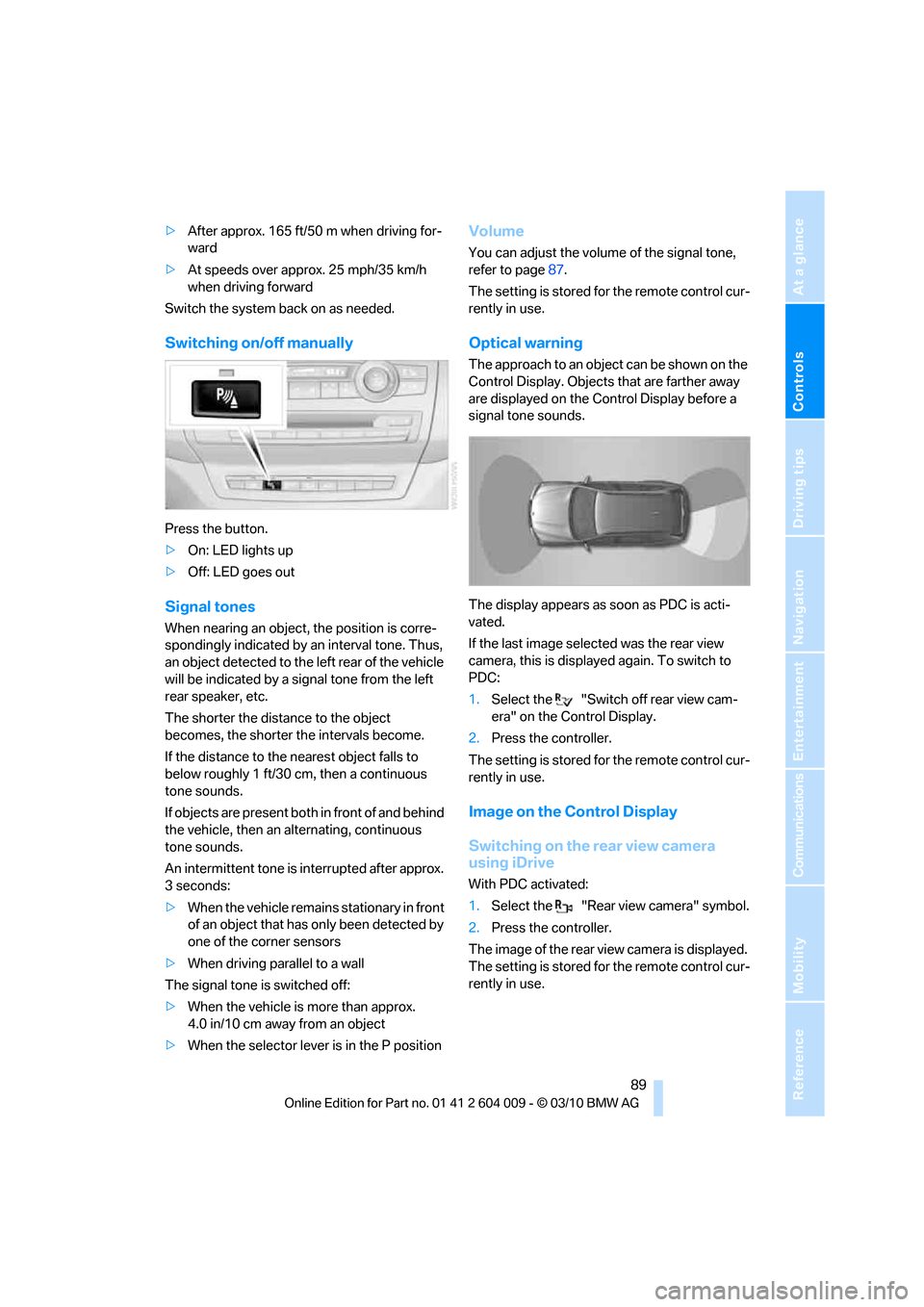
Optical warning
The approach to an object can be shown on the
Control Display. Objects that are farther away
are displayed on the Control Display before a
signal tone sounds.
The display appears as soon as PDC is acti-
vated.
If the last image selected was the rear view
camera, this is displayed again. To switch to
PDC:
1.Select the "Switch off rear view cam-
era" on the Control Display.
2.Press the controller.
The setting is stored for the remote control cur-
rently in use.
Image on the Control Display
Switching on the rear view camera
using iDrive
With PDC activated:
1.Select the "Rear view camera" symbol.
2.Press the controller.
The image of the rear view camera is displayed.
The setting is stored for the remote control cur-
rently in use.
Page 92 of 312
Technology for comfort, convenience and safety
90
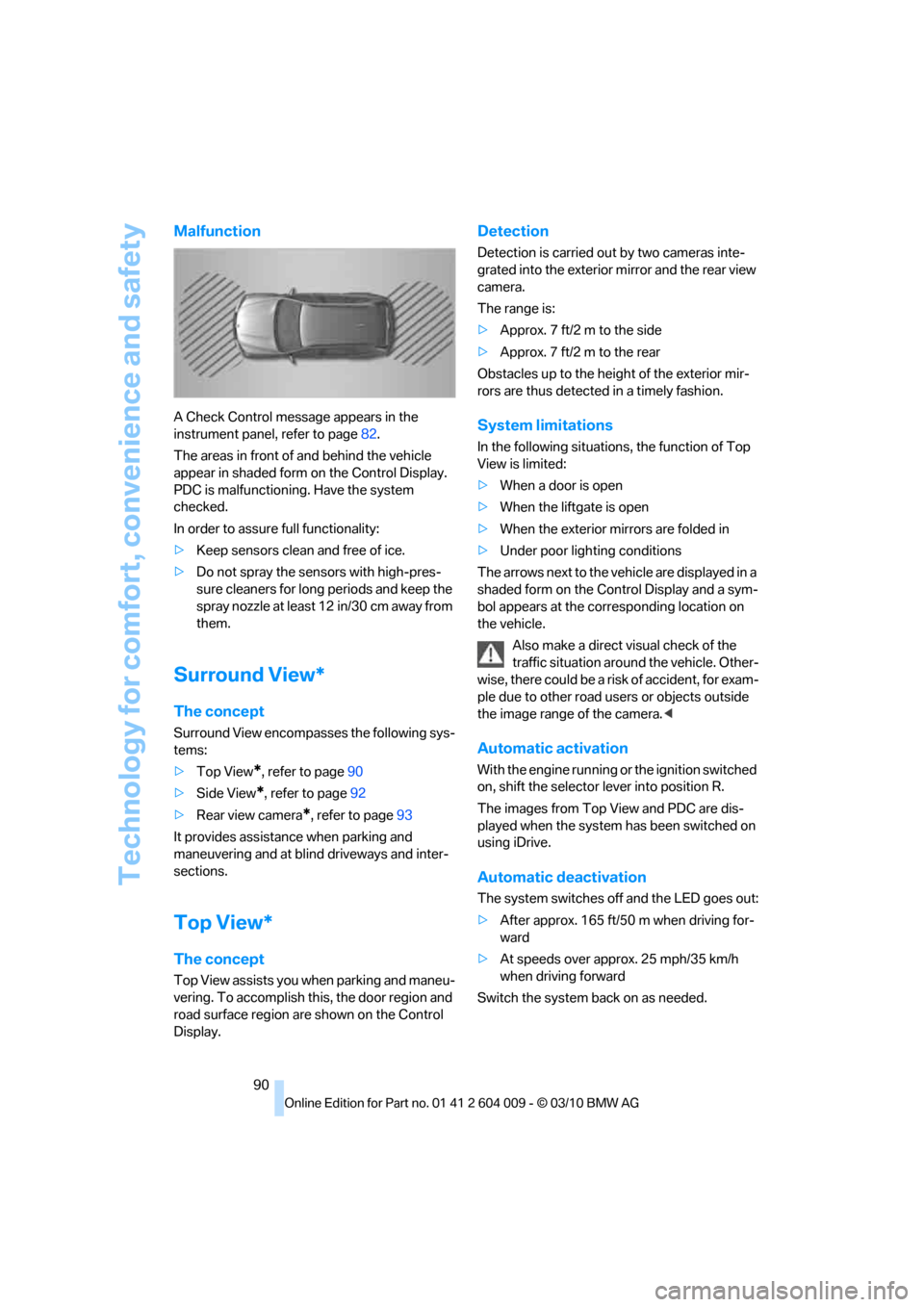
Malfunction
A Check Control message appears in the
instrument panel, refer to page82.
The areas in front of and behind the vehicle
appear in shaded form on the Control Display.
PDC is malfunctioning. Have the system
checked.
In order to assure full functionality:
>Keep sensors clean and free of ice.
>Do not spray the sensors with high-pres-
sure cleaners for long periods and keep the
spray nozzle at least 12 in/30 cm away from
them.
Surround View*
The concept
Surround View encompasses the following sys-
tems:
>Top View
*, refer to page90
>Side View
*, refer to page92
>Rear view camera
*, refer to page93
It provides assistance when parking and
maneuvering and at blind driveways and inter-
sections.
Top View*
The concept
Top View assists you when parking and maneu-
vering. To accomplish this, the door region and
road surface region are shown on the Control
Display.
Detection
Detection is carried out by two cameras inte-
grated into the exterior mirror and the rear view
camera.
The range is:
>Approx. 7 ft/2 m to the side
>Approx. 7 ft/2 m to the rear
Obstacles up to the height of the exterior mir-
rors are thus detected in a timely fashion.
System limitations
In the following situations, the function of Top
View is limited:
>When a door is open
>When the liftgate is open
>When the exterior mirrors are folded in
>Under poor lighting conditions
The arrows next to the vehicle are displayed in a
shaded form on the Control Display and a sym-
bol appears at the corresponding location on
the vehicle.
Also make a direct visual check of the
traffic situation around the vehicle. Other-
wise, there could be a risk of accident, for exam-
ple due to other road users or objects outside
the image range of the camera.<
Automatic activation
With the engine running or the ignition switched
on, shift the selector lever into position R.
The images from Top View and PDC are dis-
played when the system has been switched on
using iDrive.
Automatic deactivation
The system switches off and the LED goes out:
>After approx. 165 ft/50 m when driving for-
ward
>At speeds over approx. 25 mph/35 km/h
when driving forward
Switch the system back on as needed.
Page 93 of 312
Controls
91Reference
At a glance
Driving tips
Communications
Navigation
Entertainment
Mobility
Switching on/off manually
Press the button.
>On: LED lights up.
>Off: LED goes out.
If Top View is displayed, switch o n the rea r vie w
camera using iDrive, refer to page95.
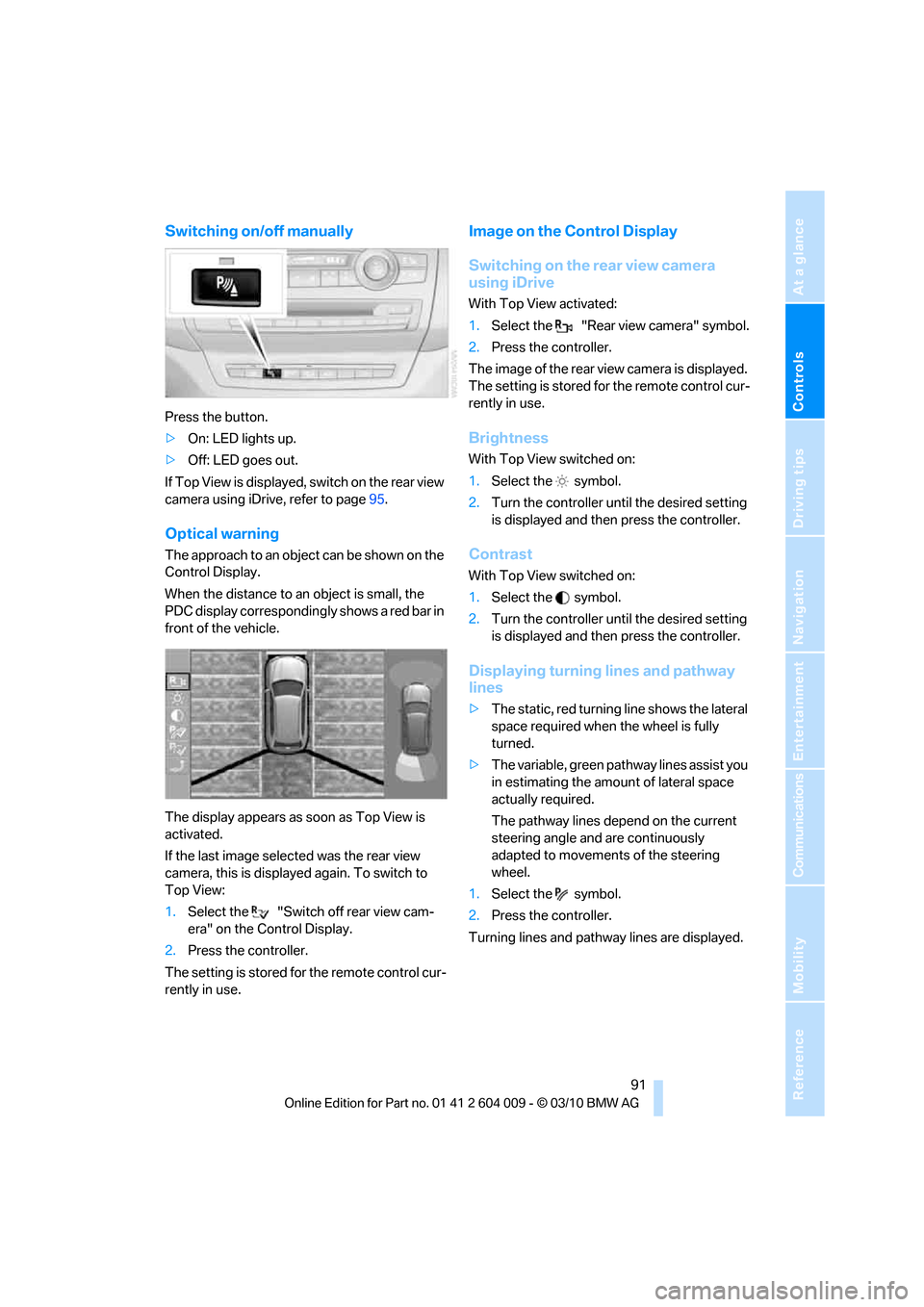
Optical warning
The approach to an object can be shown on the
Control Display.
When the distance to an object is small, the
PDC display correspondingly shows a red bar in
front of the vehicle.
The display appears as soon as Top View is
activated.
If the last image selected was the rear view
camera, this is displayed again. To switch to
Top View:
1.Select the "Switch off rear view cam-
era" on the Control Display.
2.Press the controller.
The setting is stored for the remote control cur-
rently in use.
Image on the Control Display
Switching on the rear view camera
using iDrive
With Top View activated:
1.Select the "Rear view camera" symbol.
2.Press the controller.
The image of the rear view camera is displayed.
The setting is stored for the remote control cur-
rently in use.
Brightness
With Top View switched on:
1.Select the symbol.
2.Turn the controller until the desired setting
is displayed and then press the controller.
Contrast
With Top View switched on:
1.Select the symbol.
2.Turn the controller until the desired setting
is displayed and then press the controller.
Displaying turning lines and pathway
lines
>The static, red turning line shows the lateral
space required when the wheel is fully
turned.
>The variable, green pathway lines assist you
in estimating the amount of lateral space
actually required.
The pathway lines depend on the current
steering angle and are continuously
adapted to movements of the steering
wheel.
1.Select the symbol.
2.Press the controller.
Turning lines and pathway lines are displayed.