audio BMW X5 3.0I 2007 E70 Owner's Guide
[x] Cancel search | Manufacturer: BMW, Model Year: 2007, Model line: X5 3.0I, Model: BMW X5 3.0I 2007 E70Pages: 272, PDF Size: 9.03 MB
Page 182 of 272
DVD system in rear
180
Compressed audio files
Playback
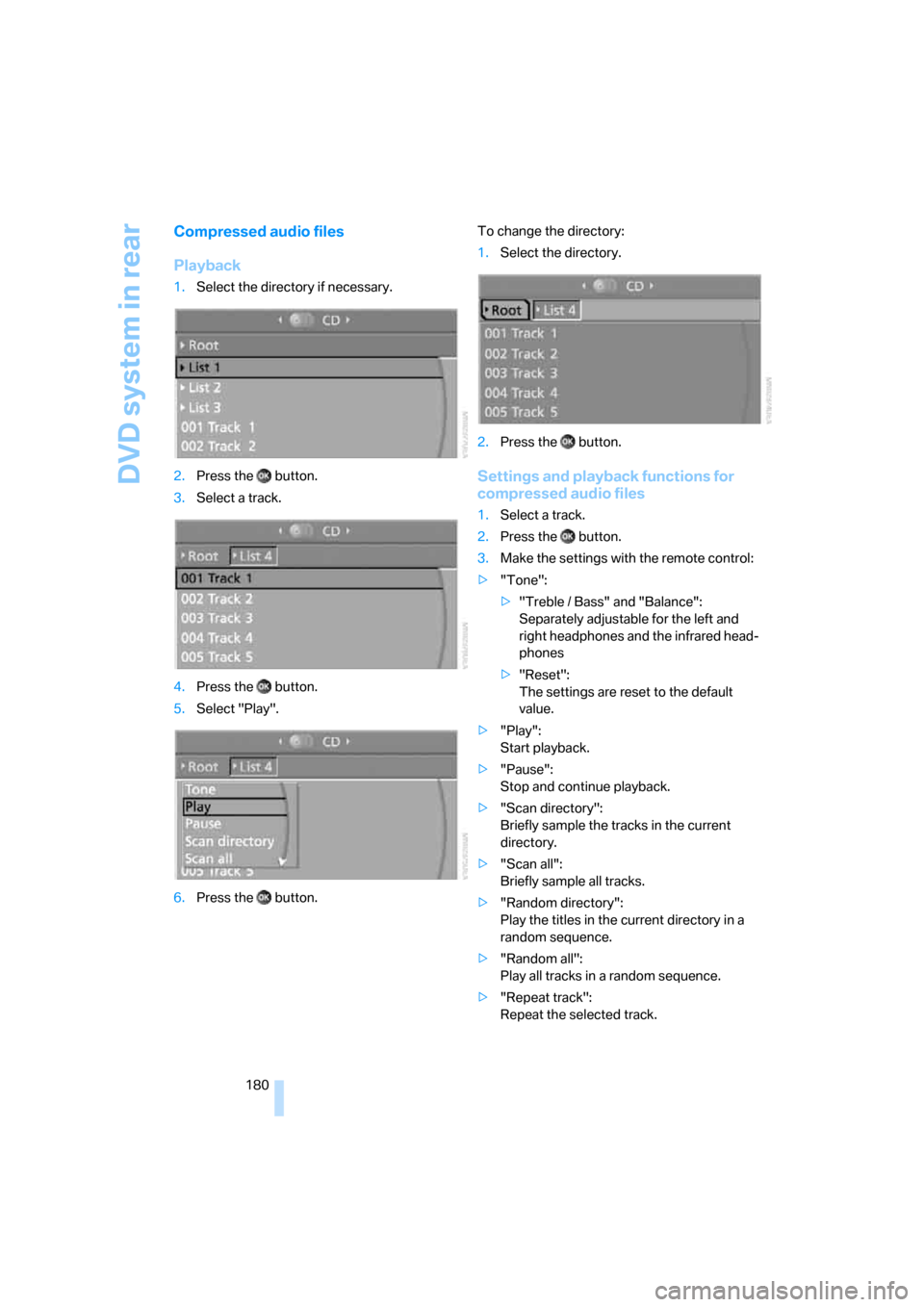
1.Select the directory if necessary.
2.Press the button.
3.Select a track.
4.Press the button.
5.Select "Play".
6.Press the button.To change the directory:
1.Select the directory.
2.Press the button.
Settings and playback functions for
compressed audio files
1.Select a track.
2.Press the button.
3.Make the settings with the remote control:
>"Tone":
>"Treble / Bass" and "Balance":
Separately adjustable for the left and
right headphones and the infrared head-
phones
>"Reset":
The settings are reset to the default
value.
>"Play":
Start playback.
>"Pause":
Stop and continue playback.
>"Scan directory":
Briefly sample the tracks in the current
directory.
>"Scan all":
Briefly sample all tracks.
>"Random directory":
Play the titles in the current directory in a
random sequence.
>"Random all":
Play all tracks in a random sequence.
>"Repeat track":
Repeat the selected track.
Page 184 of 272
DVD system in rear
182
Ending display
1.Press the button.
2.Select the symbol.
3.Press the button.
Ejecting CD/DVD
Press the button on the CD/DVD player.
Information on CD/DVD
player
Safety notes
The BMW CD/DVD player is a Class 1
laser product. Do not operate if the cover
is damaged, otherwise severe eye damage can
result.<
Suitable media
Do not use self-recorded CDs/DVDs with
labels applied as these can become
detached during playback due to heat build-up
and can cause irreparable damage to the
device.
Only use round CDs/DVDs with a standard
diameter of 4.7 in/12 cm.
Never play CDs/DVDs with adapters, e.g. sin-
gle-CDs, as otherwise the CDs or the adapter
can jam and may not be ejected.
Never use combined CD/DVD, e.g. DVD
Plus or
hybrid disks, as otherwise the CD/DVD can jam
and may not be ejected.<
The CD/DVD player can play the following
media:
>Video DVD
>CD-DA (Audio CD)
>CDs/DVDs with compressed image files
>CDs/DVDs with compressed audio files
>CDs/DVDs with compressed video files
DVD Audio is not supported by the DVD player.
However, many audio DVDs available in stores
also contain a video track in the DVD Video for-
mat in addition to the audio track. These DVDs
can be played back by the DVD player. Please
refer to the information on your DVD to deter-mine whether your audio DVD contains an addi-
tional video track. Depending on the authoring
used, it is possible that not all functions are
available during playback.
Dual-sided DVDs available from retail suppliers
are coated on both sides and bear no markings.
This means both sides are information carriers.
To play the information on the other side, turn
over the DVD.
Supported formats
Depending on the compression method used,
not all files of the specified formats can be
opened
Images
JPEG/JPG
With very large image files, it may take a longer
time until the images are shown.
Compressed audio files
>MP3
>WMA
>OGG
>AAC
Compressed video files
>VCD
>SVCD
>MPEG1
>MPEG2
>MPEG4/DivX
Digital Rights Management DRM
It may not be possible to play CDs/CVDs with
integrated Digital Rights Management.
General malfunctions
The BMW CD/DVD player is optimized for oper-
ation in the vehicle. It may react more sensi-
tively to defective CDs/DVDs than devices
intended for stationary use.
If a CD/DVD cannot be played, first check
whether it has been inserted correctly.
Page 185 of 272
Navigation
Entertainment
Driving tips
183Reference
At a glance
Controls
Communications
Mobility
Make sure that no foreign bodies or liq-
uids enter the CD-/DVD slot, as otherwise
the CD/DVD player will be damaged.<
Humidity
High levels of humidity can lead to condensa-
tion on the CD/DVD or the laser's scan lens and
temporarily prevent playback.
Malfunctions with individual CDs/DVDs
If malfunctions occur only with particular CDs/
DVDs, this can be due to one of the following
causes.
Copied or self-recorded CDs/DVDs
Possible reasons for malfunctions with copied
or self-recorded CDs/DVDs are, e.g., inconsis-
tent data-creation or recording processes, or
poor quality or high age of the CD/DVD blank.
Only label CDs/DVDs on the side with the label
using a pen intended for this purpose.
Damaged CDs/DVDs
Avoid fingerprints, dust, scratches and mois-
ture.
Store CDs/DVDs in a sleeve.
Do not subject CDs/DVDs to temperatures over
1227/506, high levels of humidity or direct
sunlight.
CDs/DVDs with copy protection
CDs/DVDs are often provided with a copy pro-
tection feature by the manufacturer. This can
m e a n t h a t s o m e C D s / D V D s c a n n o t b e p l a y e d o r
can only be played to a limited extent.
Care instructions
You can find everything you need to know on
this topic by consulting the separate Caring for
your vehicle brochure.
External device
Connecting
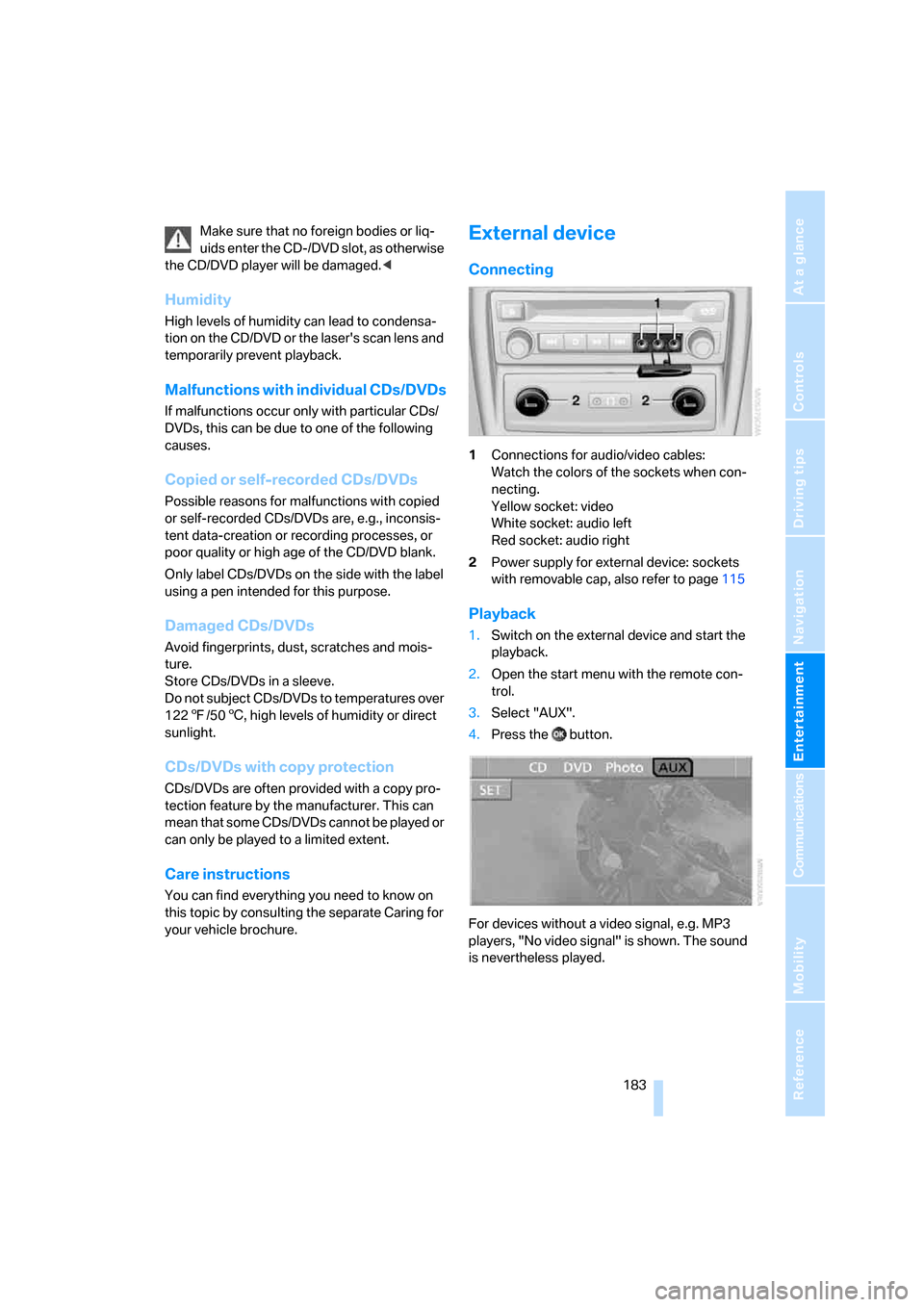
1Connections for audio/video cables:
Watch the colors of the sockets when con-
necting.
Yellow socket: video
White socket: audio left
Red socket: audio right
2Power supply for external device: sockets
with removable cap, also refer to page115
Playback
1.Switch on the external device and start the
playback.
2.Open the start menu with the remote con-
trol.
3.Select "AUX".
4.Press the button.
For devices without a video signal, e.g. MP3
players, "No video signal" is shown. The sound
is nevertheless played.
Page 186 of 272
DVD system in rear
184
Settings for external devices
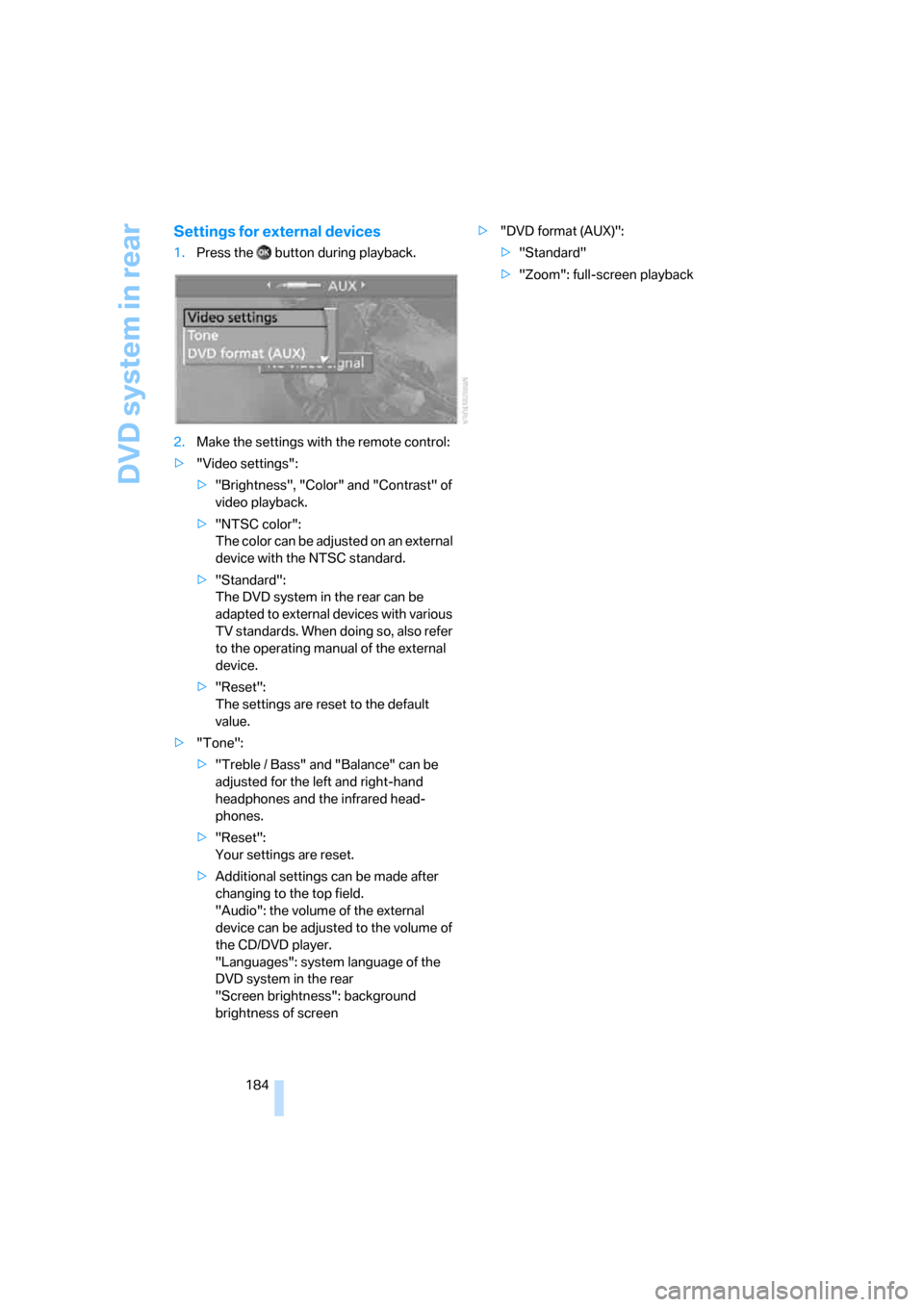
1.Press the button during playback.
2.Make the settings with the remote control:
>"Video settings":
>"Brightness", "Color" and "Contrast" of
video playback.
>"NTSC color":
The color can be adjusted on an external
device with the NTSC standard.
>"Standard":
The DVD system in the rear can be
adapted to external devices with various
TV standards. When doing so, also refer
to the operating manual of the external
device.
>"Reset":
The settings are reset to the default
value.
>"Tone":
>"Treble / Bass" and "Balance" can be
adjusted for the left and right-hand
headphones and the infrared head-
phones.
>"Reset":
Your settings are reset.
>Additional settings can be made after
changing to the top field.
"Audio": the volume of the external
device can be adjusted to the volume of
the CD/DVD player.
"Languages": system language of the
DVD system in the rear
"Screen brightness": background
brightness of screen>"DVD format (AUX)":
>"Standard"
>"Zoom": full-screen playback
Page 194 of 272
Telephoning
192 The phone book entries you have trans-
ferred from your mobile phone to your vehi-
cle are also deleted in the process.
Activating/deactivating Bluetooth link
Bluetooth technology is not approved in
all countries. Observe the applicable local
regulations. Temporarily disconnect the Blue-
tooth link between the vehicle and the mobile
phone if necessary.<
If the Bluetooth link is deactivated, you cannot
operate your mobile phone via the vehicle and
other devices with a Bluetooth interface can be
used via the mobile phone, e.g. a laptop com-
puter.
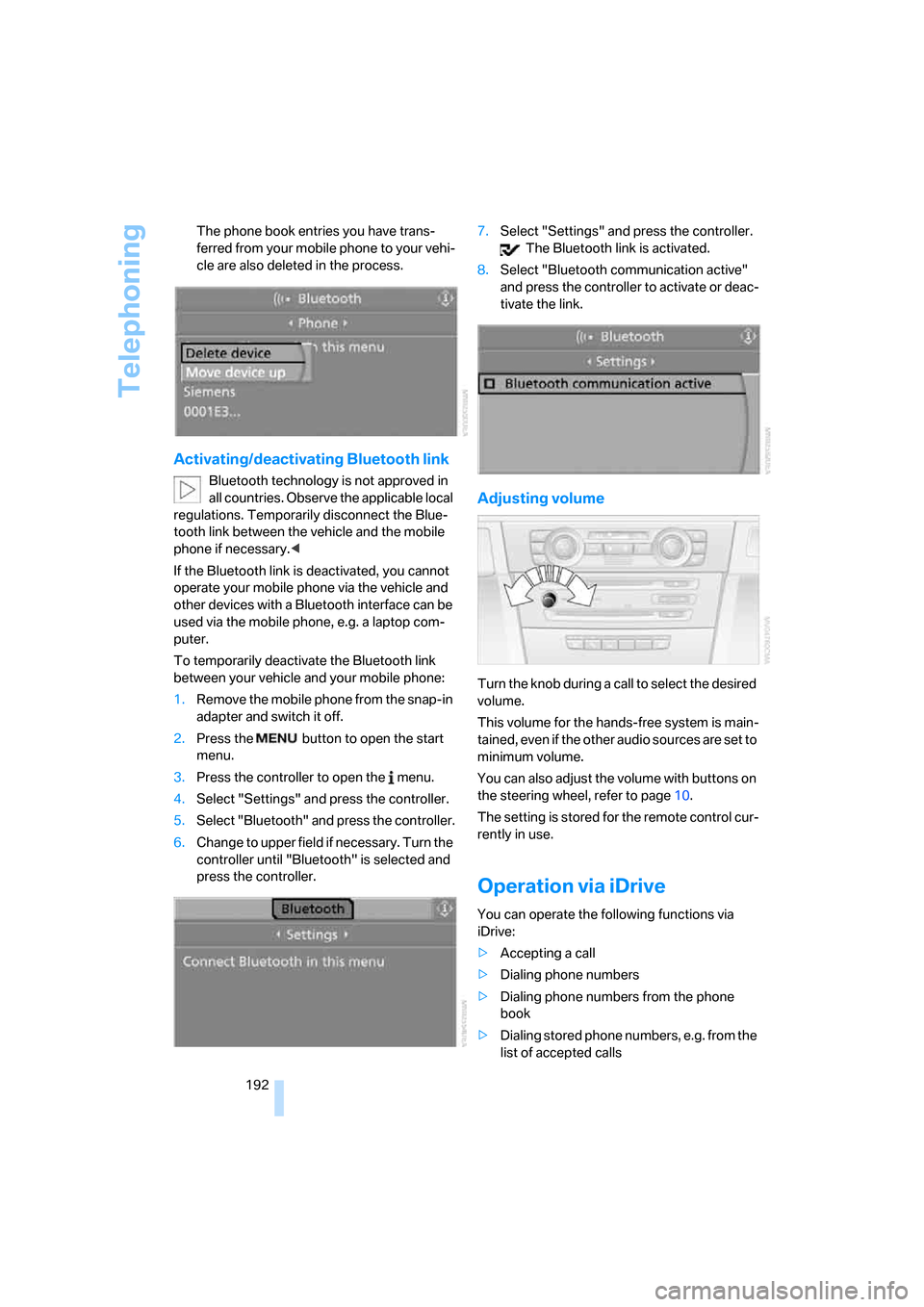
To temporarily deactivate the Bluetooth link
between your vehicle and your mobile phone:
1.Remove the mobile phone from the snap-in
adapter and switch it off.
2.Press the button to open the start
menu.
3.Press the controller to open the menu.
4.Select "Settings" and press the controller.
5.Select "Bluetooth" and press the controller.
6.Change to upper field if necessary. Turn the
controller until "Bluetooth" is selected and
press the controller.7.Select "Settings" and press the controller.
The Bluetooth link is activated.
8.Select "Bluetooth communication active"
and press the controller to activate or deac-
tivate the link.
Adjusting volume
Turn the knob during a call to select the desired
volume.
This volume for the hands-free system is main-
tained, even if the other audio sources are set to
minimum volume.
You can also adjust the volume with buttons on
the steering wheel, refer to page10.
The setting is stored for the remote control cur-
rently in use.
Operation via iDrive
You can operate the following functions via
iDrive:
>Accepting a call
>Dialing phone numbers
>Dialing phone numbers from the phone
book
>Dialing stored phone numbers, e.g. from the
list of accepted calls
Page 200 of 272
Telephoning
198
Voice commands
Activating system
1.Briefly press the button on the steering
wheel.
An acoustic signal indicates that you can
say commands.
2.Say the command.
The text or numbers that the voice com-
mand system has registered will appear on
the Control Display.
Ending/canceling operation by voice
Briefly press the button on the steering
wheel
orIn dialogs where text is spoken, not a command,
e.g. a name, canceling is only possible using the
button on the steering wheel.
Having possible commands read aloud
The system understands default commands
that must be spoken word for word.
You can have the possible commands spoken
by the system at any point:
Using alternative commands
There are often a number of commands to run a
function, e.g.:
The system recognizes digits from zero to nine.
You can say each digit individually or group
them into a sequence to accelerate the input.
Example: dialing phone numbers
To start the dialog:
Press the button on the steering wheel.
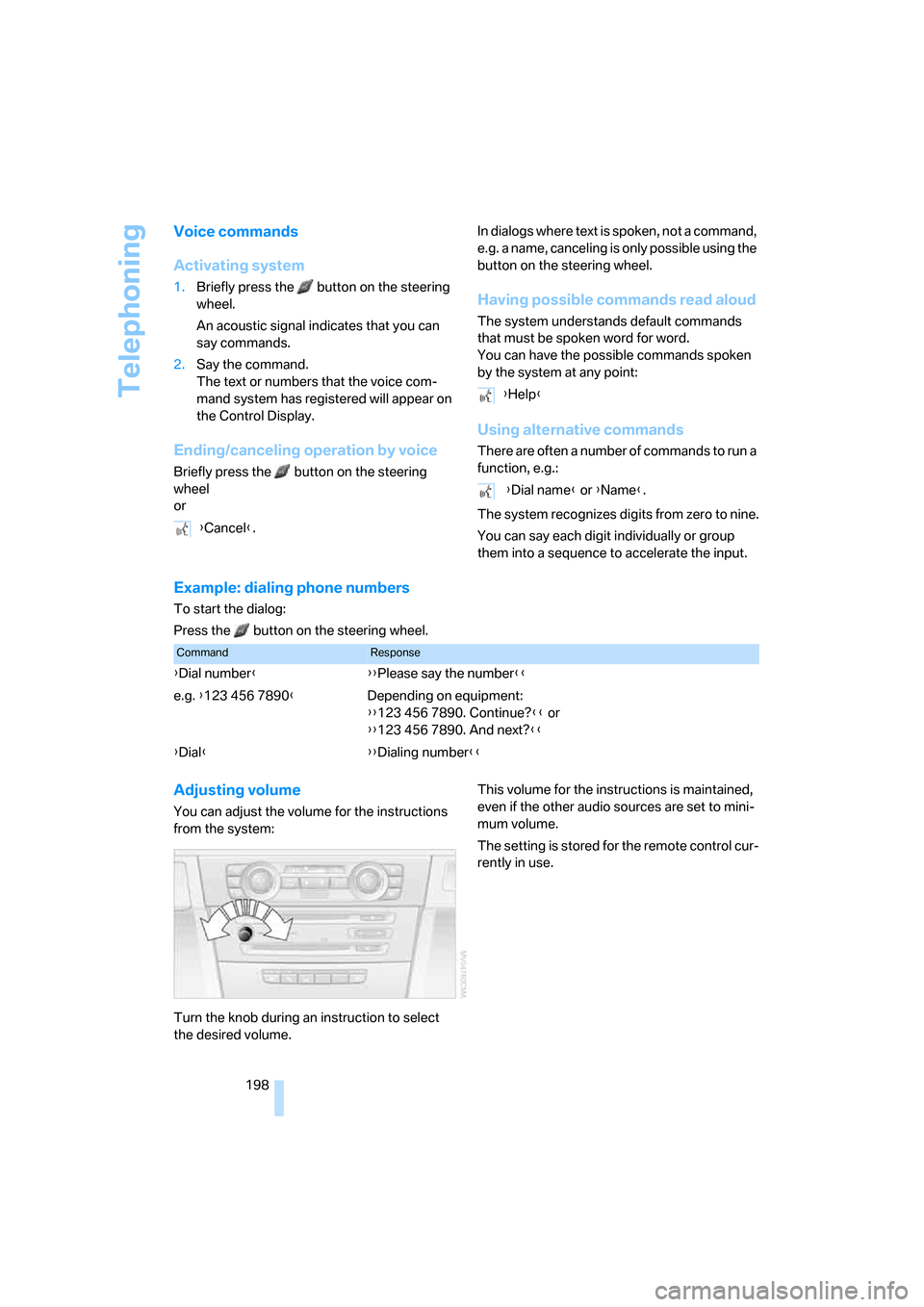
Adjusting volume
You can adjust the volume for the instructions
from the system:
Turn the knob during an instruction to select
the desired volume.This volume for the instructions is maintained,
even if the other audio sources are set to mini-
mum volume.
The setting is stored for the remote control cur-
rently in use. {Cancel}.
{Help}
{Dial name} or {Name}.
CommandResponse
{Dial number}{{Please say the number}}
e.g. {123 456 7890}Depending on equipment:
{{123 456 7890. Continue?}} or
{{123 456 7890. And next?}}
{Dial}{{Dialing number}}
Page 201 of 272
199
Entertainment
Reference
At a glance
Controls
Driving tips Communications
Navigation
Mobility
Calling
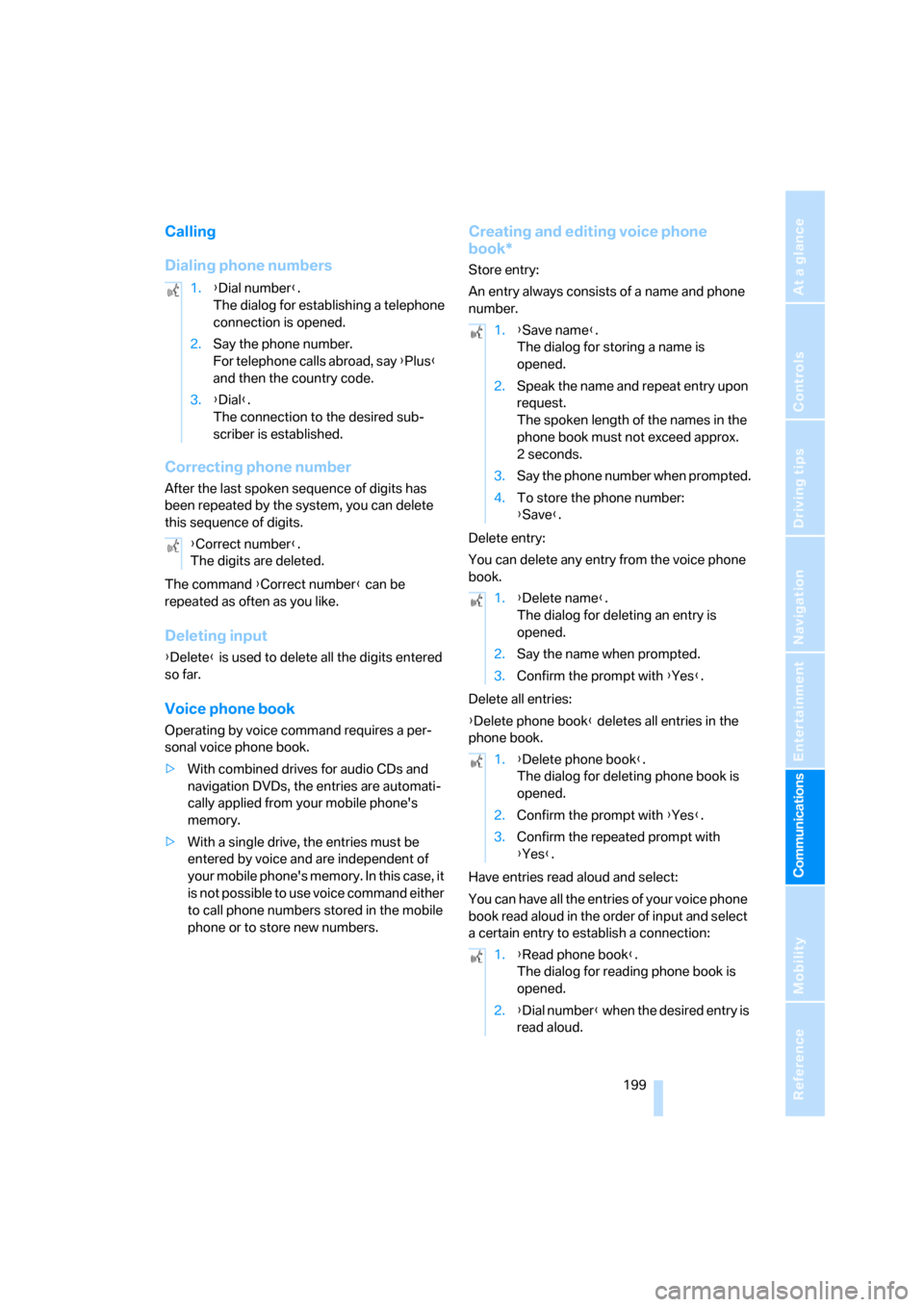
Dialing phone numbers
Correcting phone number
After the last spoken sequence of digits has
been repeated by the system, you can delete
this sequence of digits.
The command {Correct number} can be
repeated as often as you like.
Deleting input
{Delete} is used to delete all the digits entered
so far.
Voice phone book
Operating by voice command requires a per-
sonal voice phone book.
>With combined drives for audio CDs and
navigation DVDs, the entries are automati-
cally applied from your mobile phone's
memory.
>With a single drive, the entries must be
entered by voice and are independent of
your mobile phone's memory. In this case, it
is not possible to use voice command either
to call phone numbers stored in the mobile
phone or to store new numbers.
Creating and editing voice phone
book*
Store entry:
An entry always consists of a name and phone
number.
Delete entry:
You can delete any entry from the voice phone
book.
Delete all entries:
{Delete phone book} deletes all entries in the
phone book.
Have entries read aloud and select:
You can have all the entries of your voice phone
book read aloud in the order of input and select
a certain entry to establish a connection: 1.{Dial number}.
The dialog for establishing a telephone
connection is opened.
2.Say the phone number.
For telephone calls abroad, say {Plus}
and then the country code.
3.{Dial}.
The connection to the desired sub-
scriber is established.
{Correct number}.
The digits are deleted.
1.{Save name}.
The dialog for storing a name is
opened.
2.Speak the name and repeat entry upon
request.
The spoken length of the names in the
phone book must not exceed approx.
2seconds.
3.Say the phone number when prompted.
4.To store the phone number:
{Save}.
1.{Delete name}.
The dialog for deleting an entry is
opened.
2.Say the name when prompted.
3.Confirm the prompt with {Yes}.
1.{Delete phone book}.
The dialog for deleting phone book is
opened.
2.Confirm the prompt with {Yes}.
3.Confirm the repeated prompt with
{Yes}.
1.{Read phone book}.
The dialog for reading phone book is
opened.
2.{Dial number} when the desired entry is
read aloud.
Page 249 of 272
Reference 247
At a glance
Controls
Driving tips
Communications
Navigation
Entertainment
Mobility
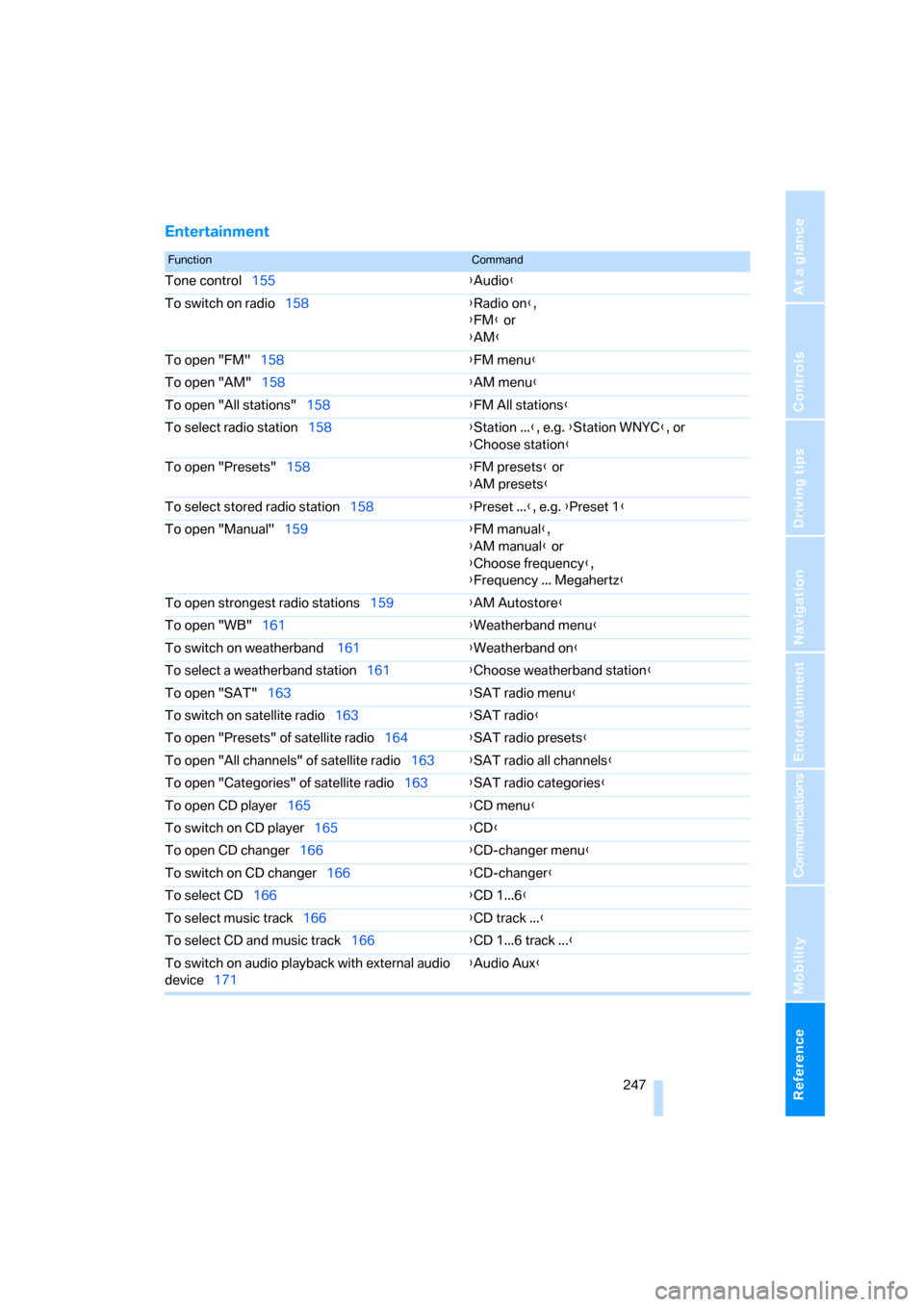
Entertainment
FunctionCommand
Tone control155{Audio}
To switch on radio158{Radio on},
{FM} or
{AM}
To open "FM"158{FM menu}
To open "AM"158{AM menu}
To open "All stations"158{FM All stations}
To select radio station158{Station ...}, e.g. {Station WNYC}, or
{Choose station}
To open "Presets"158{FM presets} or
{AM presets}
To select stored radio station158{Preset ...}, e.g. {Preset 1}
To open "Manual"159{FM manual},
{AM manual} or
{Choose frequency},
{Frequency ... Megahertz}
To open strongest radio stations159{AM Autostore}
To open "WB"161{Weatherband menu}
To switch on weatherband 161{Weatherband on}
To select a weatherband station161{Choose weatherband station}
To open "SAT"163{SAT radio menu}
To switch on satellite radio163{SAT radio}
To open "Presets" of satellite radio164{SAT radio presets}
To open "All channels" of satellite radio163{SAT radio all channels}
To open "Categories" of satellite radio163{SAT radio categories}
To open CD player165{CD menu}
To switch on CD player165{CD}
To open CD changer166{CD-changer menu}
To switch on CD changer166{CD-changer}
To select CD166{CD 1...6}
To select music track166{CD track ...}
To select CD and music track166{CD 1...6 track ...}
To switch on audio playback with external audio
device171{Audio Aux}
Page 252 of 272
Everything from A to Z
250
Everything from A to Z
Index
"..." Identifies Control Display
texts used to select
individual functions, and
indicates where to find them
in the text.
A
ABS Antilock Brake
System84
Accessories6
Access to 3rd row seats45
Acoustic signal, refer to Check
Control74
Activated-charcoal filter106
"Activation time" for parked
car ventilation109
Active seat48
Active seat ventilation47
Active steering91
– warning lamp91
Adapter for spare key28
Adaptive brake lamps, refer to
Brake force display92
Adaptive Drive86
Adaptive fixing system117
Adaptive Head Light98
"Add digits" for mobile
phone195
"Address book" for
navigation139
Address for navigation
– deleting140
– entering131,134,139
– selecting139
– storing139
– storing current position139
"Add to destination
list"134,136
Adjusting confirmation signals
for locking and unlocking31Adjusting temperature, with
automatic climate control
with expanded scope103
Adjusting the tone during
audio operation, refer to
Tone control155
Adjusting thigh support41
"After door opened"43
"After unlocking"43
Airbags92
– sitting safely40
– warning lamp94
Air distribution
– automatic102,107
– manual103
Airing, refer to Ventilation105
Air recirculation105
– AUC Automatic
recirculated-air control105
– recirculated-air mode105
"Air recirculation on / off"50
Air vents
101
– refer to Ventilation105
Air vents of automatic climate
control101
Air volume103,108
AKI, refer to Fuel
specifications213
Alarm system34
– avoiding unintentional
alarms35
– interior motion sensor35
– switching off alarm34
– switching off tilt alarm
sensor and interior motion
sensor35
– tilt alarm sensor35
"All channels" with satellite
radio163
"All doors"30
All-season tires, refer to
Winter tires221"All stations" display with
radio158
All-wheel drive, refer to
xDrive85
Alterations, technical, refer to
For your own safety5
Alternate route, refer to
Bypassing traffic
congestion149
"AM", reception
range155,158
"Angle of view" for DVD
system in rear177
Antenna for mobile phone188
Antifreeze
– coolant225
– washer fluid64
Antilock Brake System
ABS84
Anti-theft system
– refer to Alarm system34
– refer to Central locking
system29
Approved axle loads, refer to
Weights244
Approved engine oils224
Approved gross vehicle
weight, refer to Weights244
Armrest, refer to Center
armrest113
Around the center console14
Around the steering wheel10
Arrival time
– refer to Computer69
– refer to Starting destination
guidance143
"Arrow display" for
navigation144
Arrow view for navigation
system144
Page 253 of 272
Reference 251
At a glance
Controls
Driving tips
Communications
Navigation
Entertainment
Mobility
Ashtray
– front114
– rear115
Assistance systems, refer to
Driving stability control
systems84
Assistance window20
"Assist. window off"21
AUC Automatic recirculated-
air control105
"Audio"157
Audio154
– controls154
– switching on/off154
– tone control155
– volume155
Audio CD with DVD system in
rear178
Audio device, external113
"Audio" for DVD system in
rear184
Automatic
– air distribution102,107
– air volume102,107
– headlamp control97
– service notification204
– steering wheel adjustment,
refer to Easy entry/exit50
– storing stations159
Automatic car washes124
– also refer to Caring for your
vehicle brochure
Automatic climate control102
– automatic air
distribution102,107
– switching off105,108
– with 4-zone control107
Automatic curb monitor49
Automatic garage door
opener110
Automatic lighting
– refer to Automatic headlamp
control97
– refer to Daytime running
lamps98
– refer to Interior lamps100
– refer to Pathway lighting97"Automatic programs"103
Automatic recirculated-air
control AUC105
Automatic station search159
Automatic transmission with
Steptronic59
– kick-down61
– manually releasing
transmission lock61
– tow-starting
239
– with comfort access36
"Automatic ventilation"109
AUTO program for automatic
climate control102,107
"Autostore" on the radio160
"AUX"155,171,174
– for DVD system in rear183
– with external audio
device171
AUX-In
– connection113
– refer to External audio
device171
Average fuel consumption69
– setting units79
Average speed, refer to
Computer69
"Avoid ferries" for
navigation142
"Avoid highways" for
navigation141
Avoiding highways for
navigation141
Avoiding unintentional
alarms35
"Avoid tollroads" for
navigation142
Axle loads, refer to
Weights244
"A - Z"194,195
B
Backrest contour, refer to
Lumbar support42
Backrests, refer to Seats41
Backrest width adjustment41Backup camera81
– cleaning83
– displays83
– driver assistance
functions82
– switching off82
– switching on81
Backup lamps, replacing
bulbs230
Balance, refer to Tone
control156
"Balance" for DVD system in
rear177
Band-aids, refer to First-aid
kit237
Bass, refer to Tone
control155
Battery
– jump starting237
– refer to Vehicle battery234
Battery disposal
– remote control with comfort
access37
– vehicle battery234
Battery replacement
– remote control for DVD
system in rear174
– remote control with comfort
access37
Being towed239
Belts, refer to Safety belts45
Beverage holder, refer to Cup
holders114
Blower, refer to Air
volume103,108
"BMW Assist"203,204,205
BMW Assist
– activating207
– breakdown assistance203
– contacting BMW
Hotline205
– information service205
– services offered202
– TeleService204
"BMW Contact"196
"BMW Contact
Numbers"196