light BMW X5 3.0I 2007 E70 Workshop Manual
[x] Cancel search | Manufacturer: BMW, Model Year: 2007, Model line: X5 3.0I, Model: BMW X5 3.0I 2007 E70Pages: 272, PDF Size: 9.03 MB
Page 144 of 272
Destination entry
142 4.Press the controller.
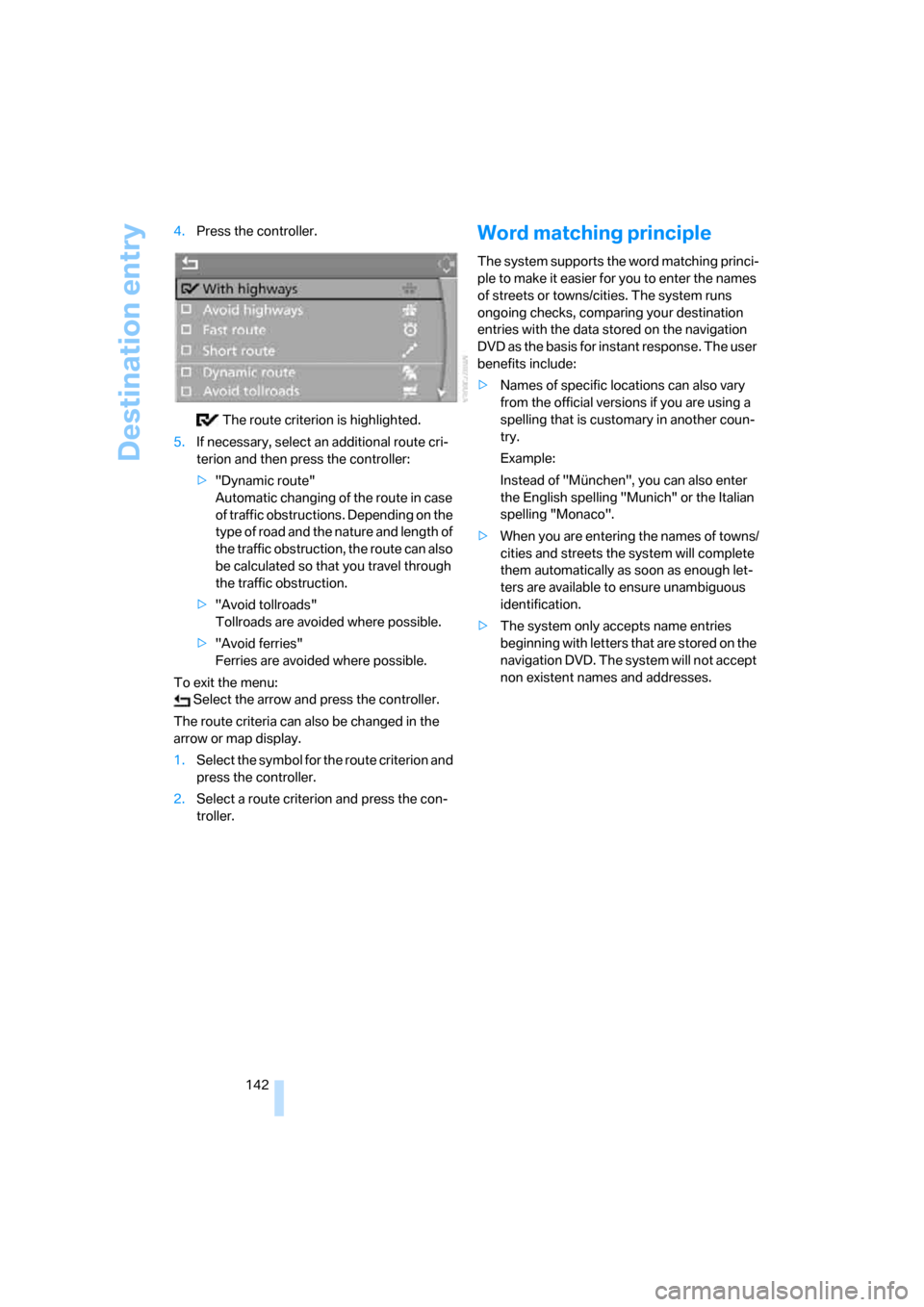
The route criterion is highlighted.
5.If necessary, select an additional route cri-
terion and then press the controller:
>"Dynamic route"
Automatic changing of the route in case
of traffic obstructions. Depending on the
type of road and the nature and length of
the traffic obstruction, the route can also
be calculated so that you travel through
the traffic obstruction.
>"Avoid tollroads"
Tollroads are avoided where possible.
>"Avoid ferries"
Ferries are avoided where possible.
To exit the menu:
Select the arrow and press the controller.
The route criteria can also be changed in the
arrow or map display.
1.Select the symbol for the route criterion and
press the controller.
2.Select a route criterion and press the con-
troller.
Word matching principle
The system supports the word matching princi-
ple to make it easier for you to enter the names
of streets or towns/cities. The system runs
ongoing checks, comparing your destination
entries with the data stored on the navigation
DVD as the basis for instant response. The user
benefits include:
>Names of specific locations can also vary
from the official versions if you are using a
spelling that is customary in another coun-
try.
Example:
Instead of "München", you can also enter
the English spelling "Munich" or the Italian
spelling "Monaco".
>When you are entering the names of towns/
cities and streets the system will complete
them automatically as soon as enough let-
ters are available to ensure unambiguous
identification.
>The system only accepts name entries
beginning with letters that are stored on the
navigation DVD. The system will not accept
non existent names and addresses.
Page 152 of 272
Destination guidance
150
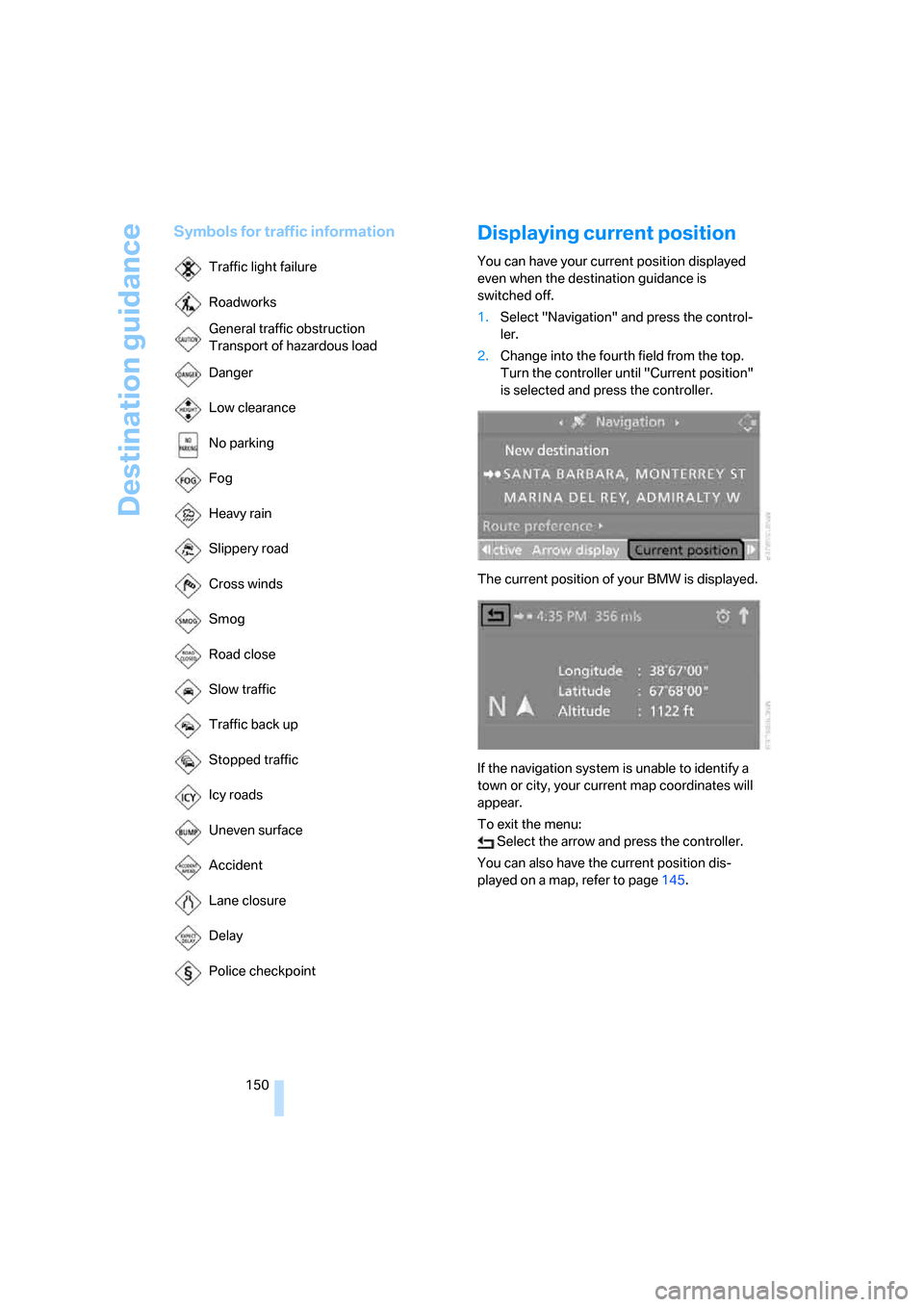
Symbols for traffic informationDisplaying current position
You can have your current position displayed
even when the destination guidance is
switched off.
1.Select "Navigation" and press the control-
ler.
2.Change into the fourth field from the top.
Turn the controller until "Current position"
is selected and press the controller.
The current position of your BMW is displayed.
If the navigation system is unable to identify a
town or city, your current map coordinates will
appear.
To exit the menu:
Select the arrow and press the controller.
You can also have the current position dis-
played on a map, refer to page145. Traffic light failure
Roadworks
General traffic obstruction
Transport of hazardous load
Danger
Low clearance
No parking
Fog
Heavy rain
Slippery road
Cross winds
Smog
Road close
Slow traffic
Traffic back up
Stopped traffic
Icy roads
Uneven surface
Accident
Lane closure
Delay
Police checkpoint
Page 171 of 272
Navigation
Entertainment
Driving tips
169Reference
At a glance
Controls
Communications
Mobility
Fast forward/reverse
Buttons on CD player:
Press and hold the button for the corre-
sponding direction.
The tracks can be listened to with some distor-
tion.
CD changer
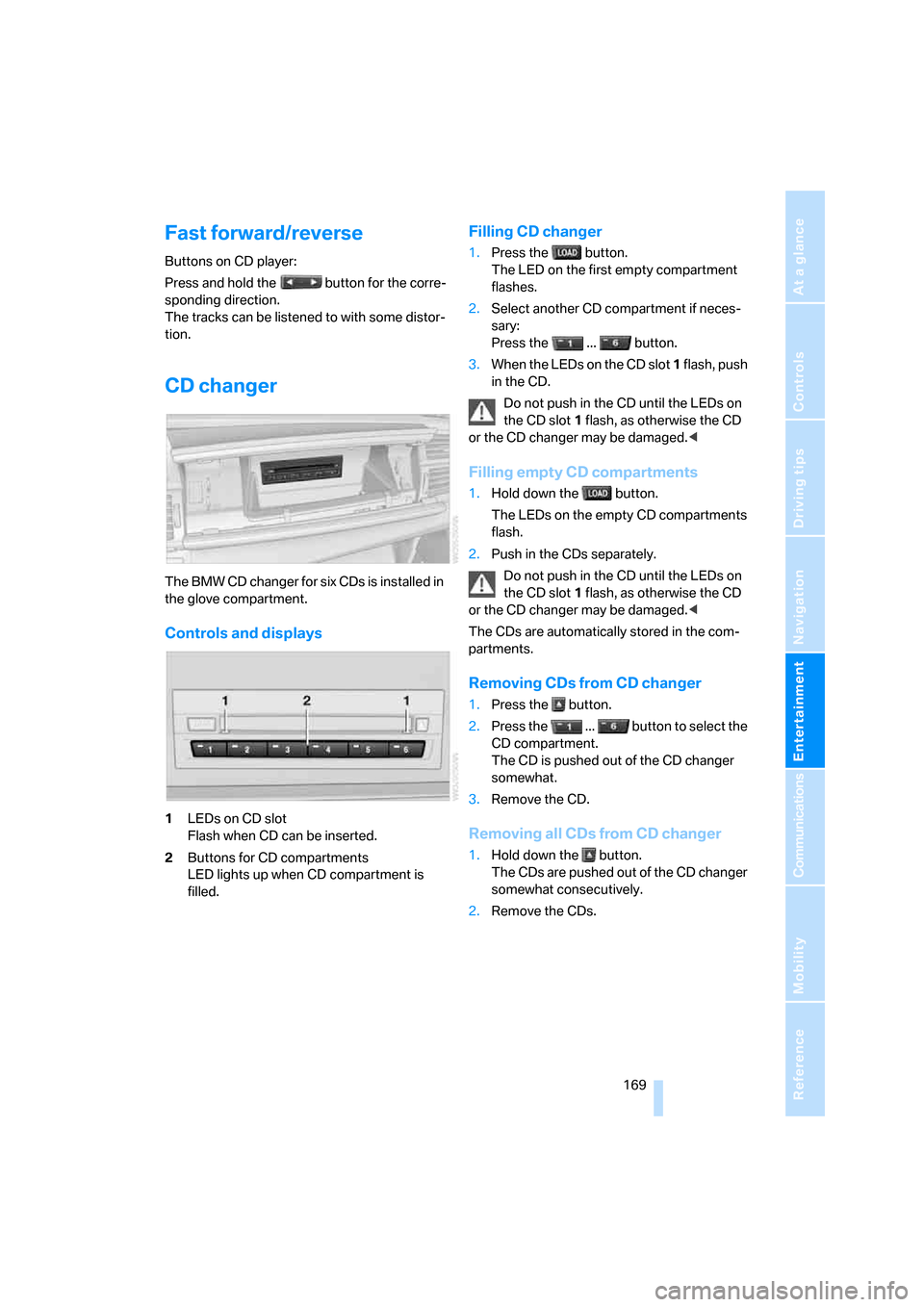
The BMW CD changer for six CDs is installed in
the glove compartment.
Controls and displays
1LEDs on CD slot
Flash when CD can be inserted.
2Buttons for CD compartments
LED lights up when CD compartment is
filled.
Filling CD changer
1.Press the button.
The LED on the first empty compartment
flashes.
2.Select another CD compartment if neces-
sary:
Press the ... button.
3.When the LEDs on the CD slot 1 flash, push
in the CD.
Do not push in the CD until the LEDs on
the CD slot1 flash, as otherwise the CD
or the CD changer may be damaged.<
Filling empty CD compartments
1.Hold down the button.
The LEDs on the empty CD compartments
flash.
2.Push in the CDs separately.
Do not push in the CD until the LEDs on
the CD slot1 flash, as otherwise the CD
or the CD changer may be damaged.<
The CDs are automatically stored in the com-
partments.
Removing CDs from CD changer
1.Press the button.
2.Press the ... button to select the
CD compartment.
The CD is pushed out of the CD changer
somewhat.
3.Remove the CD.
Removing all CDs from CD changer
1.Hold down the button.
The CDs are pushed out of the CD changer
somewhat consecutively.
2.Remove the CDs.
Page 172 of 272
CD player and CD changer
170
Notes
BMW CD/DVD players and changers are
officially designated Class 1 laser prod-
ucts. Do not operate if the cover is damaged,
otherwise severe eye damage can result.
Do not use self-recorded CDs/DVDs with labels
applied as these can become detached during
playback due to heat build-up and can cause
irreparable damage to the device.
Only use round CDs/DVDs with a standard
diameter of 4.7 in/12 cm and do not play CDs/
DVDs with an adapter, e.g. CD singles, as other-
wise the CD/DVD or the adapter can jam and
may no longer eject properly.
Do not use a combined CD/DVD, e. g. DVD
Plus,
otherwise the CD/DVD can jam and will no
longer eject.<
General malfunctions
BMW CD/DVD changers and players have been
optimized for performance in vehicles. In some
instances they may be more sensitive to faulty
CDs/DVDs than stationary devices would be.
If a CD/DVD cannot be played, first check if it
has been inserted correctly.
Humidity
High levels of humidity can lead to condensa-
tion on the CD/DVD or the laser's scan lens and
temporarily prevent playback.
Malfunctions with individual CDs/DVDs
If malfunctions only occur with individual CDs/
DVDs, one of the following factors may be the
cause.
Self-recorded CDs/DVDs
Possible reasons for malfunctions with self-
recorded CDs/DVDs are, e.g., inconsistent
data-creation or recording processes, or poor
quality or high age of the CD/DVD blank.
Only label CDs/DVDs on the upper side with a
pen intended for this purpose.
Avoiding damage
Avoid fingerprints, dust, scratches and mois-
ture.
Store CDs/DVDs in a sleeve.
Do not subject CDs/DVDs to temperatures over
1227/506, high levels of humidity or direct
sunlight.
CDs/DVDs with copy protection
CDs/DVDs are often provided with a copy pro-
tection feature by the manufacturer. This can
m e a n t h a t s o m e C D s / D V D s c a n n o t b e p l a y e d o r
can only be played to a limited extent.
Care
If necessary, clean the reflective scanning side
of the CDs/DVDs with a commercially available
cleaning cloth by wiping in straight lines from
the center outward. For additional information
on the care of CDs/DVDs, refer to the Caring for
your vehicle brochure.
Page 173 of 272
Navigation
Entertainment
Driving tips
171Reference
At a glance
Controls
Communications
Mobility
External audio device
You can connect an external audio device, e.g.
an MP3 player, and play the sound via the vehi-
cle loudspeakers. The sound can be adjusted
via iDrive.
Connecting
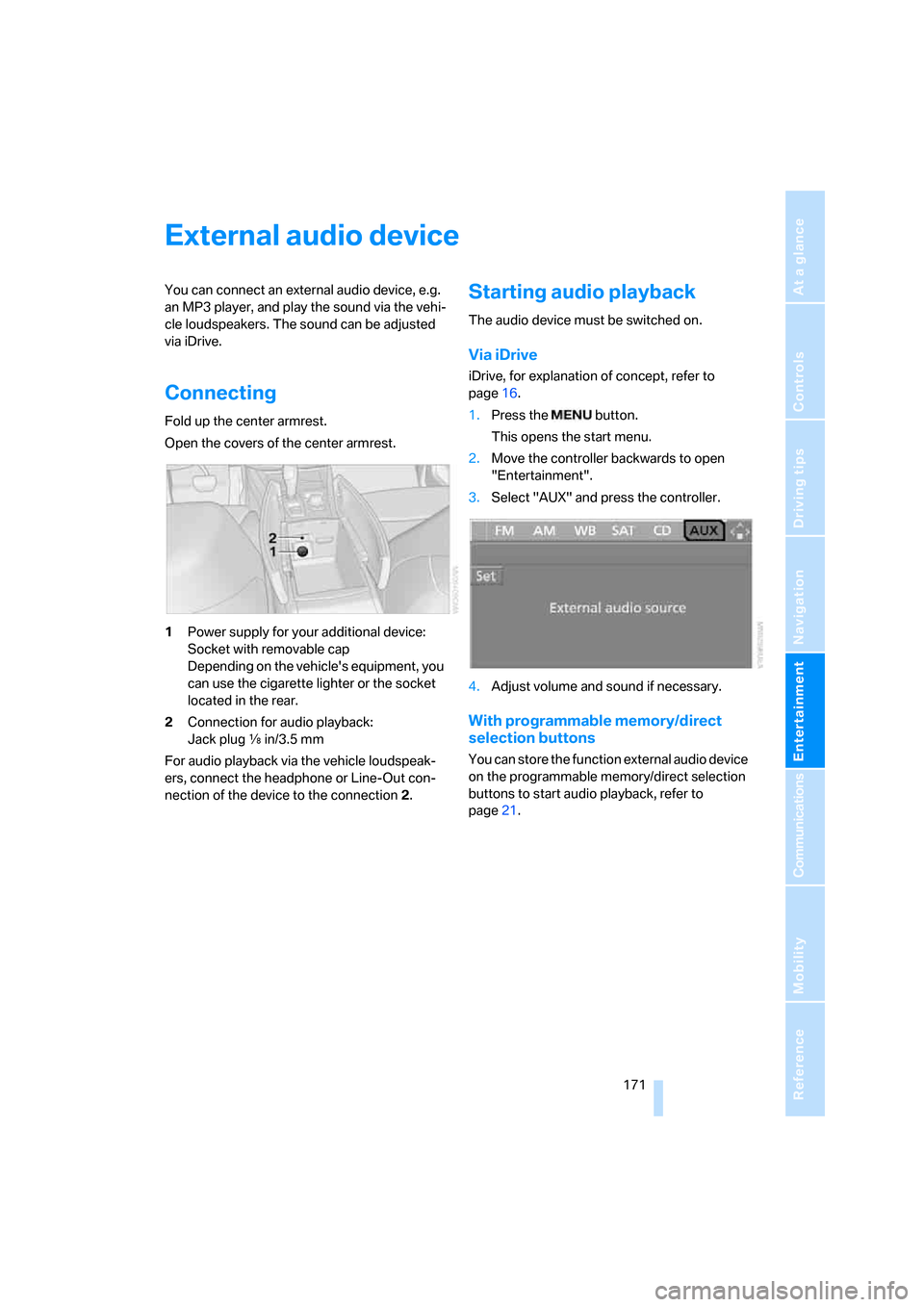
Fold up the center armrest.
Open the covers of the center armrest.
1Power supply for your additional device:
Socket with removable cap
Depending on the vehicle's equipment, you
can use the cigarette lighter or the socket
located in the rear.
2Connection for audio playback:
Jack plug εin/3.5 mm
For audio playback via the vehicle loudspeak-
ers, connect the headphone or Line-Out con-
nection of the device to the connection 2.
Starting audio playback
The audio device must be switched on.
Via iDrive
iDrive, for explanation of concept, refer to
page16.
1.Press the button.
This opens the start menu.
2.Move the controller backwards to open
"Entertainment".
3.Select "AUX" and press the controller.
4.Adjust volume and sound if necessary.
With programmable memory/direct
selection buttons
You can store the function external audio device
on the programmable memory/direct selection
buttons to start audio playback, refer to
page21.
Page 175 of 272
Navigation
Entertainment
Driving tips
173Reference
At a glance
Controls
Communications
Mobility
1.Turn display screen, arrow1.
The display screen switches off.
2.Fold in display screen, arrow2.
The display screen is folded out in the reverse
order.
CD/DVD player
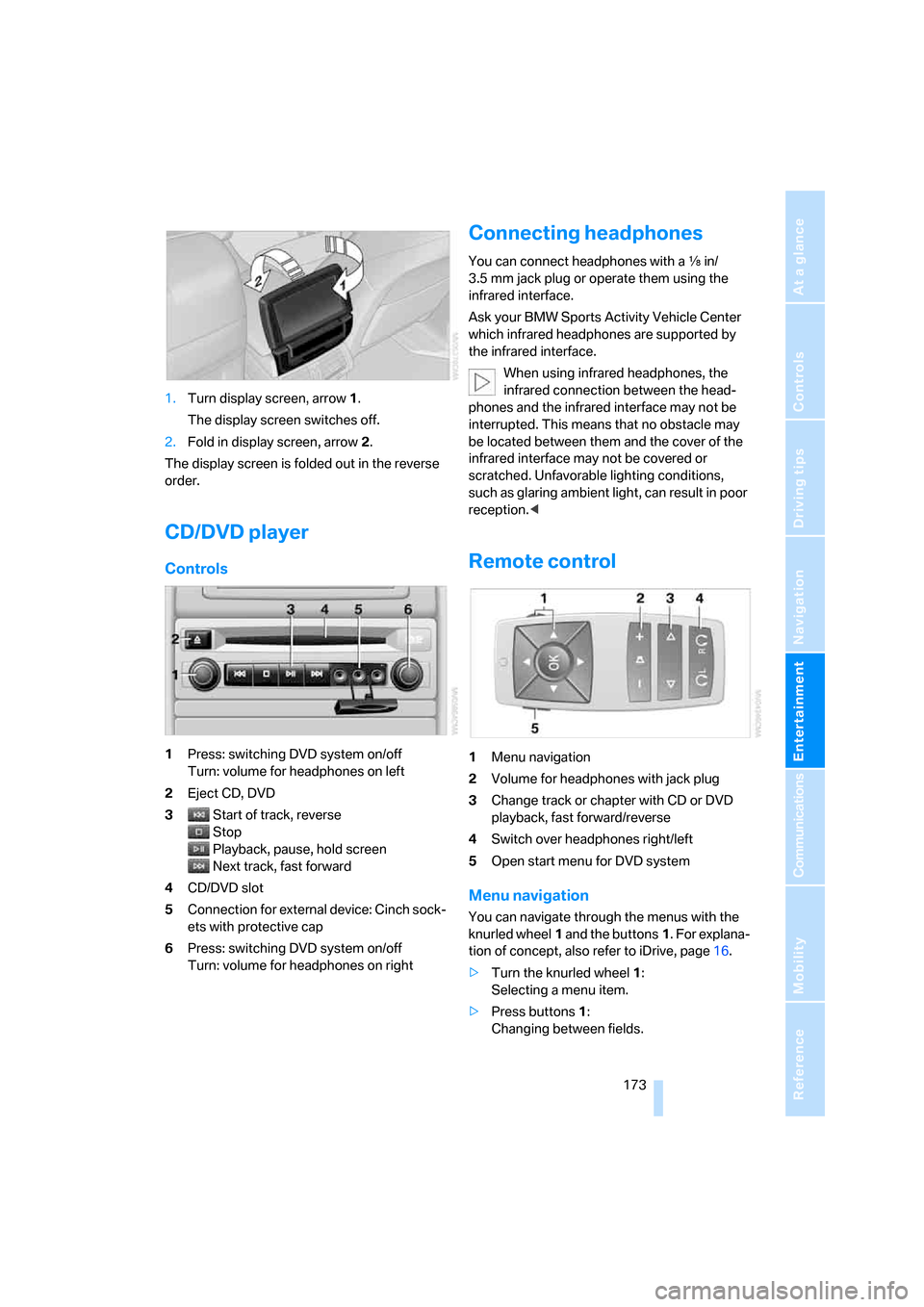
Controls
1Press: switching DVD system on/off
Turn: volume for headphones on left
2Eject CD, DVD
3Start of track, reverse
Stop
Playback, pause, hold screen
Next track, fast forward
4CD/DVD slot
5Connection for external device: Cinch sock-
ets with protective cap
6Press: switching DVD system on/off
Turn: volume for headphones on right
Connecting headphones
You can connect headphones with a εin/
3.5 mm jack plug or operate them using the
infrared interface.
Ask your BMW Sports Activity Vehicle Center
which infrared headphones are supported by
the infrared interface.
When using infrared headphones, the
infrared connection between the head-
phones and the infrared interface may not be
interrupted. This means that no obstacle may
be located between them and the cover of the
infrared interface may not be covered or
scratched. Unfavorable lighting conditions,
such as glaring ambient light, can result in poor
reception.<
Remote control
1Menu navigation
2Volume for headphones with jack plug
3Change track or chapter with CD or DVD
playback, fast forward/reverse
4Switch over headphones right/left
5Open start menu for DVD system
Menu navigation
You can navigate through the menus with the
knurled wheel1 and the buttons1. For explana-
tion of concept, also refer to iDrive, page16.
>Turn the knurled wheel1:
Selecting a menu item.
>Press buttons1:
Changing between fields.
Page 177 of 272
Navigation
Entertainment
Driving tips
175Reference
At a glance
Controls
Communications
Mobility
An overview of the coding zones:
Starting playback
1.Push the CD/DVD into the drive with the
labeled side facing upward.
The CD/DVD is automatically pulled in.
>Playback usually begins automatically
after a few seconds.
>If playback does not begin automatically:
Select "DVD".
Press the button:
2.If the DVD control or the DVD-specific
menu is displayed for a DVD, select the
desired option for menu guidance with the
remote control buttons.
Or:
Press the button on the CD/DVD player.
You can control the playback with the buttons
on the CD/DVD player or the DVD control.
Video CDs, VCD, and Super Video CDs,
SVCD, can be played like DVDs if they do
not have a DVD menu of their own.<
Ejecting CD/DVD
Press the button on the CD/DVD player.
The DVD emerges slightly from the drive.
DVD control
With the DVD control, you can select the track
and chapter, open the DVD-specific menu and
operate functions such as Language, Fast for-
ward and Reverse or Freeze frame.
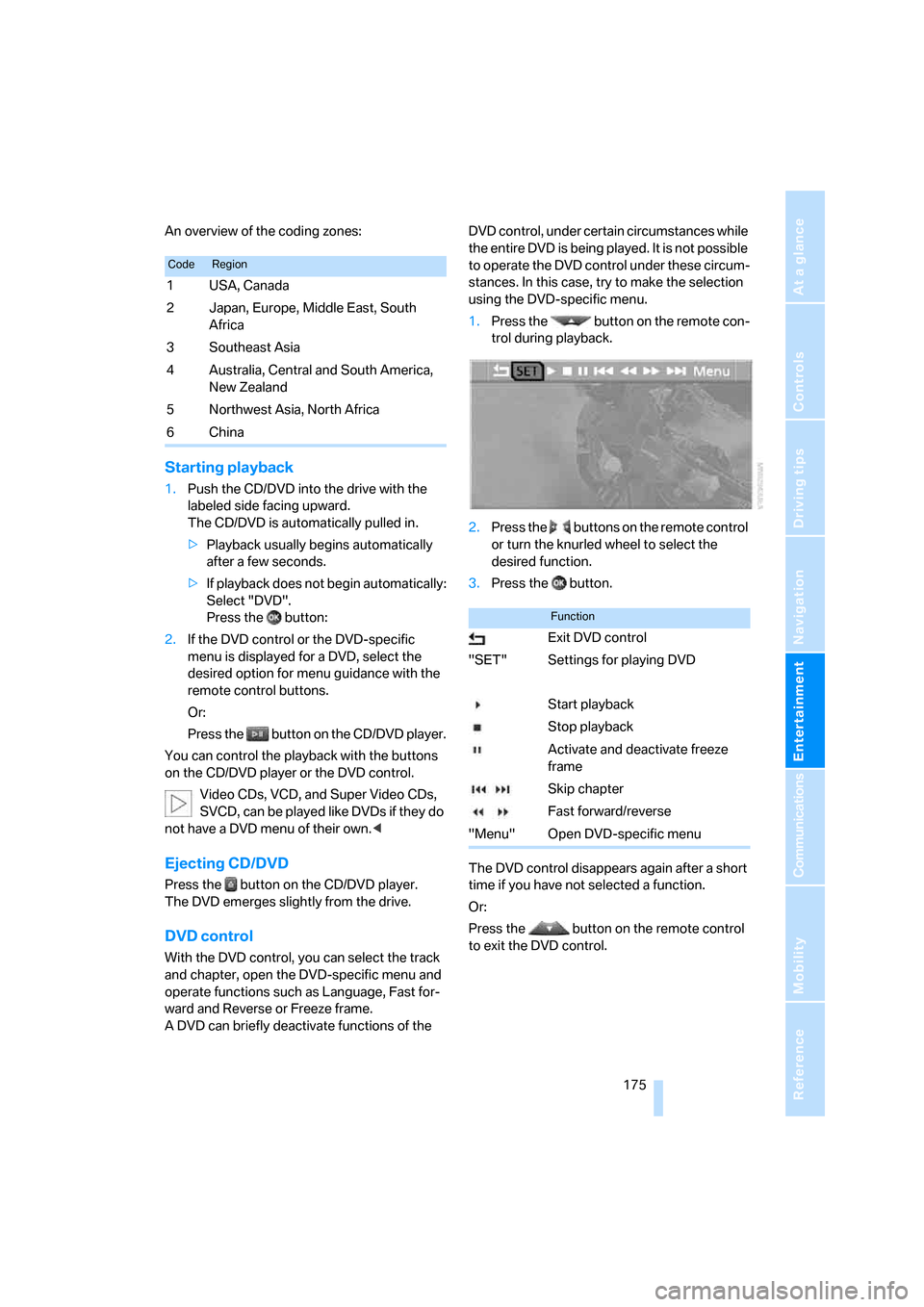
A DVD can briefly deactivate functions of the DVD control, under certain circumstances while
the entire DVD is being played. It is not possible
to operate the DVD control under these circum-
stances. In this case, try to make the selection
using the DVD-specific menu.
1.Press the button on the remote con-
trol during playback.
2.Press the buttons on the remote control
or turn the knurled wheel to select the
desired function.
3.Press the button.
The DVD control disappears again after a short
time if you have not selected a function.
Or:
Press the button on the remote control
to exit the DVD control.
CodeRegion
1USA, Canada
2 Japan, Europe, Middle East, South
Africa
3Southeast Asia
4 Australia, Central and South America,
New Zealand
5Northwest Asia, North Africa
6China
Function
Exit DVD control
"SET" Settings for playing DVD
Start playback
Stop playback
Activate and deactivate freeze
frame
Skip chapter
Fast forward/reverse
"Menu" Open DVD-specific menu
Page 185 of 272
Navigation
Entertainment
Driving tips
183Reference
At a glance
Controls
Communications
Mobility
Make sure that no foreign bodies or liq-
uids enter the CD-/DVD slot, as otherwise
the CD/DVD player will be damaged.<
Humidity
High levels of humidity can lead to condensa-
tion on the CD/DVD or the laser's scan lens and
temporarily prevent playback.
Malfunctions with individual CDs/DVDs
If malfunctions occur only with particular CDs/
DVDs, this can be due to one of the following
causes.
Copied or self-recorded CDs/DVDs
Possible reasons for malfunctions with copied
or self-recorded CDs/DVDs are, e.g., inconsis-
tent data-creation or recording processes, or
poor quality or high age of the CD/DVD blank.
Only label CDs/DVDs on the side with the label
using a pen intended for this purpose.
Damaged CDs/DVDs
Avoid fingerprints, dust, scratches and mois-
ture.
Store CDs/DVDs in a sleeve.
Do not subject CDs/DVDs to temperatures over
1227/506, high levels of humidity or direct
sunlight.
CDs/DVDs with copy protection
CDs/DVDs are often provided with a copy pro-
tection feature by the manufacturer. This can
m e a n t h a t s o m e C D s / D V D s c a n n o t b e p l a y e d o r
can only be played to a limited extent.
Care instructions
You can find everything you need to know on
this topic by consulting the separate Caring for
your vehicle brochure.
External device
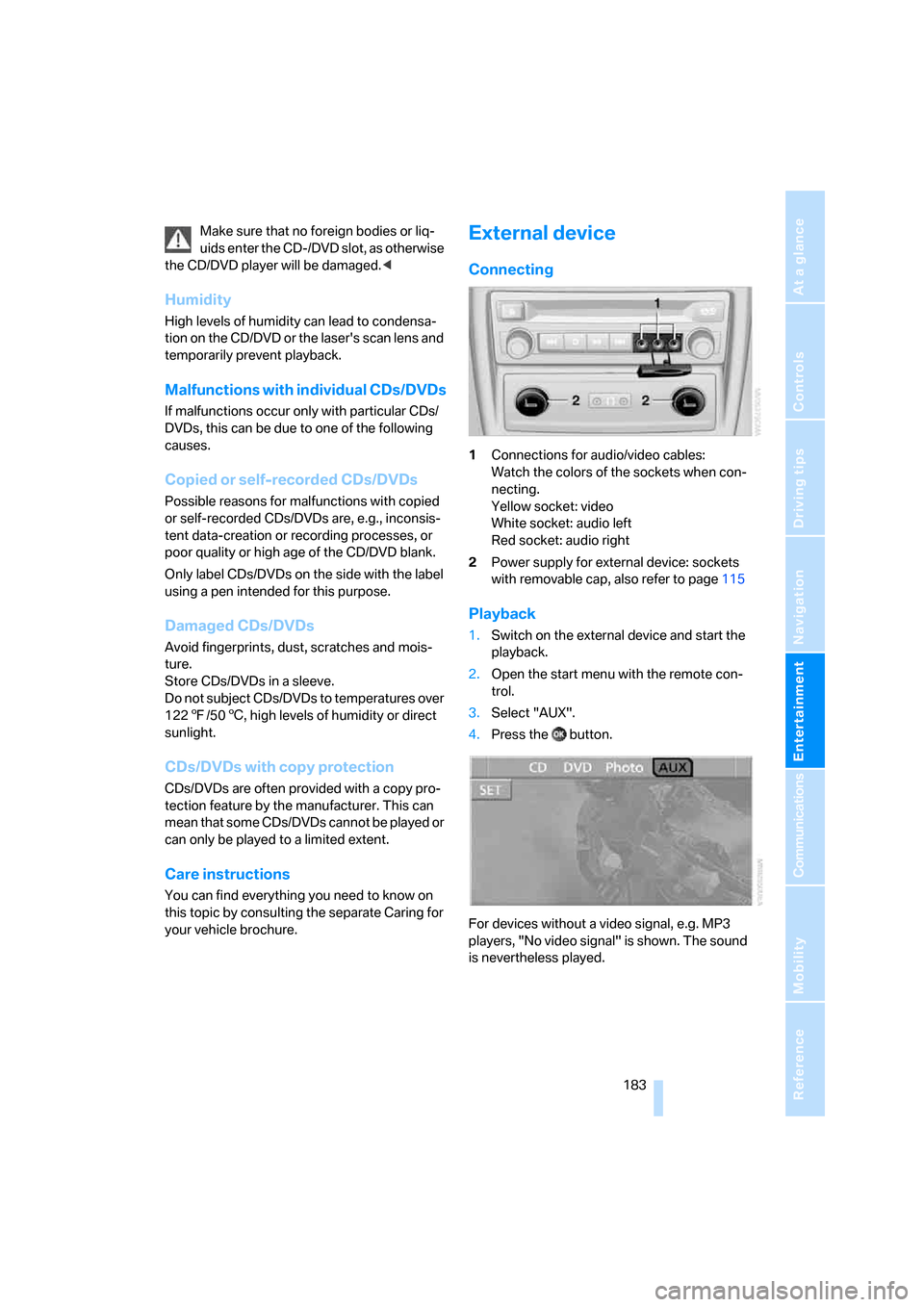
Connecting
1Connections for audio/video cables:
Watch the colors of the sockets when con-
necting.
Yellow socket: video
White socket: audio left
Red socket: audio right
2Power supply for external device: sockets
with removable cap, also refer to page115
Playback
1.Switch on the external device and start the
playback.
2.Open the start menu with the remote con-
trol.
3.Select "AUX".
4.Press the button.
For devices without a video signal, e.g. MP3
players, "No video signal" is shown. The sound
is nevertheless played.
Page 223 of 272
Mobility
221Reference
At a glance
Controls
Driving tips
Communications
Navigation
Entertainment
Recommended tire brands
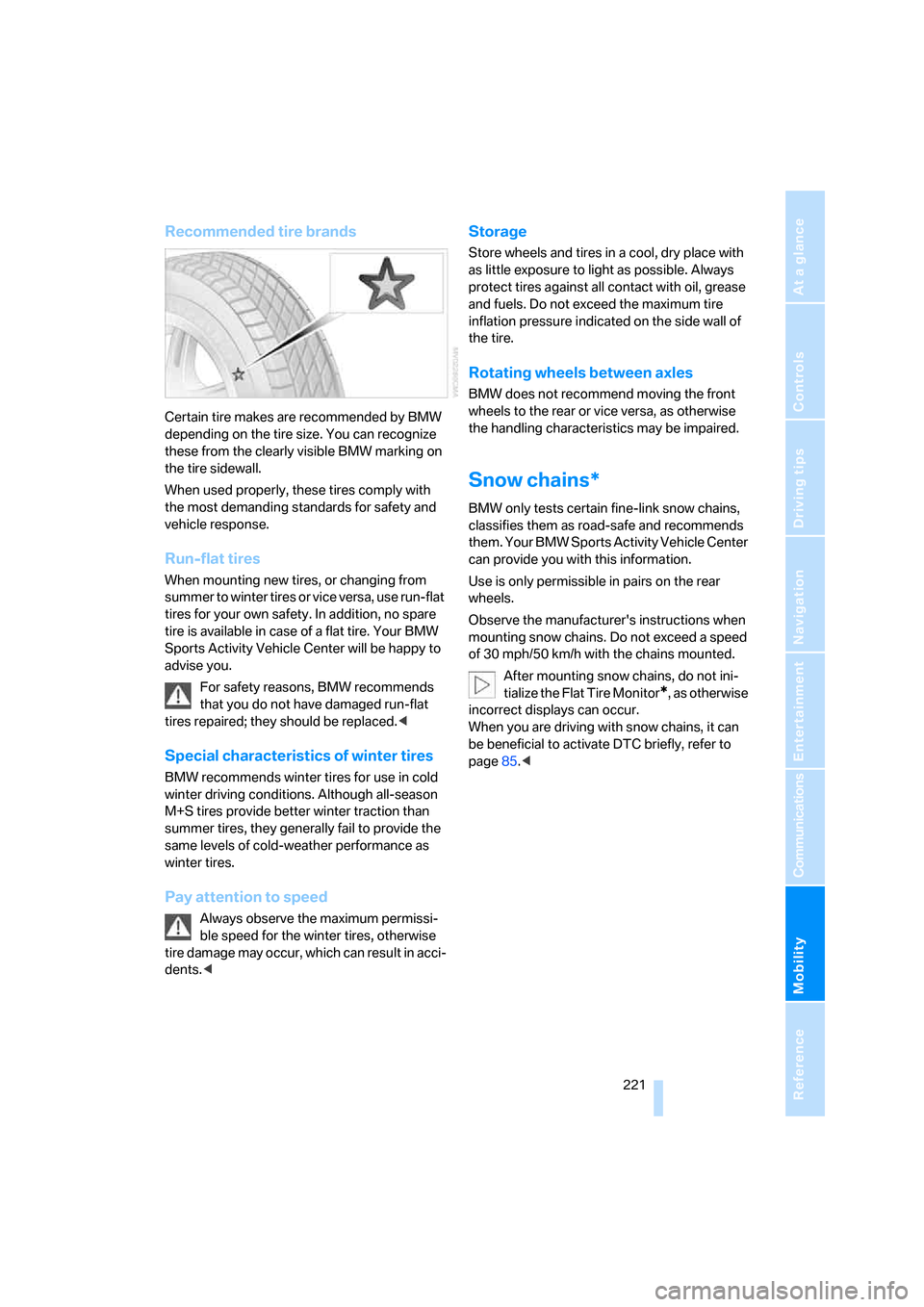
Certain tire makes are recommended by BMW
depending on the tire size. You can recognize
these from the clearly visible BMW marking on
the tire sidewall.
When used properly, these tires comply with
the most demanding standards for safety and
vehicle response.
Run-flat tires
When mounting new tires, or changing from
summer to winter tires or vice versa, use run-flat
tires for your own safety. In addition, no spare
tire is available in case of a flat tire. Your BMW
Sports Activity Vehicle Center will be happy to
advise you.
For safety reasons, BMW recommends
that you do not have damaged run-flat
tires repaired; they should be replaced.<
Special characteristics of winter tires
BMW recommends winter tires for use in cold
winter driving conditions. Although all-season
M+S tires provide better winter traction than
summer tires, they generally fail to provide the
same levels of cold-weather performance as
winter tires.
Pay attention to speed
Always observe the maximum permissi-
ble speed for the winter tires, otherwise
tire damage may occur, which can result in acci-
dents.<
Storage
Store wheels and tires in a cool, dry place with
as little exposure to light as possible. Always
protect tires against all contact with oil, grease
and fuels. Do not exceed the maximum tire
inflation pressure indicated on the side wall of
the tire.
Rotating wheels between axles
BMW does not recommend moving the front
wheels to the rear or vice versa, as otherwise
the handling characteristics may be impaired.
Snow chains*
BMW only tests certain fine-link snow chains,
classifies them as road-safe and recommends
them. Your BMW Sports Activity Vehicle Center
can provide you with this information.
Use is only permissible in pairs on the rear
wheels.
Observe the manufacturer's instructions when
mounting snow chains. Do not exceed a speed
of 30 mph/50 km/h with the chains mounted.
After mounting snow chains, do not ini-
tialize the Flat Tire Monitor
*, as otherwise
incorrect displays can occur.
When you are driving with snow chains, it can
be beneficial to activate DTC briefly, refer to
page85.<
Page 229 of 272
Mobility
227Reference
At a glance
Controls
Driving tips
Communications
Navigation
Entertainment
Socket for OBD Onboard
Diagnostics interface
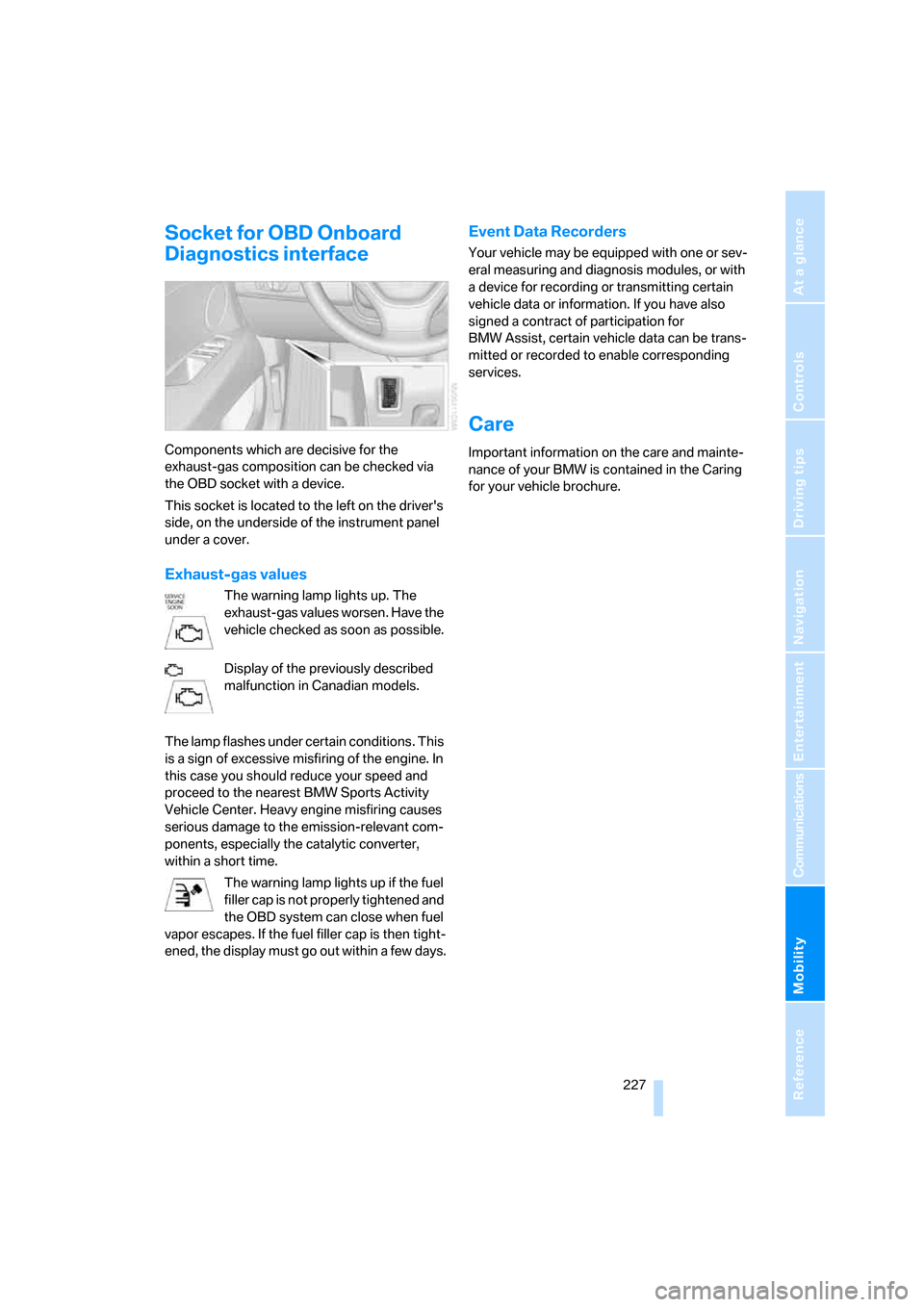
Components which are decisive for the
exhaust-gas composition can be checked via
the OBD socket with a device.
This socket is located to the left on the driver's
side, on the underside of the instrument panel
under a cover.
Exhaust-gas values
The warning lamp lights up. The
exhaust-gas values worsen. Have the
vehicle checked as soon as possible.
Display of the previously described
malfunction in Canadian models.
The lamp flashes under certain conditions. This
is a sign of excessive misfiring of the engine. In
this case you should reduce your speed and
proceed to the nearest BMW Sports Activity
Vehicle Center. Heavy engine misfiring causes
serious damage to the emission-relevant com-
ponents, especially the catalytic converter,
within a short time.
The warning lamp lights up if the fuel
filler cap is not properly tightened and
the OBD system can close when fuel
vapor escapes. If the fuel filler cap is then tight-
ened, the display must go out within a few days.
Event Data Recorders
Your vehicle may be equipped with one or sev-
eral measuring and diagnosis modules, or with
a device for recording or transmitting certain
vehicle data or information. If you have also
signed a contract of participation for
BMW Assist, certain vehicle data can be trans-
mitted or recorded to enable corresponding
services.
Care
Important information on the care and mainte-
nance of your BMW is contained in the Caring
for your vehicle brochure.