CD changer BMW X5 3.0Si 2008 E70 User Guide
[x] Cancel search | Manufacturer: BMW, Model Year: 2008, Model line: X5 3.0Si, Model: BMW X5 3.0Si 2008 E70Pages: 292, PDF Size: 9.32 MB
Page 181 of 292
Navigation
Entertainment
Driving tips
179Reference
At a glance
Controls
Communications
Mobility
CD changer
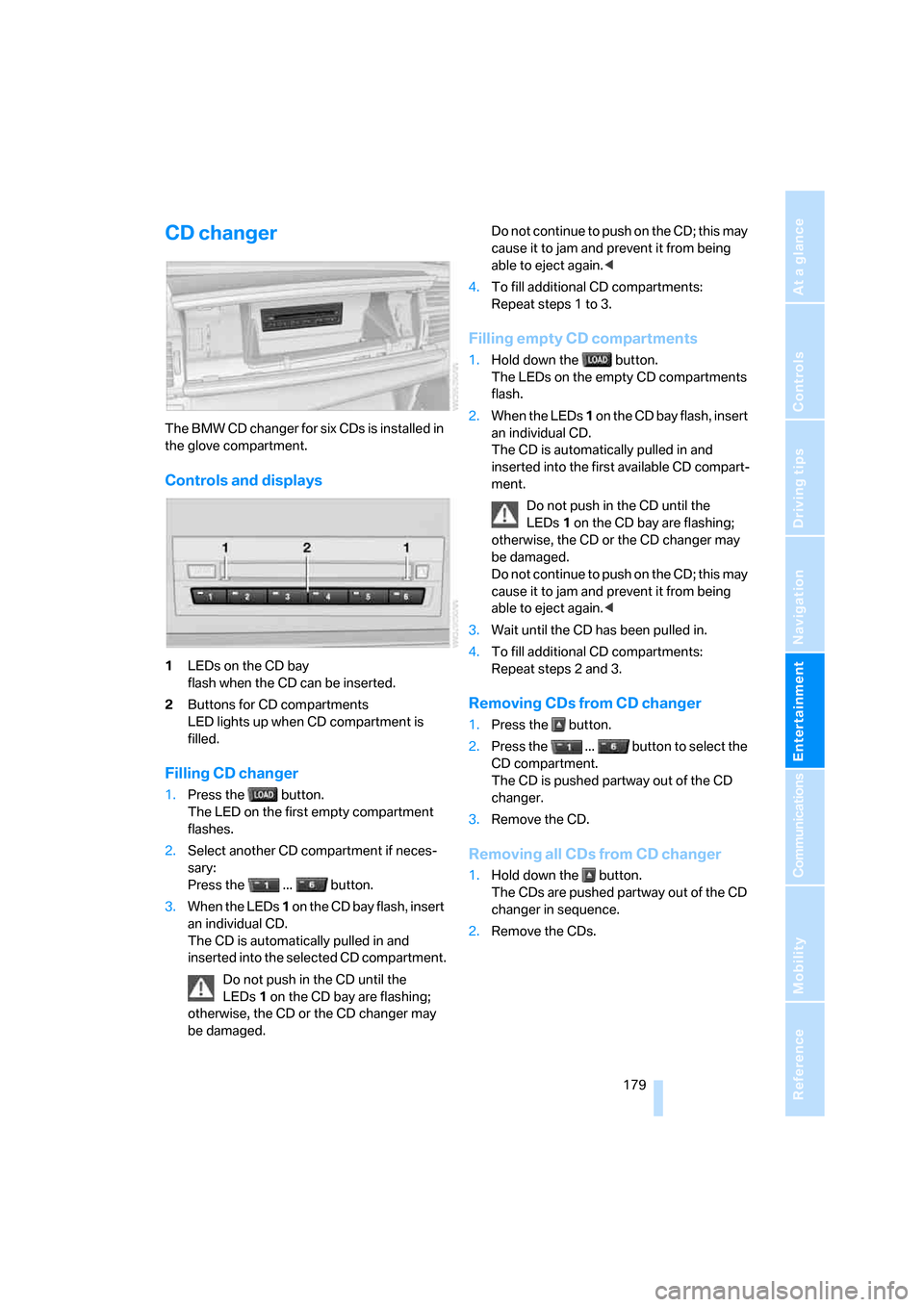
The BMW CD changer for six CDs is installed in
the glove compartment.
Controls and displays
1LEDs on the CD bay
flash when the CD can be inserted.
2Buttons for CD compartments
LED lights up when CD compartment is
filled.
Filling CD changer
1.Press the button.
The LED on the first empty compartment
flashes.
2.Select another CD compartment if neces-
sary:
Press the ... button.
3.When the LEDs 1 o n t h e C D b a y f l a s h , i n s e r t
an individual CD.
The CD is automatically pulled in and
inserted into the selected CD compartment.
Do not push in the CD until the
LEDs1 on the CD bay are flashing;
otherwise, the CD or the CD changer may
be damaged. Do not continue to push on the CD; this may
cause it to jam and prevent it from being
able to eject again.<
4.To fill additional CD compartments:
Repeat steps 1 to 3.
Filling empty CD compartments
1.Hold down the button.
The LEDs on the empty CD compartments
flash.
2.When the LEDs 1 o n t h e C D b a y f l a s h , i n s e r t
an individual CD.
The CD is automatically pulled in and
inserted into the first available CD compart-
ment.
Do not push in the CD until the
LEDs1 on the CD bay are flashing;
otherwise, the CD or the CD changer may
be damaged.
Do not continue to push on the CD; this may
cause it to jam and prevent it from being
able to eject again.<
3.Wait until the CD has been pulled in.
4.To fill additional CD compartments:
Repeat steps 2 and 3.
Removing CDs from CD changer
1.Press the button.
2.Press the ... button to select the
CD compartment.
The CD is pushed partway out of the CD
changer.
3.Remove the CD.
Removing all CDs from CD changer
1.Hold down the button.
The CDs are pushed partway out of the CD
changer in sequence.
2.Remove the CDs.
Page 182 of 292
CD player and CD changer
180
Notes
BMW CD/DVD players and changers are
officially designated Class 1 laser prod-
ucts. Do not operate if the cover is damaged,
otherwise severe eye damage can result.
Do not use self-recorded CDs/DVDs with labels
applied as these can become detached during
playback due to heat buildup and can cause
irreparable damage to the device.
Only use round CDs/DVDs with a standard
diameter of 4.7 in/12 cm and do not play CDs/
DVDs with an adapter, e.g. CD singles, as other-
wise the CD/DVD or the adapter can jam and
may no longer eject properly.
Do not use a combined CD/DVD, e. g. DVD
Plus,
otherwise the CD/DVD can jam and will no
longer eject.<
General malfunctions
BMW CD/DVD changers and players have been
optimized for performance in vehicles. In some
instances they may be more sensitive to faulty
CDs/DVDs than stationary devices would be.
If a CD/DVD cannot be played, first check if it
has been inserted correctly.
Humidity
High levels of humidity can lead to condensa-
tion on the CD/DVD or the laser's scan lens and
temporarily prevent playback.
Malfunctions with individual CDs/DVDs
If malfunctions occur only with particular CDs/
DVDs, this can be due to one of the following
causes.
Filling the CD/DVD changer or
removing CDs/DVDs
If all of the LEDs on the CD/DVD changer flash
rapidly, then a malfunction is occurring.
To rectify the malfunction:
1.Press the button.
The CD/DVD last inserted is ejected.
2.Remove the CD/DVD.When the LEDs stop flashing rapidly, the CD/
DVD changer is once more operational.
Self-recorded CDs/DVDs
Possible reasons for malfunctions with self-
recorded CDs/DVDs are, e.g., inconsistent
data-creation or recording processes, or poor
quality or high age of the CD/DVD blank.
Only label CDs/DVDs on the upper side with a
pen intended for this purpose.
Avoiding damage
Avoid fingerprints, dust, scratches and mois-
ture.
Store CDs/DVDs in a sleeve.
Do not subject CDs/DVDs to temperatures over
1227/506, high levels of humidity or direct
sunlight.
CDs/DVDs with copy protection
CDs/DVDs are often provided with a copy pro-
tection feature by the manufacturer. This can
m e a n t h a t s o m e C D s / D V D s c a n n o t b e p l a y e d o r
can only be played to a limited extent.
Care
If necessary, clean the reflective scanning side
of the CDs/DVDs with a commercially available
cleaning cloth by wiping in straight lines from
the center outward. For additional information
on the care of CDs/DVDs, refer to the Caring for
your vehicle brochure.
Page 183 of 292
Navigation
Entertainment
Driving tips
181Reference
At a glance
Controls
Communications
Mobility
DVD changer
Installation position
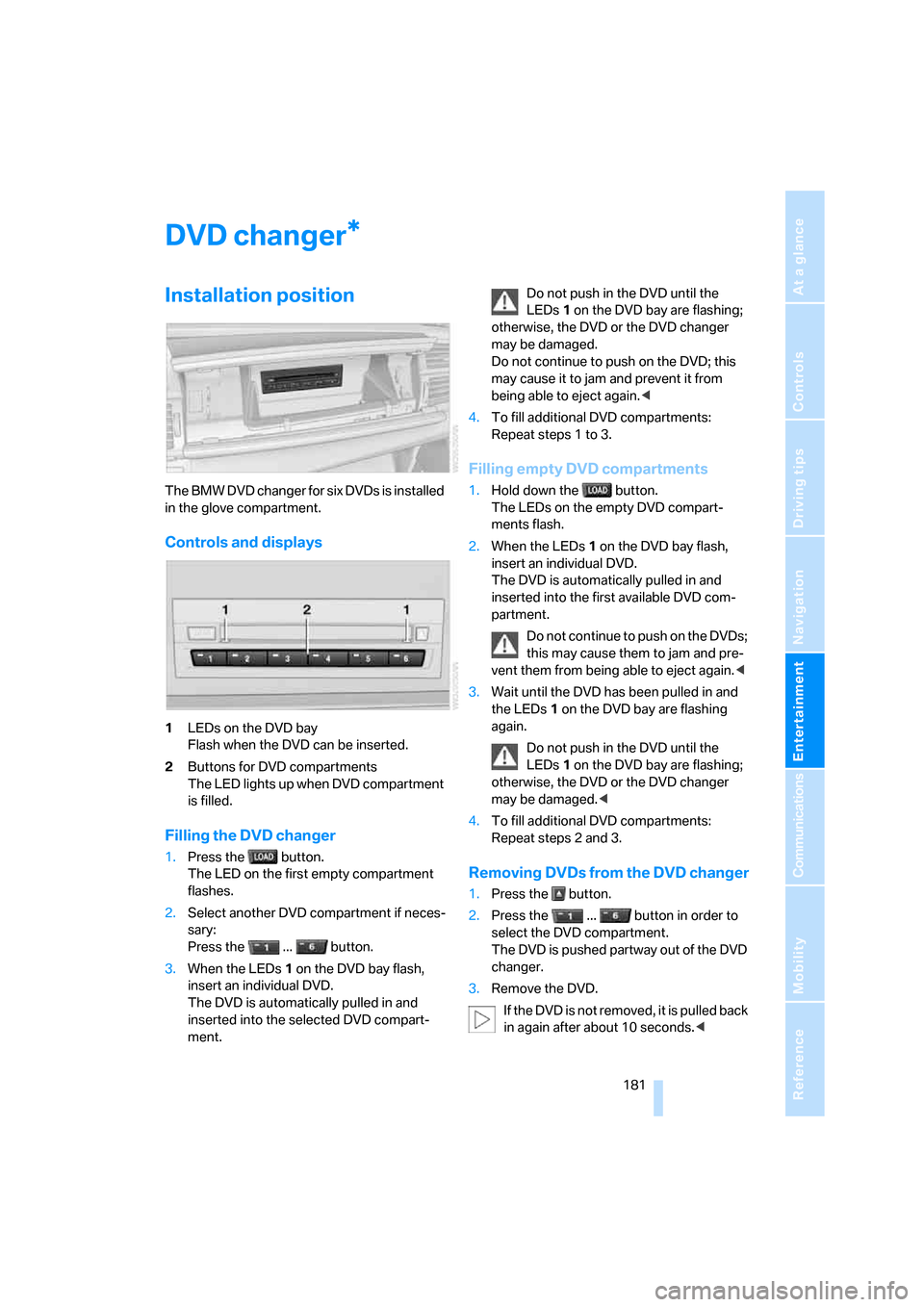
The BMW DVD changer for six DVDs is installed
in the glove compartment.
Controls and displays
1LEDs on the DVD bay
Flash when the DVD can be inserted.
2Buttons for DVD compartments
The LED lights up when DVD compartment
is filled.
Filling the DVD changer
1.Press the button.
The LED on the first empty compartment
flashes.
2.Select another DVD compartment if neces-
sary:
Press the ... button.
3.When the LEDs 1 on the DVD bay flash,
insert an individual DVD.
The DVD is automatically pulled in and
inserted into the selected DVD compart-
ment.Do not push in the DVD until the
LEDs1 on the DVD bay are flashing;
otherwise, the DVD or the DVD changer
may be damaged.
Do not continue to push on the DVD; this
may cause it to jam and prevent it from
being able to eject again.<
4.To fill additional DVD compartments:
Repeat steps 1 to 3.
Filling empty DVD compartments
1.Hold down the button.
The LEDs on the empty DVD compart-
ments flash.
2.When the LEDs 1 on the DVD bay flash,
insert an individual DVD.
The DVD is automatically pulled in and
inserted into the first available DVD com-
partment.
Do not continue to push on the DVDs;
this may cause them to jam and pre-
vent them from being able to eject again.<
3.Wait until the DVD has been pulled in and
the LEDs1 on the DVD bay are flashing
again.
Do not push in the DVD until the
LEDs1 on the DVD bay are flashing;
otherwise, the DVD or the DVD changer
may be damaged.<
4.To fill additional DVD compartments:
Repeat steps 2 and 3.
Removing DVDs from the DVD changer
1.Press the button.
2.Press the ... button in order to
select the DVD compartment.
The DVD is pushed partway out of the DVD
changer.
3.Remove the DVD.
I f t h e D V D i s n o t r e m o v e d , i t i s p u l l e d b a c k
in again after about 10 seconds.<
*
Page 184 of 292
DVD changer
182
Removing all DVDs from the DVD
changer
1.Hold down the button.
The DVDs are pushed partway out of the
DVD changer in sequence.
2.Remove the DVDs individually.
Malfunctions
If all of the LEDs on the DVD changer flash rap-
idly, then a malfunction is occurring. In this
case, proceed as follows.
1.Press the button or button.
The DVD last inserted is ejected.
2.Remove the DVD.
The DVD changer tests the DVD compartments
and the rapid flashing of the LEDs stops. The
DVD changer is once more operational.
DVD country codes
Your DVD player only plays DVDs with the cod-
ing of your home region, e.g. Europe = 2. The
country codes supported by your DVD are con-
tained in the information on your DVD. It is not
possible to change this coding. An overview of
the six coding zones:
DVDs with the code 0 can be played back
on all units.<
Playing DVDs
Depending on the equipment in your vehicle,
you have the option of playing back both the
audio track and video track of DVDs or only their
audio track.
>Vehicles with two drives: audio and video
playback
>Vehicles with a single drive: audio playback,
refer to page186
Audio and video playback
For your own safety, the picture only appears in
the Control Display at speeds of up to about
2 mph/3 km/h. For certain national-market ver-
sions, the picture does not appear in the Control
Display unless the vehicle is stopped and the
transmission is in Park.
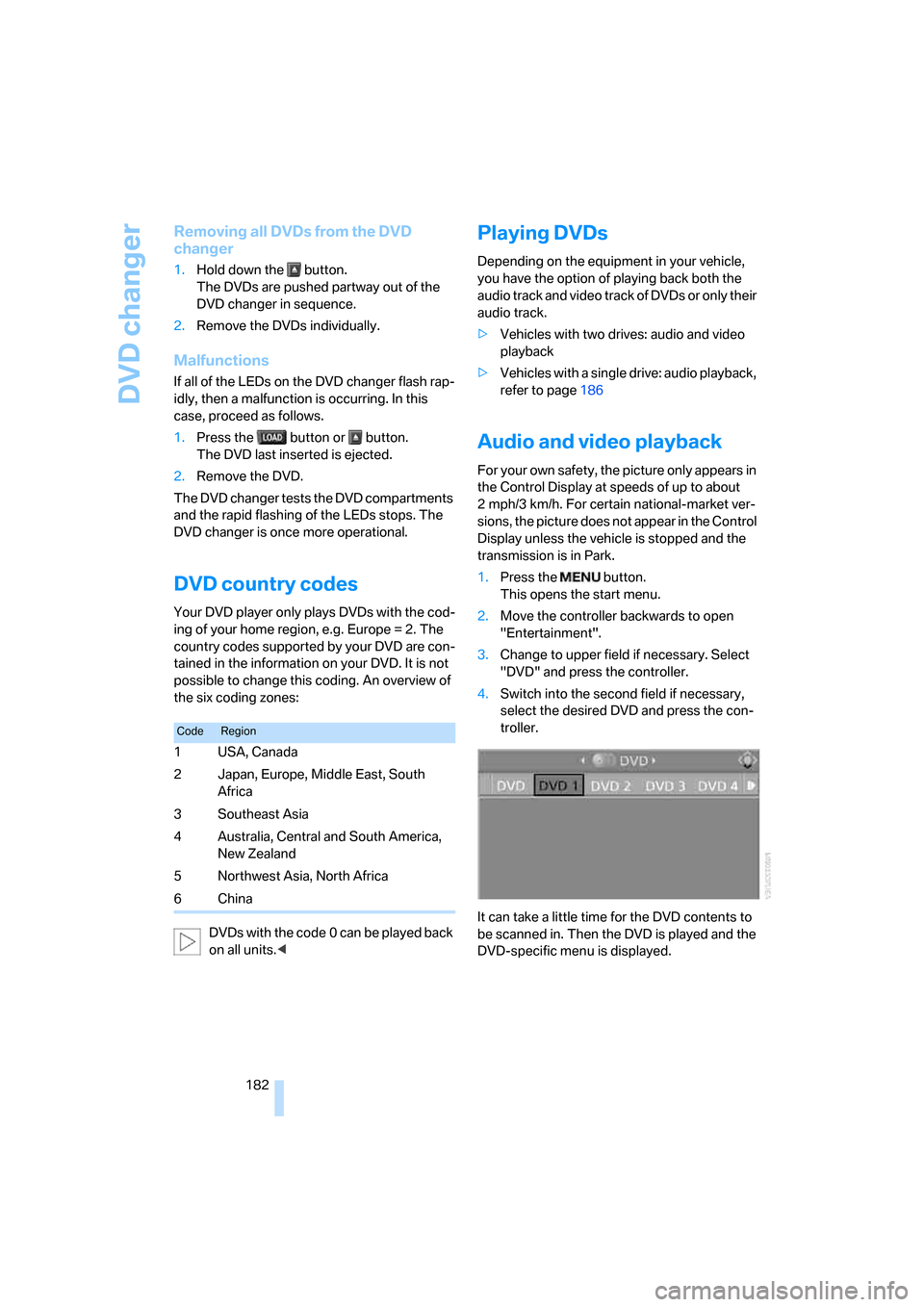
1.Press the button.
This opens the start menu.
2.Move the controller backwards to open
"Entertainment".
3.Change to upper field if necessary. Select
"DVD" and press the controller.
4.Switch into the second field if necessary,
select the desired DVD and press the con-
troller.
It can take a little time for the DVD contents to
be scanned in. Then the DVD is played and the
DVD-specific menu is displayed.
CodeRegion
1USA, Canada
2 Japan, Europe, Middle East, South
Africa
3Southeast Asia
4 Australia, Central and South America,
New Zealand
5 Northwest Asia, North Africa
6China
Page 186 of 292
DVD changer
184
Tone control
In DVDs with multichannel or surround sound,
for optimum playback, select an audio track
with multichannel sound and set the tone set-
tings to Surround, refer to Selecting language
on page184 and Professional HiFi System* on
page165.
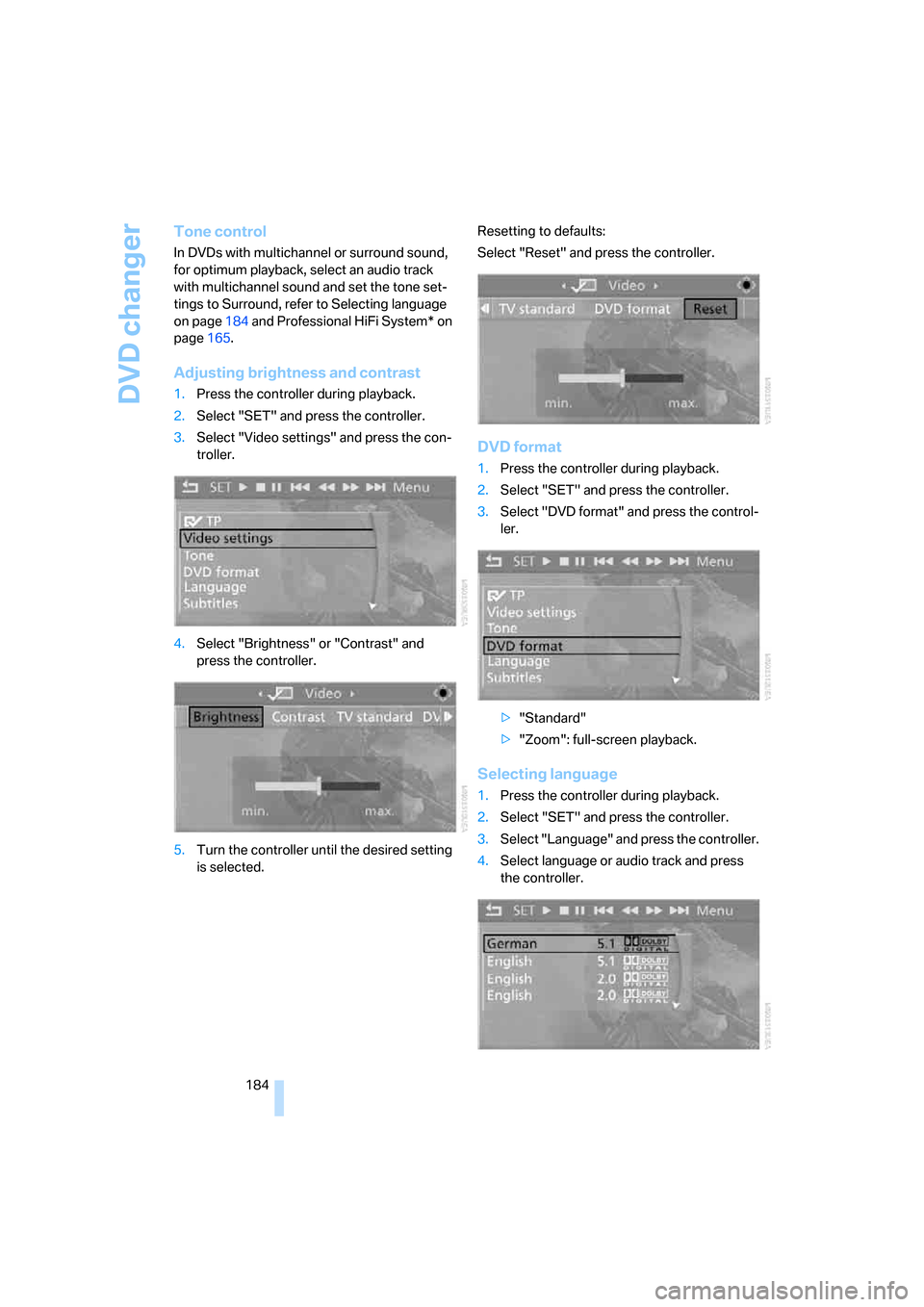
Adjusting brightness and contrast
1.Press the controller during playback.
2.Select "SET" and press the controller.
3.Select "Video settings" and press the con-
troller.
4.Select "Brightness" or "Contrast" and
press the controller.
5.Turn the controller until the desired setting
is selected.Resetting to defaults:
Select "Reset" and press the controller.
DVD format
1.Press the controller during playback.
2.Select "SET" and press the controller.
3.Select "DVD format" and press the control-
ler.
>"Standard"
>"Zoom": full-screen playback.
Selecting language
1.Press the controller during playback.
2.Select "SET" and press the controller.
3.Select "Language" and press the controller.
4.Select language or audio track and press
the controller.
Page 188 of 292
DVD changer
186
Audio playback
In vehicles equipped with a single drive, you
have the option of playing back the audio track
of a DVD, even when no video playback is pos-
sible in the vehicle.
1. button.
This opens the start menu.
2.Move the controller backwards to open
"Entertainment".
3.Change to upper field if necessary. Select
"DVD" and press the controller.
4.Switch into the second field if necessary,
select the desired DVD and press the con-
troller.
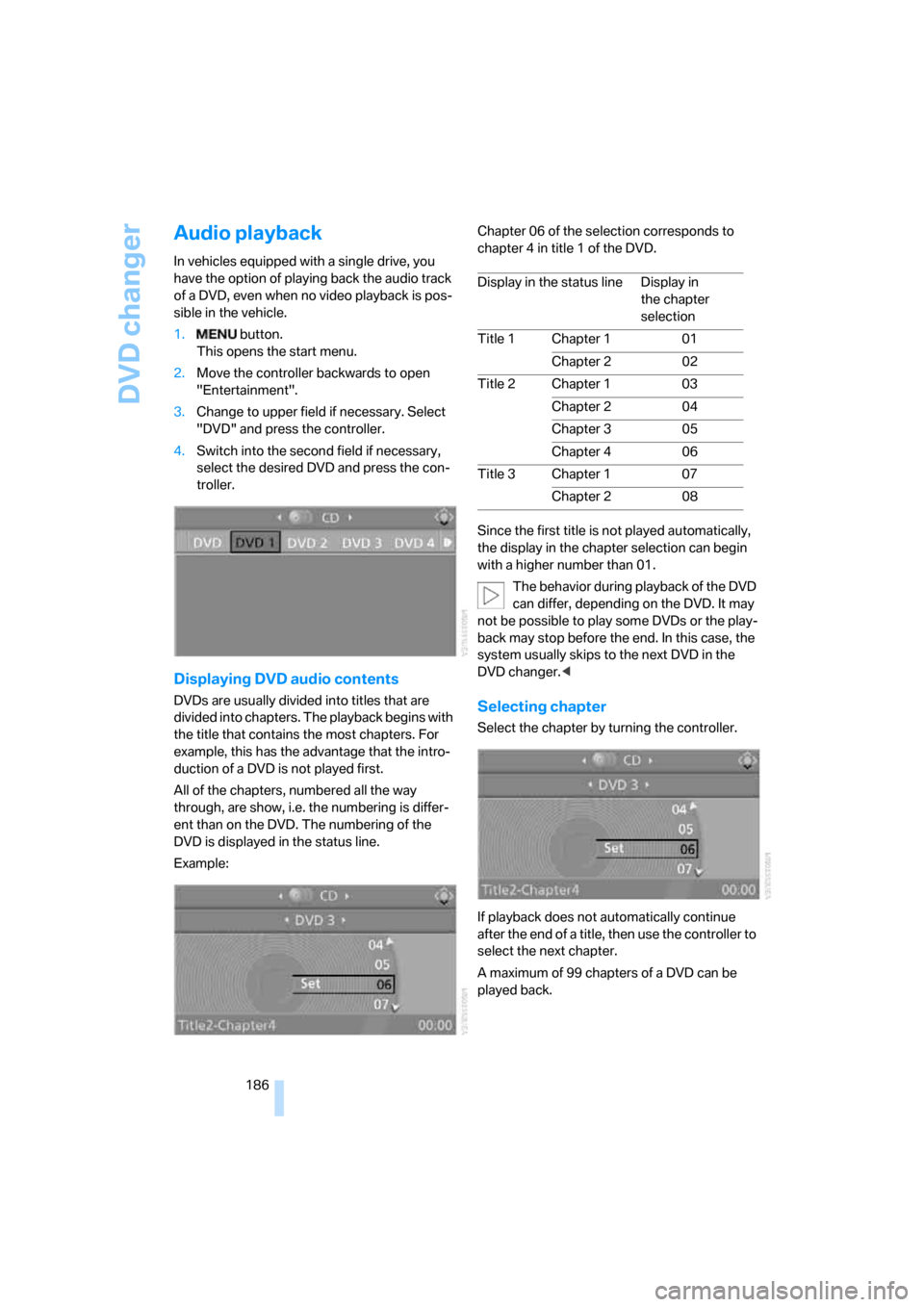
Displaying DVD audio contents
DVDs are usually divided into titles that are
divided into chapters. The playback begins with
the title that contains the most chapters. For
example, this has the advantage that the intro-
duction of a DVD is not played first.
All of the chapters, numbered all the way
through, are show, i.e. the numbering is differ-
ent than on the DVD. The numbering of the
DVD is displayed in the status line.
Example:Chapter 06 of the selection corresponds to
chapter 4 in title 1 of the DVD.
Since the first title is not played automatically,
the display in the chapter selection can begin
with a higher number than 01.
The behavior during playback of the DVD
can differ, depending on the DVD. It may
not be possible to play some DVDs or the play-
back may stop before the end. In this case, the
system usually skips to the next DVD in the
DVD changer.
If playback does not automatically continue
after the end of a title, then use the controller to
select the next chapter.
A maximum of 99 chapters of a DVD can be
played back.
Display in the status line Display in
the chapter
selection
Title 1 Chapter 1 01
Chapter 2 02
Title 2 Chapter 1 03
Chapter 2 04
Chapter 3 05
Chapter 4 06
Title 3 Chapter 1 07
Chapter 2 08
Page 189 of 292
Navigation
Entertainment
Driving tips
187Reference
At a glance
Controls
Communications
Mobility
Tone control
In DVDs with multichannel or surround sound,
for optimum playback, select an audio track
with multichannel sound, refer to Selecting
audio language, and set the tone settings to
Surround, refer to Professional HiFi System* on
page165.
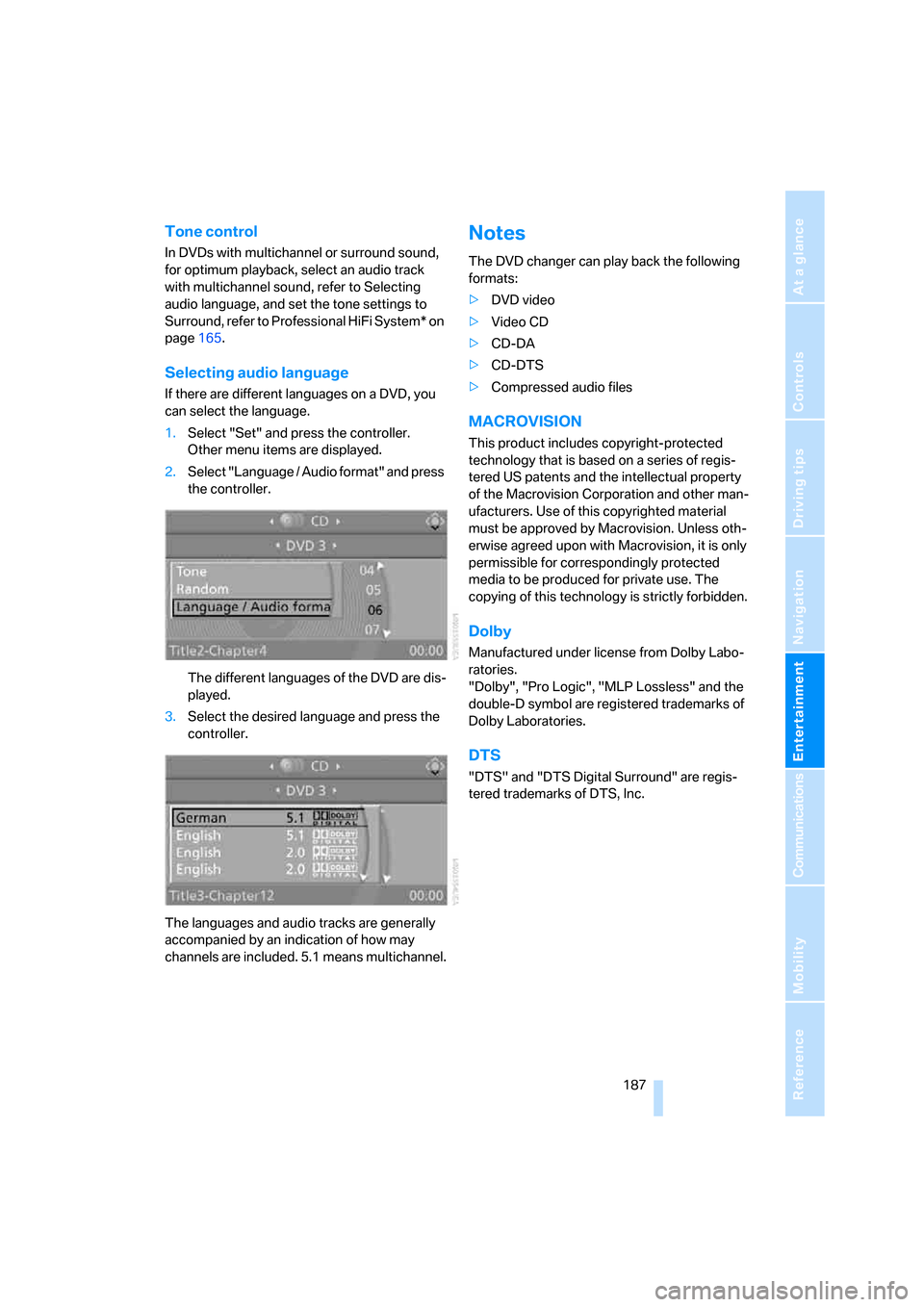
Selecting audio language
If there are different languages on a DVD, you
can select the language.
1.Select "Set" and press the controller.
Other menu items are displayed.
2.Select "Language / Audio format" and press
the controller.
The different languages of the DVD are dis-
played.
3.Select the desired language and press the
controller.
The languages and audio tracks are generally
accompanied by an indication of how may
channels are included. 5.1 means multichannel.
Notes
The DVD changer can play back the following
formats:
>DVD video
>Video CD
>CD-DA
>CD-DTS
>Compressed audio files
MACROVISION
This product includes copyright-protected
technology that is based on a series of regis-
tered US patents and the intellectual property
of the Macrovision Corporation and other man-
ufacturers. Use of this copyrighted material
must be approved by Macrovision. Unless oth-
erwise agreed upon with Macrovision, it is only
permissible for correspondingly protected
media to be produced for private use. The
copying of this technology is strictly forbidden.
Dolby
Manufactured under license from Dolby Labo-
ratories.
"Dolby", "Pro Logic", "MLP Lossless" and the
double-D symbol are registered trademarks of
Dolby Laboratories.
DTS
"DTS" and "DTS Digital Surround" are regis-
tered trademarks of DTS, Inc.
Page 269 of 292
Reference 267
At a glance
Controls
Driving tips
Communications
Navigation
Entertainment
Mobility
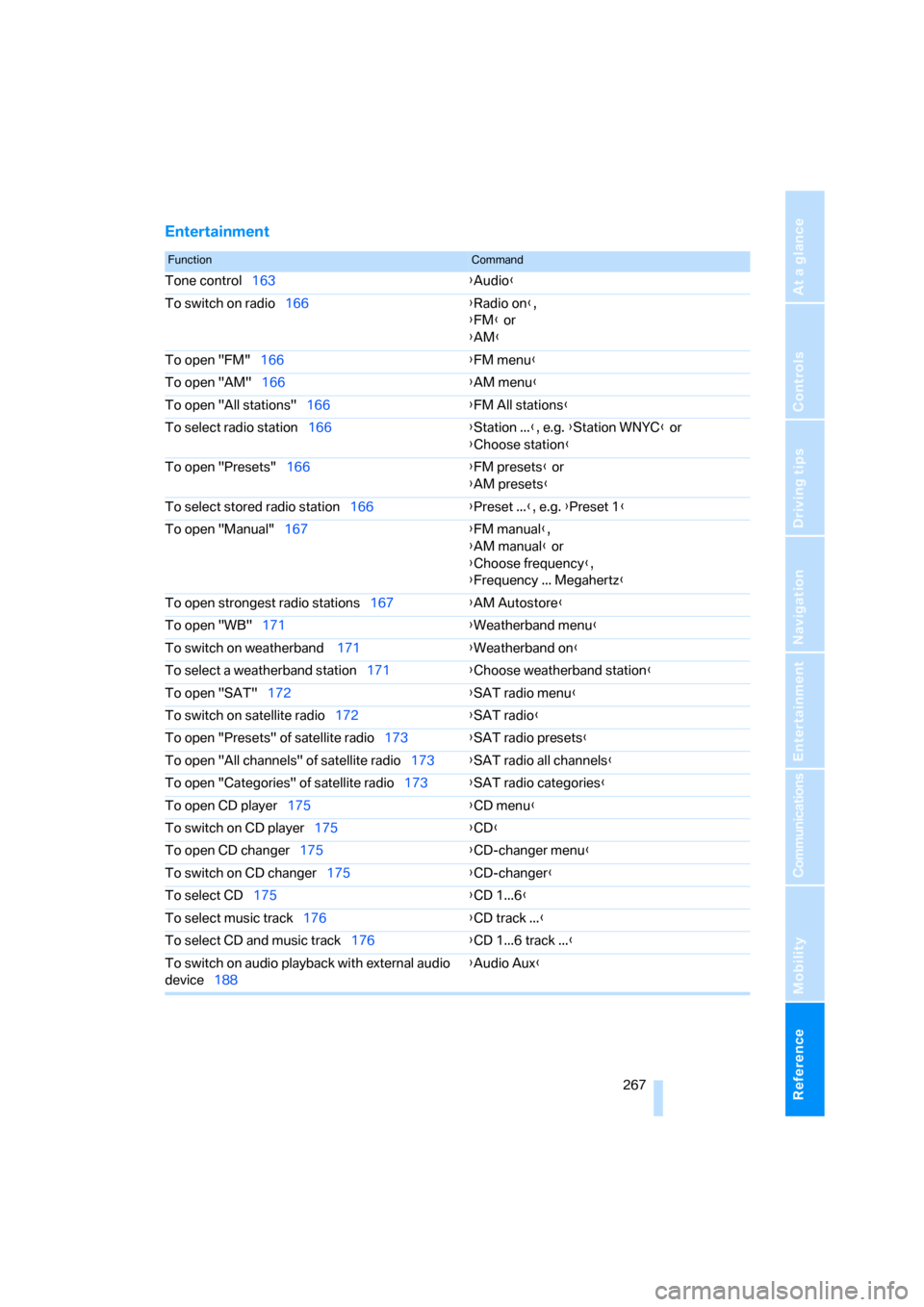
Entertainment
FunctionCommand
Tone control163{Audio}
To switch on radio166{Radio on},
{FM} or
{AM}
To open "FM"166{FM menu}
To open "AM"166{AM menu}
To open "All stations"166{FM All stations}
To select radio station166{Station ...}, e.g. {Station WNYC} or
{Choose station}
To open "Presets"166{FM presets} or
{AM presets}
To select stored radio station166{Preset ...}, e.g. {Preset 1}
To open "Manual"167{FM manual},
{AM manual} or
{Choose frequency},
{Frequency ... Megahertz}
To open strongest radio stations167{AM Autostore}
To open "WB"171{Weatherband menu}
To switch on weatherband 171{Weatherband on}
To select a weatherband station171{Choose weatherband station}
To open "SAT"172{SAT radio menu}
To switch on satellite radio172{SAT radio}
To open "Presets" of satellite radio173{SAT radio presets}
To open "All channels" of satellite radio173{SAT radio all channels}
To open "Categories" of satellite radio173{SAT radio categories}
To open CD player175{CD menu}
To switch on CD player175{CD}
To open CD changer175{CD-changer menu}
To switch on CD changer175{CD-changer}
To select CD175{CD 1...6}
To select music track176{CD track ...}
To select CD and music track176{CD 1...6 track ...}
To switch on audio playback with external audio
device188{Audio Aux}
Page 275 of 292
Reference 273
At a glance
Controls
Driving tips
Communications
Navigation
Entertainment
Mobility
Catalytic converter, refer to
Hot exhaust system129
"Categories", with satellite
radio173
CBC Cornering Brake
Control88
CBS Condition Based
Service245
"CD"163,175
– for DVD system in rear194
CD, refer to Playing audio
tracks, DVD system in
rear198
CD/DVD player, DVD system
in rear193
CD changer175
– compressed audio files175
– controls162
– fast forward/reverse178
– random sequence178
– repeating a track177
– sampling tracks177
– selecting a CD175
– selecting a track176
– switching on/off162
– tone control163
– volume163
CD player175
– compressed audio files175
– controls162
– fast forward/reverse178
– random sequence178
– repeating a track177
– sampling tracks177
– selecting a track176
– switching on/off162
– tone control163
– volume163
Cell phone, refer to Mobile
phone
Center armrest119
Center brake lamp250
Center console14
"Central locking"30
Central locking system29
– comfort access36
– from inside vehicle32Changes, technical
– refer to For your own
safety5
– refer to Parts and
accessories6
Changing language on
Control Display83
Changing tires239
Changing units of measure on
Control Display
82
Changing wheels251
Check Control78
"Check Control
messages"79
Checking the air pressure,
refer to Tire inflation
pressure234
Children, transporting55
Child restraint fixing system
LATCH56
Child restraint systems55
Child-safety locks58
Child seats55
Chime, refer to Check
Control78
Chrome parts, care, refer to
Caring for your vehicle
brochure
Cigarette lighter, refer to
Lighter121
Cleaning, refer to Caring for
your vehicle brochure
"Climate"50
Clock71
– 12h/24h mode82
– setting time81
Closing
– from inside32
– using remote control29
Closing fuel filler cap232
Clothes hooks119
Cockpit10
Cold start, refer to Starting
engine60
"Color" for DVD system in
rear196
Comfort access36
– observe in car wash37
– replacing battery38Comfort area, refer to Around
the center console14
Comfort start, refer to Starting
engine60
"Communi-
cation"214,224,225,226
Compact Disc
– refer to CD changer175
– refer to CD player175
Compact wheel
– inflation pressure235
– wheel change251
Compartment for remote
control, refer to Ignition
lock59
Compartments, refer to
Storage compartments119
Compass, digital117
Computer73
– displays in instrument
panel73
– displays on Control
Display73
– trip computer74
"Concierge"226
Concierge service226
Condition Based Service
CBS245
"Confirmation"31
Connecting car vacuum
cleaner, refer to Connecting
electrical devices121
Connecting headphones193
Consumption, refer to
Average fuel
consumption73
Consumption indicator,
Energy Control72
Consumption statistics, refer
to Average fuel
consumption73
"Continue guidance to
destination?"151
"Contrast"
– for DVD system in rear196
– in TV mode184
Control Center, refer to
iDrive16
Page 277 of 292
Reference 275
At a glance
Controls
Driving tips
Communications
Navigation
Entertainment
Mobility
Disposal
– battery of remote control
with comfort access38
– remote control battery194
– vehicle battery253
Distance, refer to
Computer73
"Distance to dest."74
Distance to destination, refer
to Computer73
Distance warning, refer to
PDC Park Distance
Control84
Door entry lighting105
Door key, refer to Keys/
remote control28
Door lock31
Door locking, confirmation
signals31
"Door locks"30,31,76
Doors
– manual operation32
– remote control29
DOT Quality Grades237
Downhill driving assistance,
refer to HDC90
Draft-free ventilation110
Drinks holder, refer to Cup
holders120
"Driver's door only"30
Driver's seat, calibrating49
"Driver's seat climate"51
Driving lamps, refer to Parking
lamps/low beams102
Driving on poor roads133
Driving route, refer to
Displaying route151
Driving stability control
systems88
Driving through water129
Driving tips, refer to General
driving notes128
Dry air, refer to Cooling
function109
Drying the air, refer to Cooling
function109DSC Dynamic Stability
Control89
– indicator lamp13,89
DTC Dynamic Traction
Control89
– activating89
– indicator lamp90
"DVD"182
– for DVD system in rear194
DVD changer
– fast forward183
– reverse
183
– skip chapter183
"DVD format" for DVD system
in rear197
DVD for navigation136
DVD system in rear192
– CD/DVD player193
– connecting headphones193
– controls192
– displaying images from CD/
DVD200
– DVD country codes195
– external device203
– information on CD/DVD
player202
– playing audio tracks from
CD/DVD198
– playing video from CD/
DVD195
– remote control193
– switching on/off194
"Dynamic route" for
navigation149
Dynamic Stability Control
DSC89
Dynamic Traction Control
DTC89
E
Easy entry/exit53
Electrical malfunction
– automatic transmission with
Steptronic65
– door lock32
– driver's door32
– fuel filler door232
– liftgate33
– panorama glass sunroof40
– parking brake63
Electric seat43
Electric steering wheel
adjustment52
Electronic brake-force
distribution88
Electronic oil level check242
Emergency operation, refer to
Manual operation
– door lock32
– driver's door32
– fuel filler door232
– liftgate33
– transmission lock, automatic
transmission65
Emergency request255
Emergency services, refer to
Roadside Assistance256
"Enabled services"229
"Enable services"229
"End call"216
Energy-conscious driving,
refer to Energy Control72
Energy Control72
Engine
– breaking-in128
– data262
– overheated, refer to Coolant
temperature72
– speed262
– starting60
– starting, with comfort
access37
– switching off60
Engine compartment242
Engine coolant244