CD changer BMW X5 3.0Si 2008 E70 Owner's Manual
[x] Cancel search | Manufacturer: BMW, Model Year: 2008, Model line: X5 3.0Si, Model: BMW X5 3.0Si 2008 E70Pages: 292, PDF Size: 9.32 MB
Page 5 of 292
Reference
At a glance
Controls
Driving tips
Communications
Navigation
Entertainment
Mobility
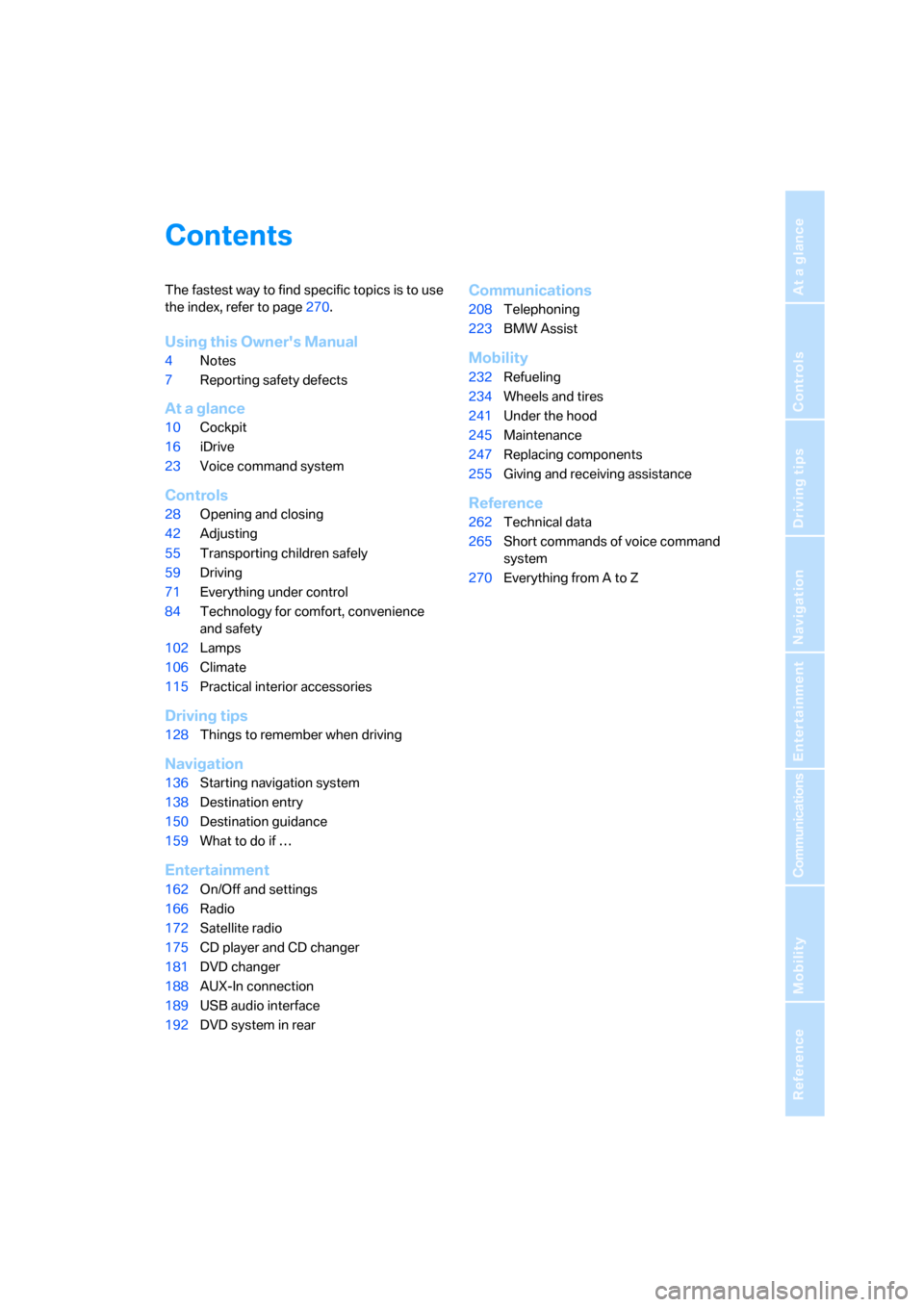
Contents
The fastest way to find specific topics is to use
the index, refer to page270.
Using this Owner's Manual
4Notes
7Reporting safety defects
At a glance
10Cockpit
16iDrive
23Voice command system
Controls
28Opening and closing
42Adjusting
55Transporting children safely
59Driving
71Everything under control
84Technology for comfort, convenience
and safety
102Lamps
106Climate
115Practical interior accessories
Driving tips
128Things to remember when driving
Navigation
136Starting navigation system
138Destination entry
150Destination guidance
159What to do if …
Entertainment
162On/Off and settings
166Radio
172Satellite radio
175CD player and CD changer
181DVD changer
188AUX-In connection
189USB audio interface
192DVD system in rear
Communications
208Telephoning
223BMW Assist
Mobility
232Refueling
234Wheels and tires
241Under the hood
245Maintenance
247Replacing components
255Giving and receiving assistance
Reference
262Technical data
265Short commands of voice command
system
270Everything from A to Z
Page 17 of 292
At a glance
15Reference
Controls
Driving tips
Communications
Navigation
Entertainment
Mobility
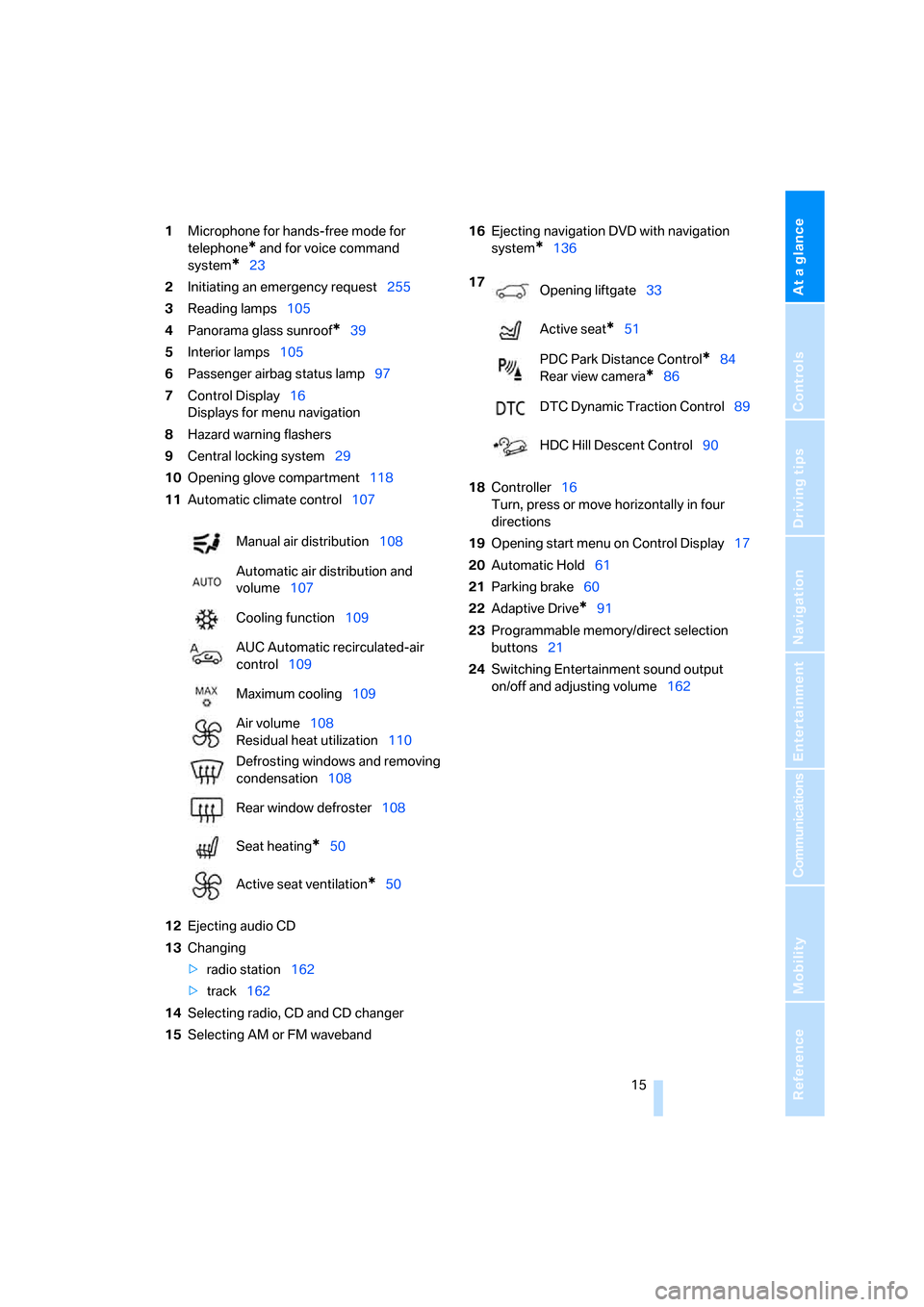
1Microphone for hands-free mode for
telephone
* and for voice command
system
*23
2Initiating
an emergency request255
3Reading lamps105
4Panorama glass sunroof
*39
5Interior lamps105
6Passenger airbag status lamp97
7Control Display16
Displays for menu navigation
8Hazard warning flashers
9Central locking system29
10Opening glove compartment118
11Automatic climate control107
12Ejecting audio CD
13Changing
>radio station162
>track162
14Selecting radio, CD and CD changer
15Selecting AM or FM waveband16Ejecting navigation DVD with navigation
system
*136
18Controller16
Turn, press or move horizontally in four
directions
19Opening start menu on Control Display17
20Automatic Hold61
21Parking brake60
22Adaptive Drive
*91
23Programmable memory/direct selection
buttons21
24Switching Entertainment sound output
on/off and adjusting volume162 Manual air distribution108
Automatic air distribution and
volume107
Cooling function109
AUC Automatic recirculated-air
control109
Maximum cooling109
Air volume108
Residual heat utilization110
Defrosting windows and removing
condensation108
Rear window defroster108
Seat heating
*50
Active seat ventilation
*50
17
Opening liftgate33
Active seat
*51
PDC Park Distance Control
*84
Rear view camera
*86
DTC Dynamic Traction Control89
HDC Hill Descent Control90
Page 19 of 292

At a glance
17Reference
Controls
Driving tips
Communications
Navigation
Entertainment
Mobility
Menu overview
Communication
>Telephone*
>BMW Assist* or TeleService*
Navigation or onboard information
>Navigation system*
>Onboard information, e.g. for displaying
the average fuel consumption
Entertainment
>Radio
>CD player and CD changer
*
>External audio device
Climate
>Vent settings
>Seat heater distribution
*
>Automatic programs
>Parked car ventilation
*
menu
>Switching off Control Display
>Tone and display settings
>Settings for traffic information
*
>Settings for your vehicle, e.g. for the central
locking system
>Display of maintenance intervals and dead-
lines for legally mandated inspections
>Settings for telephone
*
Operating principle
From radio readiness, refer to page59, the fol-
lowing message is shown on the Control Dis-
play:
To hide the message:
Press the controller.
This displays the start menu.
On vehicles with a single drive, the message
automatically disappears after approx. 10 sec-
onds.
Start menu
You can call up all the functions of iDrive using
five menu items.
Opening start menu
Press the button.
To open the start menu from the menu:
Press the button twice.
Page 23 of 292
At a glance
21Reference
Controls
Driving tips
Communications
Navigation
Entertainment
Mobility
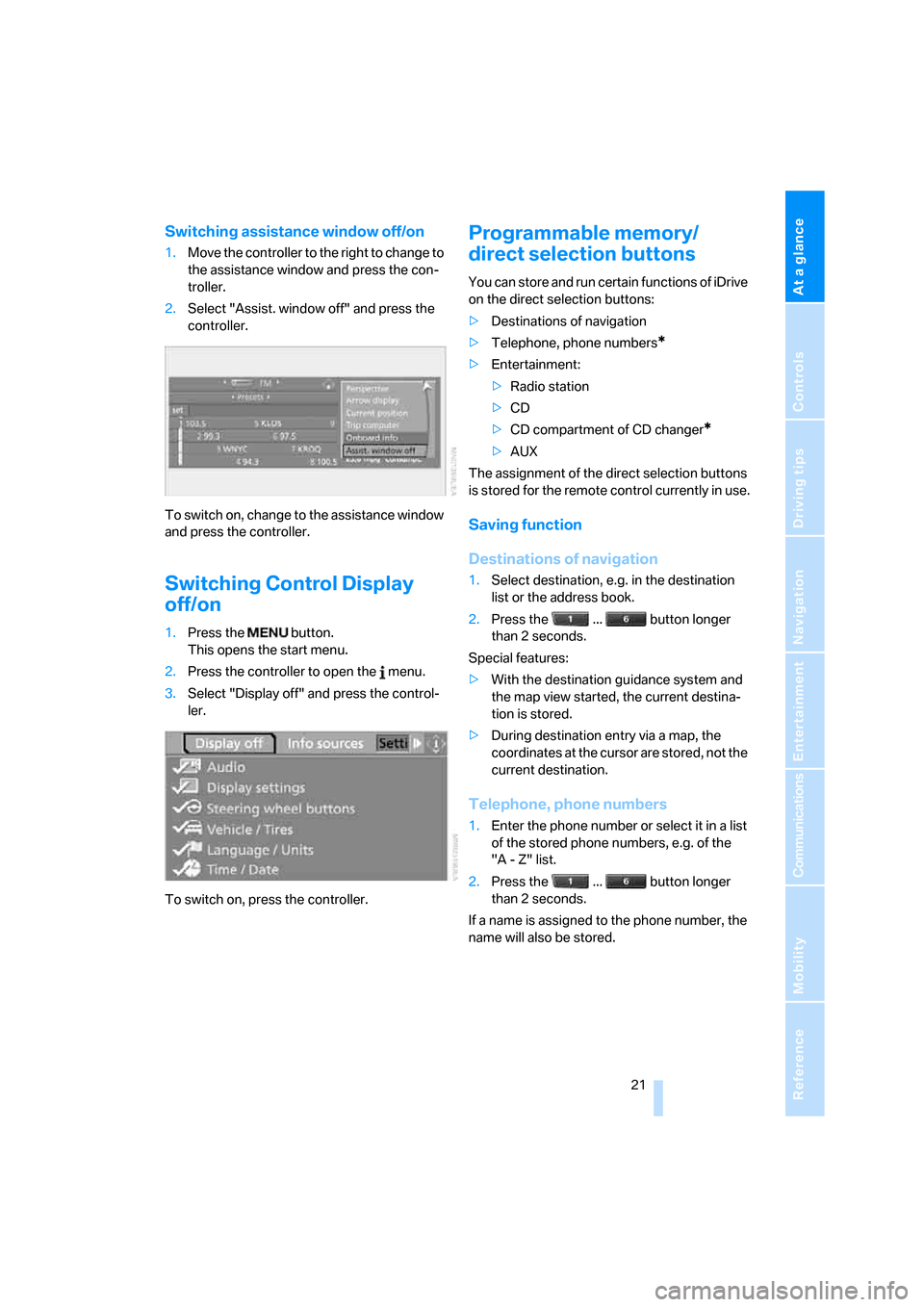
Switching assistance window off/on
1.Move the controller to the right to change to
the assistance window and press the con-
troller.
2.Select "Assist. window off" and press the
controller.
To switch on, change to the assistance window
and press the controller.
Switching Control Display
off/on
1.Press the button.
This opens the start menu.
2.Press the controller to open the menu.
3.Select "Display off" and press the control-
ler.
To switch on, press the controller.
Programmable memory/
direct selection buttons
You can store and run certain functions of iDrive
on the direct selection buttons:
>Destinations of navigation
>Telephone, phone numbers
*
>Entertainment:
>Radio station
>CD
>CD compartment of CD changer
*
>AUX
The assignment of the direct selection buttons
is stored for the remote control currently in use.
Saving function
Destinations of navigation
1.Select destination, e.g. in the destination
list or the address book.
2.Press the ... button longer
than 2 seconds.
Special features:
>With the destination guidance system and
the map view started, the current destina-
tion is stored.
>During destination entry via a map, the
coordinates at the cursor are stored, not the
current destination.
Telephone, phone numbers
1.Enter the phone number or select it in a list
of the stored phone numbers, e.g. of the
"A - Z" list.
2.Press the ... button longer
than 2 seconds.
If a name is assigned to the phone number, the
name will also be stored.
Page 26 of 292
Voice command system
24
Terminating or canceling voice
command system
Press the button on the steering wheel
or
Commands
Having possible commands read aloud
You can have the system read aloud the possi-
ble commands related to the selected menu
item on the Control Display.
To have the system list the possible com-
mands:
For example, if you have selected "CD", the
system will read aloud the possible commands
for operating the CD player and the CD
changer
*.
Opening help
Using alternative commands
There are often a number of commands to run a
function, e.g.:
Running functions directly with short
commands
With short commands you can carry out certain
functions directly, regardless of which menu
item is selected, refer to page265.
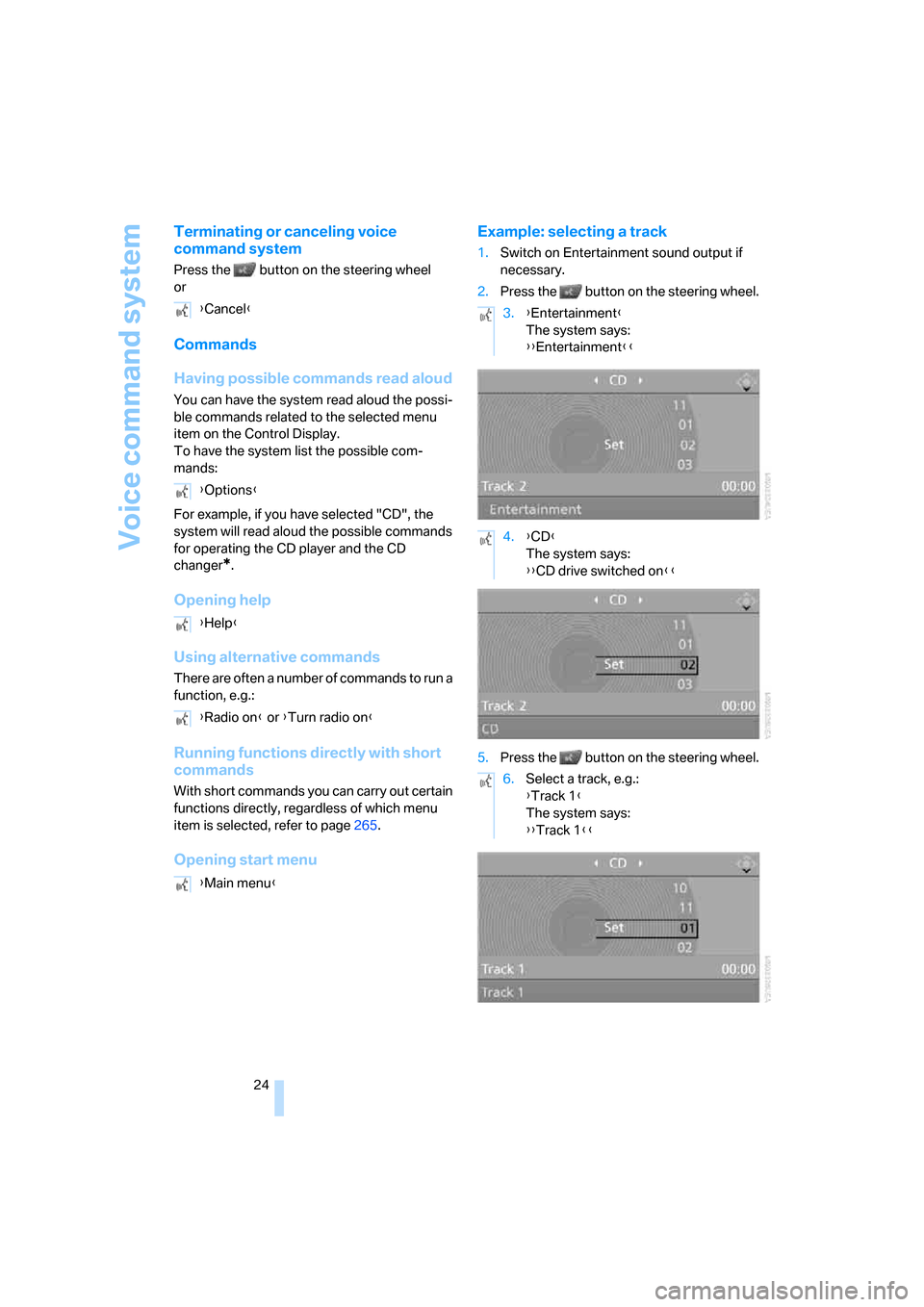
Opening start menuExample: selecting a track
1.Switch on Entertainment sound output if
necessary.
2.Press the button on the steering wheel.
5.Press the button on the steering wheel. {Cancel}
{Options}
{Help}
{Radio on} or {Turn radio on}
{Main menu}
3.{Entertainment}
The system says:
{{Entertainment}}
4.{CD}
The system says:
{{CD drive switched on}}
6.Select a track, e.g.:
{Track 1}
The system says:
{{Track 1}}
Page 164 of 292
On/Off and settings
162
On/Off and settings
The following audio and video sources have
common controls and adjustment options:
>Radio
>CD player
>CD changer
*
Controls
The audio and video sources can be operated
with:
>Buttons in the area of the CD player
>iDrive
>Buttons
on steering wheel, refer to page11
>Programmable memory/direct selection
buttons, refer to page21
Buttons on CD player
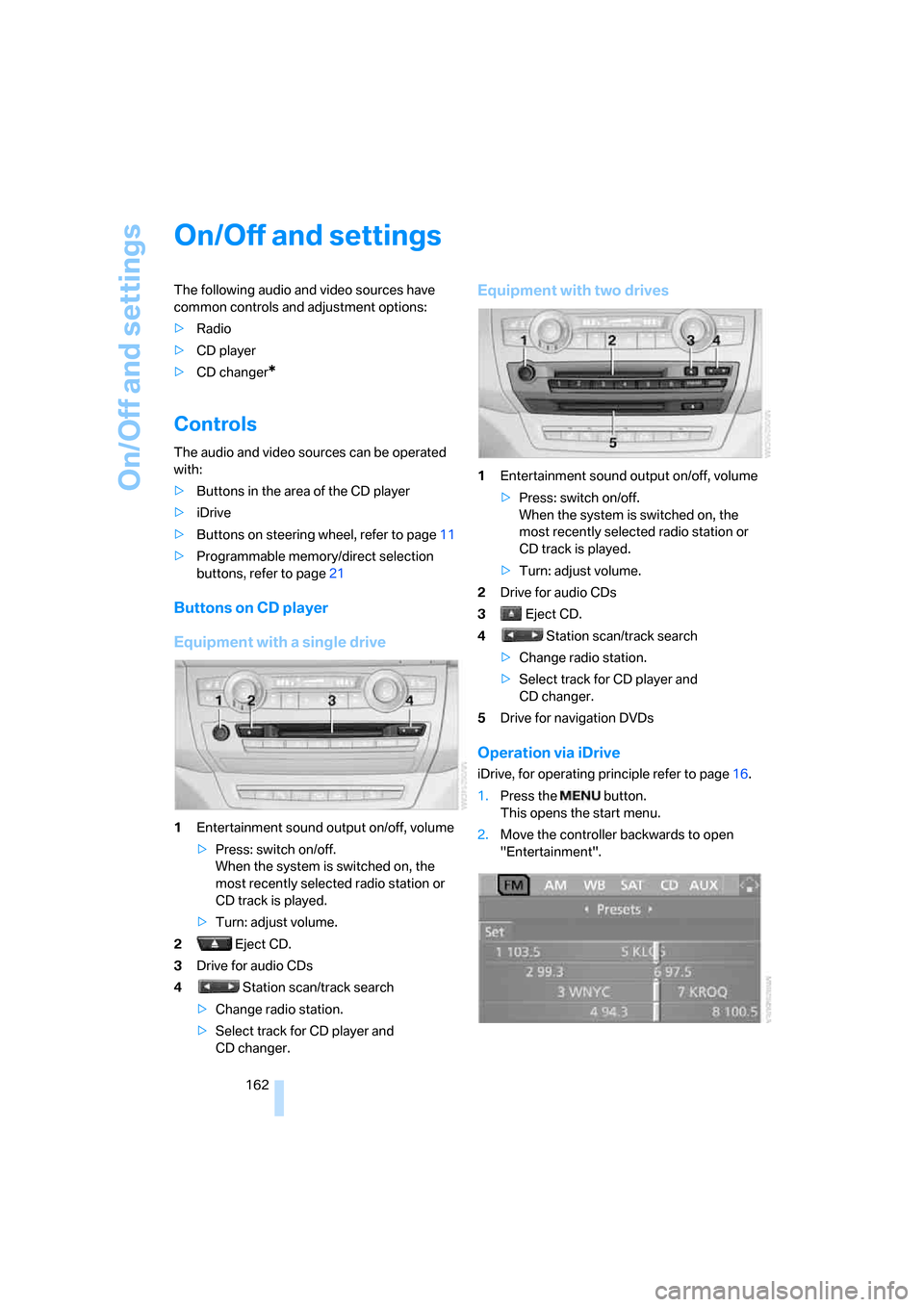
Equipment with a single drive
1Entertainment sound output on/off, volume
>Press: switch on/off.
When the system is switched on, the
most recently selected radio station or
CD track is played.
>Turn: adjust volume.
2 Eject CD.
3Drive for audio CDs
4 Station scan/track search
>Change radio station.
>Select track for CD player and
CD changer.
Equipment with two drives
1Entertainment sound output on/off, volume
>Press: switch on/off.
When the system is switched on, the
most recently selected radio station or
CD track is played.
>Turn: adjust volume.
2Drive for audio CDs
3 Eject CD.
4 Station scan/track search
>Change radio station.
>Select track for CD player and
CD changer.
5Drive for navigation DVDs
Operation via iDrive
iDrive, for operating principle refer to page16.
1.Press the button.
This opens the start menu.
2.Move the controller backwards to open
"Entertainment".
Page 165 of 292
Navigation
Entertainment
Driving tips
163Reference
At a glance
Controls
Communications
Mobility
You have the following choices:
>"FM" and "AM": radio reception
>"WB": Weather Band station
>"SAT": satellite radio
*
>"CD": CD player or changer
>"AUX": AUX-In connection, USB audio
interface
>"Set": depending on the audio source,
other adjustments can be made, e.g. with
the radio: update station with strongest
reception, store station, tone control, sam-
ple stations.
From another menu, you can change
directly to the screen last displayed,
refer to Comfort opening of menu items on
page18.<
From radio readiness, the selected audio
source is stored for the remote control currently
in use.
Switching on/off
To switch the Entertainment sound output on
and off:
Press knob1 on the CD player.
This symbol on the Control Display indi-
cates that sound output is switched off.
For equipment with a single drive, the sound
output is available for approx. 20 minutes with
the ignition switched off.
Switch on the sound output again for this pur-
pose.
Adjusting volume
Turn knob1 on the CD player until the desired
volume is set.
You can also adjust the volume with buttons on
the steering wheel, refer to page11.
From radio readiness, the setting is stored for
the remote control currently in use.
Tone control
You can alter various tone settings, e. g. treble
and bass, or the speed-dependent volume
increase.
The tone settings are set for all audio sources at
once.
From radio readiness, the settings are stored
for the remote control currently in use.
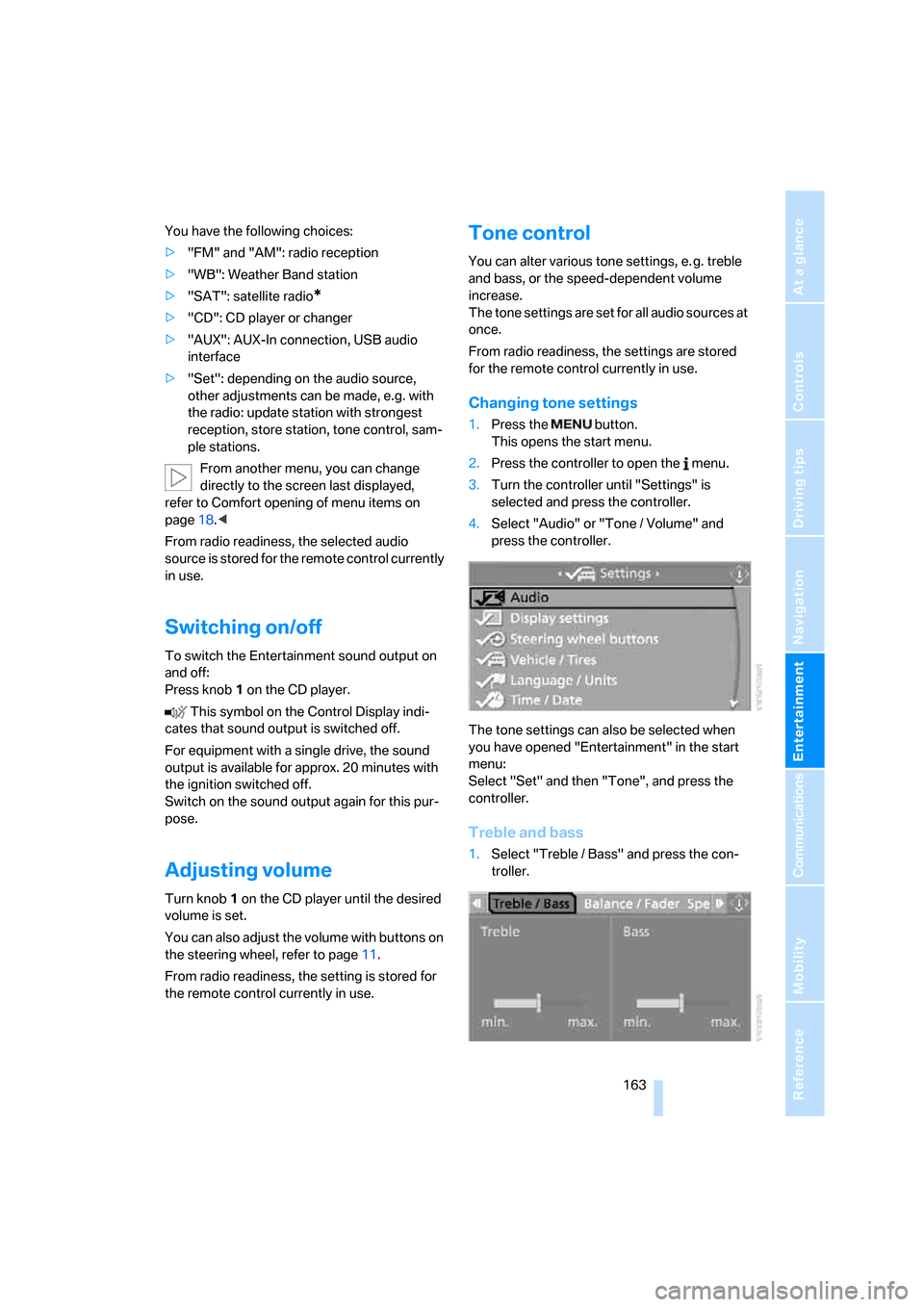
Changing tone settings
1.Press the button.
This opens the start menu.
2.Press the controller to open the menu.
3.Turn the controller until "Settings" is
selected and press the controller.
4.Select "Audio" or "Tone / Volume" and
press the controller.
The tone settings can also be selected when
you have opened "Entertainment" in the start
menu:
Select "Set" and then "Tone", and press the
controller.
Treble and bass
1.Select "Treble / Bass" and press the con-
troller.
Page 177 of 292
Navigation
Entertainment
Driving tips
175Reference
At a glance
Controls
Communications
Mobility
CD player and CD changer
Listening to CDs
When equipped with two drives:
The upper drive is for audio CDs.
Compressed audio files
CDs with compressed audio files, i.e. MP3, can
be played by the CD player and CD changer.
Starting CD player
Inserting CD
Insert the CD into the drive with the labeled side
up.
The CD is automatically pulled in. Playback
starts automatically if the sound output is on.
For CDs with compressed audio files, it can take
up to approx. 1 minute to read in the data
depending on the directory structure.
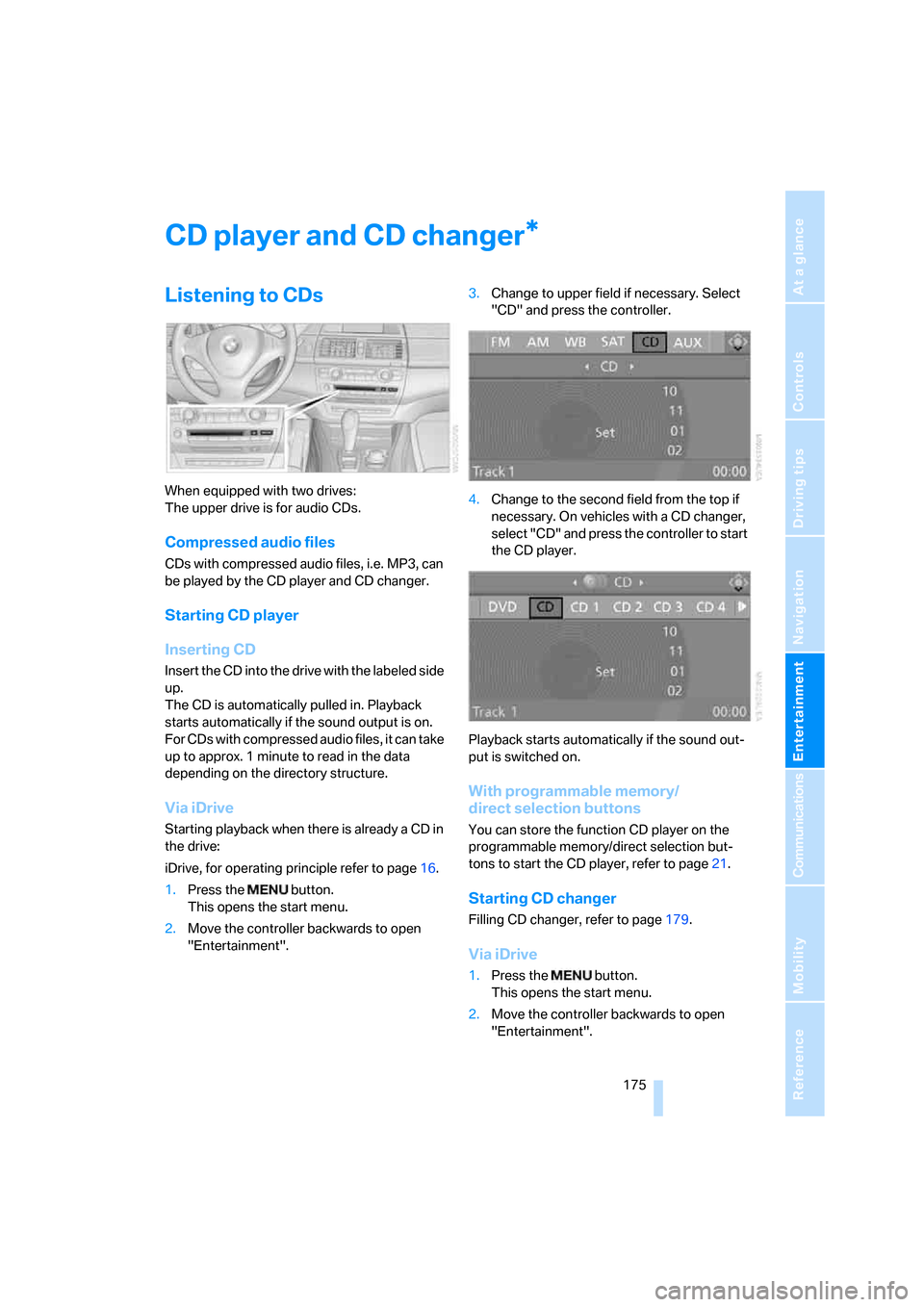
Via iDrive
Starting playback when there is already a CD in
the drive:
iDrive, for operating principle refer to page16.
1.Press the button.
This opens the start menu.
2.Move the controller backwards to open
"Entertainment".3.Change to upper field if necessary. Select
"CD" and press the controller.
4.Change to the second field from the top if
necessary. On vehicles with a CD changer,
select "CD" and press the controller to start
the CD player.
Playback starts automatically if the sound out-
put is switched on.
With programmable memory/
direct selection buttons
You can store the function CD player on the
programmable memory/direct selection but-
tons to start the CD player, refer to page21.
Starting CD changer
Filling CD changer, refer to page179.
Via iDrive
1.Press the button.
This opens the start menu.
2.Move the controller backwards to open
"Entertainment".
*
Page 178 of 292
CD player and CD changer
176 3.Change to upper field if necessary. Select
"CD" and press the controller.
4.Change to the second field from the top if
necessary. Select the desired CD and press
the controller.
At the end of the last track, the next CD will be
selected.
With programmable memory/
direct selection buttons
You can store a CD compartment of the CD
changer on the programmable memory/direct
selection buttons to start the CD changer, refer
to page21.
Selecting a track
Buttons on CD player
Press the button for the corresponding
direction repeatedly until you reach the desired
track.
The track is displayed on the Control Display.
You can also change tracks using the buttons
on the steering wheel, refer to page11.
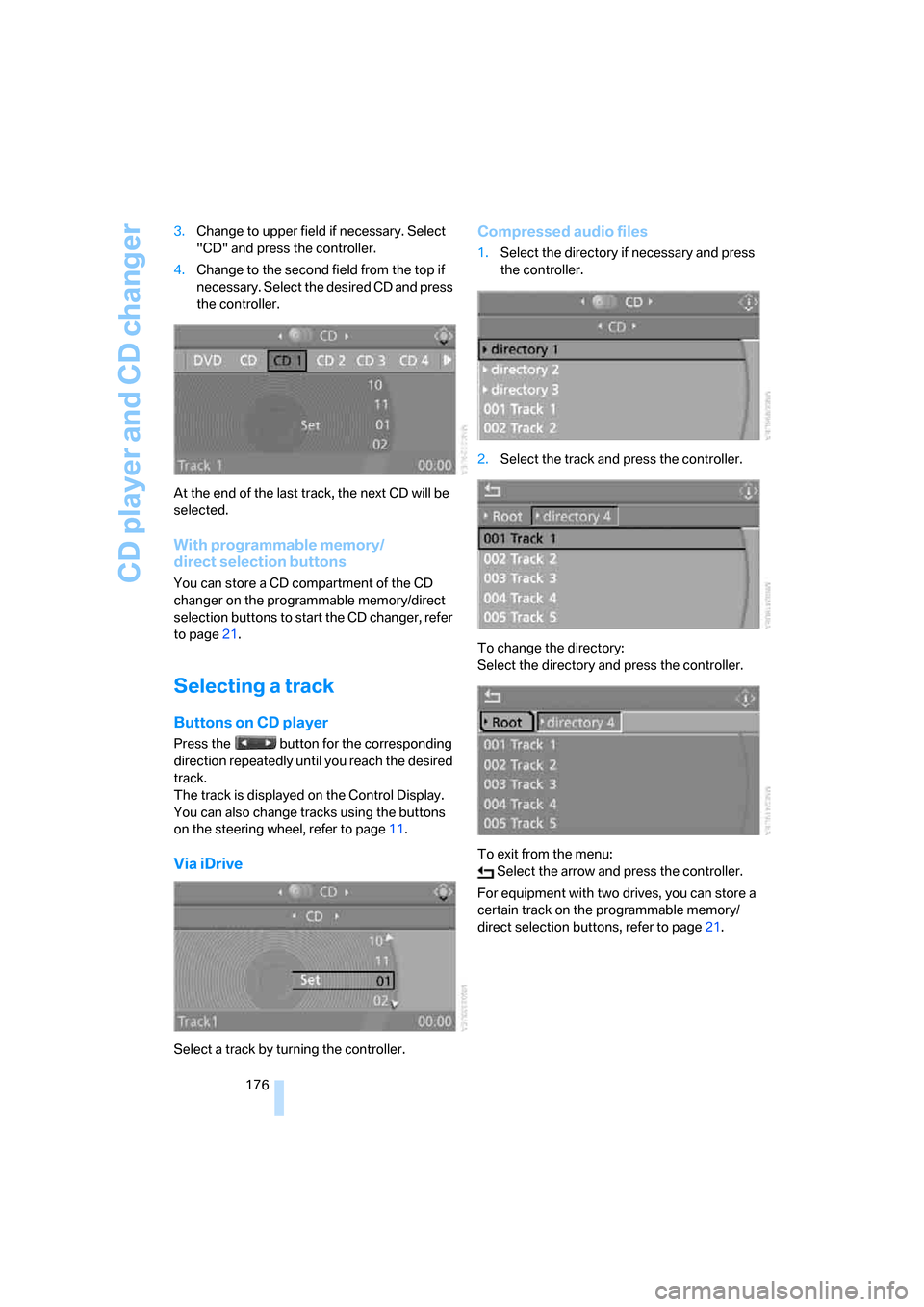
Via iDrive
Select a track by turning the controller.
Compressed audio files
1.Select the directory if necessary and press
the controller.
2.Select the track and press the controller.
To change the directory:
Select the directory and press the controller.
To exit from the menu:
Select the arrow and press the controller.
For equipment with two drives, you can store a
certain track on the programmable memory/
direct selection buttons, refer to page21.
Page 180 of 292
CD player and CD changer
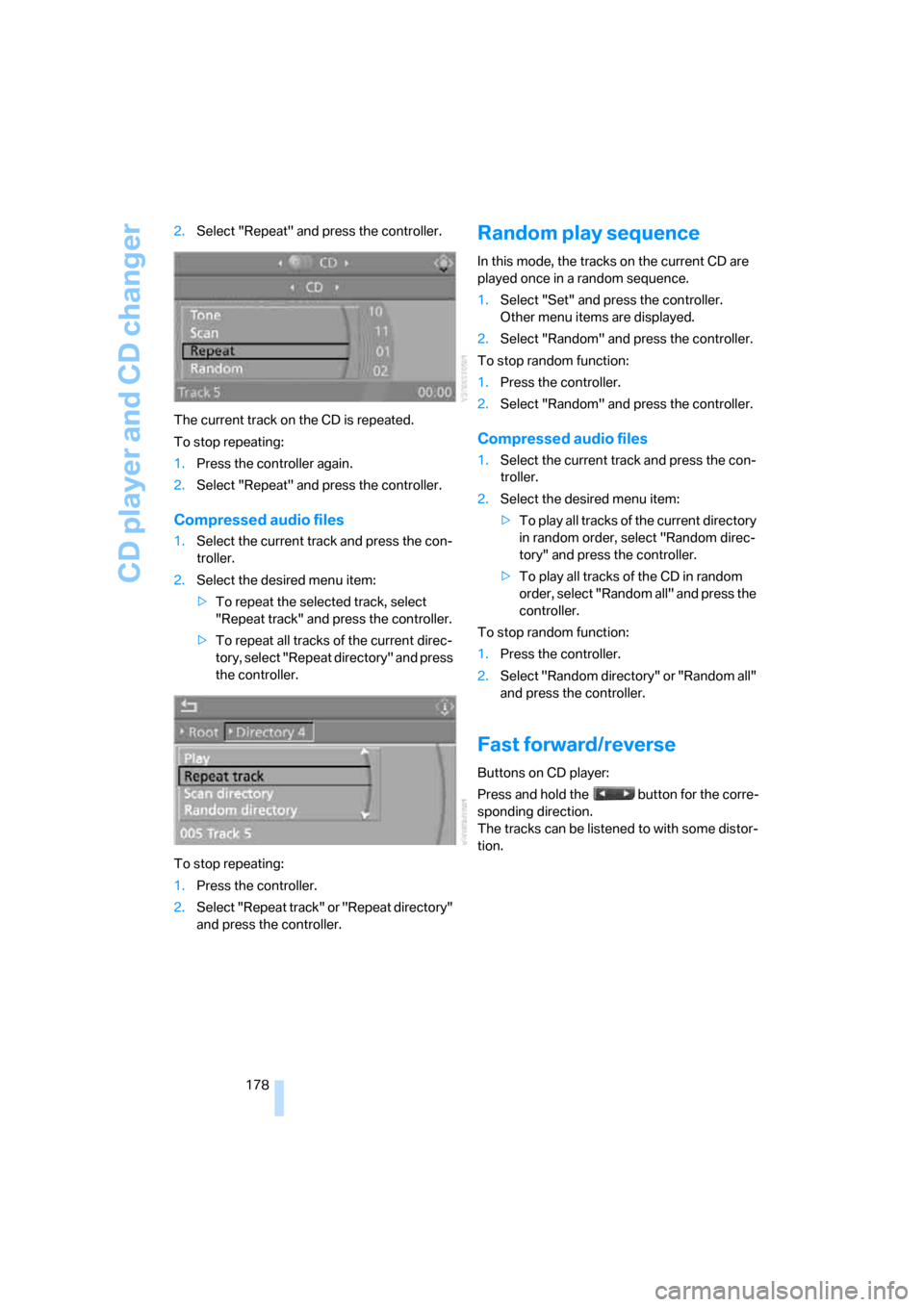
178 2.Select "Repeat" and press the controller.
The current track on the CD is repeated.
To stop repeating:
1.Press the controller again.
2.Select "Repeat" and press the controller.
Compressed audio files
1.Select the current track and press the con-
troller.
2.Select the desired menu item:
>To repeat the selected track, select
"Repeat track" and press the controller.
>To repeat all tracks of the current direc-
tory, select "Repeat directory" and press
the controller.
To stop repeating:
1.Press the controller.
2.Select "Repeat track" or "Repeat directory"
and press the controller.
Random play sequence
In this mode, the tracks on the current CD are
played once in a random sequence.
1.Select "Set" and press the controller.
Other menu items are displayed.
2.Select "Random" and press the controller.
To stop random function:
1.Press the controller.
2.Select "Random" and press the controller.
Compressed audio files
1.Select the current track and press the con-
troller.
2.Select the desired menu item:
>To pla y all tracks of the current directory
in random order, select "Random direc-
tory" and press the controller.
>To play all tracks of the CD in random
order, select "Random all" and press the
controller.
To stop random function:
1.Press the controller.
2.Select "Random directory" or "Random all"
and press the controller.
Fast forward/reverse
Buttons on CD player:
Press and hold the button for the corre-
sponding direction.
The tracks can be listened to with some distor-
tion.