Cam BMW X5 3.0Si 2008 E70 Owner's Manual
[x] Cancel search | Manufacturer: BMW, Model Year: 2008, Model line: X5 3.0Si, Model: BMW X5 3.0Si 2008 E70Pages: 292, PDF Size: 9.32 MB
Page 9 of 292
7Reference
At a glance
Controls
Driving tips
Communications
Navigation
Entertainment
Mobility
Service and warranty
We recommend that you read this publication
thoroughly.
Your BMW is covered by the following warran-
ties:
>New Vehicle Limited Warranty
>Rust Perforation Limited Warranty
>Federal Emissions System Defect Warranty
>Federal Emissions Performance Warranty
>California Emission Control System Limited
Warranty
Detailed information about these warranties is
listed in the Service and Warranty Information
Booklet for US models or in the Warranty and
Service Guide Booklet for Canadian models.
Reporting safety defects
For US customers
The following applies only to vehicles owned
and operated in the US.
If you believe that your vehicle has a defect
which could cause a crash or could cause injury
or death, you should immediately inform the
National Highway Traffic Safety Administration,
NHTSA, in addition to notifying BMW of North
America, LLC, P.O. Box 1227, Westwood, New
Jersey 07675-1227, Telephone 1-800-831-
1117.
If NHTSA receives similar complaints, it may
open an investigation, and if it finds that a safety
defect exists in a group of vehicles, it may order
a recall and remedy campaign. However,
NHTSA cannot become involved in individual
problems between you, your dealer, or BMW of
North America, LLC.
To contact NHTSA, you may call the Vehicle
Safety Hotline toll-free at 1-888-327-4236
(TTY: 1-800-424-9153); go to
http://www.safercar.gov; or write to: Adminis-
trator, NHTSA, 400 Seventh Street, SW.,
Washington, DC 20590. You can also obtain
other information about motor vehicle safety
from http://www.safercar.gov
For Canadian customers
Canadian customers who wish to report a
safety-related defect to Transport Canada,
Defect Investigations and Recalls may call
1-800-333-0510 toll-free from anywhere in
Canada or 1-613-993-9851 from the Ottawa
region and from other countries, or contact
Transport Canada by mail at: Transport
Canada, ASFAD, Place de Ville, Tower C,
330 Sparks Street, Ottawa, ON, K1A 0N5.
You can also obtain other information about
motor vehicle safety from http://www.tc.gc.ca
Page 17 of 292
At a glance
15Reference
Controls
Driving tips
Communications
Navigation
Entertainment
Mobility
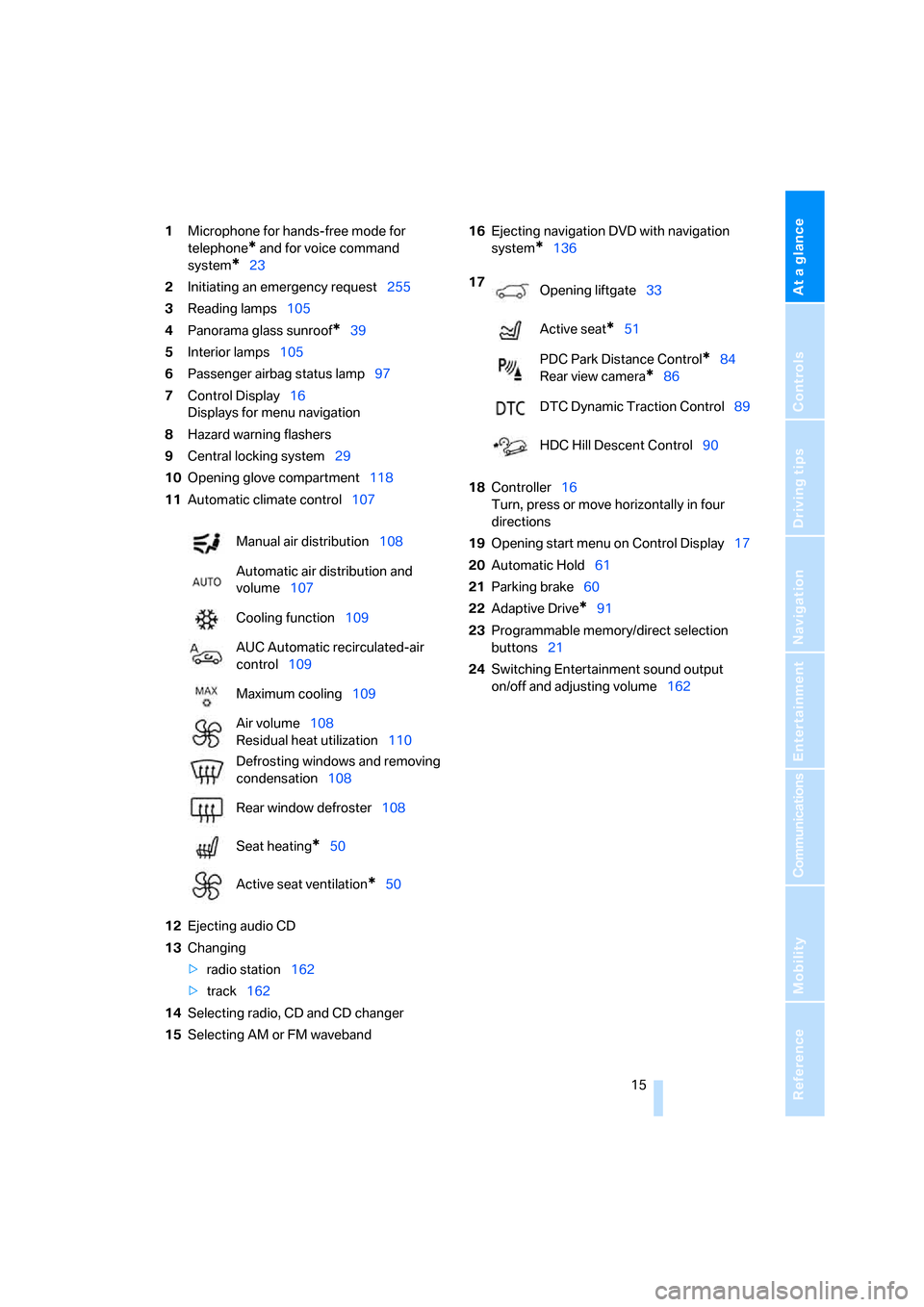
1Microphone for hands-free mode for
telephone
* and for voice command
system
*23
2Initiating
an emergency request255
3Reading lamps105
4Panorama glass sunroof
*39
5Interior lamps105
6Passenger airbag status lamp97
7Control Display16
Displays for menu navigation
8Hazard warning flashers
9Central locking system29
10Opening glove compartment118
11Automatic climate control107
12Ejecting audio CD
13Changing
>radio station162
>track162
14Selecting radio, CD and CD changer
15Selecting AM or FM waveband16Ejecting navigation DVD with navigation
system
*136
18Controller16
Turn, press or move horizontally in four
directions
19Opening start menu on Control Display17
20Automatic Hold61
21Parking brake60
22Adaptive Drive
*91
23Programmable memory/direct selection
buttons21
24Switching Entertainment sound output
on/off and adjusting volume162 Manual air distribution108
Automatic air distribution and
volume107
Cooling function109
AUC Automatic recirculated-air
control109
Maximum cooling109
Air volume108
Residual heat utilization110
Defrosting windows and removing
condensation108
Rear window defroster108
Seat heating
*50
Active seat ventilation
*50
17
Opening liftgate33
Active seat
*51
PDC Park Distance Control
*84
Rear view camera
*86
DTC Dynamic Traction Control89
HDC Hill Descent Control90
Page 31 of 292
Controls
29Reference
At a glance
Driving tips
Communications
Navigation
Entertainment
Mobility
>Settings for the display on the Control Dis-
play:
>Brightness of the Control Display, refer
to page82
>Measuring units for consumption, route/
distances, temperature, and pressure,
refer to page82
>Language on Control Display, refer to
page83
>12h/24h mode of the clock, refer to
page82
>Date format, refer to page82
>Showing optical warning for PDC Park Dis-
tance Control
*, refer to page85
>Selection, brightness and position of dis-
play in Head-Up Display
*, refer to page99
>Settings of automatic climate control, refer
to page107
>Positions of driver's seat, exterior mirrors,
and steering wheel
*, refer to page44
>With Adaptive Drive
*, last selected chassis
and suspension tuning setting, refer to
page91
>Audio sources, volume and tone settings,
refer to page163
>Radio, displaying stored stations, refer to
page166
>Telephone, setting volume, refer to
pages214,220
>Pathway lighting, refer to page103, and
daytime running lamps
*, refer to page103
>Triple turn signal activation, refer to
page67
>With rear view camera
*, selection of func-
tions, refer to page86, and type of display,
refer to page88
>With programmable memory/direct selec-
tion buttons, selection of stored functions,
refer to page21
Central locking system
The concept
The central locking system is ready for opera-
tion whenever the driver's door is closed.
The system simultaneously engages and
releases the locks on the following:
>Doors
>Liftgate
>Fuel filler door
Operating from outside
>via the remote control
>via the door lock
>with comfort access
* via the door handles
At the same time, the anti-theft system is also
operated. It prevents the doors from being
unlocked using the lock buttons or door han-
dles. The interior lamps and the courtesy
lamps
* are also switched on and off with the
remote control. The alarm system
is armed/dis-
armed at the same time.
You can find more detailed information on the
alarm system
on page35.
Operating from inside
Via the button for central locking, refer to
page32. The fuel filler door is not locked.
In an accident of sufficient severity, the central
locking system automatically unlocks the vehi-
cle. In addition, the hazard warning flashers and
interior lamps come on.
Opening and closing:
Using remote control
Persons or animals left unattended in a
parked vehicle can lock the doors from
the inside. Always take along the remote control
when leaving the vehicle so that the vehicle can
then be opened from the outside.<
Page 87 of 292
Controls
85Reference
At a glance
Driving tips
Communications
Navigation
Entertainment
Mobility
PDC with visual warning*
You can also have the system show distances
to objects on the Control Display. Objects that
are farther away are already shown there before
a signal tone sounds.
The setting is stored for the remote control cur-
rently in use.
If the vehicle is equipped with a rear view cam-
era, refer to Displays on page88.
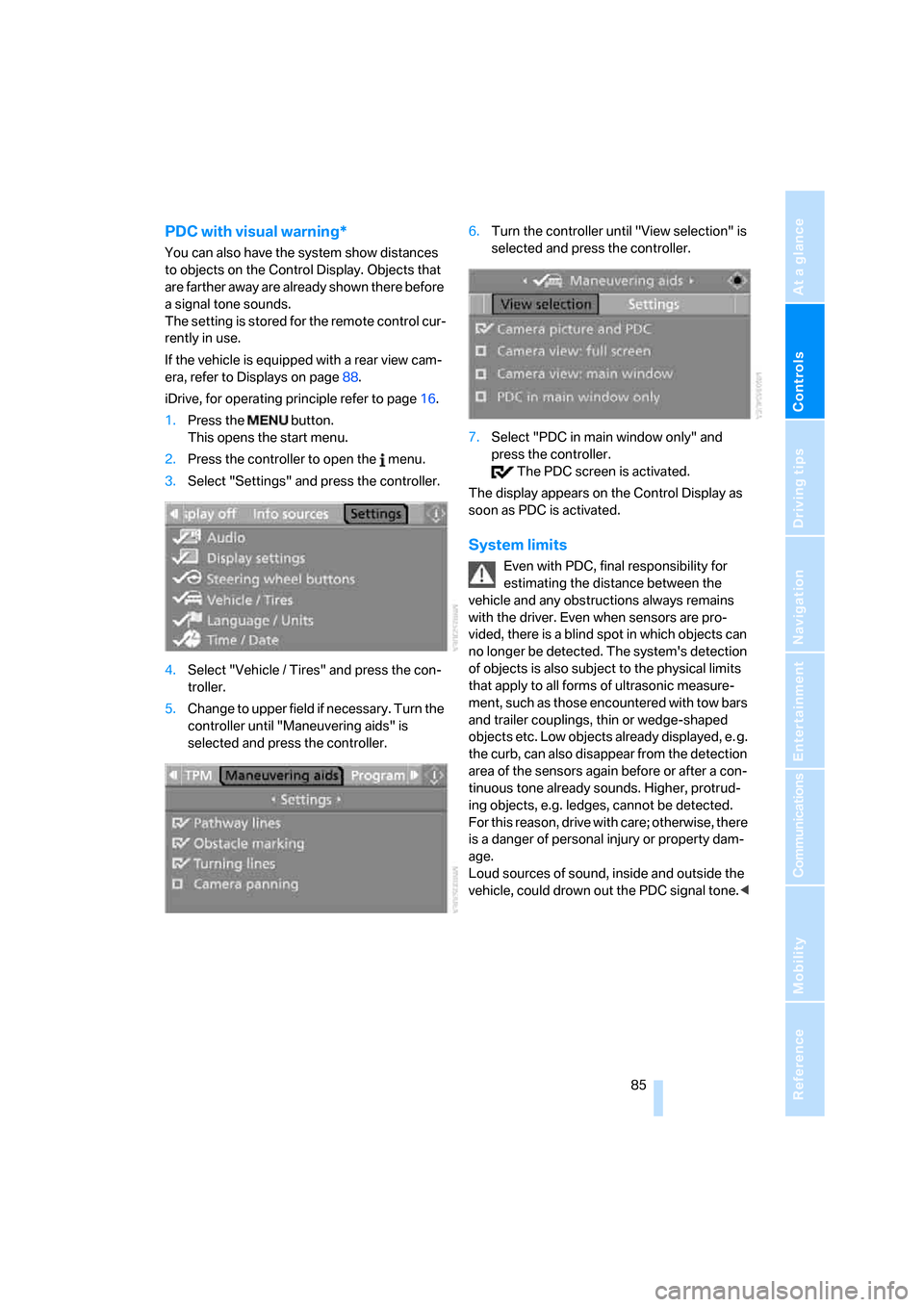
iDrive, for operating principle refer to page16.
1.Press the button.
This opens the start menu.
2.Press the controller to open the menu.
3.Select "Settings" and press the controller.
4.Select "Vehicle / Tires" and press the con-
troller.
5.Change to upper field if necessary. Turn the
controller until "Maneuvering aids" is
selected and press the controller.6.Turn the controller until "View selection" is
selected and press the controller.
7.Select "PDC in main window only" and
press the controller.
The PDC screen is activated.
The display appears on the Control Display as
soon as PDC is activated.
System limits
Even with PDC, final responsibility for
estimating the distance between the
vehicle and any obstructions always remains
with the driver. Even when sensors are pro-
vided, there is a blind spot in which objects can
no longer be detected. The system's detection
of objects is also subject to the physical limits
that apply to all forms of ultrasonic measure-
ment, such as those encountered with tow bars
and trailer couplings, thin or wedge-shaped
objects etc. Low objects already displayed, e. g.
the curb, can also disappear from the detection
area of the sensors again before or after a con-
tinuous tone already sounds. Higher, protrud-
ing objects, e.g. ledges, cannot be detected.
For this reason, drive with care; otherwise, there
is a danger of personal injury or property dam-
age.
Loud sources of sound, inside and outside the
vehicle, could drown out the PDC signal tone.<
Page 88 of 292
Technology for comfort, convenience and safety
86
Rear view camera*
The concept
The rear view camera in the liftgate displays the
area behind your vehicle on the Control Display.
Also check the traffic situation around the
vehicle during parking and maneuvering
with direct vision, as otherwise danger of an
accident could result, for example, from road
users or objects located outside the picture
area of the rear view camera.<
Switching on
Automatically
With the engine running, shift into reverse.
If the image of the Park Distance Control
PDC appears in the Control Display, you
can switch the image to the rear view camera,
refer to Displays on page88.<
Manually
Press the button.
PDC is activated at the same time, refer to
page84.
If the image of the Park Distance Control
PDC appears in the Control Display, you
can switch the image to the rear view camera,
refer to Displays on page88.<
Switching off
Automatically
When driving forward at over approx. 12 mph/
20 km/h or after driving approx. 164 ft/50 m.
Manually
Press the button again; the LED goes out.
Driver assistance functions
The following functions can improve the effect
of the rear view camera depending on the situa-
tion.
They can only be activated when the tailgate
and liftgate are completely closed.
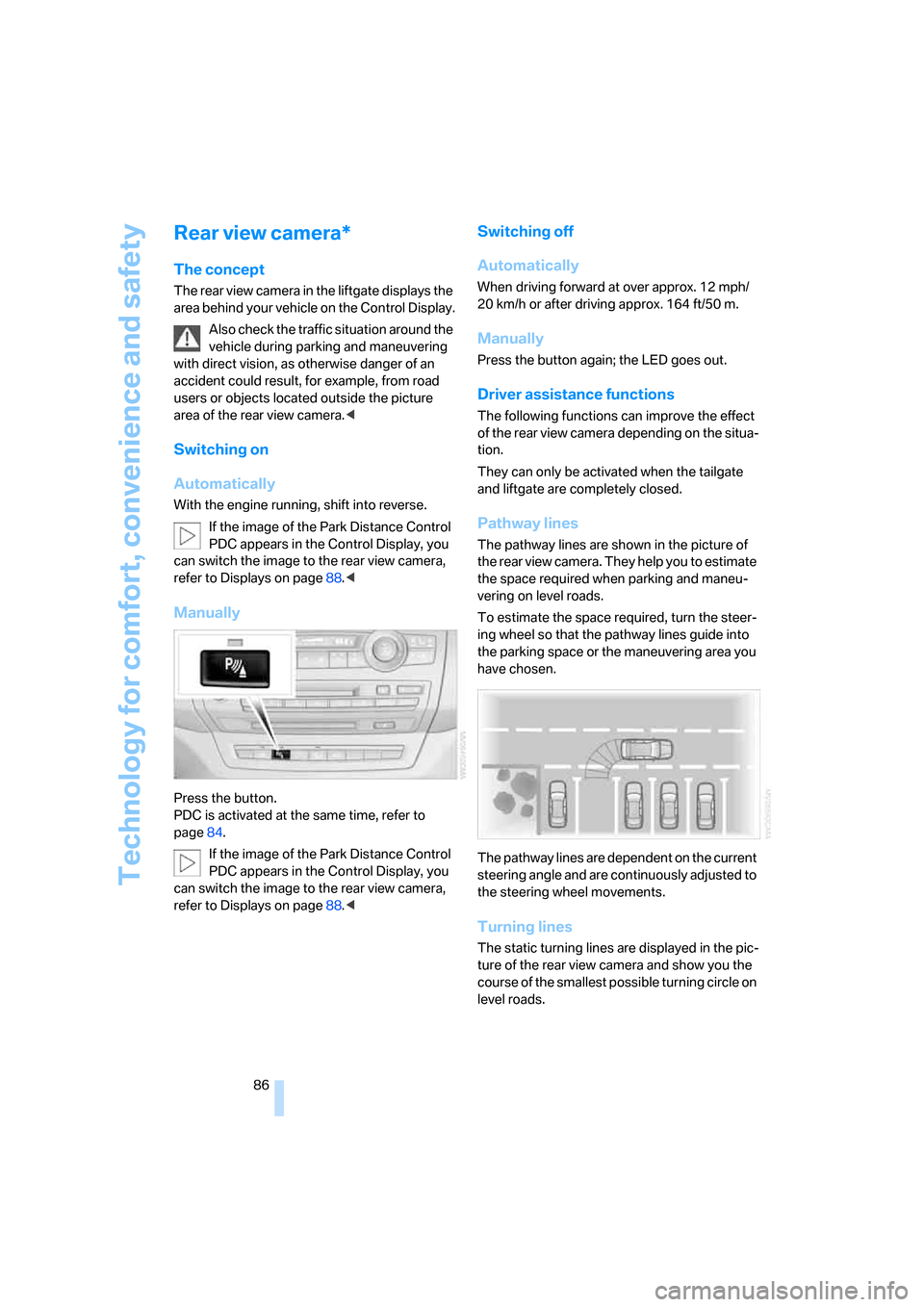
Pathway lines
The pathway lines are shown in the picture of
the rear view camera. They help you to estimate
the space required when parking and maneu-
vering on level roads.
To estimate the space required, turn the steer-
ing wheel so that the pathway lines guide into
the parking space or the maneuvering area you
have chosen.
The pathway lines are dependent on the current
steering angle and are continuously adjusted to
the steering wheel movements.
Turning lines
The static turning lines are displayed in the pic-
ture of the rear view camera and show you the
course of the smallest possible turning circle on
level roads.
Page 89 of 292
Controls
87Reference
At a glance
Driving tips
Communications
Navigation
Entertainment
Mobility
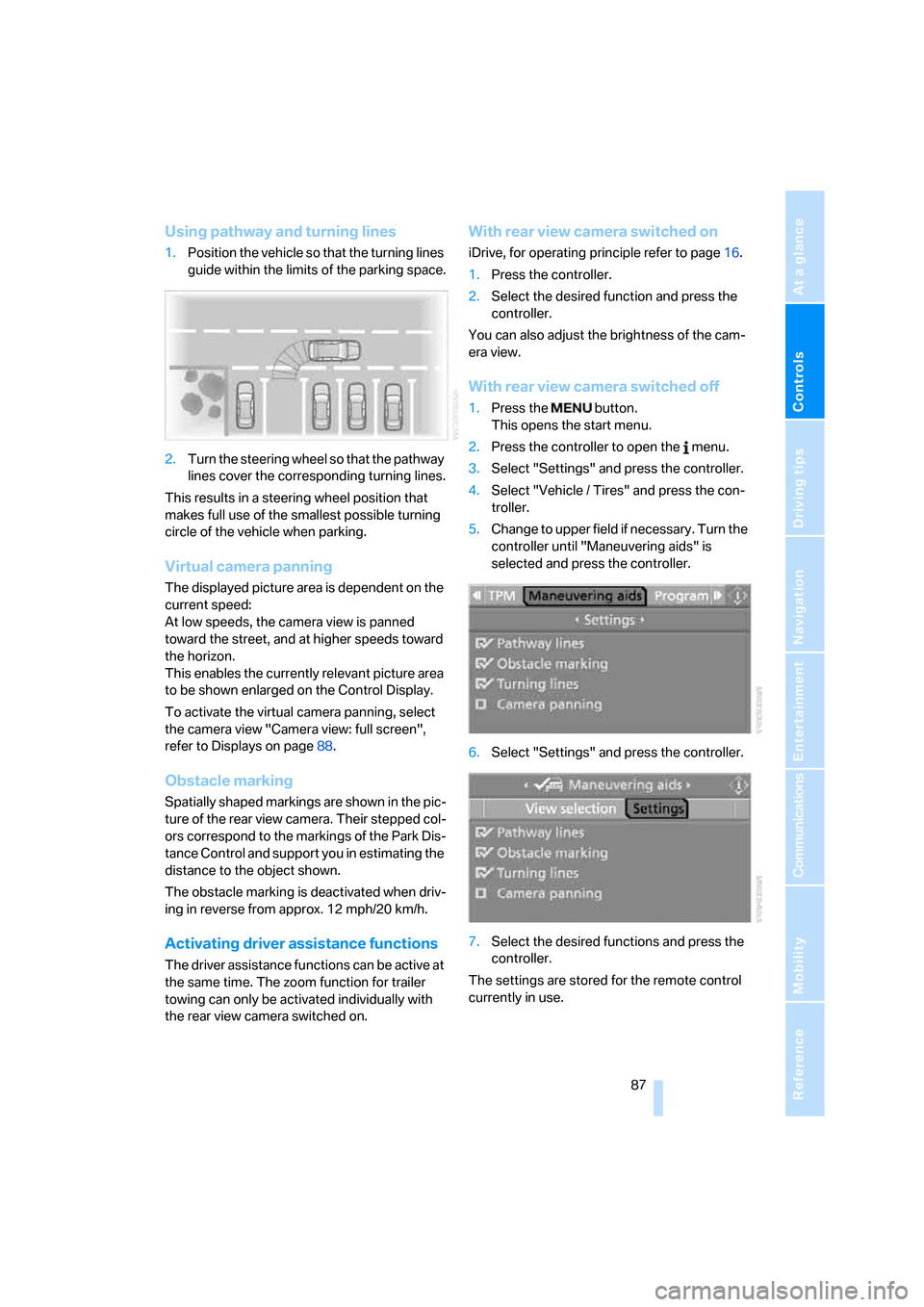
Using pathway and turning lines
1.Position the vehicle so that the turning lines
guide within the limits of the parking space.
2.Turn the steering wheel so that the pathway
lines cover the corresponding turning lines.
This results in a steering wheel position that
makes full use of the smallest possible turning
circle of the vehicle when parking.
Virtual camera panning
The displayed picture area is dependent on the
current speed:
At low speeds, the camera view is panned
toward the street, and at higher speeds toward
the horizon.
This enables the currently relevant picture area
to be shown enlarged on the Control Display.
To activate the virtual camera panning, select
the camera view "Camera view: full screen",
refer to Displays on page88.
Obstacle marking
Spatially shaped markings are shown in the pic-
ture of the rear view camera. Their stepped col-
ors correspond to the markings of the Park Dis-
tance Control and support you in estimating the
distance to the object shown.
The obstacle marking is deactivated when driv-
ing in reverse from approx. 12 mph/20 km/h.
Activating driver assistance functions
The driver assistance functions can be active at
the same time. The zoom function for trailer
towing can only be activated individually with
the rear view camera switched on.
With rear view camera switched on
iDrive, for operating principle refer to page16.
1.Press the controller.
2.Select the desired function and press the
controller.
You can also adjust the brightness of the cam-
era view.
With rear view camera switched off
1.Press the button.
This opens the start menu.
2.Press the controller to open the menu.
3.Select "Settings" and press the controller.
4.Select "Vehicle / Tires" and press the con-
troller.
5.Change to upper field if necessary. Turn the
controller until "Maneuvering aids" is
selected and press the controller.
6.Select "Settings" and press the controller.
7.Select the desired functions and press the
controller.
The settings are stored for the remote control
currently in use.
Page 90 of 292
Technology for comfort, convenience and safety
88
Displays
You can have the picture from the rear view
camera displayed in several formats and in
combination with the PDC Park Distance Con-
trol, refer to page85.
In addition, you also have the option of display-
ing only the PDC Park Distance Control.
>"Camera picture and PDC"
The rear view camera picture is shown in
the main window of the Control Display.
>"Camera view: full screen"
The picture of the rear view camera is
shown on the entire Control Display.
>"Camera view: main window"
The picture of the rear view camera is
shown in the main window of the Control
Display.
>"PDC in main window only"
PDC is shown in the main window of the
Control Display.
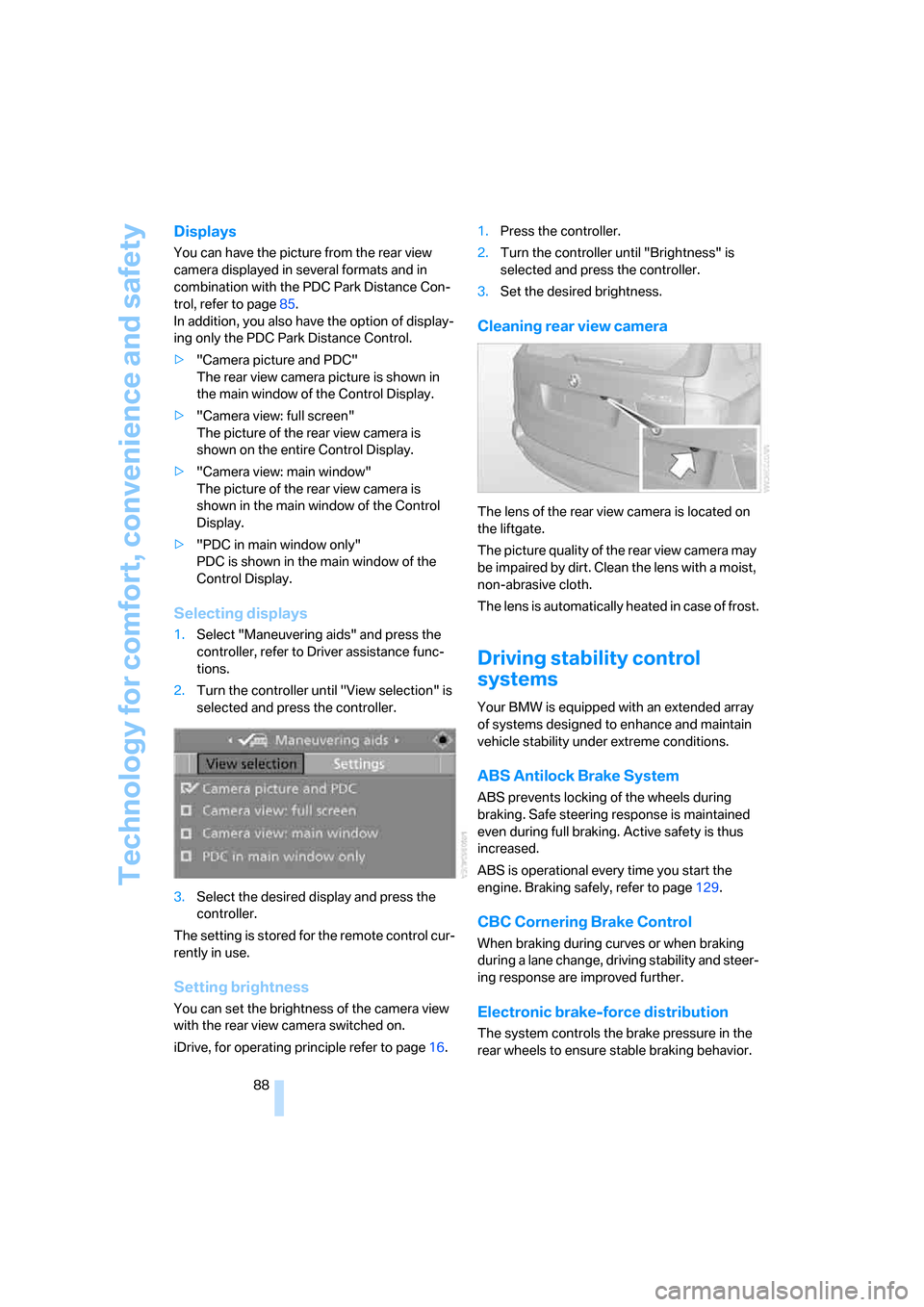
Selecting displays
1.Select "Maneuvering aids" and press the
controller, refer to Driver assistance func-
tions.
2.Turn the controller until "View selection" is
selected and press the controller.
3.Select the desired display and press the
controller.
The setting is stored for the remote control cur-
rently in use.
Setting brightness
You can set the brightness of the camera view
with the rear view camera switched on.
iDrive, for operating principle refer to page16.1.Press the controller.
2.Turn the controller until "Brightness" is
selected and press the controller.
3.Set the desired brightness.
Cleaning rear view camera
The lens of the rear view camera is located on
the liftgate.
The picture quality of the rear view camera may
be impaired by dirt. Clean the lens with a moist,
non-abrasive cloth.
The lens is automatically heated in case of frost.
Driving stability control
systems
Your BMW is equipped with an extended array
of systems designed to enhance and maintain
vehicle stability under extreme conditions.
ABS Antilock Brake System
ABS prevents locking of the wheels during
braking. Safe steering response is maintained
even during full braking. Active safety is thus
increased.
ABS is operational every time you start the
engine. Braking safely, refer to page129.
CBC Cornering Brake Control
When braking during curves or when braking
during a lane change, driving stability and steer-
ing response are improved further.
Electronic brake-force distribution
The system controls the brake pressure in the
rear wheels to ensure stable braking behavior.
Page 185 of 292
Navigation
Entertainment
Driving tips
183Reference
At a glance
Controls
Communications
Mobility
DVD control
Using the DVD control, you can select the title
and chapter, open the DVD-specific menu and
operate functions such as language, fast for-
ward and reverse, or freeze frame.
A DVD can briefly deactivate functions of the
DVD control, under certain circumstances even
while the entire DVD is being played. It is not
possible to operate the DVD control under
these circumstances. In this case, try to make
the selection using the DVD-specific menu.
During playback:
1.Press the controller.
2.Select "DVD control bar" if needed and
press the controller.
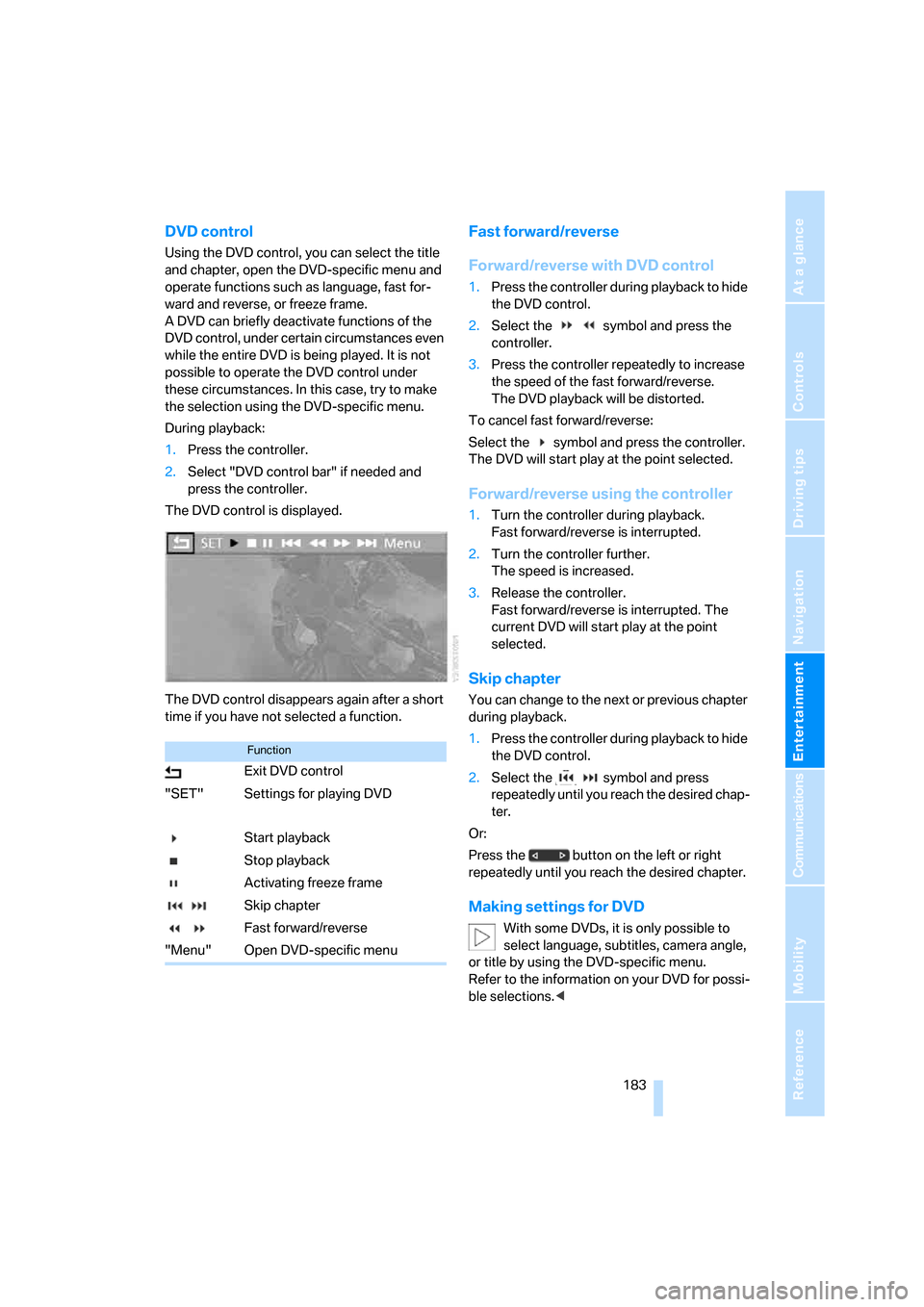
The DVD control is displayed.
The DVD control disappears again after a short
time if you have not selected a function.
Fast forward/reverse
Forward/reverse with DVD control
1.Press the controller during playback to hide
the DVD control.
2.Select the symbol and press the
controller.
3.Press the controller repeatedly to increase
the speed of the fast forward/reverse.
The DVD playback will be distorted.
To cancel fast forward/reverse:
Select the symbol and press the controller.
The DVD will start play at the point selected.
Forward/reverse using the controller
1.Turn the controller during playback.
Fast forward/reverse is interrupted.
2.Turn the controller further.
The speed is increased.
3.Release the controller.
Fast forward/reverse is interrupted. The
current DVD will start play at the point
selected.
Skip chapter
You can change to the next or previous chapter
during playback.
1.Press the controller during playback to hide
the DVD control.
2.Select the symbol and press
repeatedly until you reach the desired chap-
ter.
Or:
Press the button on the left or right
repeatedly until you reach the desired chapter.
Making settings for DVD
With some DVDs, it is only possible to
select language, subtitles, camera angle,
or title by using the DVD-specific menu.
Refer to the information on your DVD for possi-
ble selections.<
Function
Exit DVD control
"SET" Settings for playing DVD
Start playback
Stop playback
Activating freeze frame
Skip chapter
Fast forward/reverse
"Menu" Open DVD-specific menu
Page 187 of 292
Navigation
Entertainment
Driving tips
185Reference
At a glance
Controls
Communications
Mobility
The languages and audio tracks are generally
accompanied by an indication of how may
channels are included. 5.1 means multichannel.
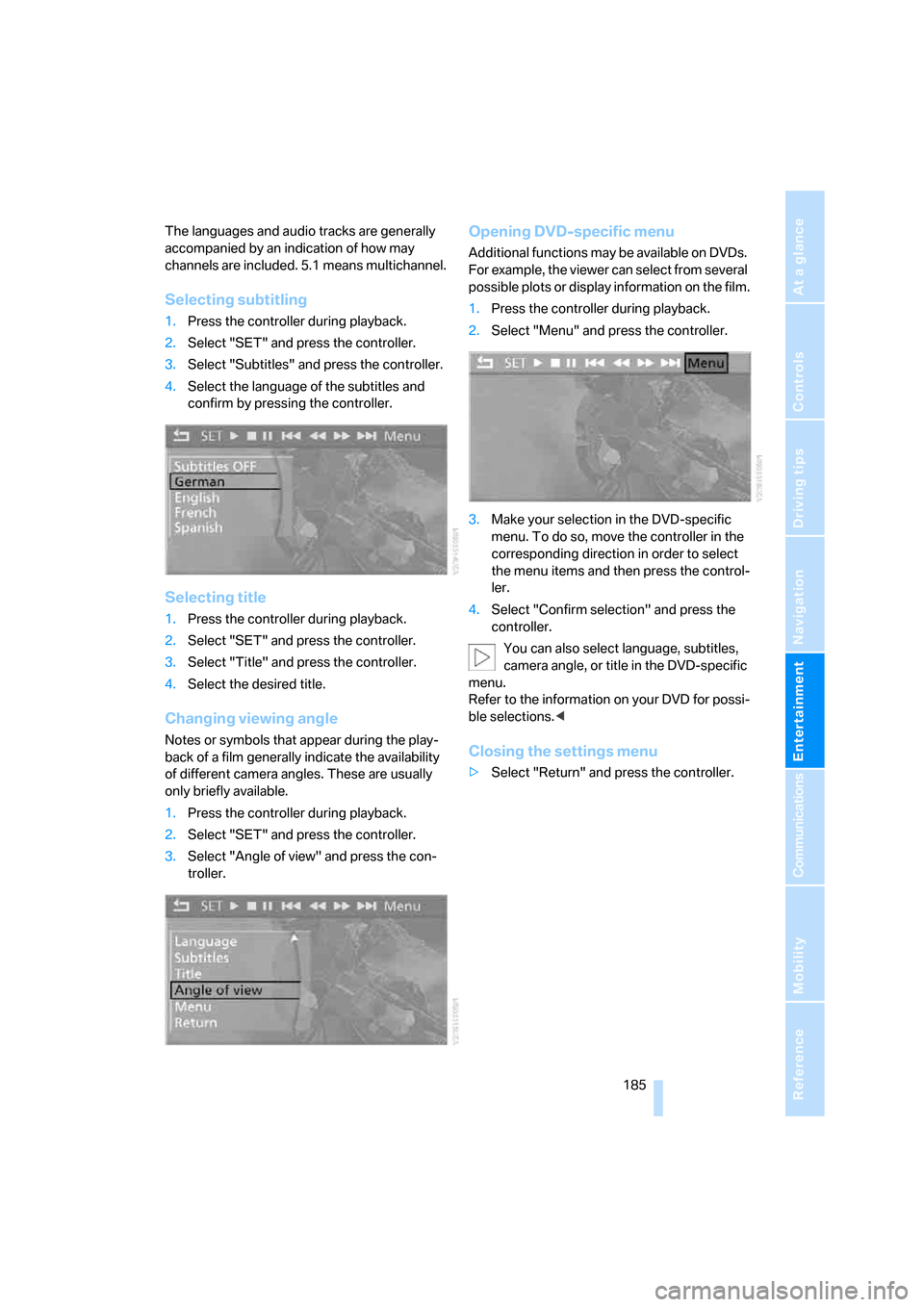
Selecting subtitling
1.Press the controller during playback.
2.Select "SET" and press the controller.
3.Select "Subtitles" and press the controller.
4.Select the language of the subtitles and
confirm by pressing the controller.
Selecting title
1.Press the controller during playback.
2.Select "SET" and press the controller.
3.Select "Title" and press the controller.
4.Select the desired title.
Changing viewing angle
Notes or symbols that appear during the play-
back of a film generally indicate the availability
of different camera angles. These are usually
only briefly available.
1.Press the controller during playback.
2.Select "SET" and press the controller.
3.Select "Angle of view" and press the con-
troller.
Opening DVD-specific menu
Additional functions may be available on DVDs.
For example, the viewer can select from several
possible plots or display information on the film.
1.Press the controller during playback.
2.Select "Menu" and press the controller.
3.Make your selection in the DVD-specific
menu. To do so, move the controller in the
corresponding direction in order to select
the menu items and then press the control-
ler.
4.Select "Confirm selection" and press the
controller.
You can also select language, subtitles,
camera angle, or title in the DVD-specific
menu.
Refer to the information on your DVD for possi-
ble selections.<
Closing the settings menu
>Select "Return" and press the controller.
Page 199 of 292
Navigation
Entertainment
Driving tips
197Reference
At a glance
Controls
Communications
Mobility
>"Tone":
>"Treble / Bass" and "Balance":
Separately adjustable for the left and
right-hand headphones and the infrared
headphones.
>"Reset":
The settings are reset to the default
value.
>"DVD format":
>"Standard"
>"Zoom": full-screen playback.
>"Language":
Language or sound track of DVD playback.
The language advances one setting each
time the menu item is selected.
>"Subtitles":
Language of subtitles
"00 n/a": no subtitles.
>"Title":
Selection of a single track of the DVD.
>"Angle of view":
Camera angle
Notes or symbols that appear during the
playback of a film generally point out differ-
ent camera angles. These are usually only
briefly available.
>"Menu":
Call up the DVD-specific menu.
>"Return":
Exit menu or:
Press the buttons on the remote con-
trol.
Many DVDs offer dialogs and subtitles in vari-
ous languages or scene descriptions for the
hearing impaired. These functions are stored
on the DVD.
With some DVDs, it is only possible to
select language, subtitles, camera angle,
or track by using the DVD-specific menu.
Refer to the information on your DVD for possi-
ble selections.
Entries marked in gray in the menus cannot be
selected.
For example, it is possible to select from several
possible plots or display information on the film.
1.Press the button on the remote con-
trol during playback.
2.Select "Menu".
3.Press the button.
On some DVDs, selecting "Menu"
and "Title" gives you the option of
choosing from additional menus.<
To make a selection:
1.Use the buttons on the remote control to
select the desired function in the DVD-spe-
cific menu.
2.Press the button.
You can also select language, subtitles,
camera angle, or track in the DVD-spe-
cific menu.
Observe the information on your DVD.<
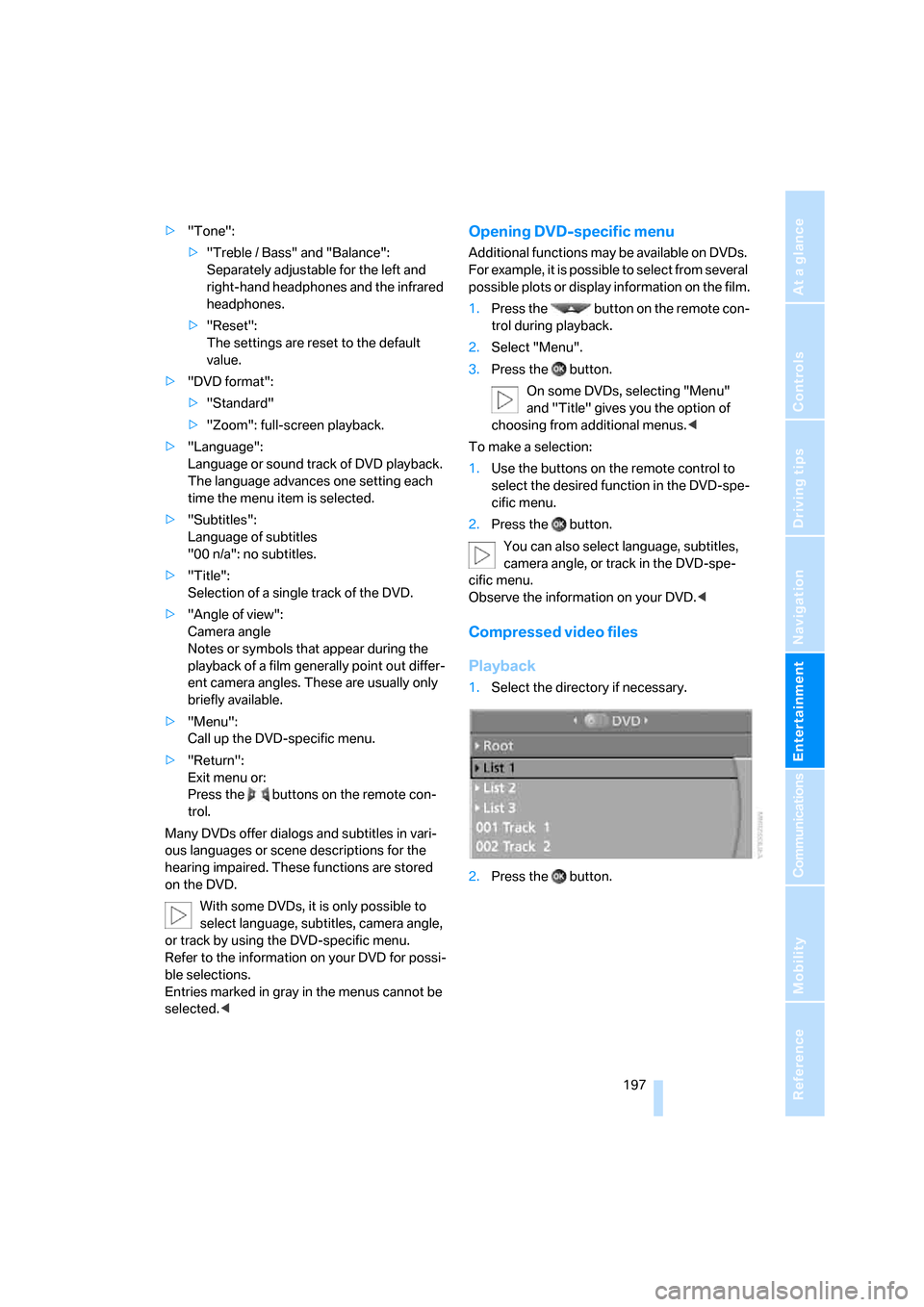
Compressed video files
Playback
1.Select the directory if necessary.
2.Press the button.