radio controls BMW X5 3.0Si 2010 E70 User Guide
[x] Cancel search | Manufacturer: BMW, Model Year: 2010, Model line: X5 3.0Si, Model: BMW X5 3.0Si 2010 E70Pages: 300, PDF Size: 12.41 MB
Page 47 of 300
Controls
45Reference
At a glance
Driving tips
Communications
Navigation
Entertainment
Mobility
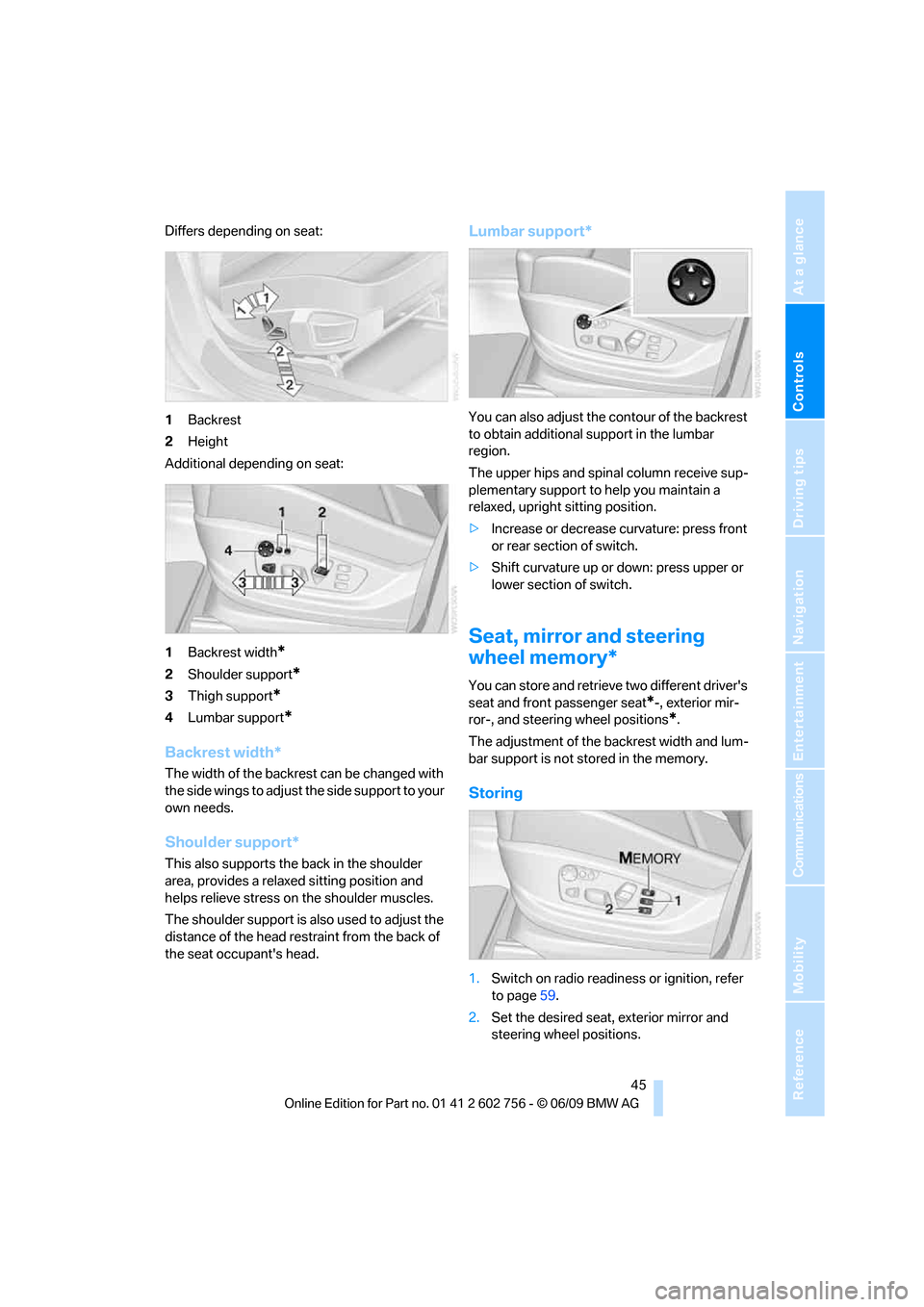
Differs depending on seat:
1Backrest
2Height
Additional depending on seat:
1Backrest width
*
2Shoulder support*
3Thigh support*
4Lumbar support*
Backrest width*
The width of the backrest can be changed with
the side wings to adjust the side support to your
own needs.
Shoulder support*
This also supports the back in the shoulder
area, provides a relaxed sitting position and
helps relieve stress on the shoulder muscles.
The shoulder support is also used to adjust the
distance of the head restraint from the back of
the seat occupant's head.
Lumbar support*
You can also adjust the contour of the backrest
to obtain additional support in the lumbar
region.
The upper hips and spinal column receive sup-
plementary support to help you maintain a
relaxed, upright sitting position.
>Increase or decrease curvature: press front
or rear section of switch.
>Shift curvature up or down: press upper or
lower section of switch.
Seat, mirror and steering
wheel memory*
You can store and retrieve two different driver's
seat and front passenger seat
*-, exterior mir-
ror-, and steering wheel positions
*.
The adjustment of the backrest width and lum-
bar support is not stored in the memory.
Storing
1.Switch on radio readiness or ignition, refer
to page59.
2.Set the desired seat, exterior mirror and
steering wheel positions.
ba8_e70ag.book Seite 45 Freitag, 5. Juni 2009 11:42 11
Page 61 of 300
Controls
59Reference
At a glance
Driving tips
Communications
Navigation
Entertainment
Mobility
Driving
Ignition lock
Inserting remote control into ignition
lock
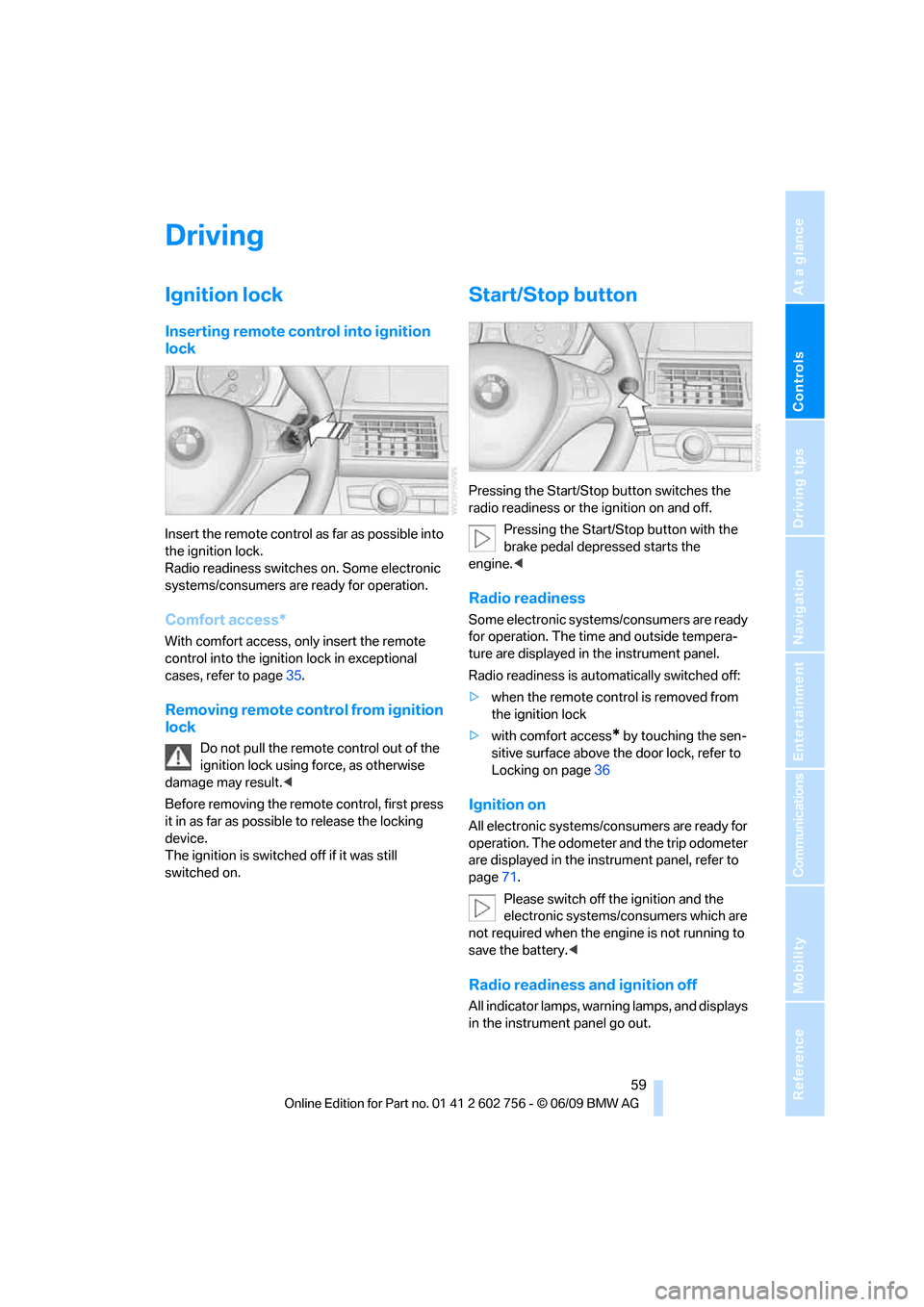
Insert the remote control as far as possible into
the ignition lock.
Radio readiness switches on. Some electronic
systems/consumers are ready for operation.
Comfort access*
With comfort access, only insert the remote
control into the ignition lock in exceptional
cases, refer to page35.
Removing remote control from ignition
lock
Do not pull the remote control out of the
ignition lock using force, as otherwise
damage may result.<
Before removing the remote control, first press
it in as far as possible to release the locking
device.
The ignition is switched off if it was still
switched on.
Start/Stop button
Pressing the Start/Stop button switches the
radio readiness or the ignition on and off.
Pressing the Start/Stop button with the
brake pedal depressed starts the
engine.<
Radio readiness
Some electronic systems/consumers are ready
for operation. The time and outside tempera-
ture are displayed in the instrument panel.
Radio readiness is automatically switched off:
>when the remote control is removed from
the ignition lock
>with comfort access
* by touching the sen-
sitive surface above the door lock, refer to
Locking on page36
Ignition on
All electronic systems/consumers are ready for
operation. The odometer and the trip odometer
are displayed in the instrument panel, refer to
page71.
Please switch off the ignition and the
electronic systems/consumers which are
not required when the engine is not running to
save the battery.<
Radio readiness and ignition off
All indicator lamps, warning lamps, and displays
in the instrument panel go out.
ba8_e70ag.book Seite 59 Freitag, 5. Juni 2009 11:42 11
Page 73 of 300
Controls
71Reference
At a glance
Driving tips
Communications
Navigation
Entertainment
Mobility
Everything under control
Odometer, outside
temperature display, clock
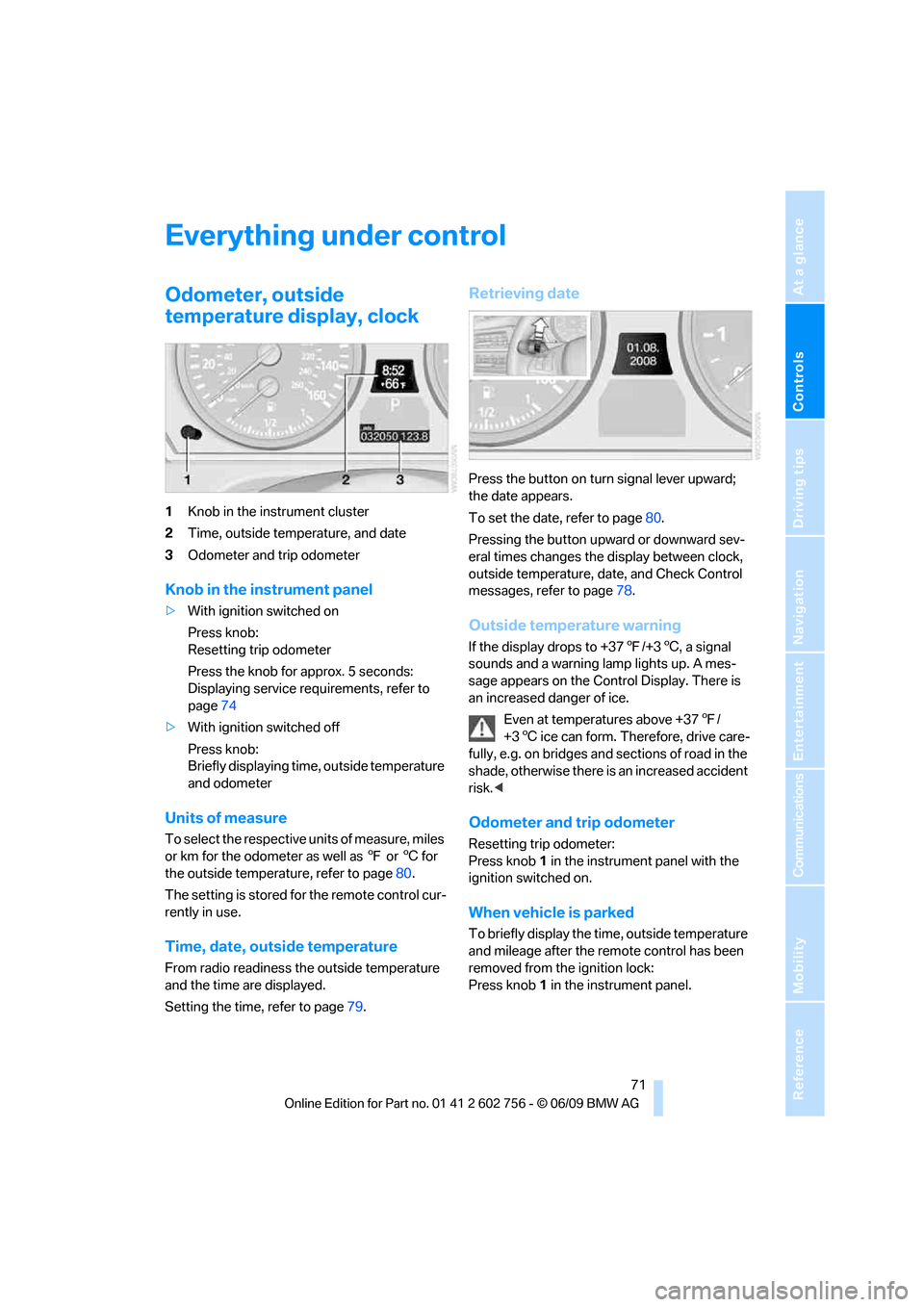
1Knob in the instrument cluster
2Time, outside temperature, and date
3Odometer and trip odometer
Knob in the instrument panel
>With ignition switched on
Press knob:
Resetting trip odometer
Press the knob for approx. 5 seconds:
Displaying service requirements, refer to
page74
>With ignition switched off
Press knob:
Briefly displaying time, outside temperature
and odometer
Units of measure
To select the respective units of measure, miles
or km for the odometer as well as 7 or 6 for
the outside temperature, refer to page80.
The setting is stored for the remote control cur-
rently in use.
Time, date, outside temperature
From radio readiness the outside temperature
and the time are displayed.
Setting the time, refer to page79.
Retrieving date
Press the button on turn signal lever upward;
the date appears.
To set the date, refer to page80.
Pressing the button upward or downward sev-
eral times changes the display between clock,
outside temperature, date, and Check Control
messages, refer to page78.
Outside temperature warning
If the display drops to +377/+36, a signal
sounds and a warning lamp lights up. A mes-
sage appears on the Control Display. There is
an increased danger of ice.
Even at temperatures above +377/
+36 ice can form. Therefore, drive care-
fully, e.g. on bridges and sections of road in the
shade, otherwise there is an increased accident
risk.<
Odometer and trip odometer
Resetting trip odometer:
Press knob 1 in the instrument panel with the
ignition switched on.
When vehicle is parked
To briefly display the time, outside temperature
and mileage after the remote control has been
removed from the ignition lock:
Press knob 1 in the instrument panel.
ba8_e70ag.book Seite 71 Freitag, 5. Juni 2009 11:42 11
Page 101 of 300
Controls
99Reference
At a glance
Driving tips
Communications
Navigation
Entertainment
Mobility
indicated by the indicator lamp over the interior
rearview mirror, refer to Operating state of front
passenger airbags in the following.<
Before transporting a child on the front
passenger seat, read the safety informa-
tion and follow the instructions under Trans-
porting children safely, refer to page55.
When teenagers and adults assume certain sit-
ting positions, this can cause the front and side
airbags to deactivate. The indicator lamp for the
front passenger airbags lights up when this
occurs. In these cases, change the sitting posi-
tion so that the front passenger airbags are acti-
vated and the indicator lamp goes out. If the
desired status cannot be produced by changing
the sitting position, transport the correspond-
ing person on the rear seat. Do not fit seat cov-
ers, seat cushion padding, ball mats or other
items onto the front passenger seat unless they
are specifically recommended by BMW. Do not
lay objects under the seat which could press
against the seat from below. Otherwise a cor-
rect evaluation of the occupied seat surface
cannot be ensured.<
Operating state of front passenger
airbags
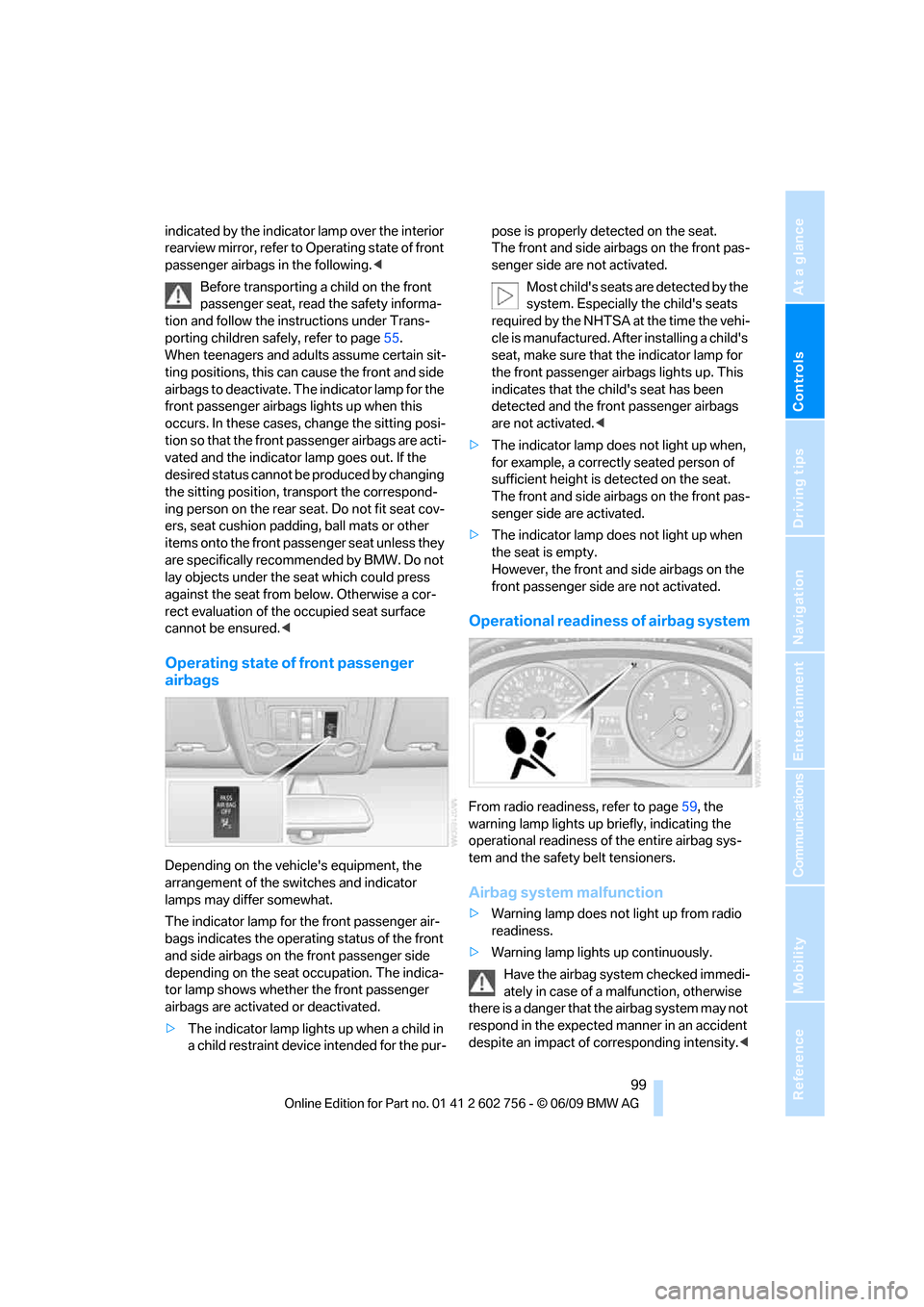
Depending on the vehicle's equipment, the
arrangement of the switches and indicator
lamps may differ somewhat.
The indicator lamp for the front passenger air-
bags indicates the operating status of the front
and side airbags on the front passenger side
depending on the seat occupation. The indica-
tor lamp shows whether the front passenger
airbags are activated or deactivated.
>The indicator lamp lights up when a child in
a child restraint device intended for the pur-pose is properly detected on the seat.
The front and side airbags on the front pas-
senger side are not activated.
Most child's seats are detected by the
system. Especially the child's seats
required by the NHTSA at the time the vehi-
cle is manufactured. After installing a child's
seat, make sure that the indicator lamp for
the front passenger airbags lights up. This
indicates that the child's seat has been
detected and the front passenger airbags
are not activated.<
>The indicator lamp does not light up when,
for example, a correctly seated person of
sufficient height is detected on the seat.
The front and side airbags on the front pas-
senger side are activated.
>The indicator lamp does not light up when
the seat is empty.
However, the front and side airbags on the
front passenger side are not activated.
Operational readiness of airbag system
From radio readiness, refer to page59, the
warning lamp lights up briefly, indicating the
operational readiness of the entire airbag sys-
tem and the safety belt tensioners.
Airbag system malfunction
>Warning lamp does not light up from radio
readiness.
>Warning lamp lights up continuously.
Have the airbag system checked immedi-
ately in case of a malfunction, otherwise
there is a danger that the airbag system may not
respond in the expected manner in an accident
despite an impact of corresponding intensity.<
ba8_e70ag.book Seite 99 Freitag, 5. Juni 2009 11:42 11
Page 113 of 300
Controls
111Reference
At a glance
Driving tips
Communications
Navigation
Entertainment
Mobility
Switching on
Pressing the right side switches on
the residual heat utilization when
the following conditions are met:
>up to 15 minutes after switching off the
engine
>with the engine at operating temperature
>with sufficient battery voltage
>at an outside temperature below 777/
256
REST appears on the display of the automatic
climate control when the residual heat utiliza-
tion is switched on.
From radio readiness the interior temperature,
the air volume and the air distribution can be
set.
Switching off
You can select the lowest blower speed by
pressing and holding the left side. Pressing
again switches off the residual heat utilization.
REST disappears from the display of the auto-
matic climate control.
Switching automatic climate control on
and off
You can select the lowest blower
speed by pressing and holding the
left side. Pressing again switches
off the automatic climate control.
You switch on the system again by pressing any
button of the automatic climate control.
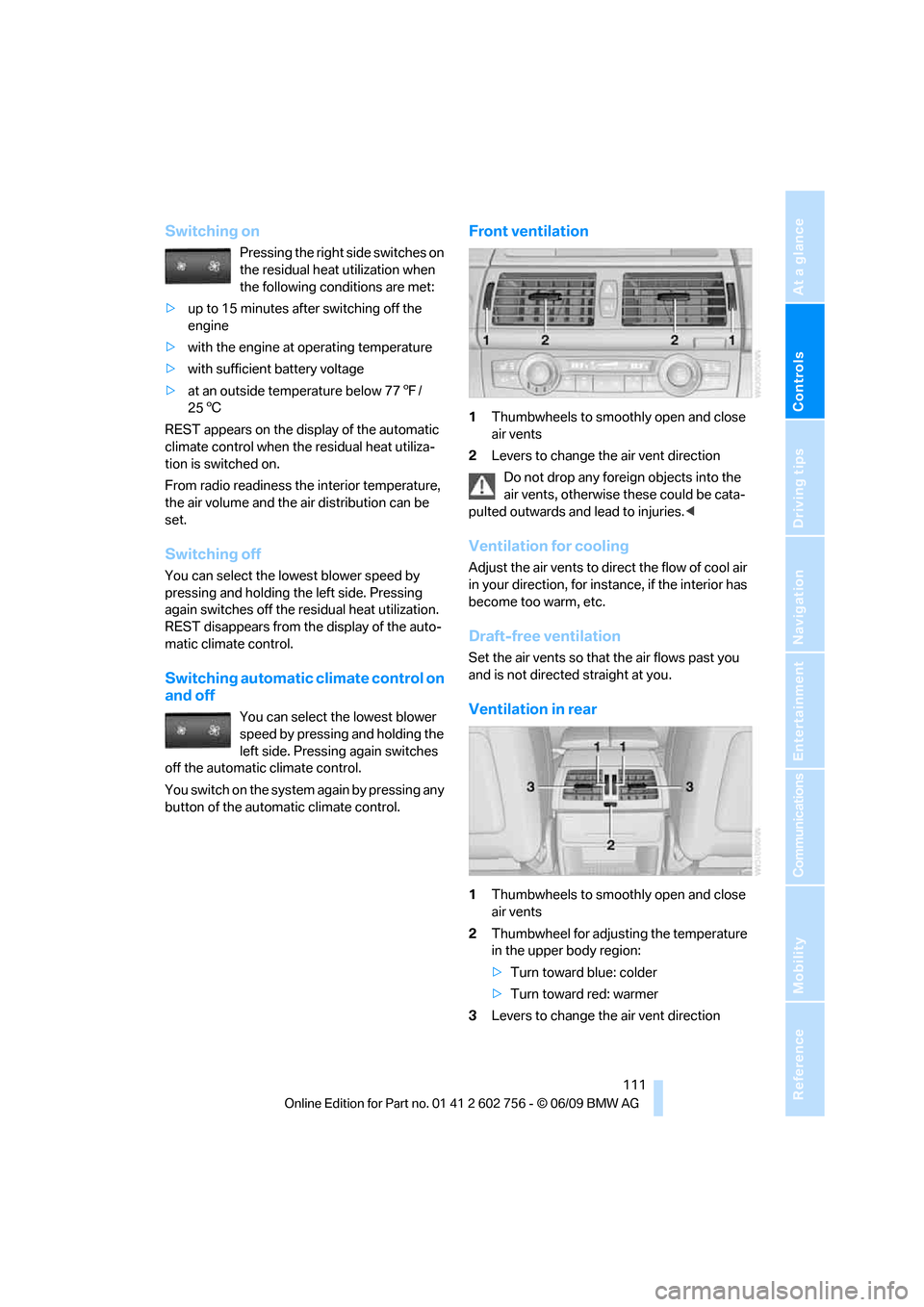
Front ventilation
1Thumbwheels to smoothly open and close
air vents
2Levers to change the air vent direction
Do not drop any foreign objects into the
air vents, otherwise these could be cata-
pulted outwards and lead to injuries.<
Ventilation for cooling
Adjust the air vents to direct the flow of cool air
in your direction, for instance, if the interior has
become too warm, etc.
Draft-free ventilation
Set the air vents so that the air flows past you
and is not directed straight at you.
Ventilation in rear
1Thumbwheels to smoothly open and close
air vents
2Thumbwheel for adjusting the temperature
in the upper body region:
>Turn toward blue: colder
>Turn toward red: warmer
3Levers to change the air vent direction
ba8_e70ag.book Seite 111 Freitag, 5. Juni 2009 11:42 11
Page 155 of 300
Navigation
Driving tips
153Reference
At a glance
Controls
Communications
Entertainment
Mobility
Viewing the map
1.Select the symbol.
2.Select a setting:
>"View facing north"
>"View in dir. of travel"
>"Perspective view"
>"Arrow display"
3.Press the controller.
Changing map scale
Select interactive map.
>Moving map: move the controller in the cor-
responding direction.
>Shifting map diagonally: move the control-
ler in the corresponding direction and turn
the controller.
Changing scale
1.Select the symbol.
2.Turn the controller to change the scale.
Automatic scaling of the map
In the map display facing north, turn the control-
ler in any direction until AUTO is displayed as
the map scale.
The map shows the entire range from your loca-
tion to the destination.
Settings for the map display
The map appears on the Control Display.
1.Open "Options".
2."Settings"
3.Set the optimum map view.
>"Day/night mode"
Select according to lighting conditions
and make adjustments. This setting is
disregarded when the traffic info map is
activated.
>"Satellite images"
Satellite images
* are displayed,
depending on availability and resolution.
>"Perspective view in 3D"
Shows a three-dimensional depiction. Prominent landmarks contained in the
navigation data are displayed on the map
in 3D.
>"Traffic Info map"
Split screen settings
The map settings for the split screen can be
created separately from the main screen.
1.Open "Options".
2."Split screen"
3.Select the settings:
>"Arrow display"
>"View facing north"
>"View in dir. of travel"
>"Perspective view"
>"Exit ramp view"
Changing scale
1.Move the controller to the right until the
split screen is selected.
2.Turn the controller.
Traffic information*
You can display the traffic bulletins from radio
stations that broadcast the TMC (Traffic Mes-
sage Channel) of a traffic information service.
This information from the traffic information
service is continuously updated on the basis of
measurement data from traffic control centers
and information on traffic congestion.
During destination guidance, traffic bulletins
that are relevant to areas along the route are
automatically displayed and taken into account
in the route planning. You can open all traffic
bulletins manually using iDrive.
The traffic bulletins are shown in the map dis-
play.
Real Time Traffic Information End-User
Provisions
Certain BMW models equipped with navigation
have the capability to display real-time traffic
information. If your system has this capability
ba8_e70ag.book Seite 153 Freitag, 5. Juni 2009 11:42 11
Page 162 of 300
On/off and tone
160
On/off and tone
The following audio and video sources share
the same control elements and adjustments:
>Radio
>CD/DVD player
>CD/DVD changer
*
>Video
>External devices, e.g. MP3 player
Controls
The audio and video sources can be controlled
using:
>Buttons near the CD/DVD player
>iDrive
>Buttons on the steering wheel, refer to
page11
>Programmable memory buttons, refer to
page20
>Voice activation system
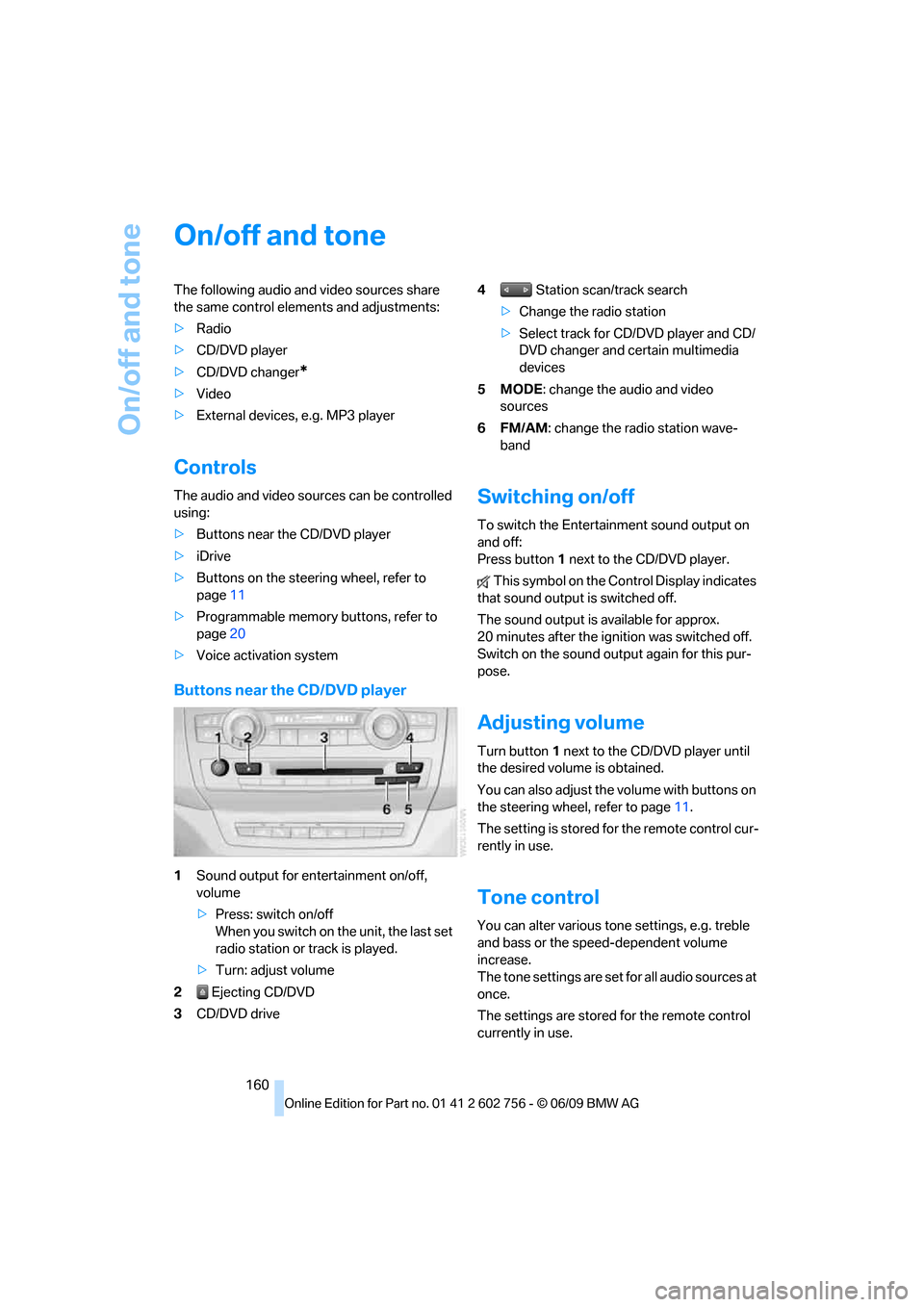
Buttons near the CD/DVD player
1Sound output for entertainment on/off,
volume
>Press: switch on/off
When you switch on the unit, the last set
radio station or track is played.
>Turn: adjust volume
2 Ejecting CD/DVD
3CD/DVD drive4 Station scan/track search
>Change the radio station
>Select track for CD/DVD player and CD/
DVD changer and certain multimedia
devices
5MODE: change the audio and video
sources
6FM/AM: change the radio station wave-
band
Switching on/off
To switch the Entertainment sound output on
and off:
Press button1 next to the CD/DVD player.
This symbol on the Control Display indicates
that sound output is switched off.
The sound output is available for approx.
20 minutes after the ignition was switched off.
Switch on the sound output again for this pur-
pose.
Adjusting volume
Turn button1 next to the CD/DVD player until
the desired volume is obtained.
You can also adjust the volume with buttons on
the steering wheel, refer to page11.
The setting is stored for the remote control cur-
rently in use.
Tone control
You can alter various tone settings, e.g. treble
and bass or the speed-dependent volume
increase.
The tone settings are set for all audio sources at
once.
The settings are stored for the remote control
currently in use.
ba8_e70ag.book Seite 160 Freitag, 5. Juni 2009 11:42 11
Page 163 of 300
Navigation
Entertainment
Driving tips
161Reference
At a glance
Controls
Communications
Mobility
Treble, bass, balance, fader
>"Balance": left/right volume distribution
>"Fader": front/rear volume distribution
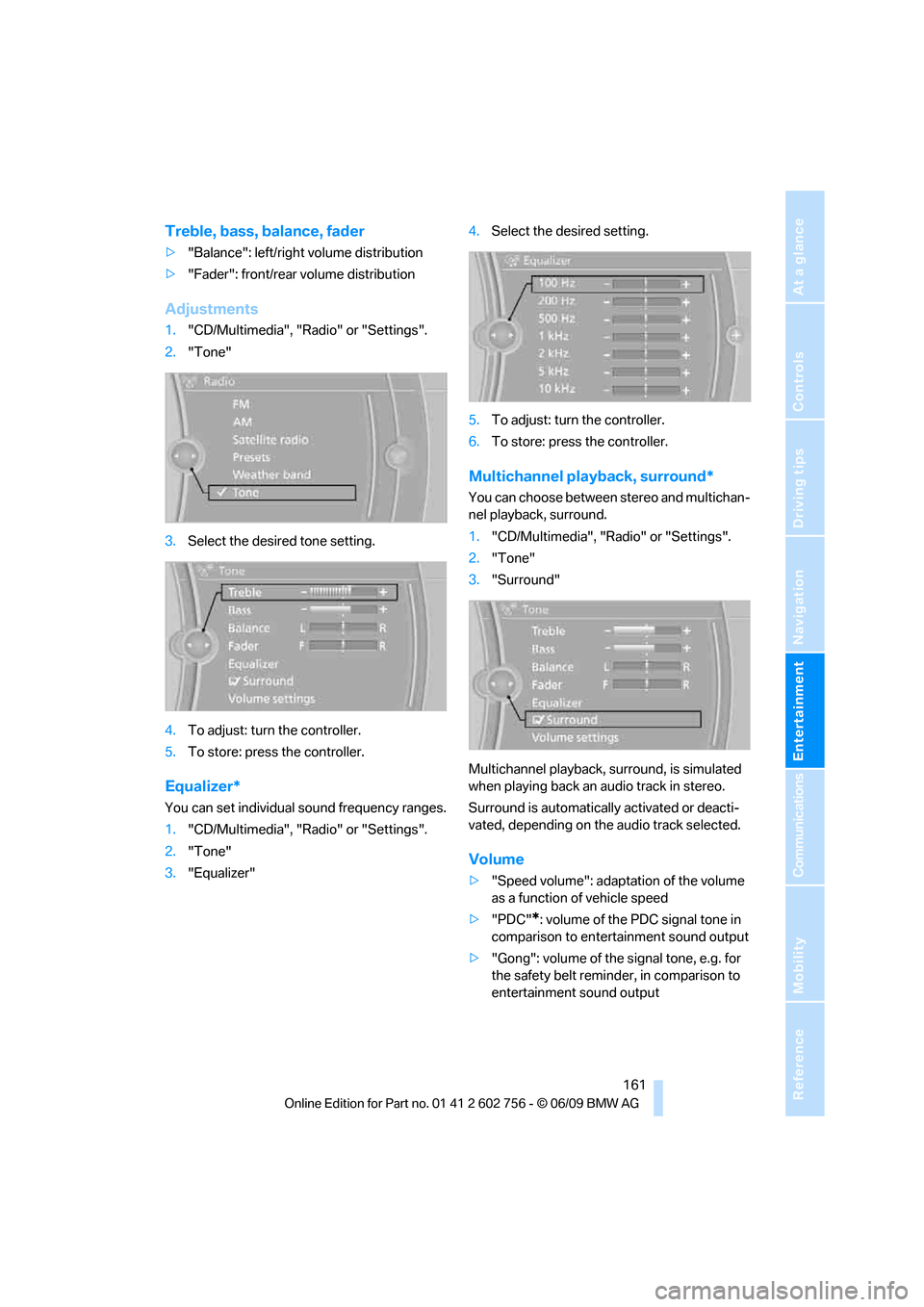
Adjustments
1."CD/Multimedia", "Radio" or "Settings".
2."Tone"
3.Select the desired tone setting.
4.To adjust: turn the controller.
5.To store: press the controller.
Equalizer*
You can set individual sound frequency ranges.
1."CD/Multimedia", "Radio" or "Settings".
2."Tone"
3."Equalizer"4.Select the desired setting.
5.To adjust: turn the controller.
6.To store: press the controller.
Multichannel playback, surround*
You can choose between stereo and multichan-
nel playback, surround.
1."CD/Multimedia", "Radio" or "Settings".
2."Tone"
3."Surround"
Multichannel playback, surround, is simulated
when playing back an audio track in stereo.
Surround is automatically activated or deacti-
vated, depending on the audio track selected.
Volume
>"Speed volume": adaptation of the volume
as a function of vehicle speed
>"PDC"
*: volume of the PDC signal tone in
comparison to entertainment sound output
>"Gong": volume of the signal tone, e.g. for
the safety belt reminder, in comparison to
entertainment sound output
ba8_e70ag.book Seite 161 Freitag, 5. Juni 2009 11:42 11
Page 165 of 300
Navigation
Entertainment
Driving tips
163Reference
At a glance
Controls
Communications
Mobility
Radio
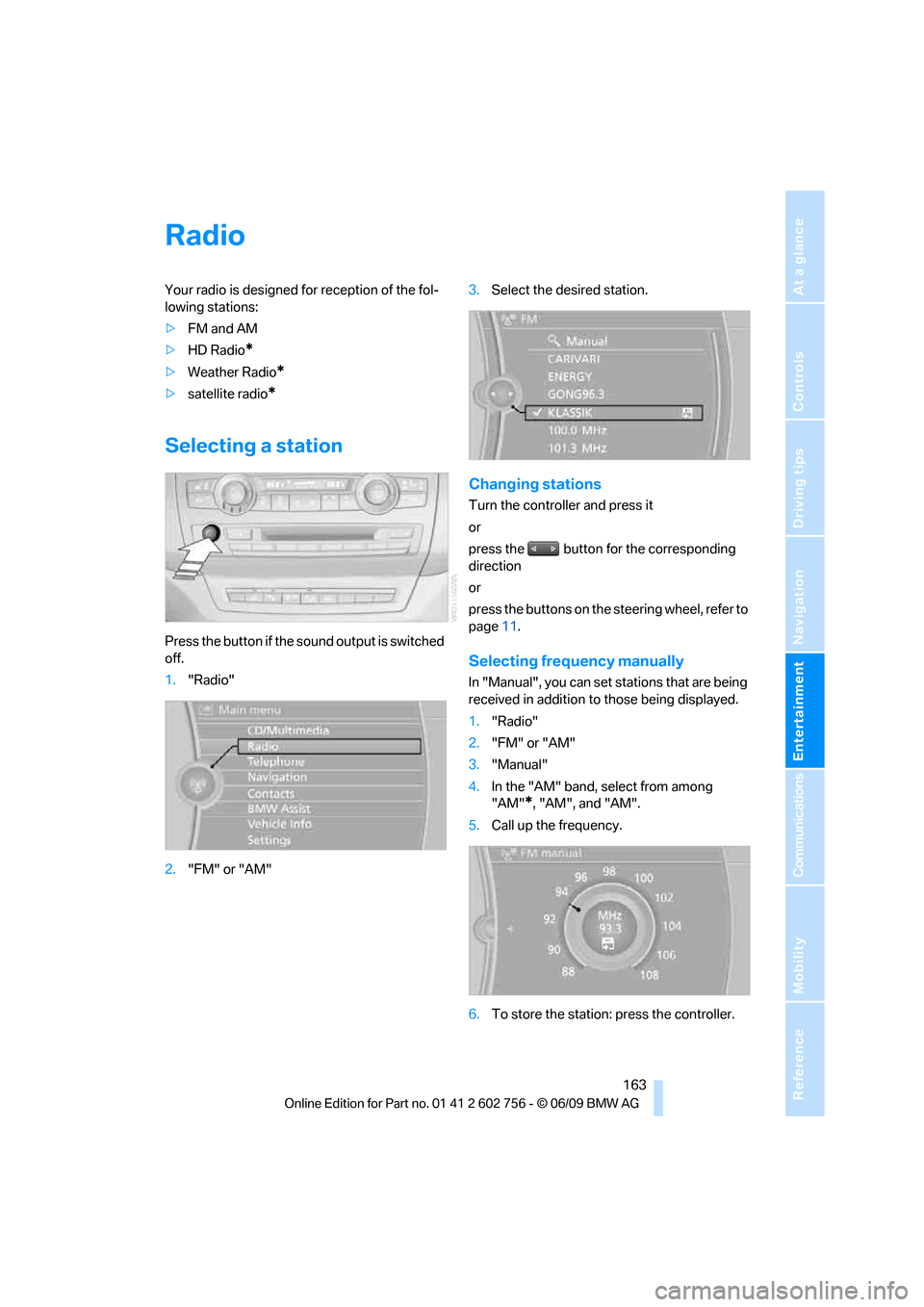
Your radio is designed for reception of the fol-
lowing stations:
>FM and AM
>HD Radio
*
>Weather Radio*
>satellite radio*
Selecting a station
Press the button if the sound output is switched
off.
1."Radio"
2."FM" or "AM"3.Select the desired station.
Changing stations
Turn the controller and press it
or
press the button for the corresponding
direction
or
press the buttons on the steering wheel, refer to
page11.
Selecting frequency manually
In "Manual", you can set stations that are being
received in addition to those being displayed.
1."Radio"
2."FM" or "AM"
3."Manual"
4.In the "AM" band, select from among
"AM"
*, "AM", and "AM".
5.Call up the frequency.
6.To store the station: press the controller.
ba8_e70ag.book Seite 163 Freitag, 5. Juni 2009 11:42 11
Page 167 of 300
Navigation
Entertainment
Driving tips
165Reference
At a glance
Controls
Communications
Mobility
Displaying additional information
Some stations broadcast additional information
on the current track, such as the name of the
artist.
1.Select the desired station.
2.Open "Options".
3."Station info"
Selecting a substation
1.Select the desired station.
2.Press the controller.
3.Select the substation.
Stored stations
It is possible to store up to 40 stations.
Selecting a station
1."Radio"
2."Presets"
3.Call up the desired station.
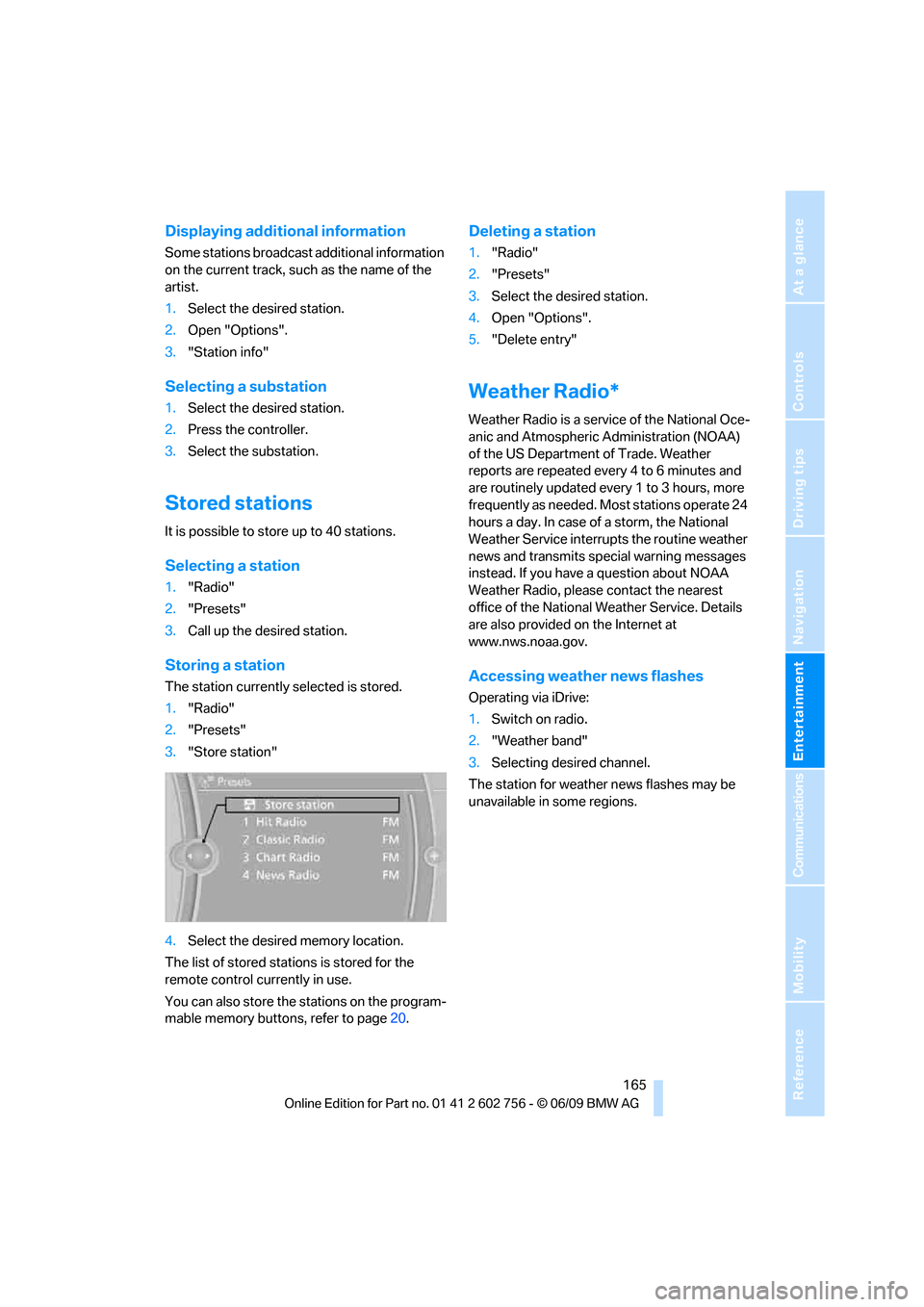
Storing a station
The station currently selected is stored.
1."Radio"
2."Presets"
3."Store station"
4.Select the desired memory location.
The list of stored stations is stored for the
remote control currently in use.
You can also store the stations on the program-
mable memory buttons, refer to page20.
Deleting a station
1."Radio"
2."Presets"
3.Select the desired station.
4.Open "Options".
5."Delete entry"
Weather Radio*
Weather Radio is a service of the National Oce-
anic and Atmospheric Administration (NOAA)
of the US Department of Trade. Weather
reports are repeated every 4 to 6 minutes and
are routinely updated every 1 to 3 hours, more
frequently as needed. Most stations operate 24
hours a day. In case of a storm, the National
Weather Service interrupts the routine weather
news and transmits special warning messages
instead. If you have a question about NOAA
Weather Radio, please contact the nearest
office of the National Weather Service. Details
are also provided on the Internet at
www.nws.noaa.gov.
Accessing weather news flashes
Operating via iDrive:
1.Switch on radio.
2."Weather band"
3.Selecting desired channel.
The station for weather news flashes may be
unavailable in some regions.
ba8_e70ag.book Seite 165 Freitag, 5. Juni 2009 11:42 11