reset BMW X5 4.8I 2008 E70 User Guide
[x] Cancel search | Manufacturer: BMW, Model Year: 2008, Model line: X5 4.8I, Model: BMW X5 4.8I 2008 E70Pages: 292, PDF Size: 9.32 MB
Page 168 of 292
Radio
166
Radio
Your radio provides reception of the FM and AM
wavebands.
Listening to radio
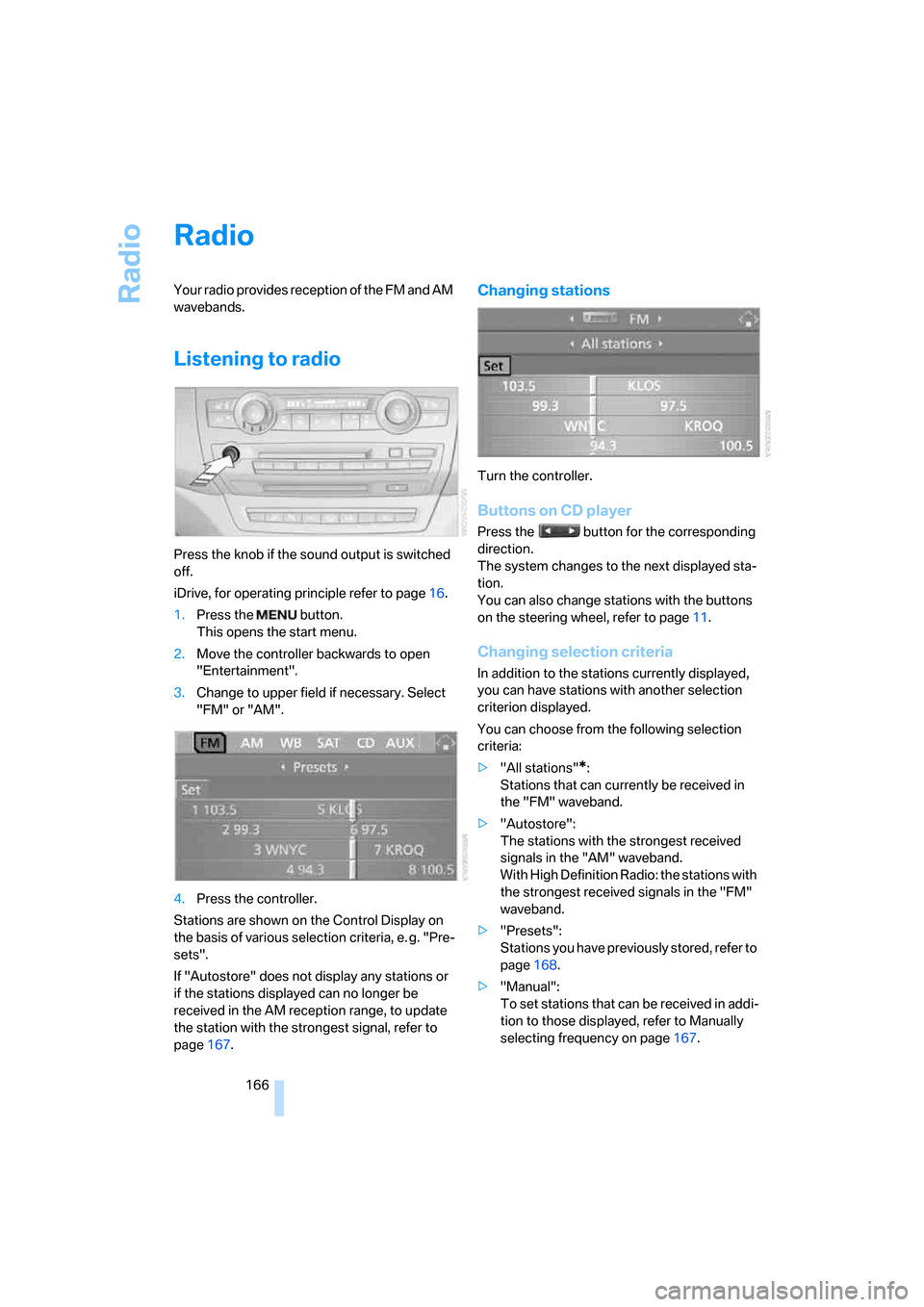
Press the knob if the sound output is switched
off.
iDrive, for operating principle refer to page16.
1.Press the button.
This opens the start menu.
2.Move the controller backwards to open
"Entertainment".
3.Change to upper field if necessary. Select
"FM" or "AM".
4.Press the controller.
Stations are shown on the Control Display on
the basis of various selection criteria, e. g. "Pre-
sets".
If "Autostore" does not display any stations or
if the stations displayed can no longer be
received in the AM reception range, to update
the station with the strongest signal, refer to
page167.
Changing stations
Turn the controller.
Buttons on CD player
Press the button for the corresponding
direction.
The system changes to the next displayed sta-
tion.
You can also change stations with the buttons
on the steering wheel, refer to page11.
Changing selection criteria
In addition to the stations currently displayed,
you can have stations with another selection
criterion displayed.
You can choose from the following selection
criteria:
>"All stations"
*:
Stations that can currently be received in
the "FM" waveband.
>"Autostore":
The stations with the strongest received
signals in the "AM" waveband.
With High Definition Radio: the stations with
the strongest received signals in the "FM"
waveband.
>"Presets":
Stations you have previously stored, refer to
page168.
>"Manual":
To set stations that can be received in addi-
tion to those displayed, refer to Manually
selecting frequency on page167.
Page 170 of 292
Radio
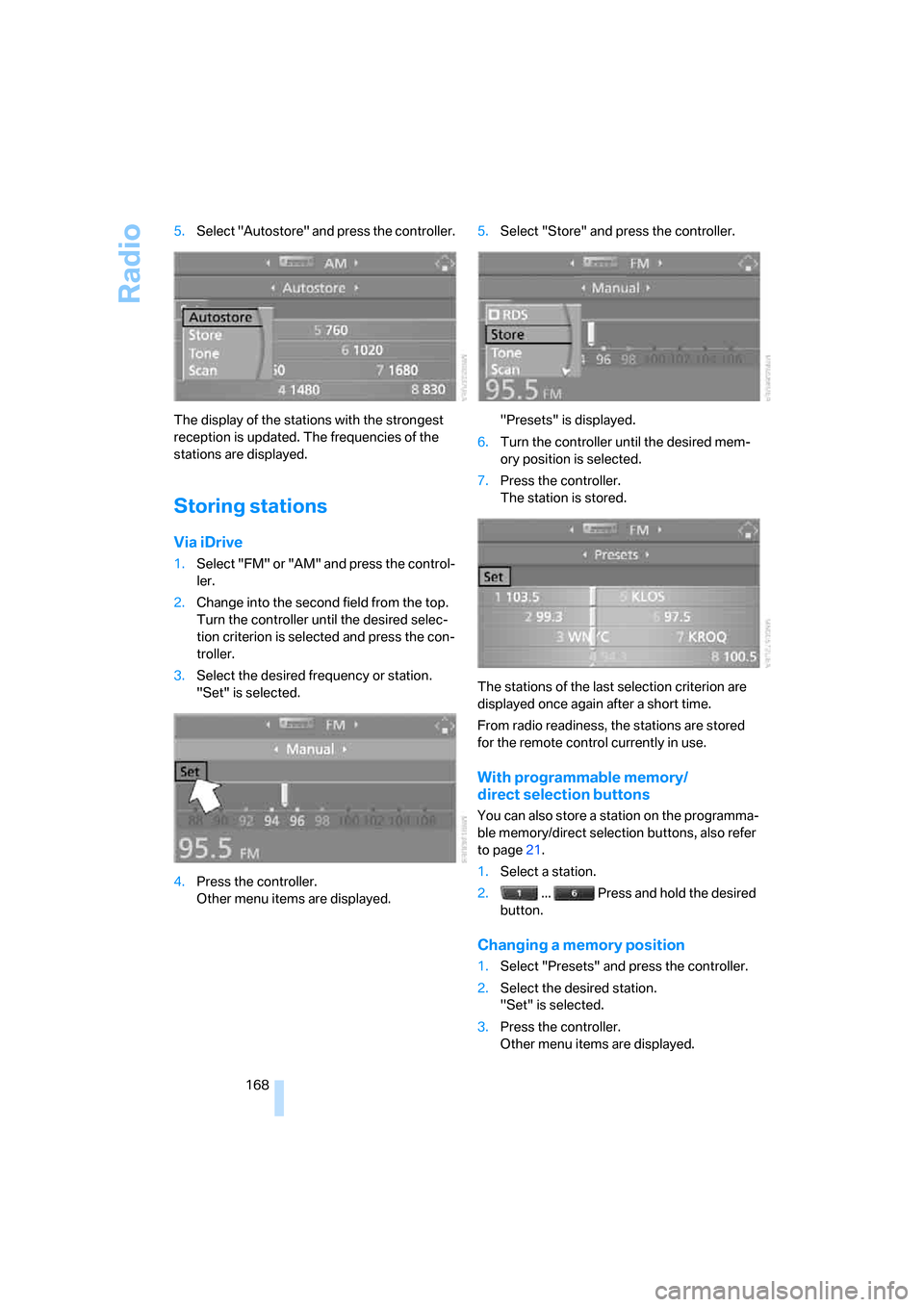
168 5.Select "Autostore" and press the controller.
The display of the stations with the strongest
reception is updated. The frequencies of the
stations are displayed.
Storing stations
Via iDrive
1.Select "FM" or "AM" and press the control-
ler.
2.Change into the second field from the top.
Turn the controller until the desired selec-
tion criterion is selected and press the con-
troller.
3.Select the desired frequency or station.
"Set" is selected.
4.Press the controller.
Other menu items are displayed.5.Select "Store" and press the controller.
"Presets" is displayed.
6.Turn the controller until the desired mem-
ory position is selected.
7.Press the controller.
The station is stored.
The stations of the last selection criterion are
displayed once again after a short time.
From radio readiness, the stations are stored
for the remote control currently in use.
With programmable memory/
direct selection buttons
You can also store a station on the programma-
ble memory/direct selection buttons, also refer
to page21.
1.Select a station.
2. ... Press and hold the desired
button.
Changing a memory position
1.Select "Presets" and press the controller.
2.Select the desired station.
"Set" is selected.
3.Press the controller.
Other menu items are displayed.
Page 175 of 292
Navigation
Entertainment
Driving tips
173Reference
At a glance
Controls
Communications
Mobility
Selecting and storing channel
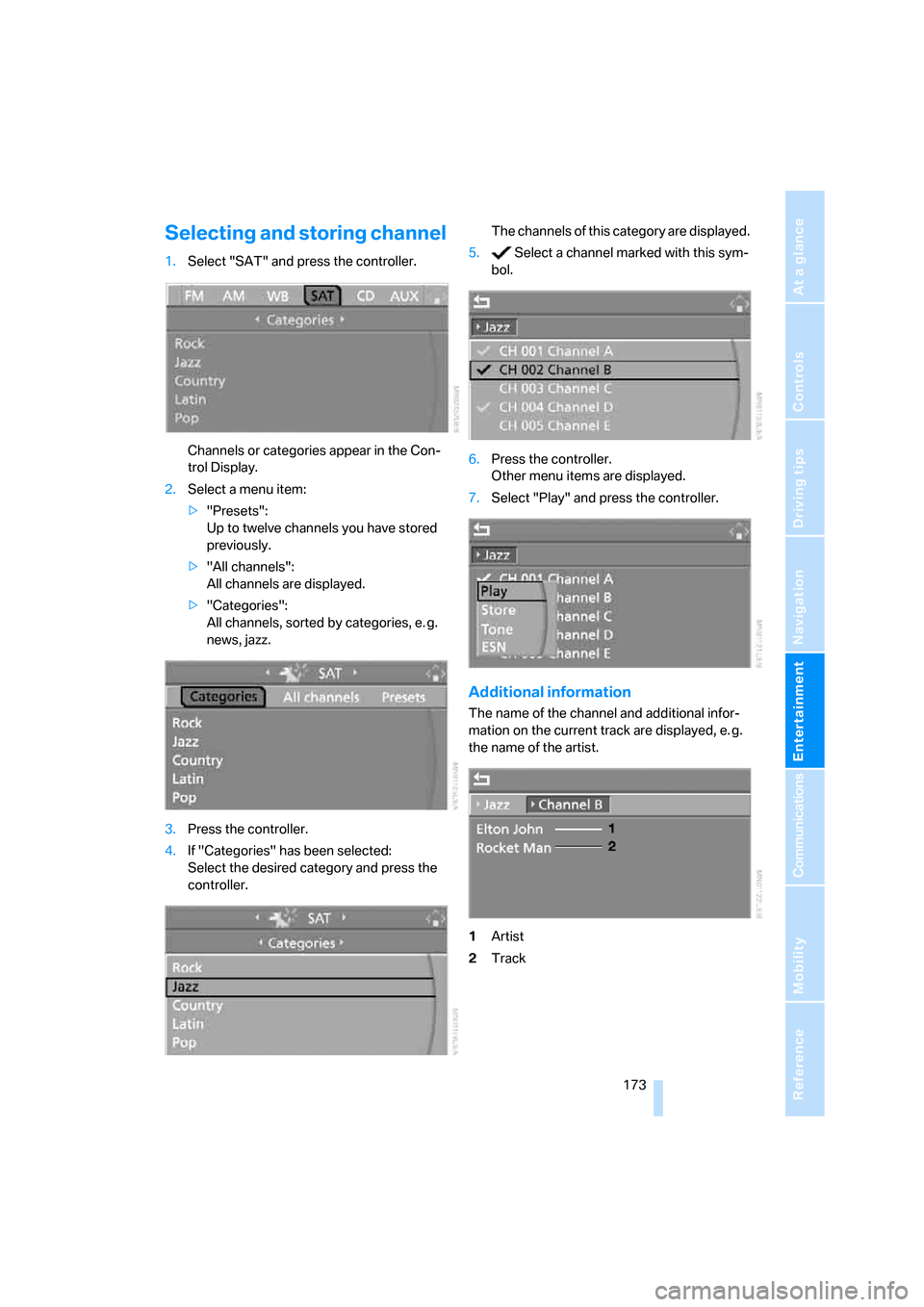
1.Select "SAT" and press the controller.
Channels or categories appear in the Con-
trol Display.
2.Select a menu item:
>"Presets":
Up to twelve channels you have stored
previously.
>"All channels":
All channels are displayed.
>"Categories":
All channels, sorted by categories, e. g.
news, jazz.
3.Press the controller.
4.If "Categories" has been selected:
Select the desired category and press the
controller.The channels of this category are displayed.
5. Select a channel marked with this sym-
bol.
6.Press the controller.
Other menu items are displayed.
7.Select "Play" and press the controller.
Additional information
The name of the channel and additional infor-
mation on the current track are displayed, e. g.
the name of the artist.
1Artist
2Track
Page 176 of 292
Satellite radio
174
Storing channel
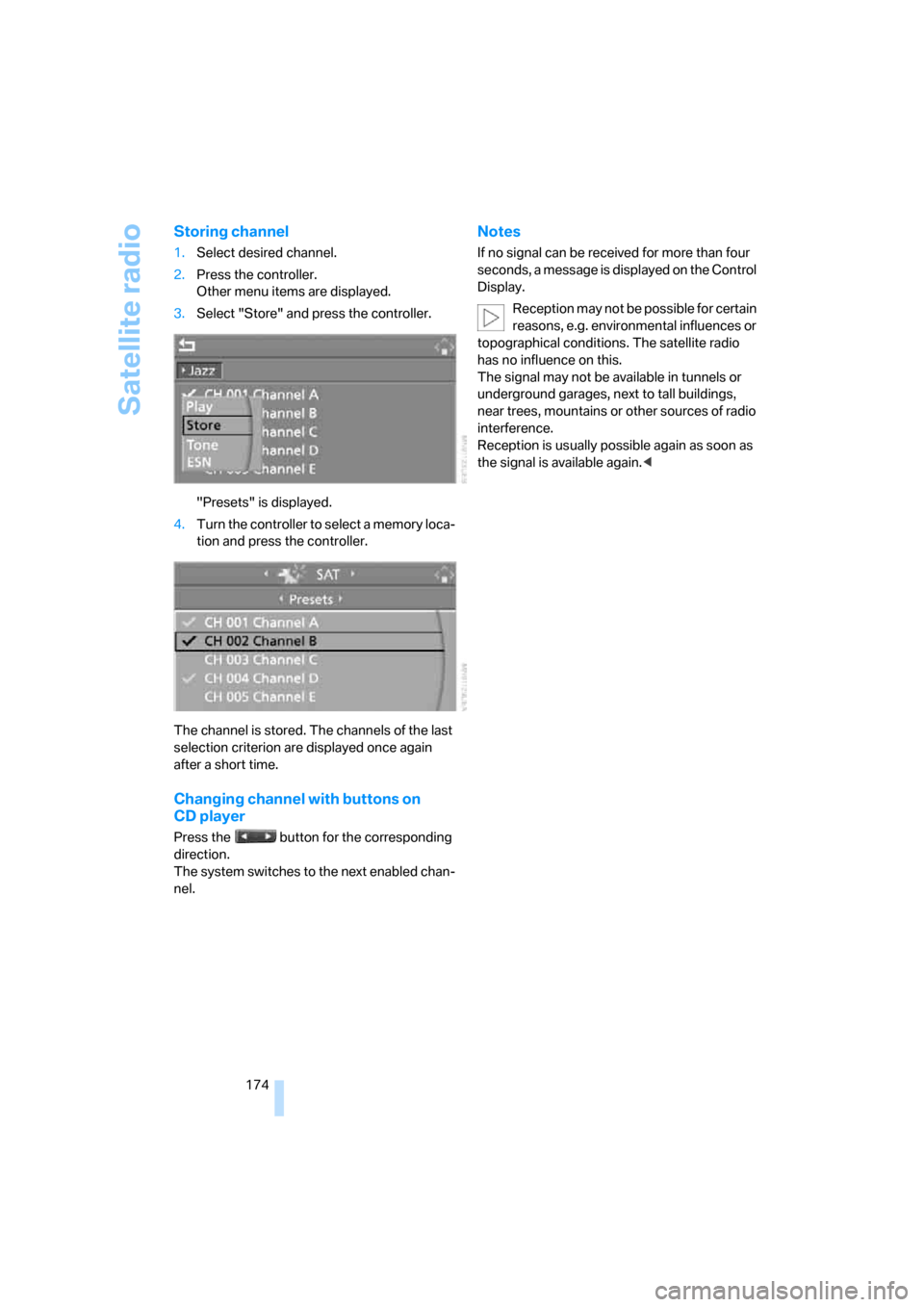
1.Select desired channel.
2.Press the controller.
Other menu items are displayed.
3.Select "Store" and press the controller.
"Presets" is displayed.
4.Turn the controller to select a memory loca-
tion and press the controller.
The channel is stored. The channels of the last
selection criterion are displayed once again
after a short time.
Changing channel with buttons on
CD player
Press the button for the corresponding
direction.
The system switches to the next enabled chan-
nel.
Notes
If no signal can be received for more than four
seconds, a message is displayed on the Control
Display.
Reception may not be possible for certain
reasons, e.g. environmental influences or
topographical conditions. The satellite radio
has no influence on this.
The signal may not be available in tunnels or
underground garages, next to tall buildings,
near trees, mountains or other sources of radio
interference.
Reception is usually possible again as soon as
the signal is available again.<
Page 186 of 292
DVD changer
184
Tone control
In DVDs with multichannel or surround sound,
for optimum playback, select an audio track
with multichannel sound and set the tone set-
tings to Surround, refer to Selecting language
on page184 and Professional HiFi System* on
page165.
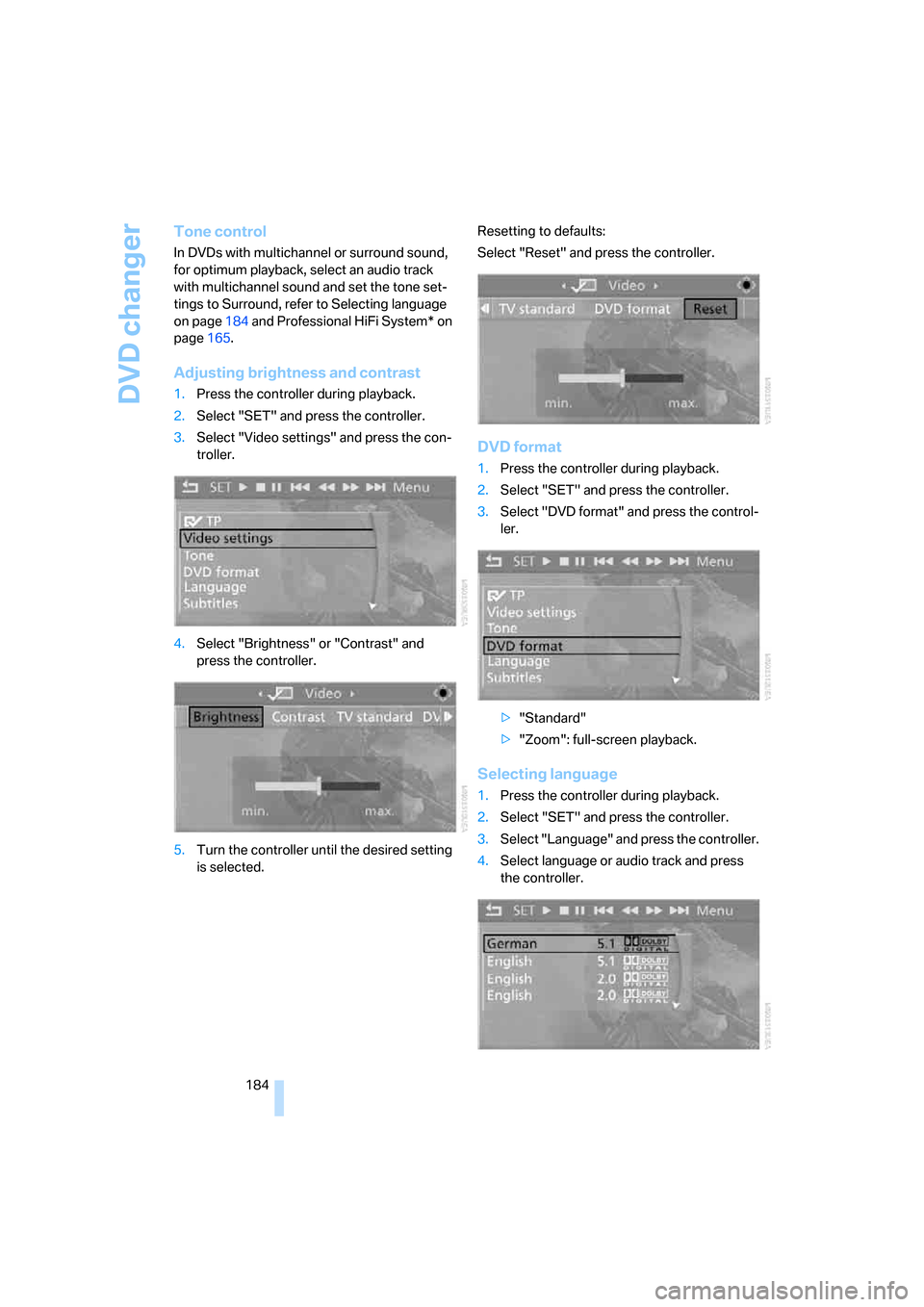
Adjusting brightness and contrast
1.Press the controller during playback.
2.Select "SET" and press the controller.
3.Select "Video settings" and press the con-
troller.
4.Select "Brightness" or "Contrast" and
press the controller.
5.Turn the controller until the desired setting
is selected.Resetting to defaults:
Select "Reset" and press the controller.
DVD format
1.Press the controller during playback.
2.Select "SET" and press the controller.
3.Select "DVD format" and press the control-
ler.
>"Standard"
>"Zoom": full-screen playback.
Selecting language
1.Press the controller during playback.
2.Select "SET" and press the controller.
3.Select "Language" and press the controller.
4.Select language or audio track and press
the controller.
Page 199 of 292
Navigation
Entertainment
Driving tips
197Reference
At a glance
Controls
Communications
Mobility
>"Tone":
>"Treble / Bass" and "Balance":
Separately adjustable for the left and
right-hand headphones and the infrared
headphones.
>"Reset":
The settings are reset to the default
value.
>"DVD format":
>"Standard"
>"Zoom": full-screen playback.
>"Language":
Language or sound track of DVD playback.
The language advances one setting each
time the menu item is selected.
>"Subtitles":
Language of subtitles
"00 n/a": no subtitles.
>"Title":
Selection of a single track of the DVD.
>"Angle of view":
Camera angle
Notes or symbols that appear during the
playback of a film generally point out differ-
ent camera angles. These are usually only
briefly available.
>"Menu":
Call up the DVD-specific menu.
>"Return":
Exit menu or:
Press the buttons on the remote con-
trol.
Many DVDs offer dialogs and subtitles in vari-
ous languages or scene descriptions for the
hearing impaired. These functions are stored
on the DVD.
With some DVDs, it is only possible to
select language, subtitles, camera angle,
or track by using the DVD-specific menu.
Refer to the information on your DVD for possi-
ble selections.
Entries marked in gray in the menus cannot be
selected.
For example, it is possible to select from several
possible plots or display information on the film.
1.Press the button on the remote con-
trol during playback.
2.Select "Menu".
3.Press the button.
On some DVDs, selecting "Menu"
and "Title" gives you the option of
choosing from additional menus.<
To make a selection:
1.Use the buttons on the remote control to
select the desired function in the DVD-spe-
cific menu.
2.Press the button.
You can also select language, subtitles,
camera angle, or track in the DVD-spe-
cific menu.
Observe the information on your DVD.<
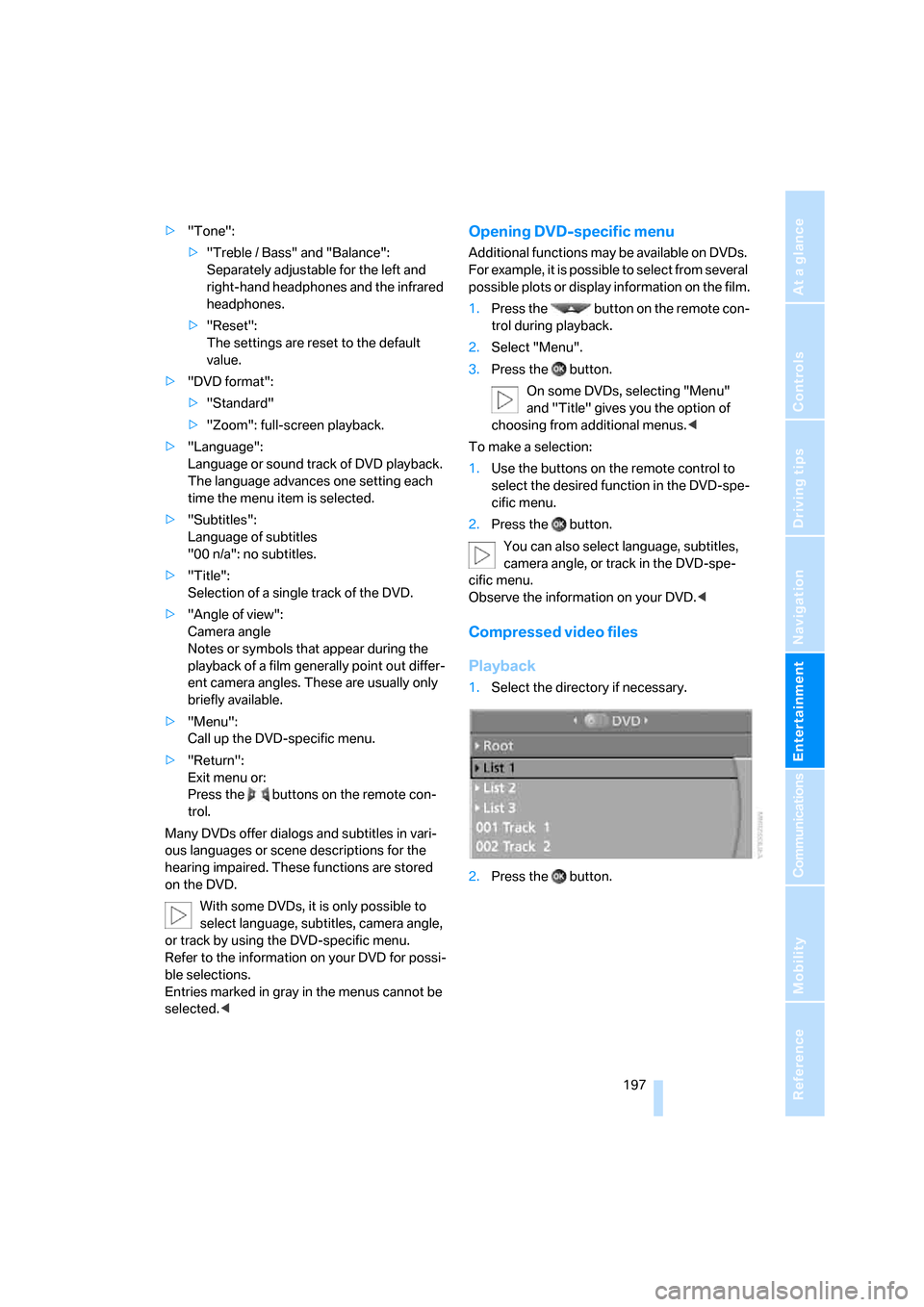
Compressed video files
Playback
1.Select the directory if necessary.
2.Press the button.
Page 201 of 292
Navigation
Entertainment
Driving tips
199Reference
At a glance
Controls
Communications
Mobility
Selecting a track
Buttons on CD/DVD player
Press the button for the corresponding
direction repeatedly until you reach the desired
track.
Playback begins at the start of the track.
Via the remote control
Press the button for the corresponding
direction repeatedly or turn the knurled wheel
until you reach the desired track.
Playback begins at the start of the track.
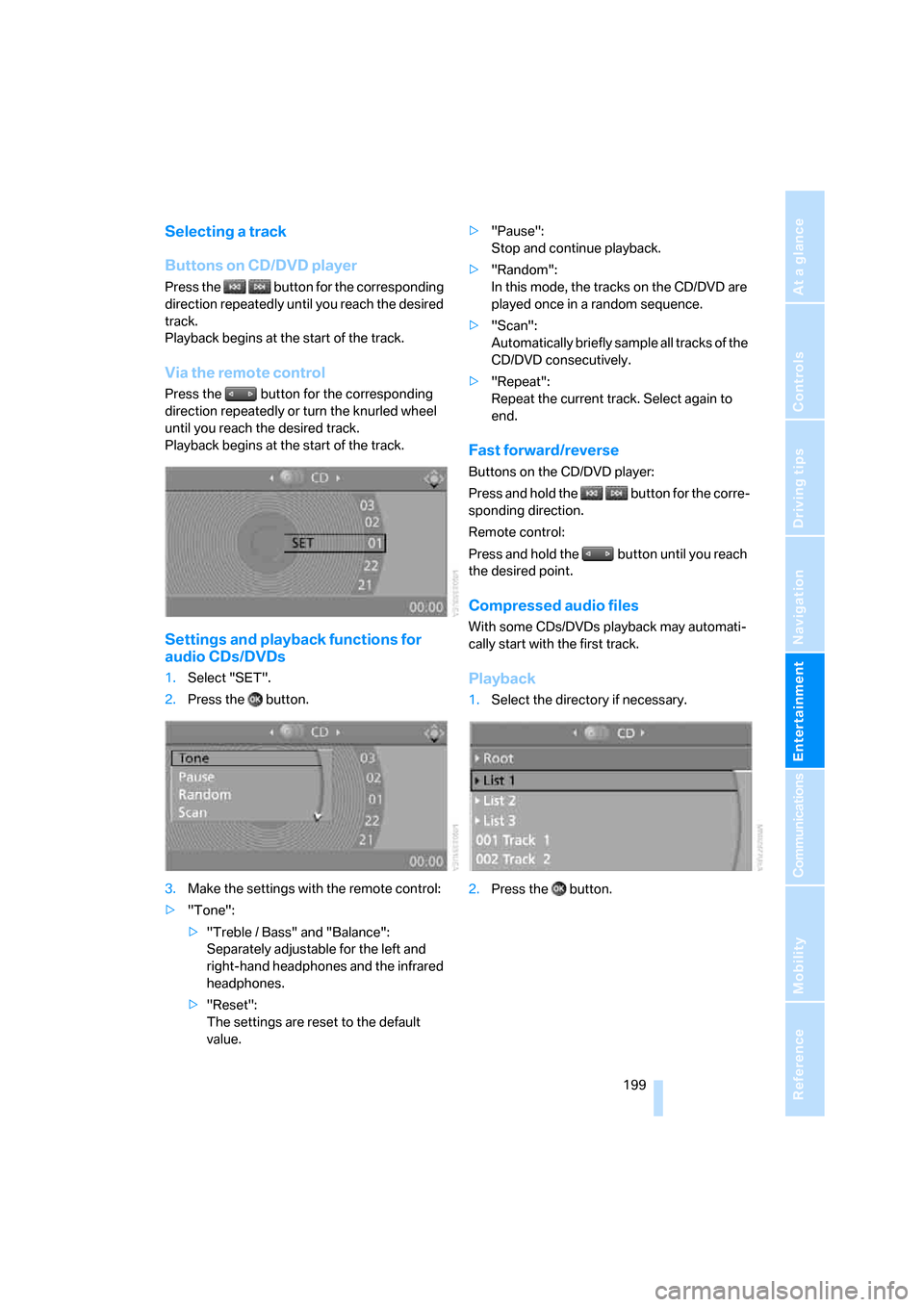
Settings and playback functions for
audio CDs/DVDs
1.Select "SET".
2.Press the button.
3.Make the settings with the remote control:
>"Tone":
>"Treble / Bass" and "Balance":
Separately adjustable for the left and
right-hand headphones and the infrared
headphones.
>"Reset":
The settings are reset to the default
value.>"Pause":
Stop and continue playback.
>"Random":
In this mode, the tracks on the CD/DVD are
played once in a random sequence.
>"Scan":
Automatically briefly sample all tracks of the
CD/DVD consecutively.
>"Repeat":
Repeat the current track. Select again to
end.
Fast forward/reverse
Buttons on the CD/DVD player:
Press and hold the button for the corre-
sponding direction.
Remote control:
Press and hold the button until you reach
the desired point.
Compressed audio files
With some CDs/DVDs playback may automati-
cally start with the first track.
Playback
1.Select the directory if necessary.
2.Press the button.
Page 202 of 292
DVD system in rear
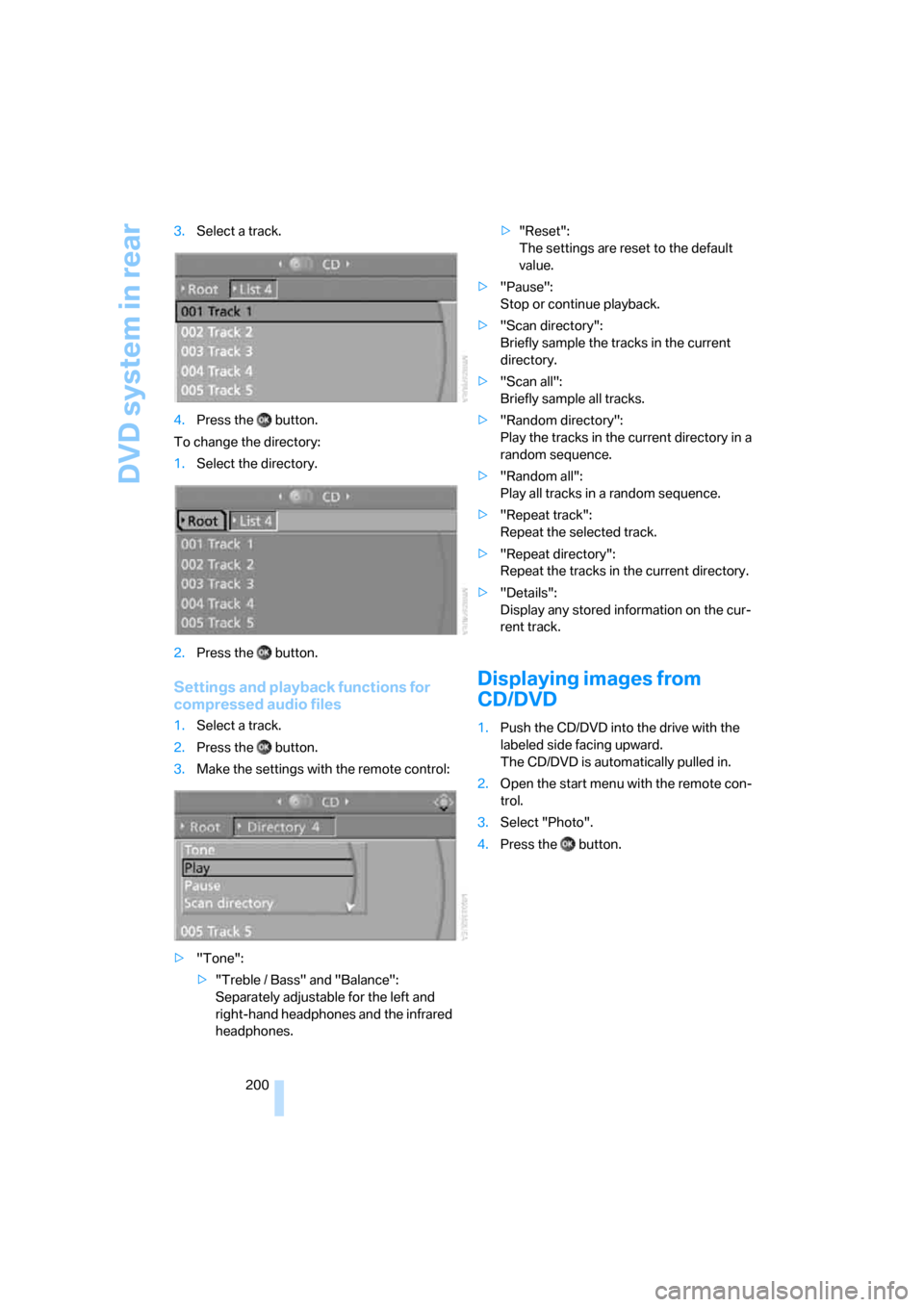
200 3.Select a track.
4.Press the button.
To change the directory:
1.Select the directory.
2.Press the button.
Settings and playback functions for
compressed audio files
1.Select a track.
2.Press the button.
3.Make the settings with the remote control:
>"Tone":
>"Treble / Bass" and "Balance":
Separately adjustable for the left and
right-hand headphones and the infrared
headphones.>"Reset":
The settings are reset to the default
value.
>"Pause":
Stop or continue playback.
>"Scan directory":
Briefly sample the tracks in the current
directory.
>"Scan all":
Briefly sample all tracks.
>"Random directory":
Play the tracks in the current directory in a
random sequence.
>"Random all":
Play all tracks in a random sequence.
>"Repeat track":
Repeat the selected track.
>"Repeat directory":
Repeat the tracks in the current directory.
>"Details":
Display any stored information on the cur-
rent track.
Displaying images from
CD/DVD
1.Push the CD/DVD into the drive with the
labeled side facing upward.
The CD/DVD is automatically pulled in.
2.Open the start menu with the remote con-
trol.
3.Select "Photo".
4.Press the button.
Page 206 of 292
DVD system in rear
204
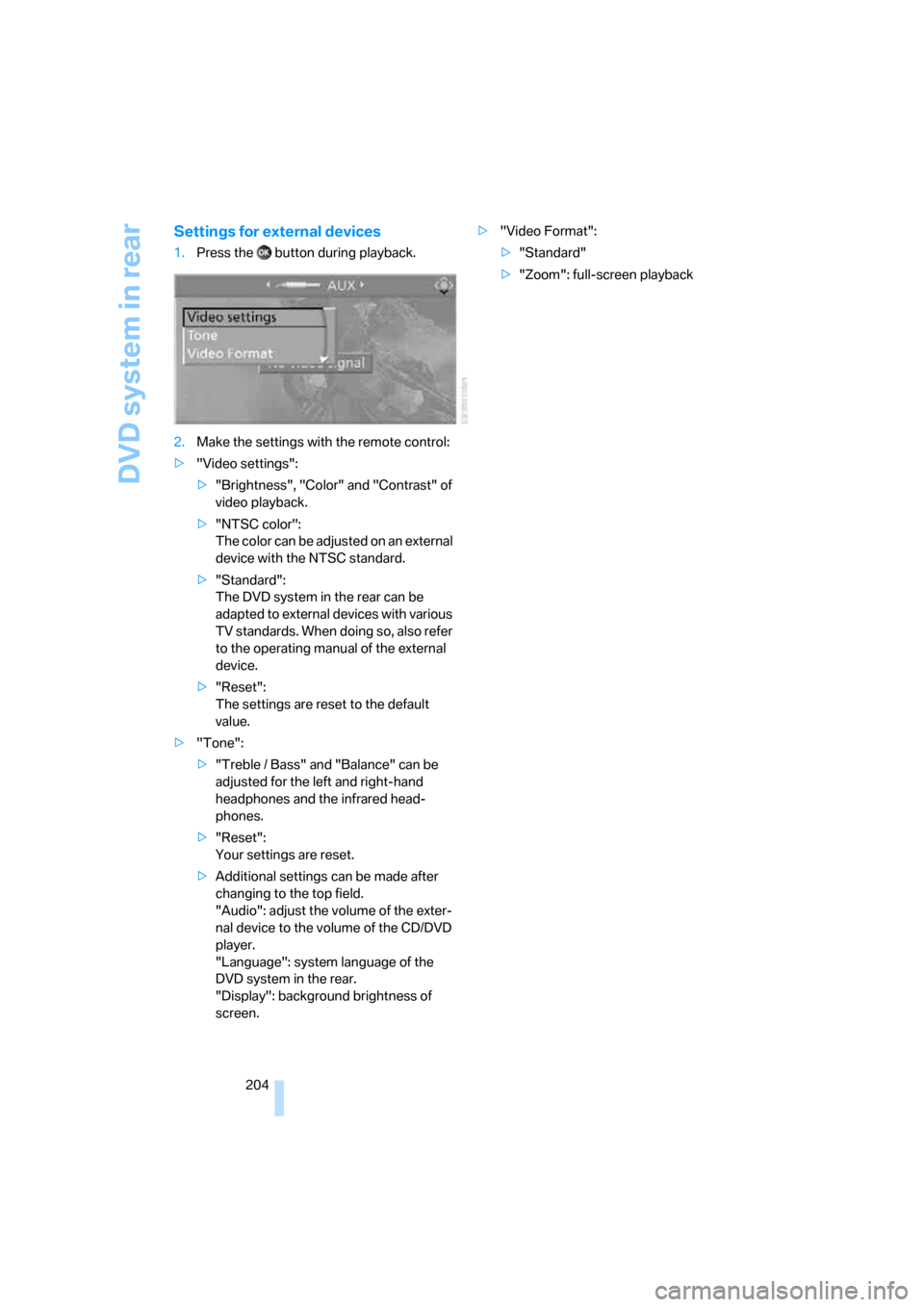
Settings for external devices
1.Press the button during playback.
2.Make the settings with the remote control:
>"Video settings":
>"Brightness", "Color" and "Contrast" of
video playback.
>"NTSC color":
The color can be adjusted on an external
device with the NTSC standard.
>"Standard":
The DVD system in the rear can be
adapted to external devices with various
TV standards. When doing so, also refer
to the operating manual of the external
device.
>"Reset":
The settings are reset to the default
value.
>"Tone":
>"Treble / Bass" and "Balance" can be
adjusted for the left and right-hand
headphones and the infrared head-
phones.
>"Reset":
Your settings are reset.
>Additional settings can be made after
changing to the top field.
"Audio": adjust the volume of the exter-
nal device to the volume of the CD/DVD
player.
"Language": system language of the
DVD system in the rear.
"Display": background brightness of
screen.>"Video Format":
>"Standard"
>"Zoom": full-screen playback
Page 211 of 292
209
Entertainment
Reference
At a glance
Controls
Driving tips Communications
Navigation
Mobility
progress. If this happens, you must log off the
mobile phone from the vehicle if you wish to
place a call with the mobile phone.
Commissioning
Logging on mobile phone on vehicle
The following prerequisites must be met:
>Suitable mobile phone: the mobile phone is
supported by the full mobile phone prepara-
tion package. Information on this subject is
also provided on the Internet at:
www.bmw.com
>The mobile phone is ready to operate.
>The Bluetooth link on the vehicle, refer to
page213, and on the mobile phone is
active.
>Depending on the mobile phone, preset-
tings on the mobile phone are necessary,
e.g. via the following menu items:
>Bluetooth activated
>Connection not with confirmation
>Reconnect
>Depending on the mobile phone model, the
setting energy saving mode can, for exam-
ple, result in vehicle failing to detect the
paired mobile phone.
>For pairing, specify any desired number as
the Bluetooth passkey, e.g. 1. This Blue-
tooth passkey is no longer required follow-
ing successful logon.
>The ignition is switched on.
Only pair the mobile phone with the vehi-
cle stopped, otherwise the passengers
and other road users can be endangered due to
a lack of attentiveness on the part of the
driver.<
Switching on ignition
1.Insert the remote control as far as possible
into the ignition lock.
2.Switch on the ignition by pressing the Start/
Stop button without depressing the brake
pedal.
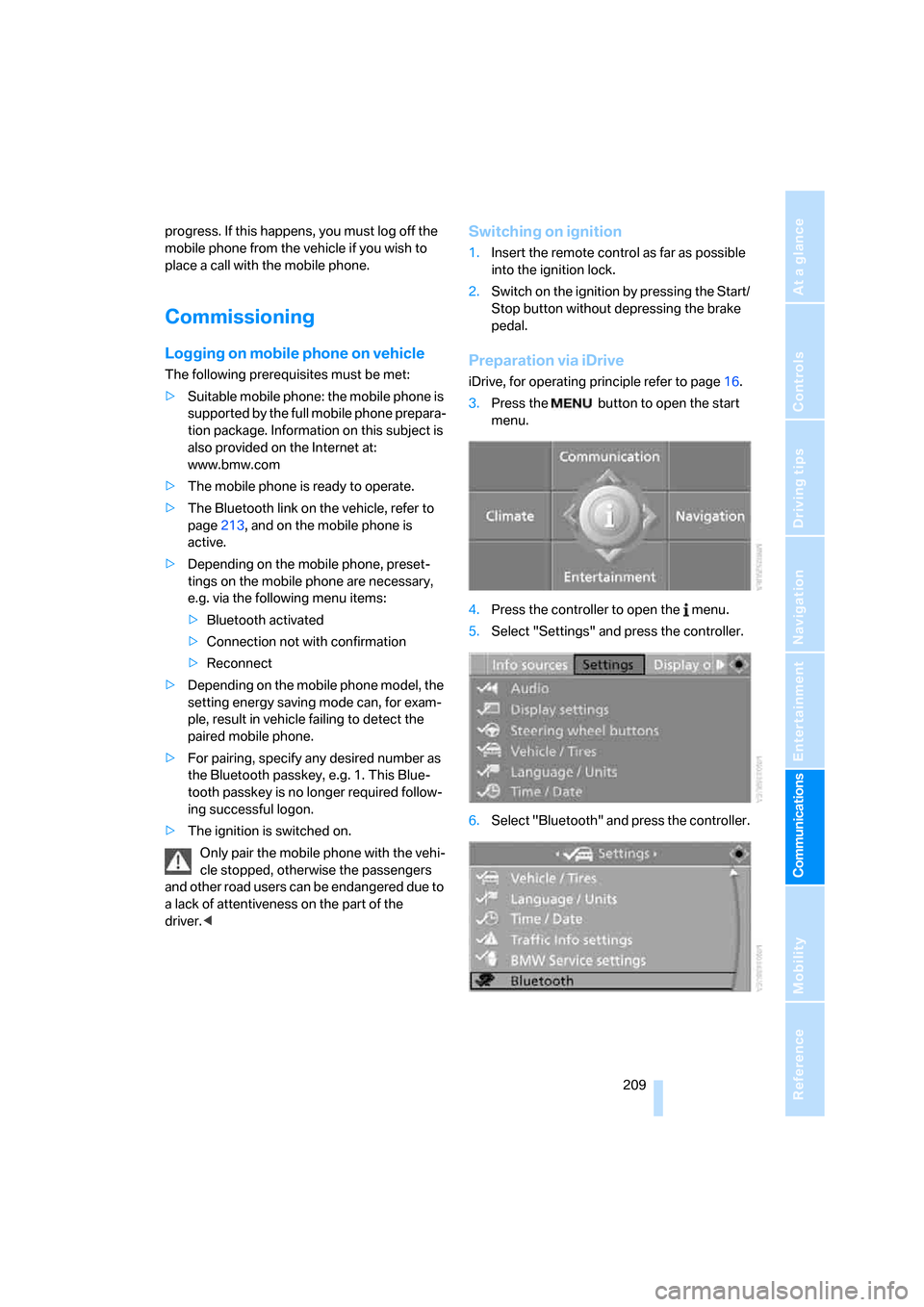
Preparation via iDrive
iDrive, for operating principle refer to page16.
3.Press the button to open the start
menu.
4.Press the controller to open the menu.
5.Select "Settings" and press the controller.
6.Select "Bluetooth" and press the controller.