light BMW X5M 2012 Owners Manual
[x] Cancel search | Manufacturer: BMW, Model Year: 2012, Model line: X5M, Model: BMW X5M 2012Pages: 317, PDF Size: 8.83 MB
Page 223 of 317
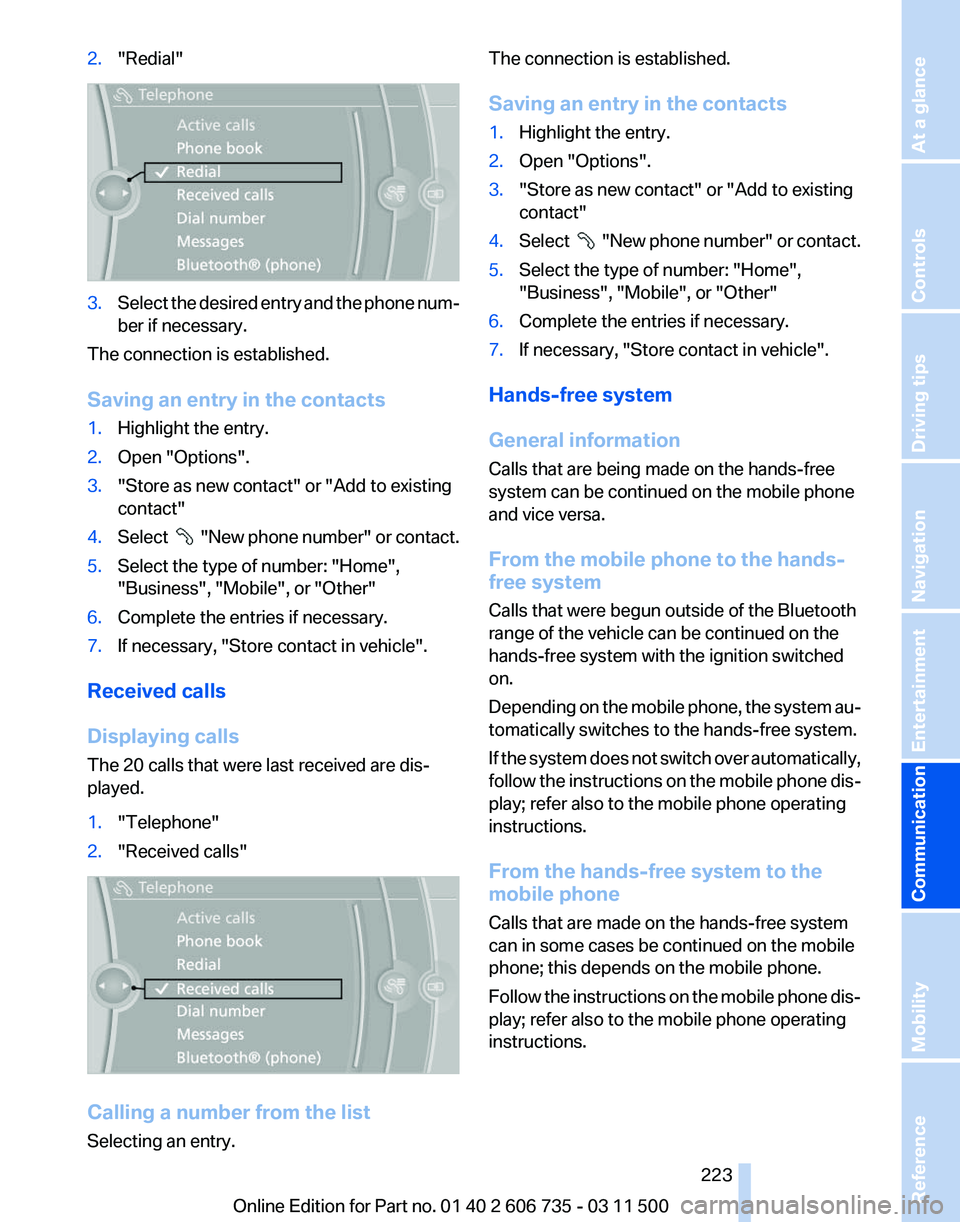
2.
"Redial" 3.
Select the desired entry and the phone num‐
ber if necessary.
The connection is established.
Saving an entry in the contacts
1. Highlight the entry.
2. Open "Options".
3. "Store as new contact" or "Add to existing
contact"
4. Select "New phone number" or contact.
5. Select the type of number: "Home",
"Business", "Mobile", or "Other"
6. Complete the entries if necessary.
7. If necessary, "Store contact in vehicle".
Received calls
Displaying calls
The 20 calls that were last received are dis‐
played.
1. "Telephone"
2. "Received calls" Calling a number from the list
Selecting an entry. The connection is established.
Saving an entry in the contacts
1.
Highlight the entry.
2. Open "Options".
3. "Store as new contact" or "Add to existing
contact"
4. Select
"New phone number" or contact.
5. Select the type of number: "Home",
"Business", "Mobile", or "Other"
6. Complete the entries if necessary.
7. If necessary, "Store contact in vehicle".
Hands-free system
General information
Calls that are being made on the hands-free
system can be continued on the mobile phone
and vice versa.
From the mobile phone to the hands-
free system
Calls that were begun outside of the Bluetooth
range of the vehicle can be continued on the
hands-free system with the ignition switched
on.
Depending
on the mobile phone, the system au‐
tomatically switches to the hands-free system.
If the system does not switch over automatically,
follow the instructions on the mobile phone dis‐
play; refer also to the mobile phone operating
instructions.
From the hands-free system to the
mobile phone
Calls that are made on the hands-free system
can in some cases be continued on the mobile
phone; this depends on the mobile phone.
Follow the instructions on the mobile phone dis‐
play; refer also to the mobile phone operating
instructions.
Seite 223
223Online Edition for Part no. 01 40 2 606 735 - 03 11 500
Reference Mobility
Communication Entertainment Navigation Driving tips Controls At a glance
Page 228 of 317
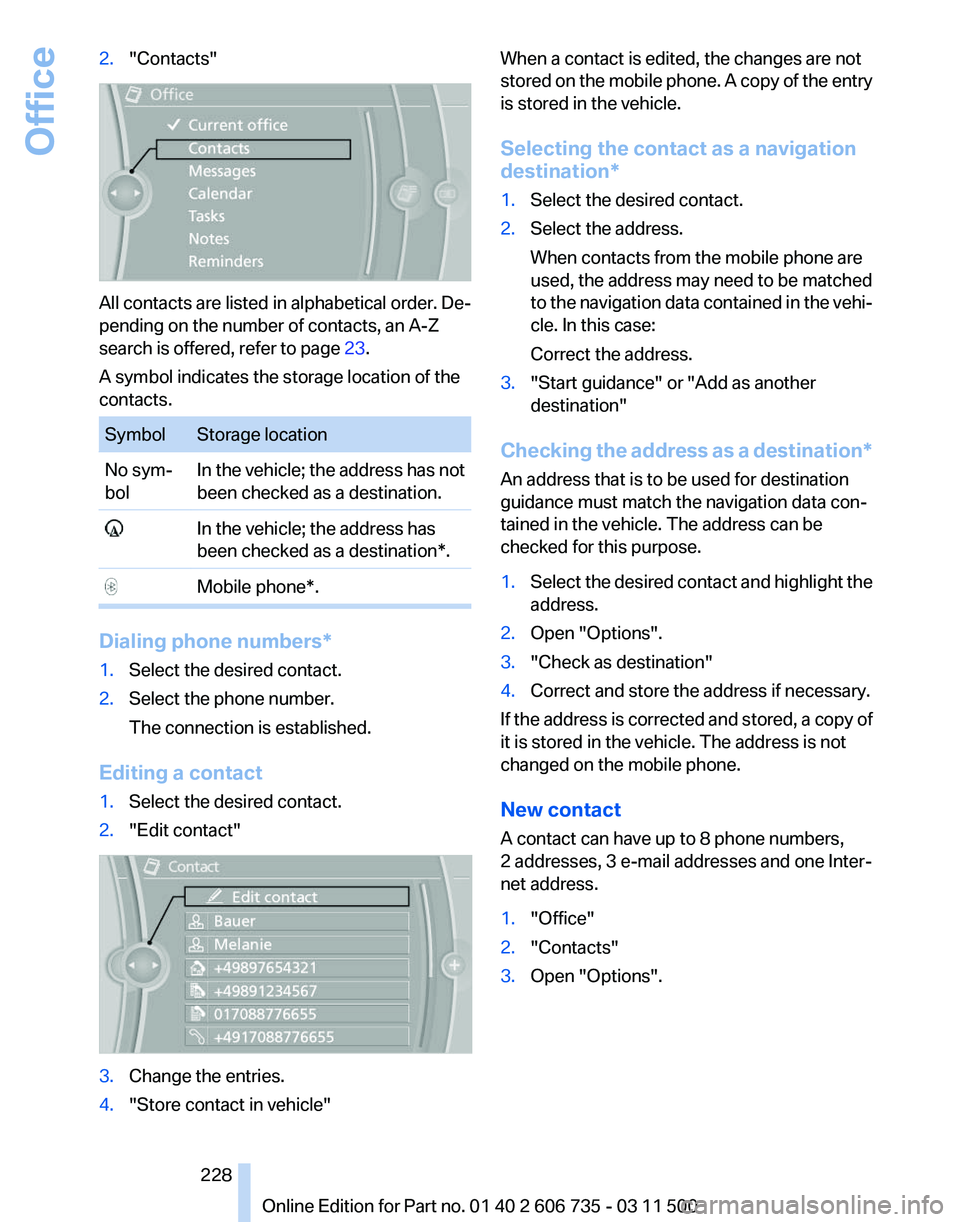
2.
"Contacts" All contacts are listed in alphabetical order. De‐
pending on the number of contacts, an A-Z
search is offered, refer to page
23.
A symbol indicates the storage location of the
contacts. Symbol Storage location
No sym‐
bol
In the vehicle; the address has not
been checked as a destination. In the vehicle; the address has
been checked as a destination*. Mobile phone*.
Dialing phone numbers*
1.
Select the desired contact.
2. Select the phone number.
The connection is established.
Editing a contact
1. Select the desired contact.
2. "Edit contact" 3.
Change the entries.
4. "Store contact in vehicle" When a contact is edited, the changes are not
stored
on the mobile phone. A copy of the entry
is stored in the vehicle.
Selecting the contact as a navigation
destination*
1. Select the desired contact.
2. Select the address.
When contacts from the mobile phone are
used, the address may need to be matched
to
the navigation data contained in the vehi‐
cle. In this case:
Correct the address.
3. "Start guidance" or "Add as another
destination"
Checking the address as a destination*
An address that is to be used for destination
guidance must match the navigation data con‐
tained in the vehicle. The address can be
checked for this purpose.
1. Select the desired contact and highlight the
address.
2. Open "Options".
3. "Check as destination"
4. Correct and store the address if necessary.
If the address is corrected and stored, a copy of
it is stored in the vehicle. The address is not
changed on the mobile phone.
New contact
A contact can have up to 8 phone numbers,
2 addresses, 3 e-mail addresses and one Inter‐
net address.
1. "Office"
2. "Contacts"
3. Open "Options".
Seite 228
228 Online Edition for Part no. 01 40 2 606 735 - 03 11 500
Office
Page 229 of 317
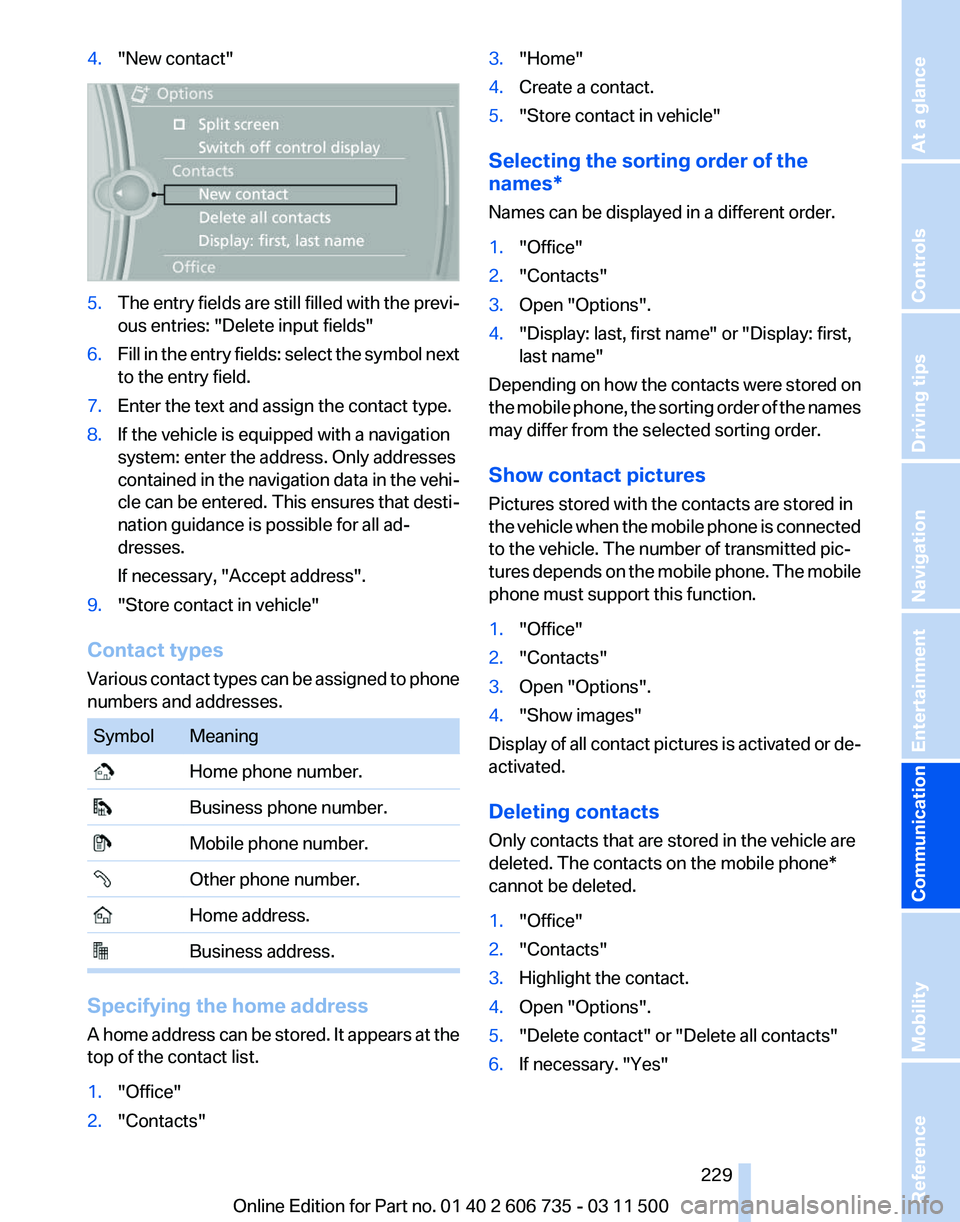
4.
"New contact" 5.
The entry fields are still filled with the previ‐
ous entries: "Delete input fields"
6. Fill in the entry fields: select the symbol next
to the entry field.
7. Enter the text and assign the contact type.
8. If the vehicle is equipped with a navigation
system: enter the address. Only addresses
contained
in the navigation data in the vehi‐
cle can be entered. This ensures that desti‐
nation guidance is possible for all ad‐
dresses.
If necessary, "Accept address".
9. "Store contact in vehicle"
Contact types
Various
contact types can be assigned to phone
numbers and addresses. Symbol Meaning
Home phone number.
Business phone number.
Mobile phone number.
Other phone number.
Home address.
Business address.
Specifying the home address
A
home address can be stored. It appears at the
top of the contact list.
1. "Office"
2. "Contacts" 3.
"Home"
4. Create a contact.
5. "Store contact in vehicle"
Selecting the sorting order of the
names*
Names can be displayed in a different order.
1. "Office"
2. "Contacts"
3. Open "Options".
4. "Display: last, first name" or "Display: first,
last name"
Depending on how the contacts were stored on
the
mobile phone, the sorting order of the names
may differ from the selected sorting order.
Show contact pictures
Pictures stored with the contacts are stored in
the vehicle when the mobile phone is connected
to the vehicle. The number of transmitted pic‐
tures depends on the mobile phone. The mobile
phone must support this function.
1. "Office"
2. "Contacts"
3. Open "Options".
4. "Show images"
Display of all contact pictures is activated or de‐
activated.
Deleting contacts
Only contacts that are stored in the vehicle are
deleted. The contacts on the mobile phone
*
cannot be deleted.
1. "Office"
2. "Contacts"
3. Highlight the contact.
4. Open "Options".
5. "Delete contact" or "Delete all contacts"
6. If necessary. "Yes"
Seite 229
229Online Edition for Part no. 01 40 2 606 735 - 03 11 500
Reference Mobility
Communication Entertainment Navigation Driving tips Controls At a glance
Page 234 of 317
Displaying contact or selecting phone
number
1.
"Use contact data"
2. Display the contact or select the phone
number:
▷Select the contact to display contact de‐
tails.
▷ Select the phone number to establish a
connection directly.
Storing contact data
1. "Use contact data"
2. Highlight the phone number or e-mail ad‐
dress.
3. Open "Options".
4. "Add to existing contact" or "Store as new
contact"
Reading out loud*
Text messages, e-mails, appointment entries,
tasks, and notes can be read out loud.
1. Select the desired message, appointment,
task, or note.
2. Select the symbol.
The following options are available during read‐
ing:
▷ "Pause"
Interrupt reading. Select again to restart
reading.
▷ "Back to beginning"
Start reading the message again from the
beginning.
▷ Select the symbol.
Go back one paragraph.
▷ Select the symbol.
Skip a paragraph.
▷ To end reading, turn the controller to the left. What to do if...
Information on suitable mobile phones, refer to
page
216.
Appointments, tasks, notes, text messages, or
e-mails from the mobile phone are not dis‐
played.
▷ The mobile phone is not capable of the
missing function or is not connected cor‐
rectly.
▷ The Office function is deactivated.
▷ The mobile phone is connected as an addi‐
tional phone.
▷ Appointments are older than 20 days or are
more than 50 days in the future.
▷ The tasks have been marked as completed
or have a due date that lies more than
90 days in the future.
▷ Depending on the number of stored ap‐
pointments, task notes, and messages in
the
mobile phone, not all are displayed in the
vehicle.
Not all appointments and tasks from the mobile
phone are displayed at the right time?
▷ The time zone, time, or date is incorrectly set
on the Control Display and mobile phone.
The e-mail attachment is not displayed.
▷ E-mails are transmitted without an attach‐
ment.
Entries are not displayed in full length.
▷ Text were already transmitted from the mo‐
bile phone in a shortened form.
▷ Synchronization between the mobile phone
and vehicle may take several minutes.
The contact pictures are not being displayed?
▷ Up to 200 contact pictures can be stored in
the vehicle.
The E-mail is displayed with a delay?
▷ Check the e-mail settings on the telephone
and adjust if necessary.
If all points in this list have been checked and the
required function is still not available, please
contact the hotline or service center.
Seite 234
234 Online Edition for Part no. 01 40 2 606 735 - 03 11 500
Office
Page 236 of 317
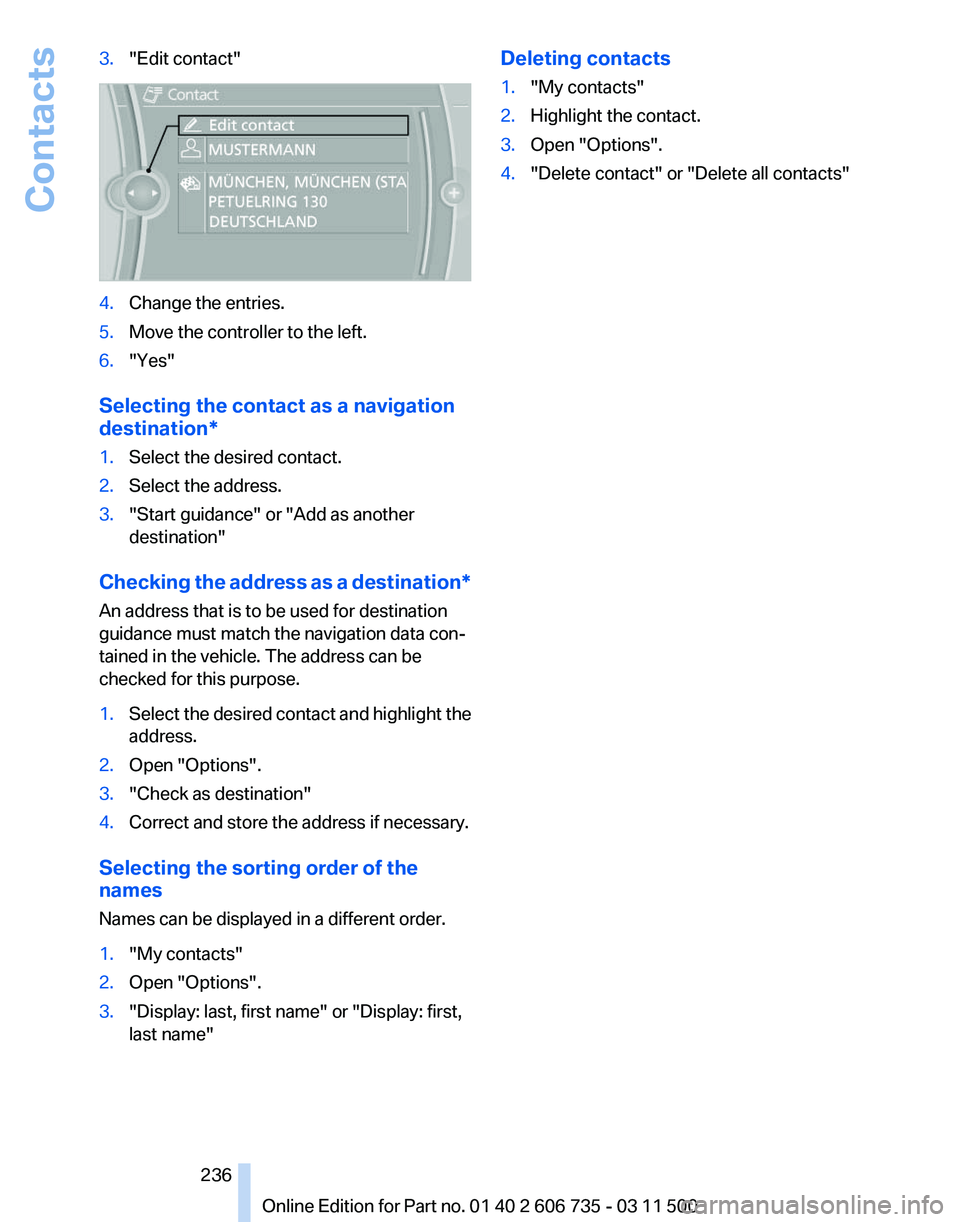
3.
"Edit contact" 4.
Change the entries.
5. Move the controller to the left.
6. "Yes"
Selecting the contact as a navigation
destination*
1. Select the desired contact.
2. Select the address.
3. "Start guidance" or "Add as another
destination"
Checking the address as a destination*
An address that is to be used for destination
guidance must match the navigation data con‐
tained in the vehicle. The address can be
checked for this purpose.
1. Select the desired contact and highlight the
address.
2. Open "Options".
3. "Check as destination"
4. Correct and store the address if necessary.
Selecting the sorting order of the
names
Names can be displayed in a different order.
1. "My contacts"
2. Open "Options".
3. "Display: last, first name" or "Display: first,
last name" Deleting contacts
1.
"My contacts"
2. Highlight the contact.
3. Open "Options".
4. "Delete contact" or "Delete all contacts"
Seite 236
236 Online Edition for Part no. 01 40 2 606 735 - 03 11 500Contacts
Page 240 of 317
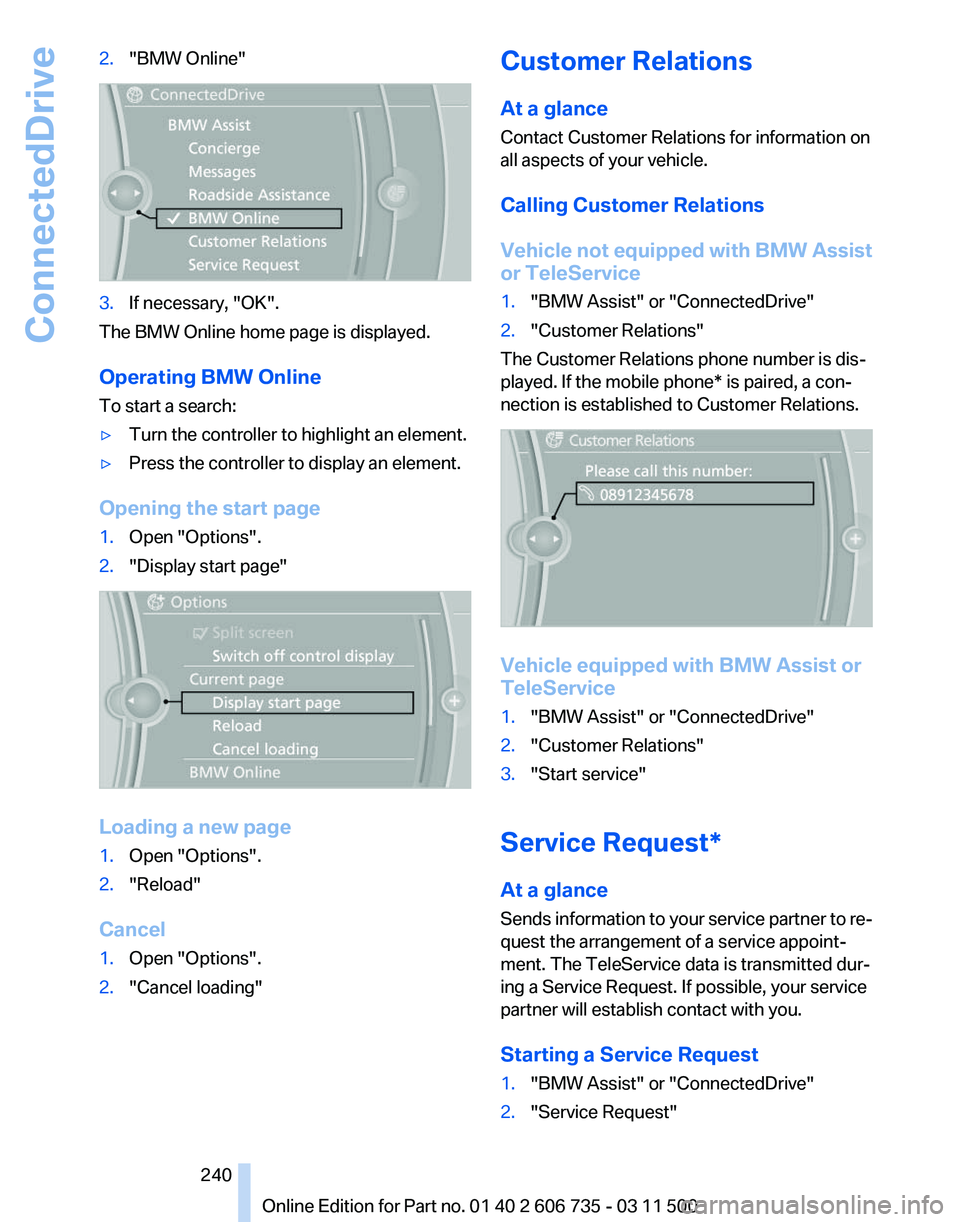
2.
"BMW Online" 3.
If necessary, "OK".
The BMW Online home page is displayed.
Operating BMW Online
To start a search:
▷ Turn the controller to highlight an element.
▷ Press the controller to display an element.
Opening the start page
1. Open "Options".
2. "Display start page" Loading a new page
1.
Open "Options".
2. "Reload"
Cancel
1. Open "Options".
2. "Cancel loading" Customer Relations
At a glance
Contact Customer Relations for information on
all aspects of your vehicle.
Calling Customer Relations
Vehicle
not equipped with BMW Assist
or TeleService
1. "BMW Assist" or "ConnectedDrive"
2. "Customer Relations"
The Customer Relations phone number is dis‐
played. If the
mobile phone* is paired, a con‐
nection is established to Customer Relations. Vehicle equipped with BMW Assist or
TeleService
1.
"BMW Assist" or "ConnectedDrive"
2. "Customer Relations"
3. "Start service"
Service Request*
At a glance
Sends
information to your service partner to re‐
quest the arrangement of a service appoint‐
ment. The TeleService data is transmitted dur‐
ing a Service Request. If possible, your service
partner will establish contact with you.
Starting a Service Request
1. "BMW Assist" or "ConnectedDrive"
2. "Service Request"
Seite 240
240 Online Edition for Part no. 01 40 2 606 735 - 03 11 500
ConnectedDrive
Page 250 of 317
Incorrect fueling
The warning lamp lights up:
The reservoir has been filled with an in‐
correct fluid.
Please contact your service center.
Have diesel exhaust fluid refilled
This
exhaust fluid is refilled by your service cen‐
ter during regular maintenance. If you adhere to
this maintenance schedule, it is usually not nec‐
essary to refill any fluids between the mainte‐
nance dates.
Under certain circumstances, for example, due
to a particularly sporty driving style or operation
of the vehicle at high altitudes, it may be neces‐
sary to refill fluids between maintenance dates.
As soon as the reserve display has appeared in
the instrument panel, have the diesel exhaust
fluid refilled to prevent the engine from being
unable to restart.
You can have the fluid refilled by a service cen‐
ter.
Diesel exhaust fluid at low
temperatures
Due to its physical properties, it may be neces‐
sary to replenish the level of diesel exhaust fluid
at temperatures below +23 ℉/ -5 ℃, even be‐
tween the regular maintenance dates.
If the fluid needs to be refilled, this will be indi‐
cated with the reserve display in the instrument
cluster, refer to page 249.
Only refill the diesel exhaust fluid
yourself in exceptional circumstances
To be able to reach the nearest service center
with your vehicle, you may refill the diesel ex‐
haust fluid yourself, making sure to heed the
warning notices specified below. Handling diesel exhaust fluid
Do not allow diesel exhaust fluid to come
into contact with you. This can lead to skin and
eye irritation. Wear protective goggles and
gloves as needed. Follow the safety instructions
on the bottle. When opening the bottle or res‐ ervoir, pungent smelling vapors can escape. Be‐
fore refilling, close the vehicle completely so
that
the vapors do not get into the interior of the
vehicle. When handling diesel exhaust fluid in
enclosed spaces, make sure to have sufficient
ventilation. After handling diesel exhaust fluid,
wash hands thoroughly. Failure to do so may
lead to irritation, for instance, due to inadvertent
contact with the eyes. If eye irritation occurs,
immediately rinse eyes with ample water and
contact a doctor if necessary. If diesel exhaust
fluid comes into contact with surfaces of your
vehicle, rinse the affected surfaces with water or
else damage may occur. Keep diesel exhaust
fluid out of reach of children.◀
Suitable diesel exhaust fluid
▷ Preferred: BMW Diesel Exhaust Fluid. This
bottle and its special adapter permit con‐
venient refilling with diesel exhaust fluid.
▷ Alternative: NOx reduction agent AUS 32
Diesel exhaust fluid can be obtained from your
service center.
Refilling quantity
Refilling quantity at the start of the reserve dis‐
play:
Approx. 0.75 gallons/2.7 liters
Open reservoir for diesel exhaust fluid
1. Open the hood, refer to page 264.
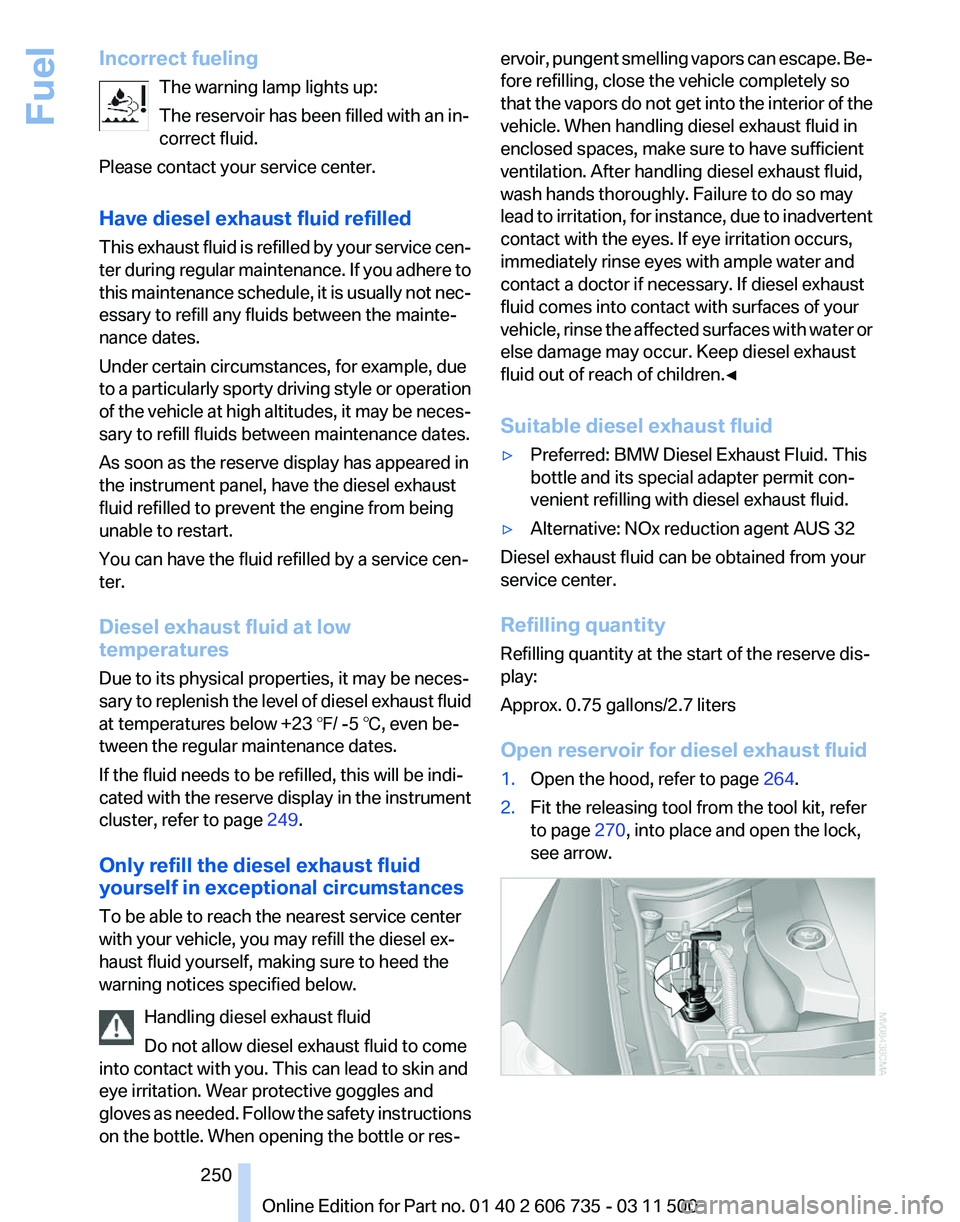
2. Fit the releasing tool from the tool kit, refer
to page 270, into place and open the lock,
see arrow. Seite 250
250 Online Edition for Part no. 01 40 2 606 735 - 03 11 500
Fuel
Page 261 of 317
With proper use, these tires meet the highest
standards for safety and handling.
Retreaded tires
The manufacturer of your vehicle does not rec‐
ommend the use of retreaded tires.
Retreaded tires
Possibly substantial variations in the de‐
sign and age of the tire casing structures can
limit service life and have a negative impact on
road safety.◀
Winter tires
The manufacturer of your vehicle recommends
winter tires for winter roads or at temperatures
below +45 ℉/+7 ℃.
Although
so-called all-season M+S tires do pro‐
vide better winter traction than summer tires,
they do not provide the same level of perform‐
ance as winter tires.
Maximum speed of winter tires
If the maximum speed of the vehicle is higher
than the permissible speed for the winter tires,
then display a corresponding sign in the field of
vision. You can obtain this sign from the tire spe‐
cialist or from your service center.
Maximum speed for winter tires
Do not exceed the maximum speed for the
winter tires; otherwise, tire damage and acci‐
dents can occur.◀
Run-flat tires
For your own safety, only use run-flat tires. Your
service center will be glad to advise you.
Rotating wheels between axles
The manufacturer of your vehicle advises
against swapping wheels between the front and
rear axles.
This can impair the handling characteristics.
Rotating the tires is not permissible when using
different types of tires*. Storage
Store wheels and tires in a cool, dry place with
as little exposure to light as possible.
Always protect tires against all contact with oil,
grease and fuels.
Do not exceed the maximum tire inflation pres‐
sure indicated on the side wall of the tire.
Run-flat tires
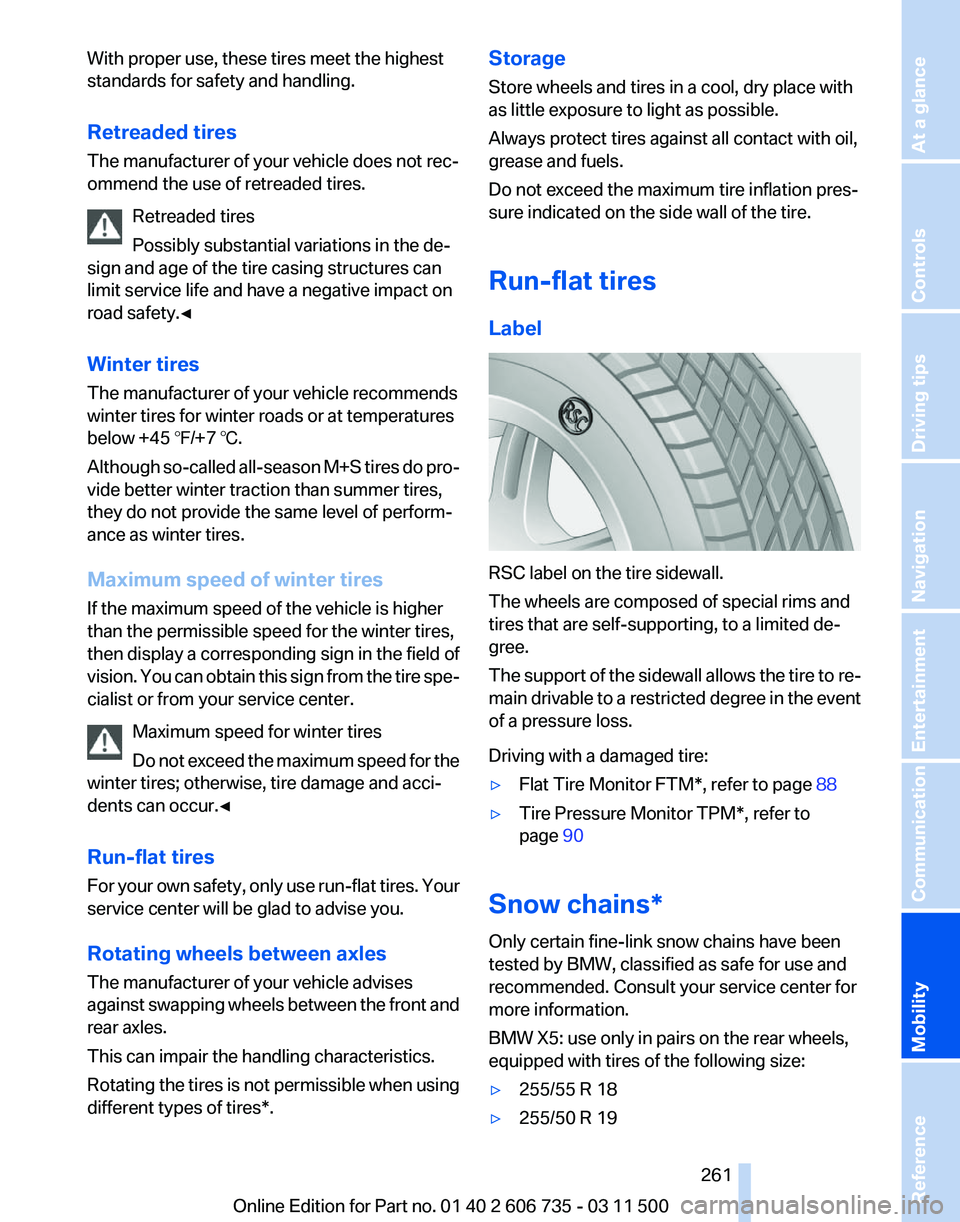
Label
RSC label on the tire sidewall.
The wheels are composed of special rims and
tires that are self-supporting, to a limited de‐
gree.
The
support of the sidewall allows the tire to re‐
main drivable to a restricted degree in the event
of a pressure loss.
Driving with a damaged tire:
▷ Flat Tire Monitor FTM*, refer to page 88
▷ Tire Pressure Monitor TPM*, refer to
page 90
Snow chains*
Only certain fine-link snow chains have been
tested by BMW, classified as safe for use and
recommended. Consult your service center for
more information.
BMW X5: use only in pairs on the rear wheels,
equipped with tires of the following size:
▷ 255/55 R 18
▷ 255/50 R 19
Seite 261
261Online Edition for Part no. 01 40 2 606 735 - 03 11 500
Reference
Mobility Communication Entertainment Navigation Driving tips Controls At a glance
Page 267 of 317
Coolant
General information
Danger of burns from hot engine
Do not open the cooling system while the
engine is hot; otherwise, escaping coolant may
cause burns.◀
Suitable additives
Only
use suitable additives; otherwise, en‐
gine damage may occur. The additives are
harmful to your health.◀
Coolant consists of water and additives.
Not all commercially available additives are suit‐
able for your vehicle. Ask your service center for
suitable additives.
Checking the coolant level
1. Do not open the hood until the engine has
cooled down.
2. Turn the expansion tank cap counterclock‐
wise
slightly to allow any accumulated pres‐
sure to escape; then continue turning to
open.
3. The coolant level is correct if it is between
the maximum and minimum marks in the
filler neck, refer also to the diagram next to
the filler neck.
4. If the coolant is low, slowly add coolant up to
the specified level; do not overfill.
5. Turn the cap until there is an audible click.
6. Have the cause of the coolant loss elimi‐
nated as soon as possible. Disposal
Comply
with the appropriate environmen‐
tal protection regulations when disposing
of coolant additives. Seite 267
267Online Edition for Part no. 01 40 2 606 735 - 03 11 500
Reference
Mobility Communication Entertainment Navigation Driving tips Controls At a glance
Page 269 of 317
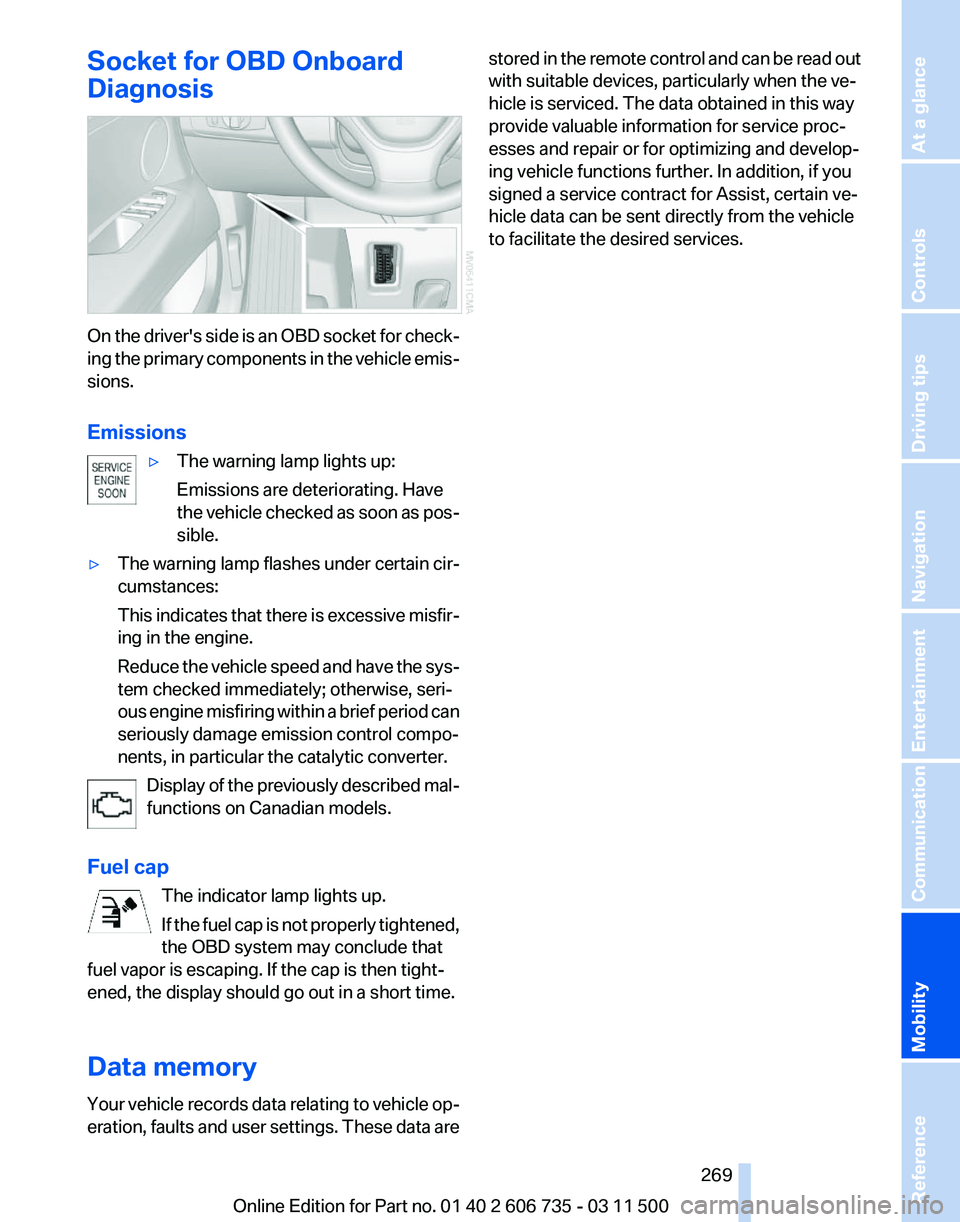
Socket for OBD Onboard
Diagnosis
On the driver's side is an OBD socket for check‐
ing
the primary components in the vehicle emis‐
sions.
Emissions
▷The warning lamp lights up:
Emissions are deteriorating. Have
the
vehicle checked as soon as pos‐
sible.
▷ The warning lamp flashes under certain cir‐
cumstances:
This
indicates that there is excessive misfir‐
ing in the engine.
Reduce the vehicle speed and have the sys‐
tem checked immediately; otherwise, seri‐
ous engine misfiring within a brief period can
seriously damage emission control compo‐
nents, in particular the catalytic converter.
Display of the previously described mal‐
functions on Canadian models.
Fuel cap The indicator lamp lights up.
If
the fuel cap is not properly tightened,
the OBD system may conclude that
fuel vapor is escaping. If the cap is then tight‐
ened, the display should go out in a short time.
Data memory
Your vehicle records data relating to vehicle op‐
eration, faults and user settings. These data are stored in the remote control and can be read out
with suitable devices, particularly when the ve‐
hicle is serviced. The data obtained in this way
provide valuable information for service proc‐
esses and repair or for optimizing and develop‐
ing vehicle functions further. In addition, if you
signed a service contract for Assist, certain ve‐
hicle data can be sent directly from the vehicle
to facilitate the desired services.
Seite 269
269Online Edition for Part no. 01 40 2 606 735 - 03 11 500
Reference
Mobility Communication Entertainment Navigation Driving tips Controls At a glance