light BMW X5M 2012 Repair Manual
[x] Cancel search | Manufacturer: BMW, Model Year: 2012, Model line: X5M, Model: BMW X5M 2012Pages: 317, PDF Size: 8.83 MB
Page 112 of 317
The image of the rear view camera is displayed.
The
setting is stored for the remote control cur‐
rently in use.
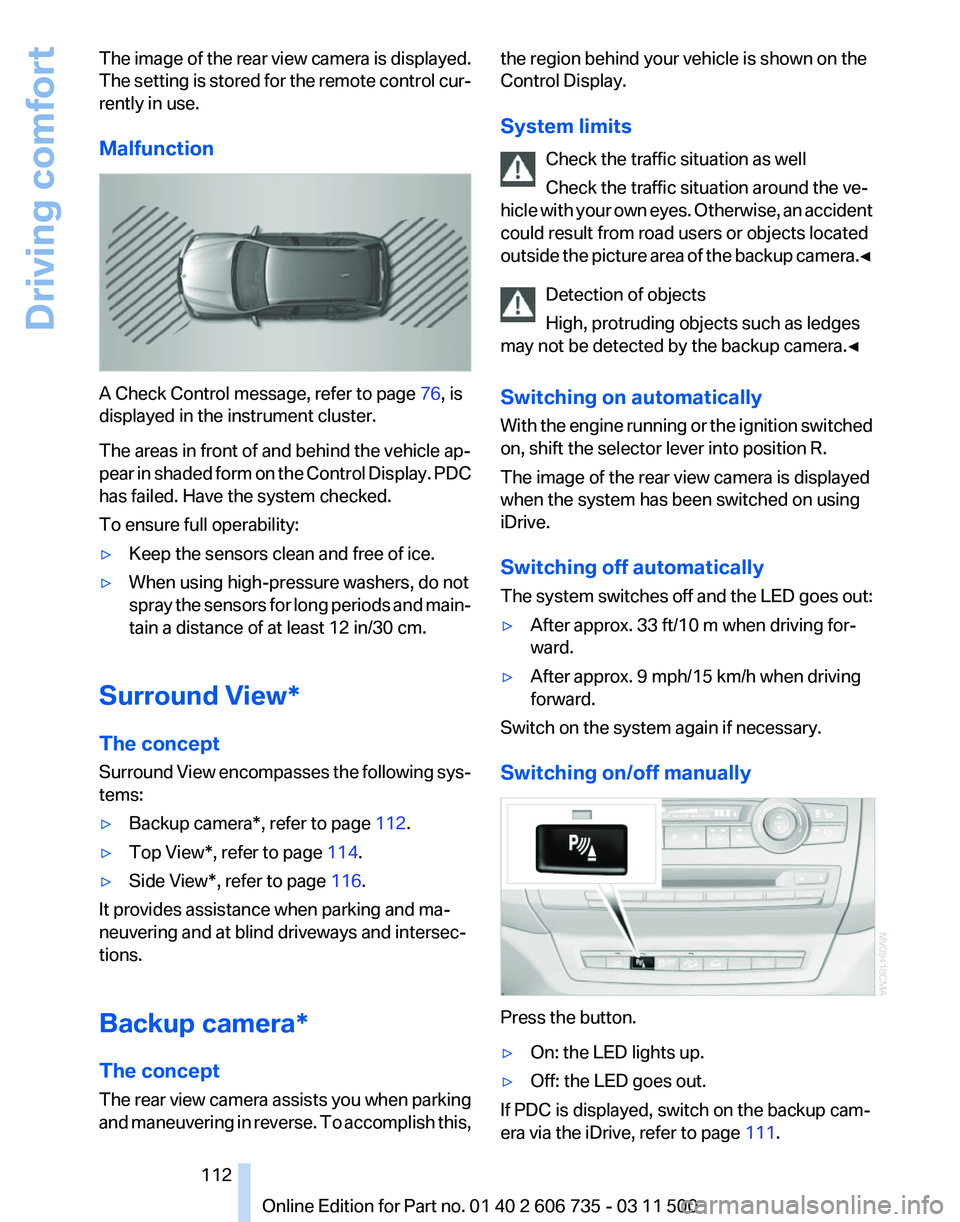
Malfunction A Check Control message, refer to page
76, is
displayed in the instrument cluster.
The areas in front of and behind the vehicle ap‐
pear
in shaded form on the Control Display. PDC
has failed. Have the system checked.
To ensure full operability:
▷ Keep the sensors clean and free of ice.
▷ When using high-pressure washers, do not
spray
the sensors for long periods and main‐
tain a distance of at least 12 in/30 cm.
Surround View*
The concept
Surround
View encompasses the following sys‐
tems:
▷ Backup camera*, refer to page 112.
▷ Top View*, refer to page 114.
▷ Side View*, refer to page 116.
It provides assistance when parking and ma‐
neuvering and at blind driveways and intersec‐
tions.
Backup camera*
The concept
The
rear view camera assists you when parking
and maneuvering in reverse. To accomplish this, the region behind your vehicle is shown on the
Control Display.
System limits
Check the traffic situation as well
Check the traffic situation around the ve‐
hicle
with your own eyes. Otherwise, an accident
could result from road users or objects located
outside the picture area of the backup camera.◀
Detection of objects
High, protruding objects such as ledges
may not be detected by the backup camera.◀
Switching on automatically
With the engine running or the ignition switched
on, shift the selector lever into position R.
The image of the rear view camera is displayed
when the system has been switched on using
iDrive.
Switching off automatically
The system switches off and the LED goes out:
▷ After approx. 33 ft/10 m when driving for‐
ward.
▷ After approx. 9 mph/15 km/h when driving
forward.
Switch on the system again if necessary.
Switching on/off manually Press the button.
▷
On: the LED lights up.
▷ Off: the LED goes out.
If PDC is displayed, switch on the backup cam‐
era via the iDrive, refer to page 111. Seite 112
112 Online Edition for Part no. 01 40 2 606 735 - 03 11 500
Driving comfort
Page 114 of 317
Show the obstacle marking via the iDrive, refer
to page
114.
Activating assistance functions
Several
assistance functions can be active at the
same time.
Showing the parking aid lines "Parking aid lines"
Pathway and turning lines are displayed.
Showing the obstacle marking "Obstacle marking"
Three-dimensionally-shaped markings are dis‐
played.
Image on the Control Display
Switching on the rear view camera
using iDrive
With PDC activated: "Rear view camera"
The
image of the rear view camera is displayed.
The setting is stored for the remote control cur‐
rently in use.
Brightness
With the rear view camera switched on:
1. Select the symbol.
2. Turn the controller until the desired setting
is reached and press the controller.
Contrast
With the rear view camera switched on:
1. Select the symbol.
2. Turn the controller until the desired setting
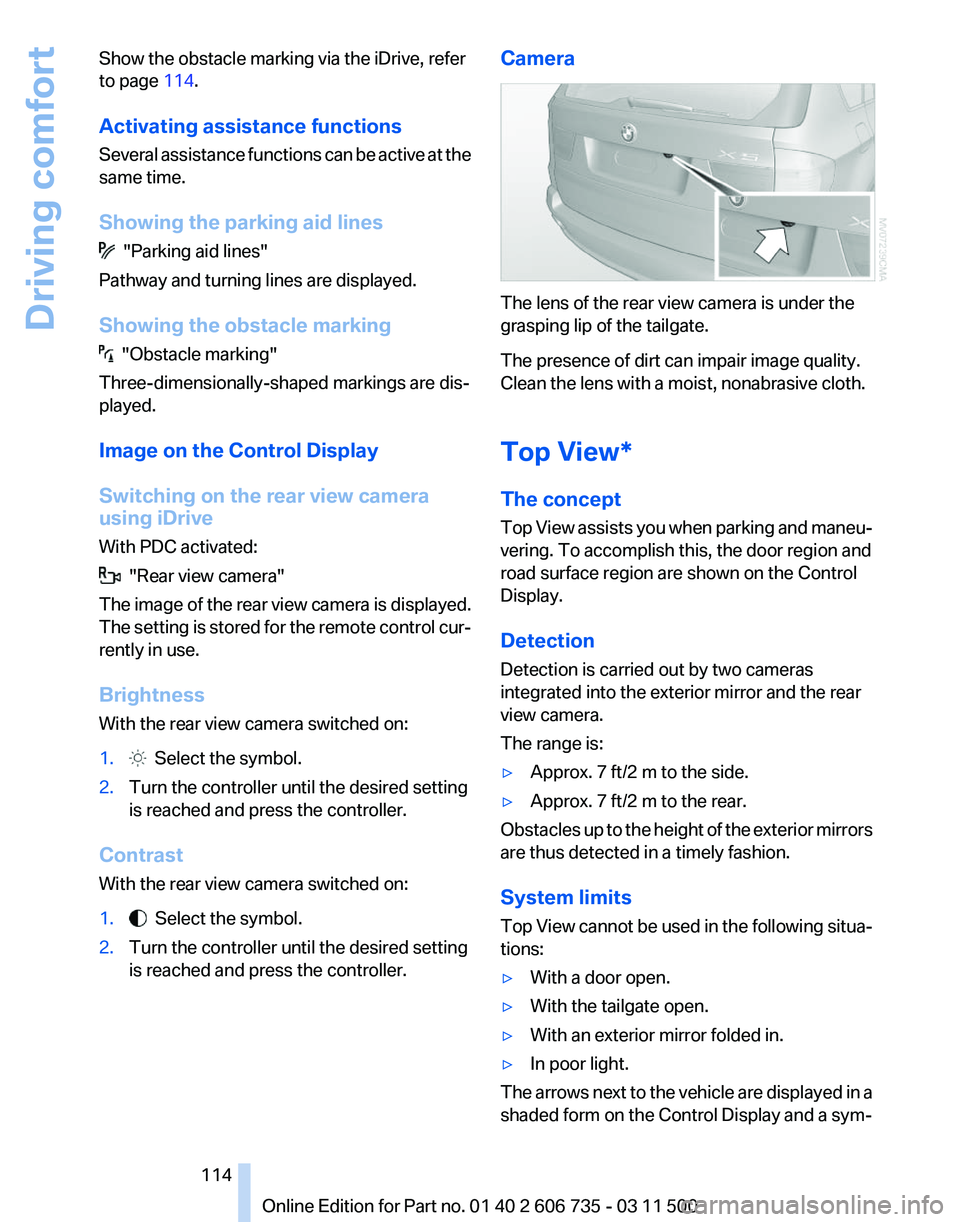
is reached and press the controller. Camera The lens of the rear view camera is under the
grasping lip of the tailgate.
The presence of dirt can impair image quality.
Clean the lens with a moist, nonabrasive cloth.
Top View*
The concept
Top
View assists you when parking and maneu‐
vering. To accomplish this, the door region and
road surface region are shown on the Control
Display.
Detection
Detection is carried out by two cameras
integrated into the exterior mirror and the rear
view camera.
The range is:
▷ Approx. 7 ft/2 m to the side.
▷ Approx. 7 ft/2 m to the rear.
Obstacles up to the height of the exterior mirrors
are thus detected in a timely fashion.
System limits
Top
View cannot be used in the following situa‐
tions:
▷ With a door open.
▷ With the tailgate open.
▷ With an exterior mirror folded in.
▷ In poor light.
The arrows next to the vehicle are displayed in a
shaded form on the Control Display and a sym‐
Seite 114
114 Online Edition for Part no. 01 40 2 606 735 - 03 11 500
Driving comfort
Page 115 of 317
bol appears at the corresponding location on the
vehicle.
Check the traffic situation as well
Check the traffic situation around the ve‐
hicle
with your own eyes. Otherwise, an accident
could result from road users or objects located
outside the picture area of the cameras.◀
Switching on automatically
Select transmission position R with the engine
running.
The images from Top View and PDC are dis‐
played when the system has been switched on
using iDrive.
Switching off automatically
The system switches off and the LED goes out:
▷ After approx. 165 ft/50 m when driving for‐
ward.
▷ After approx. 22 mph/35 km/h when driving
forward.
Switch on the system again if necessary.
Switching on/off manually Press the button.
▷
On: the LED lights up.
▷ Off: the LED goes out.
If Top View is displayed, switch on the backup
camera via the iDrive, refer to page 114.
Visual warning
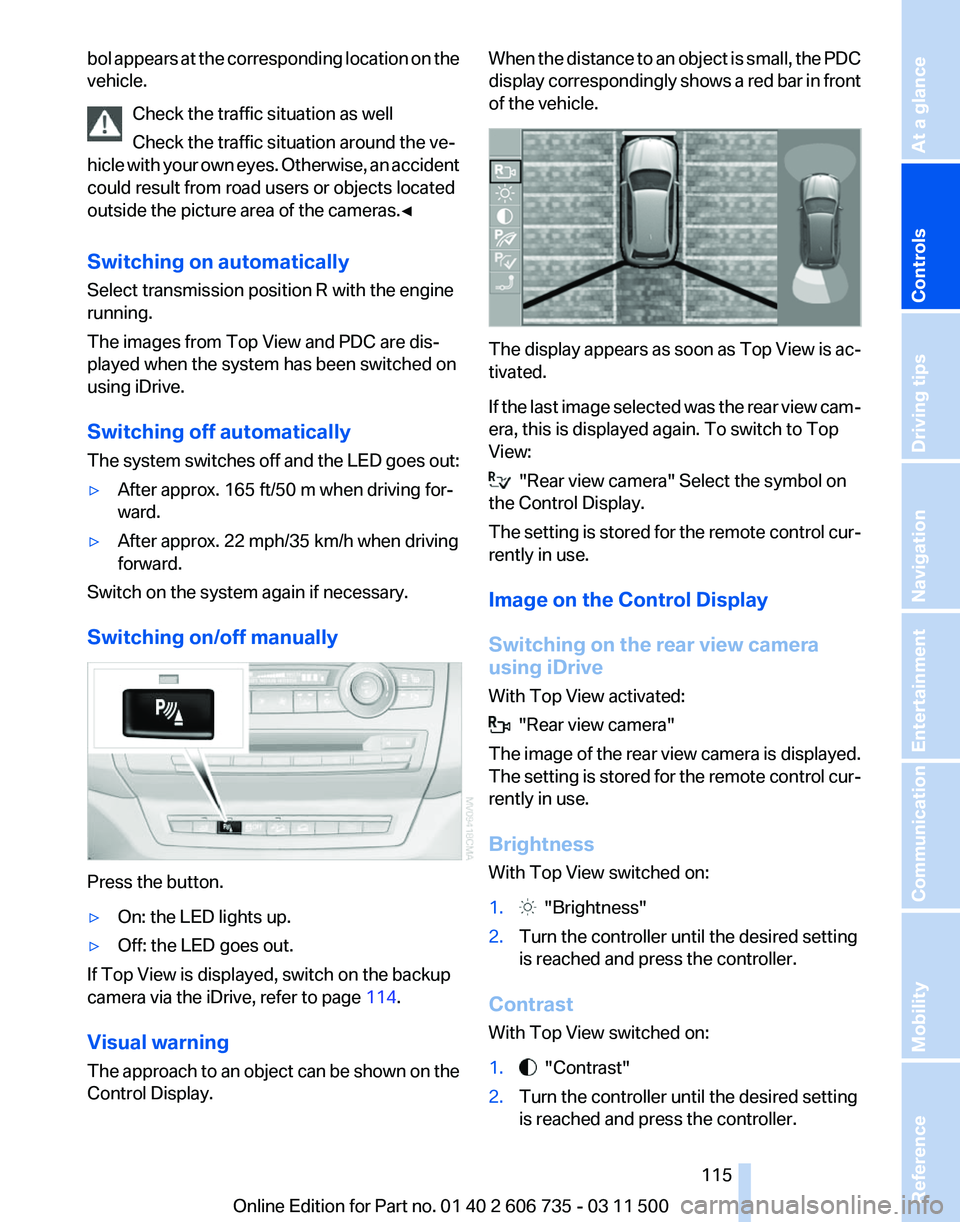
The
approach to an object can be shown on the
Control Display. When the distance to an object is small, the PDC
display
correspondingly shows a red bar in front
of the vehicle. The display appears as soon as Top View is ac‐
tivated.
If
the last image selected was the rear view cam‐
era, this is displayed again. To switch to Top
View: "Rear view camera" Select the symbol on
the Control Display.
The
setting is stored for the remote control cur‐
rently in use.
Image on the Control Display
Switching on the rear view camera
using iDrive
With Top View activated: "Rear view camera"
The
image of the rear view camera is displayed.
The setting is stored for the remote control cur‐
rently in use.
Brightness
With Top View switched on:
1. "Brightness"
2. Turn the controller until the desired setting
is reached and press the controller.
Contrast
With Top View switched on:
1. "Contrast"
2. Turn the controller until the desired setting
is reached and press the controller.
Seite 115
115Online Edition for Part no. 01 40 2 606 735 - 03 11 500
Reference Mobility Communication Entertainment Navigation Driving tips
Controls At a glance
Page 117 of 317
1. "Brightness"
2. Turn the controller until the desired setting
is reached and press the controller.
Contrast
With the Side View switched on:
1. "Contrast"
2. Turn the controller until the desired setting
is reached and press the controller.
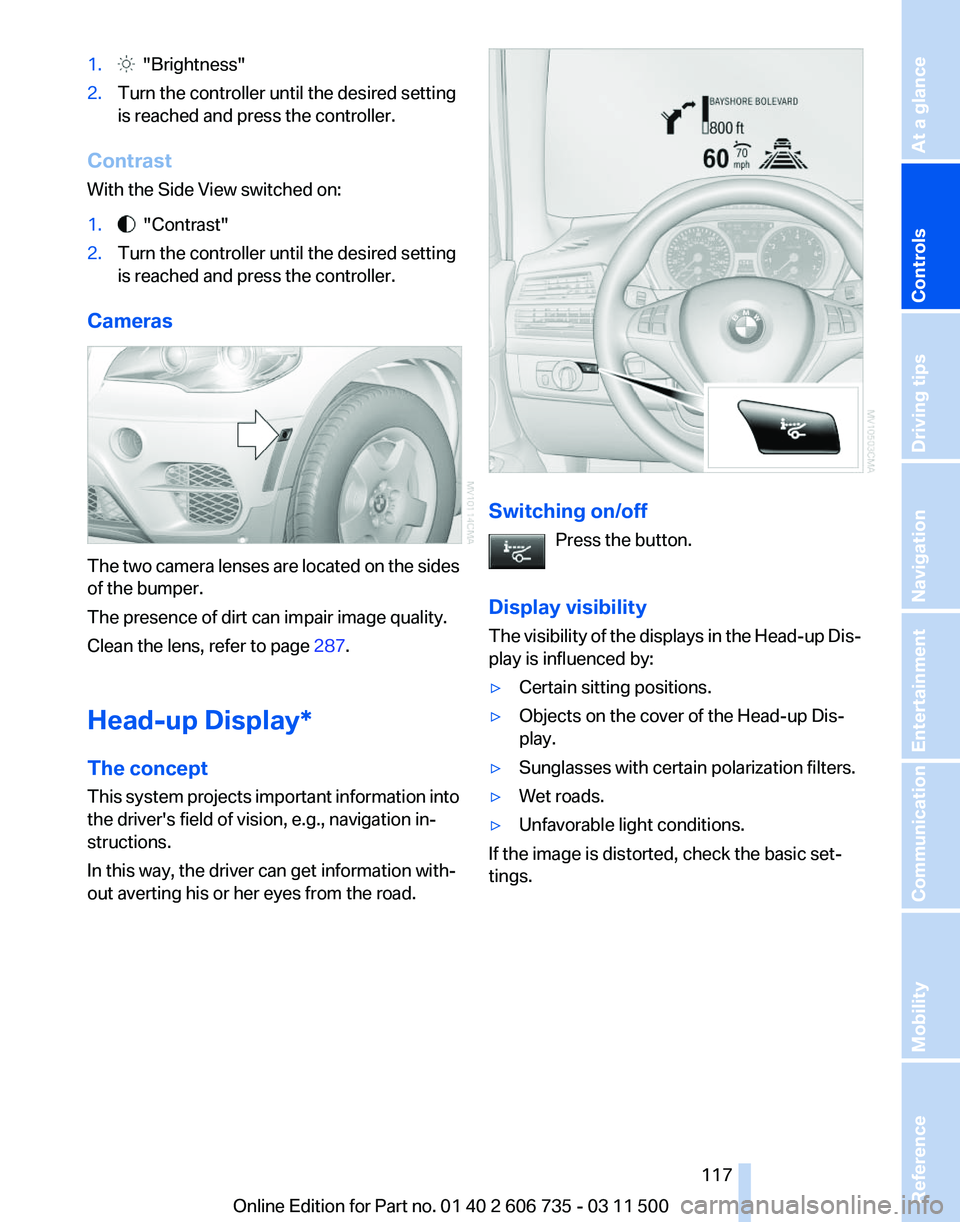
Cameras The two camera lenses are located on the sides
of the bumper.
The presence of dirt can impair image quality.
Clean the lens, refer to page
287.
Head-up Display
*
The concept
This system projects important information into
the driver's field of vision, e.g., navigation in‐
structions.
In this way, the driver can get information with‐
out averting his or her eyes from the road. Switching on/off
Press the button.
Display visibility
The
visibility of the displays in the Head-up Dis‐
play is influenced by:
▷ Certain sitting positions.
▷ Objects on the cover of the Head-up Dis‐
play.
▷ Sunglasses with certain polarization filters.
▷ Wet roads.
▷ Unfavorable light conditions.
If the image is distorted, check the basic set‐
tings. Seite 117
117Online Edition for Part no. 01 40 2 606 735 - 03 11 500
Reference Mobility Communication Entertainment Navigation Driving tips
Controls At a glance
Page 118 of 317
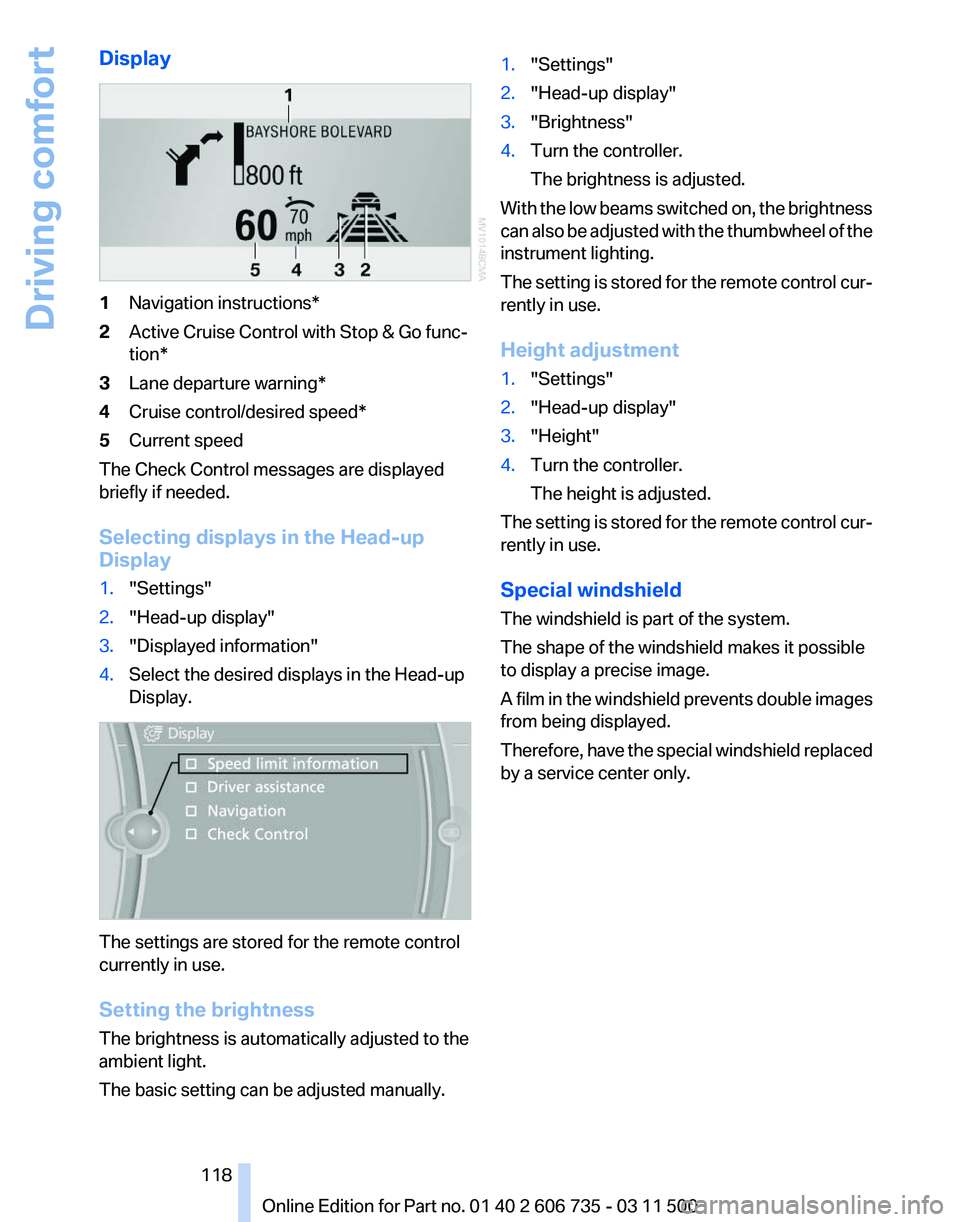
Display
1
Navigation instructions*
2 Active Cruise Control with Stop & Go func‐
tion*
3 Lane departure warning*
4 Cruise control/desired speed*
5 Current speed
The Check Control messages are displayed
briefly if needed.
Selecting displays in the Head-up
Display
1. "Settings"
2. "Head-up display"
3. "Displayed information"
4. Select the desired displays in the Head-up
Display. The settings are stored for the remote control
currently in use.
Setting the brightness
The brightness is automatically adjusted to the
ambient light.
The basic setting can be adjusted manually. 1.
"Settings"
2. "Head-up display"
3. "Brightness"
4. Turn the controller.
The brightness is adjusted.
With the low beams switched on, the brightness
can also be adjusted with the thumbwheel of the
instrument lighting.
The setting is stored for the remote control cur‐
rently in use.
Height adjustment
1. "Settings"
2. "Head-up display"
3. "Height"
4. Turn the controller.
The height is adjusted.
The setting is stored for the remote control cur‐
rently in use.
Special windshield
The windshield is part of the system.
The shape of the windshield makes it possible
to display a precise image.
A
film in the windshield prevents double images
from being displayed.
Therefore, have the special windshield replaced
by a service center only.
Seite 118
118 Online Edition for Part no. 01 40 2 606 735 - 03 11 500
Driving comfort
Page 126 of 317
The system can be switched on and off at any
external
temperature, either directly or by using
a preset switch-on time. It remains switched on
for 30 minutes.
Since the system uses a substantial amount of
electrical current, refrain from activating it twice
in succession without allowing the battery to be
recharged in normal operation between use.
Open the vents to allow air to flow out.
They can be operated via iDrive.
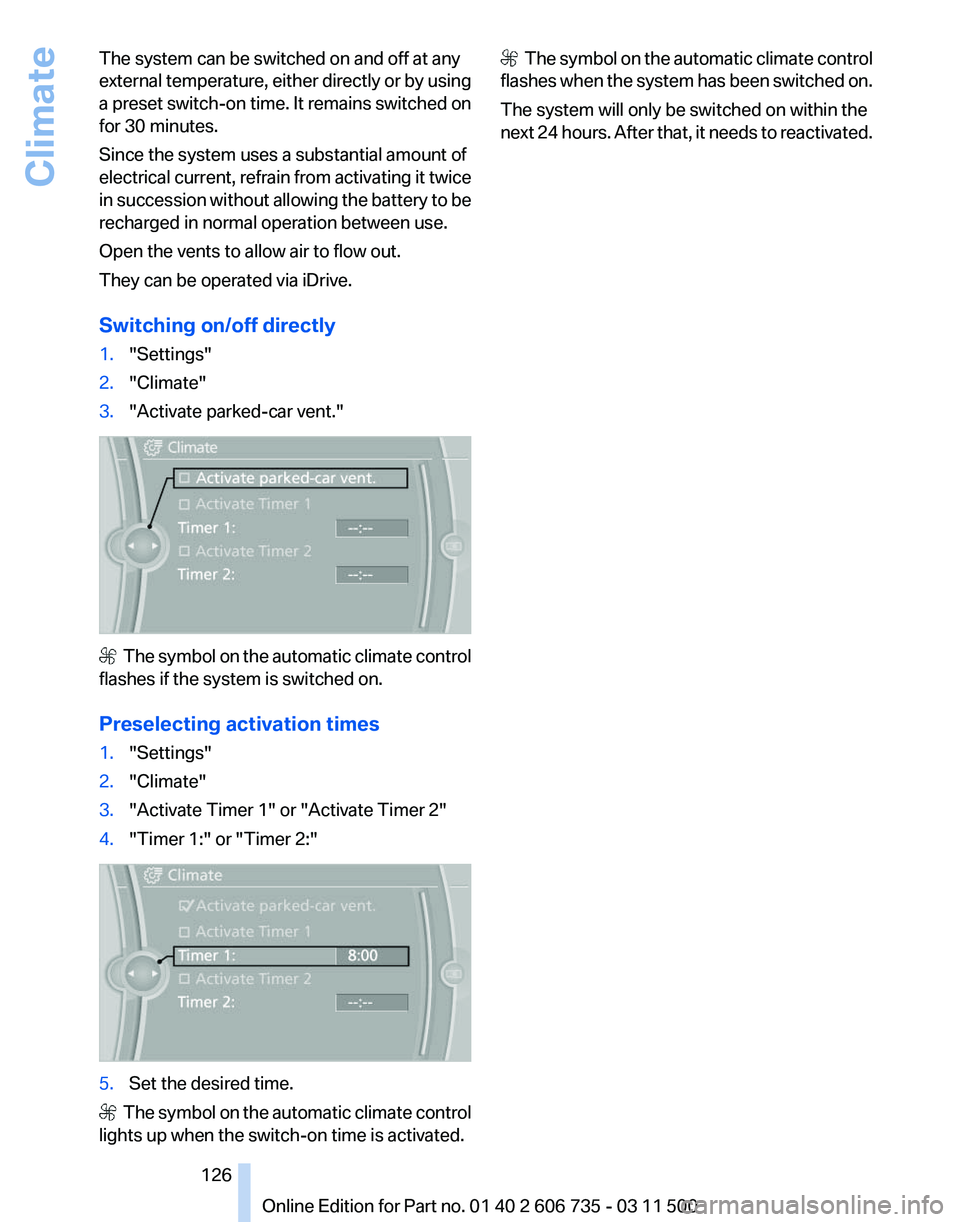
Switching on/off directly
1. "Settings"
2. "Climate"
3. "Activate parked-car vent." The symbol on the automatic climate control
flashes if the system is switched on.
Preselecting activation times
1. "Settings"
2. "Climate"
3. "Activate Timer 1" or "Activate Timer 2"
4. "Timer 1:" or "Timer 2:" 5.
Set the desired time. The symbol on the automatic climate control
lights up when the switch-on time is activated. The symbol on the automatic climate control
flashes when the system has been switched on.
The system will only be switched on within the
next 24 hours. After that, it needs to reactivated.
Seite 126
126 Online Edition for Part no. 01 40 2 606 735 - 03 11 500
Climate
Page 127 of 317
Interior equipment
Integrated universal remote
control*
The concept
This system can replace up to three different
hand-held transmitters for various types of re‐
mote-controlled equipment, such as garage
doors or lighting systems.
The hand-held transmitter signal can be pro‐
grammed on one of the three memory buttons.
The
corresponding device can then be operated
using the programmed memory button.
The LED indicates that a signal is being trans‐
mitted.
When selling the vehicle, delete the stored pro‐
grams for security reasons.
During programming
During programming and before activat‐
ing a device using the integrated universal re‐
mote control, ensure that there are no people,
animals or objects in the range of movement of
the remote-controlled device; otherwise, there
is a risk of injury or damage.
Also follow the safety instructions of the hand-
held transmitter.◀
Compatibility
If this symbol is printed on the packaging
or in the instructions of the hand-held
transmitter, the remote-controlled de‐
vice is generally compatible with the universal
remote control.
If you have any questions, please contact:
▷ Your service center.
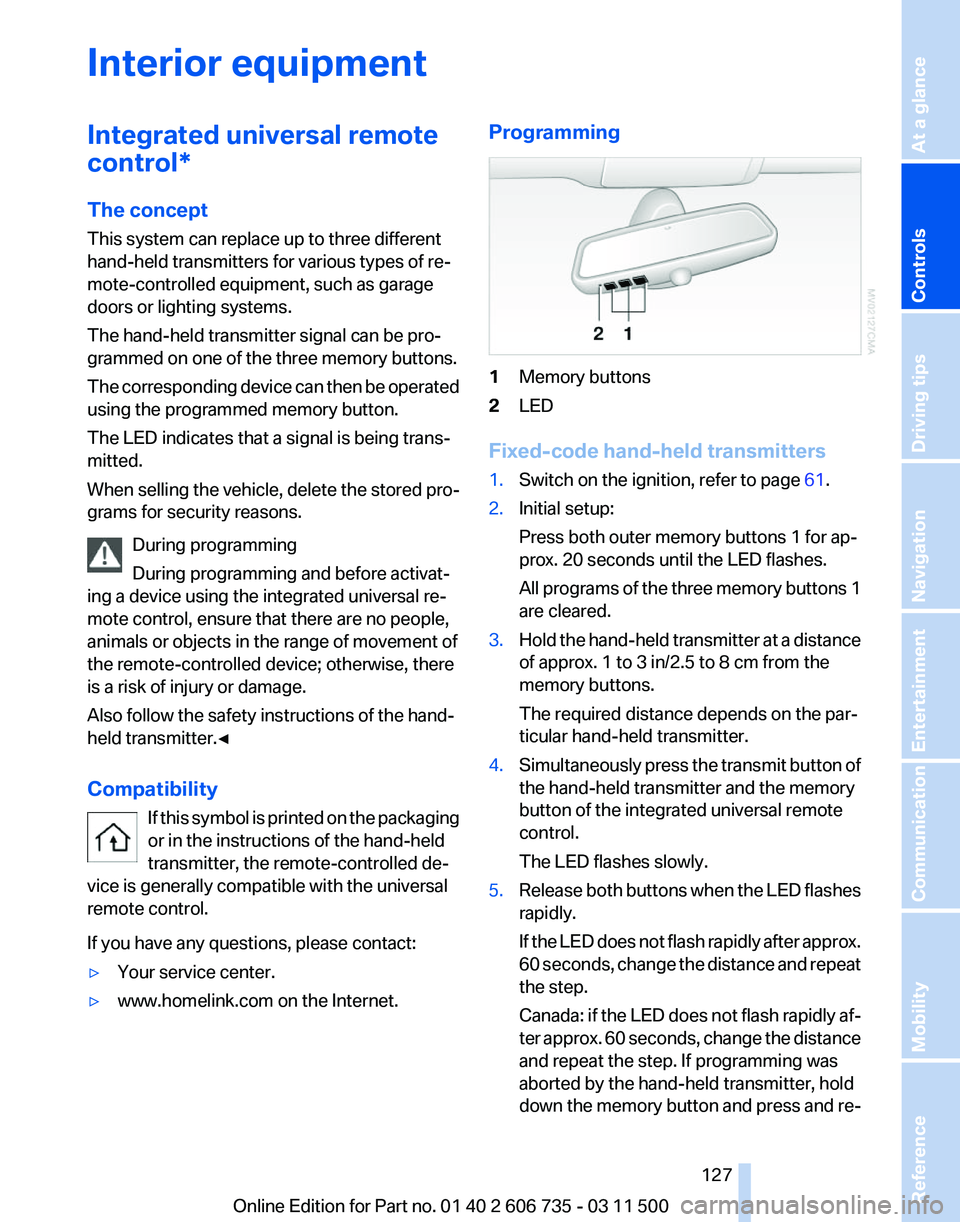
▷ www.homelink.com on the Internet. Programming
1
Memory buttons
2 LED
Fixed-code hand-held transmitters
1. Switch on the ignition, refer to page 61.
2. Initial setup:
Press both outer memory buttons 1 for ap‐
prox. 20 seconds until the LED flashes.
All
programs of the three memory buttons 1
are cleared.
3. Hold the hand-held transmitter at a distance
of approx. 1 to 3 in/2.5 to 8 cm from the
memory buttons.
The required distance depends on the par‐
ticular hand-held transmitter.
4. Simultaneously press the transmit button of
the hand-held transmitter and the memory
button of the integrated universal remote
control.
The LED flashes slowly.
5. Release both buttons when the LED flashes
rapidly.
If
the LED does not flash rapidly after approx.
60 seconds, change the distance and repeat
the step.
Canada: if the LED does not flash rapidly af‐
ter approx. 60 seconds, change the distance
and repeat the step. If programming was
aborted by the hand-held transmitter, hold
down the memory button and press and re‐
Seite 127
127Online Edition for Part no. 01 40 2 606 735 - 03 11 500
Reference Mobility Communication Entertainment Navigation Driving tips
Controls At a glance
Page 128 of 317
lease the button on the hand-held transmit‐
ter several times for 2 seconds.
6. To program additional hand-held transmit‐
ters, repeat steps 3 to 5.
The device can be operated using the memory
button with the engine running or the ignition
switched on.
Malfunction
If the device cannot be used after repeated at‐
tempts at programming, please check whether
the hand-held transmitter is equipped with an
alternating code system.
To do so:
▷ Read the instructions of the hand-held
transmitter.
▷ Press the memory button of the universal
remote control for an extended period.
If the LED of the integrated universal remote
control flashes quickly for a short period and
then lights up continuously, the hand-held
transmitter
is equipped with an alternating code
system.
In this case, program the memory buttons as
described under Alternating-code hand-held
transmitters.
Alternating-code hand-held
transmitters
Please obtain information on synchronizing the
device in the operating manual of the device be‐
ing set up.
Programming will be easier with the aid of a sec‐
ond person.
1. Park the vehicle within range of the remote-
controlled device.
2. Program the integrated universal remote
control as described above under Fixed-
code hand-held transmitters.
3. Locate the button on the receiver of the de‐
vice to be set, e.g., on the drive. 4.
Press the button on the receiver of the de‐
vice
to be set. You have approx. 30 seconds
for the next step.
5. Press the programmed memory button of
the integrated universal remote control for
approx. 3 seconds. Repeat this step up to
three times if necessary.
The device can be operated using the memory
button with the engine running or the ignition
switched on.
Reassigning individual programs
1. Switch on the ignition.
2. Hold the hand-held transmitter at a distance
of approx. 1 to 3 in/2.5 to 8 cm from the
memory buttons.
The required distance depends on the par‐
ticular hand-held transmitter.
3. Press the memory button of the integrated
universal remote control.
4. If the LED flashes slowly after approx.
20 seconds, press the transmit button on
the hand-held transmitter.
5. Release both buttons when the LED flashes
rapidly.
If
the LED does not flash rapidly after approx.
60 seconds, change the distance and repeat
the step.
Canada: if the LED does not flash rapidly af‐
ter approx. 60 seconds, change the distance
and repeat the step. If programming was
aborted by the hand-held transmitter, hold
down the memory button and press and re‐
lease the button on the hand-held transmit‐
ter several times for 2 seconds.
Deleting all stored programs
Press both outer memory buttons 1 for ap‐
prox. 20 seconds until the LED flashes rapidly.
All stored programs are deleted.
The programs cannot be deleted individually.
Seite 128
128 Online Edition for Part no. 01 40 2 606 735 - 03 11 500
Interior equipment
Page 130 of 317
▷
The cardinal direction displayed does not
change even if the direction of travel
changes.
▷ Not all compass directions are shown.
Procedure
1. Make sure that there are no large metal ob‐
jects or overhead power lines in the vicinity
of
the vehicle and that there is enough space
to drive in a circle.
2. Set the currently valid compass zone.
3. Press the adjustment button for 6‑7 sec‐
onds
to call up C. Then drive at least one full
circle at a maximum speed of 4 mph/7 km/h.
When the system is calibrated, the C is re‐
placed by the compass directions.
Right-hand/left-hand steering
The
digital compass is set for right-hand or left-
hand steering at the factory.
Setting the language
Press the adjustment button for 12‑13 seconds.
Briefly press the adjustment button again to
switch between English "E" and German "O".
The setting is automatically saved after approx.
10 seconds.
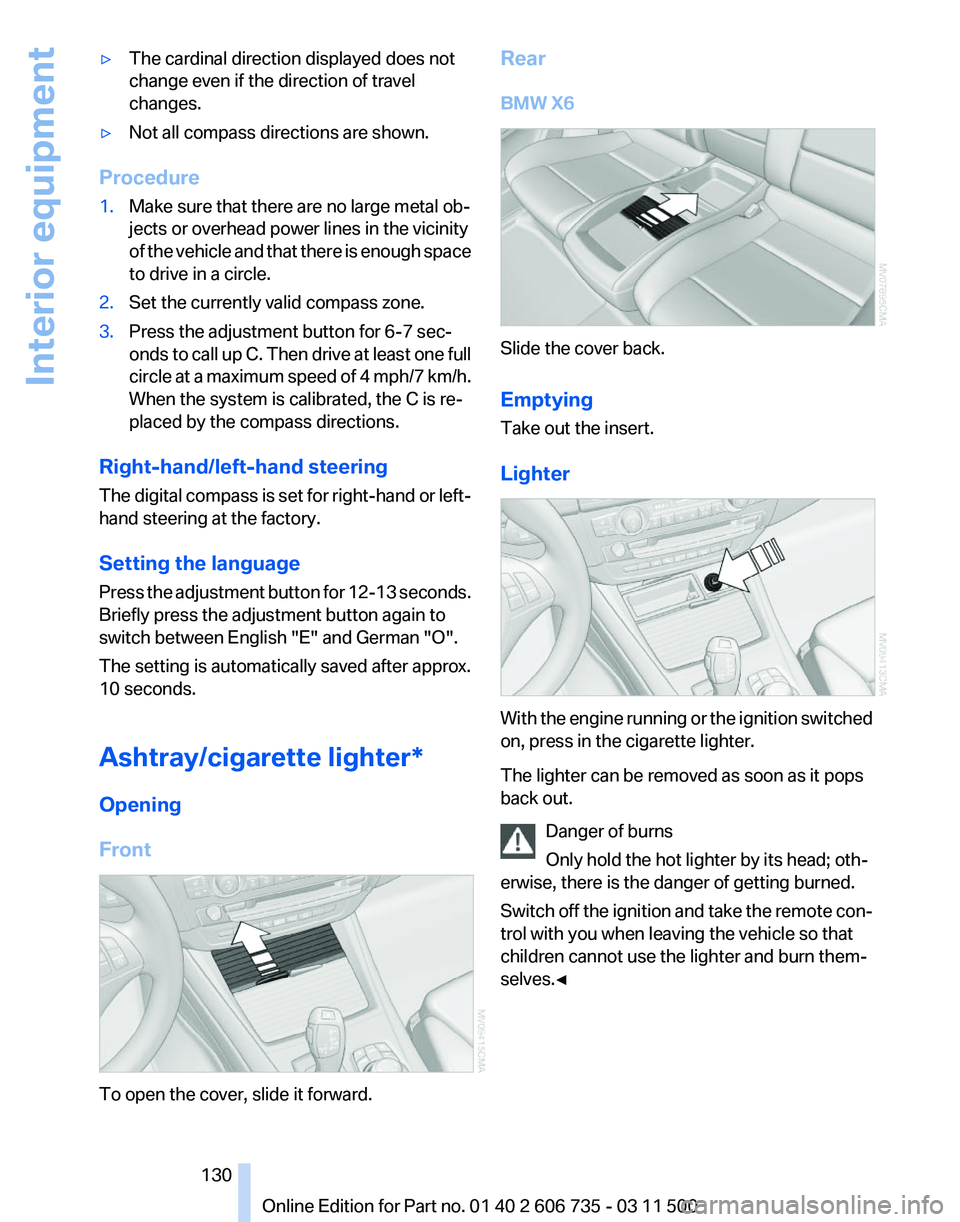
Ashtray/cigarette lighter*
Opening
Front To open the cover, slide it forward. Rear
BMW X6
Slide the cover back.
Emptying
Take out the insert.
Lighter
With the engine running or the ignition switched
on, press in the cigarette lighter.
The lighter can be removed as soon as it pops
back out.
Danger of burns
Only hold the hot lighter by its head; oth‐
erwise, there is the danger of getting burned.
Switch
off the ignition and take the remote con‐
trol with you when leaving the vehicle so that
children cannot use the lighter and burn them‐
selves.◀ Seite 130
130 Online Edition for Part no. 01 40 2 606 735 - 03 11 500
Interior equipment
Page 131 of 317
Connecting electrical devices
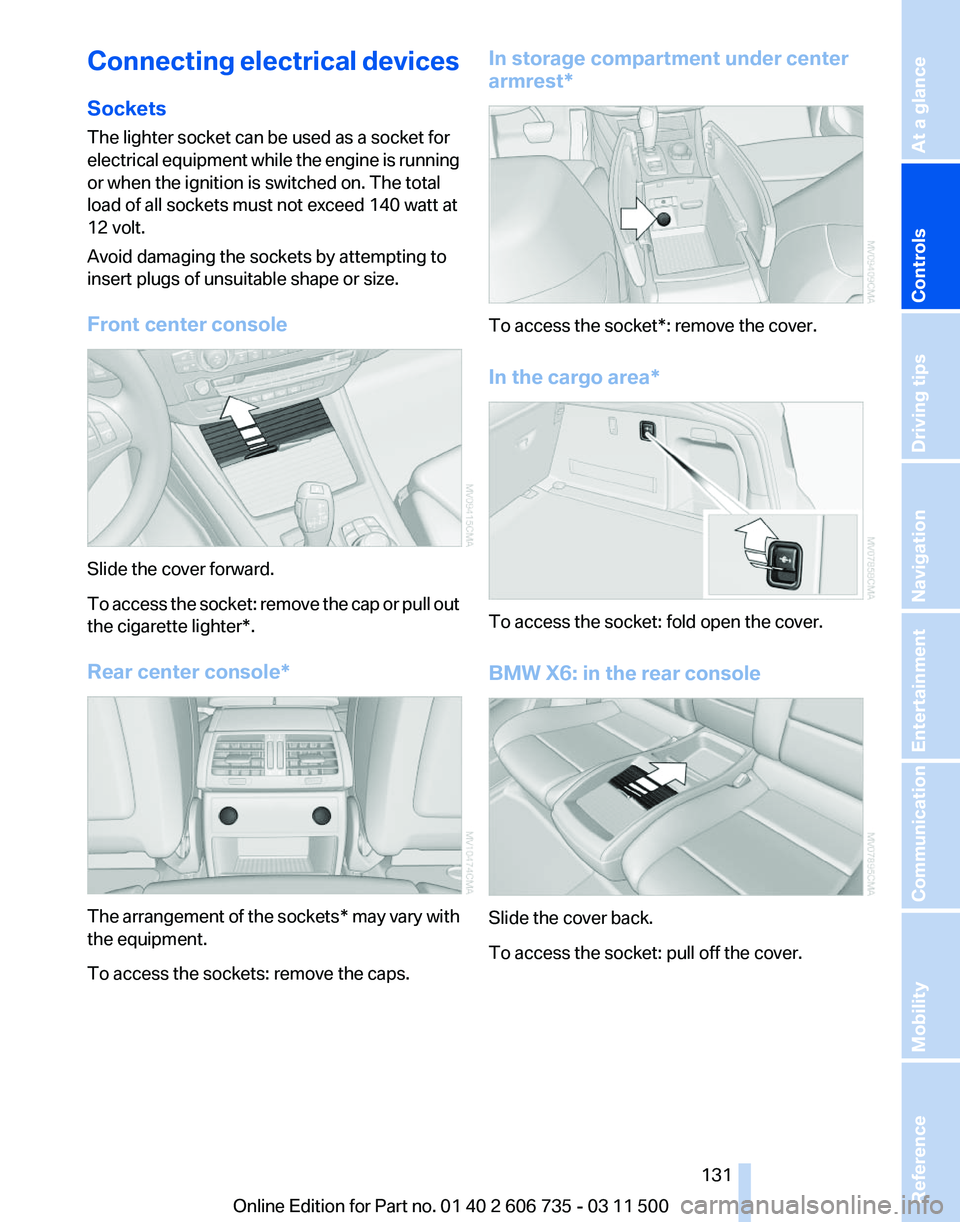
Sockets
The lighter socket can be used as a socket for
electrical
equipment while the engine is running
or when the ignition is switched on. The total
load of all sockets must not exceed 140 watt at
12 volt.
Avoid damaging the sockets by attempting to
insert plugs of unsuitable shape or size.
Front center console Slide the cover forward.
To
access the socket: remove the cap or pull out
the cigarette lighter*.
Rear center console* The arrangement of the sockets*
may vary with
the equipment.
To access the sockets: remove the caps. In storage compartment under center
armrest*
To access the socket*: remove the cover.
In the cargo area*
To access the socket: fold open the cover.
BMW X6: in the rear console
Slide the cover back.
To access the socket: pull off the cover.
Seite 131
131Online Edition for Part no. 01 40 2 606 735 - 03 11 500
Reference Mobility Communication Entertainment Navigation Driving tips
Controls At a glance