navigation BMW X5M 2012 Owners Manual
[x] Cancel search | Manufacturer: BMW, Model Year: 2012, Model line: X5M, Model: BMW X5M 2012Pages: 317, PDF Size: 8.83 MB
Page 225 of 317
Saving an entry
1.
›Save name‹
2. Say the name. Do not exceed the speaking
duration of approx. 2 seconds.
3. Say the phone number after being prompted
to do so by the system.
4. ›Save‹
Deleting an entry
1. ›Delete name‹
2. Say the name after being prompted to do so.
3. Confirm the query with ›Yes‹.
Deleting all entries
1. ›Delete phone book‹
The dialog for deleting the phone book is
opened.
2. Confirm the query with ›Yes‹.
3. Confirm the query again with ›Yes‹.
Reading and selecting entries
1. ›Read phone book‹
The dialog for reading the phone book is
opened.
2. Say ›Dial number‹ when the desired entry is
read.
Selecting an entry
1. ›Dial name‹
2. Say the name after being prompted to do so.
3. Confirm the query with ›Yes‹.
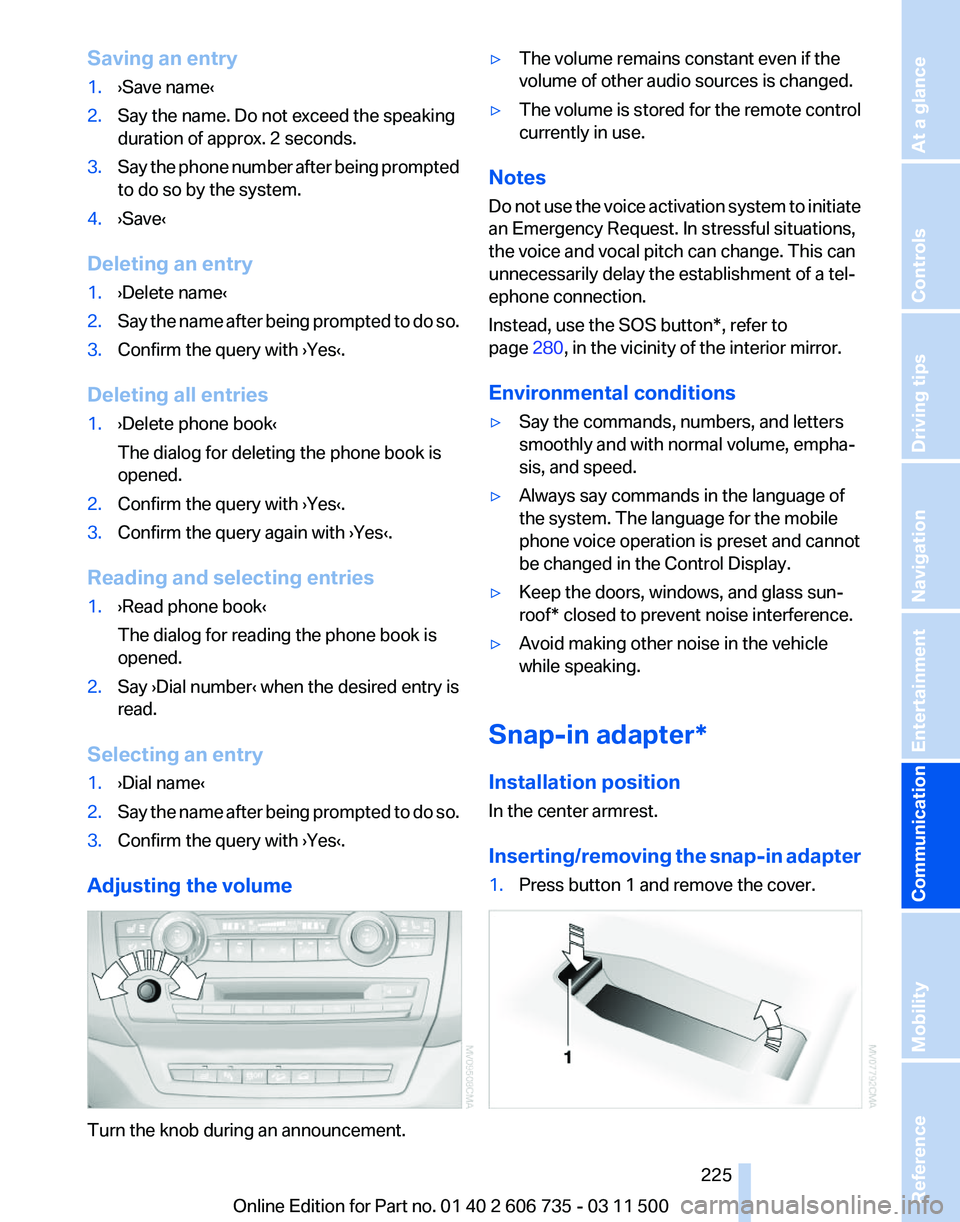
Adjusting the volume Turn the knob during an announcement. ▷
The volume remains constant even if the
volume of other audio sources is changed.
▷ The volume is stored for the remote control
currently in use.
Notes
Do not use the voice activation system to initiate
an Emergency Request. In stressful situations,
the voice and vocal pitch can change. This can
unnecessarily delay the establishment of a tel‐
ephone connection.
Instead, use the SOS button*, refer to
page 280, in the vicinity of the interior mirror.
Environmental conditions
▷ Say the commands, numbers, and letters
smoothly and with normal volume, empha‐
sis, and speed.
▷ Always say commands in the language of
the system. The language for the mobile
phone voice operation is preset and cannot
be changed in the Control Display.
▷ Keep the doors, windows, and glass sun‐
roof* closed to prevent noise interference.
▷ Avoid making other noise in the vehicle
while speaking.
Snap-in adapter*
Installation position
In the center armrest.
Inserting/removing
the snap-in adapter
1. Press button 1 and remove the cover. Seite 225
225Online Edition for Part no. 01 40 2 606 735 - 03 11 500
Reference Mobility
Communication Entertainment Navigation Driving tips Controls At a glance
Page 227 of 317
Office*
At a glance
General information
Contacts,
appointments, tasks, notes, text mes‐
sages, and e-mails* from the mobile phone can
be displayed on the Control Display if the mobile
phone provides compatible support of these
functions and the necessary Bluetooth stand‐
ards.
Information about which mobile phones support
the Office functions can be found at
www.bmwusa.com/bluetooth. A limited number
of compatible mobile phones is available for Of‐
fice.
Contents are only displayed in full length when
the vehicle is stationary.
The mobile phone has read-access only.
Do not use Office while driving
To avoid becoming distracted and posing
an unnecessary hazard to your vehicle's occu‐
pants and to other road users, never attempt to
use the controls or enter information unless traf‐
fic and road conditions allow this.◀
Requirements
▷ A suitable mobile phone is paired with the
vehicle and connected. In some mobile
phones, data access must be confirmed on
the mobile phone.
▷ The time, time zone, and date, refer to
page 78, are correctly set on the Control
Display and on the mobile phone, for in‐
stance to correctly display appointments.
▷ Office is activated, refer to page 217.
Updating
Data are updated every time the mobile phone
is connected to the vehicle. Appointment en‐
tries,
tasks, notes and reminders can be updated
separately. 1.
"Office"
2. "Current office", "Calendar", "Tasks",
"Notes" or "Reminders"
3. Open "Options".
4. "Update data"
Cell
phone data are transmitted again to the
vehicle.
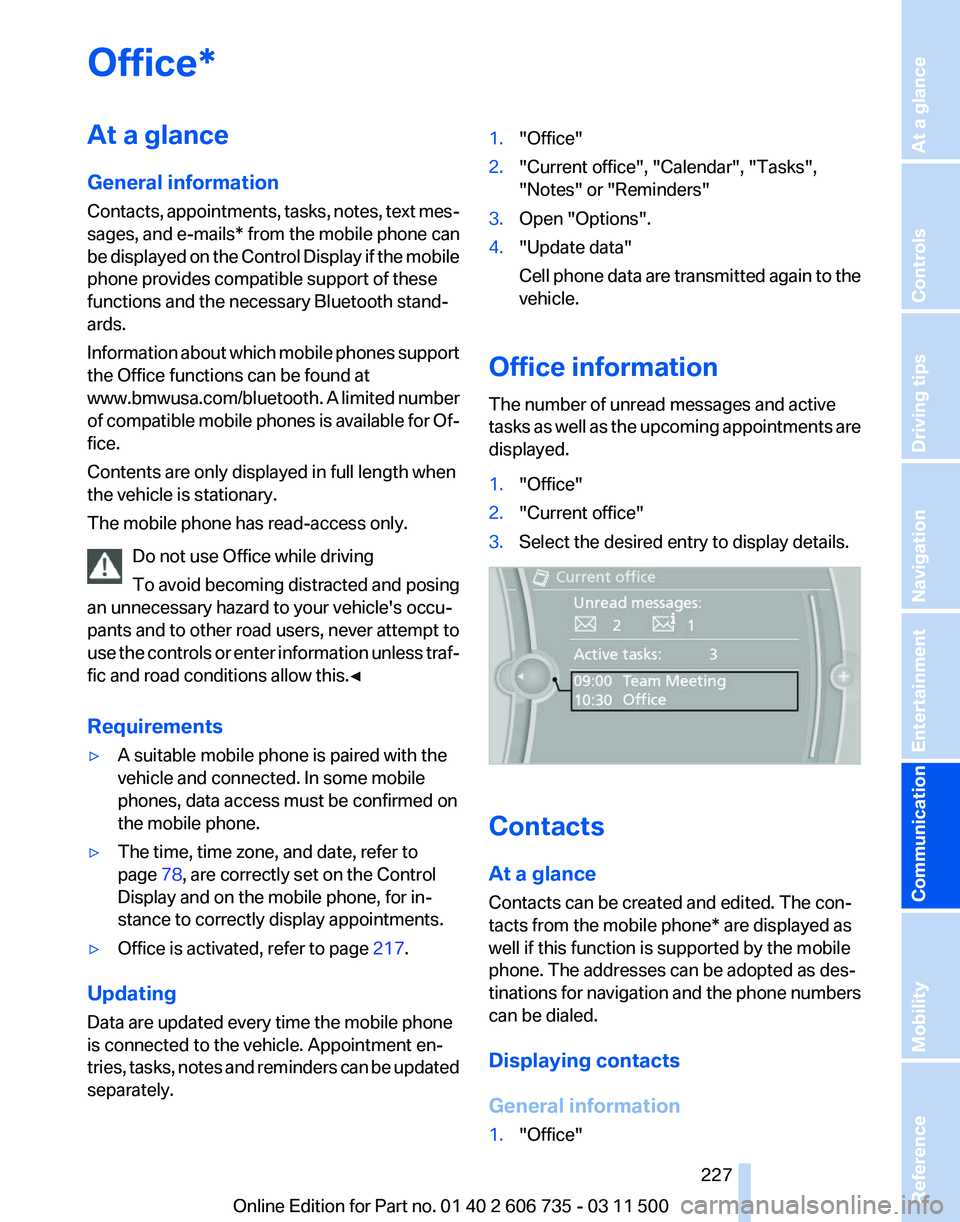
Office information
The number of unread messages and active
tasks
as well as the upcoming appointments are
displayed.
1. "Office"
2. "Current office"
3. Select the desired entry to display details. Contacts
At a glance
Contacts can be created and edited. The con‐
tacts from the mobile phone* are displayed as
well if this function is supported by the mobile
phone. The addresses can be adopted as des‐
tinations
for navigation and the phone numbers
can be dialed.
Displaying contacts
General information
1. "Office"
Seite 227
227Online Edition for Part no. 01 40 2 606 735 - 03 11 500
Reference Mobility
Communication Entertainment Navigation Driving tips Controls At a glance
Page 228 of 317
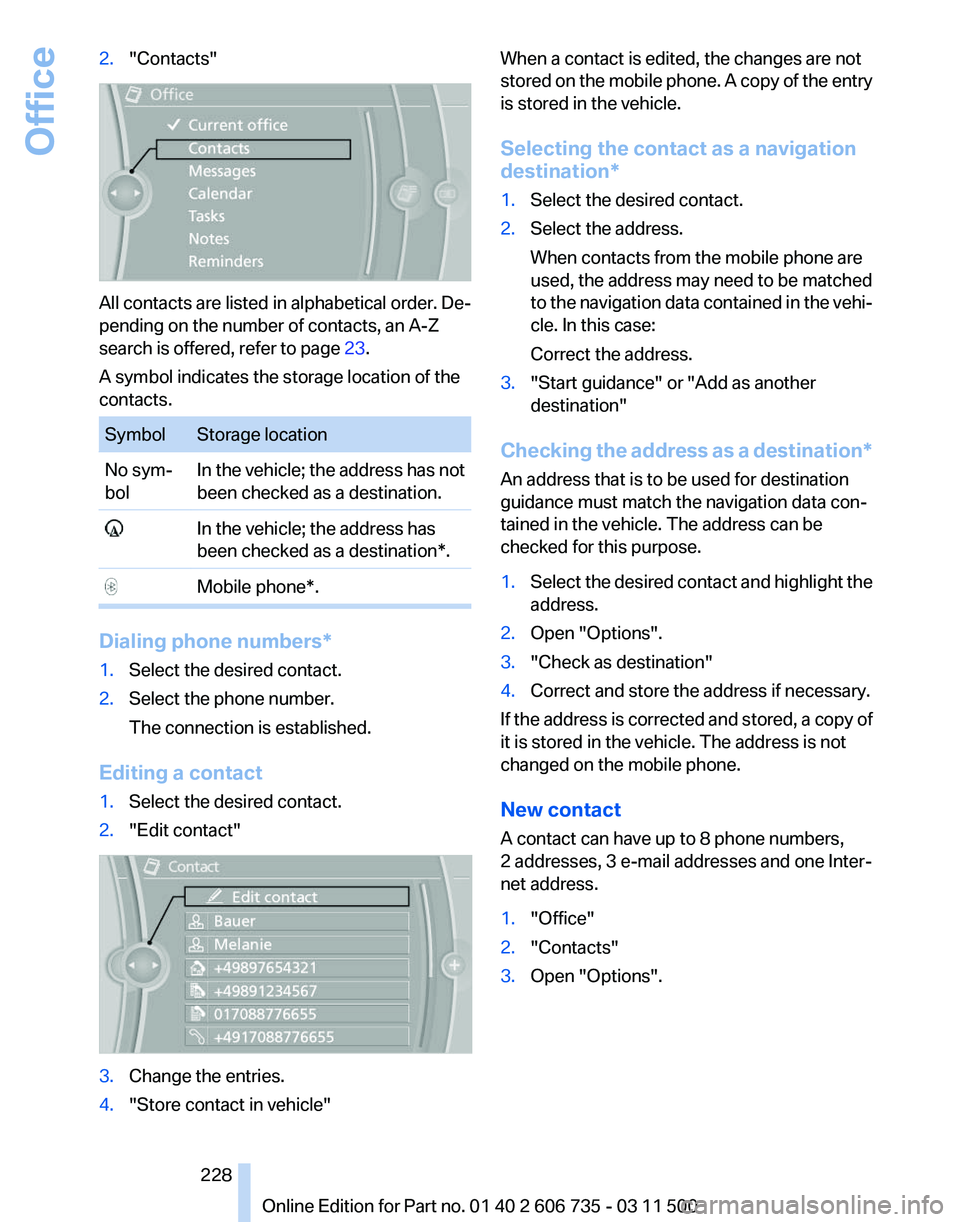
2.
"Contacts" All contacts are listed in alphabetical order. De‐
pending on the number of contacts, an A-Z
search is offered, refer to page
23.
A symbol indicates the storage location of the
contacts. Symbol Storage location
No sym‐
bol
In the vehicle; the address has not
been checked as a destination. In the vehicle; the address has
been checked as a destination*. Mobile phone*.
Dialing phone numbers*
1.
Select the desired contact.
2. Select the phone number.
The connection is established.
Editing a contact
1. Select the desired contact.
2. "Edit contact" 3.
Change the entries.
4. "Store contact in vehicle" When a contact is edited, the changes are not
stored
on the mobile phone. A copy of the entry
is stored in the vehicle.
Selecting the contact as a navigation
destination*
1. Select the desired contact.
2. Select the address.
When contacts from the mobile phone are
used, the address may need to be matched
to
the navigation data contained in the vehi‐
cle. In this case:
Correct the address.
3. "Start guidance" or "Add as another
destination"
Checking the address as a destination*
An address that is to be used for destination
guidance must match the navigation data con‐
tained in the vehicle. The address can be
checked for this purpose.
1. Select the desired contact and highlight the
address.
2. Open "Options".
3. "Check as destination"
4. Correct and store the address if necessary.
If the address is corrected and stored, a copy of
it is stored in the vehicle. The address is not
changed on the mobile phone.
New contact
A contact can have up to 8 phone numbers,
2 addresses, 3 e-mail addresses and one Inter‐
net address.
1. "Office"
2. "Contacts"
3. Open "Options".
Seite 228
228 Online Edition for Part no. 01 40 2 606 735 - 03 11 500
Office
Page 229 of 317
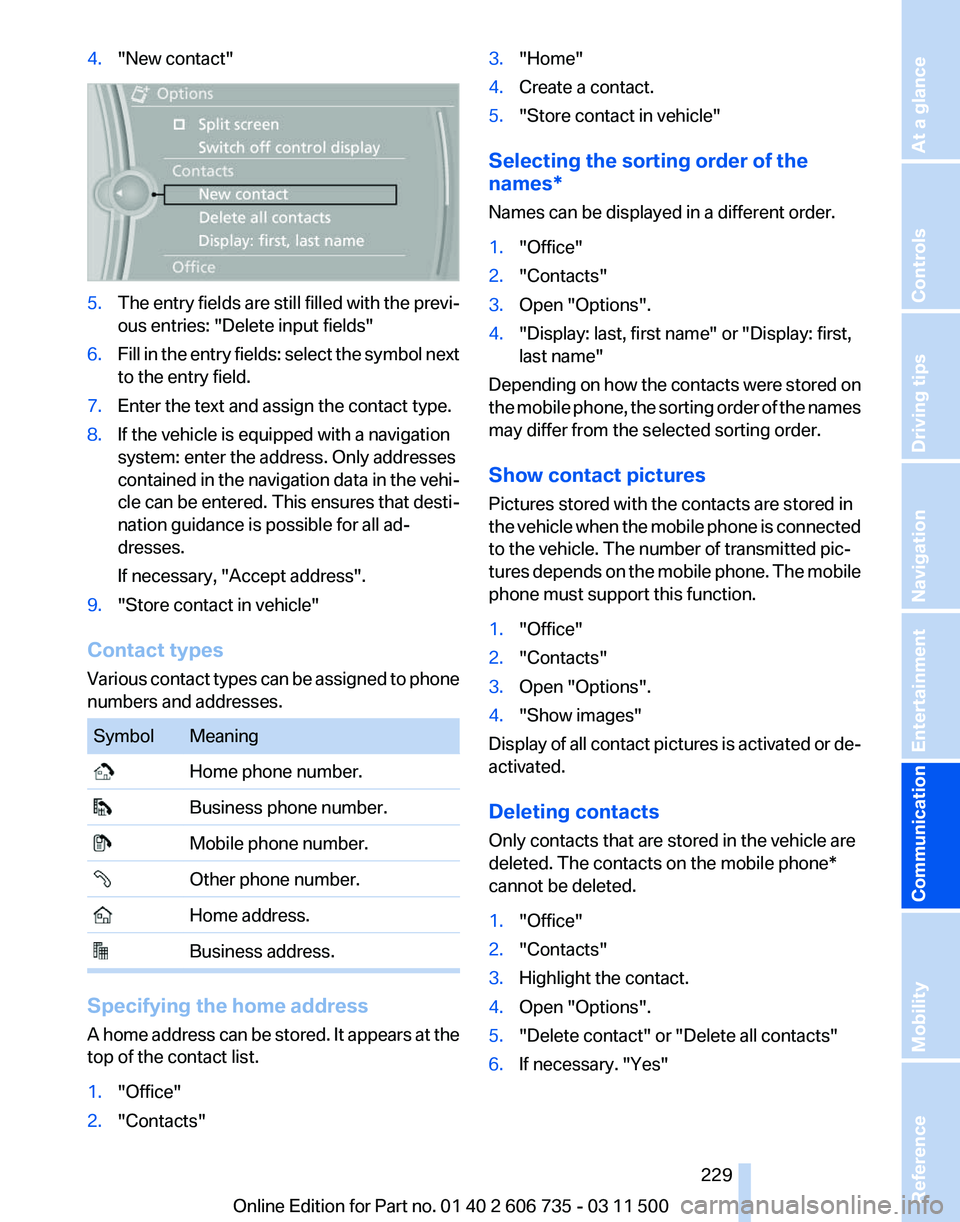
4.
"New contact" 5.
The entry fields are still filled with the previ‐
ous entries: "Delete input fields"
6. Fill in the entry fields: select the symbol next
to the entry field.
7. Enter the text and assign the contact type.
8. If the vehicle is equipped with a navigation
system: enter the address. Only addresses
contained
in the navigation data in the vehi‐
cle can be entered. This ensures that desti‐
nation guidance is possible for all ad‐
dresses.
If necessary, "Accept address".
9. "Store contact in vehicle"
Contact types
Various
contact types can be assigned to phone
numbers and addresses. Symbol Meaning
Home phone number.
Business phone number.
Mobile phone number.
Other phone number.
Home address.
Business address.
Specifying the home address
A
home address can be stored. It appears at the
top of the contact list.
1. "Office"
2. "Contacts" 3.
"Home"
4. Create a contact.
5. "Store contact in vehicle"
Selecting the sorting order of the
names*
Names can be displayed in a different order.
1. "Office"
2. "Contacts"
3. Open "Options".
4. "Display: last, first name" or "Display: first,
last name"
Depending on how the contacts were stored on
the
mobile phone, the sorting order of the names
may differ from the selected sorting order.
Show contact pictures
Pictures stored with the contacts are stored in
the vehicle when the mobile phone is connected
to the vehicle. The number of transmitted pic‐
tures depends on the mobile phone. The mobile
phone must support this function.
1. "Office"
2. "Contacts"
3. Open "Options".
4. "Show images"
Display of all contact pictures is activated or de‐
activated.
Deleting contacts
Only contacts that are stored in the vehicle are
deleted. The contacts on the mobile phone
*
cannot be deleted.
1. "Office"
2. "Contacts"
3. Highlight the contact.
4. Open "Options".
5. "Delete contact" or "Delete all contacts"
6. If necessary. "Yes"
Seite 229
229Online Edition for Part no. 01 40 2 606 735 - 03 11 500
Reference Mobility
Communication Entertainment Navigation Driving tips Controls At a glance
Page 231 of 317
Text messages
Using contact data
Contact data from appointments, tasks, text
messages, e-mails, and notes can be saved or
selected*, refer to page
233.
Reading the text message out loud
*
Read the text message out loud, refer to
page 234.
My Info
Starting destination guidance
1. Select the desired message.
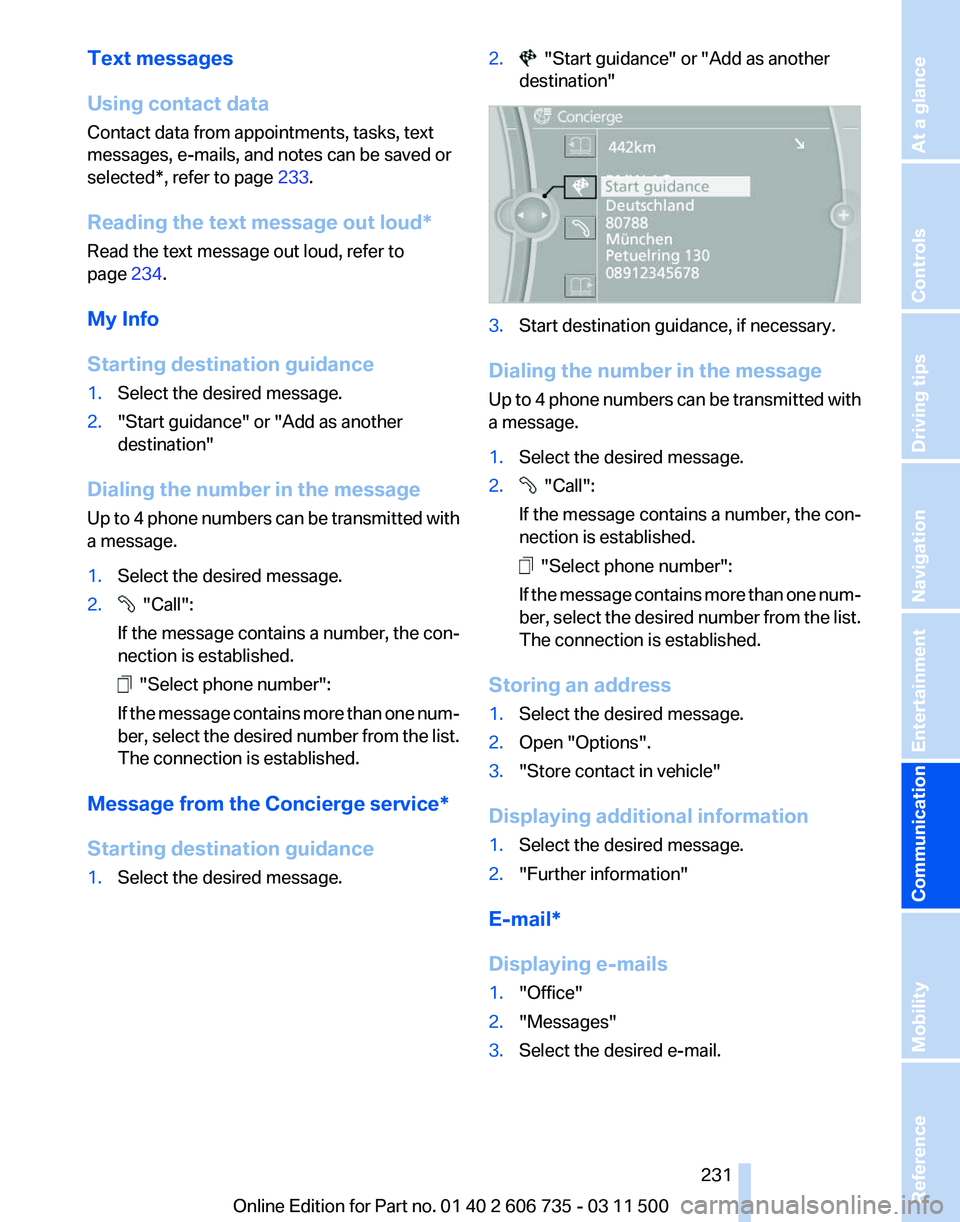
2. "Start guidance" or "Add as another
destination"
Dialing the number in the message
Up
to 4 phone numbers can be transmitted with
a message.
1. Select the desired message.
2. "Call":
If the message contains a number, the con‐
nection is established. "Select phone number":
If
the message contains more than one num‐
ber, select the desired number from the list.
The connection is established.
Message from the Concierge service*
Starting destination guidance
1. Select the desired message. 2. "Start guidance" or "Add as another
destination" 3.
Start destination guidance, if necessary.
Dialing the number in the message
Up
to 4 phone numbers can be transmitted with
a message.
1. Select the desired message.
2. "Call":
If the message contains a number, the con‐
nection is established. "Select phone number":
If
the message contains more than one num‐
ber, select the desired number from the list.
The connection is established.
Storing an address
1. Select the desired message.
2. Open "Options".
3. "Store contact in vehicle"
Displaying additional information
1. Select the desired message.
2. "Further information"
E-mail*
Displaying e-mails
1. "Office"
2. "Messages"
3. Select the desired e-mail.
Seite 231
231Online Edition for Part no. 01 40 2 606 735 - 03 11 500
Reference Mobility
Communication Entertainment Navigation Driving tips Controls At a glance
Page 233 of 317
Sorting the task list
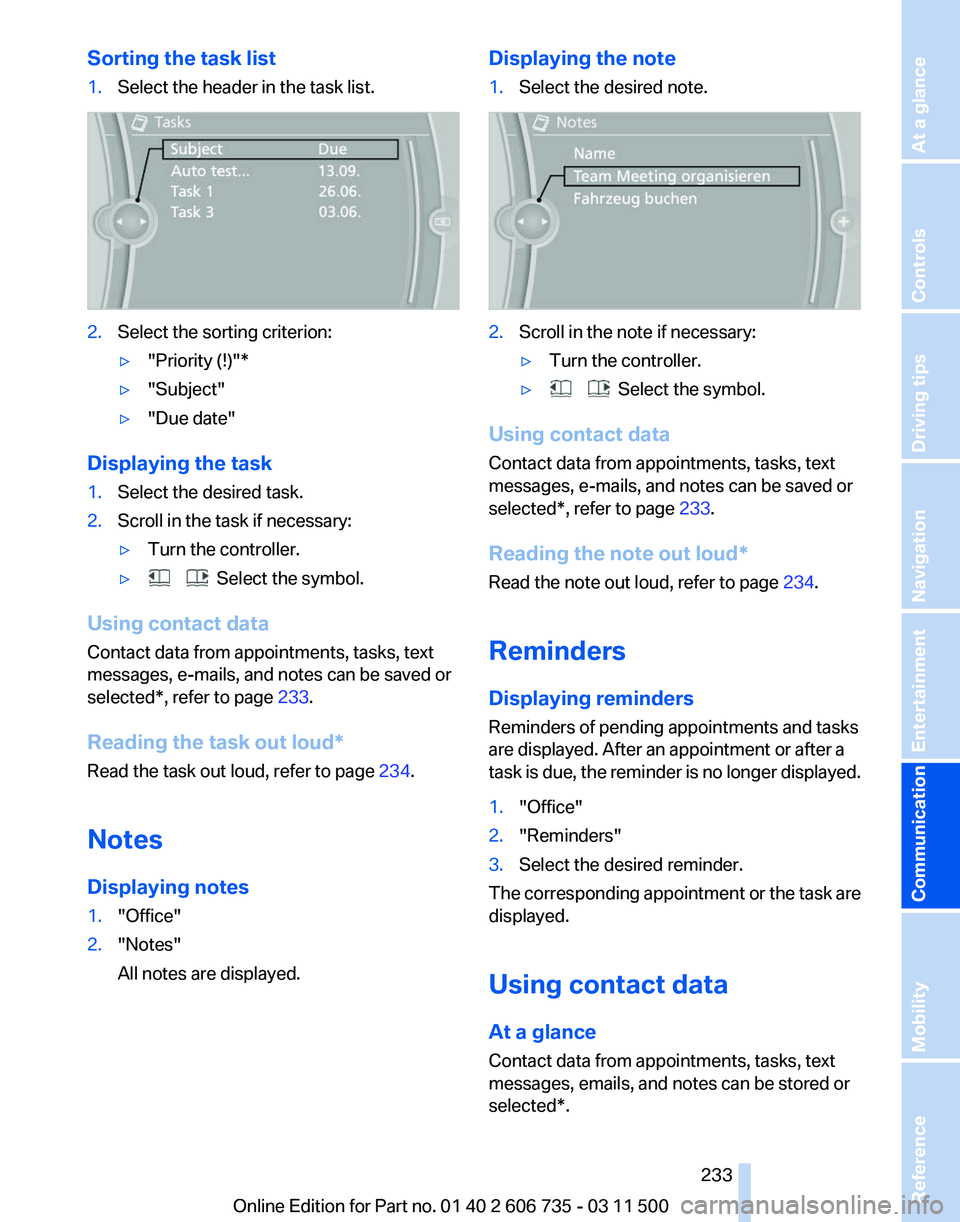
1.
Select the header in the task list. 2.
Select the sorting criterion:
▷"Priority (!)"*
▷ "Subject"
▷ "Due date"
Displaying the task
1. Select the desired task.
2. Scroll in the task if necessary:
▷Turn the controller.
▷ Select the symbol.
Using contact data
Contact data from appointments, tasks, text
messages, e-mails, and notes can be saved or
selected*, refer to page 233.
Reading the task out loud
*
Read the task out loud, refer to page 234.
Notes
Displaying notes
1. "Office"
2. "Notes"
All notes are displayed. Displaying the note
1.
Select the desired note. 2.
Scroll in the note if necessary:
▷Turn the controller.
▷ Select the symbol.
Using contact data
Contact data from appointments, tasks, text
messages, e-mails, and notes can be saved or
selected*, refer to page 233.
Reading the note out loud
*
Read the note out loud, refer to page 234.
Reminders
Displaying reminders
Reminders of pending appointments and tasks
are displayed. After an appointment or after a
task is due, the reminder is no longer displayed.
1. "Office"
2. "Reminders"
3. Select the desired reminder.
The corresponding appointment or the task are
displayed.
Using contact data
At a glance
Contact data from appointments, tasks, text
messages, emails, and notes can be stored or
selected*.
Seite 233
233Online Edition for Part no. 01 40 2 606 735 - 03 11 500
Reference Mobility
Communication Entertainment Navigation Driving tips Controls At a glance
Page 235 of 317
Contacts*
General information
Contacts
can be created and edited and the ad‐
dresses can be adopted as destinations for nav‐
igation.
New contact
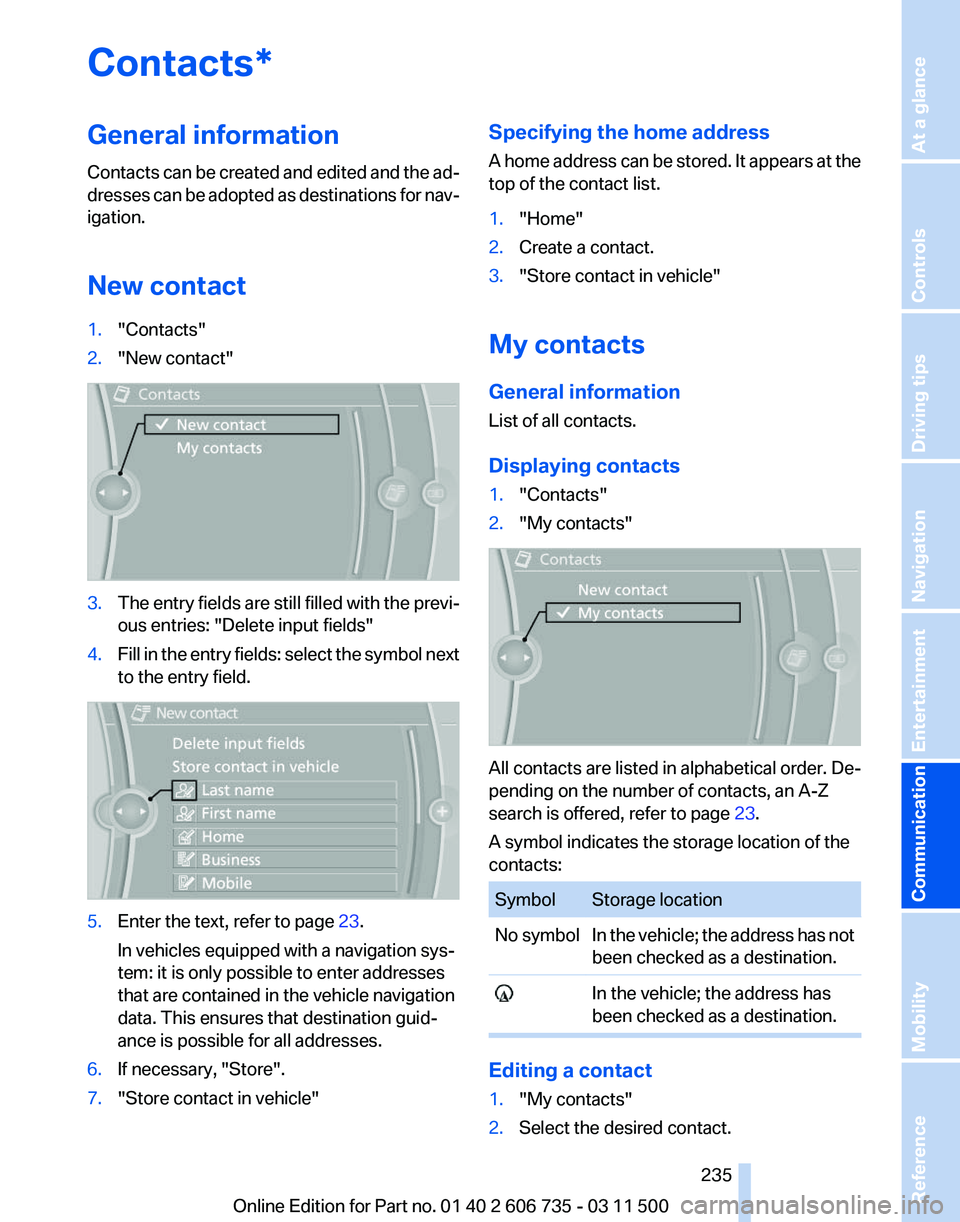
1. "Contacts"
2. "New contact" 3.
The entry fields are still filled with the previ‐
ous entries: "Delete input fields"
4. Fill in the entry fields: select the symbol next
to the entry field. 5.
Enter the text, refer to page 23.
In vehicles equipped with a navigation sys‐
tem: it is only possible to enter addresses
that are contained in the vehicle navigation
data. This ensures that destination guid‐
ance is possible for all addresses.
6. If necessary, "Store".
7. "Store contact in vehicle" Specifying the home address
A
home address can be stored. It appears at the
top of the contact list.
1. "Home"
2. Create a contact.
3. "Store contact in vehicle"
My contacts
General information
List of all contacts.
Displaying contacts
1. "Contacts"
2. "My contacts" All contacts are listed in alphabetical order. De‐
pending on the number of contacts, an A-Z
search is offered, refer to page
23.
A symbol indicates the storage location of the
contacts: Symbol Storage location
No symbol In the vehicle; the address has not
been checked as a destination. In the vehicle; the address has
been checked as a destination. Editing a contact
1.
"My contacts"
2. Select the desired contact.
Seite 235
235Online Edition for Part no. 01 40 2 606 735 - 03 11 500
Reference Mobility
Communication Entertainment Navigation Driving tips Controls At a glance
Page 236 of 317
3.
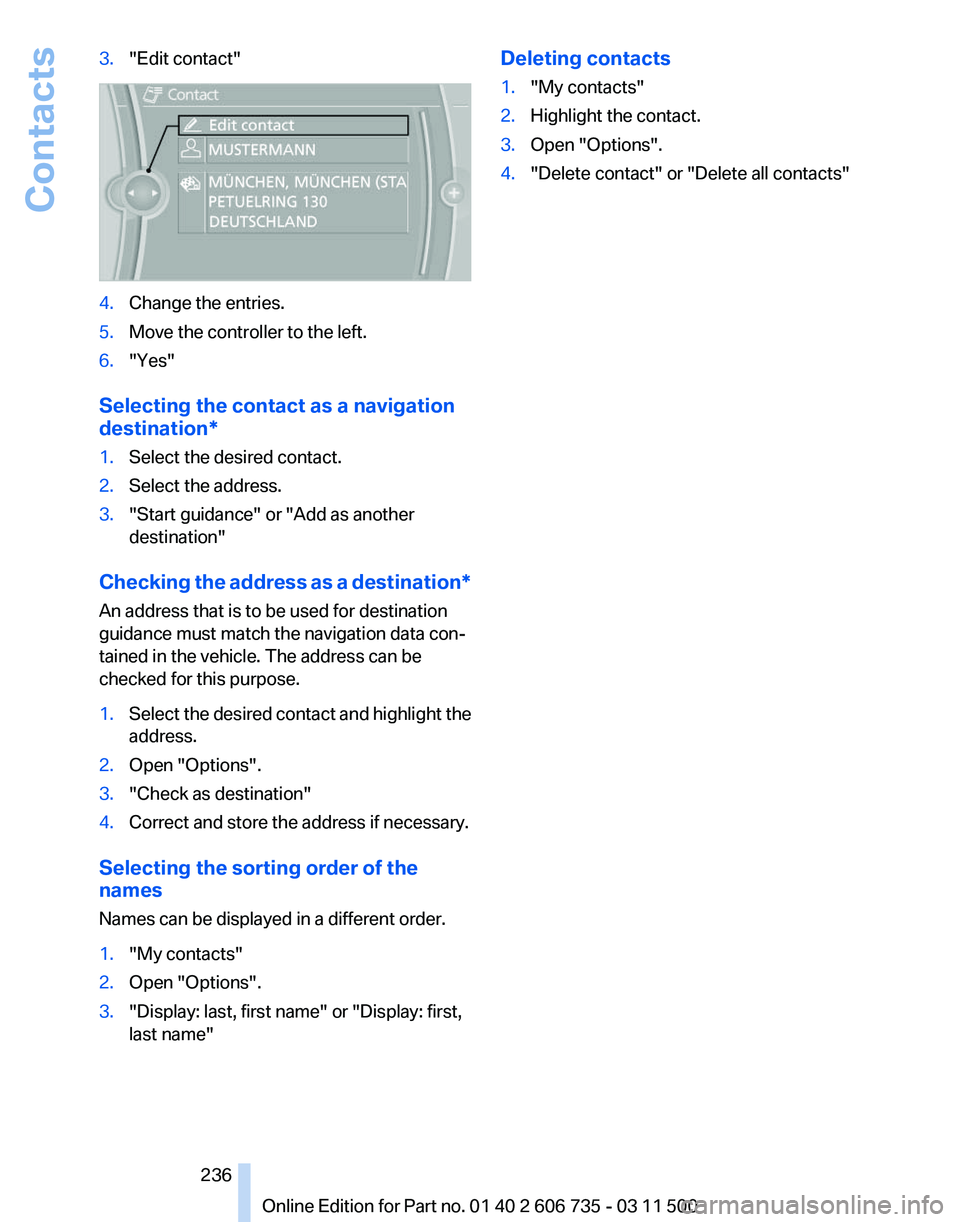
"Edit contact" 4.
Change the entries.
5. Move the controller to the left.
6. "Yes"
Selecting the contact as a navigation
destination*
1. Select the desired contact.
2. Select the address.
3. "Start guidance" or "Add as another
destination"
Checking the address as a destination*
An address that is to be used for destination
guidance must match the navigation data con‐
tained in the vehicle. The address can be
checked for this purpose.
1. Select the desired contact and highlight the
address.
2. Open "Options".
3. "Check as destination"
4. Correct and store the address if necessary.
Selecting the sorting order of the
names
Names can be displayed in a different order.
1. "My contacts"
2. Open "Options".
3. "Display: last, first name" or "Display: first,
last name" Deleting contacts
1.
"My contacts"
2. Highlight the contact.
3. Open "Options".
4. "Delete contact" or "Delete all contacts"
Seite 236
236 Online Edition for Part no. 01 40 2 606 735 - 03 11 500Contacts
Page 237 of 317
ConnectedDrive*
BMW Assist*
General information
BMW
Assist provides you with certain services,
e.g., transmission of the position data of your
vehicle to the BMW Assist Response Center if
an Emergency Request* has been initiated.
Many BMW Assist services depend on the indi‐
vidually agreed upon contract.
After your contract has expired, the BMW Assist
system will be deactivated by the BMW Assist
Response Center without your having to visit a
service center. After the BMW Assist system
has been deactivated, no BMW Assist services
will be available. The BMW Assist system can be
reactivated by a service center after you sign a
new contract.
Requirements
▷ The installed BMW Assist system is logged
in to a wireless communications network.
This network must be capable of transmit‐
ting the services.
▷ To transmit position data, the vehicle must
be able to determine the current position.
▷ The BMW Assist service contract was
signed with your service center or with the
BMW Assist Response Center. Enabling
must have been completed.
▷ BMW Assist is activated.
Services offered
▷ Emergency Request: when you press the
SOS button, a connection to the BMW As‐
sist Response Center is established. The
BMW Assist Response Center then speaks
with
you and takes further steps to help you.
▷ Automatic Collision Notification: under cer‐
tain conditions, a connection is established
to
the BMW Assist Response Center after a
serious accident. If possible, the BMW As‐ sist Response Center then speaks with you
and takes further steps to help you.
▷ Enhanced Roadside Assistance: BMW
Roadside Assistance* can be contacted if
assistance
is needed in the event of a break‐
down. If possible, the vehicle and position
data are transmitted in the process.
▷ Customer Relations: connection with Cus‐
tomer Relations for information on all as‐
pects of your vehicle.
▷ TeleService: data on your vehicle's service
status or required inspections are transmit‐
ted to your service center, either automati‐
cally before a service due date or when you
request a BMW service appointment.
▷ Remote Door Unlock: the BMW Assist Re‐
sponse
Center provides assistance if, for ex‐
ample, the remote control is not available
and the vehicle needs to be opened.
▷ Stolen Vehicle Recovery: after you report
that
your vehicle was stolen to the police, the
BMW Assist Response Center can deter‐
mine its position.
▷ In addition to these services, the optional
Convenience Plan offers Concierge service
and information for route planning, traffic,
and weather. A limited number of calls can
be made via the BMW Assist Response
Center with Critical Calling if, for example,
the mobile phone is not available or dis‐
charged.
Press the SOS button to contact the BMW
Assist Response Center.
TeleService*
General information
TeleService
supports communication with your
service center.
▷ Data on the vehicle's service requirements
can
be sent directly to the service center. In
this way, the service center can plan its work
Seite 237
237Online Edition for Part no. 01 40 2 606 735 - 03 11 500
Reference Mobility
Communication Entertainment Navigation Driving tips Controls At a glance
Page 239 of 317
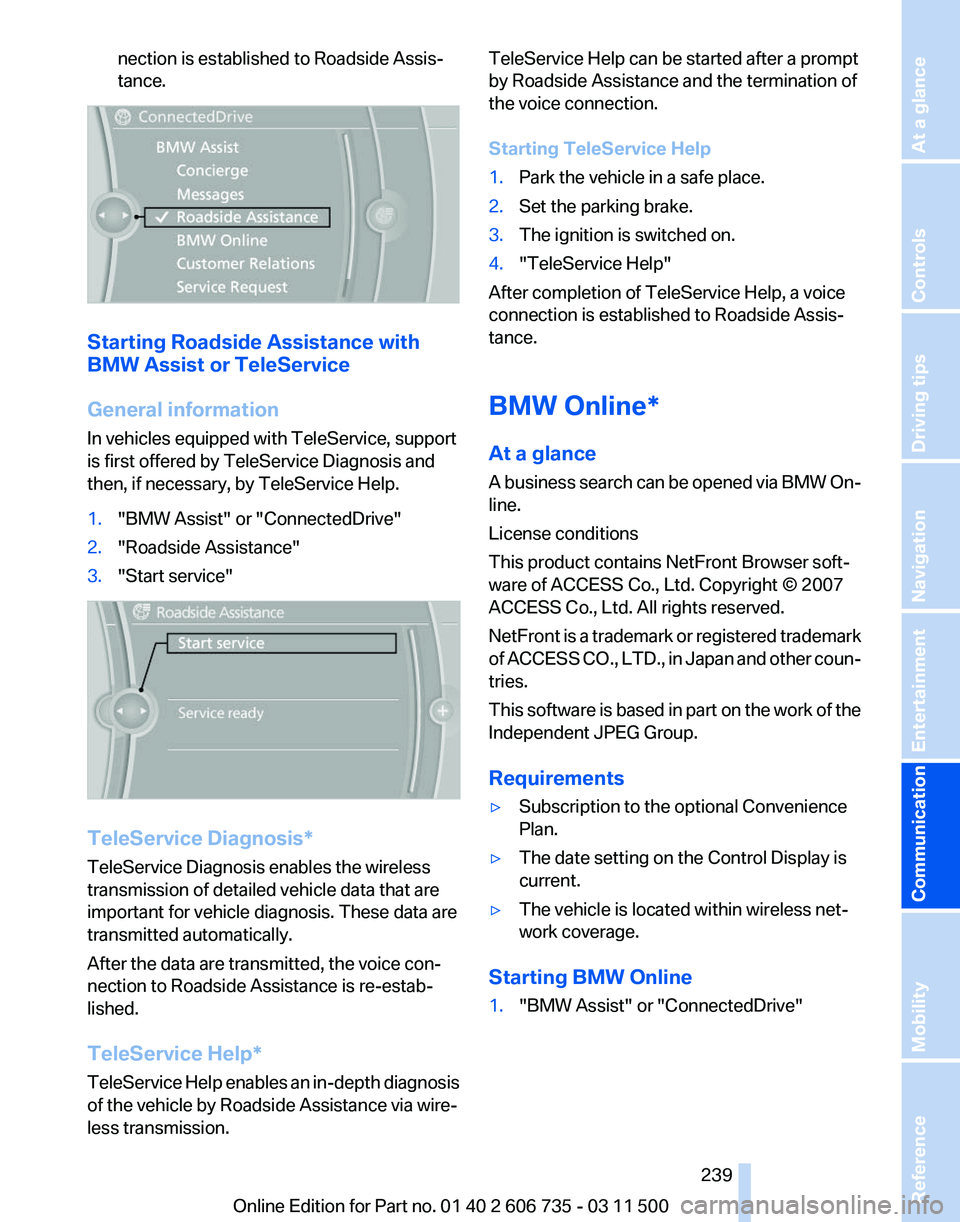
nection is established to Roadside Assis‐
tance.
Starting Roadside Assistance with
BMW Assist or TeleService
General information
In vehicles equipped with TeleService, support
is first offered by TeleService Diagnosis and
then, if necessary, by TeleService Help.
1.
"BMW Assist" or "ConnectedDrive"
2. "Roadside Assistance"
3. "Start service" TeleService Diagnosis*
TeleService Diagnosis enables the wireless
transmission of detailed vehicle data that are
important for vehicle diagnosis. These data are
transmitted automatically.
After the data are transmitted, the voice con‐
nection to Roadside Assistance is re-estab‐
lished.
TeleService Help
*
TeleService Help enables an in-depth diagnosis
of the vehicle by Roadside Assistance via wire‐
less transmission. TeleService Help can be started after a prompt
by Roadside Assistance and the termination of
the voice connection.
Starting TeleService Help
1.
Park the vehicle in a safe place.
2. Set the parking brake.
3. The ignition is switched on.
4. "TeleService Help"
After completion of TeleService Help, a voice
connection is established to Roadside Assis‐
tance.
BMW Online*
At a glance
A
business search can be opened via BMW On‐
line.
License conditions
This product contains NetFront Browser soft‐
ware of ACCESS Co., Ltd. Copyright © 2007
ACCESS Co., Ltd. All rights reserved.
NetFront is a trademark or registered trademark
of ACCESS CO., LTD., in Japan and other coun‐
tries.
This software is based in part on the work of the
Independent JPEG Group.
Requirements
▷ Subscription to the optional Convenience
Plan.
▷ The date setting on the Control Display is
current.
▷ The vehicle is located within wireless net‐
work coverage.
Starting BMW Online
1. "BMW Assist" or "ConnectedDrive"
Seite 239
239Online Edition for Part no. 01 40 2 606 735 - 03 11 500
Reference Mobility
Communication Entertainment Navigation Driving tips Controls At a glance