transmission BMW X5M 2012 Owner's Manual
[x] Cancel search | Manufacturer: BMW, Model Year: 2012, Model line: X5M, Model: BMW X5M 2012Pages: 317, PDF Size: 8.83 MB
Page 168 of 317
What to do if...
▷
The current transmission position cannot be
displayed?
The vehicle is located in an unrecognized
region, is in a poor reception area, or the
system is currently determining the posi‐
tion. Reception is usually best when you
have an unobstructed view of the sky.
▷ The destination without street information is
not used for route guidance?
When
city has been input, no downtown can
be determined. Input any street in the se‐
lected city and start destination guidance.
▷ The destination is not used for route guid‐
ance?
The
destination data are not contained in the
navigation data. Select a destination that is
as close as possible to the original.
▷ Letters for destination input cannot be se‐
lected?
The stored data do not contain the data of
the
destination. Select a goal that is as close
as possible to the original.
▷ Is the map displayed in shades of gray?
"Traffic conditions/gray map" active:
The
Control Display changes to a black and
white display. This enables a better view of
the traffic bulletins.
▷ Spoken instructions are no longer output
during route guidance in front of intersec‐
tions?
The
area has not yet been fully recorded, or
you have left the recommended route and
the system requires a few seconds to cal‐
culate a new route suggestion.
Seite 168
168 Online Edition for Part no. 01 40 2 606 735 - 03 11 500
What to do if...
Page 178 of 317
Opening the timeshift function
1.
"Radio"
2. "Satellite radio"
3. "Replay - Time shift"
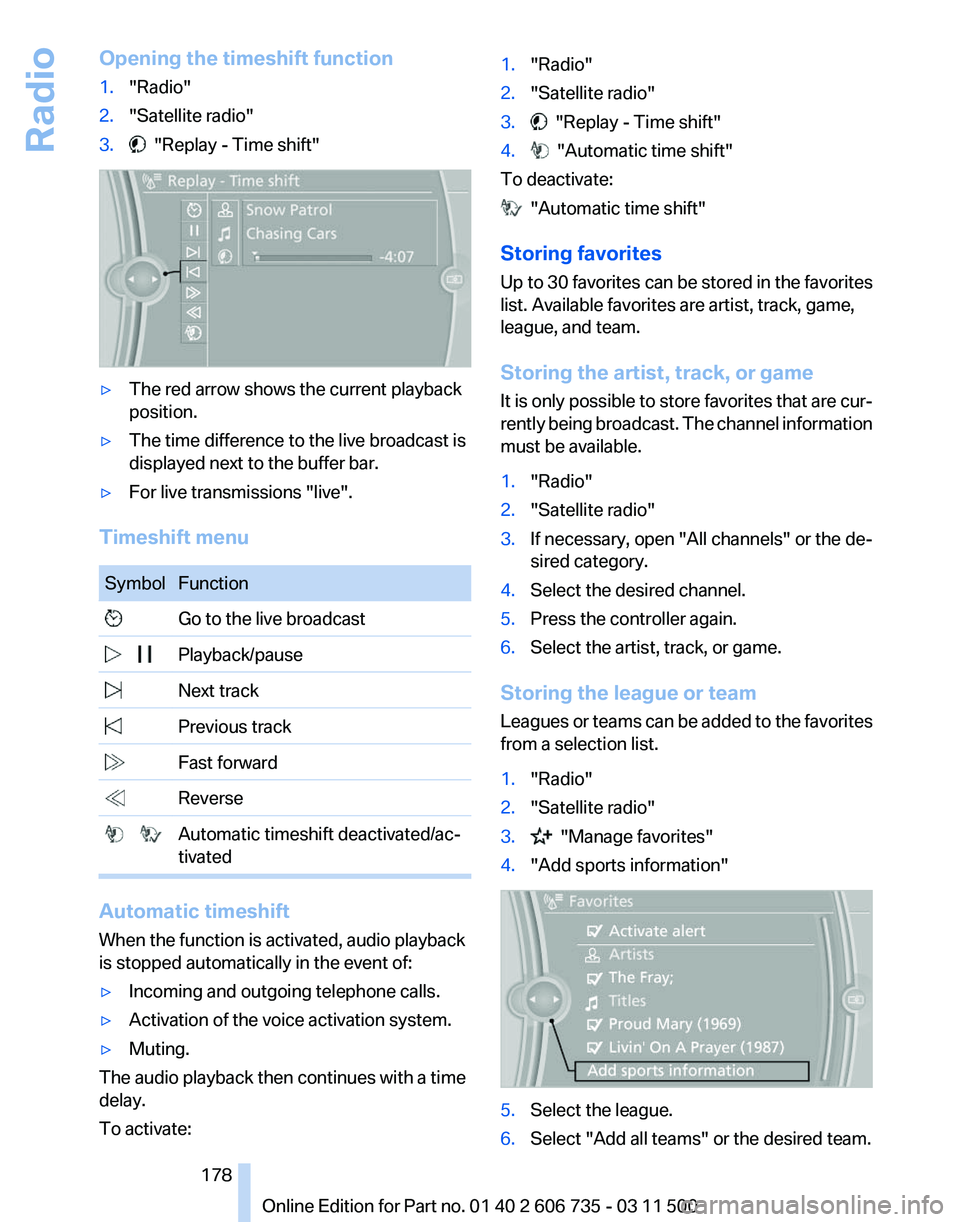
▷
The red arrow shows the current playback
position.
▷ The time difference to the live broadcast is
displayed next to the buffer bar.
▷ For live transmissions "live".
Timeshift menu Symbol Function
Go to the live broadcast
Playback/pause
Next track
Previous track
Fast forward
Reverse
Automatic timeshift deactivated/ac‐
tivated Automatic timeshift
When the function is activated, audio playback
is stopped automatically in the event of:
▷
Incoming and outgoing telephone calls.
▷ Activation of the voice activation system.
▷ Muting.
The audio playback then continues with a time
delay.
To activate: 1.
"Radio"
2. "Satellite radio"
3. "Replay - Time shift"
4. "Automatic time shift"
To deactivate: "Automatic time shift"
Storing favorites
Up
to 30 favorites can be stored in the favorites
list. Available favorites are artist, track, game,
league, and team.
Storing the artist, track, or game
It is only possible to store favorites that are cur‐
rently being broadcast. The channel information
must be available.
1. "Radio"
2. "Satellite radio"
3. If necessary, open "All channels" or the de‐
sired category.
4. Select the desired channel.
5. Press the controller again.
6. Select the artist, track, or game.
Storing the league or team
Leagues
or teams can be added to the favorites
from a selection list.
1. "Radio"
2. "Satellite radio"
3. "Manage favorites"
4. "Add sports information" 5.
Select the league.
6. Select "Add all teams" or the desired team.
Seite 178
178 Online Edition for Part no. 01 40 2 606 735 - 03 11 500
Radio
Page 194 of 317
Connecting
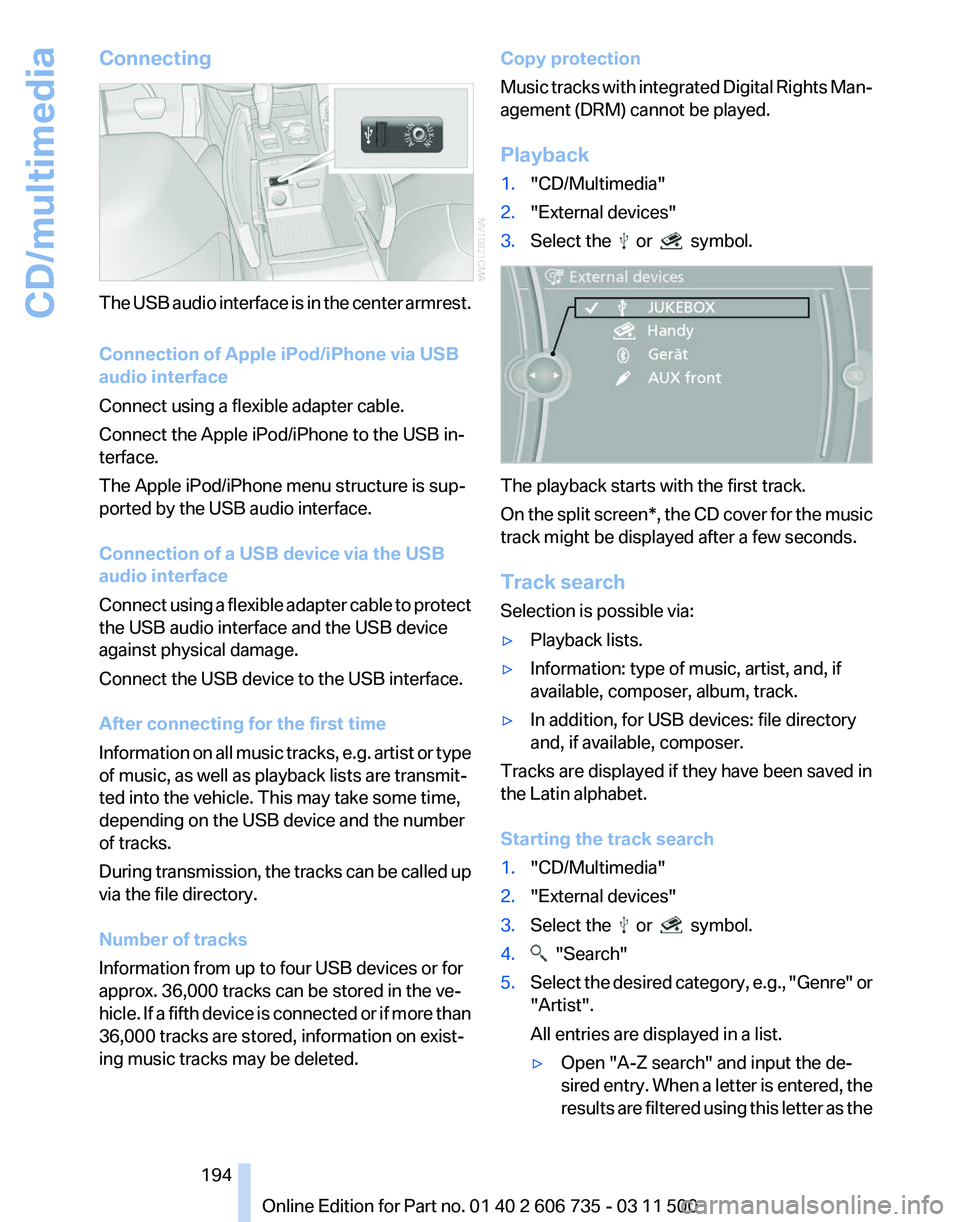
The USB audio interface is in the center armrest.
Connection of Apple iPod/iPhone via USB
audio interface
Connect using a flexible adapter cable.
Connect the Apple iPod/iPhone to the USB in‐
terface.
The Apple iPod/iPhone menu structure is sup‐
ported by the USB audio interface.
Connection of a USB device via the USB
audio interface
Connect
using a flexible adapter cable to protect
the USB audio interface and the USB device
against physical damage.
Connect the USB device to the USB interface.
After connecting for the first time
Information on all music tracks, e.g. artist or type
of music, as well as playback lists are transmit‐
ted into the vehicle. This may take some time,
depending on the USB device and the number
of tracks.
During transmission, the tracks can be called up
via the file directory.
Number of tracks
Information from up to four USB devices or for
approx. 36,000 tracks can be stored in the ve‐
hicle. If a fifth device is connected or if more than
36,000 tracks are stored, information on exist‐
ing music tracks may be deleted. Copy protection
Music
tracks with integrated Digital Rights Man‐
agement (DRM) cannot be played.
Playback
1. "CD/Multimedia"
2. "External devices"
3. Select the or symbol.
The playback starts with the first track.
On
the split screen*, the CD cover for the music
track might be displayed after a few seconds.
Track search
Selection is possible via:
▷ Playback lists.
▷ Information: type of music, artist, and, if
available, composer, album, track.
▷ In addition, for USB devices: file directory
and, if available, composer.
Tracks are displayed if they have been saved in
the Latin alphabet.
Starting the track search
1. "CD/Multimedia"
2. "External devices"
3. Select the or symbol.
4. "Search"
5. Select the desired category, e.g., "Genre"
or
"Artist".
All entries are displayed in a list.
▷ Open "A-Z search" and input the de‐
sired
entry. When a letter is entered, the
results are filtered using this letter as the
Seite 194
194 Online Edition for Part no. 01 40 2 606 735 - 03 11 500
CD/multimedia
Page 219 of 317
▷
"Audio"
7. "OK"
If a function has already been assigned to an‐
other connected device, the function is deacti‐
vated in that device and the device is unpaired
when the function is assigned to a new device.
Swapping
the telephone and additional
telephone
The function of the telephone and additional tel‐
ephone can be swapped automatically.
1. "Telephone"
2. "Bluetooth® (phone)"
3. "Swap phone/addit. phone"
Unpairing a device
1. "Telephone"
2. "Bluetooth® (phone)"
3. Highlight the device that is to be unpaired.
4. Open "Options".
5. "Remove phone from list" What to do if...
Information on suitable mobile phones, refer to
page
216.
The mobile phone could not be paired or con‐
nected.
▷ Is Bluetooth activated in the vehicle and on
the mobile phone? Activate Bluetooth on
the vehicle and on the mobile phone.
▷ Do the Bluetooth passkeys on the mobile
phone and the vehicle match? Enter the
same passkey on the mobile phone and via
iDrive. ▷
Did it take longer than 30 seconds to enter
the
passkey? Repeat the pairing procedure.
▷ Are too many Bluetooth devices connected
to
the mobile phone or vehicle? Delete con‐
nections with other devices if necessary.
▷ Is the audio connection activated? Deacti‐
vate the audio connection.
▷ Is the mobile phone in power-save mode or
does
it have only a limited remaining battery
life? Charge the mobile phone in the snap-
in adapter* or via the charging cable.
▷ Depending on the mobile phone, it is possi‐
ble that only one device can be connected
to the vehicle. Unpair the connected device
from the vehicle and pair and connect only
one device.
▷ The mobile phone no longer reacts? Switch
the mobile phone off and on again. Repeat
the pairing procedure.
The telephone functions are not available.
▷ Is the mobile phone paired as an additional
telephone and is the additional telephone
function
deactivated? Activate the function.
▷ Is an outgoing call not possible? Connect
the mobile phone as a telephone.
No phone book entries or only some phone book
entries are displayed, or they are incomplete.
▷ Transmission of the phone book entries is
not yet complete.
▷ It is possible that only the phone book en‐
tries of the mobile phone or the
SIM card*
are transmitted.
▷ It may not be possible to display phone book
entries with special characters.
▷ The number of phone book entries to be
stored is too high.
▷ Is the data volume of the contact too large,
e. g., due to stored information such as
notes? Reduce the data volume of the con‐
tact.
▷ Is the mobile phone connected as an audio
source
or additional telephone? The mobile
phone must be connected as a telephone.
The phone connection quality is poor.
Seite 219
219Online Edition for Part no. 01 40 2 606 735 - 03 11 500
Reference Mobility
Communication Entertainment Navigation Driving tips Controls At a glance
Page 230 of 317
Messages
General information
Whether
or not text messages and e-mails from
the mobile phone are displayed depends on
whether transmission from the mobile phone to
the vehicle is supported. Text messages and e-
mails may not be supported by the service pro‐
vider, or the function may need to be enabled
separately. After the mobile phone is first paired,
transmission may take several minutes. Mes‐
sages are only displayed in full length when the
vehicle is stationary. Messages from the addi‐
tional telephone are not transmitted.
Display of different messages:
▷ Text messages.
▷ Message from My Info*.
▷ Messages from the BMW Assist Concierge
service*.
▷ E-mails from the mobile phone*.
Displaying messages
1. "Office"
2. "Messages"
A symbol identifies the type of message. Symbol Message type
Text messages.
My Info
Message from the Concierge serv‐
ice. E-mail from mobile phone.
Filtering the message list
The message list can be filtered, when more
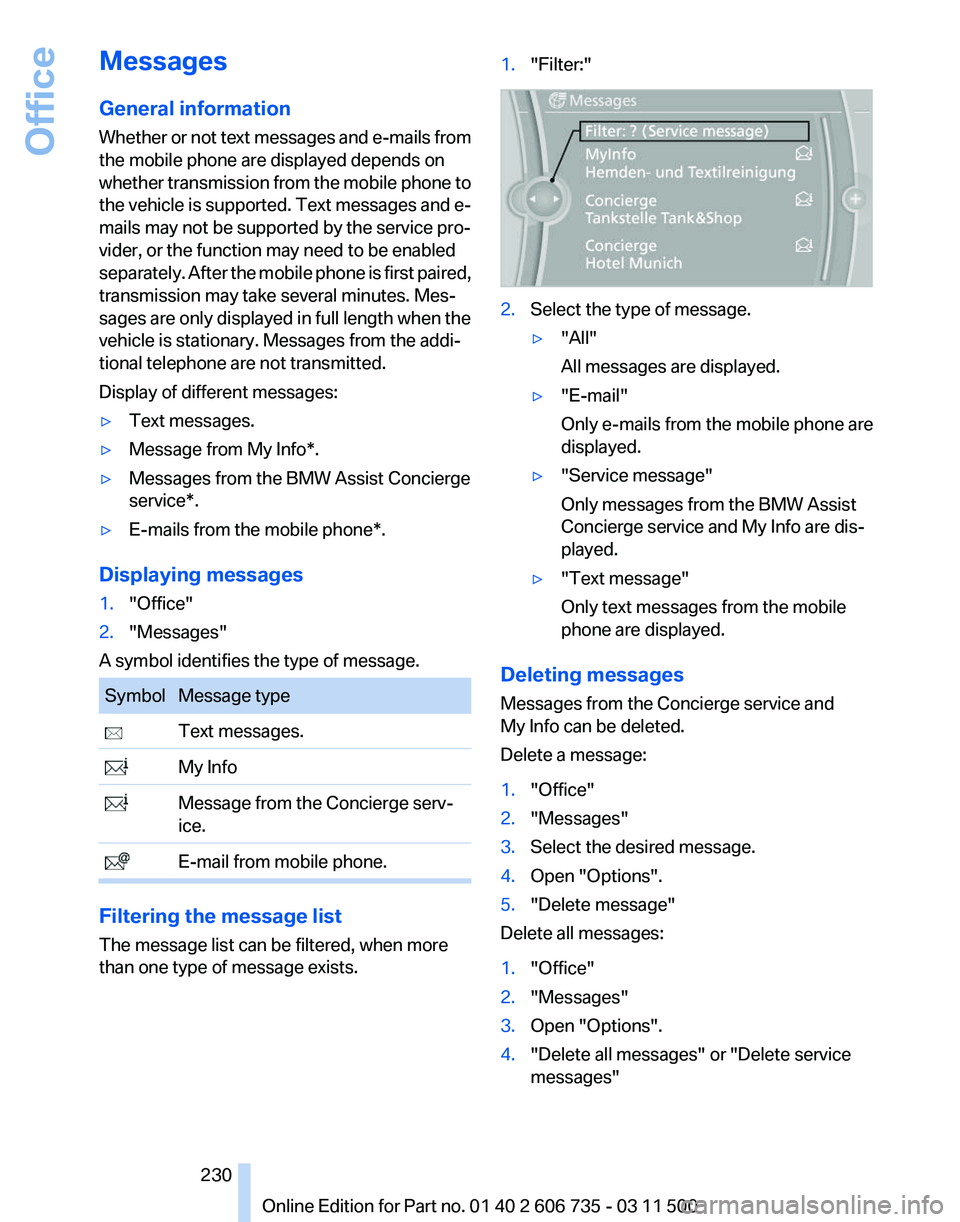
than one type of message exists. 1.
"Filter:" 2.
Select the type of message.
▷"All"
All messages are displayed.
▷ "E-mail"
Only e-mails from the mobile phone are
displayed.
▷ "Service message"
Only messages from the BMW Assist
Concierge service and My Info are dis‐
played.
▷ "Text message"
Only text messages from the mobile
phone are displayed.
Deleting messages
Messages from the Concierge service and
My Info can be deleted.
Delete a message:
1. "Office"
2. "Messages"
3. Select the desired message.
4. Open "Options".
5. "Delete message"
Delete all messages:
1. "Office"
2. "Messages"
3. Open "Options".
4. "Delete all messages" or "Delete service
messages"
Seite 230
230 Online Edition for Part no. 01 40 2 606 735 - 03 11 500
Office
Page 237 of 317
ConnectedDrive*
BMW Assist*
General information
BMW
Assist provides you with certain services,
e.g., transmission of the position data of your
vehicle to the BMW Assist Response Center if
an Emergency Request* has been initiated.
Many BMW Assist services depend on the indi‐
vidually agreed upon contract.
After your contract has expired, the BMW Assist
system will be deactivated by the BMW Assist
Response Center without your having to visit a
service center. After the BMW Assist system
has been deactivated, no BMW Assist services
will be available. The BMW Assist system can be
reactivated by a service center after you sign a
new contract.
Requirements
▷ The installed BMW Assist system is logged
in to a wireless communications network.
This network must be capable of transmit‐
ting the services.
▷ To transmit position data, the vehicle must
be able to determine the current position.
▷ The BMW Assist service contract was
signed with your service center or with the
BMW Assist Response Center. Enabling
must have been completed.
▷ BMW Assist is activated.
Services offered
▷ Emergency Request: when you press the
SOS button, a connection to the BMW As‐
sist Response Center is established. The
BMW Assist Response Center then speaks
with
you and takes further steps to help you.
▷ Automatic Collision Notification: under cer‐
tain conditions, a connection is established
to
the BMW Assist Response Center after a
serious accident. If possible, the BMW As‐ sist Response Center then speaks with you
and takes further steps to help you.
▷ Enhanced Roadside Assistance: BMW
Roadside Assistance* can be contacted if
assistance
is needed in the event of a break‐
down. If possible, the vehicle and position
data are transmitted in the process.
▷ Customer Relations: connection with Cus‐
tomer Relations for information on all as‐
pects of your vehicle.
▷ TeleService: data on your vehicle's service
status or required inspections are transmit‐
ted to your service center, either automati‐
cally before a service due date or when you
request a BMW service appointment.
▷ Remote Door Unlock: the BMW Assist Re‐
sponse
Center provides assistance if, for ex‐
ample, the remote control is not available
and the vehicle needs to be opened.
▷ Stolen Vehicle Recovery: after you report
that
your vehicle was stolen to the police, the
BMW Assist Response Center can deter‐
mine its position.
▷ In addition to these services, the optional
Convenience Plan offers Concierge service
and information for route planning, traffic,
and weather. A limited number of calls can
be made via the BMW Assist Response
Center with Critical Calling if, for example,
the mobile phone is not available or dis‐
charged.
Press the SOS button to contact the BMW
Assist Response Center.
TeleService*
General information
TeleService
supports communication with your
service center.
▷ Data on the vehicle's service requirements
can
be sent directly to the service center. In
this way, the service center can plan its work
Seite 237
237Online Edition for Part no. 01 40 2 606 735 - 03 11 500
Reference Mobility
Communication Entertainment Navigation Driving tips Controls At a glance
Page 239 of 317
nection is established to Roadside Assis‐
tance.
Starting Roadside Assistance with
BMW Assist or TeleService
General information
In vehicles equipped with TeleService, support
is first offered by TeleService Diagnosis and
then, if necessary, by TeleService Help.
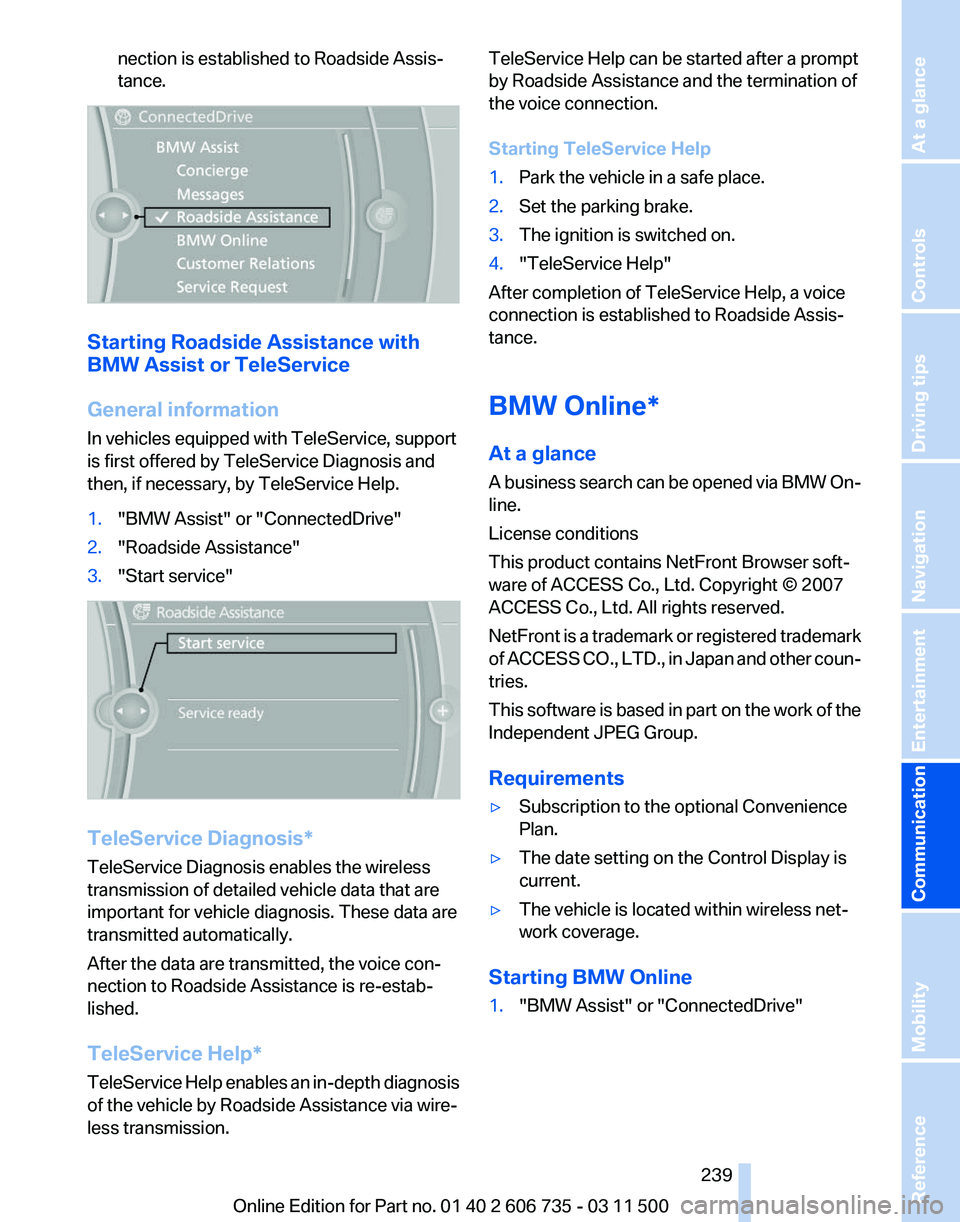
1.
"BMW Assist" or "ConnectedDrive"
2. "Roadside Assistance"
3. "Start service" TeleService Diagnosis*
TeleService Diagnosis enables the wireless
transmission of detailed vehicle data that are
important for vehicle diagnosis. These data are
transmitted automatically.
After the data are transmitted, the voice con‐
nection to Roadside Assistance is re-estab‐
lished.
TeleService Help
*
TeleService Help enables an in-depth diagnosis
of the vehicle by Roadside Assistance via wire‐
less transmission. TeleService Help can be started after a prompt
by Roadside Assistance and the termination of
the voice connection.
Starting TeleService Help
1.
Park the vehicle in a safe place.
2. Set the parking brake.
3. The ignition is switched on.
4. "TeleService Help"
After completion of TeleService Help, a voice
connection is established to Roadside Assis‐
tance.
BMW Online*
At a glance
A
business search can be opened via BMW On‐
line.
License conditions
This product contains NetFront Browser soft‐
ware of ACCESS Co., Ltd. Copyright © 2007
ACCESS Co., Ltd. All rights reserved.
NetFront is a trademark or registered trademark
of ACCESS CO., LTD., in Japan and other coun‐
tries.
This software is based in part on the work of the
Independent JPEG Group.
Requirements
▷ Subscription to the optional Convenience
Plan.
▷ The date setting on the Control Display is
current.
▷ The vehicle is located within wireless net‐
work coverage.
Starting BMW Online
1. "BMW Assist" or "ConnectedDrive"
Seite 239
239Online Edition for Part no. 01 40 2 606 735 - 03 11 500
Reference Mobility
Communication Entertainment Navigation Driving tips Controls At a glance
Page 242 of 317
Any additionally incurred costs are not a part
of Apps.
▷ Use only BMW approved software applica‐
tions; otherwise, it may result in malfunc‐
tions.
Information about suitable cell phones, available
software applications and their installation can
be found at www.bmw.com/connectivity or at
the service center.
Create the entries.
Make entries only when traffic and road
conditions allow. Otherwise, the vehicle occu‐
pants
and other road users may be put in danger
because of the distraction from driving.
For reasons of safety, some software applica‐
tions are usable only while the vehicle is station‐
ary.◀
Operating Apps
1. Connect the cell phone via the snap-in
adapter or via the USB audio interface.
2. "ConnectedDrive"
3. Select the desired software application.
Displaying status
Information about the currently available soft‐
ware applications can be displayed.
1. "ConnectedDrive"
2. "BMW apps"
PlugIn*
Selected functions of the cell phone are dis‐
played on the Control Display. They can be op‐
erated via iDrive.
1. Connect cell phone via the snap-in adapter.
2. "ConnectedDrive"
3. "PlugIn"
4. "Activate PlugIn"
5. Navigate to the displayed functions via the
controller
and select, for example, a desired
category or track. Press button to switch within the cell
phone functions to a higher level or back.
Press button twice to switch back to the
main menu.
Notes
▷ The ranges of Apps that can be displayed on
the Control Display depend on the range of
installed software applications on the mo‐
bile phone.
▷ The data transmission of the software ap‐
plications
from the cell phone to the vehicle
can last some time. Some software applica‐
tions depend on the speed of the available
Internet connection of the cell phone.
▷ Some mobile phones cannot simultane‐
ously use Apps and the Bluetooth hands-
free system.
If
necessary, restart the software application
on the cell phone after a phone conversa‐
tion. Seite 242
242 Online Edition for Part no. 01 40 2 606 735 - 03 11 500
ConnectedDrive
Page 249 of 317
In the event the Ultra-Low Sulfur Diesel fuel can‐
not be fully inserted into the fuel filler neck,
please contact BMW Roadside Assistance for
instructions on how to add fuel. For more infor‐
mation on BMW Roadside Assistance, refer to
page
281.
Winter diesel
To ensure that the diesel engine remains op‐
erational in the winter, use winter diesel.
It is available at gas stations during winter
months.
The standard fuel filter heating prevents the
supply of fuel from stalling during driving. No diesel additives
Do not add additives, including gasoline;
otherwise, engine damage may occur.◀ BMW X5 with BMW Advanced
Diesel
The concept
BMW
Advanced Diesel reduces nitrogen oxides
in the diesel exhaust of your vehicle by injecting
the reducing agent diesel exhaust fluid into the
exhaust line. In the catalytic converter, a chem‐
ical reaction occurs that minimizes nitrogen ox‐
ides.
In order to be able to start the engine in the usual
way, there must be a sufficient supply of diesel
exhaust fluid in the separate reservoir.
System heating
In order to bring the system to operating tem‐
perature after a cold start of the engine, the au‐ tomatic transmission shifts into the next higher
gear at a later point.
Reserve display
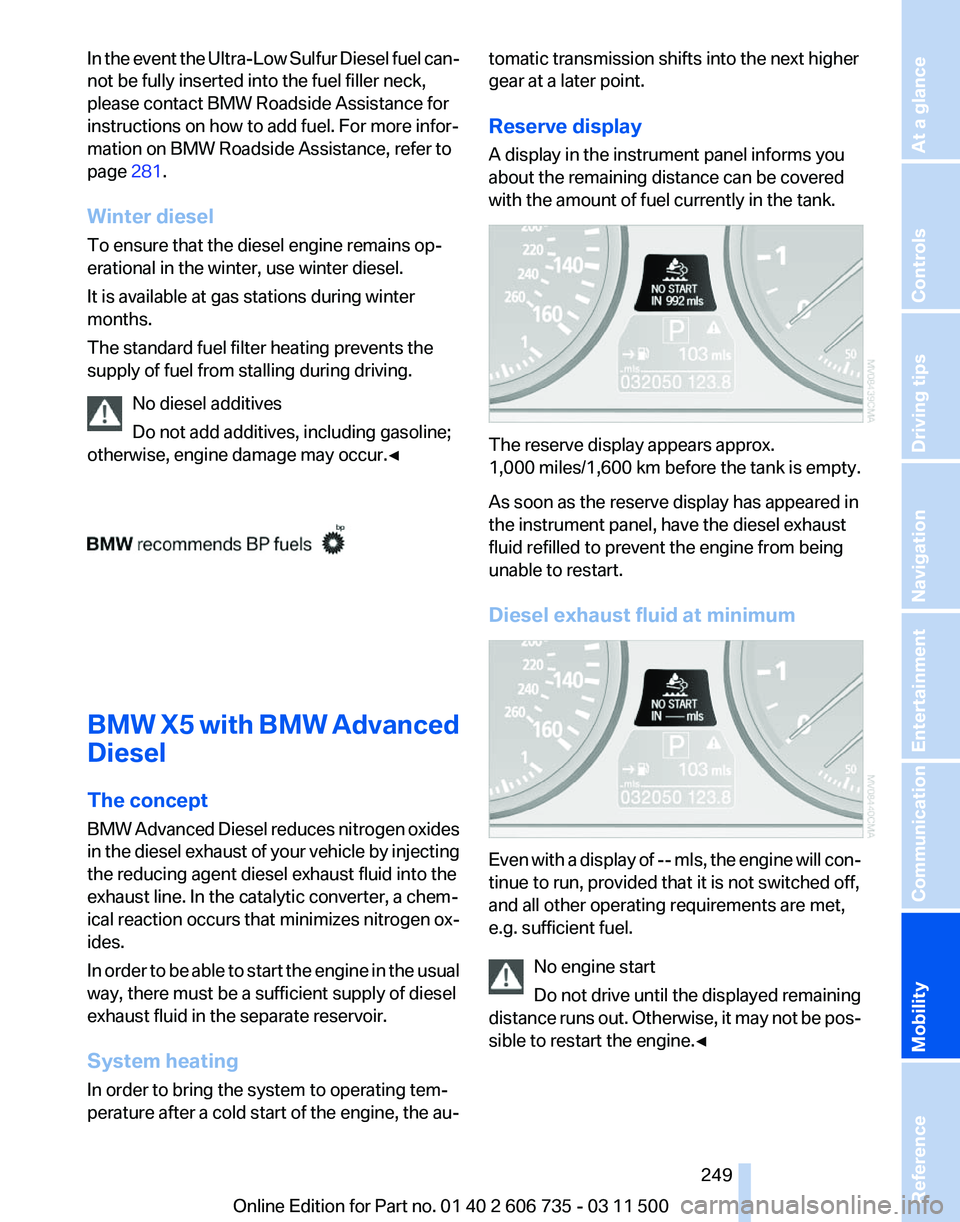
A display in the instrument panel informs you
about the remaining distance can be covered
with the amount of fuel currently in the tank.
The reserve display appears approx.
1,000 miles/1,600 km before the tank is empty.
As soon as the reserve display has appeared in
the instrument panel, have the diesel exhaust
fluid refilled to prevent the engine from being
unable to restart.
Diesel exhaust fluid at minimum
Even with a display of -- mls, the engine will con‐
tinue to run, provided that it is not switched off,
and all other operating requirements are met,
e.g. sufficient fuel.
No engine start
Do
not drive until the displayed remaining
distance runs out. Otherwise, it may not be pos‐
sible to restart the engine.◀ Seite 249
249Online Edition for Part no. 01 40 2 606 735 - 03 11 500
Reference
Mobility Communication Entertainment Navigation Driving tips Controls At a glance
Page 276 of 317
They do not need to be replaced immediately in
the event of a puncture.
When mounting new tires or changing from
summer
to winter tires or vice versa, use run-flat
tires for your own safety.
BMW X6: do not rotate the front wheels to the
rear or vice versa, as otherwise the handling
characteristics will be negatively affected.
The tools for changing wheels are available as
accessories from your service center.
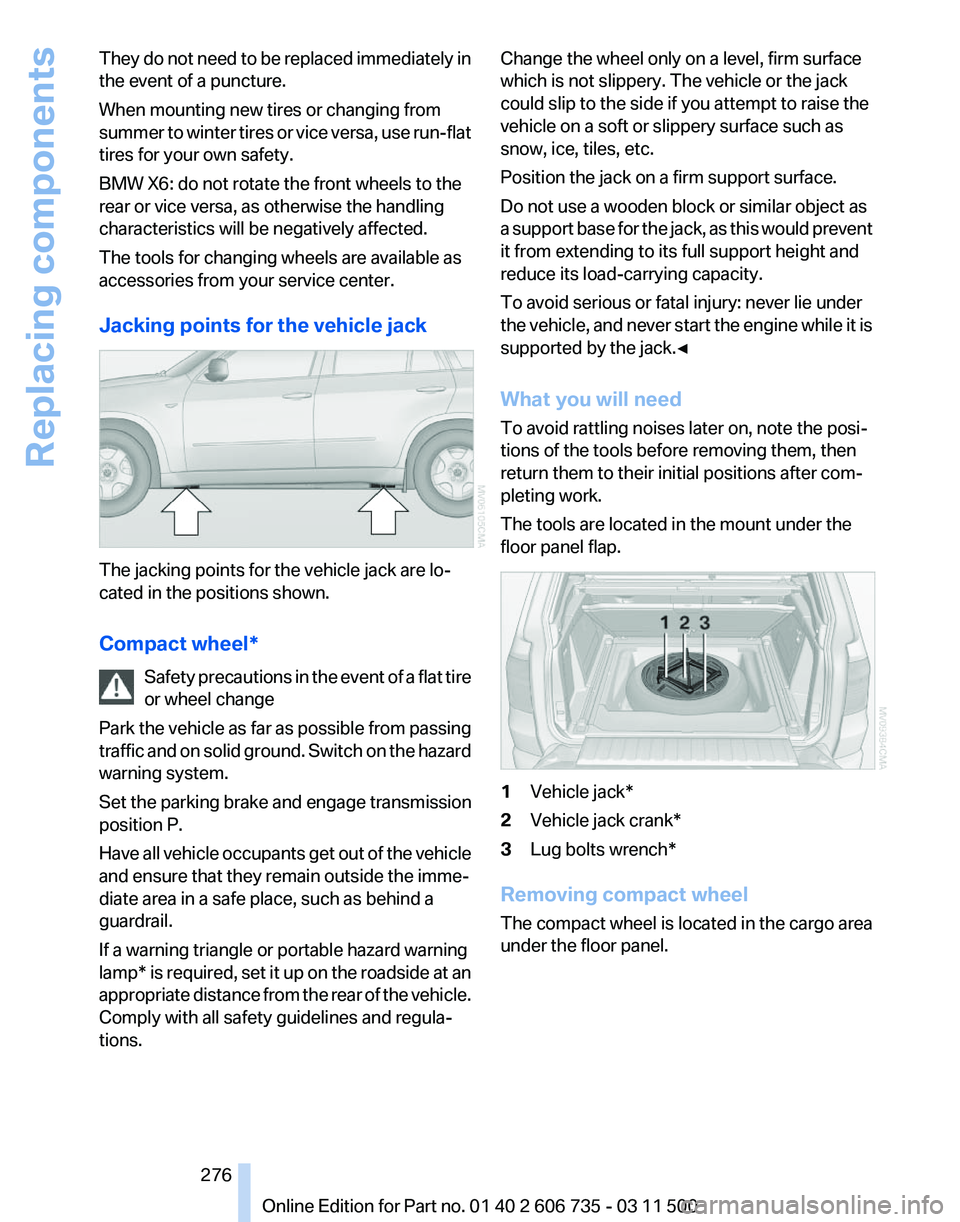
Jacking points for the vehicle jack The jacking points for the vehicle jack are lo‐
cated in the positions shown.
Compact wheel*
Safety
precautions in the event of a flat tire
or wheel change
Park the vehicle as far as possible from passing
traffic and on solid ground. Switch on the hazard
warning system.
Set the parking brake and engage transmission
position P.
Have all vehicle occupants get out of the vehicle
and ensure that they remain outside the imme‐
diate area in a safe place, such as behind a
guardrail.
If a warning triangle or portable hazard warning
lamp* is required, set it up on the roadside at an
appropriate distance from the rear of the vehicle.
Comply with all safety guidelines and regula‐
tions. Change the wheel only on a level, firm surface
which is not slippery. The vehicle or the jack
could slip to the side if you attempt to raise the
vehicle on a soft or slippery surface such as
snow, ice, tiles, etc.
Position the jack on a firm support surface.
Do not use a wooden block or similar object as
a
support base for the jack, as this would prevent
it from extending to its full support height and
reduce its load-carrying capacity.
To avoid serious or fatal injury: never lie under
the vehicle, and never start the engine while it is
supported by the jack.◀
What you will need
To avoid rattling noises later on, note the posi‐
tions of the tools before removing them, then
return them to their initial positions after com‐
pleting work.
The tools are located in the mount under the
floor panel flap. 1
Vehicle jack*
2 Vehicle jack crank*
3 Lug bolts wrench*
Removing compact wheel
The compact wheel is located in the cargo area
under the floor panel.
Seite 276
276 Online Edition for Part no. 01 40 2 606 735 - 03 11 500
Replacing components