ignition BMW X6 2008 Owner's Guide
[x] Cancel search | Manufacturer: BMW, Model Year: 2008, Model line: X6, Model: BMW X6 2008Pages: 288, PDF Size: 8.08 MB
Page 163 of 288
Navigation
Entertainment
Driving tips
161Reference
At a glance
Controls
Communications
Mobility
You have the following choices:
>"FM" and "AM": radio reception
>"WB": Weather Band station
>"SAT": satellite radio
*
>"CD": CD player or changer*
>"AUX": AUX-In connection, USB audio
interface
*
>"Set": depending on the audio source,
other adjustments can be made, e.g. with
the radio: update station with strongest
reception, store station, tone control, sam-
ple stations.
From another menu, you can change
directly to the screen last displayed,
refer to Comfort opening of menu items on
page18.<
From radio readiness, the selected audio
source is stored for the remote control currently
in use.
Switching on/off
To switch the Entertainment sound output on
and off:
Press knob1 on the CD player.
This symbol on the Control Display indi-
cates that sound output is switched off.
For equipment with a single drive, the sound
output is available for approx. 20 minutes with
the ignition switched off.
Switch on the sound output again for this pur-
pose.
Adjusting volume
Turn knob1 on the CD player until the desired
volume is set.
You can also adjust the volume with buttons on
the steering wheel, refer to page11.
From radio readiness, the setting is stored for
the remote control currently in use.
Tone control
You can alter various tone settings, e. g. treble
and bass, or the speed-dependent volume
increase.
The tone settings are set for all audio sources at
once.
From radio readiness, the settings are stored
for the remote control currently in use.
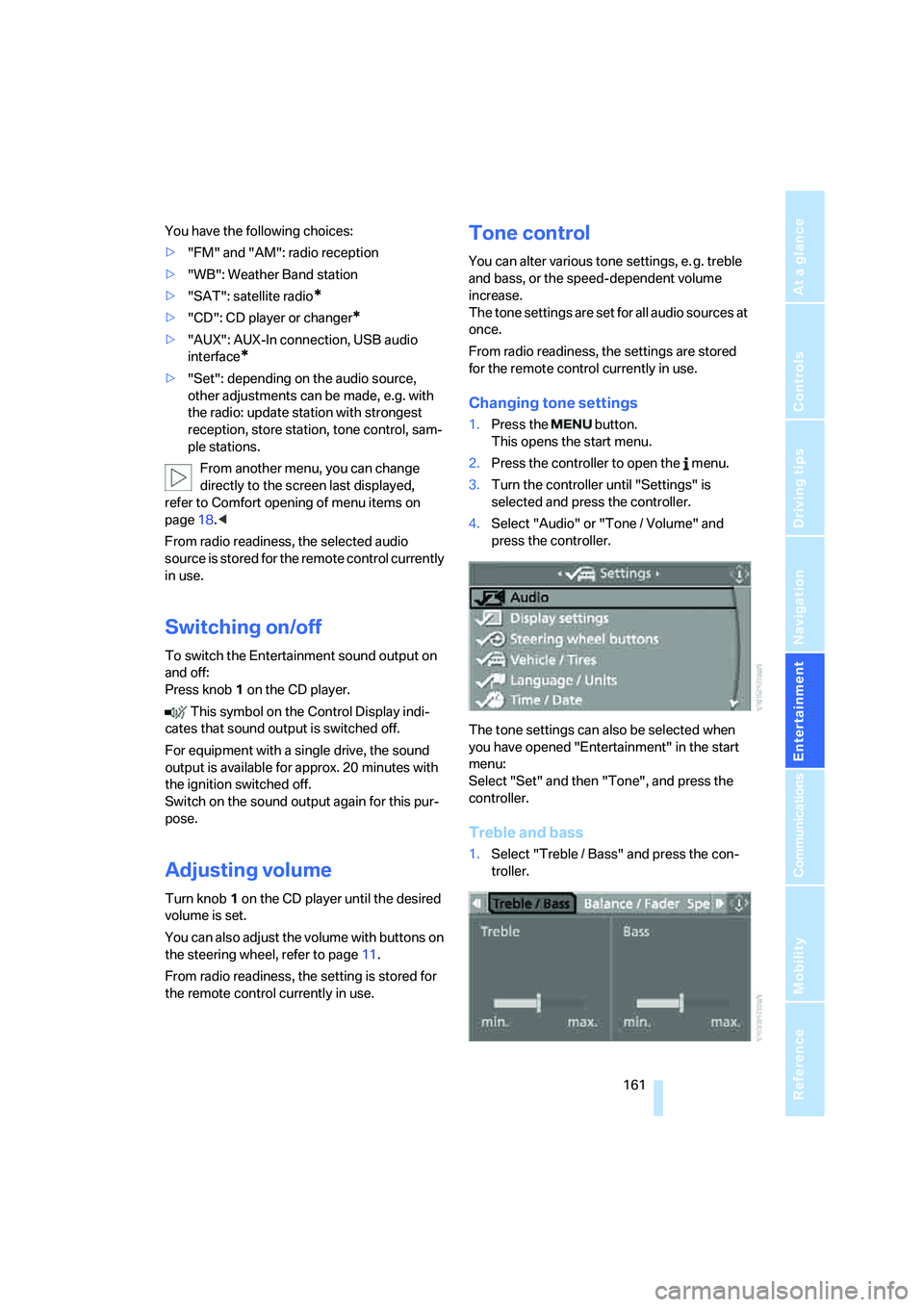
Changing tone settings
1.Press the button.
This opens the start menu.
2.Press the controller to open the menu.
3.Turn the controller until "Settings" is
selected and press the controller.
4.Select "Audio" or "Tone / Volume" and
press the controller.
The tone settings can also be selected when
you have opened "Entertainment" in the start
menu:
Select "Set" and then "Tone", and press the
controller.
Treble and bass
1.Select "Treble / Bass" and press the con-
troller.
Page 208 of 288
Telephoning
206
Telephoning
The concept
Your BMW is equipped with a full mobile phone
preparation package. After pairing a suitable
mobile phone in the vehicle once, you can oper-
ate the mobile phone via iDrive, with the buttons
on the steering wheel and by voice.
A mobile phone that has been paired once is
automatically detected again with the engine
running or the ignition switched on as soon as
it is in the vehicle interior. The pairing data of up
to four mobile phones can be stored simulta-
neously. If several mobile phones are detected
simultaneously, the respective last mobile
phone paired can be operated via the vehicle.
Using a phone in your vehicle
Using snap-in adapter*
The so-called snap-in adapter, a mobile phone
cradle, enables the battery to be charged and
the mobile phone to be connected to the exter-
nal antenna of your vehicle. This ensures
improved network reception and a consistent
voice reproduction quality. Ask your BMW
Sports Activity Vehicle Center which mobile
phones snap-in adapters are offered for.
For your safety
A car phone makes life more convenient in
many ways, and can even save lives in an emer-
gency. While you should consult your mobile
phone's separate operating instructions for a
detailed description of safety precautions and
information, we request that you direct your
particular attention to the following:
Only make entries when the traffic situa-
tion allows you to do so. Do not hold the
mobile phone in your hand while you are driving;
use the hands-free system instead. If you do
not observe this precaution, your being dis-
tracted can endanger vehicle occupants and
other road users.<
Suitable mobile phones
Ask your BMW Sports Activity Vehicle Center
which mobile phones with a Bluetooth interface
are supported by the mobile phone preparation
package or which mobile phones snap-in
adapters are available for. These mobile phones
support the functions described in this Owner's
Manual with a certain software version. Mal-
functions can occur with other mobile phones.
Care instructions
You can find what you need to know about car-
ing for your mobile phone in the Caring for your
vehicle brochure and in the separate mobile
phone operating instructions.
Operating options
You can operate the mobile phone* using:
>Buttons on steering wheel, refer to page11
>iDrive, refer to page212
>Voice commands, refer to page217
>Programmable memory/direct selection
buttons, refer to page21
Avoid operating a mobile phone detected by
the vehicle with the keypad of the mobile
phone, otherwise malfunctions can occur.
Placing phone calls with BMW Assist
system*: BMW Assist calls
You can use the BMW Assist system via the
hands-free unit for BMW Assist calls.
When the status information "Communication"
or "BMW Assist" is displayed in "BMW Ser-
vice", only BMW Assist calls are possible.
It may not be possible to establish a telephone
connection using the mobile phone while a con-
nection is being established to BMW Assist or
while a call to BMW Assist is already in
*
Page 209 of 288
207
Entertainment
Reference
At a glance
Controls
Driving tips Communications
Navigation
Mobility
progress. If this happens, you must log off the
mobile phone from the vehicle if you wish to
place a call with the mobile phone.
Commissioning
Logging on mobile phone on vehicle
The following prerequisites must be met:
>Suitable mobile phone: the mobile phone
is supported by the full mobile phone prep-
aration package. Information on this subject
is also provided on the Internet at:
www.bmw.com
>The mobile phone is ready to operate.
>The Bluetooth link on the vehicle, refer to
page211, and on the mobile phone is
active.
>Depending on the mobile phone, it may be
necessary to adjust the presets of the
mobile phone, e.g. via the following menu
items:
>Bluetooth activated
>Connection not with confirmation
>Reconnect
>Depending on the mobile phone model, the
setting energy saving mode can, for exam-
ple, result in vehicle failing to detect the
paired mobile phone.
>For pairing, specify any desired number as
the Bluetooth passkey, e.g. 1. This Blue-
tooth passkey is no longer required follow-
ing successful logon.
>The ignition is switched on.
Only pair the mobile phone with the vehi-
cle stopped, otherwise the passengers
and other road users can be endangered due
to a lack of attentiveness on the part of the
driver.<
Switching on ignition
1.Insert the remote control as far as possible
into the ignition lock.
2.Switch on the ignition by pressing the Start/
Stop button without depressing the brake
pedal.
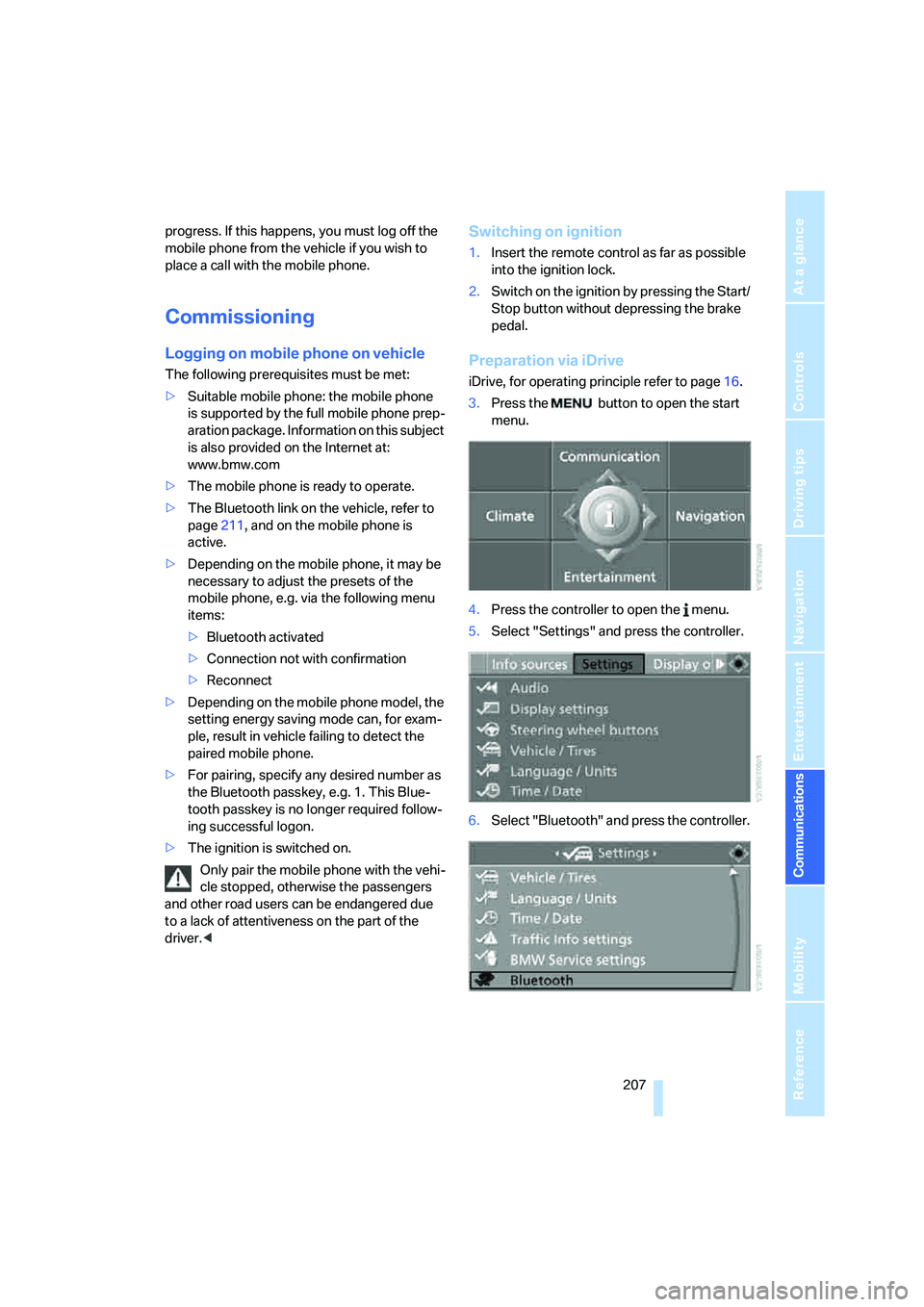
Preparation via iDrive
iDrive, for operating principle refer to page16.
3.Press the button to open the start
menu.
4.Press the controller to open the menu.
5.Select "Settings" and press the controller.
6.Select "Bluetooth" and press the controller.
Page 210 of 288
Telephoning
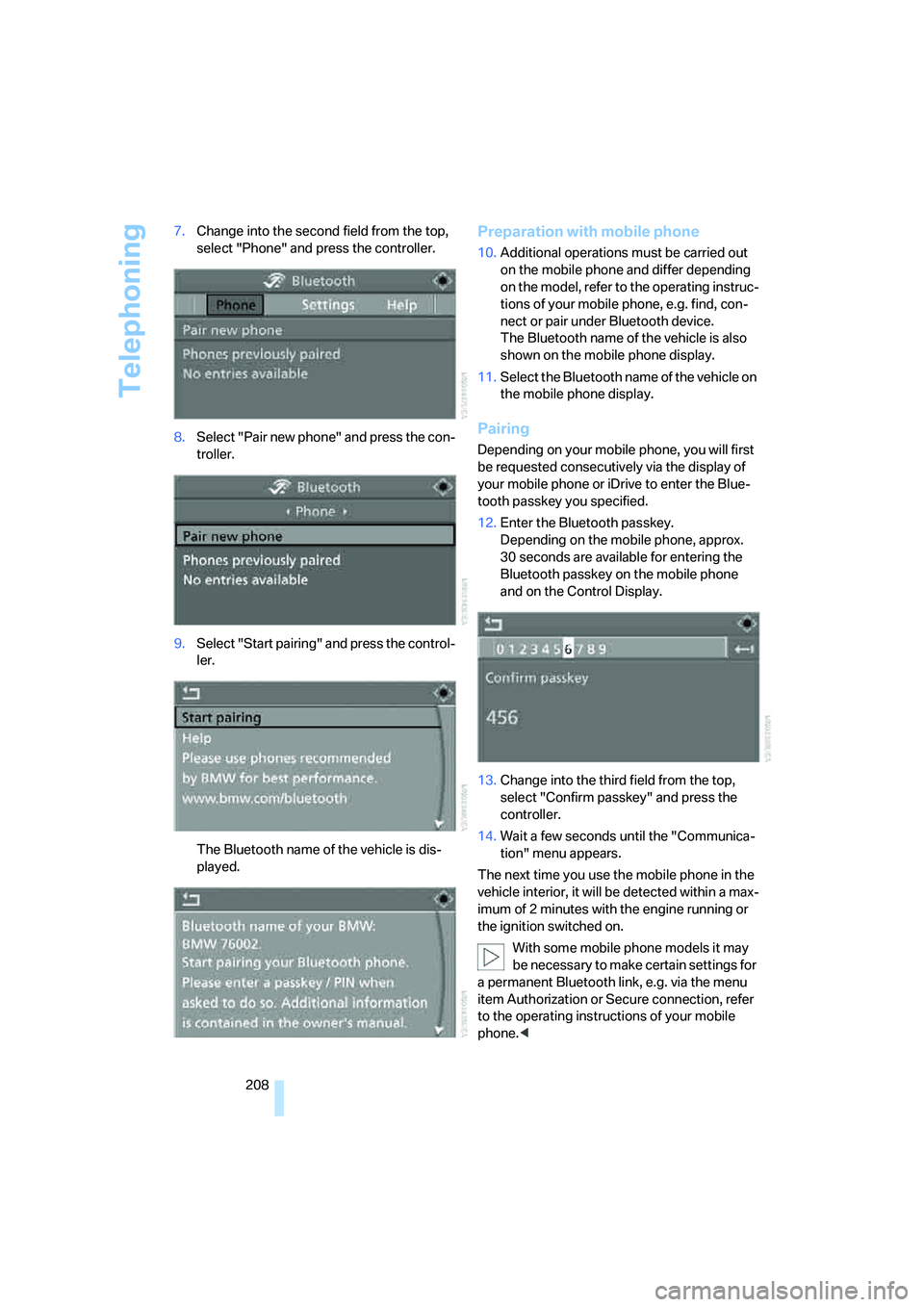
208 7.Change into the second field from the top,
select "Phone" and press the controller.
8.Select "Pair new phone" and press the con-
troller.
9.Select "Start pairing" and press the control-
ler.
The Bluetooth name of the vehicle is dis-
played.
Preparation with mobile phone
10.Additional operations must be carried out
on the mobile phone and differ depending
on the model, refer to the operating instruc-
tions of your mobile phone, e.g. find, con-
nect or pair under Bluetooth device.
The Bluetooth name of the vehicle is also
shown on the mobile phone display.
11.Select the Bluetooth name of the vehicle on
the mobile phone display.
Pairing
Depending on your mobile phone, you will first
be requested consecutively via the display of
your mobile phone or iDrive to enter the Blue-
tooth passkey you specified.
12.Enter the Bluetooth passkey.
Depending on the mobile phone, approx.
30 seconds are available for entering the
Bluetooth passkey on the mobile phone
and on the Control Display.
13.Change into the third field from the top,
select "Confirm passkey" and press the
controller.
14.Wait a few seconds until the "Communica-
tion" menu appears.
The next time you use the mobile phone in the
vehicle interior, it will be detected within a max-
imum of 2 minutes with the engine running or
the ignition switched on.
With some mobile phone models it may
be necessary to make certain settings for
a permanent Bluetooth link, e.g. via the menu
item Authorization or Secure connection, refer
to the operating instructions of your mobile
phone.<
Page 214 of 288
Telephoning
212
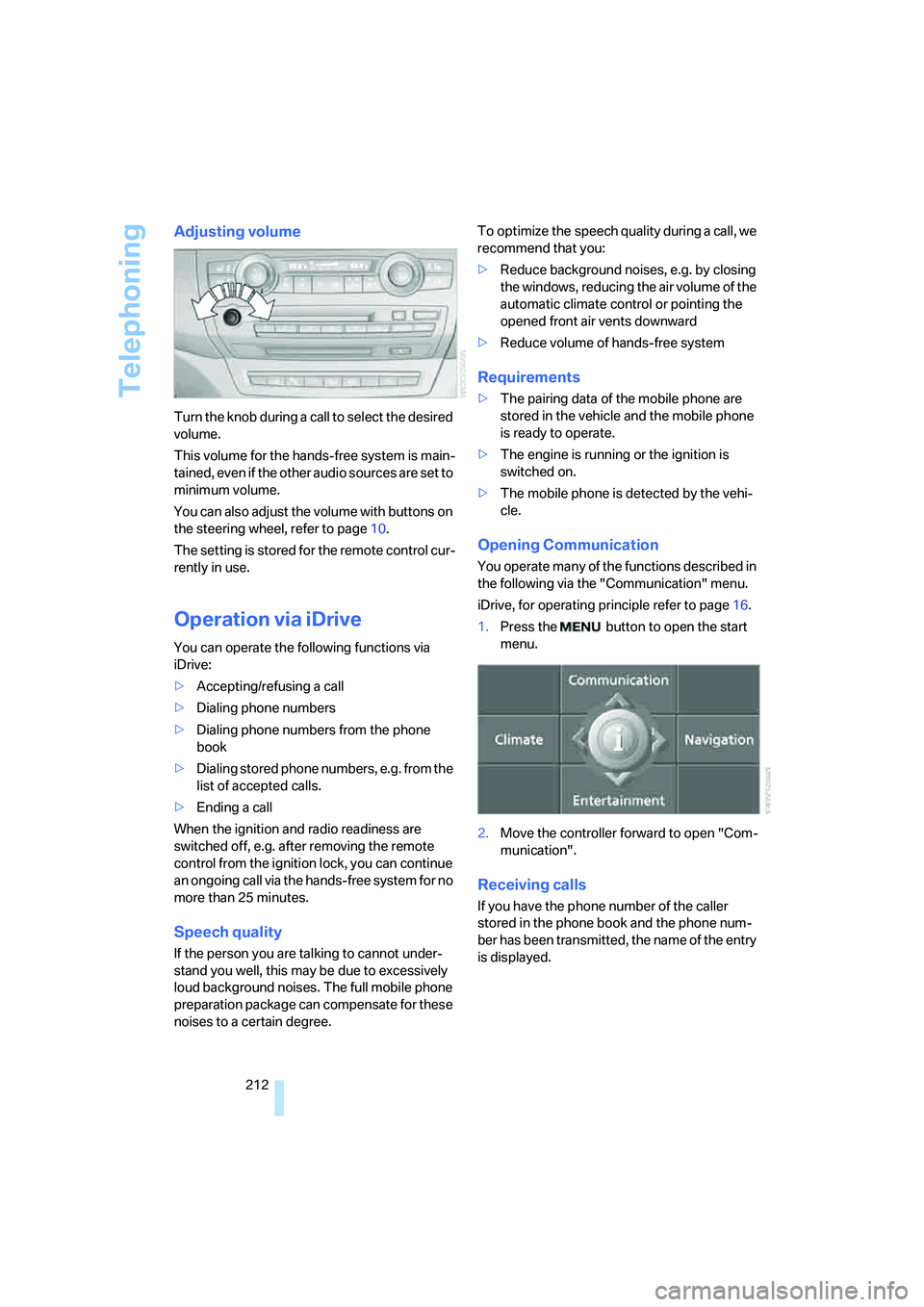
Adjusting volume
Turn the knob during a call to select the desired
volume.
This volume for the hands-free system is main-
tained, even if the other audio sources are set to
minimum volume.
You can also adjust the volume with buttons on
the steering wheel, refer to page10.
The setting is stored for the remote control cur-
rently in use.
Operation via iDrive
You can operate the following functions via
iDrive:
>Accepting/refusing a call
>Dialing phone numbers
>Dialing phone numbers from the phone
book
>Dialing stored phone numbers, e.g. from the
list of accepted calls.
>Ending a call
When the ignition and radio readiness are
switched off, e.g. after removing the remote
control from the ignition lock, you can continue
an ongoing call via the hands-free system for no
more than 25 minutes.
Speech quality
If the person you are talking to cannot under-
stand you well, this may be due to excessively
loud background noises. The full mobile phone
preparation package can compensate for these
noises to a certain degree. To optimize the speech quality during a call, we
recommend that you:
>Reduce background noises, e.g. by closing
the windows, reducing the air volume of the
automatic climate control or pointing the
opened front air vents downward
>Reduce volume of hands-free system
Requirements
>The pairing data of the mobile phone are
stored in the vehicle and the mobile phone
is ready to operate.
>The engine is running or the ignition is
switched on.
>The mobile phone is detected by the vehi-
cle.
Opening Communication
You operate many of the functions described in
the following via the "Communication" menu.
iDrive, for operating principle refer to page16.
1.Press the button to open the start
menu.
2.Move the controller forward to open "Com-
munication".
Receiving calls
If you have the phone number of the caller
stored in the phone book and the phone num-
ber has been transmitted, the name of the entry
is displayed.
Page 219 of 288
217
Entertainment
Reference
At a glance
Controls
Driving tips Communications
Navigation
Mobility
Changing between mobile
phone and hands-free system
From mobile phone to hands-free
system*
You can continue calls begun outside the Blue-
tooth range of the vehicle via the handsfree sys-
tem when the engine is running or the ignition is
switched on. Depending on your mobile phone,
the system automatically switches over to the
handsfree mode.
For mobile phones that do not automatically
switch over to the handsfree mode:
>Depending on the mobile phone model
used, the conversation can be continued via
the hands-free system if necessary. Act
according to what is shown on the mobile
phone display, refer to the operating
instructions of your mobile phone.
>Press the button above the storage
compartment.
From handsfree system to mobile
phone
When you telephone via the handsfree system,
you can also continue the call via the mobile
phone if necessary, depending on the mobile
phone model. Act according to what is shown
on the mobile phone display, refer to the oper-
ating instructions of your mobile phone.
As an alternative, you can deactivate the Blue-
tooth link.
Depending on your mobile phone model, poor
reception of the wireless communications net-
work can result in the system changing from the
hands-free system to the mobile phone.
Operation by voice*
The concept
You can operate your mobile phone without
having to remove your hands from the steering
wheel. When making your entries, you will be
supported by announcements or questions in
many cases.The same prerequisites as for operation via
iDrive apply, refer to page212.
Symbols in Owner's Manual
Voice commands
Activating system
1.Briefly press the button on the steering
wheel.
An acoustic signal indicates that you can
say commands.
2.Say the command.
Ending/canceling operation by voice
Press the button on the steering wheel
or
In dialogs where text is spoken, not a command,
e.g. a name, canceling is only possible using the
button on the steering wheel.
Having possible commands read aloud
The system understands default commands
that must be spoken word for word.
You can have the possible commands spoken
by the system at any point:
Using alternative commands
There are often a number of commands to run a
function, e.g.:
The system recognizes digits from zero to nine.
You can say each digit individually or group
them into a sequence to accelerate the input.
{...}Say the specified commands word for
word.
{{...}} Indicates responses of the system.
{Cancel}.
{Help}
{Dial name} or {Name}.
Page 222 of 288
Telephoning
220
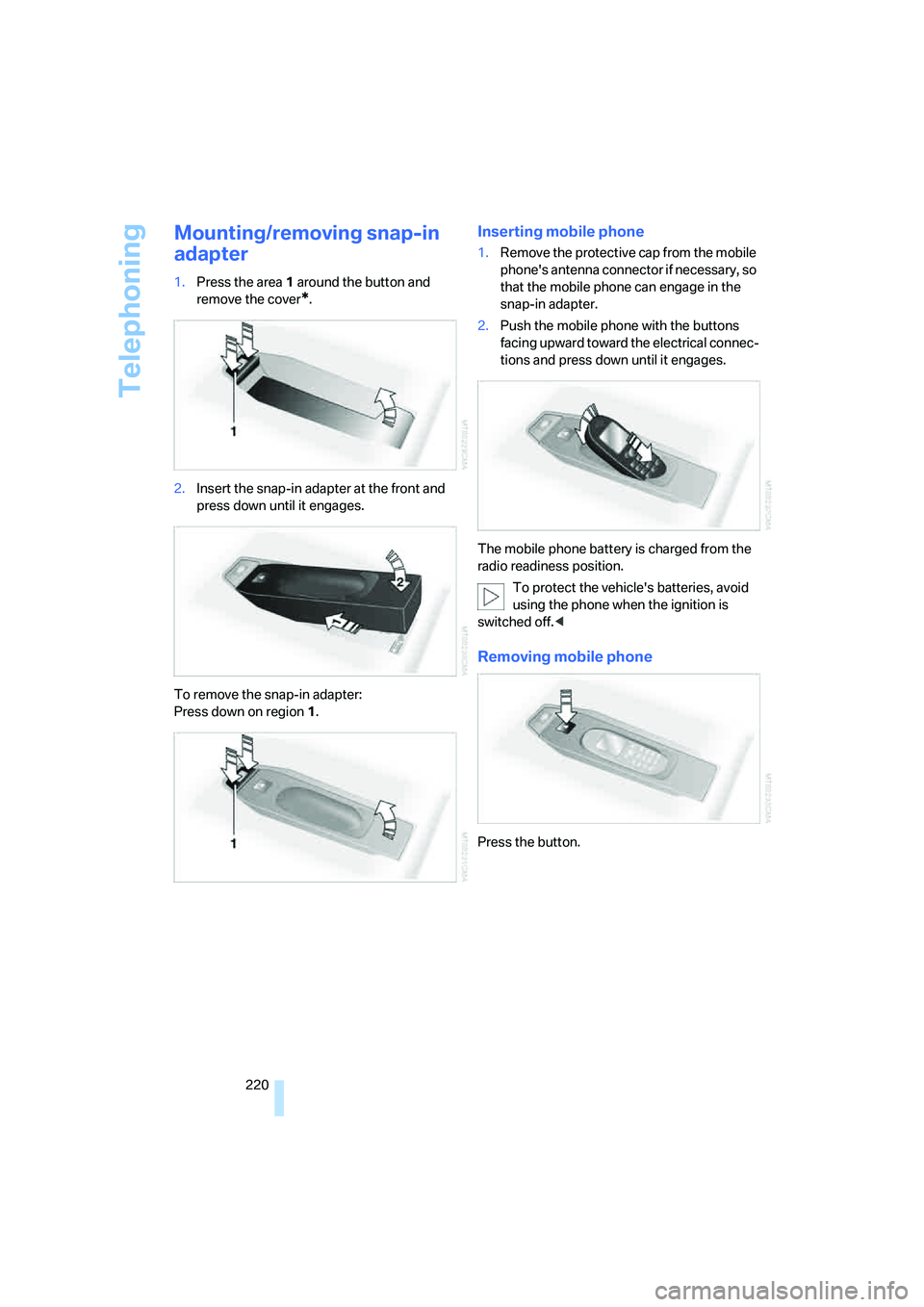
Mounting/removing snap-in
adapter
1.Press the area 1 around the button and
remove the cover
*.
2.Insert the snap-in adapter at the front and
press down until it engages.
To remove the snap-in adapter:
Press down on region 1.
Inserting mobile phone
1.Remove the protective cap from the mobile
phone's antenna connector if necessary, so
that the mobile phone can engage in the
snap-in adapter.
2.Push the mobile phone with the buttons
facing upward toward the electrical connec-
tions and press down until it engages.
The mobile phone battery is charged from the
radio readiness position.
To protect the vehicle's batteries, avoid
using the phone when the ignition is
switched off.<
Removing mobile phone
Press the button.
Page 228 of 288
BMW Assist
226
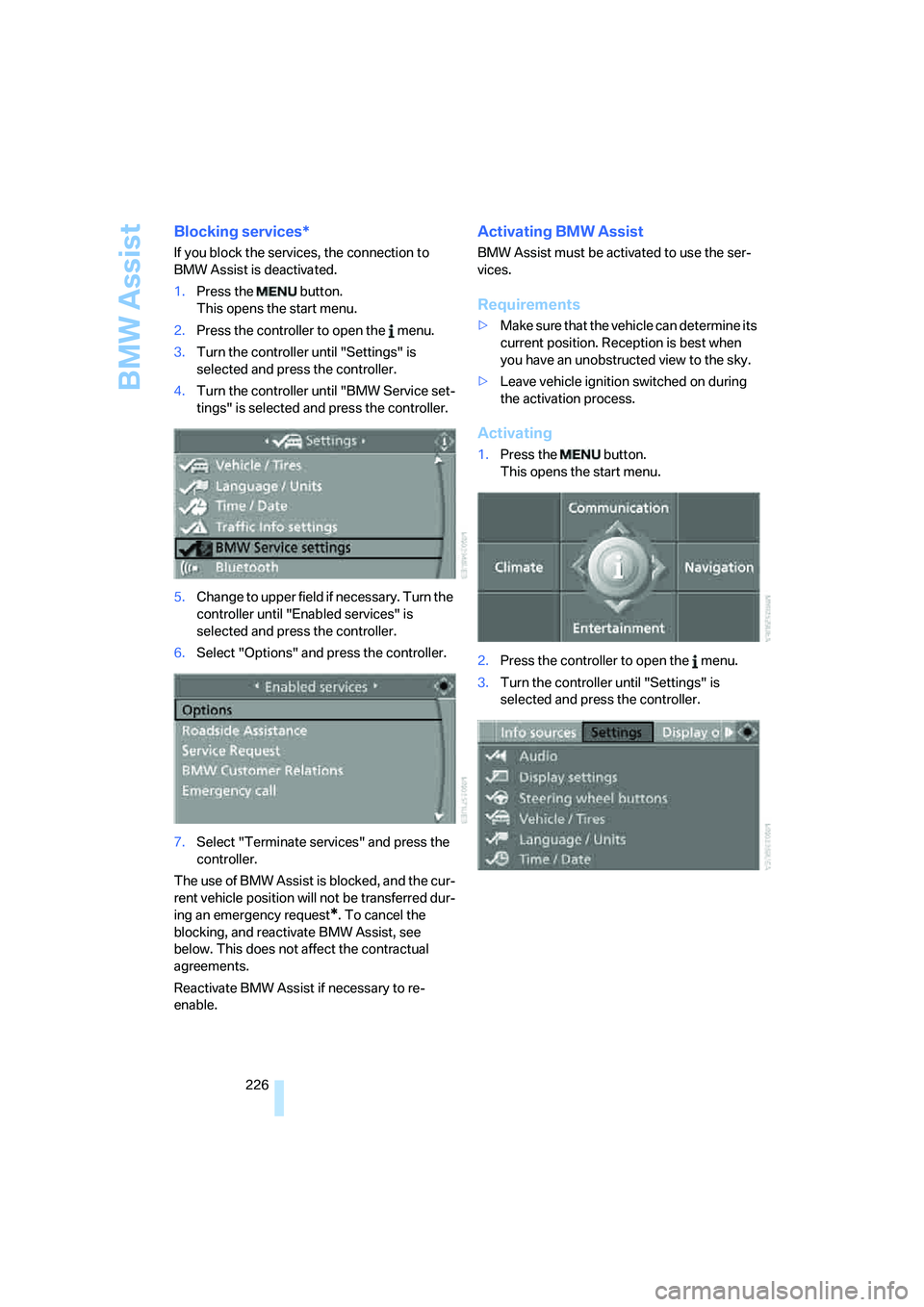
Blocking services*
If you block the services, the connection to
BMW Assist is deactivated.
1.Press the button.
This opens the start menu.
2.Press the controller to open the menu.
3.Turn the controller until "Settings" is
selected and press the controller.
4.Turn the controller until "BMW Service set-
tings" is selected and press the controller.
5.Change to upper field if necessary. Turn the
controller until "Enabled services" is
selected and press the controller.
6.Select "Options" and press the controller.
7.Select "Terminate services" and press the
controller.
The use of BMW Assist is blocked, and the cur-
rent vehicle position will not be transferred dur-
ing an emergency request
*. To cancel the
blocking, and reactivate BMW Assist, see
below. This does not affect the contractual
agreements.
Reactivate BMW Assist if necessary to re-
enable.
Activating BMW Assist
BMW Assist must be activated to use the ser-
vices.
Requirements
>Make sure that the vehicle can determine its
current position. Reception is best when
you have an unobstructed view to the sky.
>Leave vehicle ignition switched on during
the activation process.
Activating
1.Press the button.
This opens the start menu.
2.Press the controller to open the menu.
3.Turn the controller until "Settings" is
selected and press the controller.
Page 257 of 288
Mobility
255Reference
At a glance
Controls
Driving tips
Communications
Navigation
Entertainment
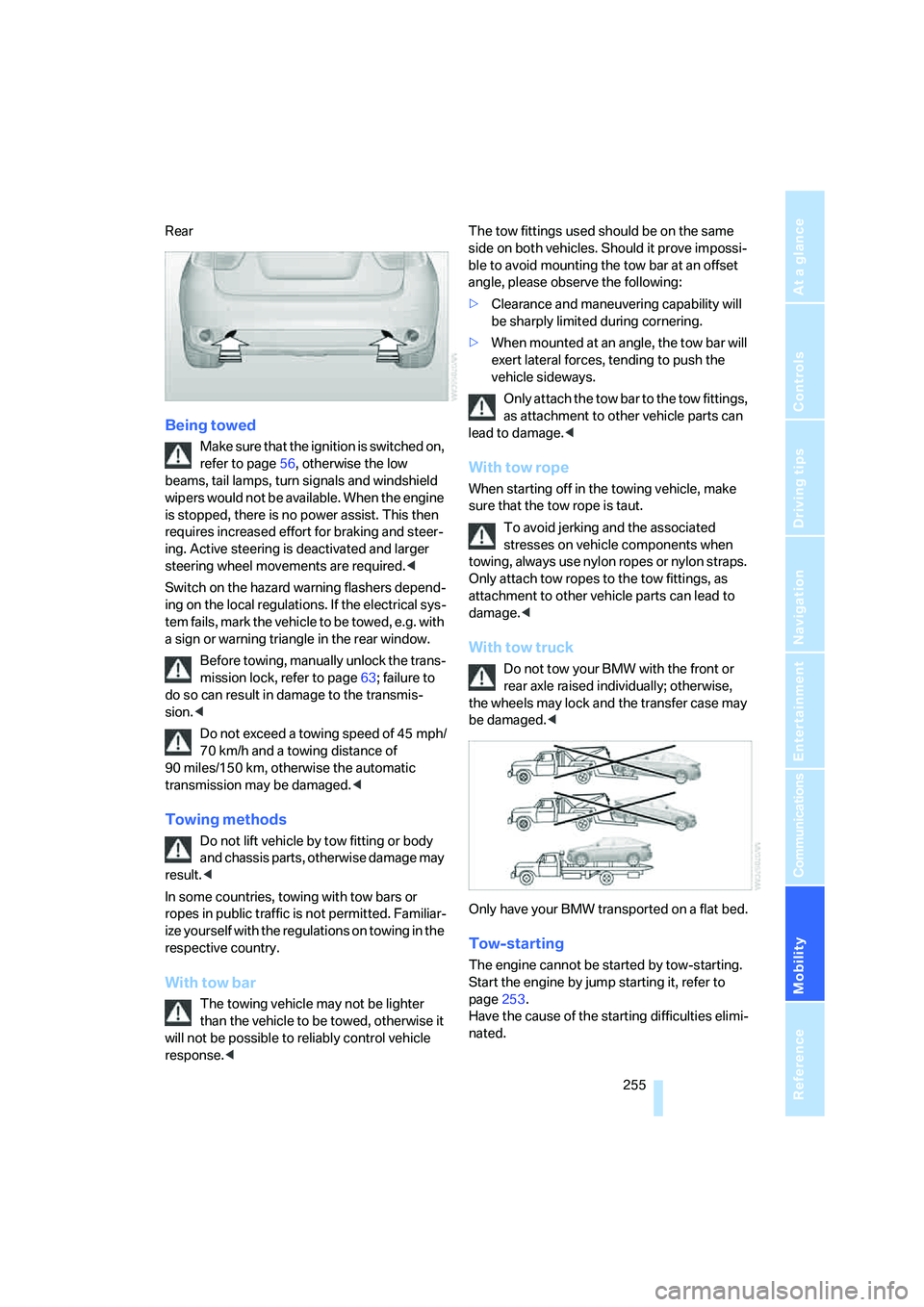
Rear
Being towed
Make sure that the ignition is switched on,
refer to page56, otherwise the low
beams, tail lamps, turn signals and windshield
wipers would not be available. When the engine
is stopped, there is no power assist. This then
requires increased effort for braking and steer-
ing. Active steering is deactivated and larger
steering wheel movements are required.<
Switch on the hazard warning flashers depend-
ing on the local regulations. If the electrical sys-
tem fails, mark the vehicle to be towed, e.g. with
a sign or warning triangle in the rear window.
Before towing, manually unlock the trans-
mission lock, refer to page63; failure to
do so can result in damage to the transmis-
sion.<
Do not exceed a towing speed of 45 mph/
70 km/h and a towing distance of
90 miles/150 km, otherwise the automatic
transmission may be damaged.<
Towing methods
Do not lift vehicle by tow fitting or body
and chassis parts, otherwise damage may
result.<
In some countries, towing with tow bars or
ropes in public traffic is not permitted. Familiar-
ize yourself with the regulations on towing in the
respective country.
With tow bar
The towing vehicle may not be lighter
than the vehicle to be towed, otherwise it
will not be possible to reliably control vehicle
response.
ble to avoid mounting the tow bar at an offset
angle, please observe the following:
>Clearance and maneuvering capability will
be sharply limited during cornering.
>When mounted at an angle, the tow bar will
exert lateral forces, tending to push the
vehicle sideways.
Only attach the tow bar to the tow fittings,
as attachment to other vehicle parts can
lead to damage.<
With tow rope
When starting off in the towing vehicle, make
sure that the tow rope is taut.
To avoid jerking and the associated
stresses on vehicle components when
towing, always use nylon ropes or nylon straps.
Only attach tow ropes to the tow fittings, as
attachment to other vehicle parts can lead to
damage.<
With tow truck
Do not tow your BMW with the front or
rear axle raised individually; otherwise,
the wheels may lock and the transfer case may
be damaged.<
Only have your BMW transported on a flat bed.
Tow-starting
The engine cannot be started by tow-starting.
Start the engine by jump starting it, refer to
page253.
Have the cause of the starting difficulties elimi-
nated.
Page 271 of 288
Reference 269
At a glance
Controls
Driving tips
Communications
Navigation
Entertainment
Mobility
"CD"161,173
– for DVD system in rear192
CD, refer to Playing audio
tracks, DVD system in
rear196
CD/DVD player, DVD system
in rear191
CD changer173
– compressed audio files173
– controls160
– fast forward/reverse176
– random sequence176
– repeating a track175
– sampling tracks175
– selecting a CD173
– selecting a track174
– switching on/off160
– tone control161
– volume161
CD player173
– compressed audio files173
– controls160
– fast forward/reverse176
– random sequence176
– repeating a track175
– sampling tracks175
– selecting a track174
– switching on/off160
– tone control161
– volume161
Cell phone, refer to Mobile
phone
Center armrest
– front116
– rear119
Center brake lamp248
Center console14
"Central locking"30
Central locking system29
– comfort access36
– from inside vehicle32
Changes, technical
– refer to For your own
safety5
– refer to Parts and
accessories6
Changing language on
Control Display80Changing tires237
Changing units of measure on
Control Display79
Changing wheels248
Check Control75
"Check Control
messages"76
Checking the air pressure,
refer to Tire inflation
pressure232
Children, transporting53
Child restraint fixing system
LATCH54
Child restraint systems53
Child-safety locks55
Child seats53
Chime, refer to Check
Control75
Chrome parts, care, refer to
Caring for your vehicle
brochure
Cigarette lighter, refer to
Lighter118
Cleaning, refer to Caring for
your vehicle brochure
"Climate"48
Clock68
– 12h/24h mode79
– setting time78
Closing
– from inside32
– using remote control29
Closing fuel filler cap230
Clothes hooks116
Cockpit10
Cold start, refer to Starting
engine57
"Color" for DVD system in
rear194
Comfort access36
– observe in car wash38
– replacing battery38
Comfort area, refer to Around
the center console14
Comfort start, refer to Starting
engine57
"Communica-
tion"212,222,223,224Compact Disc
– refer to CD changer173
– refer to CD player173
Compact wheel, wheel
change248
Compartment for remote
control, refer to Ignition
lock56
Compartments, refer to
Storage compartments116
Compass, digital114
Computer70
– displays in instrument
panel70
– displays on Control
Display70
– trip computer71
"Concierge"224
Concierge service224
Condition Based Service
CBS243
"Confirmation"31
Connecting car vacuum
cleaner, refer to Connecting
electrical devices118
Connecting headphones191
Consumption, refer to
Average fuel
consumption70
Consumption statistics, refer
to Average fuel
consumption70
"Continue guidance to
destination?"149
"Contrast"
– DVD changer182
– DVD system in rear194
Control Center, refer to
iDrive16
Control Display, refer to
iDrive16
– setting brightness79
Controller, refer to iDrive16
Controls
– DVD changer179
– DVD system in rear190
– refer to Cockpit10