Drive BMW X6 2013 E71 User Guide
[x] Cancel search | Manufacturer: BMW, Model Year: 2013, Model line: X6, Model: BMW X6 2013 E71Pages: 345, PDF Size: 9.45 MB
Page 20 of 345
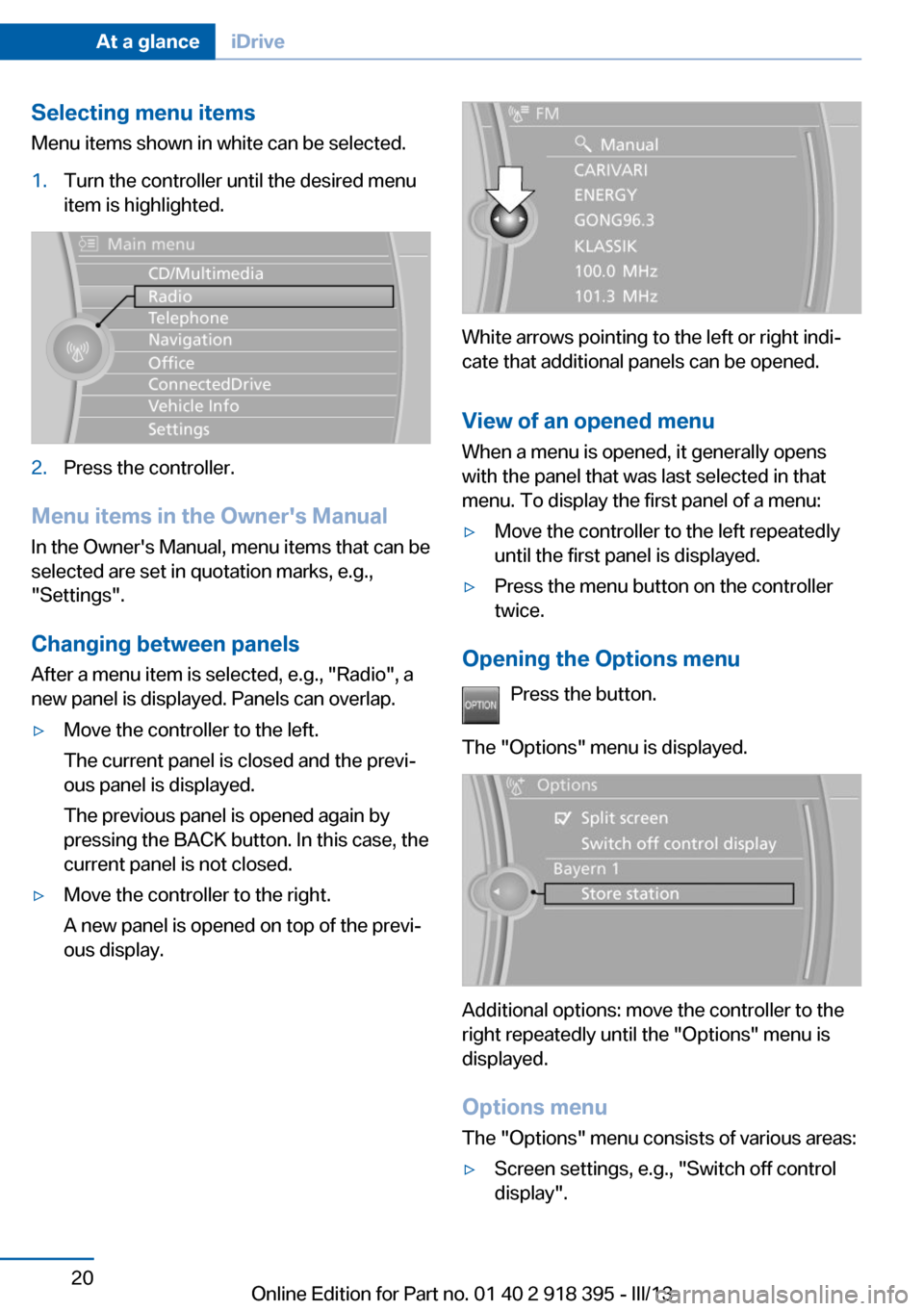
Selecting menu items
Menu items shown in white can be selected.1.Turn the controller until the desired menu
item is highlighted.2.Press the controller.
Menu items in the Owner's Manual
In the Owner's Manual, menu items that can be
selected are set in quotation marks, e.g.,
"Settings".
Changing between panels
After a menu item is selected, e.g., "Radio", a
new panel is displayed. Panels can overlap.
▷Move the controller to the left.
The current panel is closed and the previ‐
ous panel is displayed.
The previous panel is opened again by
pressing the BACK button. In this case, the
current panel is not closed.▷Move the controller to the right.
A new panel is opened on top of the previ‐
ous display.
White arrows pointing to the left or right indi‐
cate that additional panels can be opened.
View of an opened menu
When a menu is opened, it generally opens
with the panel that was last selected in that
menu. To display the first panel of a menu:
▷Move the controller to the left repeatedly
until the first panel is displayed.▷Press the menu button on the controller
twice.
Opening the Options menu
Press the button.
The "Options" menu is displayed.
Additional options: move the controller to the
right repeatedly until the "Options" menu is
displayed.
Options menu The "Options" menu consists of various areas:
▷Screen settings, e.g., "Switch off control
display".Seite 20At a glanceiDrive20
Online Edition for Part no. 01 40 2 918 395 - III/13
Page 21 of 345
▷Control options for the selected main
menu, e.g., for "Radio".▷If applicable, further operating options for
the selected menu, for instance "Store
station".
Changing settings
1.Select a field.2.Turn the controller until the desired setting
is displayed.3.Press the controller.
Activating/deactivating the functions
Several menu items are preceded by a check‐
box. It indicates whether the function is acti‐
vated or deactivated. Selecting the menu item
activates or deactivates the function.
The function is activated.
The function is deactivated.
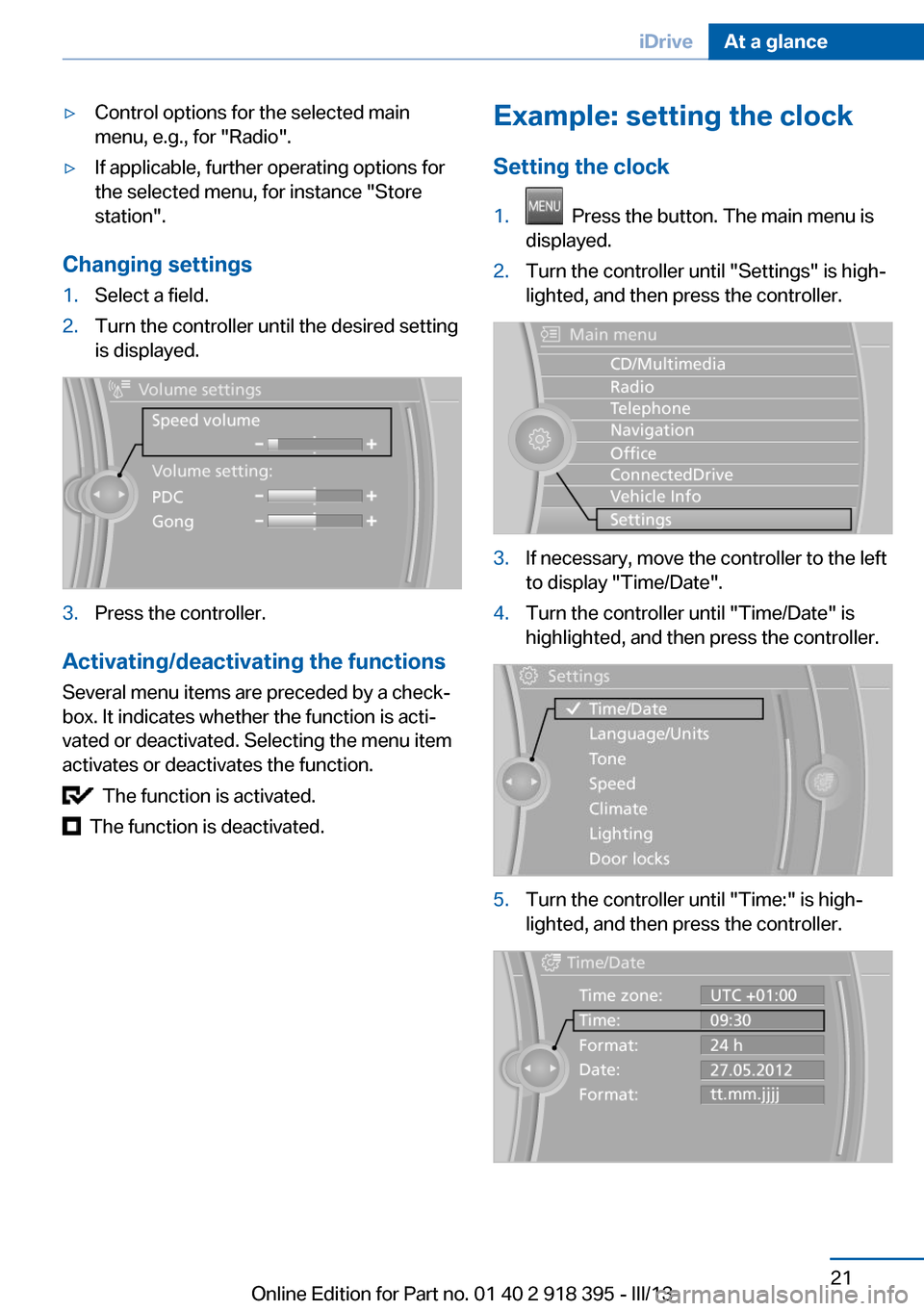
Example: setting the clock
Setting the clock1. Press the button. The main menu is
displayed.2.Turn the controller until "Settings" is high‐
lighted, and then press the controller.3.If necessary, move the controller to the left
to display "Time/Date".4.Turn the controller until "Time/Date" is
highlighted, and then press the controller.5.Turn the controller until "Time:" is high‐
lighted, and then press the controller.Seite 21iDriveAt a glance21
Online Edition for Part no. 01 40 2 918 395 - III/13
Page 22 of 345
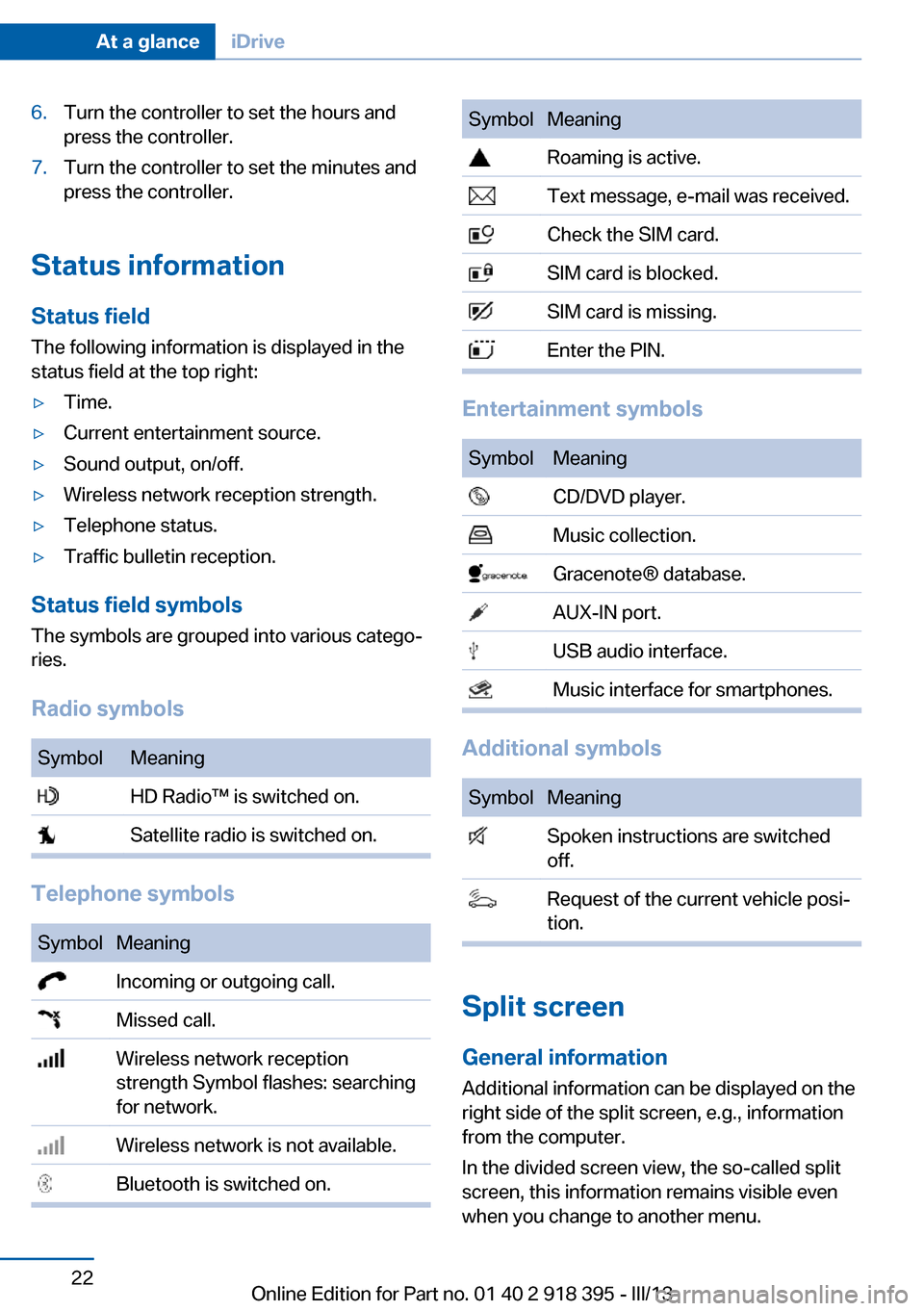
6.Turn the controller to set the hours and
press the controller.7.Turn the controller to set the minutes and
press the controller.
Status information
Status field The following information is displayed in the
status field at the top right:
▷Time.▷Current entertainment source.▷Sound output, on/off.▷Wireless network reception strength.▷Telephone status.▷Traffic bulletin reception.
Status field symbols
The symbols are grouped into various catego‐
ries.
Radio symbols
SymbolMeaning HD Radio™ is switched on. Satellite radio is switched on.
Telephone symbols
SymbolMeaning Incoming or outgoing call. Missed call. Wireless network reception
strength Symbol flashes: searching
for network. Wireless network is not available. Bluetooth is switched on.SymbolMeaning Roaming is active. Text message, e-mail was received. Check the SIM card. SIM card is blocked. SIM card is missing. Enter the PIN.
Entertainment symbols
SymbolMeaning CD/DVD player. Music collection. Gracenote® database. AUX-IN port. USB audio interface. Music interface for smartphones.
Additional symbols
SymbolMeaning Spoken instructions are switched
off. Request of the current vehicle posi‐
tion.
Split screen
General information Additional information can be displayed on the
right side of the split screen, e.g., information
from the computer.
In the divided screen view, the so-called split
screen, this information remains visible even when you change to another menu.
Seite 22At a glanceiDrive22
Online Edition for Part no. 01 40 2 918 395 - III/13
Page 23 of 345
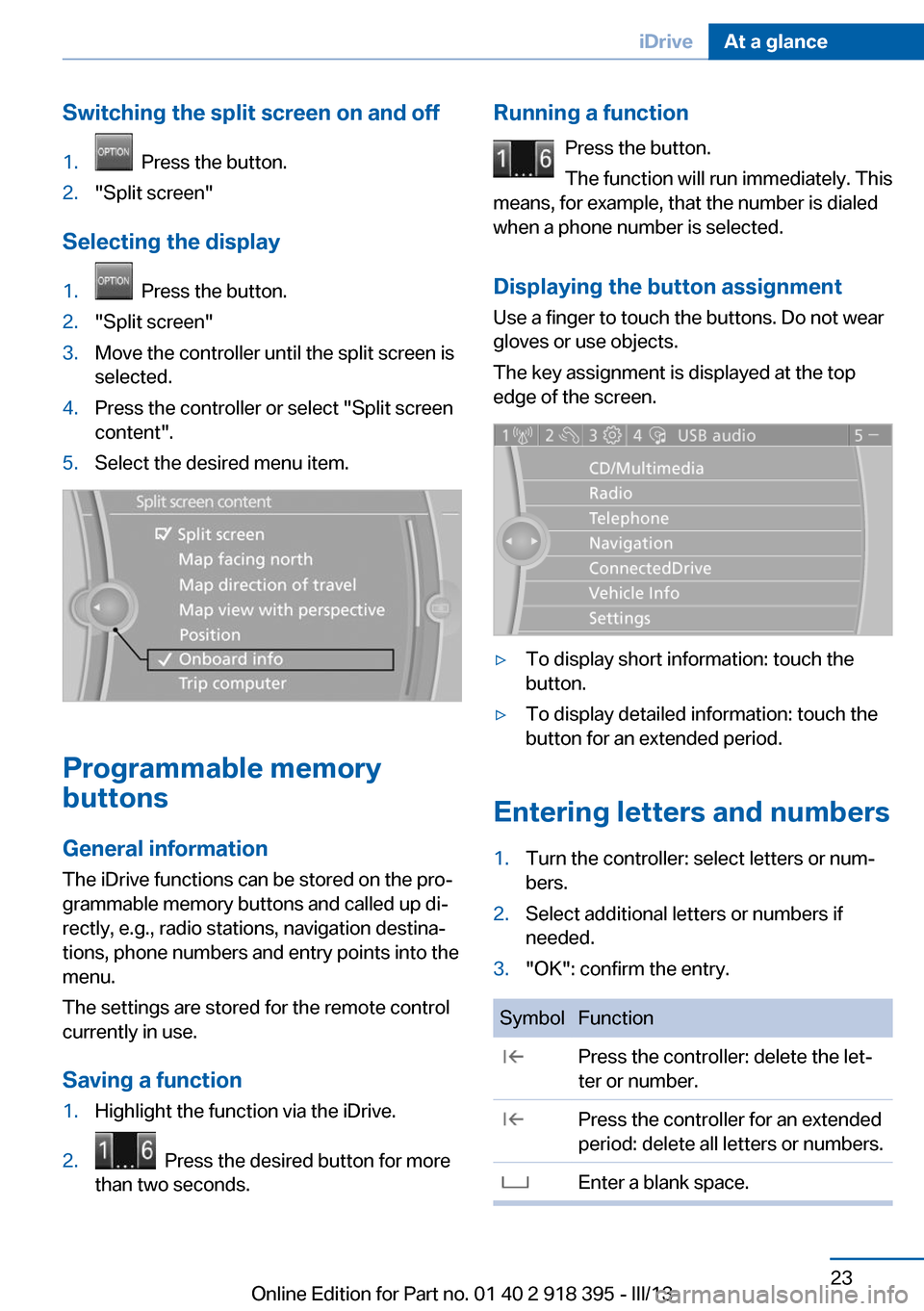
Switching the split screen on and off1. Press the button.2."Split screen"
Selecting the display
1. Press the button.2."Split screen"3.Move the controller until the split screen is
selected.4.Press the controller or select "Split screen
content".5.Select the desired menu item.
Programmable memory
buttons
General information
The iDrive functions can be stored on the pro‐
grammable memory buttons and called up di‐
rectly, e.g., radio stations, navigation destina‐
tions, phone numbers and entry points into the
menu.
The settings are stored for the remote control
currently in use.
Saving a function
1.Highlight the function via the iDrive.2. Press the desired button for more
than two seconds.Running a function
Press the button.
The function will run immediately. This
means, for example, that the number is dialed
when a phone number is selected.
Displaying the button assignment Use a finger to touch the buttons. Do not wear
gloves or use objects.
The key assignment is displayed at the top
edge of the screen.▷To display short information: touch the
button.▷To display detailed information: touch the
button for an extended period.
Entering letters and numbers
1.Turn the controller: select letters or num‐
bers.2.Select additional letters or numbers if
needed.3."OK": confirm the entry.SymbolFunction Press the controller: delete the let‐
ter or number. Press the controller for an extended
period: delete all letters or numbers. Enter a blank space.Seite 23iDriveAt a glance23
Online Edition for Part no. 01 40 2 918 395 - III/13
Page 24 of 345
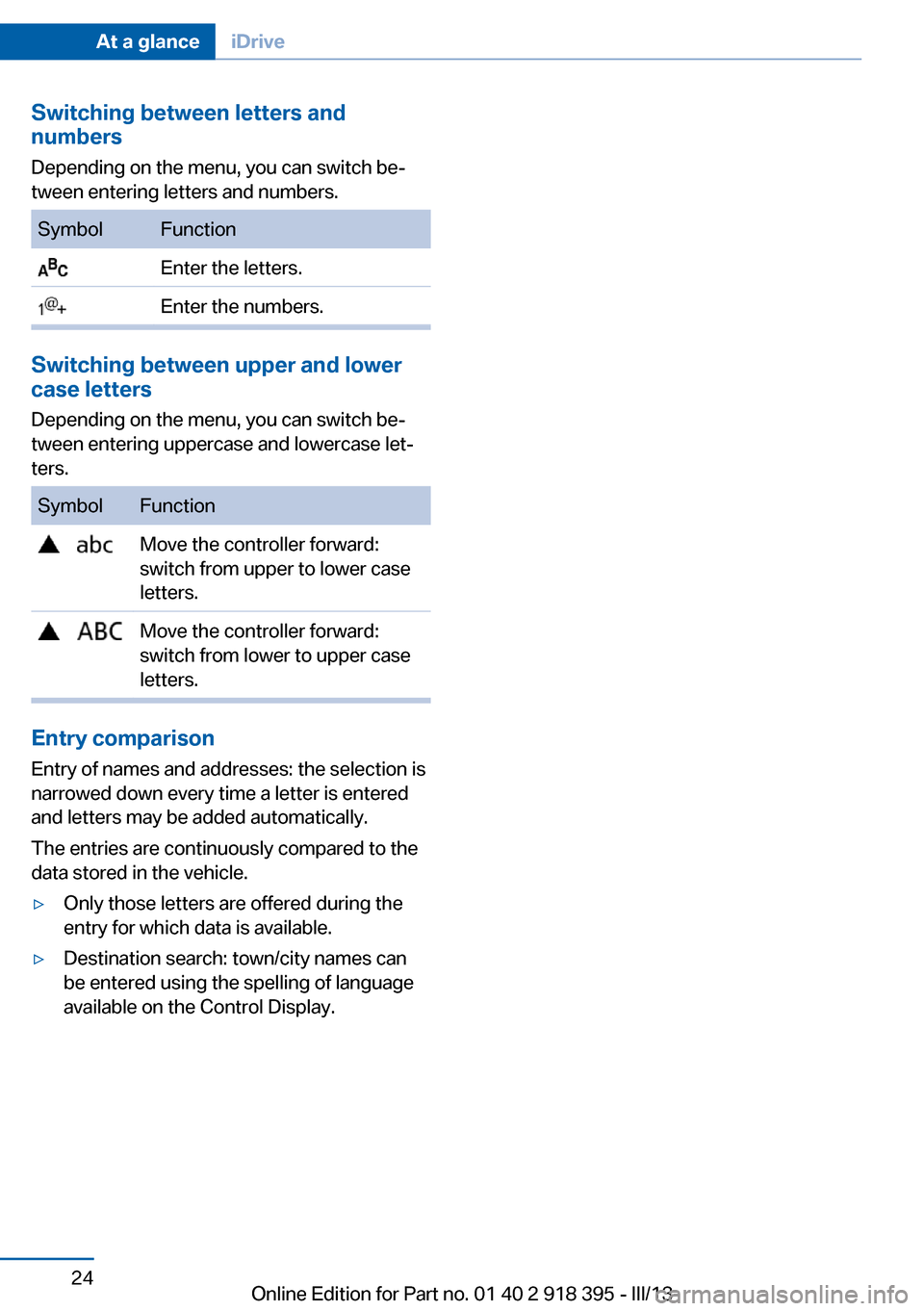
Switching between letters and
numbers
Depending on the menu, you can switch be‐
tween entering letters and numbers.SymbolFunction Enter the letters. Enter the numbers.
Switching between upper and lower
case letters
Depending on the menu, you can switch be‐
tween entering uppercase and lowercase let‐
ters.
SymbolFunction Move the controller forward:
switch from upper to lower case
letters. Move the controller forward:
switch from lower to upper case
letters.
Entry comparison
Entry of names and addresses: the selection is
narrowed down every time a letter is entered
and letters may be added automatically.
The entries are continuously compared to the
data stored in the vehicle.
▷Only those letters are offered during the
entry for which data is available.▷Destination search: town/city names can
be entered using the spelling of language
available on the Control Display.Seite 24At a glanceiDrive24
Online Edition for Part no. 01 40 2 918 395 - III/13
Page 25 of 345
Voice activation systemVehicle equipment
This chapter describes all series equipment as
well as country-specific and special equipment
offered for this model series.Therefore, it also
describes equipment that may not be found in
your vehicle, for instance due to the selected
special equipment or the country version. This
also applies to safety-related functions and
systems.
The concept▷Most functions that are displayed on the
Control Display can be operated with the
voice activation system using spoken com‐
mands. The system prompts you to make
your entries.▷Functions that can only be used when the
vehicle is stationary cannot be operated
using the voice activation system.▷The system uses a special microphone lo‐
cated in the area of the interior rearview
mirror.▷›...‹ Verbal instructions in the Owner's
Manual to use with the voice activation
system.
Requirements
Via the Control Display, set a language that is
also supported by the voice activation system
so that the spoken commands can be identi‐
fied.
Set the language, refer to page 88.
Using voice activation
Activating the voice activation system1. Press the button on the steering
wheel.2.Wait for the signal.3.Say the command.
The command appears on the Control Dis‐
play.
The symbol on the Control Display indi‐
cates that the voice activation system is active.
If no other commands are available, operate
the function via iDrive in this case.
Terminating the voice activation
system
Briefly press the button on the steer‐
ing wheel or ›Cancel‹.
Possible commands
Most menu items on the Control Display can
be voiced as commands.
The available commands depend on the menu
that is currently displayed on the Control Dis‐
play.
The functions of the main menu have short
commands.
Some list items, such as the phone book en‐
tries, can also be selected via the voice activa‐
tion system. Say the list items exactly as they
are displayed on the list.
Having possible commands read aloud You can have the system read possible com‐
mands aloud: ›Voice commands‹.
Seite 25Voice activation systemAt a glance25
Online Edition for Part no. 01 40 2 918 395 - III/13
Page 26 of 345
For example, if the "Settings" menu is dis‐
played, the commands for the settings are
read out loud.
Executing functions using short
commands
Functions on the main menu can be performed
directly by means of short commands, usually
irrespective of which menu item is currently selected, for instance ›Vehicle status‹.
List of short commands of the voice activation
system, refer to page 322.
Help dialog for the voice activation
system
Calling up help dialog: ›Help‹
Additional commands for the help dialog:▷›Help with examples‹: information about the
current operating options and the most im‐
portant commands for them are an‐
nounced.▷›Help with voice activation‹: information
about the principle of operation for the
voice activation system is announced.
Example: playing back a CD
Via the main menu The commands of the menu items are spoken
out loud, in the same way as they are selected
via the controller.
1.Switch on the Entertainment sound output
if necessary.2. Press the button on the steering
wheel.3.›C D and multimedia‹
The medium last played is played back.4.›C D‹5.›C D drive‹
The CD is played back.6. Press the button on the steering
wheel again to select a specific track.7.›Track ...‹ e.g., CD track 4.
Via short commands
Playback of the CD can also be started using a
short command.
1.Switch on the Entertainment sound output
if necessary.2. Press the button on the steering
wheel.3.›C D drive Track ...‹ e.g., CD track 4.
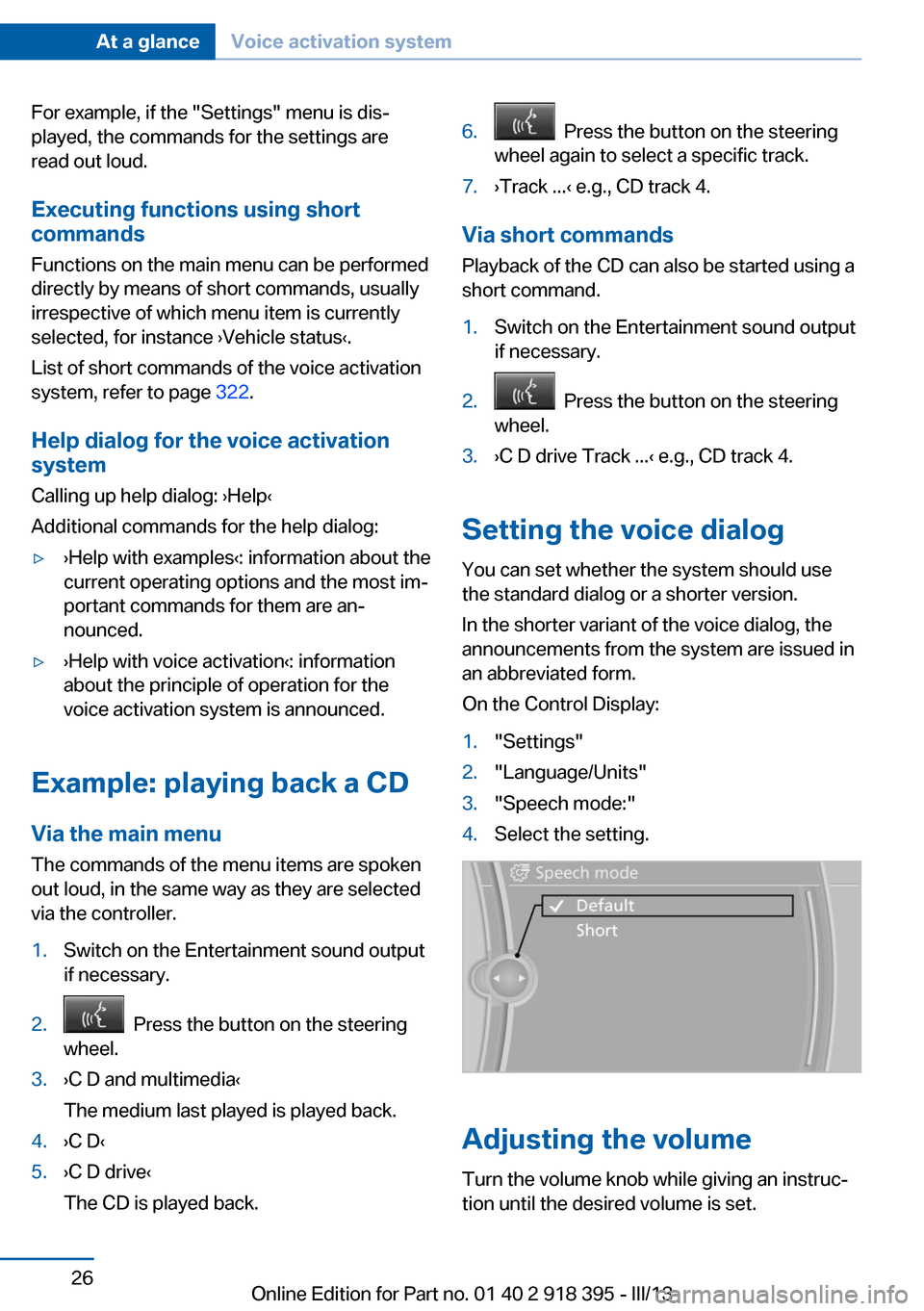
Setting the voice dialog
You can set whether the system should use
the standard dialog or a shorter version.
In the shorter variant of the voice dialog, the
announcements from the system are issued in
an abbreviated form.
On the Control Display:
1."Settings"2."Language/Units"3."Speech mode:"4.Select the setting.
Adjusting the volume
Turn the volume knob while giving an instruc‐
tion until the desired volume is set.
Seite 26At a glanceVoice activation system26
Online Edition for Part no. 01 40 2 918 395 - III/13
Page 30 of 345
Opening and closingVehicle equipment
This chapter describes all series equipment as
well as country-specific and special equipment
offered for this model series.Therefore, it also
describes equipment that may not be found in
your vehicle, for instance due to the selected
special equipment or the country version. This
also applies to safety-related functions and
systems.
Remote control/key
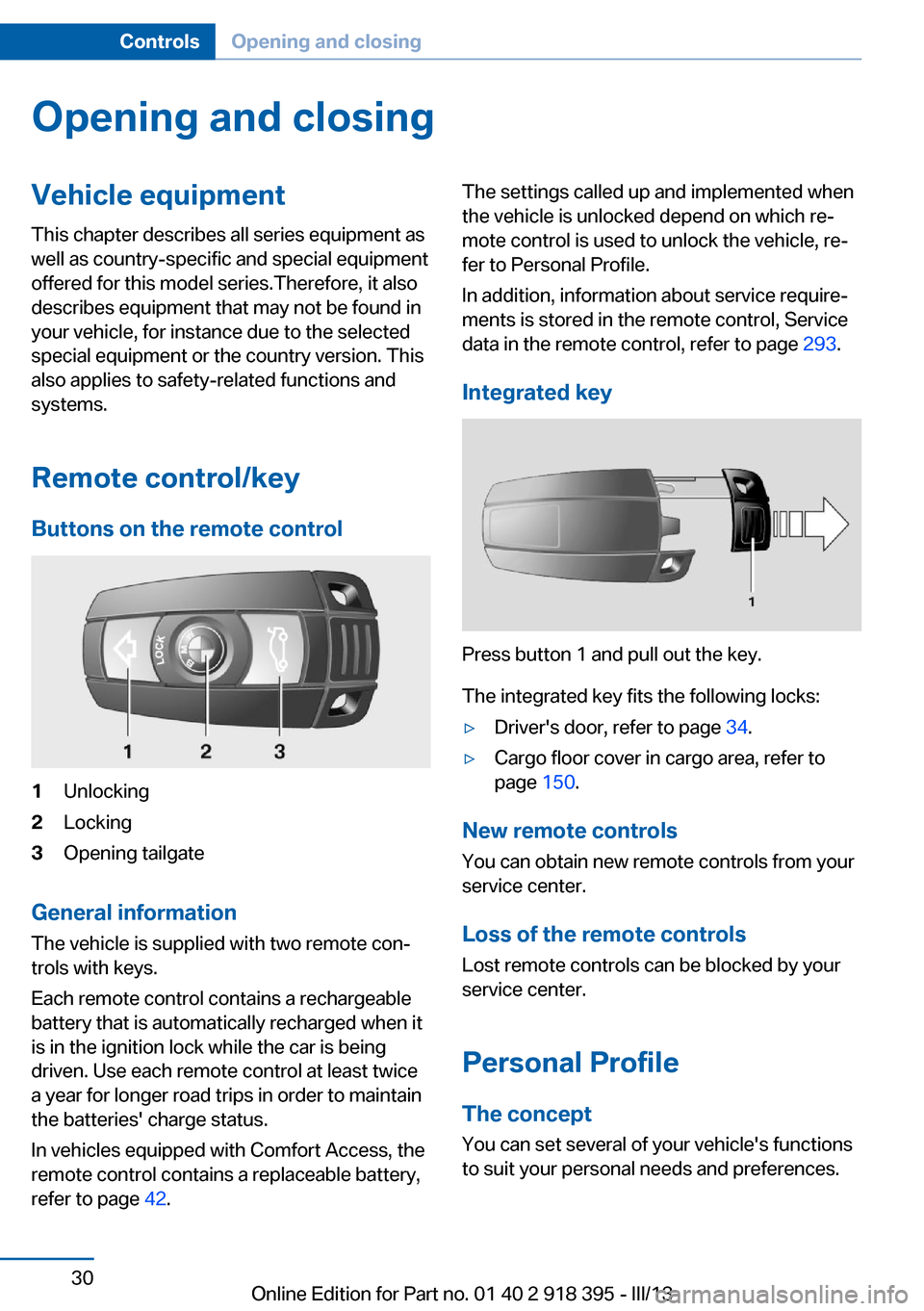
Buttons on the remote control1Unlocking2Locking3Opening tailgate
General information
The vehicle is supplied with two remote con‐
trols with keys.
Each remote control contains a rechargeable
battery that is automatically recharged when it
is in the ignition lock while the car is being
driven. Use each remote control at least twice
a year for longer road trips in order to maintain
the batteries' charge status.
In vehicles equipped with Comfort Access, the
remote control contains a replaceable battery,
refer to page 42.
The settings called up and implemented when
the vehicle is unlocked depend on which re‐
mote control is used to unlock the vehicle, re‐
fer to Personal Profile.
In addition, information about service require‐
ments is stored in the remote control, Service
data in the remote control, refer to page 293.
Integrated key
Press button 1 and pull out the key.
The integrated key fits the following locks:
▷Driver's door, refer to page 34.▷Cargo floor cover in cargo area, refer to
page 150.
New remote controls
You can obtain new remote controls from your
service center.
Loss of the remote controls
Lost remote controls can be blocked by your
service center.
Personal Profile The concept
You can set several of your vehicle's functions
to suit your personal needs and preferences.
Seite 30ControlsOpening and closing30
Online Edition for Part no. 01 40 2 918 395 - III/13
Page 31 of 345
▷The settings are automatically saved in the
profile currently activated in the remote
control.▷The remote control used is detected when
the vehicle is unlocked and the stored pro‐
file is called up.▷Your personal settings will be recognized
and called up again even if the vehicle has
been used in the meantime by someone
else with another remote control.
The individual settings are stored for a maxi‐
mum of four remote controls. They are stored
for two remote controls if Comfort Access is in
use.
Personal Profile settingsThe following functions and settings can be
stored in a profile.
More information on the settings can be found
under:
▷Assigning the programmable memory but‐
tons, refer to page 23.▷Response of the central locking system
when the car is being unlocked, refer to
page 32.▷Automatic locking of the vehicle, refer to
page 35.▷Driver's seat, exterior mirror and steering
wheel positions, refer to page 57.▷Settings for the display on the Control Dis‐
play and in the instrument cluster:▷12h/24h clock format, refer to
page 87.▷Date format, refer to page 88.▷Brightness of the Control Display, refer
to page 88.▷Language on the Control Display, refer
to page 88.▷Units of measure for fuel consumption,
distance covered/remaining distances,
and temperature, refer to page 88.▷Show visual warning for the Park Distance
Control PDC, refer to page 121.▷Show visual warning for Top View, refer to
page 124.▷Show Side View, refer to page 126.▷Backup camera:▷Function selection, refer to page 123.▷Type of display, refer to page 124.▷Lane departure warning: last setting, on/
off, refer to page 102.▷Head-up Display: selection, brightness and
position of the display, refer to page 127.▷Adaptive Drive: selected chassis and sus‐
pension tuning, refer to page 109.▷Light settings:▷Triple turn signal activation, refer to
page 73.▷Welcome lamps, refer to page 90.▷Headlamp courtesy delay feature, refer
to page 91.▷Daytime running lights, refer to
page 91.▷High-beam Assistant, refer to
page 92.▷Automatic climate control with 2-zone con‐
trol: settings, refer to page 131.▷Navigation:▷Voice activation, refer to page 181.▷Route criteria, refer to page 179.▷Map view settings, refer to page 183.▷Entertainment:▷Tone control, refer to page 190.▷Radio, stored stations, refer to
page 198.▷CD/multimedia, audio source listened
to last, refer to page 200.▷Telephone: volume, refer to page 240.Seite 31Opening and closingControls31
Online Edition for Part no. 01 40 2 918 395 - III/13
Page 32 of 345
Central locking system
The concept The central locking system becomes active
when the driver's door is closed.
The system simultaneously engages and re‐
leases the locks on the following:▷Doors.▷Tailgate.▷Fuel filler flap.
Operating from the outside
▷Via the remote control.▷Via the door lock.▷In cars with Comfort Access, via the door
handles.
The following takes place simultaneously
when locking/unlocking the vehicle via the re‐
mote control:
▷The welcome lamps, interior lamps and
courtesy lamps are switched on and off.▷The alarm system is armed or disarmed,
refer to page 42.
Operating from the inside
Via the button for the central locking system,
refer to page 35.
If the vehicle is locked from the inside, the fuel
filler flap remains unlocked.
If an accident of a certain severity occurs, the central locking system unlocks automatically.
The hazard warning system and interior lamps come on.
Opening and closing: from
the outside
Using the remote control
General information Take the remote control with you
People or animals left unattended in a
parked vehicle can lock the doors from the in‐
side. Always take the remote control with you
when leaving the vehicle so that the vehicle
can then be opened from the outside.◀
Unlocking
Press the button. The vehicle is unlocked.
The welcome lamps, interior lamps, and cour‐
tesy lamps are switched on.
You can set how the vehicle is to be unlocked.
The setting is stored for the remote control
currently in use.
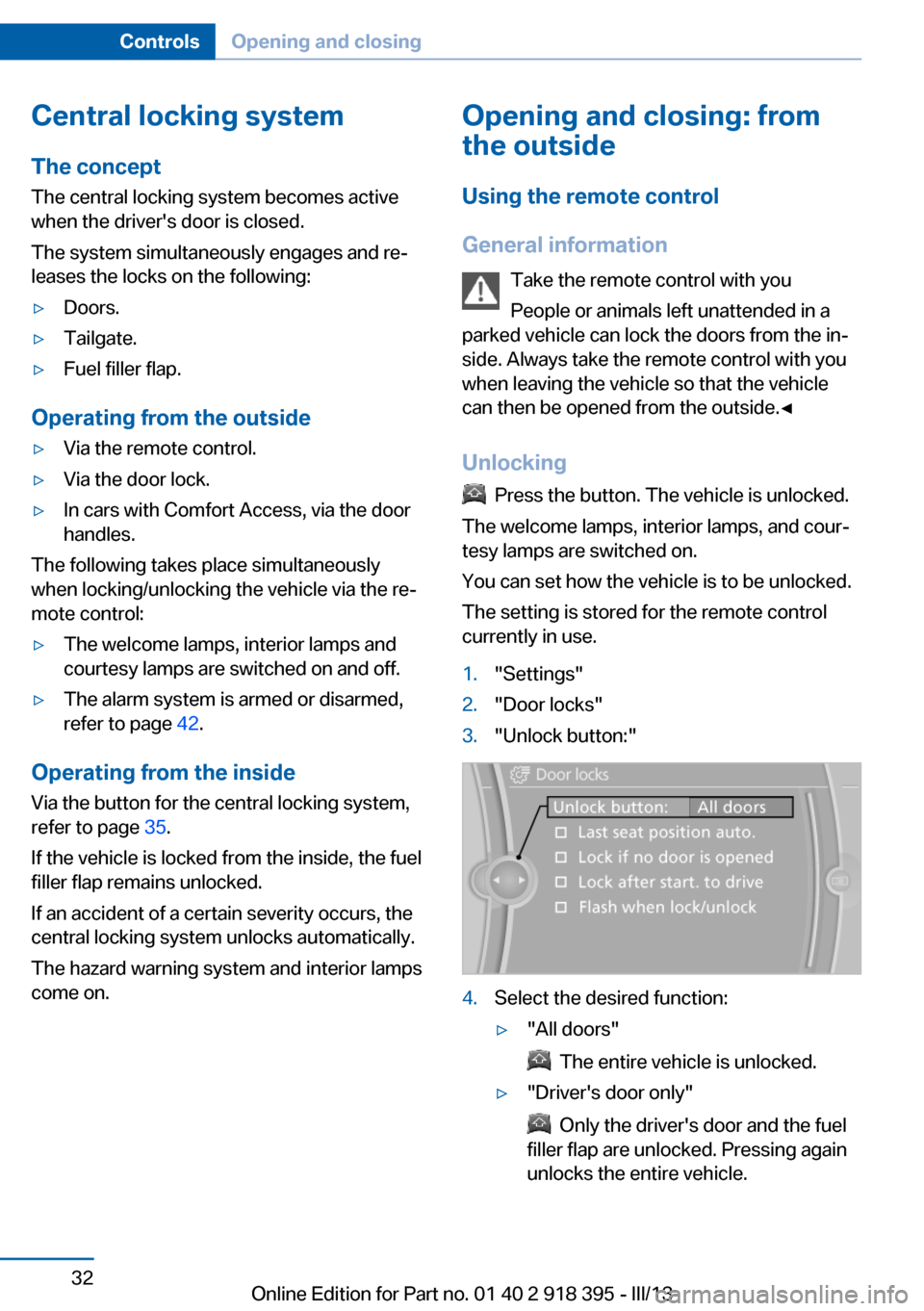
1."Settings"2."Door locks"3."Unlock button:"4.Select the desired function:▷"All doors"
The entire vehicle is unlocked.
▷"Driver's door only"
Only the driver's door and the fuel
filler flap are unlocked. Pressing again
unlocks the entire vehicle.
Seite 32ControlsOpening and closing32
Online Edition for Part no. 01 40 2 918 395 - III/13