Off road BMW X6 XDRIVE 2009 E71 User Guide
[x] Cancel search | Manufacturer: BMW, Model Year: 2009, Model line: X6 XDRIVE, Model: BMW X6 XDRIVE 2009 E71Pages: 317, PDF Size: 9.57 MB
Page 152 of 317
Destination entry
150
Destination entry
In entering your destination you can select from
among the following options:
>Entering a destination manually, see below
> Entering destination via voice*, refer to
page 153
> Selecting destination using information,
refer to page 156
> Selecting destination from a list, refer to
Destination list, page 157
> Selecting destination from address book,
refer to page 158
> Selecting home addr ess, refer to page160
After selecting your de stination you can pro-
ceed to start the destin ation guidance, refer to
page 162.
You can also store a navigation destination on
the programmable memo ry buttons, refer to
page 21.
Enter data only with the vehicle station-
ary, and always give priority to the appli-
cable traffic regulations in the event of any con-
tradiction between traffic and road conditions
and the instructions issu ed by the navigation
system. If you do not ob serve this precaution,
you can endanger the vehicle occupants and
other road users.
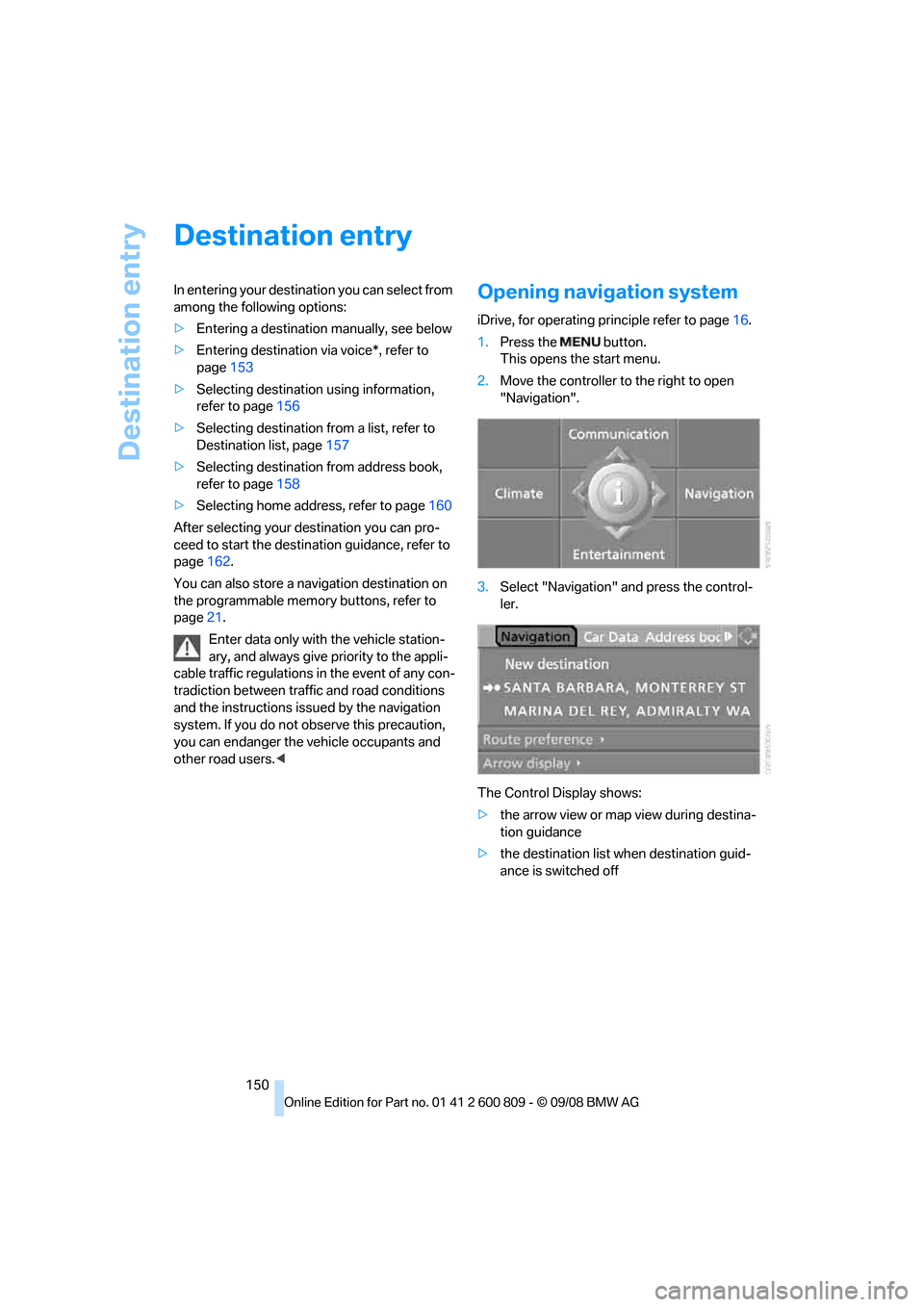
1. Press the button.
This opens the start menu.
2. Move the controller to the right to open
"Navigation".
3. Select "Navigation" and press the control-
ler.
The Control Display shows:
> the arrow view or map view during destina-
tion guidance
> the destination list when destination guid-
ance is switched off
Page 163 of 317
Navigation
Driving tips
161Reference
At a glance
Controls
Communications
Entertainment
Mobility
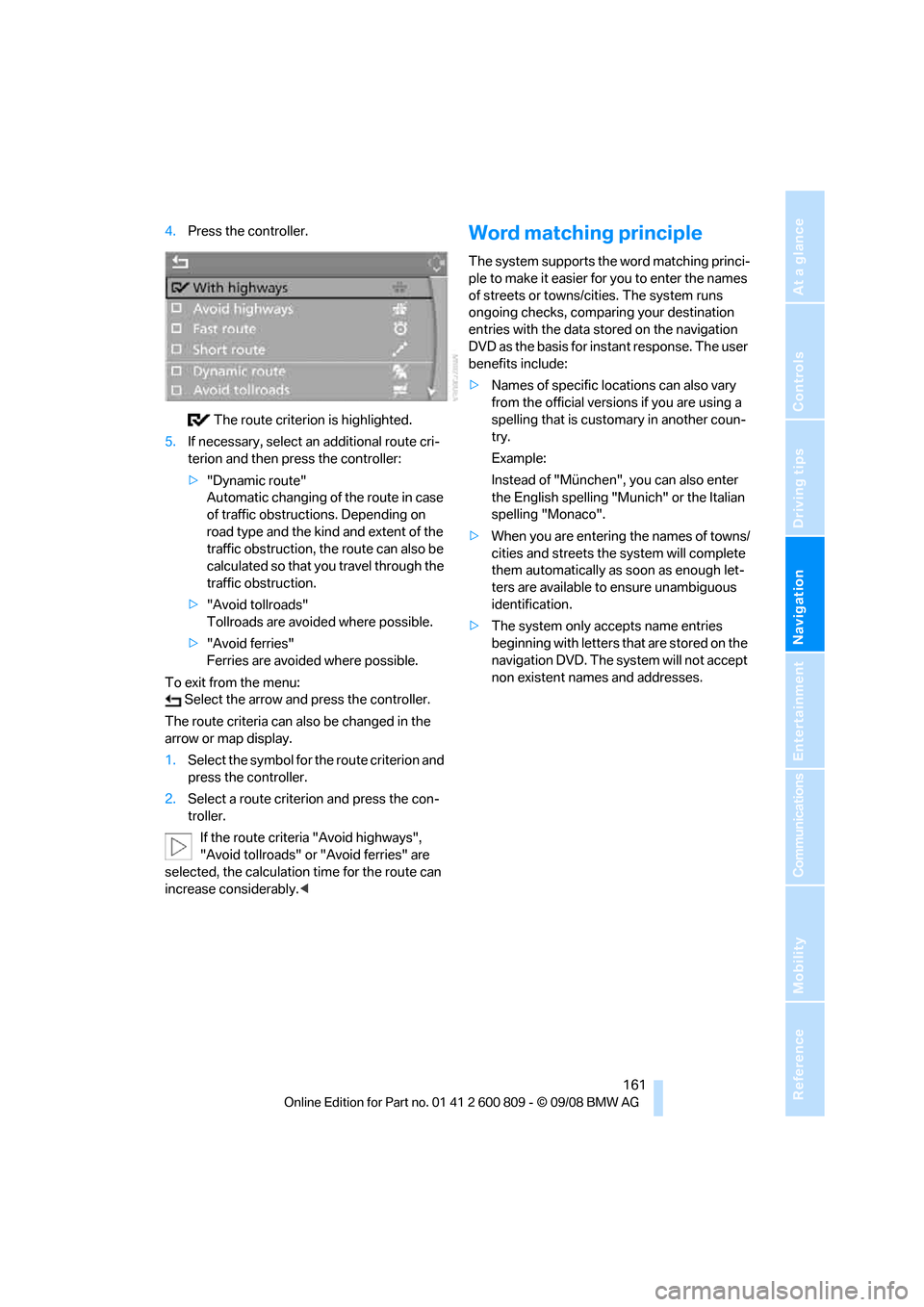
4.Press the controller.
The route criterion is highlighted.
5. If necessary, select an additional route cri-
terion and then press the controller:
>"Dynamic route"
Automatic changing of the route in case
of traffic obstructions. Depending on
road type and the kind and extent of the
traffic obstruction, the route can also be
calculated so that yo u travel through the
traffic obstruction.
> "Avoid tollroads"
Tollroads are avoi ded where possible.
> "Avoid ferries"
Ferries are avoided where possible.
To exit from the menu: Select the arrow and press the controller.
The route criteria can also be changed in the
arrow or map display.
1. Select the symbol for the route criterion and
press the controller.
2. Select a route criterion and press the con-
troller.
If the route criteria "Avoid highways",
"Avoid tollroads" or "Avoid ferries" are
selected, the calculation time for the route can
increase considerably.
ple to make it easier for you to enter the names
of streets or towns/cities. The system runs
ongoing checks, comparing your destination
entries with the data stored on the navigation
DVD as the basis for instant response. The user
benefits include:
>Names of specific loca tions can also vary
from the official versions if you are using a
spelling that is customary in another coun-
try.
Example:
Instead of "München", you can also enter
the English spelling "Mun ich" or the Italian
spelling "Monaco".
> When you are entering the names of towns/
cities and streets the system will complete
them automatically as soon as enough let-
ters are available to ensure unambiguous
identification.
> The system only accepts name entries
beginning with letters that are stored on the
navigation DVD. The system will not accept
non existent names and addresses.
Page 166 of 317
Destination guidance
164
To exit from the menu:
Select the arrow and press the controller.
Displaying map view
You can have your current position displayed on
a map. After starting th e destination guidance,
the planned route is shown on the map.
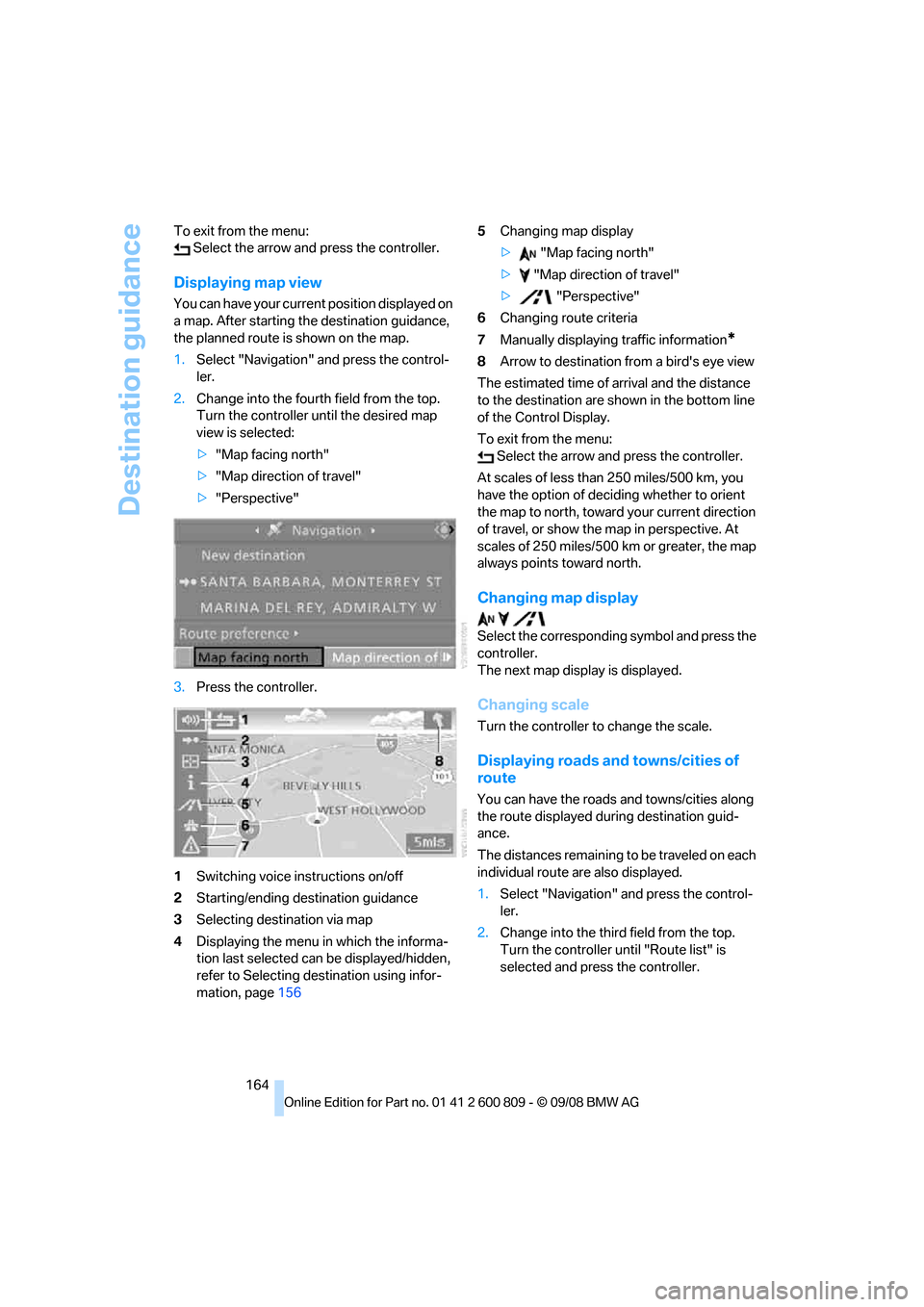
1. Select "Navigation" and press the control-
ler.
2. Change into the fourth field from the top.
Turn the controller until the desired map
view is selected:
>"Map facing north"
> "Map direction of travel"
> "Perspective"
3. Press the controller.
1 Switching voice instructions on/off
2 Starting/ending destination guidance
3 Selecting destination via map
4 Displaying the menu in which the informa-
tion last selected can be displayed/hidden,
refer to Selecting destination using infor-
mation, page 156 5
Changing map display
> "Map facing north"
> "Map direction of travel"
> "Perspective"
6 Changing route criteria
7 Manually displaying traffic information
*
8Arrow to destination from a bird's eye view
The estimated time of arrival and the distance
to the destination are shown in the bottom line
of the Control Display.
To exit from the menu: Select the arrow and press the controller.
At scales of less than 250 miles/500 km, you
have the option of deciding whether to orient
the map to north, toward your current direction
of travel, or show the map in perspective. At
scales of 250 miles/500 km or greater, the map
always points toward north.
Changing map display
Select the corresponding symbol and press the
controller.
The next map display is displayed.
Changing scale
Turn the controller to change the scale.
Displaying roads an d towns/cities of
route
You can have the roads and towns/cities along
the route displayed during destination guid-
ance.
The distances remaining to be traveled on each
individual route are also displayed.
1. Select "Navigation" and press the control-
ler.
2. Change into the third field from the top.
Turn the controller until "Route list" is
selected and press the controller.
Page 168 of 317
Destination guidance
166
Setting volume of voice instructions
The volume can only be adjusted while a voice
instruction is being output.
1.Repeat the last voice instruction, if neces-
sary.
2. Turn the knob during the voice instruction
to select the desired volume.
This volume is independen t of the volume of the
audio sources.
The setting is stored fo r the remote control cur-
rently in use.
Changing route
During destination guidan ce, you can revise the
navigation system's route recommendations to
avoid particular stretches of road. Enter the
number of miles/kilomete rs that you want to
travel before returning to the original route.
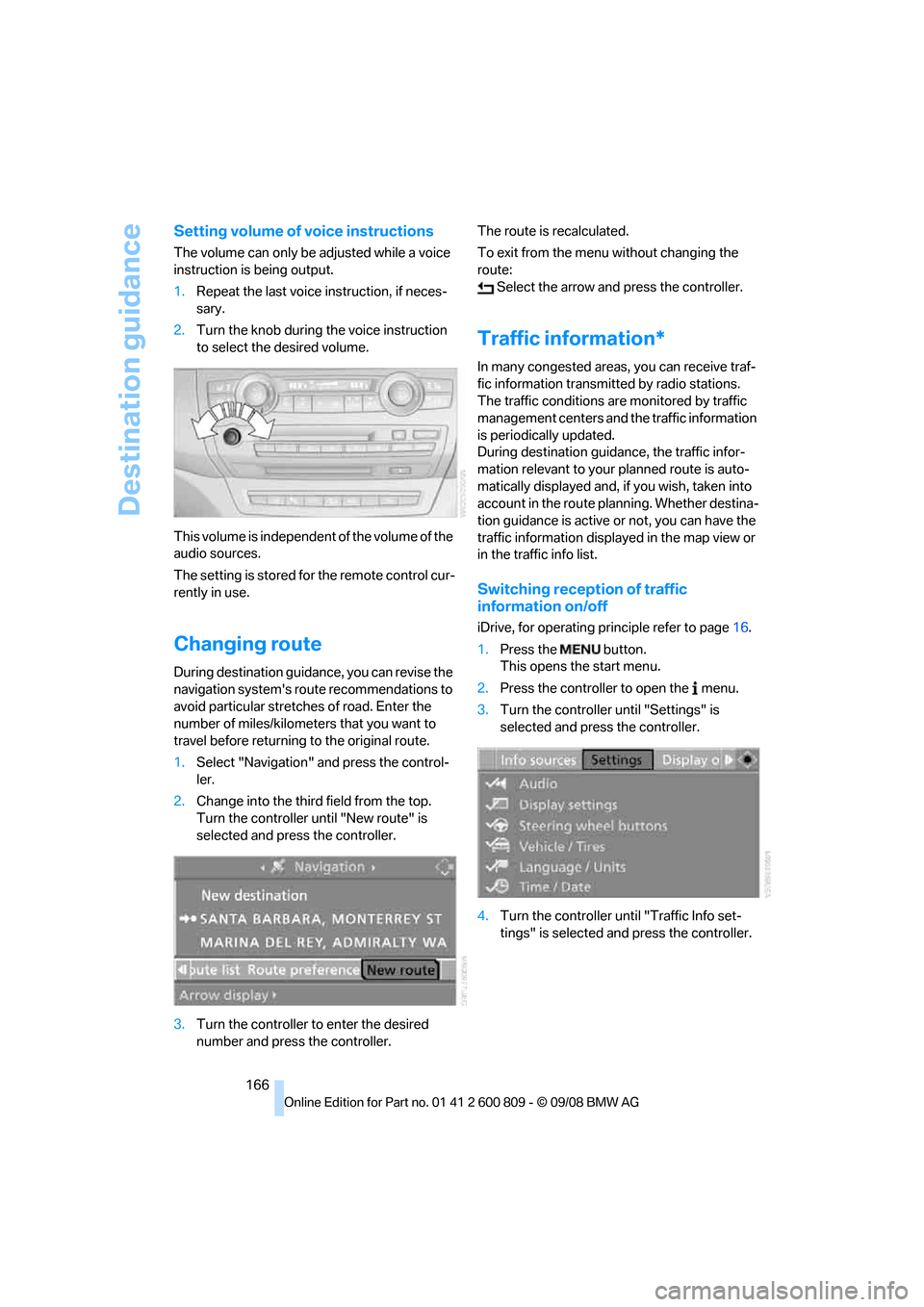
1. Select "Navigation" and press the control-
ler.
2. Change into the third field from the top.
Turn the controller until "New route" is
selected and press the controller.
3. Turn the controller to enter the desired
number and press the controller. The route is recalculated.
To exit from the menu without changing the
route:
Select the arrow and press the controller.
Traffic information*
In many congested areas, you can receive traf-
fic information transmitted by radio stations.
The traffic conditions ar e monitored by traffic
management centers and the traffic information
is periodically updated.
During destination guid ance, the traffic infor-
mation relevant to your planned route is auto-
matically displayed and, if you wish, taken into
account in the route planning. Whether destina-
tion guidance is active or not, you can have the
traffic information displayed in the map view or
in the traffic info list.
Switching reception of traffic
information on/off
iDrive, for operating pr inciple refer to page16.
1. Press the button.
This opens the start menu.
2. Press the controller to open the menu.
3. Turn the controller until "Settings" is
selected and press the controller.
4. Turn the controller until "Traffic Info set-
tings" is selected and press the controller.
Page 171 of 317
Navigation
Driving tips
169Reference
At a glance
Controls
Communications
Entertainment
Mobility
Traffic information during destination
guidance
If there are traffic obstructions on the planned
route, the traffic information symbols are dis-
played with a red border.
System response will vary depending on
whether or not "Dynamic route" is selected,
refer to page 160.
Displaying traffic obstructions
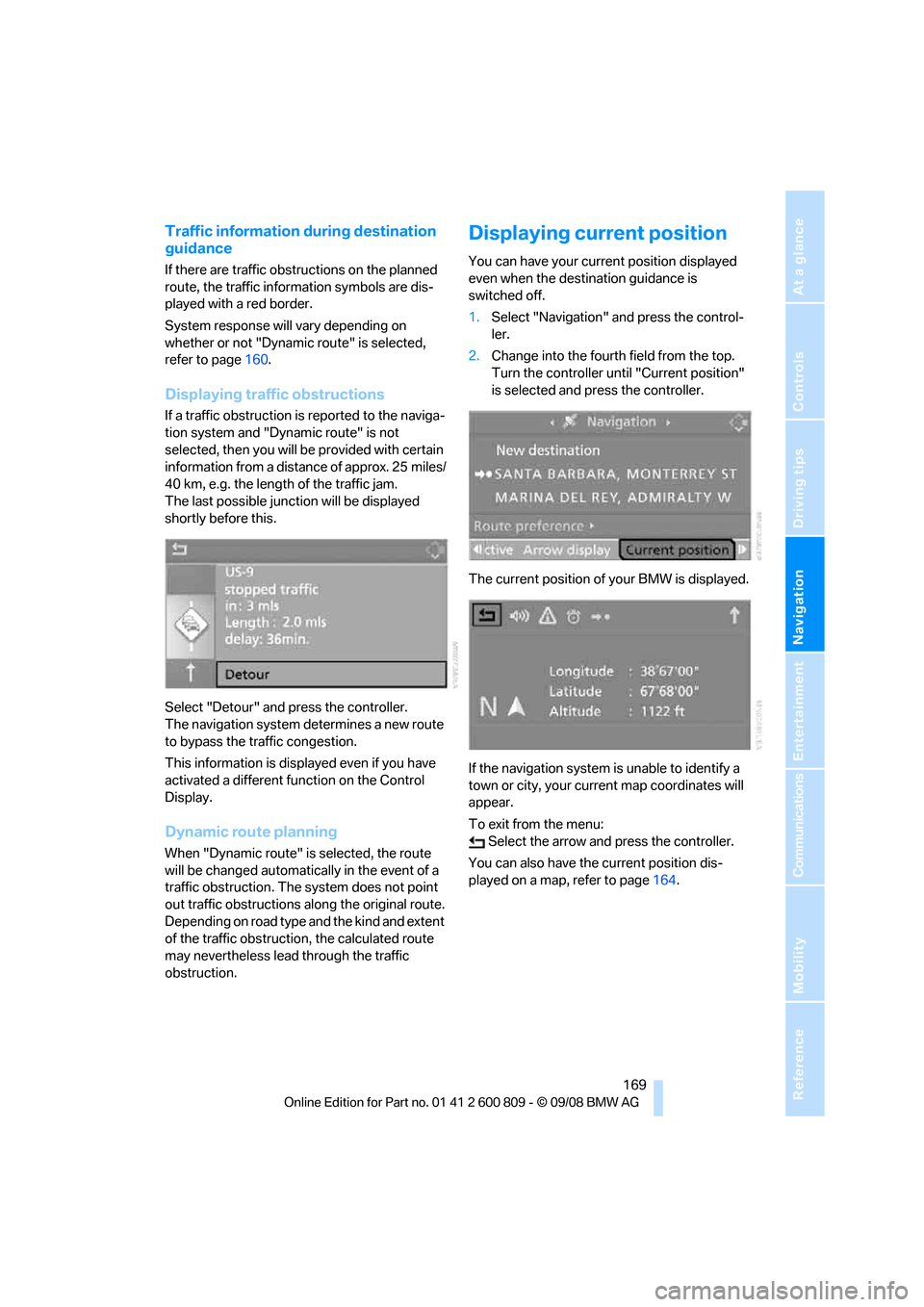
If a traffic obstruction is reported to the naviga-
tion system and "Dynamic route" is not
selected, then you will be provided with certain
information from a distance of approx. 25 miles/
40 km, e.g. the length of the traffic jam.
The last possible junction will be displayed
shortly before this.
Select "Detour" and press the controller.
The navigation system determines a new route
to bypass the traffic congestion.
This information is disp layed even if you have
activated a different fu nction on the Control
Display.
Dynamic route planning
When "Dynamic route" is selected, the route
will be changed automatica lly in the event of a
traffic obstruction. The system does not point
out traffic obstructions along the original route.
Depending on road type and the kind and extent
of the traffic obstruction, the calculated route
may nevertheless lead through the traffic
obstruction.
Displaying current position
You can have your current position displayed
even when the destination guidance is
switched off.
1. Select "Navigation" and press the control-
ler.
2. Change into the fourth field from the top.
Turn the controller until "Current position"
is selected and pr ess the controller.
The current position of your BMW is displayed.
If the navigation system is unable to identify a
town or city, your current map coordinates will
appear.
To exit from the menu: Select the arrow an d press the controller.
You can also have the current position dis-
played on a map, refer to page 164.
Page 222 of 317
Telephoning
220
Telephoning
The concept
Your BMW is equipped with a full mobile phone
preparation package. After pairing a suitable
mobile phone in the vehicle once, you can oper-
ate the mobile phone via iDrive, with the buttons
on the steering wheel and by voice.
Once a mobile phone has been paired in your
vehicle, it is automatically recognized as soon
as it is inside the vehicl e while the engine is run-
ning or the ignition is switched on. The pairing
data of up to four mobile phones can be stored
simultaneously. If seve ral mobile phones are
detected simultaneously, the respective last
mobile phone paired can be operated via the
vehicle.
Using a phone in your vehicle
Using snap-in adapter*
The so-called snap-in adapter, a mobile phone
cradle, enables the batte ry to be charged and
the mobile phone to be connected to the exter-
nal antenna of your vehicle. This ensures
improved network reception and a consistent
voice reproduction qu ality. Ask your BMW
Sports Activity Vehicle Center which mobile
phones snap-in adapters are offered for.
For your safety
A car phone makes life more convenient in
many ways, and can even save lives in an emer-
gency. While you should consult your mobile
phone's separate operating instructions for a
detailed description of safety precautions and
information, we request that you direct your
particular attention to the following:
Only make entries when the traffic situa-
tion allows you to do so. Do not hold the
mobile phone in your hand while you are driving;
use the hands-free system instead. If you do
not observe this precau tion, your being dis- tracted can endanger vehicle occupants and
other road users.
<
Suitable mobile phones
Ask your BMW Sports Activity Vehicle Center
which mobile phones wi th Bluetooth interface
are supported by the mo bile phone preparation
package and which mobile phones are compat-
ible with the snap-in adapter. By virtue of their
particular software ve rsions, these mobile
phones support the functions described in this
Owner's Manual. Malfunctions can occur with
other mobile phones.
Care instructions
You can find everything you need to know on
this topic by consulting the separate operating
instructions for the mobile phone.
Operating options
You can operate the mobile phone* using:
> Buttons on steering wheel, refer to page11
> iDrive, refer to page 226
> Voice commands, refer to page 231
> Programmable memory buttons, refer to
page 21
Avoid operating a mobile phone detected by
the vehicle with the keypad of the mobile
phone, otherwise malf unctions can occur.
Placing phone calls with BMW Assist
system*: BMW Assist calls
You can use the BMW Assist system via the
hands-free unit for BMW Assist calls.
When the status information "Communication"
or "BMW Assist" is displayed in "BMW Ser-
vice", only BMW Assi st calls are possible.
*
Page 223 of 317
221
Entertainment
Reference
At a glance
Controls
Driving tips
Communications
Navigation
Mobility
It may not be possible to establish a telephone
connection using the mobile phone while a con-
nection is being estab lished to BMW Assist or
while a call to BMW Assist is already in
progress. If this happens, you must log off the
mobile phone from the vehicle if you wish to
place a call with the mobile phone.
Commissioning
Pairing mobile phone in vehicle
The following prerequisites must be met:
> Suitable mobile phone: the mobile phone is
supported by the full mobile phone prepara-
tion package. Information on this subject is
also provided on the Internet at:
www.bmw.com
> The mobile phone is ready to operate.
> The Bluetooth link on th e vehicle, refer to
page 225, and on the mobile phone is
active.
> Depending on the mobile phone, it may be
necessary to adjust the presets of the
mobile phone, e.g. via the following menu
items:
>Bluetooth activated
> Connection not with confirmation
> Reconnect
> Depending on the mobile phone model, the
setting energy saving mode can, for exam-
ple, result in vehicle failing to detect the
paired mobile phone.
> For pairing, specify any desired number as
the Bluetooth passkey, e.g. 1. This Blue-
tooth passkey is no longer required follow-
ing successful pairing.
> The ignition is switched on.
Only pair the mobile phone with the vehi-
cle stationary, otherwise the passengers
and other road users can be endangered due to
a lack of attentiveness on the part of the
driver. <
Switching on ignition
1.Insert the remote control as far as possible
into the ignition lock.
2. Switch on the ignition by pressing the Start/
Stop button without depressing the brake
pedal.
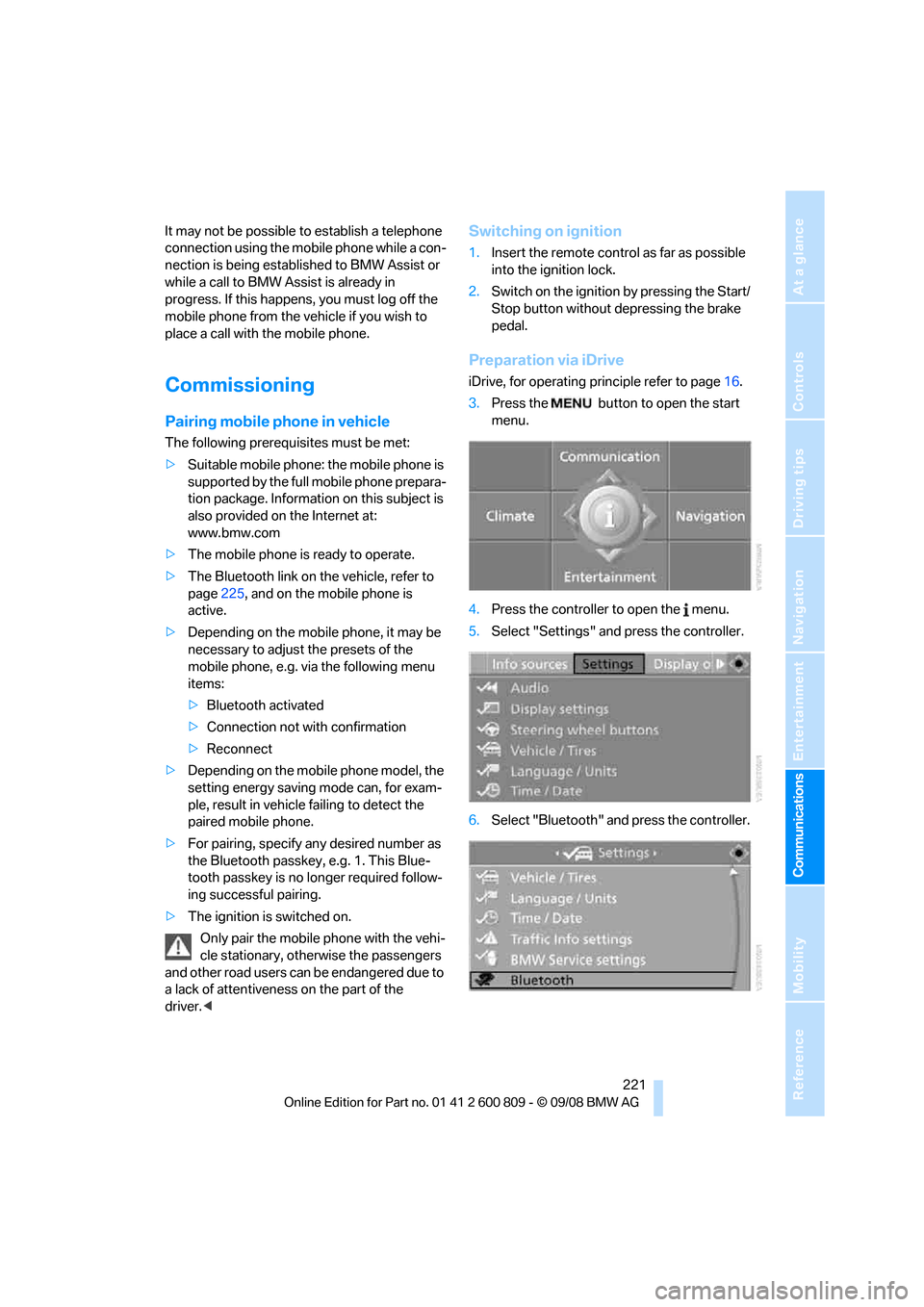
Preparation via iDrive
iDrive, for operating pr inciple refer to page16.
3. Press the button to open the start
menu.
4. Press the controller to open the menu.
5. Select "Settings" and press the controller.
6. Select "Bluetooth" an d press the controller.
Page 237 of 317
235
Entertainment
Reference
At a glance
Controls
Driving tips
Communications
Navigation
Mobility
BMW Assist
BMW Assist provides you with various services.
For example, the position data of your vehicle
can be transferred to the BMW Assist
Response Center if an emergency request
* has
been initiated.
Many BMW Assist services depend on the indi-
vidually agreed contract.
After your contract has expired, the BMW
Assist system will be deactivated by the BMW
Assist Response Center without you having to
visit a BMW Sports Activity Vehicle Center.
After the BMW Assist system has been deacti-
vated, no BMW Assist se rvice will be available.
The BMW Assist system can be reactivated by
a BMW Sports Activity Vehicle Center after
signing a new contract.
Requirements
If the following requirements are met, you can
use BMW Assist:
> The installed BMW Assist system is logged
in on a wireless communications network.
This network must be capable of transmit-
ting the services.
> To transmit position data, the vehicle must
be able to determine the current position.
> To activate and update BMW Assist, a GPS
signal must be available.
> You have subscribed to BMW Assist with
your BMW Sports Activity Vehicle Center or
with the BMW Assist Response Center.
Enabling must have been completed.
> BMW Assist is activated, refer to page 240.
Offered services
The following services are available via
BMW Assist:
>Emergency request, refer to page 279:
When you press the SOS button, a connec-
tion is established to the BMW Assist
Response Center. The BMW Assist
Response Center contacts you and takes
further steps to help you.
> Automatic collision notification:
Under certain conditions, a connection is
established to the BMW Assist Response
Center after a serious accident. If possible,
the BMW Assist Response Center contacts
you and takes further steps to help you.
> Enhanced roadside assistance:
You can call BMW Roadside Assistance
*
should you require help in the event of a
breakdown. If possible, the vehicle and
position data are transmitted in the process.
> BMW Customer Relations:
For information on all aspects of your vehi-
cle, you can be connected to BMW Cus-
tomer Relations.
> BMW TeleServices
*:
The data on the service status of your vehi-
cle or on required inspections are transmit-
ted to your BMW Sports Activity Vehicle
Center either automati cally prior to the due
date or when you request a BMW service
appointment.
> Unlocking and locking the vehicle:
Inform the BMW Assist Response Center,
e.g. if your remote control is not available
and you want to have the vehicle opened or
closed.
> Stolen vehicle recovery:
After your vehicle has been reported to the
police as stolen, the BMW Assist Response
Center can locate its position.
In addition, you can be provided with other ser-
vices, e.g. the concierg e service or information
*
Page 238 of 317
BMW Assist
236
on route planning, traffic conditions, and the
weather. With Critical
Calling, you can make a
limited number of calls via the BMW Assist
Response Center, e.g. if you do not have your
mobile phone with you.
Press the SOS button to contact the BMW
Assist Response Center, see below.
You also have access to the BMW Assist con-
cierge service via the Internet.
Characteristics of offered services
The following special aspects apply to the ser-
vices:
>The services offered are country-specific.
> Voice contact is esta blished or data are
transferred, depending on the equipment
and the country. In some countries, it is
possible to do both.
> The data transferred can, for example, be
the vehicle data, your cu rrent position or the
data of the CBS Cond ition Based Service.
Using services
Contact to the BMW Assist Response
Center
You can contact the BMW Assist Response
Center via the SOS button.
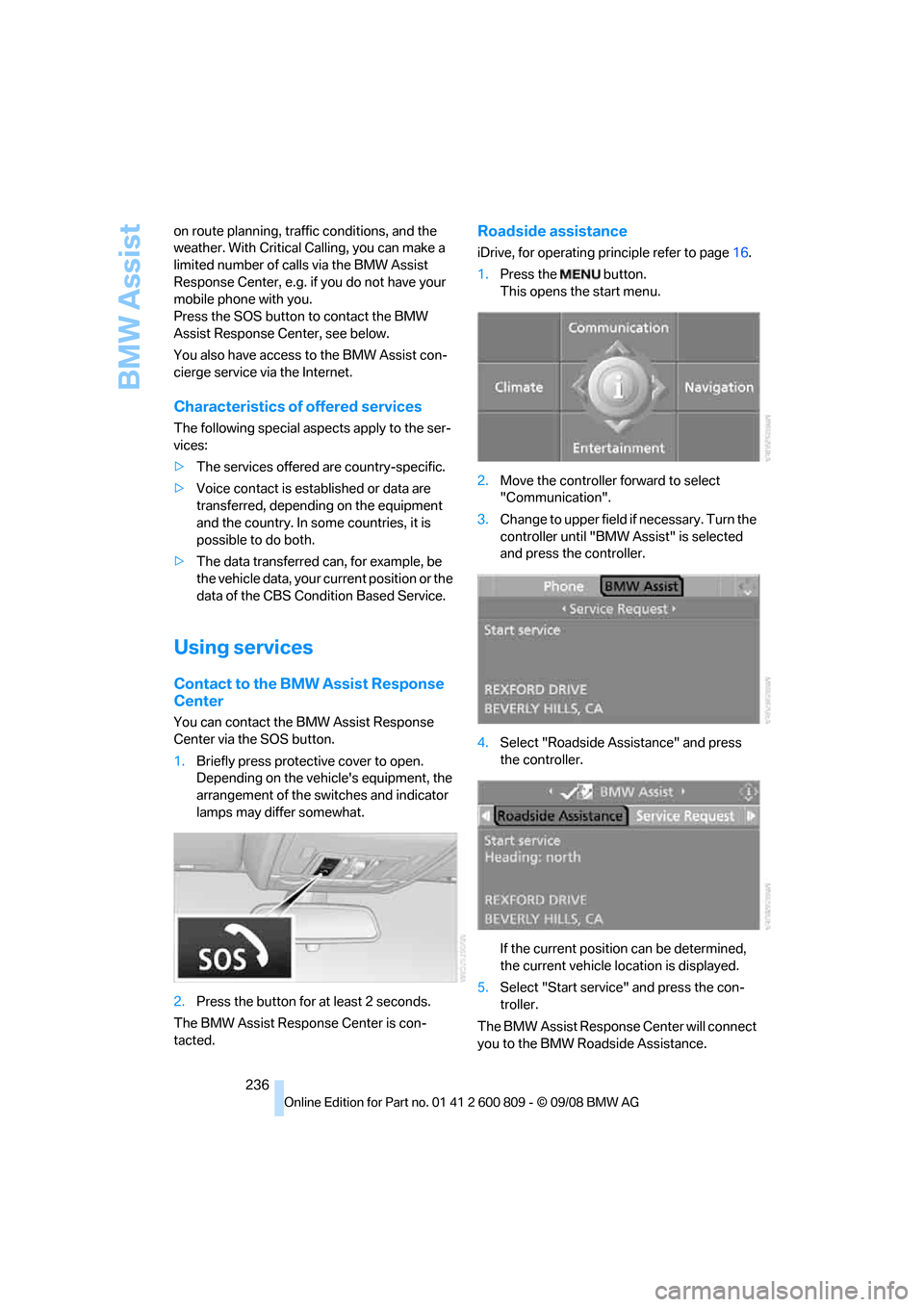
1.Briefly press protective cover to open.
Depending on the vehicle's equipment, the
arrangement of the switches and indicator
lamps may differ somewhat.
2. Press the button for at least 2 seconds.
The BMW Assist Response Center is con-
tacted.
Roadside assistance
iDrive, for operating pr inciple refer to page16.
1. Press the button.
This opens the start menu.
2. Move the controller forward to select
"Communication".
3. Change to upper field if necessary. Turn the
controller until "BMW Assist" is selected
and press the controller.
4. Select "Roadside Assistance" and press
the controller.
If the current position can be determined,
the current vehicle location is displayed.
5. Select "Start service" and press the con-
troller.
The BMW Assist Response Center will connect
you to the BMW Roadside Assistance.
Page 258 of 317
Wheels and tires
256
Run-flat tires
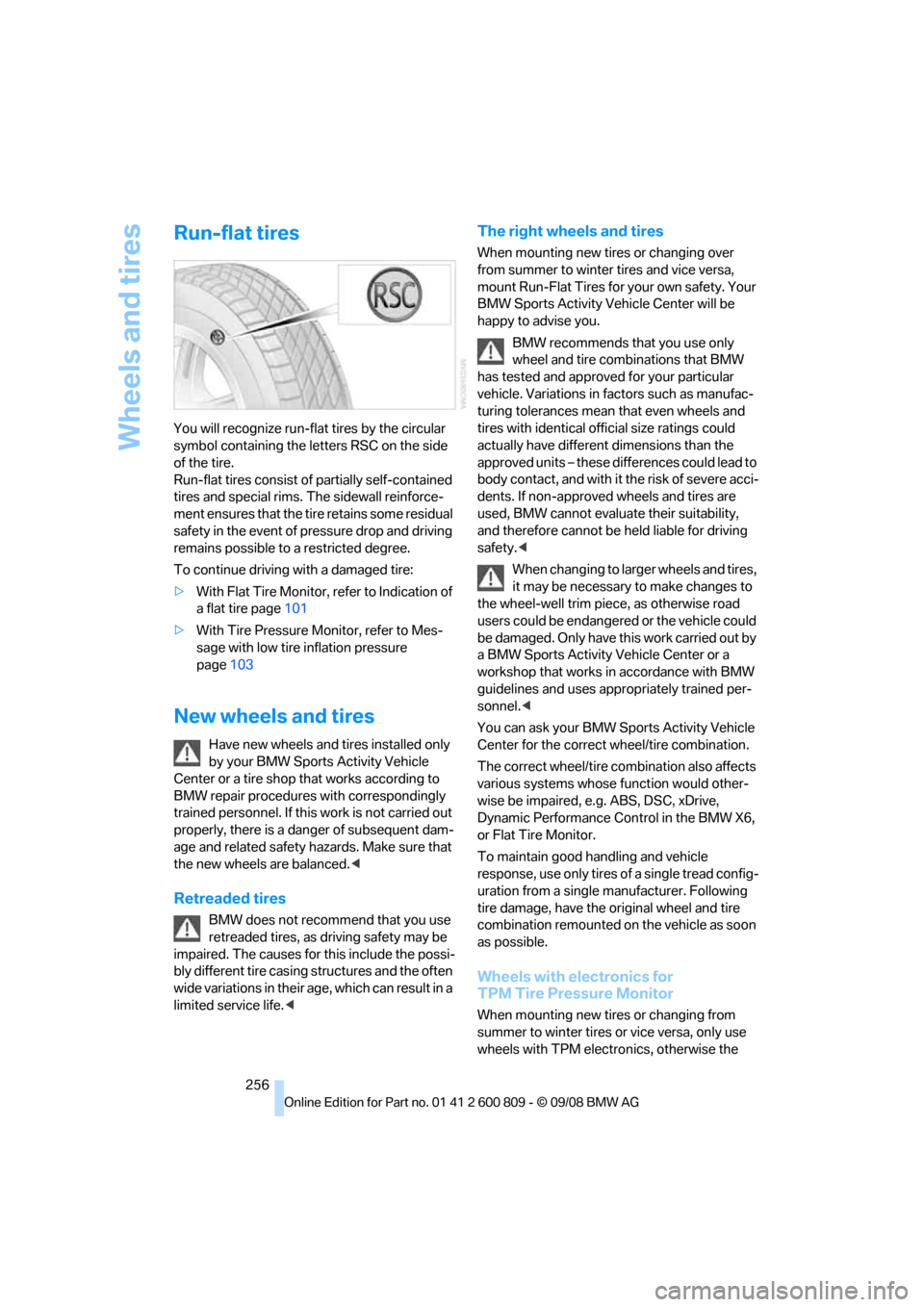
You will recognize run-flat tires by the circular
symbol containing the letters RSC on the side
of the tire.
Run-flat tires consist of partially self-contained
tires and special rims. The sidewall reinforce-
ment ensures that the tire retains some residual
safety in the event of pr essure drop and driving
remains possible to a restricted degree.
To continue driving with a damaged tire:
> With Flat Tire Monitor, refer to Indication of
a flat tire page 101
> With Tire Pressure Monitor, refer to Mes-
sage with low tire inflation pressure
page 103
New wheels and tires
Have new wheels and tires installed only
by your BMW Sports Activity Vehicle
Center or a tire shop that works according to
BMW repair procedures with correspondingly
trained personnel. If this work is not carried out
properly, there is a danger of subsequent dam-
age and related safety ha zards. Make sure that
the new wheels are balanced. <
Retreaded tires
BMW does not recommend that you use
retreaded tires, as driving safety may be
impaired. The causes for this include the possi-
bly different tire casing structures and the often
wide variations in their age, which can result in a
limited service life. <
The right wheels and tires
When mounting new tires or changing over
from summer to winter tires and vice versa,
mount Run-Flat Tires for your own safety. Your
BMW Sports Activity Vehicle Center will be
happy to advise you.
BMW recommends that you use only
wheel and tire combinations that BMW
has tested and approved for your particular
vehicle. Variations in factors such as manufac-
turing tolerances mean that even wheels and
tires with identical offi cial size ratings could
actually have different dimensions than the
approved units – these differences could lead to
body contact, and with it the risk of severe acci-
dents. If non-approved wheels and tires are
used, BMW cannot evaluate their suitability,
and therefore cannot be held liable for driving
safety. <
When changing to larger wheels and tires,
it may be necessary to make changes to
the wheel-well trim piec e, as otherwise road
users could be endangered or the vehicle could
be damaged. Only have th is work carried out by
a BMW Sports Activity Vehicle Center or a
workshop that works in accordance with BMW
guidelines and uses appropriately trained per-
sonnel. <
You can ask your BMW Sp orts Activity Vehicle
Center for the correct wheel/tire combination.
The correct wheel/tire combination also affects
various systems whose function would other-
wise be impaired, e.g. ABS, DSC, xDrive,
Dynamic Performance Control in the BMW X6,
or Flat Tire Monitor.
To maintain good handling and vehicle
response, use only tires of a single tread config-
uration from a single manufacturer. Following
tire damage, have the or iginal wheel and tire
combination remounted on the vehicle as soon
as possible.
Wheels with electronics for
TPM Tire Pressure Monitor
When mounting new tires or changing from
summer to winter tires or vice versa, only use
wheels with TPM electronics, otherwise the