Rear BMW X6 XDRIVE 2009 E71 Repair Manual
[x] Cancel search | Manufacturer: BMW, Model Year: 2009, Model line: X6 XDRIVE, Model: BMW X6 XDRIVE 2009 E71Pages: 317, PDF Size: 9.57 MB
Page 206 of 317
DVD system in rear
204
DVD system in rear
With the DVD system in the rear you can play
CDs and DVDs with audio, video and image
data. External audio and video devices can also
be connected and played via the DVD system in
the rear.
Tone output is possible both via headphones
and via the vehicle speakers.
You can operate the DVD system in the rear
with the buttons on the CD/DVD player or with
the remote control.
Some functions can only be operated
with the remote control. <
Enabling DVD system
Enable the DVD system with iDrive.
For operating principle refer to page 16.
1. Press the button.
This opens the start menu.
2. Press the controller to open the menu.
3. Select "Settings" and press the controller.
4. Select "Unlock rear menu" and press the
controller.
5. Select "Rear enabled" and press the con-
troller.
The DVD system is enabled.
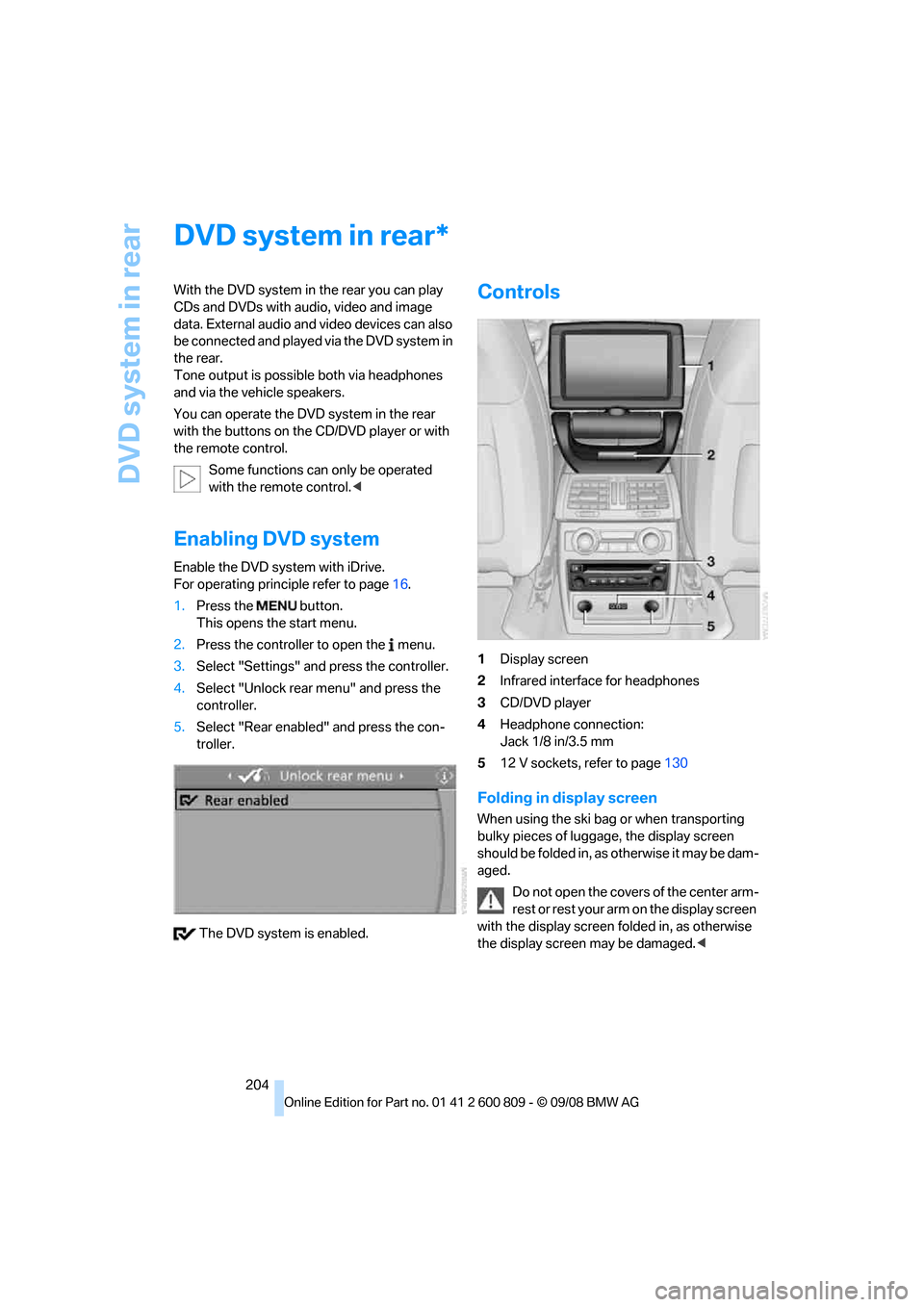
Controls
1 Display screen
2 Infrared interface for headphones
3 CD/DVD player
4 Headphone connection:
Jack 1/8 in/3.5 mm
5 12 V sockets, refer to page 130
Folding in display screen
When using the ski bag or when transporting
bulky pieces of luggage, the display screen
should be folded in, as otherwise it may be dam-
aged.
Do not open the covers of the center arm-
rest or rest your arm on the display screen
with the display screen folded in, as otherwise
the display screen may be damaged. <
*
Page 208 of 317
DVD system in rear
206
>
Press the button:
Activating menu item.
Changing batteries
1.Press the detent and remove the cover.
2. Change the batteries. Th e type and installa-
tion position are marked on the bottom of
the battery compartment.
3. Close the cover.
Return used batteries to a recycling col-
lection point or to your BMW Sports
Activity Vehicle Center. <
Sound output via speakers
In addition to the headphones, you can also play
the sound via the vehicle speakers.
As soon as a plug is inserted in the AUX-In con-
nection in the center console, the sound output
of the DVD system via the vehicle speakers is
interrupted.
iDrive, for operating principle refer to page16.
1. Press the button.
This opens the start menu.
2. Move the controller backwards to open
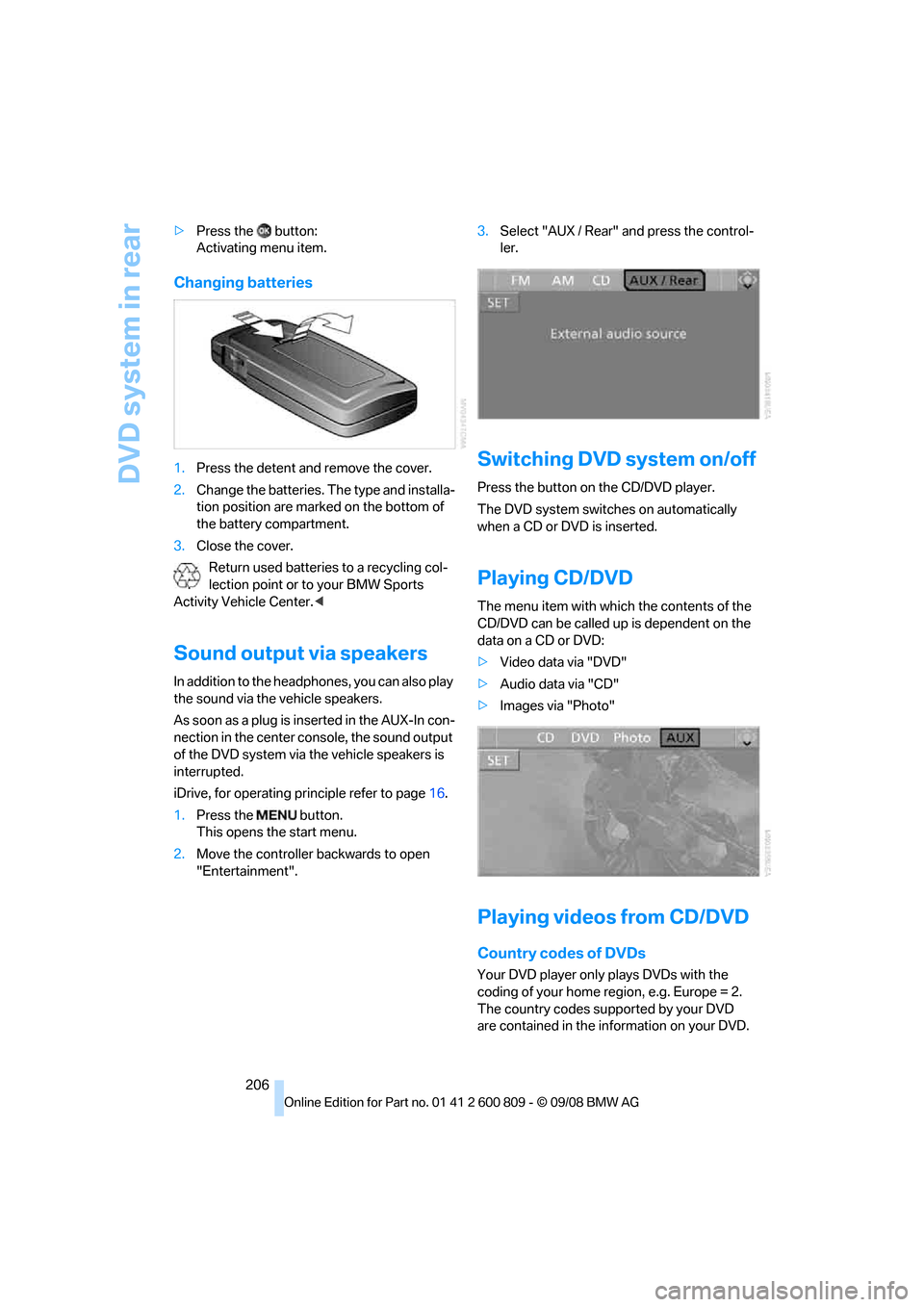
"Entertainment". 3.
Select "AUX / Rear" and press the control-
ler.
Switching DVD system on/off
Press the button on the CD/DVD player.
The DVD system switches on automatically
when a CD or DVD is inserted.
Playing CD/DVD
The menu item with which the contents of the
CD/DVD can be called up is dependent on the
data on a CD or DVD:
> Video data via "DVD"
> Audio data via "CD"
> Images via "Photo"
Playing videos from CD/DVD
Country codes of DVDs
Your DVD player only plays DVDs with the
coding of your home region, e.g. Europe = 2.
The country codes supported by your DVD
are contained in the information on your DVD.
Page 210 of 317
DVD system in rear
208
3.
Press the button.
4. Press the button several times to
increase the fast forward/reverse speed.
The DVD playback will be distorted.
To cancel fast forward/reverse:
1. Select the symbol.
2. Press the button.
Or:
Press the button on the CD/DVD player.
The DVD will start play at the point selected.
Forward/reverse with remote control
Press and hold the button until you reach
the desired point.
Or:
1. During playback, turn the serrated dial.
Fast forward/reverse is interrupted.
2. Continue to turn the serrated dial.
The speed is increased.
3. Press the button on the CD/DVD player.
Fast forward/reverse is interrupted.
The DVD will start play at the point selected.
Skipping chapter
You can change to the next or previous chapter
during playback.
1. Press the button on the remote con-
trol during playback.
2. Select the symbol.
3. Press the button repeatedly, continuing
until you reach the desired chapter.
Or:
Press the button on the left or right on the
remote control repeated ly until you reach the
desired chapter.
Freeze frame
1. Press the button on the remote con-
trol during playback.
2. Select the symbol.
3. Press the button.
To continue playback:
1. Select the or symbol.
2. Press the button.
As an alternative you can also stop and con-
tinue playback with the button on the CD/
DVD player.
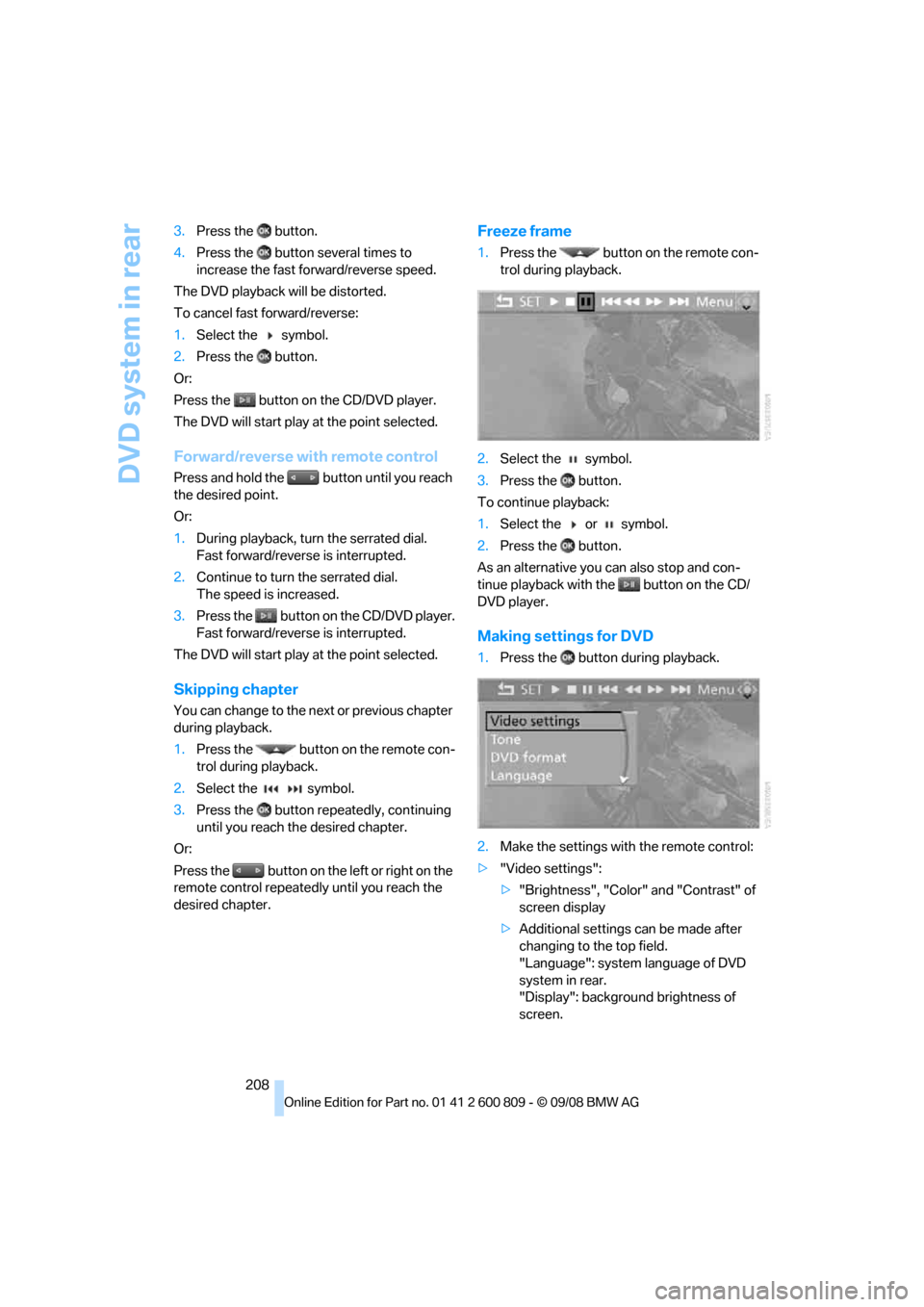
Making settings for DVD
1. Press the button during playback.
2. Make the settings with the remote control:
> "Video settings":
>"Brightness", "Color" and "Contrast" of
screen display
> Additional settings can be made after
changing to the top field.
"Language": system language of DVD
system in rear.
"Display": backgrou nd brightness of
screen.
Page 212 of 317
DVD system in rear
210
3.
Select a track.
4. Press the button.
5. Select "Play".
6. Press the button.
To change the directory:
1. Select the directory.
2. Press the button.
Playback functions
1.Select a track.
2. Press the button.
3. Select a menu item:
>"Play":
Start playback.
> "Pause":
Stop and continue playback. >
"Repeat track":
Repeat the selected track.
> "Repeat directory":
Repeat the tracks in the current direc-
tory.
4. Press the button.
Playing audio tracks from
CD/DVD
Starting playback
Push the CD/DVD into th e drive with the labeled
side facing upward.
The CD/DVD is auto matically pulled in.
> Playback begins au tomatically after a
few seconds.
> If playback does not begin automatically:
Select "CD".
Press the button.
For CDs/DVDs with compressed audio files,
refer to page 211, it may take several minutes to
read the data depending on the directory struc-
ture.
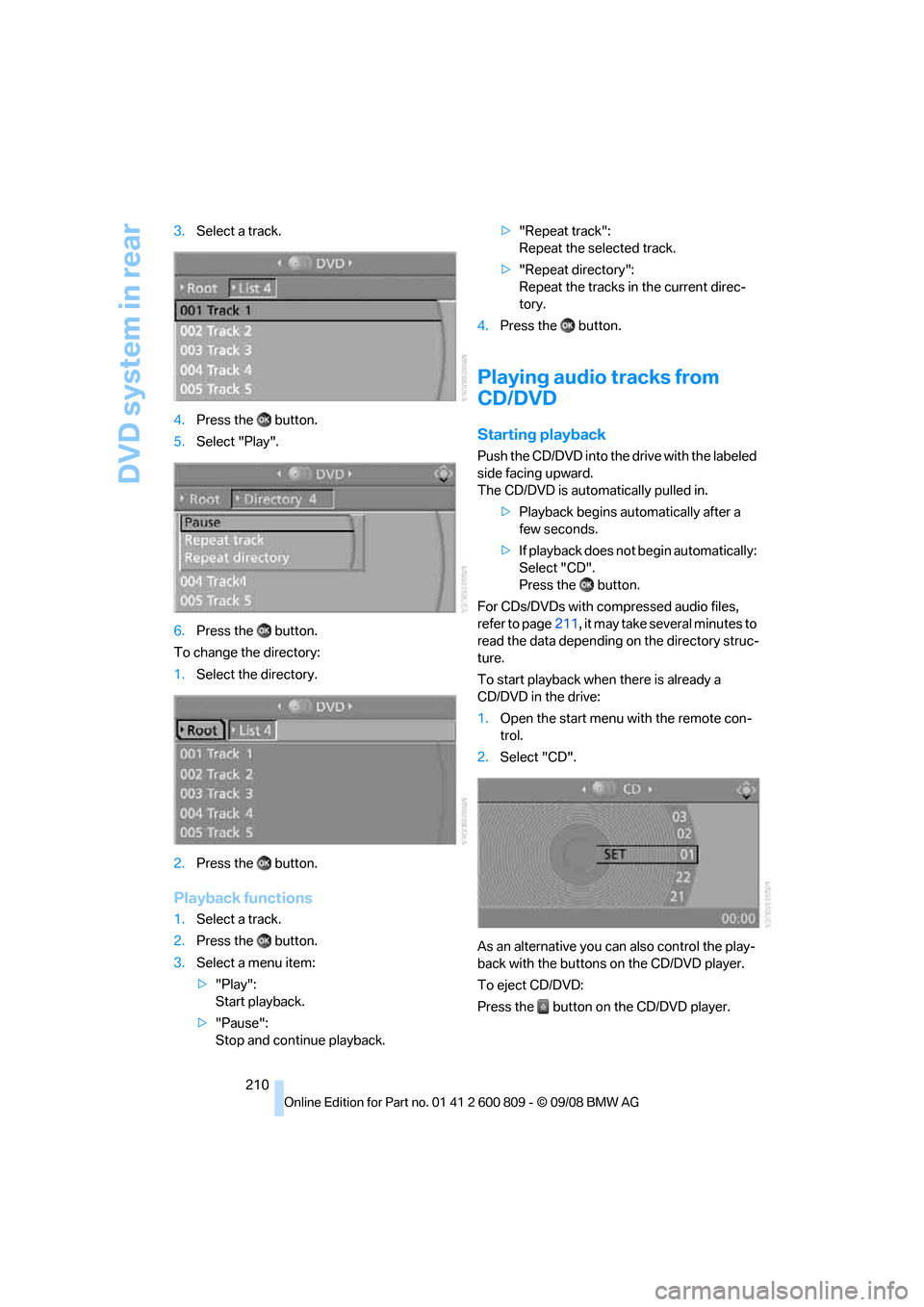
To start playback when there is already a
CD/DVD in the drive:
1. Open the start menu with the remote con-
trol.
2. Select "CD".
As an alternative you can also control the play-
back with the buttons on the CD/DVD player.
To eject CD/DVD:
Press the button on the CD/DVD player.
Page 214 of 317
DVD system in rear
212
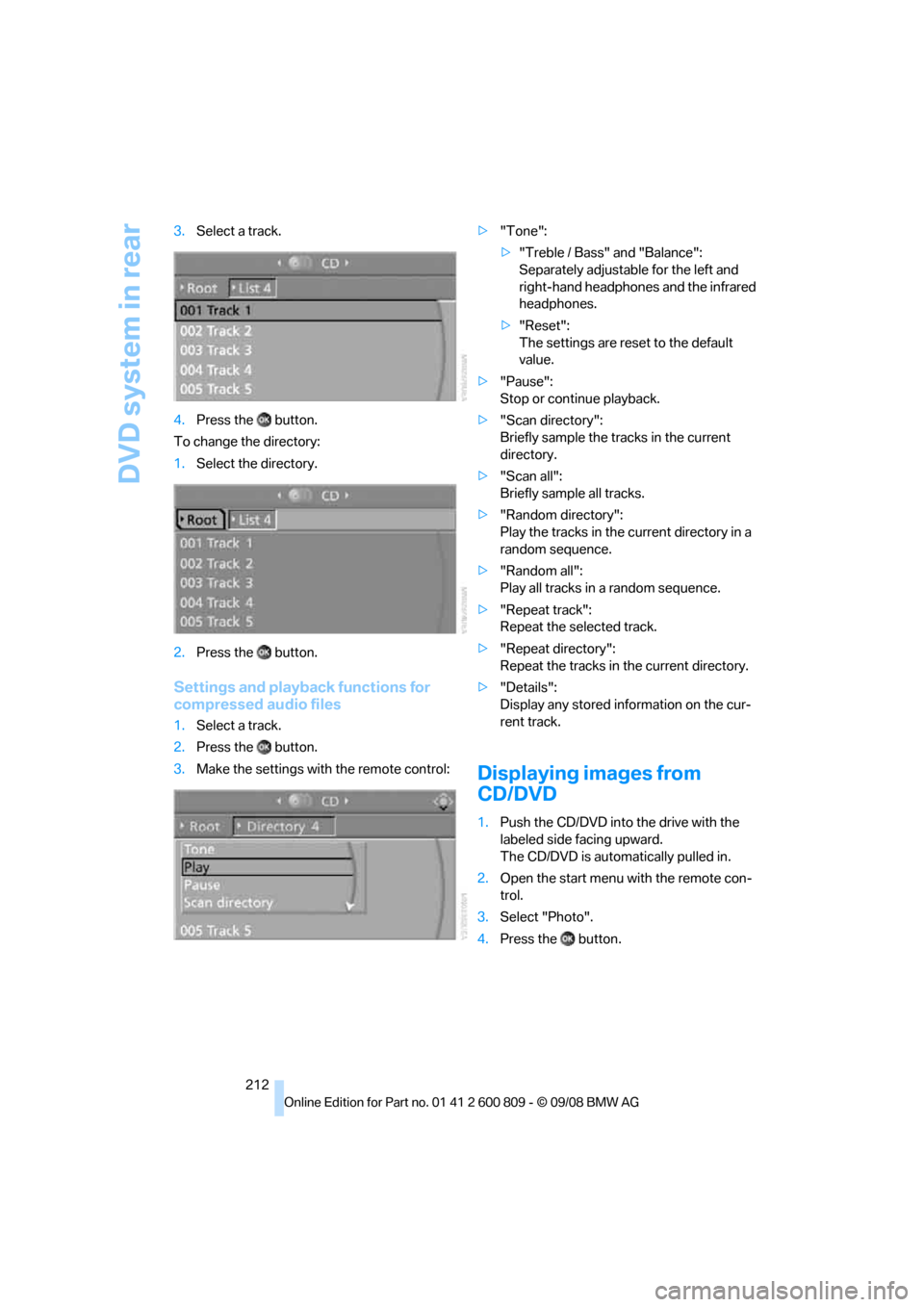
3.
Select a track.
4. Press the button.
To change the directory:
1. Select the directory.
2. Press the button.
Settings and playback functions for
compressed audio files
1.Select a track.
2. Press the button.
3. Make the settings with the remote control: >
"Tone":
>"Treble / Bass" and "Balance":
Separately adjustable for the left and
right-hand headphones and the infrared
headphones.
> "Reset":
The settings are reset to the default
value.
> "Pause":
Stop or continue playback.
> "Scan directory":
Briefly sample the tracks in the current
directory.
> "Scan all":
Briefly sample all tracks.
> "Random directory":
Play the tracks in the current directory in a
random sequence.
> "Random all":
Play all tracks in a random sequence.
> "Repeat track":
Repeat the selected track.
> "Repeat directory":
Repeat the tracks in the current directory.
> "Details":
Display any stored information on the cur-
rent track.
Displaying images from
CD/DVD
1.Push the CD/DVD into the drive with the
labeled side facing upward.
The CD/DVD is auto matically pulled in.
2. Open the start menu with the remote con-
trol.
3. Select "Photo".
4. Press the button.
Page 216 of 317
DVD system in rear
214
Information on CD/DVD
player
Safety notes
The BMW CD/DVD player is a Class 1
laser product. Do not operate if the cover
is damaged or open, otherwise severe eye dam-
age can result.<
Suitable media
Do not use self-recorded CDs/DVDs with
labels applied as these can become
detached during playback due to heat buildup
and can cause irreparable damage to the
device.
Only use round CDs/DVDs with a standard
diameter of 4.7 in/12 cm.
Never play CDs/DVDs with adapters, e.g. sin-
gle-CDs, as otherwise the CDs or the adapter
can jam and may not be ejected.
Never use combined CD/DVD, e.g. DVD
Plus or
hybrid disks, as otherwise the CD/DVD can jam
and may not be ejected. <
The CD/DVD player ca n play the following
media:
> Video DVD
> CD-DA (Audio CD)
> CDs/DVDs with compressed image files
> CDs/DVDs with compressed audio files
> CDs/DVDs with compressed video files
DVD Audio and SACD are not supported by the
DVD player. However, many audio DVDs avail-
able in stores also contain a video track in the
DVD Video format in addition to the audio track.
These DVDs can be played back by the DVD
player. Refer to the info rmation on your DVD to
determine whether your audio DVD contains an
additional video track.
Depending on the authoring used, it is possible
that not all functions are available during play-
back.
Dual-sided DVDs availabl e from retail suppliers
are coated on both side s and bear no markings.
This means both sides are information carriers. To play the information on the other side, turn
over the DVD.
Supported formats
Depending on the compression method used,
not all files of the specified formats can be
opened.
Images
JPEG/JPG
With very large image files, it may take a longer
time until the images are shown.
Compressed audio files
>
MP3
> WMA
> OGG
> AAC
Compressed video files
>VCD
> SVCD
> MPEG1
> MPEG2
> MPEG4
Digital Rights Management DRM
It may not be possible to play CDs/DVDs with
integrated Digital Rights Management.
General malfunctions
The BMW CD/DVD player is optimized for oper-
ation in the vehicle. It may react more sensi-
tively to defective CD s/DVDs than devices
intended for stationary use.
If a CD/DVD cannot be played, first check
whether it has been inserted correctly.
Make sure that no foreign bodies or liq-
uids enter the CD-/DVD bay, as otherwise
the CD/DVD player will be damaged.<
Page 218 of 317
DVD system in rear
216
Settings for external devices
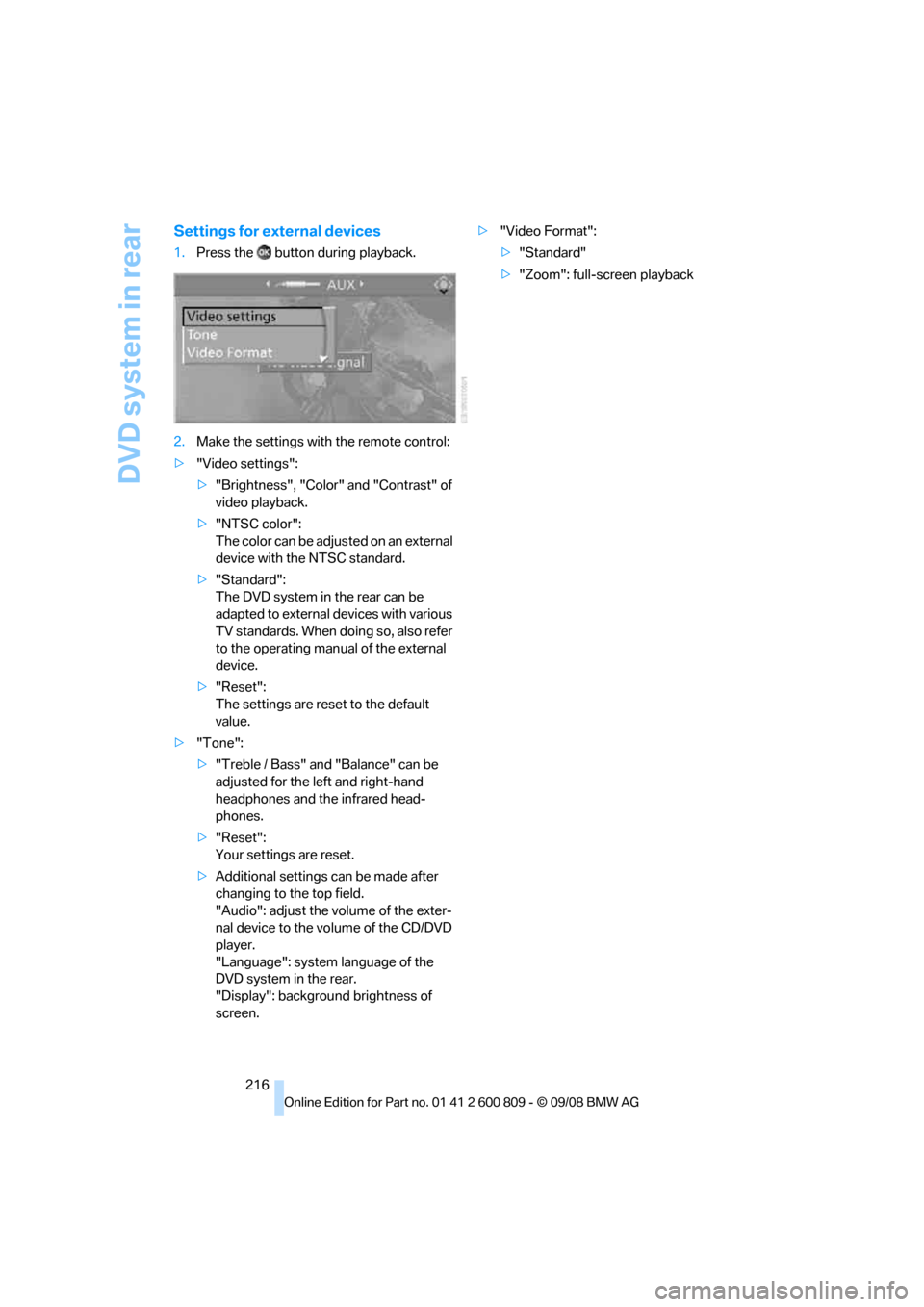
1.Press the button during playback.
2. Make the settings with the remote control:
> "Video settings":
>"Brightness", "Color" and "Contrast" of
video playback.
> "NTSC color":
The color can be adjusted on an external
device with the NTSC standard.
> "Standard":
The DVD system in the rear can be
adapted to external devices with various
TV standards. When doing so, also refer
to the operating manual of the external
device.
> "Reset":
The settings are reset to the default
value.
> "Tone":
>"Treble / Bass" and "Balance" can be
adjusted for the left and right-hand
headphones and the infrared head-
phones.
> "Reset":
Your settings are reset.
> Additional settings can be made after
changing to the top field.
"Audio": adjust the volume of the exter-
nal device to the vo lume of the CD/DVD
player.
"Language": system language of the
DVD system in the rear.
"Display": backgrou nd brightness of
screen. >
"Video Format":
>"Standard"
> "Zoom": full-screen playback
Page 226 of 317
Telephoning
224
List of paired mobile phones
The mobile phones for which the vehicle has
stored the pairing data can be displayed. If sev-
eral paired mobile phones are detected by the
vehicle simultaneously, you can operate the
mobile phone highest up in the list via the vehi-
cle.
You can change the order of the mobile phones
in the list. As long as a mobile phone is selected
in this list, the mobile phones cannot be oper-
ated via the vehicle.
iDrive, for operating pr inciple refer to page16.
1. Press the button to open the start
menu.
2. Press the controller to open the menu.
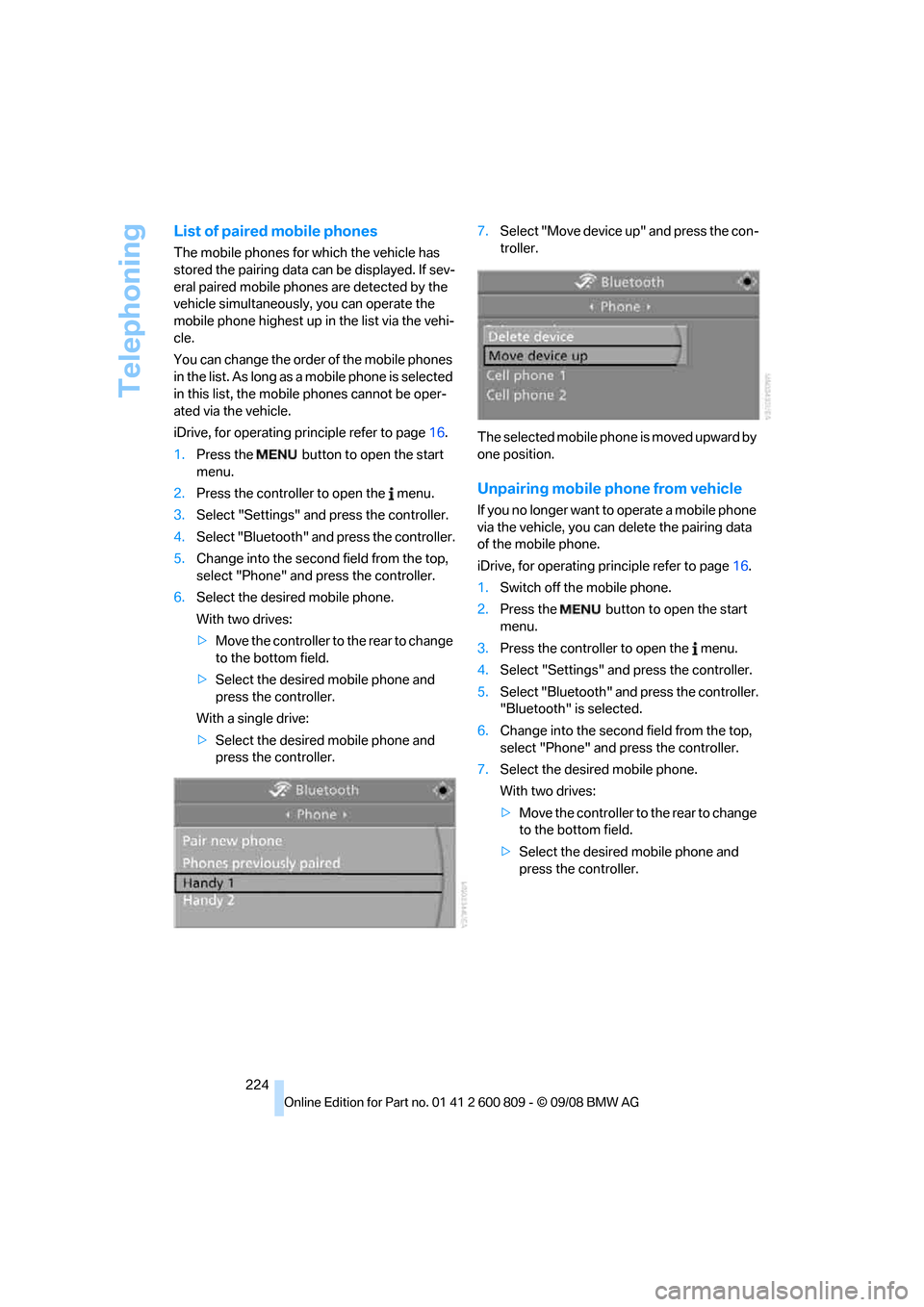
3. Select "Settings" and press the controller.
4. Select "Bluetooth" an d press the controller.
5. Change into the second field from the top,
select "Phone" and press the controller.
6. Select the desired mobile phone.
With two drives:
>Move the controller to the rear to change
to the bottom field.
> Select the desired mobile phone and
press the controller.
With a single drive:
> Select the desired mobile phone and
press the controller. 7.
Select "Move device up" and press the con-
troller.
The selected mobile phone is moved upward by
one position.
Unpairing mobile phone from vehicle
If you no longer want to operate a mobile phone
via the vehicle, you can delete the pairing data
of the mobile phone.
iDrive, for operating pr inciple refer to page16.
1. Switch off the mobile phone.
2. Press the button to open the start
menu.
3. Press the controller to open the menu.
4. Select "Settings" an d press the controller.
5. Select "Bluetooth" and press the controller.
"Bluetooth" is selected.
6. Change into the second field from the top,
select "Phone" and press the controller.
7. Select the desired mobile phone.
With two drives:
>Move the controller to the rear to change
to the bottom field.
> Select the desired mobile phone and
press the controller.
Page 253 of 317
Mobility
251Reference
At a glance
Controls
Driving tips
Communications
Navigation
Entertainment
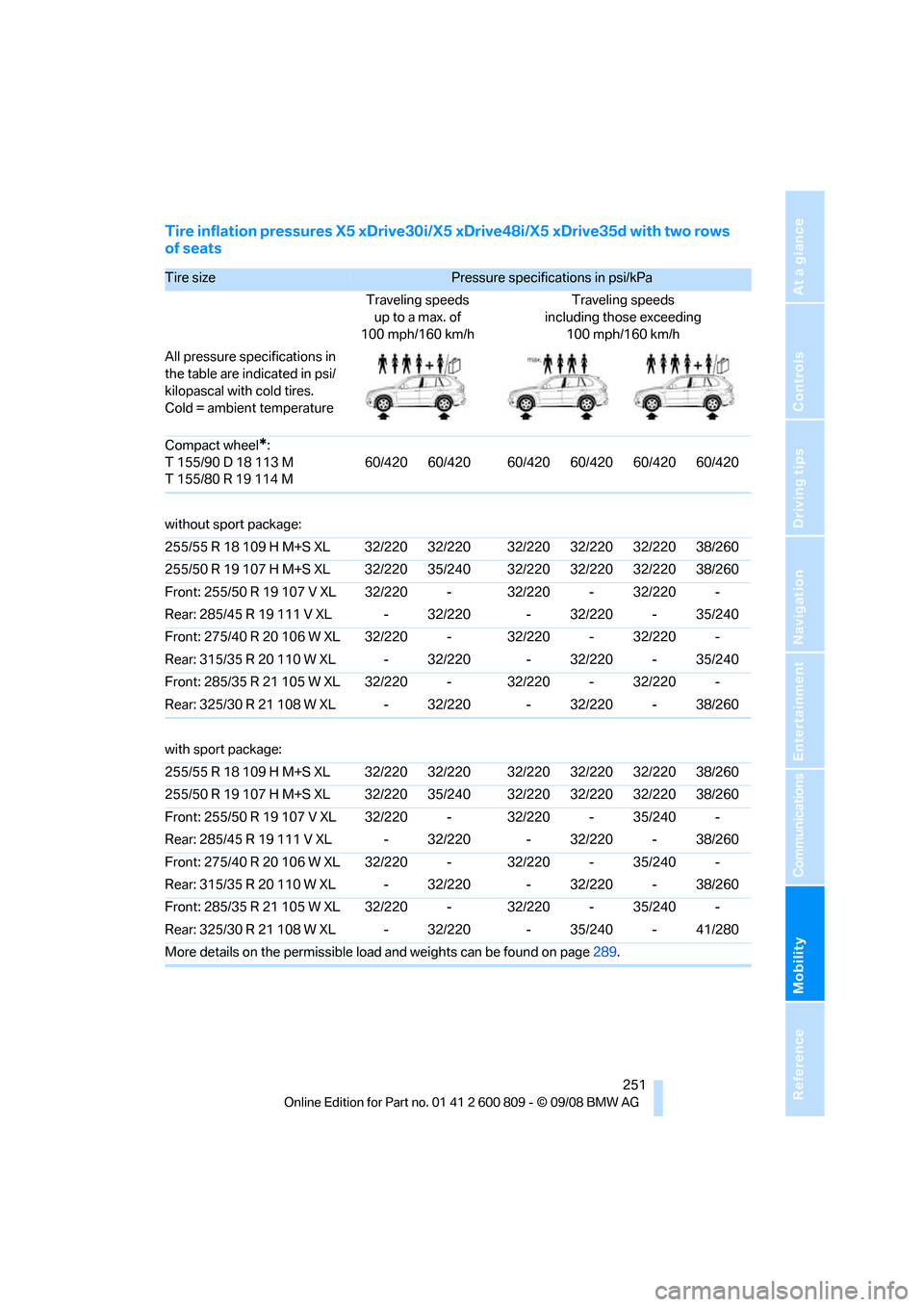
Tire inflation pressures X5 xDrive30i/X5 xDrive48i/X5 xDrive35d with two rows
of seats
Tire size Pressure specificat ions in psi/kPa
Traveling speeds up to a max. of
100 mph/160 km/h Traveling speeds
including those exceeding 100 mph/160 km/h
All pressure specifications in
the table are indicated in psi/
kilopascal with cold tires.
Cold = ambient temperature
Compact wheel
*:
T 155/90 D 18 113 M
T 155/80 R 19 114 M 60/420 60/420 60/420 60/420 60/420 60/420
without sport package:
255/55 R 18 109 H M+S XL 32/220 32/220 32/220 32/220 32/220 38/260
255/50 R 19 107 H M+S XL 32/220 35/240 32/220 32/220 32/220 38/260
Front: 255/50 R 19 107 V XL 32/220 - 32/220 - 32/220 -
Rear: 285/45 R 19 111 V XL - 32/220 - 32/220 - 35/240
Front: 275/40 R 20 106 W XL 32/220 - 32/220 - 32/220 -
Rear: 315/35 R 20 110 W XL - 32/220 - 32/220 - 35/240
Front: 285/35 R 21 105 W XL 32/220 - 32/220 - 32/220 -
Rear: 325/30 R 21 108 W XL - 32/220 - 32/220 - 38/260
with sport package:
255/55 R 18 109 H M+S XL 32/220 32/220 32/220 32/220 32/220 38/260
255/50 R 19 107 H M+S XL 32/220 35/240 32/220 32/220 32/220 38/260
Front: 255/50 R 19 107 V XL 32/220 - 32/220 - 35/240 -
Rear: 285/45 R 19 111 V XL - 32/220 - 32/220 - 38/260
Front: 275/40 R 20 106 W XL 32/220 - 32/220 - 35/240 -
Rear: 315/35 R 20 110 W XL - 32/220 - 32/220 - 38/260
Front: 285/35 R 21 105 W XL 32/220 - 32/220 - 35/240 -
Rear: 325/30 R 21 108 W XL - 32/220 - 35/240 - 41/280
More details on the permissible load and weights can be found on page289.
Page 254 of 317
Wheels and tires
252
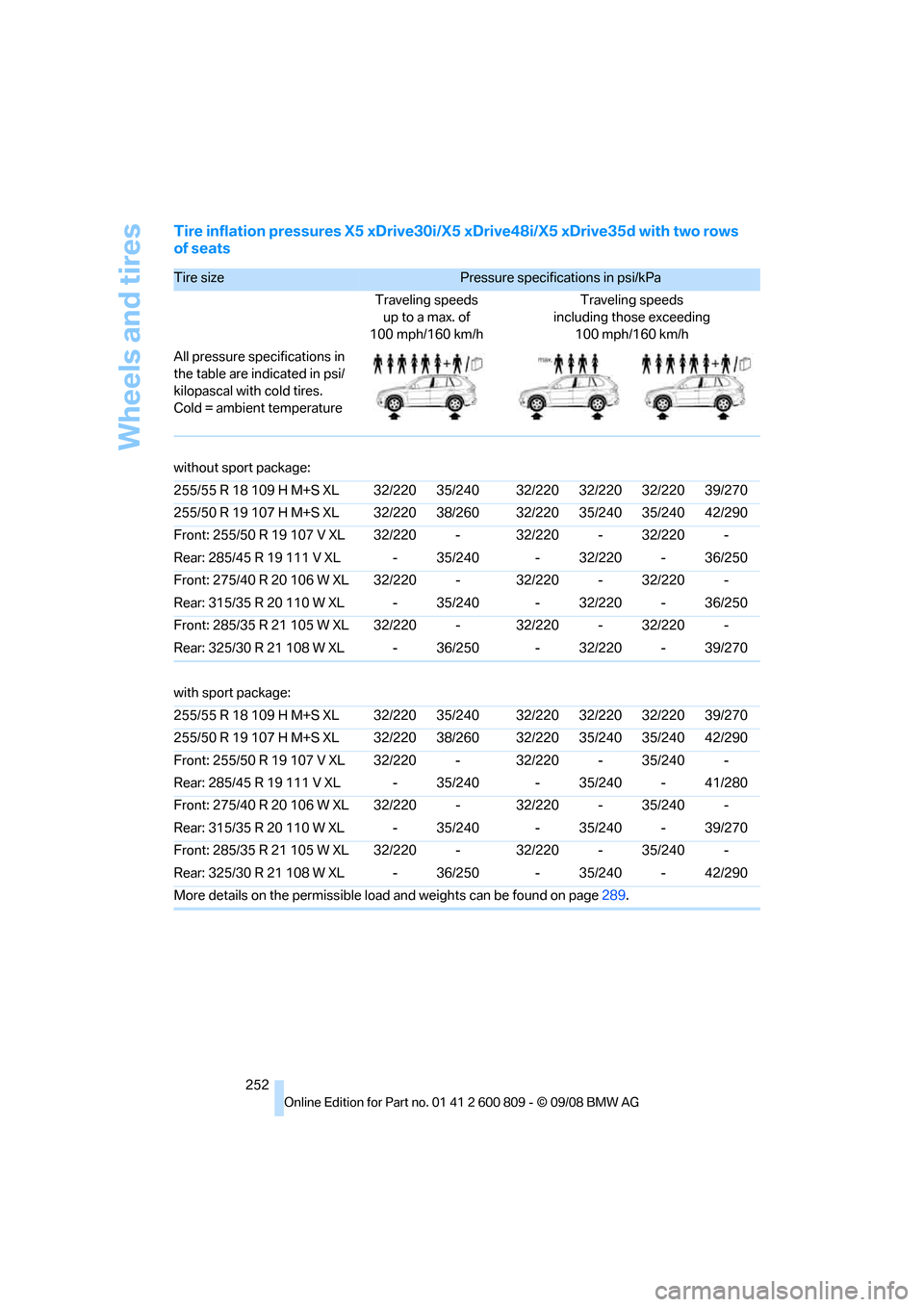
Tire inflation pressures X5 xDrive30i/X5 xDrive48i/X5 xDrive35d with two rows
of seats
Tire size Pressure specifications in psi/kPa
Traveling speeds up to a max. of
100 mph/160 km/h Traveling speeds
including those exceeding 100 mph/160 km/h
All pressure specifications in
the table are indicated in psi/
kilopascal with cold tires.
Cold = ambient temperature
without sport package:
255/55 R 18 109 H M+S XL 32/220 35/240 32/220 32/220 32/220 39/270
255/50 R 19 107 H M+S XL 32/220 38/260 32/220 35/240 35/240 42/290
Front: 255/50 R 19 107 V XL 32/220 - 32/220 - 32/220 -
Rear: 285/45 R 19 111 V XL - 35/240 - 32/220 - 36/250
Front: 275/40 R 20 106 W XL 32/220 - 32/220 - 32/220 -
Rear: 315/35 R 20 110 W XL - 35/240 - 32/220 - 36/250
Front: 285/35 R 21 105 W XL 32/220 - 32/220 - 32/220 -
Rear: 325/30 R 21 108 W XL - 36/250 - 32/220 - 39/270
with sport package:
255/55 R 18 109 H M+S XL 32/220 35/240 32/220 32/220 32/220 39/270
255/50 R 19 107 H M+S XL 32/220 38/260 32/220 35/240 35/240 42/290
Front: 255/50 R 19 107 V XL 32/220 - 32/220 - 35/240 -
Rear: 285/45 R 19 111 V XL - 35/240 - 35/240 - 41/280
Front: 275/40 R 20 106 W XL 32/220 - 32/220 - 35/240 -
Rear: 315/35 R 20 110 W XL - 35/240 - 35/240 - 39/270
Front: 285/35 R 21 105 W XL 32/220 - 32/220 - 35/240 -
Rear: 325/30 R 21 108 W XL - 36/250 - 35/240 - 42/290
More details on the permissible load and weights can be found on page289.