button BMW X6 XDRIVE 35I 2009 E71 Owner's Manual
[x] Cancel search | Manufacturer: BMW, Model Year: 2009, Model line: X6 XDRIVE 35I, Model: BMW X6 XDRIVE 35I 2009 E71Pages: 317, PDF Size: 9.56 MB
Page 237 of 317
235
Entertainment
Reference
At a glance
Controls
Driving tips
Communications
Navigation
Mobility
BMW Assist
BMW Assist provides you with various services.
For example, the position data of your vehicle
can be transferred to the BMW Assist
Response Center if an emergency request
* has
been initiated.
Many BMW Assist services depend on the indi-
vidually agreed contract.
After your contract has expired, the BMW
Assist system will be deactivated by the BMW
Assist Response Center without you having to
visit a BMW Sports Activity Vehicle Center.
After the BMW Assist system has been deacti-
vated, no BMW Assist se rvice will be available.
The BMW Assist system can be reactivated by
a BMW Sports Activity Vehicle Center after
signing a new contract.
Requirements
If the following requirements are met, you can
use BMW Assist:
> The installed BMW Assist system is logged
in on a wireless communications network.
This network must be capable of transmit-
ting the services.
> To transmit position data, the vehicle must
be able to determine the current position.
> To activate and update BMW Assist, a GPS
signal must be available.
> You have subscribed to BMW Assist with
your BMW Sports Activity Vehicle Center or
with the BMW Assist Response Center.
Enabling must have been completed.
> BMW Assist is activated, refer to page 240.
Offered services
The following services are available via
BMW Assist:
>Emergency request, refer to page 279:
When you press the SOS button, a connec-
tion is established to the BMW Assist
Response Center. The BMW Assist
Response Center contacts you and takes
further steps to help you.
> Automatic collision notification:
Under certain conditions, a connection is
established to the BMW Assist Response
Center after a serious accident. If possible,
the BMW Assist Response Center contacts
you and takes further steps to help you.
> Enhanced roadside assistance:
You can call BMW Roadside Assistance
*
should you require help in the event of a
breakdown. If possible, the vehicle and
position data are transmitted in the process.
> BMW Customer Relations:
For information on all aspects of your vehi-
cle, you can be connected to BMW Cus-
tomer Relations.
> BMW TeleServices
*:
The data on the service status of your vehi-
cle or on required inspections are transmit-
ted to your BMW Sports Activity Vehicle
Center either automati cally prior to the due
date or when you request a BMW service
appointment.
> Unlocking and locking the vehicle:
Inform the BMW Assist Response Center,
e.g. if your remote control is not available
and you want to have the vehicle opened or
closed.
> Stolen vehicle recovery:
After your vehicle has been reported to the
police as stolen, the BMW Assist Response
Center can locate its position.
In addition, you can be provided with other ser-
vices, e.g. the concierg e service or information
*
Page 238 of 317
BMW Assist
236
on route planning, traffic conditions, and the
weather. With Critical
Calling, you can make a
limited number of calls via the BMW Assist
Response Center, e.g. if you do not have your
mobile phone with you.
Press the SOS button to contact the BMW
Assist Response Center, see below.
You also have access to the BMW Assist con-
cierge service via the Internet.
Characteristics of offered services
The following special aspects apply to the ser-
vices:
>The services offered are country-specific.
> Voice contact is esta blished or data are
transferred, depending on the equipment
and the country. In some countries, it is
possible to do both.
> The data transferred can, for example, be
the vehicle data, your cu rrent position or the
data of the CBS Cond ition Based Service.
Using services
Contact to the BMW Assist Response
Center
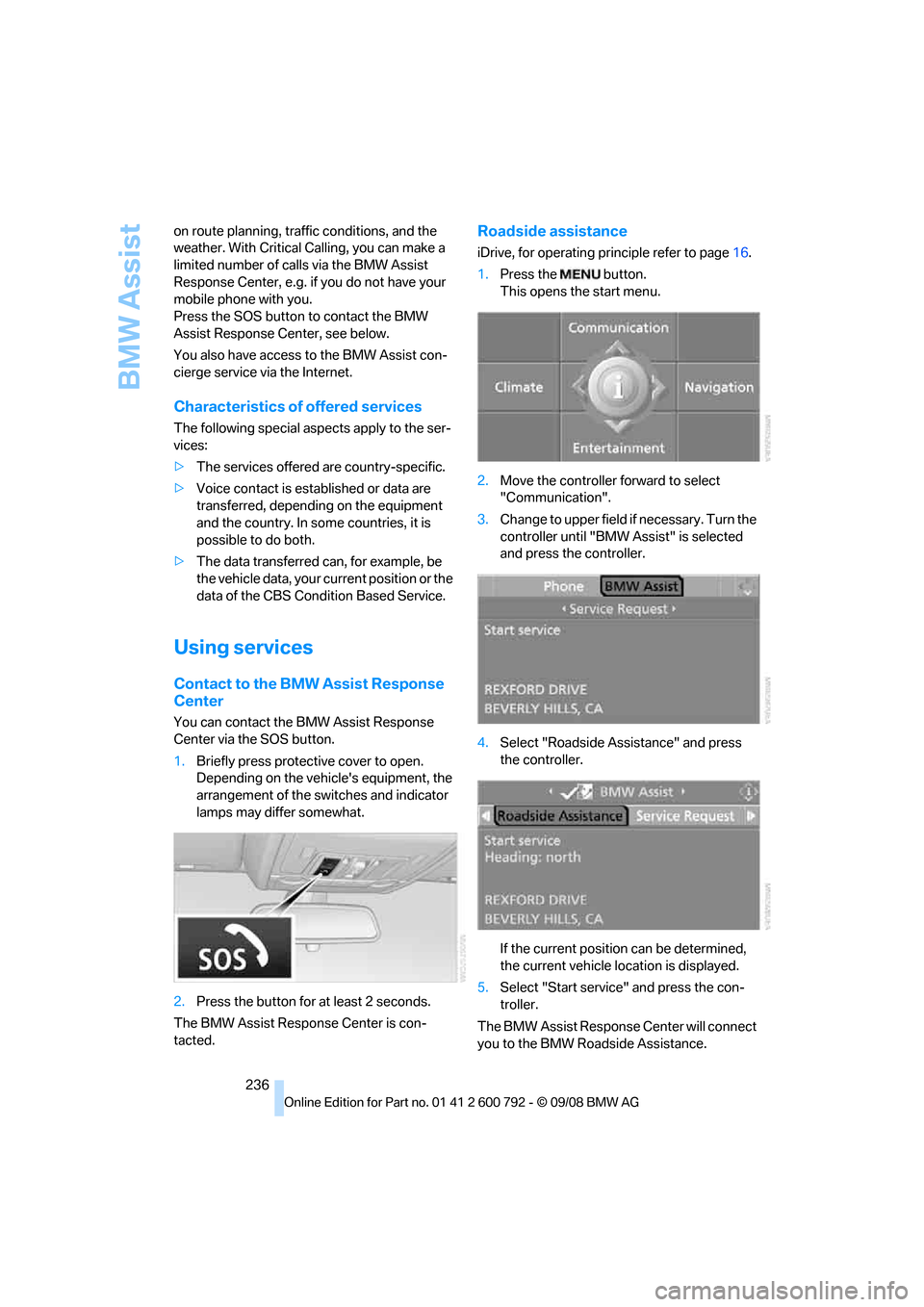
You can contact the BMW Assist Response
Center via the SOS button.
1.Briefly press protective cover to open.
Depending on the vehicle's equipment, the
arrangement of the switches and indicator
lamps may differ somewhat.
2. Press the button for at least 2 seconds.
The BMW Assist Response Center is con-
tacted.
Roadside assistance
iDrive, for operating pr inciple refer to page16.
1. Press the button.
This opens the start menu.
2. Move the controller forward to select
"Communication".
3. Change to upper field if necessary. Turn the
controller until "BMW Assist" is selected
and press the controller.
4. Select "Roadside Assistance" and press
the controller.
If the current position can be determined,
the current vehicle location is displayed.
5. Select "Start service" and press the con-
troller.
The BMW Assist Response Center will connect
you to the BMW Roadside Assistance.
Page 239 of 317
237
Entertainment
Reference
At a glance
Controls
Driving tips
Communications
Navigation
Mobility
BMW TeleServices*
Automatic BMW Teleservice call*
The data on the service status of your vehicle or
on required inspections are transmitted auto-
matically directly to your BMW Sports Activity
Vehicle Center prior to the due date. You can
check when the BMW Sports Activity Vehicle
Center was notified.
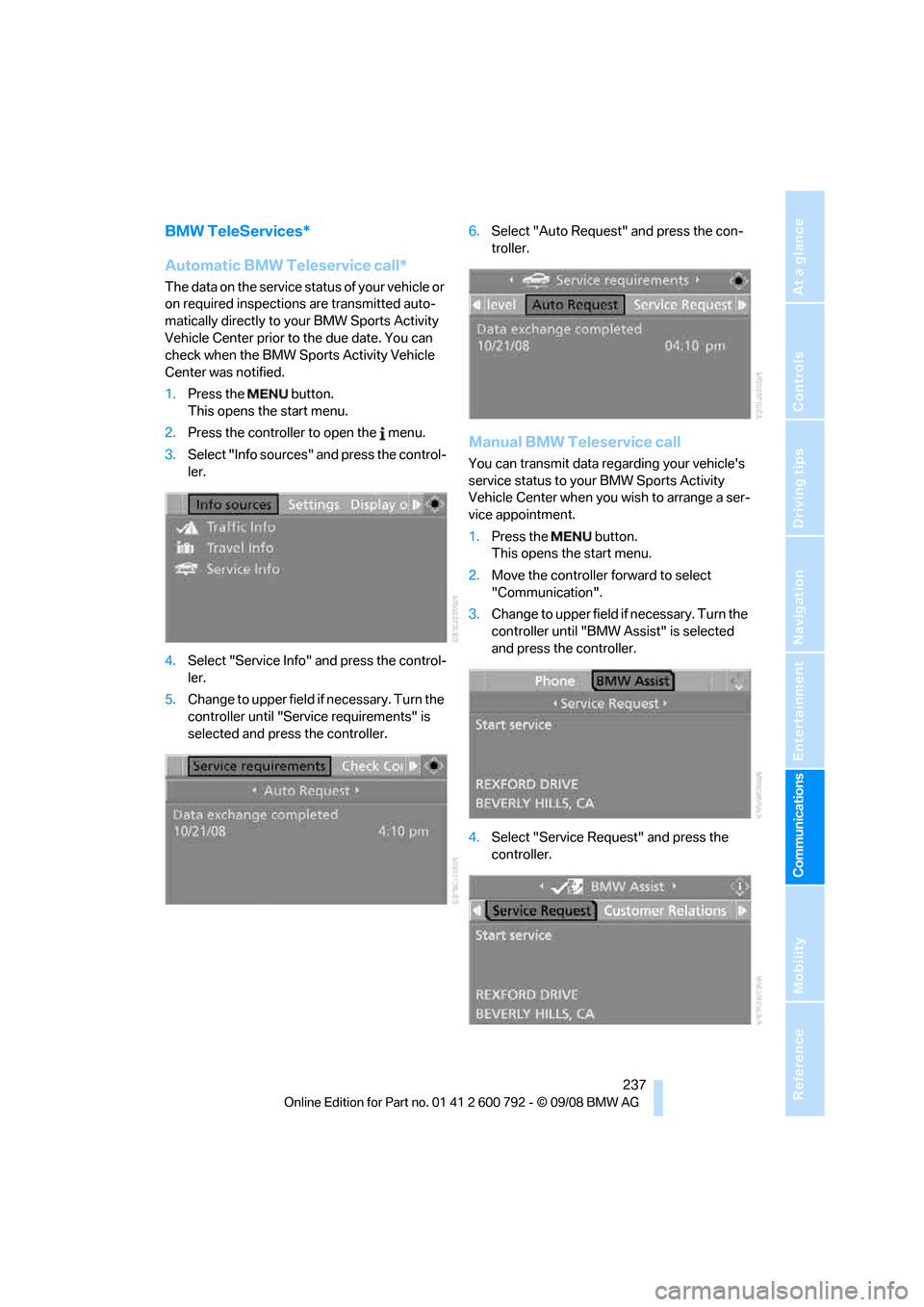
1. Press the button.
This opens the start menu.
2. Press the controller to open the menu.
3. Select "Info sources" and press the control-
ler.
4. Select "Service Info" and press the control-
ler.
5. Change to upper field if necessary. Turn the
controller until "Service requirements" is
selected and press the controller. 6.
Select "Auto Request" and press the con-
troller.
Manual BMW Teleservice call
You can transmit data re garding your vehicle's
service status to your BMW Sports Activity
Vehicle Center when you wish to arrange a ser-
vice appointment.
1. Press the button.
This opens the start menu.
2. Move the controller forward to select
"Communication".
3. Change to upper field if necessary. Turn the
controller until "BMW Assist" is selected
and press the controller.
4. Select "Service Request" and press the
controller.
Page 240 of 317
BMW Assist
238
5.
Select "Start service" and press the con-
troller.
The data relevant for se rvice are transmitted.
Your BMW Sports Activity Vehicle Center will
contact you to set up an appointment for ser-
vice.
Displaying and updating
BMW TeleServices services*
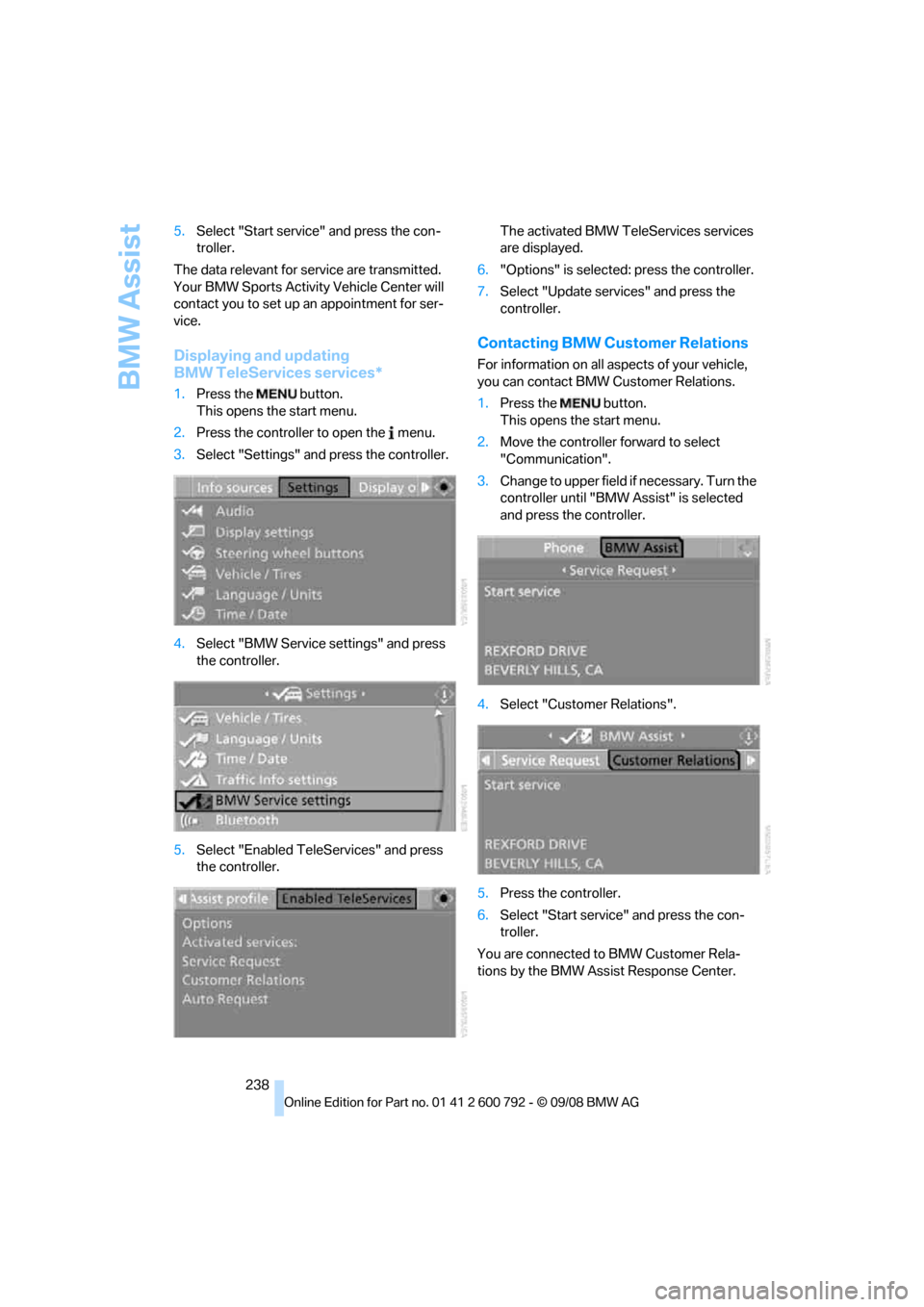
1. Press the button.
This opens the start menu.
2. Press the controller to open the menu.
3. Select "Settings" and press the controller.
4. Select "BMW Service settings" and press
the controller.
5. Select "Enabled TeleServices" and press
the controller. The activated BMW Tele
Services services
are displayed.
6. "Options" is selected: press the controller.
7. Select "Update services" and press the
controller.
Contacting BMW Customer Relations
For information on all aspects of your vehicle,
you can contact BMW Customer Relations.
1.Press the button.
This opens the start menu.
2. Move the controller forward to select
"Communication".
3. Change to upper field if necessary. Turn the
controller until "BMW Assist" is selected
and press the controller.
4. Select "Customer Relations".
5. Press the controller.
6. Select "Start service" and press the con-
troller.
You are connected to BMW Customer Rela-
tions by the BMW Assist Response Center.
Page 241 of 317
239
Entertainment
Reference
At a glance
Controls
Driving tips
Communications
Navigation
Mobility
Concierge service*
When you call the BMW Assist concierge ser-
vice, you can, for example, obtain information
on current events, filling stations or hotels and
have their phone numbers and addresses
transmitted. Many ho tels can be booked
directly through the BMW concierge service.
The concierge service must be enabled sepa-
rately by the BMW Assist Response Center.
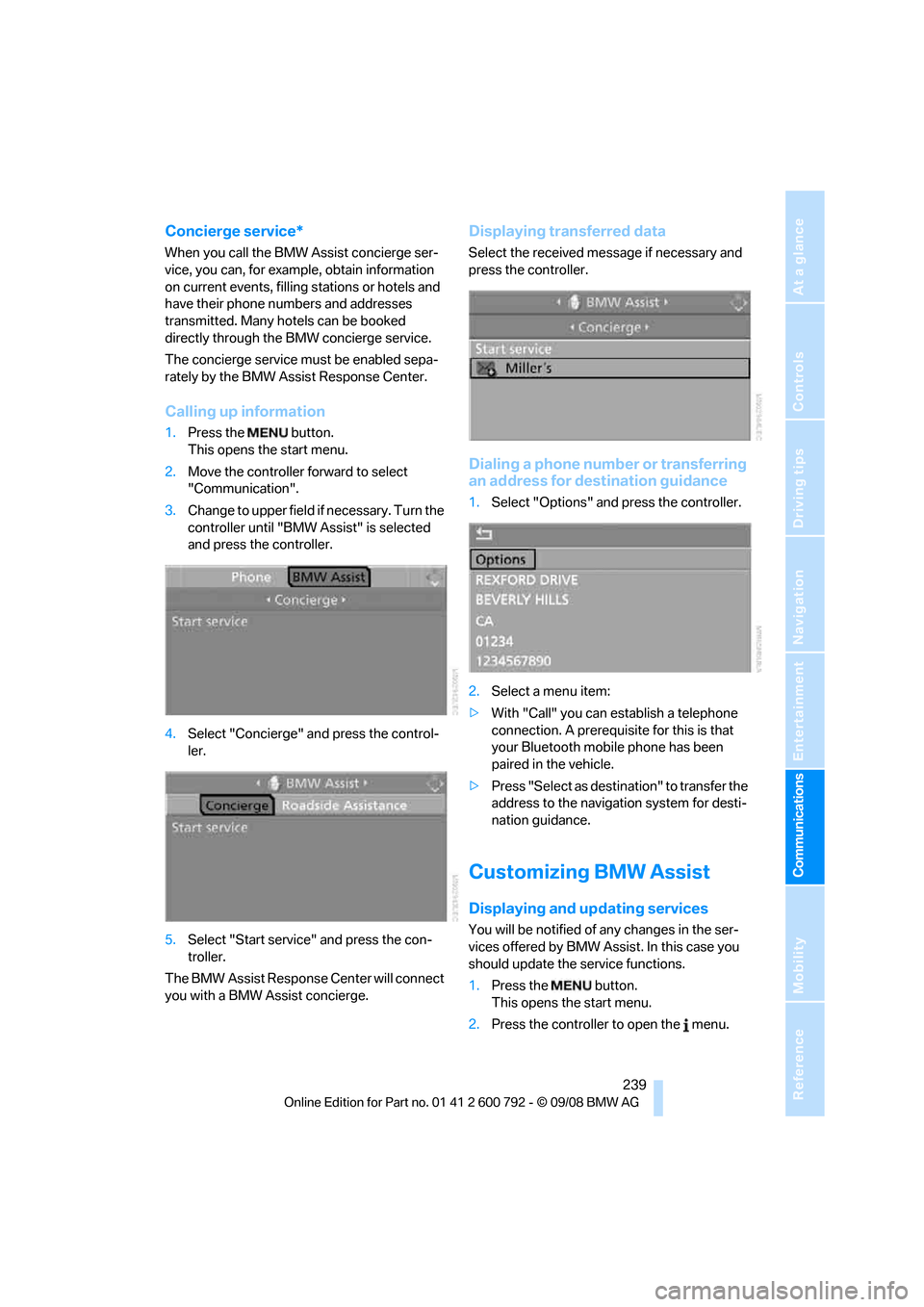
Calling up information
1. Press the button.
This opens the start menu.
2. Move the controller forward to select
"Communication".
3. Change to upper field if necessary. Turn the
controller until "BMW Assist" is selected
and press the controller.
4. Select "Concierge" an d press the control-
ler.
5. Select "Start service" and press the con-
troller.
The BMW Assist Response Center will connect
you with a BMW Assist concierge.
Displaying tr ansferred data
Select the received me ssage if necessary and
press the controller.
Dialing a phone number or transferring
an address for destination guidance
1. Select "Options" and press the controller.
2. Select a menu item:
> With "Call" you can establish a telephone
connection. A prerequisite for this is that
your Bluetooth mobile phone has been
paired in the vehicle.
> Press "Select as destination" to transfer the
address to the navigation system for desti-
nation guidance.
Customizing BMW Assist
Displaying and updating services
You will be notified of any changes in the ser-
vices offered by BMW Assist. In this case you
should update the service functions.
1. Press the button.
This opens the start menu.
2. Press the controller to open the menu.
Page 242 of 317
BMW Assist
240
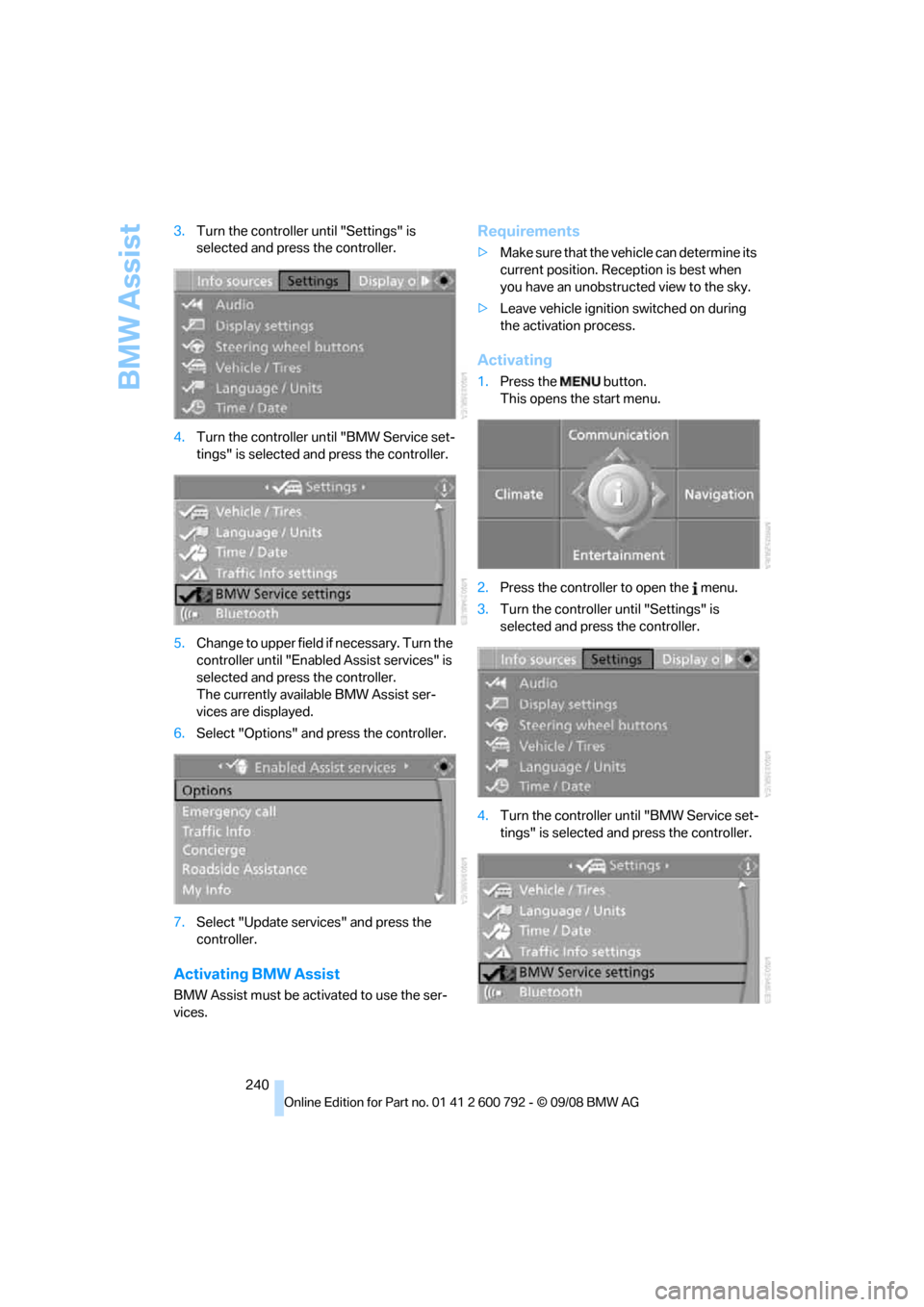
3.
Turn the controller until "Settings" is
selected and press the controller.
4. Turn the controller un til "BMW Service set-
tings" is selected and press the controller.
5. Change to upper field if necessary. Turn the
controller until "Enabled Assist services" is
selected and press the controller.
The currently available BMW Assist ser-
vices are displayed.
6. Select "Options" and press the controller.
7. Select "Update services" and press the
controller.
Activating BMW Assist
BMW Assist must be activated to use the ser-
vices.
Requirements
>Make sure that the vehicle can determine its
current position. Reception is best when
you have an unobstructed view to the sky.
> Leave vehicle ignition switched on during
the activation process.
Activating
1.Press the button.
This opens the start menu.
2. Press the controller to open the menu.
3. Turn the controller until "Settings" is
selected and press the controller.
4. Turn the controller un til "BMW Service set-
tings" is selected and press the controller.
Page 243 of 317
241
Entertainment
Reference
At a glance
Controls
Driving tips
Communications
Navigation
Mobility
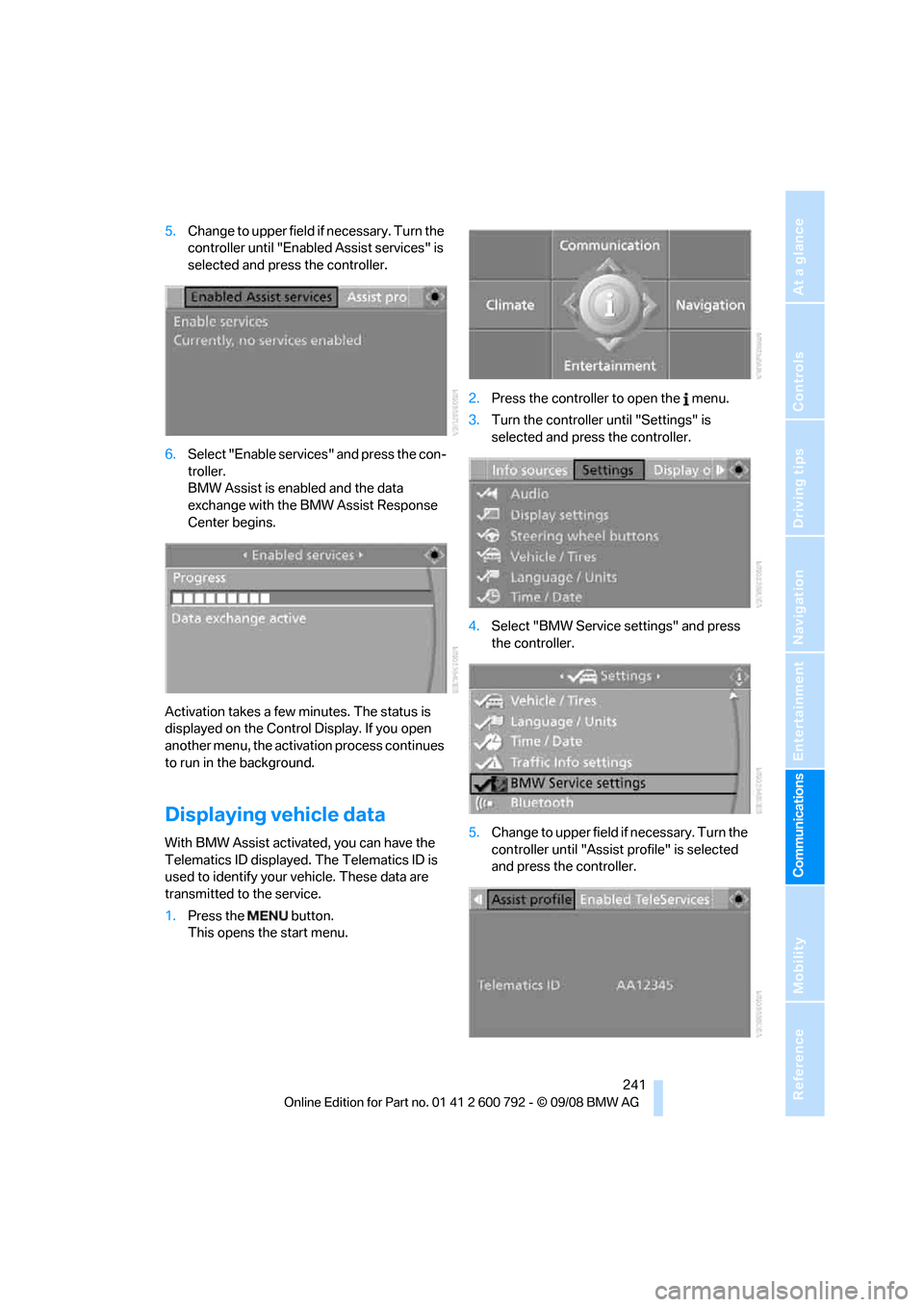
5. Change to upper field if necessary. Turn the
controller until "Enabled Assist services" is
selected and press the controller.
6. Select "Enable services" and press the con-
troller.
BMW Assist is enabled and the data
exchange with the BMW Assist Response
Center begins.
Activation takes a few minutes. The status is
displayed on the Control Display. If you open
another menu, the activa tion process continues
to run in the background.
Displaying vehicle data
With BMW Assist activa ted, you can have the
Telematics ID displayed. The Telematics ID is
used to identify your vehicle. These data are
transmitted to the service.
1. Press the button.
This opens the start menu. 2.
Press the controller to open the menu.
3. Turn the controller until "Settings" is
selected and press the controller.
4. Select "BMW Service settings" and press
the controller.
5. Change to upper field if necessary. Turn the
controller until "Assist profile" is selected
and press the controller.
Page 262 of 317
Under the hood
260
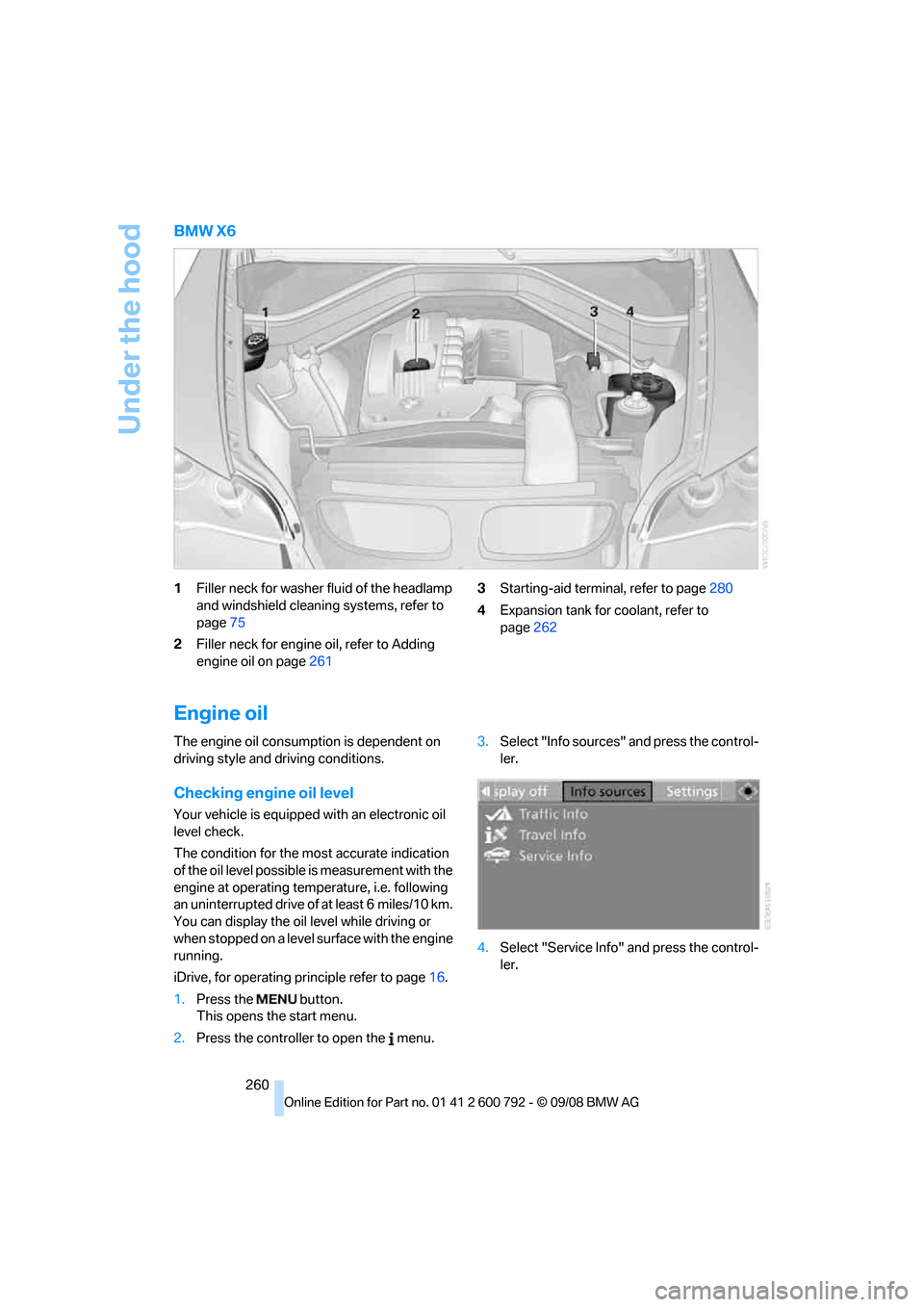
BMW X6
1Filler neck for washer fluid of the headlamp
and windshield cleaning systems, refer to
page 75
2 Filler neck for engine oil, refer to Adding
engine oil on page 261 3
Starting-aid termin al, refer to page280
4 Expansion tank for coolant, refer to
page 262
Engine oil
The engine oil consumption is dependent on
driving style and driving conditions.
Checking engine oil level
Your vehicle is equipped with an electronic oil
level check.
The condition for the most accurate indication
of the oil level possible is measurement with the
engine at operating temperature, i.e. following
an uninterrupted drive of at least 6 miles/10 km.
You can display the oil level while driving or
when stopped on a level surface with the engine
running.
iDrive, for operating pr inciple refer to page16.
1. Press the button.
This opens the start menu.
2. Press the controller to open the menu. 3.
Select "Info sources" and press the control-
ler.
4. Select "Service Info" and press the control-
ler.
Page 281 of 317
Mobility
279Reference
At a glance
Controls
Driving tips
Communications
Navigation
Entertainment
Giving and receiving assistance
Emergency request
Conditions for an emergency request:
>Full preparation package mobile phone.
With this equipment, an emergency request
is still possible when no mobile phone is
paired in the vehicle.
> BMW Assist is activated.
Activating BMW Assist, refer to page 240.
> Radio readiness is switched on.
> The BMW Assist system is logged in on a
wireless communications network.
> The emergency request system is opera-
ble.
When the contract of participation with BMW
Assist expires, the BMW Assist system can be
deactivated by a BMW Sports Activity Vehicle
Center without having to visit a workshop. Once
the BMW Assist system has been deactivated,
emergency requests are not possible. The
BMW Assist system be reactivated by a BMW
Sports Activity Vehicle Center after signing a
new contract.
Initiating an emergency request
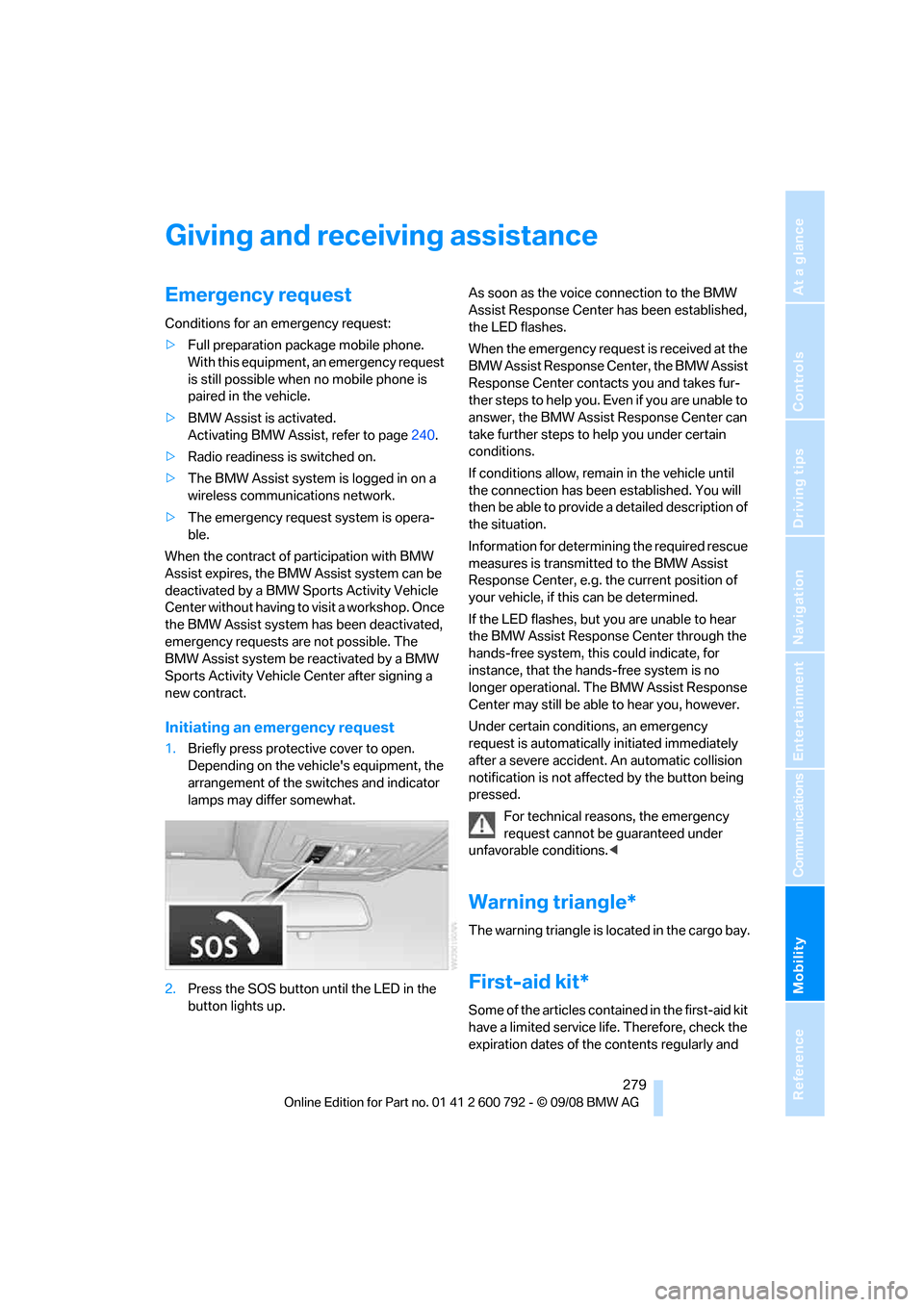
1. Briefly press protective cover to open.
Depending on the vehicle's equipment, the
arrangement of the switches and indicator
lamps may differ somewhat.
2. Press the SOS button until the LED in the
button lights up. As soon as the voice connection to the BMW
Assist Response Center has been established,
the LED flashes.
When the emergency request is received at the
BMW Assist Response Center, the BMW Assist
Response Center contacts you and takes fur-
ther steps to help you. Even if you are unable to
answer, the BMW Assist Response Center can
take further steps to help you under certain
conditions.
If conditions allow, remain in the vehicle until
the connection has been
established. You will
then be able to provide a detailed description of
the situation.
Information for determining the required rescue
measures is transmitted to the BMW Assist
Response Center, e.g. the current position of
your vehicle, if this can be determined.
If the LED flashes, but you are unable to hear
the BMW Assist Response Center through the
hands-free system, this could indicate, for
instance, that the hand s-free system is no
longer operational. The BMW Assist Response
Center may still be able to hear you, however.
Under certain conditions, an emergency
request is automatically initiated immediately
after a severe accident . An automatic collision
notification is not affected by the button being
pressed.
For technical reasons, the emergency
request cannot be guaranteed under
unfavorable conditions. <
Warning triangle*
The warning triangle is located in the cargo bay.
First-aid kit*
Some of the articles cont ained in the first-aid kit
have a limited service life. Therefore, check the
expiration dates of the contents regularly and
Page 296 of 317
Short commands of voice activation system
294
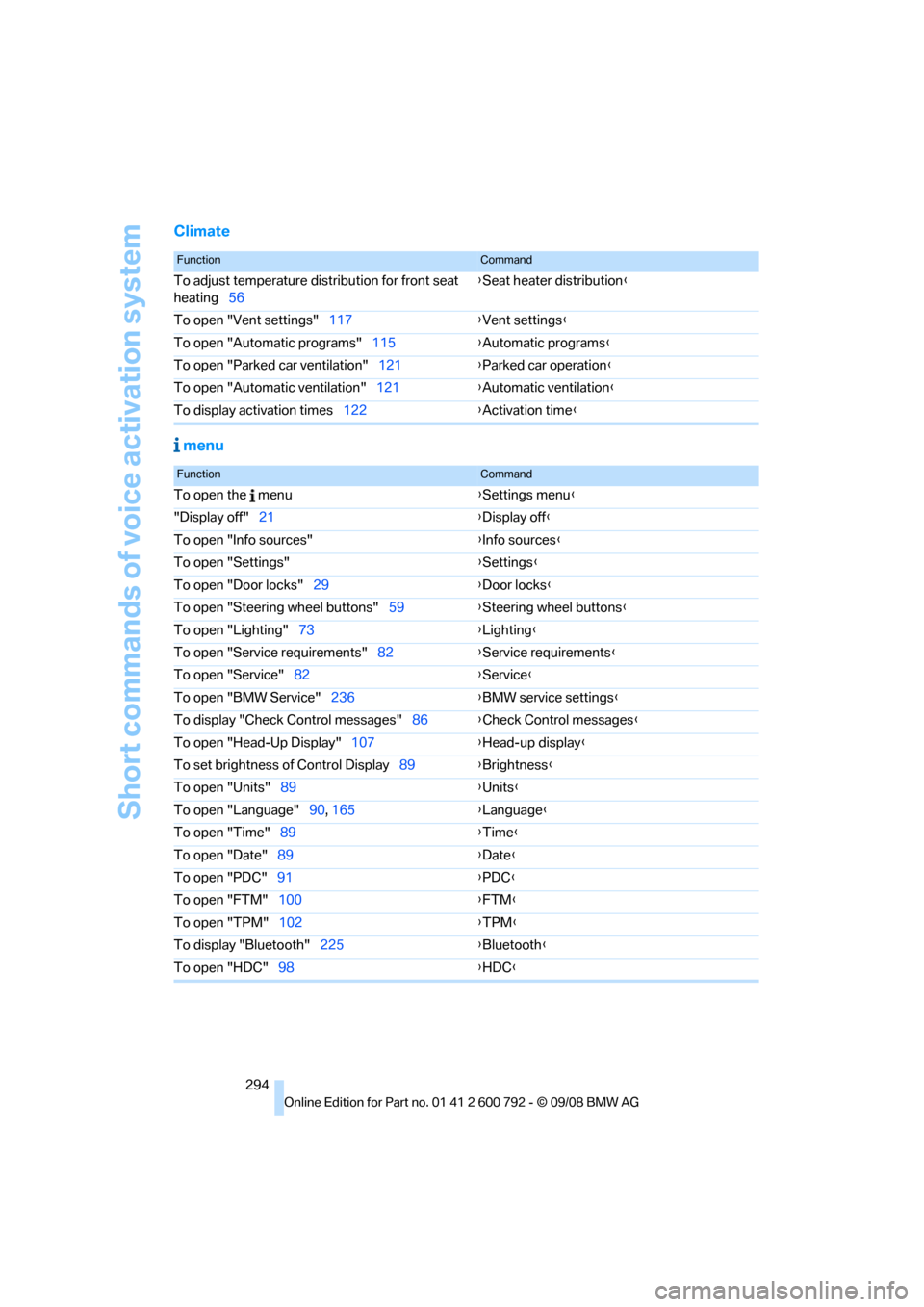
Climate menu
FunctionCommand
To adjust temperature distribution for front seat
heating 56 {
Seat heater distribution }
To open "Vent settings" 117{Vent settings }
To open "Automatic programs" 115{Automatic programs }
To open "Parked car ventilation" 121{Parked car operation }
To open "Automatic ventilation" 121{Automatic ventilation }
To display activation times 122{Activation time }
FunctionCommand
To open the menu {Settings menu }
"Display off" 21 {Display off }
To open "Info sources" {Info sources }
To open "Settings" {Settings }
To open "Door locks" 29 {Door locks }
To open "Steering wheel buttons" 59{Steering wheel buttons }
To open "Lighting" 73 {Lighting }
To open "Service requirements" 82{Service requirements }
To open "Service" 82 {Service }
To open "BMW Service" 236{BMW service settings }
To display "Check Control messages" 86{Check Control messages }
To open "Head-Up Display" 107{Head-up display }
To set brightness of Control Display 89{Brightness }
To open "Units" 89 {Units }
To open "Language" 90, 165 {Language }
To open "Time" 89 {Time }
To open "Date" 89 {Date }
To open "PDC" 91 {PDC }
To open "FTM" 100 {FTM }
To open "TPM" 102 {TPM }
To display "Bluetooth" 225 {B
luetooth}
To open "HDC" 98 {HDC }