button BMW X6 XDRIVE 35I 2009 E71 Owners Manual
[x] Cancel search | Manufacturer: BMW, Model Year: 2009, Model line: X6 XDRIVE 35I, Model: BMW X6 XDRIVE 35I 2009 E71Pages: 317, PDF Size: 9.56 MB
Page 182 of 317
Radio
180
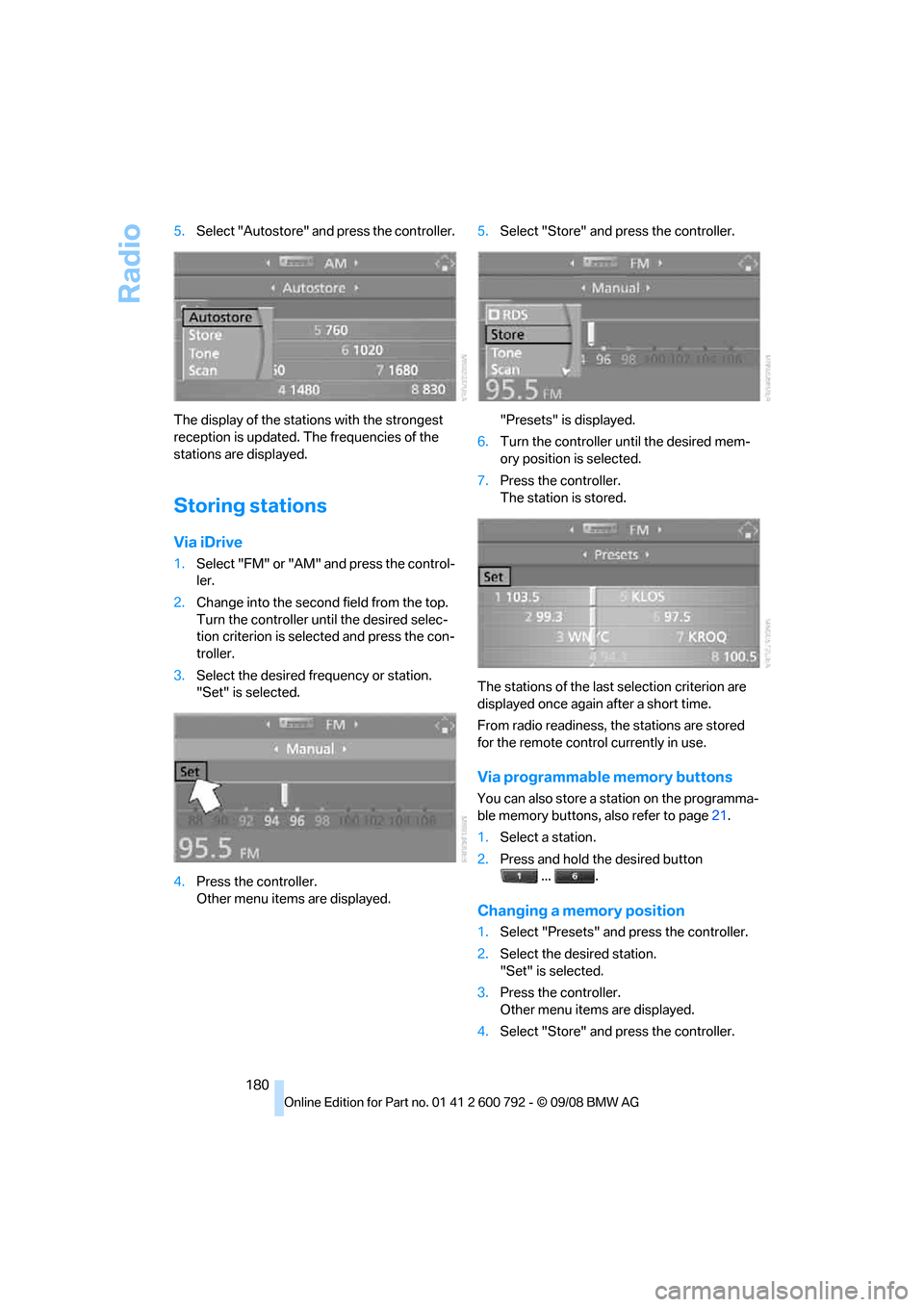
5.
Select "Autostore" and press the controller.
The display of the stations with the strongest
reception is updated. The frequencies of the
stations are displayed.
Storing stations
Via iDrive
1. Select "FM" or "AM" and press the control-
ler.
2. Change into the second field from the top.
Turn the controller until the desired selec-
tion criterion is selected and press the con-
troller.
3. Select the desired frequency or station.
"Set" is selected.
4. Press the controller.
Other menu items are displayed. 5.
Select "Store" and press the controller.
"Presets" is displayed.
6. Turn the controller until the desired mem-
ory position is selected.
7. Press the controller.
The station is stored.
The stations of the last selection criterion are
displayed once again after a short time.
From radio readiness, the stations are stored
for the remote control currently in use.
Via programmable memory buttons
You can also store a station on the programma-
ble memory buttons, also refer to page21.
1. Select a station.
2. Press and hold the desired button
... .
Changing a memory position
1.Select "Presets" and press the controller.
2. Select the desired station.
"Set" is selected.
3. Press the controller.
Other menu items are displayed.
4. Select "Store" and press the controller.
Page 183 of 317
Navigation
Entertainment
Driving tips
181Reference
At a glance
Controls
Communications
Mobility
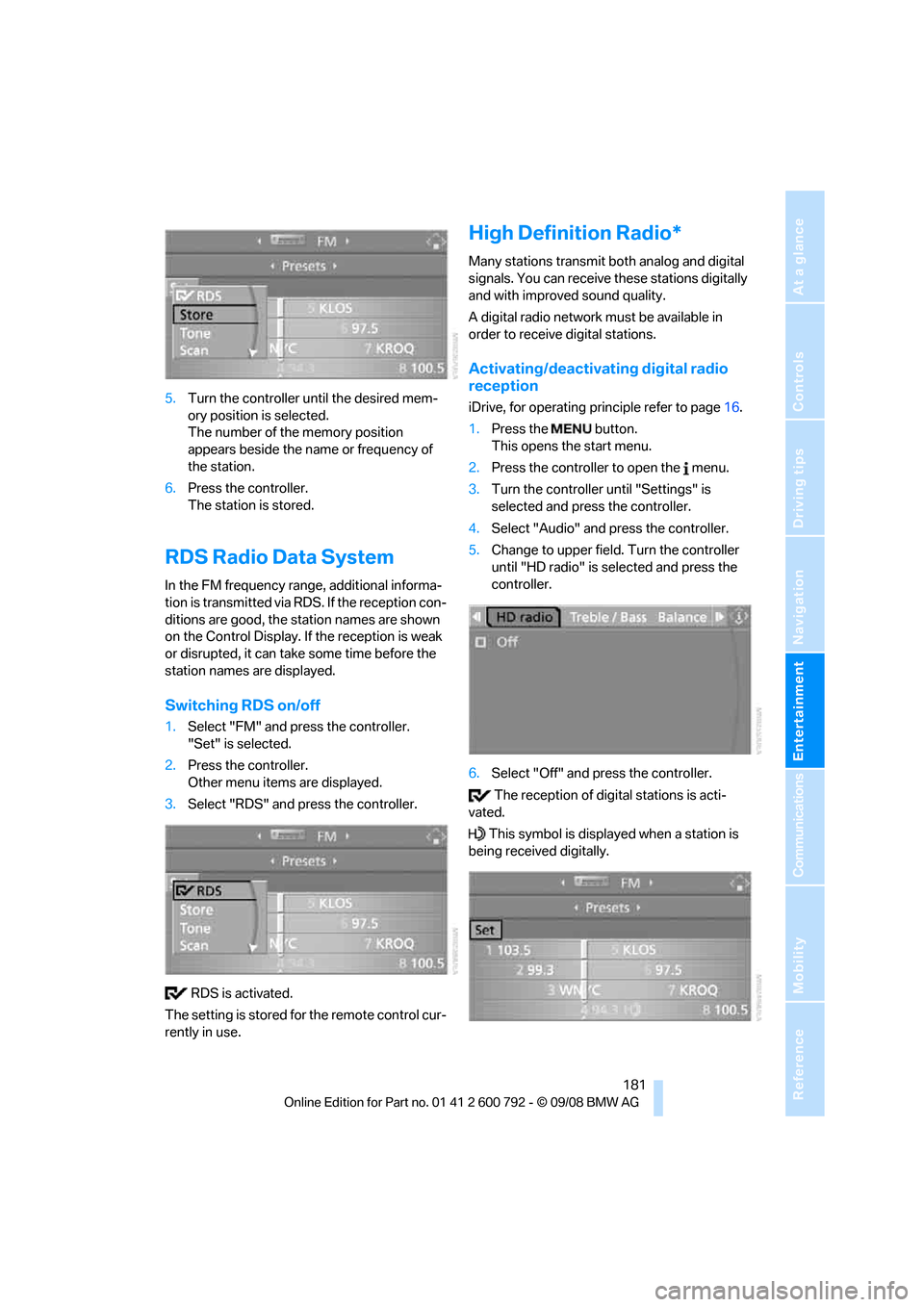
5.Turn the controller until the desired mem-
ory position is selected.
The number of the memory position
appears beside the na me or frequency of
the station.
6. Press the controller.
The station is stored.
RDS Radio Data System
In the FM frequency range, additional informa-
tion is transmitted via RDS. If the reception con-
ditions are good, the station names are shown
on the Control Display. If the reception is weak
or disrupted, it can take some time before the
station names are displayed.
Switching RDS on/off
1. Select "FM" and press the controller.
"Set" is selected.
2. Press the controller.
Other menu items are displayed.
3. Select "RDS" and press the controller.
RDS is activated.
The setting is stored for the remote control cur-
rently in use.
High Definition Radio*
Many stations transmit both analog and digital
signals. You can receive these stations digitally
and with improved sound quality.
A digital radio network must be available in
order to receive digital stations.
Activating/deactivating digital radio
reception
iDrive, for operating pr inciple refer to page16.
1. Press the button.
This opens the start menu.
2. Press the controller to open the menu.
3. Turn the controller until "Settings" is
selected and press the controller.
4. Select "Audio" and press the controller.
5. Change to upper field. Turn the controller
until "HD radio" is se lected and press the
controller.
6. Select "Off" and press the controller.
The reception of digital stations is acti-
vated.
This symbol is displa yed when a station is
being received digitally.
Page 184 of 317
Radio
182
With some stations the
digital signals are not
transmitted simultaneously with the analog sig-
nals. If you are in an ar ea in which the selected
station is not continuous ly received digitally,
playback changes betwee n analog and digital
reception. This can result in repetitions or inter-
ruptions. In this case it may be advisable to
deactivate digital radio reception.
Selecting programs of a digital station*
Some stations transmit several programs on
one frequency. To select one of these pro-
grams:
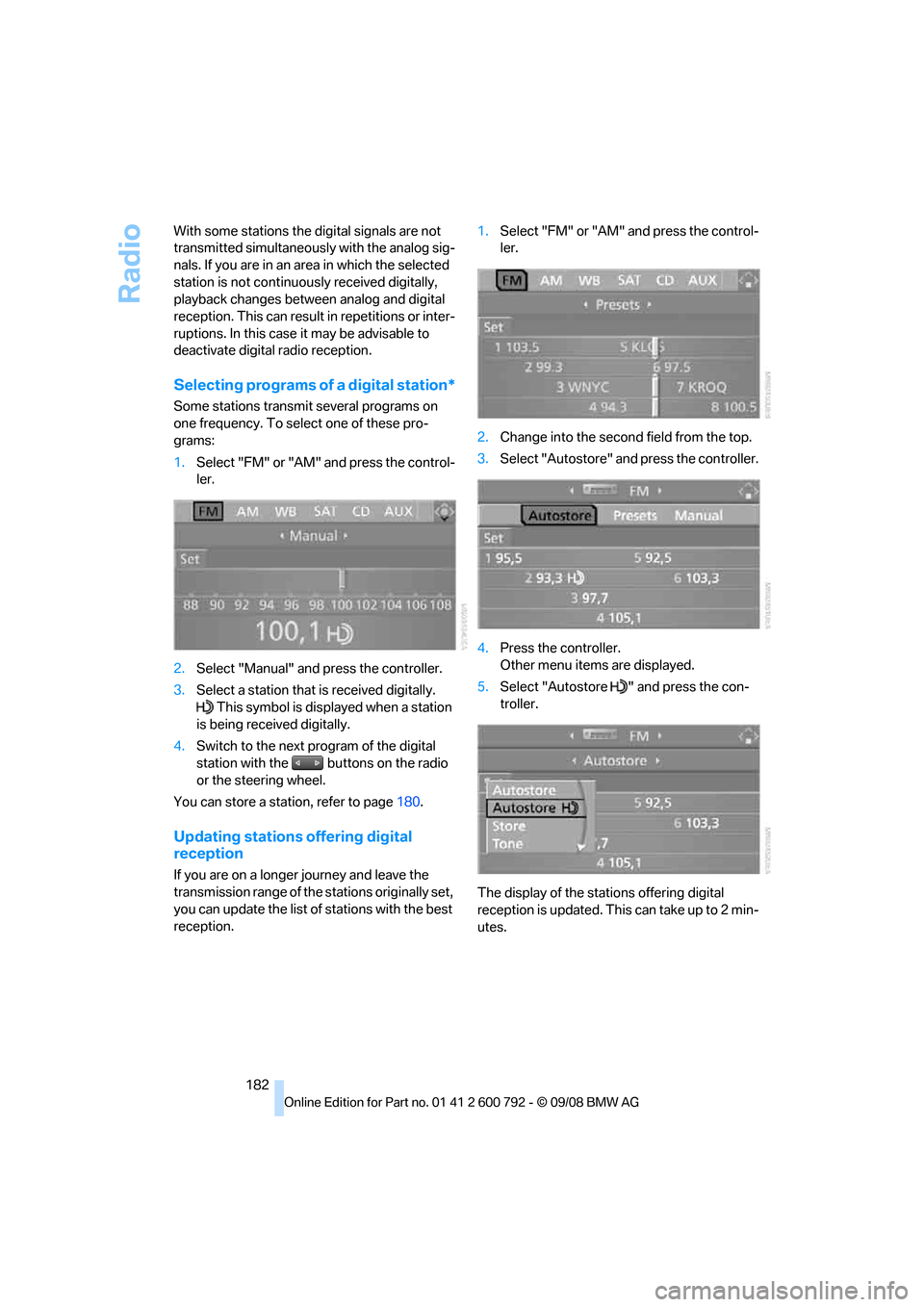
1. Select "FM" or "AM" and press the control-
ler.
2. Select "Manual" and press the controller.
3. Select a station that is received digitally.
This symbol is displayed when a station
is being received digitally.
4. Switch to the next program of the digital
station with the buttons on the radio
or the steering wheel.
You can store a station, refer to page 180.
Updating stations offering digital
reception
If you are on a longer journey and leave the
transmission range of the stations originally set,
you can update the list of stations with the best
reception. 1.
Select "FM" or "AM" and press the control-
ler.
2. Change into the second field from the top.
3. Select "Autostore" and press the controller.
4. Press the controller.
Other menu items are displayed.
5. Select "Autostore " and press the con-
troller.
The display of the stations offering digital
reception is updated. This can take up to 2 min-
utes.
Page 186 of 317
Satellite radio
184
Satellite radio
You can receive over 100 different channels
with high sound quality.
The channels are offered to you in predefined
packages. To receive the channels of your
choice, you must have this package enabled.
With this new techno logy the signal may
fail, causing interruptions in reception. <
Enabling or disabling
channels
iDrive, for operating principle refer to page16.
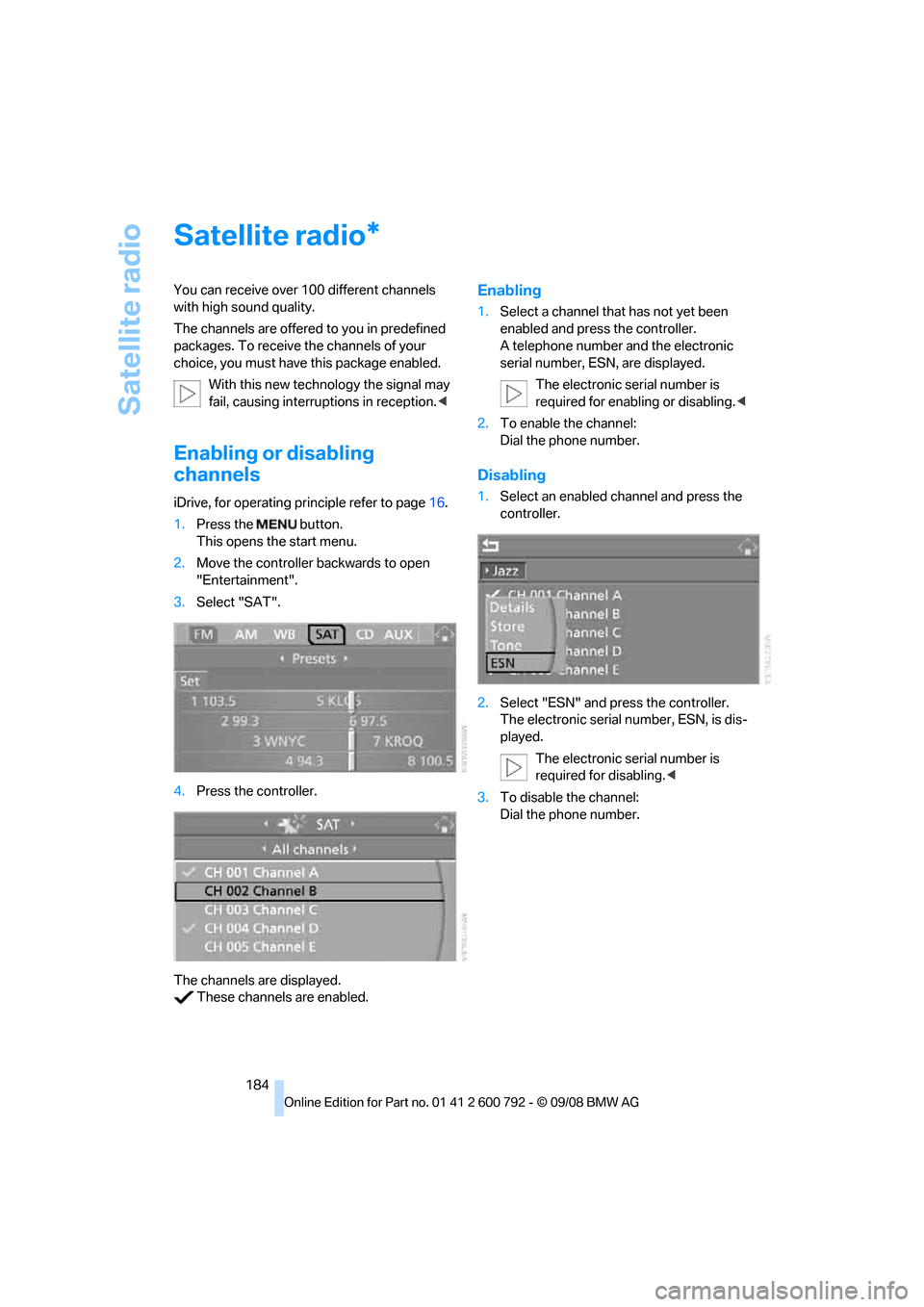
1. Press the button.
This opens the start menu.
2. Move the controller backwards to open
"Entertainment".
3. Select "SAT".
4. Press the controller.
The channels are displayed. These channels are enabled.
Enabling
1. Select a channel that has not yet been
enabled and press the controller.
A telephone number and the electronic
serial number, ESN, are displayed.
The electronic serial number is
required for enabling or disabling. <
2. To enable the channel:
Dial the phone number.
Disabling
1.Select an enabled channel and press the
controller.
2. Select "ESN" and press the controller.
The electronic serial number, ESN, is dis-
played.
The electronic serial number is
required for disabling. <
3. To disable the channel:
Dial the phone number.
*
Page 188 of 317
Satellite radio
186
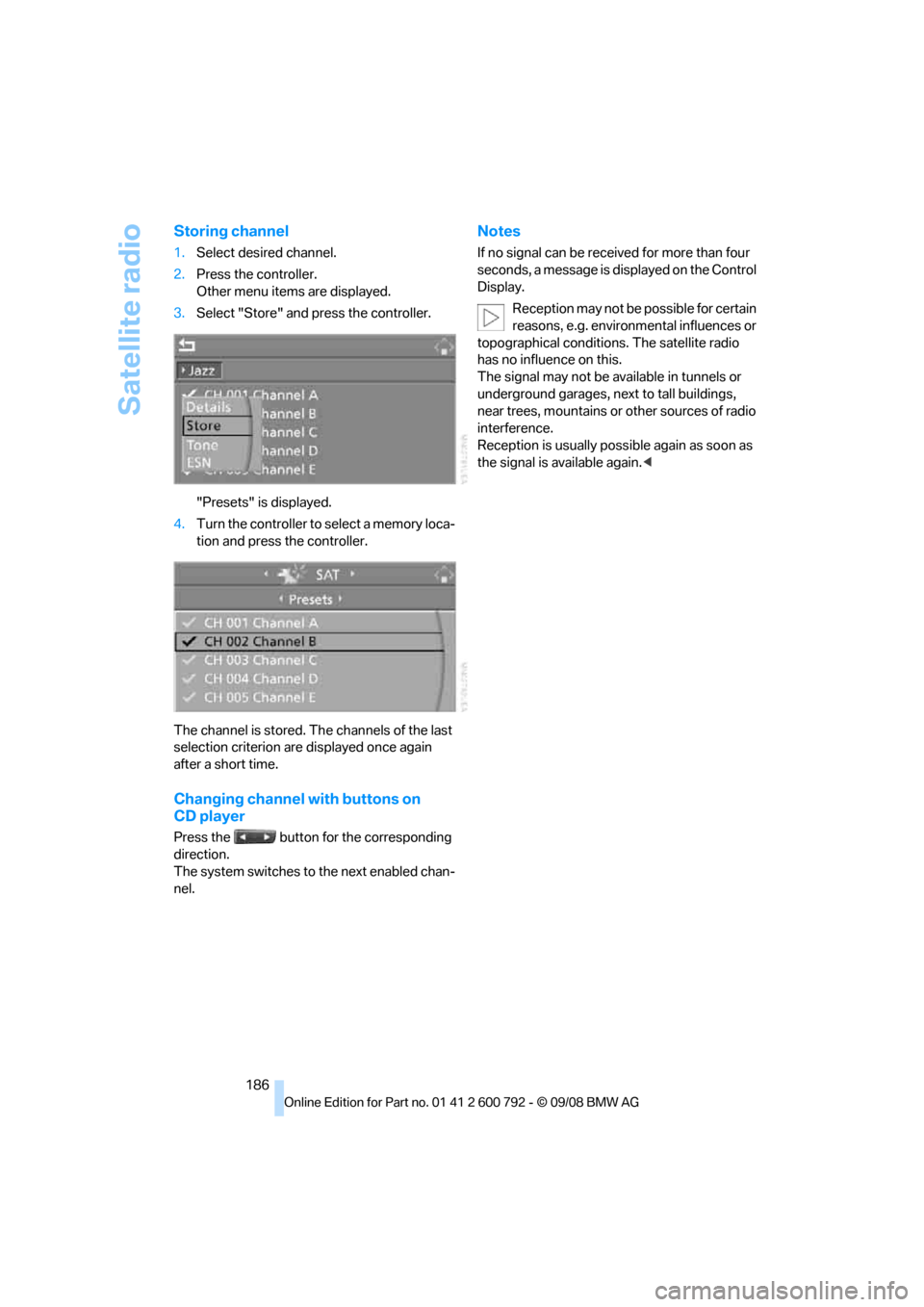
Storing channel
1.Select desired channel.
2. Press the controller.
Other menu items are displayed.
3. Select "Store" and press the controller.
"Presets" is displayed.
4. Turn the controller to select a memory loca-
tion and press the controller.
The channel is stored. Th e channels of the last
selection criterion are displayed once again
after a short time.
Changing channel with buttons on
CD player
Press the button for the corresponding
direction.
The system switches to the next enabled chan-
nel.
Notes
If no signal can be rece ived for more than four
seconds, a message is displayed on the Control
Display.
Reception may not be possible for certain
reasons, e.g. environmental influences or
topographical conditions. The satellite radio
has no influence on this.
The signal may not be av ailable in tunnels or
underground garages, ne xt to tall buildings,
near trees, mountains or other sources of radio
interference.
Reception is usually poss ible again as soon as
the signal is available again. <
Page 189 of 317
Navigation
Entertainment
Driving tips
187Reference
At a glance
Controls
Communications
Mobility
CD player and CD changer
Listening to CDs
When equipped with two drives:
The upper drive is for audio CDs.
Compressed audio files
CDs with compressed audio files, i.e. MP3, can
be played by the CD player and CD changer.
Starting CD player
Inserting CD
Insert the CD into the drive with the labeled side
up.
The CD is automatically pulled in. Playback
starts automatically if the sound output is on.
For CDs with compressed audio files, it can take
up to approx. 1 minute to read in the data
depending on the directory structure.
Via iDrive
Starting playback when there is already a CD in
the drive:
iDrive, for operating principle refer to page 16.
1. Press the button.
This opens the start menu.
2. Move the controller backwards to open
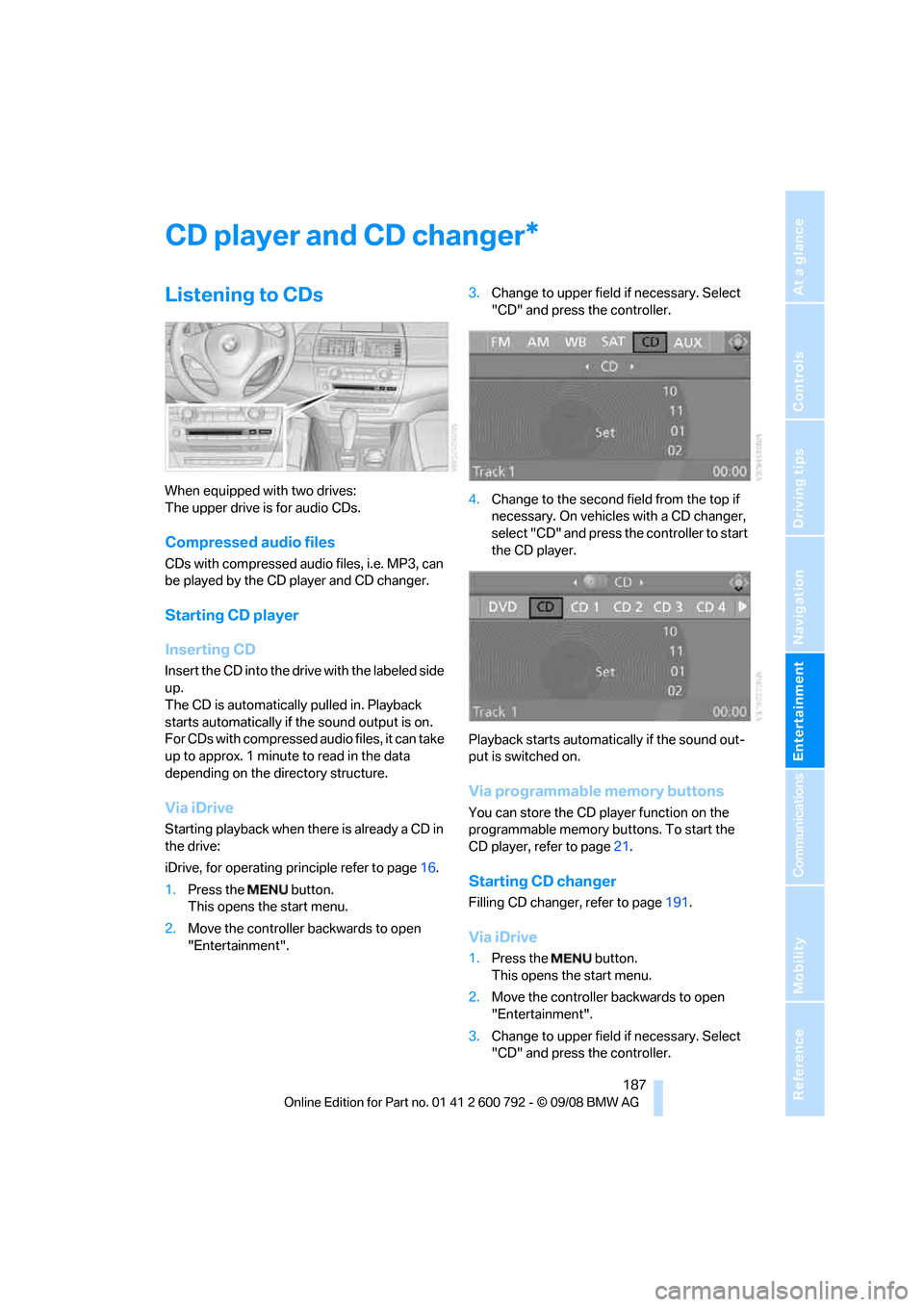
"Entertainment". 3.
Change to upper field if necessary. Select
"CD" and press the controller.
4. Change to the second field from the top if
necessary. On vehicles with a CD changer,
select "CD" and press the controller to start
the CD player.
Playback starts automati cally if the sound out-
put is switched on.
Via programmable memory buttons
You can store the CD player function on the
programmable memory bu ttons. To start the
CD player, refer to page 21.
Starting CD changer
Filling CD changer, refer to page 191.
Via iDrive
1.Press the button.
This opens the start menu.
2. Move the controller backwards to open
"Entertainment".
3. Change to upper field if necessary. Select
"CD" and press the controller.
*
Page 190 of 317
CD player and CD changer
188
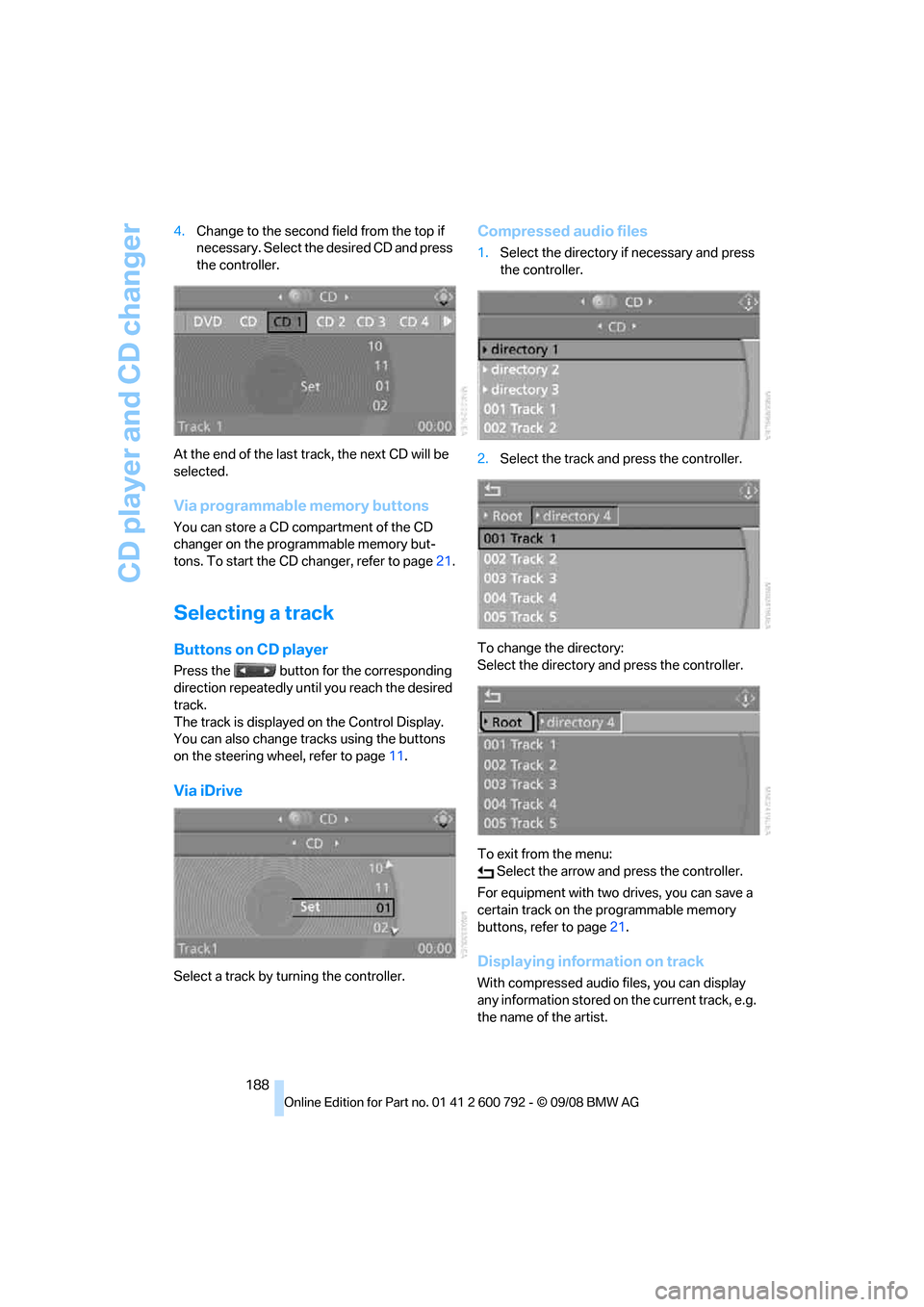
4.
Change to the second field from the top if
necessary. Select the desired CD and press
the controller.
At the end of the last tr ack, the next CD will be
selected.
Via programmable memory buttons
You can store a CD compartment of the CD
changer on the programmable memory but-
tons. To start the CD changer, refer to page 21.
Selecting a track
Buttons on CD player
Press the button for the corresponding
direction repeatedly until you reach the desired
track.
The track is displayed on the Control Display.
You can also change tracks using the buttons
on the steering wheel, refer to page 11.
Via iDrive
Select a track by turning the controller.
Compressed audio files
1.Select the directory if necessary and press
the controller.
2. Select the track and press the controller.
To change the directory:
Select the directory and press the controller.
To exit from the menu: Select the arrow and press the controller.
For equipment with two drives, you can save a
certain track on the programmable memory
buttons, refer to page 21.
Displaying information on track
With compressed audio files, you can display
any information stored on the current track, e.g.
the name of the artist.
Page 192 of 317
CD player and CD changer
190
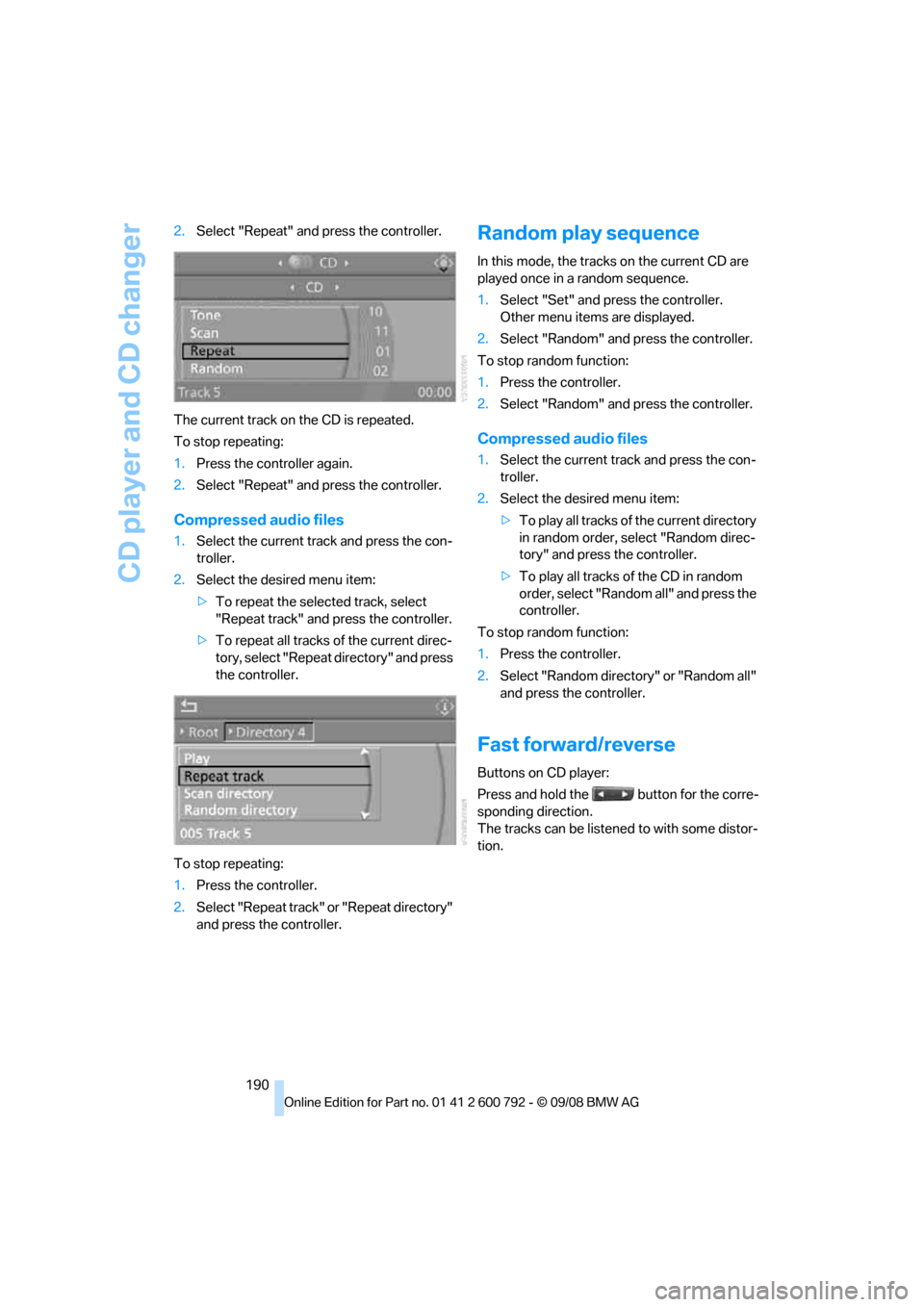
2.
Select "Repeat" and press the controller.
The current track on the CD is repeated.
To stop repeating:
1. Press the controller again.
2. Select "Repeat" and press the controller.
Compressed audio files
1.Select the current track and press the con-
troller.
2. Select the desired menu item:
>To repeat the selected track, select
"Repeat track" and press the controller.
> To repeat all tracks of the current direc-
tory, select "Repeat directory" and press
the controller.
To stop repeating:
1. Press the controller.
2. Select "Repeat track" or "Repeat directory"
and press the controller.
Random play sequence
In this mode, the tracks on the current CD are
played once in a random sequence.
1.Select "Set" and press the controller.
Other menu items are displayed.
2. Select "Random" and press the controller.
To stop random function:
1. Press the controller.
2. Select "Random" and press the controller.
Compressed audio files
1.Select the current track and press the con-
troller.
2. Select the desired menu item:
>To play all tracks of the current directory
in random order, select "Random direc-
tory" and press the controller.
> To play all tracks of the CD in random
order, select "Random all" and press the
controller.
To stop random function:
1. Press the controller.
2. Select "Random directory" or "Random all"
and press the controller.
Fast forward/reverse
Buttons on CD player:
Press and hold the button for the corre-
sponding direction.
The tracks can be listene d to with some distor-
tion.
Page 193 of 317
Navigation
Entertainment
Driving tips
191Reference
At a glance
Controls
Communications
Mobility
CD changer
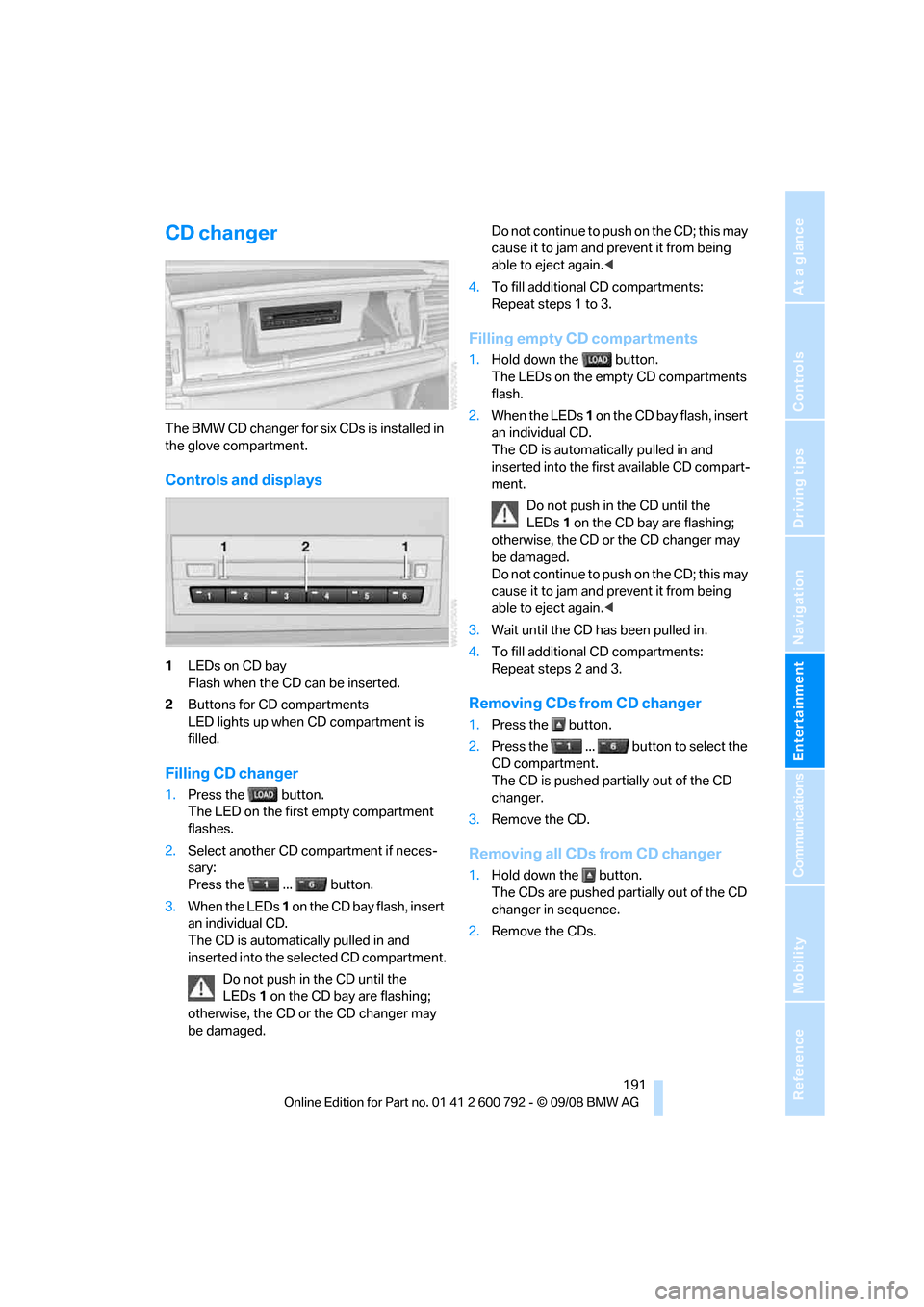
The BMW CD changer for six CDs is installed in
the glove compartment.
Controls and displays
1LEDs on CD bay
Flash when the CD can be inserted.
2 Buttons for CD compartments
LED lights up when CD compartment is
filled.
Filling CD changer
1.Press the button.
The LED on the first empty compartment
flashes.
2. Select another CD compartment if neces-
sary:
Press the ... button.
3. When the LEDs 1 o n t h e C D b a y f l a s h , i n s e r t
an individual CD.
The CD is automatica lly pulled in and
inserted into the selected CD compartment.
Do not push in the CD until the
LEDs 1 on the CD bay are flashing;
otherwise, the CD or the CD changer may
be damaged. Do not continue to push on the CD; this may
cause it to jam and prevent it from being
able to eject again.
<
4. To fill additional CD compartments:
Repeat steps 1 to 3.
Filling empty CD compartments
1.Hold down the button.
The LEDs on the empty CD compartments
flash.
2. When the LEDs 1 o n t h e C D b a y f l a s h , i n s e r t
an individual CD.
The CD is automati cally pulled in and
inserted into the first available CD compart-
ment.
Do not push in the CD until the
LEDs 1 on the CD bay are flashing;
otherwise, the CD or the CD changer may
be damaged.
Do not continue to push on the CD; this may
cause it to jam and prevent it from being
able to eject again. <
3. Wait until the CD has been pulled in.
4. To fill additional CD compartments:
Repeat steps 2 and 3.
Removing CDs from CD changer
1.Press the button.
2. Press the ... button to select the
CD compartment.
The CD is pushed partially out of the CD
changer.
3. Remove the CD.
Removing all CDs from CD changer
1.Hold down the button.
The CDs are pushed partially out of the CD
changer in sequence.
2. Remove the CDs.
Page 194 of 317
CD player and CD changer
192
Notes
BMW CD/DVD players and changers are
officially designated Class 1 laser prod-
ucts. Do not operate if the cover is damaged,
otherwise severe eye damage can result.
Do not use self-recorded CDs/DVDs with labels
applied as these can become detached during
playback due to heat buildup and can cause
irreparable damage to the device.
Only use round CDs/DVDs with a standard
diameter of 4.7 in/12 cm and do not play CDs/
D V D s w i t h a n a d a p t e r , e . g . C D si n g l e s , a s o t h e r -
wise the CD/DVD or the adapter can jam and
may no longer eject properly.
Do not use a combined CD/DVD, e.g. DVD
Plus,
otherwise the CD/DVD can jam and will no
longer eject. <
General malfunctions
BMW CD/DVD changers and players have been
optimized for performance in vehicles. In some
instances they may be mo re sensitive to faulty
CDs/DVDs than stationary devices would be.
If a CD/DVD cannot be pl ayed, first check if it
has been inserted correctly.
Humidity
High levels of humidity can lead to condensa-
tion on the CD/DVD or the laser's scan lens and
temporarily prevent playback.
Malfunctions with individual CDs/DVDs
If malfunctions occur on ly with particular CDs/
DVDs, this can be due to one of the following
causes.
Filling CD/DVD changer or removing
CDs/DVDs
If all of the LEDs on the CD/DVD changer flash
rapidly, then a malfunction is occurring.
To rectify the malfunction:
1. Press the button.
The CD/DVD last in serted is ejected.
2. Remove the CD/DVD. When the LEDs stop flashing rapidly, the CD/
DVD changer is once more operational.
Self-recorded CDs/DVDs
Possible reasons for malfunctions with self-
recorded CDs/DVDs are, e.g., inconsistent
data-creation or recording processes, or poor
quality or high age of the CD/DVD blank.
Only label CDs/DVDs on
the upper side with a
pen intended for this purpose.
Avoiding damage
Avoid fingerprints, dust, scratches and mois-
ture.
Store CDs/DVDs in a sleeve.
Do not subject CDs/DVDs to temperatures over
122 6/50 6, high levels of humidity, or direct
sunlight.
CDs/DVDs with copy protection
CDs/DVDs are often prov ided with a copy pro-
tection feature by the manufacturer. This can
m e a n t h a t s o m e C D s / D V D s c a n n o t b e p l a y e d o r
can only be played to a limited extent.
Care
If necessary, clean the reflective scanning side
of the CDs/DVDs with a commercially available
cleaning cloth by wiping in straight lines from
the center outward.