audio BMW X6M 2009 E71 Owner's Guide
[x] Cancel search | Manufacturer: BMW, Model Year: 2009, Model line: X6M, Model: BMW X6M 2009 E71Pages: 317, PDF Size: 9.56 MB
Page 200 of 317
DVD changer
198
4.
Change into the second field if necessary,
select the desired DVD and press the con-
troller.
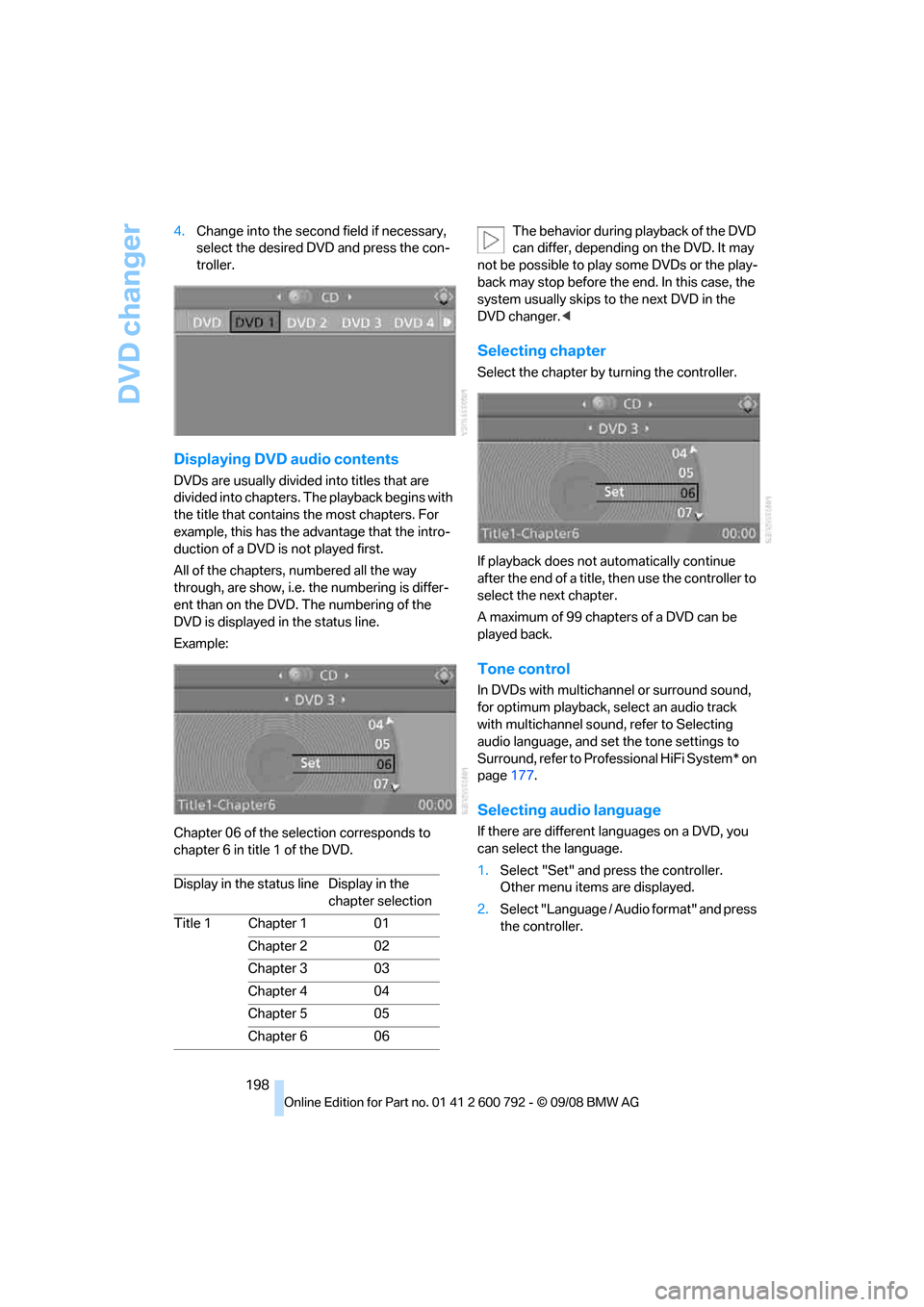
Displaying DVD audio contents
DVDs are usually divided into titles that are
divided into chapters. Th e playback begins with
the title that contains the most chapters. For
example, this has the advantage that the intro-
duction of a DVD is not played first.
All of the chapters, numbered all the way
through, are show, i.e. the numbering is differ-
ent than on the DVD. The numbering of the
DVD is displayed in the status line.
Example:
Chapter 06 of the sele ction corresponds to
chapter 6 in title 1 of the DVD. The behavior during playback of the DVD
can differ, depending on the DVD. It may
not be possible to play some DVDs or the play-
back may stop before the end. In this case, the
system usually skips to the next DVD in the
DVD changer. <
Selecting chapter
Select the chapter by turning the controller.
If playback does not automatically continue
after the end of a title, then use the controller to
select the next chapter.
A maximum of 99 chapters of a DVD can be
played back.
Tone control
In DVDs with multichannel or surround sound,
for optimum playback, select an audio track
with multichannel sound, refer to Selecting
audio language, and set the tone settings to
Surround, refer to Professional HiFi System* on
page 177.
Selecting audio language
If there are different languages on a DVD, you
can select the language.
1.Select "Set" and press the controller.
Other menu items are displayed.
2. Select "Language / Audio format" and press
the controller.
Display in the status line Display in the
chapter selection
Title 1 Chapter 1 01
Chapter 2 02
Chapter 3 03
Chapter 4 04
Chapter 5 05
Chapter 6 06
Page 201 of 317
Navigation
Entertainment
Driving tips
199Reference
At a glance
Controls
Communications
Mobility
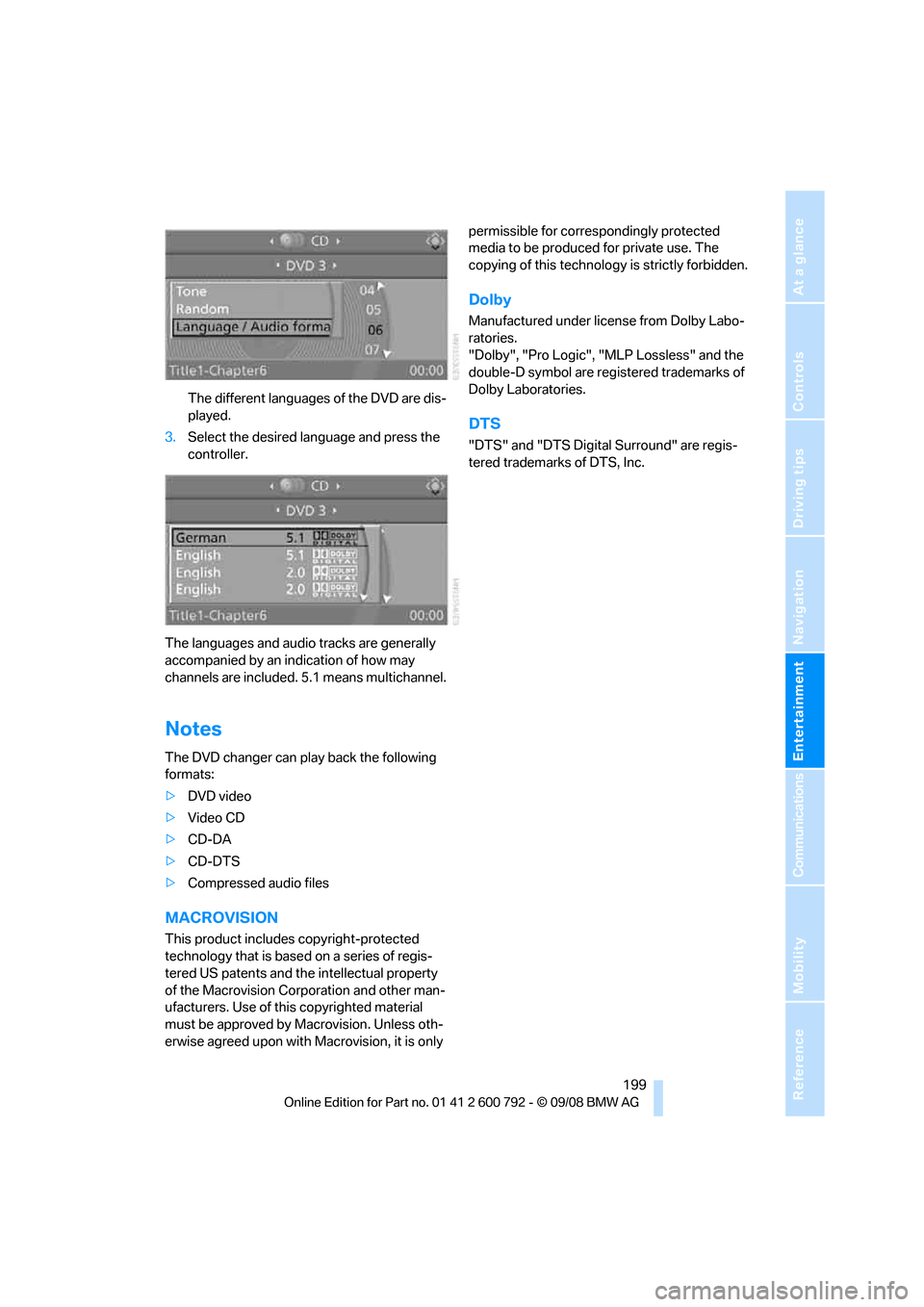
The different languages of the DVD are dis-
played.
3. Select the desired language and press the
controller.
The languages and audio tracks are generally
accompanied by an indication of how may
channels are included. 5.1 means multichannel.
Notes
The DVD changer can play back the following
formats:
>DVD video
> Video CD
> CD-DA
> CD-DTS
> Compressed audio files
MACROVISION
This product includes copyright-protected
technology that is base d on a series of regis-
tered US patents and th e intellectual property
of the Macrovision Corporation and other man-
ufacturers. Use of this copyrighted material
must be approved by Macrovision. Unless oth-
erwise agreed upon with Macrovision, it is only permissible for correspondingly protected
media to be produced for private use. The
copying of this technology
is strictly forbidden.
Dolby
Manufactured under license from Dolby Labo-
ratories.
"Dolby", "Pro Logic", "MLP Lossless" and the
double-D symbol are registered trademarks of
Dolby Laboratories.
DTS
"DTS" and "DTS Digita l Surround" are regis-
tered trademarks of DTS, Inc.
Page 202 of 317
AUX-In connection
200
AUX-In connection
You can connect an external audio device, e.g.
an MP3 player, and play the sound via the vehi-
cle speakers. The sound can be adjusted via
iDrive.
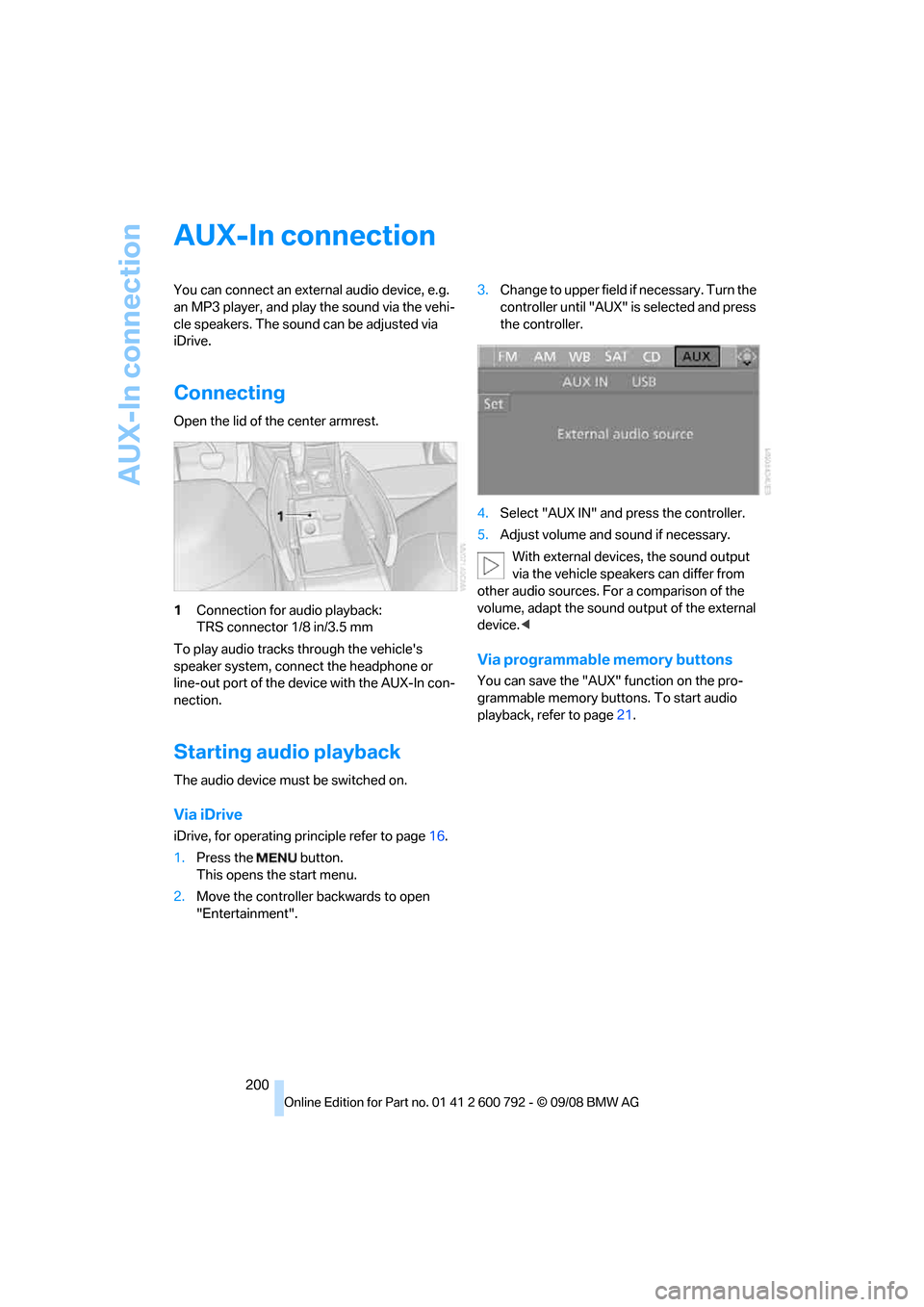
Connecting
Open the lid of the center armrest.
1Connection for audio playback:
TRS connector 1/8 in/3.5 mm
To play audio tracks through the vehicle's
speaker system, connect the headphone or
line-out port of the devi ce with the AUX-In con-
nection.
Starting audio playback
The audio device must be switched on.
Via iDrive
iDrive, for operating pr inciple refer to page16.
1. Press the button.
This opens the start menu.
2. Move the controller backwards to open
"Entertainment". 3.
Change to upper field if necessary. Turn the
controller until "AUX" is selected and press
the controller.
4. Select "AUX IN" and press the controller.
5. Adjust volume and sound if necessary.
With external device s, the sound output
via the vehicle speakers can differ from
other audio sources. For a comparison of the
volume, adapt the sound output of the external
device. <
Via programmable memory buttons
You can save the "AUX" function on the pro-
grammable memory buttons. To start audio
playback, refer to page 21.
Page 203 of 317
Navigation
Entertainment
Driving tips
201Reference
At a glance
Controls
Communications
Mobility
USB audio interface
You can connect an external audio device or
USB device to the USB audio interface.
> MP3 player
> USB memory stick
> iPod/iPhone
> Suitable mobile phone:
You can operate these devices via iDrive, if they
are supported by the USB audio interface.
If equipped with an addi tional connection of the
music player in the mobile phone, connect the
phone by means of the snap-in adapter
*, refer
to page 233. The phone can then be used for
the hands-free system and audio playback. The
audio playback is only po ssible if no device is
connected to the USB audio interface.
The common audio files, e.g. MP3, WMA, WAV
(PCM) and AAC, as well as playback lists in the
M3U format can be played back.
Due to the large number of audio devices avail-
able on the market, operation via the vehicle
cannot be ensured for every audio device.
Ask your BMW Sports Activity Vehicle Center,
which audio devices, mo bile phones, or USB
devices are suitable.
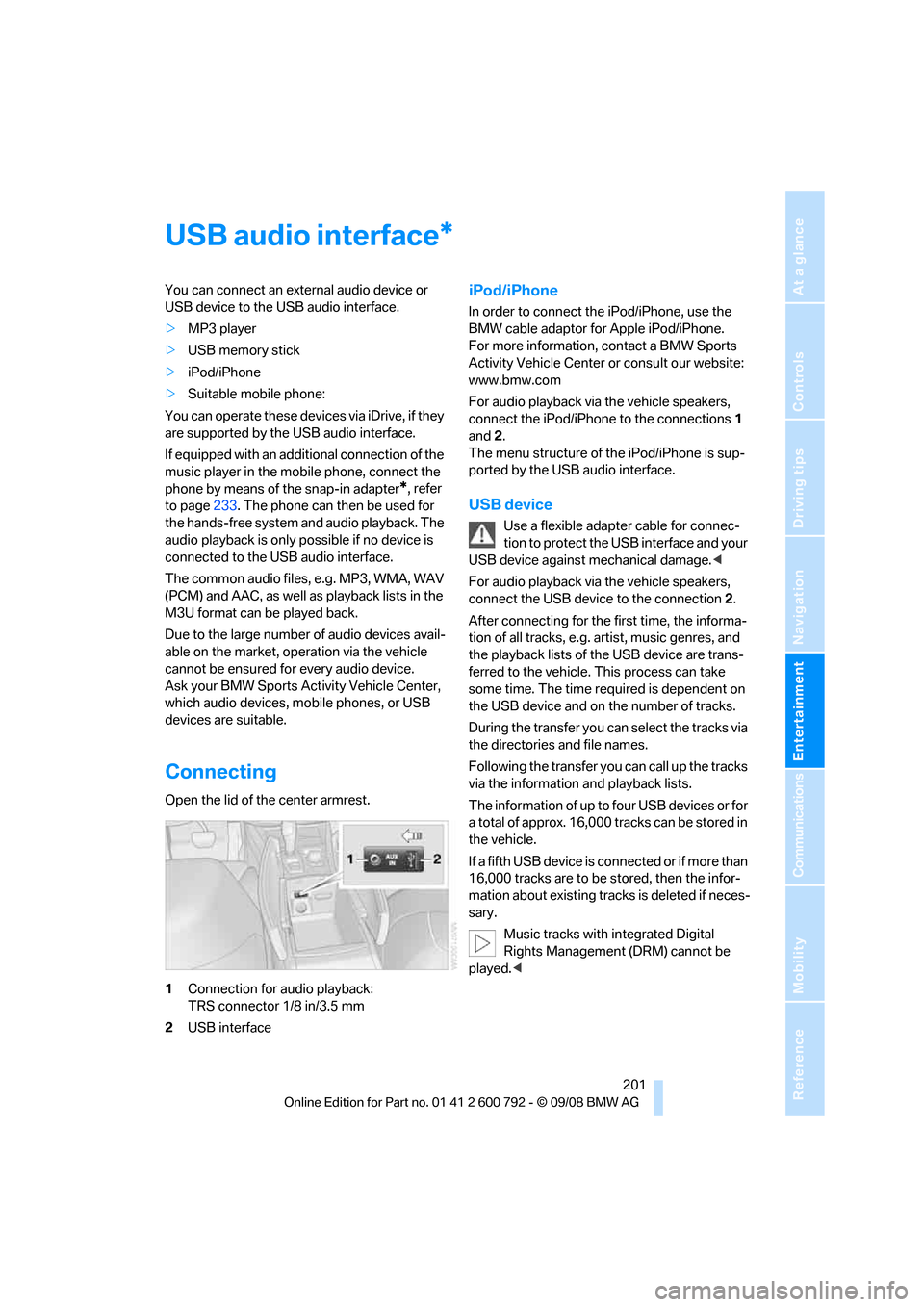
Connecting
Open the lid of the center armrest.
1 Connection for audio playback:
TRS connector 1/8 in/3.5 mm
2 USB interface
iPod/iPhone
In order to connect th e iPod/iPhone, use the
BMW cable adaptor for Apple iPod/iPhone.
For more information, contact a BMW Sports
Activity Vehicle Center or consult our website:
www.bmw.com
For audio playback via the vehicle speakers,
connect the iPod/iPhone to the connections 1
and 2.
The menu structure of the iPod/iPhone is sup-
ported by the USB audio interface.
USB device
Use a flexible adapter cable for connec-
tion to protect the USB interface and your
USB device against mechanical damage.<
For audio playback via the vehicle speakers,
connect the USB device to the connection 2.
After connecting for the first time, the informa-
tion of all tracks, e.g. artist, music genres, and
the playback lists of the USB device are trans-
ferred to the vehicle. This process can take
some time. The time required is dependent on
the USB device and on the number of tracks.
During the transfer you can select the tracks via
the directories and file names.
Following the transfer you can call up the tracks
via the information and playback lists.
The information of up to four USB devices or for
a total of approx. 16,000 tracks can be stored in
the vehicle.
I f a f i f t h U S B d e v i c e i s c o n n e c t e d o r i f m o r e t h a n
16,000 tracks are to be stored, then the infor-
mation about existing trac ks is deleted if neces-
sary.
Music tracks with integrated Digital
Rights Management (DRM) cannot be
played. <
*
Page 204 of 317
USB audio interface
202
Starting audio playback
Via iDrive
If the audio device has a device name, this will
be displayed if possible.
1. Press the button.
This opens the start menu.
2. Move the controller backwards to open
"Entertainment".
3. Change to upper field if necessary. Turn the
controller until "AUX" is selected and press
the controller.
4. Select "USB" or the name of the audio
device and press the controller.
The playback starts with the first track.
With the connection of an iPhone by means of
the snap-in adaptor and a simultaneous con-
nection of an audio device at the Aux-In con-
nection, the audio signal is played back. With external devices, the sound output
via the vehicle speakers can differ from
other audio sources. For a comparison of the
volume, adapt the sound ou tput of the external
device. <
Via programmable memory buttons
You can save the "USB" function on the pro-
grammable memory buttons. To start audio
playback, refer to page 21.
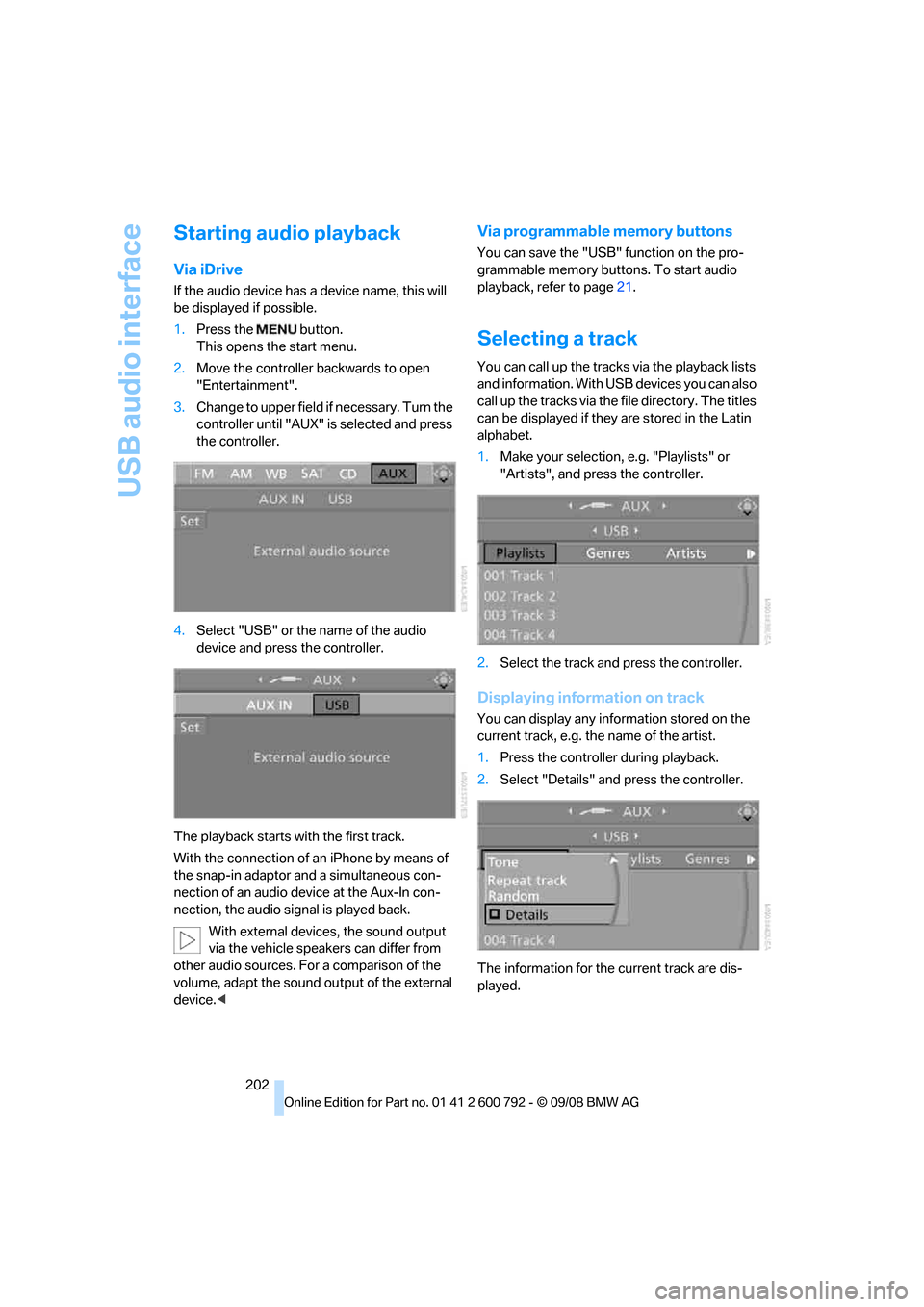
Selecting a track
You can call up the tracks via the playback lists
and information. With USB devices you can also
call up the tracks via the file directory. The titles
can be displayed if they are stored in the Latin
alphabet.
1. Make your selection, e.g. "Playlists" or
"Artists", and press the controller.
2. Select the track and press the controller.
Displaying information on track
You can display any information stored on the
current track, e.g. the name of the artist.
1.Press the controller during playback.
2. Select "Details" and press the controller.
The information for the current track are dis-
played.
Page 205 of 317
Navigation
Entertainment
Driving tips
203Reference
At a glance
Controls
Communications
Mobility
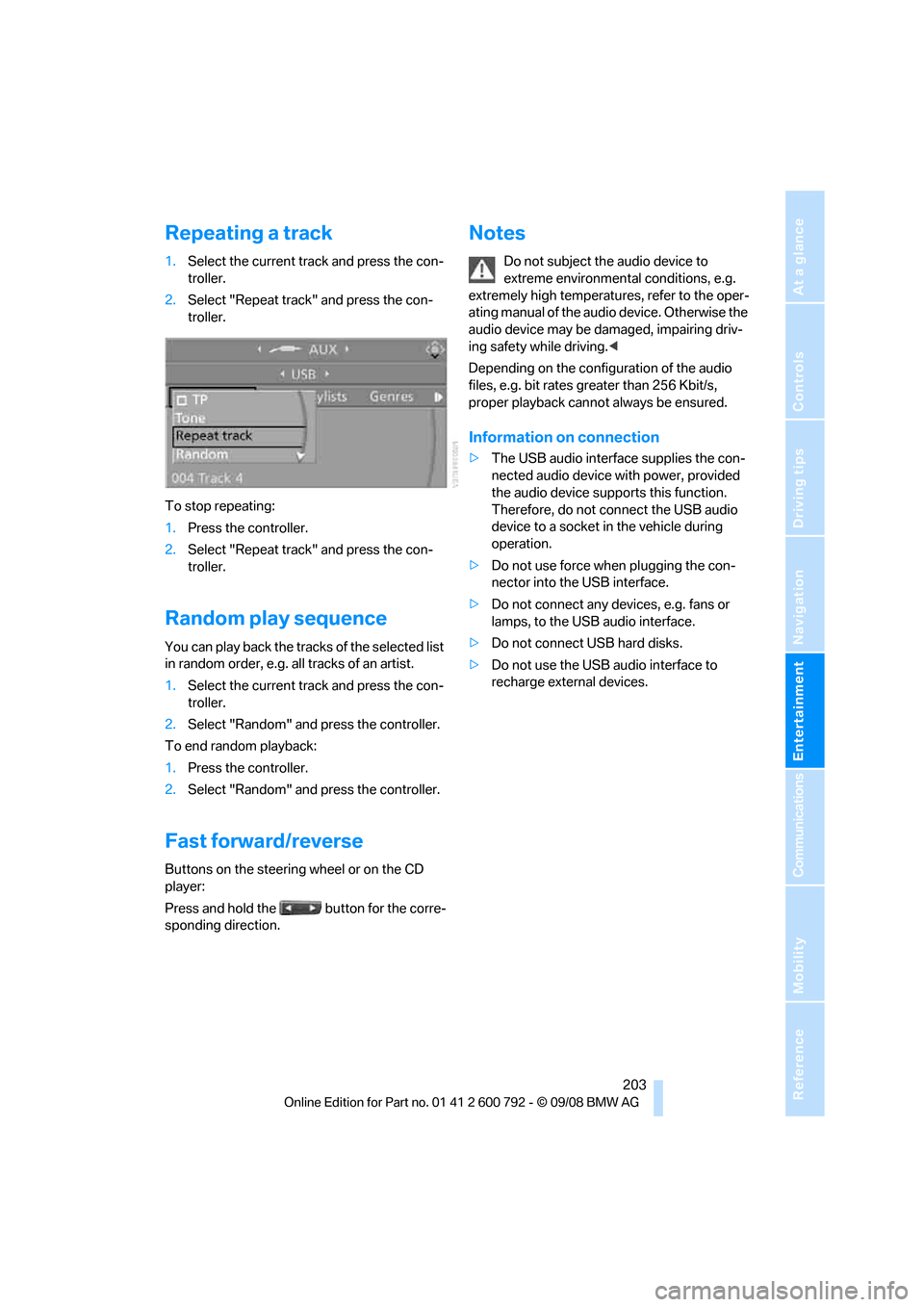
Repeating a track
1.Select the current track and press the con-
troller.
2. Select "Repeat track" and press the con-
troller.
To stop repeating:
1. Press the controller.
2. Select "Repeat track" and press the con-
troller.
Random play sequence
You can play back the trac ks of the selected list
in random order, e.g. a ll tracks of an artist.
1. Select the current track and press the con-
troller.
2. Select "Random" and press the controller.
To end random playback:
1. Press the controller.
2. Select "Random" and press the controller.
Fast forward/reverse
Buttons on the steering wheel or on the CD
player:
Press and hold the button for the corre-
sponding direction.
Notes
Do not subject the audio device to
extreme environmental conditions, e.g.
extremely high temperatures, refer to the oper-
ating manual of the audio device. Otherwise the
audio device may be damaged, impairing driv-
ing safety while driving. <
Depending on the configuration of the audio
files, e.g. bit rates greater than 256 Kbit/s,
proper playback cannot always be ensured.
Information on connection
> The USB audio interface supplies the con-
nected audio device with power, provided
the audio device suppo rts this function.
Therefore, do not connect the USB audio
device to a socket in the vehicle during
operation.
> Do not use force when plugging the con-
nector into the USB interface.
> Do not connect any devices, e.g. fans or
lamps, to the USB audio interface.
> Do not connect USB hard disks.
> Do not use the USB audio interface to
recharge external devices.
Page 206 of 317
DVD system in rear
204
DVD system in rear
With the DVD system in the rear you can play
CDs and DVDs with audio, video and image
data. External audio and video devices can also
be connected and played via the DVD system in
the rear.
Tone output is possible both via headphones
and via the vehicle speakers.
You can operate the DVD system in the rear
with the buttons on the CD/DVD player or with
the remote control.
Some functions can only be operated
with the remote control. <
Enabling DVD system
Enable the DVD system with iDrive.
For operating principle refer to page 16.
1. Press the button.
This opens the start menu.
2. Press the controller to open the menu.
3. Select "Settings" and press the controller.
4. Select "Unlock rear menu" and press the
controller.
5. Select "Rear enabled" and press the con-
troller.
The DVD system is enabled.
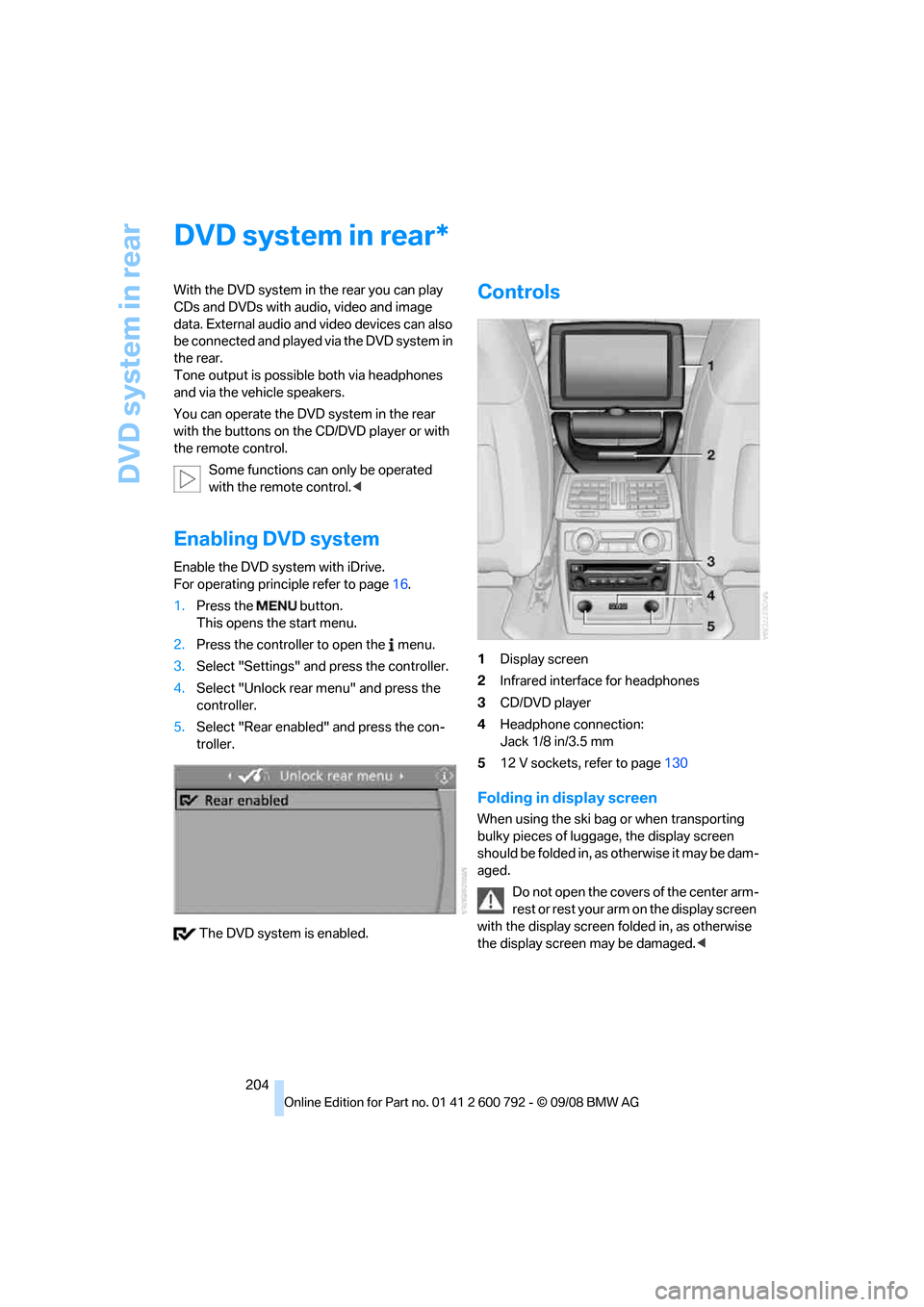
Controls
1 Display screen
2 Infrared interface for headphones
3 CD/DVD player
4 Headphone connection:
Jack 1/8 in/3.5 mm
5 12 V sockets, refer to page 130
Folding in display screen
When using the ski bag or when transporting
bulky pieces of luggage, the display screen
should be folded in, as otherwise it may be dam-
aged.
Do not open the covers of the center arm-
rest or rest your arm on the display screen
with the display screen folded in, as otherwise
the display screen may be damaged. <
*
Page 208 of 317
DVD system in rear
206
>
Press the button:
Activating menu item.
Changing batteries
1.Press the detent and remove the cover.
2. Change the batteries. Th e type and installa-
tion position are marked on the bottom of
the battery compartment.
3. Close the cover.
Return used batteries to a recycling col-
lection point or to your BMW Sports
Activity Vehicle Center. <
Sound output via speakers
In addition to the headphones, you can also play
the sound via the vehicle speakers.
As soon as a plug is inserted in the AUX-In con-
nection in the center console, the sound output
of the DVD system via the vehicle speakers is
interrupted.
iDrive, for operating principle refer to page16.
1. Press the button.
This opens the start menu.
2. Move the controller backwards to open
"Entertainment". 3.
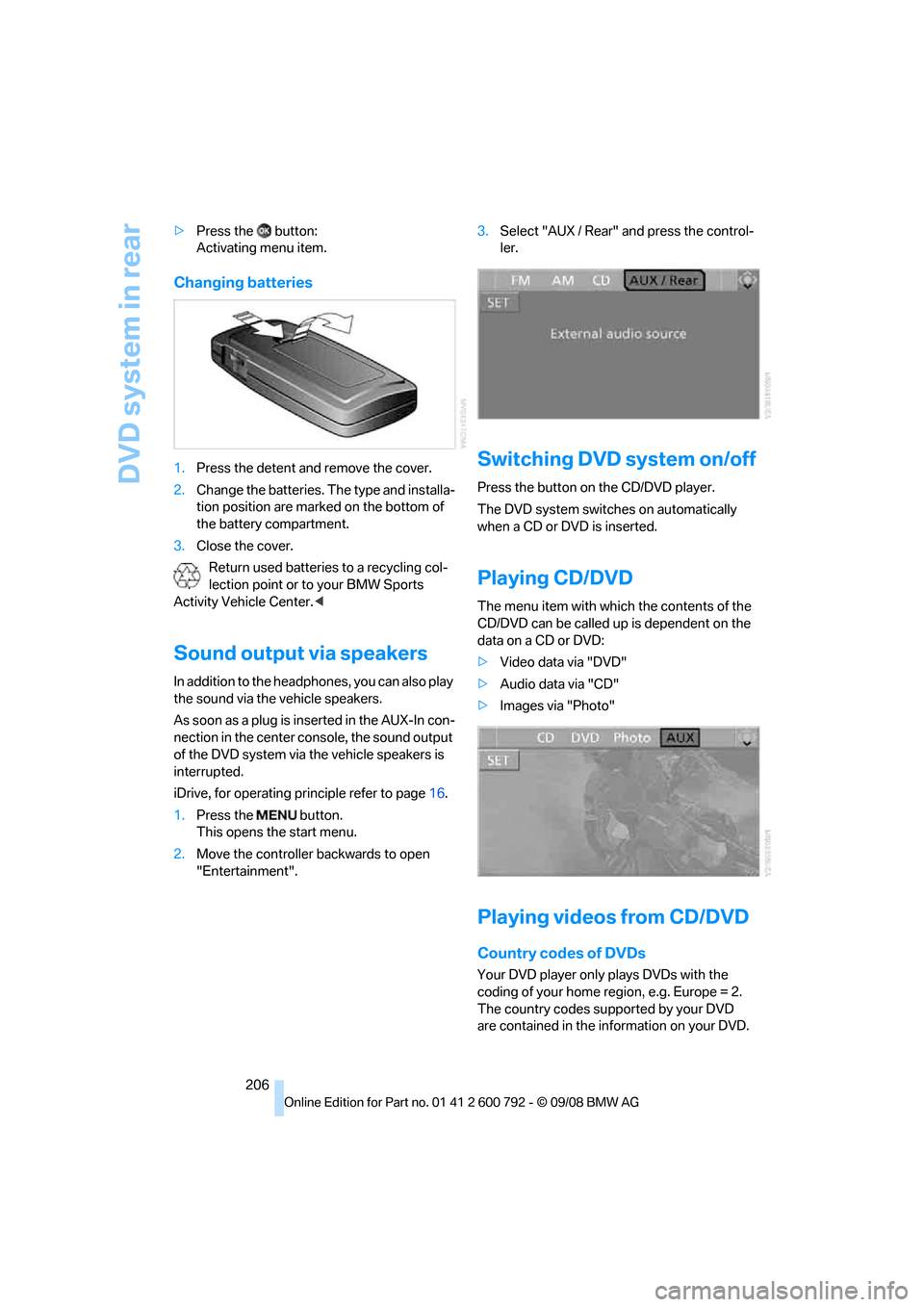
Select "AUX / Rear" and press the control-
ler.
Switching DVD system on/off
Press the button on the CD/DVD player.
The DVD system switches on automatically
when a CD or DVD is inserted.
Playing CD/DVD
The menu item with which the contents of the
CD/DVD can be called up is dependent on the
data on a CD or DVD:
> Video data via "DVD"
> Audio data via "CD"
> Images via "Photo"
Playing videos from CD/DVD
Country codes of DVDs
Your DVD player only plays DVDs with the
coding of your home region, e.g. Europe = 2.
The country codes supported by your DVD
are contained in the information on your DVD.
Page 212 of 317
DVD system in rear
210
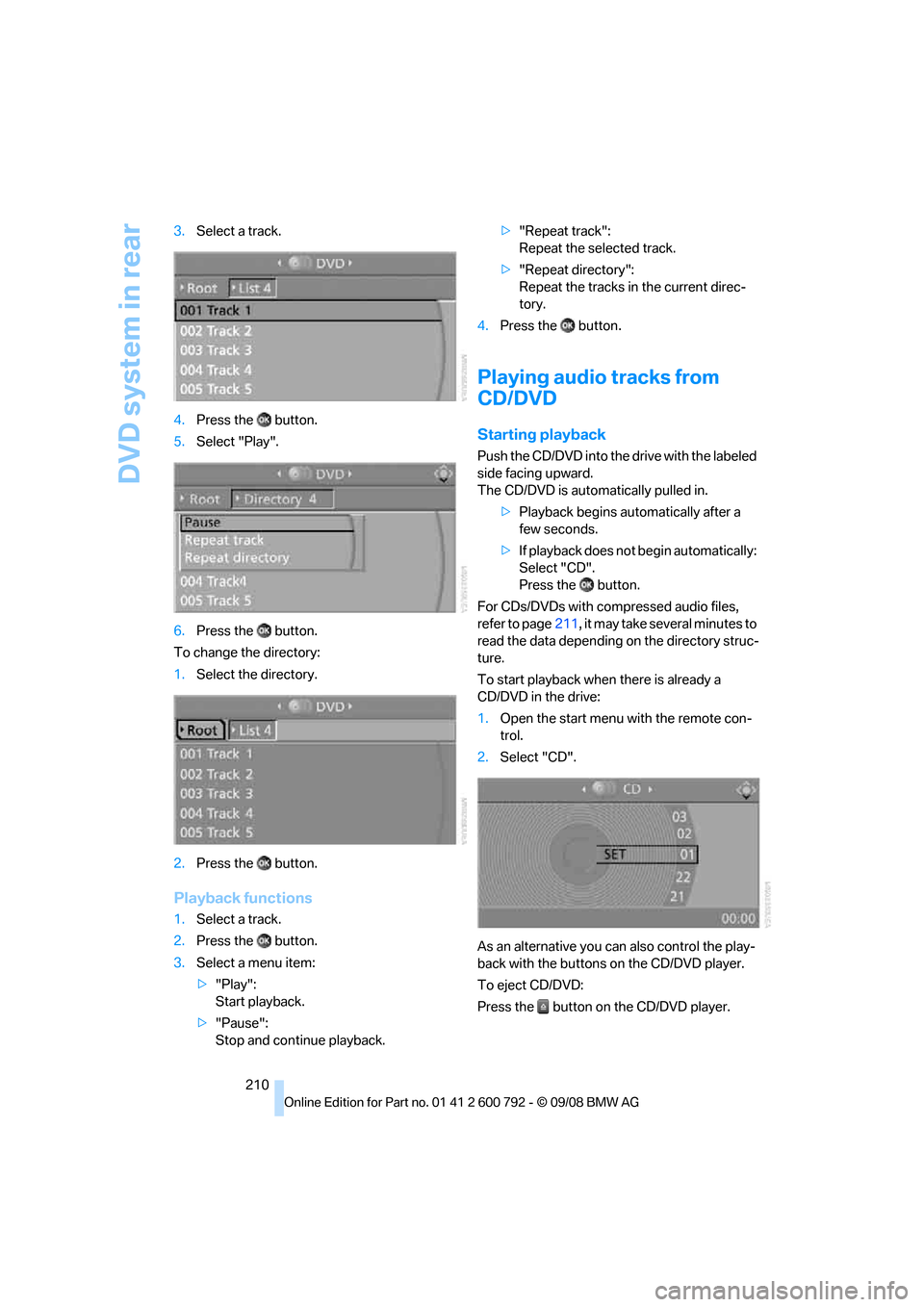
3.
Select a track.
4. Press the button.
5. Select "Play".
6. Press the button.
To change the directory:
1. Select the directory.
2. Press the button.
Playback functions
1.Select a track.
2. Press the button.
3. Select a menu item:
>"Play":
Start playback.
> "Pause":
Stop and continue playback. >
"Repeat track":
Repeat the selected track.
> "Repeat directory":
Repeat the tracks in the current direc-
tory.
4. Press the button.
Playing audio tracks from
CD/DVD
Starting playback
Push the CD/DVD into th e drive with the labeled
side facing upward.
The CD/DVD is auto matically pulled in.
> Playback begins au tomatically after a
few seconds.
> If playback does not begin automatically:
Select "CD".
Press the button.
For CDs/DVDs with compressed audio files,
refer to page 211, it may take several minutes to
read the data depending on the directory struc-
ture.
To start playback when there is already a
CD/DVD in the drive:
1. Open the start menu with the remote con-
trol.
2. Select "CD".
As an alternative you can also control the play-
back with the buttons on the CD/DVD player.
To eject CD/DVD:
Press the button on the CD/DVD player.
Page 213 of 317
Navigation
Entertainment
Driving tips
211Reference
At a glance
Controls
Communications
Mobility
Selecting a track
Buttons on CD/DVD player
Press the button for the corresponding
direction repeatedly until you reach the desired
track.
Playback begins at the start of the track.
Via the remote control
Press the button for the corresponding
direction repeatedly or turn the serrated dial
until you reach the desired track.
Playback begins at the start of the track.
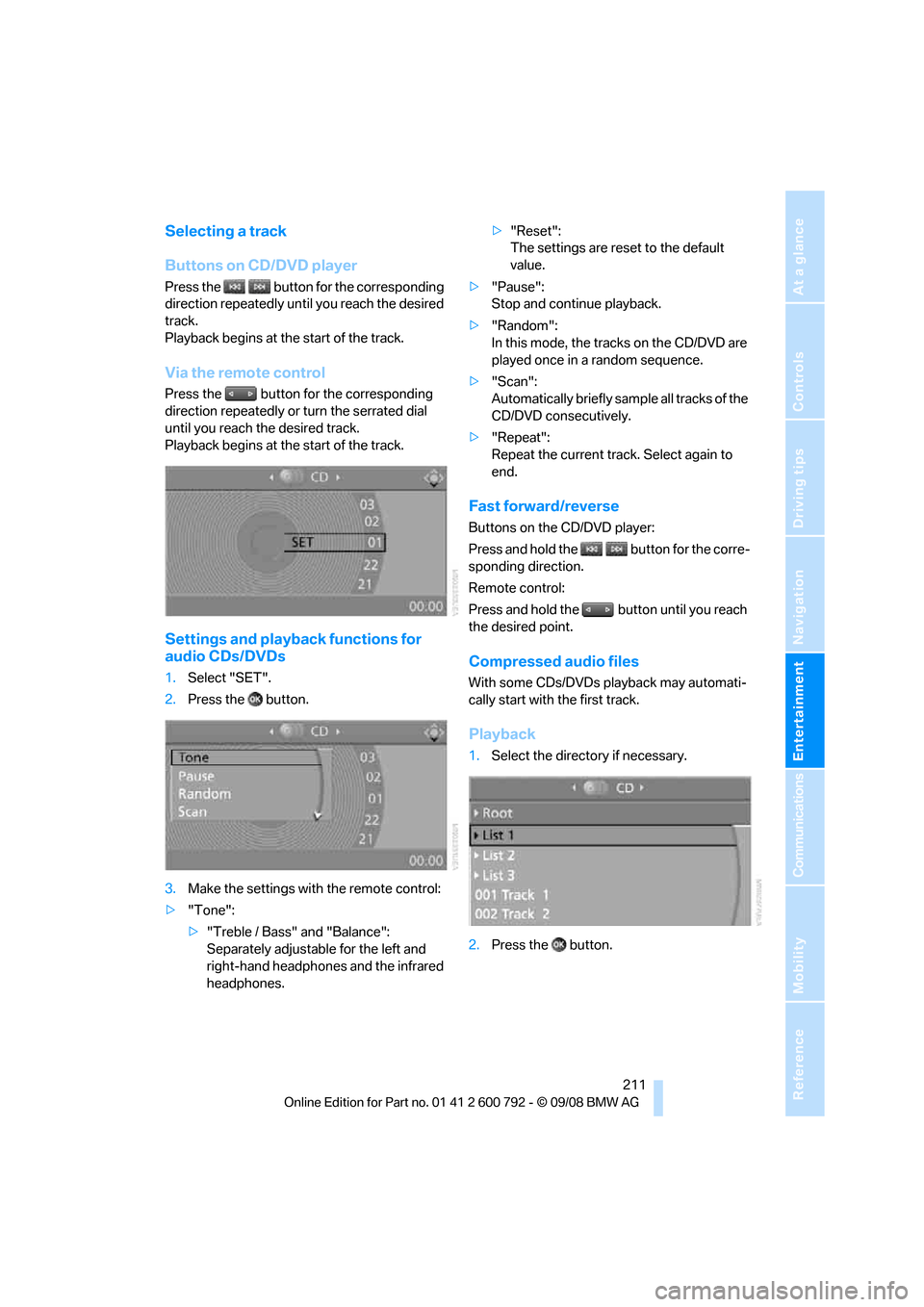
Settings and playback functions for
audio CDs/DVDs
1. Select "SET".
2. Press the button.
3. Make the settings with the remote control:
> "Tone":
>"Treble / Bass" and "Balance":
Separately adjustable for the left and
right-hand headphones and the infrared
headphones. >
"Reset":
The settings are reset to the default
value.
> "Pause":
Stop and continue playback.
> "Random":
In this mode, the trac ks on the CD/DVD are
played once in a random sequence.
> "Scan":
Automatically briefly samp le all tracks of the
CD/DVD consecutively.
> "Repeat":
Repeat the current track. Select again to
end.
Fast forward/reverse
Buttons on the CD/DVD player:
Press and hold the button for the corre-
sponding direction.
Remote control:
Press and hold the button until you reach
the desired point.
Compressed audio files
With some CDs/DVDs playback may automati-
cally start with the first track.
Playback
1.Select the direct ory if necessary.
2. Press the button.