tow BMW X6M 2011 E71 Owner's Guide
[x] Cancel search | Manufacturer: BMW, Model Year: 2011, Model line: X6M, Model: BMW X6M 2011 E71Pages: 312, PDF Size: 8.96 MB
Page 135 of 312
Controls
133Reference
At a glance
Driving tips
Communications
Navigation
Entertainment
Mobility
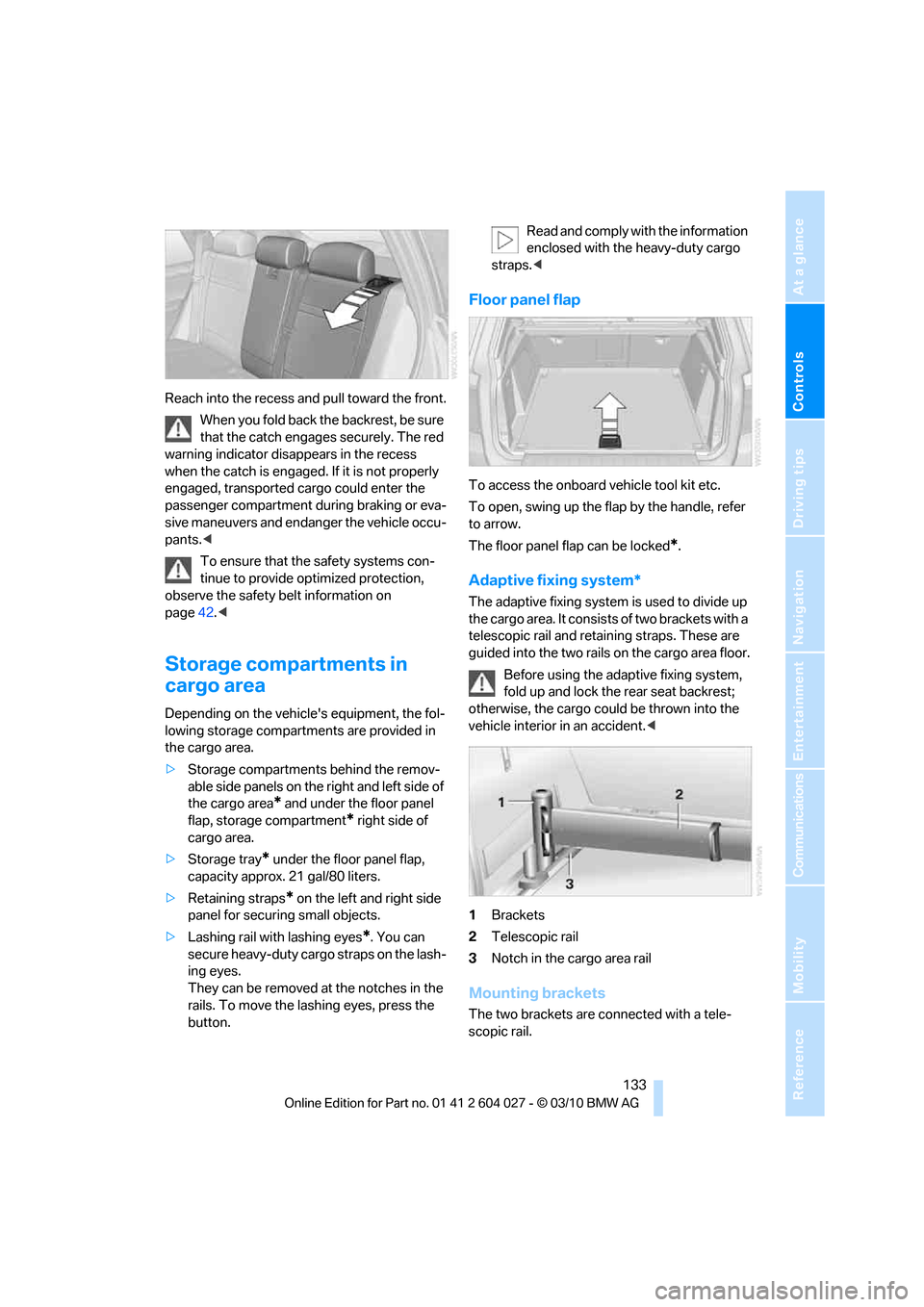
Reach into the recess and pull toward the front.
When you fold back the backrest, be sure
that the catch engages securely. The red
warning indicator disappears in the recess
when the catch is engaged. If it is not properly
engaged, transported cargo could enter the
passenger compartment during braking or eva-
sive maneuvers and endanger the vehicle occu-
pants.<
To ensure that the safety systems con-
tinue to provide optimized protection,
observe the safety belt information on
page42.<
Storage compartments in
cargo area
Depending on the vehicle's equipment, the fol-
lowing storage compartments are provided in
the cargo area.
>Storage compartments behind the remov-
able side panels on the right and left side of
the cargo area
* and under the floor panel
flap, storage compartment
* right side of
cargo area.
>Storage tray
* under the floor panel flap,
capacity approx. 21 gal/80 liters.
>Retaining straps
* on the left and right side
panel for securing small objects.
>Lashing rail with lashing eyes
*. You can
secure heavy-duty cargo straps on the lash-
ing eyes.
They can be removed at the notches in the
rails. To move the lashing eyes, press the
button.Read and comply with the information
enclosed with the heavy-duty cargo
straps.<
Floor panel flap
To access the onboard vehicle tool kit etc.
To open, swing up the flap by the handle, refer
to arrow.
The floor panel flap can be locked
*.
Adaptive fixing system*
The adaptive fixing system is used to divide up
the cargo area. It consists of two brackets with a
telescopic rail and retaining straps. These are
guided into the two rails on the cargo area floor.
Before using the adaptive fixing system,
fold up and lock the rear seat backrest;
otherwise, the cargo could be thrown into the
vehicle interior in an accident.<
1Brackets
2Telescopic rail
3Notch in the cargo area rail
Mounting brackets
The two brackets are connected with a tele-
scopic rail.
Page 136 of 312
Practical interior accessories
134 1.Insert the brackets at the respective notch
in the rail on the cargo area floor.
2.Press down the brackets to push them into
the desired position.
3.Check the firm seating of the brackets.
They must be clearly heard to engage.
Do not lay cargo on the brackets, as oth-
erwise they could be unlocked.<
Dividing up cargo area
You can position the cargo as follows:
>Between the rear seat backrest and the
telescopic rail
>Between the telescopic rail and the retain-
ing strap
Positioning cargo between telescopic rail and
retaining strap:
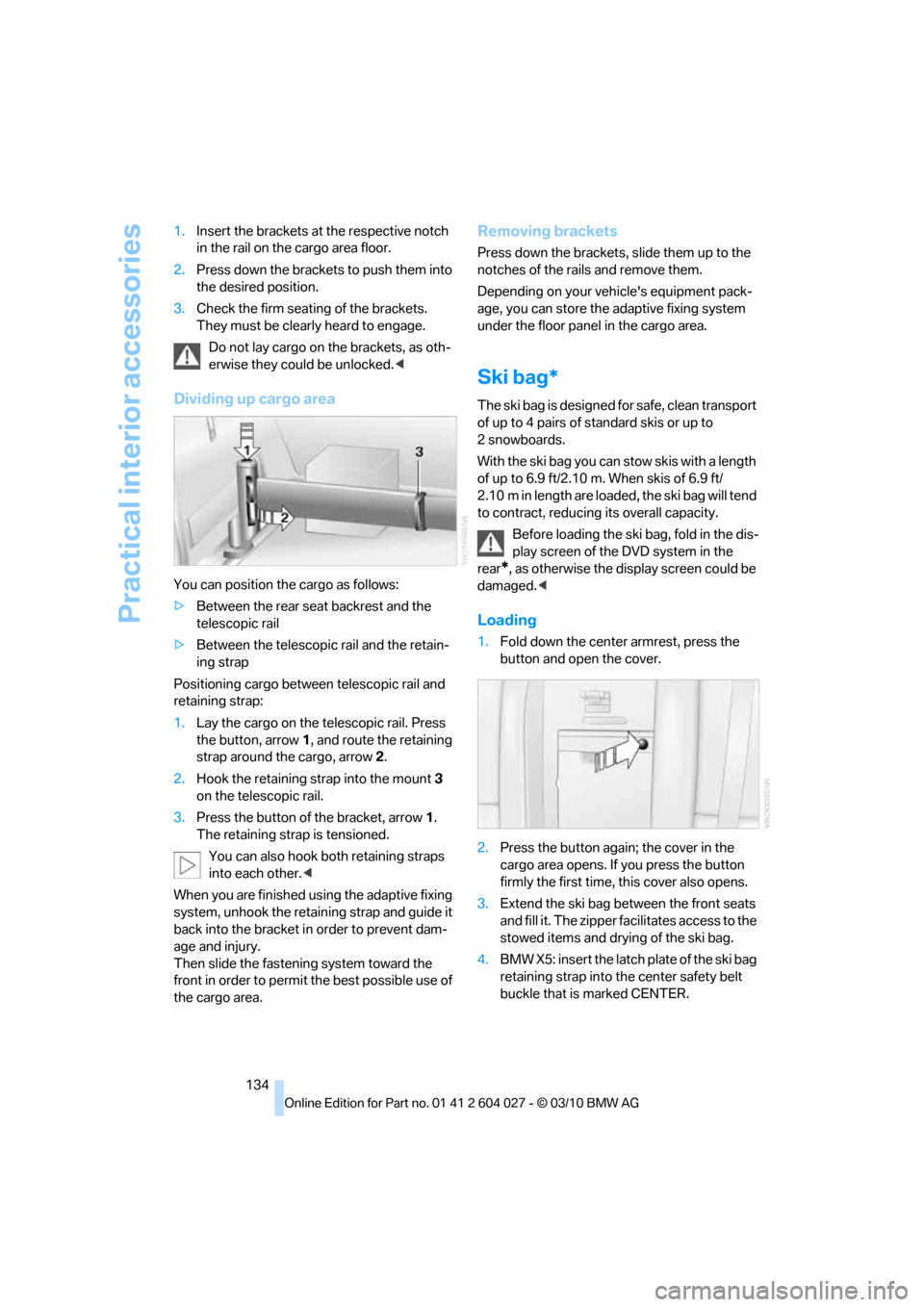
1.Lay the cargo on the telescopic rail. Press
the button, arrow1, and route the retaining
strap around the cargo, arrow2.
2.Hook the retaining strap into the mount3
on the telescopic rail.
3.Press the button of the bracket, arrow1.
The retaining strap is tensioned.
You can also hook both retaining straps
into each other.<
When you are finished using the adaptive fixing
system, unhook the retaining strap and guide it
back into the bracket in order to prevent dam-
age and injury.
Then slide the fastening system toward the
front in order to permit the best possible use of
the cargo area.
Removing brackets
Press down the brackets, slide them up to the
notches of the rails and remove them.
Depending on your vehicle's equipment pack-
age, you can store the adaptive fixing system
under the floor panel in the cargo area.
Ski bag*
The ski bag is designed for safe, clean transport
of up to 4 pairs of standard skis or up to
2snowboards.
With the ski bag you can stow skis with a length
of up to 6.9 ft/2.10 m. When skis of 6.9 ft/
2.10 m in length are loaded, the ski bag will tend
to contract, reducing its overall capacity.
Before loading the ski bag, fold in the dis-
play screen of the DVD system in the
rear
*, as otherwise the display screen could be
damaged.<
Loading
1.Fold down the center armrest, press the
button and open the cover.
2.Press the button again; the cover in the
cargo area opens. If you press the button
firmly the first time, this cover also opens.
3.Extend the ski bag between the front seats
and fill it. The zipper facilitates access to the
stowed items and drying of the ski bag.
4.BMW X5: insert the latch plate of the ski bag
retaining strap into the center safety belt
buckle that is marked CENTER.
Page 137 of 312
Controls
135Reference
At a glance
Driving tips
Communications
Navigation
Entertainment
Mobility
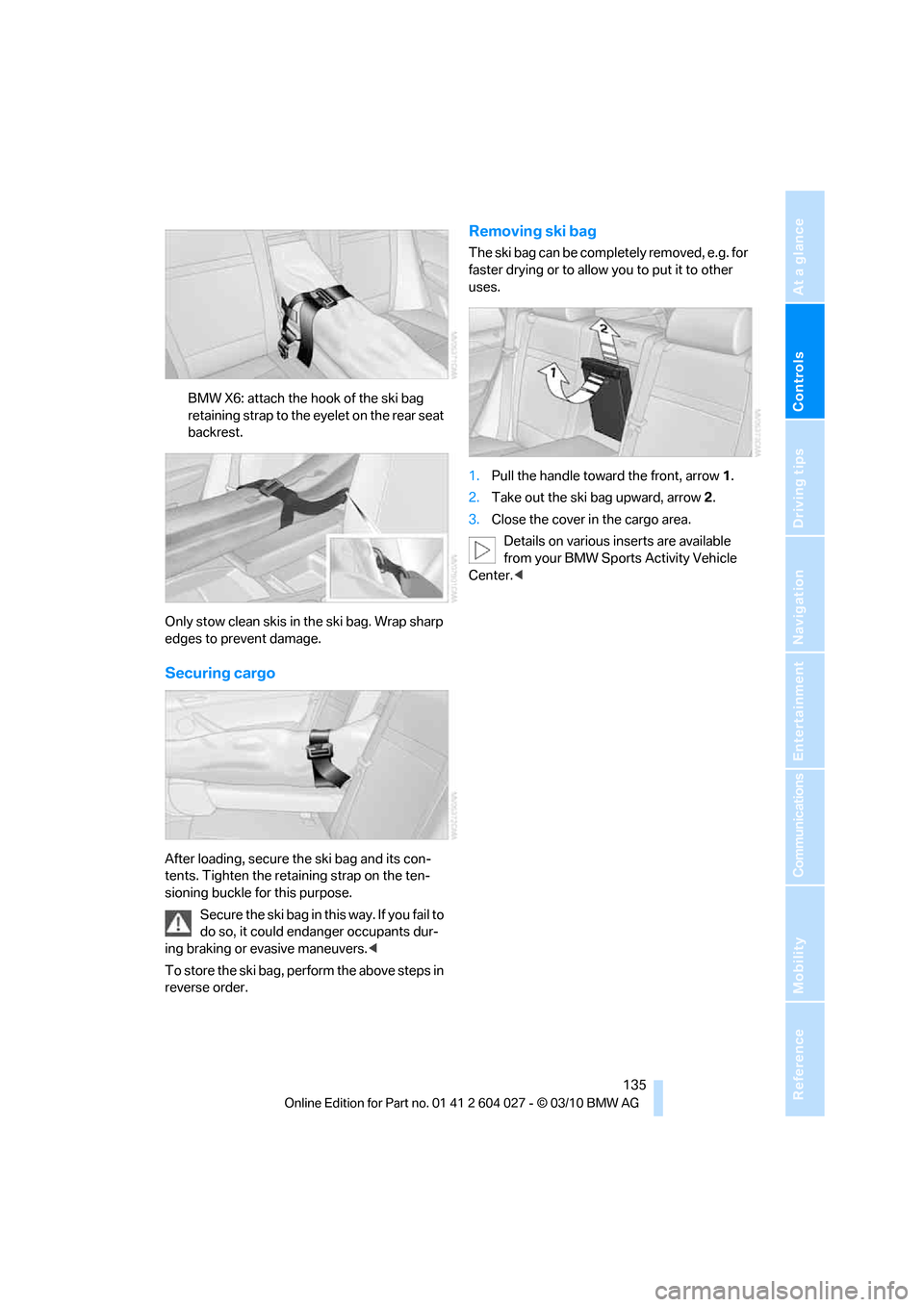
BMW X6: attach the hook of the ski bag
retaining strap to the eyelet on the rear seat
backrest.
Only stow clean skis in the ski bag. Wrap sharp
edges to prevent damage.
Securing cargo
After loading, secure the ski bag and its con-
tents. Tighten the retaining strap on the ten-
sioning buckle for this purpose.
Secure the ski bag in this way. If you fail to
do so, it could endanger occupants dur-
ing braking or evasive maneuvers.<
To store the ski bag, perform the above steps in
reverse order.
Removing ski bag
The ski bag can be completely removed, e.g. for
faster drying or to allow you to put it to other
uses.
1.Pull the handle toward the front, arrow1.
2.Take out the ski bag upward, arrow2.
3.Close the cover in the cargo area.
Details on various inserts are available
from your BMW Sports Activity Vehicle
Center.<
Page 143 of 312
Driving tips
141Reference
At a glance
Controls
Communications
Navigation
Entertainment
Mobility
Make sure that no fluids leak in the cargo
area; otherwise the vehicle could be dam-
aged.<
Determining loading limit
1.Locate the following statement on your
vehicle's placard
*:
The combined weight of occupants
and cargo should never exceed
YYY lbs. or XXX kg. Otherwise, this could
damage the vehicle and produce unstable
vehicle operating conditions.<
2.Determine the combined weight of the
driver and passengers that will be riding in
your vehicle.
3.Subtract the combined weight of the driver
and passengers from YYY lbs. or XXX kg.
4.The resulting figure equals the available
amount of cargo and luggage load capacity.
For example, if the YYY amount equals
1,400 lbs. and there will be five 150 lbs.
passengers in your vehicle, the amount of
available cargo and luggage load capacity is
650 lbs.:
1,400 lbs. minus 750 lbs. = 650 lbs.
5.Determine the combined weight of luggage
and cargo being loaded on the vehicle. That
weight may not safely exceed the available
cargo and luggage load capacity calculated
in step 4.
6.If your vehicle will be towing a trailer, part of
the load from your trailer will be transferred
to your vehicle. Consult the manual for
transporting a trailer to determine how this
may reduce the available cargo and luggage
load capacity of your vehicle.
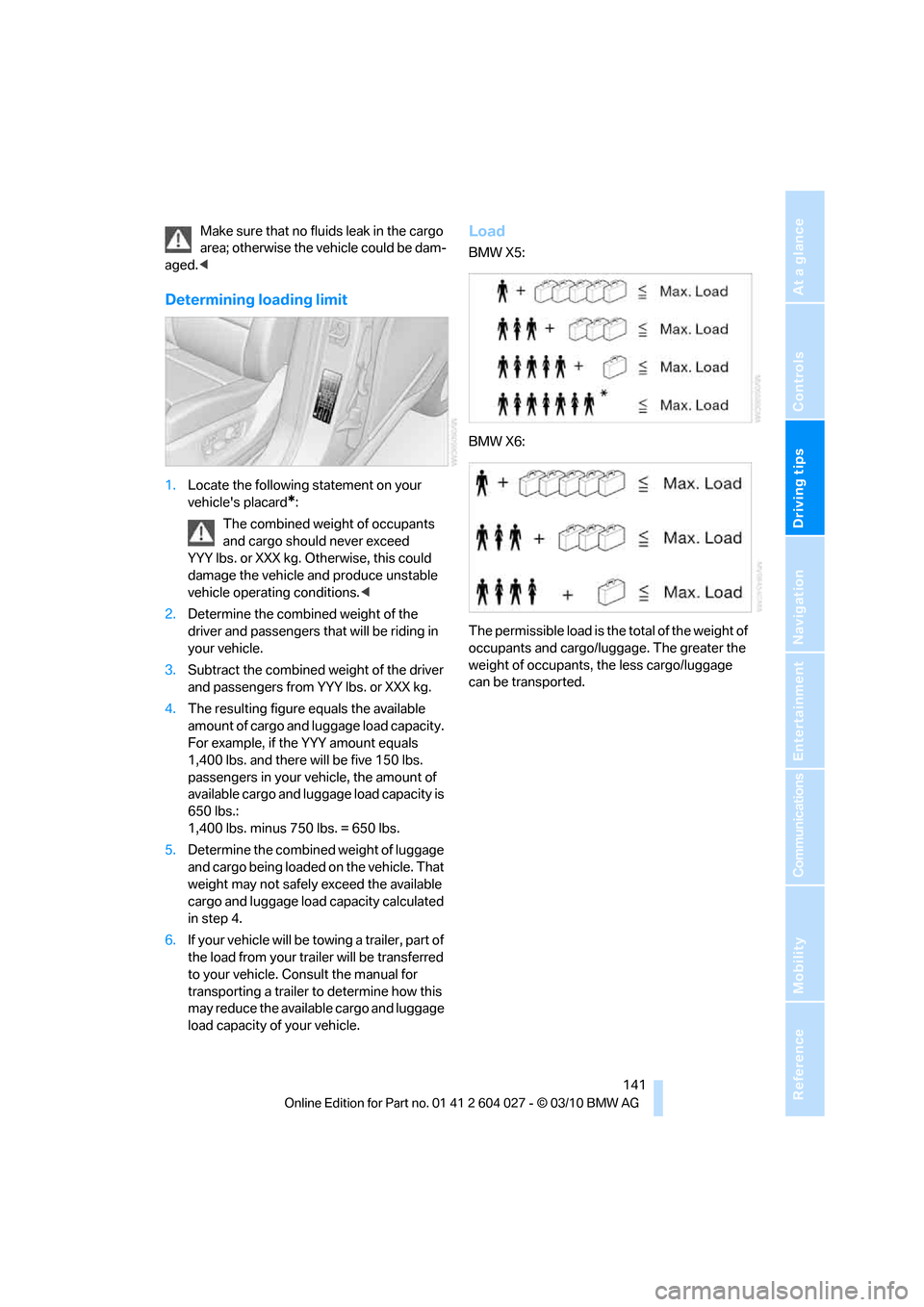
Load
BMW X5:
BMW X6:
The permissible load is the total of the weight of
occupants and cargo/luggage. The greater the
weight of occupants, the less cargo/luggage
can be transported.
Page 144 of 312
Things to remember when driving
142
Stowing cargo
BMW X5
BMW X6
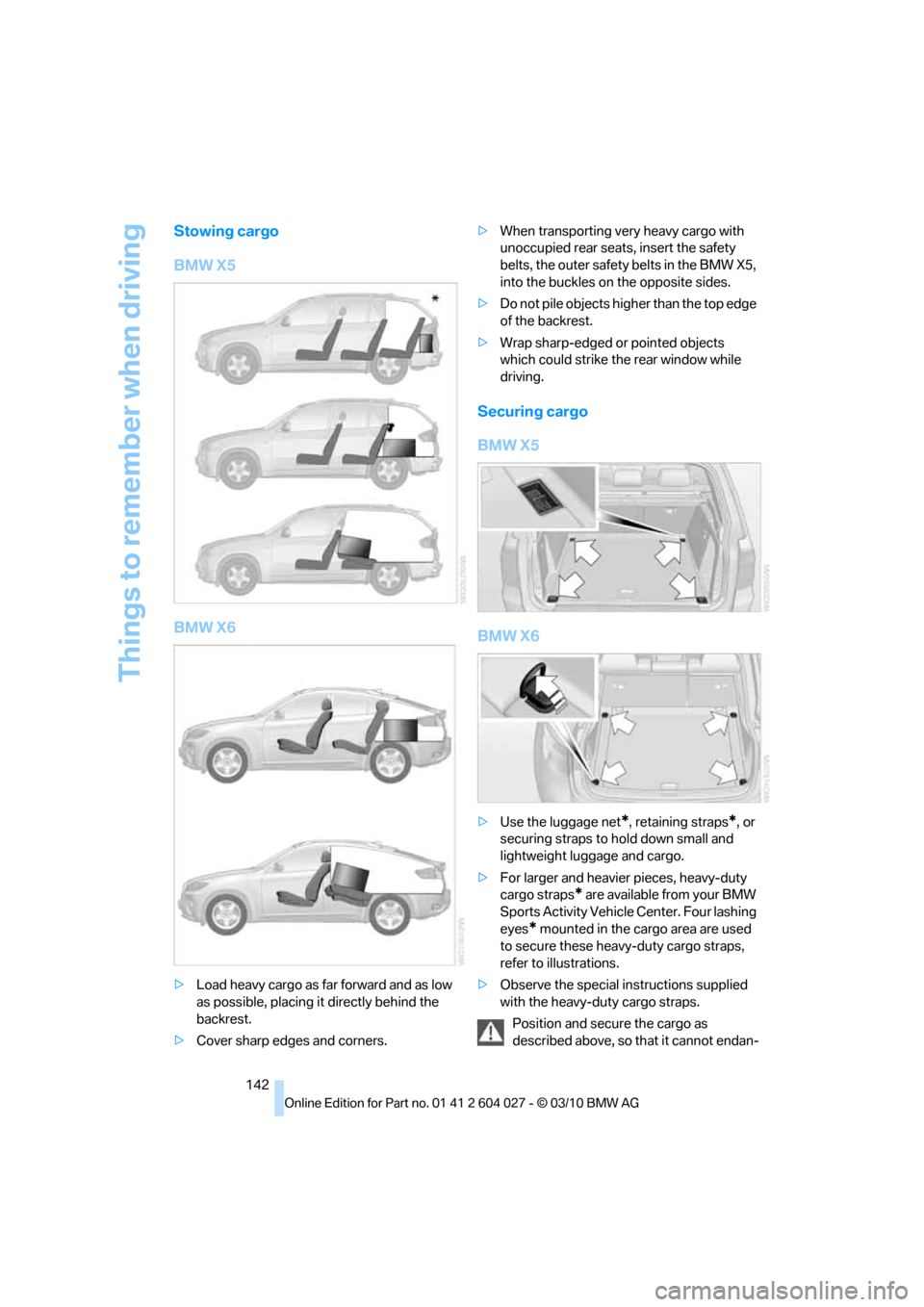
>Load heavy cargo as far forward and as low
as possible, placing it directly behind the
backrest.
>Cover sharp edges and corners.>When transporting very heavy cargo with
unoccupied rear seats, insert the safety
belts, the outer safety belts in the BMW X5,
into the buckles on the opposite sides.
>Do not pile objects higher than the top edge
of the backrest.
>Wrap sharp-edged or pointed objects
which could strike the rear window while
driving.
Securing cargo
BMW X5
BMW X6
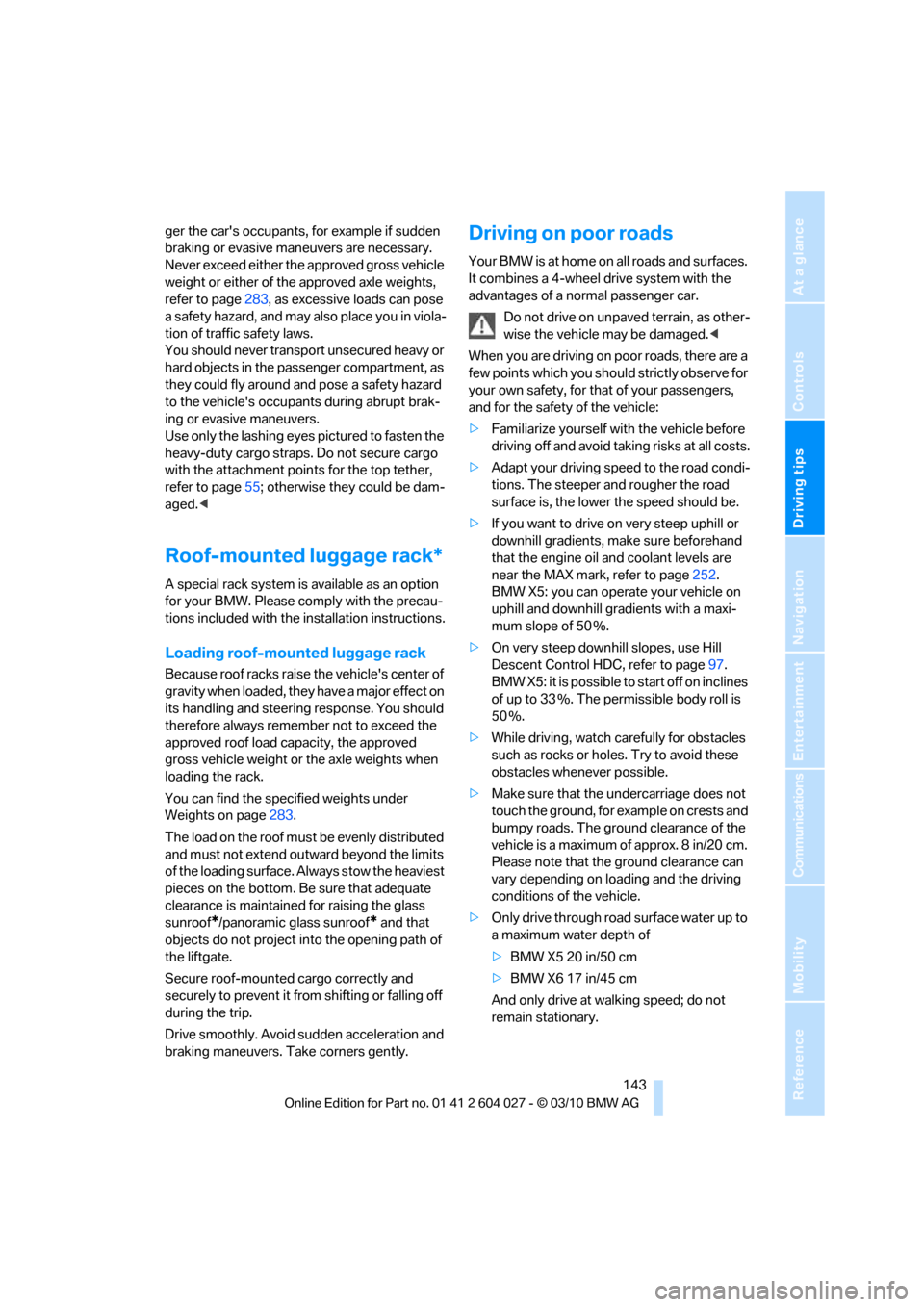
>Use the luggage net*, retaining straps*, or
securing straps to hold down small and
lightweight luggage and cargo.
>For larger and heavier pieces, heavy-duty
cargo straps
* are available from your BMW
Sports Activity Vehicle Center. Four lashing
eyes
* mounted in the cargo area are used
to secure these heavy-duty cargo straps,
refer to illustrations.
>Observe the special instructions supplied
with the heavy-duty cargo straps.
Position and secure the cargo as
described above, so that it cannot endan-
Page 145 of 312
Driving tips
143Reference
At a glance
Controls
Communications
Navigation
Entertainment
Mobility
ger the car's occupants, for example if sudden
braking or evasive maneuvers are necessary.
Never exceed either the approved gross vehicle
weight or either of the approved axle weights,
refer to page283, as excessive loads can pose
a safety hazard, and may also place you in viola-
tion of traffic safety laws.
You should never transport unsecured heavy or
hard objects in the passenger compartment, as
they could fly around and pose a safety hazard
to the vehicle's occupants during abrupt brak-
ing or evasive maneuvers.
Use only the lashing eyes pictured to fasten the
heavy-duty cargo straps. Do not secure cargo
with the attachment points for the top tether,
refer to page55; otherwise they could be dam-
aged.<
Roof-mounted luggage rack*
A special rack system is available as an option
for your BMW. Please comply with the precau-
tions included with the installation instructions.
Loading roof-mounted luggage rack
Because roof racks raise the vehicle's center of
gravity when loaded, they have a major effect on
its handling and steering response. You should
therefore always remember not to exceed the
approved roof load capacity, the approved
gross vehicle weight or the axle weights when
loading the rack.
You can find the specified weights under
Weights on page283.
The load on the roof must be evenly distributed
and must not extend outward beyond the limits
of the loading surface. Always stow the heaviest
pieces on the bottom. Be sure that adequate
clearance is maintained for raising the glass
sunroof
*/panoramic glass sunroof* and that
objects do not project into the opening path of
the liftgate.
Secure roof-mounted cargo correctly and
securely to prevent it from shifting or falling off
during the trip.
Drive smoothly. Avoid sudden acceleration and
braking maneuvers. Take corners gently.
Driving on poor roads
Y our B MW is at hom e on a ll r oa ds a nd surfac e s.
It combines a 4-wheel drive system with the
advantages of a normal passenger car.
Do not drive on unpaved terrain, as other-
wise the vehicle may be damaged.<
When you are driving on poor roads, there are a
few points which you should strictly observe for
your own safety, for that of your passengers,
and for the safety of the vehicle:
>Familiarize yourself with the vehicle before
driving off and avoid taking risks at all costs.
>Adapt your driving speed to the road condi-
tions. The steeper and rougher the road
surface is, the lower the speed should be.
>If you want to drive on very steep uphill or
downhill gradients, make sure beforehand
that the engine oil and coolant levels are
near the MAX mark, refer to page252.
BMW X5: you can operate your vehicle on
uphill and downhill gradients with a maxi-
mum slope of 50 %.
>On very steep downhill slopes, use Hill
Descent Control HDC, refer to page97.
BMW X5: it is possible to start off on inclines
of up to 33 %. The permissible body roll is
50 %.
>While driving, watch carefully for obstacles
such as rocks or holes. Try to avoid these
obstacles whenever possible.
>Make sure that the undercarriage does not
touch the ground, for example on crests and
bumpy roads. The ground clearance of the
vehicle is a maximum of approx. 8 in/20 cm.
Please note that the ground clearance can
vary depending on loading and the driving
conditions of the vehicle.
>Only drive through road surface water up to
a maximum water depth of
>BMW X5 20 in/50 cm
>BMW X6 17 in/45 cm
And only drive at walking speed; do not
remain stationary.
Page 151 of 312
Navigation
Driving tips
149Reference
At a glance
Controls
Communications
Entertainment
Mobility
Destination entry
In entering your destination you can select from
among the following options:
>Entering a destination manually, see below
>Selecting destination from address book,
refer to page151
>Last destinations, refer to page152
>Special destinations, refer to page152
>Entering a destination on the map, refer to
page154
>Selecting home address, refer to page152
>Entering destination via voice*, refer to
page155
>Destination entry via BMW Assist
*, refer to
page153
You can also store a navigation destination on
the programmable memory buttons, refer to
page20.
Enter data only with the vehicle station-
ary, and always give priority to the appli-
cable traffic regulations in the event of any con-
tradiction between traffic and road conditions
and the instructions issued by the navigation
system. If you do not observe this precaution,
you can endanger the vehicle occupants and
other road users.<
Entering a destination
manually
The system's word-matching principle makes it
easier for you to enter the names of streets or
towns, refer to page157. This allows you to
enter different spellings and completes your
entry automatically, so that stored names can
be called up quickly.
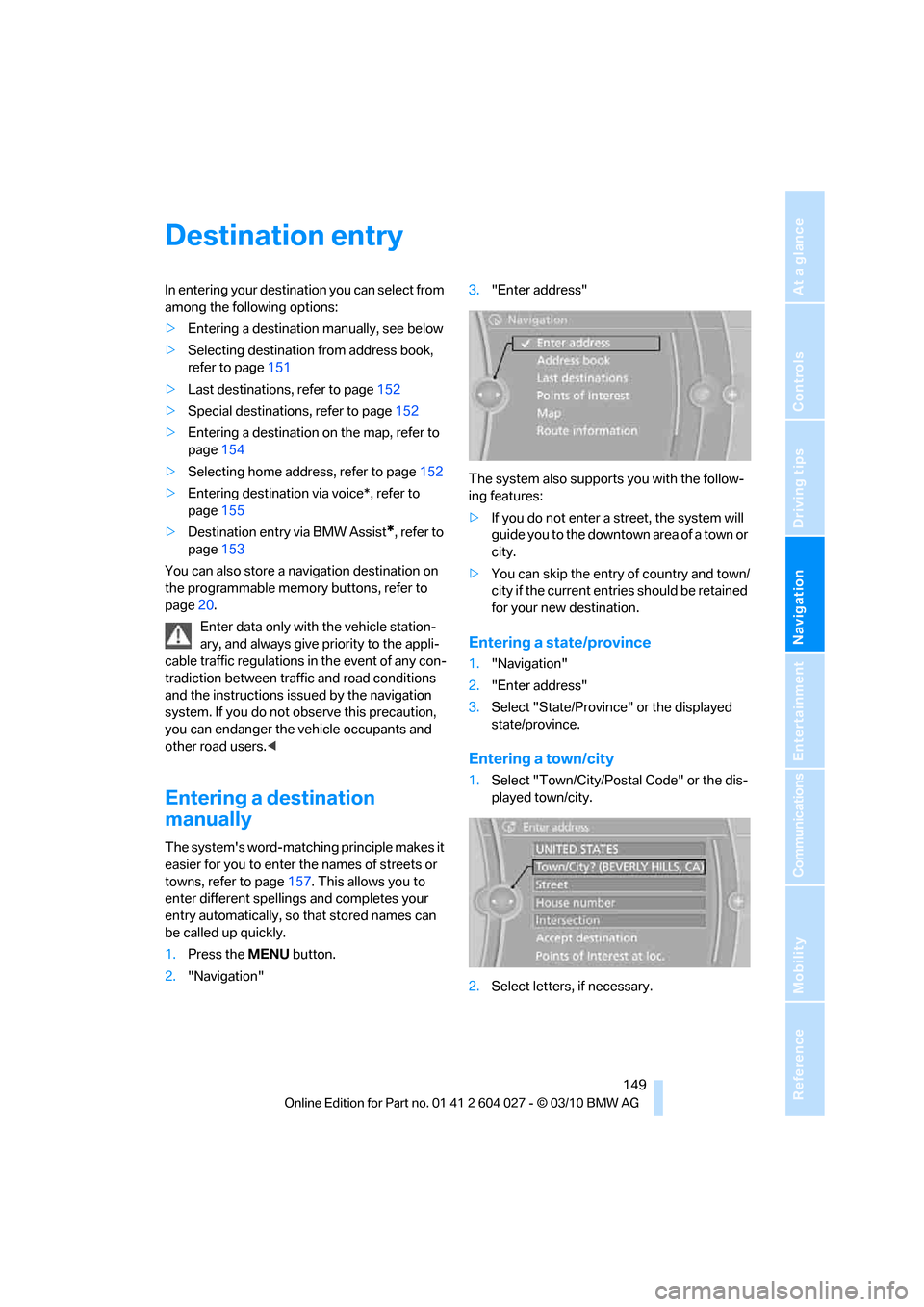
1.Press the MENUbutton.
2."Navigation"3."Enter address"
The system also supports you with the follow-
ing features:
>If you do not enter a street, the system will
guide you to the downtown a r e a o f a t o w n o r
city.
>You can skip the entry of country and town/
city if the current entries should be retained
for your new destination.
Entering a state/province
1."Navigation"
2."Enter address"
3.Select "State/Province" or the displayed
state/province.
Entering a town/city
1.Select "Town/City/Postal Code" or the dis-
played town/city.
2.Select letters, if necessary.
Page 152 of 312
Destination entry
150 To delete letters:
>To delete individual letters:
Turn the controller to select , and
then press the controller.
>To delete all letters:
Turn the controller to select , and
then press the controller for an extended
period.
To enter spaces:
>Select the symbol.
The list gradually grows smaller each time
you enter a new letter.
3.Move the controller to the right.
4.Select the name of the town/city from the
list.
If there are several towns/cities with the same
name:
1.Change to the list of town/city names.
2.Highlight the town/city: a preview map is
displayed.
3.Select the town/city.
Entering the postal code
1.Select "Town/City/Postal Code" or the dis-
played town/city.
2.Select the symbol.
3.Select the digits.
4.Change to the list of postal codes and
towns/cities.
5.Highlight postal code: a preview map is dis-
played.
6.Select the postal code.
Entering street and intersection
1.Select "Street" or the displayed street.
2.Enter a street and intersection as you would
the town/city.
After the street you can also enter the intersec-
tion or the house number.
If there are several streets with the same name:1.Change to the list of street names.
2.Highlight the street: a preview map is dis-
played.
3.Select the street.
Entering a street without a destination
town/city
You can also enter a street without entering a
town/city of destination. In this case all streets
of the entered country are offered for selection.
The related town/city is displayed after the
street name.
If a town/city has already been entered, you can
undo this entry. This may be practical if the
desired street does not exist in the entered des-
tination, because, for example, it belongs to
another part of the town/city.
1."Navigation"
2."Enter address"
3.Select "Street" or the displayed street.
4.Change to the list of street names.
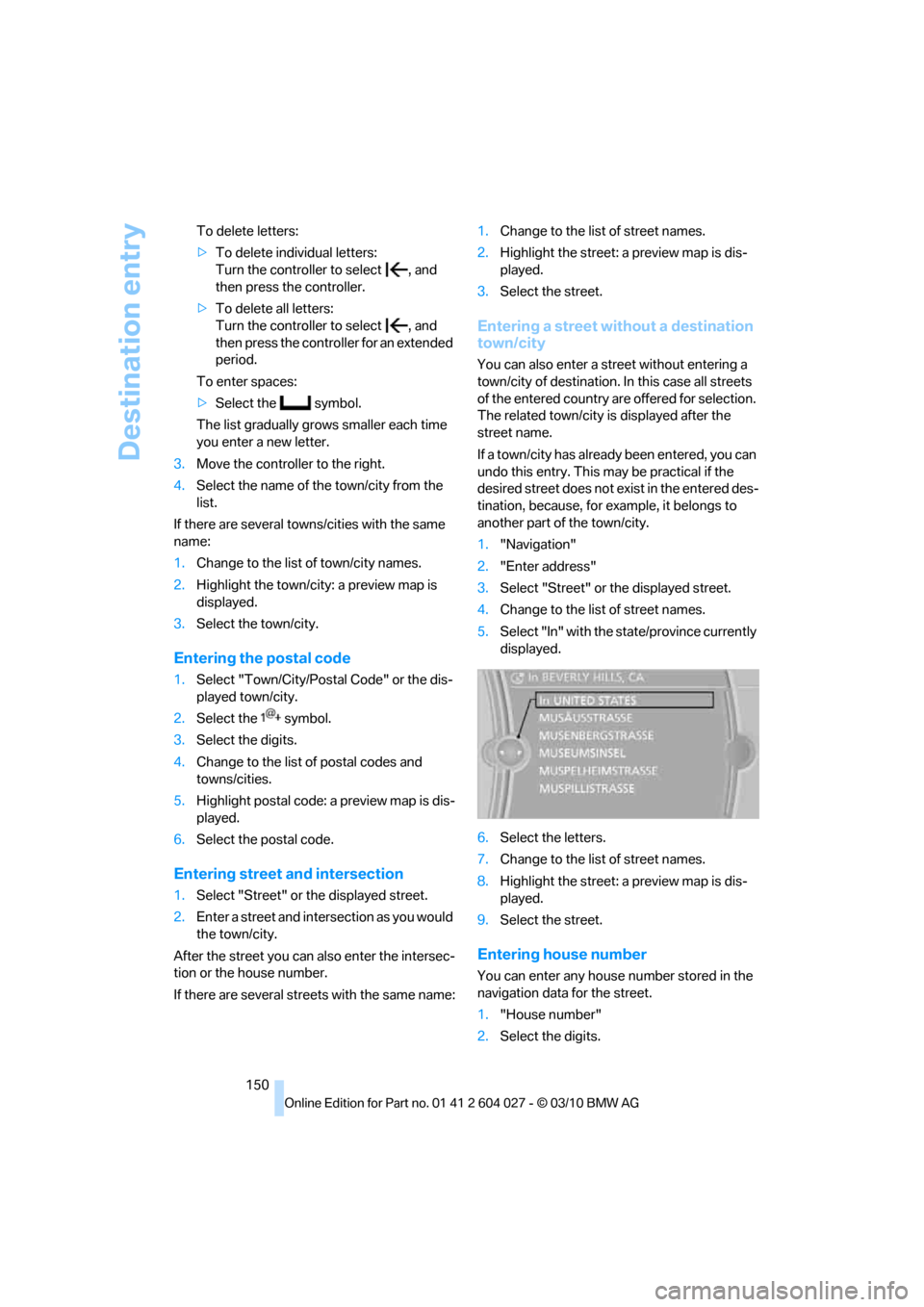
5.Select "In" with the state/province currently
displayed.
6.Select the letters.
7.Change to the list of street names.
8.Highlight the street: a preview map is dis-
played.
9.Select the street.
Entering house number
You can enter any house number stored in the
navigation data for the street.
1."House number"
2.Select the digits.
Page 156 of 312
Destination entry
154
Displaying special destinations in the
map
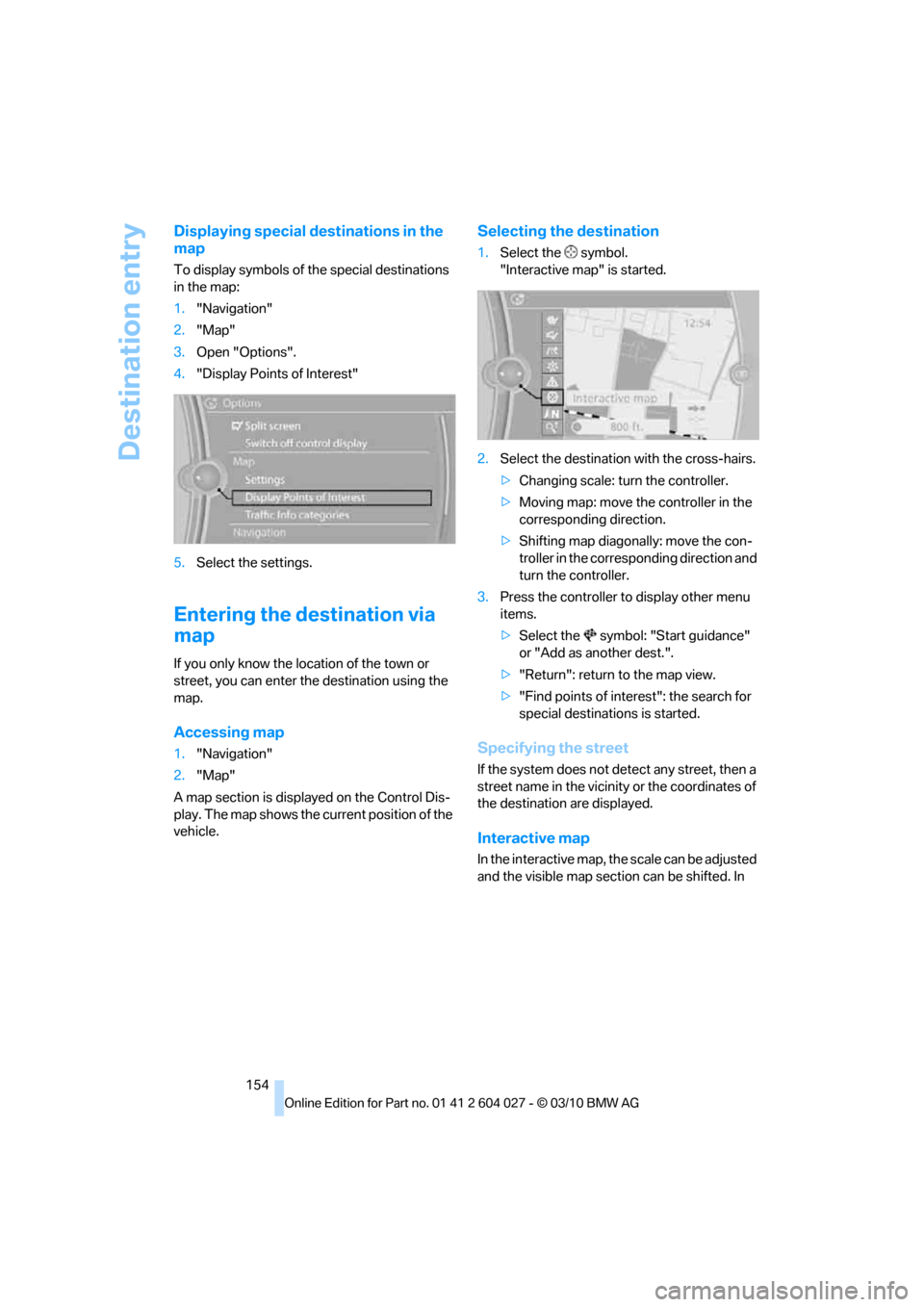
To display symbols of the special destinations
in the map:
1."Navigation"
2."Map"
3.Open "Options".
4."Display Points of Interest"
5.Select the settings.
Entering the destination via
map
If you only know the location of the town or
street, you can enter the destination using the
map.
Accessing map
1."Navigation"
2."Map"
A map section is displayed on the Control Dis-
play. The map shows the current position of the
vehicle.
Selecting the destination
1.Select the symbol.
"Interactive map" is started.
2.Select the destination with the cross-hairs.
>Changing scale: turn the controller.
>Moving map: move the controller in the
corresponding direction.
>Shifting map diagonally: move the con-
troller in the corresponding direction and
turn the controller.
3.Press the controller to display other menu
items.
>Select the symbol: "Start guidance"
or "Add as another dest.".
>"Return": return to the map view.
>"Find points of interest": the search for
special destinations is started.
Specifying the street
If the system does not detect any street, then a
street name in the vicinity or the coordinates of
the destination are displayed.
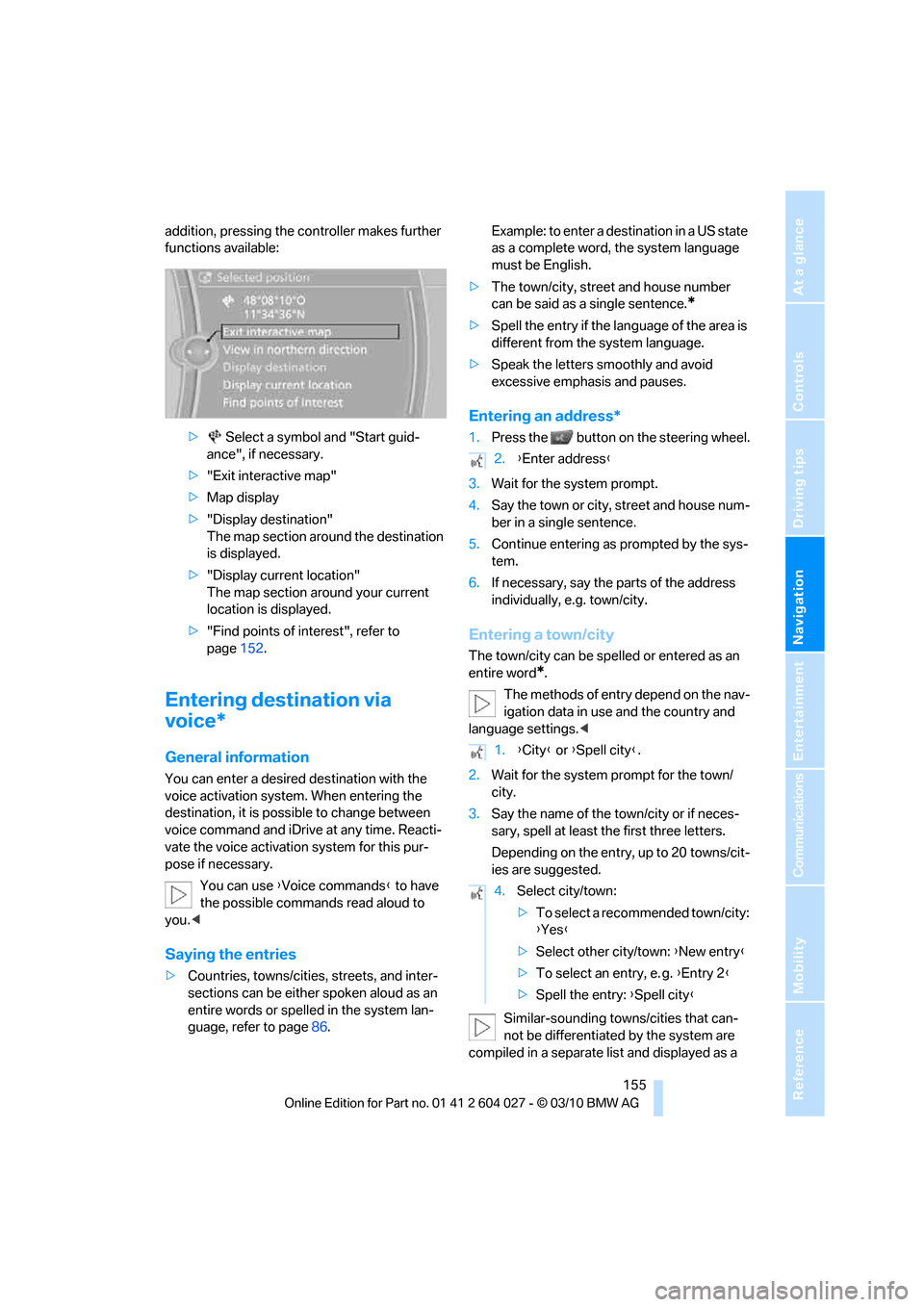
Interactive map
In the interactive map, the scale can be adjusted
and the visible map section can be shifted. In
Page 157 of 312
Navigation
Driving tips
155Reference
At a glance
Controls
Communications
Entertainment
Mobility
addition, pressing the controller makes further
functions available:
> Select a symbol and "Start guid-
ance", if necessary.
>"Exit interactive map"
>Map display
>"Display destination"
The map section around the destination
is displayed.
>"Display current location"
The map section around your current
location is displayed.
>"Find points of interest", refer to
page152.
Entering destination via
voice*
General information
You can enter a desired destination with the
voice activation system. When entering the
destination, it is possible to change between
voice command and iDrive at any time. Reacti-
vate the voice activation system for this pur-
pose if necessary.
You can use {Voice commands} to have
the possible commands read aloud to
you.<
Saying the entries
>Countries, towns/cities, streets, and inter-
sections can be either spoken aloud as an
entire words or spelled in the system lan-
guage, refer to page86.Example: to enter a destination in a US state
as a complete word, the system language
must be English.
>The town/city, street and house number
can be said as a single sentence.
*
>Spell the entry if the language of the area is
different from the system language.
>Speak the letters smoothly and avoid
excessive emphasis and pauses.
Entering an address*
1.Press the button on the steering wheel.
3.Wait for the system prompt.
4.Say the town or city, street and house num-
ber in a single sentence.
5.Continue entering as prompted by the sys-
tem.
6.If necessary, say the parts of the address
individually, e.g. town/city.
Entering a town/city
The town/city can be spelled or entered as an
entire word
*.
The methods of entry depend on the nav-
igation data in use and the country and
language settings.<
2.Wait for the system prompt for the town/
city.
3.Say the name of the town/city or if neces-
sary, spell at least the first three letters.
Depending on the entry, up to 20 towns/cit-
ies are suggested.
Similar-sounding towns/cities that can-
not be differentiated by the system are
compiled in a separate list and displayed as a
2.{Enter address}
1.{City} or {Spell city}.
4.Select city/town:
>To select a recommended town/city:
{Yes}
>Select other city/town: {New entry}
>To select an entry, e. g. {Entry 2}
>Spell the entry: {Spell city}