check control BMW X6M 2013 E71 Owner's Guide
[x] Cancel search | Manufacturer: BMW, Model Year: 2013, Model line: X6M, Model: BMW X6M 2013 E71Pages: 327, PDF Size: 7.71 MB
Page 120 of 327
▷Approx. 7 ft/2 m to the side.▷Approx. 7 ft/2 m to the rear.
Obstacles up to the height of the exterior mir‐
rors are thus detected in a timely fashion.
System limits
Top View cannot be used in the following sit‐
uations:
▷With a door open.▷With the tailgate open.▷With an exterior mirror folded in.▷In poor light.
The arrows next to the vehicle are displayed in
a shaded form on the Control Display and a
symbol appears at the corresponding location
on the vehicle.
Check the traffic situation as well
Check the traffic situation around the ve‐
hicle with your own eyes. Otherwise, an acci‐
dent could result from road users or objects lo‐
cated outside the picture area of the
cameras.◀
Switching on automatically
Select transmission position R with the engine
running.
The images from Top View and PDC are dis‐
played when the system has been switched on
using iDrive.
Switching off automatically when
driving forward
The system switches off when a certain dis‐
tance or speed is exceeded.
Switch on the system again if necessary.
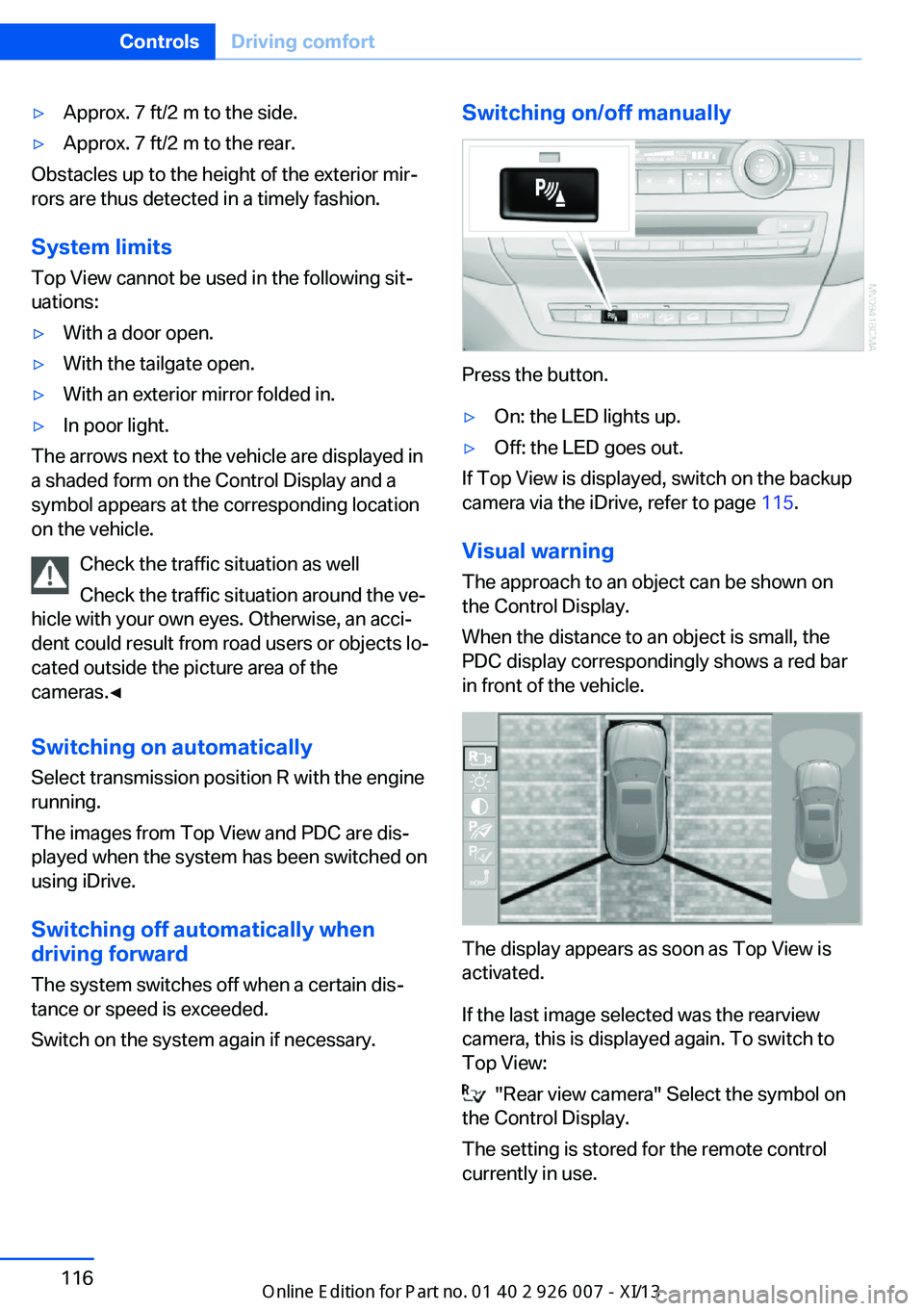
Switching on/off manually
Press the button.
▷On: the LED lights up.▷Off: the LED goes out.
If Top View is displayed, switch on the backup
camera via the iDrive, refer to page 115.
Visual warning
The approach to an object can be shown on
the Control Display.
When the distance to an object is small, the
PDC display correspondingly shows a red bar
in front of the vehicle.
The display appears as soon as Top View is
activated.
If the last image selected was the rearview
camera, this is displayed again. To switch to
Top View:
"Rear view camera" Select the symbol on
the Control Display.
The setting is stored for the remote control
currently in use.
Seite 116ControlsDriving comfort116
Online Edition for Part no. 01 40 2 910 876 - VII/13
Page 121 of 327
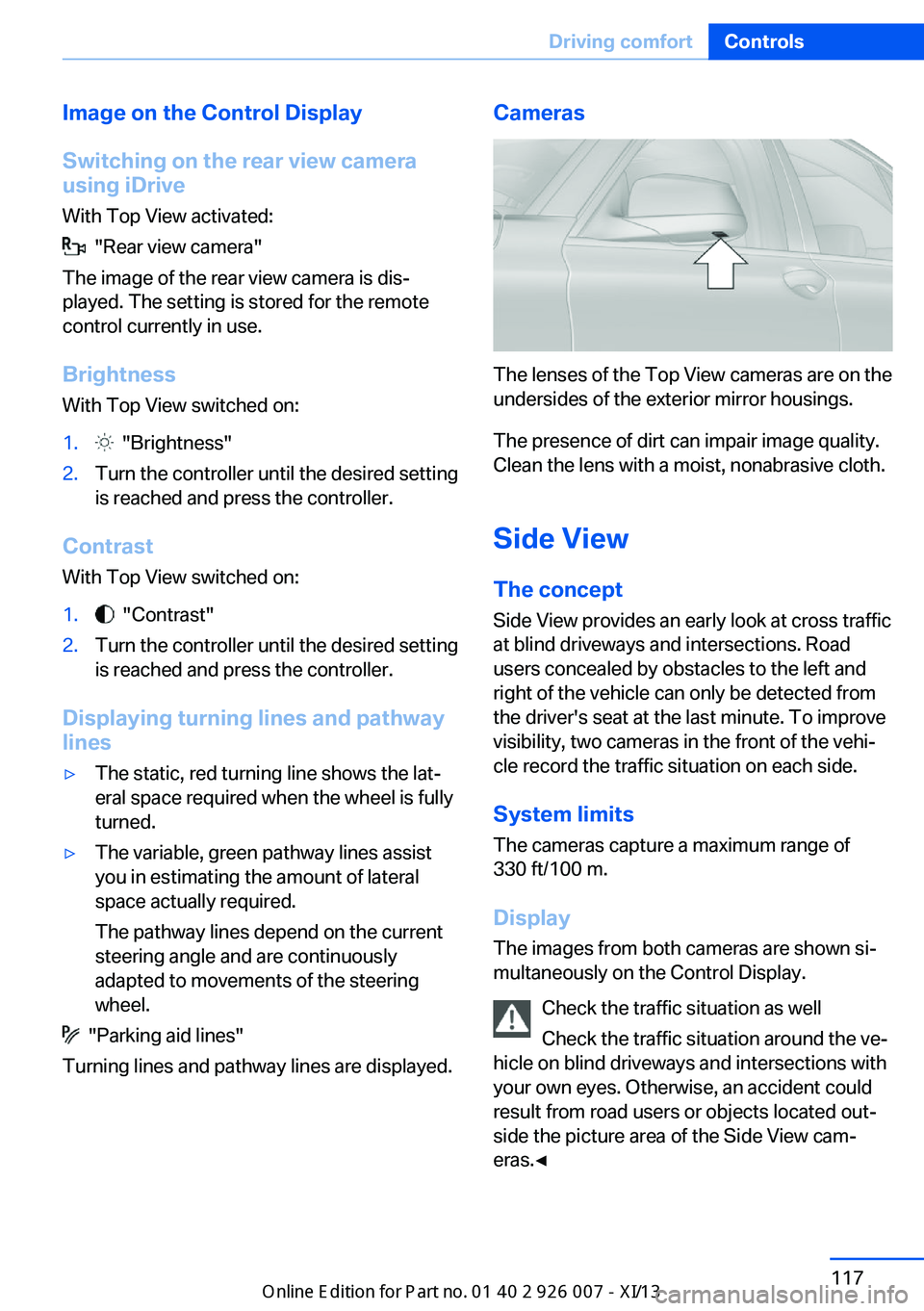
Image on the Control Display
Switching on the rear view camera
using iDrive
With Top View activated:
"Rear view camera"
The image of the rear view camera is dis‐
played. The setting is stored for the remote
control currently in use.
Brightness
With Top View switched on:
1. "Brightness"2.Turn the controller until the desired setting
is reached and press the controller.
Contrast
With Top View switched on:
1. "Contrast"2.Turn the controller until the desired setting
is reached and press the controller.
Displaying turning lines and pathway
lines
▷The static, red turning line shows the lat‐
eral space required when the wheel is fully
turned.▷The variable, green pathway lines assist
you in estimating the amount of lateral
space actually required.
The pathway lines depend on the current
steering angle and are continuously
adapted to movements of the steering
wheel.
"Parking aid lines"
Turning lines and pathway lines are displayed.
Cameras
The lenses of the Top View cameras are on the
undersides of the exterior mirror housings.
The presence of dirt can impair image quality.
Clean the lens with a moist, nonabrasive cloth.
Side ViewThe concept
Side View provides an early look at cross traffic
at blind driveways and intersections. Road
users concealed by obstacles to the left and
right of the vehicle can only be detected from
the driver's seat at the last minute. To improve
visibility, two cameras in the front of the vehi‐
cle record the traffic situation on each side.
System limits
The cameras capture a maximum range of
330 ft/100 m.
Display
The images from both cameras are shown si‐
multaneously on the Control Display.
Check the traffic situation as well
Check the traffic situation around the ve‐
hicle on blind driveways and intersections with
your own eyes. Otherwise, an accident could
result from road users or objects located out‐
side the picture area of the Side View cam‐
eras.◀
Seite 117Driving comfortControls117
Online Edition for Part no. 01 40 2 910 876 - VII/13
Page 123 of 327
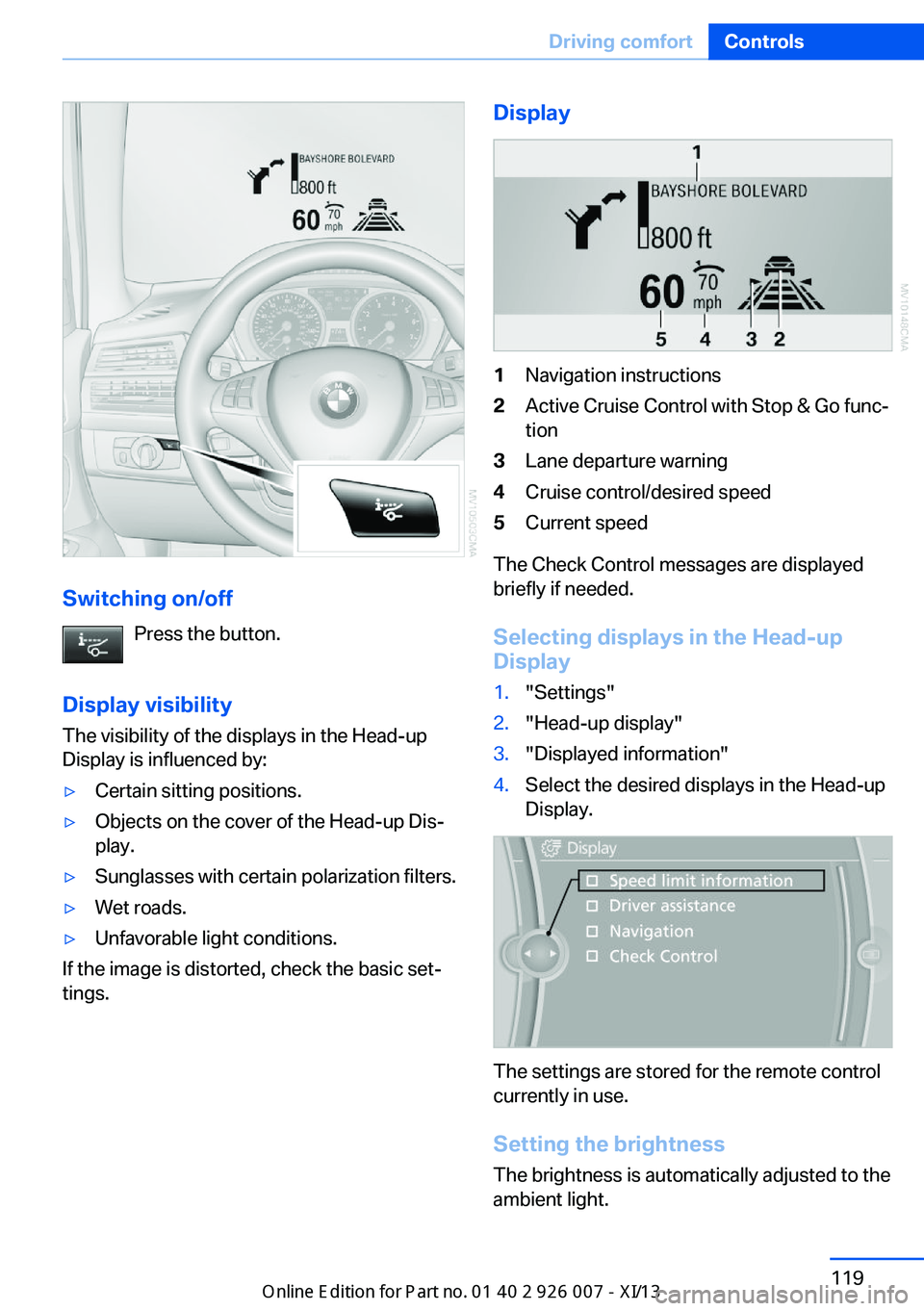
Switching on/offPress the button.
Display visibility The visibility of the displays in the Head-up
Display is influenced by:
▷Certain sitting positions.▷Objects on the cover of the Head-up Dis‐
play.▷Sunglasses with certain polarization filters.▷Wet roads.▷Unfavorable light conditions.
If the image is distorted, check the basic set‐
tings.
Display1Navigation instructions2Active Cruise Control with Stop & Go func‐
tion3Lane departure warning4Cruise control/desired speed5Current speed
The Check Control messages are displayed
briefly if needed.
Selecting displays in the Head-up
Display
1."Settings"2."Head-up display"3."Displayed information"4.Select the desired displays in the Head-up
Display.
The settings are stored for the remote control
currently in use.
Setting the brightness
The brightness is automatically adjusted to the
ambient light.
Seite 119Driving comfortControls119
Online Edition for Part no. 01 40 2 910 876 - VII/13
Page 134 of 327
on the interior rearview mirror. The re‐
quired distance depends on the particular
hand-held transmitter.4.Press the button of the desired function on
the hand-held transmitter and the button
being programmed on the interior rearview
mirror simultaneously and hold. The LED
on the interior rearview mirror flashes
slowly at first.5.When the LED flashes more rapidly, re‐
lease both buttons. Rapid flashing indi‐
cates that the button on the interior rear‐
view mirror has been programmed.
If the LED does not flash faster after
60 seconds, change the distance between
the interior rearview mirror and the hand-
held transmitter and repeat the step. Multi‐
ple trials at different distances may be nec‐
essary. Wait at least 15 seconds between
trials.6.To program additional functions on other
buttons, repeat steps 3 to 5.
The systems can be operated with the buttons
on the interior rearview mirror.
Special characteristics of alternating-
code radio systems
If the system cannot be operated after re‐
peated programming, check whether the sys‐
tem to be operated uses an alternating-code
system.
Read the operating instructions of the system
or press and hold the programmed button on
the interior rearview mirror. If the LED on the
interior rearview mirror flashes rapidly at first
and then lights up continuously for 2 seconds,
the system is equipped with an alternating-
code system. This flashing LED pattern re‐
peats itself for approx. 20 seconds.
In systems with an alternating-code system,
the Universal Garage Door Opener and the
system must be additionally synchronized.
Please obtain additional information on syn‐
chronization in the operating instructions of
the system being set up.
The systems will be easier to synchronize with
the aid of a second person.
Synchronization:1.Park the vehicle within range of the re‐
mote-controlled system.2.Program the corresponding button on the
interior rearview mirror as described.3.Identify and press the synchronization but‐
ton on the system being set up. You have
approx. 30 seconds for the next step.4.Press and hold the button on the interior
rearview mirror for approx. 3 seconds and
then release it. Repeat this step up to three
times if necessary to complete the syn‐
chronization procedure. When synchroni‐
zation is completed, the programmed func‐
tion is executed.
Reprogramming individual buttons
1.Switch on the ignition.2.Hold the hand-held transmitter at a dis‐
tance of approx. 1 to 3 in/2.5 to 8 cm from
the memory buttons.
The required distance depends on the par‐
ticular hand-held transmitter.3.Press the memory button of the Universal
Garage Door Opener.4.If the LED flashes slowly after approx.
20 seconds, press the transmit button on
the hand-held transmitter.5.Release both buttons when the LED
flashes rapidly.
If the LED does not flash rapidly after ap‐
prox. 60 seconds, change the distance and
repeat the step.
Canada: if the LED does not flash rapidly
after approx. 60 seconds, change the dis‐
tance and repeat the step. If programmingSeite 130ControlsInterior equipment130
Online Edition for Part no. 01 40 2 910 876 - VII/13
Page 144 of 327
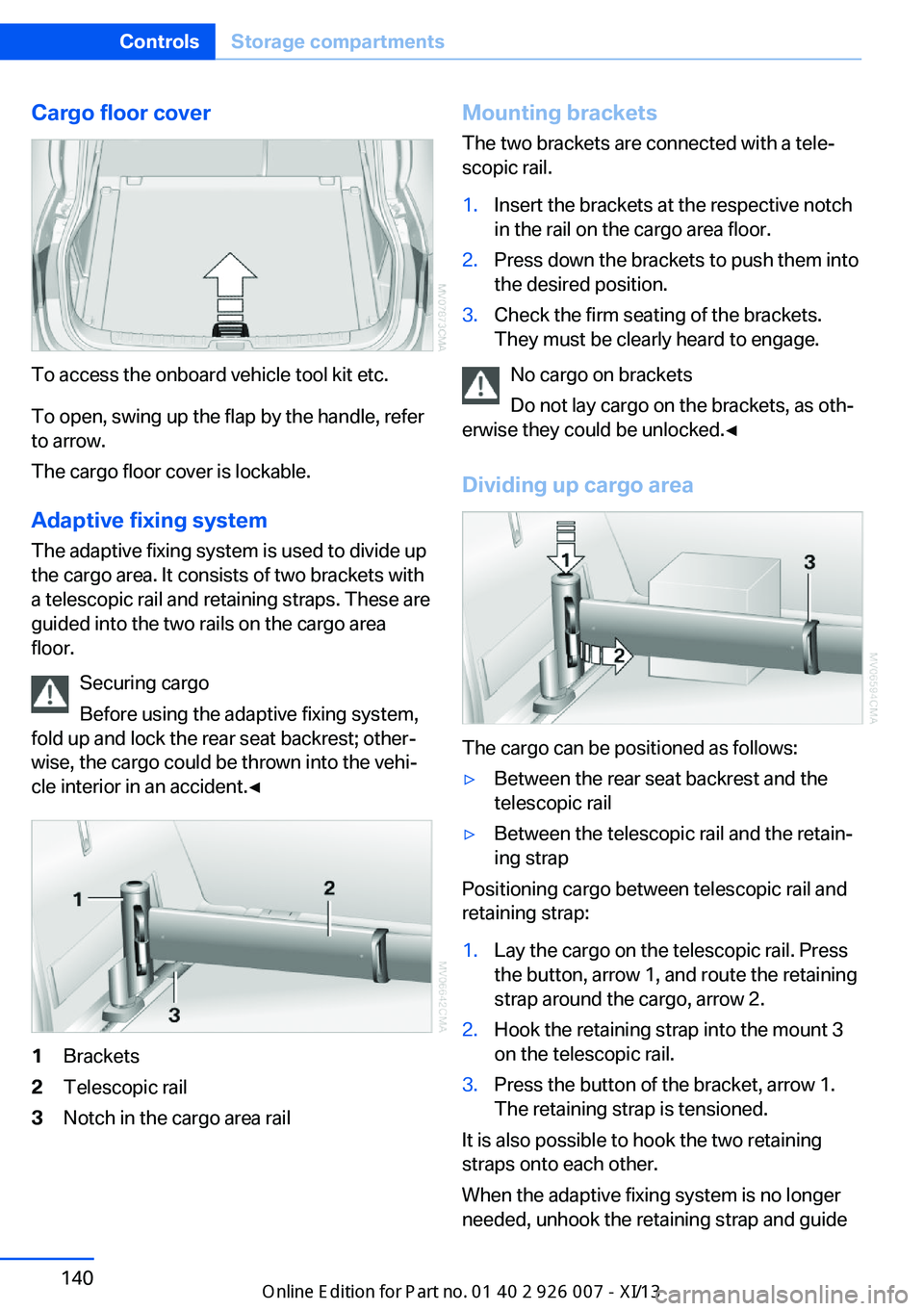
Cargo floor cover
To access the onboard vehicle tool kit etc.
To open, swing up the flap by the handle, refer
to arrow.
The cargo floor cover is lockable.
Adaptive fixing system The adaptive fixing system is used to divide up
the cargo area. It consists of two brackets with
a telescopic rail and retaining straps. These are
guided into the two rails on the cargo area
floor.
Securing cargo
Before using the adaptive fixing system,
fold up and lock the rear seat backrest; other‐
wise, the cargo could be thrown into the vehi‐
cle interior in an accident.◀
1Brackets2Telescopic rail3Notch in the cargo area railMounting brackets
The two brackets are connected with a tele‐
scopic rail.1.Insert the brackets at the respective notch
in the rail on the cargo area floor.2.Press down the brackets to push them into
the desired position.3.Check the firm seating of the brackets.
They must be clearly heard to engage.
No cargo on brackets
Do not lay cargo on the brackets, as oth‐
erwise they could be unlocked.◀
Dividing up cargo area
The cargo can be positioned as follows:
▷Between the rear seat backrest and the
telescopic rail▷Between the telescopic rail and the retain‐
ing strap
Positioning cargo between telescopic rail and
retaining strap:
1.Lay the cargo on the telescopic rail. Press
the button, arrow 1, and route the retaining
strap around the cargo, arrow 2.2.Hook the retaining strap into the mount 3
on the telescopic rail.3.Press the button of the bracket, arrow 1.
The retaining strap is tensioned.
It is also possible to hook the two retaining
straps onto each other.
When the adaptive fixing system is no longer
needed, unhook the retaining strap and guide
Seite 140ControlsStorage compartments140
Online Edition for Part no. 01 40 2 910 876 - VII/13
Page 153 of 327
▷When driving through water, do not exceed
the maximum water height of 17 in‐
ches/45 cm.
Drive at walking speed only and do not
stop the vehicle.▷After driving through water, press on the
brake pedal several times at low speeds to
dry the brakes.▷Depending on the prevailing terrain, acti‐
vate Dynamic Traction Control DTC, refer
to page 97, briefly.▷When the wheels spin, accelerate to ena‐
ble the driving stability control systems to
distribute the drive force to the individual
wheels.▷The stone chip guard reduces the risk of
damage to painted vehicle components,
such as in the area of the side skirts and
wheel arches. Your service center will be
glad to advise you.
After driving on poor roads
Adhere to the following points to ensure vehi‐
cle safety:
▷Remove excessive accumulations of dirt
and mud from the vehicle body.▷Clear mud, snow, ice, etc., from the wheels
and tires and check for damage.Seite 149Things to remember when drivingDriving tips149
Online Edition for Part no. 01 40 2 910 876 - VII/13
Page 234 of 327
nected mobile phone from the vehicle and
pair and connect only one mobile phone.
The mobile phone no longer reacts.
▷Switch the mobile phone off and on again.▷Is the ambient temperature too high or
low? Do not expose the mobile phone to
extreme environmental conditions.
The telephone functions are not available.
▷Is the mobile phone paired as an additional
telephone and is the additional telephone
function deactivated? Activate the func‐
tion.▷Is an outgoing call not possible? Connect
the mobile phone as a telephone.
No phone book entries or only some phone
book entries are displayed, or they are incom‐
plete.
▷Transmission of the phone book entries is
not yet complete.▷It is possible that only the phone book en‐
tries of the mobile phone or the SIM card
are transmitted.▷It may not be possible to display phone
book entries with special characters.▷The number of phone book entries to be
stored is too high.▷Is the data volume of the contact too large,
e. g., due to stored information such as
notes? Reduce the data volume of the con‐
tact.▷Is the mobile phone connected as an audio
source or additional telephone? The mo‐
bile phone must be connected as a tele‐
phone.
The phone connection quality is poor.
▷The strength of the Bluetooth signal on the
mobile phone can be adjusted, depending
on the mobile phone.▷Insert the mobile phone into the snap-in
adapter or place it in the area of the center
console.▷Adjust the volume of the microphone and
loudspeakers separately.
If all points in this list have been checked and
the required function is still not available, con‐
tact Customer Relations or the service center.
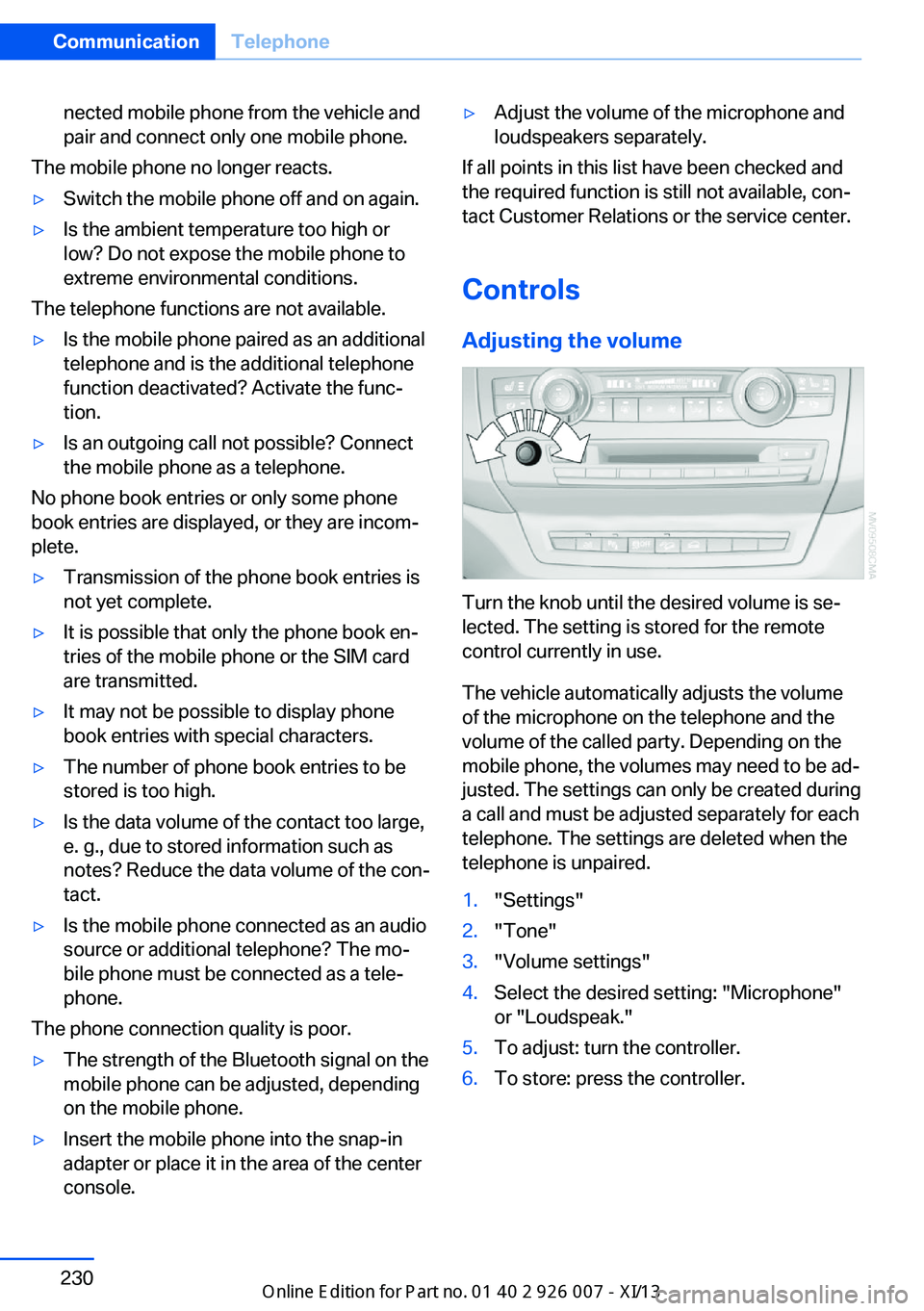
Controls
Adjusting the volume
Turn the knob until the desired volume is se‐
lected. The setting is stored for the remote
control currently in use.
The vehicle automatically adjusts the volume
of the microphone on the telephone and the
volume of the called party. Depending on the
mobile phone, the volumes may need to be ad‐
justed. The settings can only be created during
a call and must be adjusted separately for each
telephone. The settings are deleted when the
telephone is unpaired.
1."Settings"2."Tone"3."Volume settings"4.Select the desired setting: "Microphone"
or "Loudspeak."5.To adjust: turn the controller.6.To store: press the controller.Seite 230CommunicationTelephone230
Online Edition for Part no. 01 40 2 910 876 - VII/13
Page 251 of 327
▷Depending on the number of stored ap‐
pointments, task notes, and messages in
the mobile phone, not all are displayed in
the vehicle.
Not all appointments and tasks from the mo‐
bile phone are displayed at the right time?
▷The time zone, time, or date is incorrectly
set on the Control Display and mobile
phone.
The e-mail attachment is not displayed.
▷E-mails are transmitted without an attach‐
ment.
Entries are not displayed in full length.
▷Text were already transmitted from the
mobile phone in a shortened form.▷Synchronization between the mobile
phone and vehicle may take several mi‐
nutes.
The contact pictures are not being displayed?
▷Up to 200 contact pictures can be stored in
the vehicle.
The E-mail is displayed with a delay?
▷Check the e-mail settings on the telephone
and adjust if necessary.
If all points in this list have been checked and
the required function is still not available,
please contact the hotline or service center.
Seite 247OfficeCommunication247
Online Edition for Part no. 01 40 2 910 876 - VII/13
Page 253 of 327
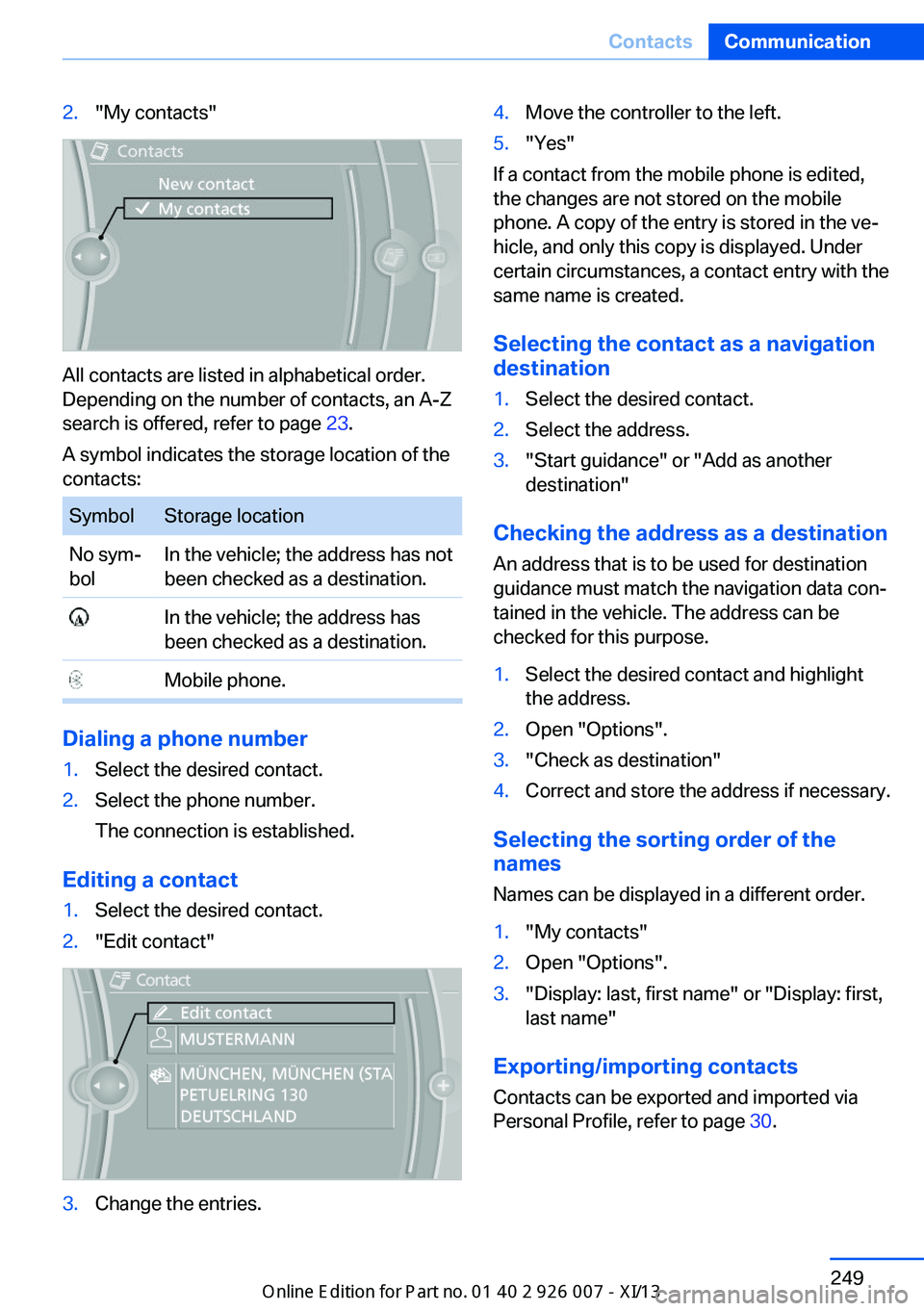
2."My contacts"
All contacts are listed in alphabetical order.
Depending on the number of contacts, an A-Z
search is offered, refer to page 23.
A symbol indicates the storage location of the
contacts:
SymbolStorage locationNo sym‐
bolIn the vehicle; the address has not
been checked as a destination. In the vehicle; the address has
been checked as a destination. Mobile phone.
Dialing a phone number
1.Select the desired contact.2.Select the phone number.
The connection is established.
Editing a contact
1.Select the desired contact.2."Edit contact"3.Change the entries.4.Move the controller to the left.5."Yes"
If a contact from the mobile phone is edited,
the changes are not stored on the mobile
phone. A copy of the entry is stored in the ve‐
hicle, and only this copy is displayed. Under
certain circumstances, a contact entry with the
same name is created.
Selecting the contact as a navigation
destination
1.Select the desired contact.2.Select the address.3."Start guidance" or "Add as another
destination"
Checking the address as a destination
An address that is to be used for destination
guidance must match the navigation data con‐
tained in the vehicle. The address can be
checked for this purpose.
1.Select the desired contact and highlight
the address.2.Open "Options".3."Check as destination"4.Correct and store the address if necessary.
Selecting the sorting order of the
names
Names can be displayed in a different order.
1."My contacts"2.Open "Options".3."Display: last, first name" or "Display: first,
last name"
Exporting/importing contacts
Contacts can be exported and imported via
Personal Profile, refer to page 30.
Seite 249ContactsCommunication249
Online Edition for Part no. 01 40 2 910 876 - VII/13
Page 256 of 327
Roadside Assistance
At a glance BMW Roadside Assistance can be contacted if
assistance is needed in the event of a break‐ down.
Roadside Assistance can also be contacted via
a Check Control message, refer to page 76.
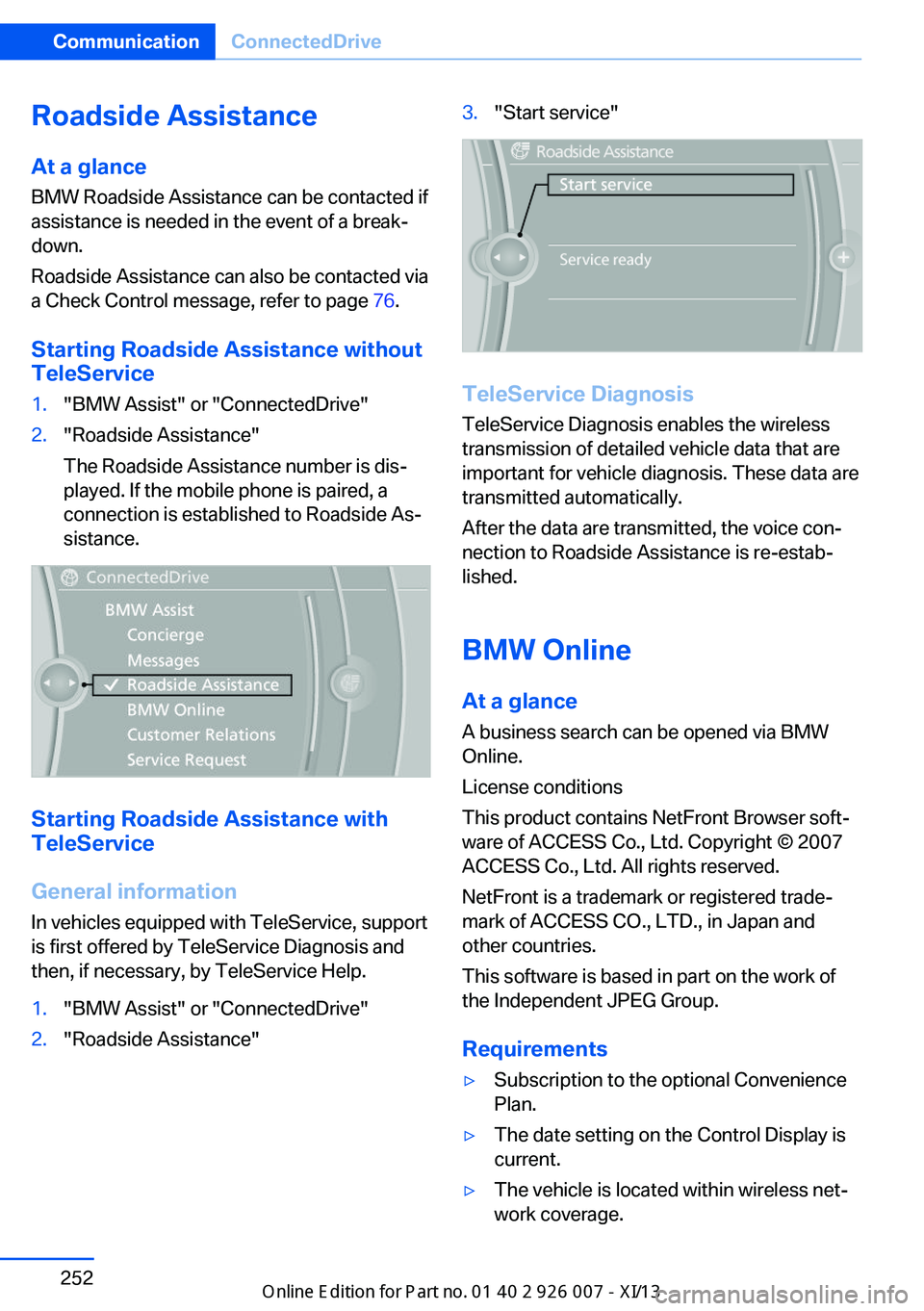
Starting Roadside Assistance without
TeleService1."BMW Assist" or "ConnectedDrive"2."Roadside Assistance"
The Roadside Assistance number is dis‐
played. If the mobile phone is paired, a
connection is established to Roadside As‐
sistance.
Starting Roadside Assistance with
TeleService
General information
In vehicles equipped with TeleService, support
is first offered by TeleService Diagnosis and
then, if necessary, by TeleService Help.
1."BMW Assist" or "ConnectedDrive"2."Roadside Assistance"3."Start service"
TeleService Diagnosis
TeleService Diagnosis enables the wireless
transmission of detailed vehicle data that are
important for vehicle diagnosis. These data are
transmitted automatically.
After the data are transmitted, the voice con‐
nection to Roadside Assistance is re-estab‐
lished.
BMW Online
At a glance
A business search can be opened via BMW
Online.
License conditions
This product contains NetFront Browser soft‐
ware of ACCESS Co., Ltd. Copyright © 2007
ACCESS Co., Ltd. All rights reserved.
NetFront is a trademark or registered trade‐
mark of ACCESS CO., LTD., in Japan and
other countries.
This software is based in part on the work of
the Independent JPEG Group.
Requirements
▷Subscription to the optional Convenience
Plan.▷The date setting on the Control Display is
current.▷The vehicle is located within wireless net‐
work coverage.Seite 252CommunicationConnectedDrive252
Online Edition for Part no. 01 40 2 910 876 - VII/13